New article
Recently updated
Adding Users in Ideagen Maritime Health Provider

Who is this article for?Users who want to learn how to add users in Ideagen Maritime Health Provider.
No elevated permissions are required.
This guide provides detailed instructions for adding users in Ideagen Maritime Health Provider. By following the outlined steps, you will not only learn how to add new users but also understand the various roles and permissions that can be assigned to each user, ensuring that everyone has the appropriate access to the tools and information they require.
1. Adding users in Ideagen Maritime Health provider
1.1. Video
1.2. Steps
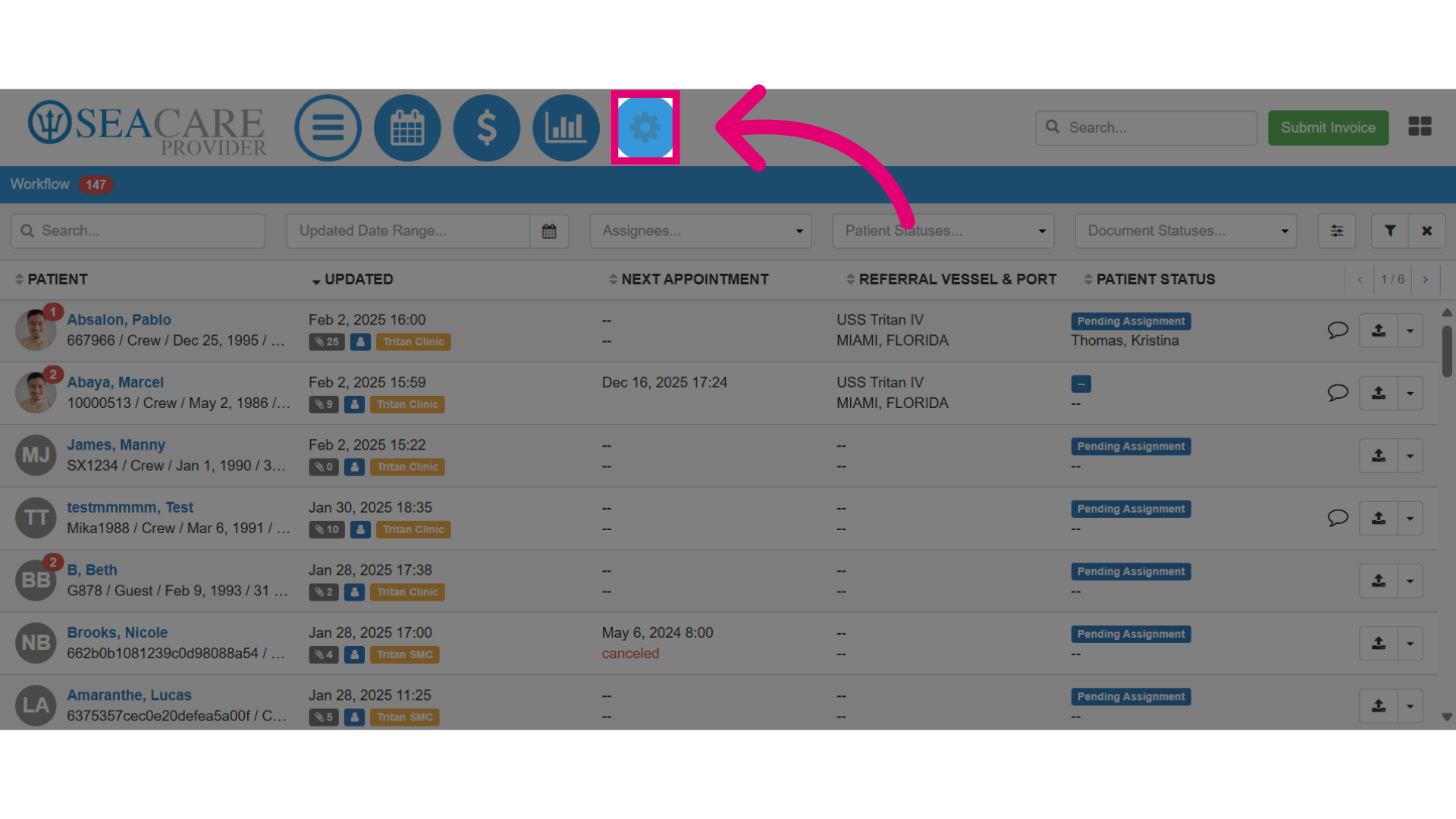
- Start by going to and selecting the Admin Settings section.
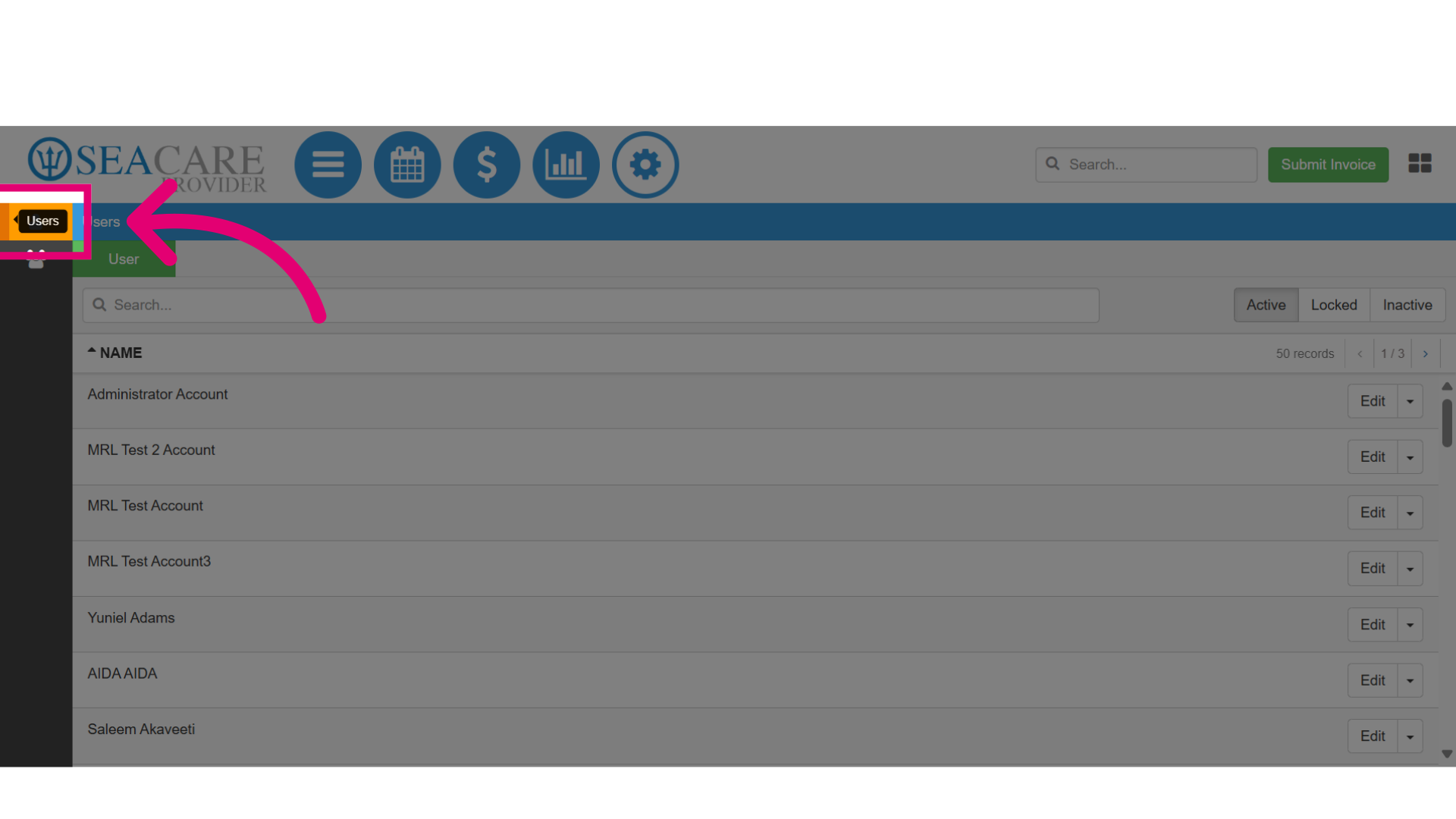
- Then, select the Users section.
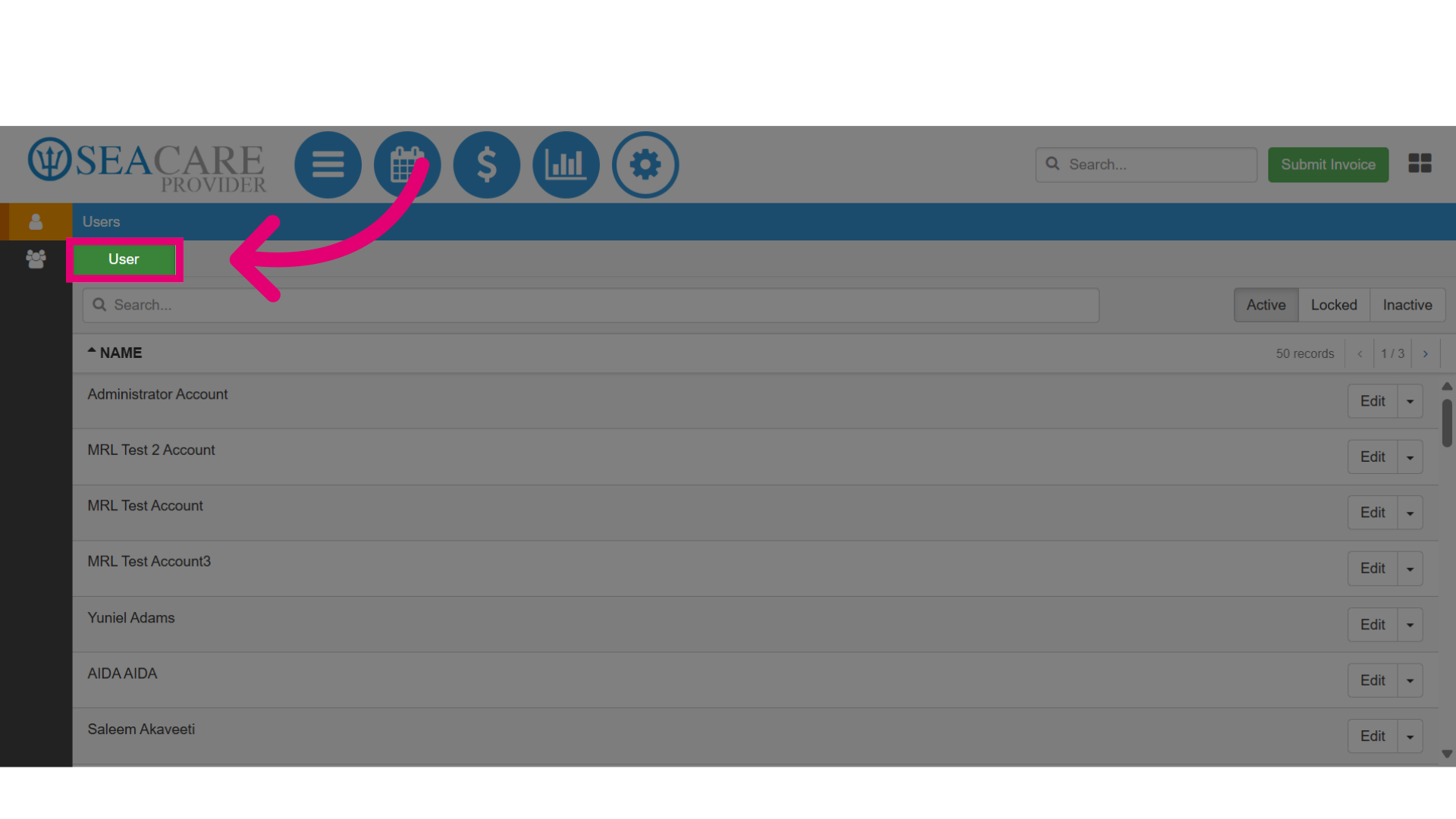
- Click on the green User button.
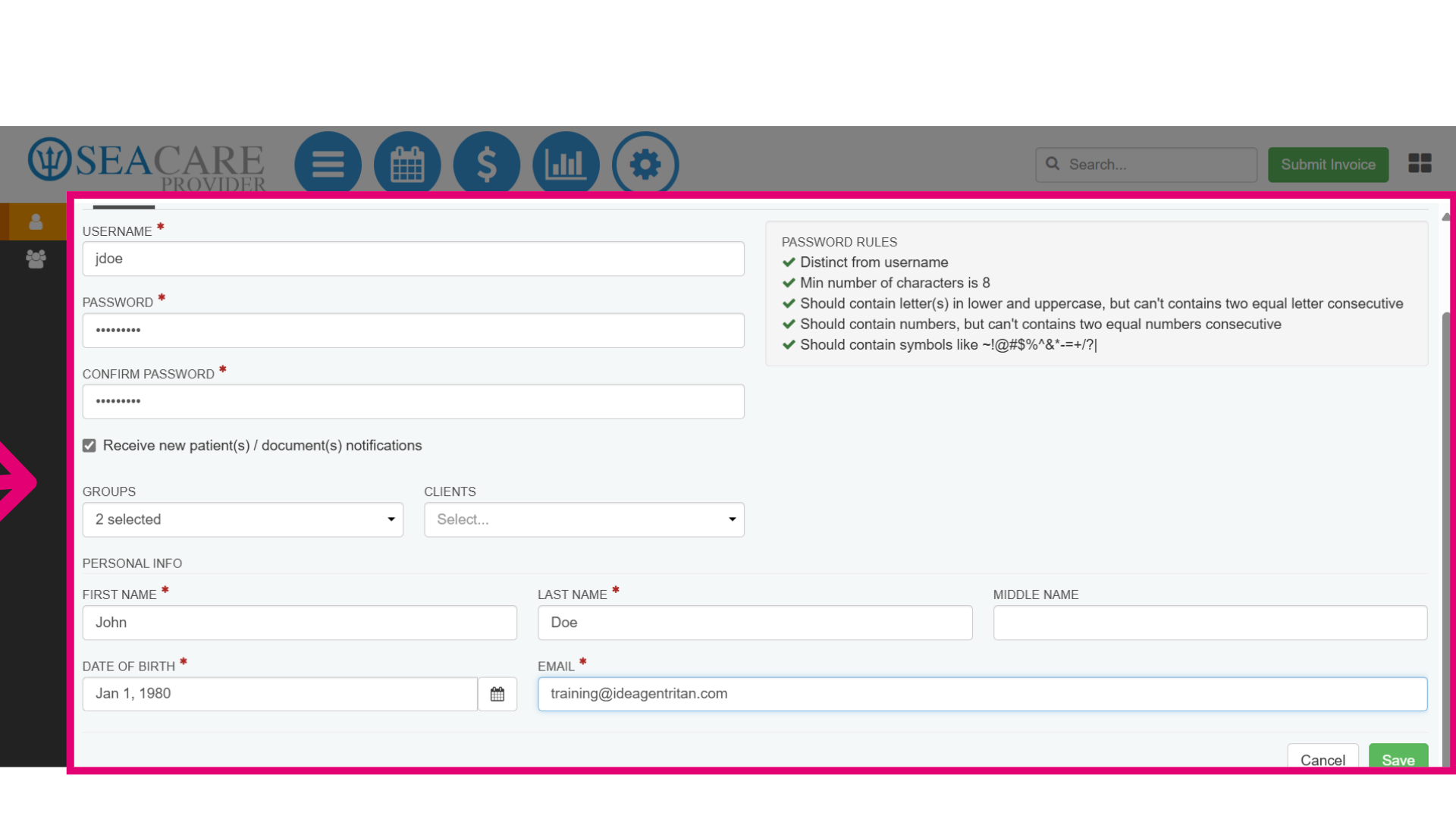
- This opens up the new user section to enter the user information including:
- Username
- Password
- Checkbox to receive new patient document notifications by email
- Choose group(s)
- Select clients to have access to
- Clients they will have access to
- Name
- Date of birth
- Email address
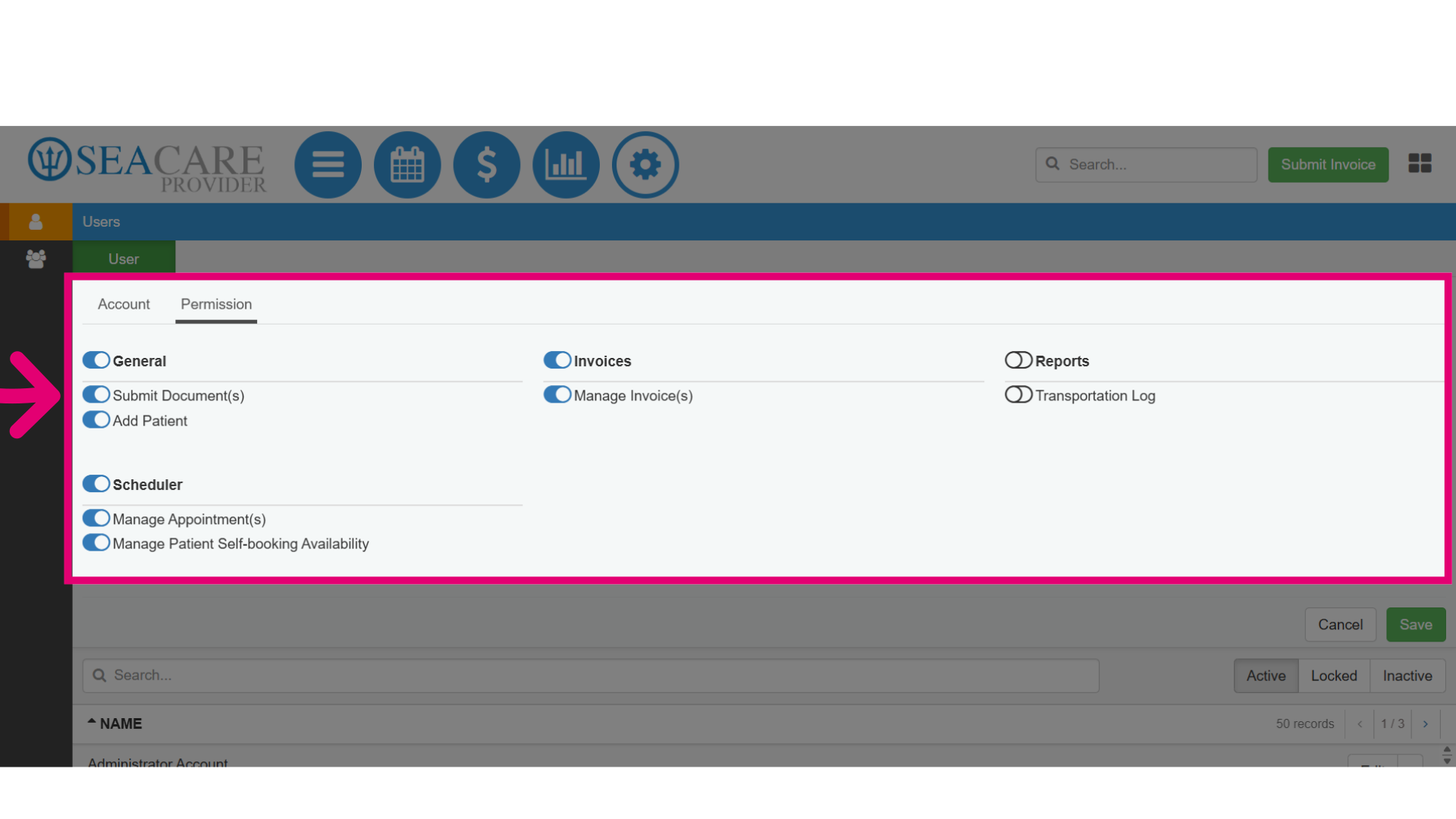
- Ensure the user has the appropriate permissions and access by following these steps by toggling specific permissions to grant access to certain functionalities, such as:
- General - Which allows users to submit documents and add patients
- Invoices - Gives the user access to submit invoices
- Reports - Gives the user permission to access reports
- Scheduler - Enables the user to edit the scheduler.Toggle off to remove a permission.
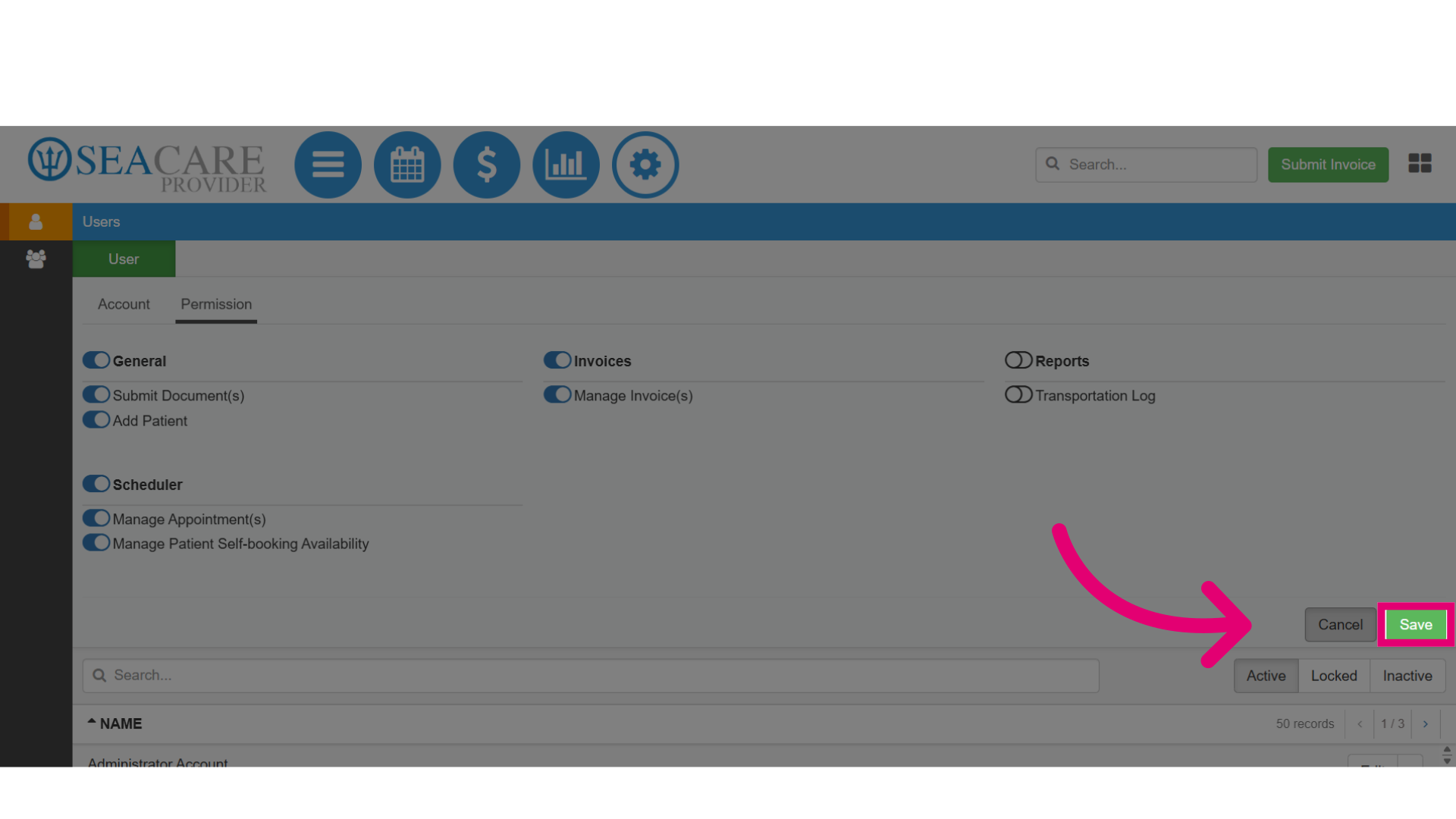
- Then, select Save when you are done to save the user information and assigned permissions.
- Once the user is created, the user will be available in this list:
- Use the Search field to easily locate the user at any time
- Make modifications by selecting the Edit option
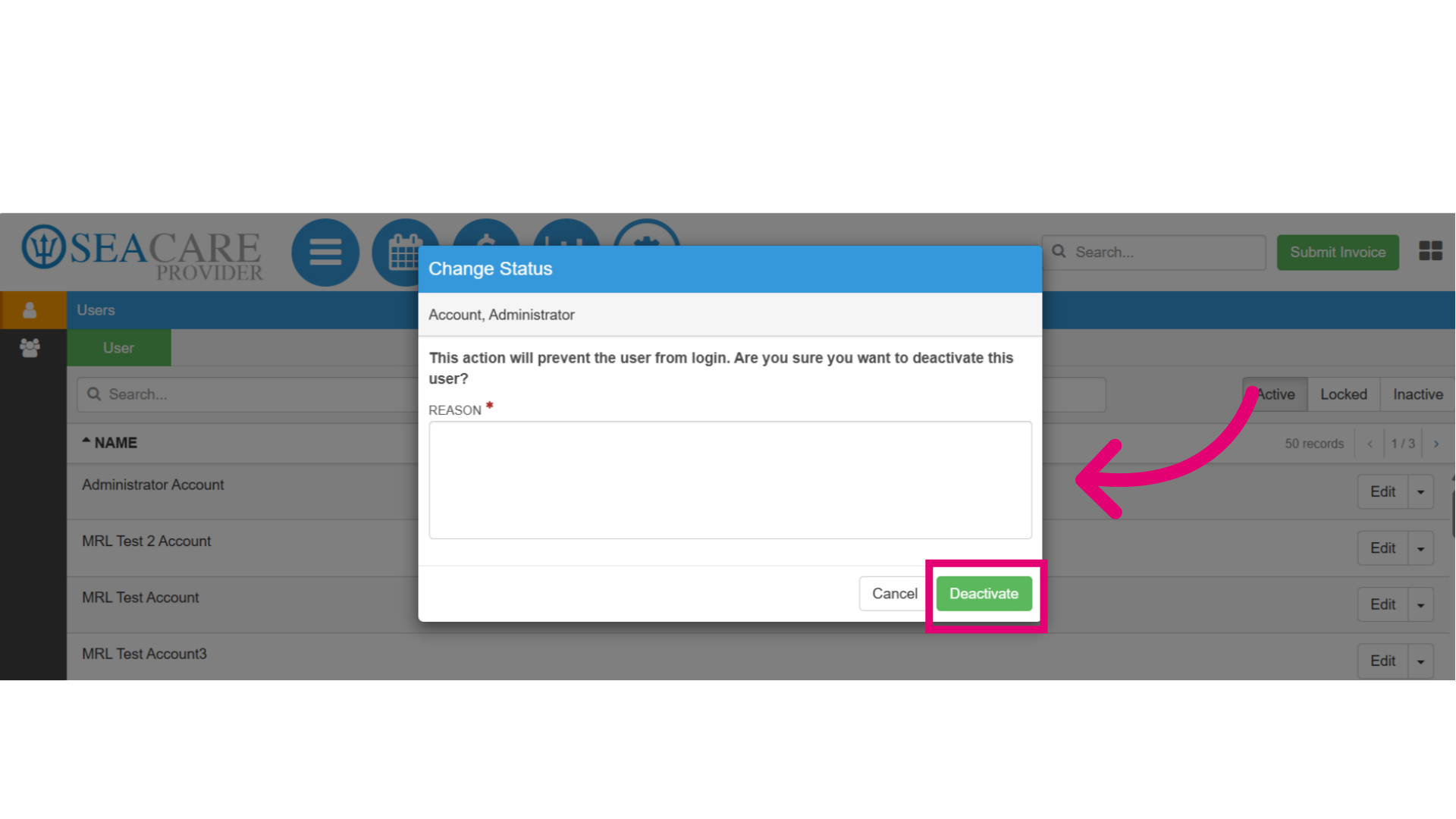
- Make the user inactive by selecting the Deactivate option
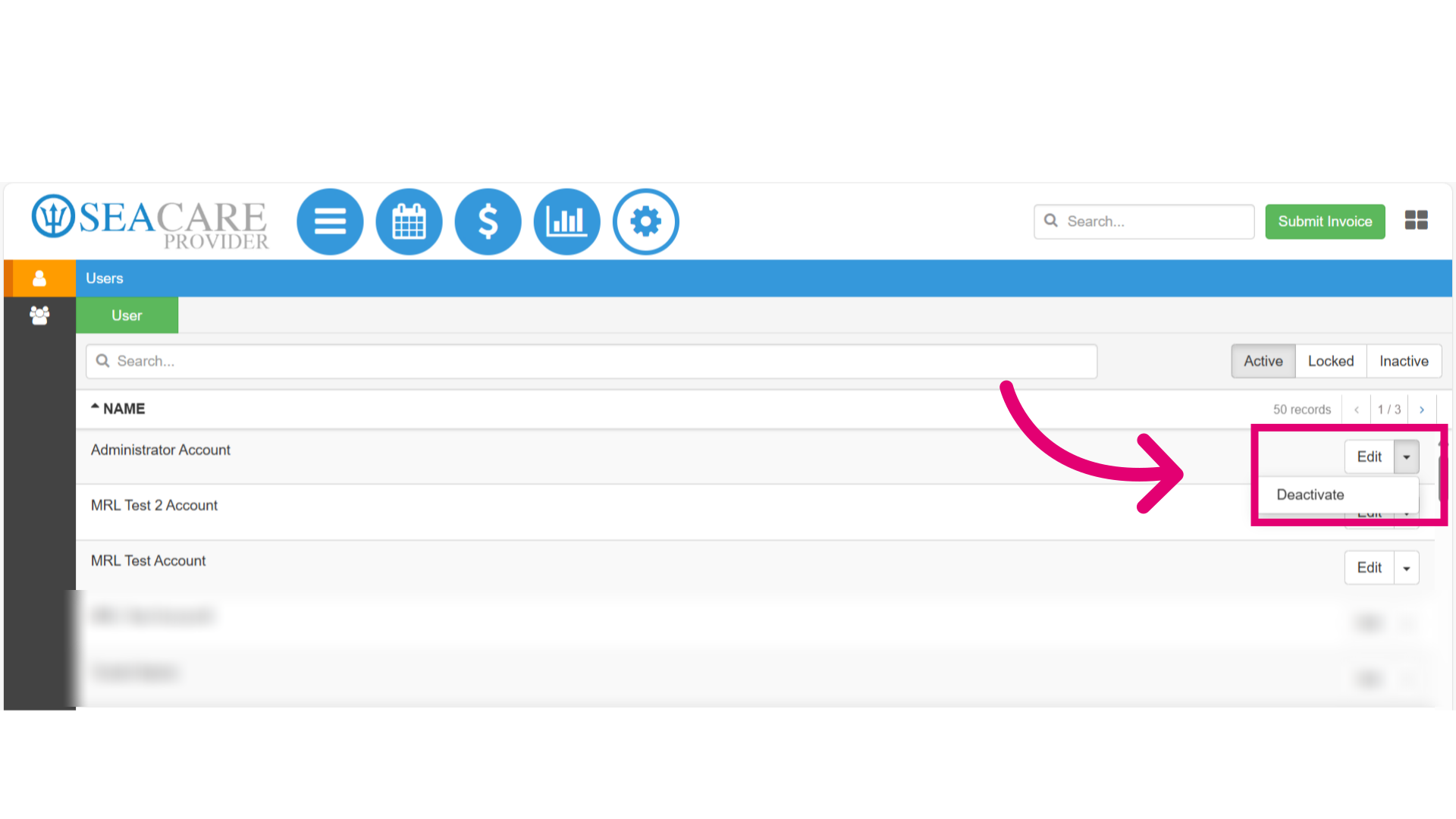
- For deactivating, add a reason for deactivating that user then select Deactivate.