New article
Recently updated
Enrolling patients with the Crew Wellness Population Query

Who is this article for?Users who want to learn how to use population query to enroll patients into crew wellness programs.
No elevated permissions are required.
These instructions will guide you through querying the population to enroll patients in a Crew Wellness program within the Crew Wellness Module in Ideagen Maritime Health Onboard.
1. Enrolling patients using query
To enroll patients:
- Go to the Enroll tab.
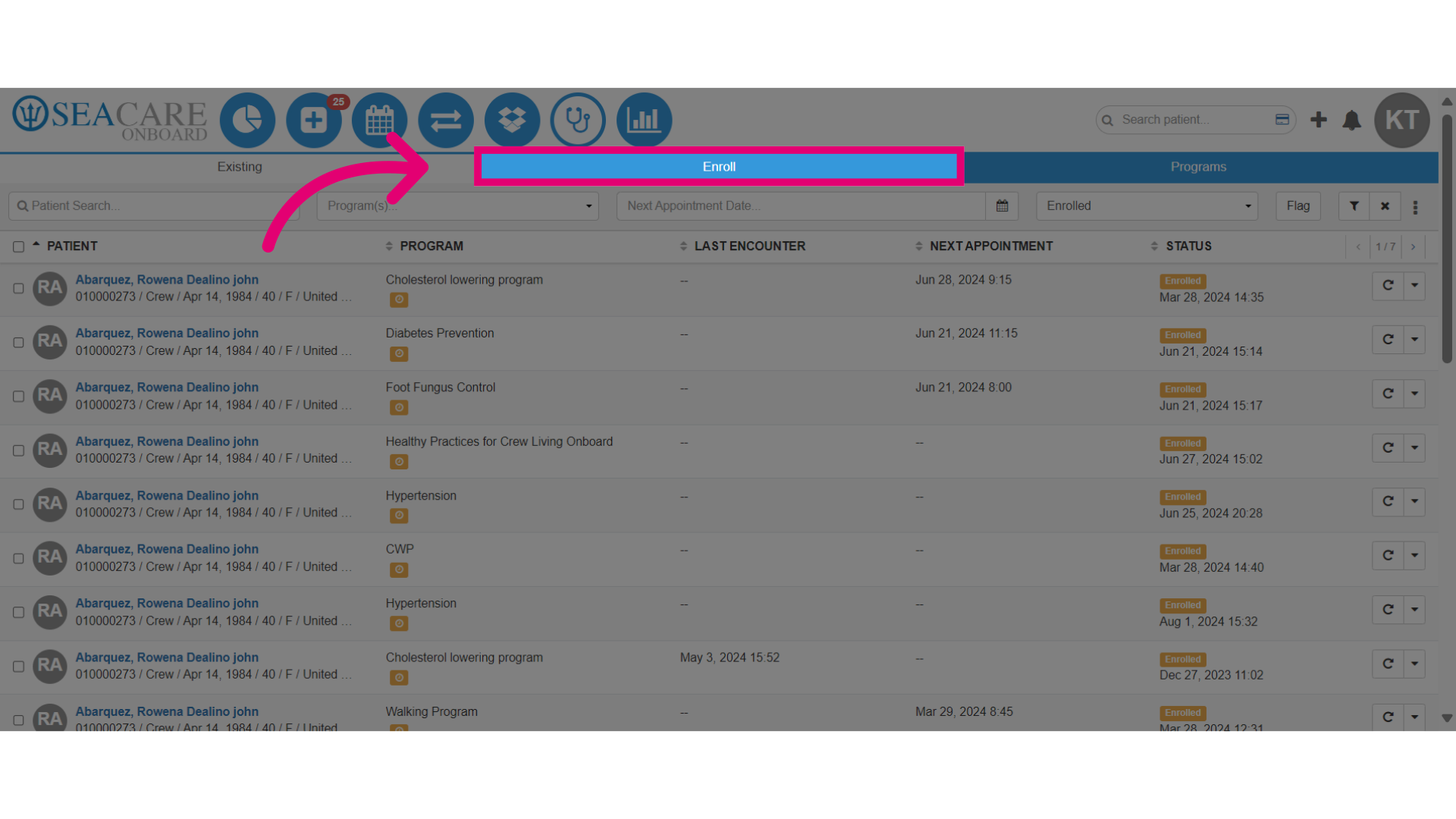
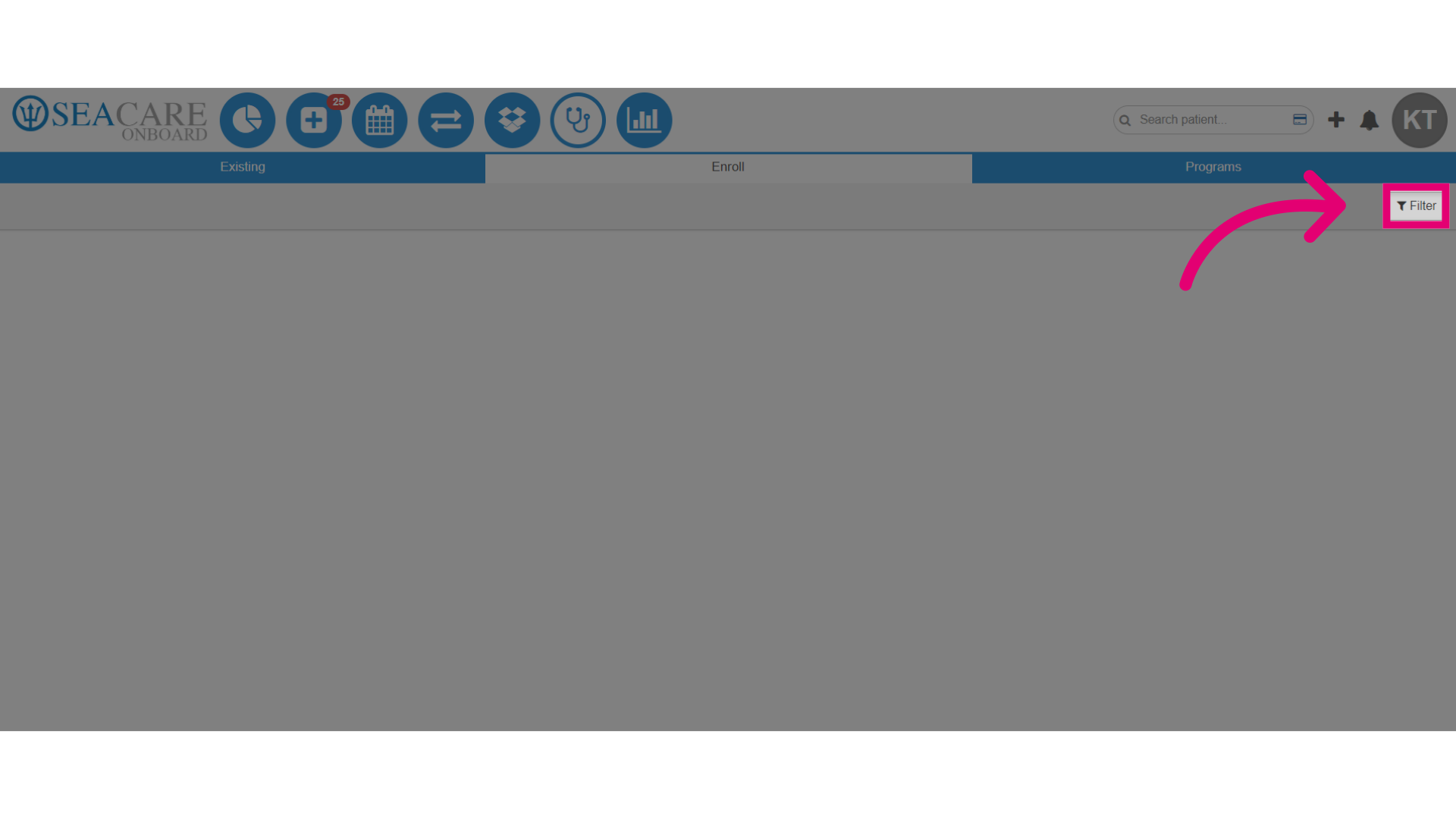
- Then, select the Filter button.
- In the Filter window, you can query the population of crew members by using filters to set specific parameters.
This will generate a list of crew members that meet criteria such as age, gender, or medical conditions. You can then enroll crew members from the list into suitable programs.
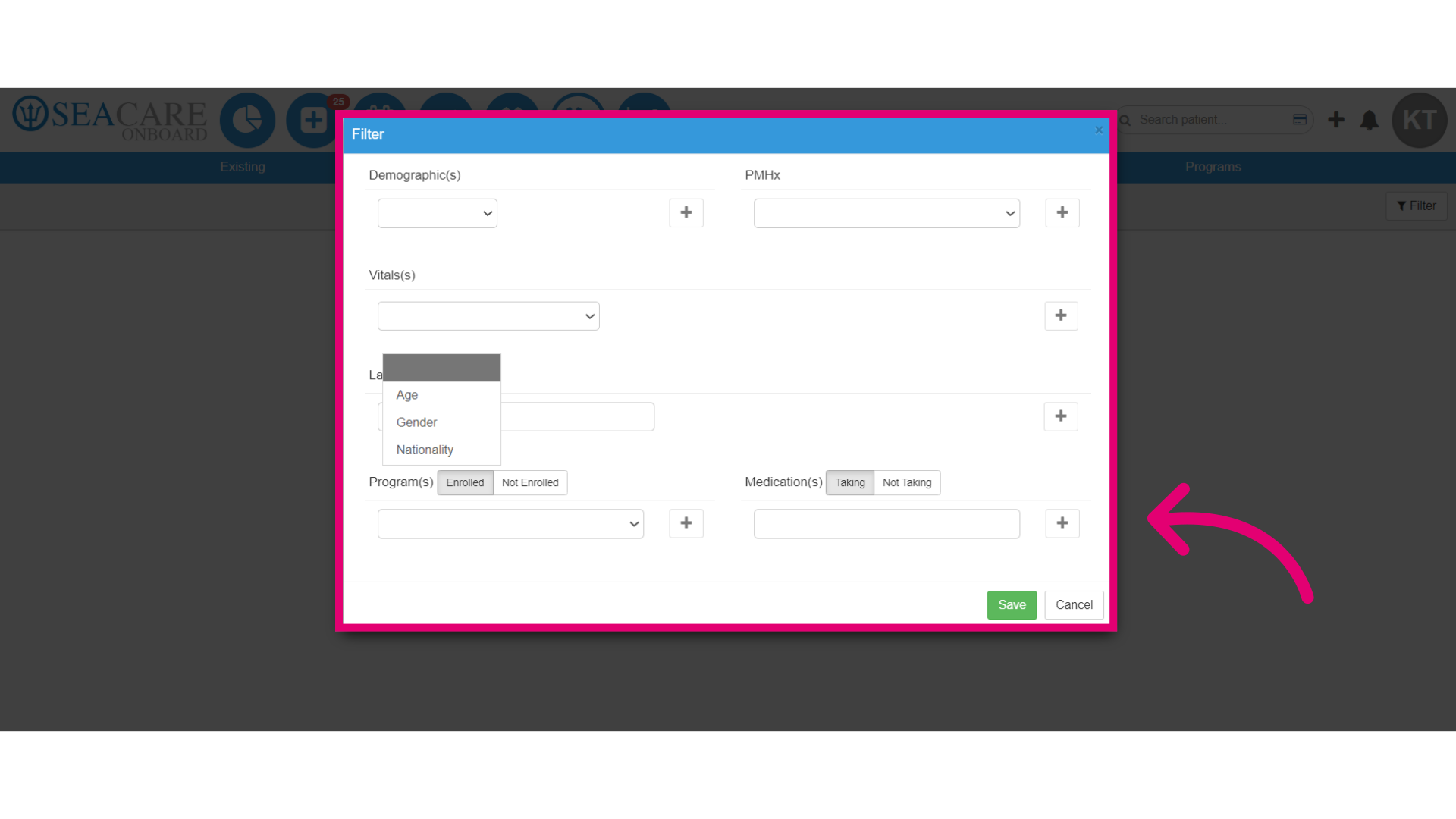
- Add filters under Demographics to target specific gender, age group, etc., or use Past Medical History (PMHx) to filter crew members with certain conditions like diabetes or hypertension.
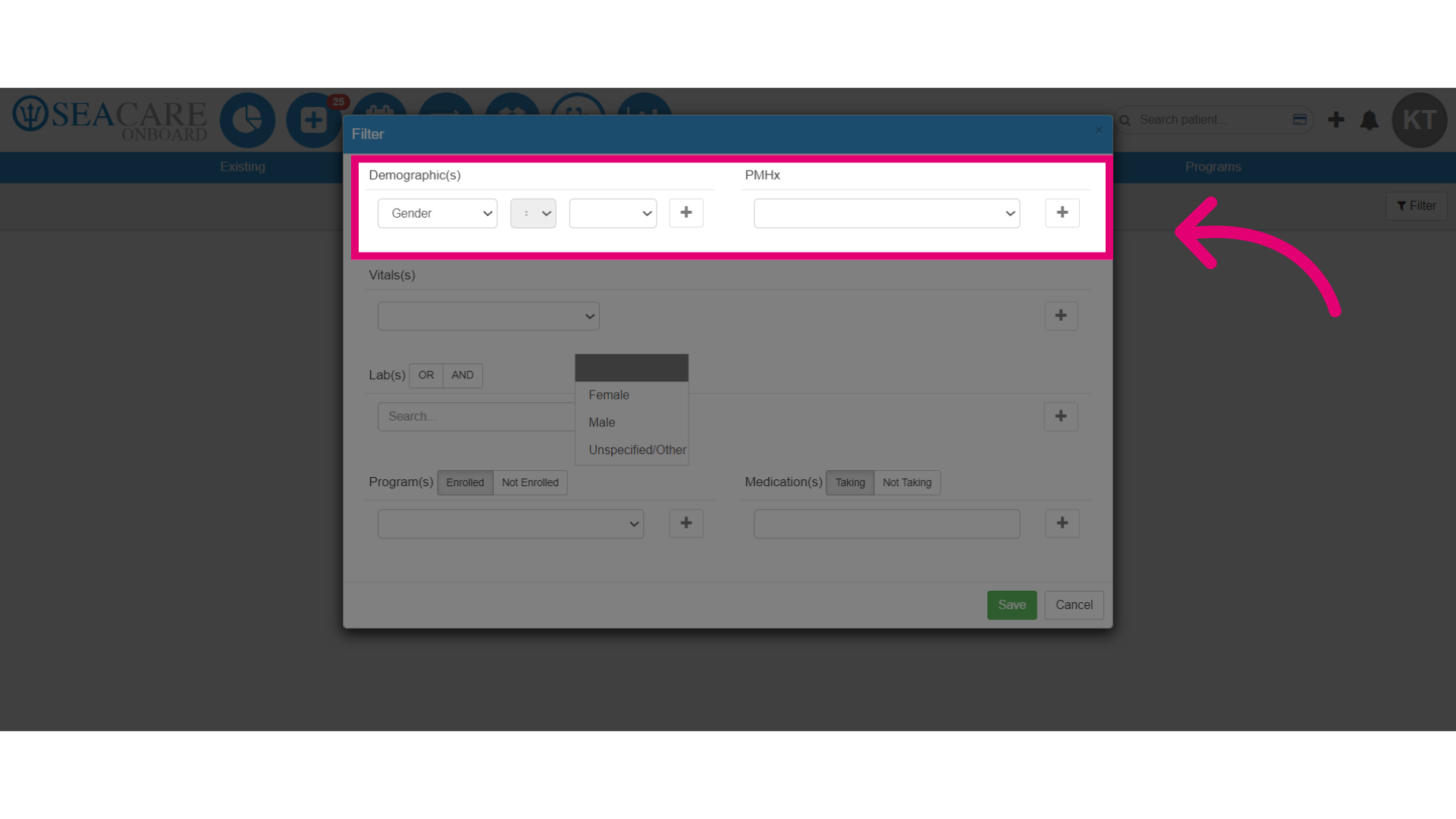
- Select the Plus icon (+) which adds the criteria. Do this for Demographics and PMHx.
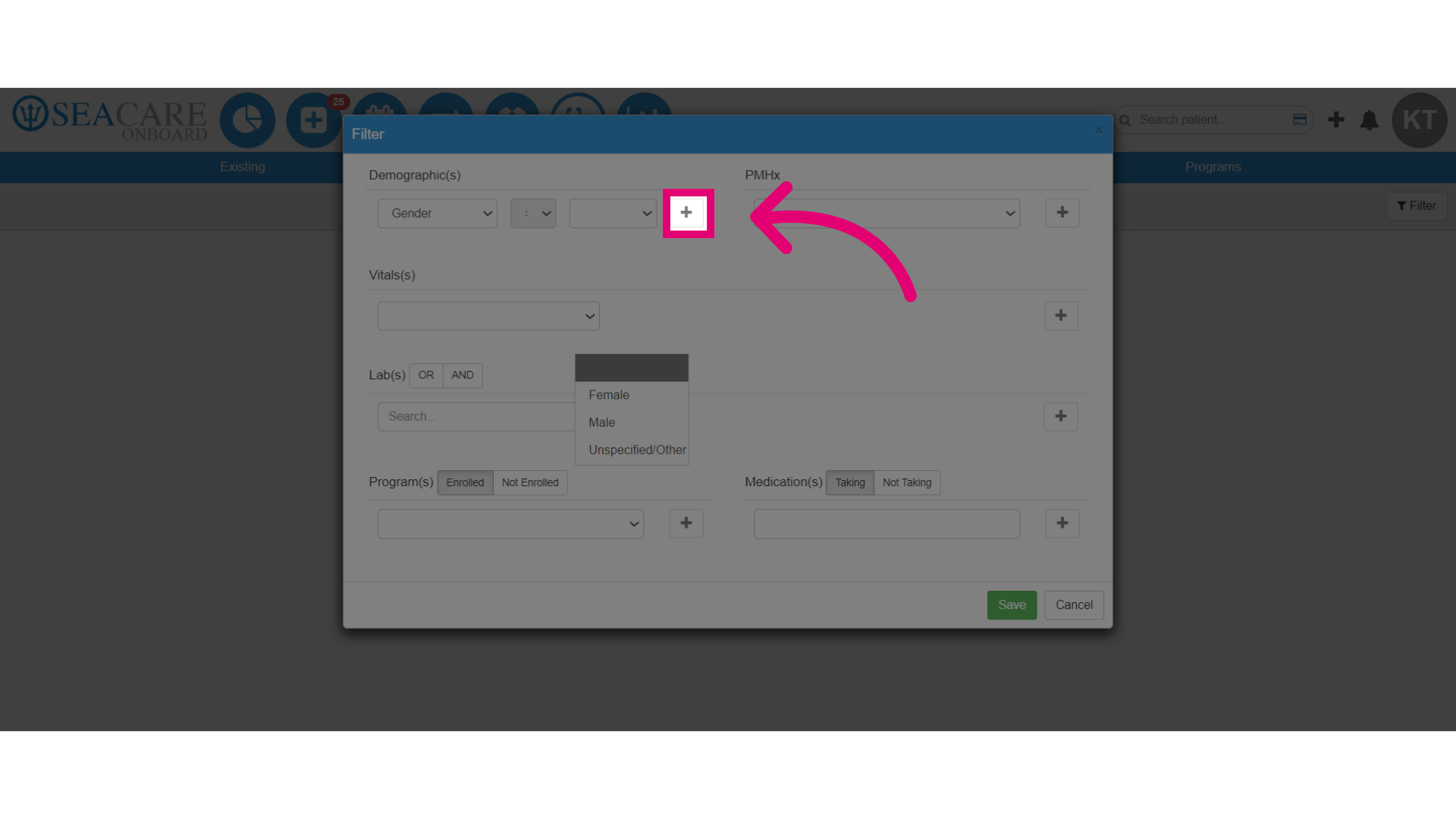
- Specify if patient's Vital(s) or other measurements like Heart Rate, Weight, Height, etc.
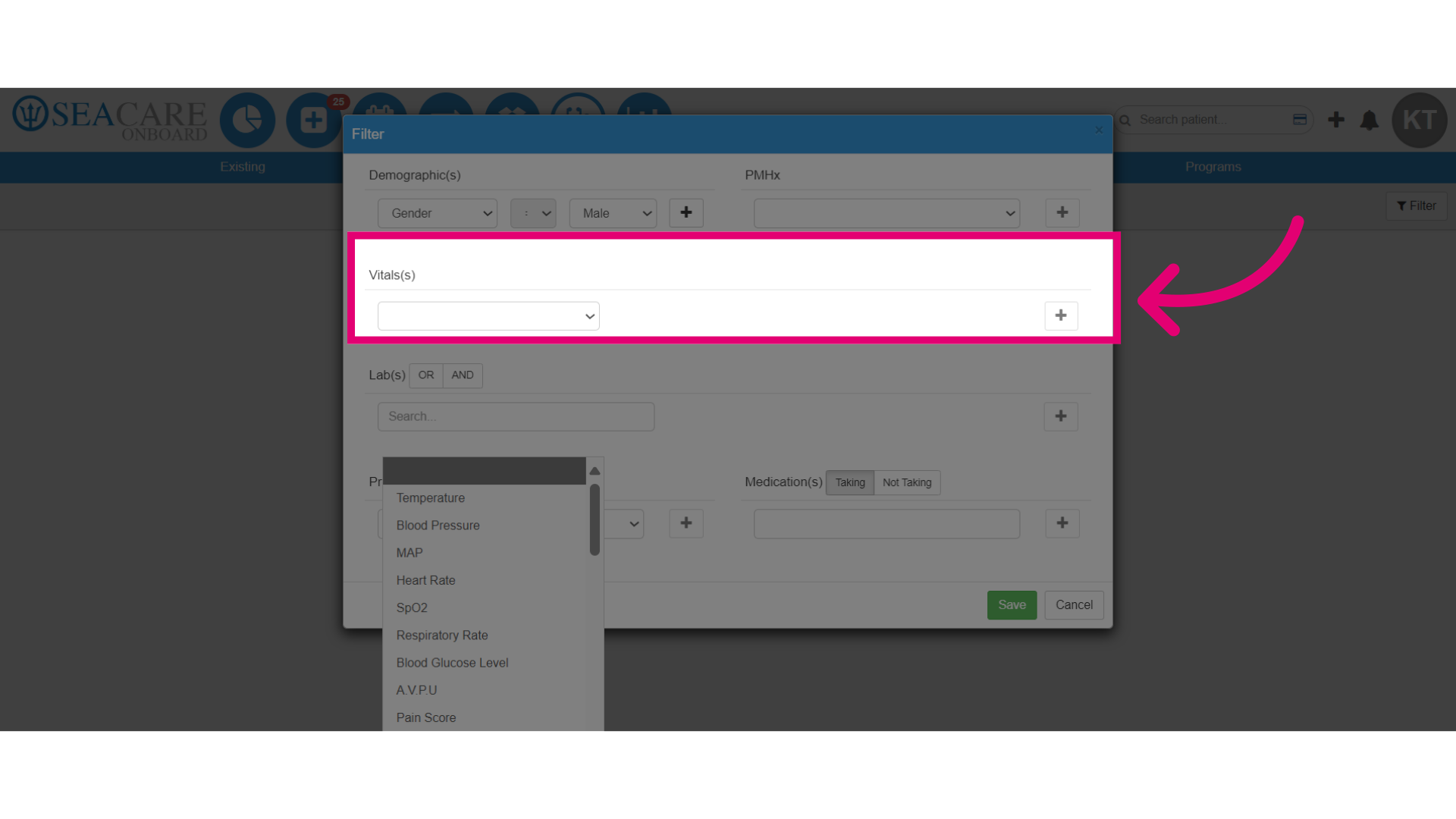
- Add a filter for Labs, use the search field to locate patients who meet specific lab results.
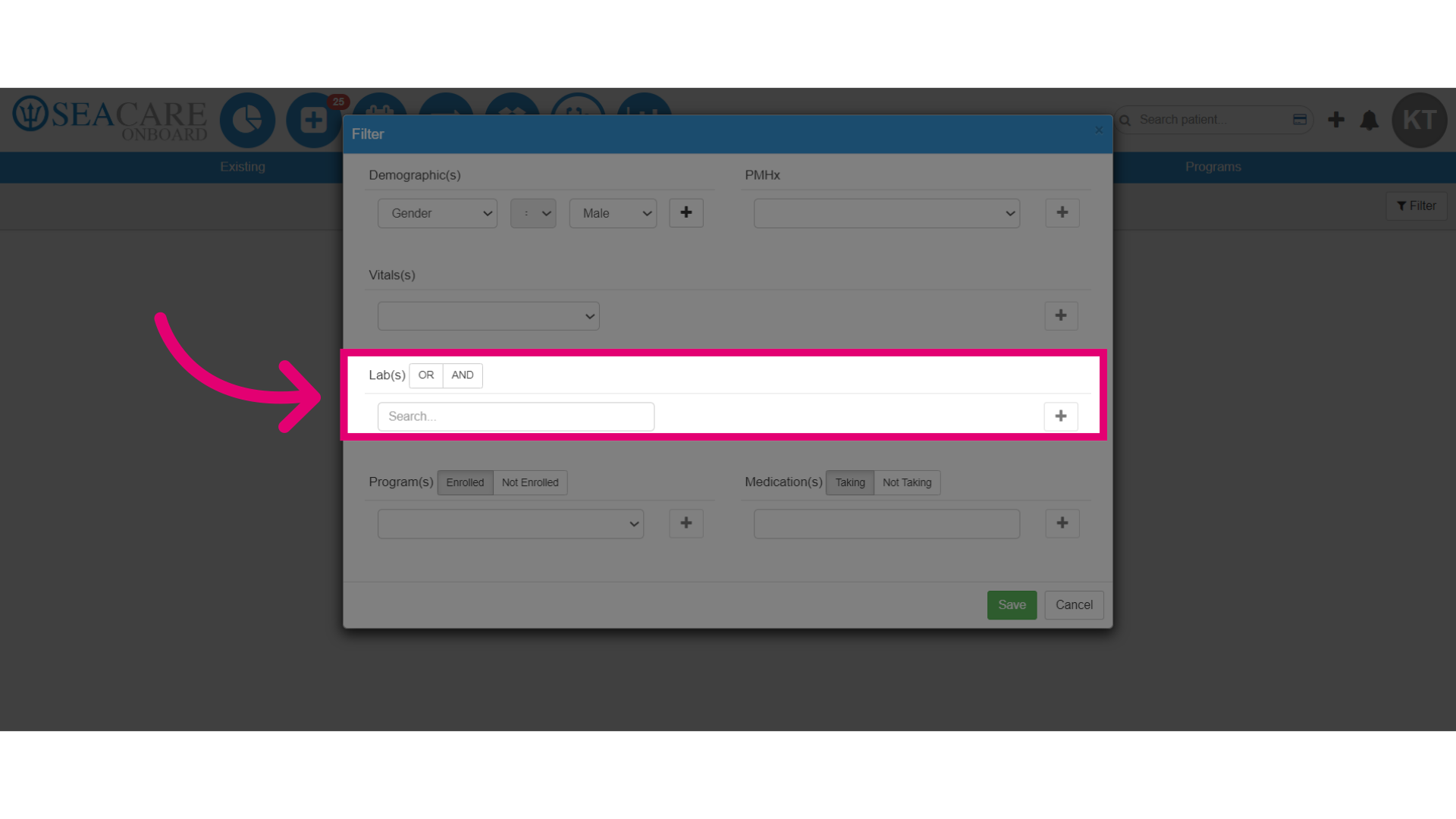
- Choose the enrollment status as either Enrolled or Not Enrolled to search for crew members based on their enrollment in a specific program. You can only choose one.
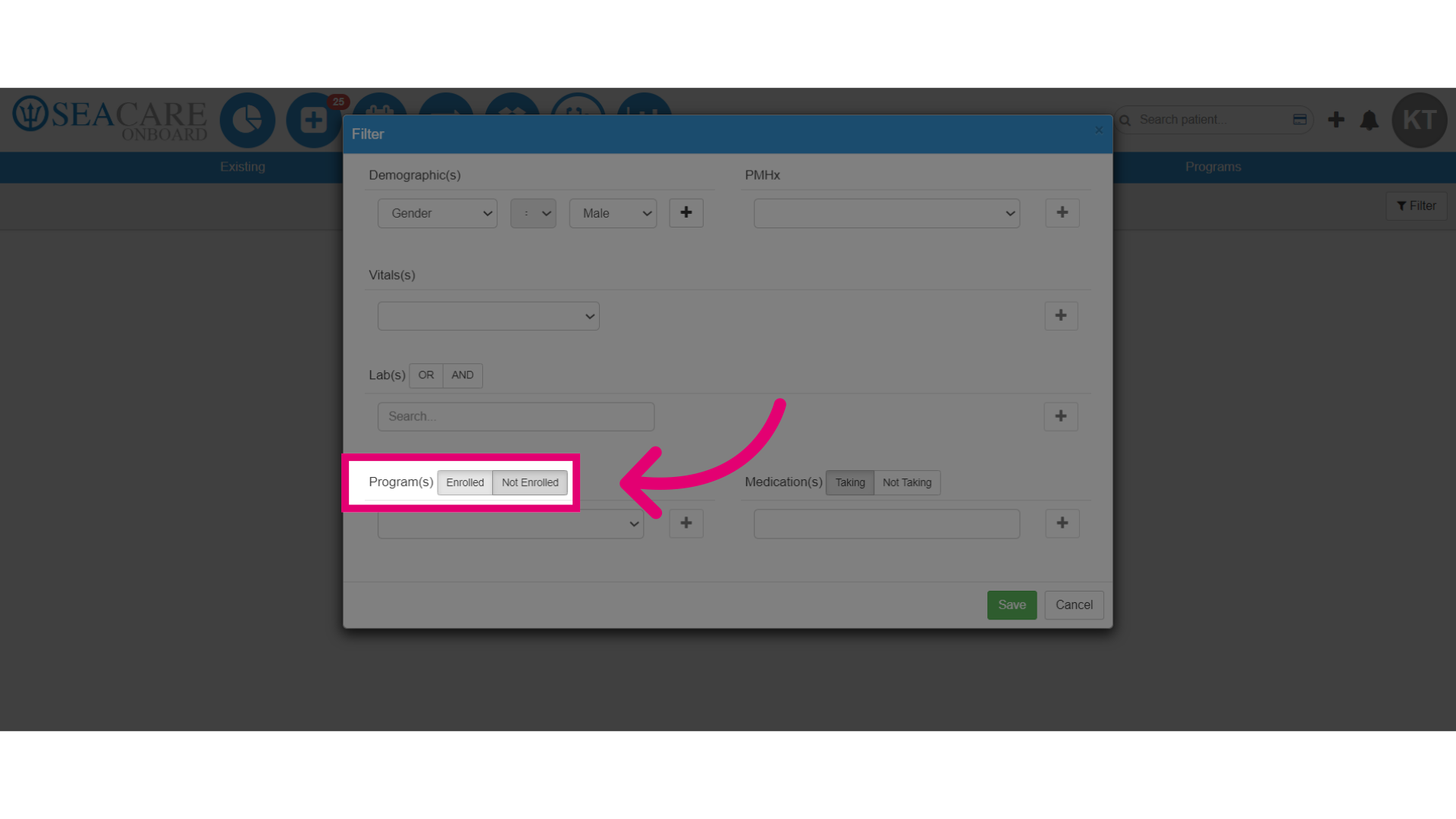
- Finally, select the wellness program for the patient that they are either enrolled in or not enrolled in.
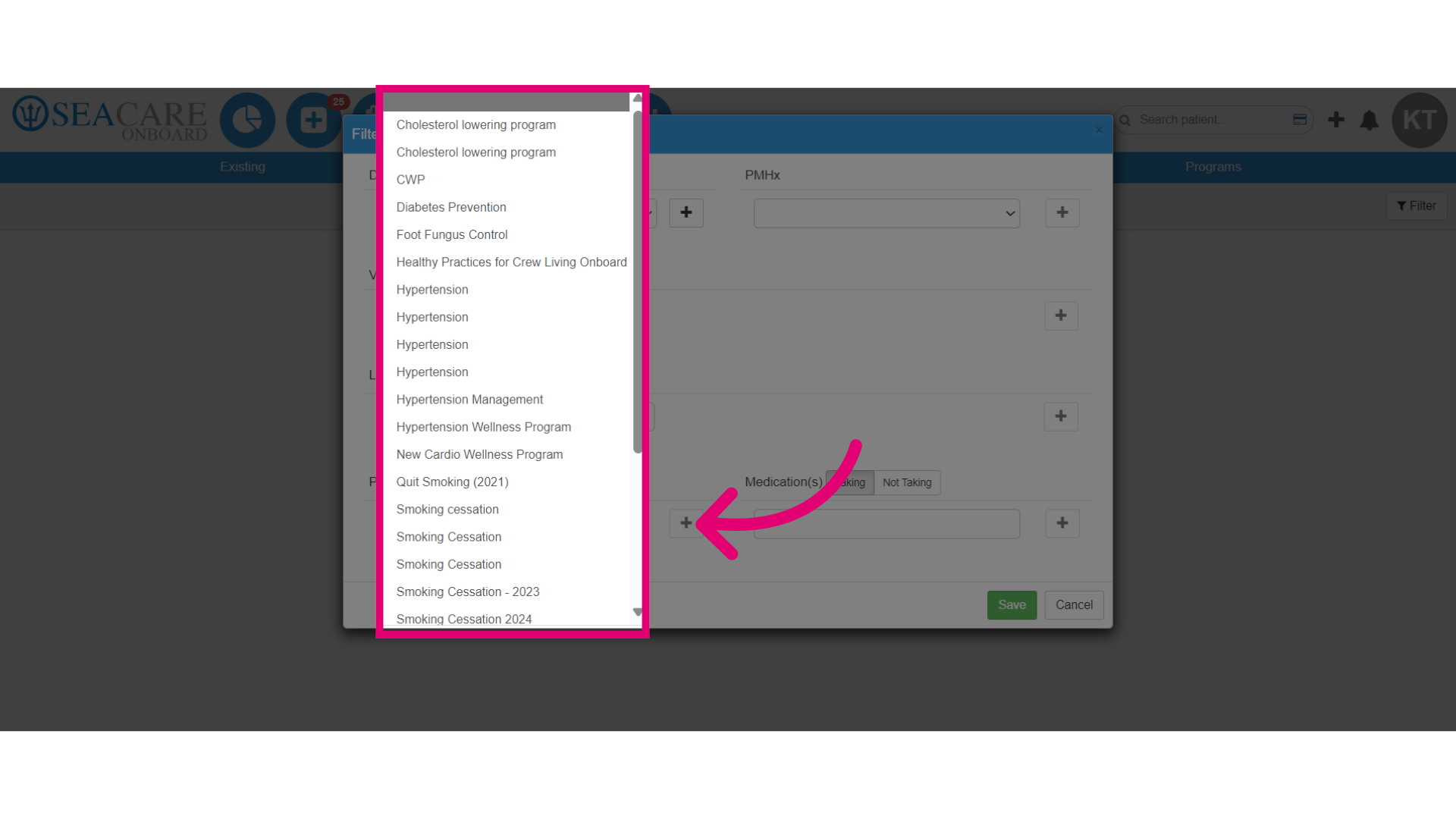
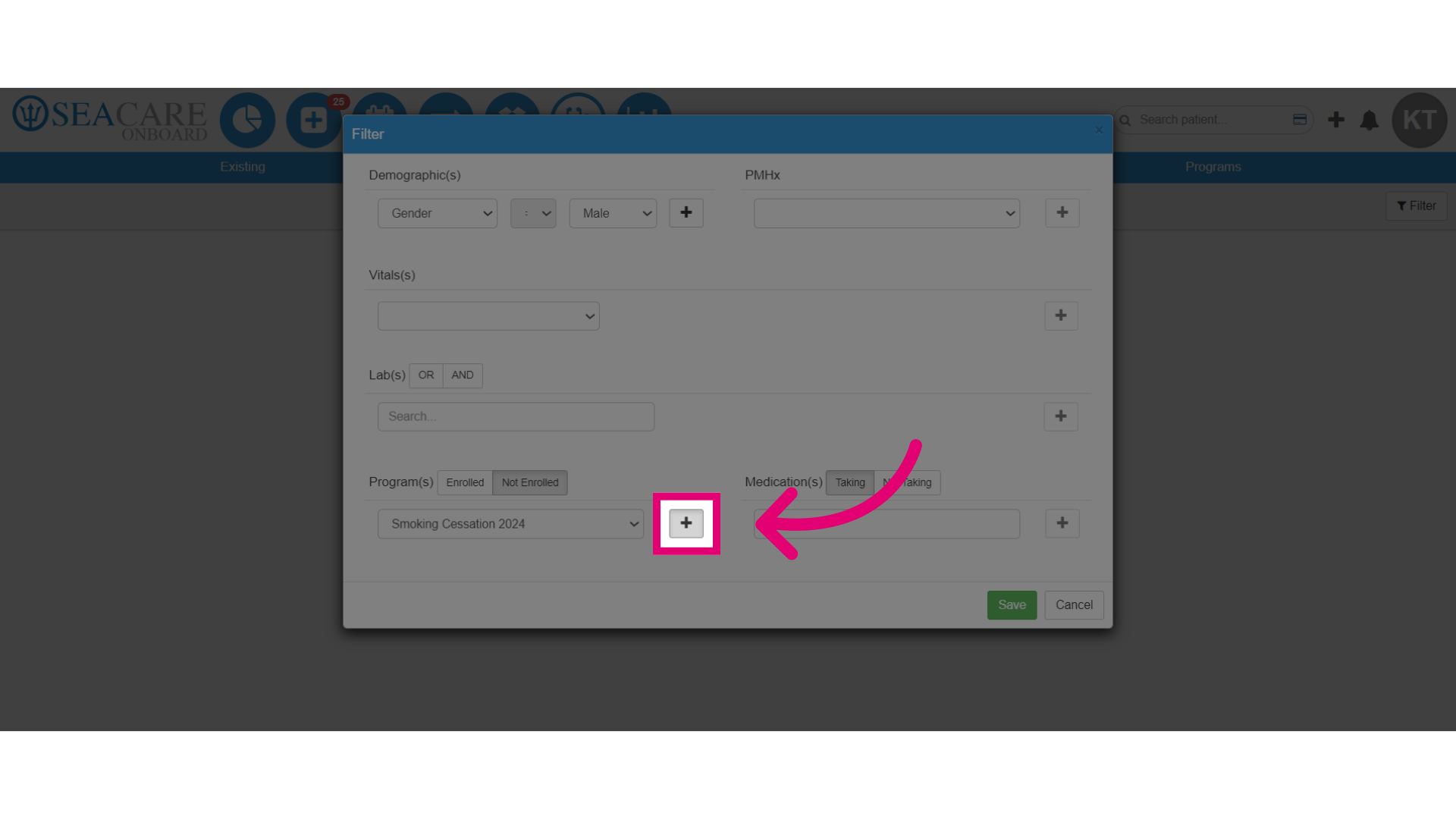
- Select the plus sign (+) to add the criteria.
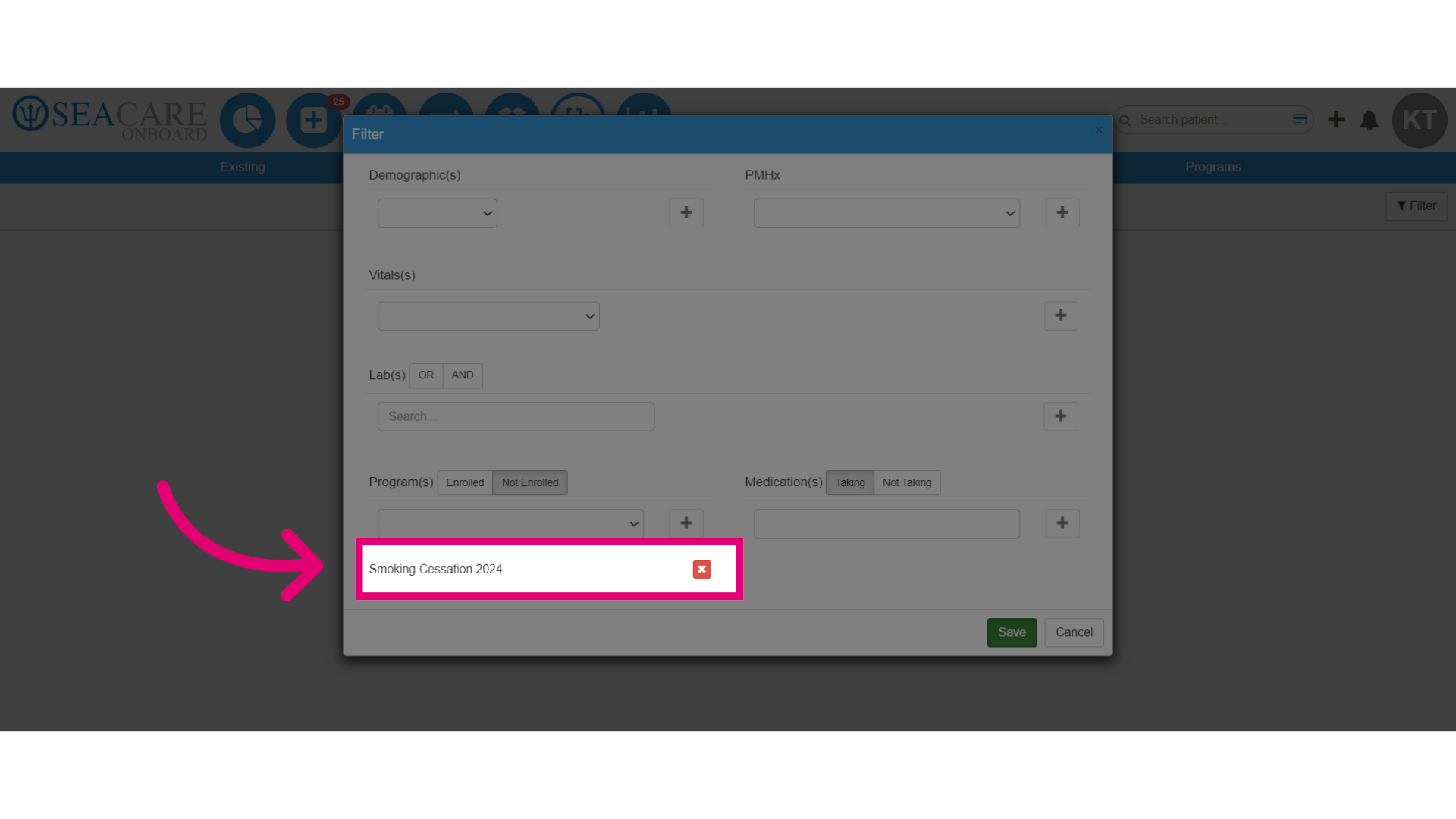
- Ensure the program has been added.
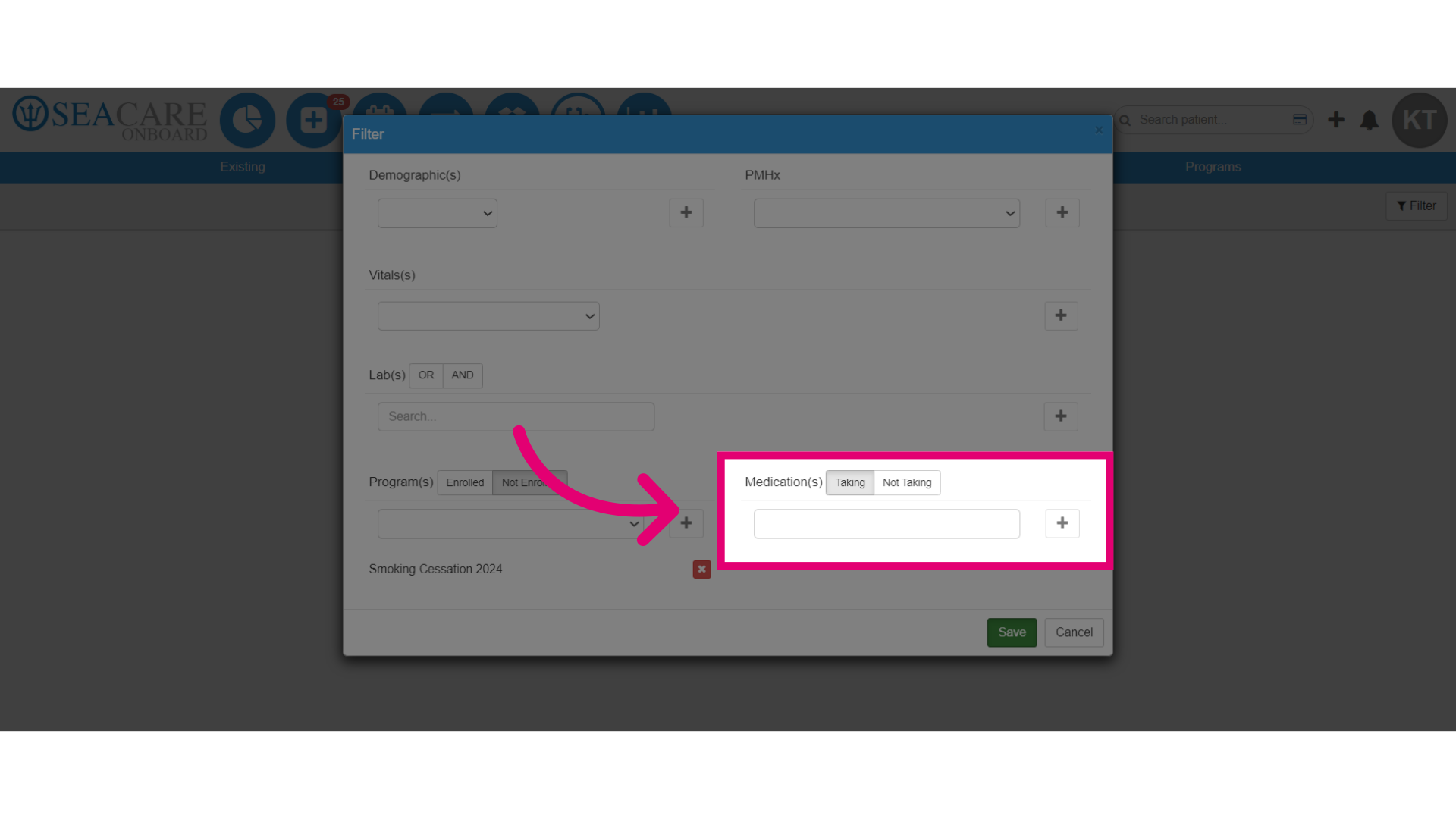
- Specify if the crew will be taking medication. If so, enter the Medication(s) name in the search field.
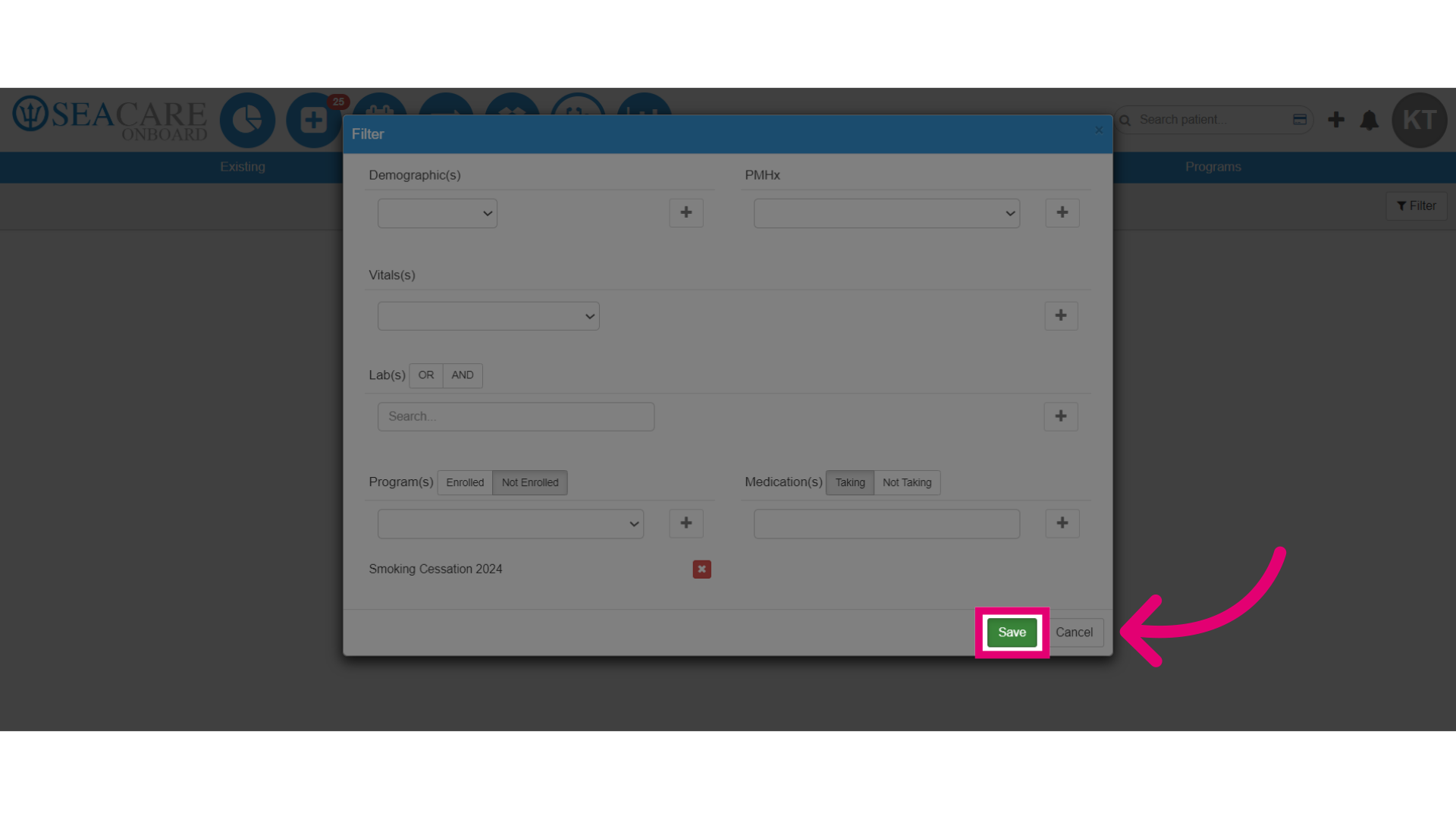
- Save your filters.
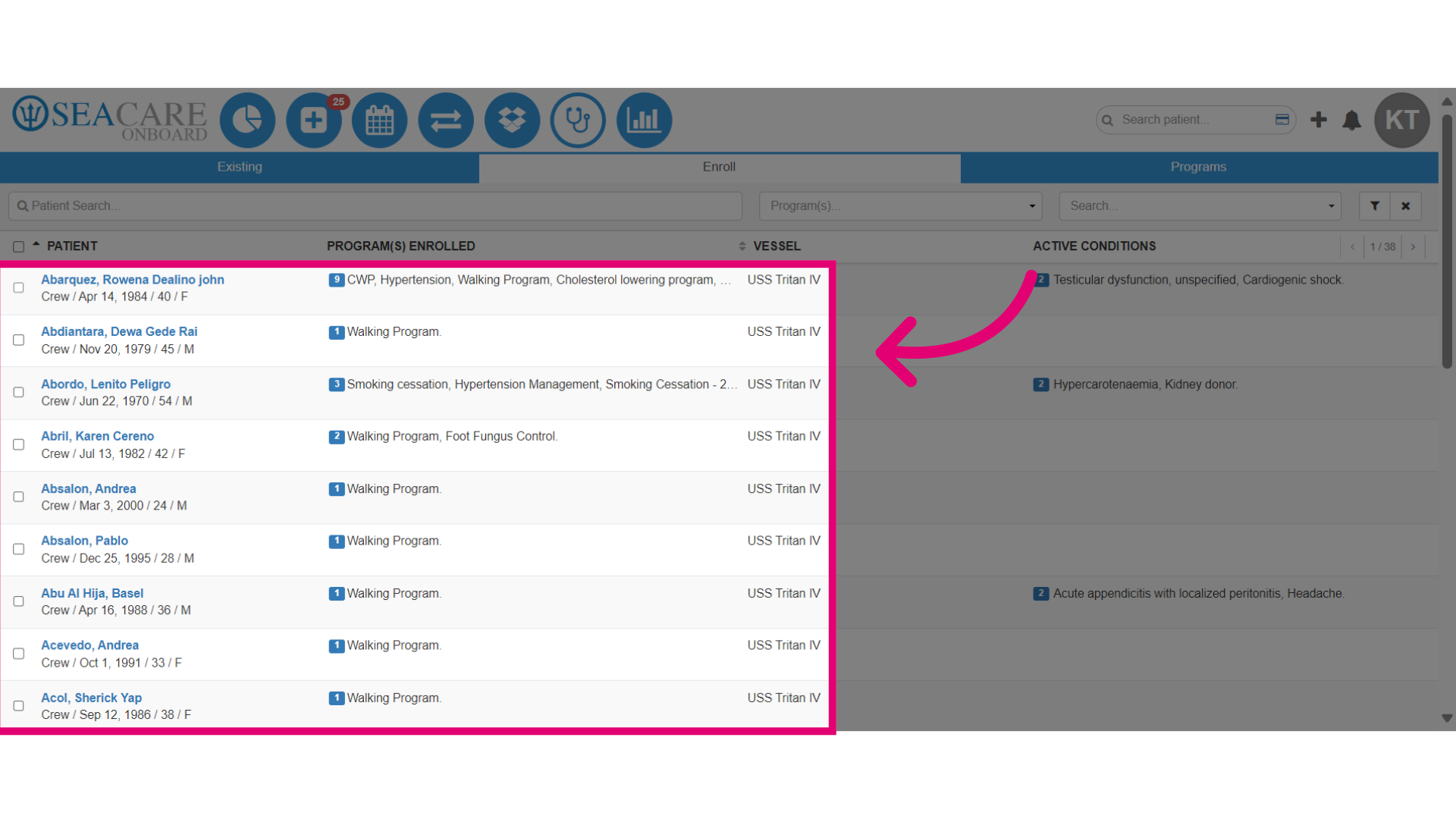
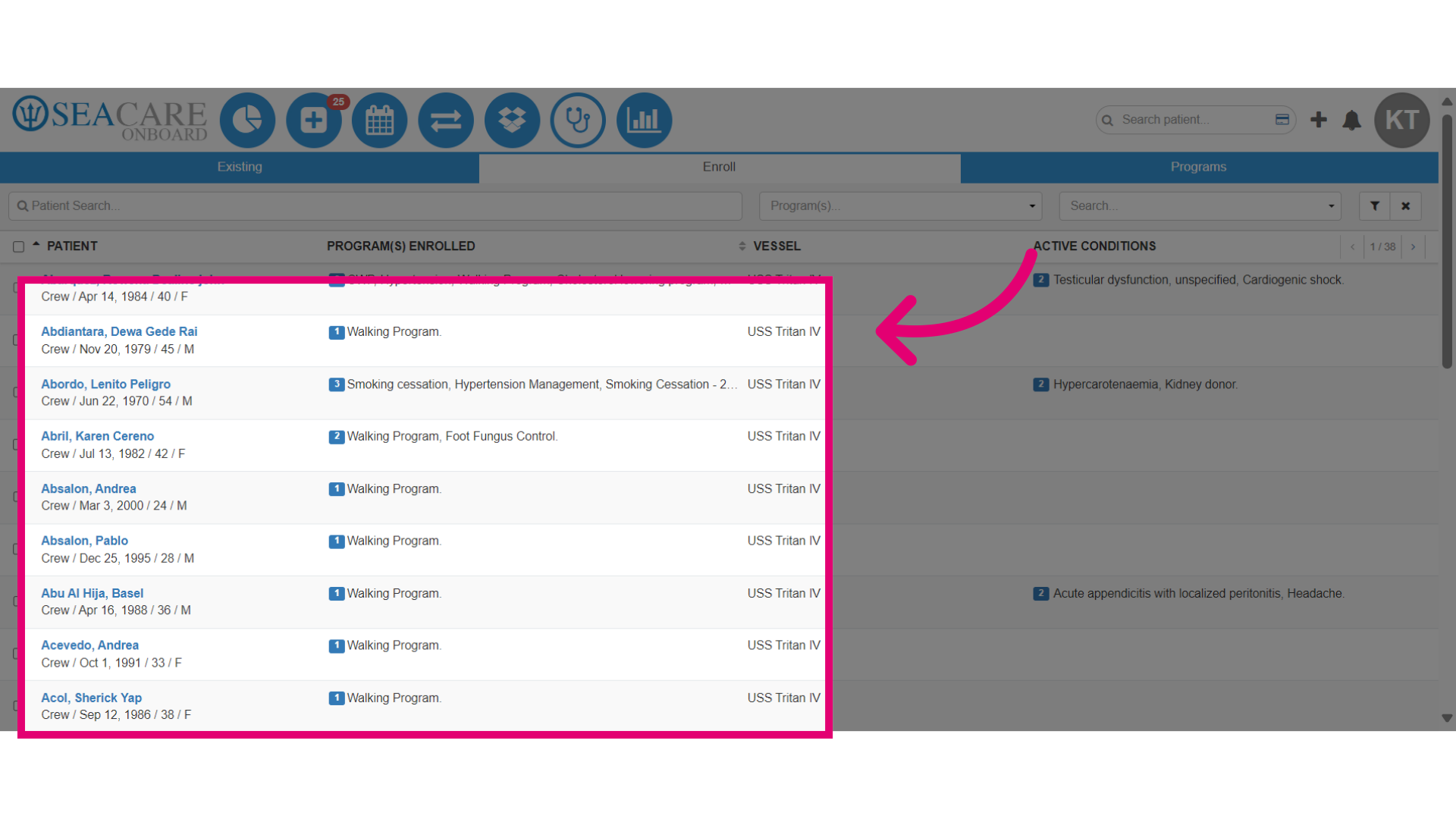
- A list of crew members who fit the filter criteria you selected will be generated, showing their current program enrollments and any documented health conditions.
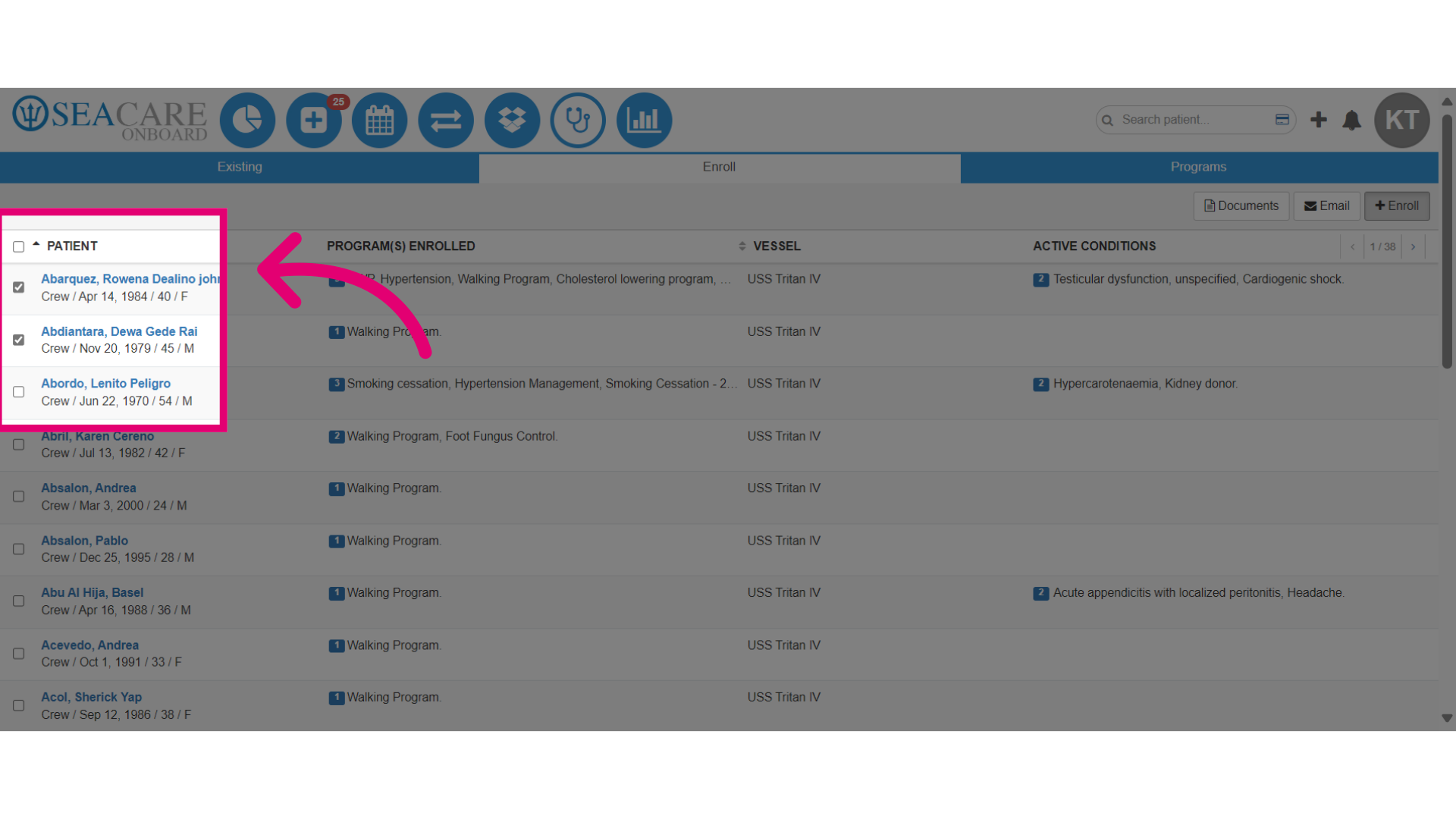
- Check the box for the patients to enroll them in the program.
- Finally, select Enroll to complete the enrollment of the crew members into the program.
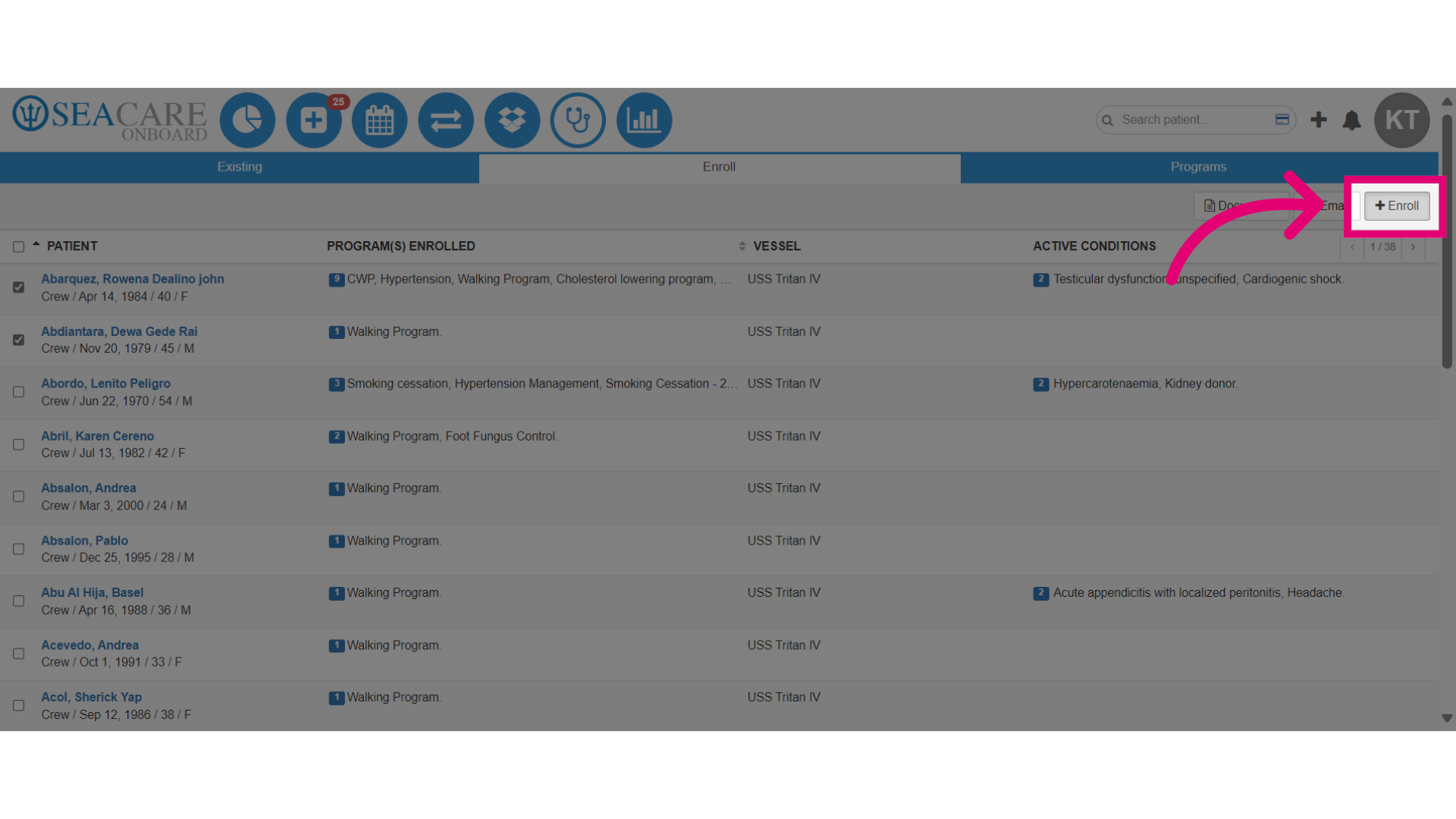
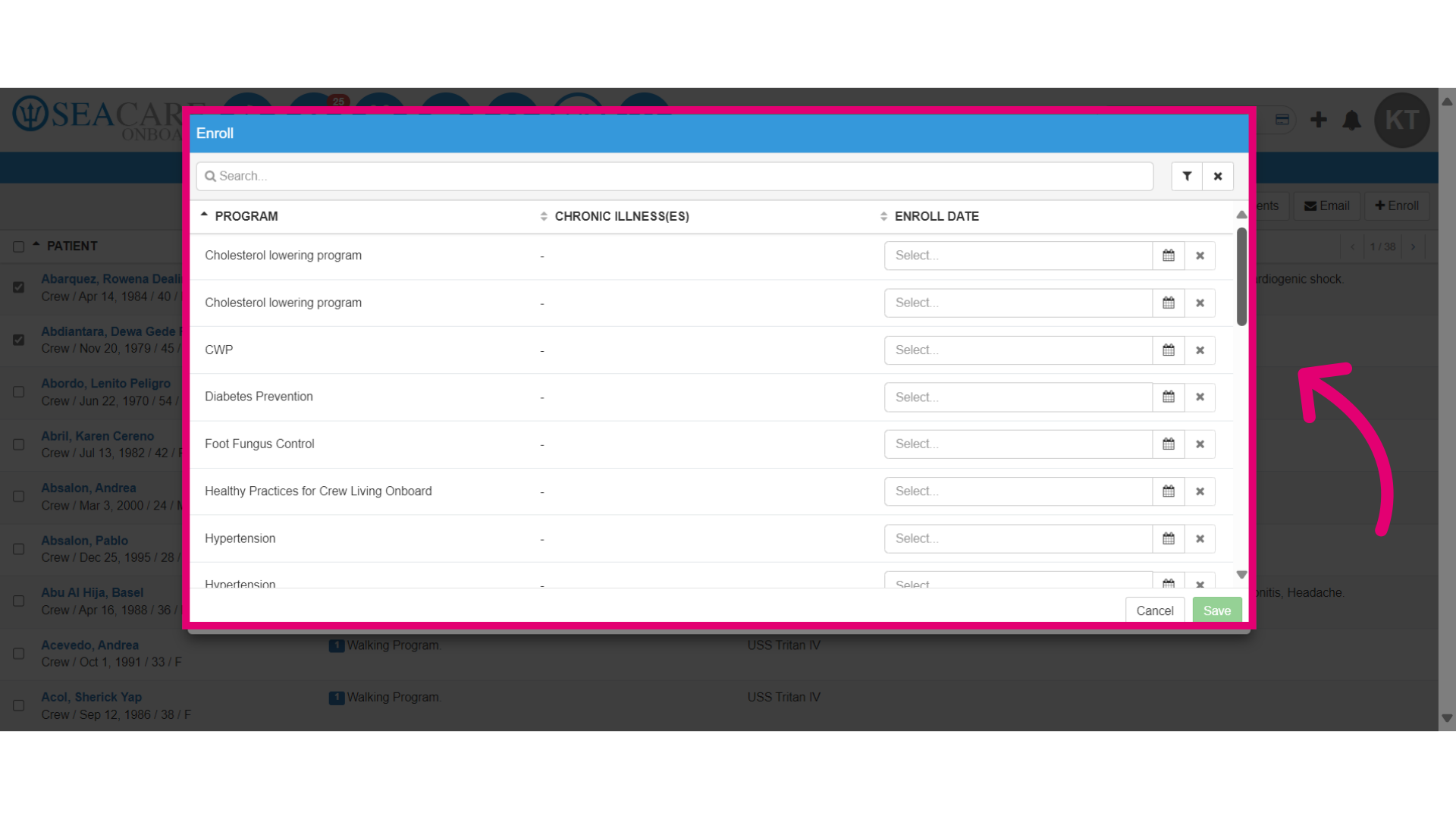
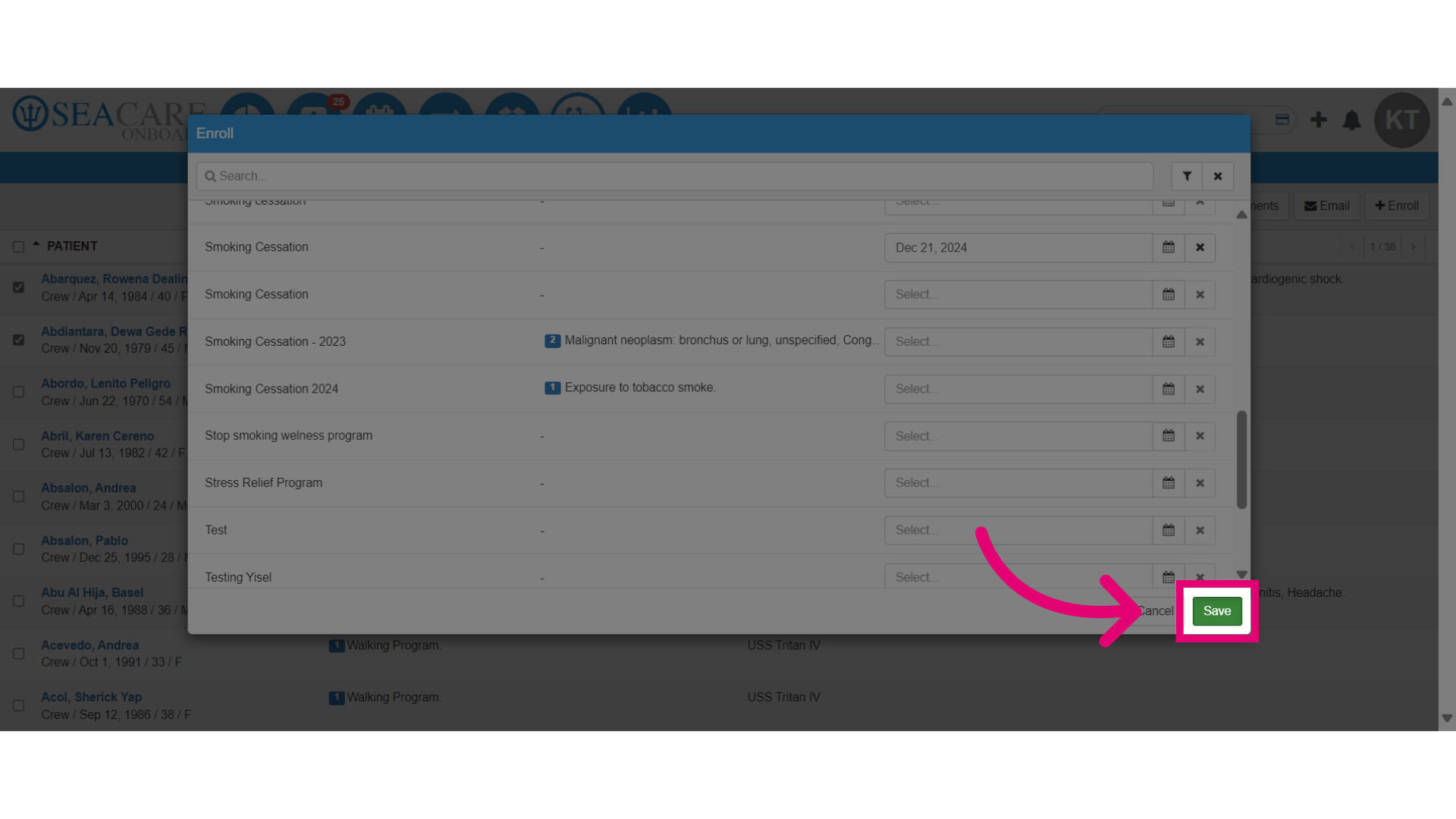
- Here, you can specify the program for enrollment.
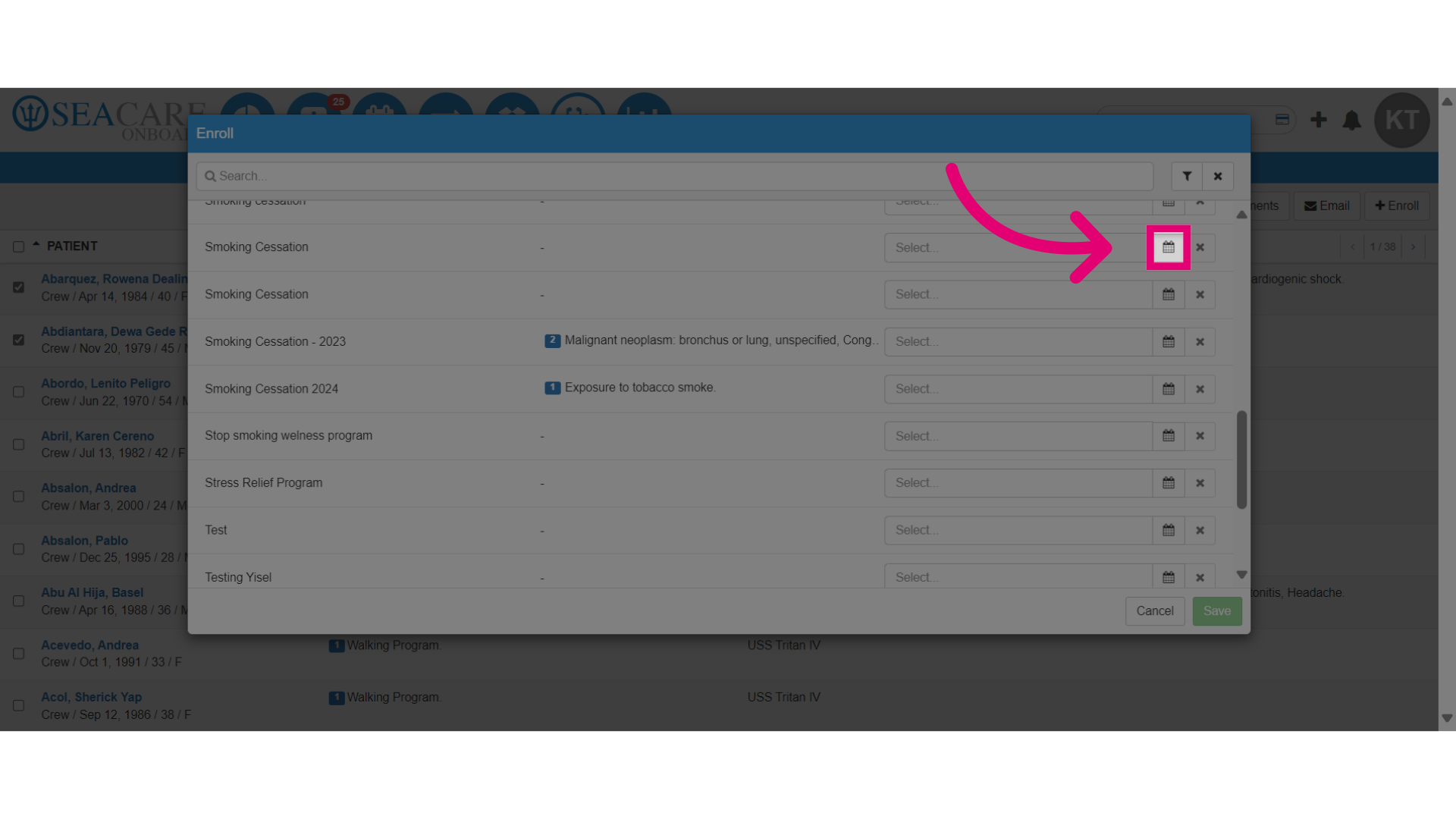
- Add the Start date for enrollment.
- Verify that the selected program and start date are accurate.
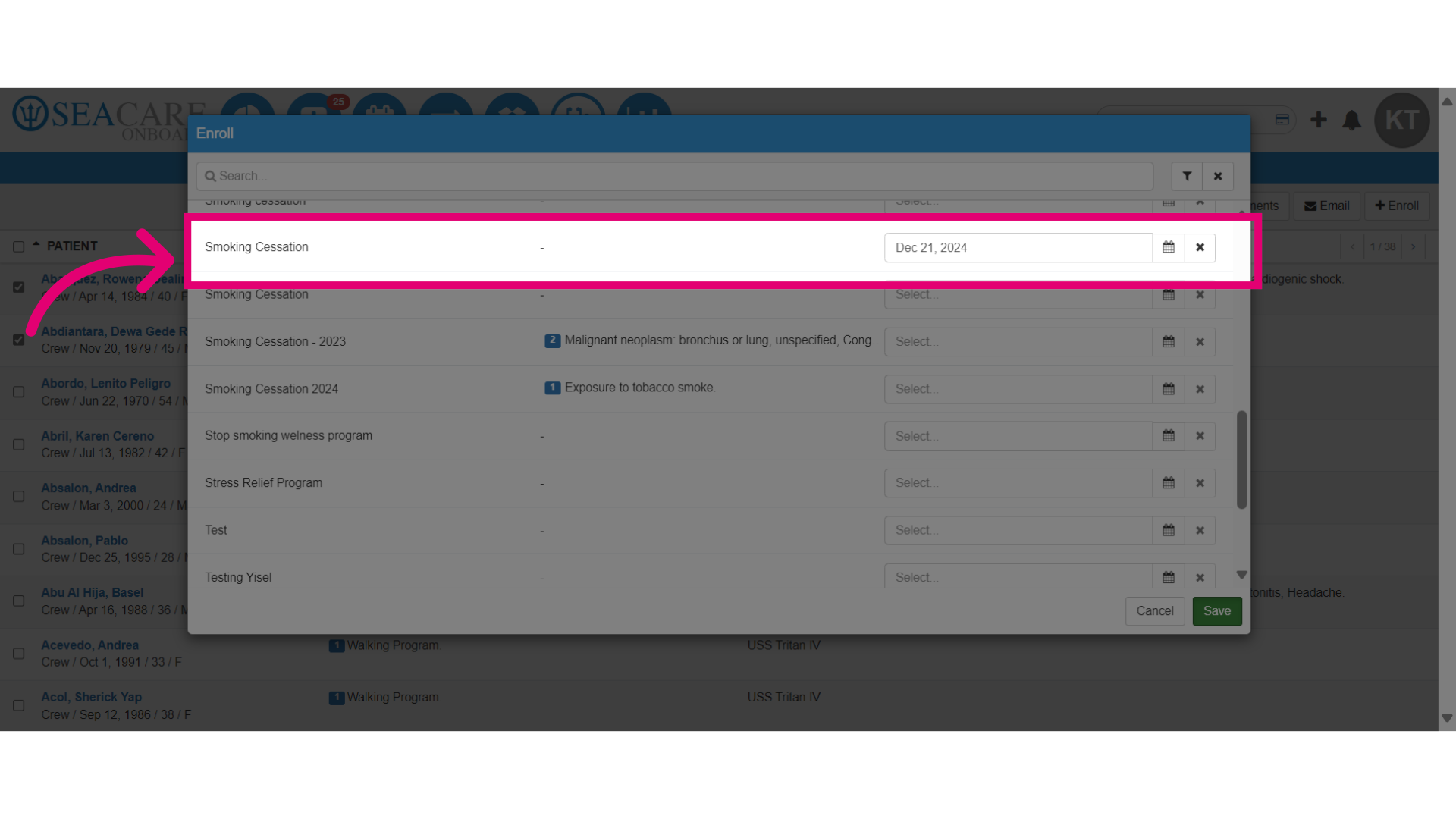
- Save the program settings.
- View the newly enrolled crew member(s) from the list for the selected program.