New article
Recently updated
Enrolling patients in the Crew Wellness module

Who is this article for?Users who want to learn to enroll patients in the Crew Wellness module.
No elevated permissions are required.
Follow these steps to enroll a crew member into a crew wellness program via the Crew Wellness module in Ideagen Maritime Health Onboard.
1. Enrolling patients in the Crew Wellness module
1.1. Video
- Start in the Crew Wellness module under the Existing tab. This section lists crew members already enrolled in a program, and you can enroll a crew member in a new program from here.
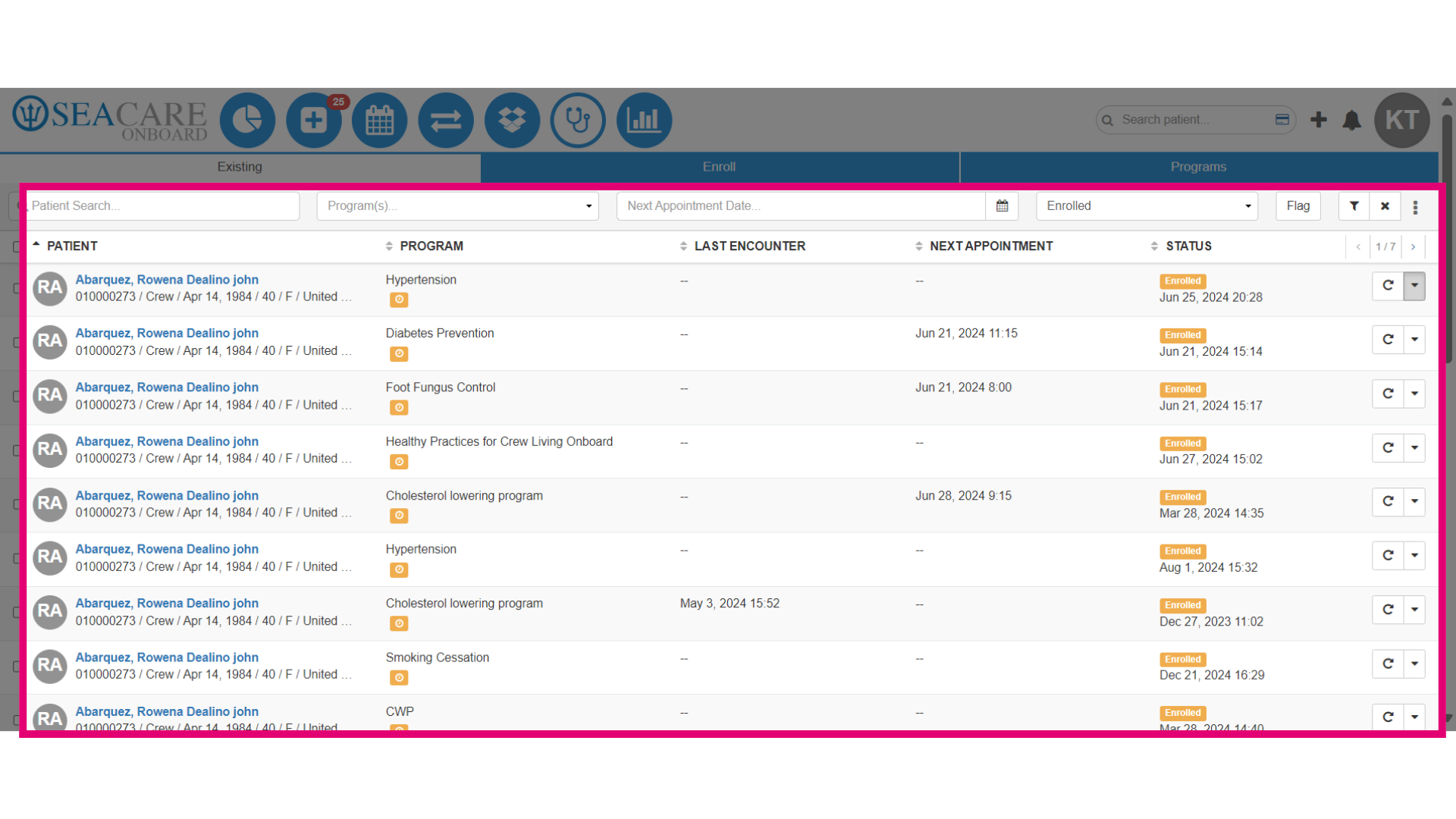
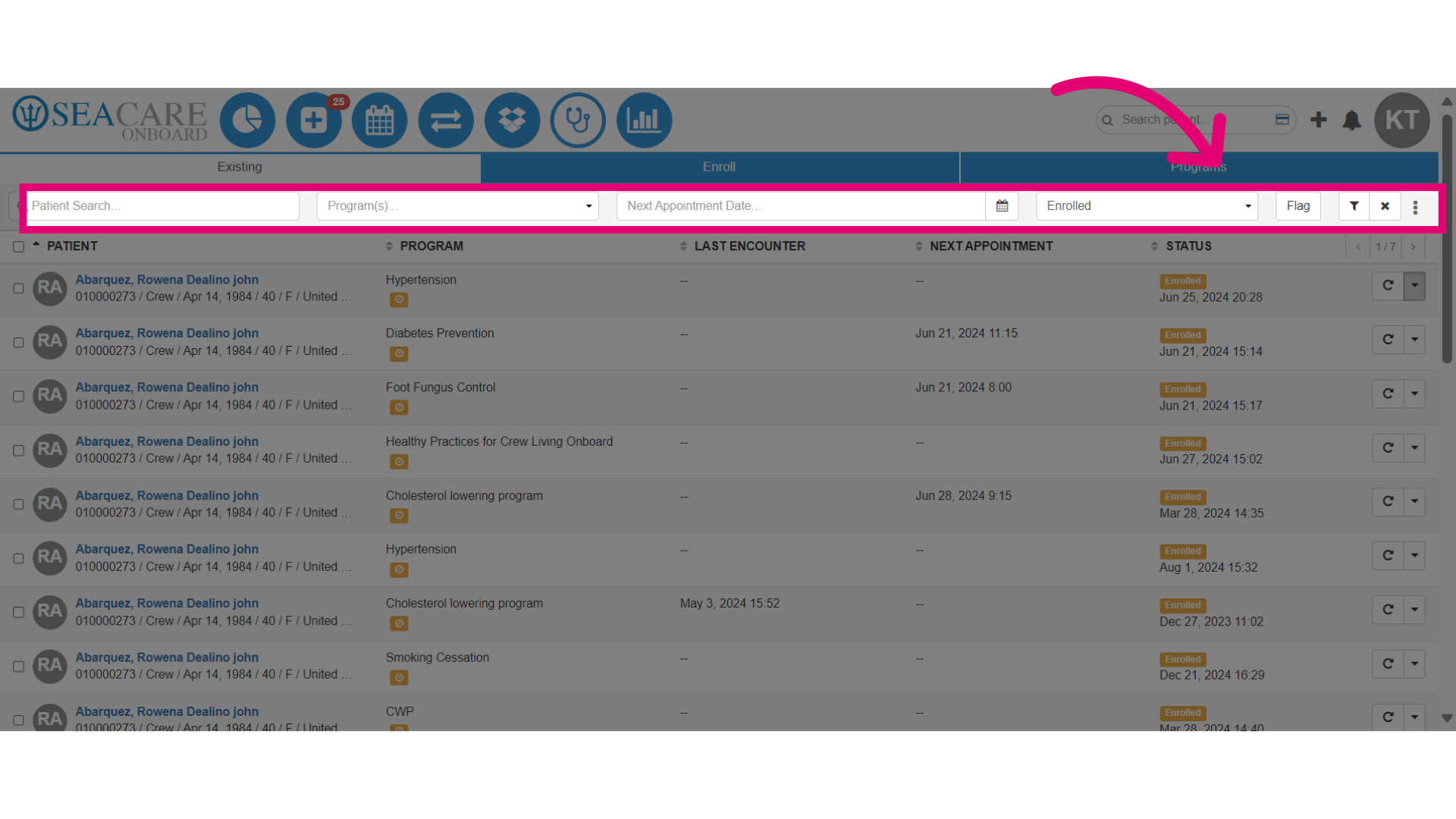
- Select the crew member from the list or use filters to search by name, program, appointment date, enrollment status, or flagged status.
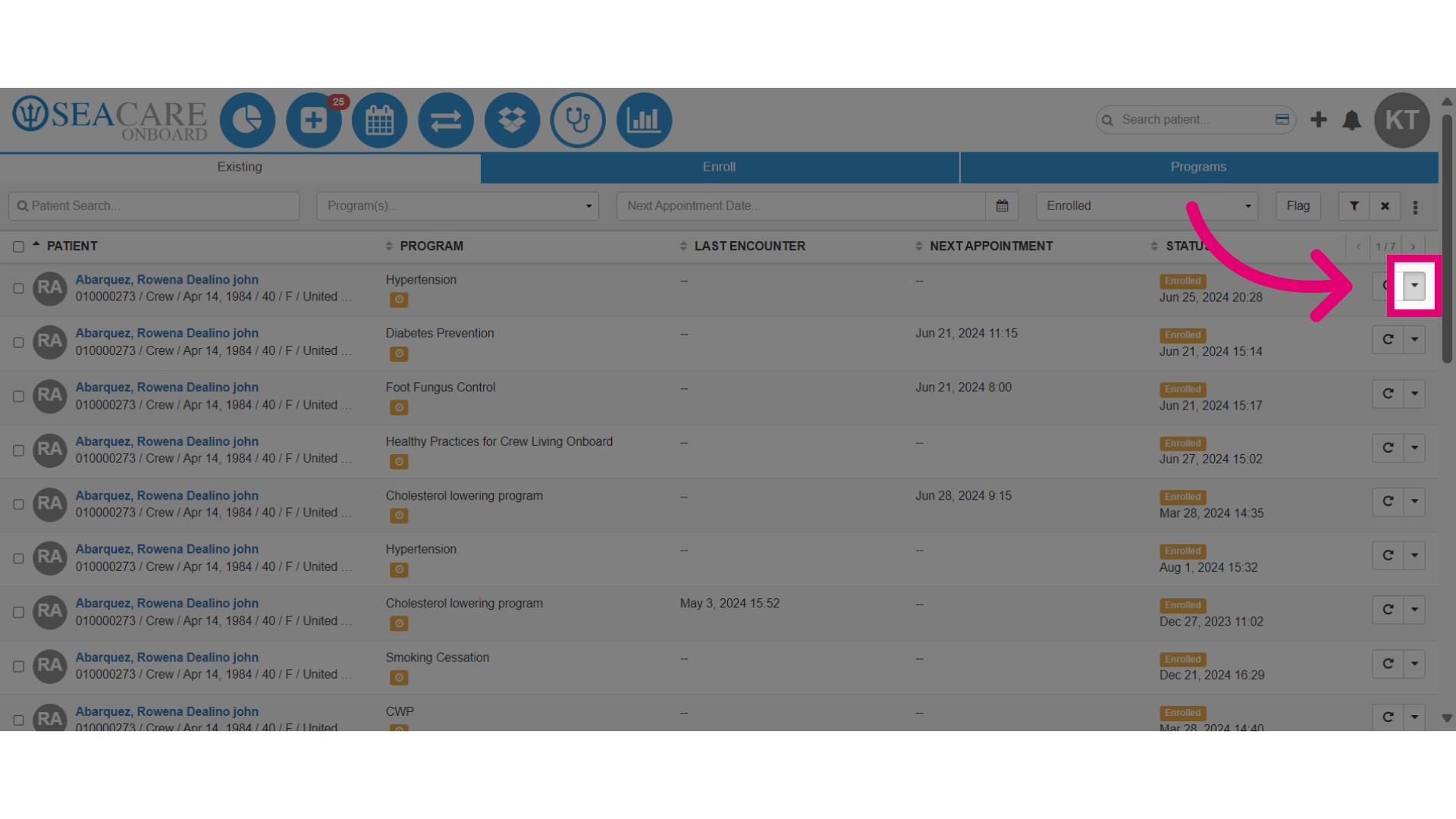
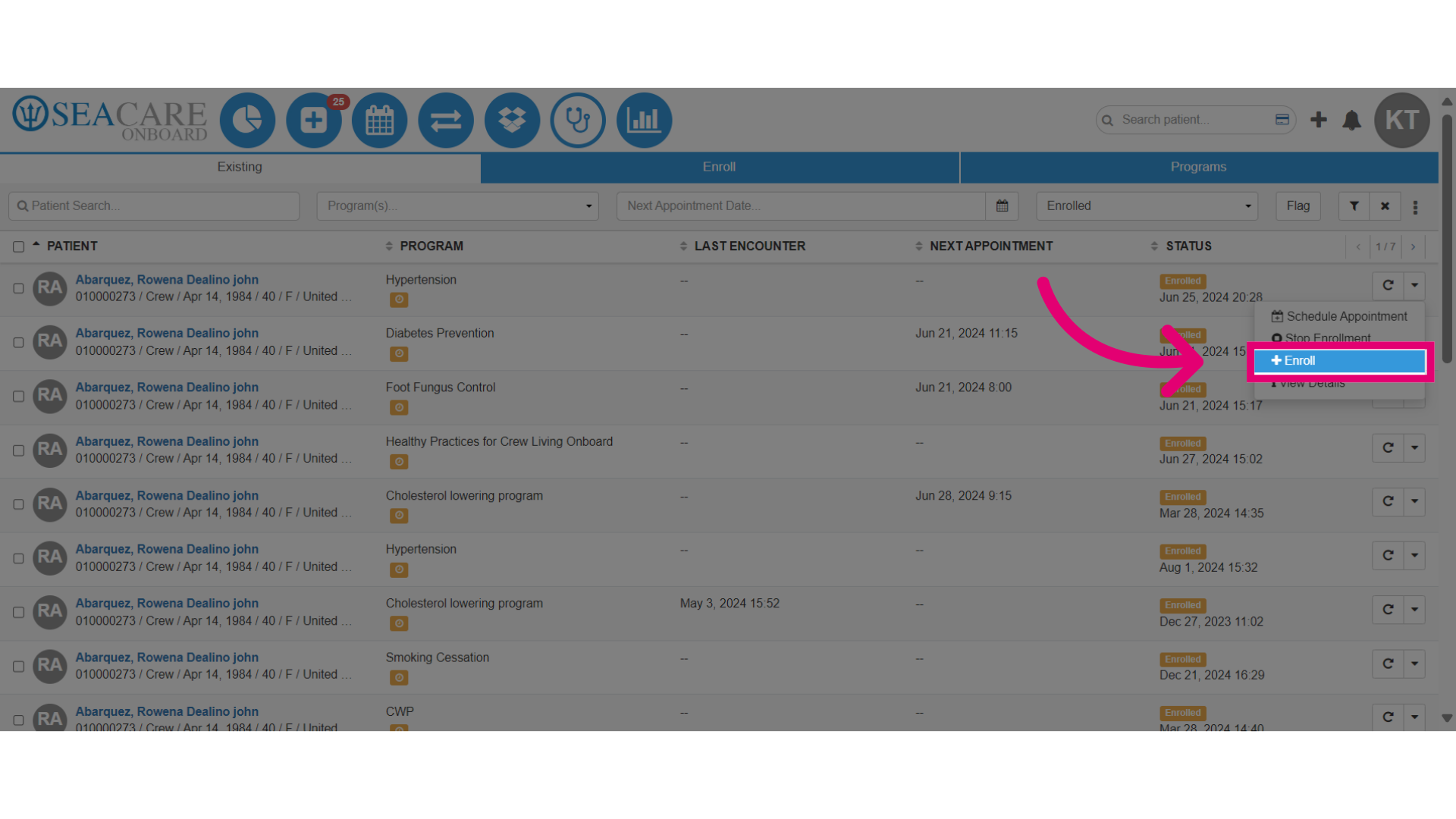
- Once you've located the patient, select the Actions button.
- Select the Enroll option from the dropdown list.
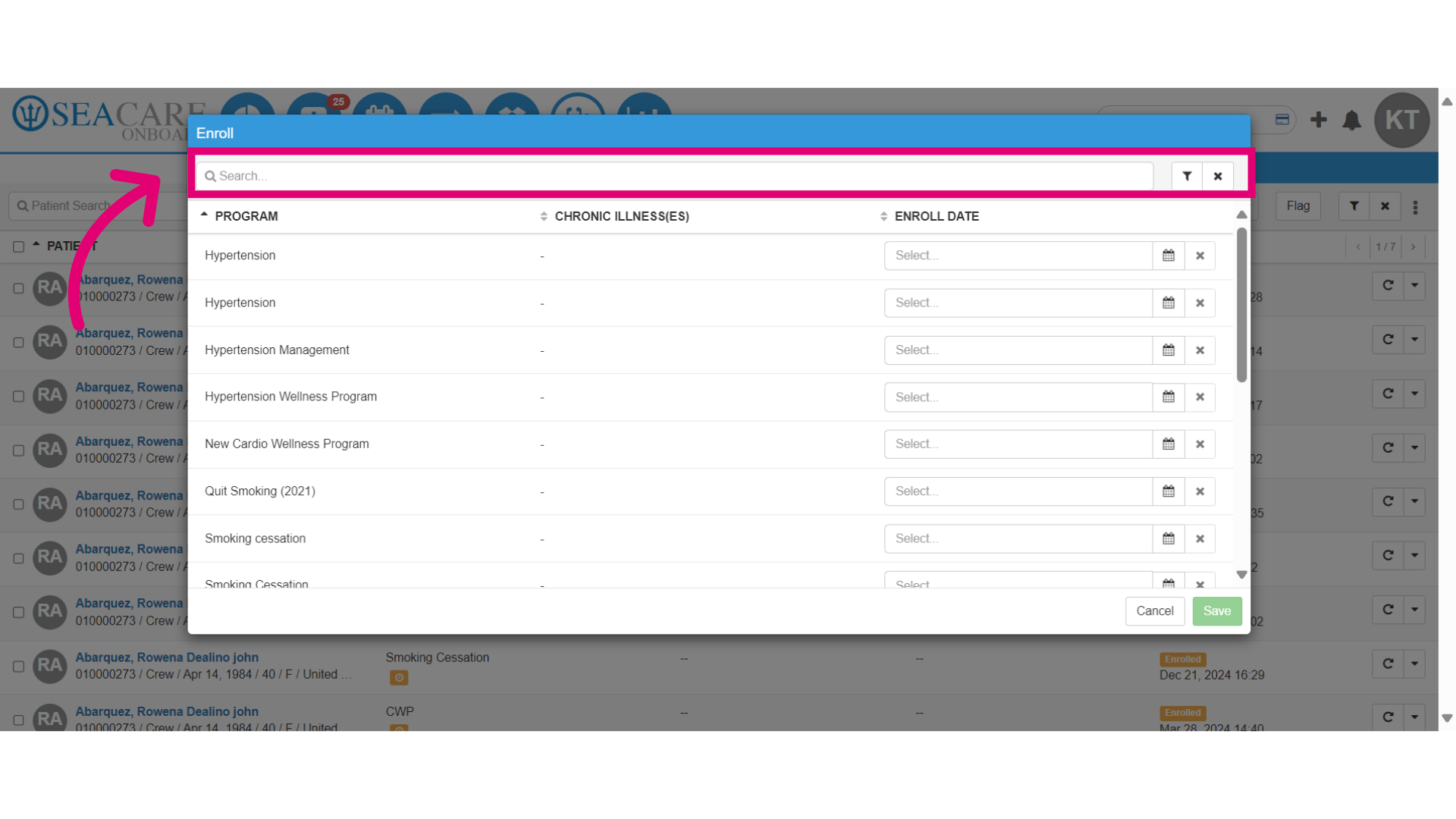
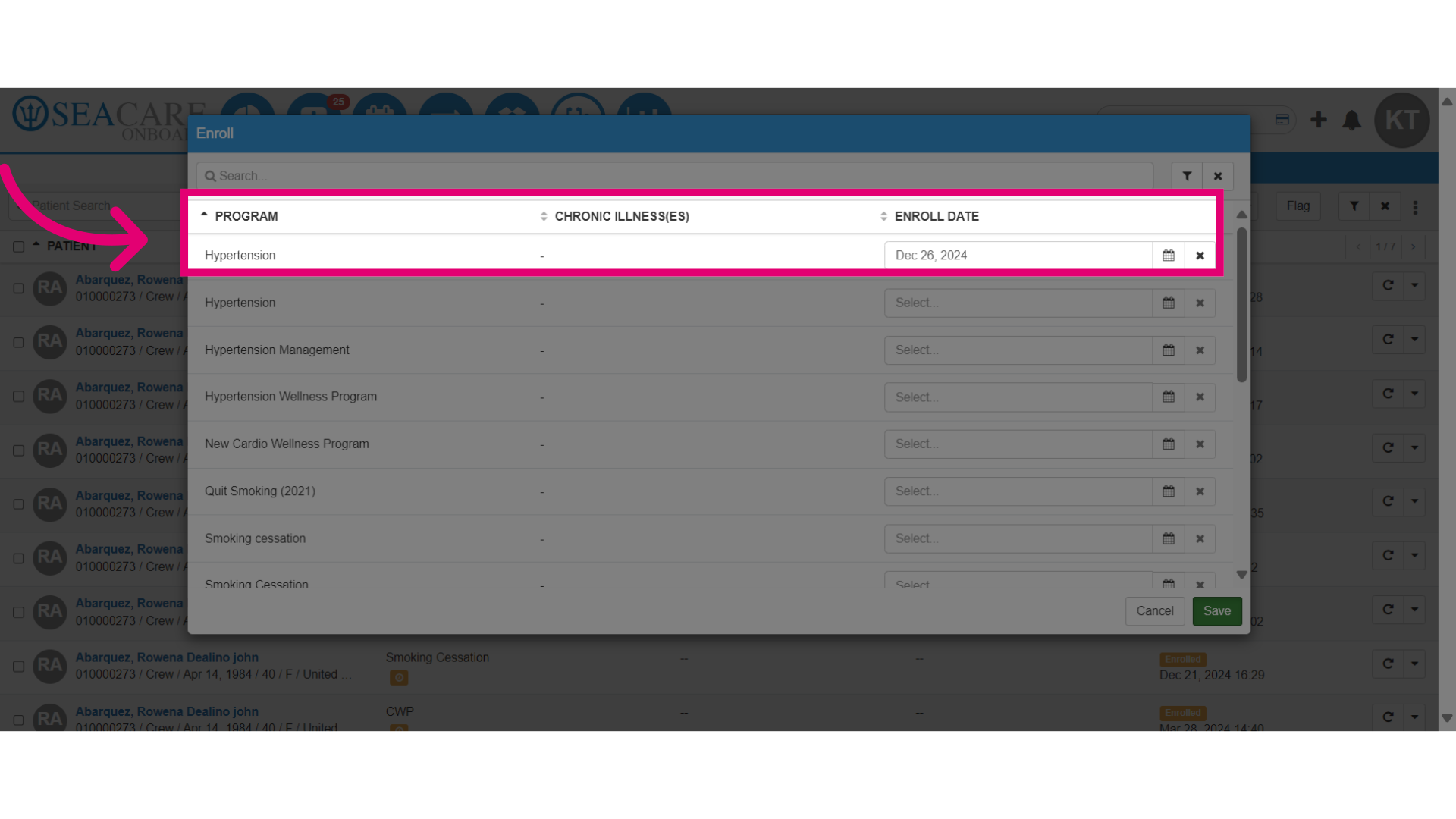
- In the Enroll popup window, use the search field to find the program to enroll the crew member.
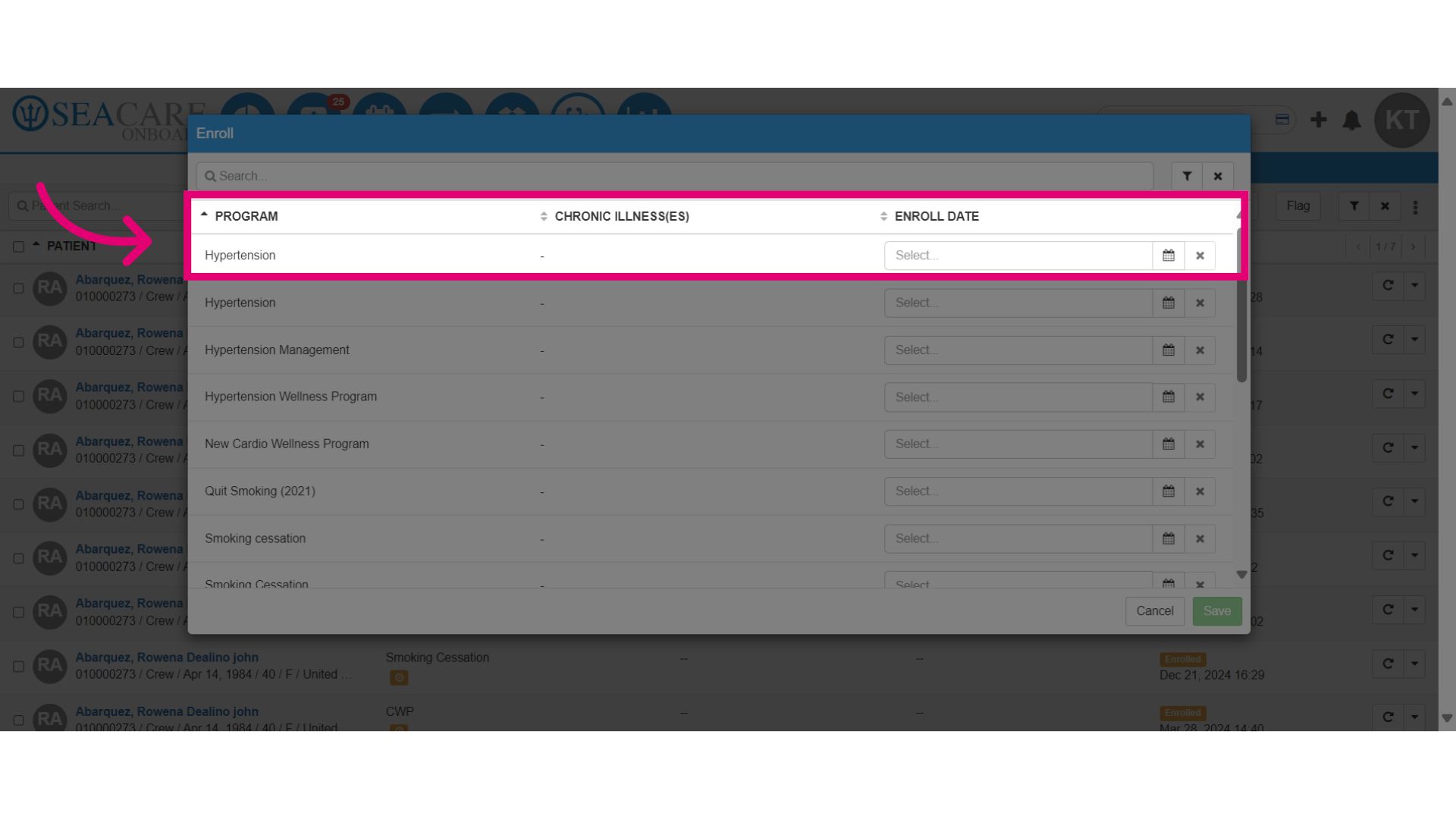
- Alternatively, locate the program from the list.
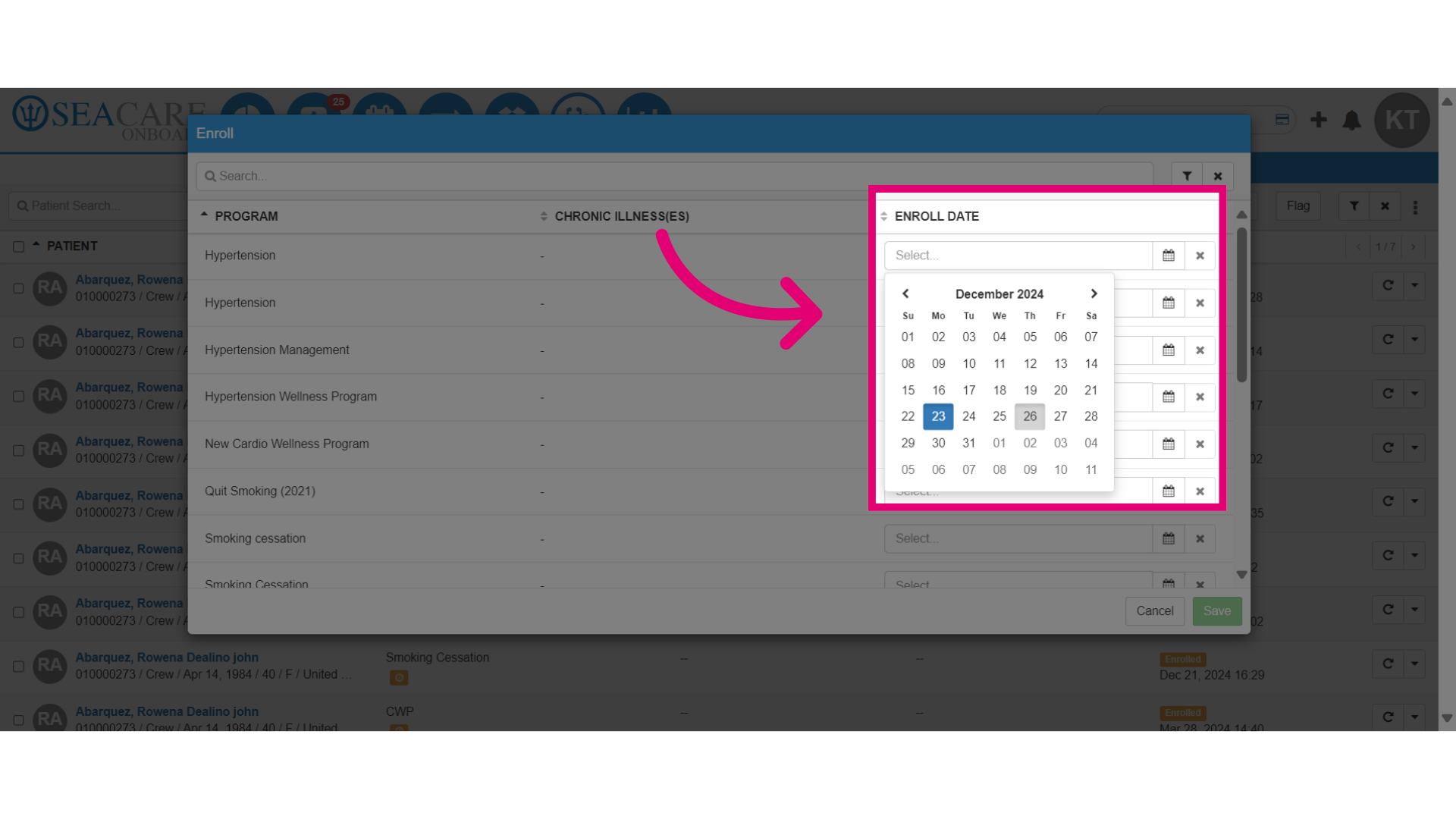
- Click on the calendar and select the start date for the crew member's program.
- Ensure the start date and program is correct.
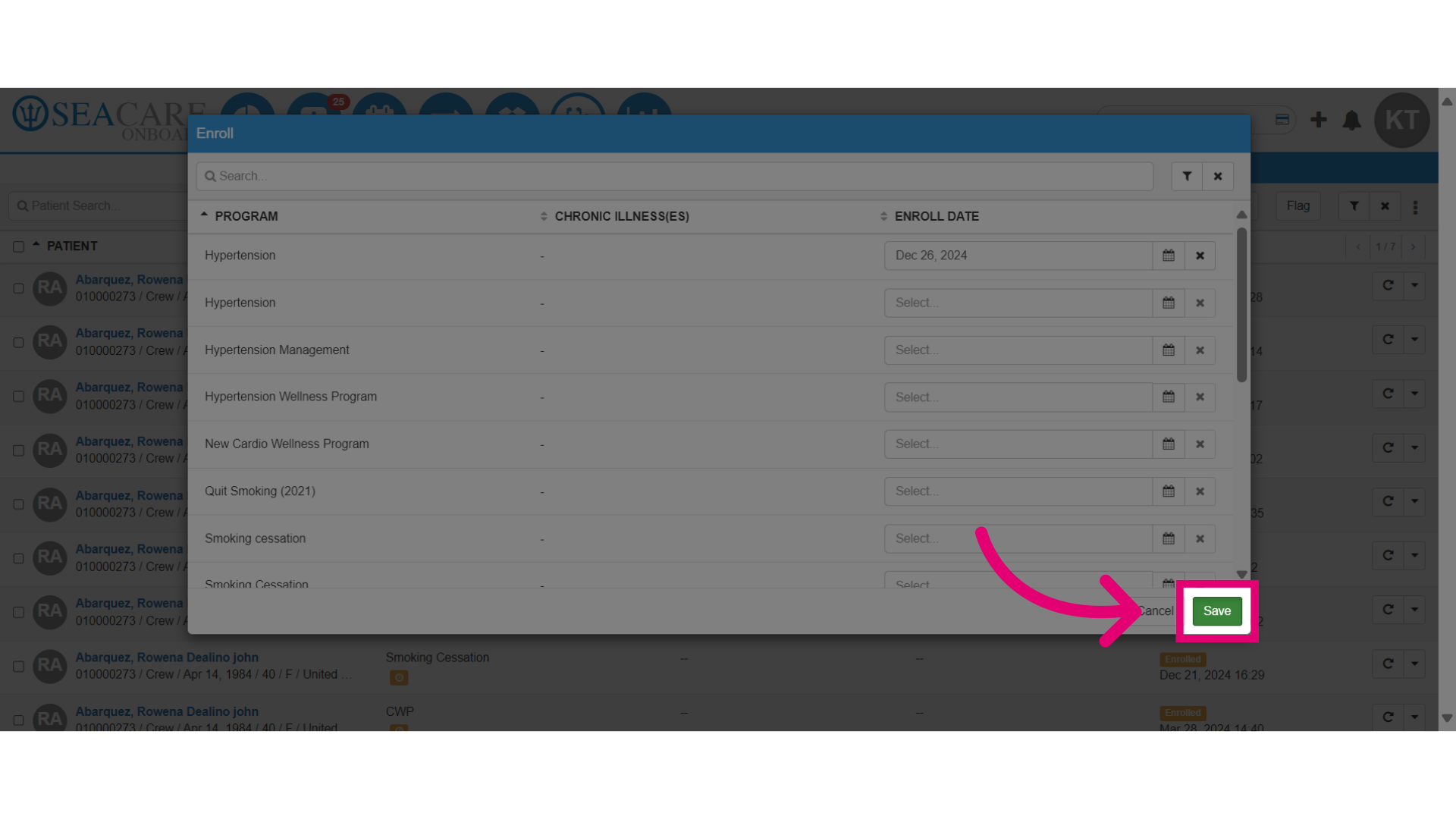
- Select the Save button.
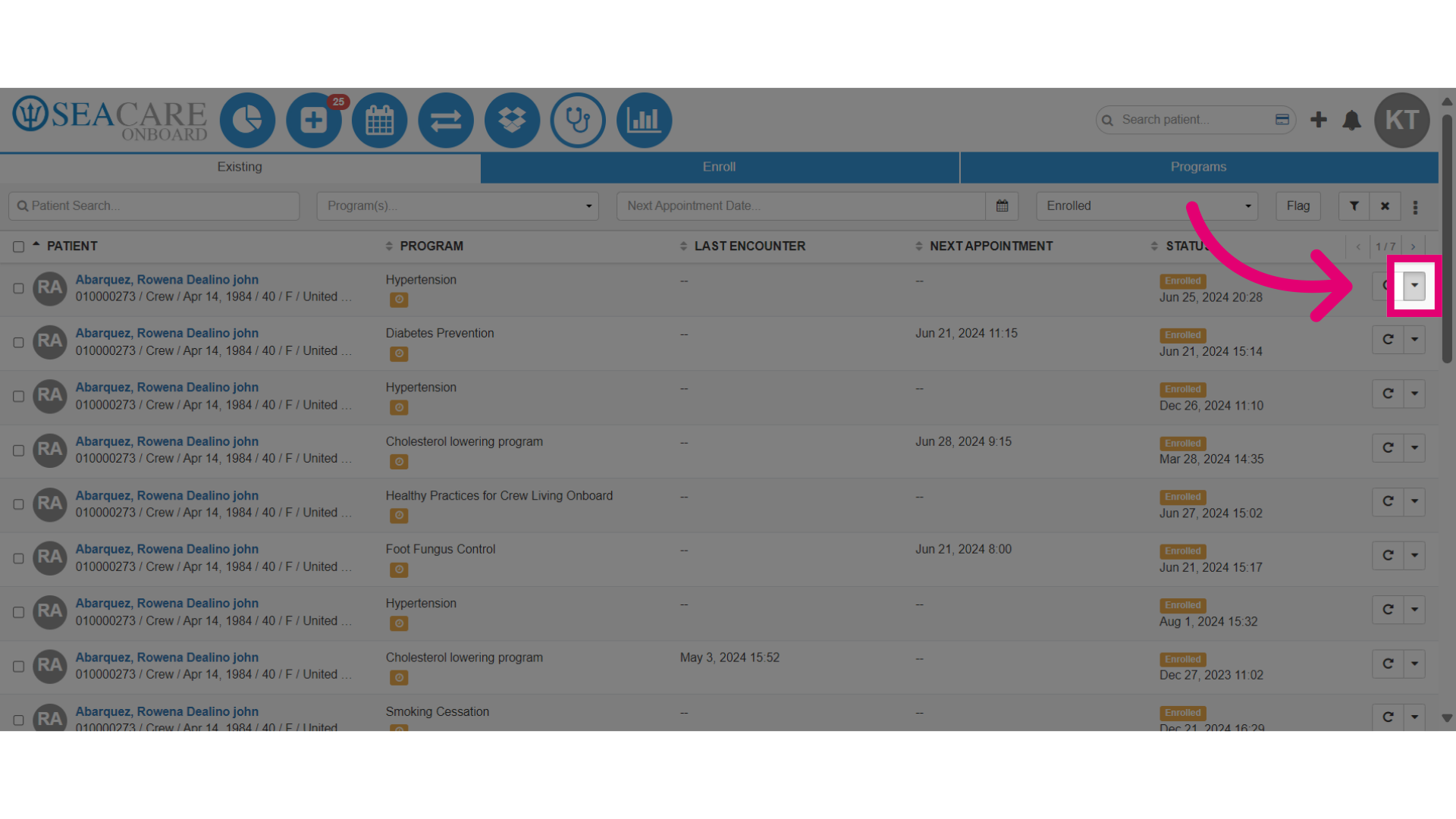
- Select the Actions button again to view the enrollment details.
- Then, select View Details.
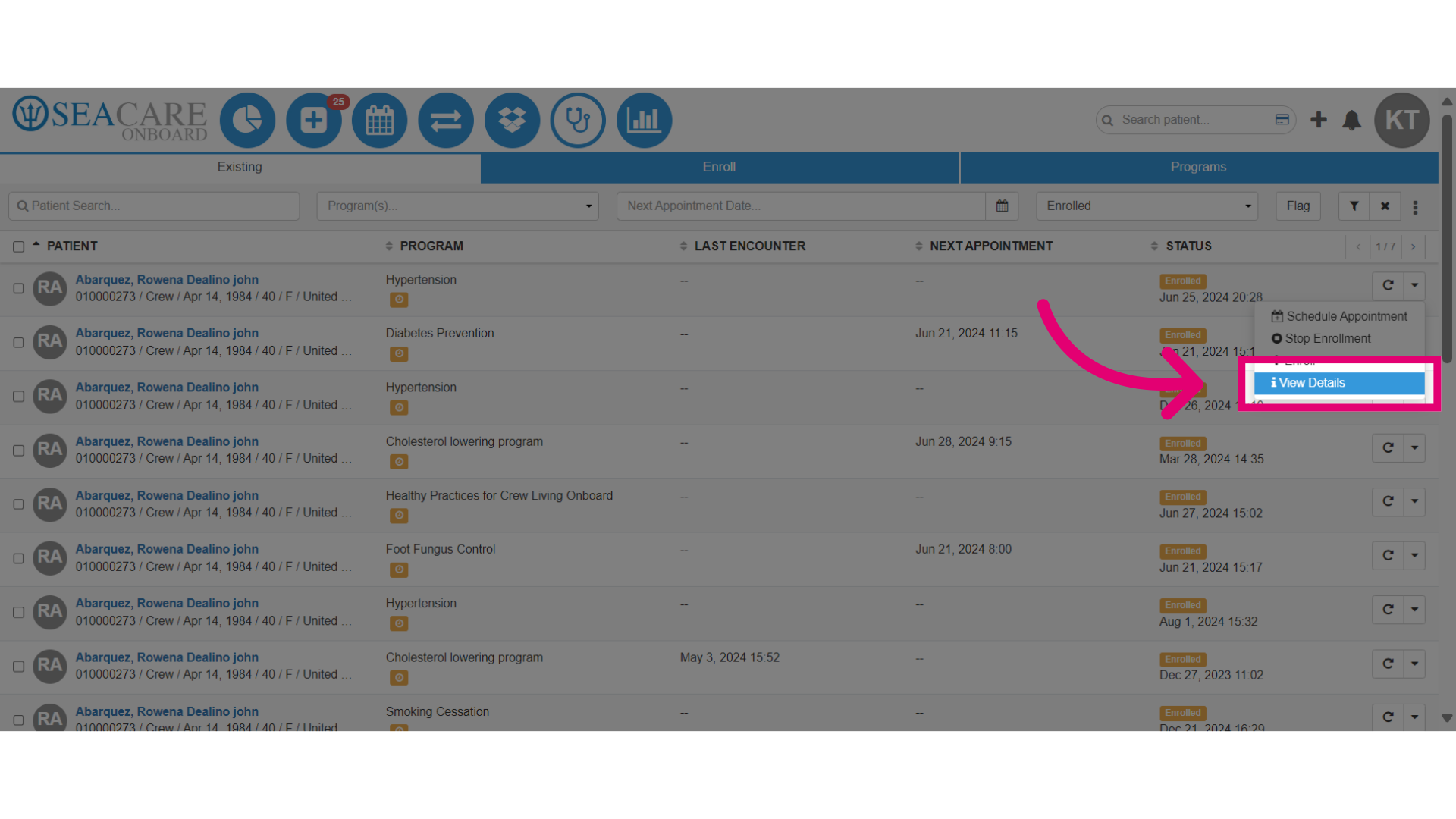
- The details popup window displays the description, success criteria for program completion, and the enrollment status.
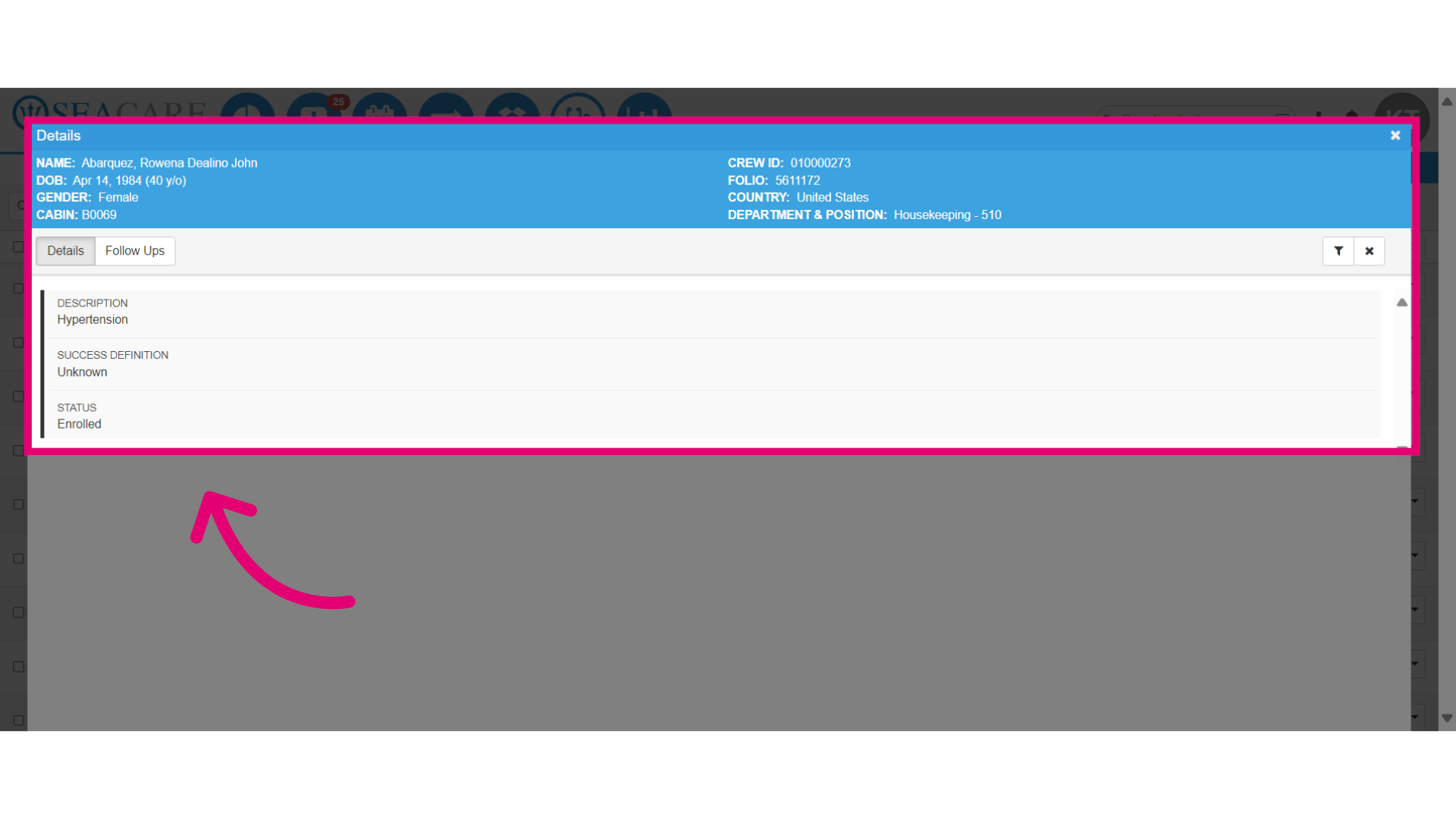
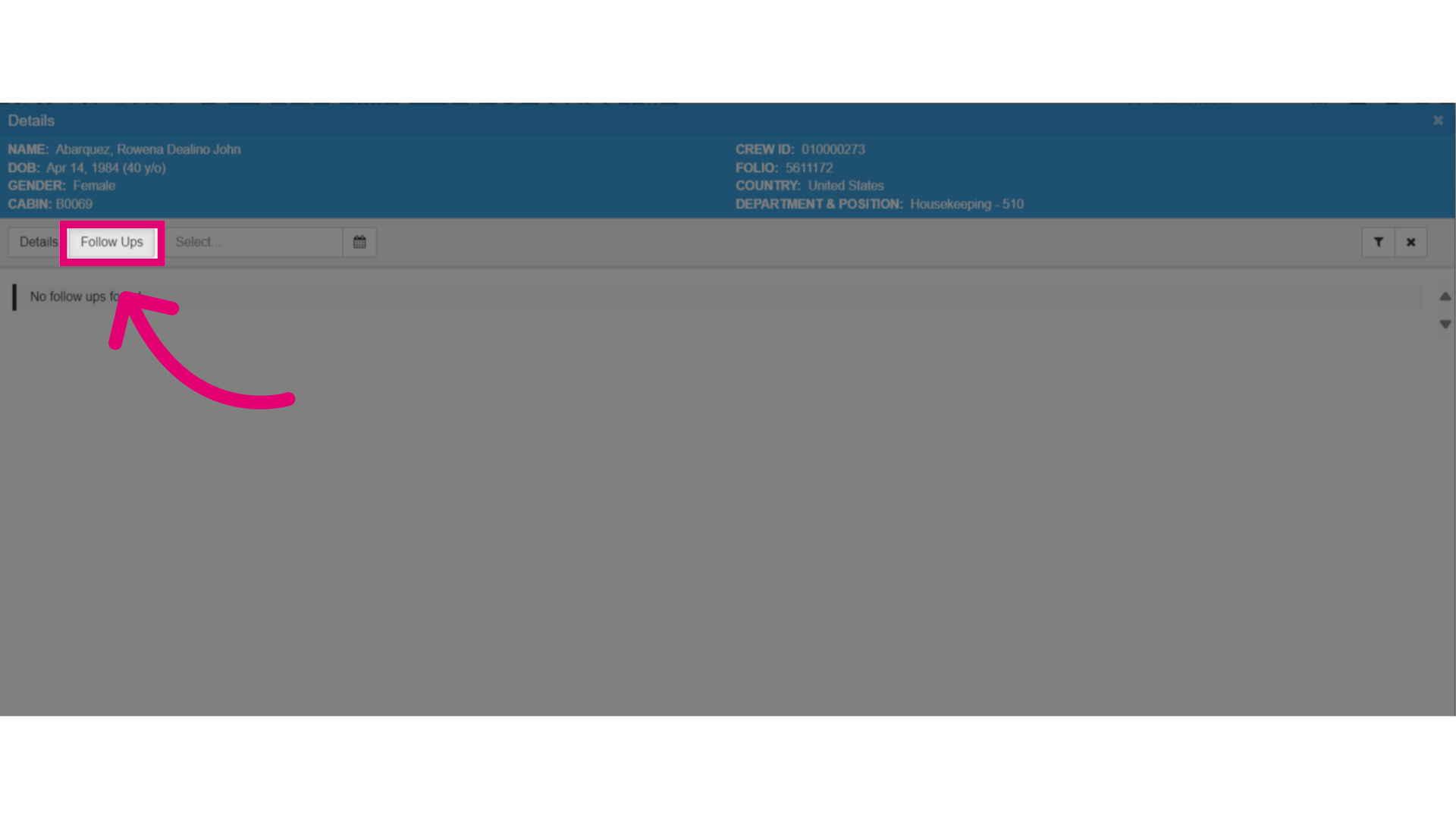
- Under the Follow up tab, the history for all follow up encounters for the crew member can be viewed and tracked.