New article
Recently updated
Managing SeaConsult appointments

Who is this article for?Users who want to learn to manage SeaConsult appointments
No elevated permissions are required.
SeaConsult calls allow the medical team to hold virtual appointments, bypassing the need to visit the medical center. This guide outlines how to manage SeaConsult appointments, starting in the Scheduler tab within the Calendar Module.
1. Managing SeaConsult appointments
1.1. Video
1.2. Steps
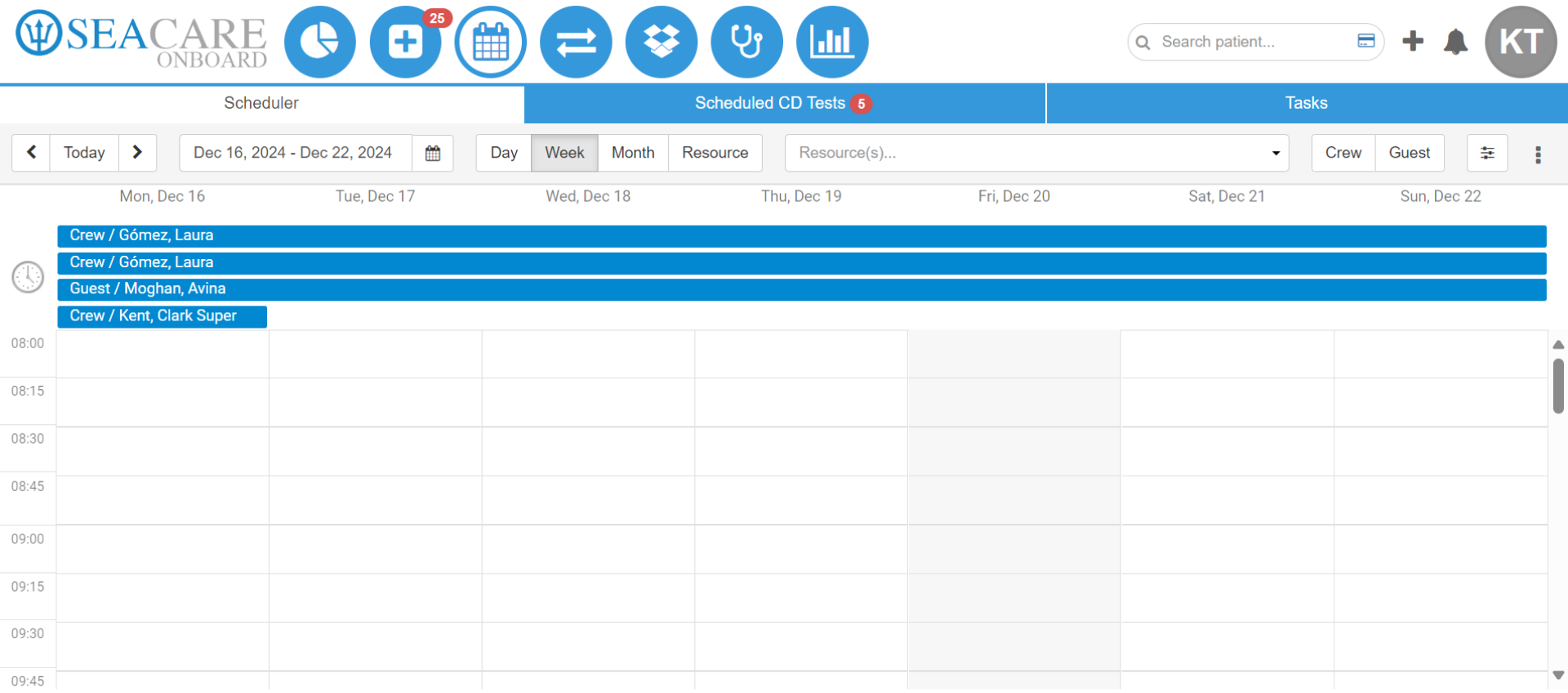
- First, double click any part of the calendar to create the calendar event.
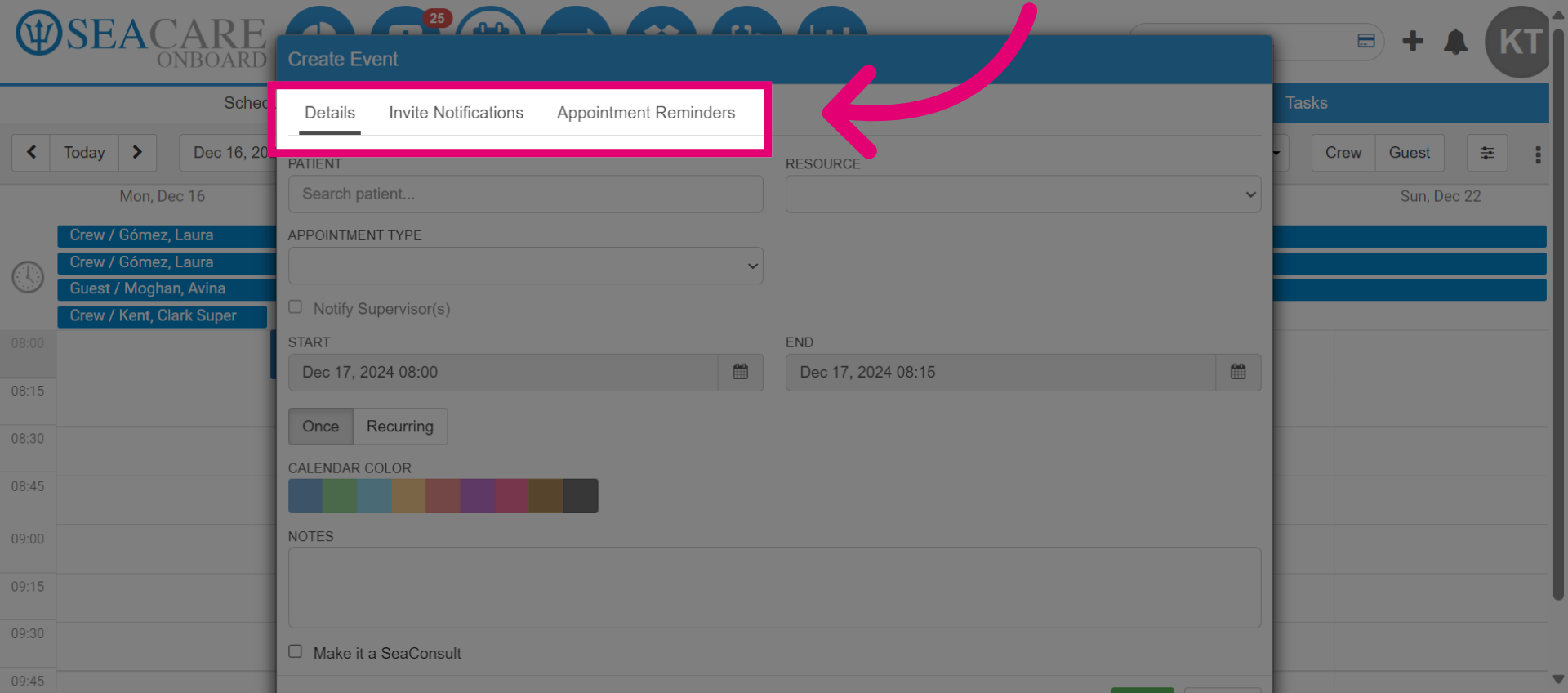
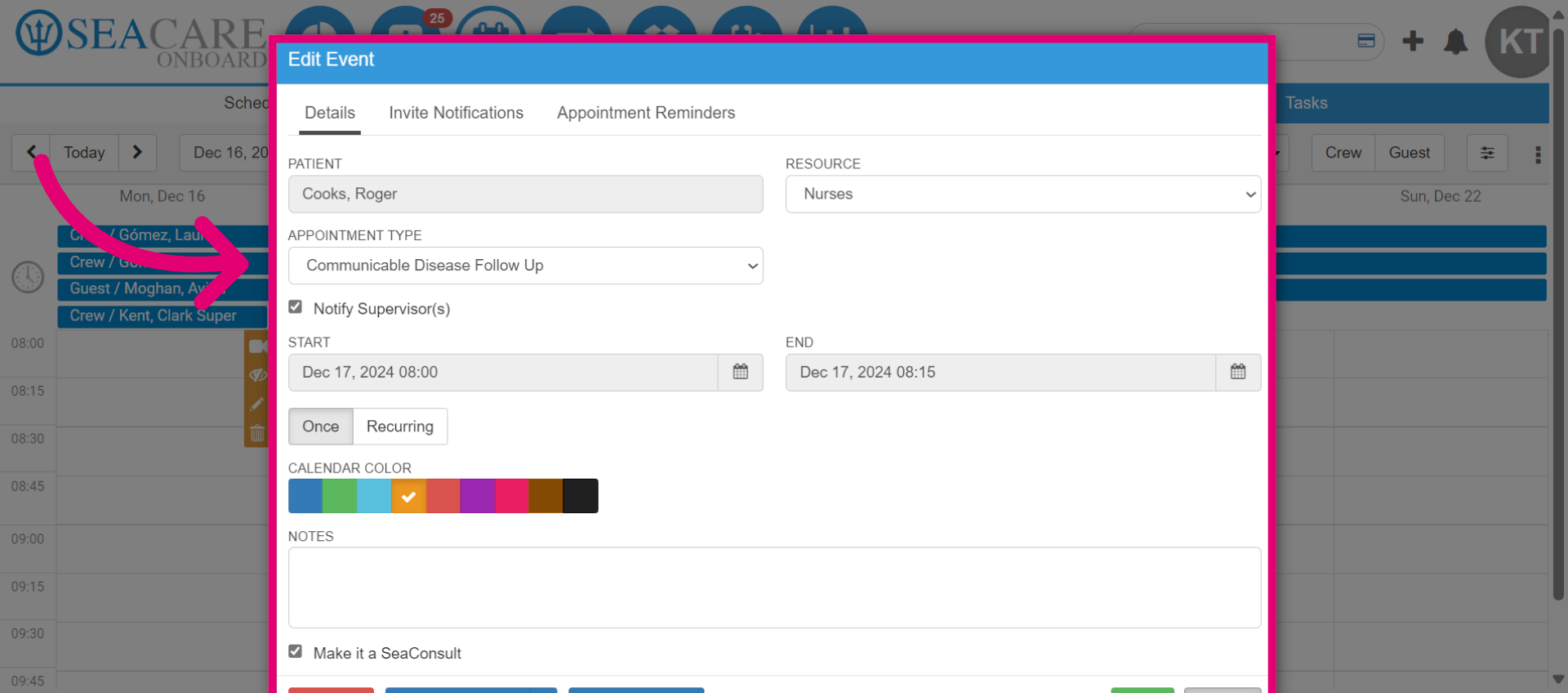
- In the Edit Event window, there are three tabs: one for entering appointment details, another for sending invite notifications, and a third for setting appointment reminders.
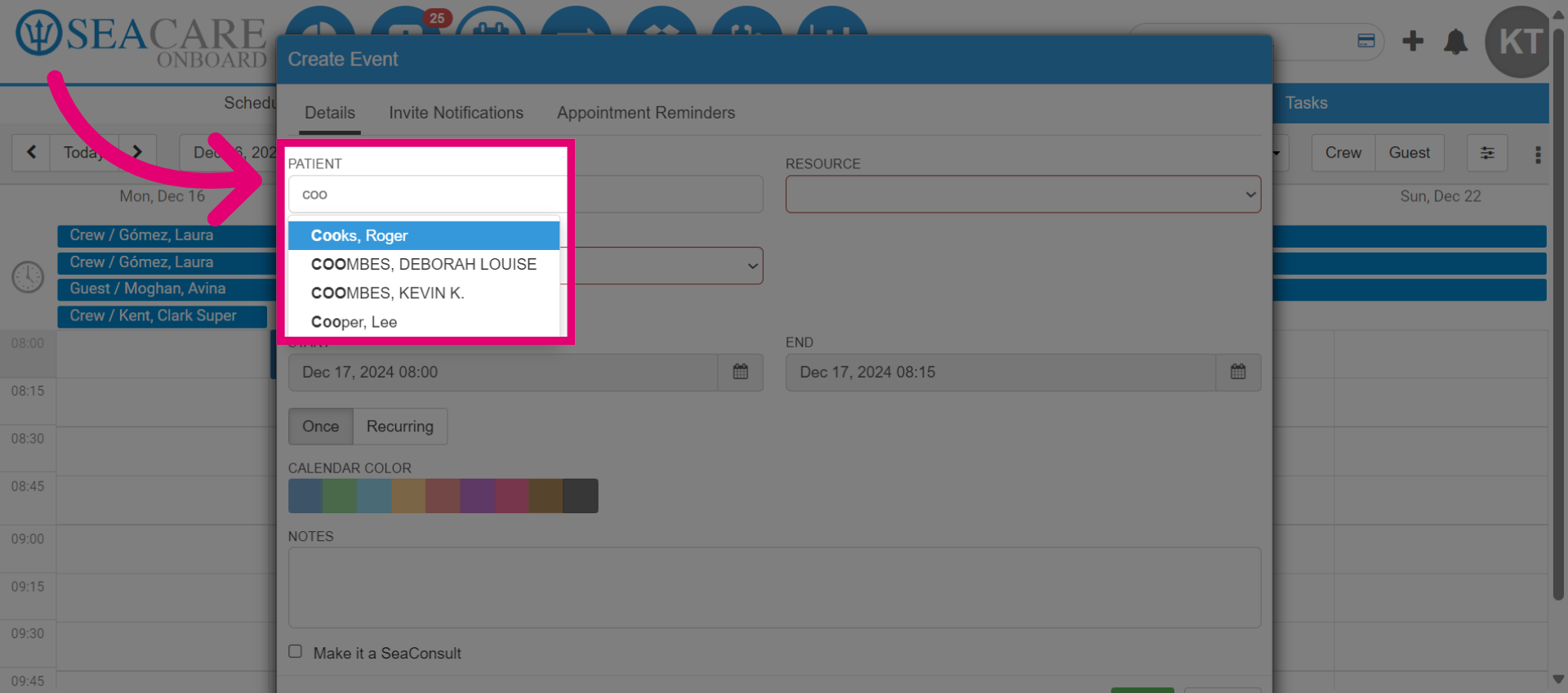
- Begin in the Details tab. Search for the patient's name and select it from the dropdown list.
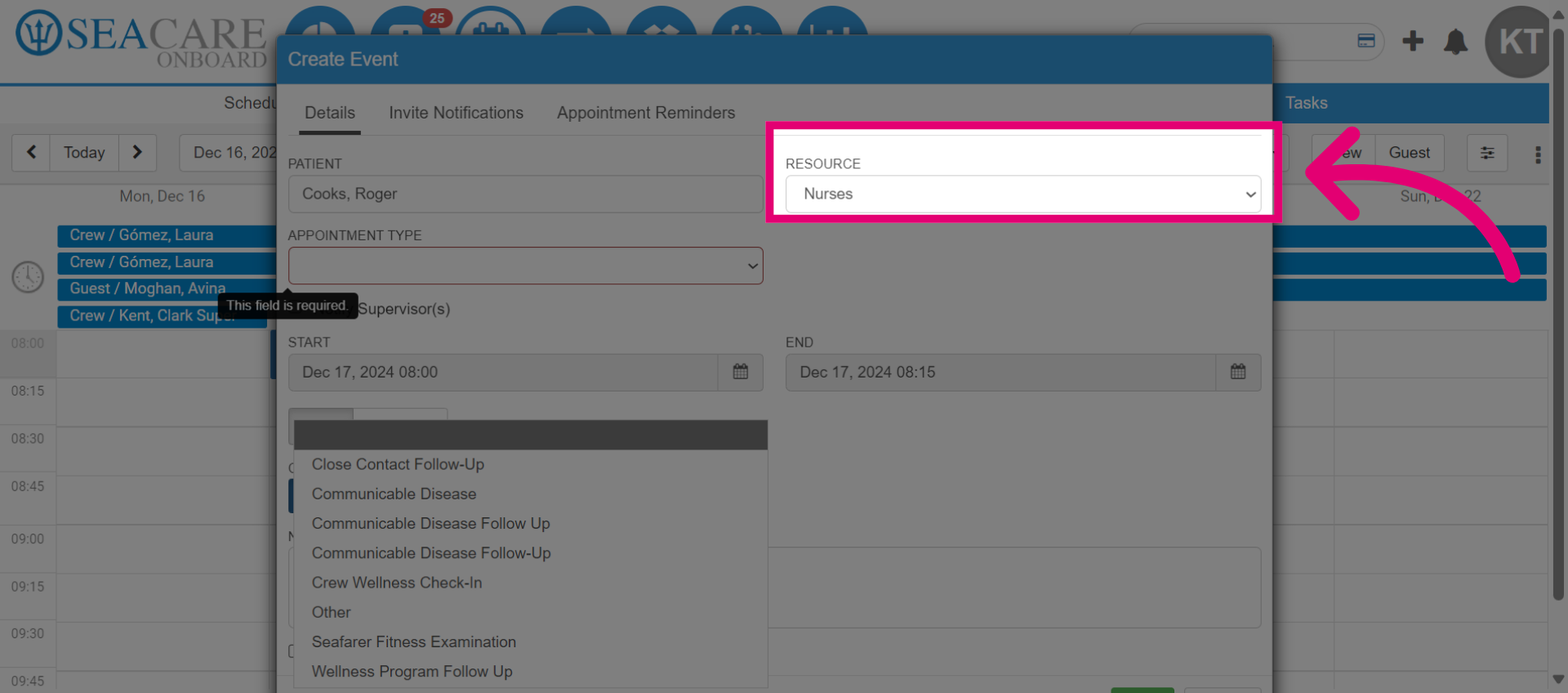
- Then, select the Resource who will conduct the SeaConsult call with the patient.
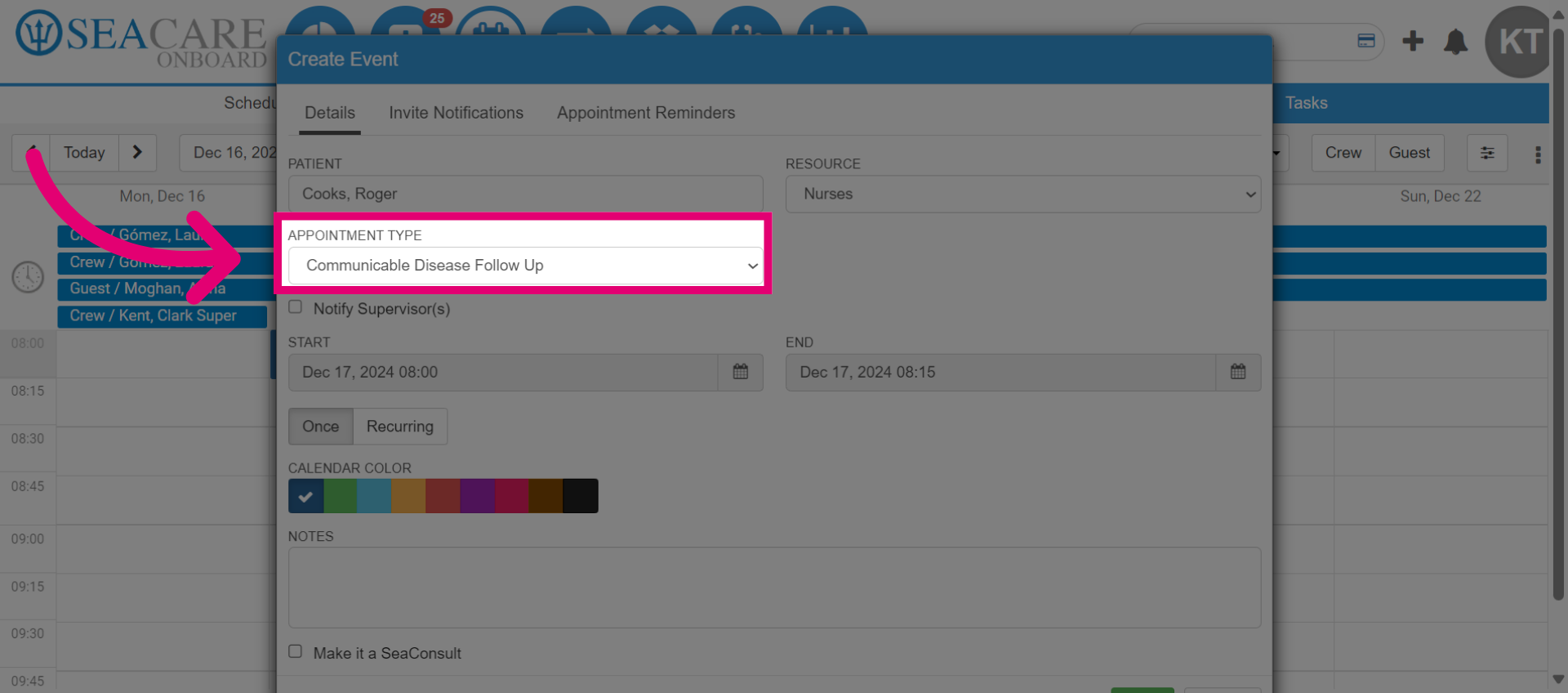
- Next, select the Appointment Type.
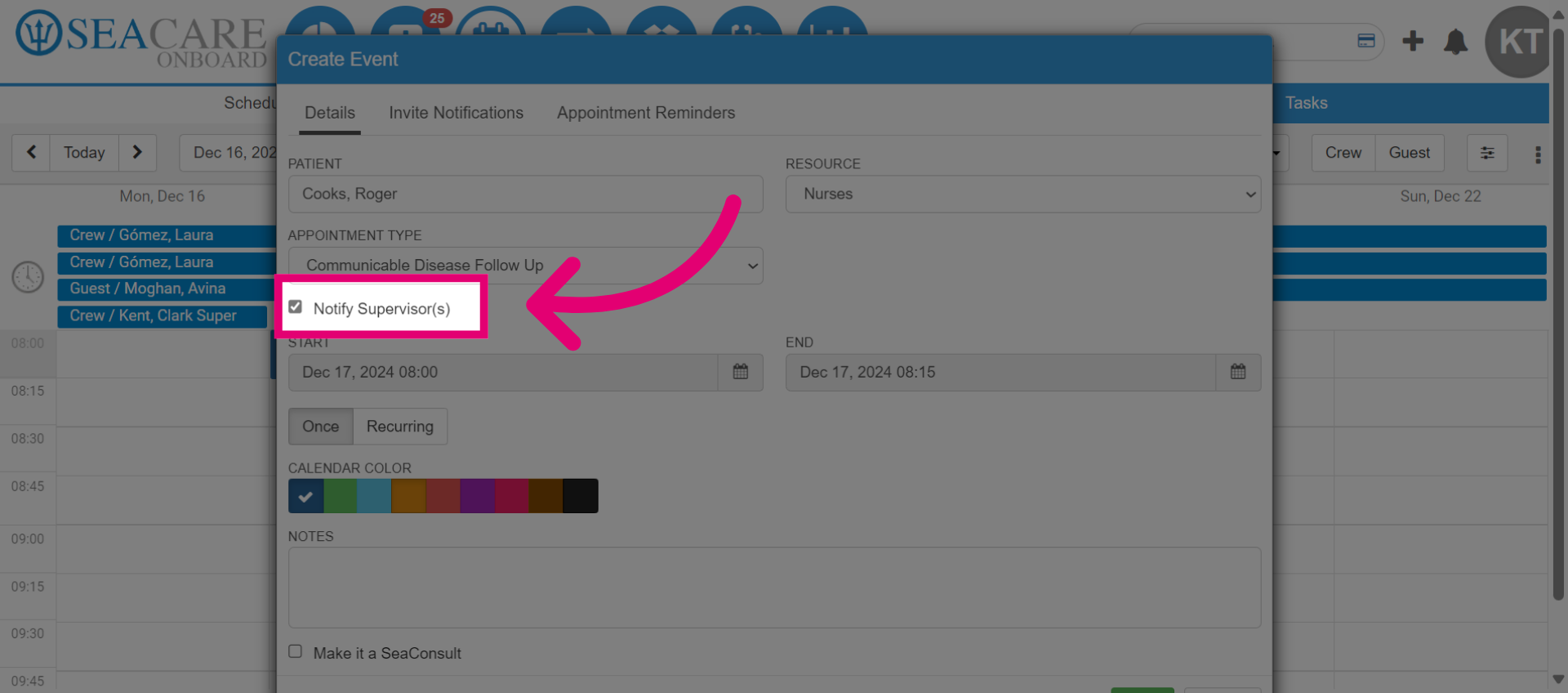
- To notify the patient's supervisor about the call, check the Notify Supervisor box.
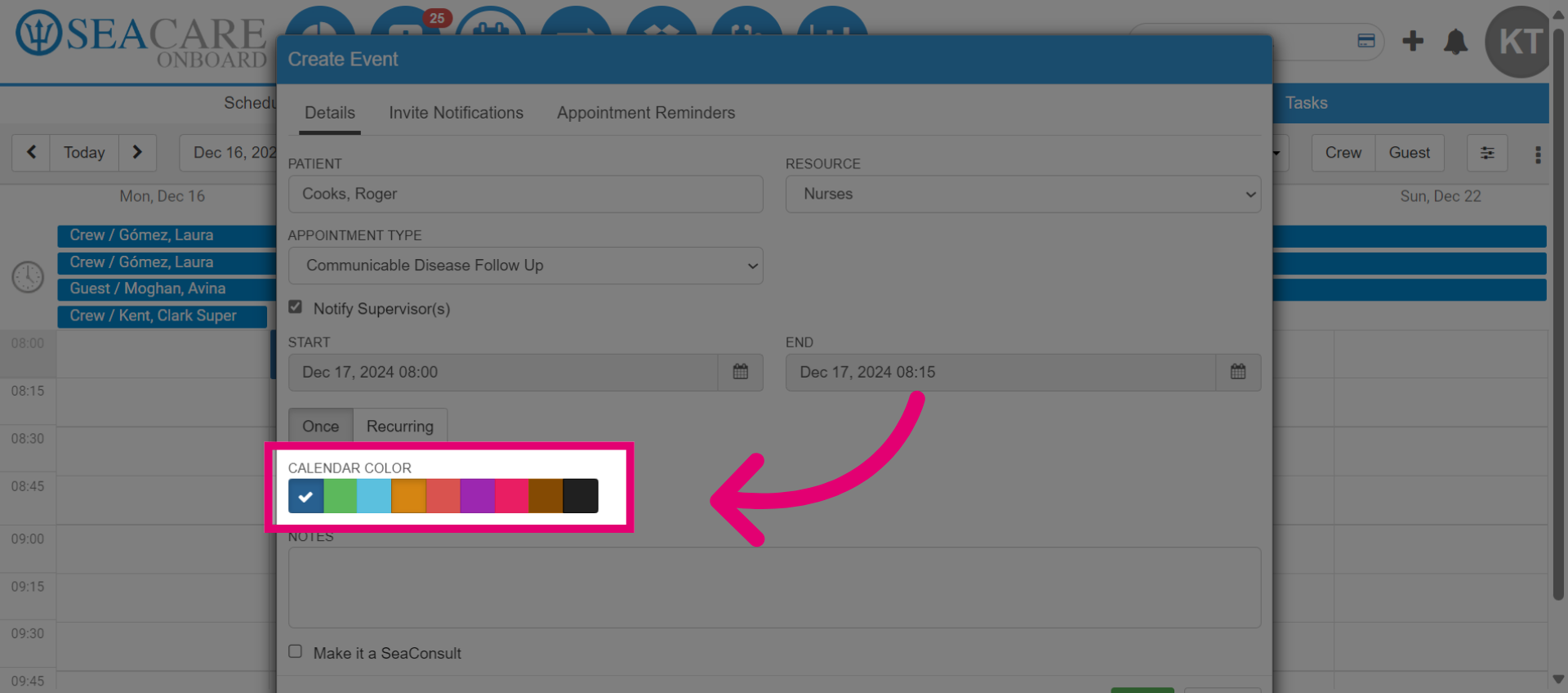
- Select the Calendar Color to display the appointment on the calendar. This helps group appointments by type or resource.
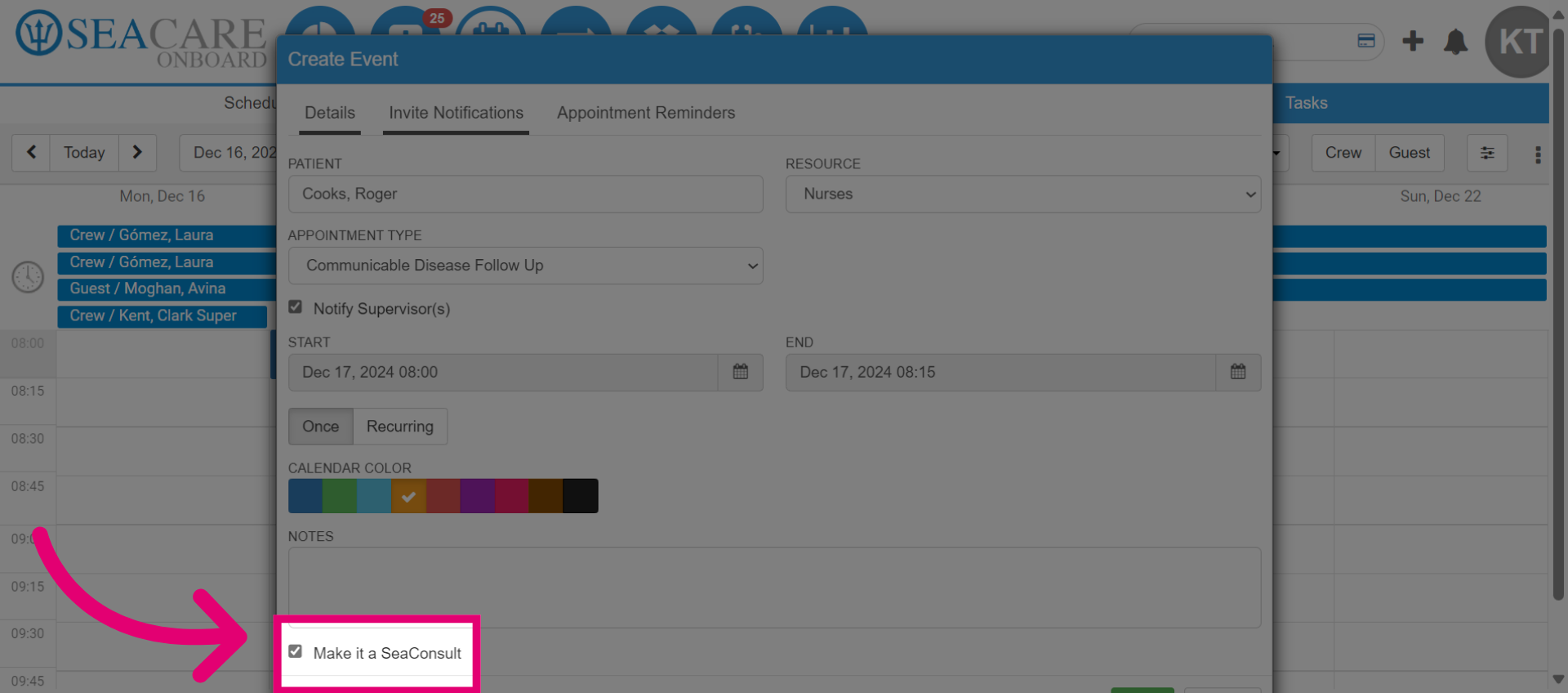
- Select Make it a SeaConsult to officially mark it as a SeaConsult call appointment.
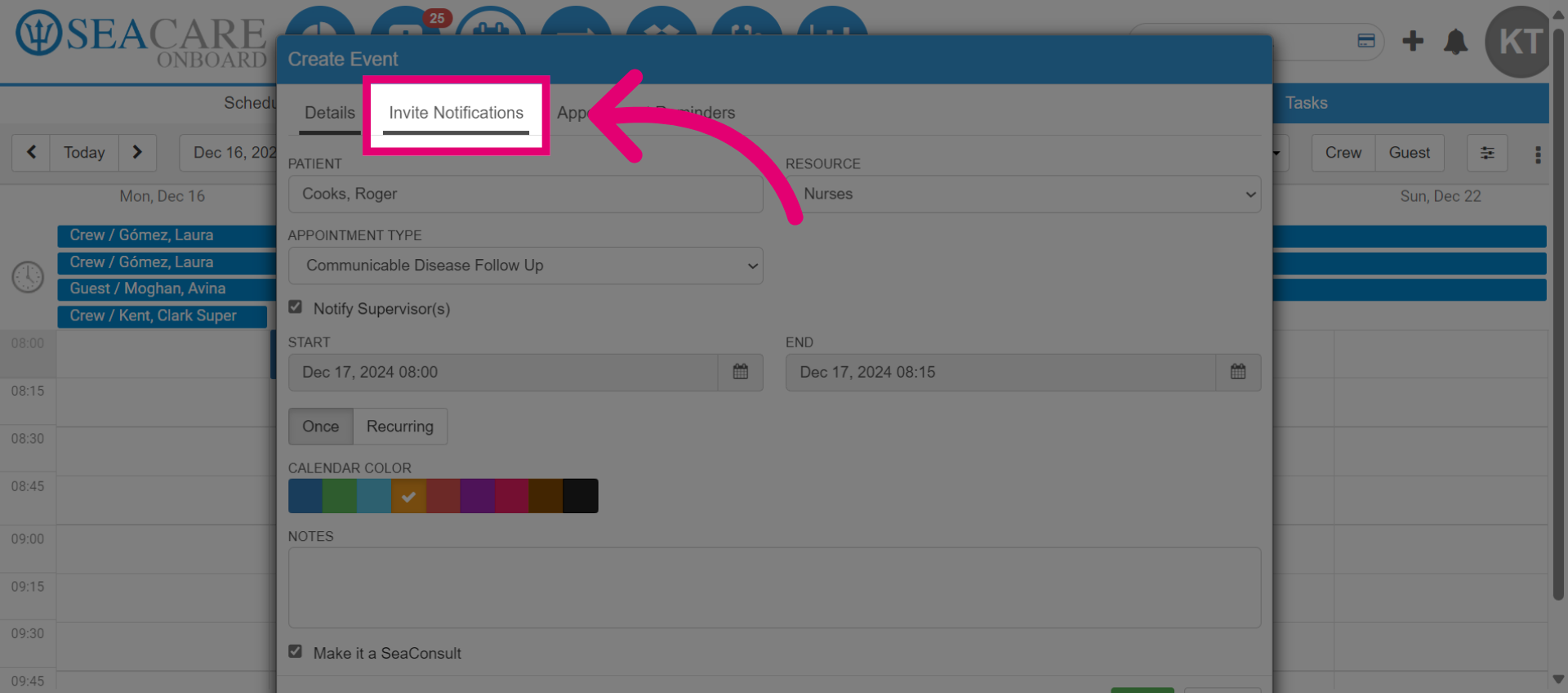
- Next, go to the Invite Notifications tab.
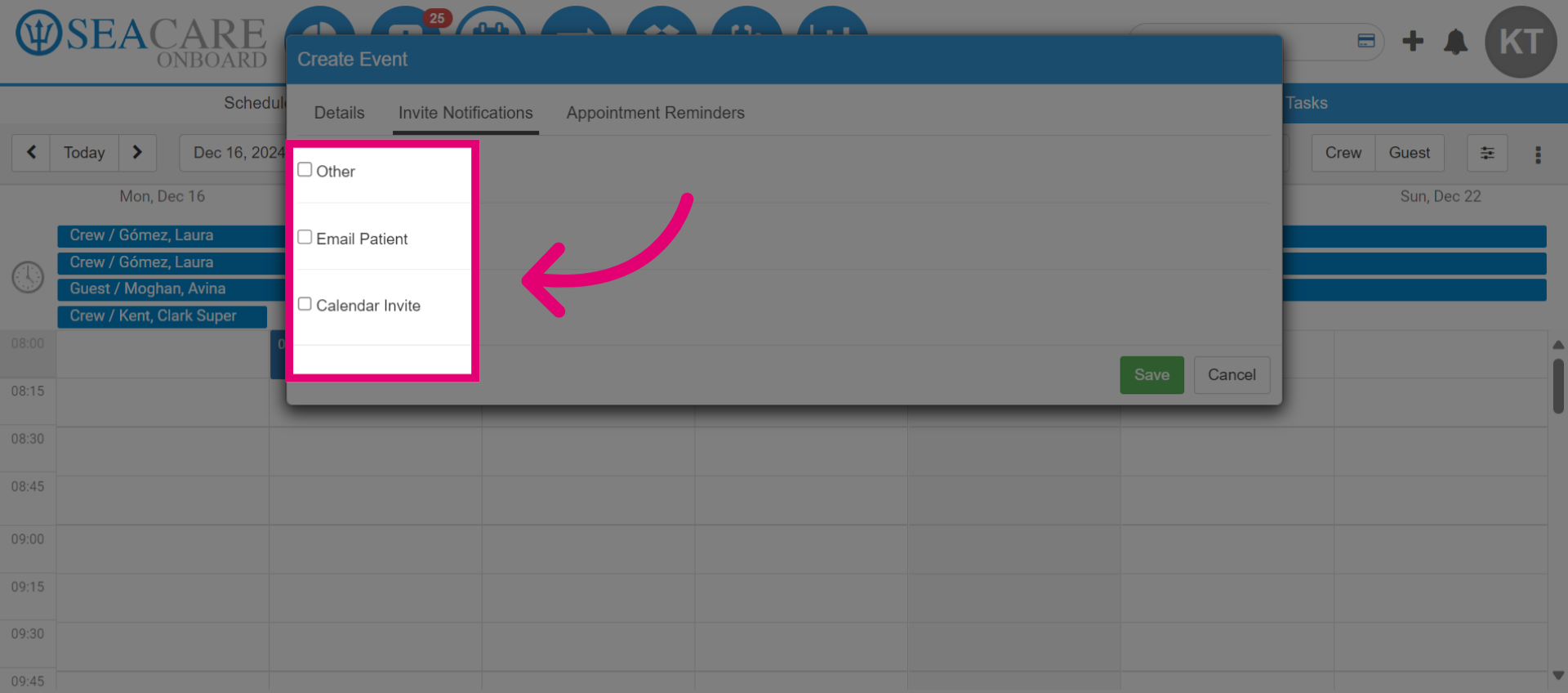
- Choose recipients to send an invite notification, such as the patient or another party.
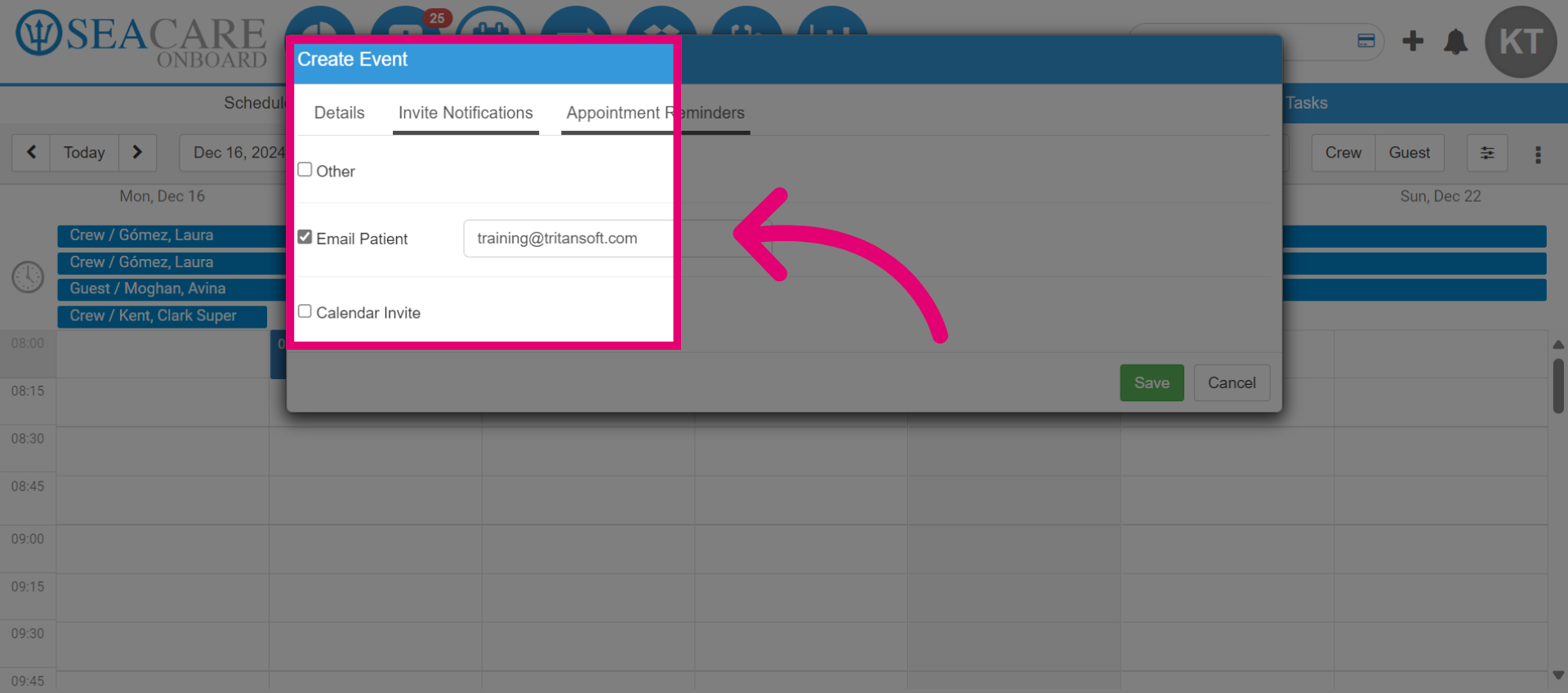
- Once you check an option, confirm the email for the recipient.
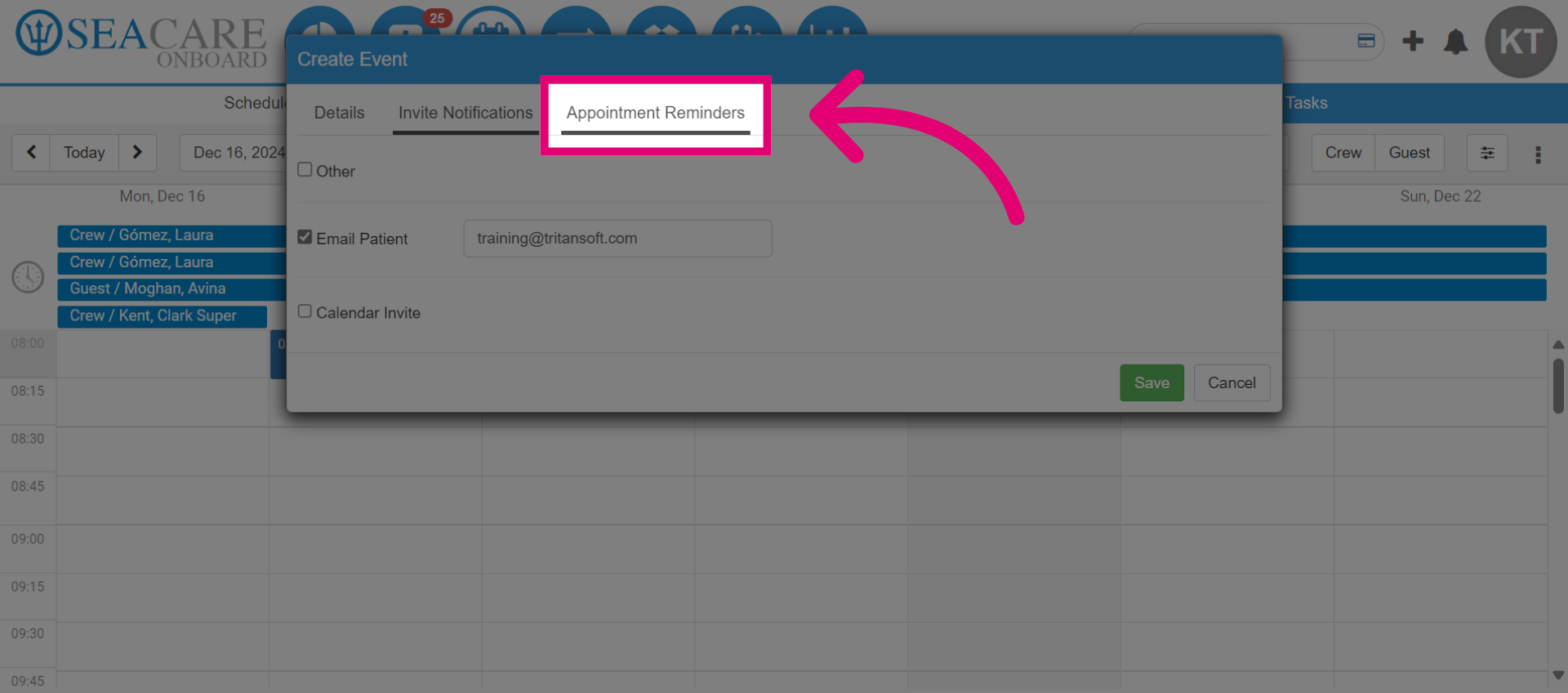
- Go to the Appointment Reminders tab.
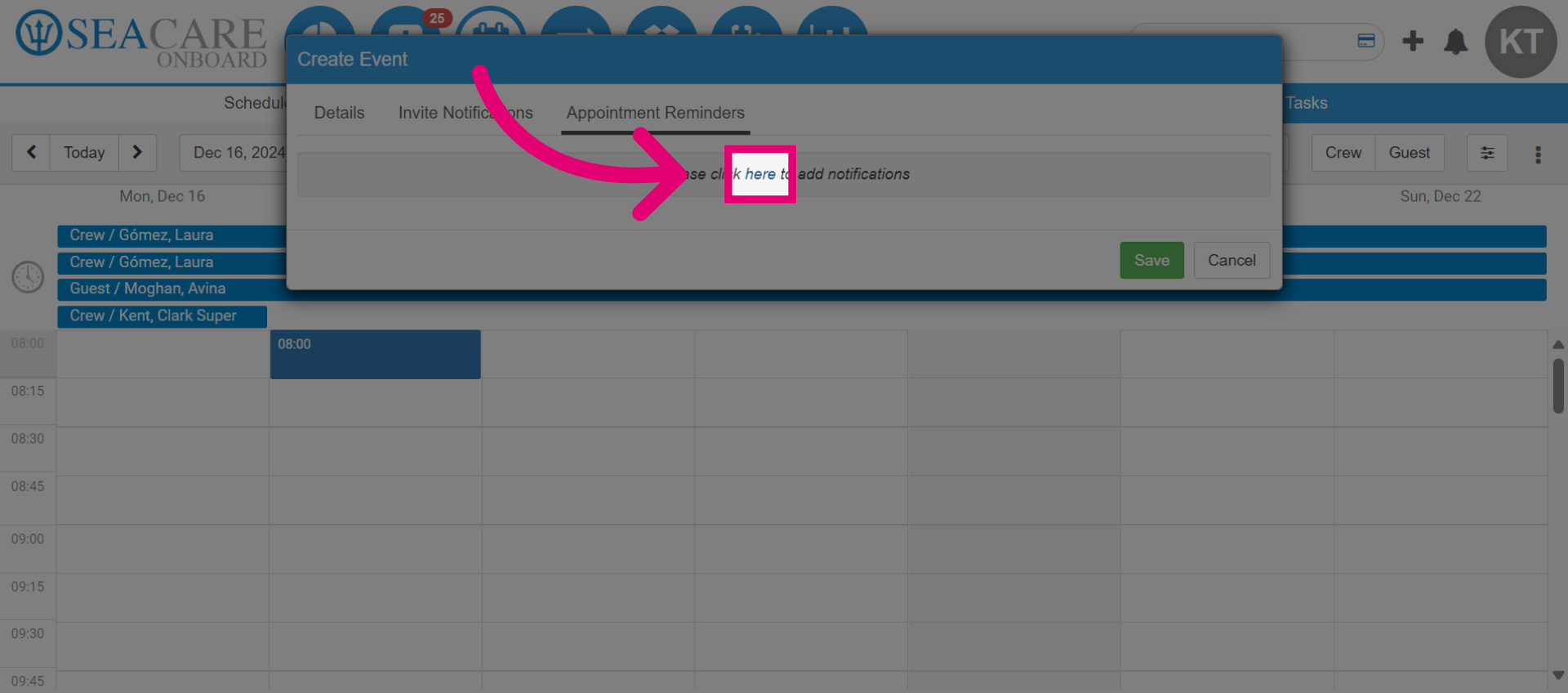
- Select "here" to add a new appointment reminder.
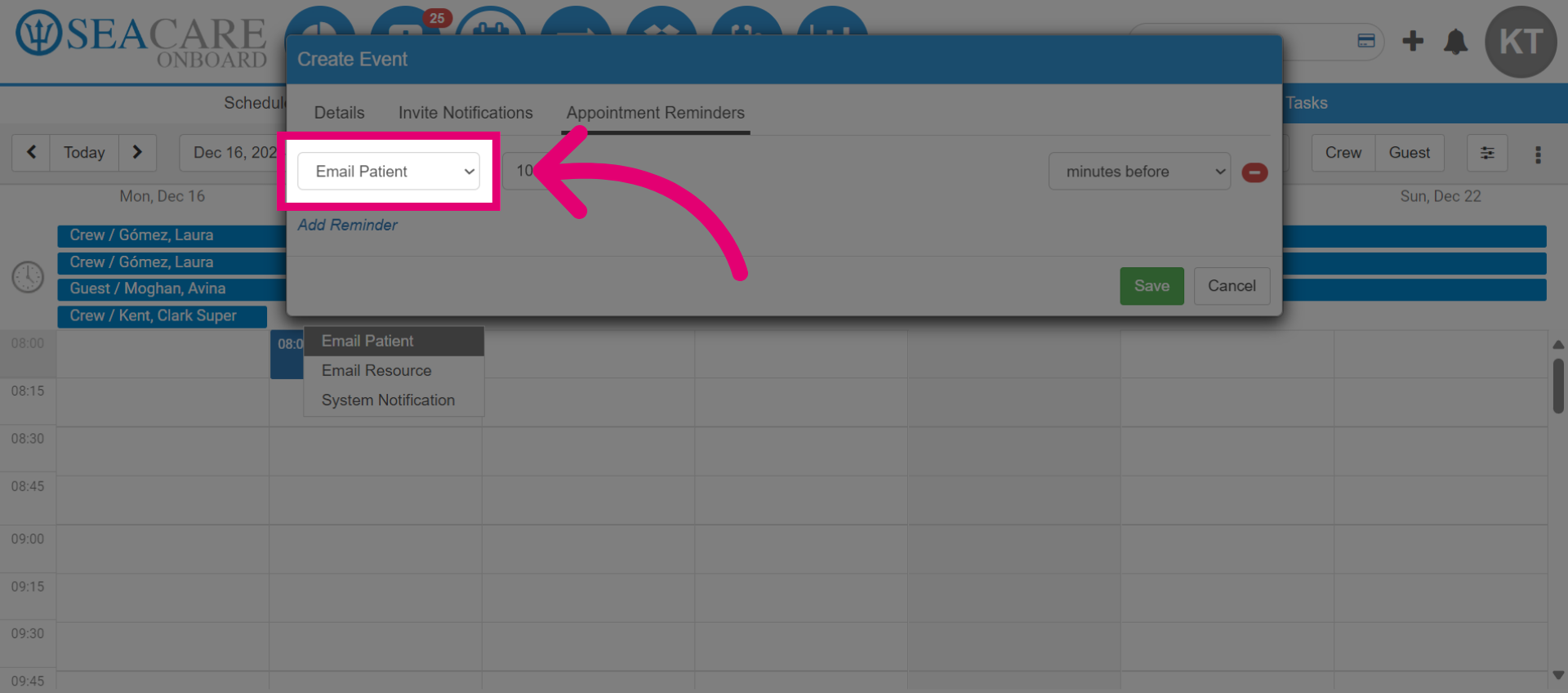
- Then, select the email to send the reminder.
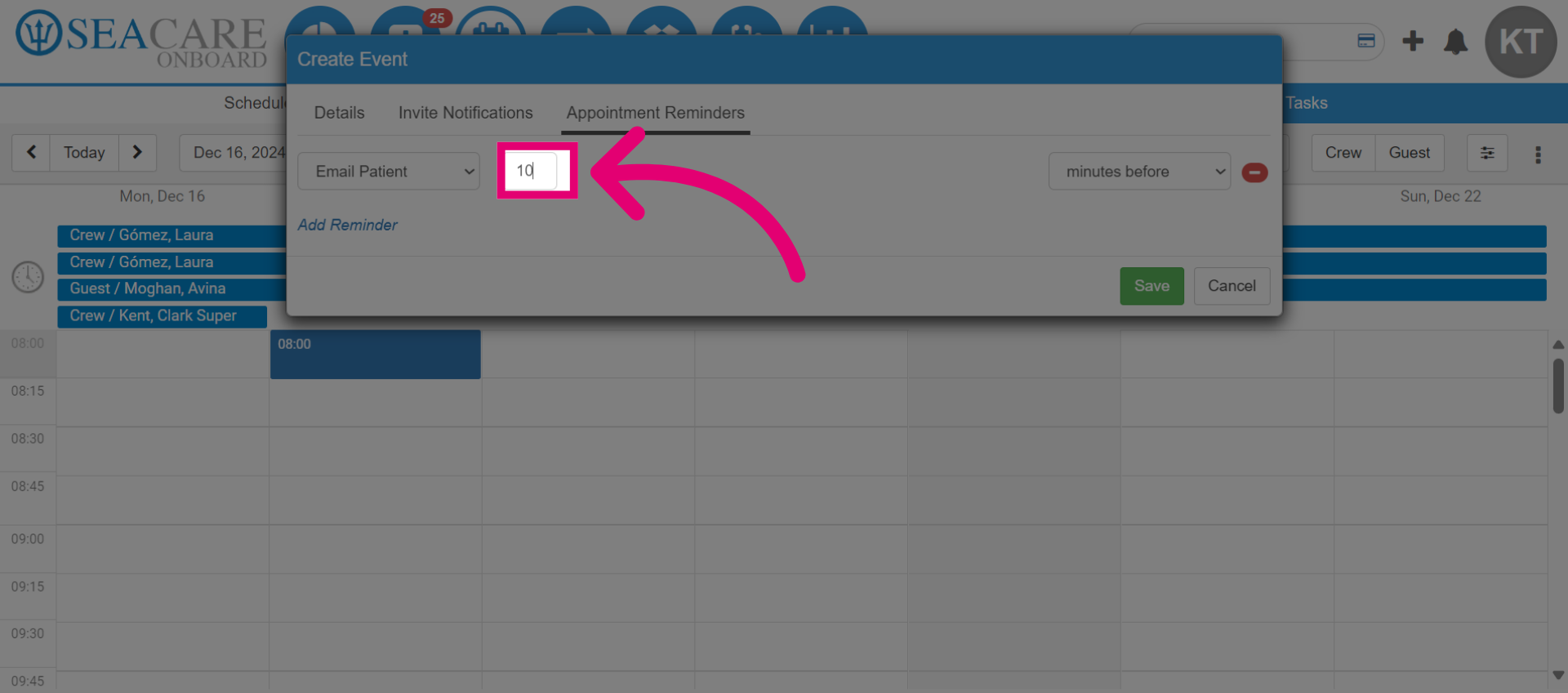
- Enter the numeric value for the time before the appointment, such as 10.
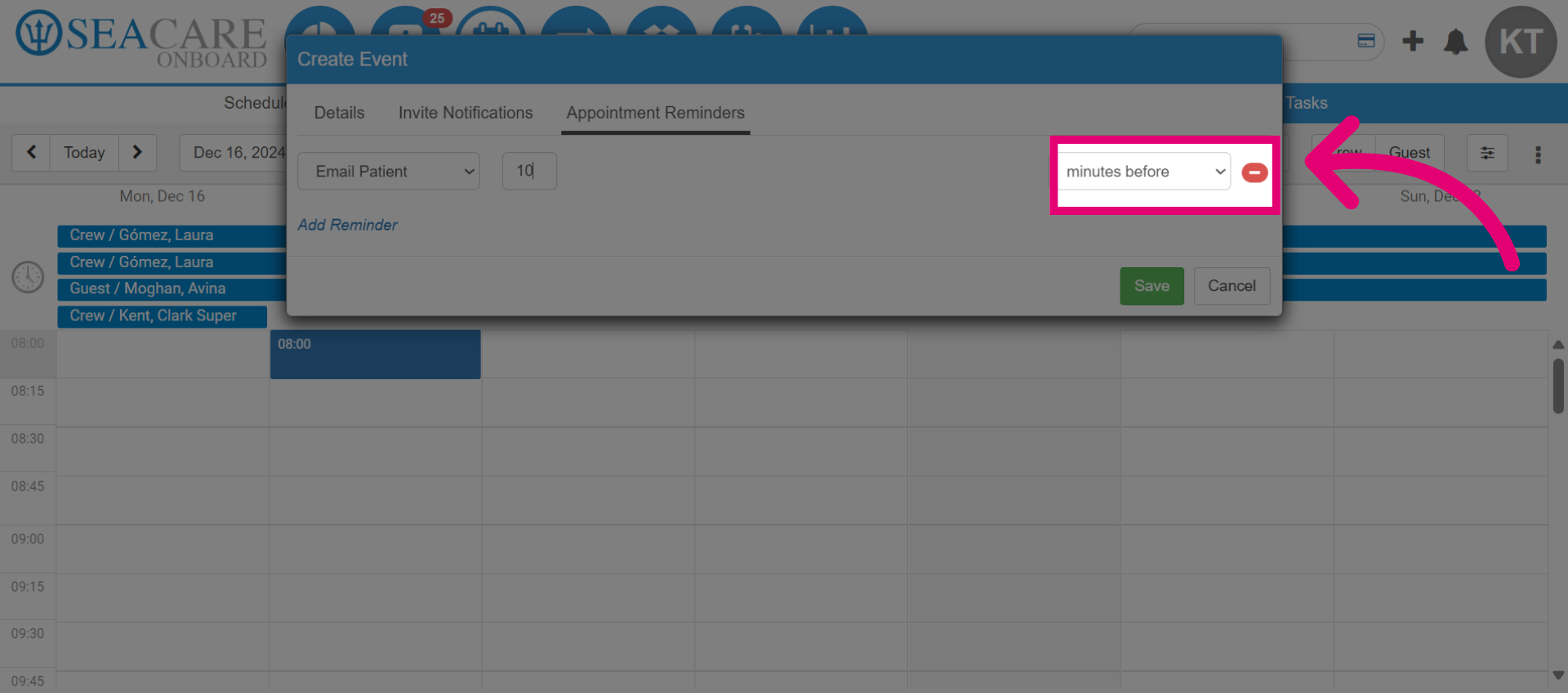
- Choose the time unit (minutes, hours, or days) for sending the appointment reminder.
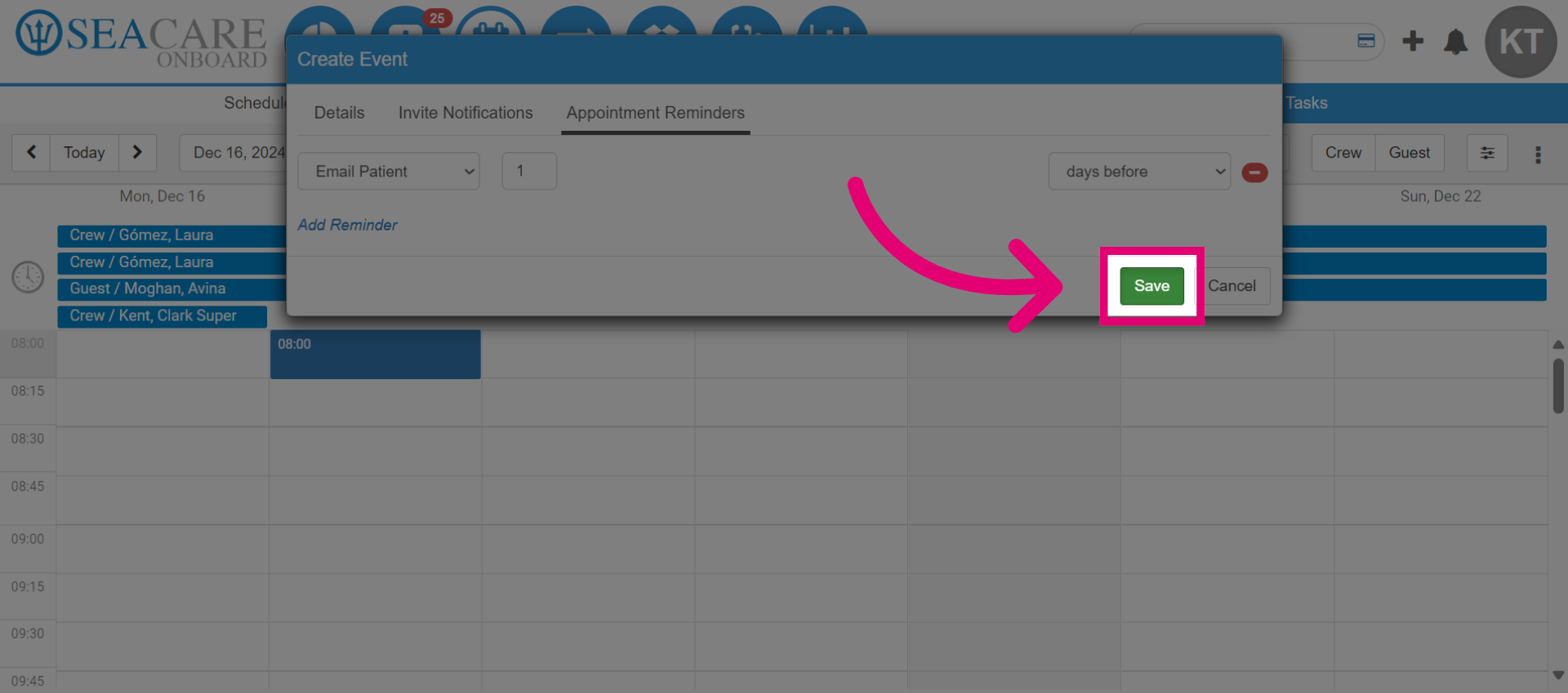
- Save the changes made.
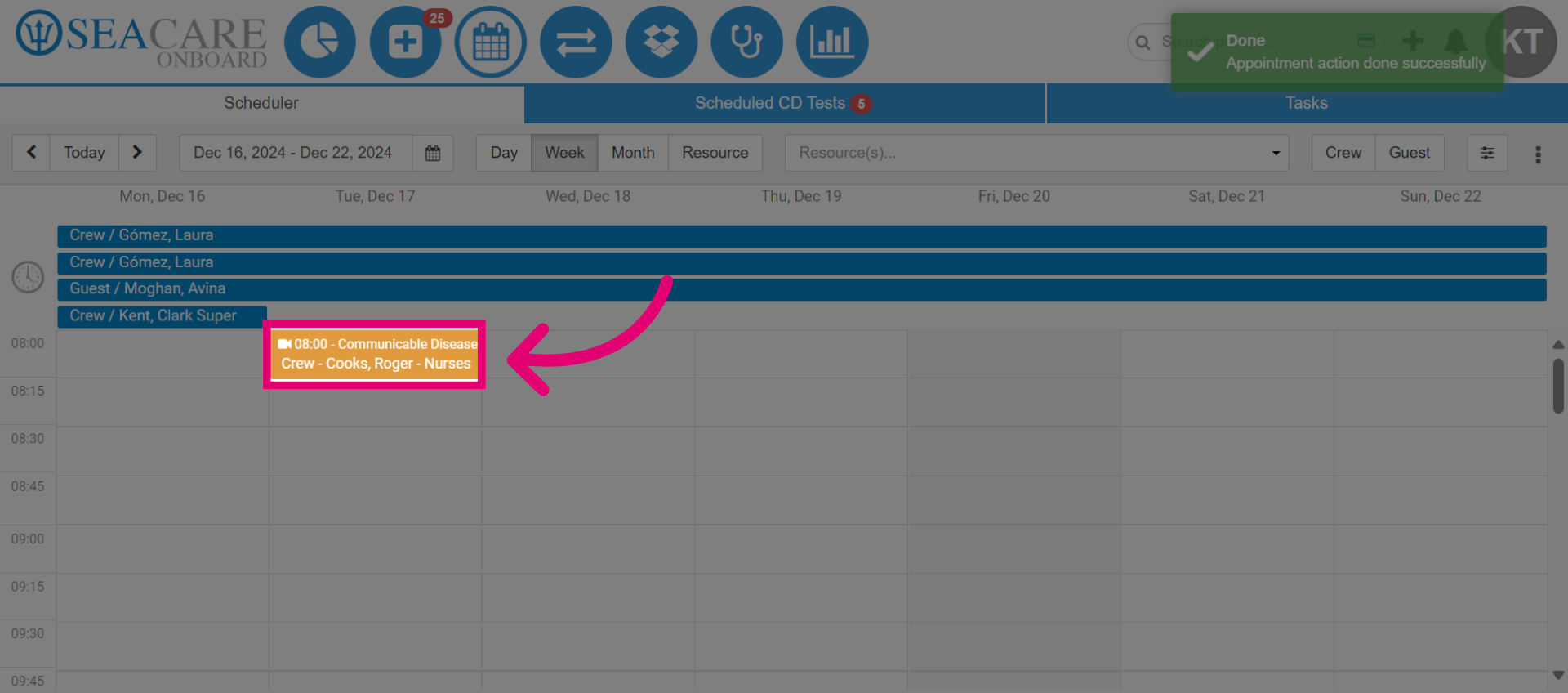
- Then, view the entry on the calendar.
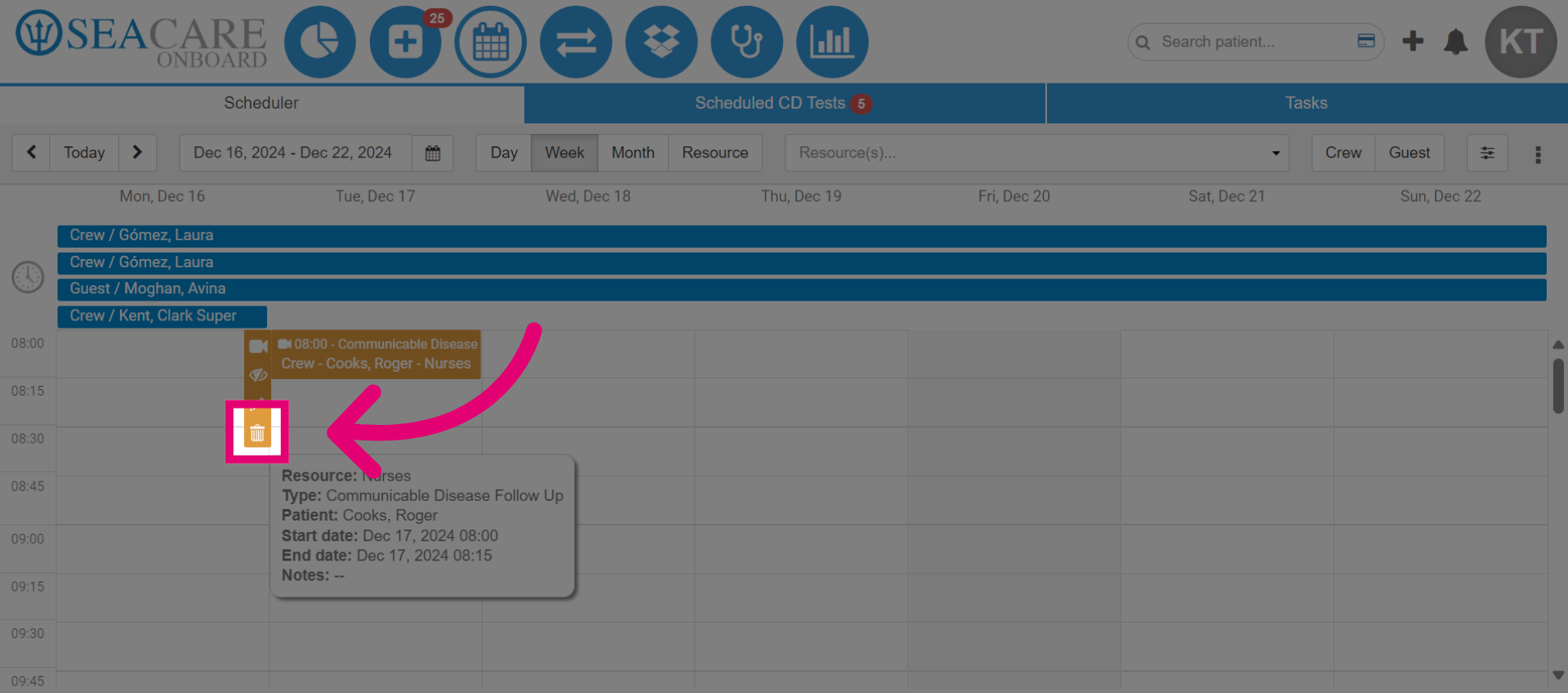
- Hover over the appointment to view the appointment details.
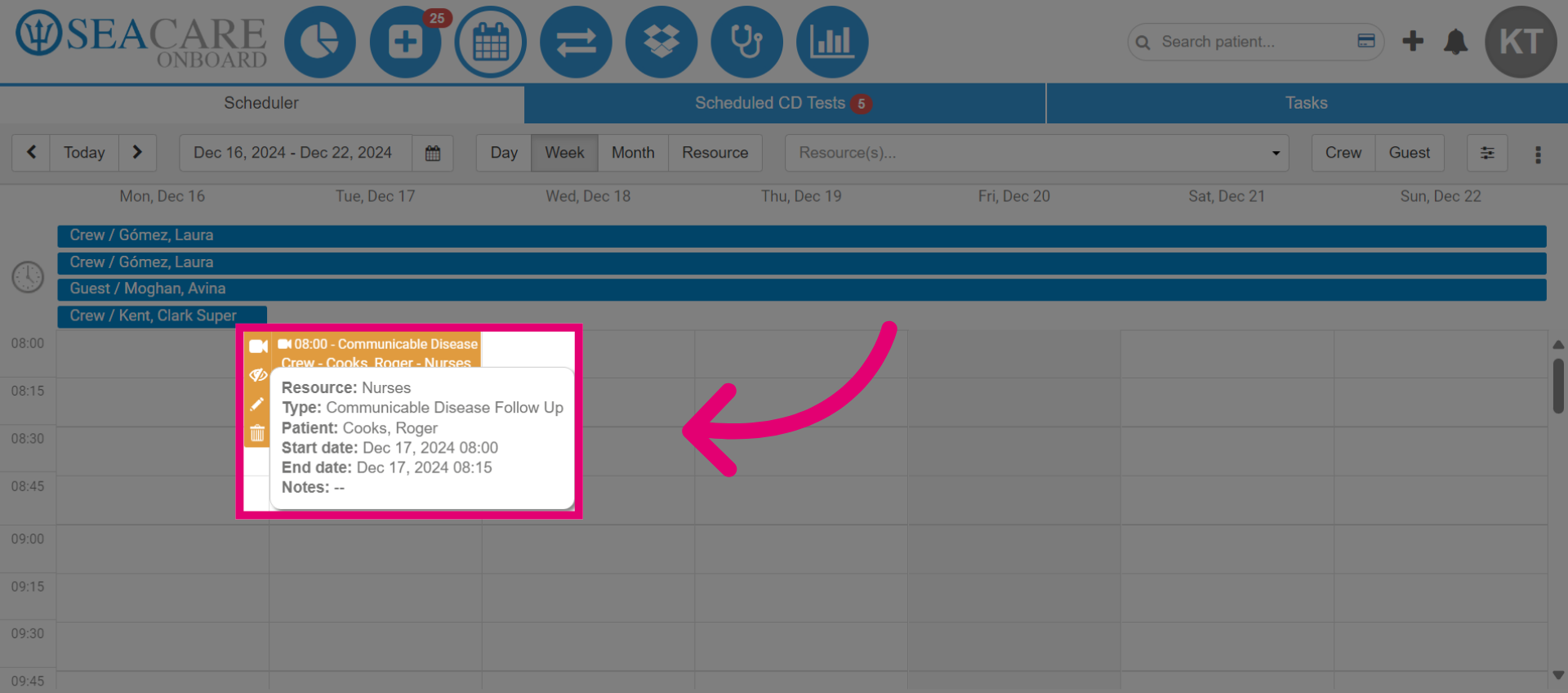
- Select the video button to start the SeaConsult call.
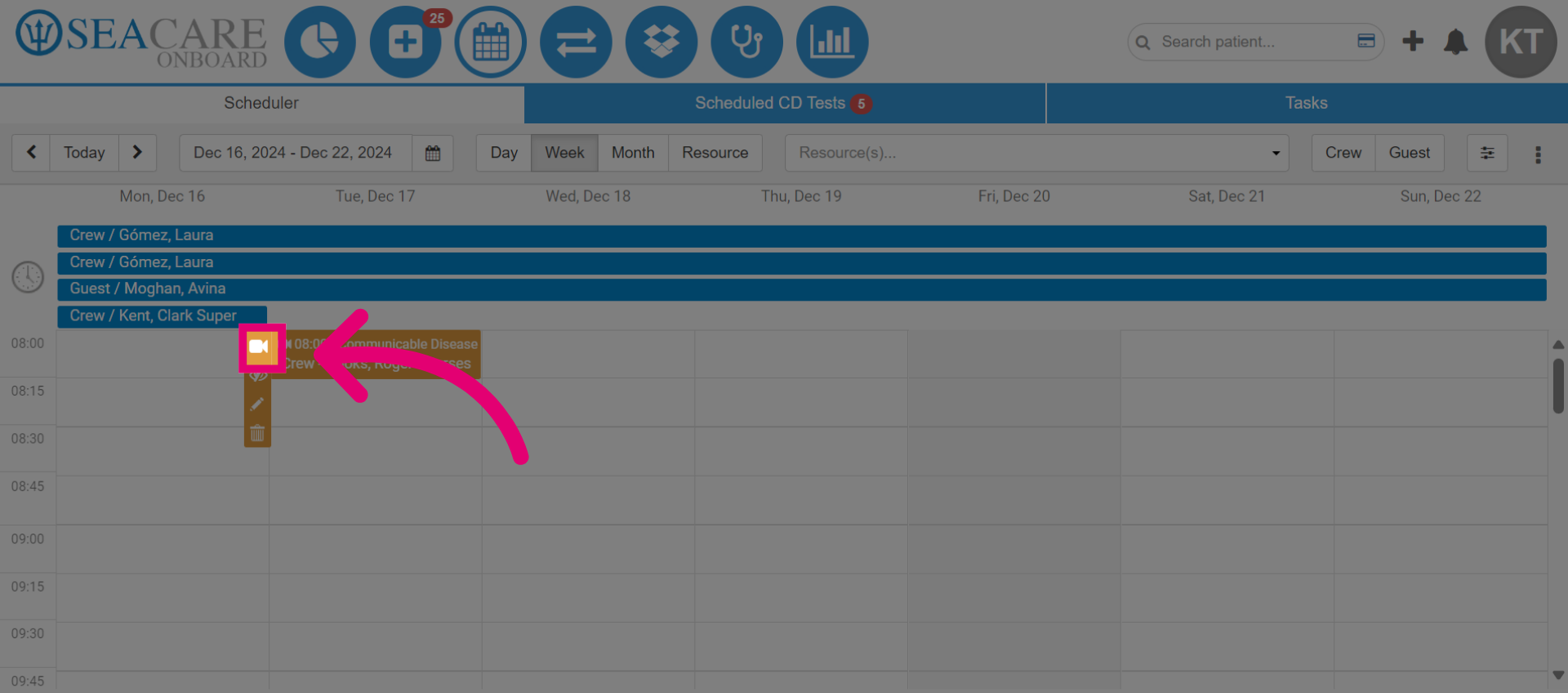
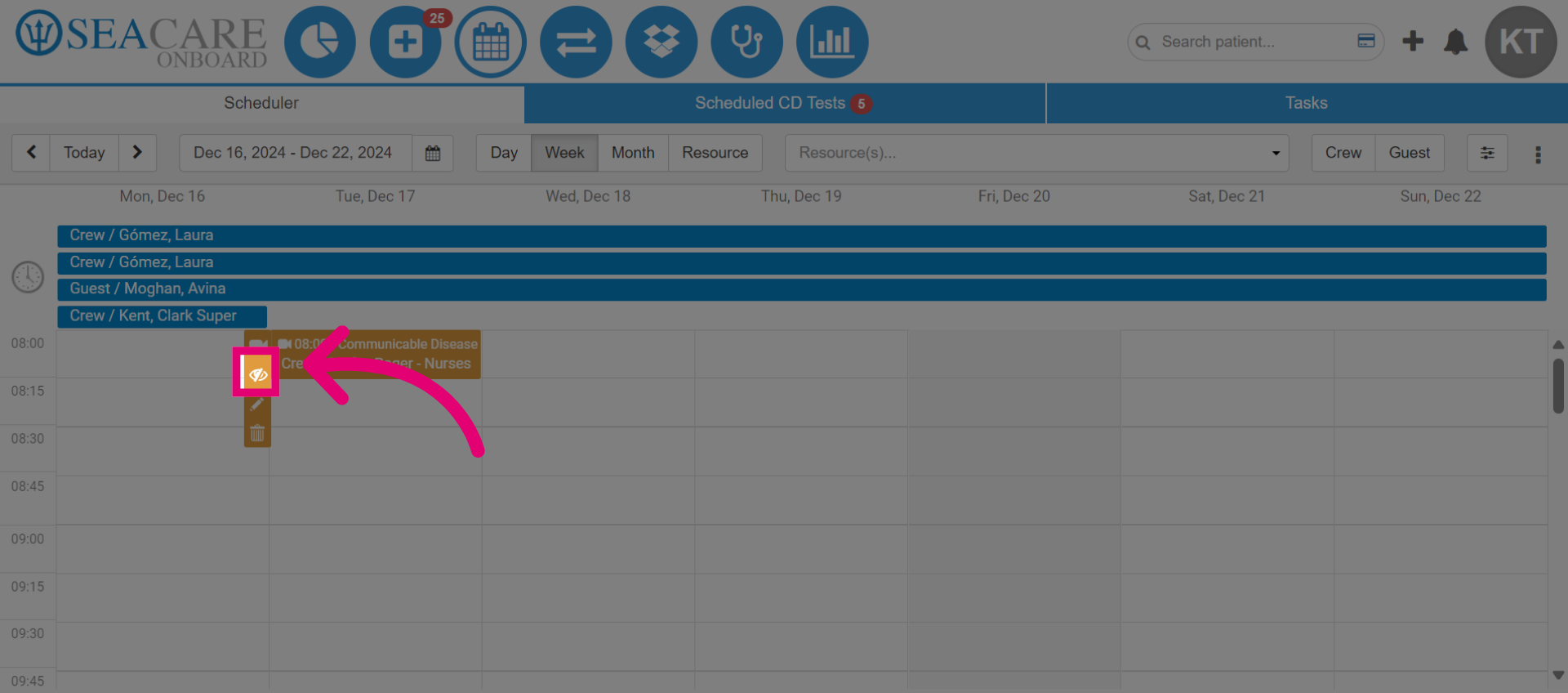
- Choose the eye button to mark the SeaConsult appointment as missed or a no-show if the patient did not attend.
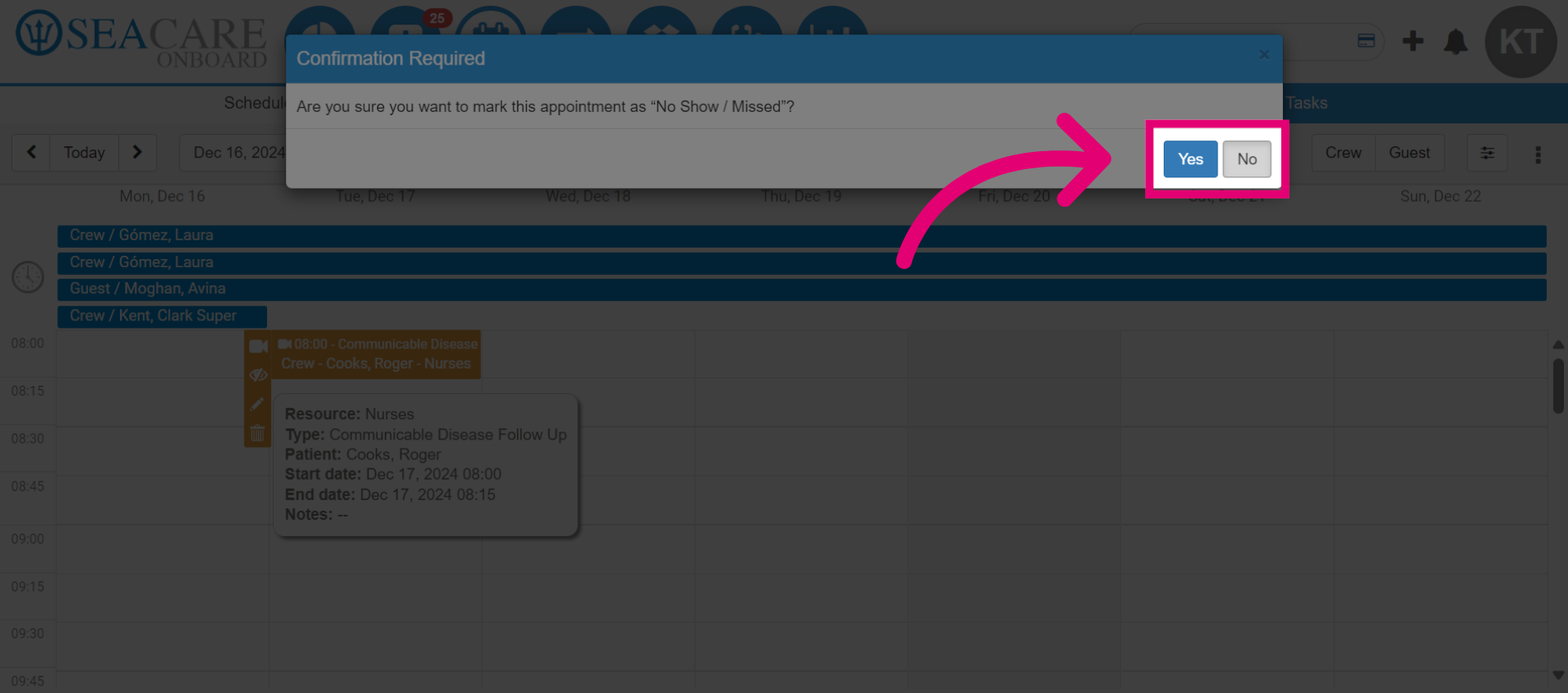
- Then, choose Yes to confirm the missed appointment.
- Select the pencil icon to edit the appointment details.
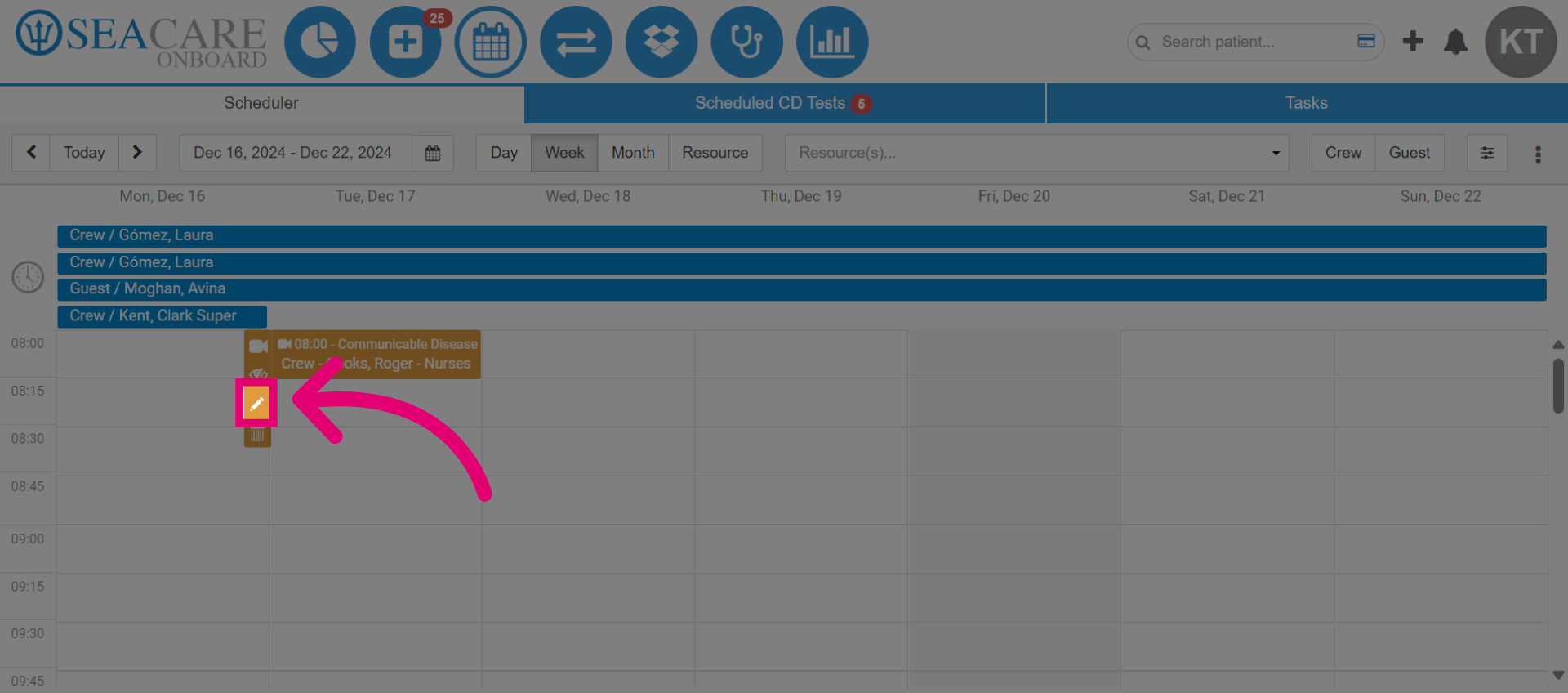
- Then, edit the appointment if necessary.
- Select the bin button to cancel the appointment.
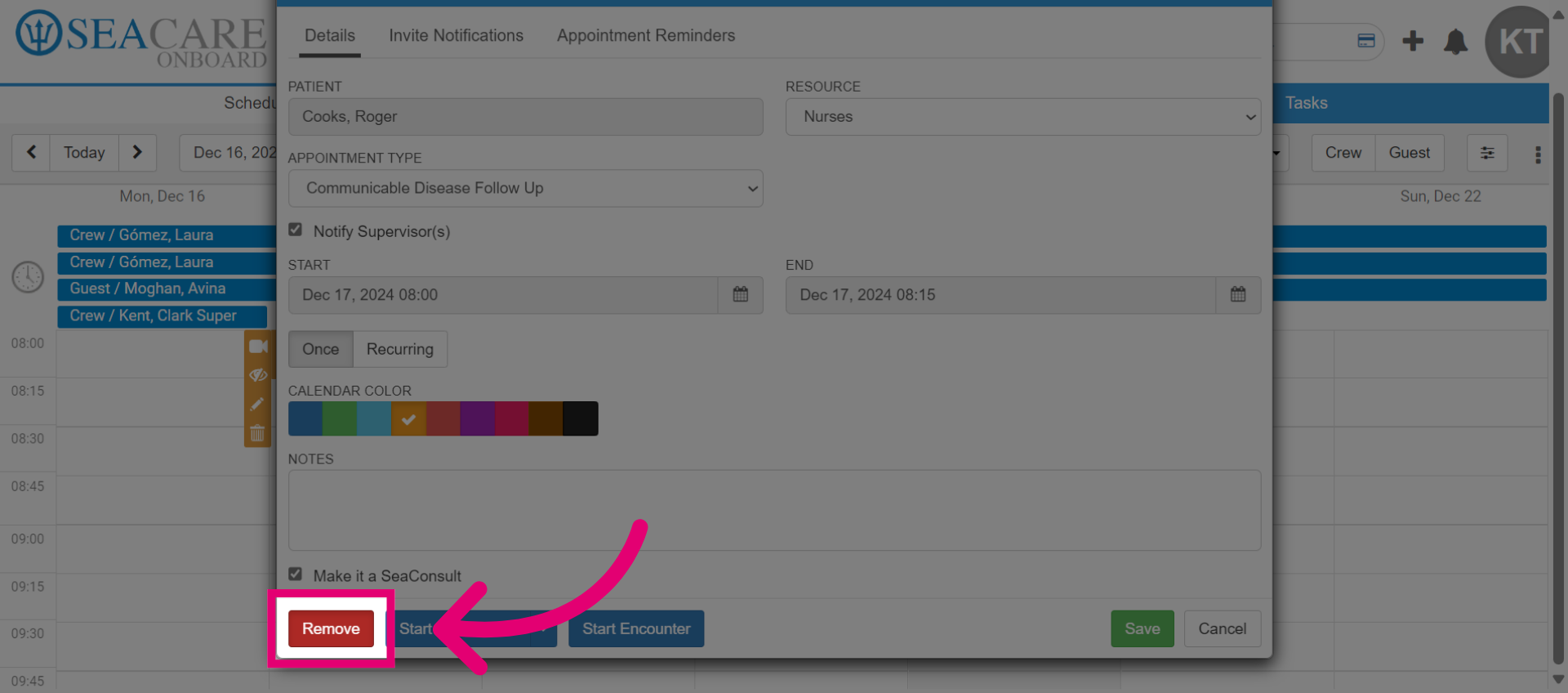
- Select the Remove option to cancel the appointment.
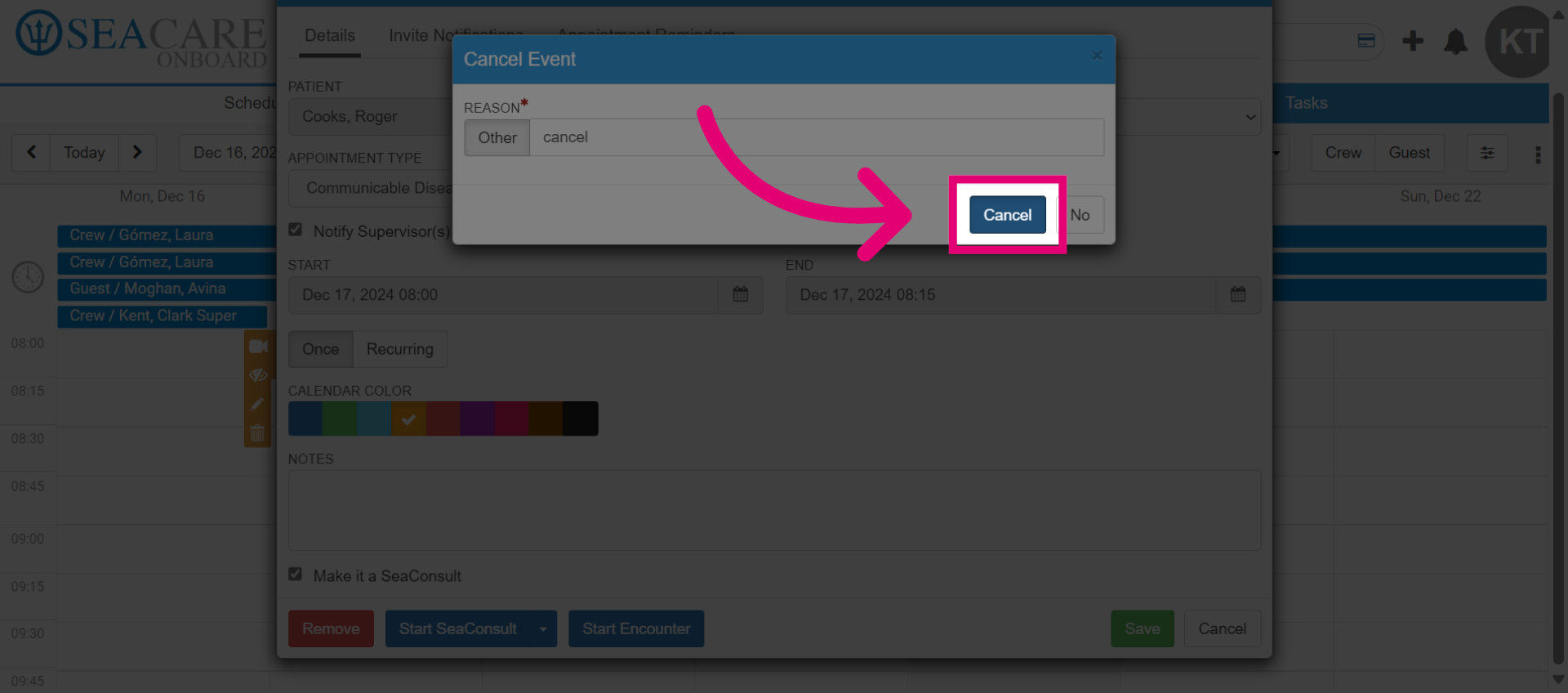
- Enter the cancellation reason.
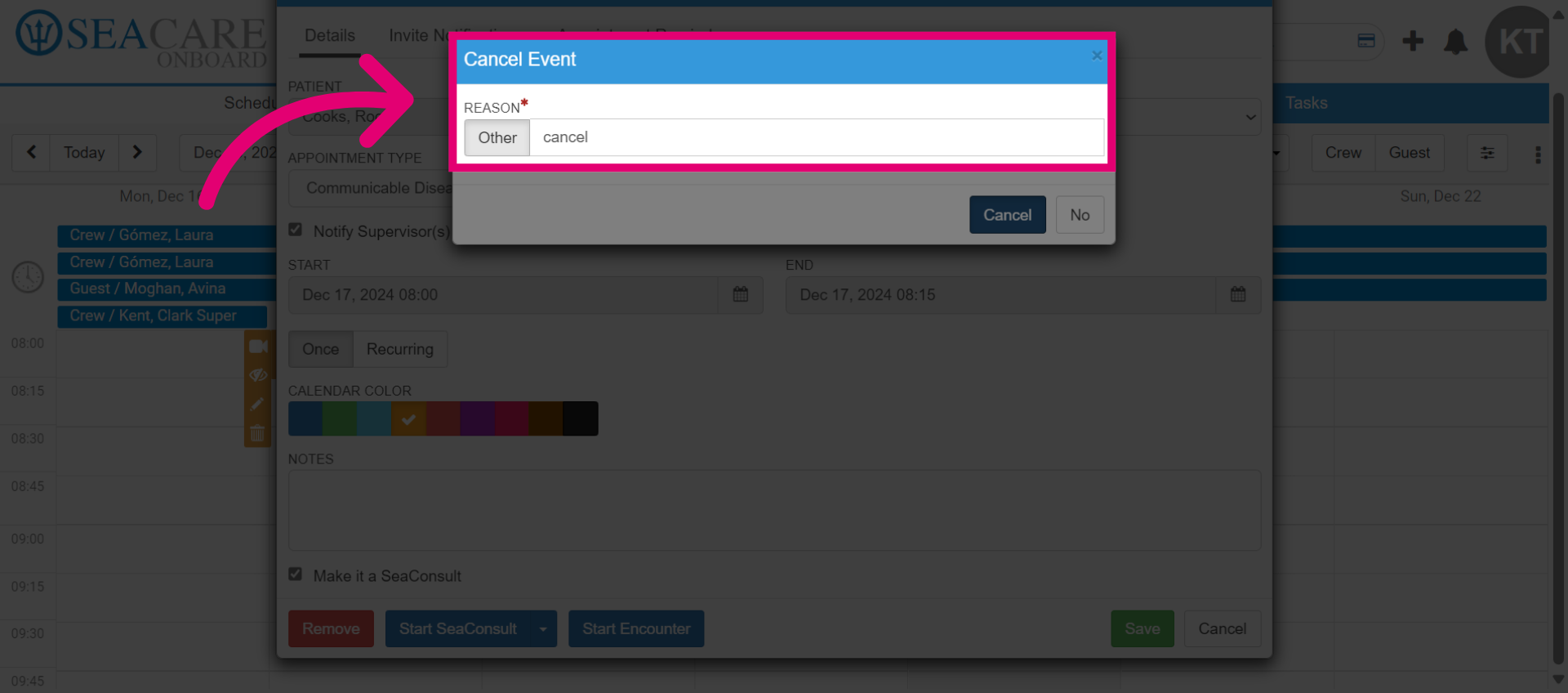
- Then, click Cancel.