New article
Recently updated
Setting up patient self-booking availability

Who is this article for?Users who want to learn to set up a patient self-booking availability.
No elevated permissions are required.
This guide provides detailed instructions for setting up Patient Self-Booking Availability within Ideagen Maritime Health Onboard.
1. Setting up patient self-booking availability
1.1. Video
1.2. Steps
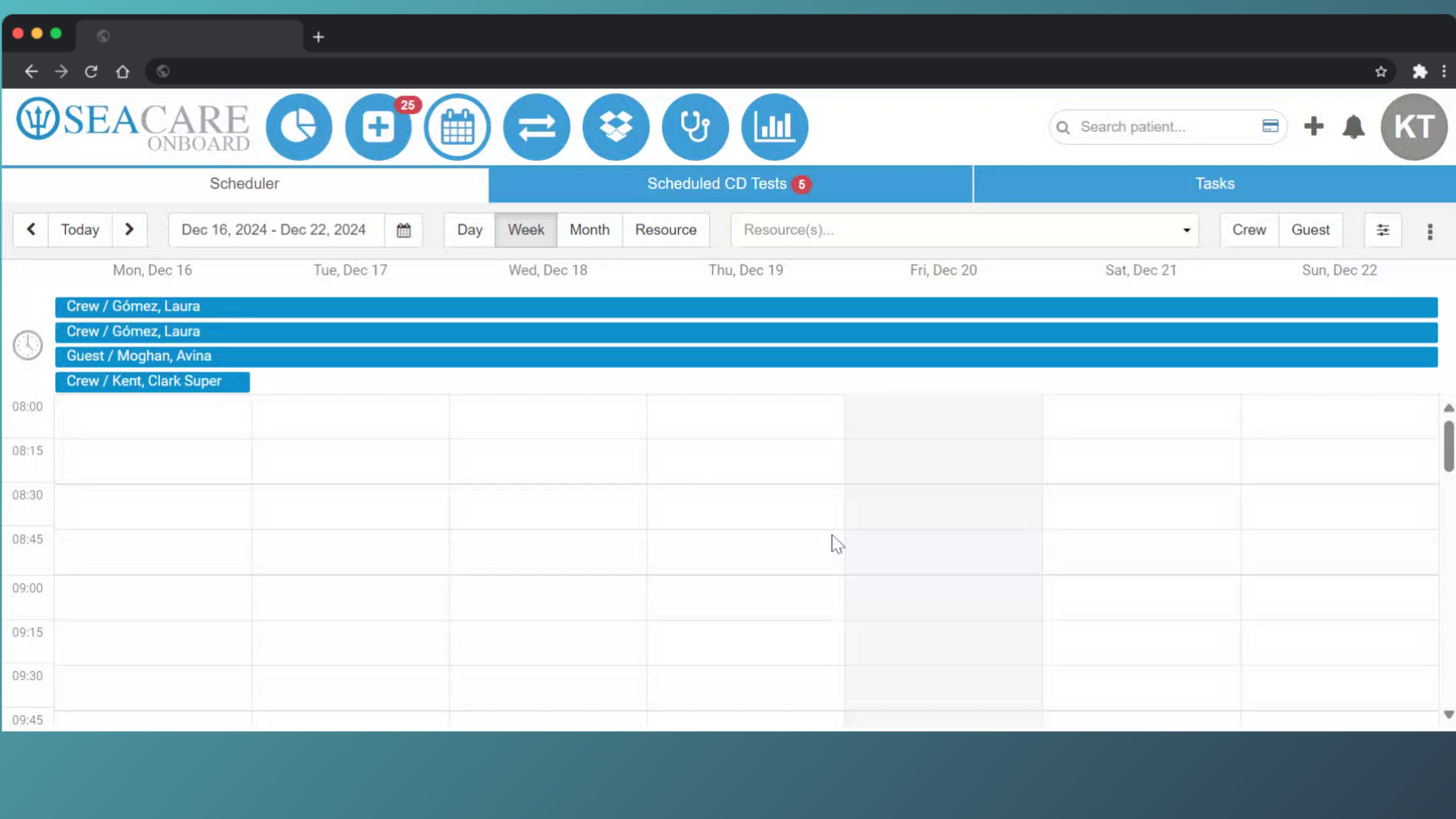
- By following these instructions, you can seamlessly set up appointment availability for patients. To begin, go to the Calendar module in Ideagen Maritime Health Onboard under the Scheduler tab.
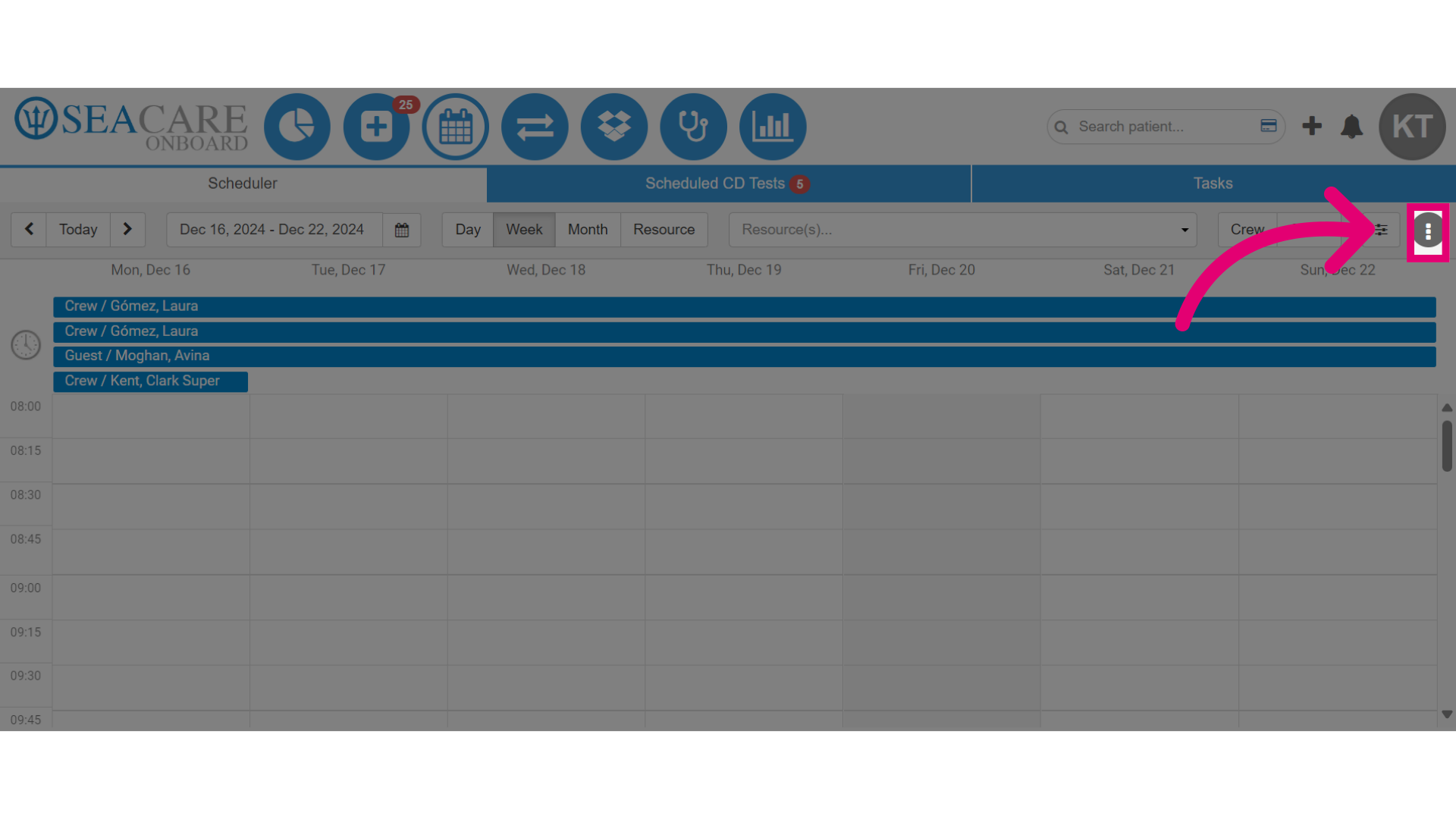
- Select this More Actions button.
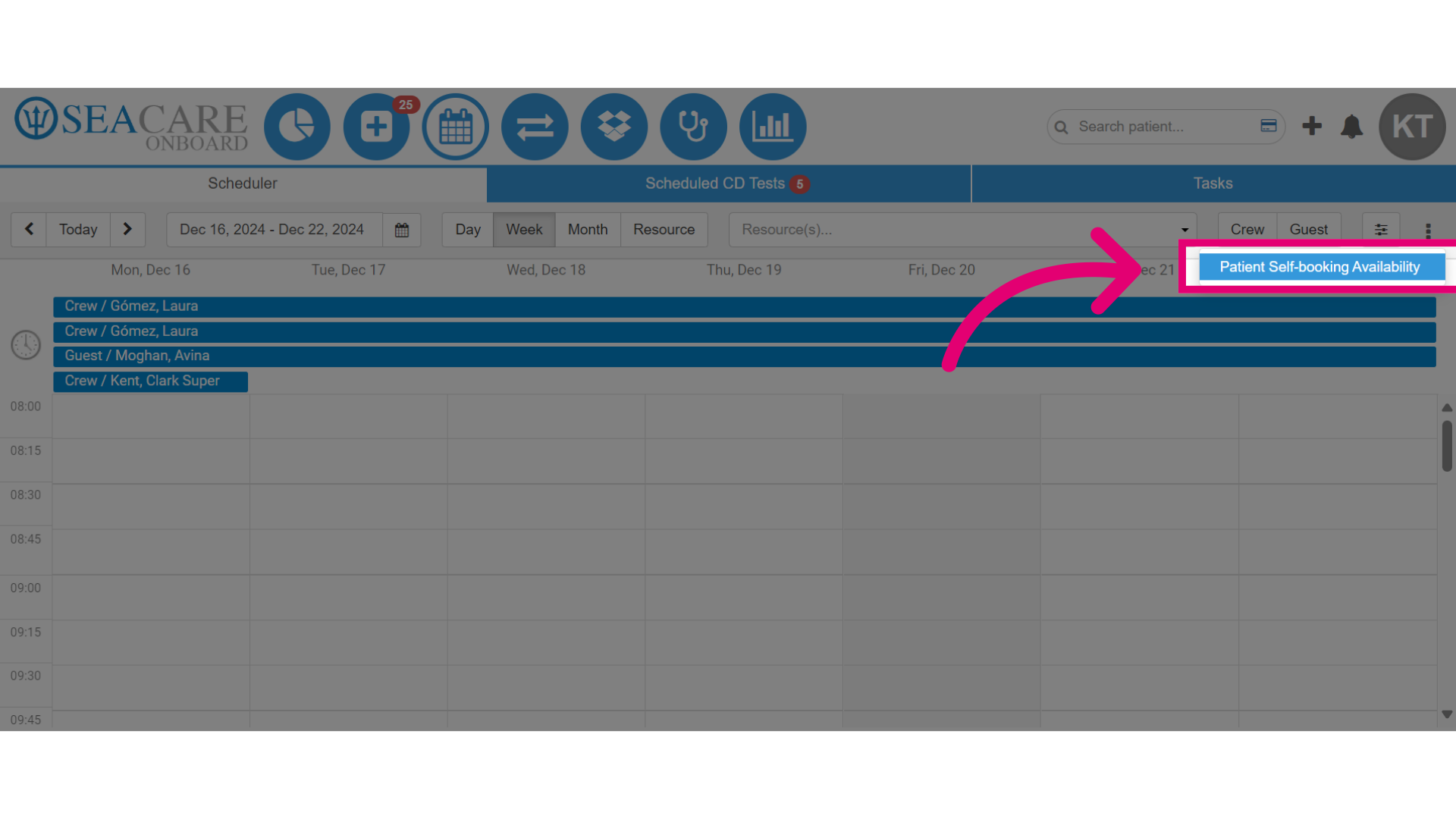
- Click Patient Self-booking Availability.
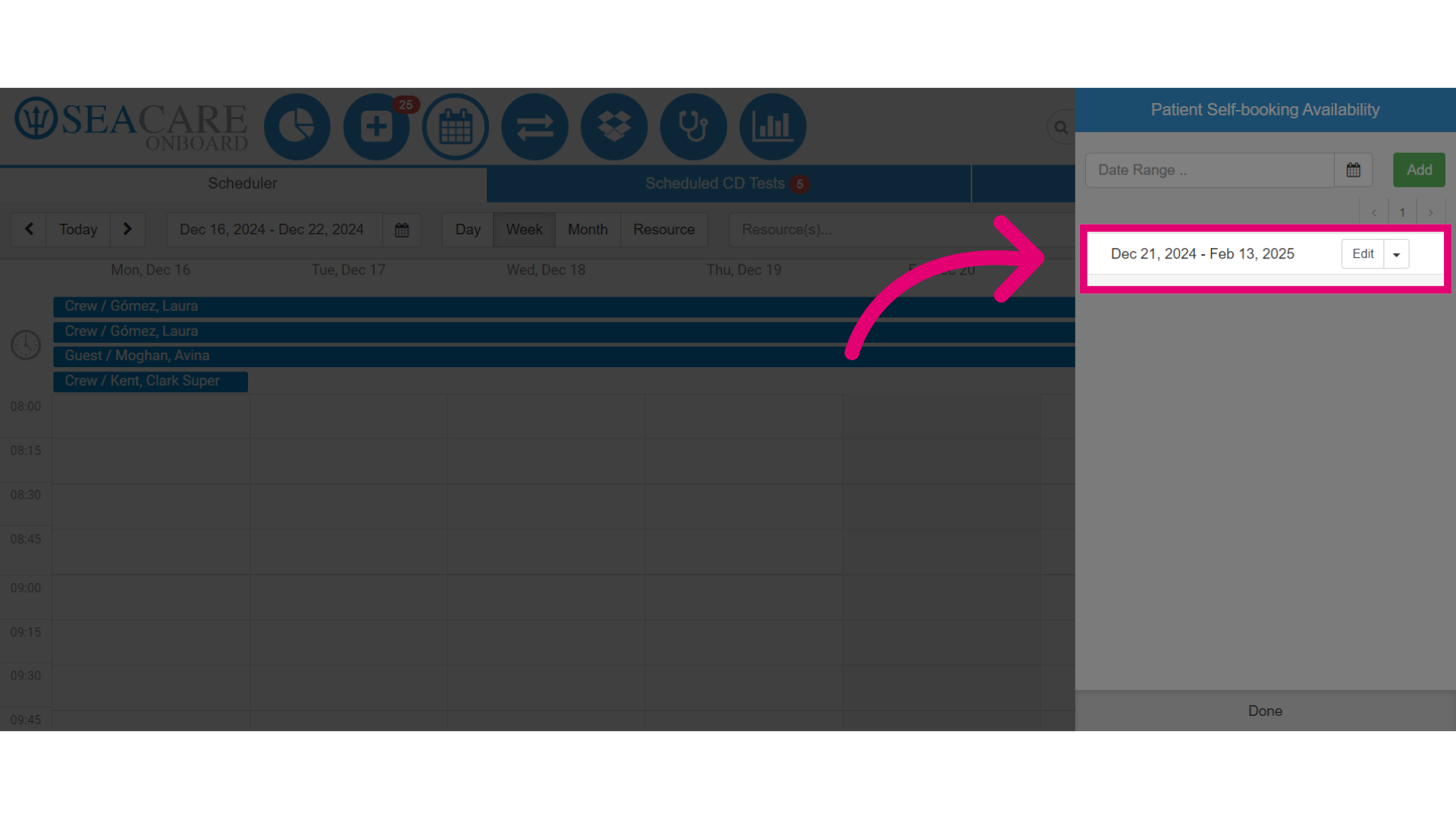
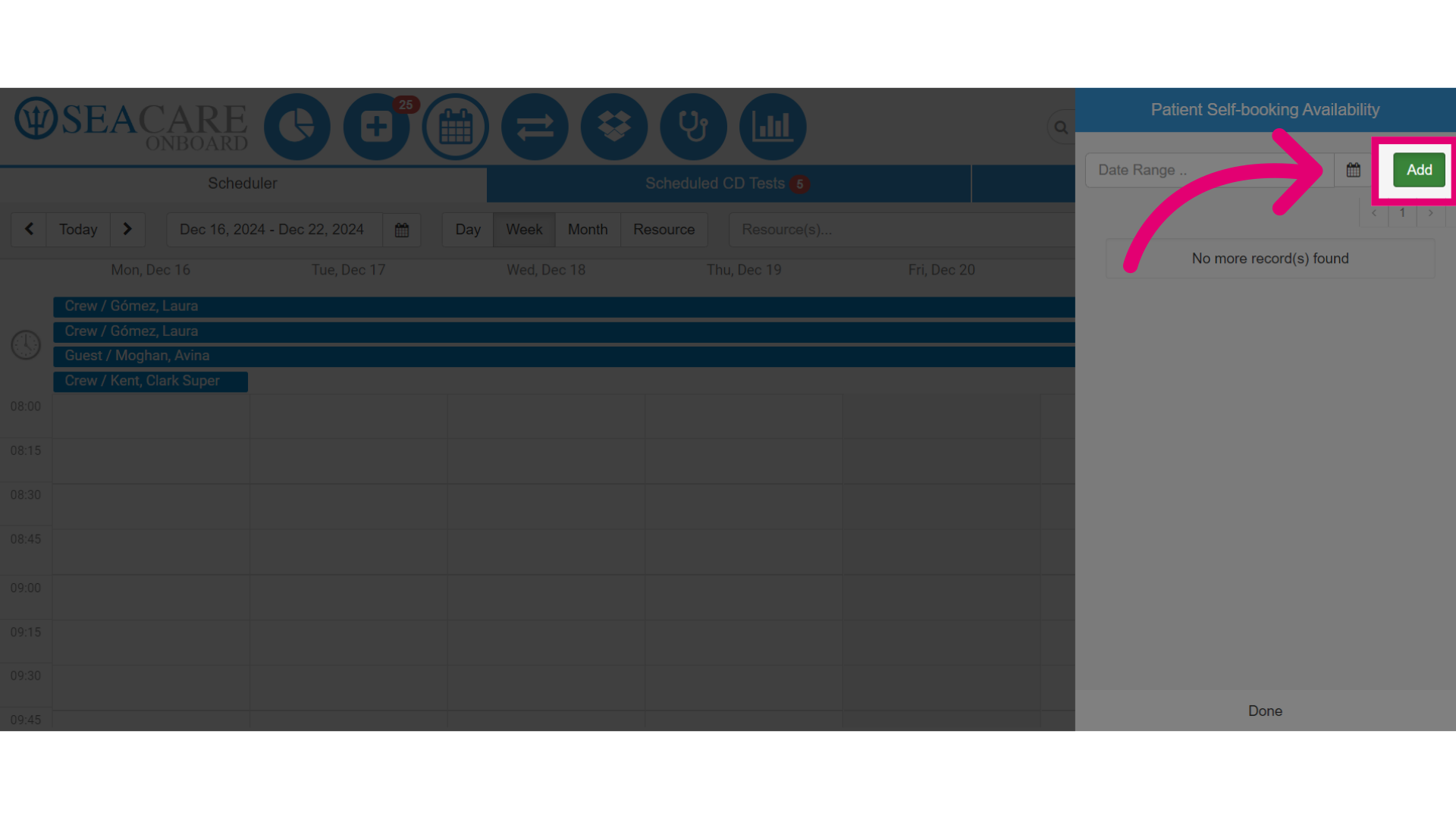
- Next, click Add to create a new time slot for patients to book appointments.
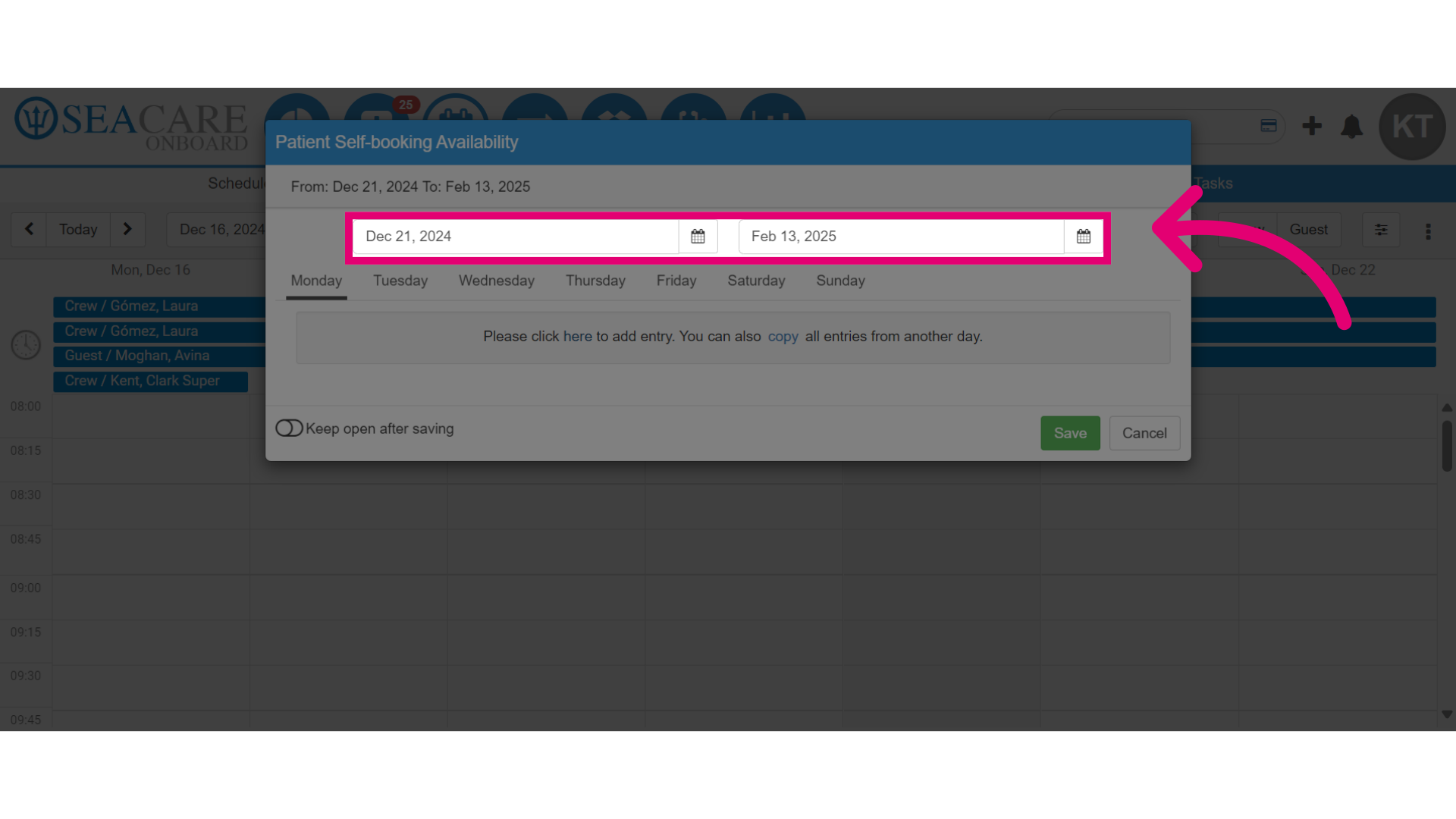
- Add the dates for the appointment time period.
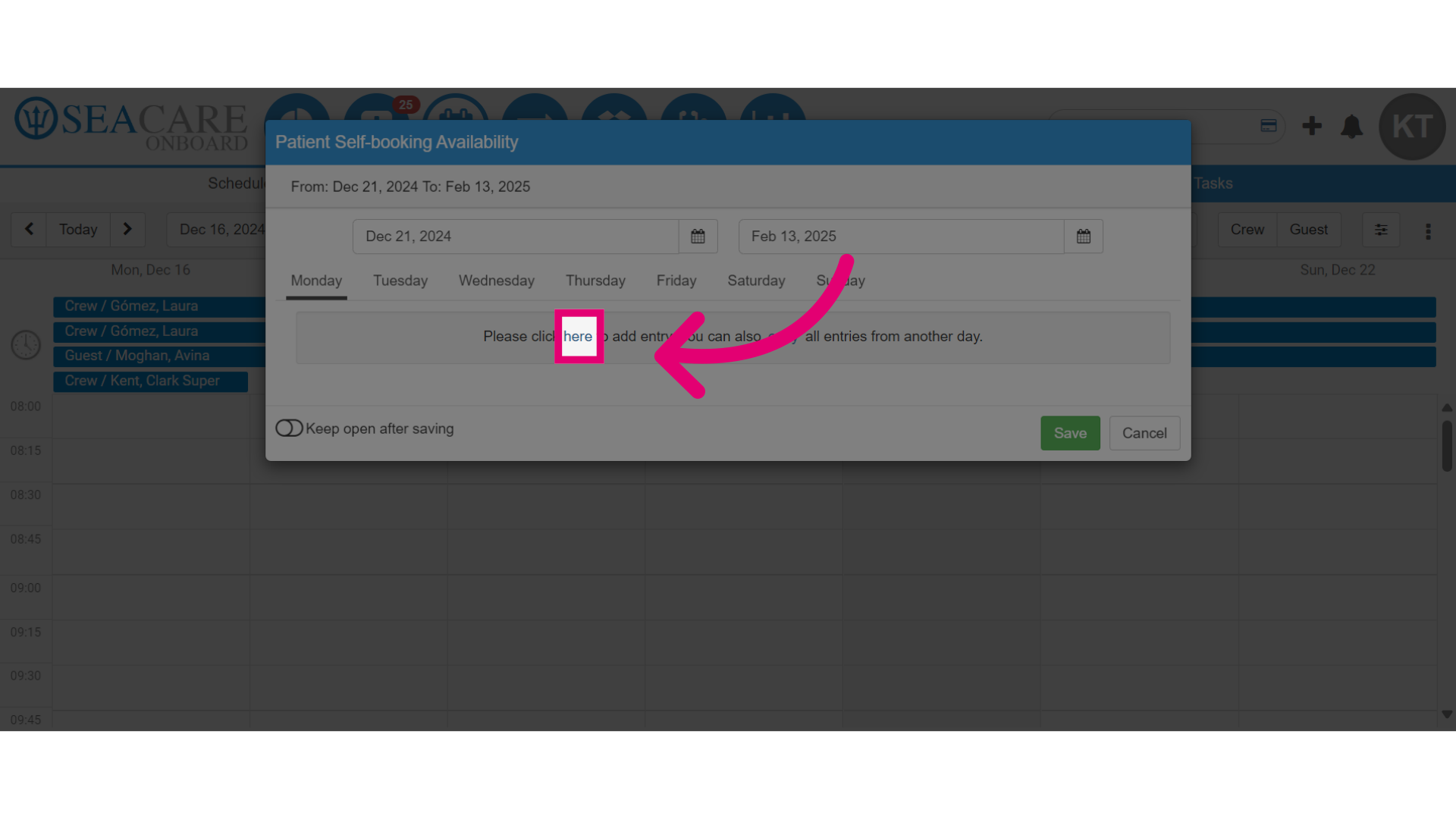
- Next, click "here" to add the availability details.
- Then, choose who the appointment is reserved for, Crew or Guest.
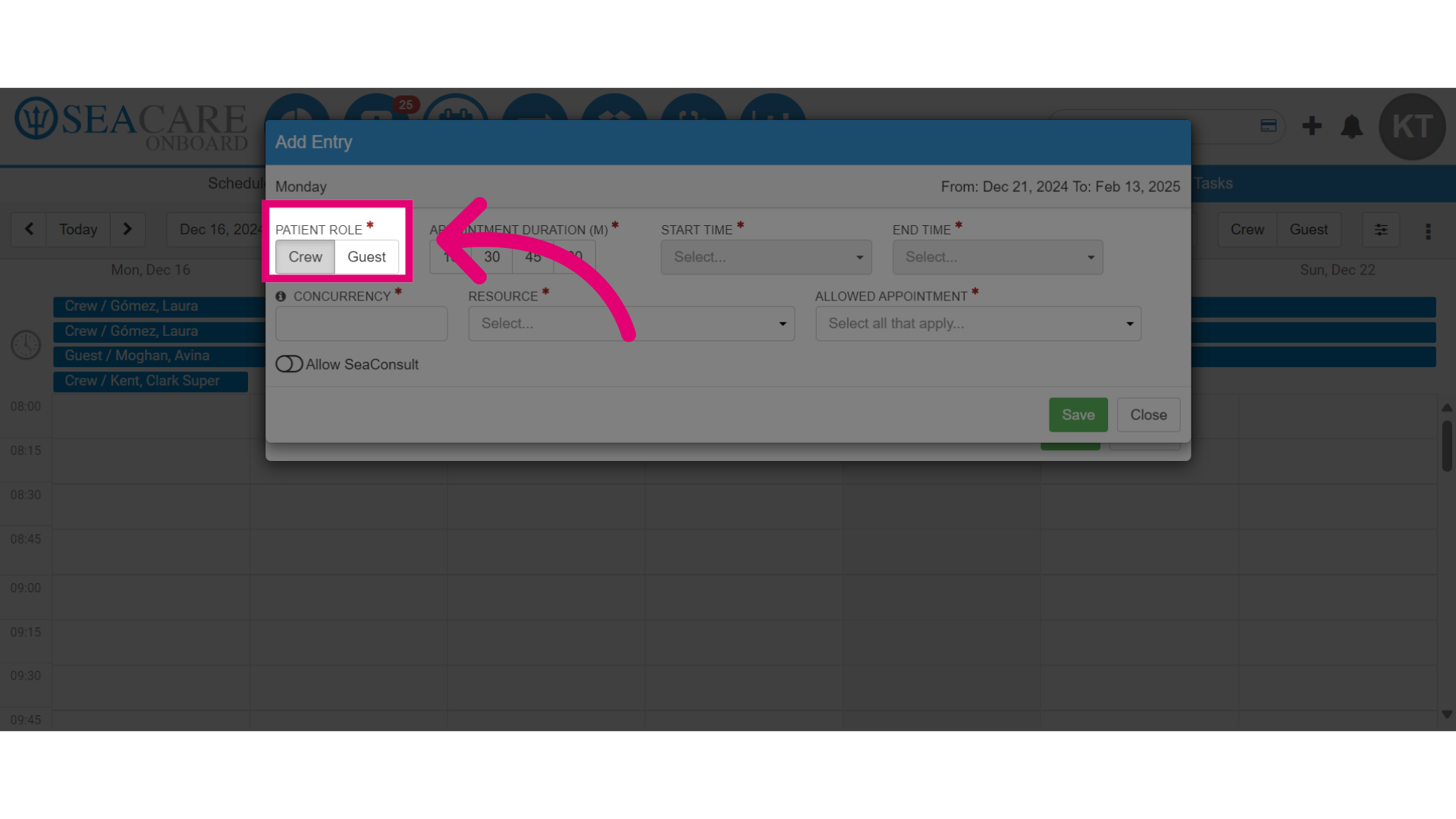
- Add the appointment duration in minutes, which specifies the length of each appointment.
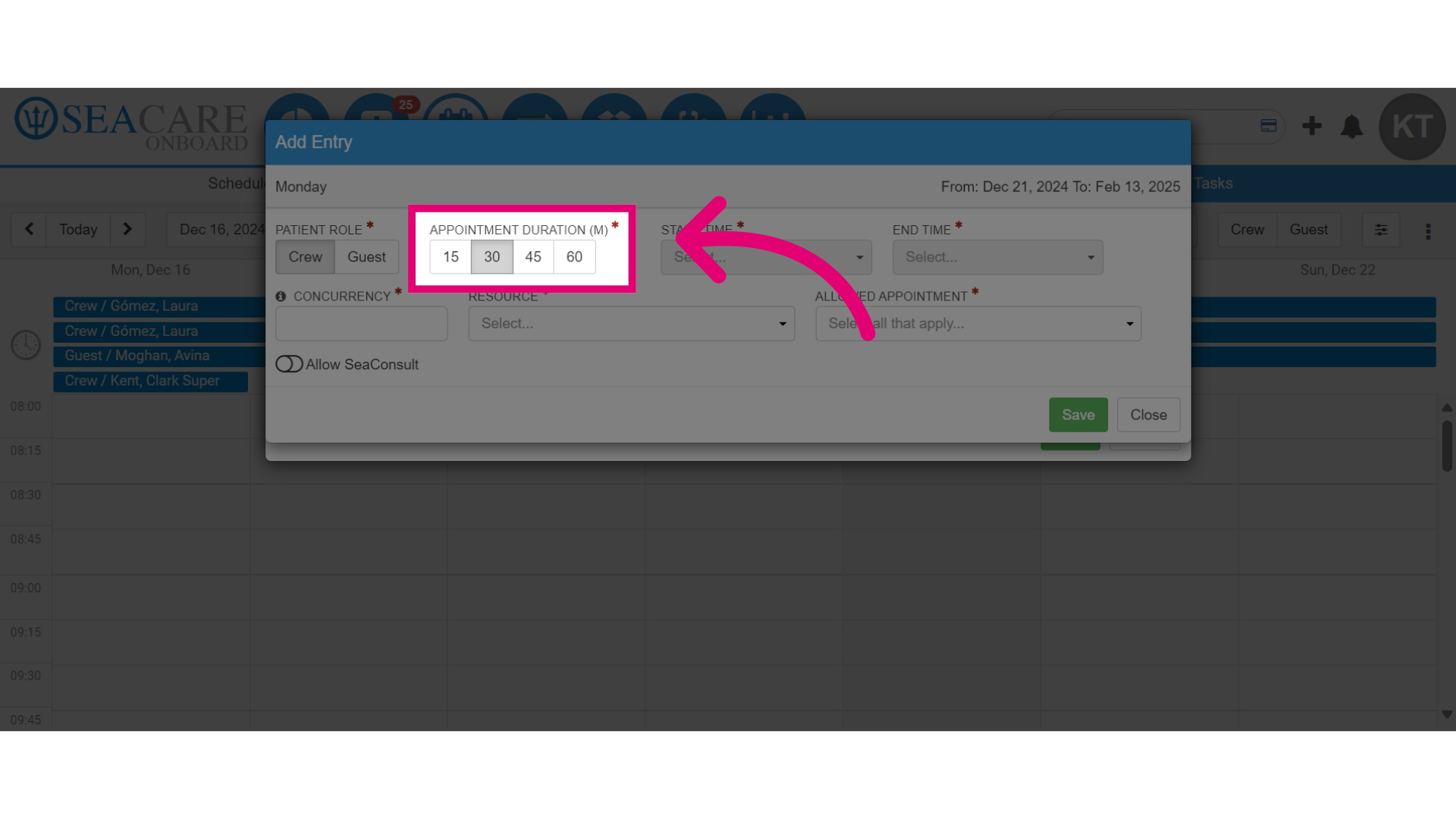
- Then, add the appointment Start Time, which indicates the time of day the clinic begins taking appointments for this time slot.
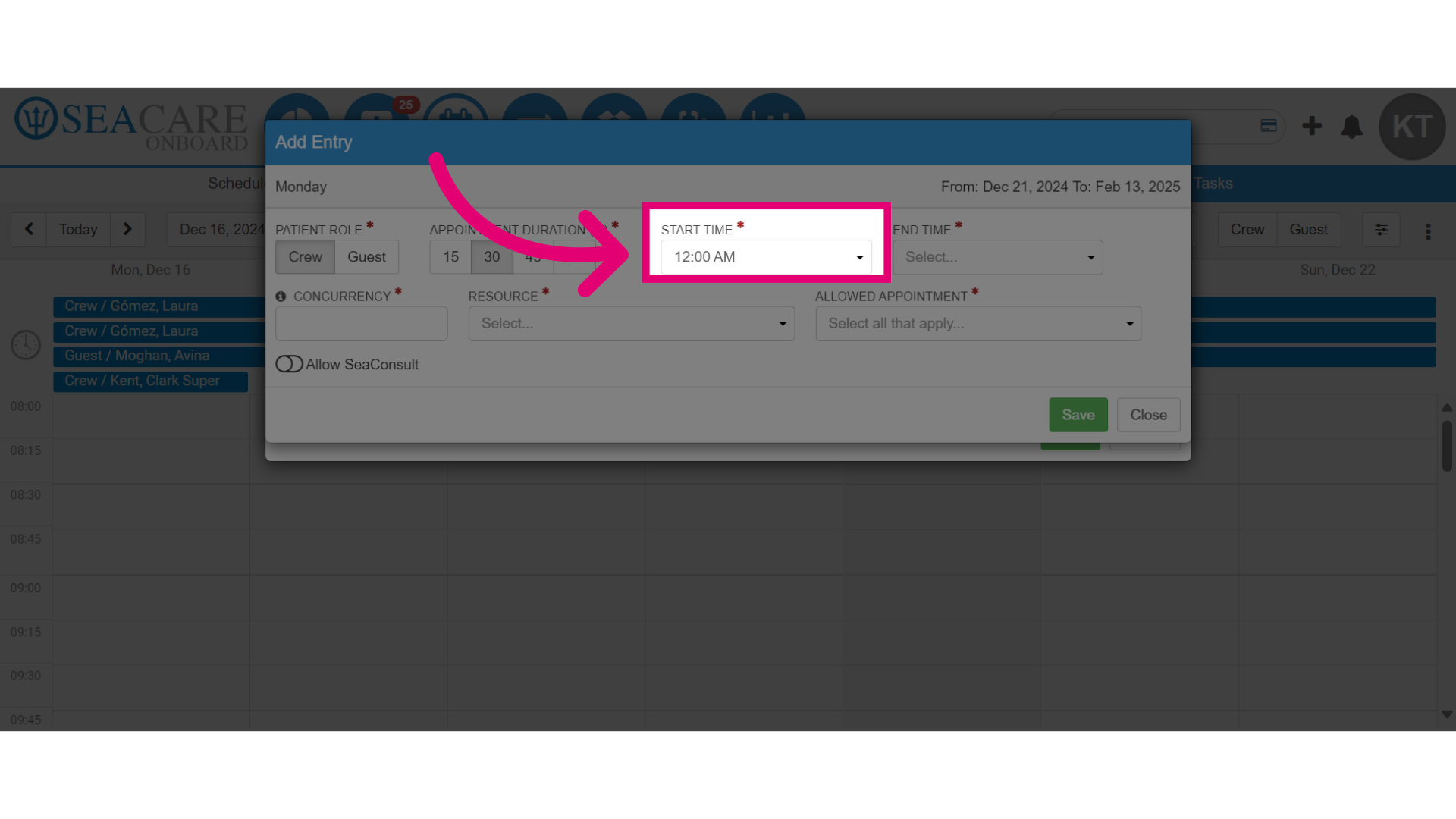
- Add the appointment End Time.
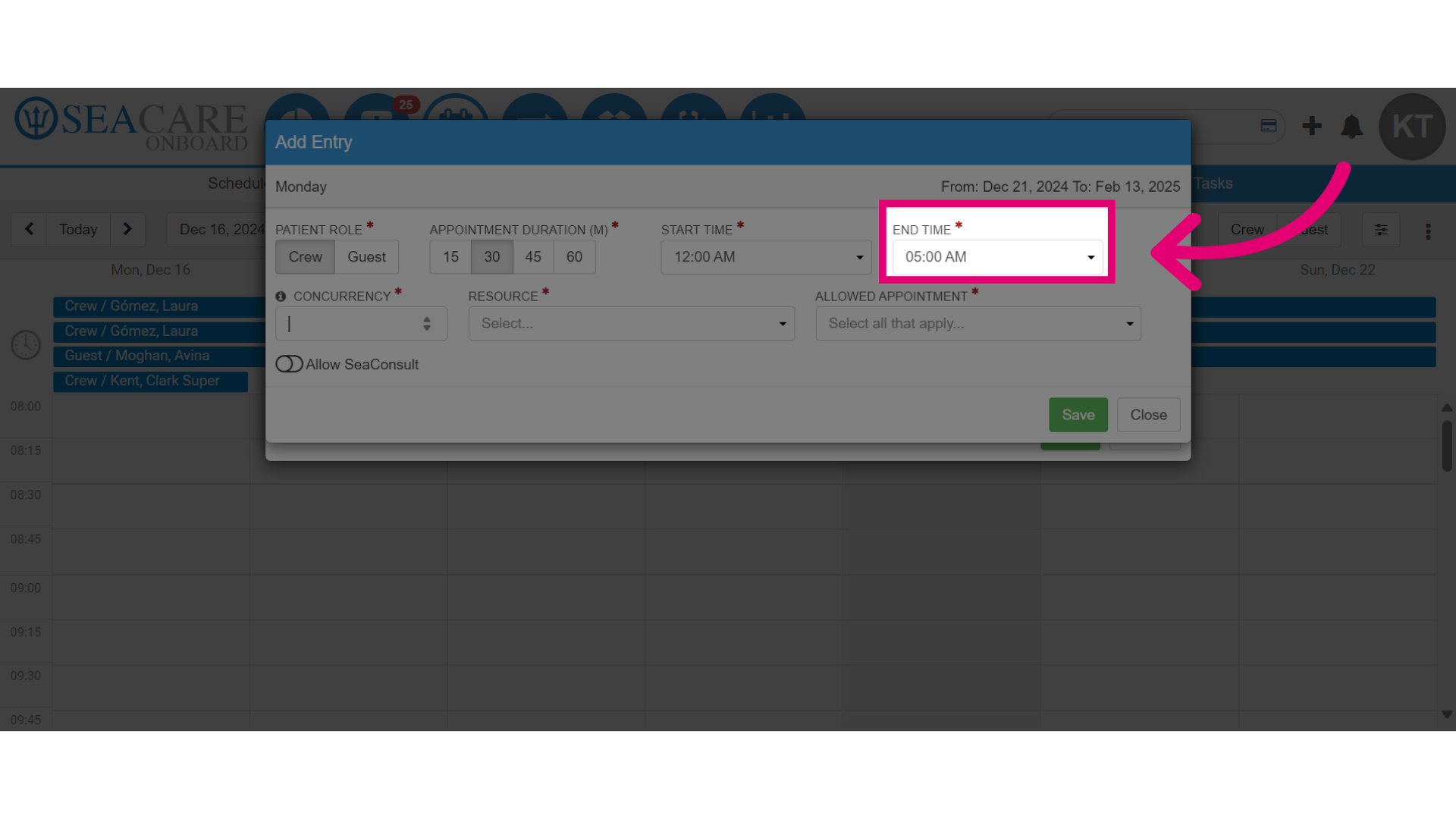
- Enter the number of concurrent appointments. This specifies how many appointments will be held simultaneously during this time slot.
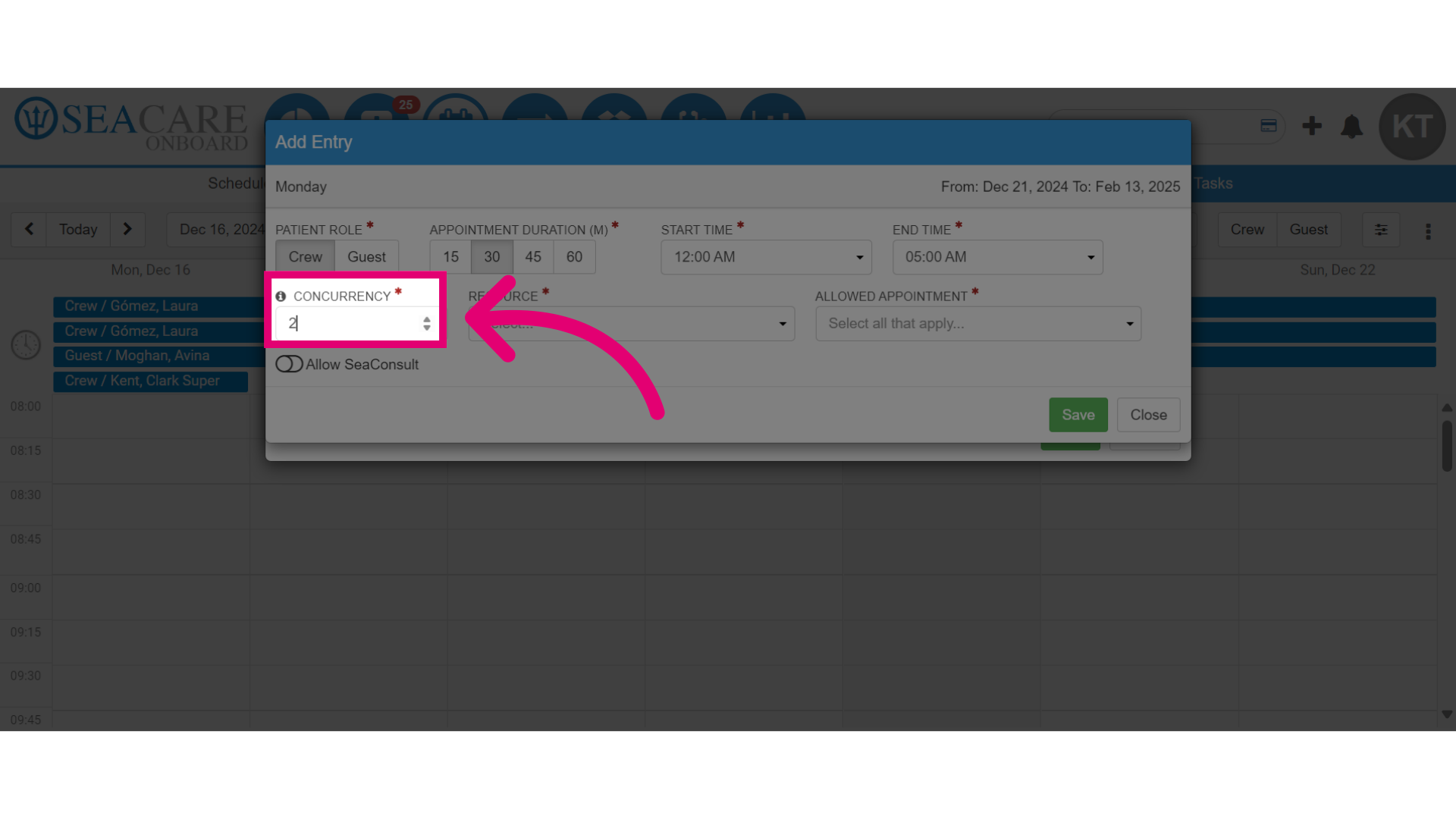
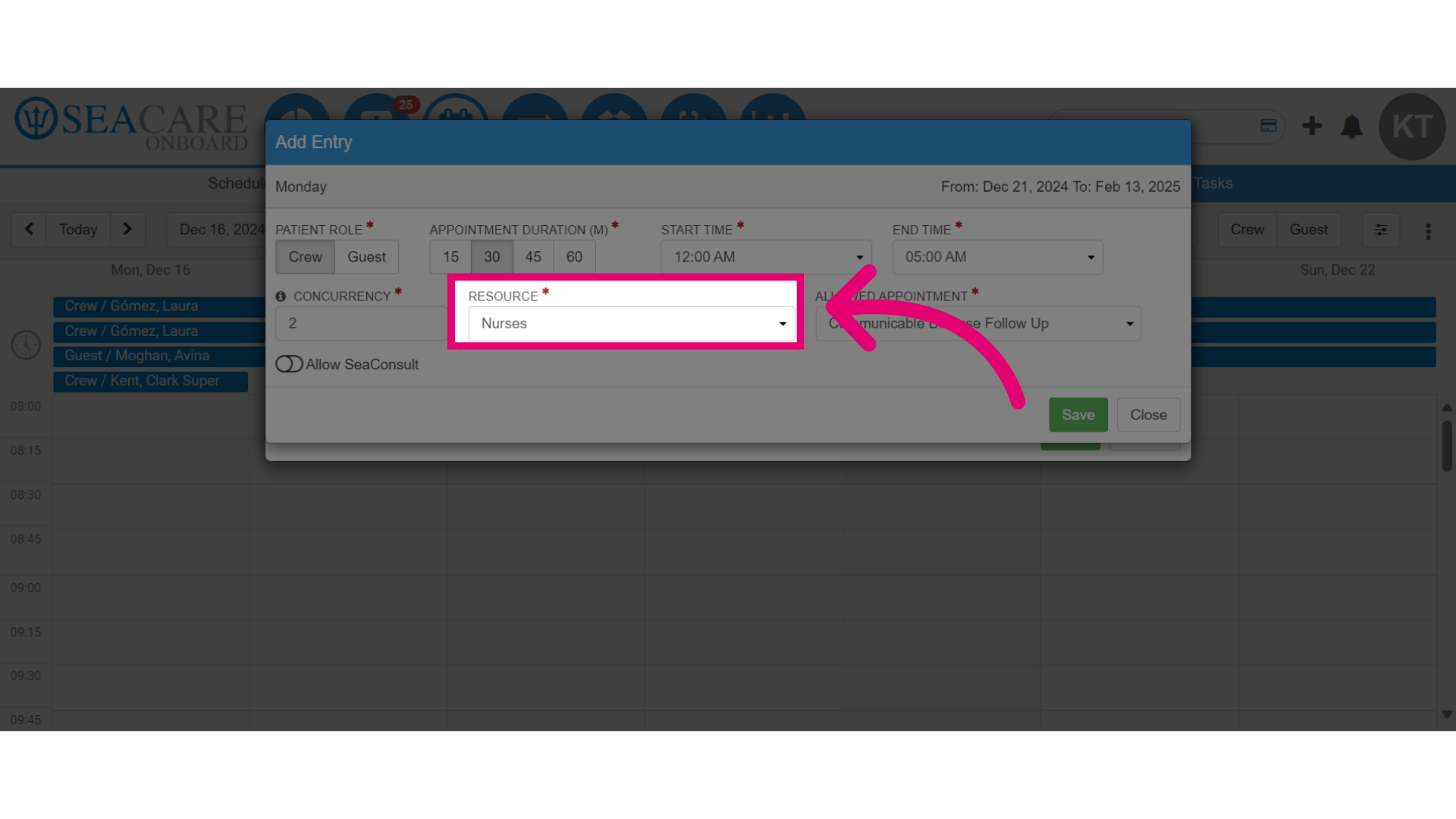
- Next, select a Resource who will attend to patients during the appointments. This can be a doctor or a nurse.
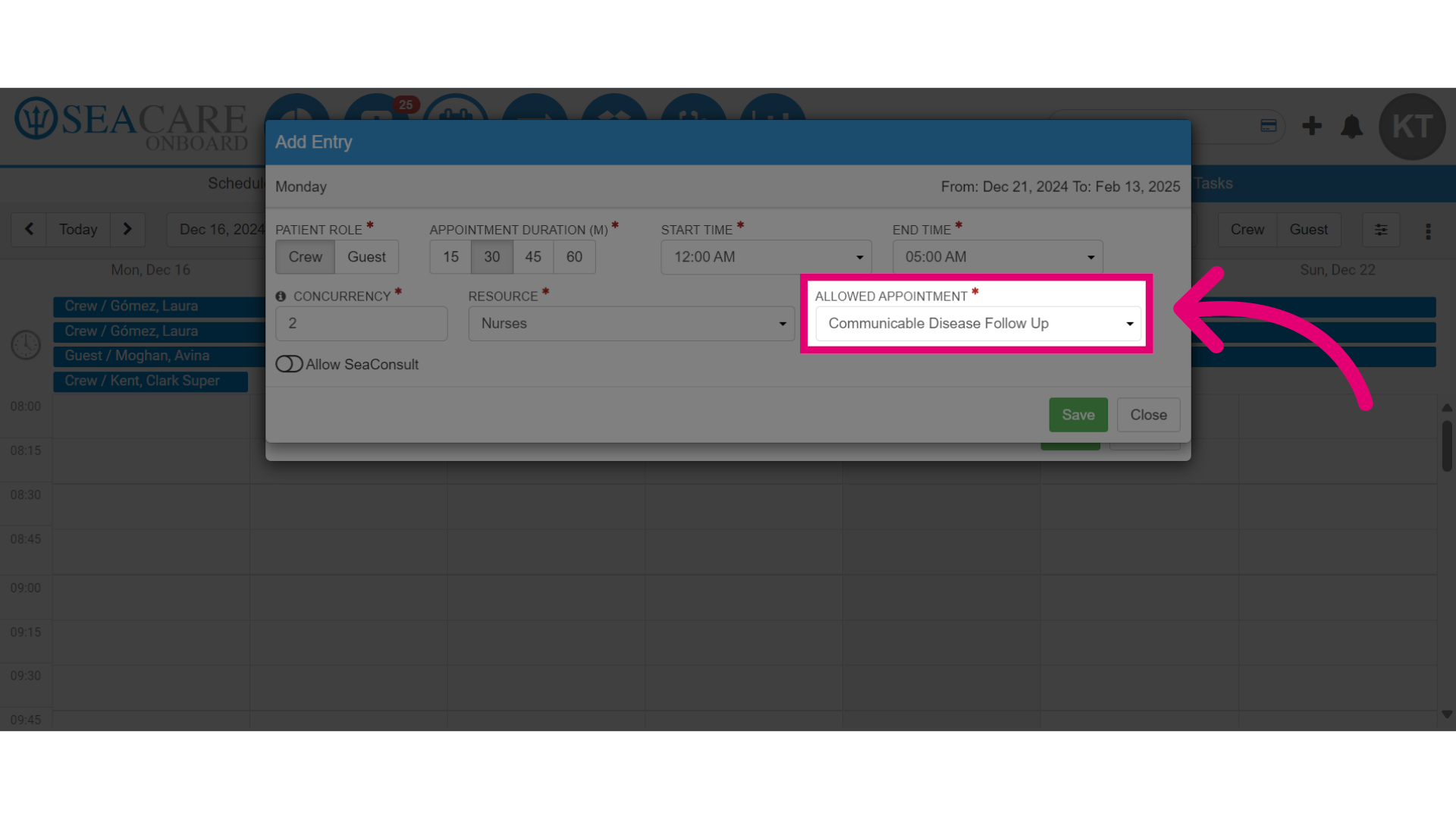
- Choose the Allowed Appointments to reserve this time slot, such as communicable disease follow-up appointments.
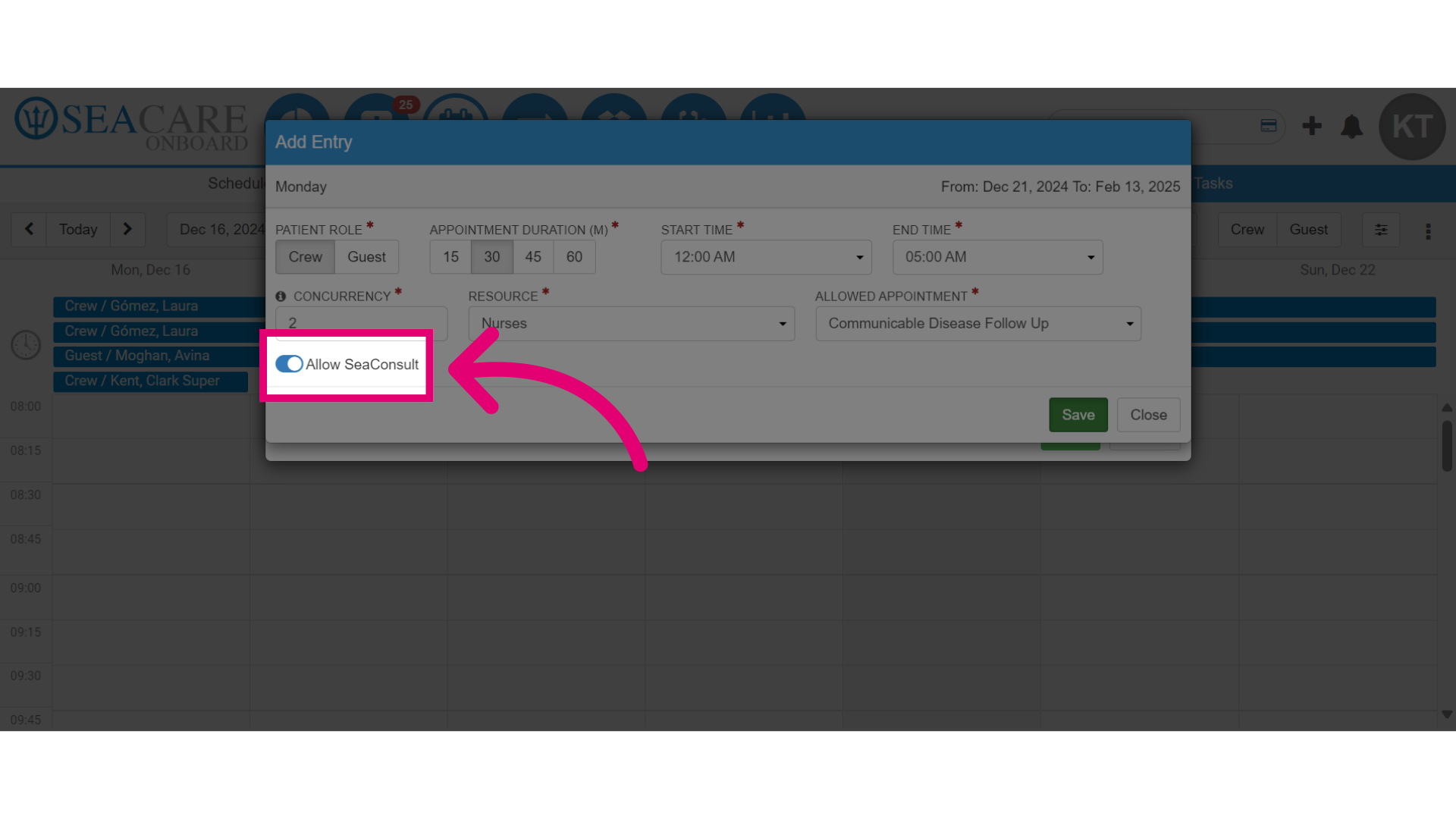
- To enable SeaConsult for the appointment, toggle the Allow SeaConsult option. This allows you to start a SeaConsult call for the appointment.
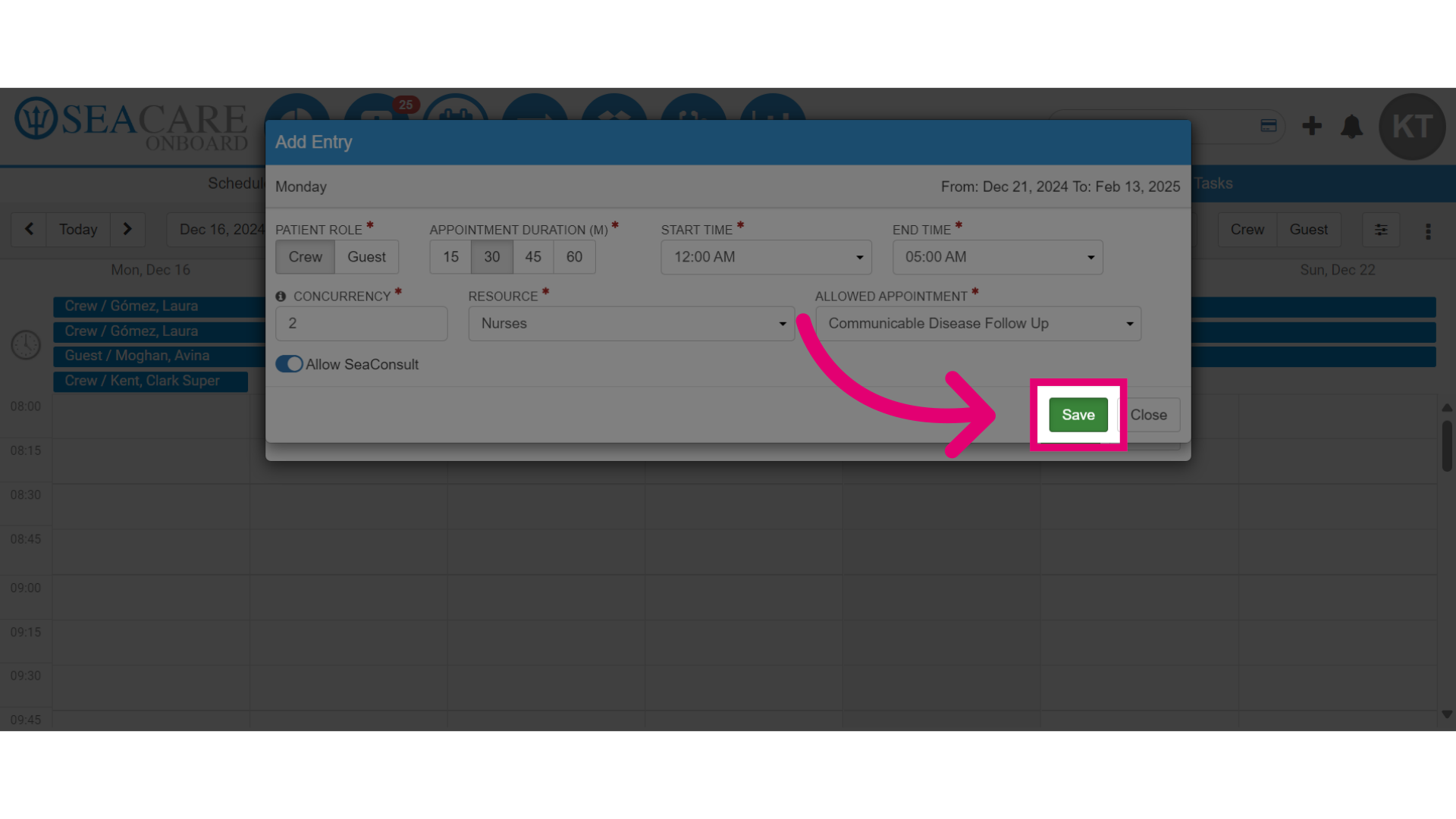
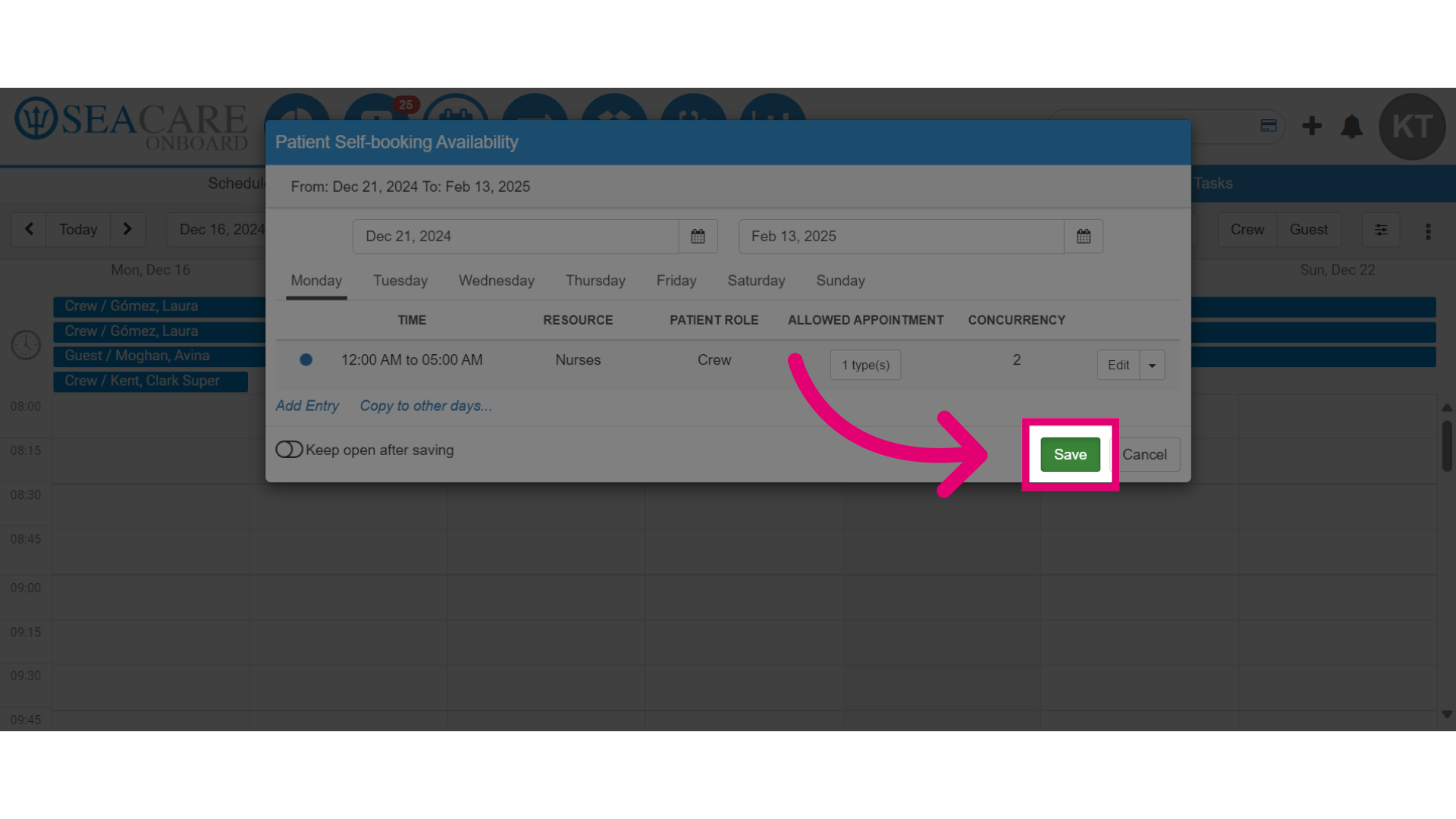
- Click Save.
- View the entry to confirm the details.
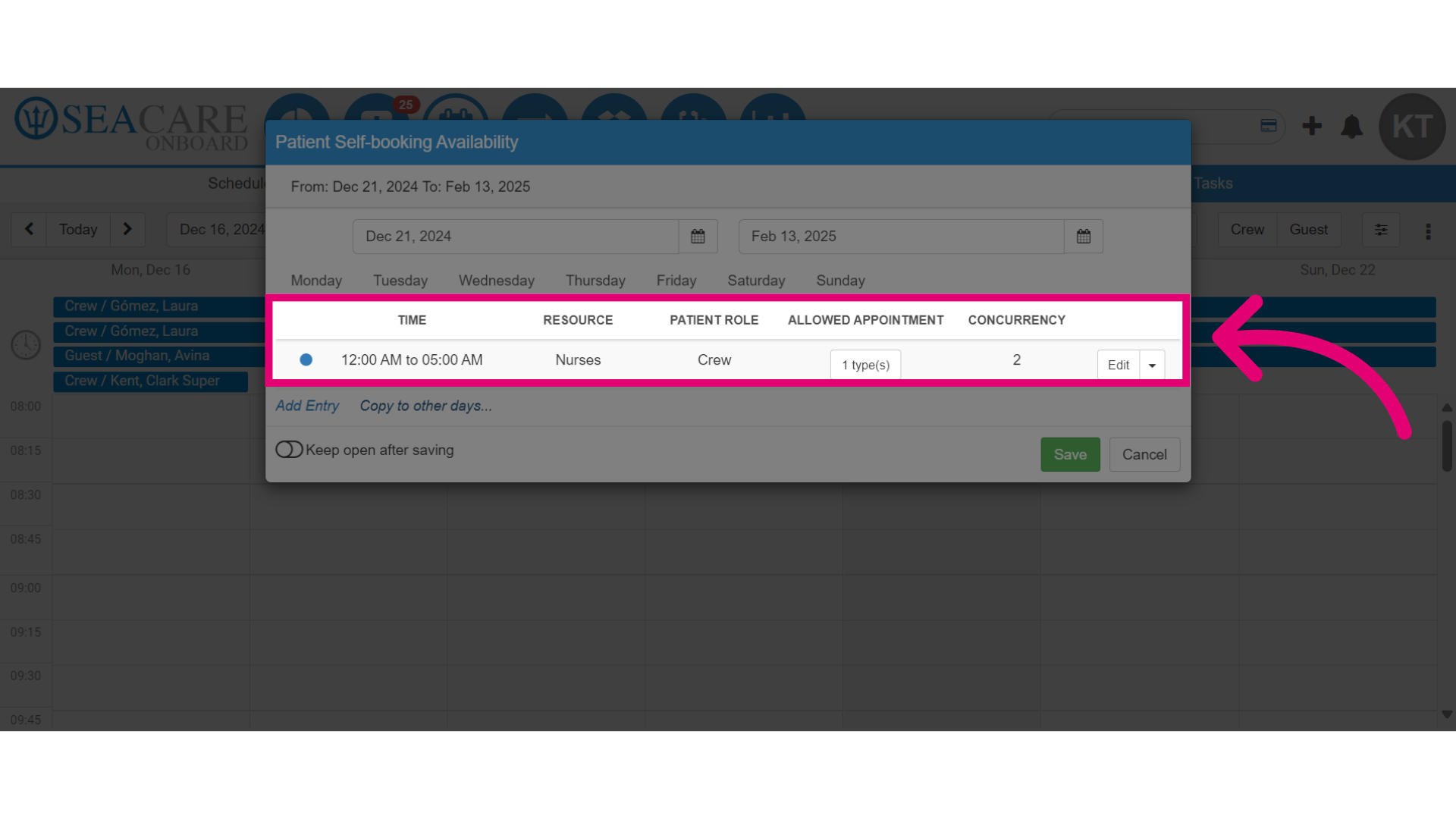
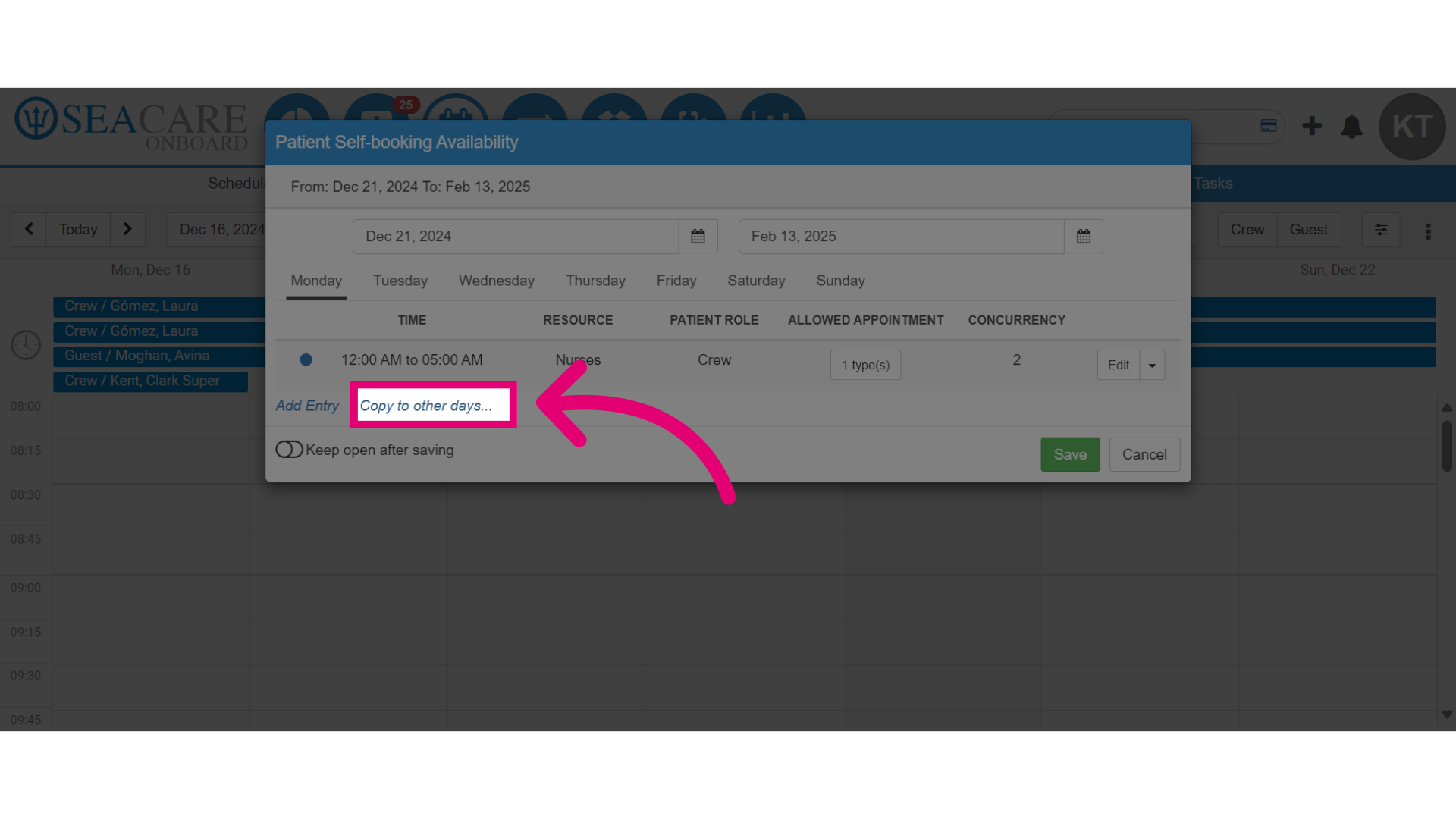
- To offer this appointment slot on other days during the week, select Copy to other days.
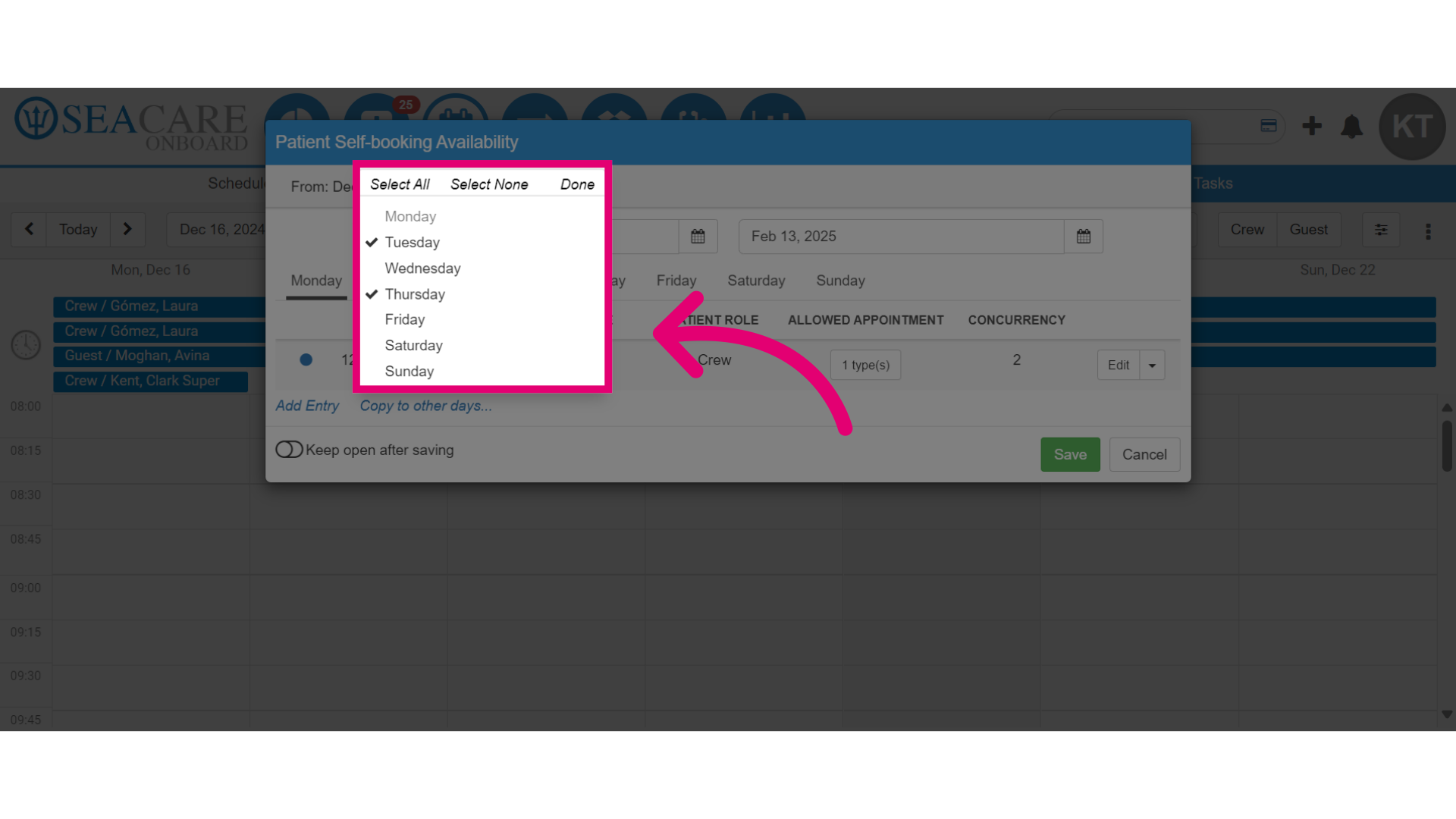
- Choose the other days of the week to copy the appointment availability.
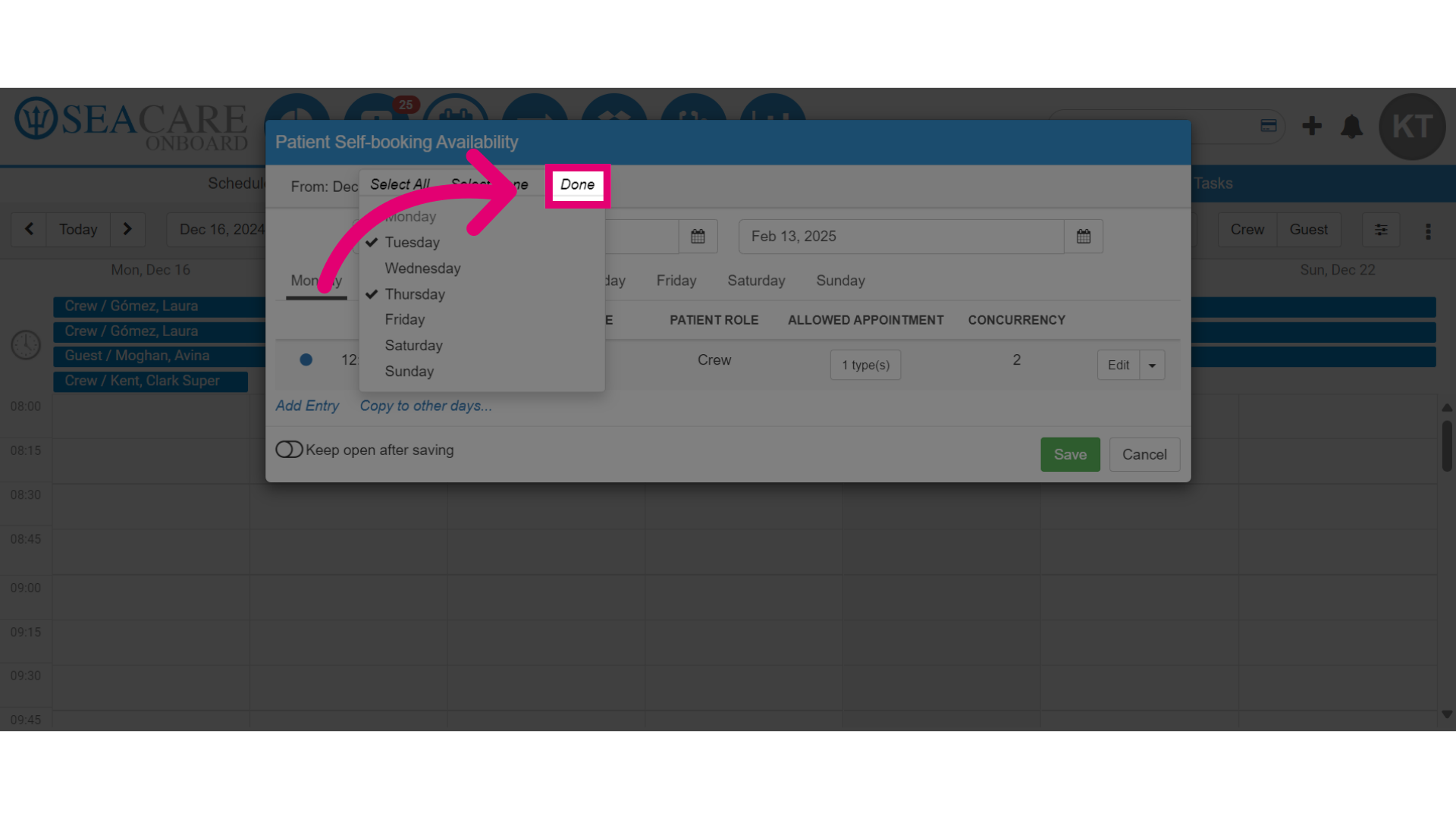
- Select Done when you are finished copying the days.
- Click on the Save button.
- Click the actions button again to view the new entry.
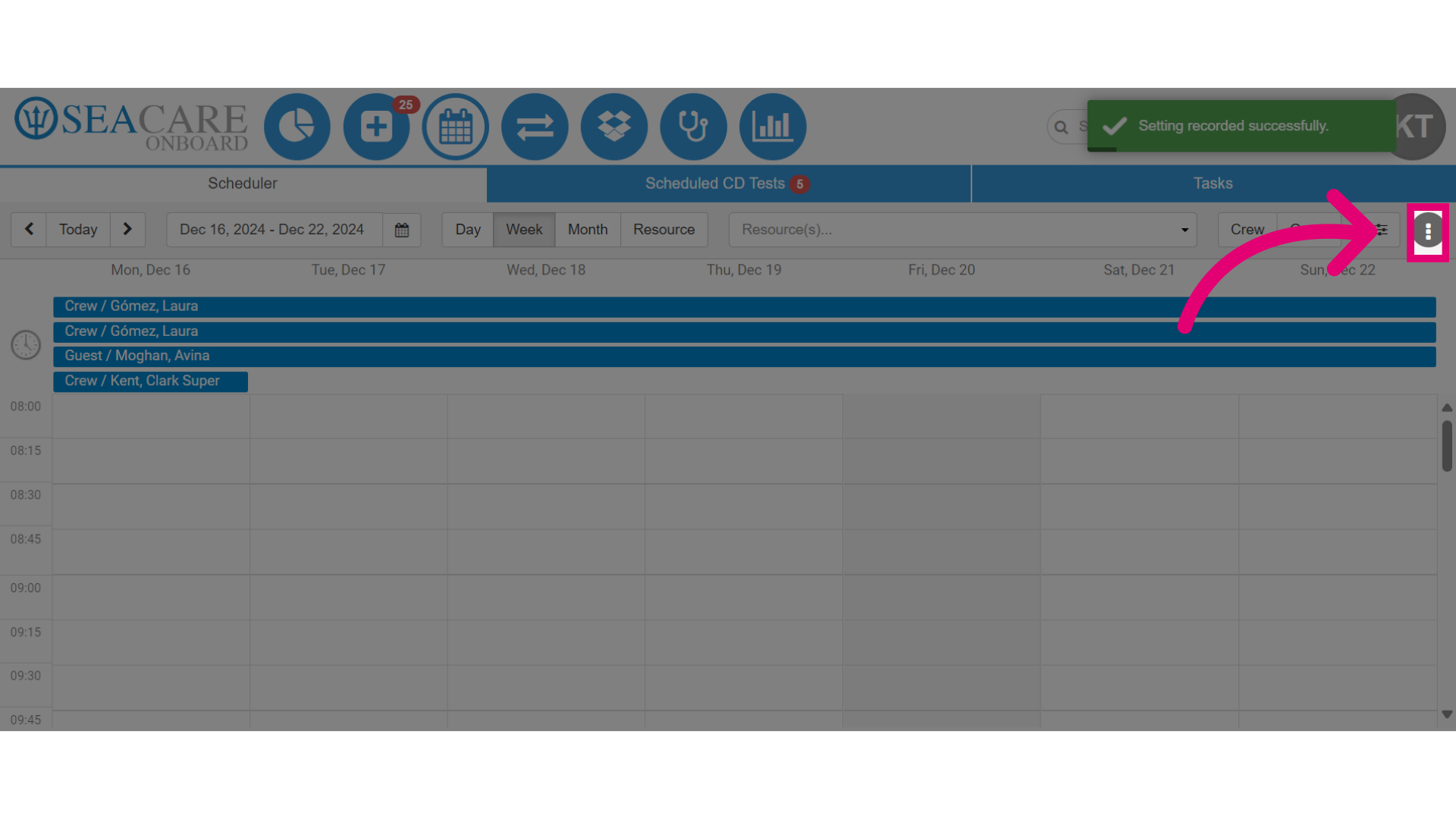
- Finally, view the created appointment.