New article
Recently updated
Merging patient charts

Who is this article for?Users who want to learn to merge patient charts.
No elevated permissions are required.
This guide will walk you through merging patient charts in Ideagen Maritime Health Onboard.
1. Merge patient charts
1.1. Video
1.2. Steps
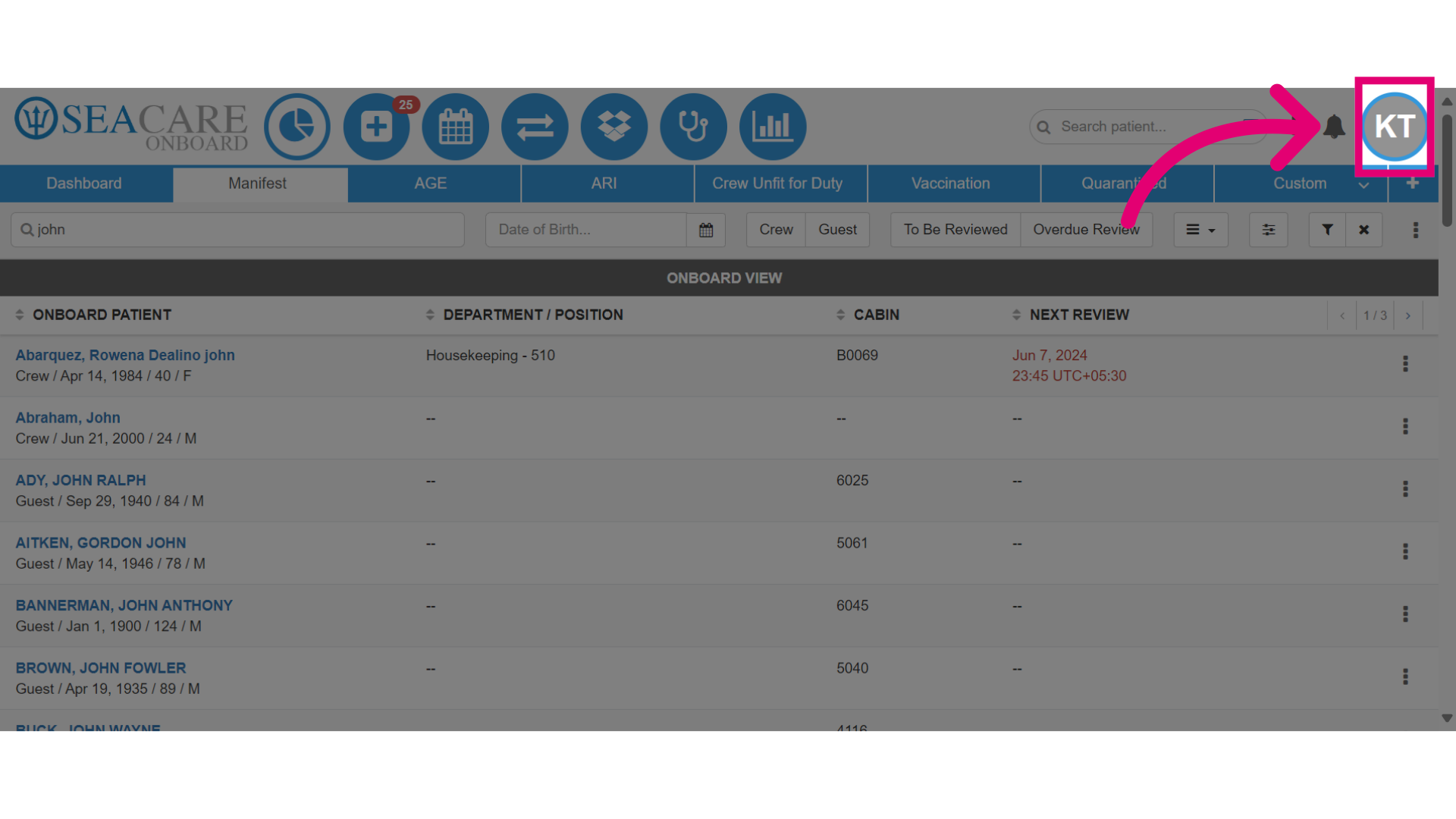
- Sometimes duplicate patient charts are created, but they can be merged into one using the Merge Patient section in the Admin Menu. To begin, click on your avatar or initials.
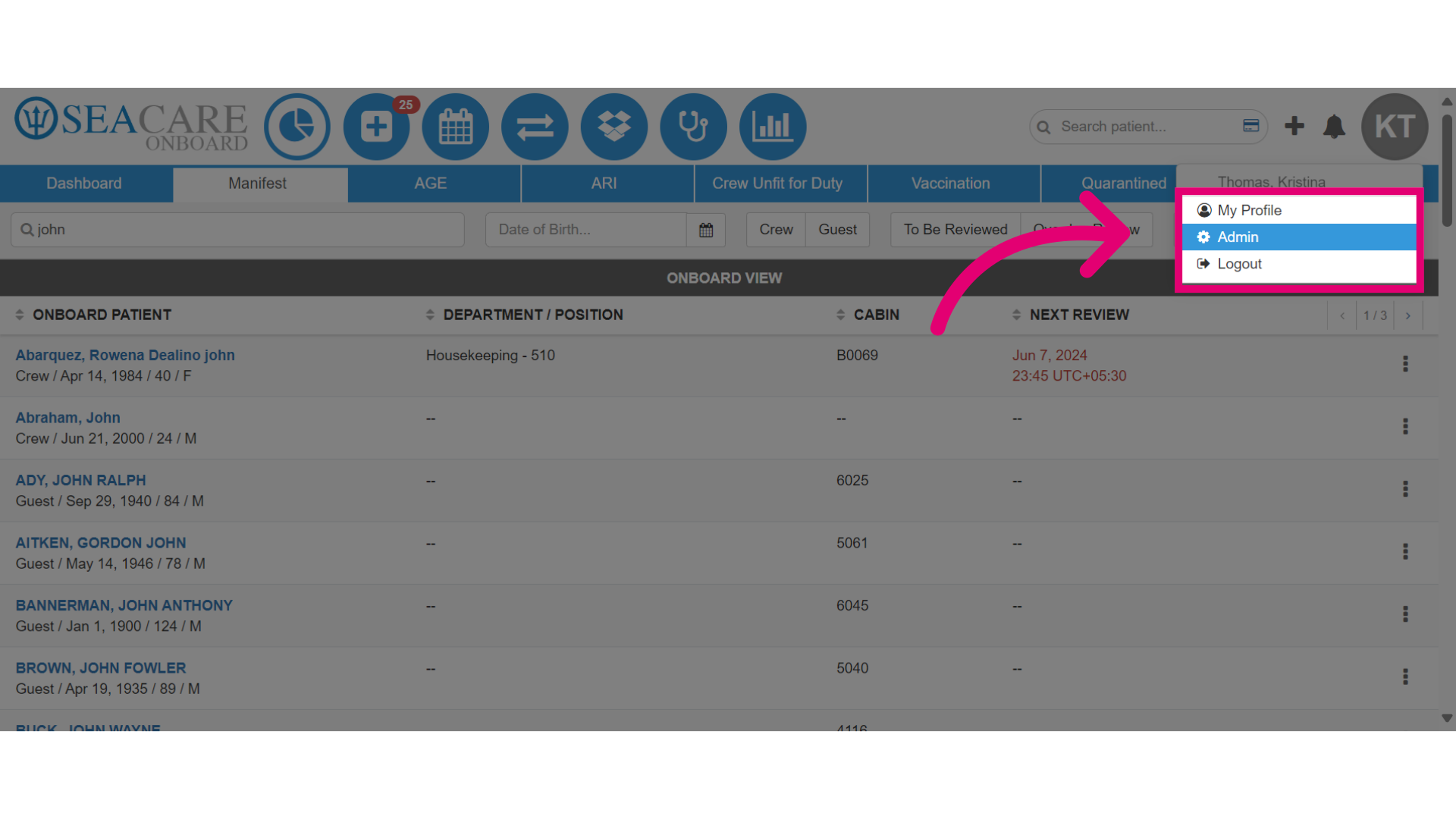
- Then, select Admin.
- Select the Merge Patient module in the Admin menu.
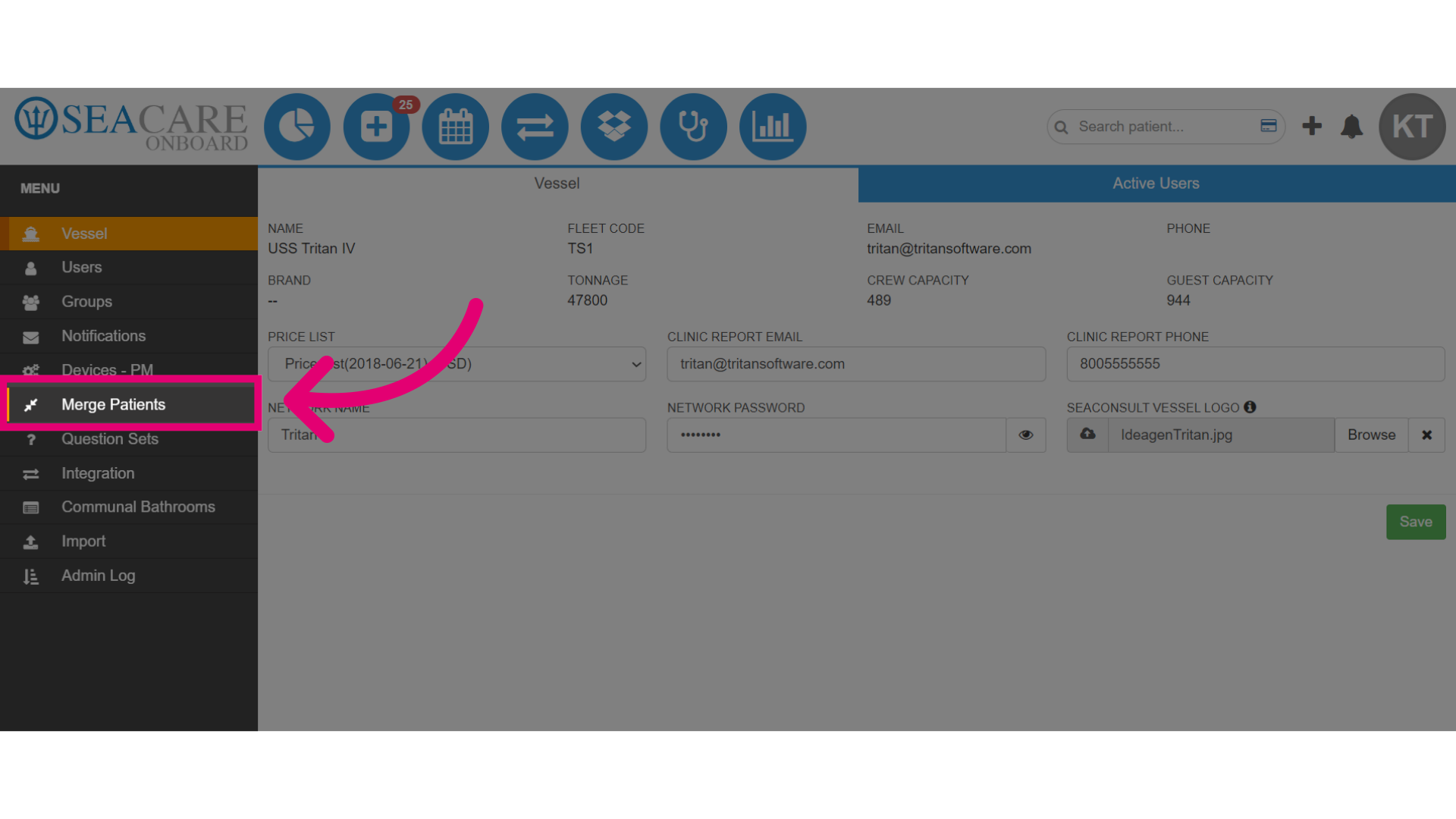
- Enter the Merge Patients tab by default.
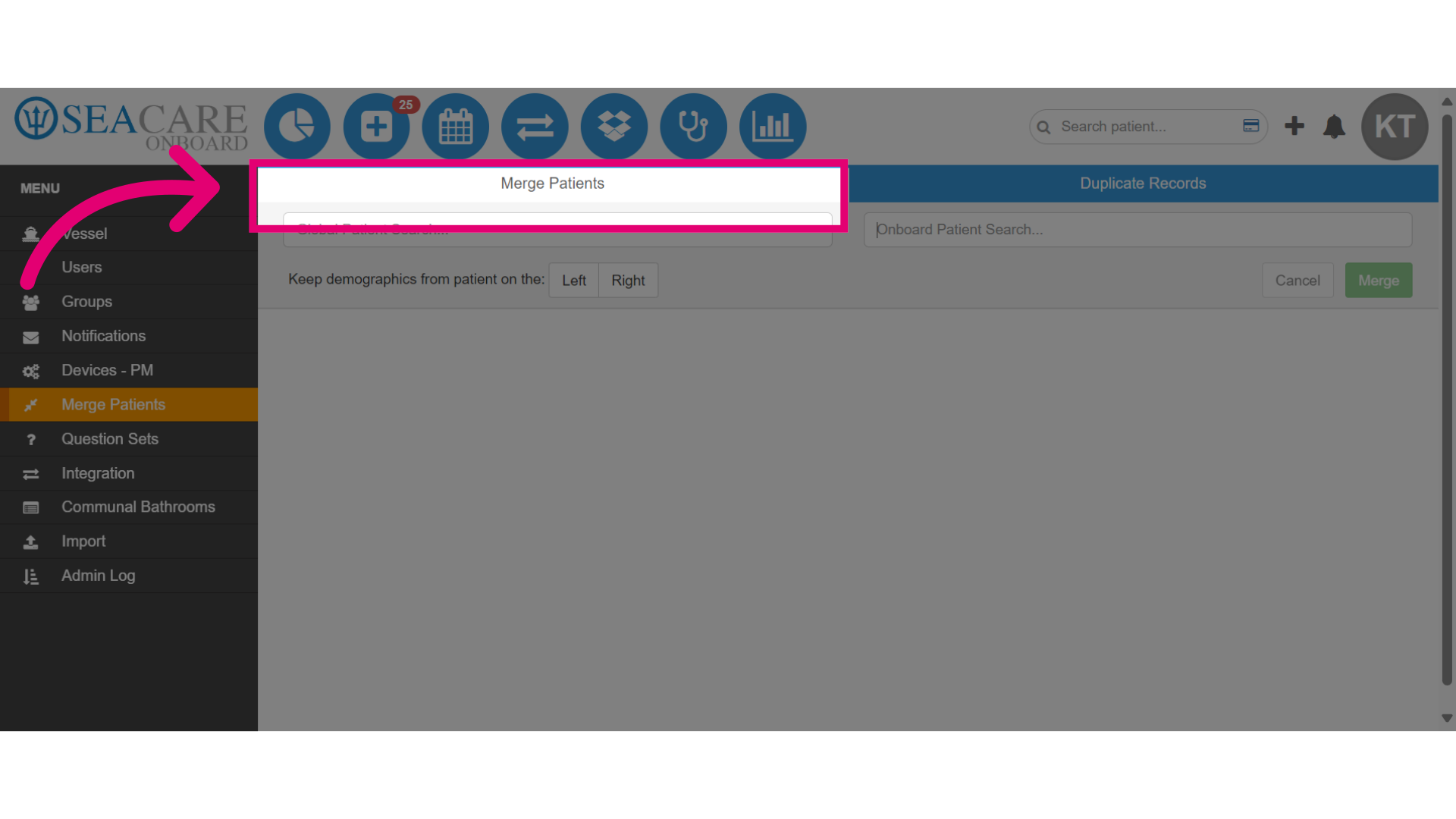
- In the Merge Patient tab, you can merge duplicate patient charts for the same patient. Start by searching for the Onboard patient to locate their patient chart.
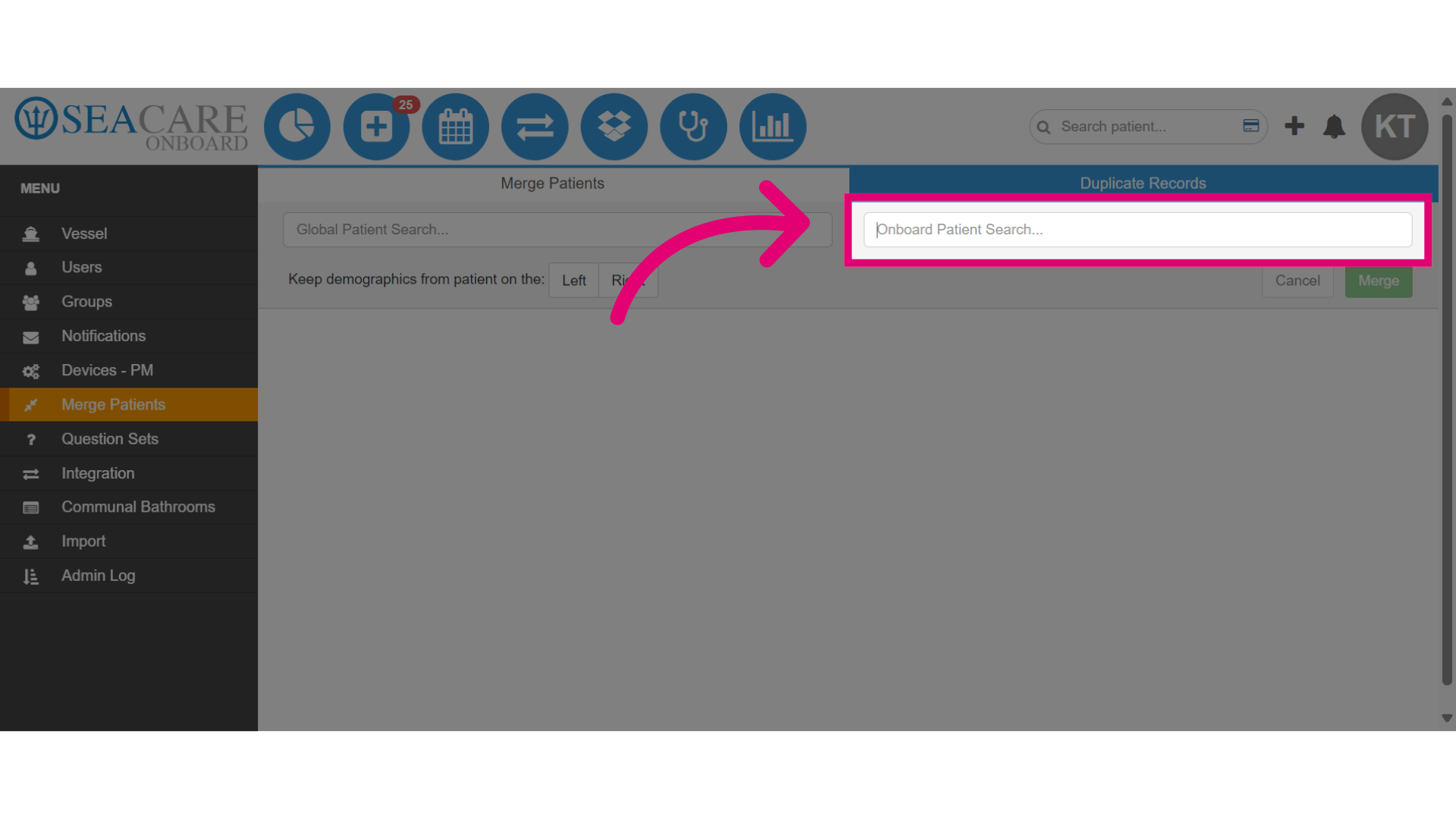
- Next, perform a global search for the same patient by entering their name again.
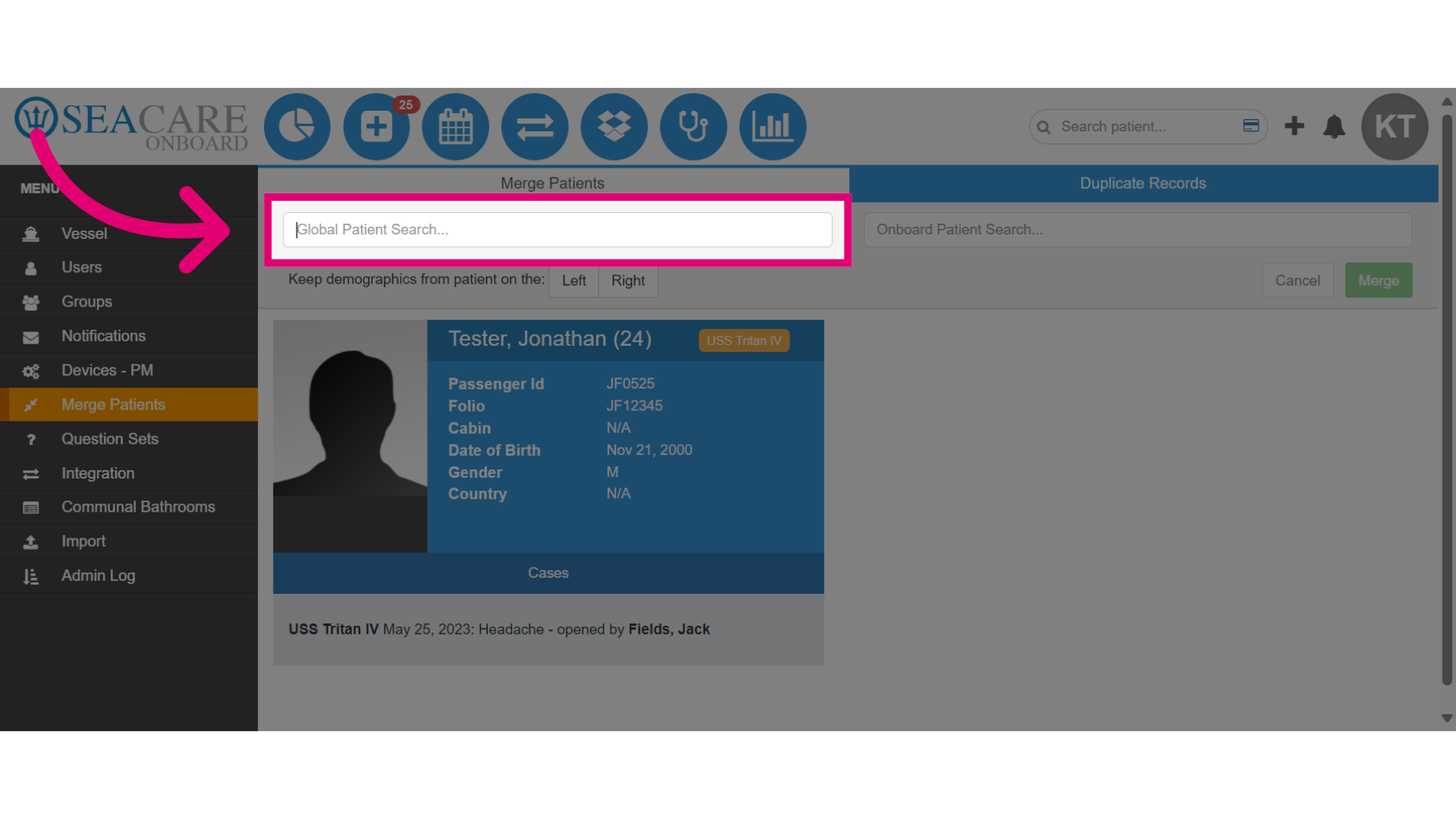
- Then, review both patient records.
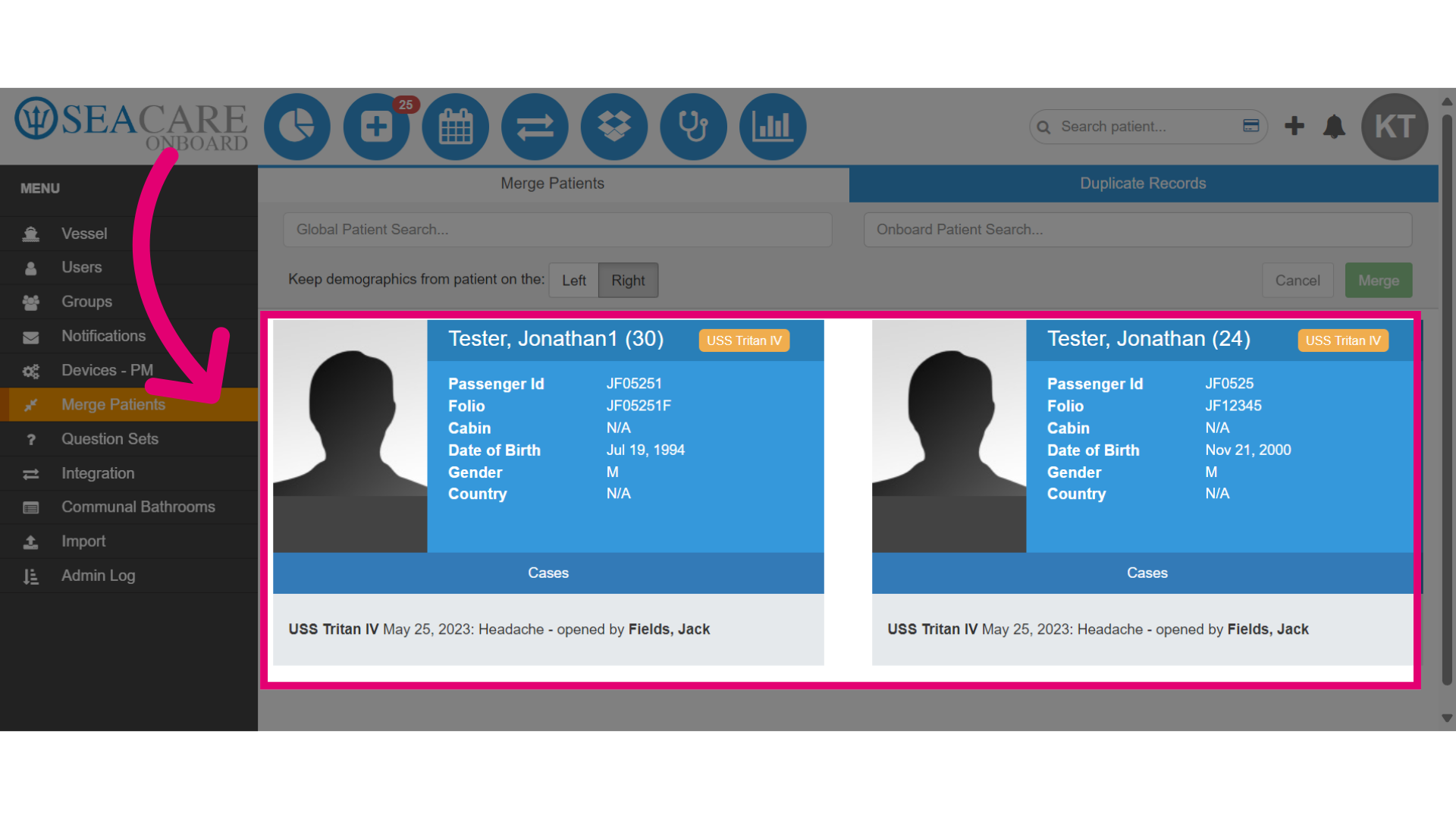
- Next, decide which demographics to retain for either the patient chart on the left or the right.
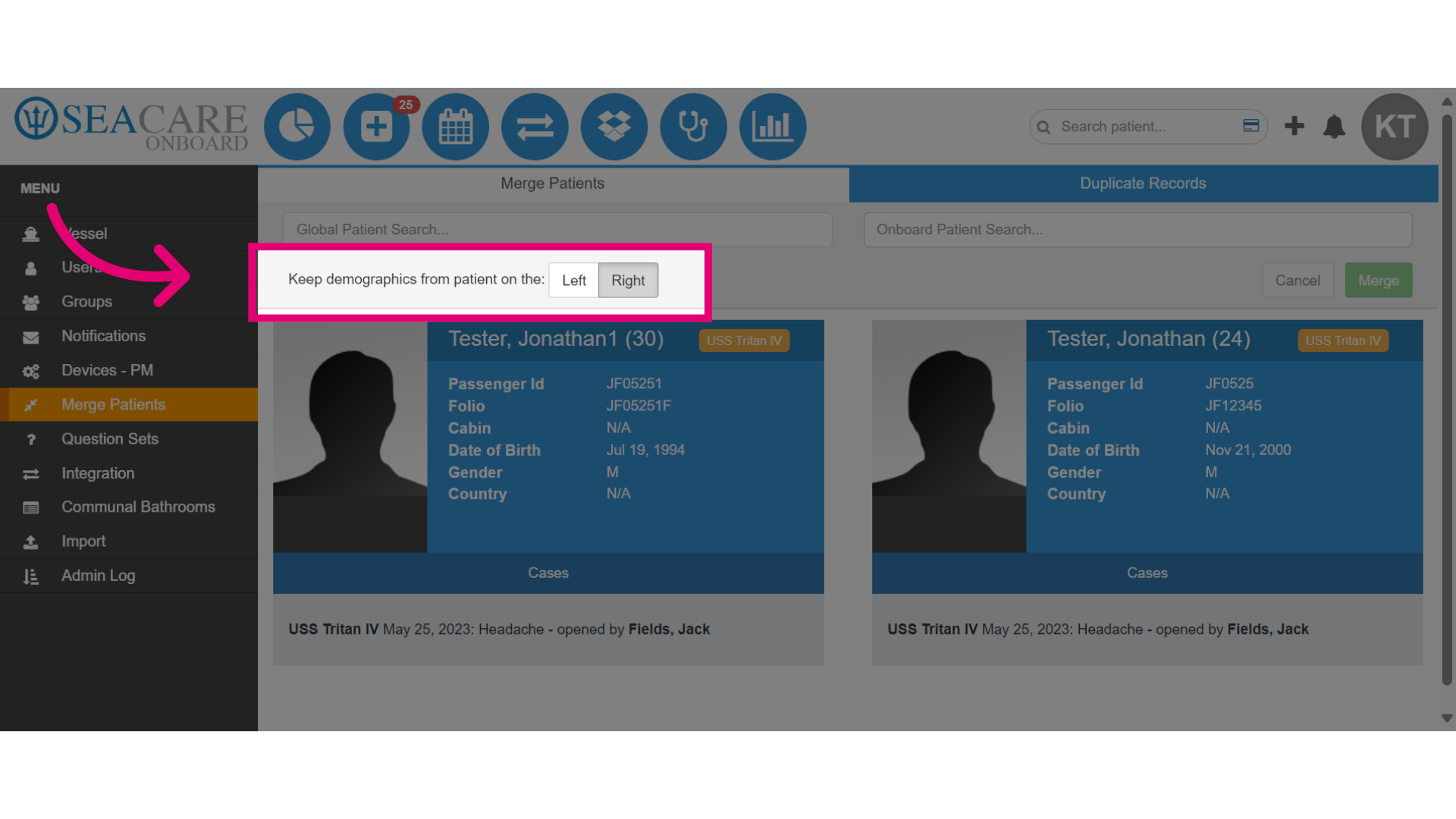
- Select Merge to confirm the action. In this example, both patient charts will be merged, while the demographics from the patient chart on the right will be retained.
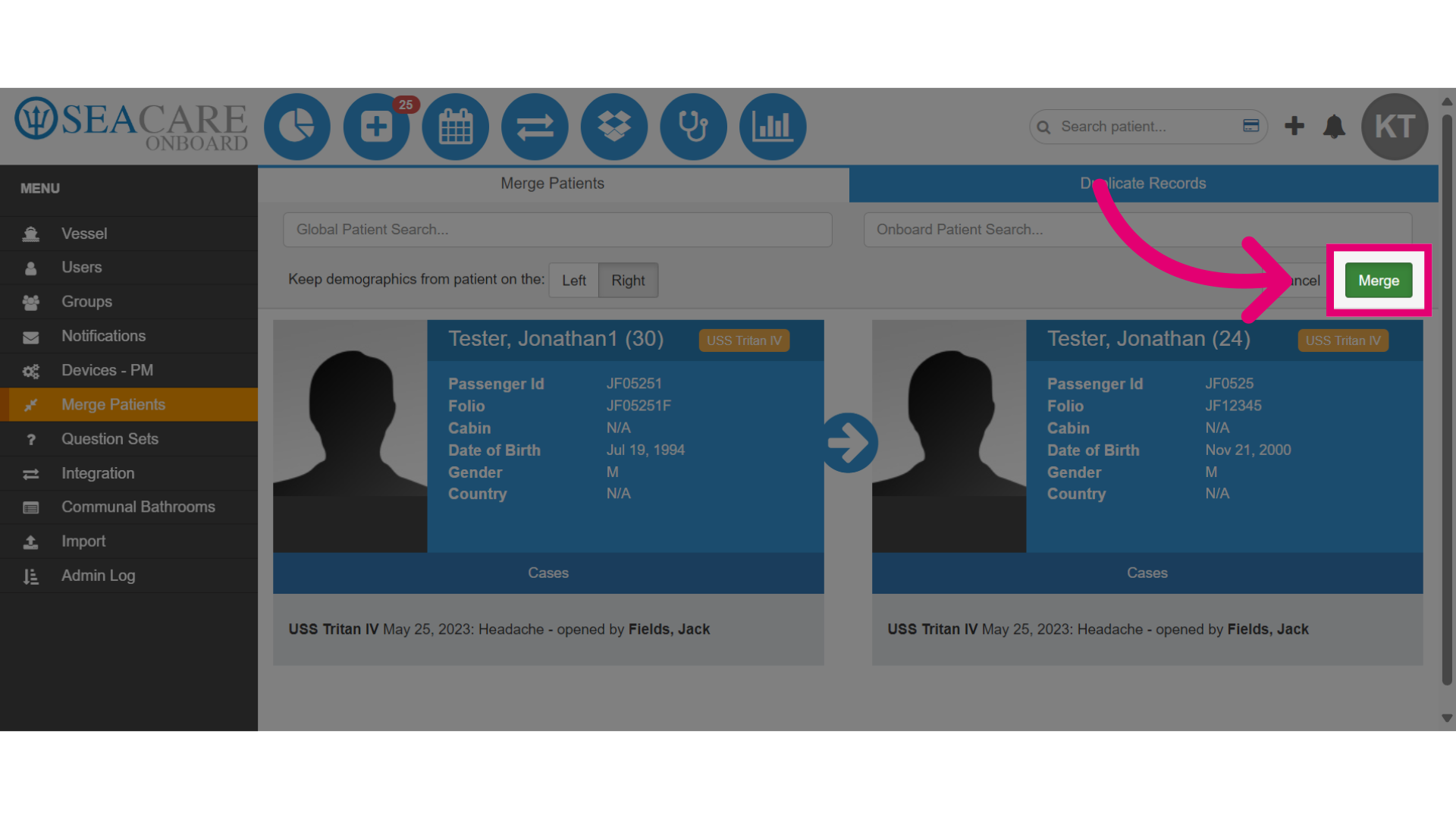
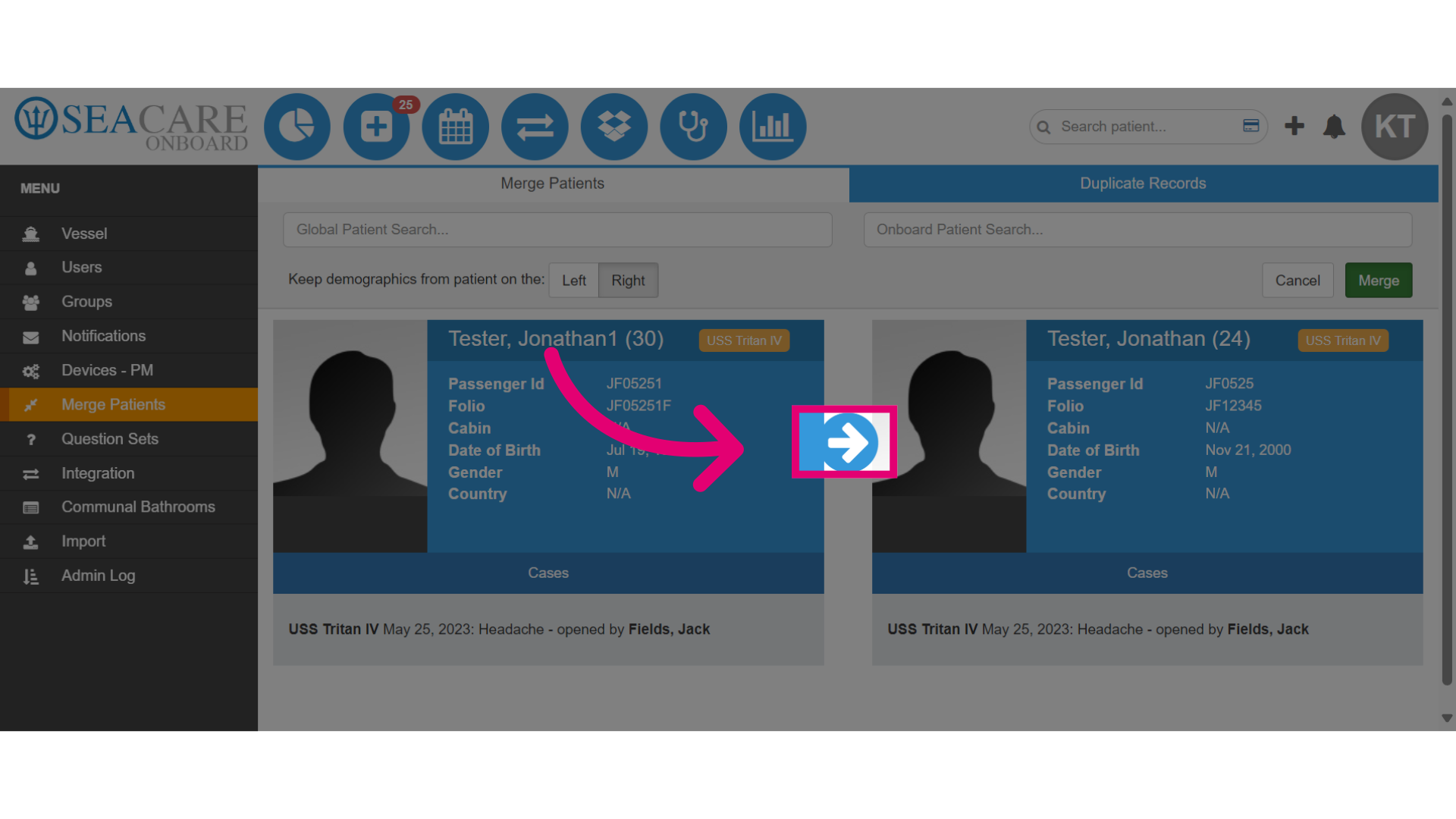
- The direction of the arrow indicates how the charts are being merged.
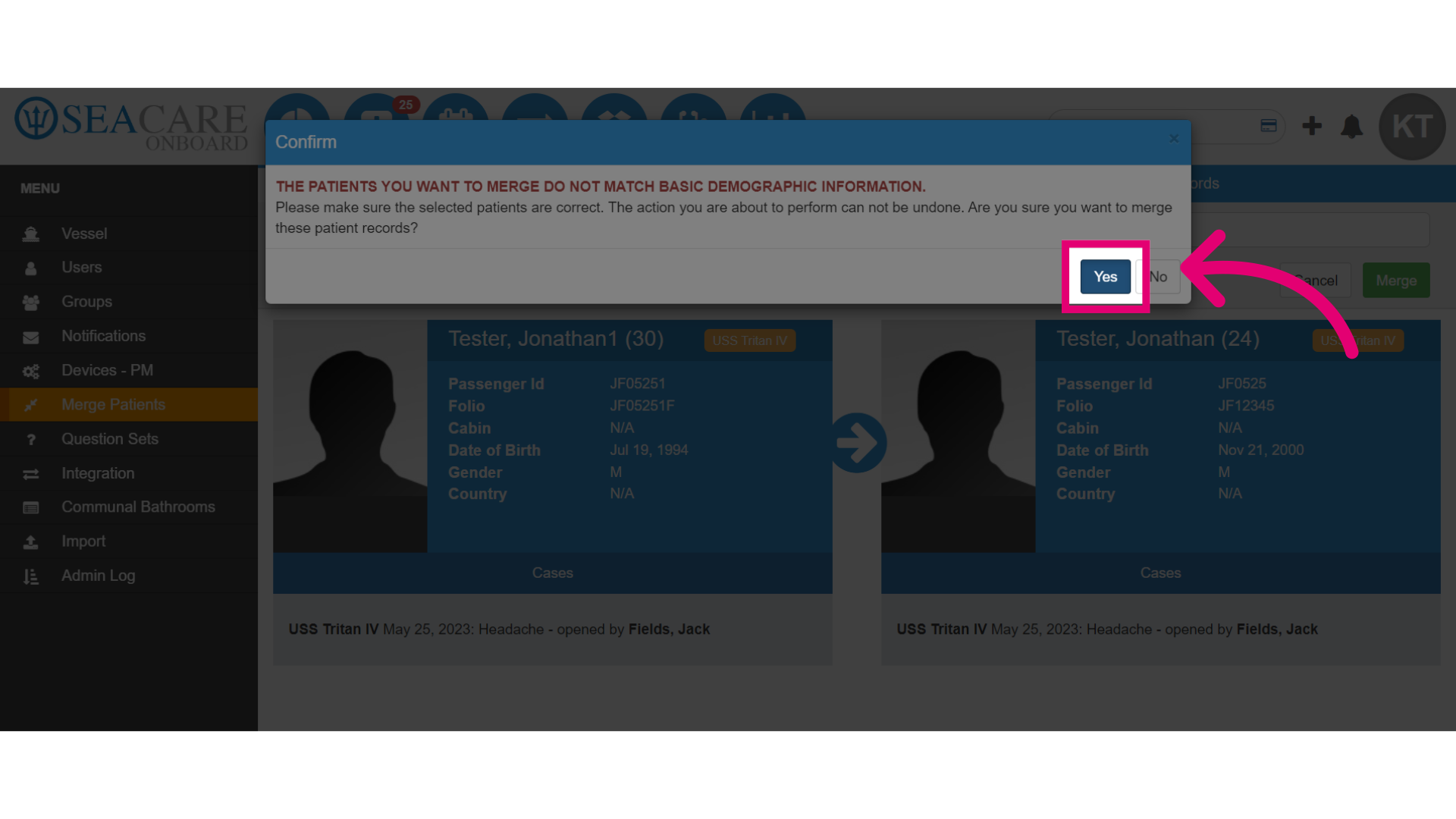
- If the merged charts do not match basic demographic information, you will receive an alert. Confirm the merge process by selecting Yes.
- When that is complete, select Yes once more, to navigate to the merged patient chart and review the update.
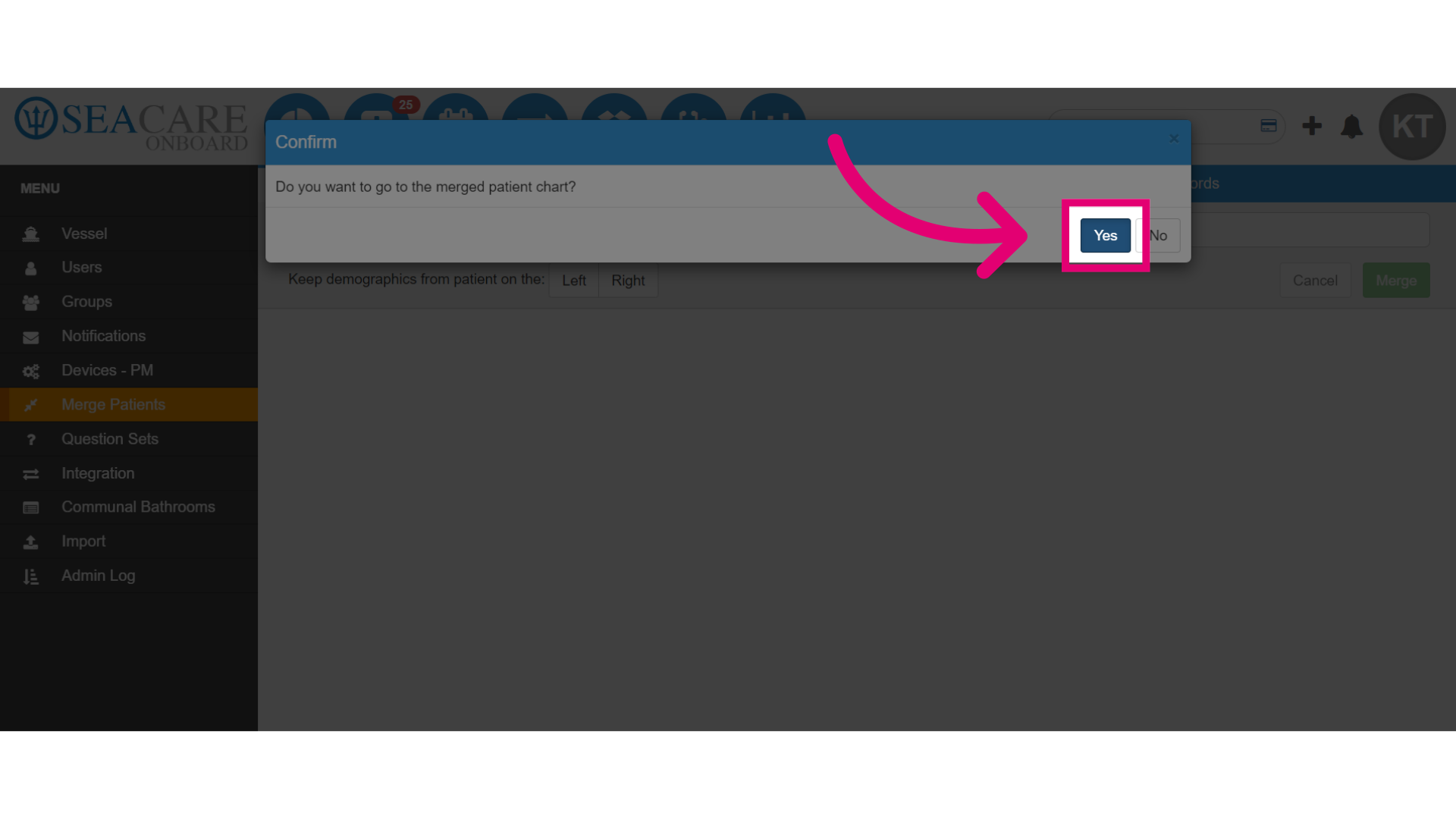
- View the updated information and merged patient chart.