New article
Recently updated
Accessing audit trails for Ideagen Maritime Health Onboard

Who is this article for?Users who want to learn to access audit trails for Ideagen Maritime Health Onboard.
No elevated permissions are required.
This walkthrough shows how to access and view various Ideagen Maritime Health Onboard audit trails. Audit trails in Ideagen Maritime Health Onboard track actions by recording logs for accountability and transparency.
1. Accessing audit trails for Ideagen Maritime Health Onboard
1.1. Video
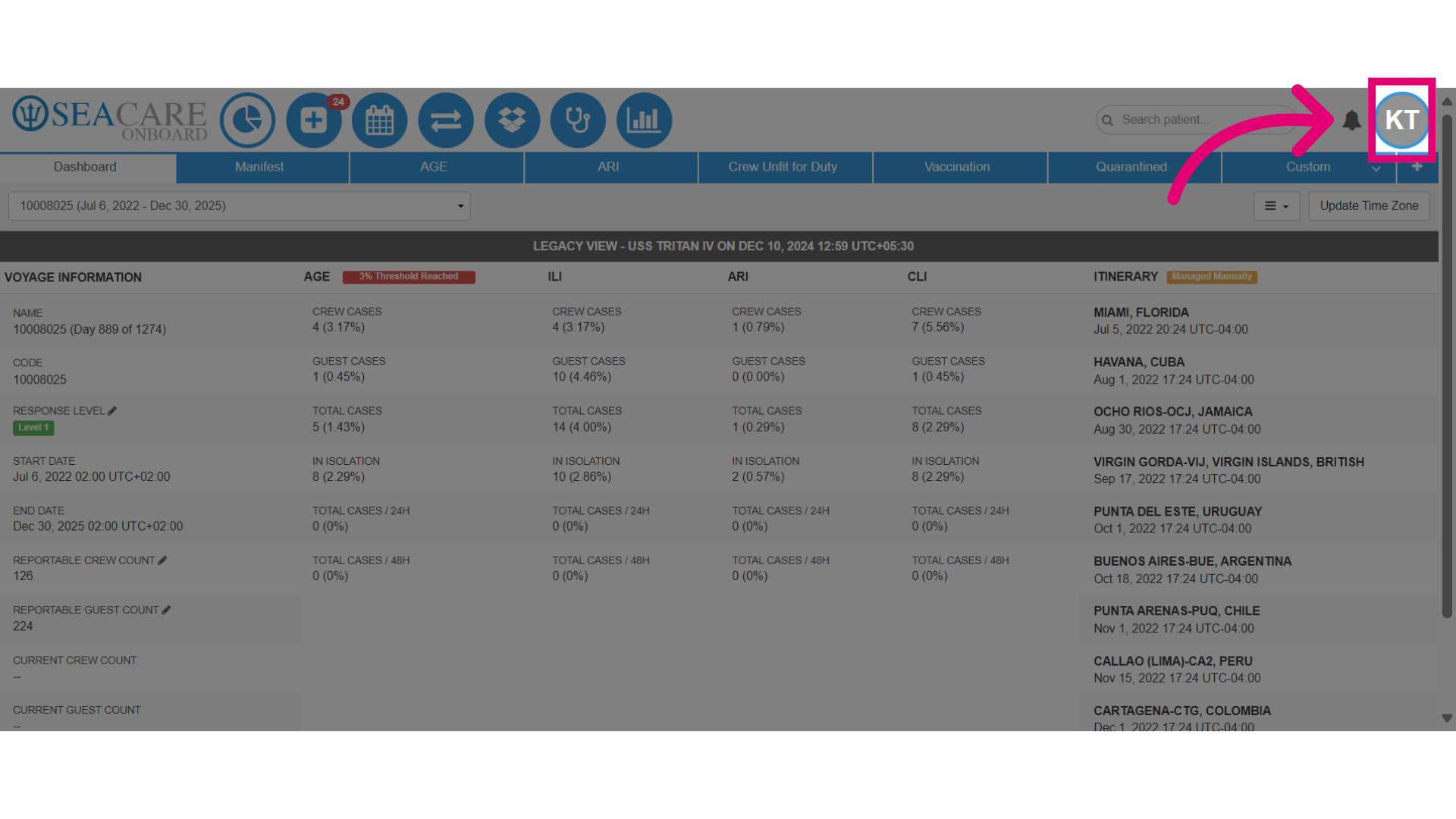
- Navigate to the Admin Menu by selecting your avatar or initials at the top right.
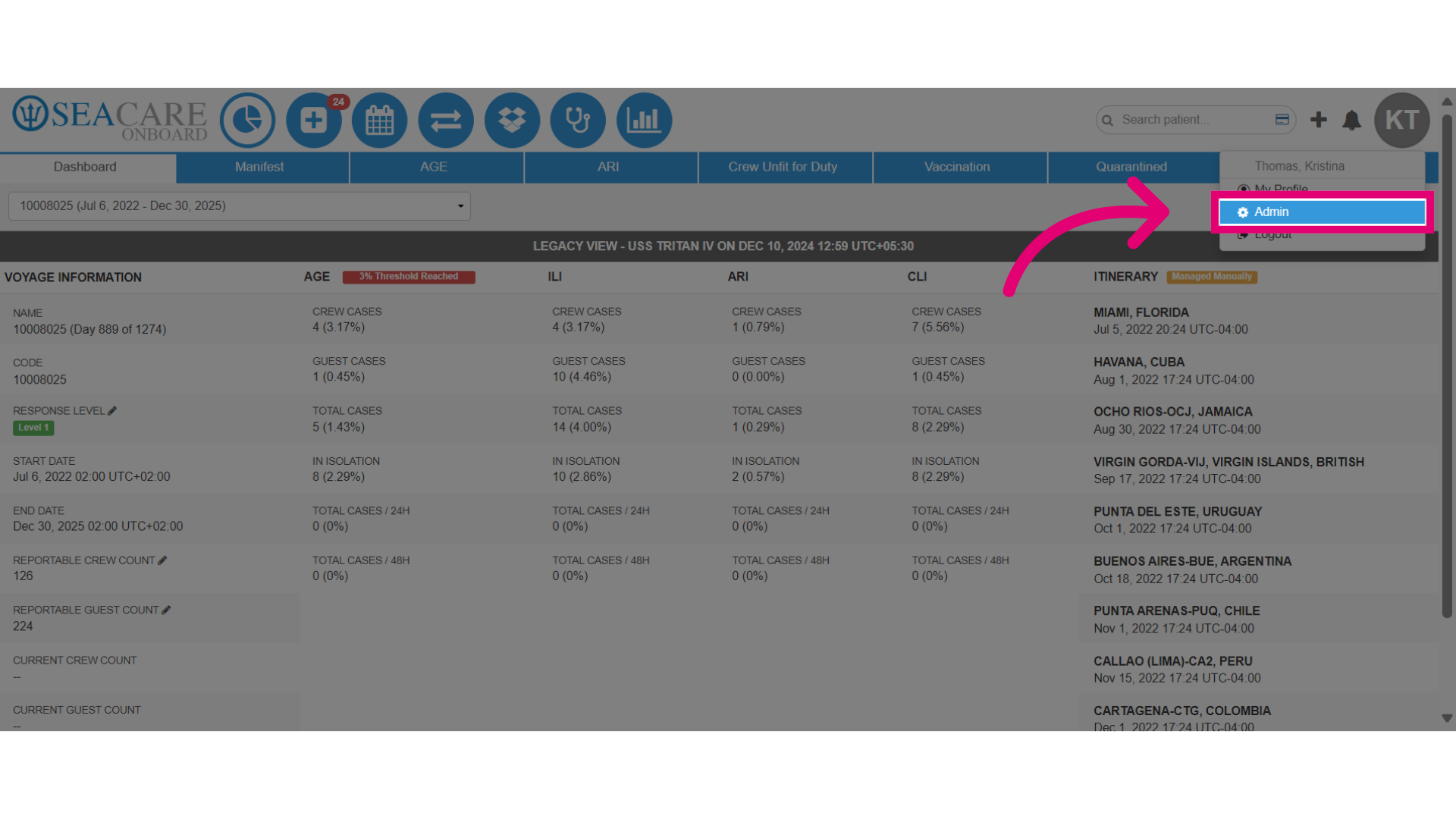
- Select Admin from the dropdown menu.
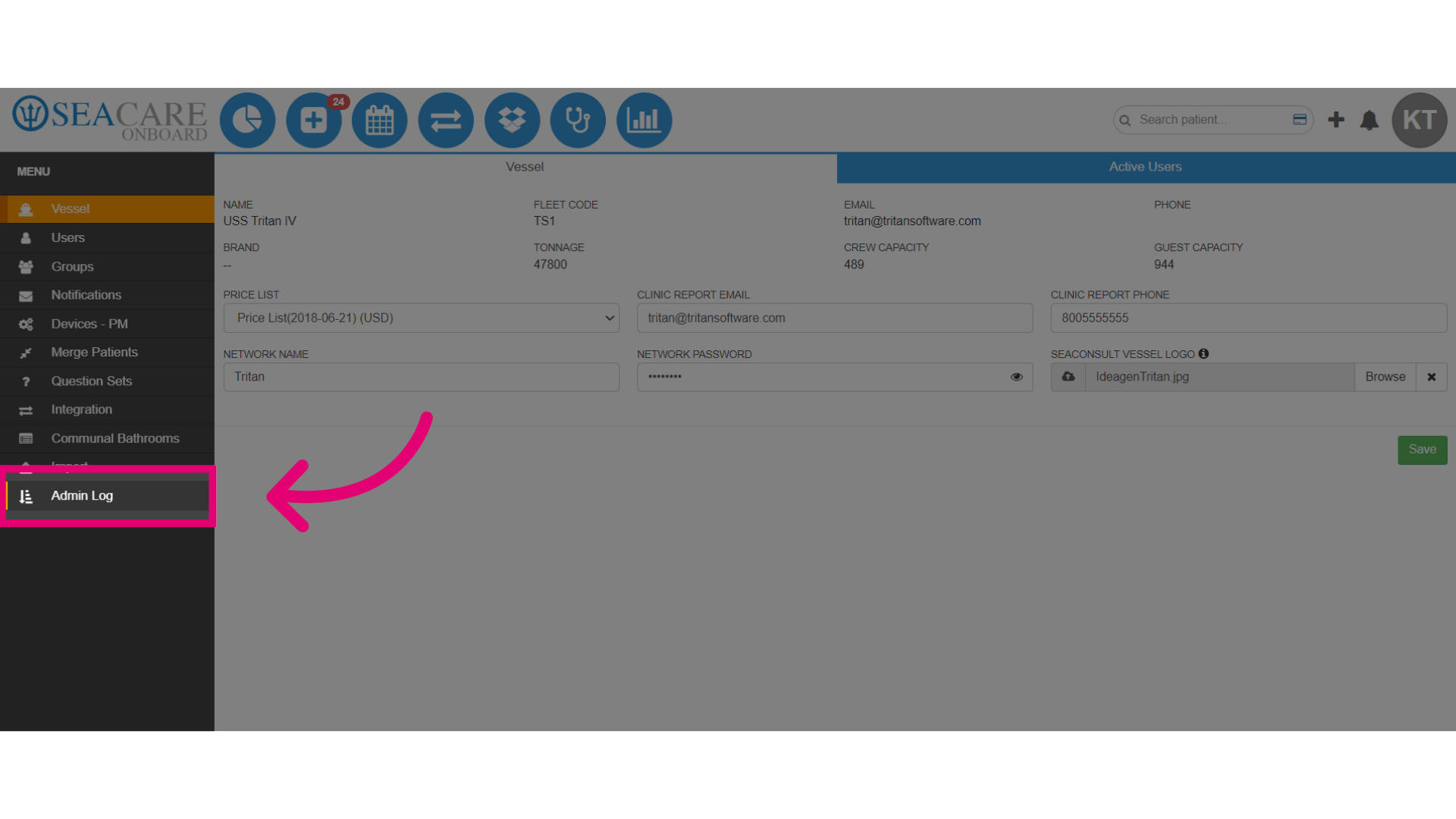
- Then, click the Admin Log option.
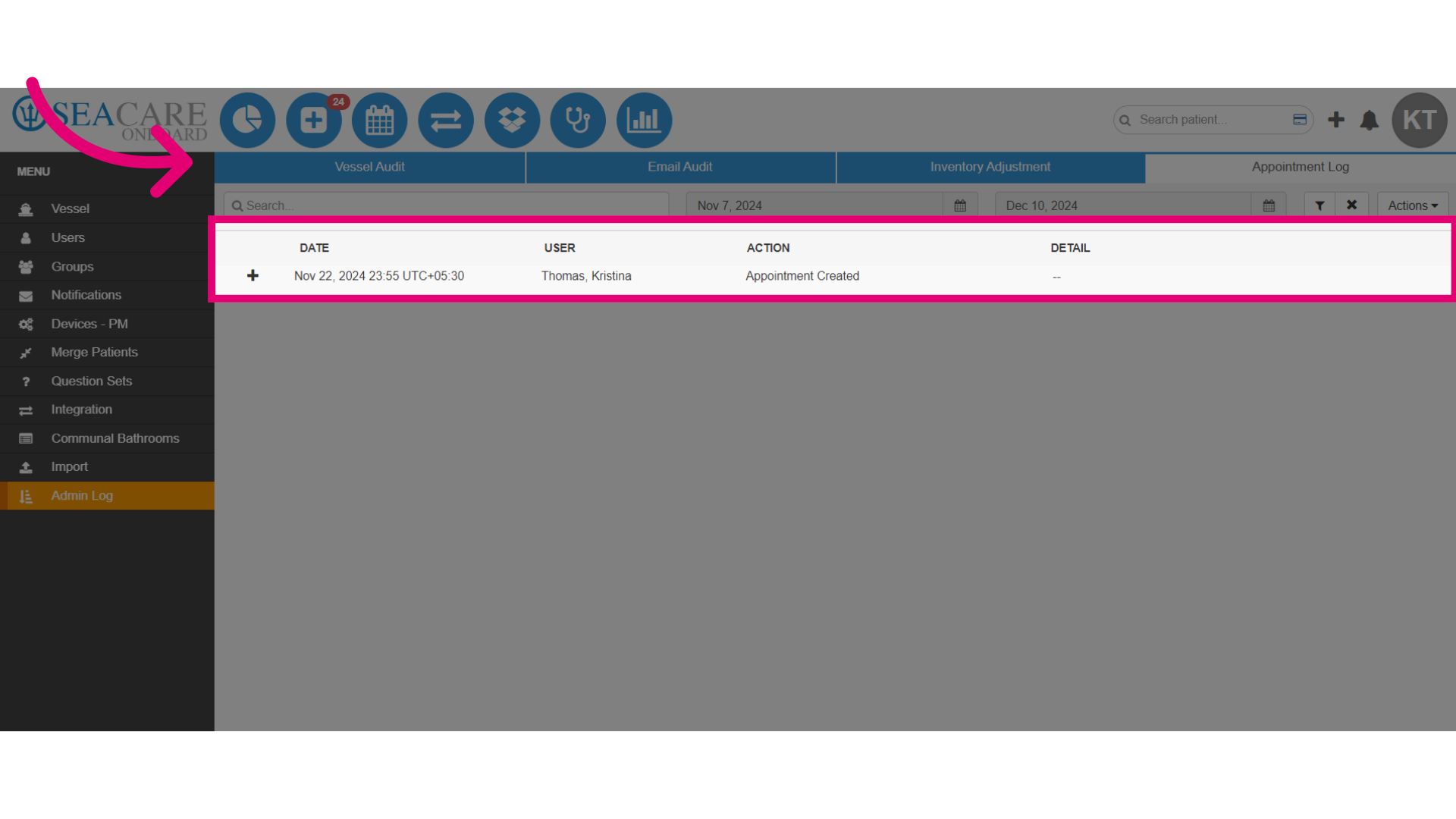
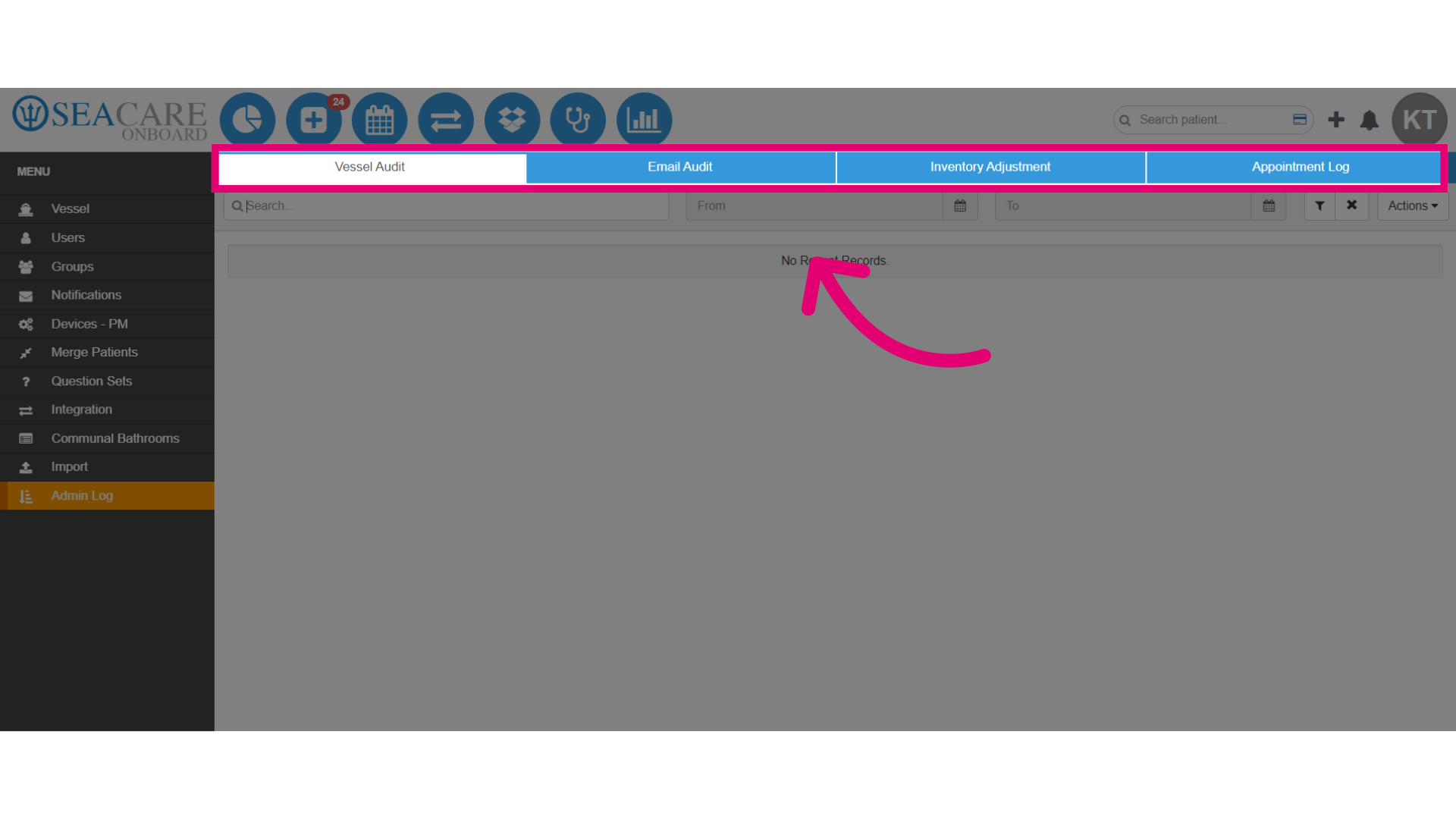
- There are four audit categories:
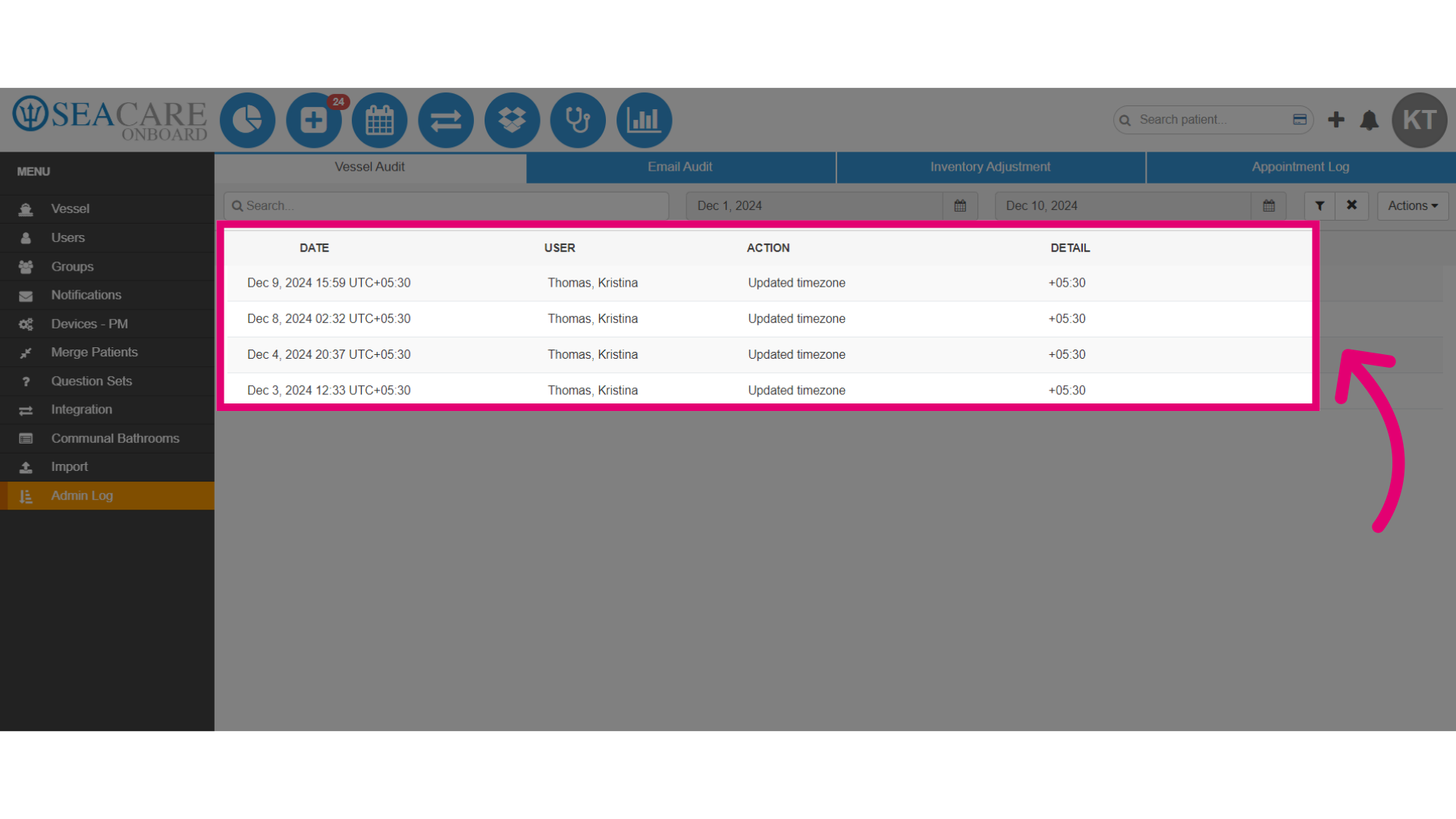
- Vessel Audit: Changes related to the vessel, such as time-zone, response level, and product price changes.
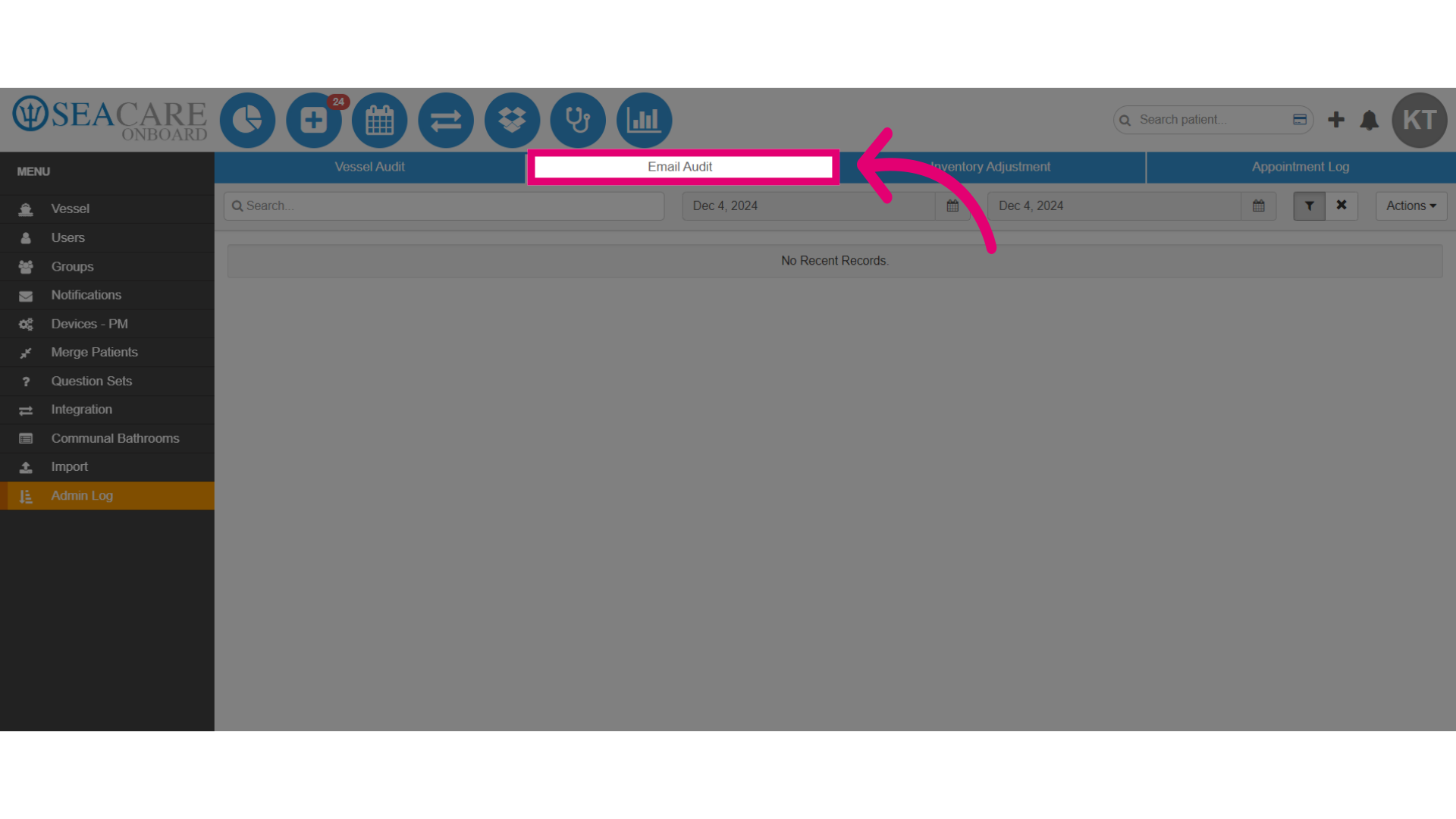
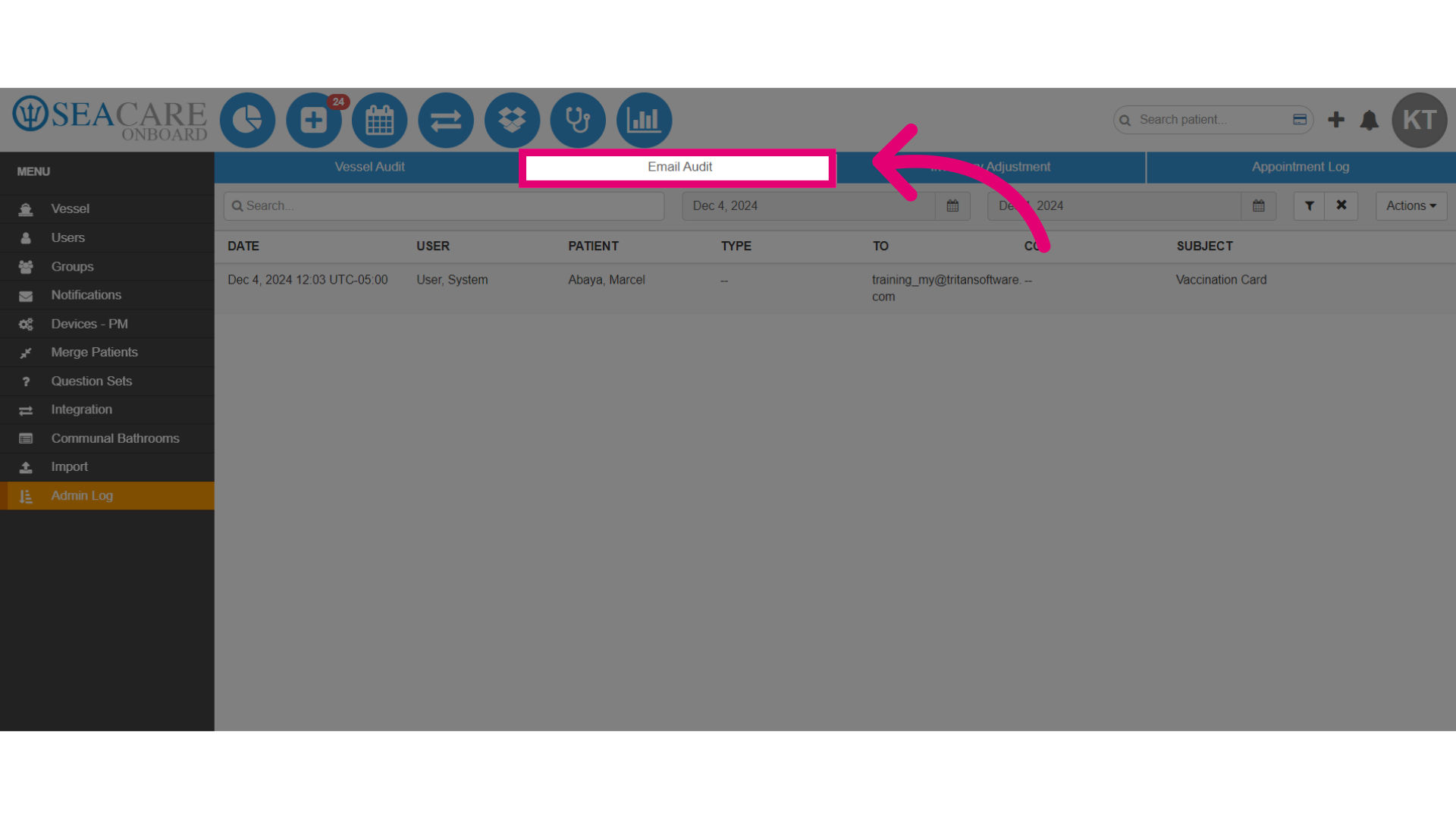
- Email Audit: Email messages sent by the system about any patient.
- Inventory Adjustment: Updates to inventory on the vessel.
- Appointment Log: Updates made for appointments.
- Select the audit you need to view; we'll start with the Vessel Audit.
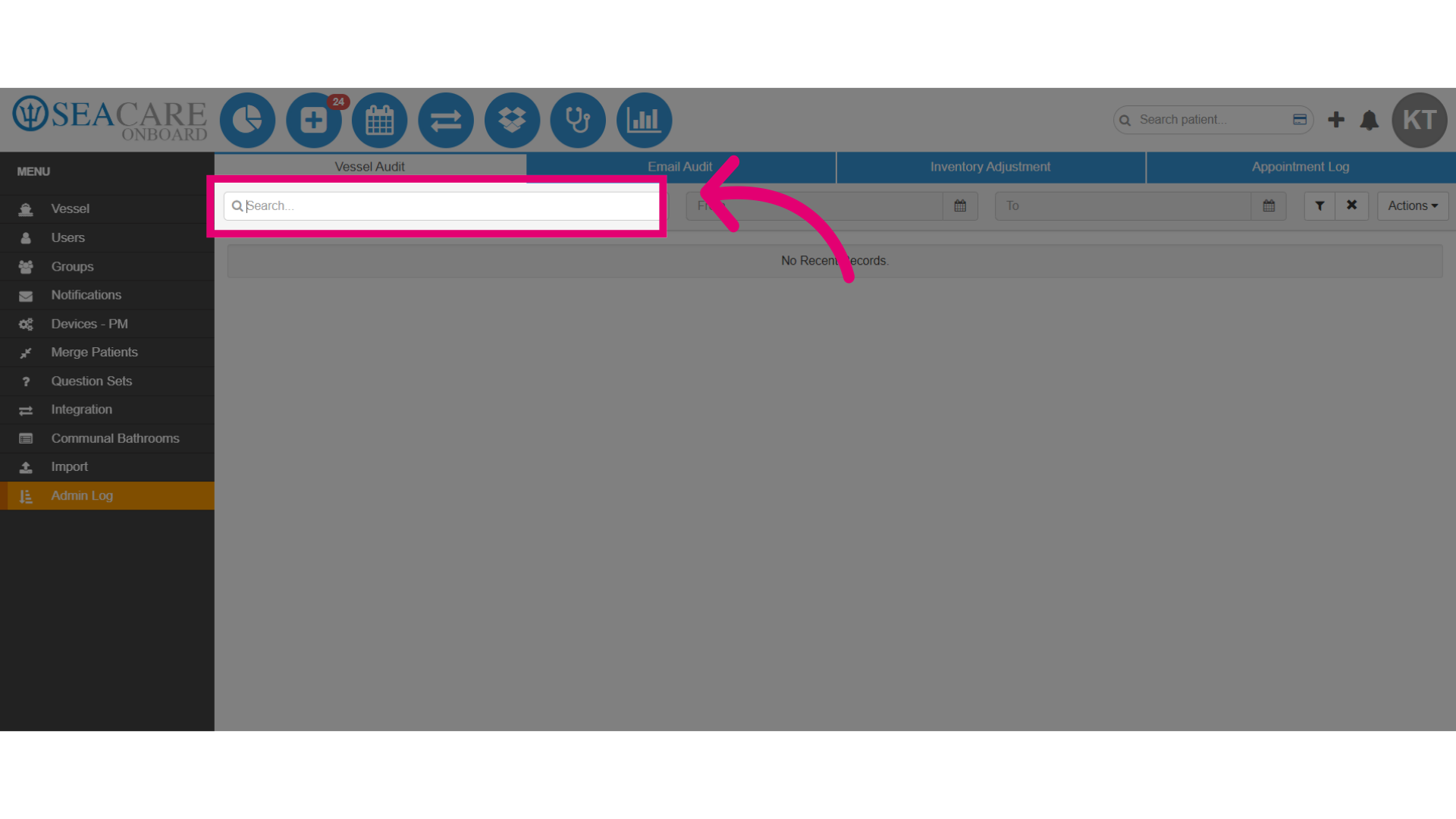
- Use the filter bar to search for a keyword.
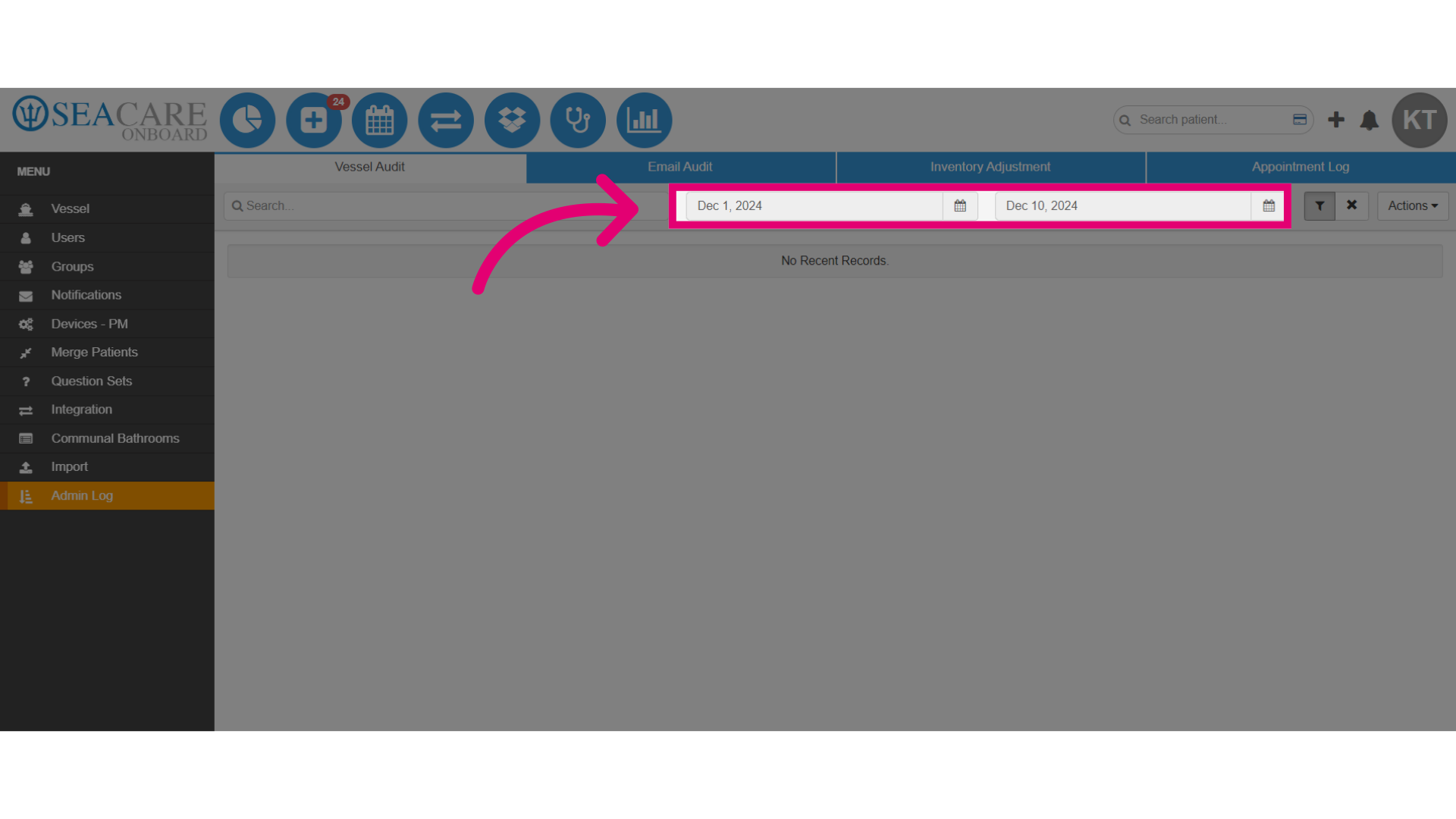
- You can also use the date range filter to search by date.
- Select enter to filter the the results.
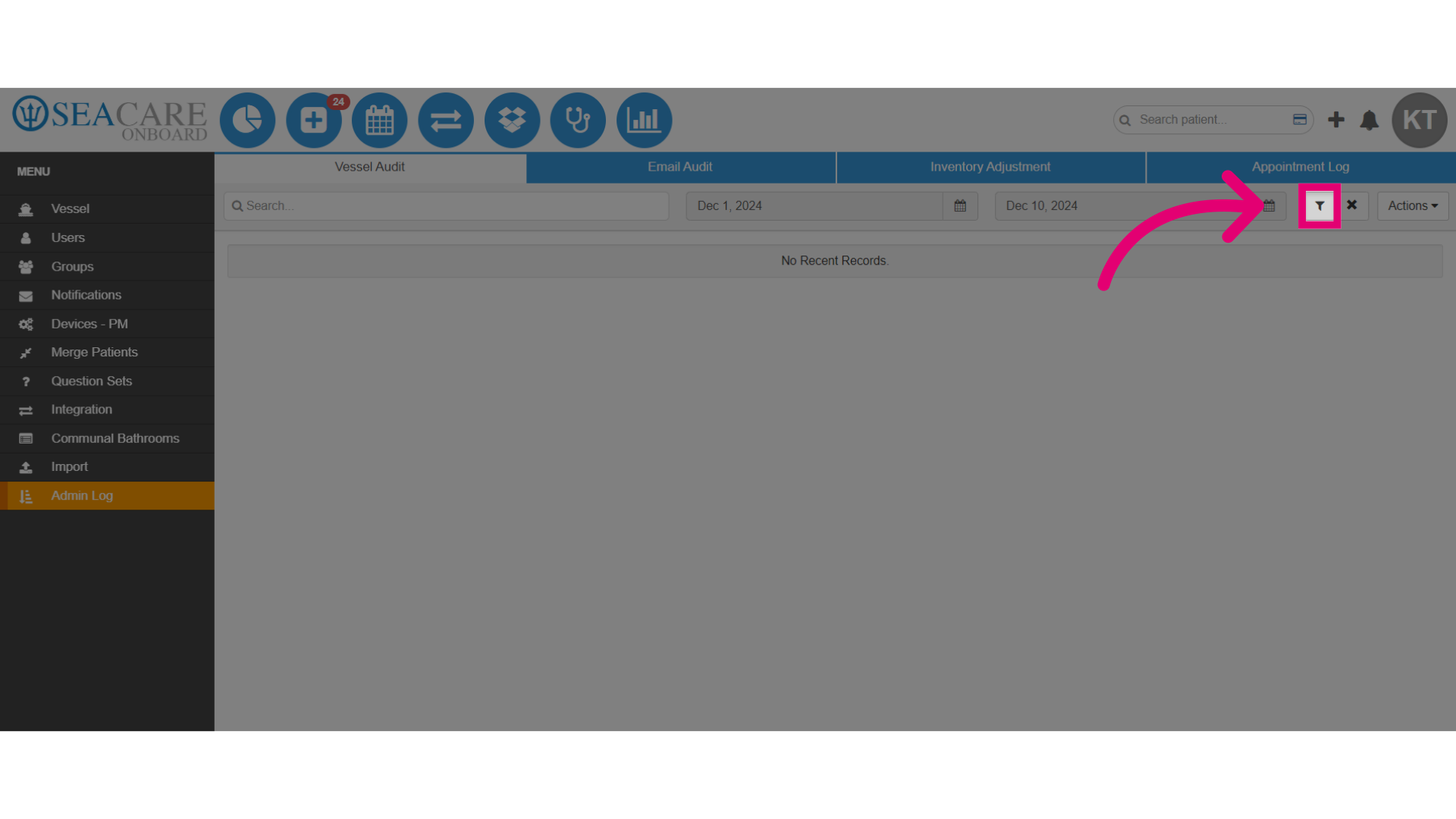
- Once dates are chosen, the system automatically displays matching entries with:
- Date: The date, time, and time-zone of the action.
- User: The user who completed the update.
- Action: The action completed (e.g., updated time zone, response level and product price list).
- Detail: The specifics of the action taken.
- Select the Email Audit tab to view the same filters and fields as the Vessel Audit section. Set the filters and generate results by selecting Enter.
- After setting filters in the Inventory Adjustment section, users can view:
- Date: The date, time, and time-zone the message was sent.
- User: Who sent the message or scheduled the appointment that triggered it.
- Patient: The patient the message was sent for.
- Type: The type of message sent.
- Select Inventory Adjustment to view the same filters and fields as in the Vessel and Email Audit sections.
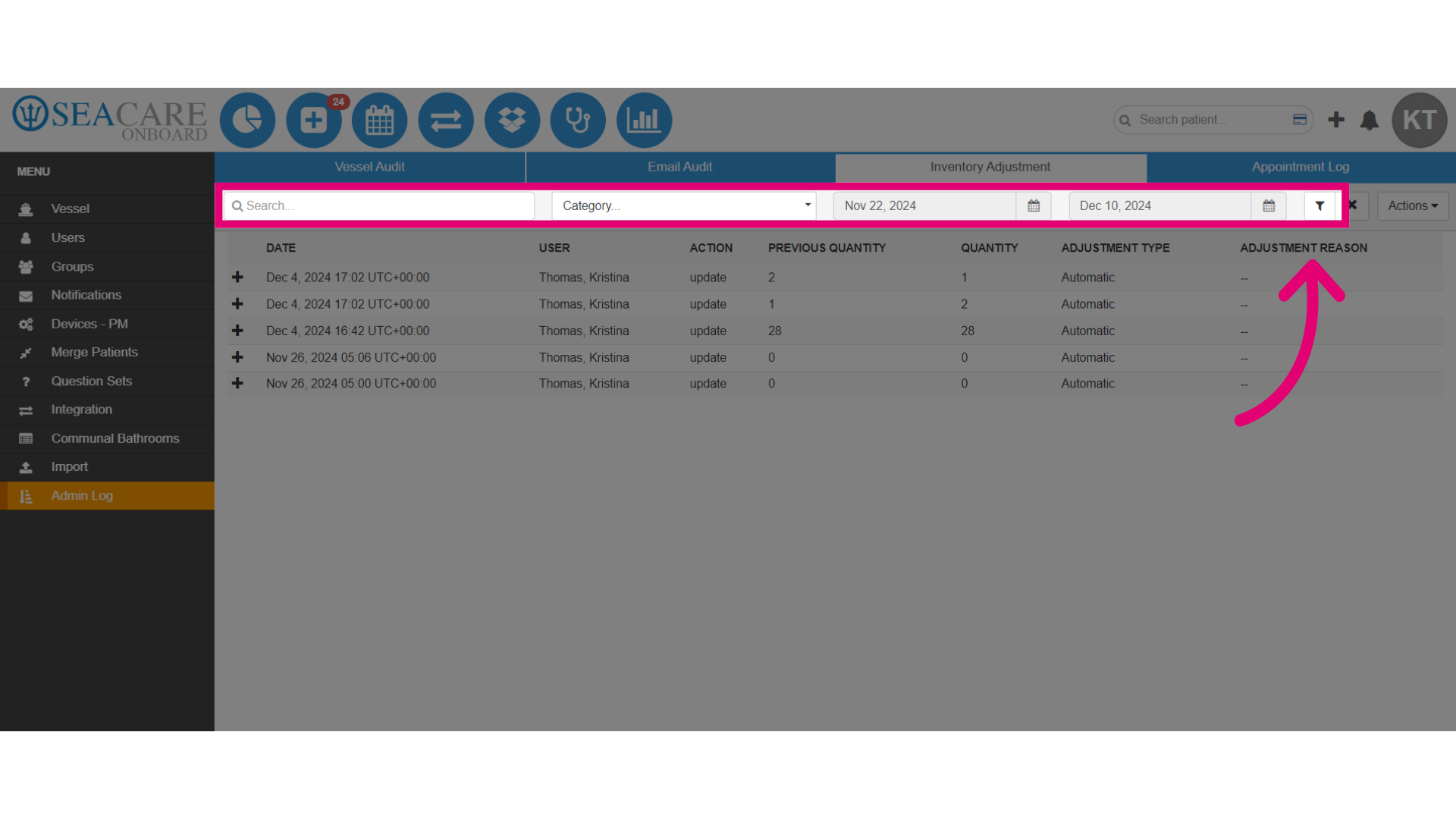
- Here, users will be able to view a list of inventory updates.
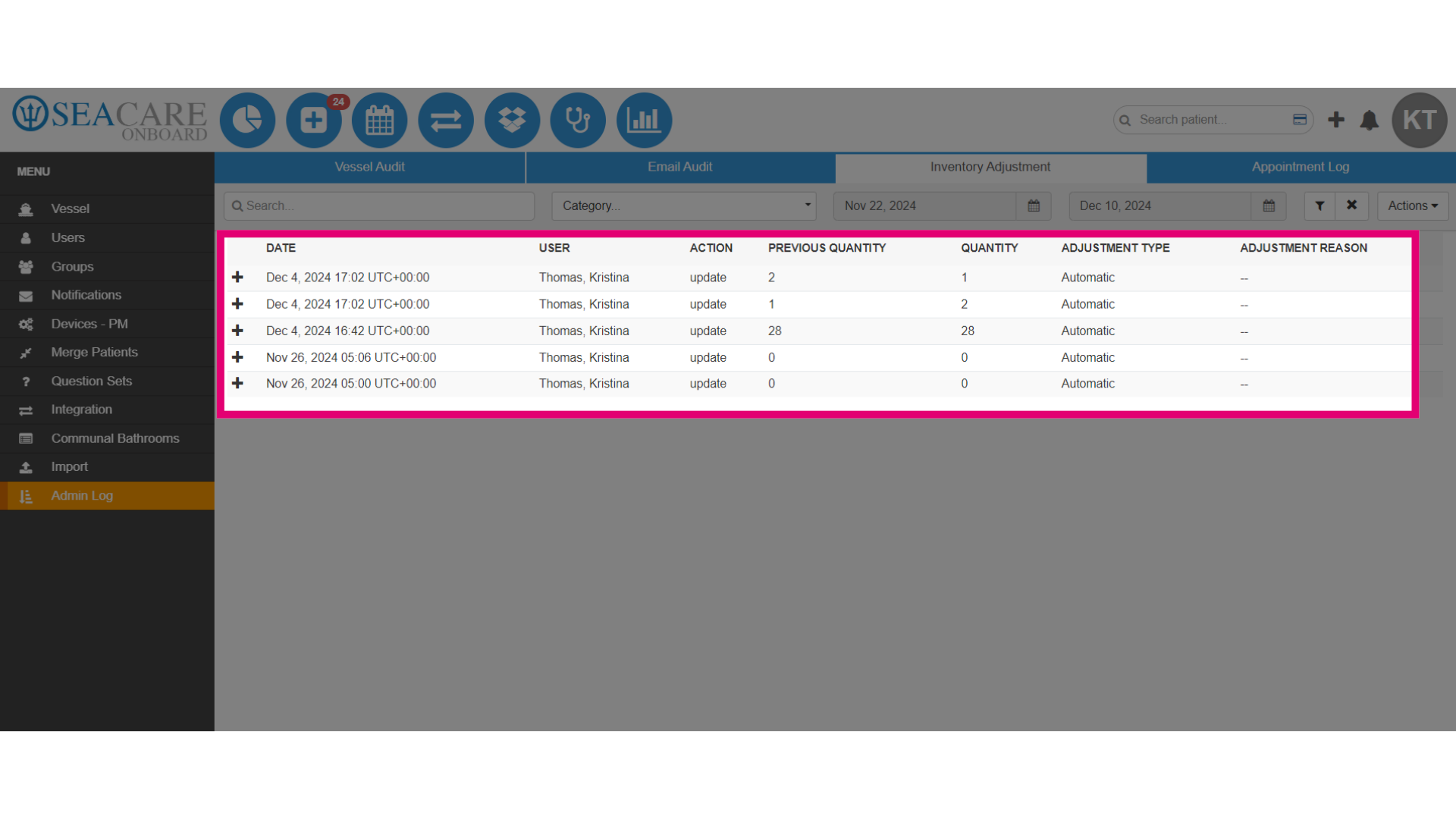
- You may expand an entry to view more information details.
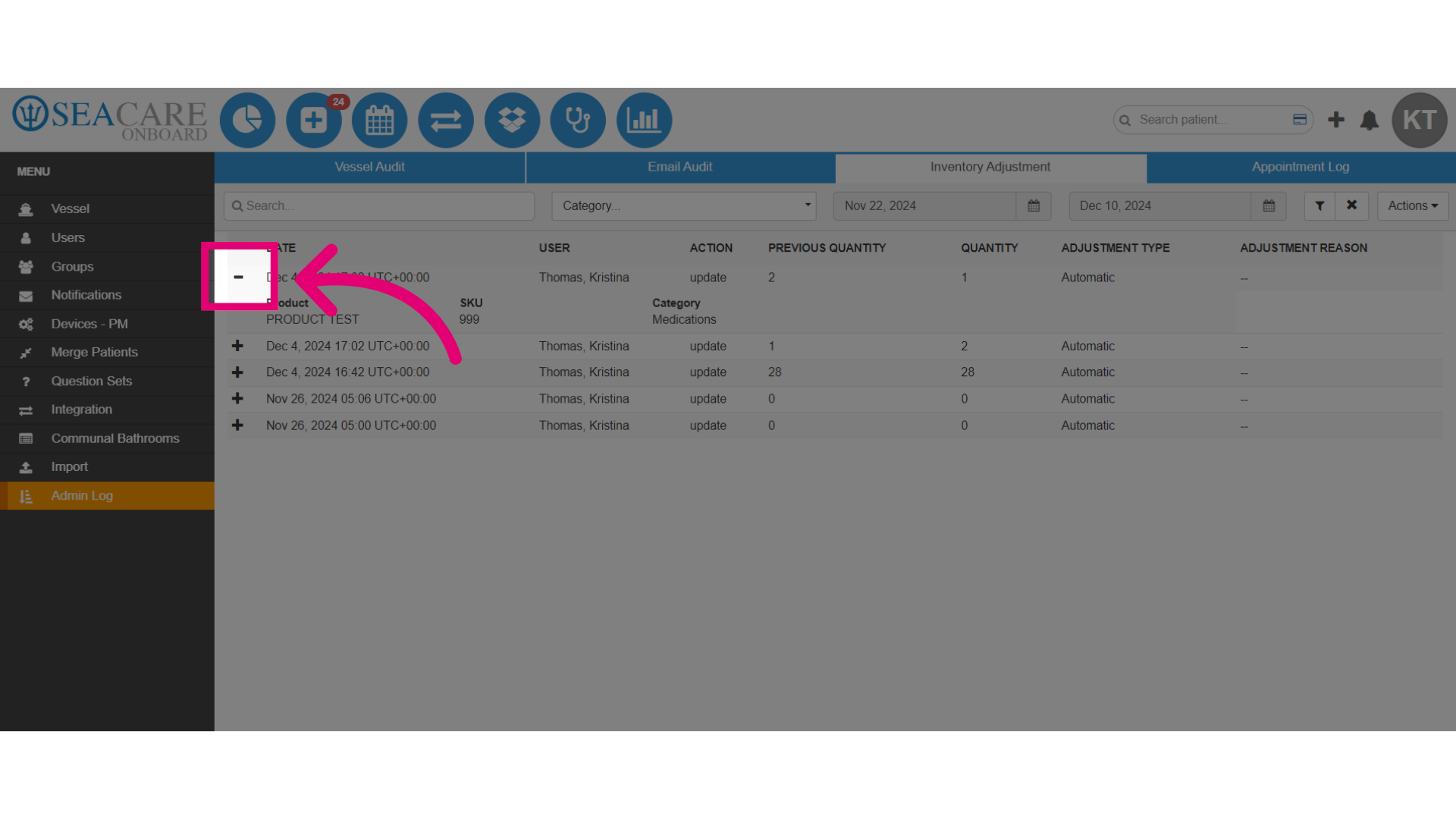
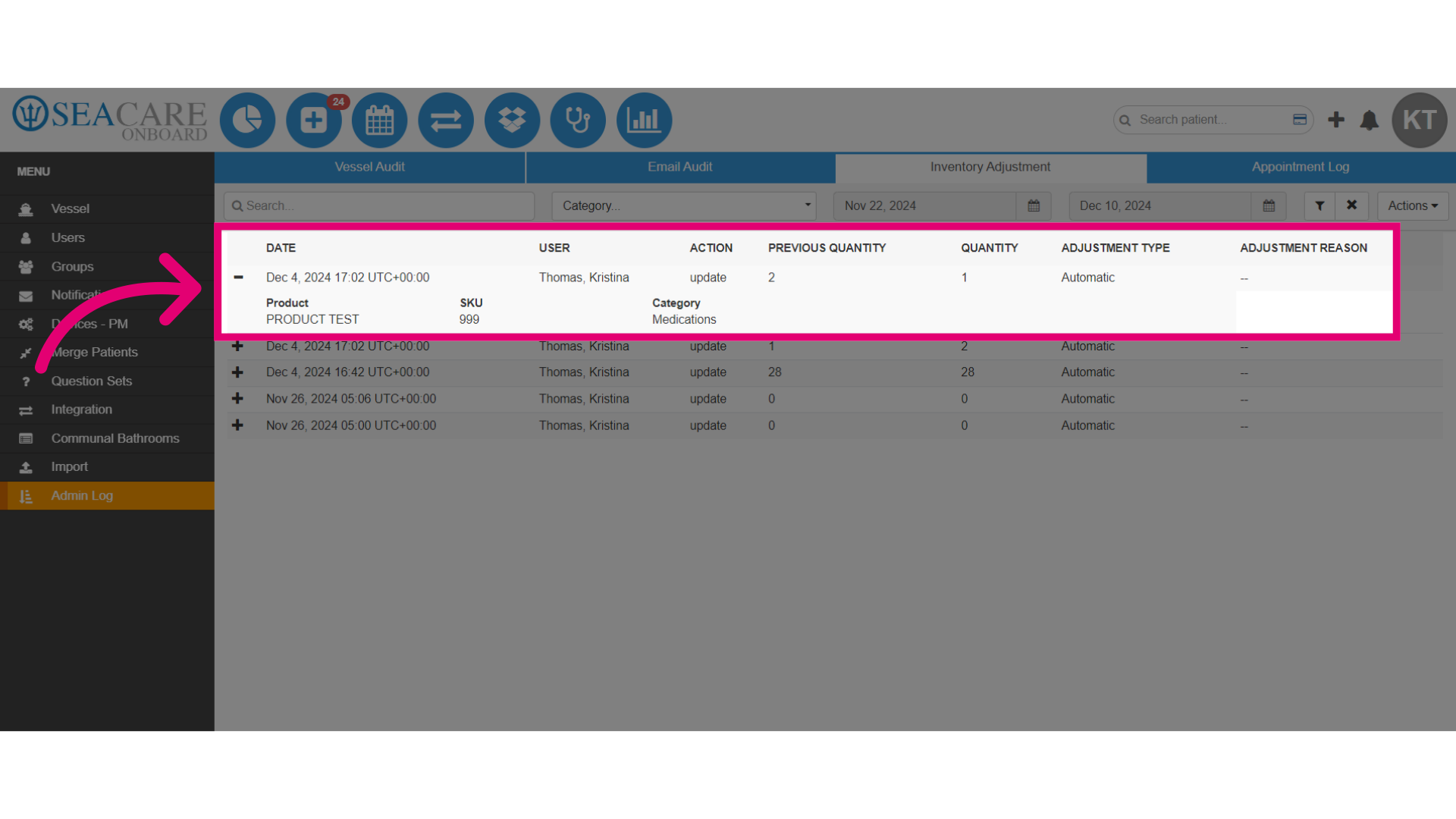
- Upon expansion, you can view Product, SKU and Category fields.
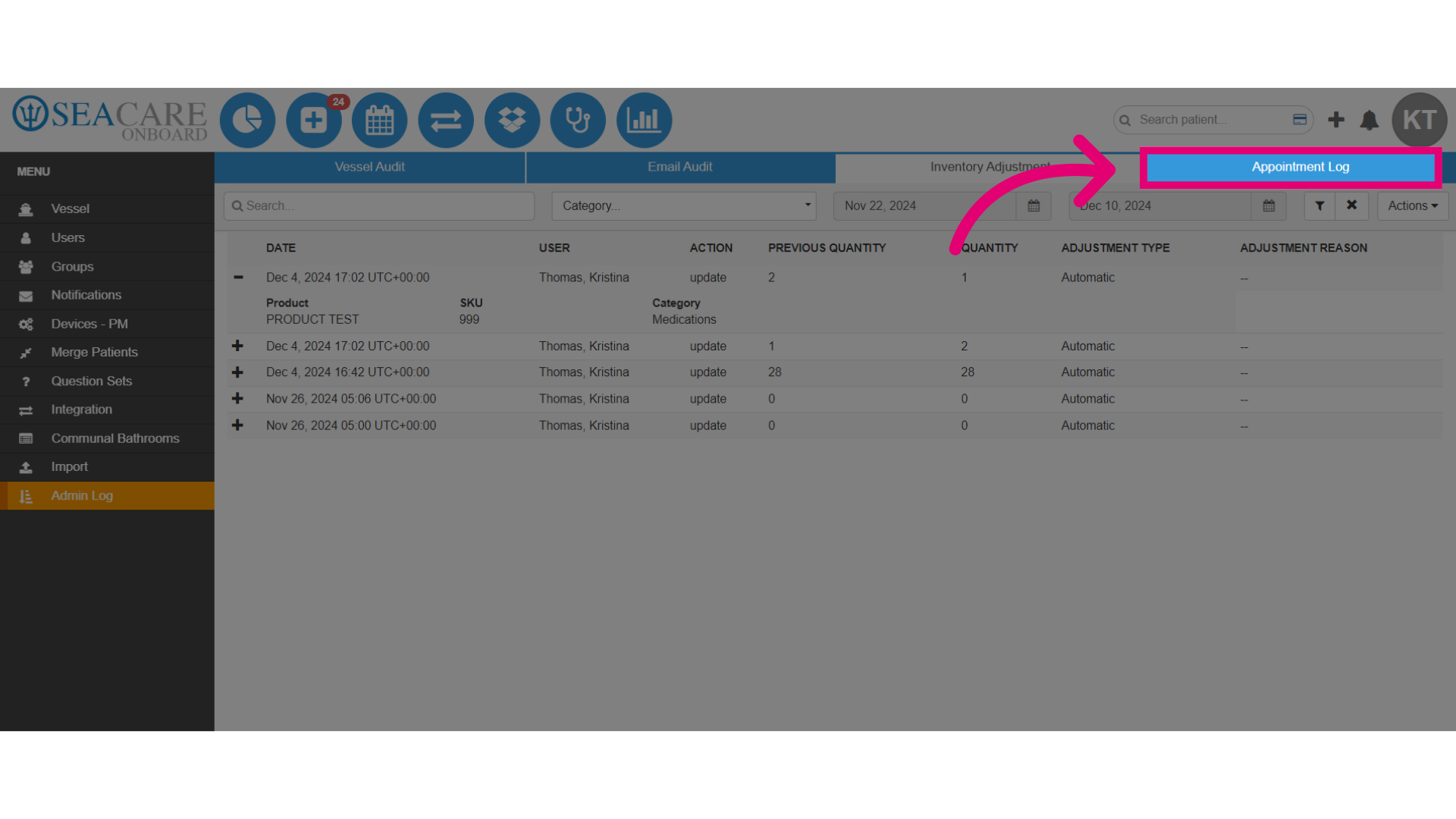
- Next, select the Appointment Log tab.
- Use the search bar and filters again to find the appointment.
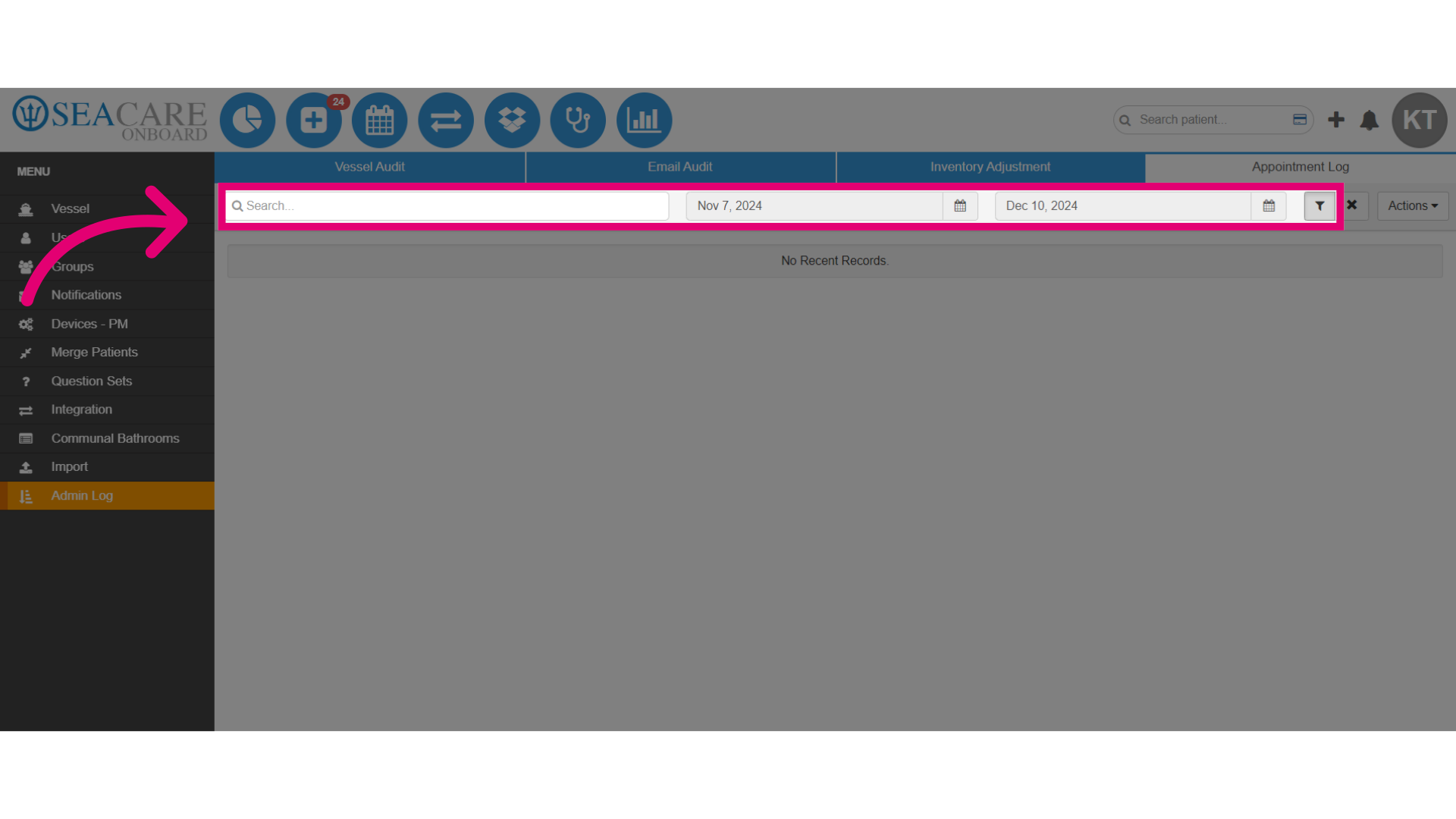
- Then, you can view update details, including the date, user, action taken, and action specifics if applicable.