New article
Recently updated
Printing a test lab certificate in the patient chart

Who is this article for?Users who want to learn to print a test lab certificate in the patient chart.
No elevated permissions are required.
This walkthrough will guide you trough the process of printing a communicable disease lab certificate in the patient chart. These steps guide you through navigating sections, entering data, and saving changes to print important test results directly from the patient chart without starting an encounter.
1. Printing a test lab certificate in the patient chart
1.1. Video
1.2. Steps
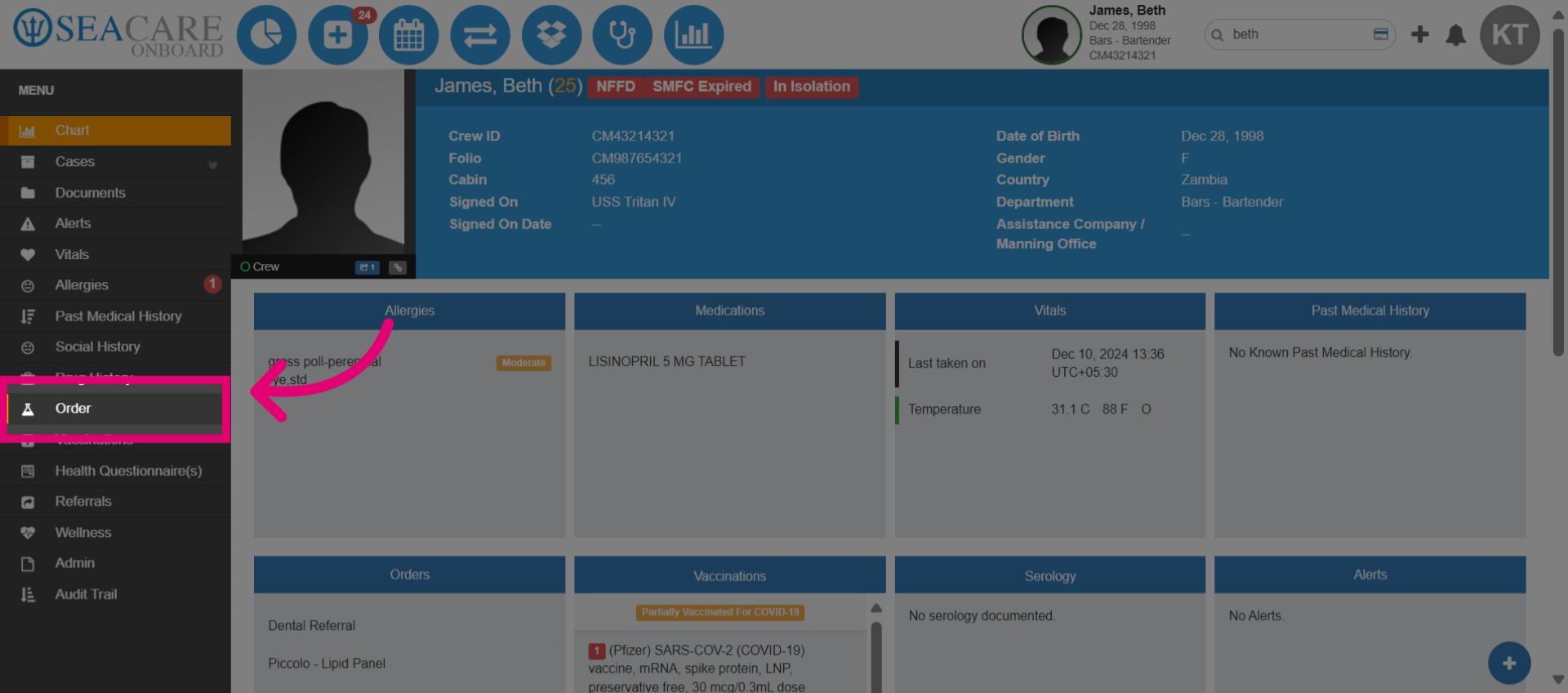
- Navigate to the Order section.
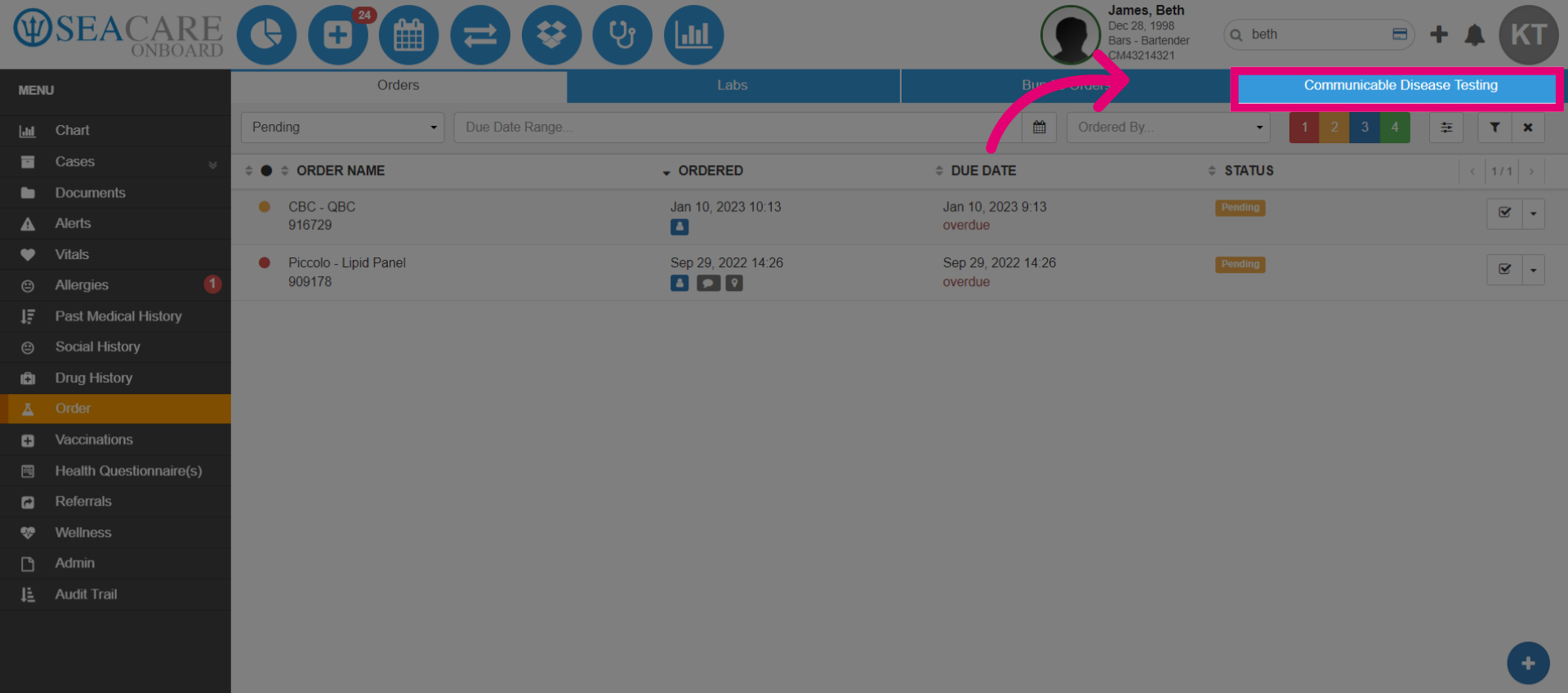
- Select the Communicable Disease Testing tab.
- Locate the test results that you want to print.
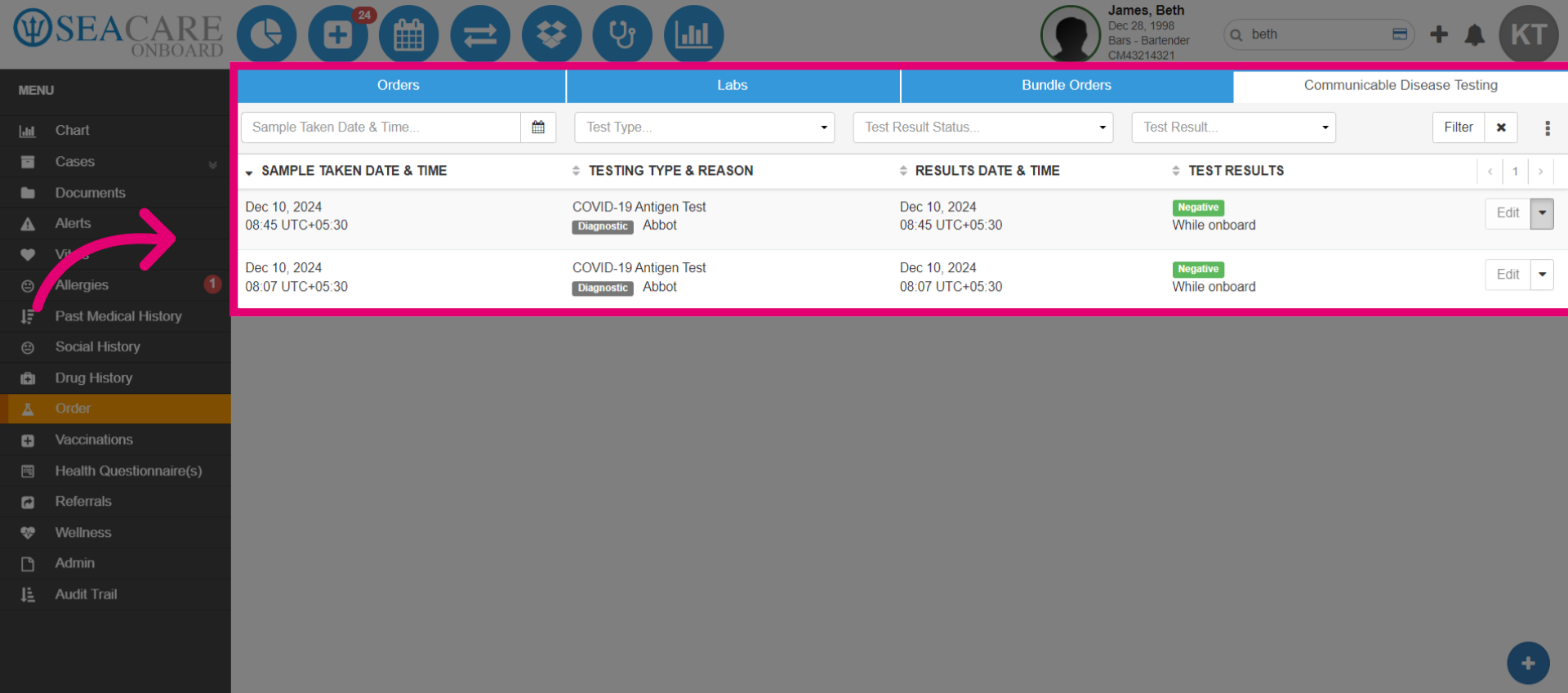
- Select the Actions menu.
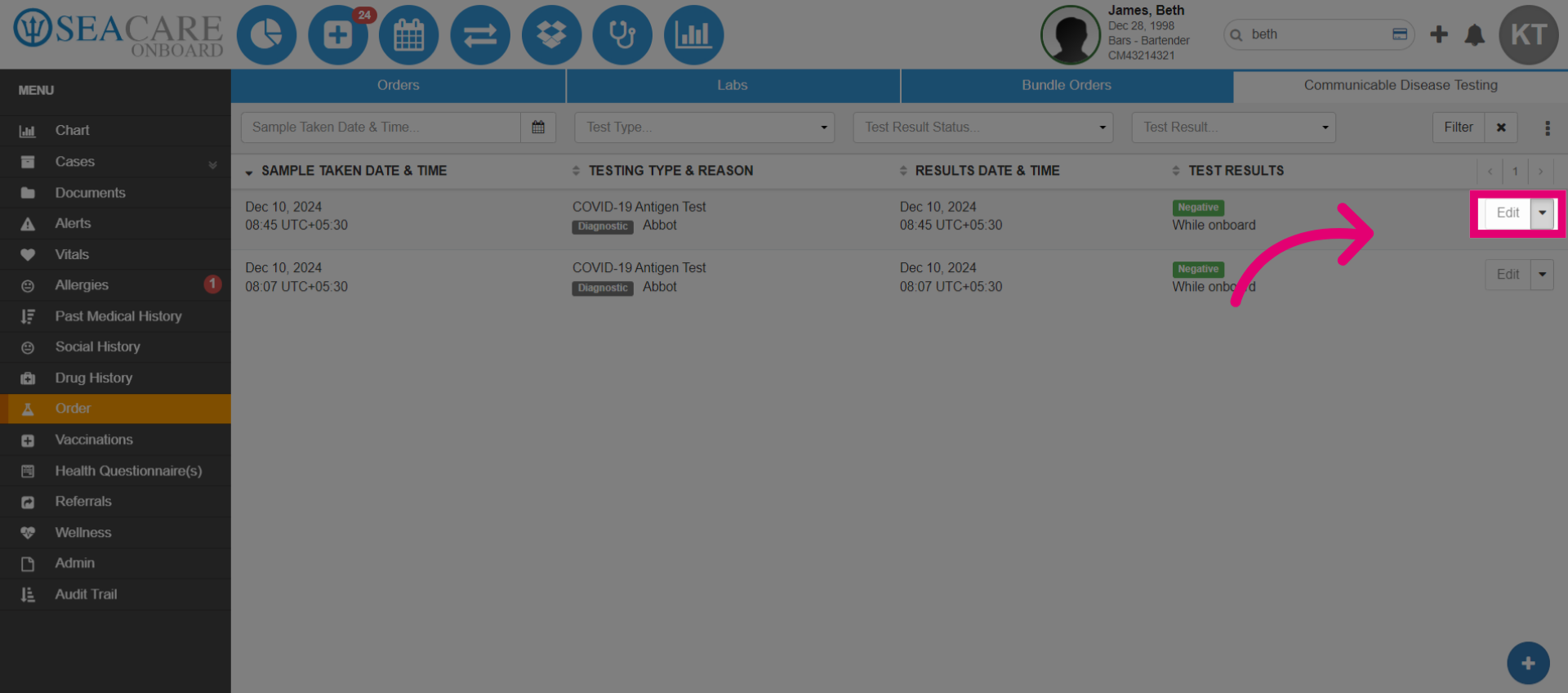
- Choose the Certificate option.
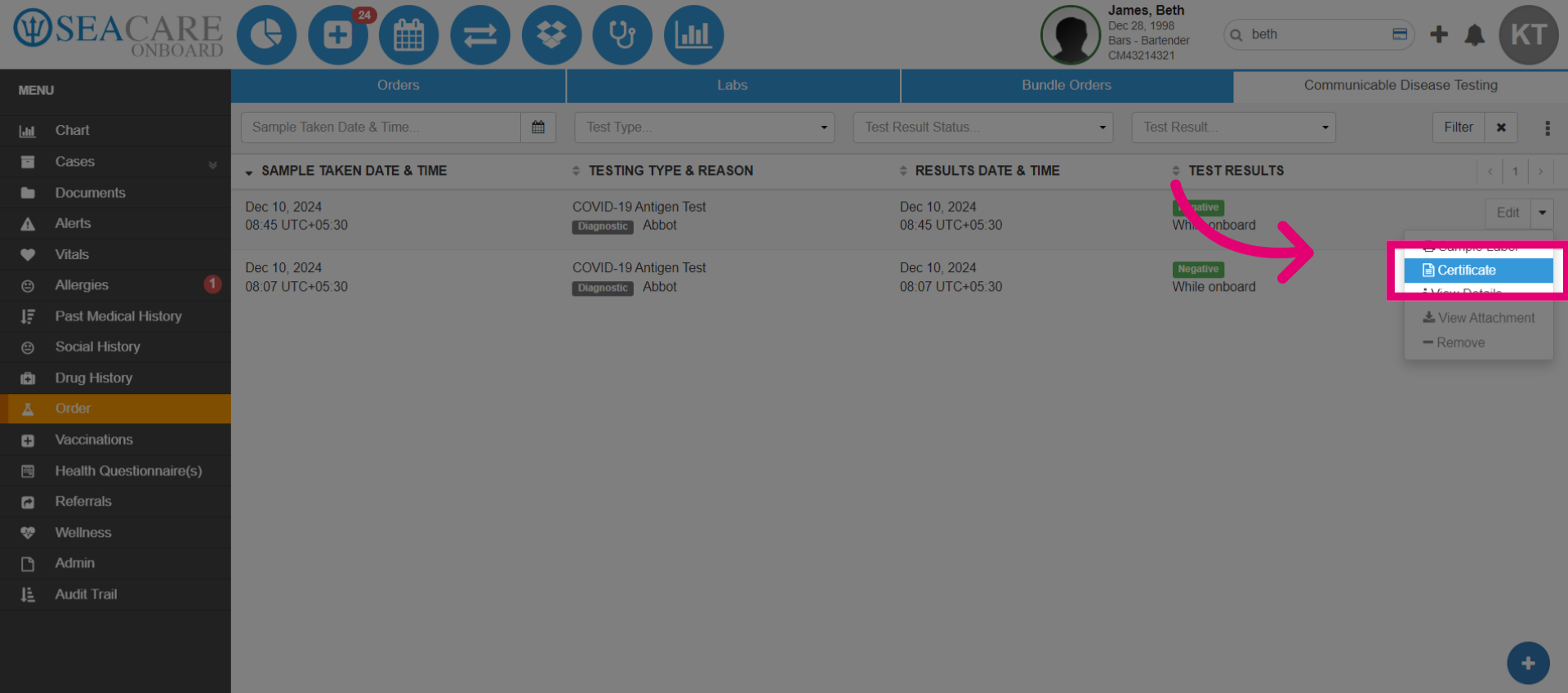
- If details are missing for the certificate, a popup will appear. You can add the missing details or print the certificate without them. To add, fill in the missing fields.
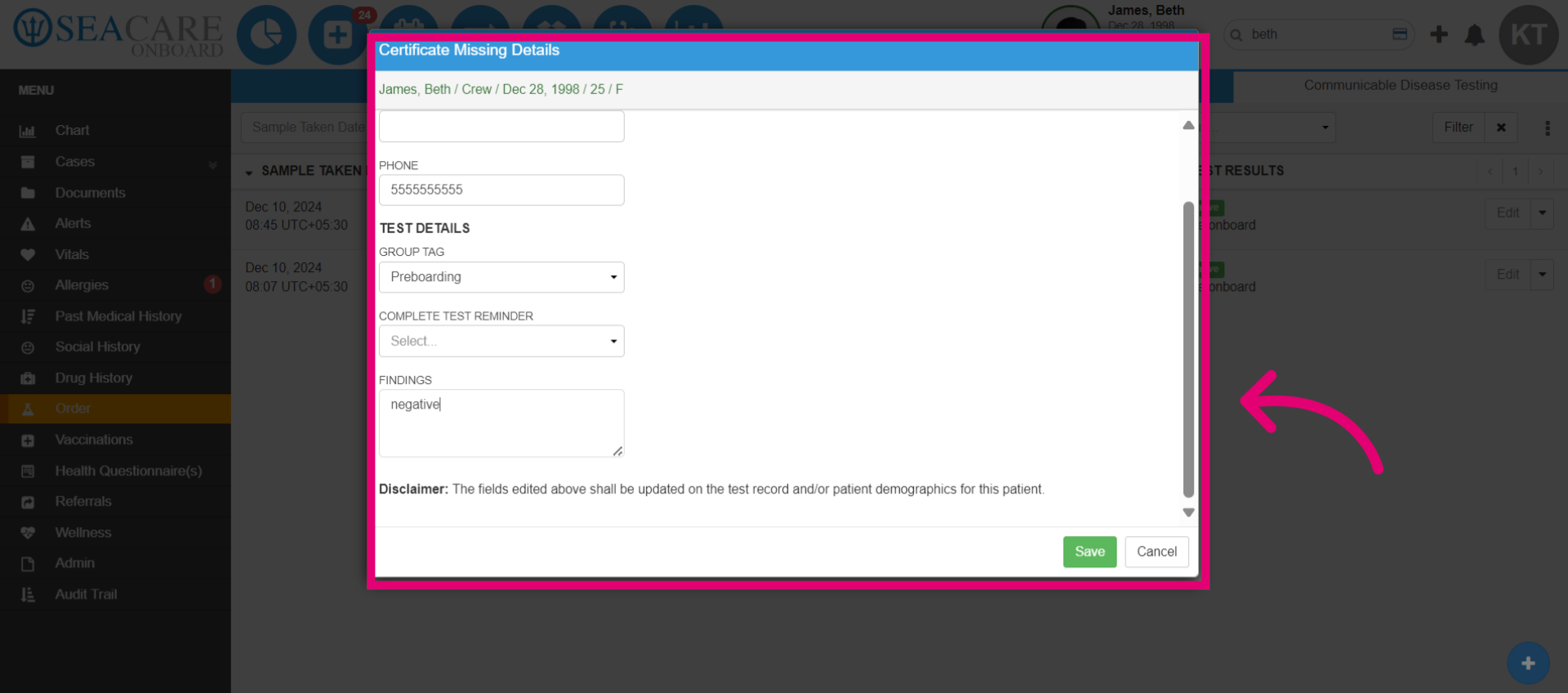
- Save the changes made.
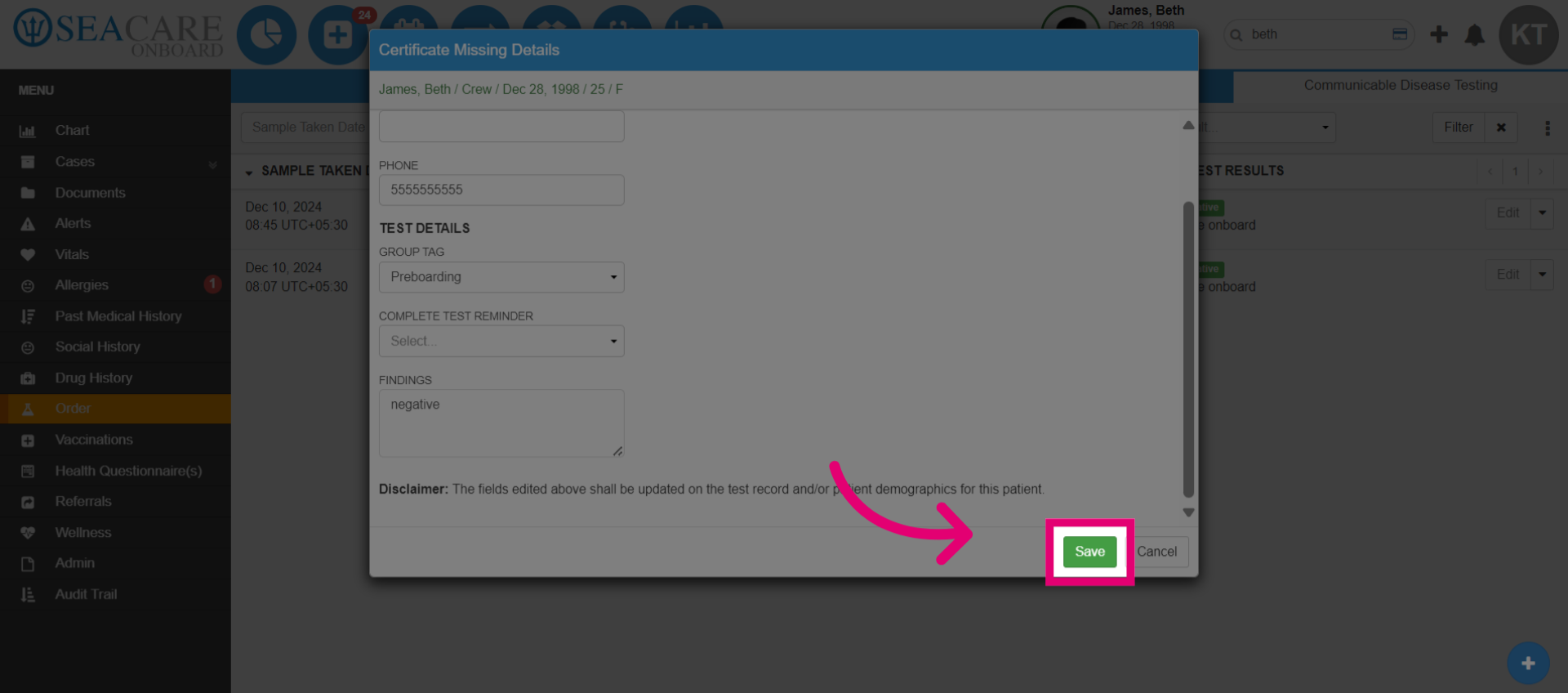
- Confirm the action by selecting Yes.
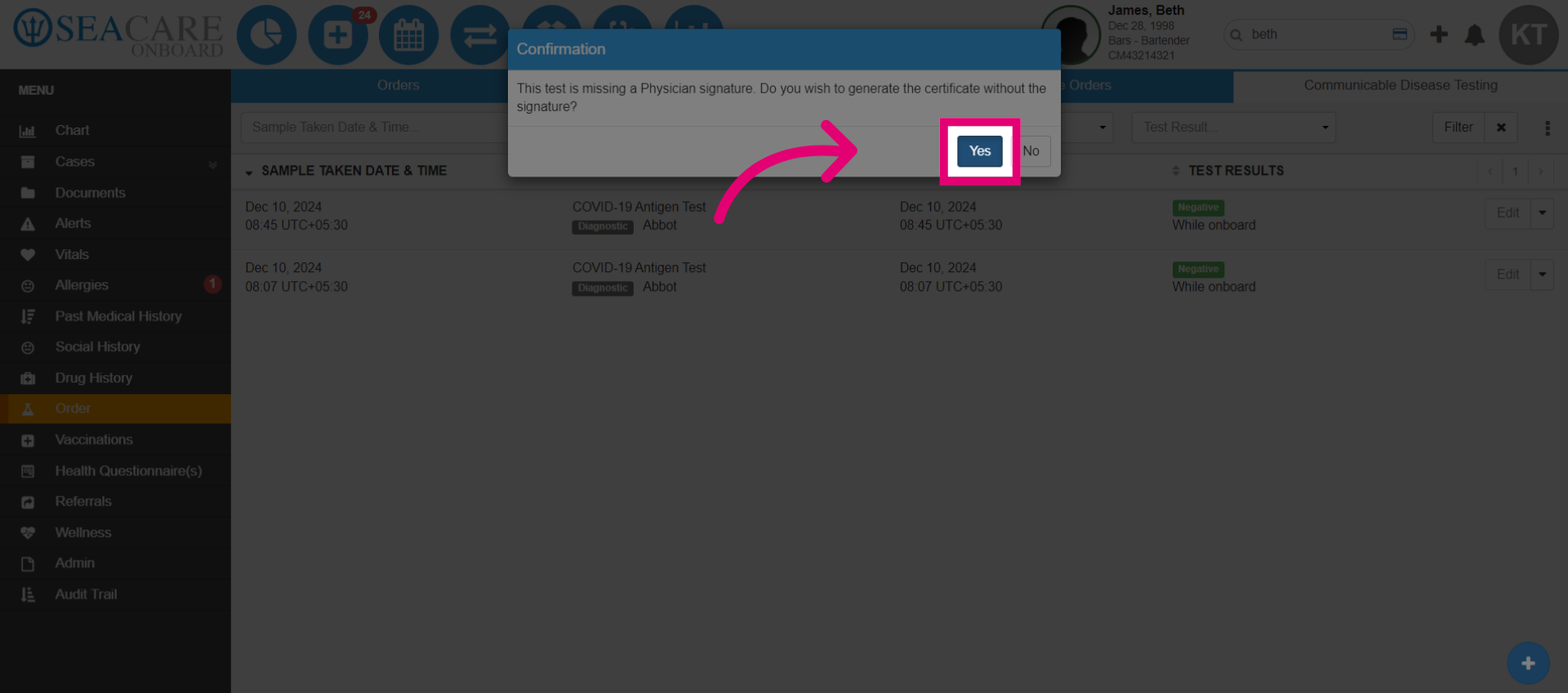
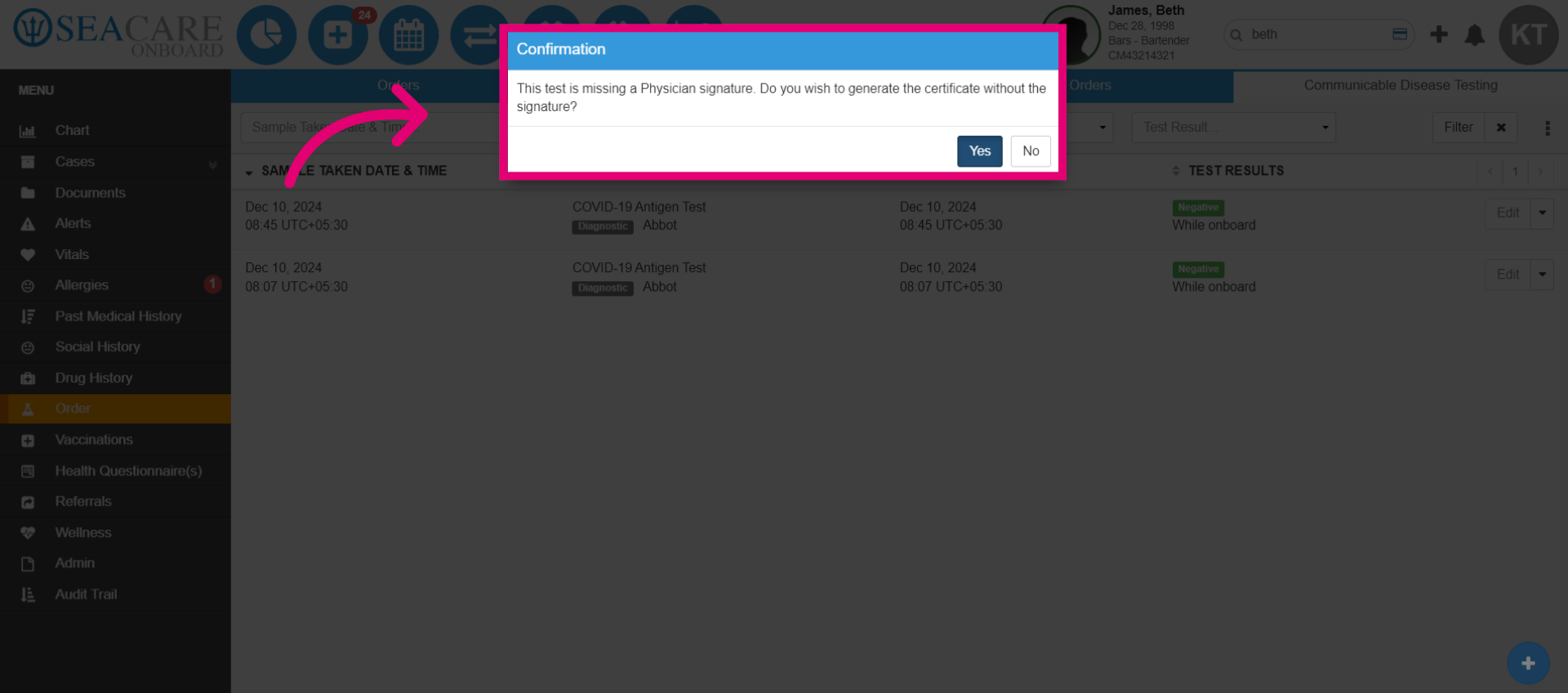
- If the physician's signature is missing, an alert will appear. You can print without it, cancel and add the signature, or confirm printing with the missing signature by selecting Yes.