New article
Recently updated
Adding vaccination history in the patient chart

Who is this article for?Users who want to learn about adding a vaccination history in the patient chart.
No elevated permissions are required.
This guide will walk you through the process of adding vaccination history in within the patient chart in Ideagen Maritime Health Onboard.
1. Adding a vaccination history in the patient chart
1.1. Video
1.2. Steps
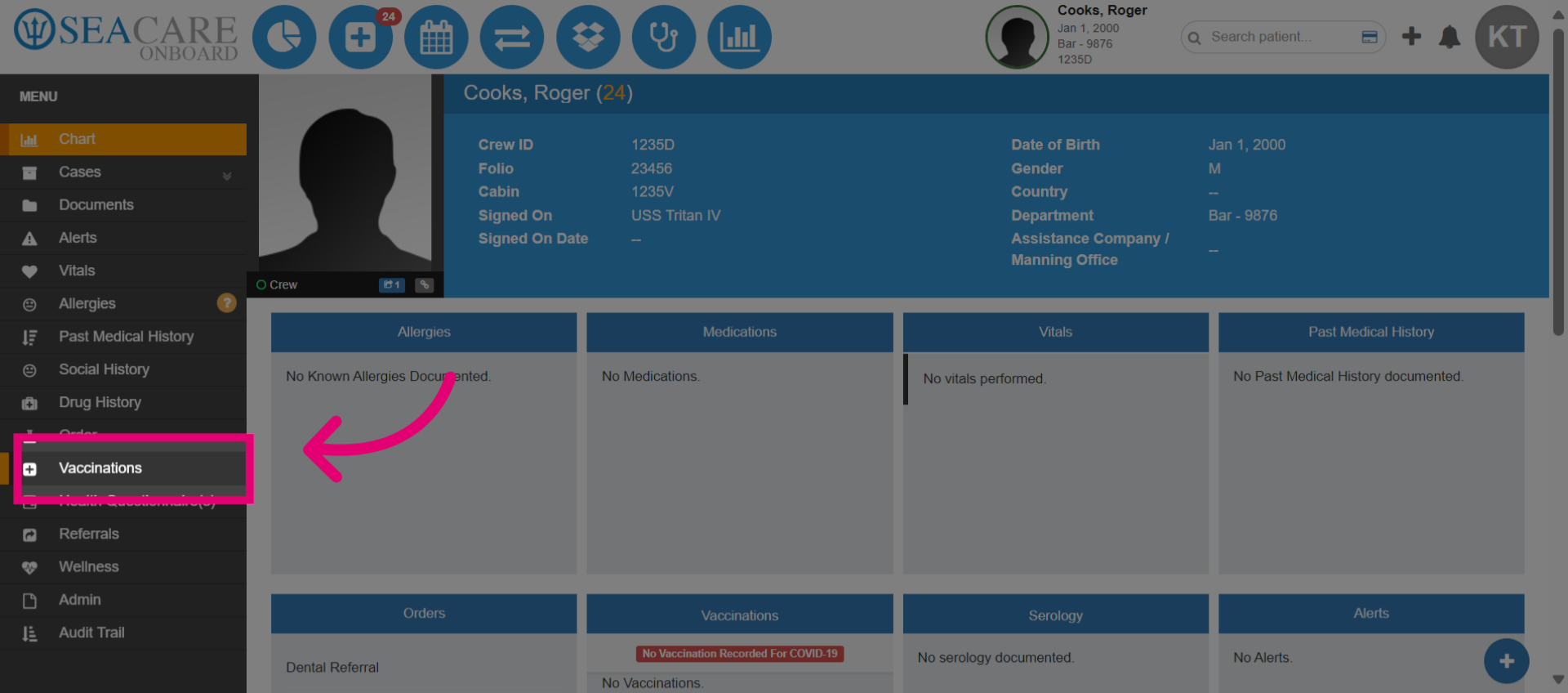
- Start in the patient chart and navigate to the Vaccination module.
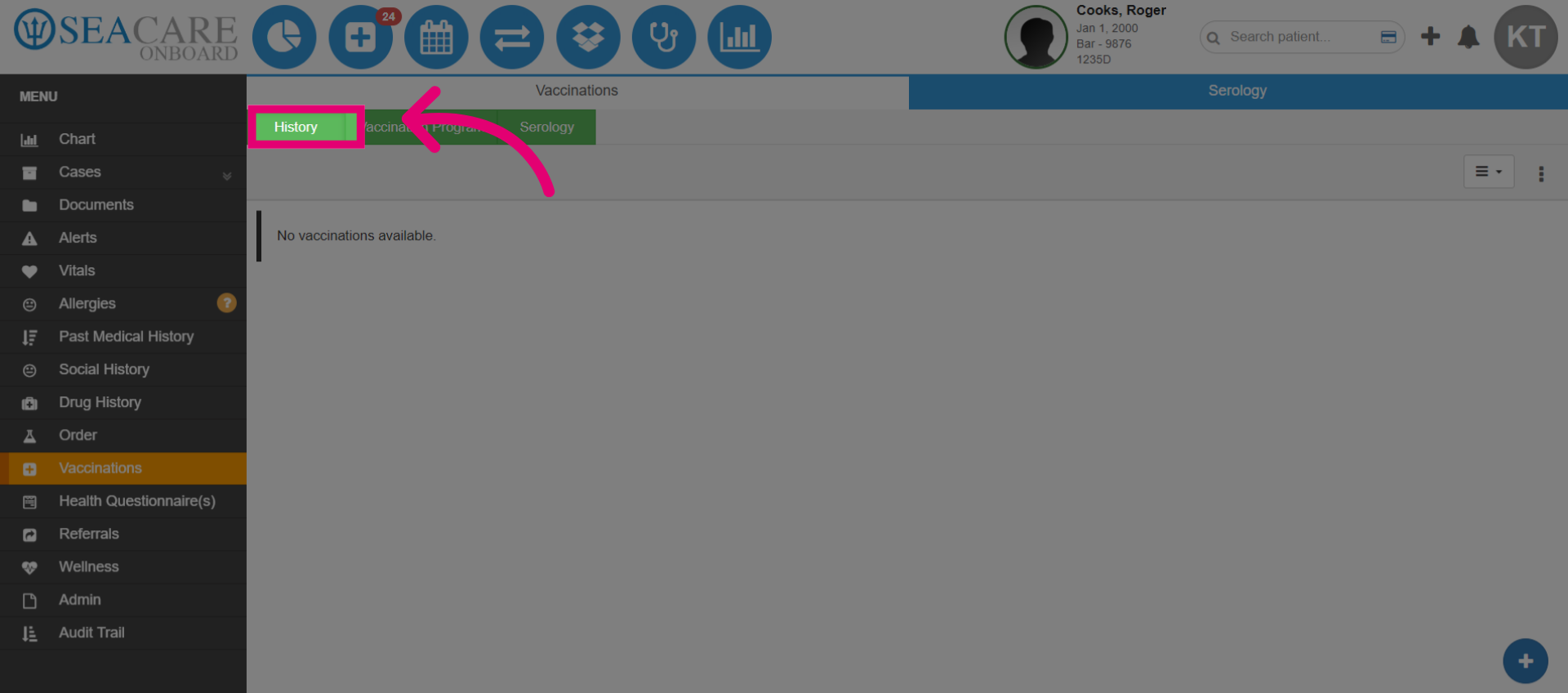
- Navigate to the History tab.
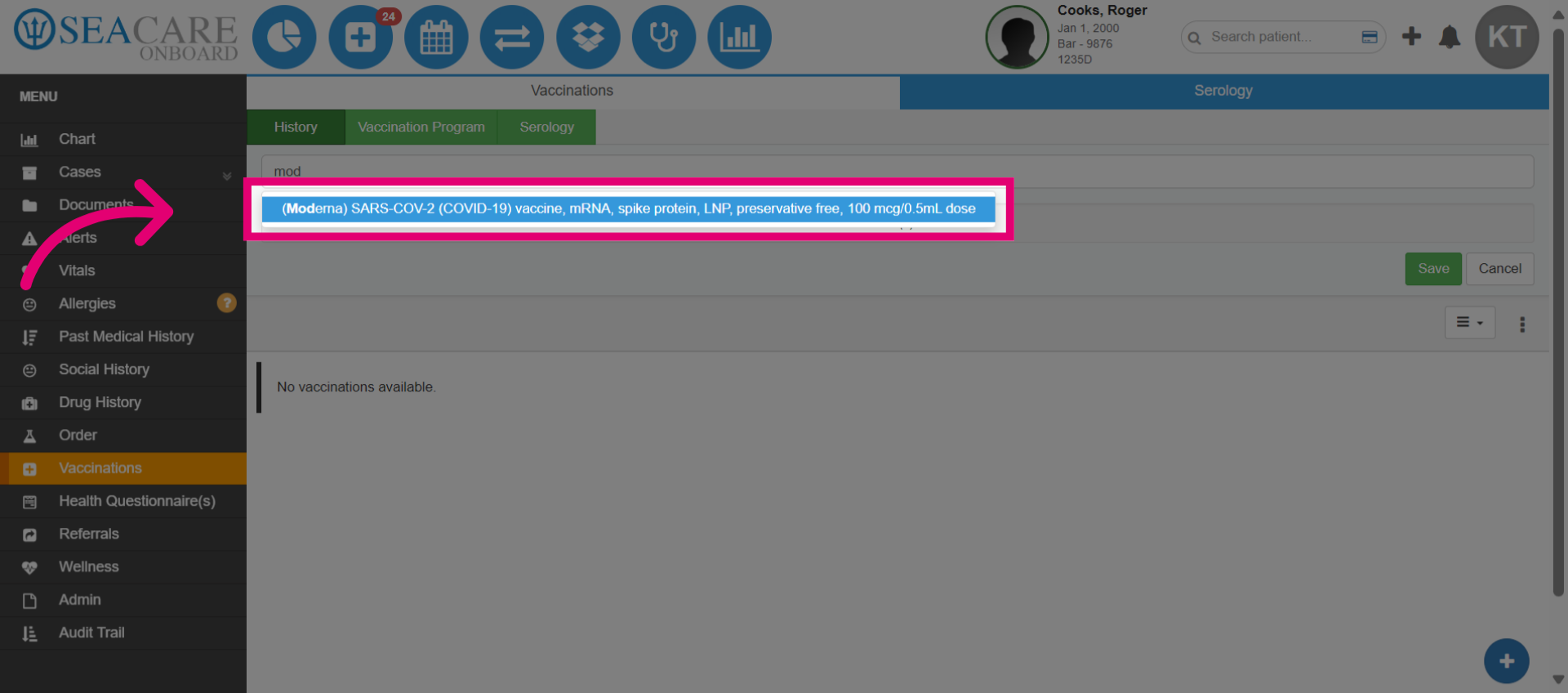
- Select the Vaccine from the list.
- Select Add Administration History to add the vaccination details.
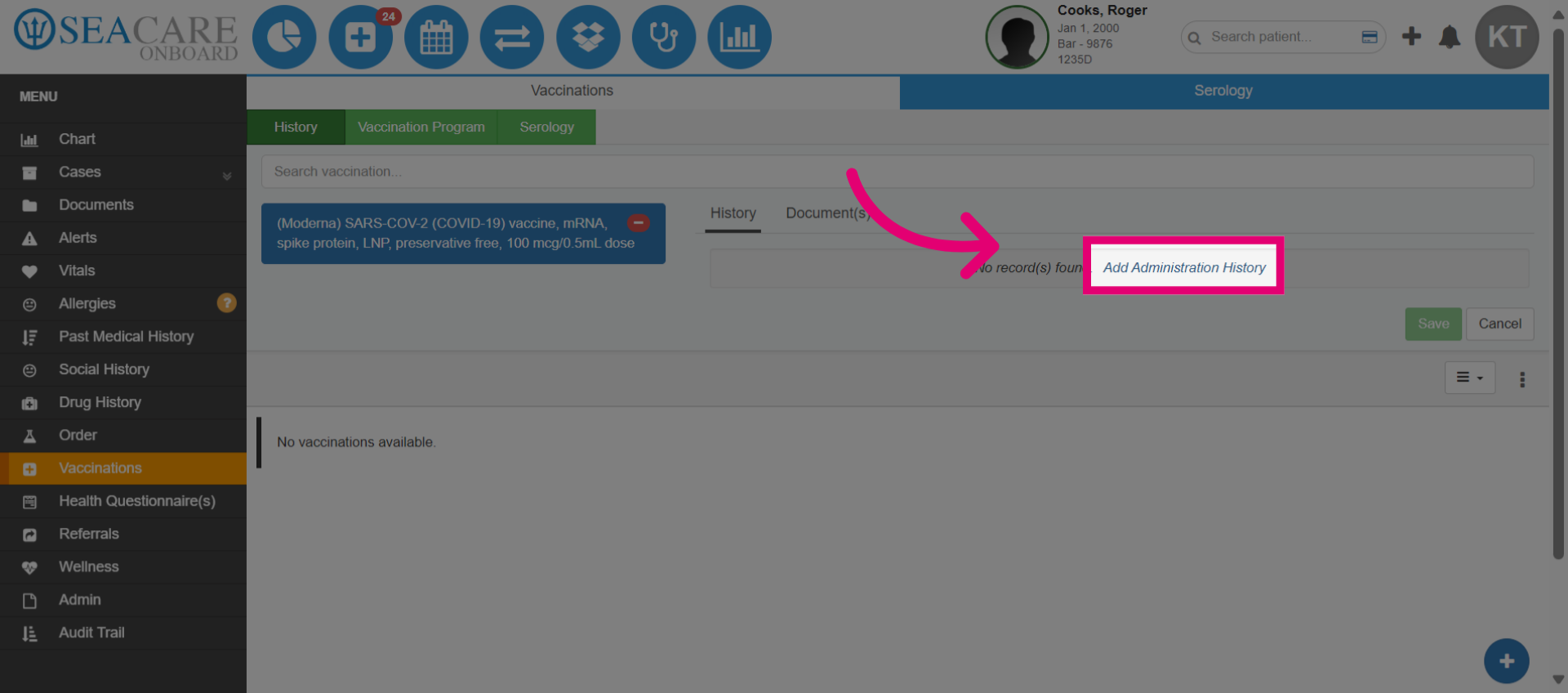
- Confirm the administration history.
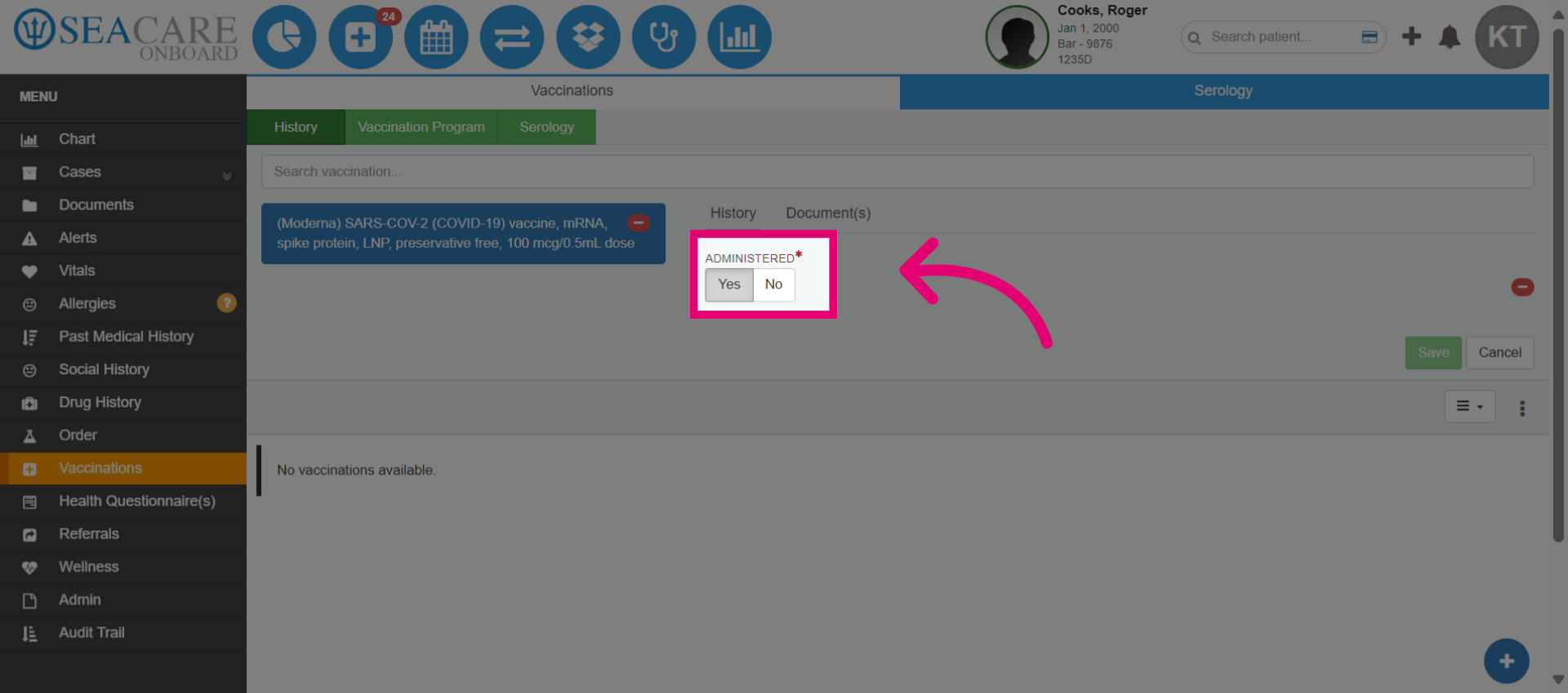
- Fill in all required fields which is marked by a red asterisk including the dose number and administered date.
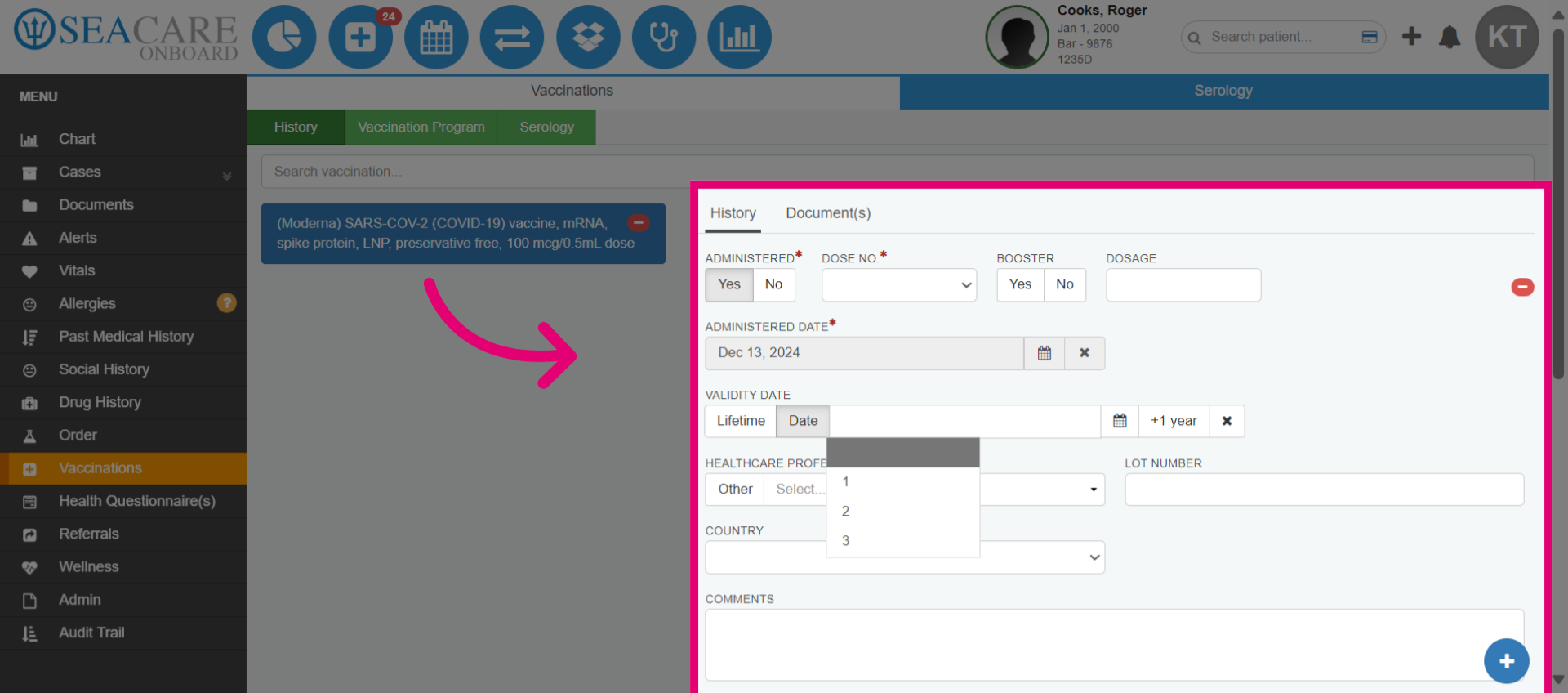
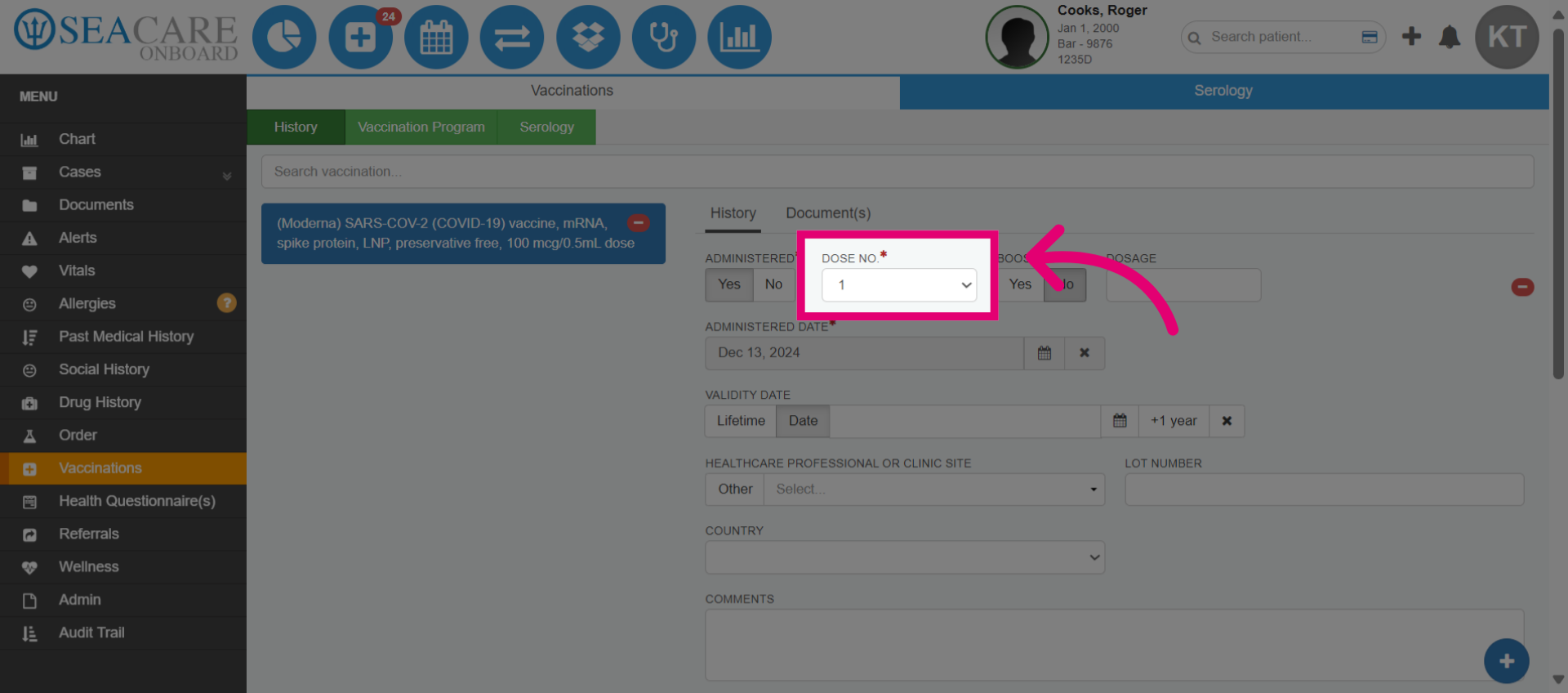
- Enter the Dose Number.
- Specify if the dose was a booster vaccination.
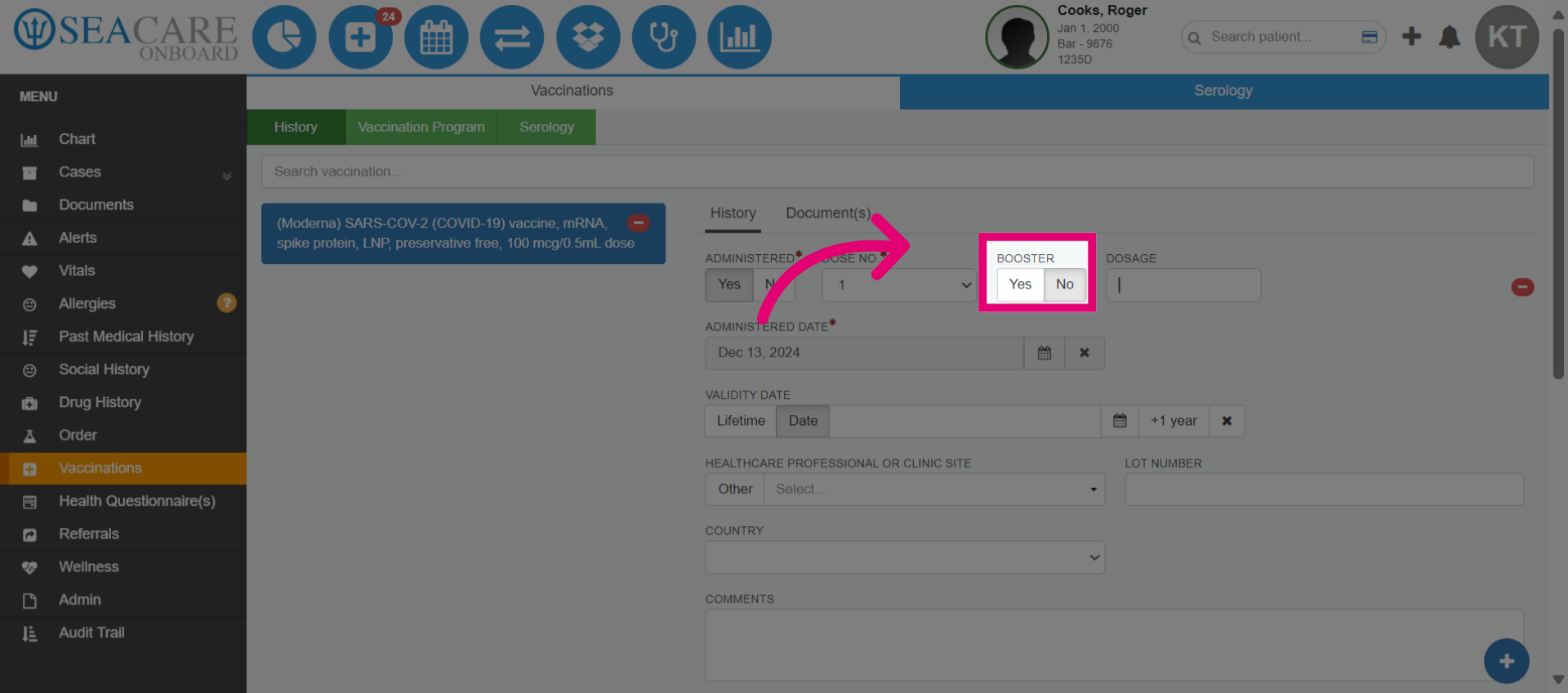
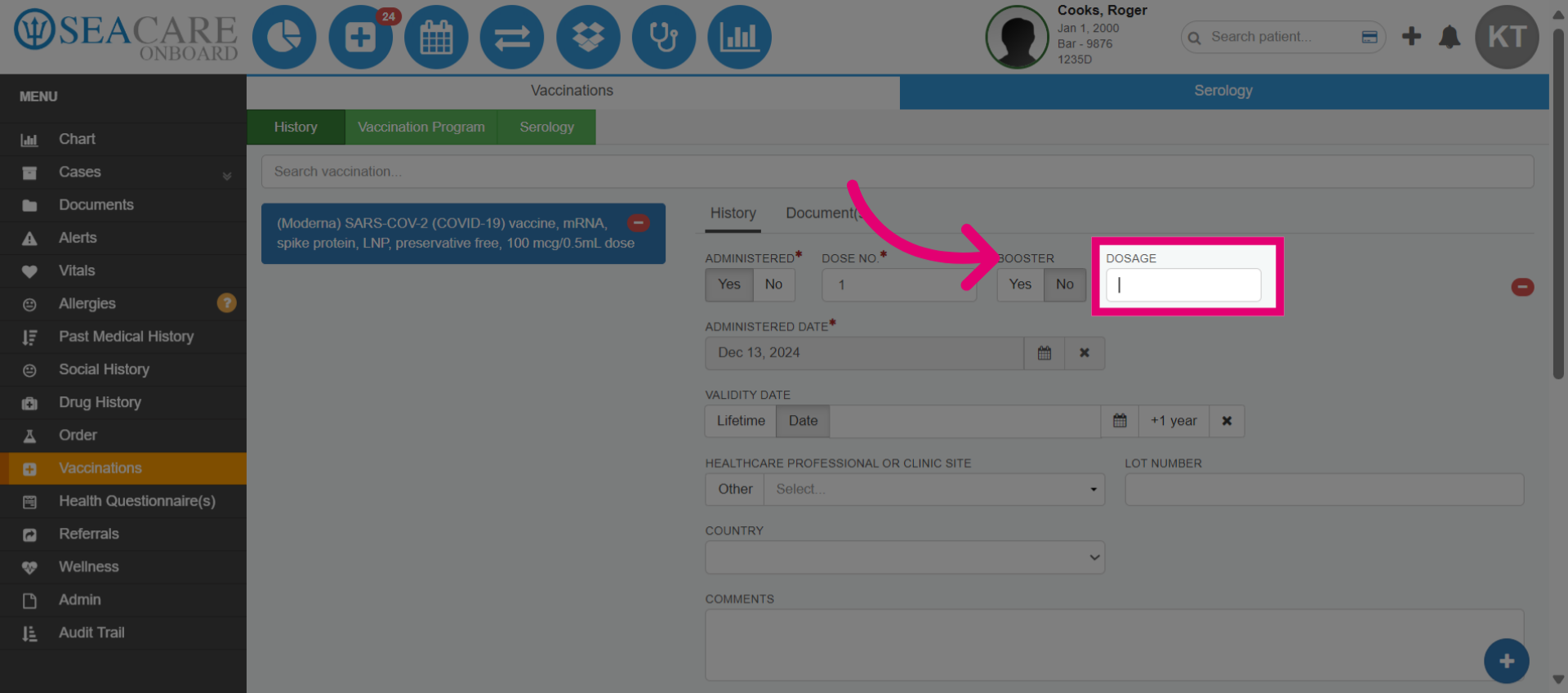
- Enter the dosage amount administered to the patient.
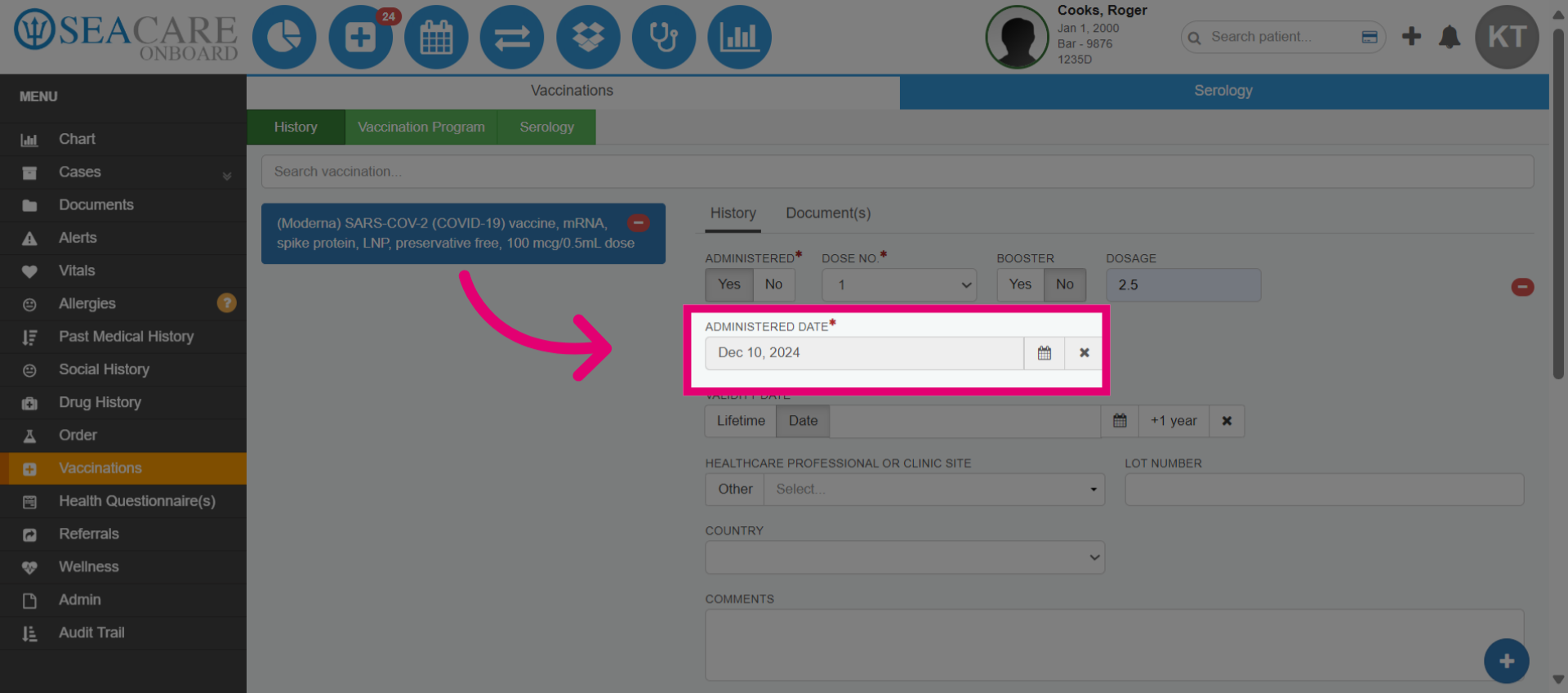
- Enter the Administered Date.
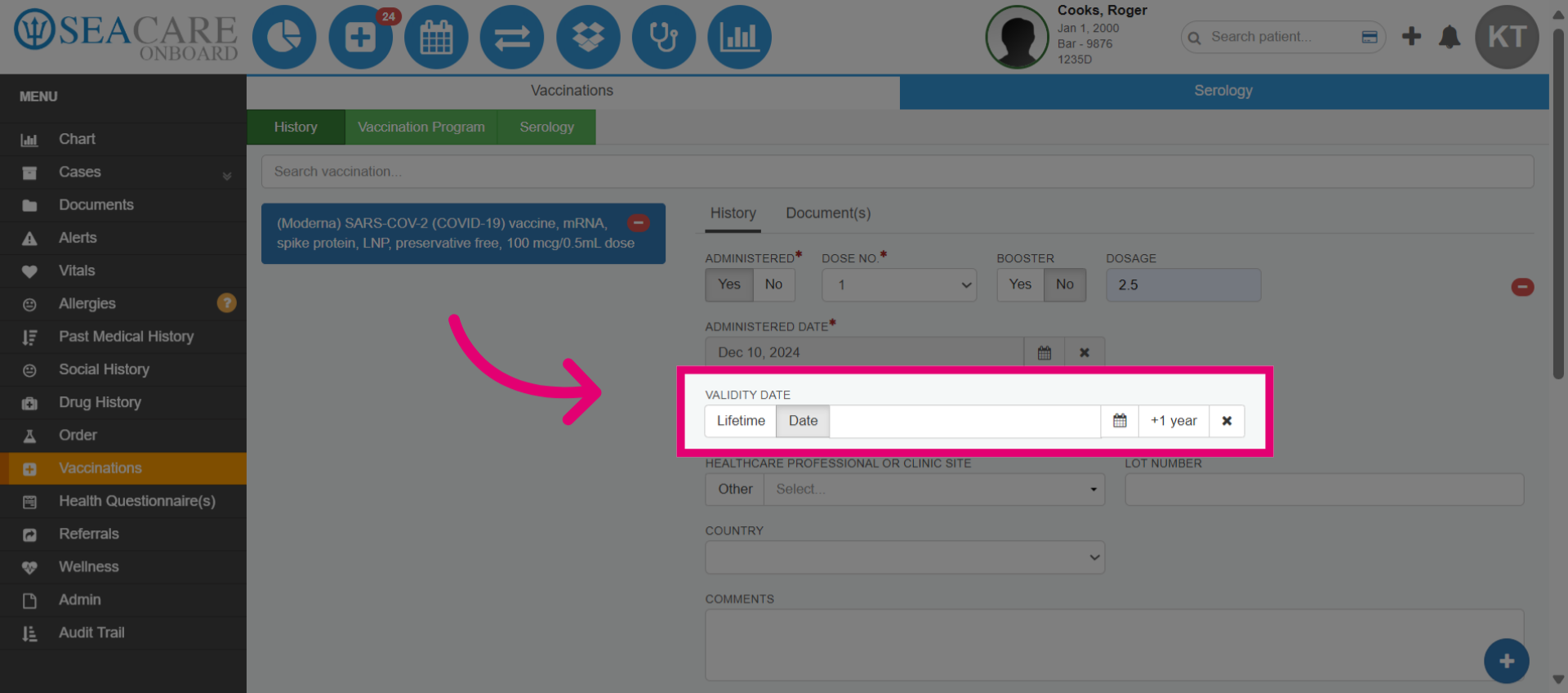
- Set the vaccine validity to its expiration date. If effective indefinitely, select Lifetime. Choose a specific date or Plus 1 year for a 1-year validity.
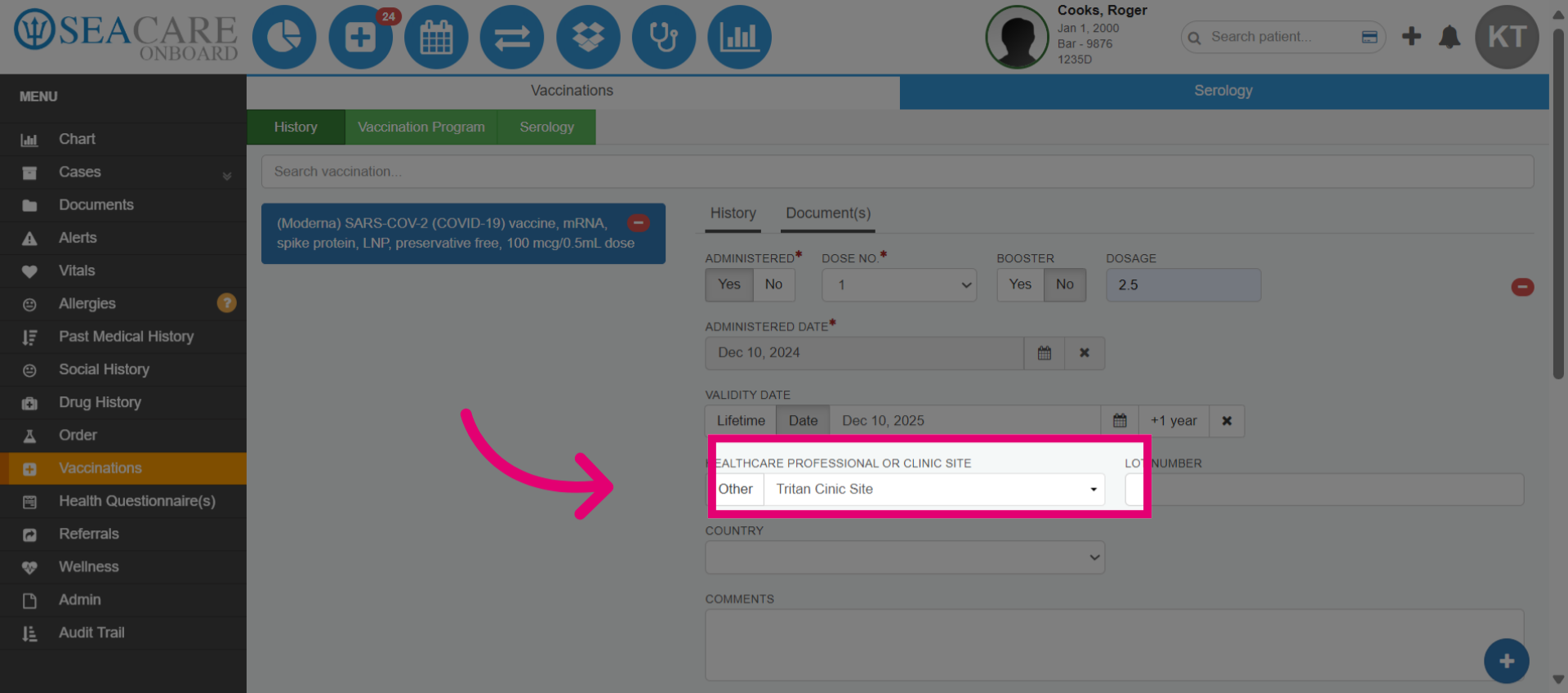
- Enter the health care professional or clinic site location where the vaccine was administered.
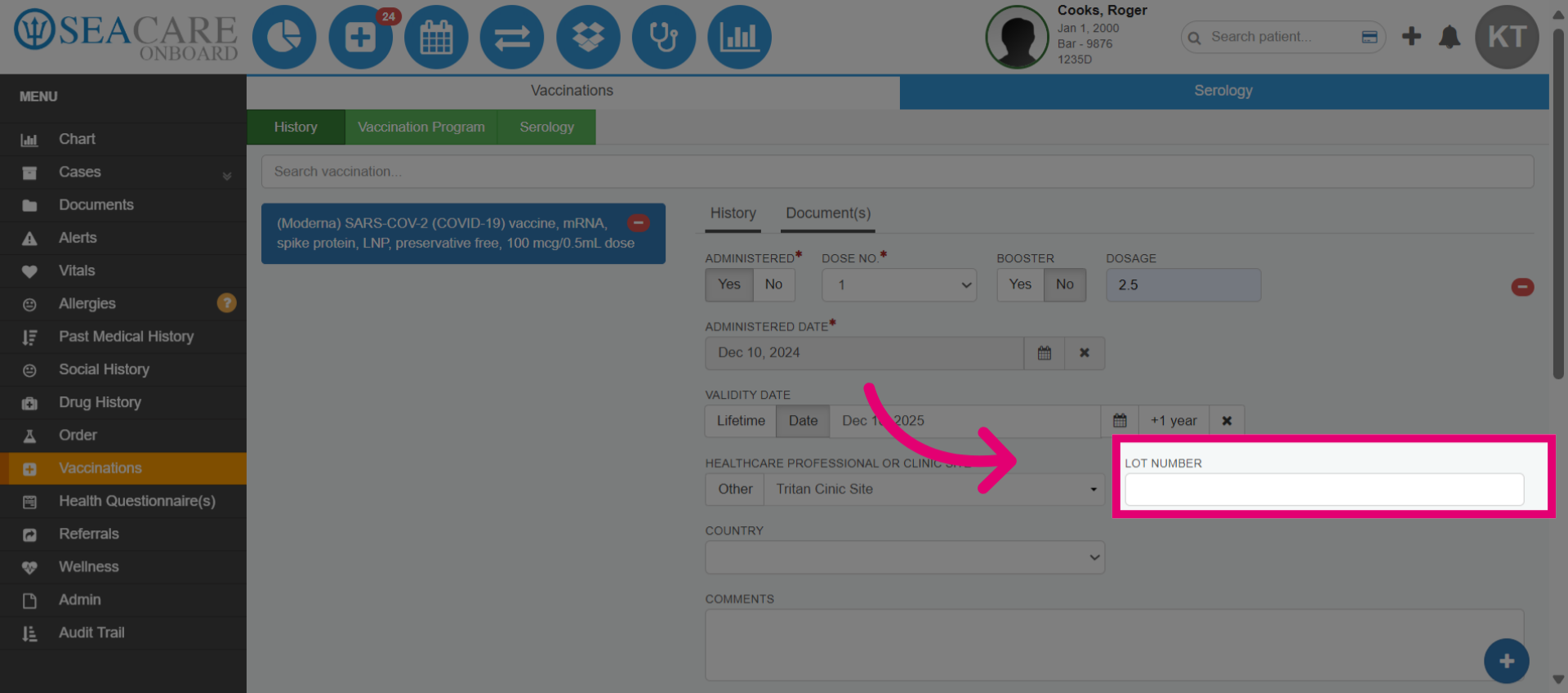
- Enter the lot number for the vaccine.
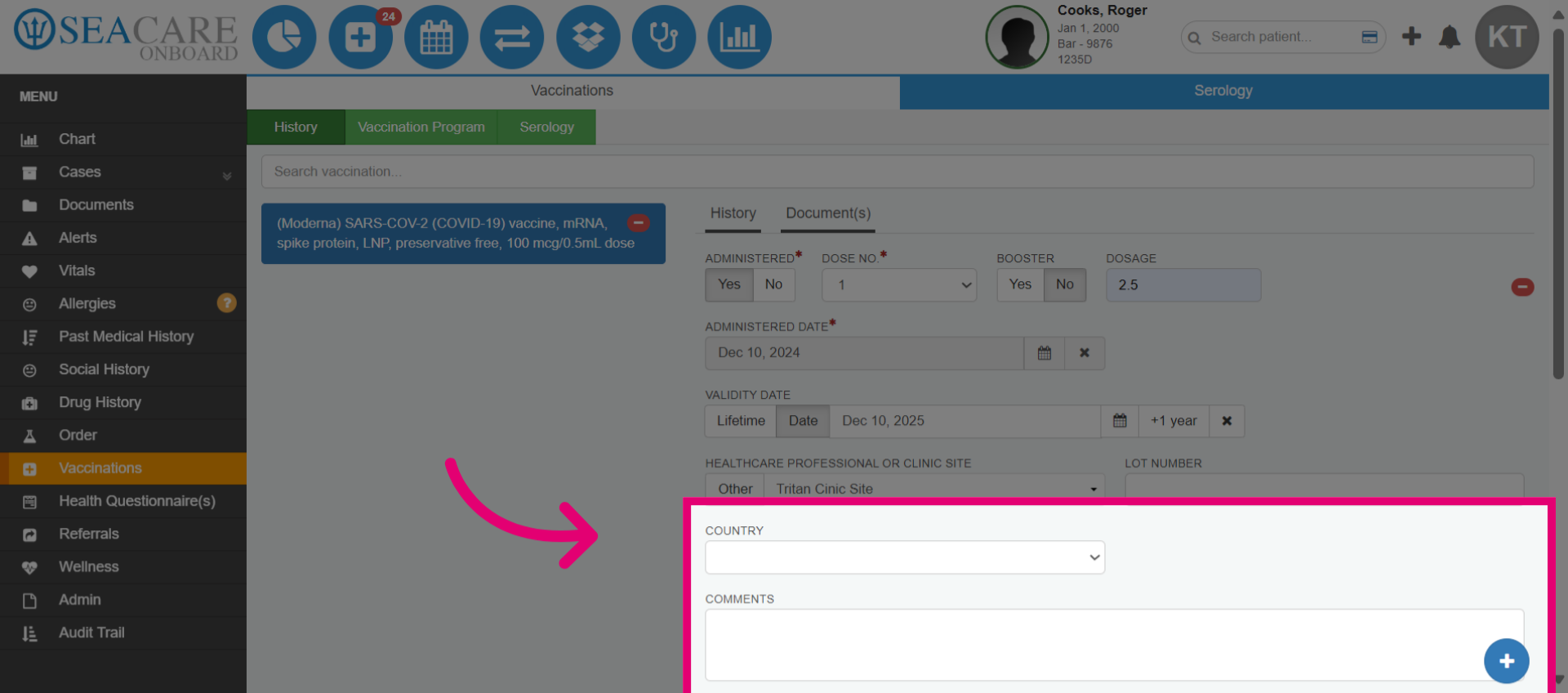
- Select the country of administration.
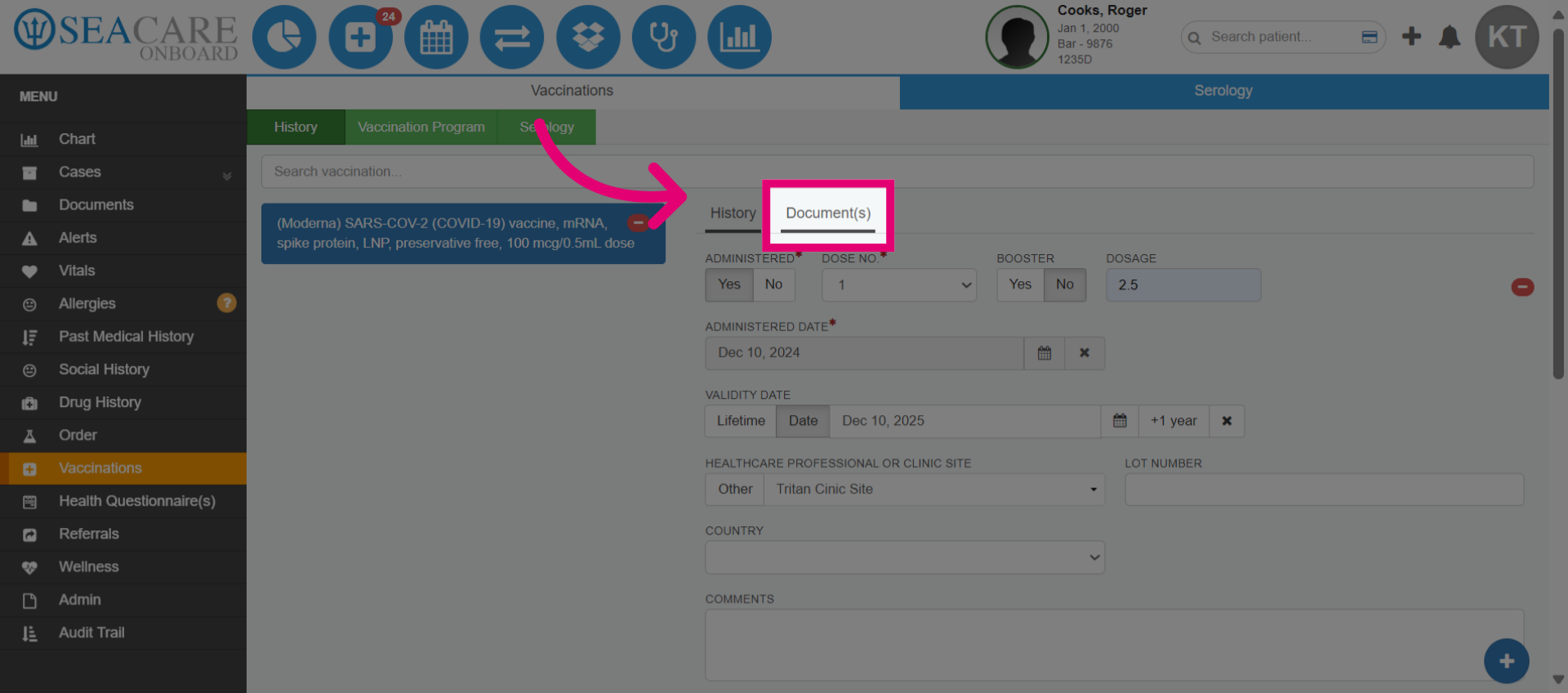
- Go to the Documents tab to attach any relevant documents for the vaccination history. This may include a copy of the vaccination card or record.
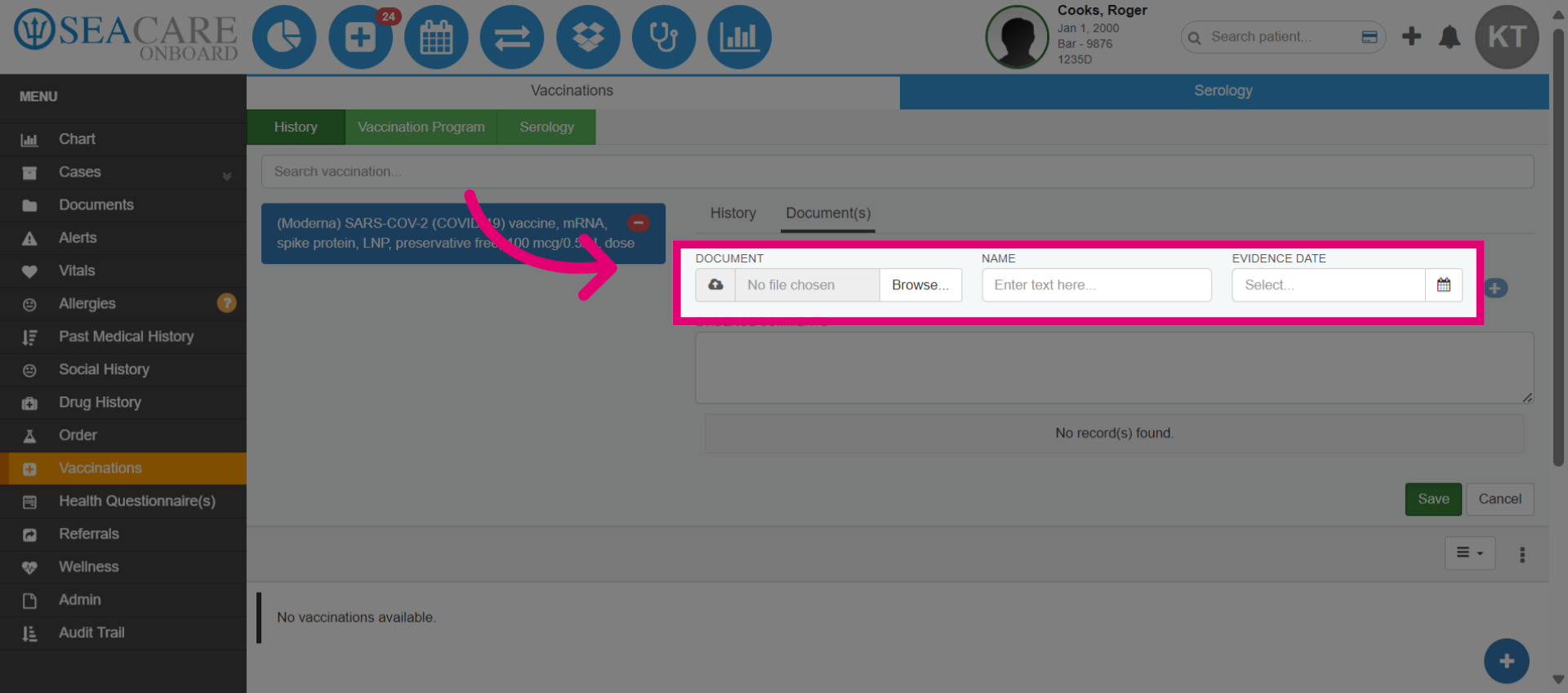
- Upload the document from your device by clicking browse. Once uploaded, edit the name if necessary, and confirm the evidence date.
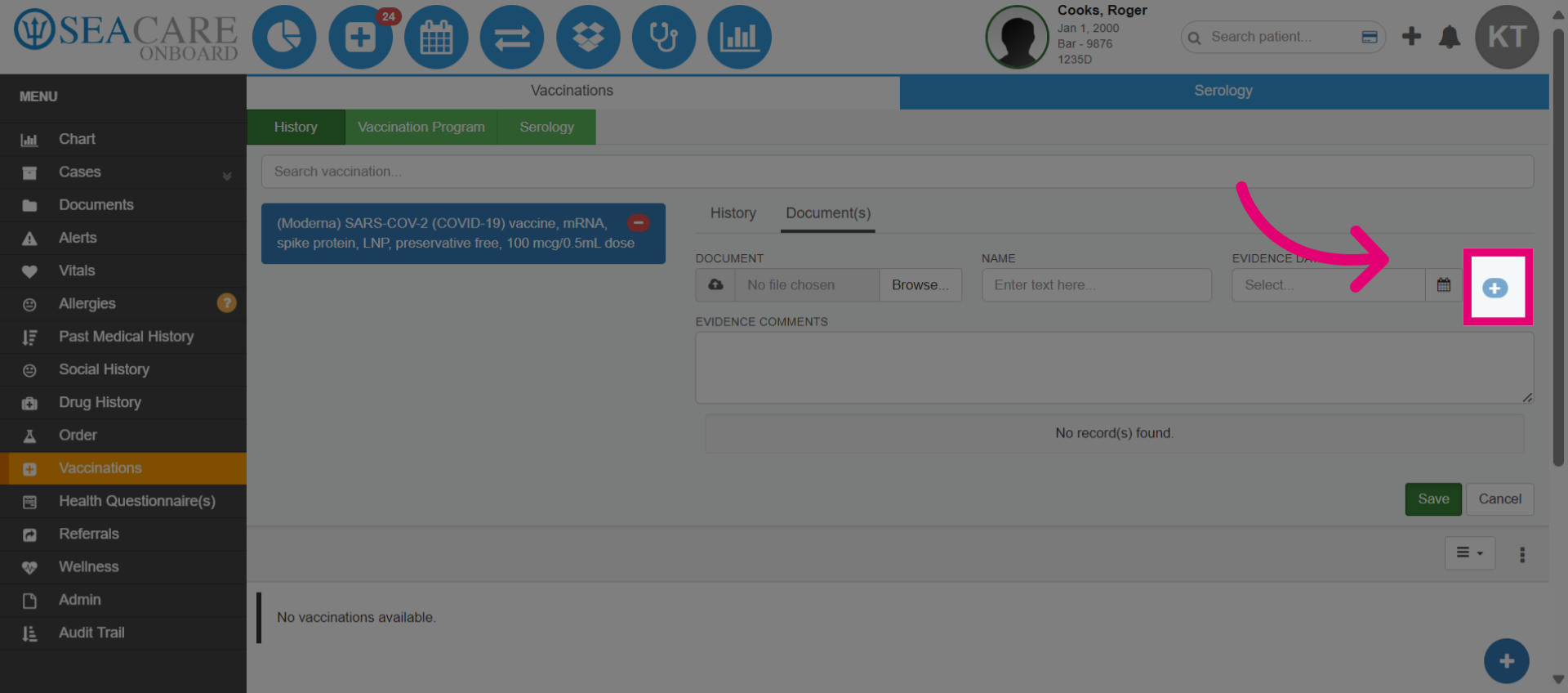
- Select the plus button to initiate attaching the document.
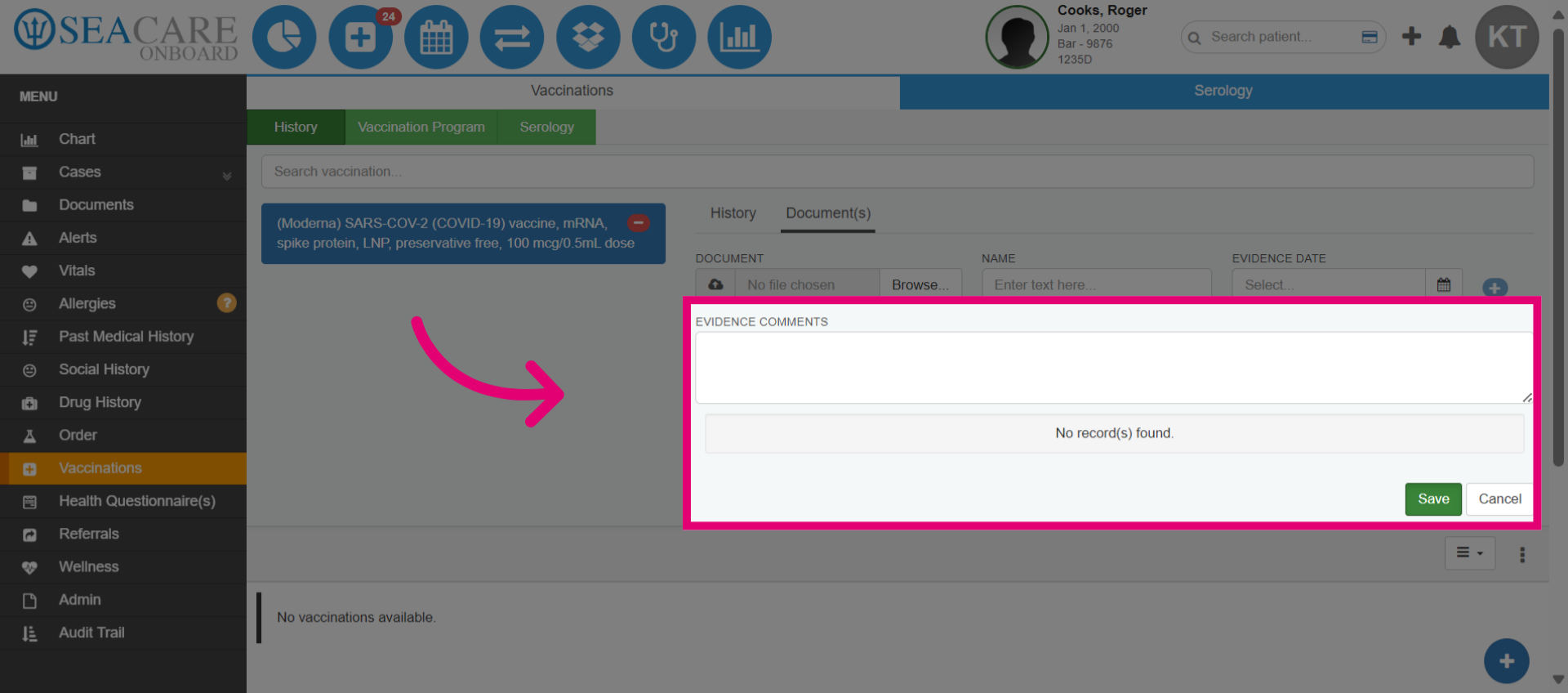
- Add any evidence comments and select Save.
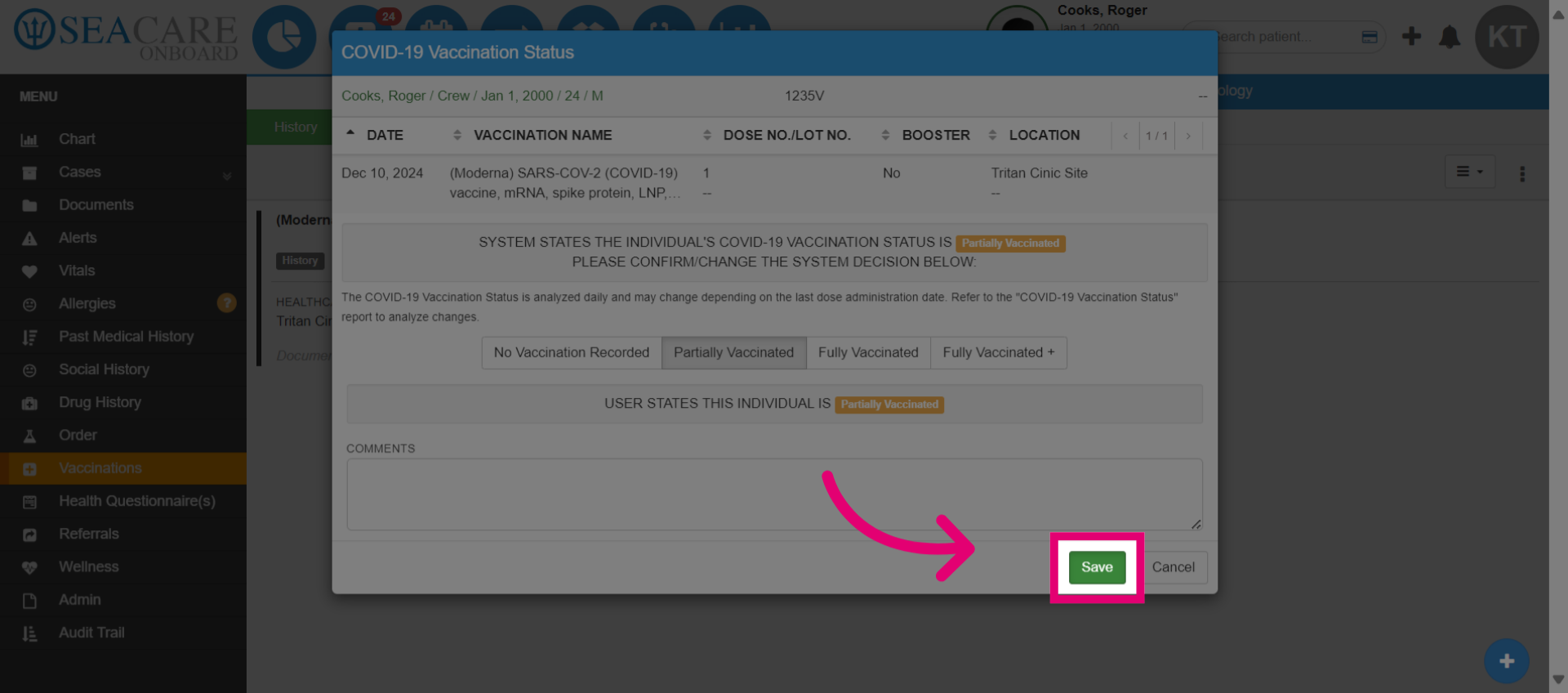
- Determine the patient's vaccination status using the vaccination history, including your entry. Agree with the system's decision or choose your own, explaining any disagreement.
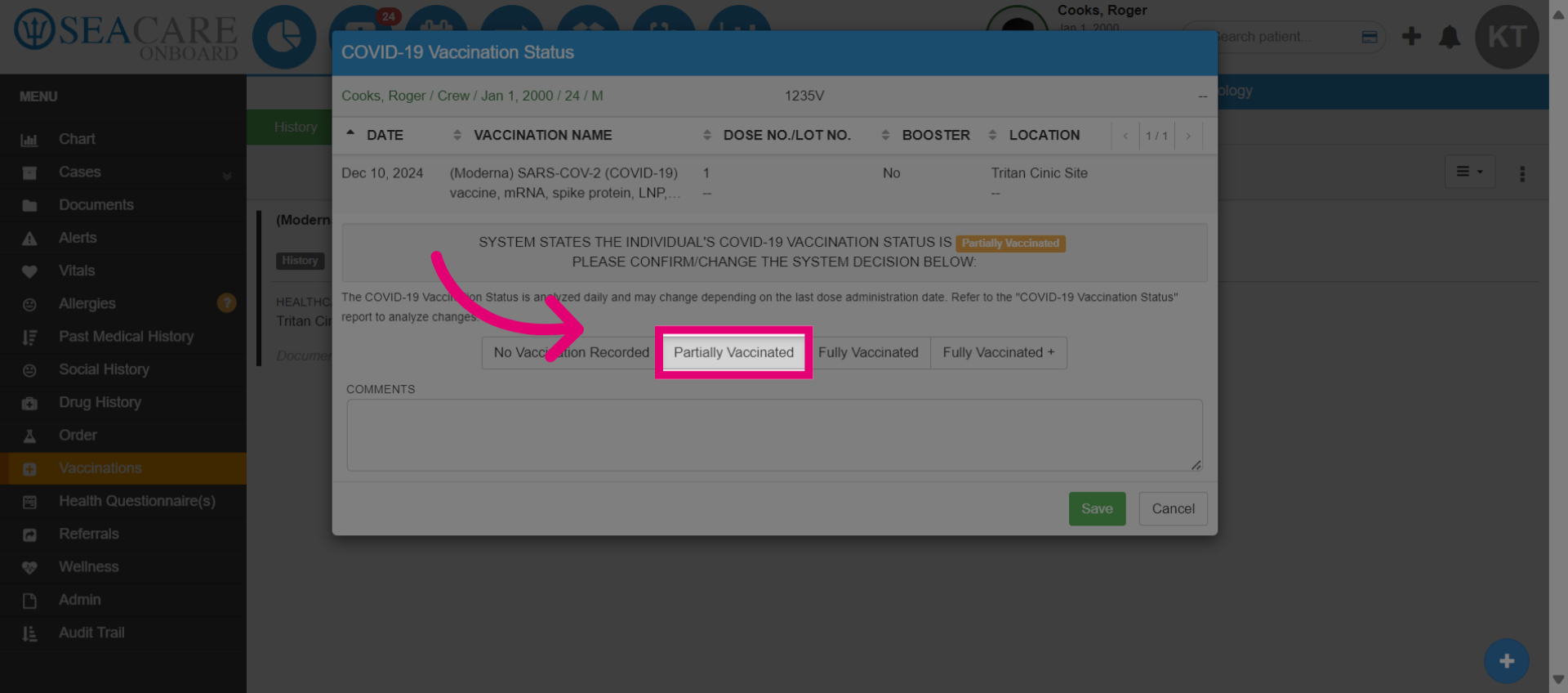
- Save the updated vaccination record.