New article
Recently updated
Adding a vaccination prescription

Who is this article for?Users who want to learn about adding a vaccination prescription.
No elevated permissions are required.
This guide will assist you in adding a vaccination prescription in Ideagen Maritime Health Onboard.
1. Adding a vaccination prescription
1.1. Video
1.2. Steps
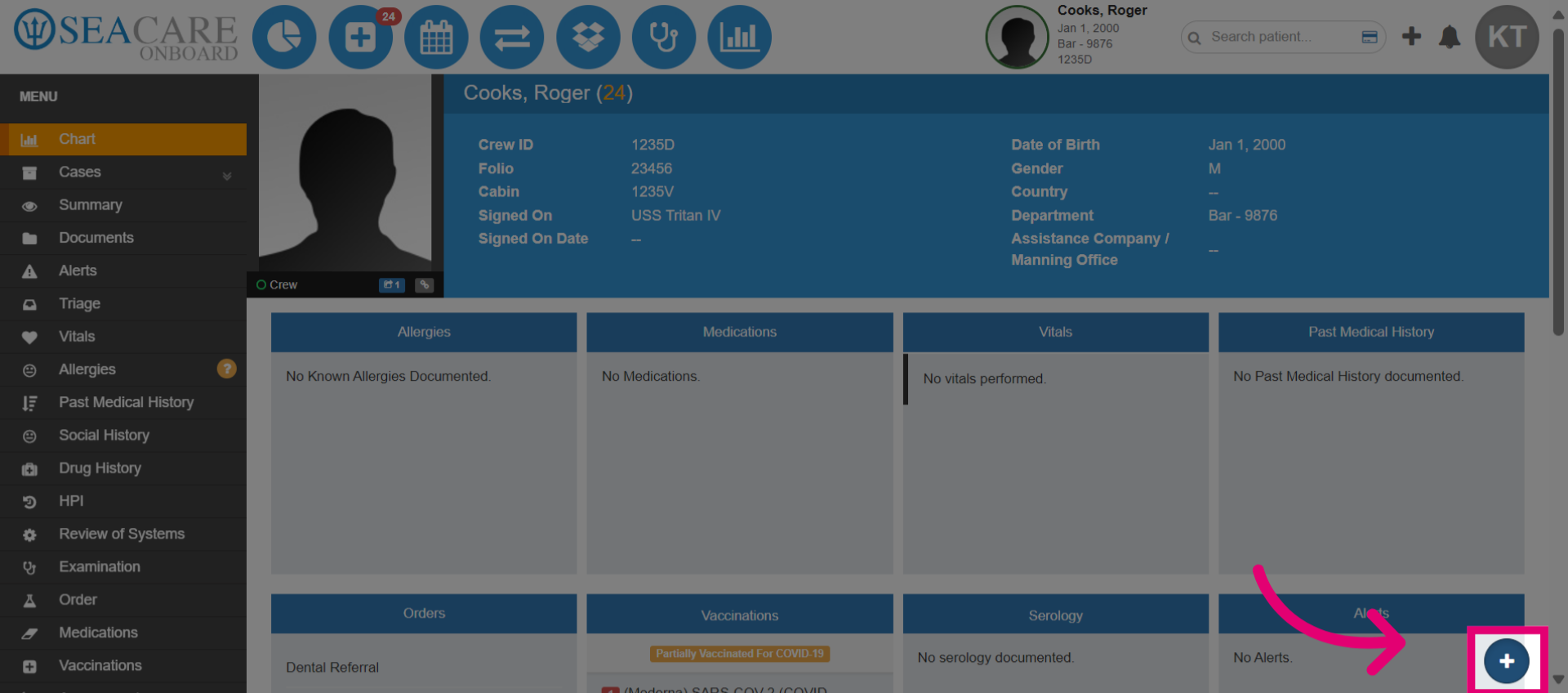
- In order to add a vaccination prescription, you must start an encounter and have the appropriate permissions. Then, select the quick actions button.
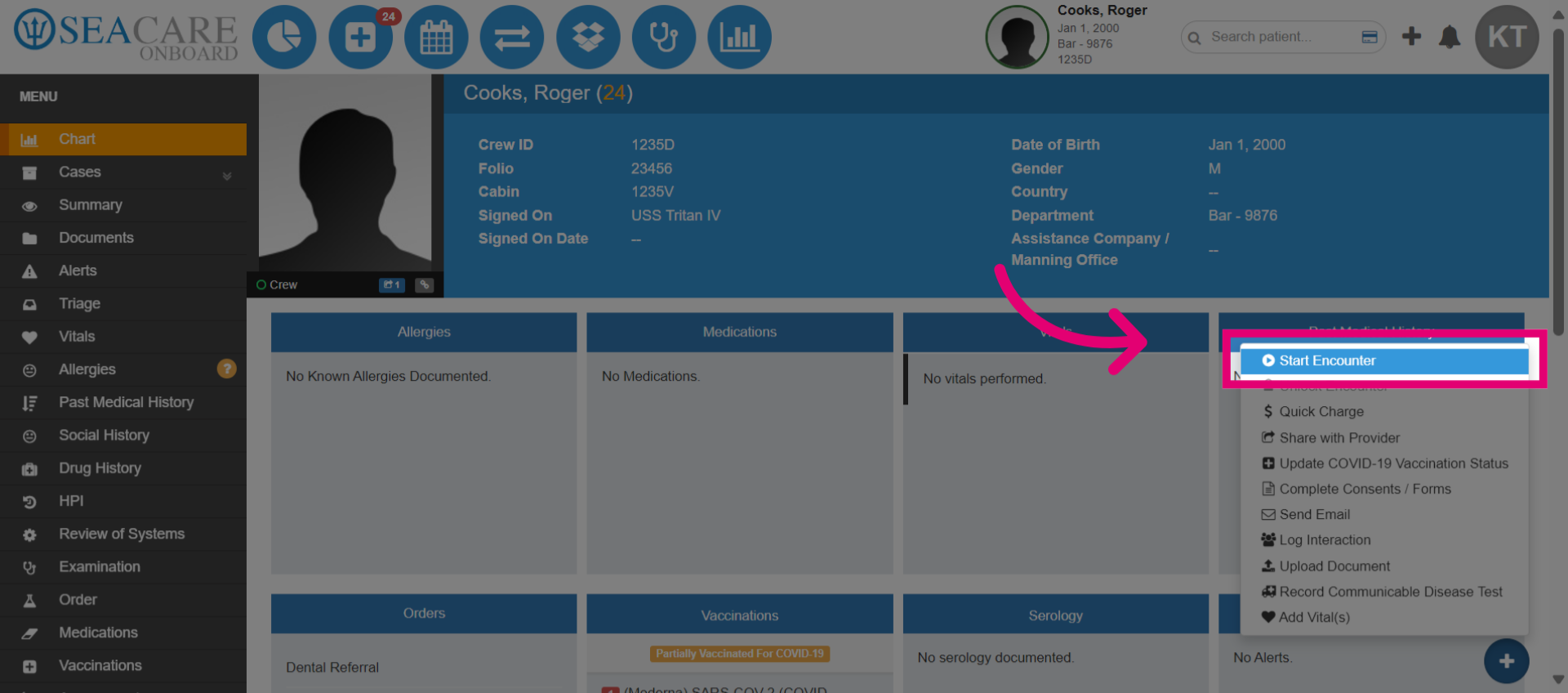
- Select Start Encounter from the options.
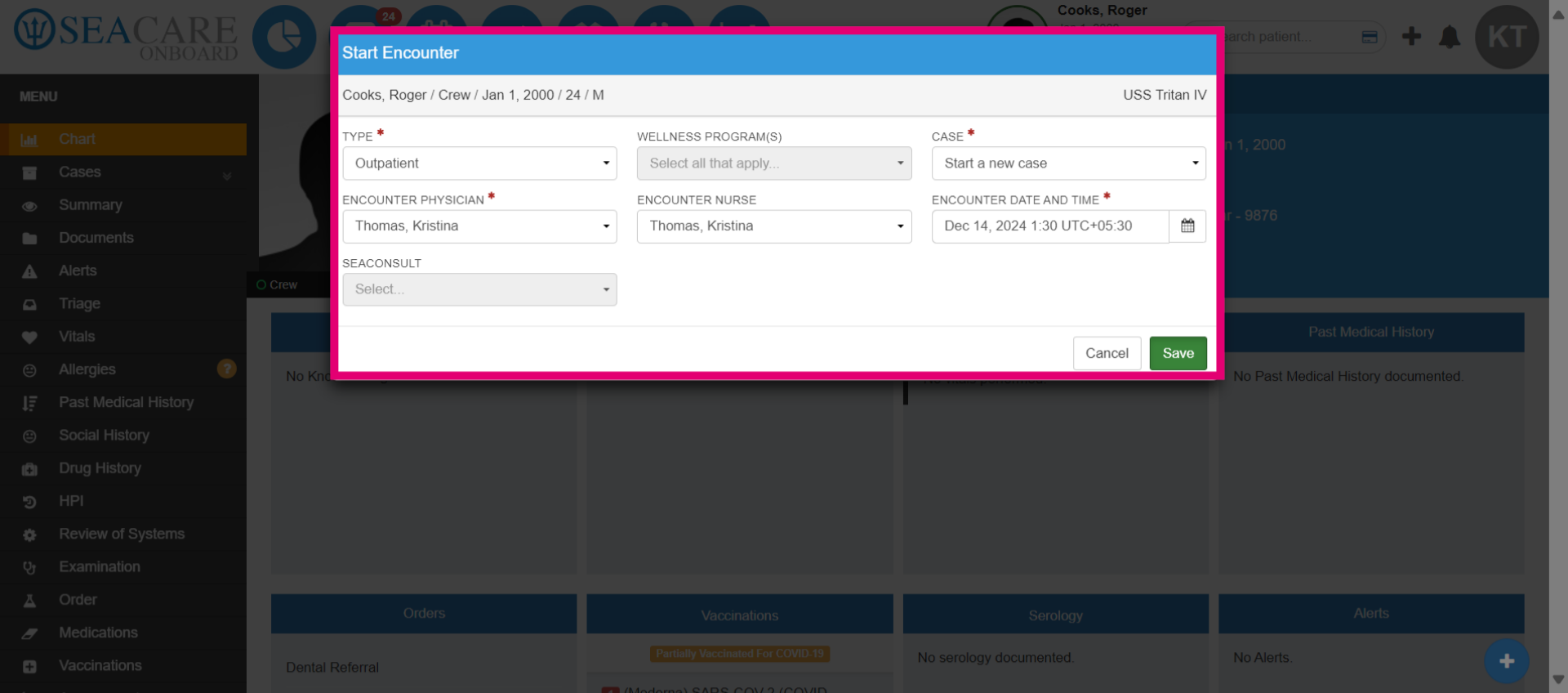
- Ensure this is an Outpatient encounter and set to Start a new case. Then select Save.
- Confirm to proceed with the encounter.
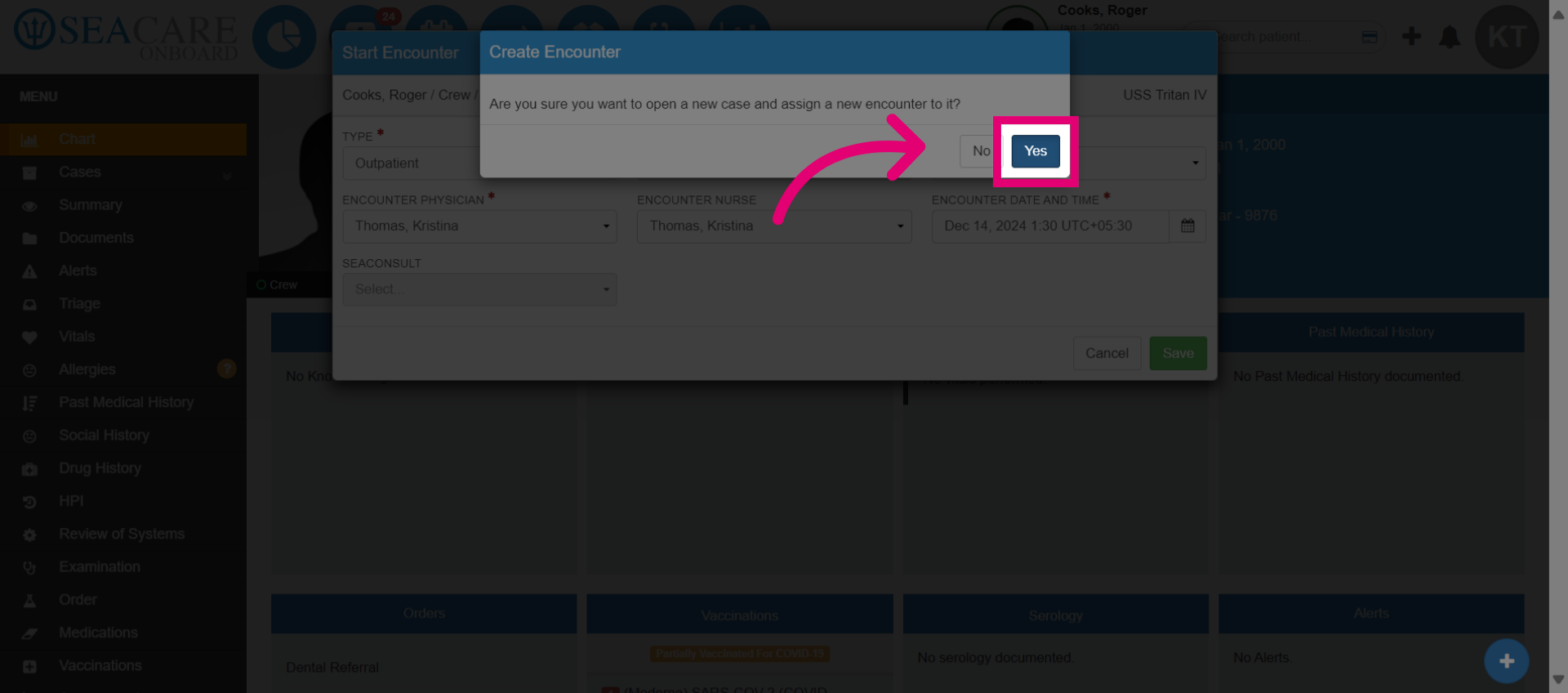
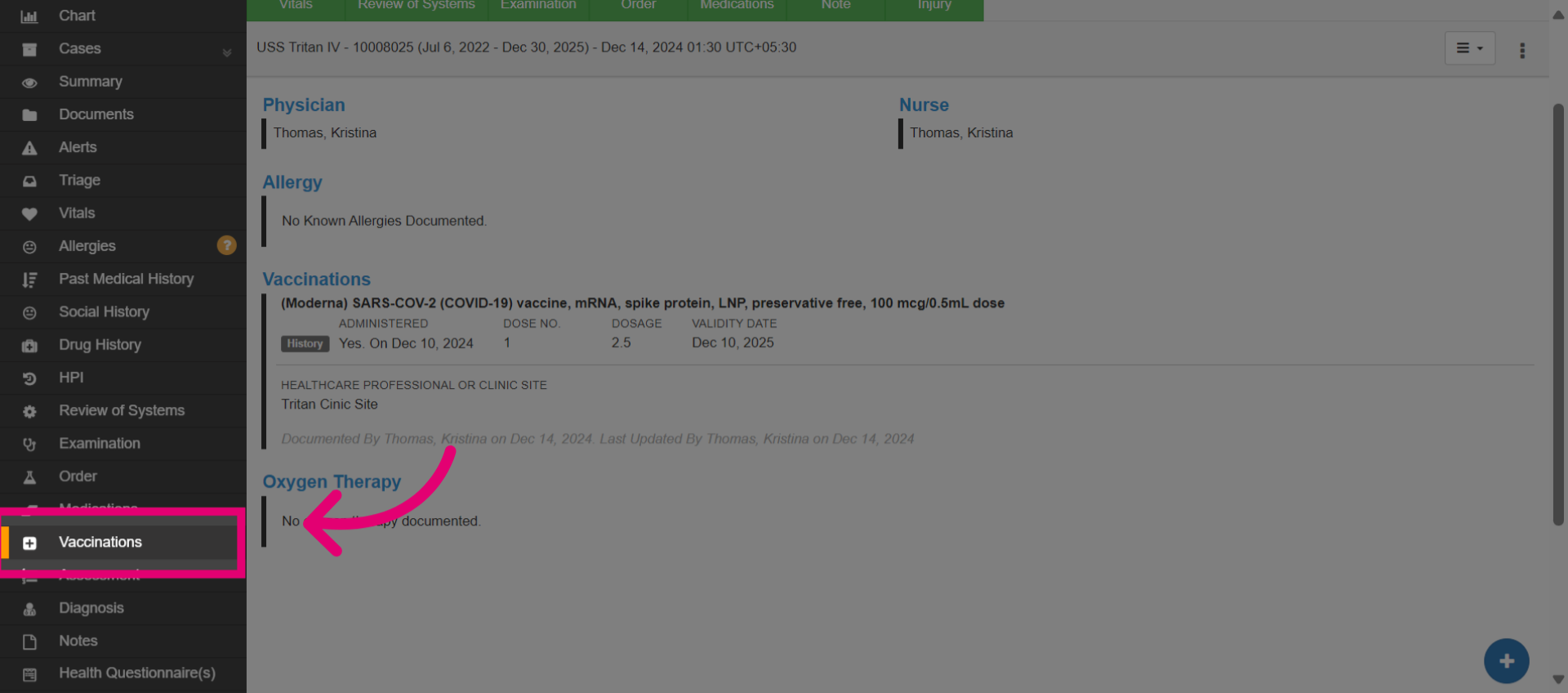
- Select the Vaccination module from the menu options.
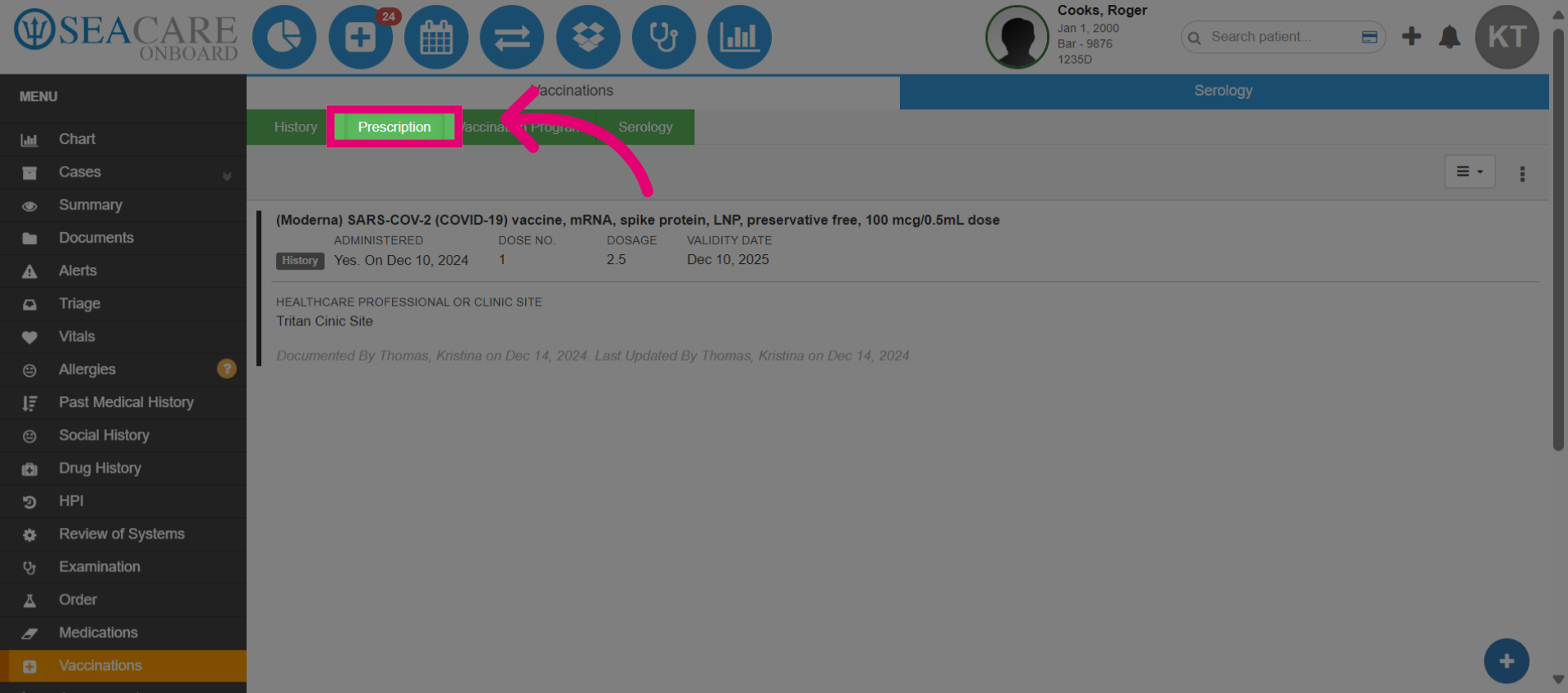
- Then, click on the Prescription tab.
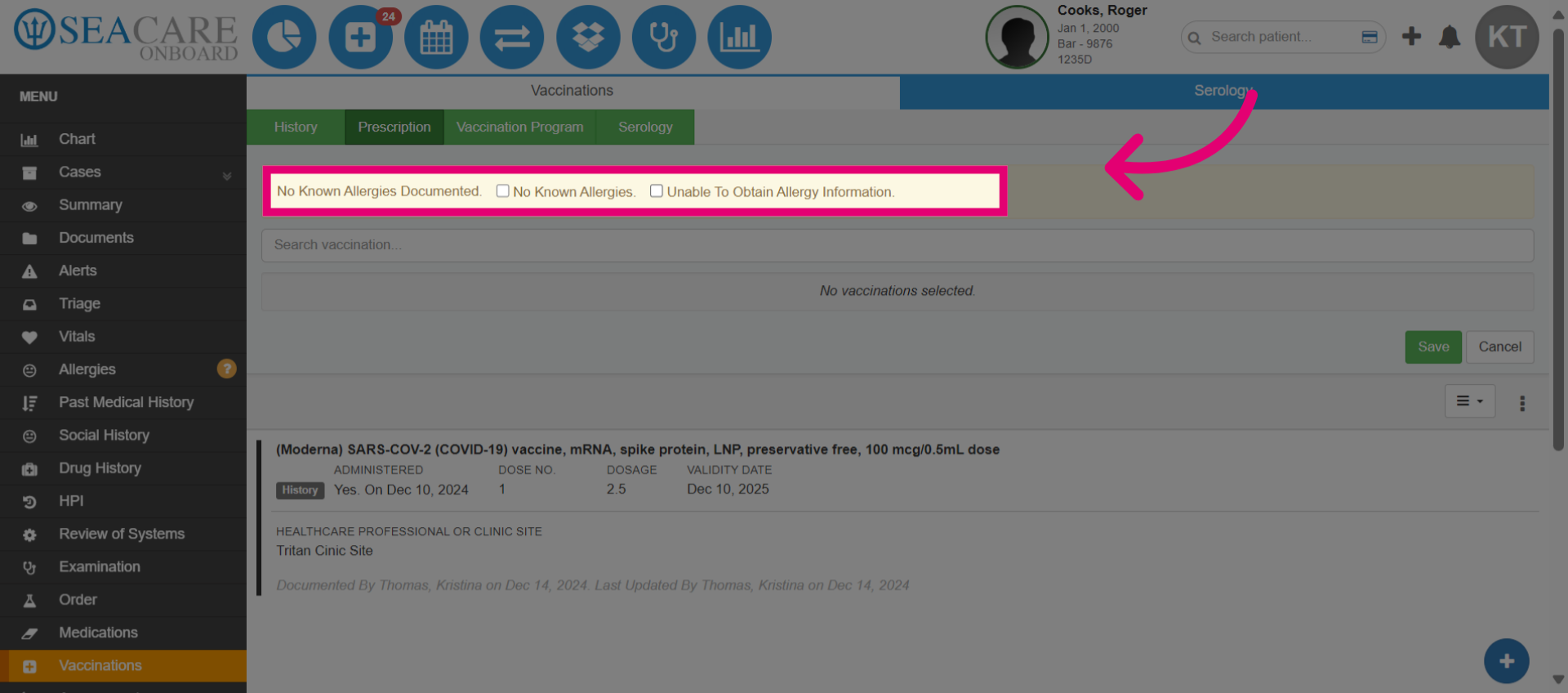
- Indicate the patient's allergy status as either No known allergies or Cannot obtain allergy information to avoid potential allergic reactions when the patient's allergy history is unclear.
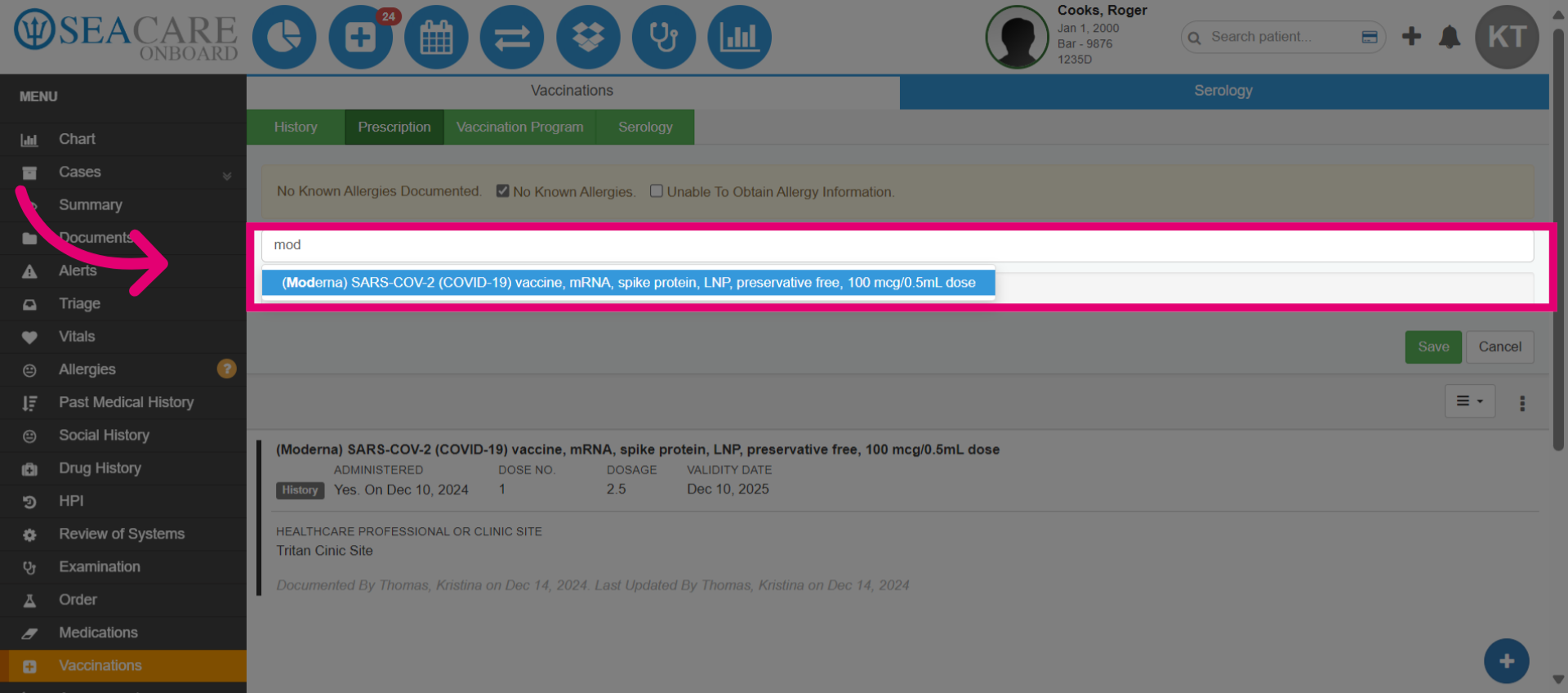
- Enter the name of the prescribed vaccine and select it from the generated list.
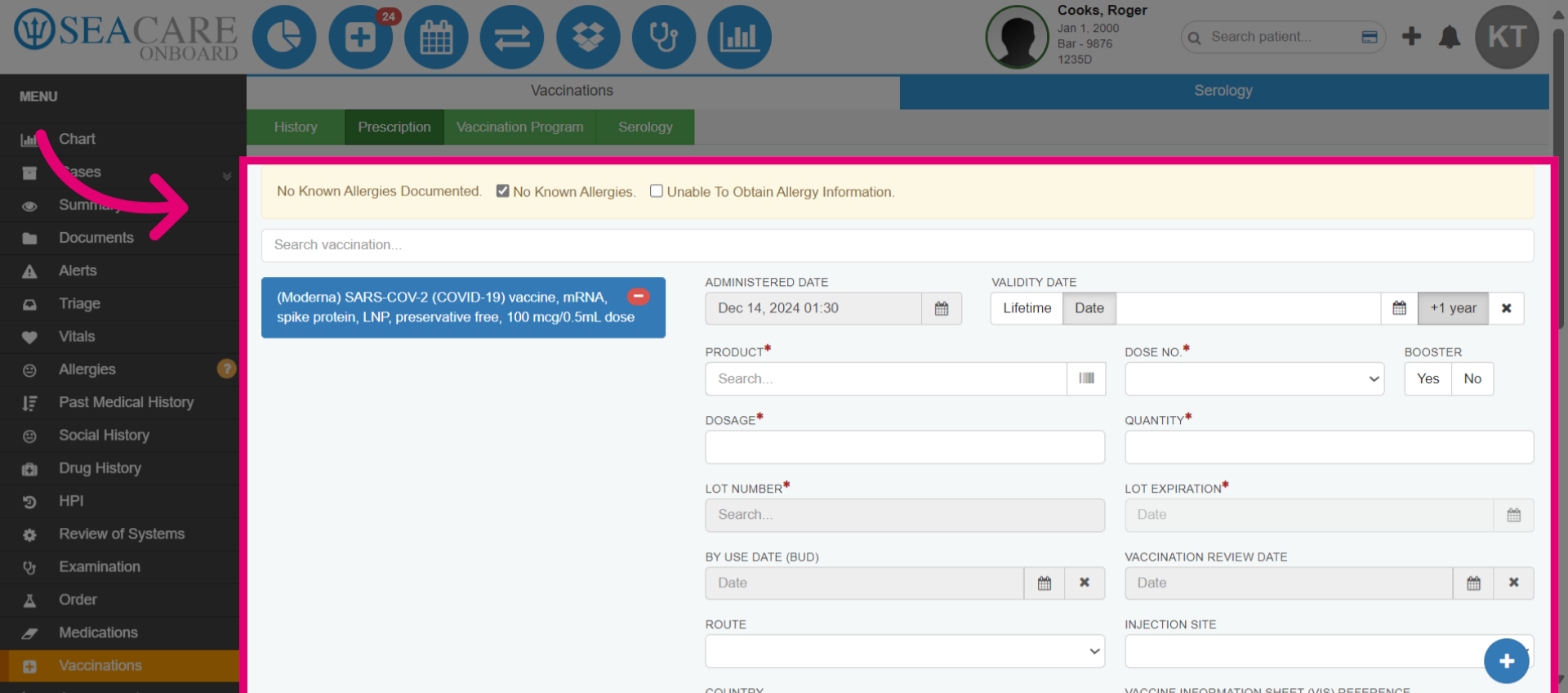
- The vaccine will be added. Then, complete the minimum required fields which are marked by a red asterisk.
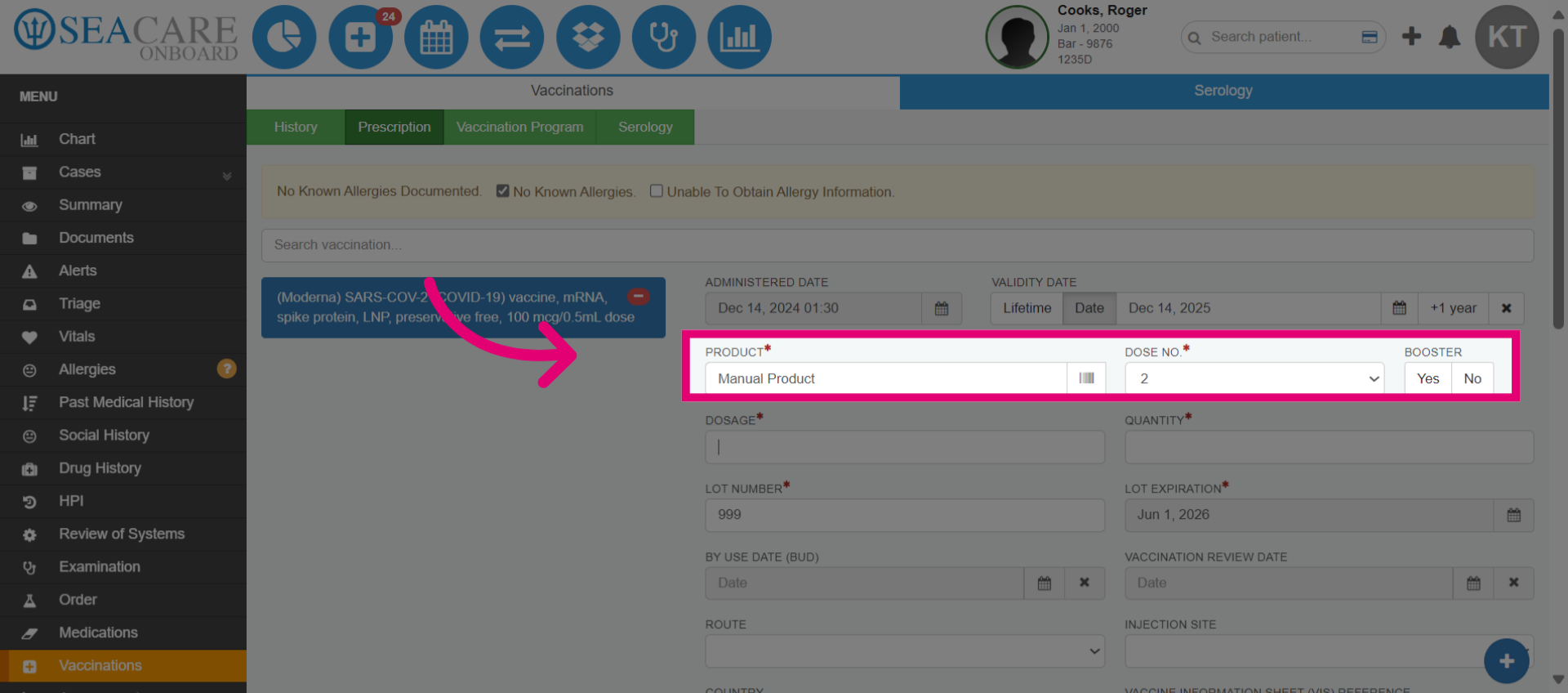
- Search for the vaccine product and add it, or scan the barcode if available. Then, enter the patient's vaccine dose number.
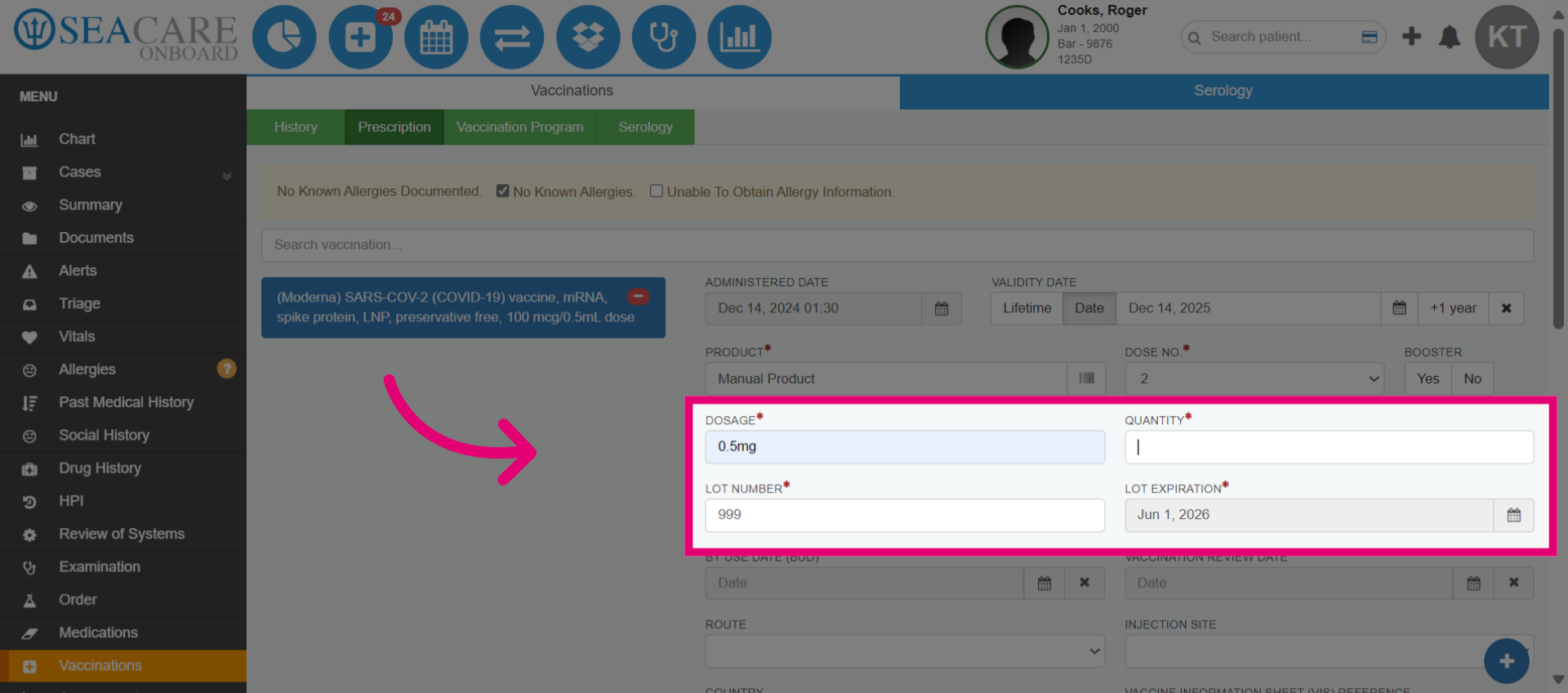
- Enter the vaccine dosage, quantity of doses, lot number, and the lot expiration date.
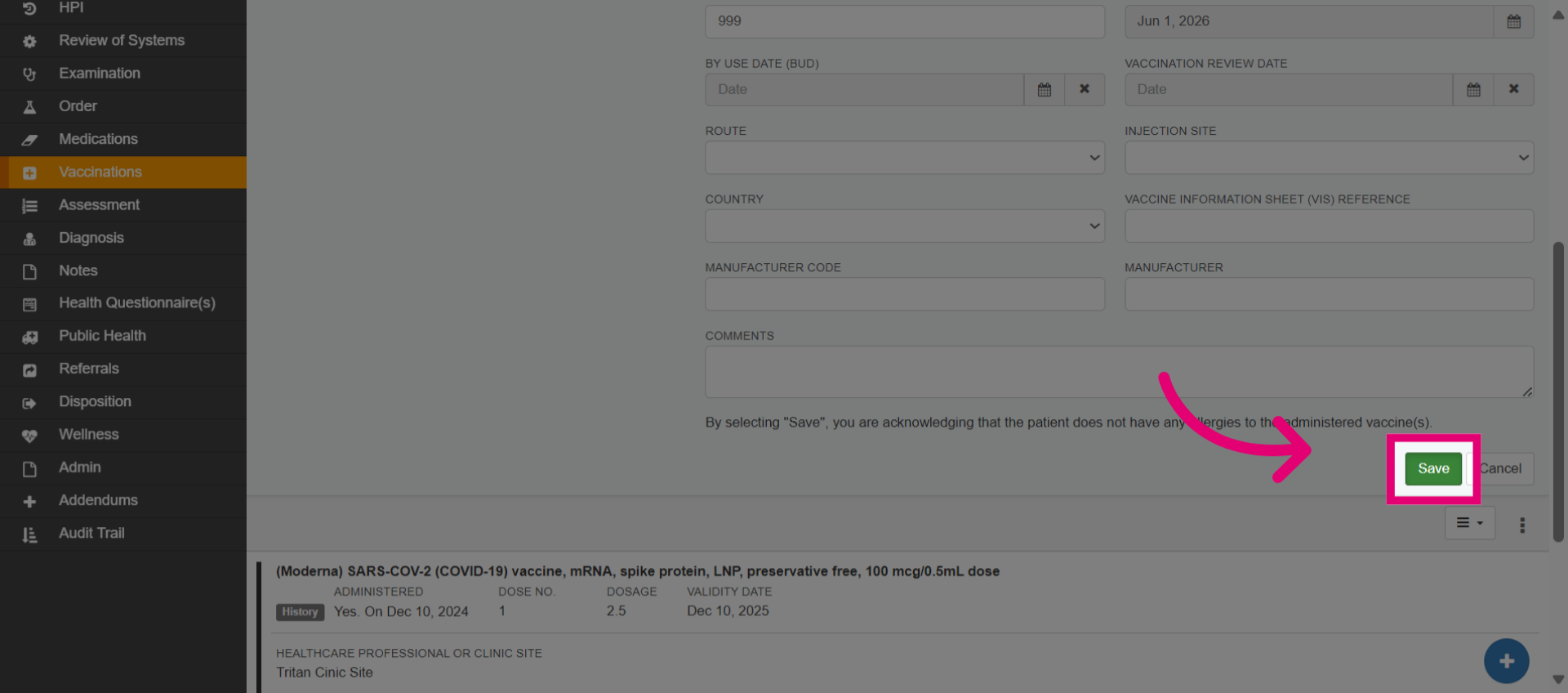
- Save the changes made.
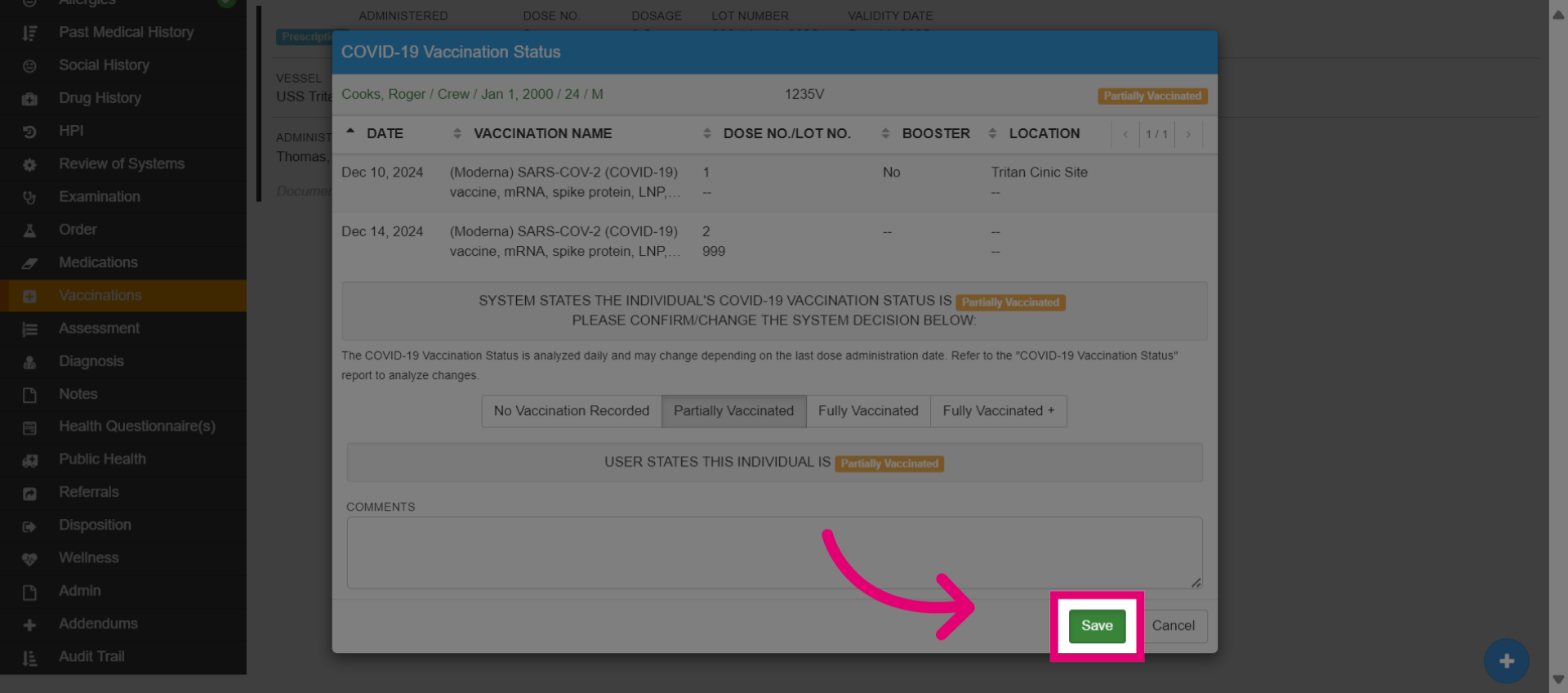
- Review the COVID-19 vaccination status, including vaccine names, dose numbers, lot numbers, boosters, dates, and locations of administration. The system will determine the vaccination status (e.g., partially vaccinated) based on the vaccination history. Manually confirm the system's decision or choose a different status and provide an explanation if you disagree.
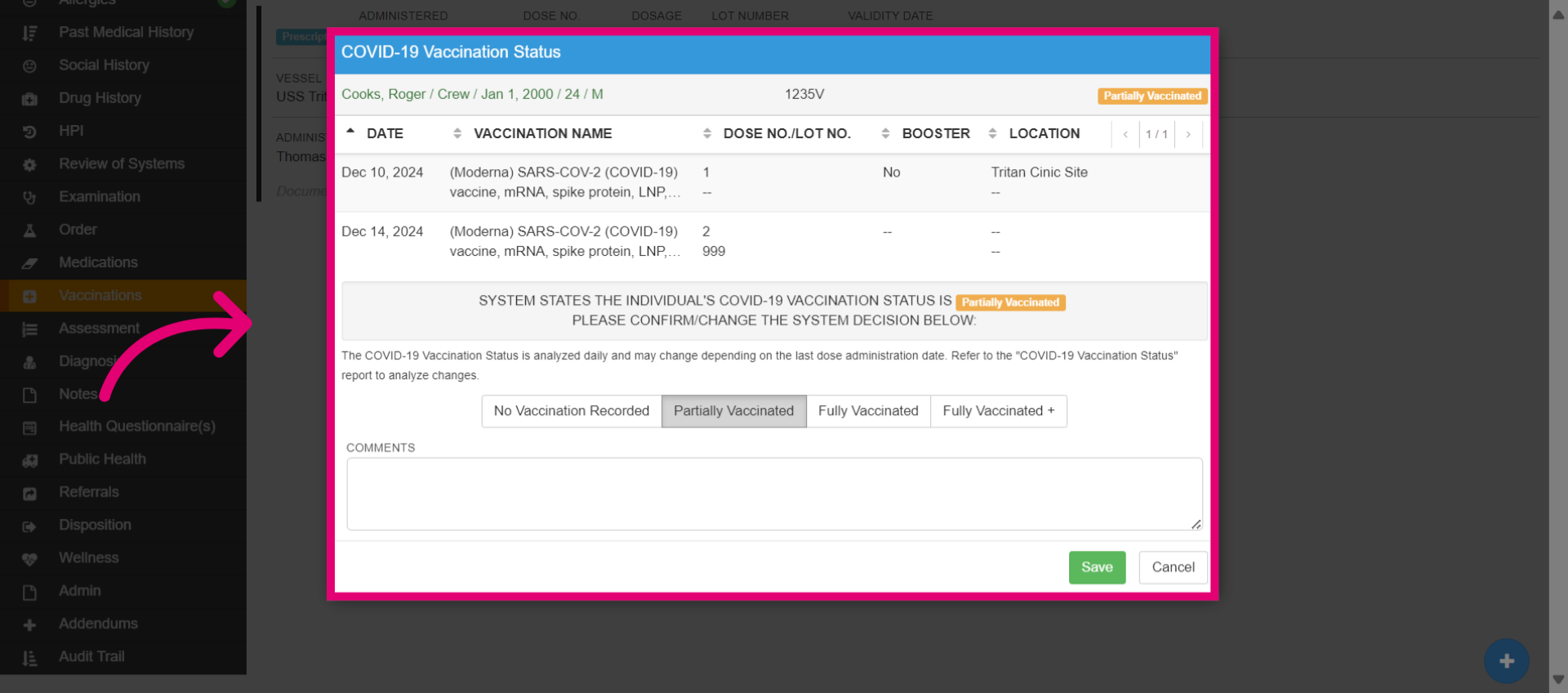
- Click Save once you've finished.