New article
Recently updated
Contact Tracer Index Case View and closing out Close Contacts

Who is this article for?Users who want to learn how to close out close contacts in the Contact Tracer Index Case View within Ideagen Maritime Health.
No elevated permissions are required.
This guide covers the necessary steps to close out close contacts in the Index Case View of the Contact Tracer module.
1. Contact Tracer Index Case View
1.1 Video
1.2 Steps
- Begin in the Index Case View within the Contact Tracer module. Use filters to locate the patient or index case that meets your criteria.
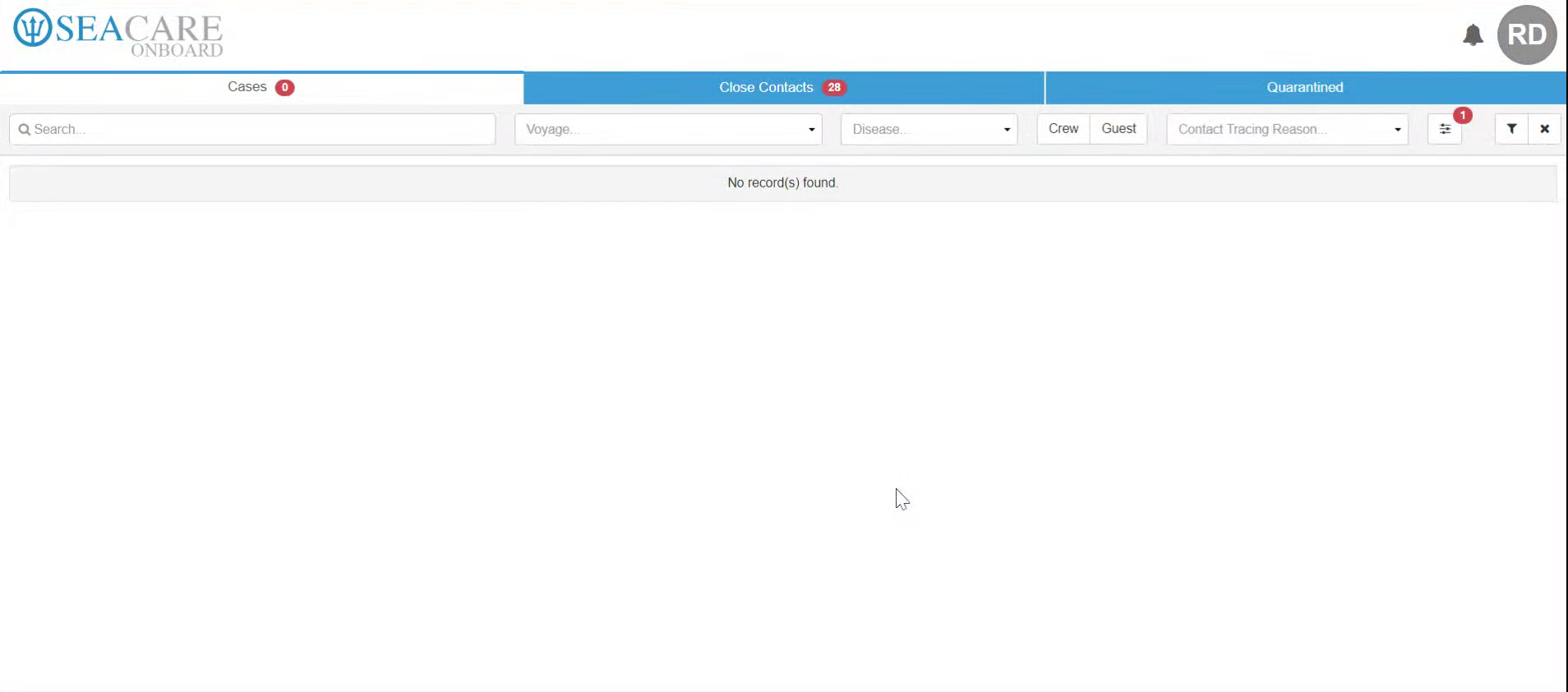
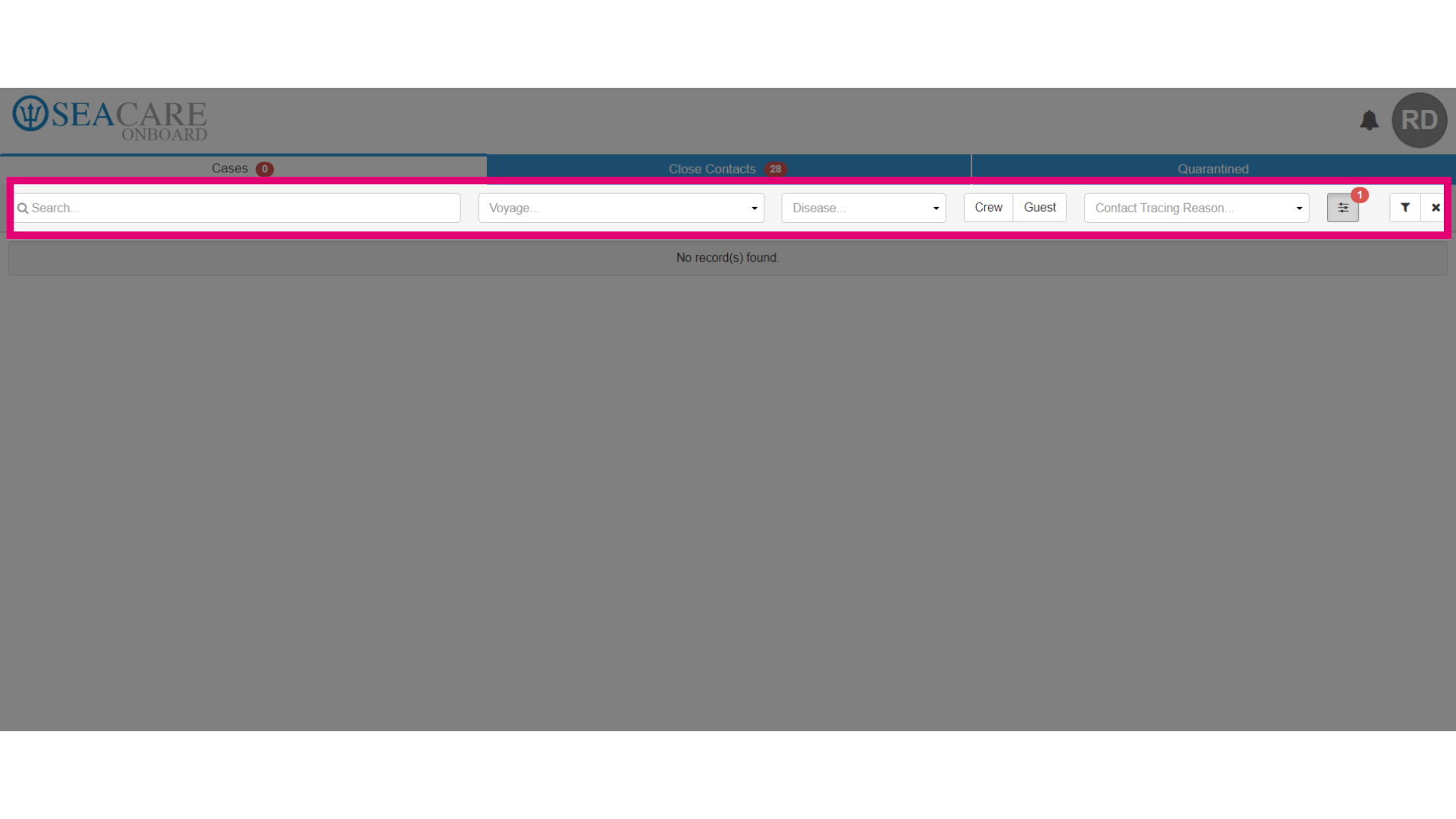
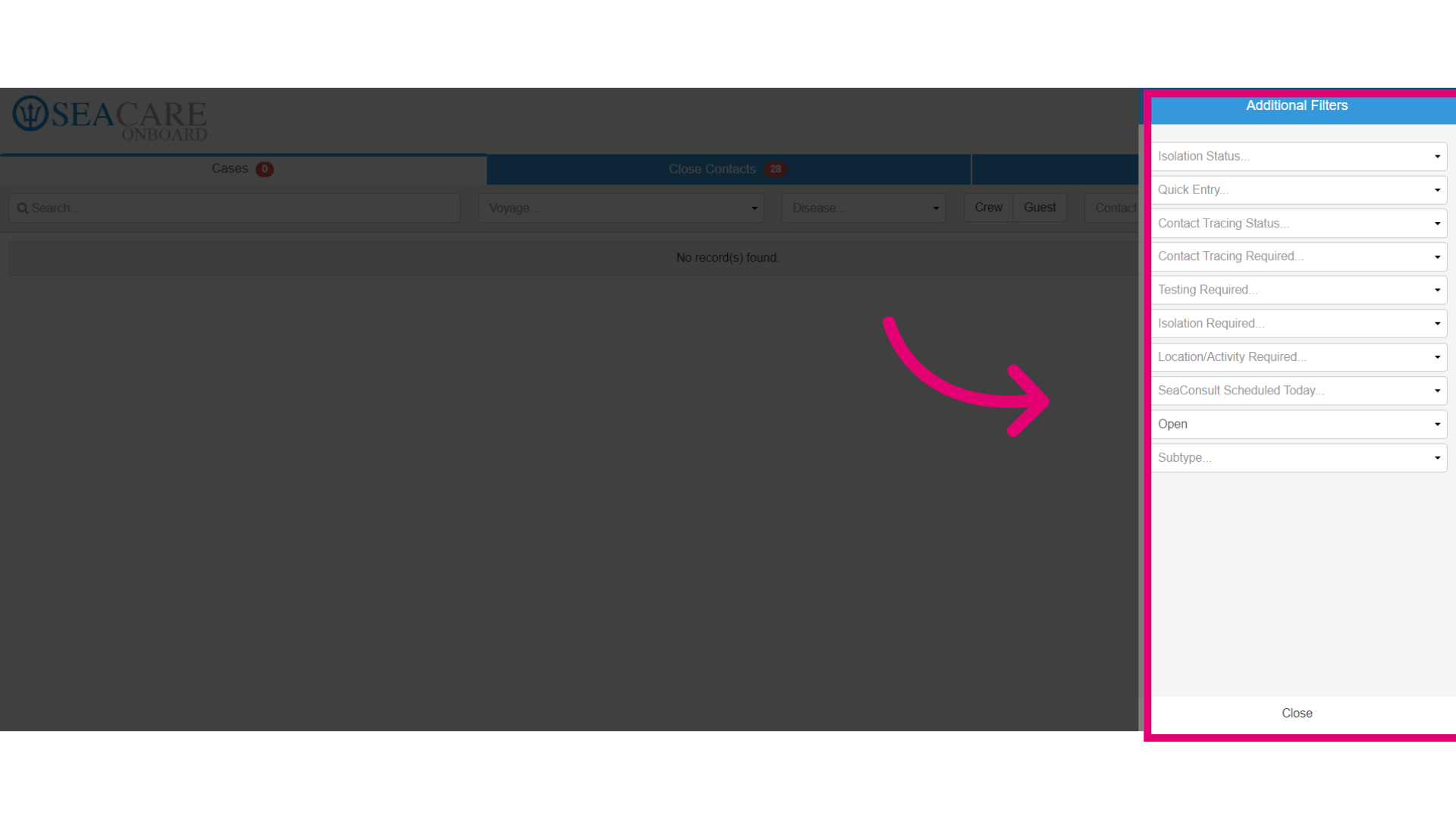
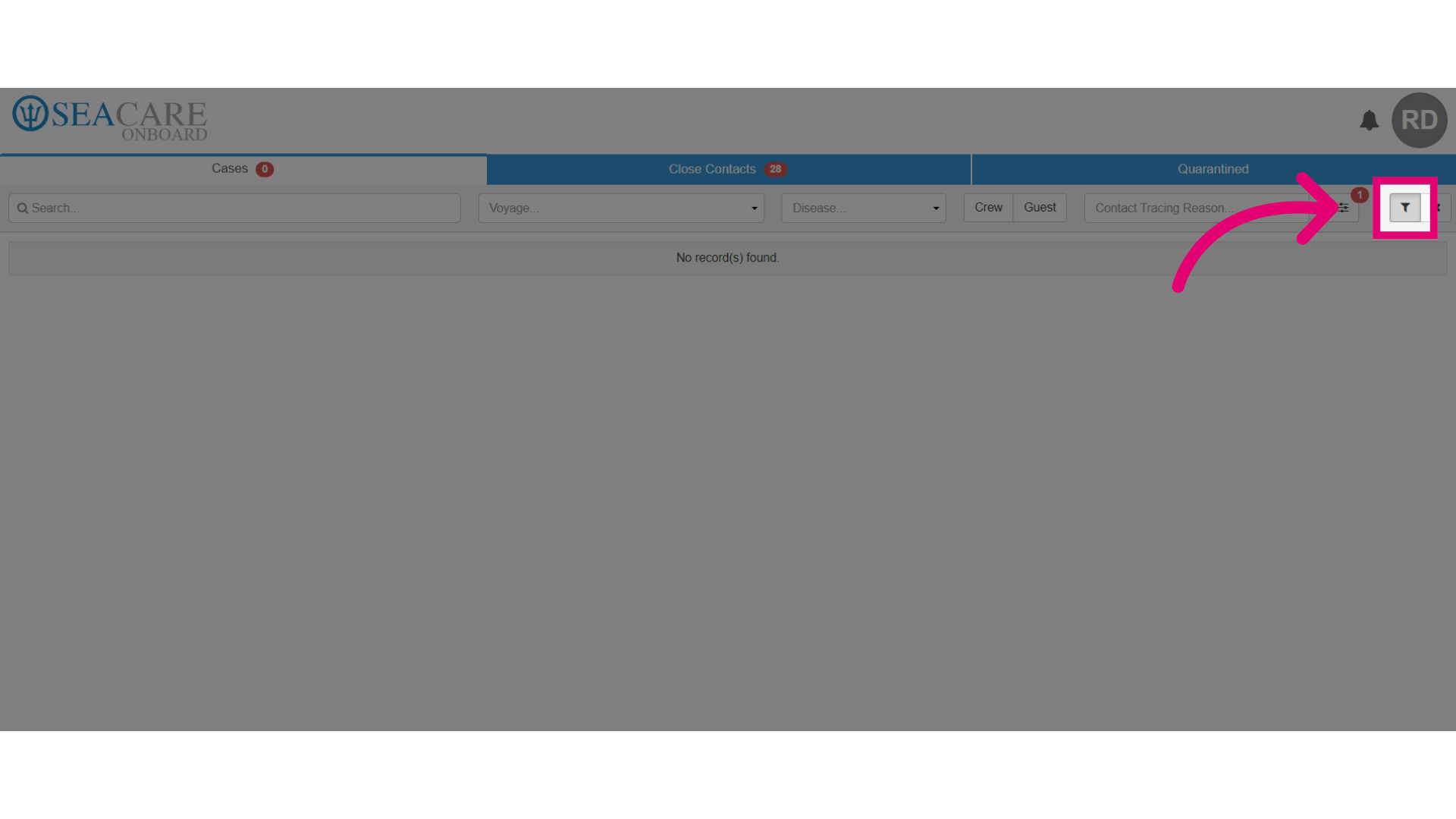
- Add filters as needed to narrow down results. You may also use Additional filters for more specific criteria.
- Apply Additional filter options as needed, then select the button to generate the list.
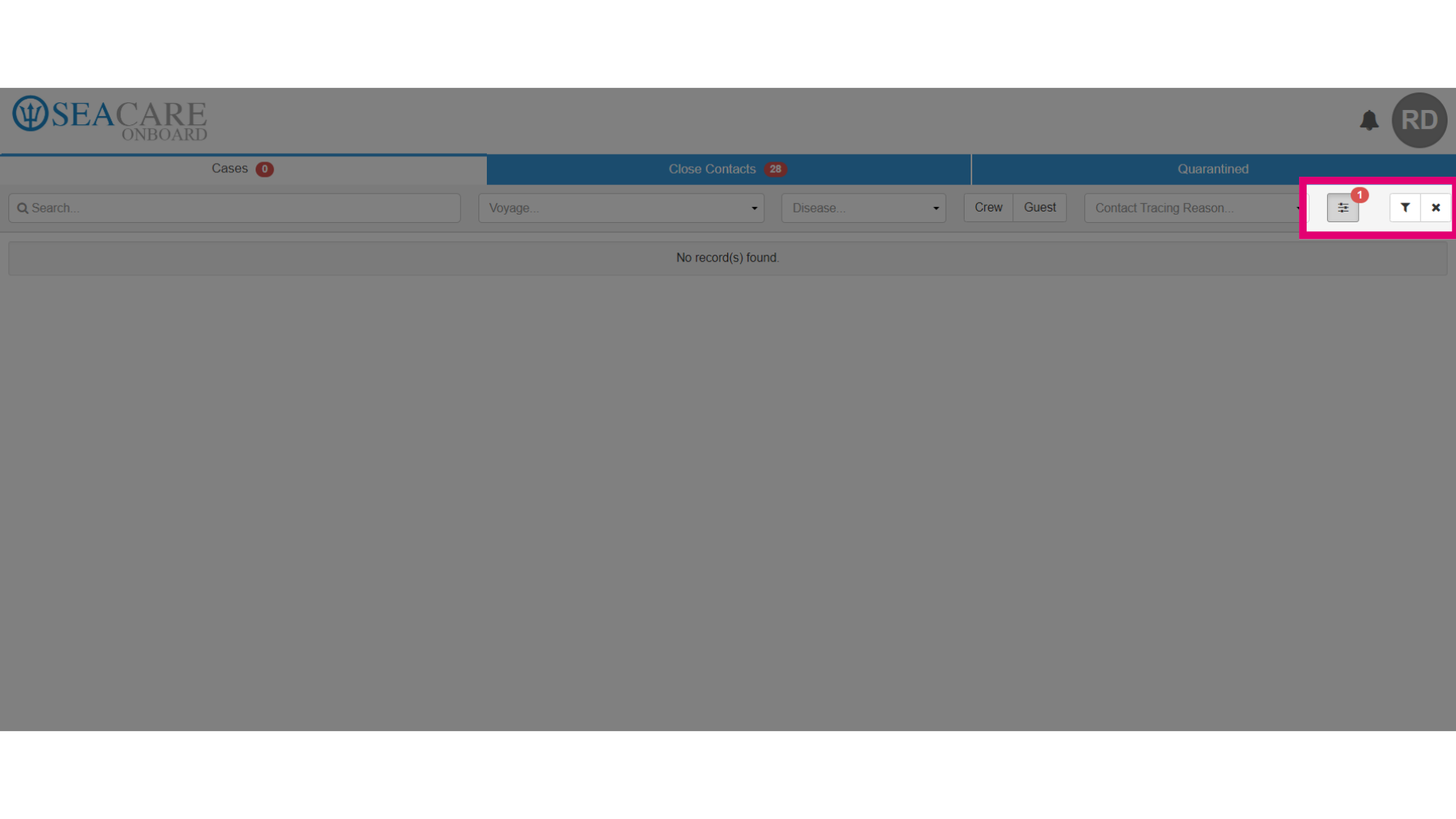
- Once filters are set, select the option to generate the list and locate the index case you need to manage.
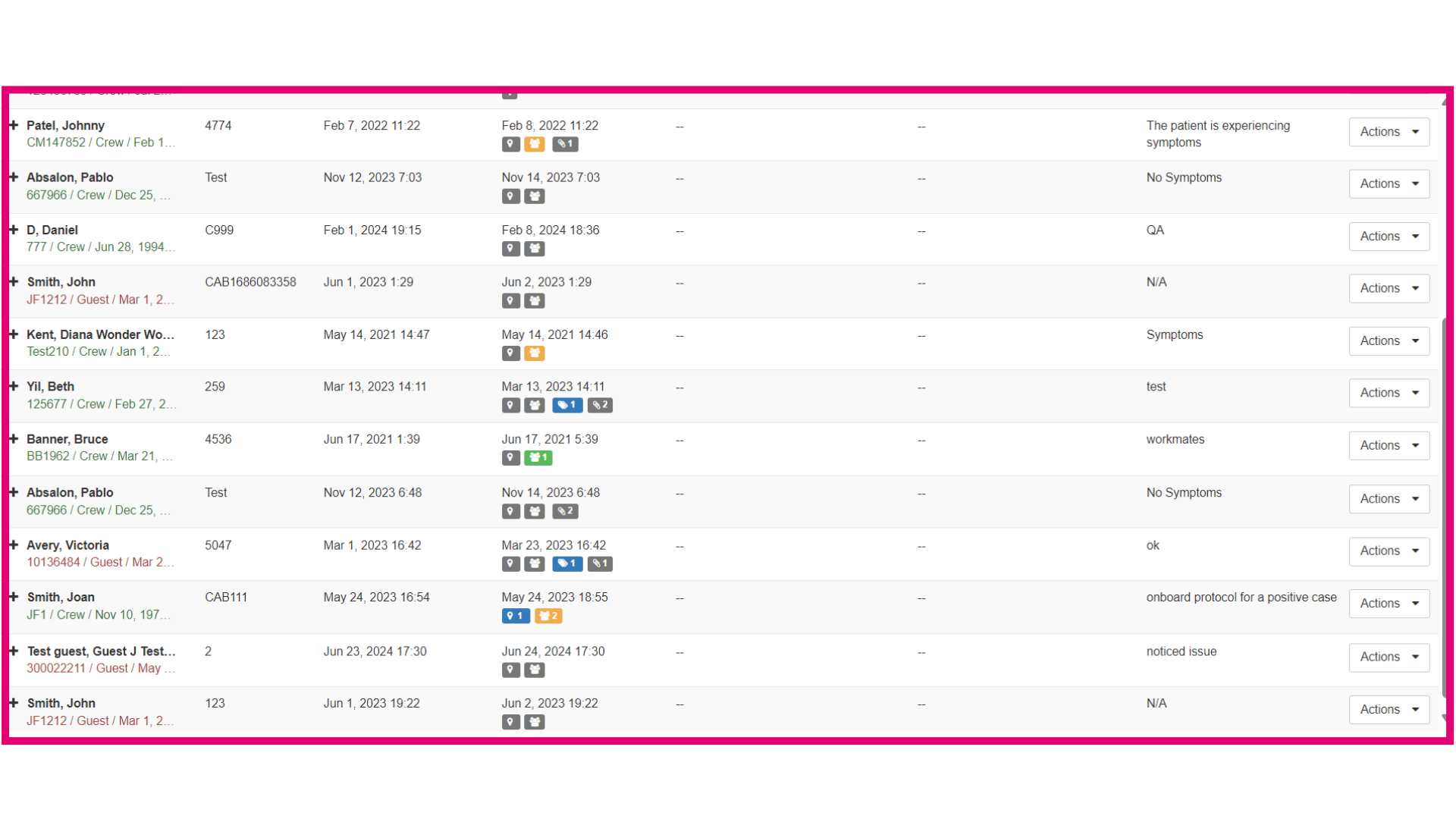
- Look for the index case in the results and select it. The associated close contacts will appear in the close contact section.
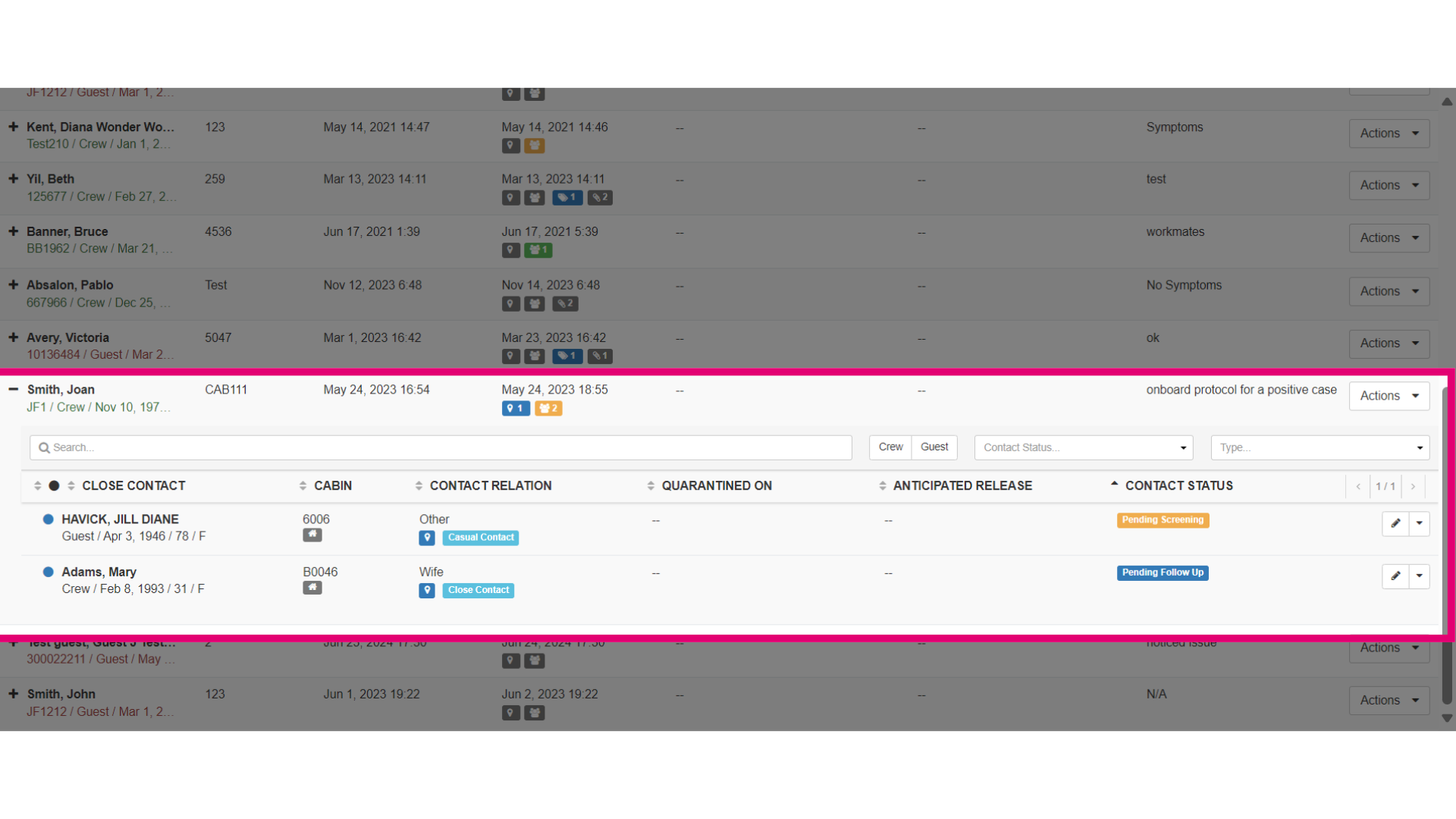
- Select the index case and view the Close Contact list to see who needs to be closed out.
- Click Close Contact to see the full details, then select Pending Screening or the relevant status you need to edit.
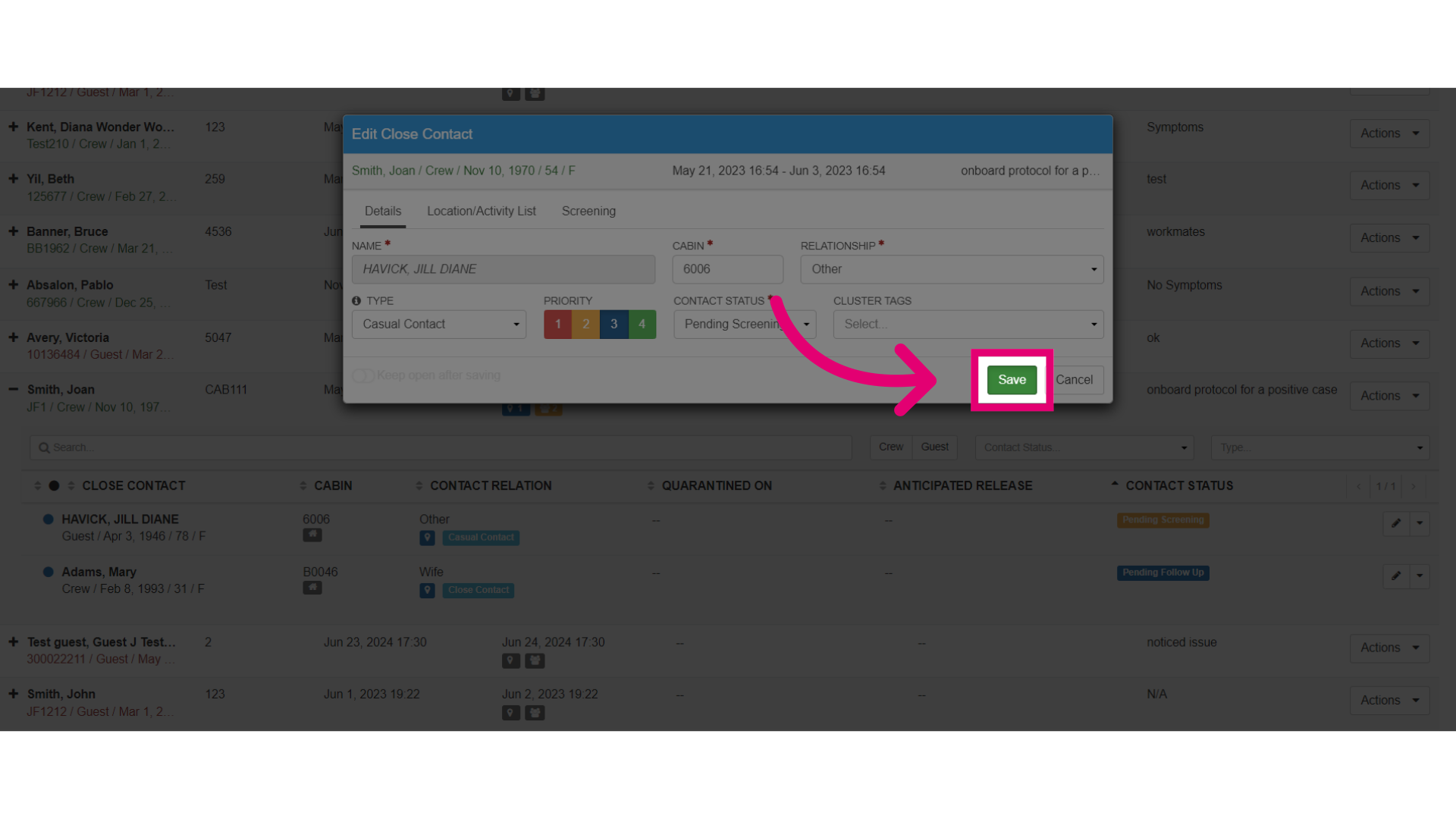
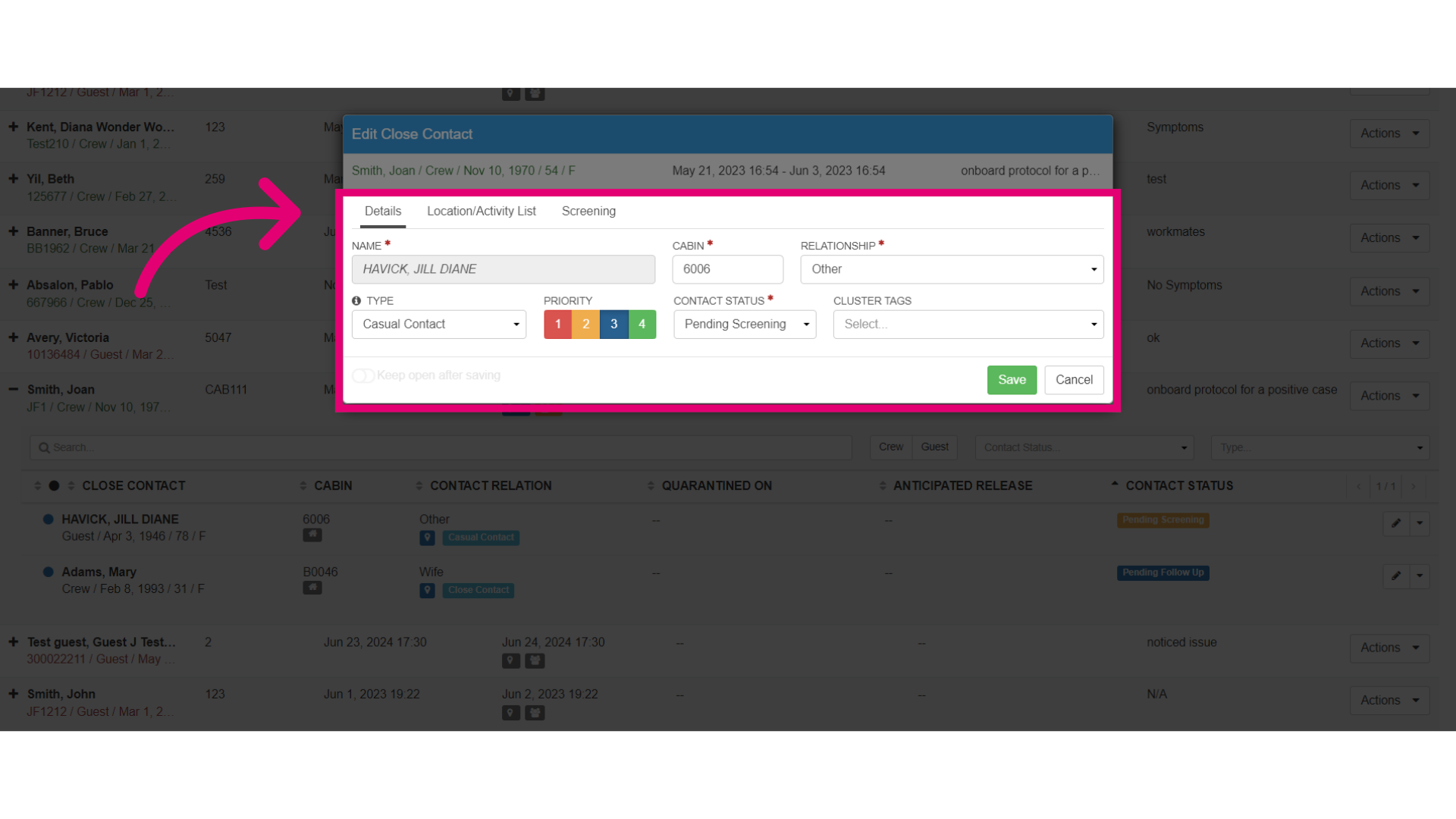
- Select to edit the close contact record. Update any necessary fields, such as location, activity, or screening status.
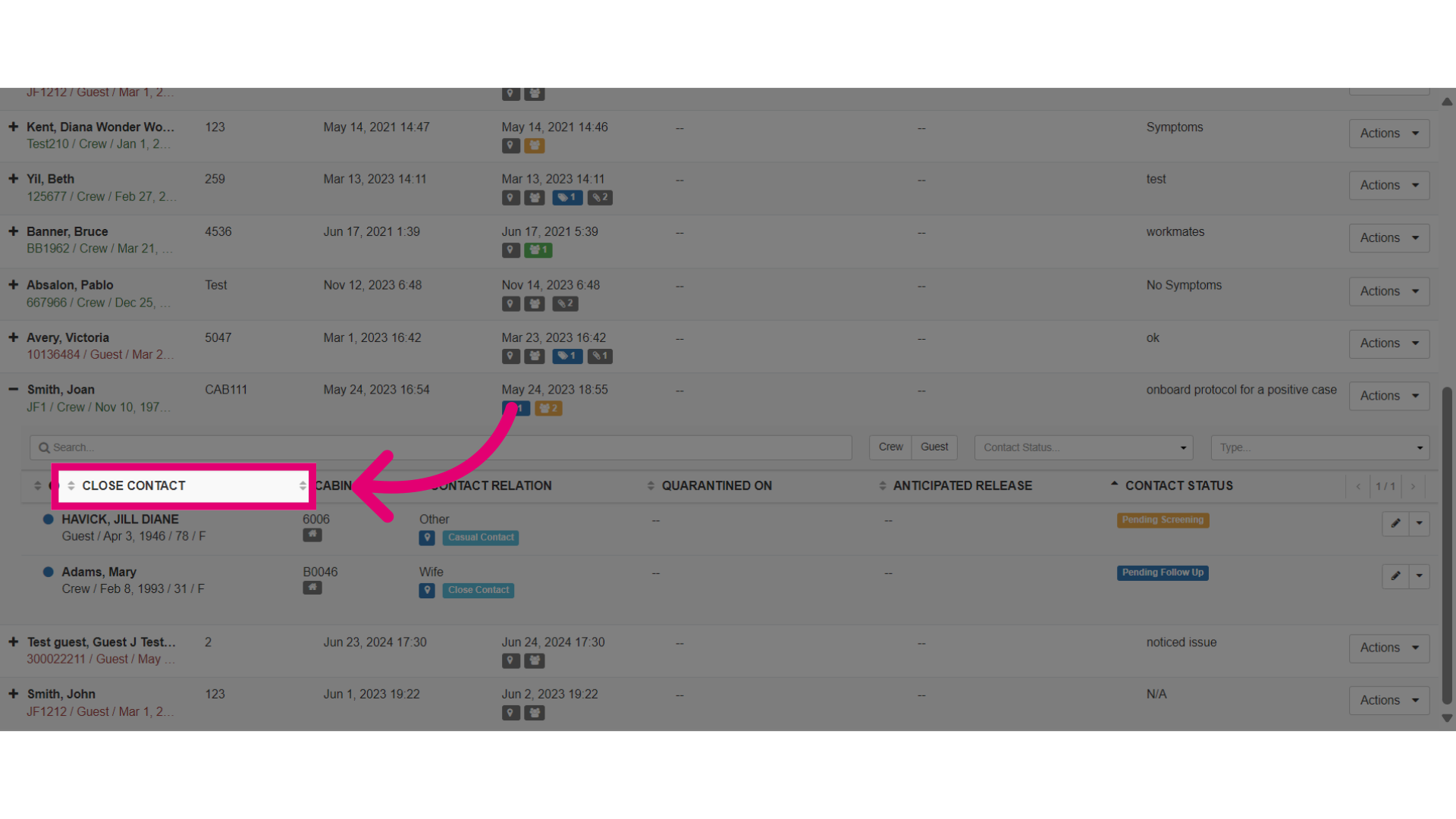
- After editing fields, select Save to confirm changes.
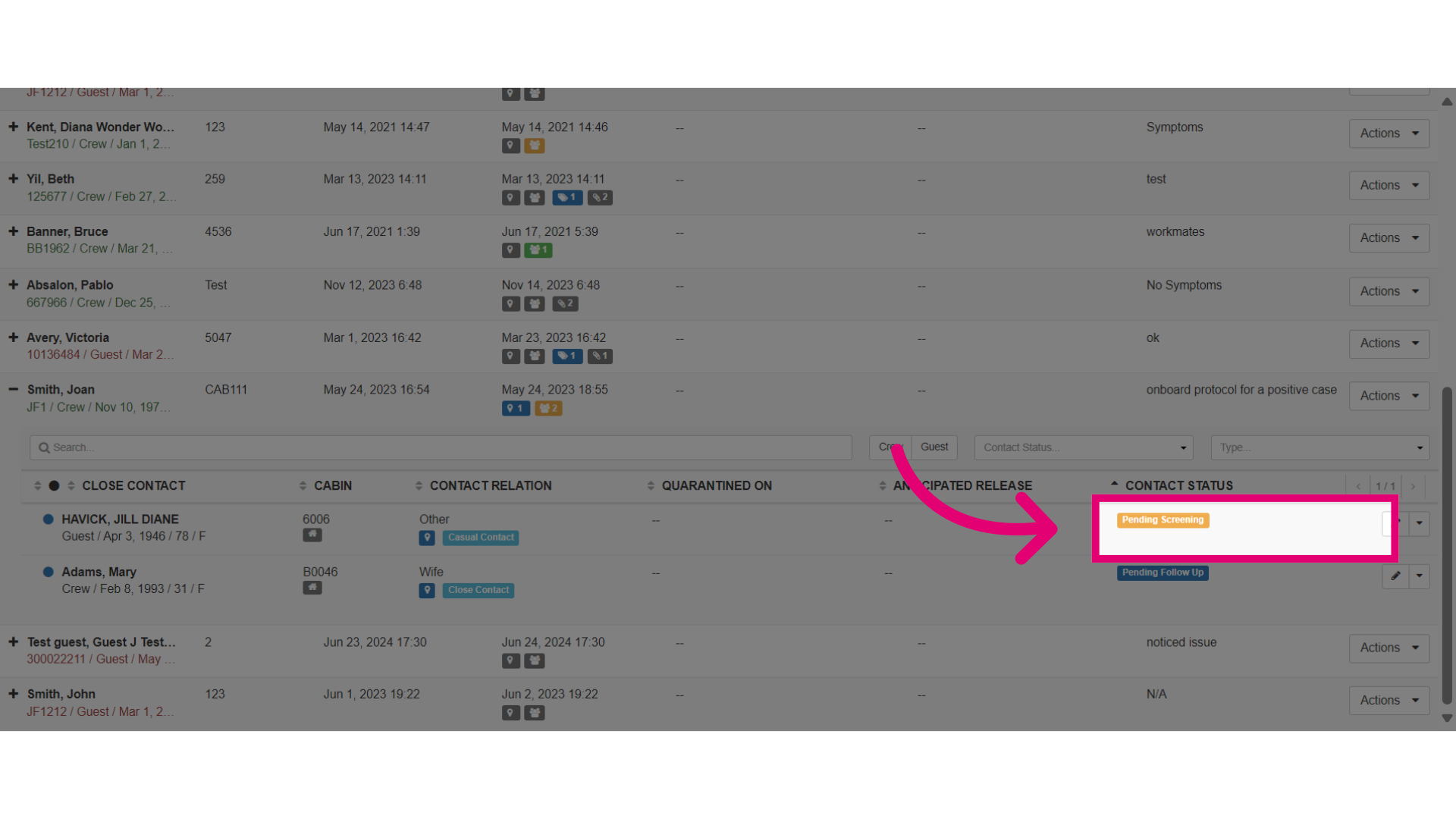
- To update the contact’s overall status, select Edit again, then adjust the Contact Status to reflect their current stage in the tracing process before finalizing.
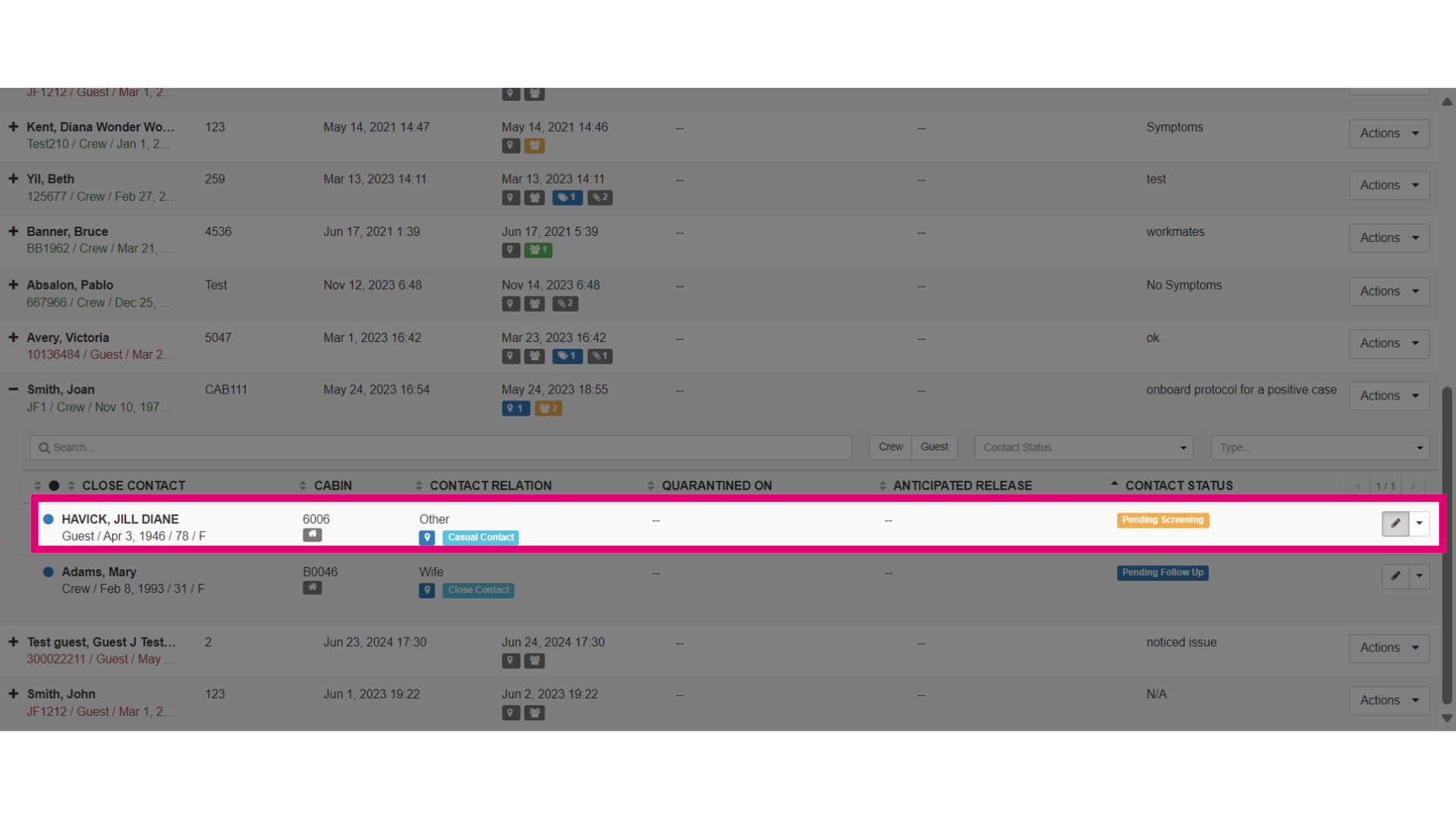
- Confirm any status changes by selecting Yes when prompted.
- When you need to remove a contact completely, select Edit, then click Remove. Provide a reason and select Remove again to finalize.