New article
Recently updated
Patient Chart Modules for Diagnosis to Addendum

Who is this article for?Users who want to learn about navigating the Patient Chart Modules from Diagnosis to Addendum in Ideagen Maritime Health Onboard.
No elevated permissions are required.
This article provides detailed instructions on navigating the Patient Chart Modules for Diagnosis to Addendum in Ideagen Maritime Health Onboard.
1. Patient Chart Modules for Diagnosis to Addendum
1.1 Video
1.2 Steps
- From saving diagnoses to adding addendums, these instructions ensure a seamless process in managing patient information effectively.
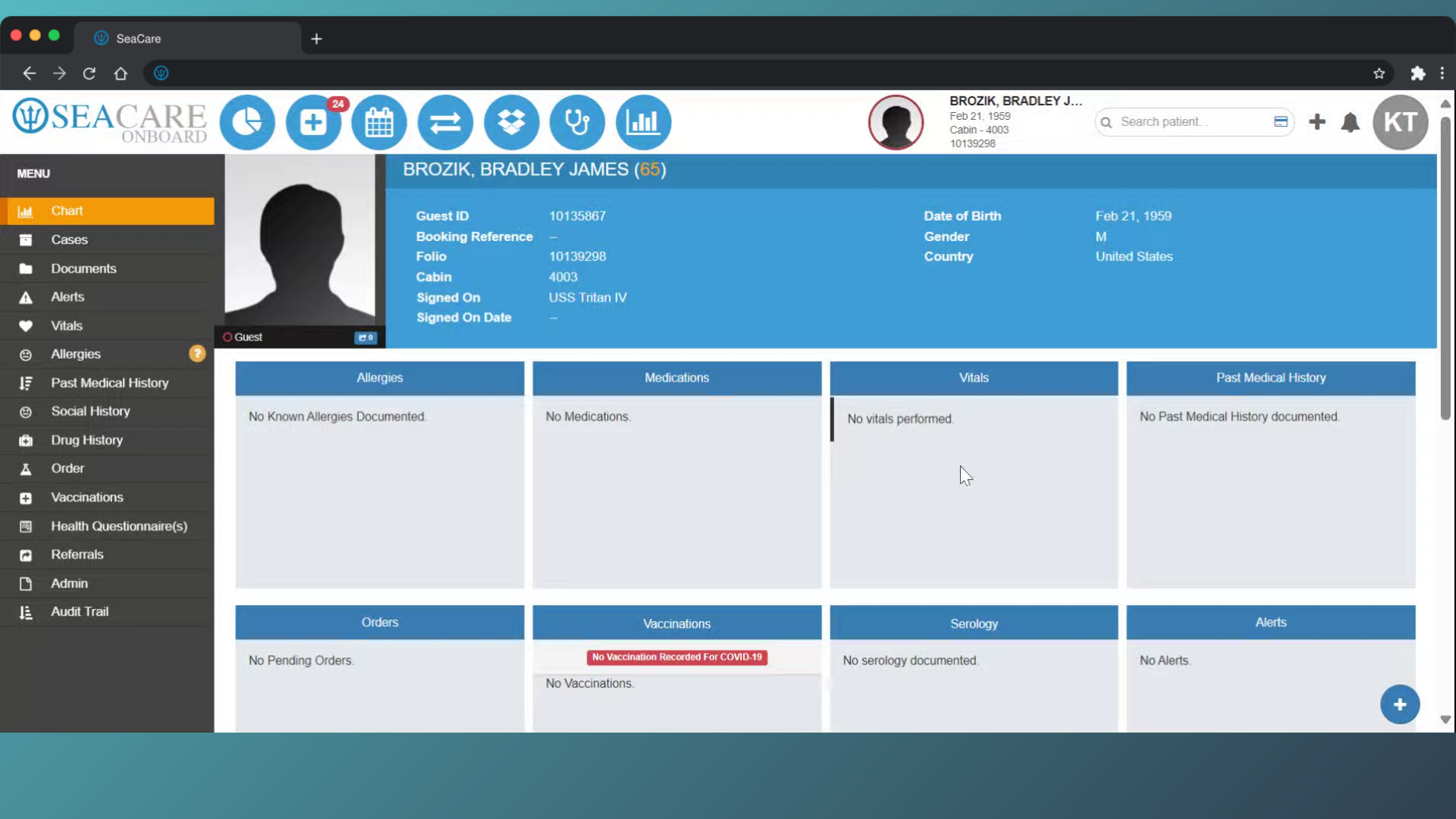
- Open the Quick Actions menu.
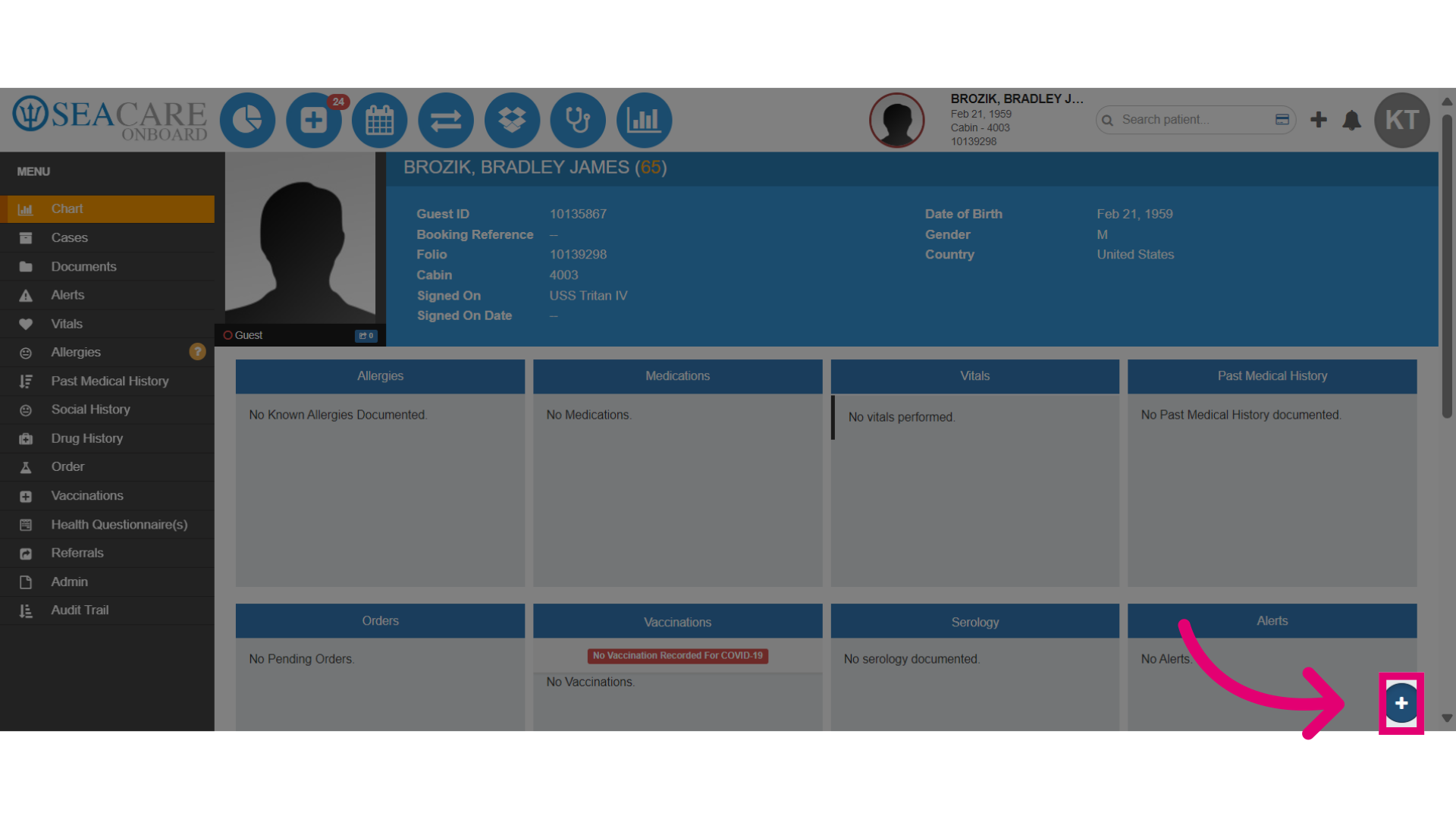
- When the start button is pressed, new tabs will populate on the left-hand menu for modules covered in this walkthrough. Click Start Encounter.
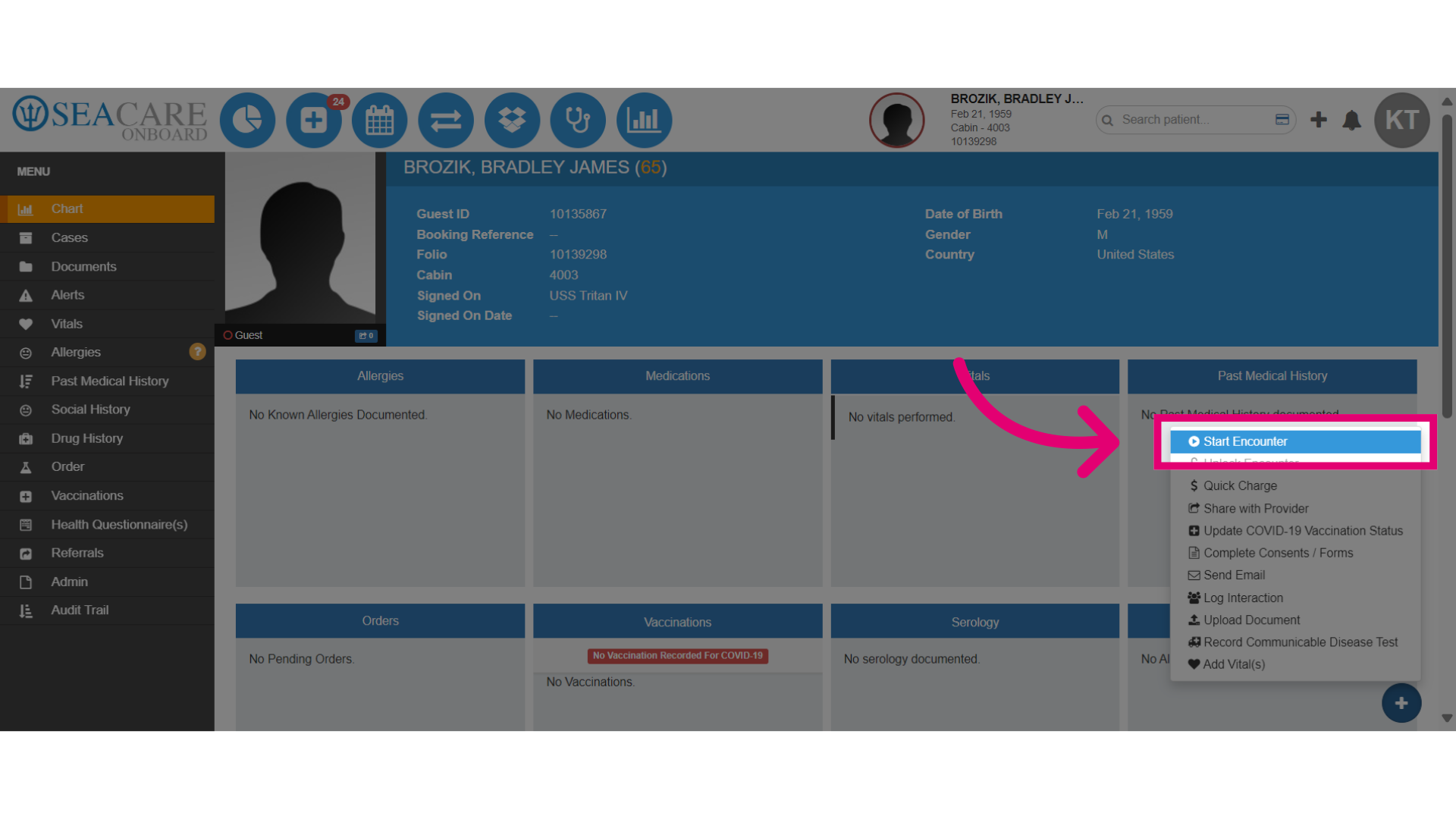
- These fields will already be pre-populated.
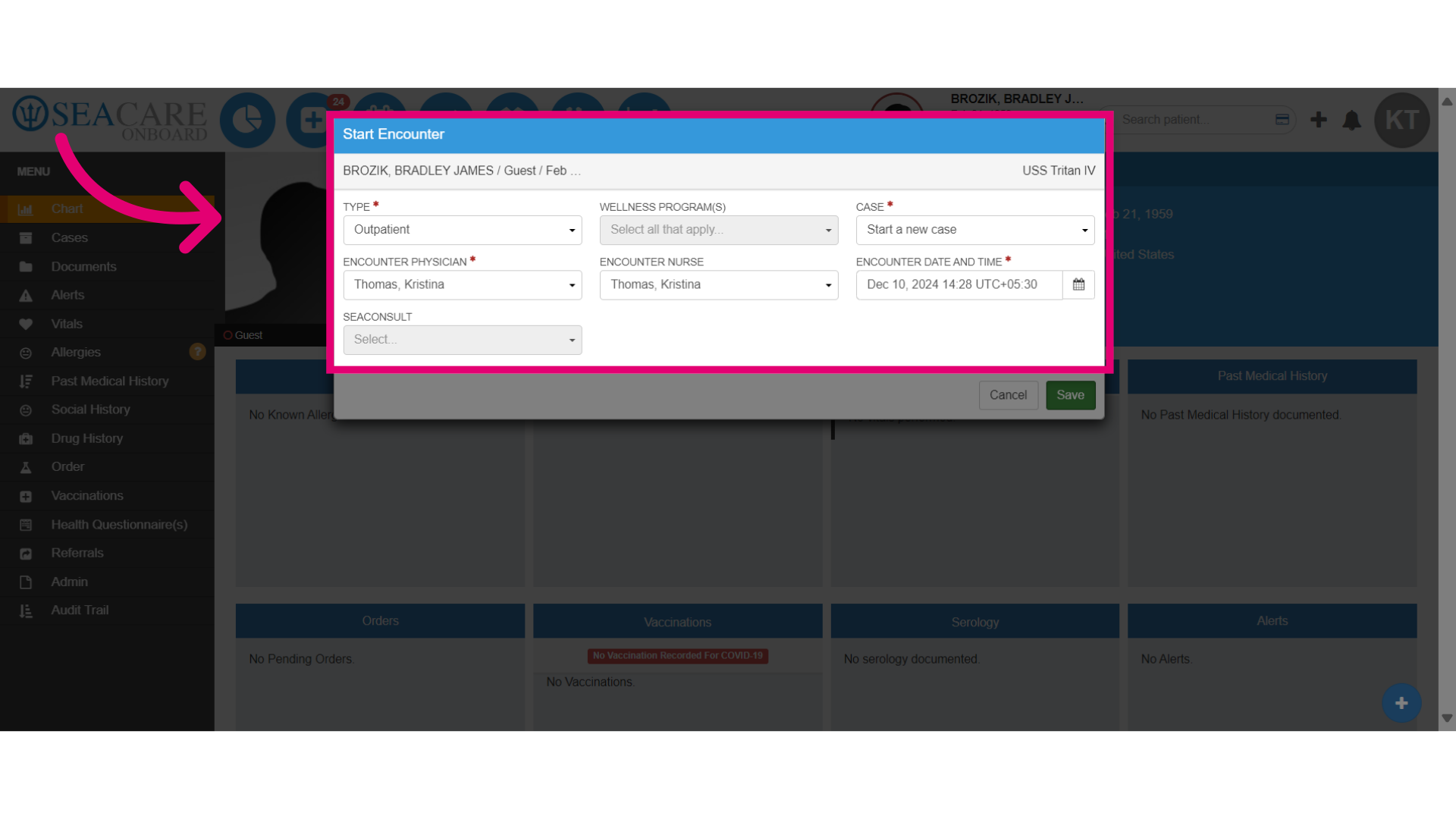
- Confirm the encounter type (Outpatient) and choose whether to start a new case or open an existing one. Select to start a new case.
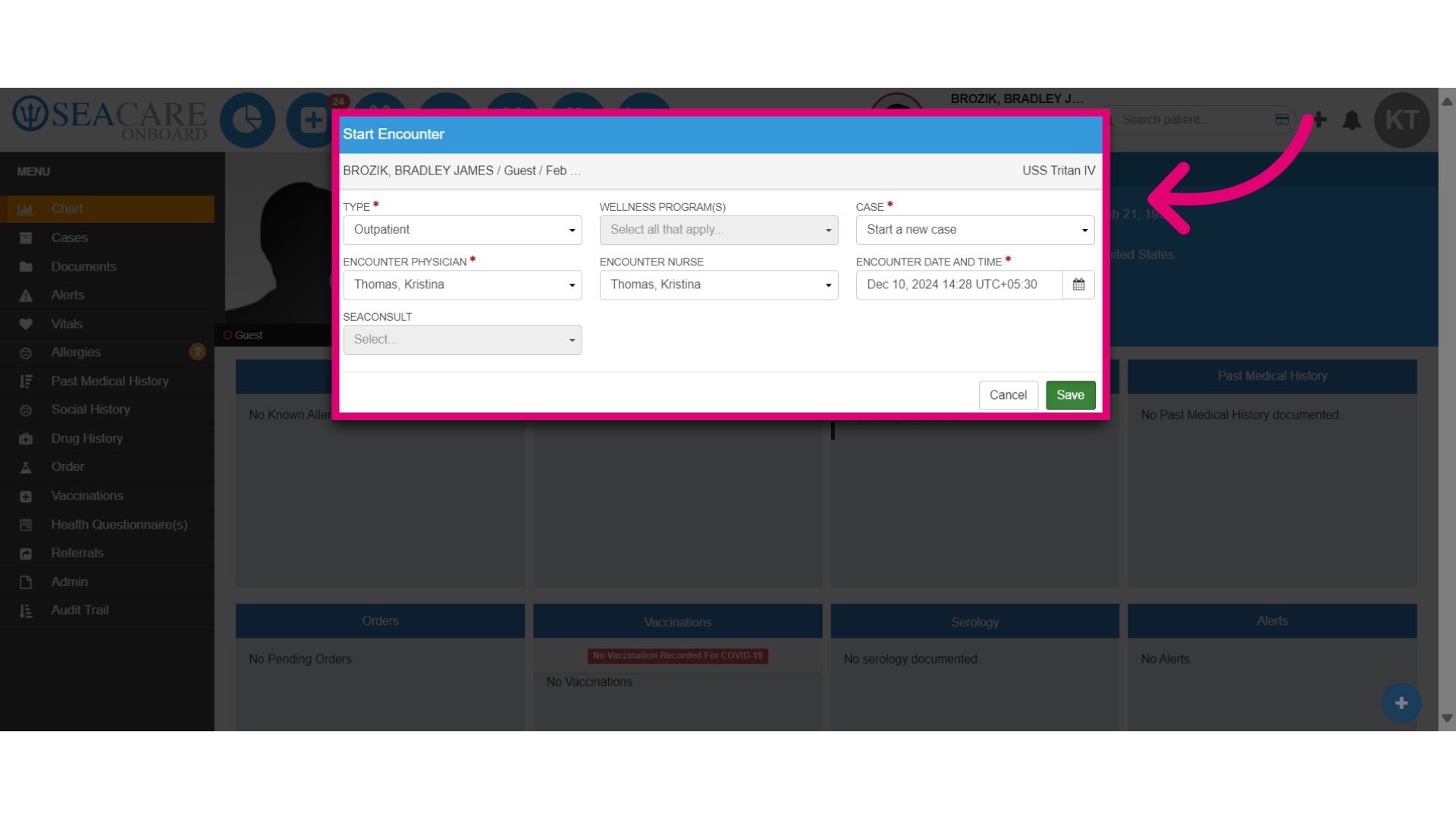
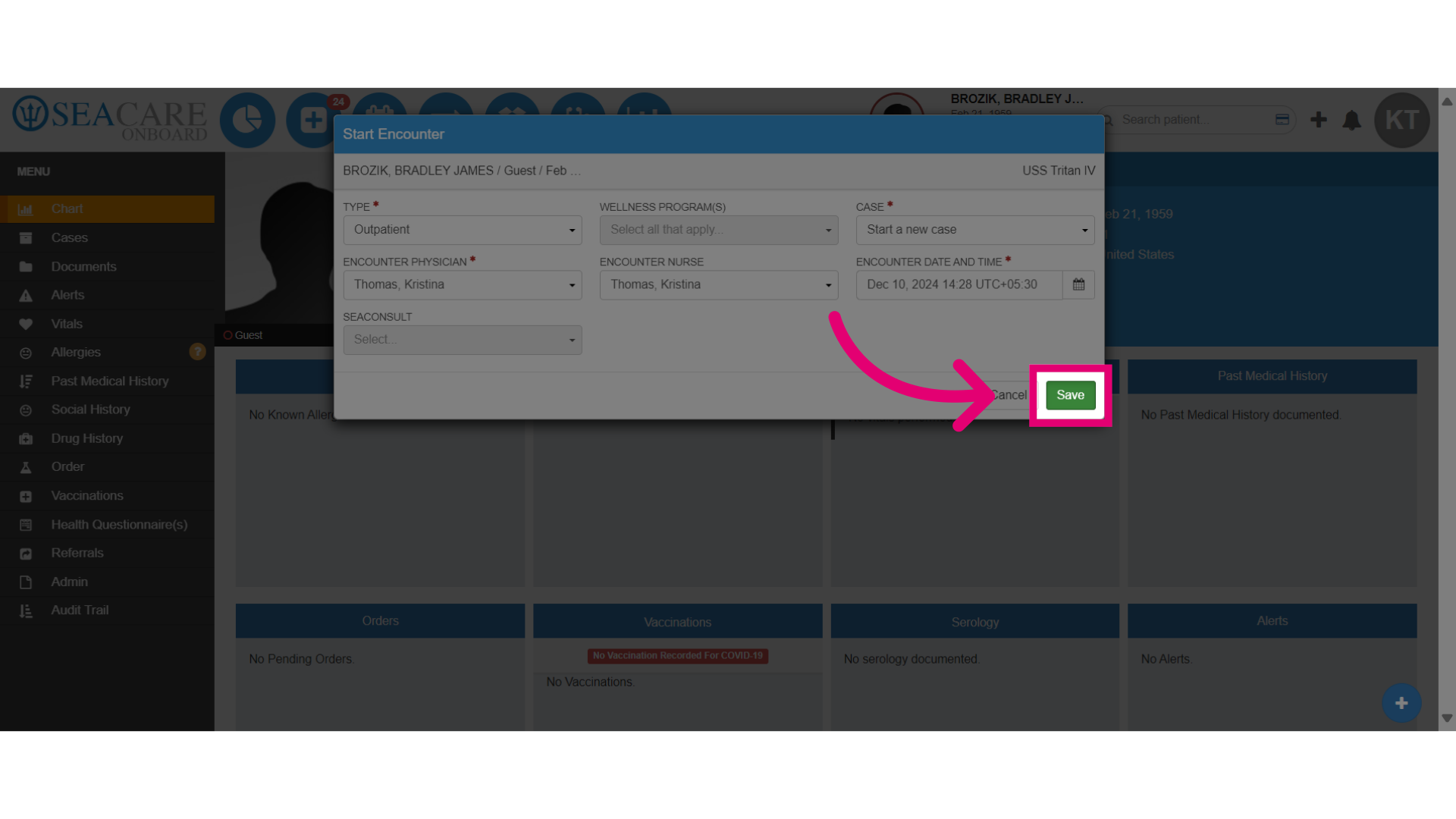
- Confirm the information and select Save.
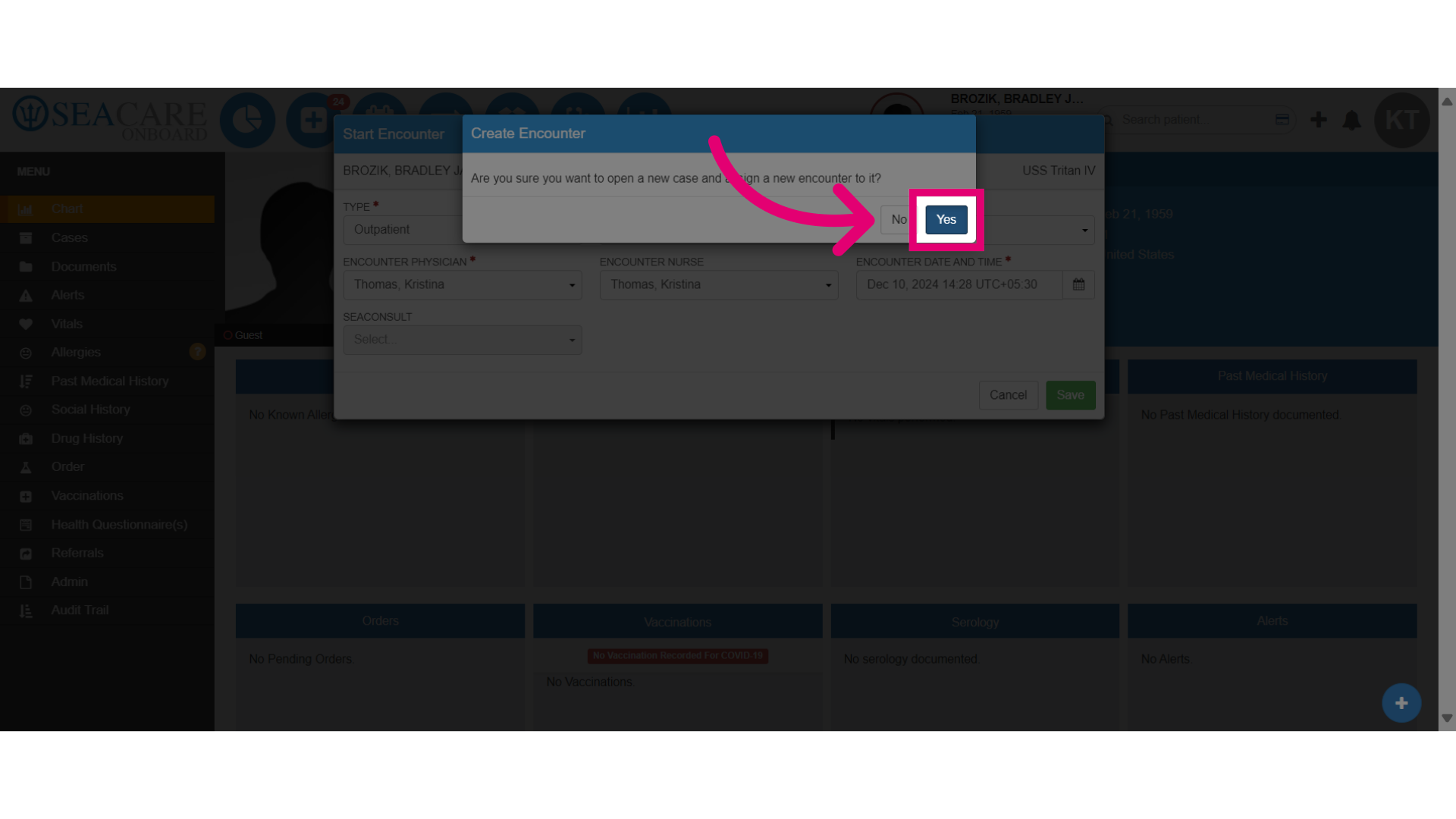
- Select Yes to create the encounter.
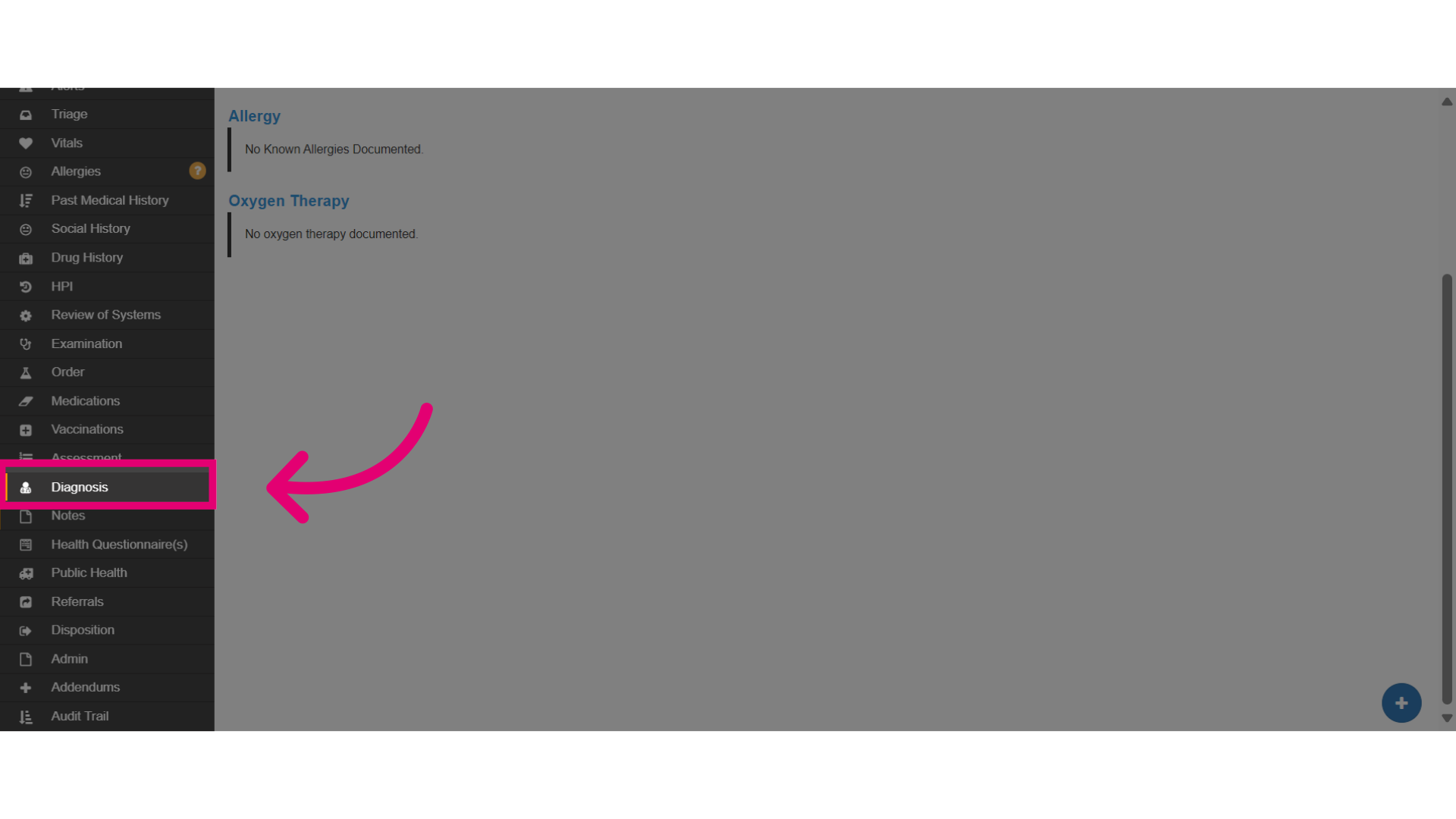
- Click Diagnosis to access the diagnosis module.
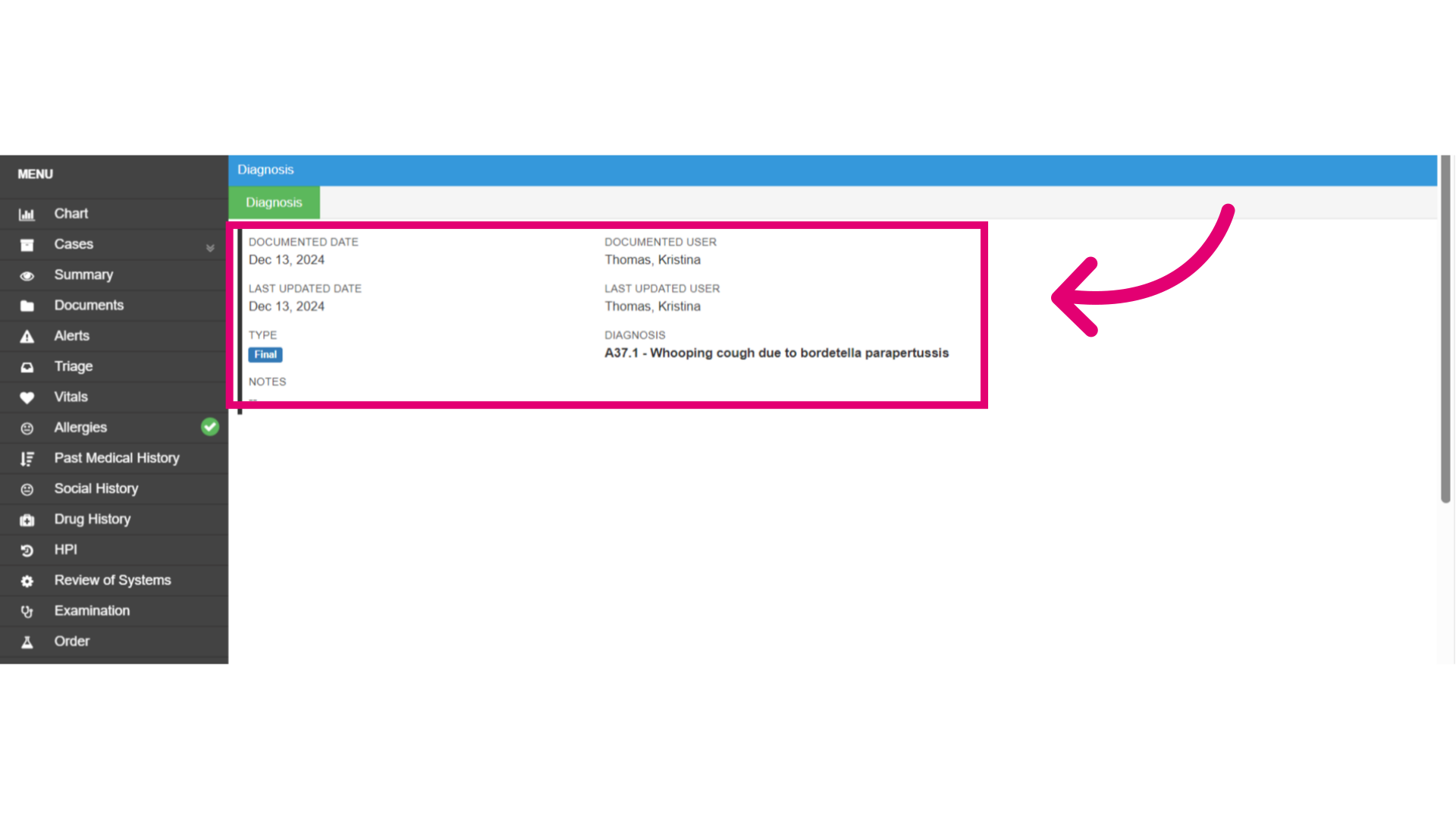
- The Diagnosis section may display the case’s diagnosis classified as final, additional, or differential.
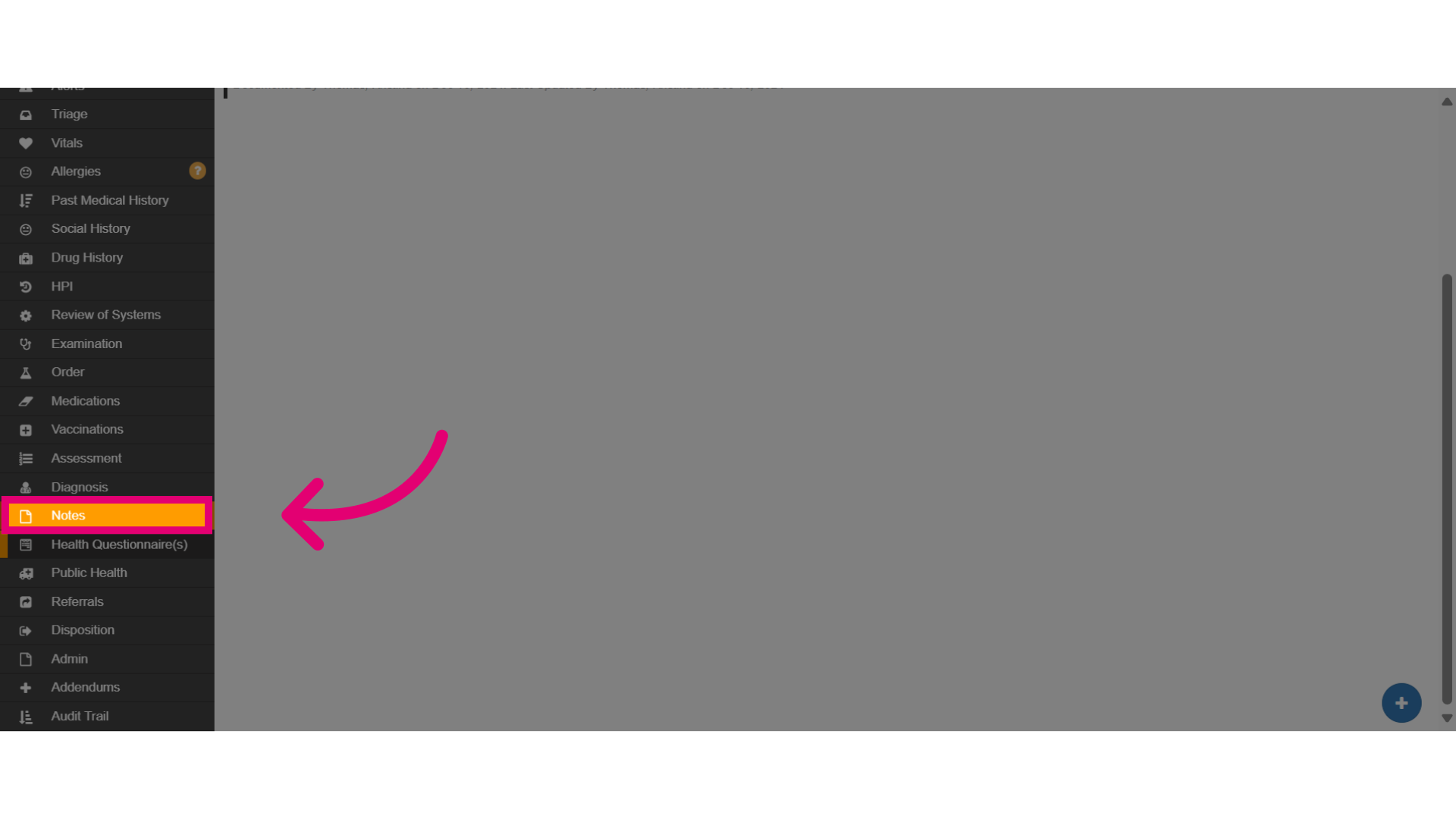
- Click Notes to access the notes module.
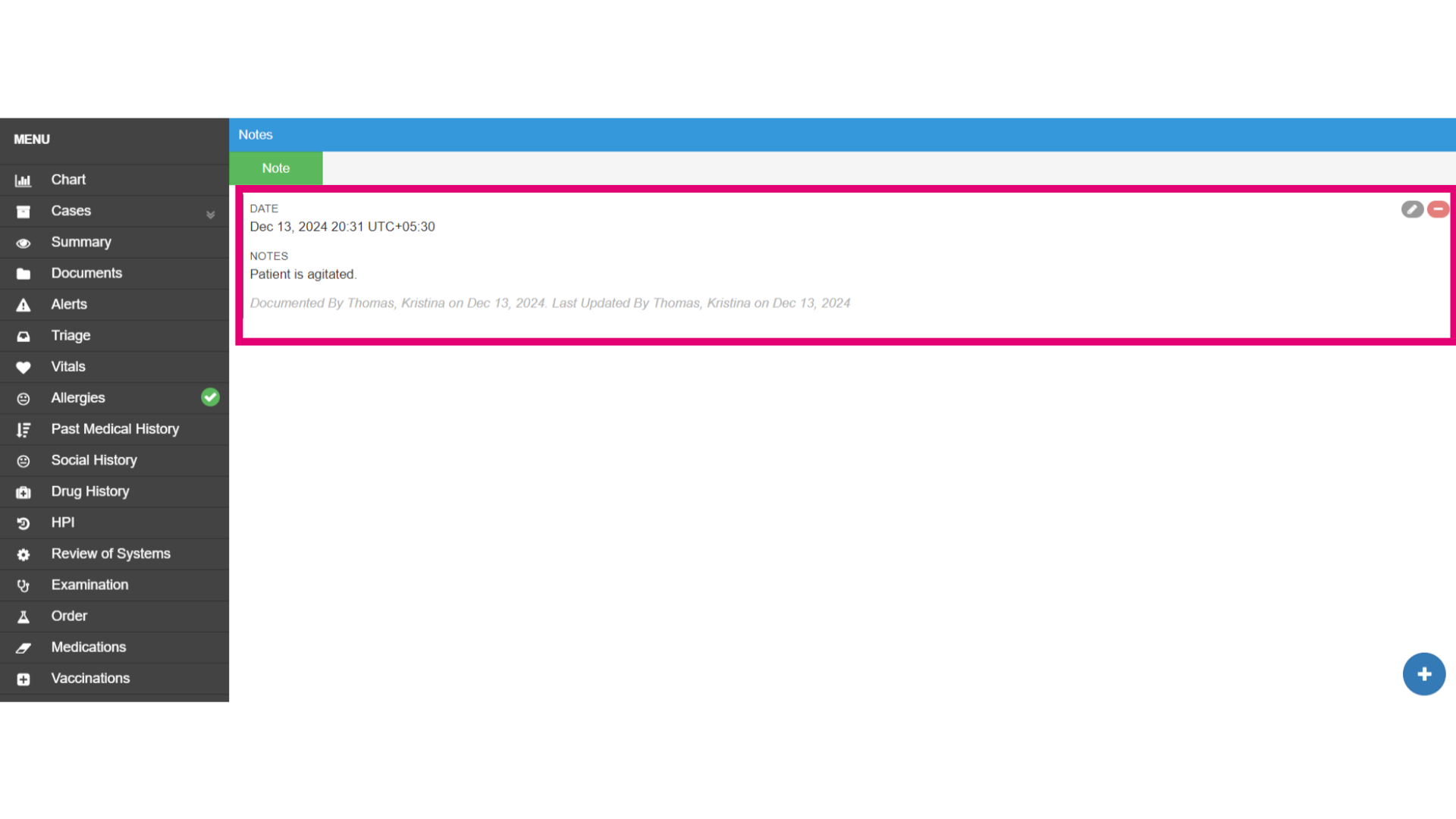
- The Notes section lists any notes related to the case that are not tied to a specific module.
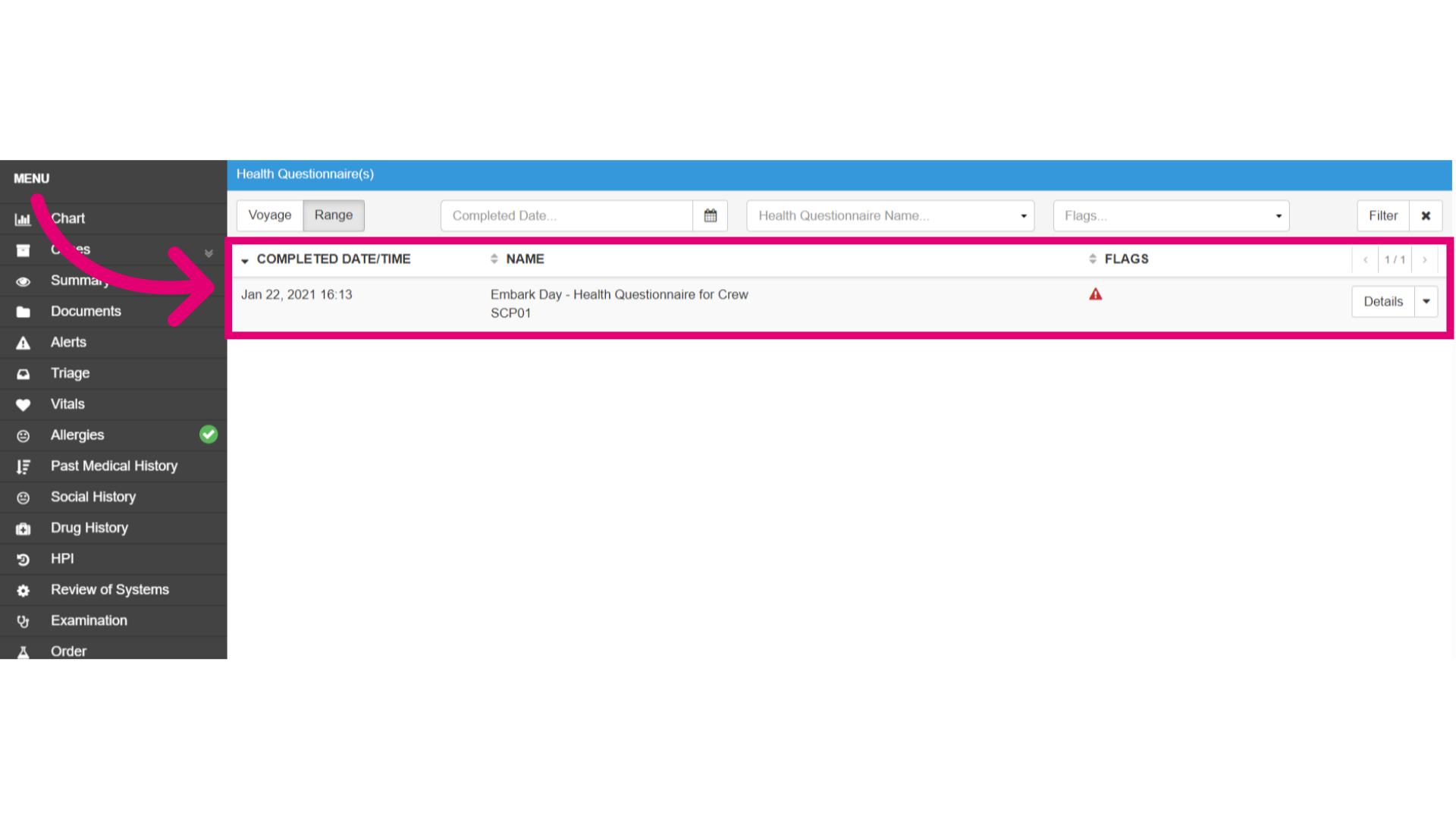
- Click Health Questionnaires to view questionnaires for the case.
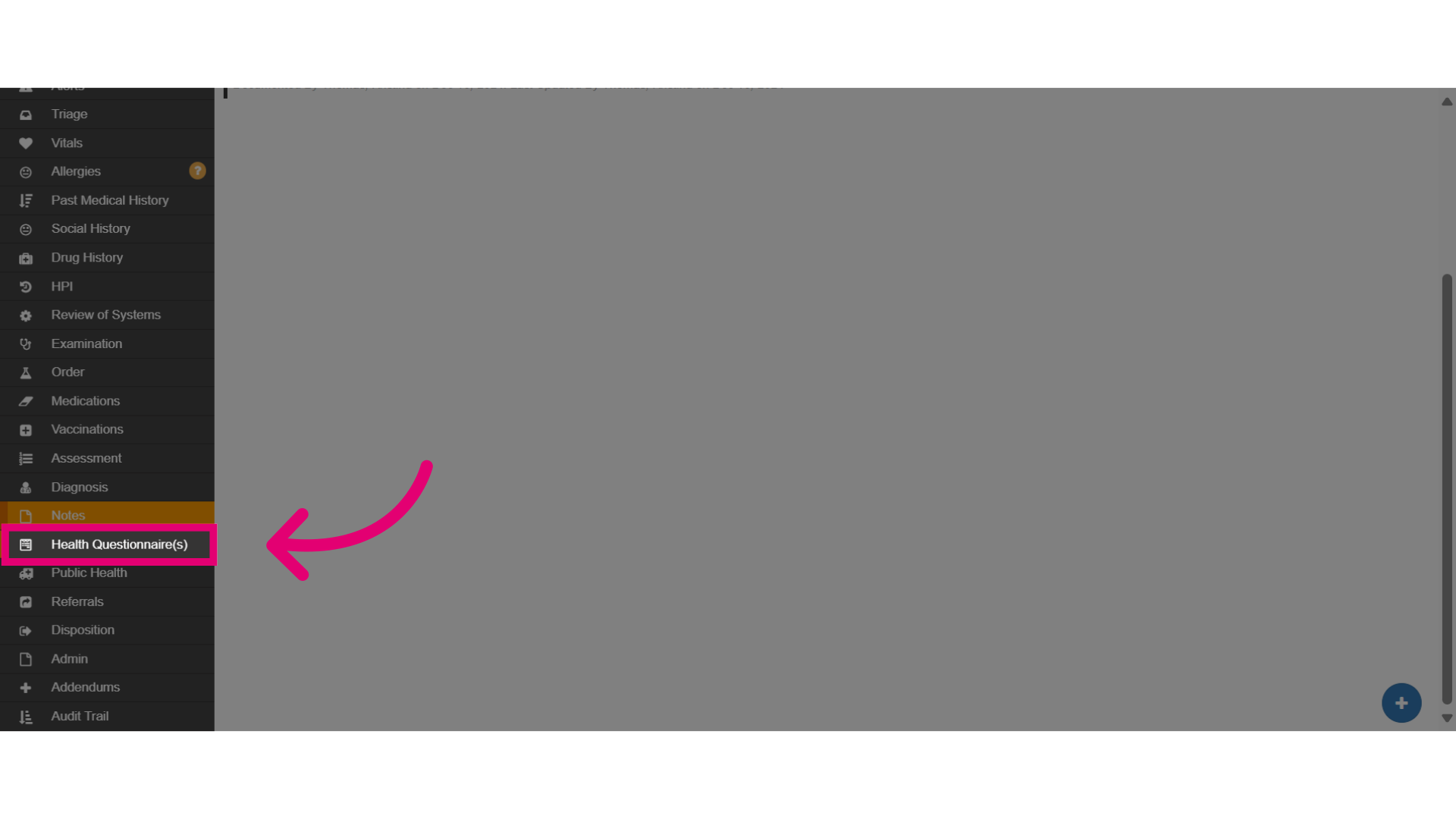
- These questionnaires help the medical team evaluate overall patient health.
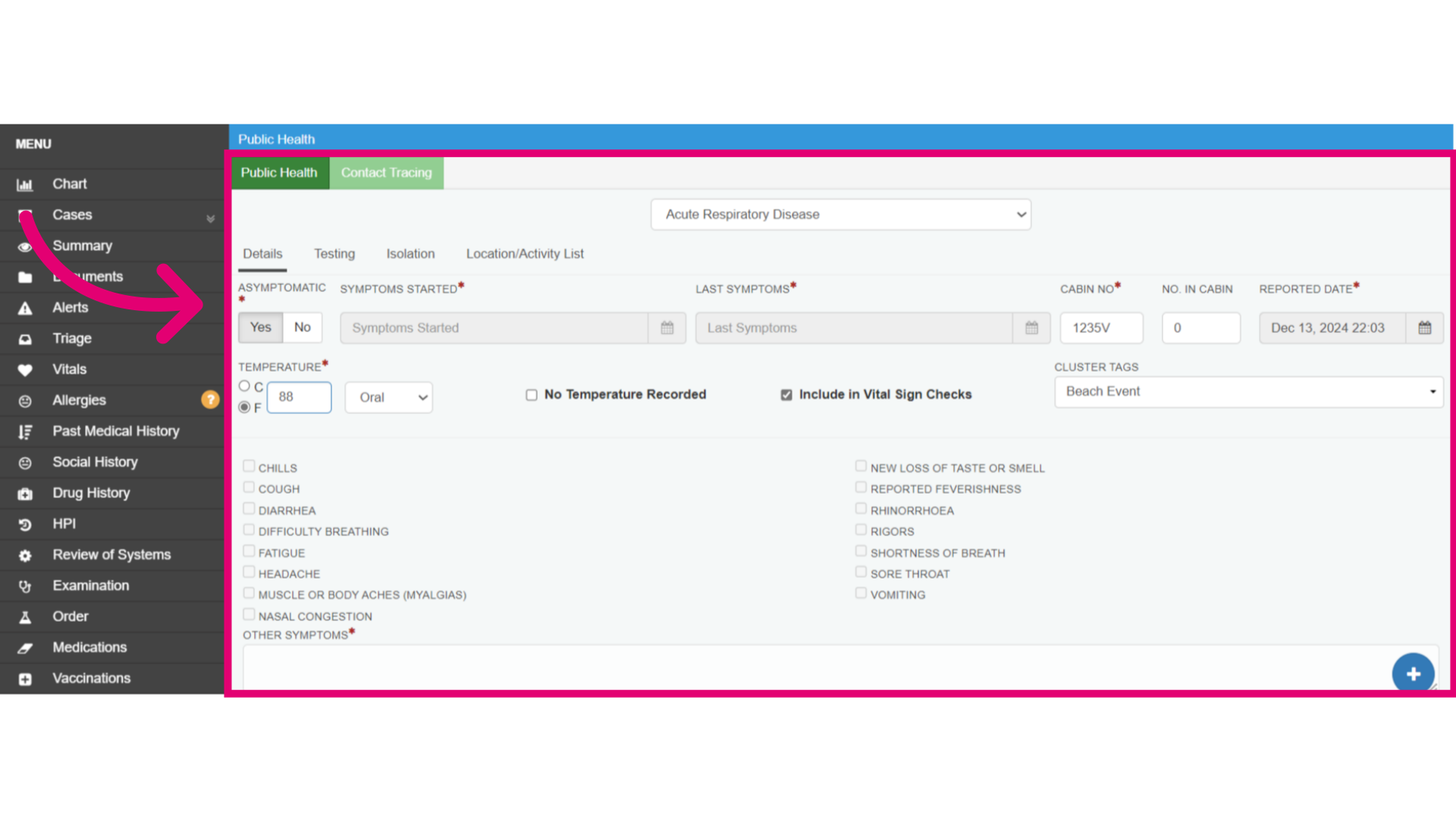
- Click Public Health to access the public health module.
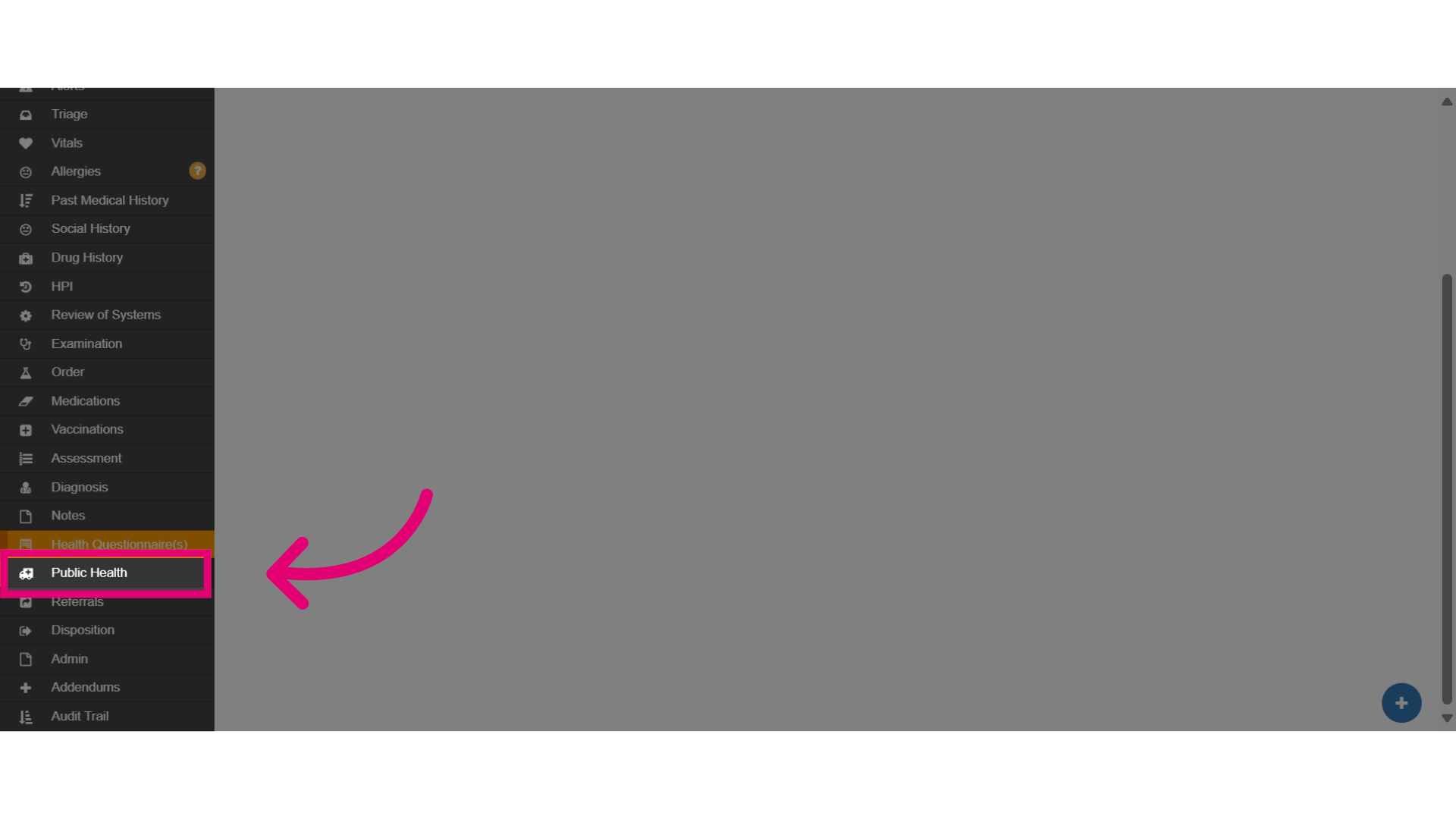
- This module shows if the case was considered communicable, VSP reportable, or if it included conditions like ARD, AGE, CLI, ILI, or Varicella. It also offers a Contact Tracing tab to add close contacts.
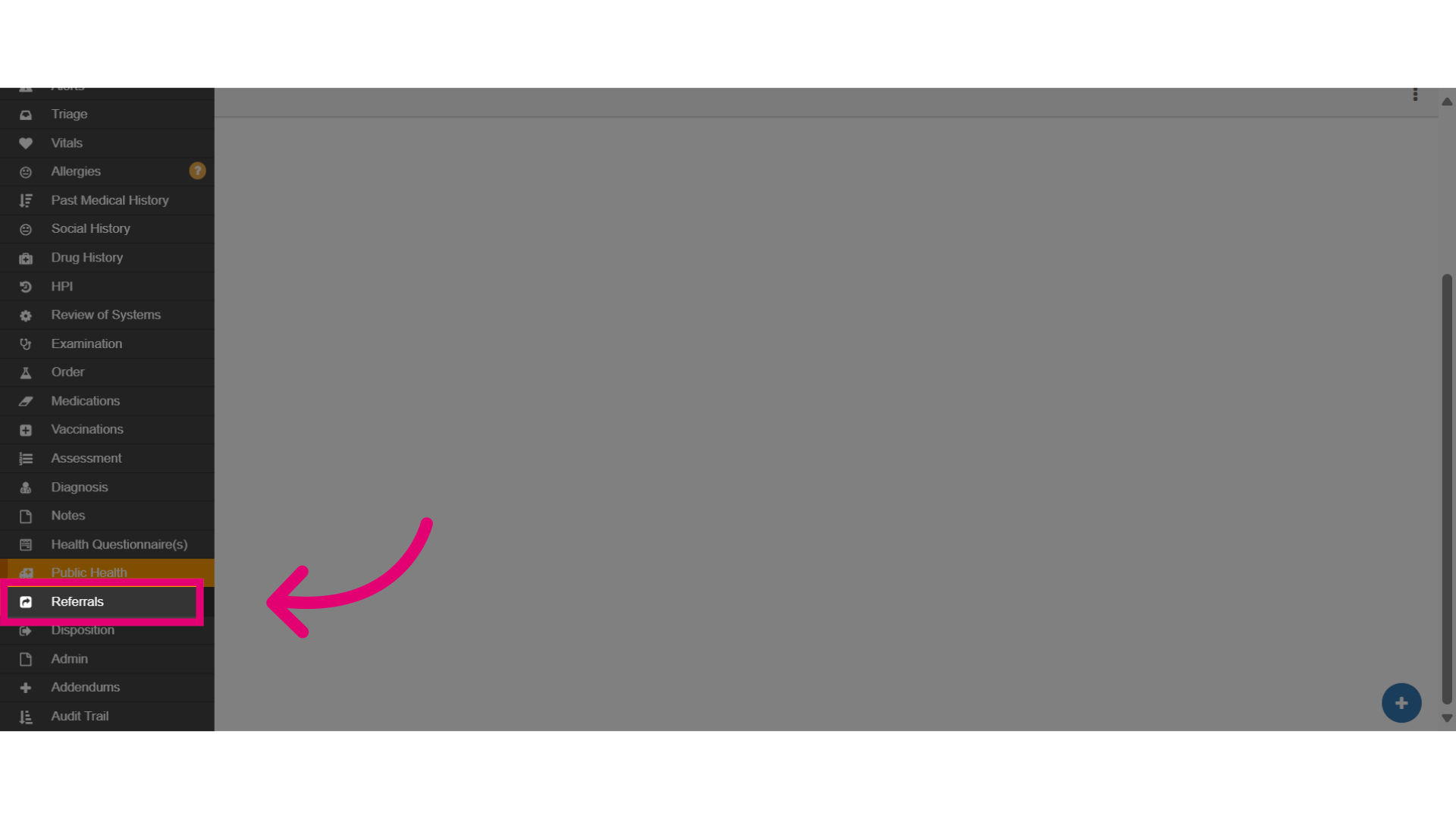
- Click Referrals to access the referrals module.
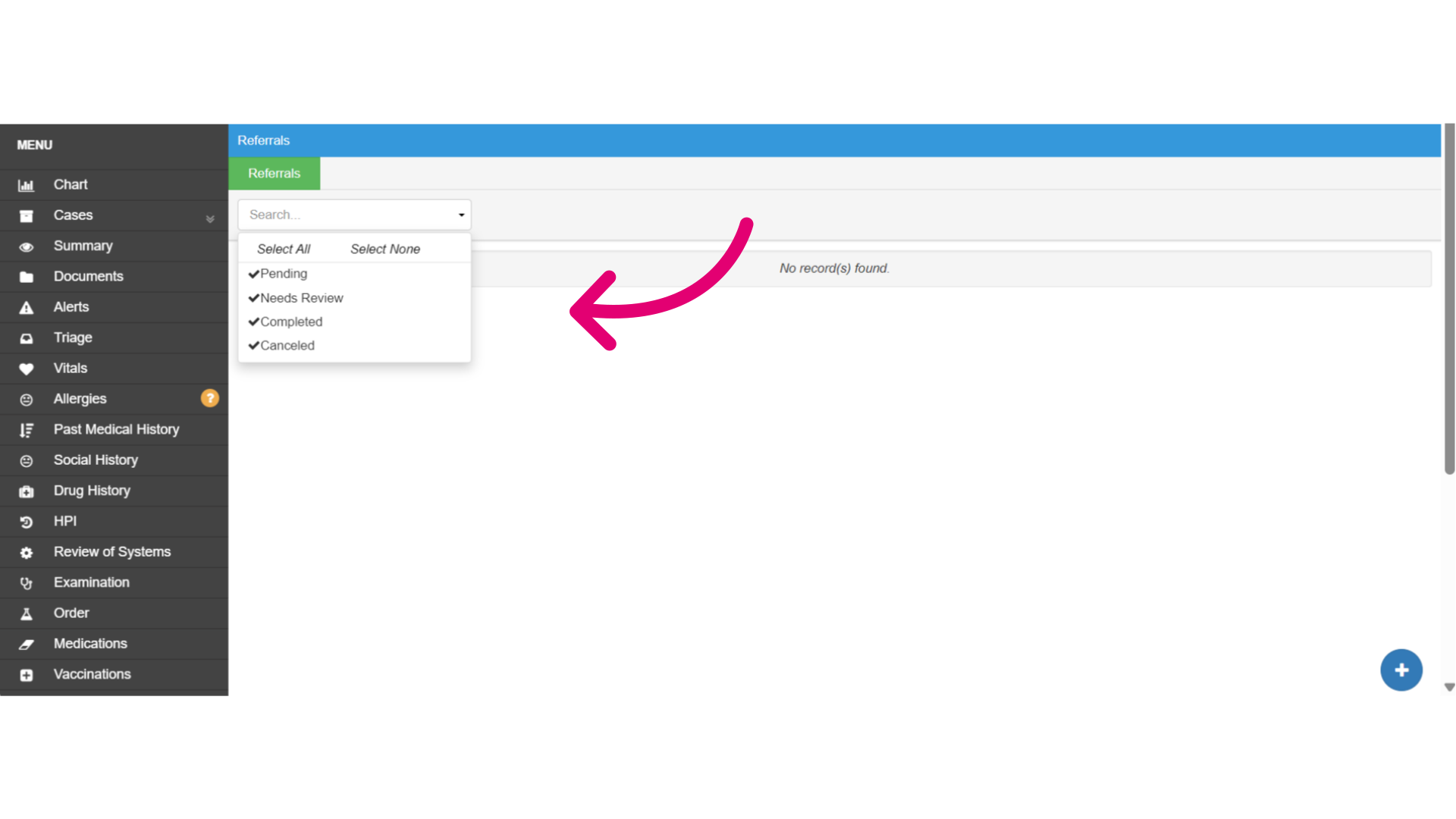
- The Referrals tab tracks the referral process. You can filter by pending, needs review, completed, or cancelled. You’ll also see who ordered the referral, which specialty it’s for, and any attached referral letters.
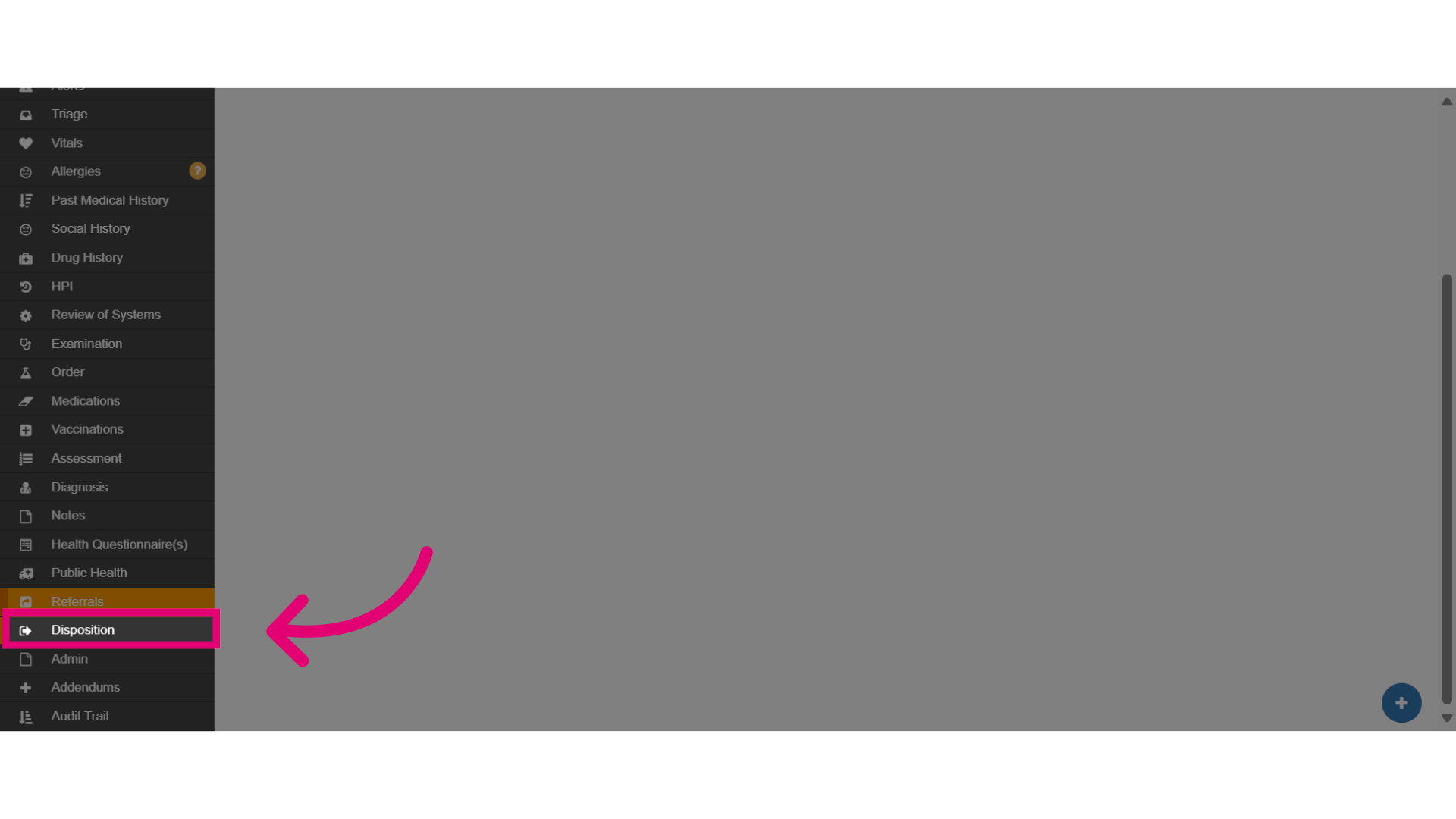
- Click Disposition to access patient disposition.
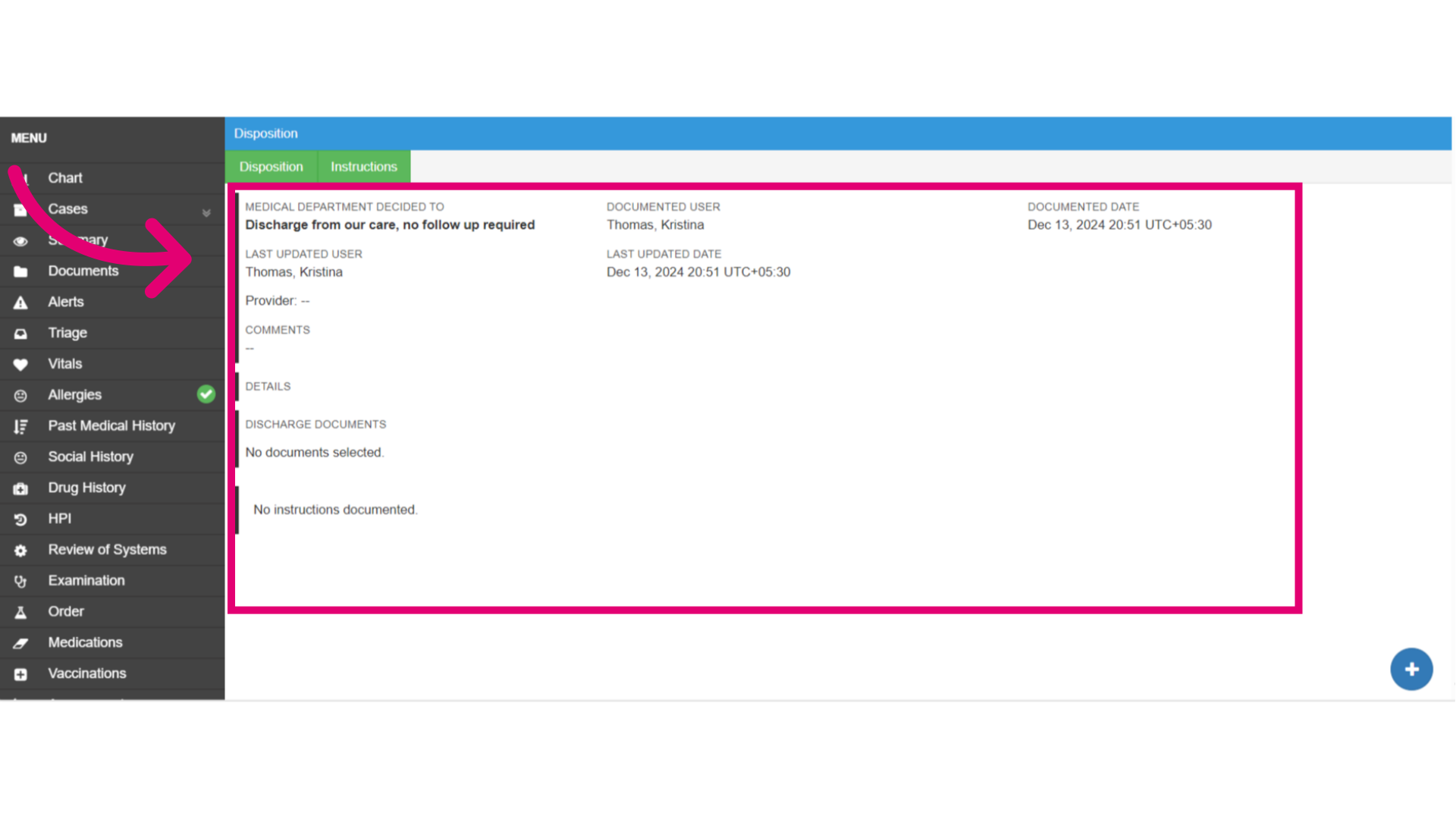
- The Disposition section covers actions like discharging or disembarking the patient. It may also display any discharge documents or instructions.
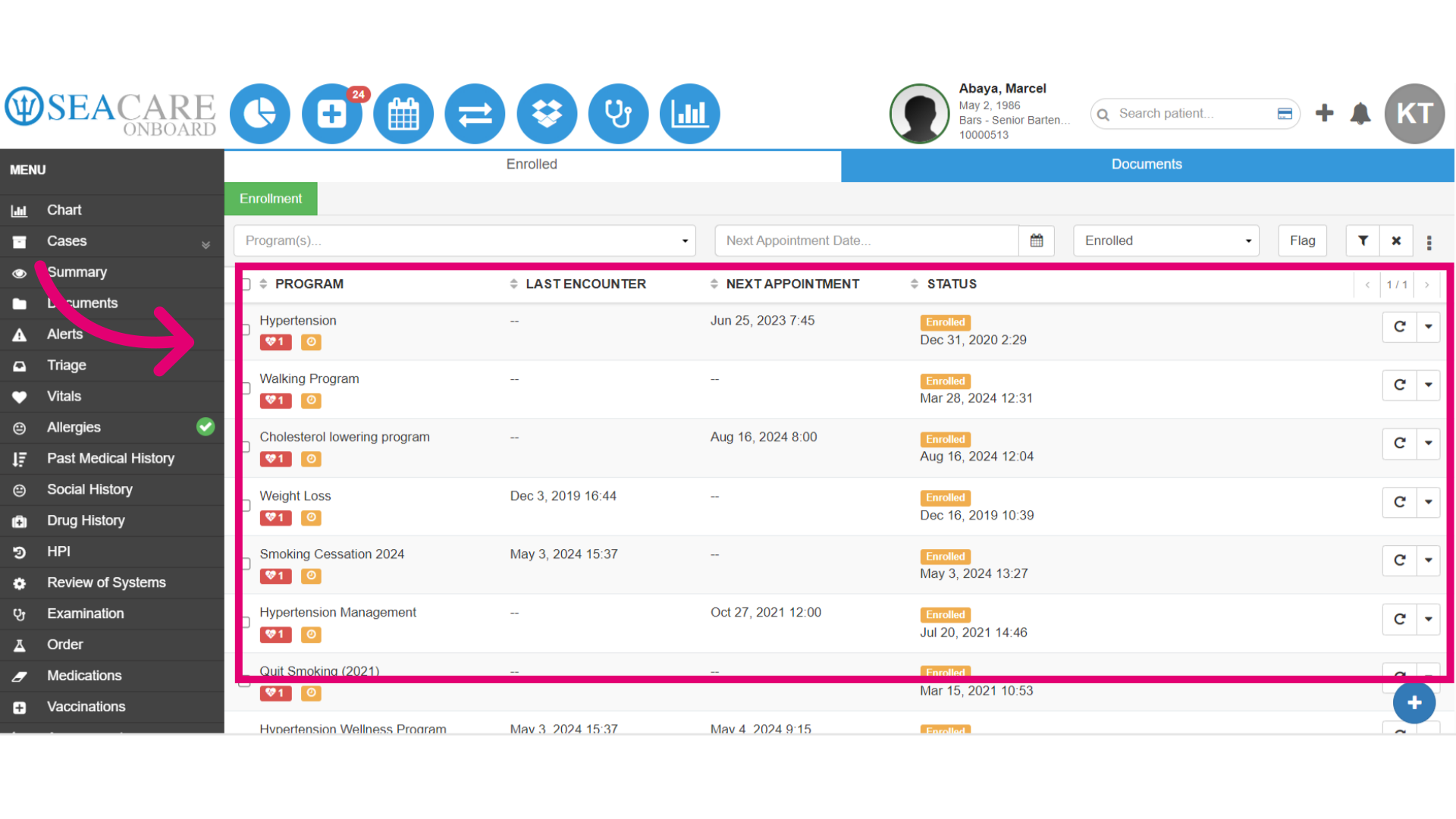
- The Wellness section has two tabs: Enrolled (showing which programs the patient is enrolled in) and Documents (for any wellness-related files).
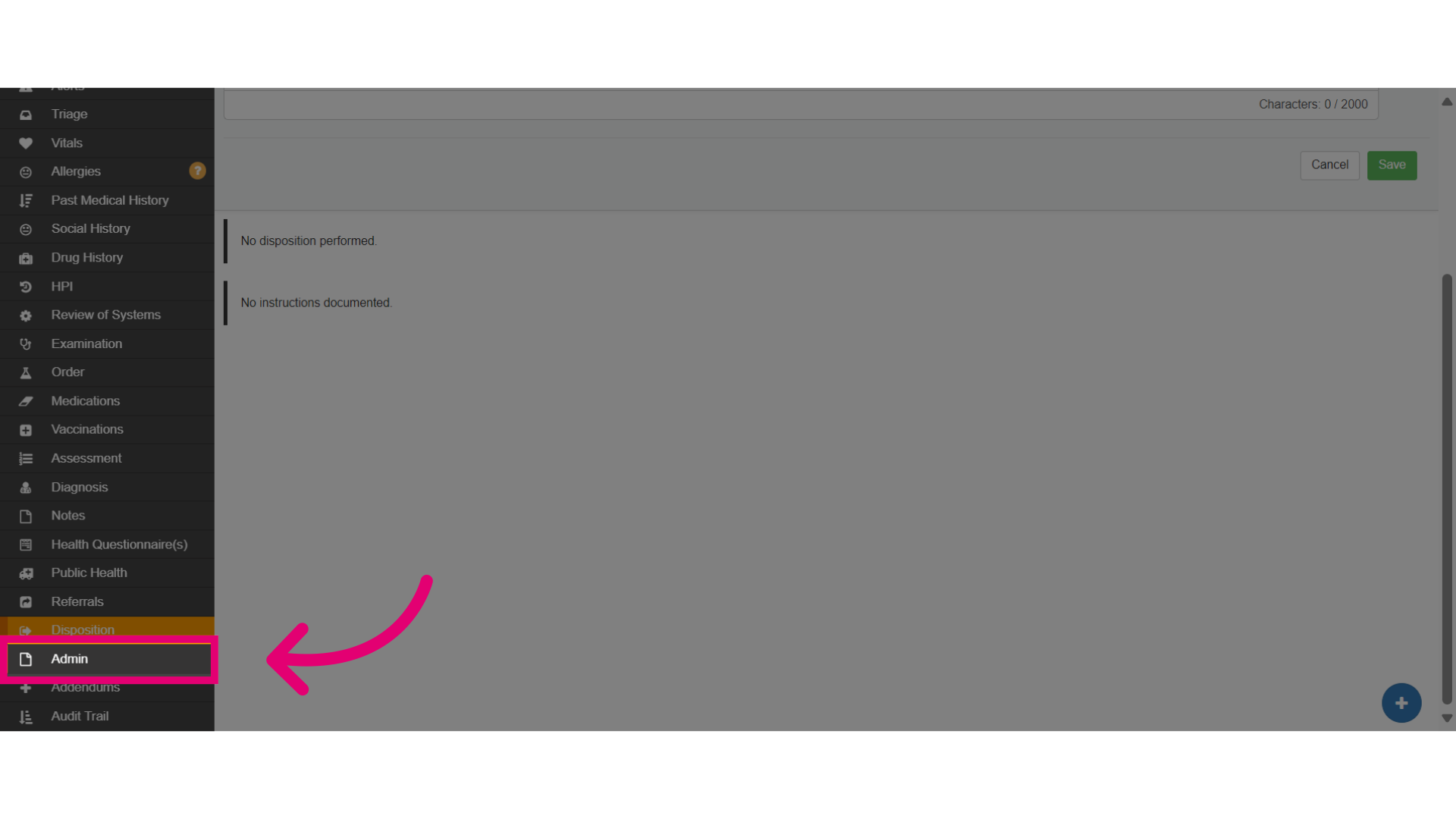
- Click Admin to view the Admin section.
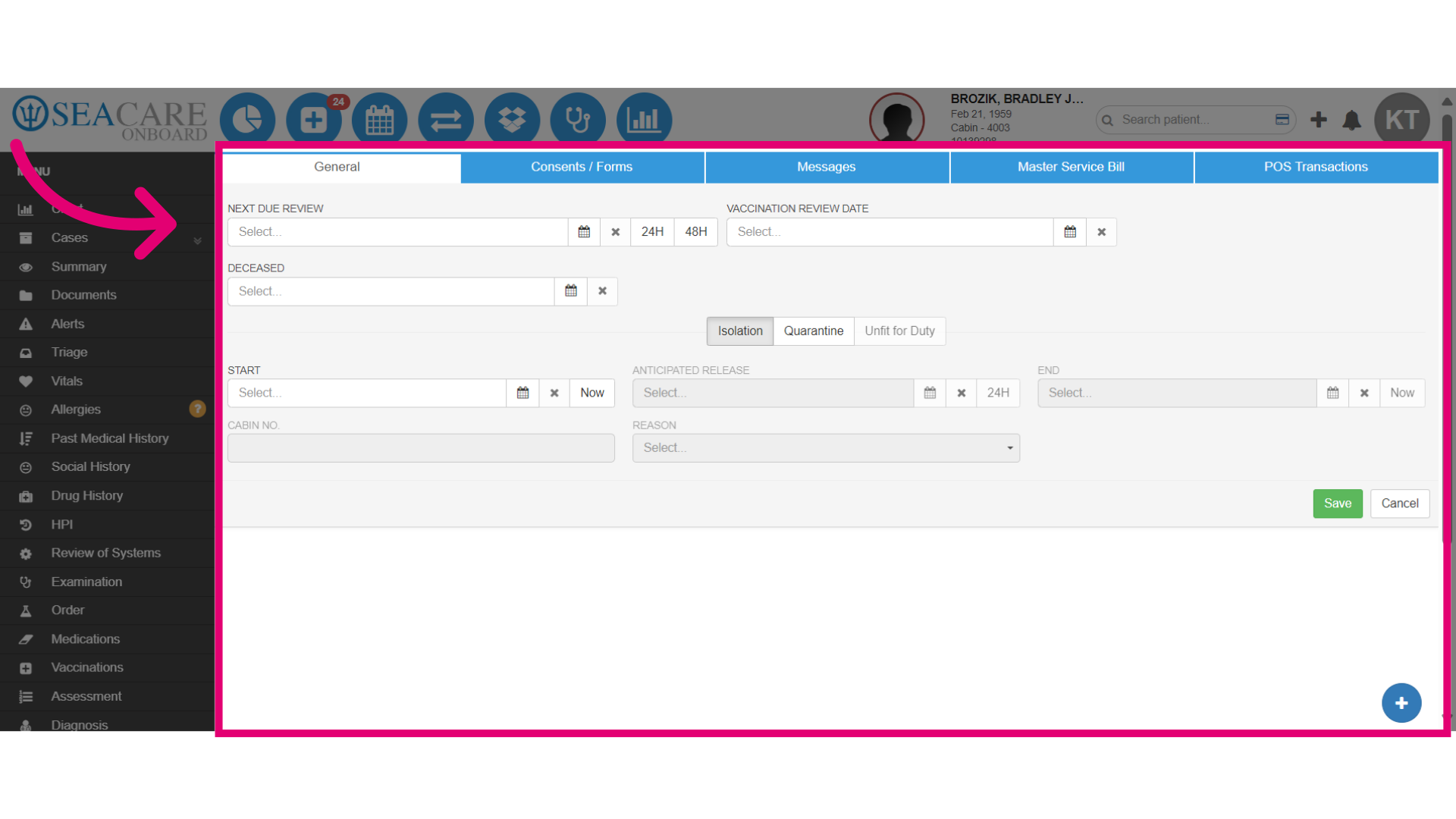
- The Admin section has five tabs: General (follow-ups, isolation/quarantine, unfit for duty), Consent and Forms (template forms for encounters, emails, or document sharing), Messages (internal team communication), Master Service Bill (managing billing), and POS Transaction (invoices).
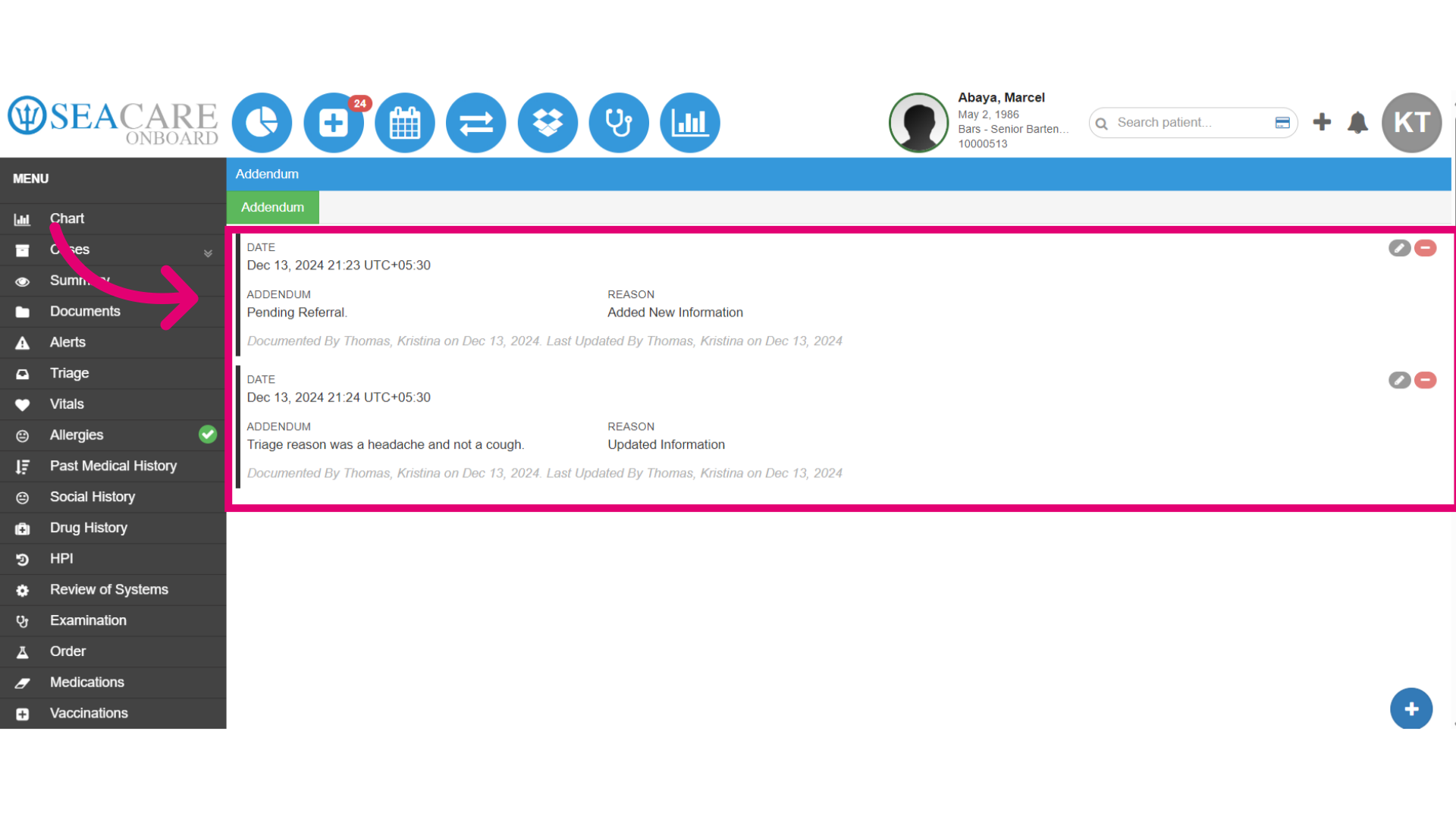
- Click Addendums to access the addendums section.
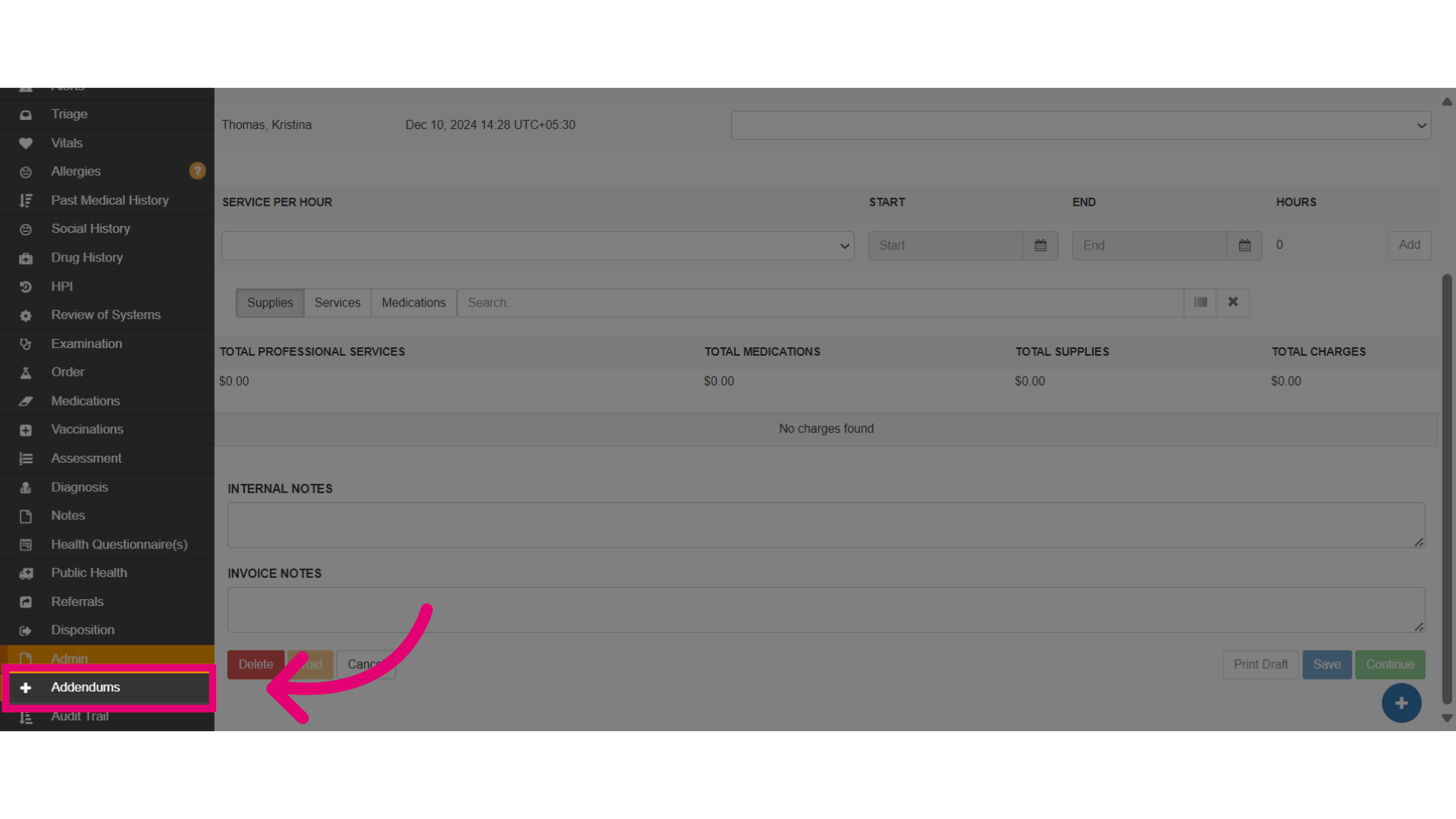
- The Addendum section allows users to add information pertaining to a case even after it has been locked or the Master Service Bill has been posted.