New article
Recently updated
Adding mass vaccination history

Who is this article for?Users Interested in adding mass vaccination history in Ideagen Maritime Health Onboard?
No elevated permissions are required.
This article guides you on adding mass vaccination history in Ideagen Maritime Health Onboard for multiple patients simultaneously. This process ensures accurate documentation of vaccine details, including doses, dates, and types.
1. Adding mass vaccination history
1.1 Video
1.2 Steps
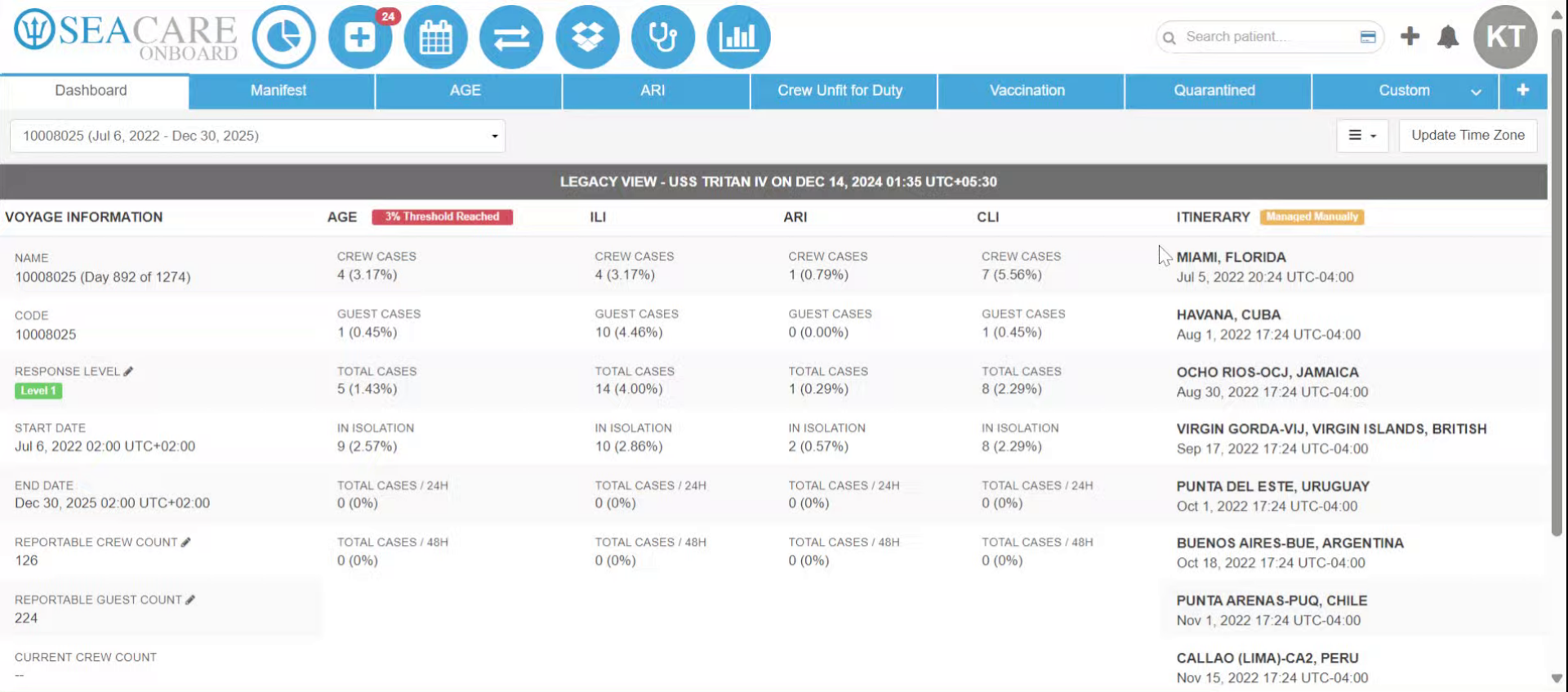
- Begin on the main Ideagen Maritime Health Onboard dashboard.
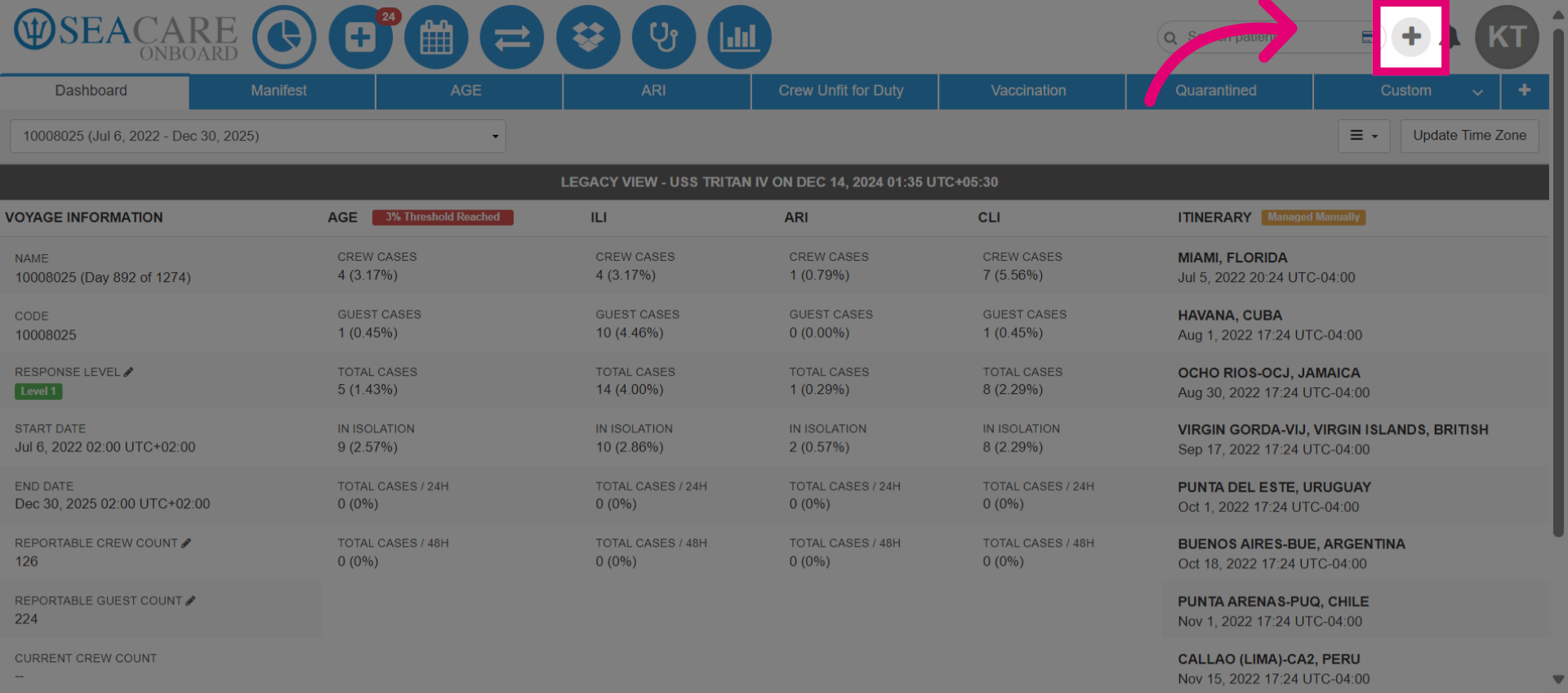
- Initiate the process by selecting the Quick Entries button.
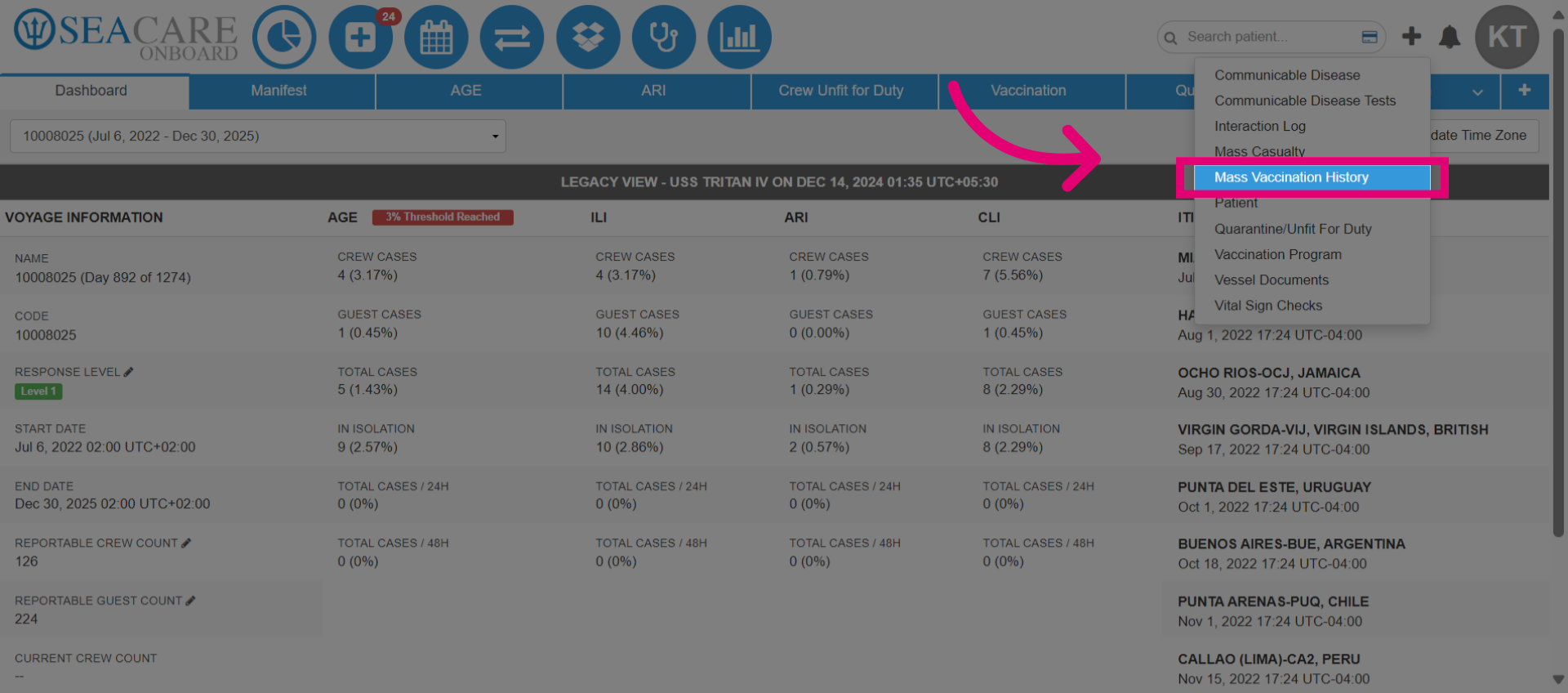
- Access the Mass Vaccination History section by selecting this quick entry option from the list.
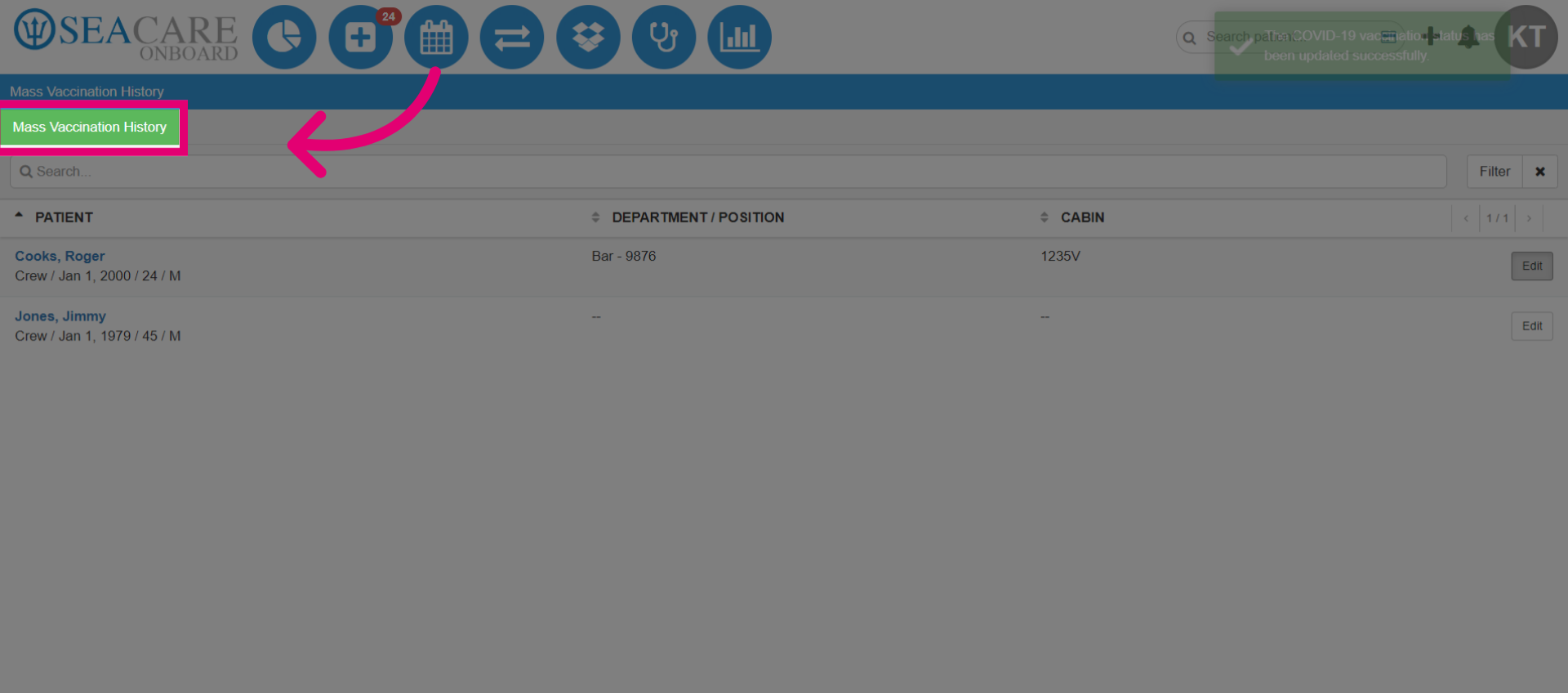
- Select the green Mass Vaccination History button to open the module.
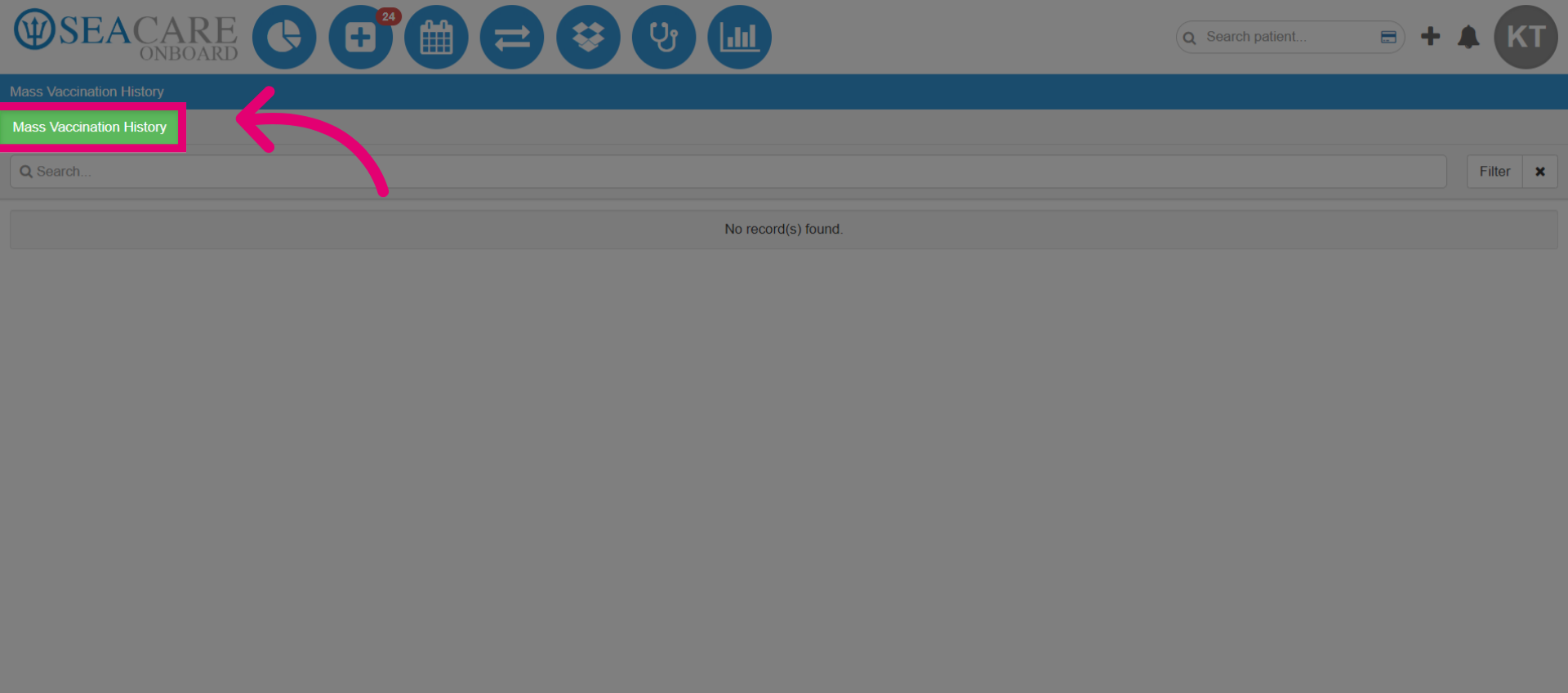
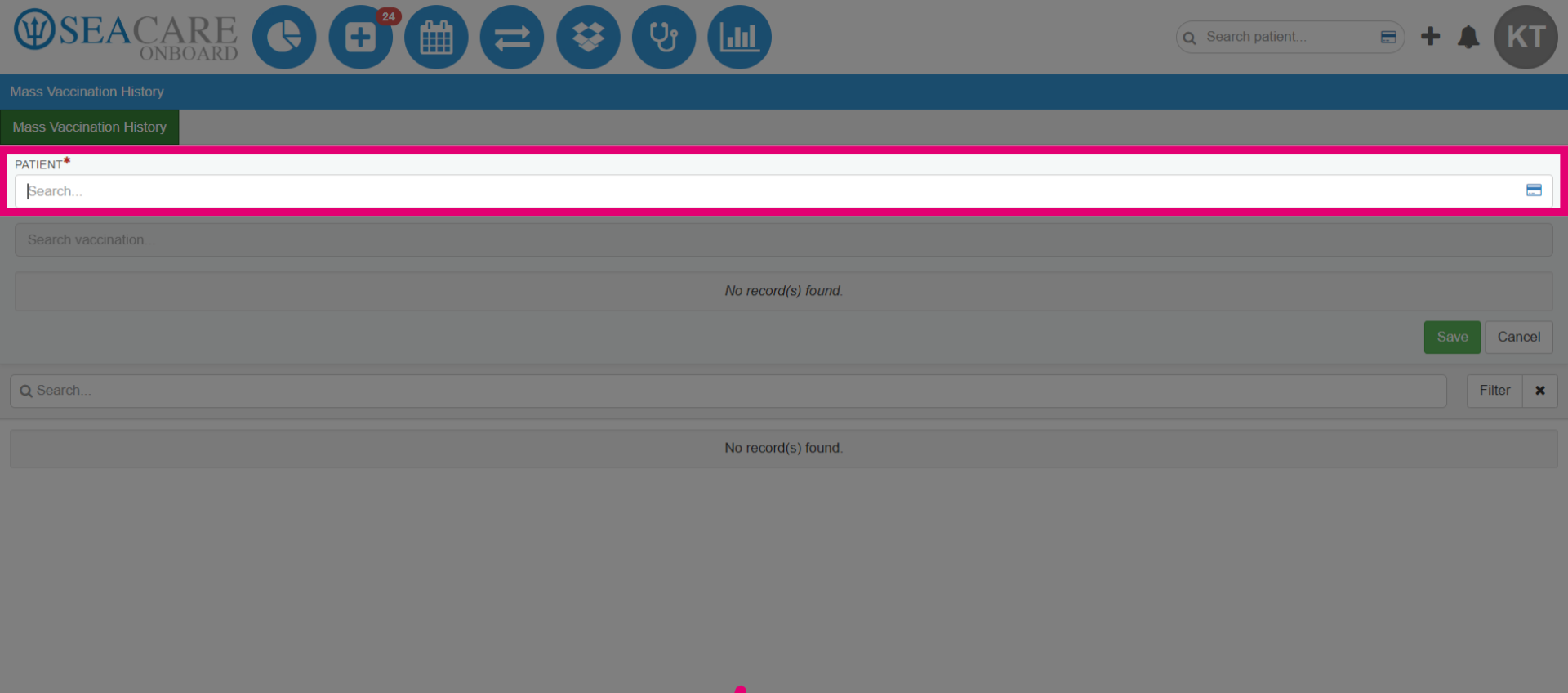
- Locate the patient by using the search function or scanning the patient’s ID card if available.
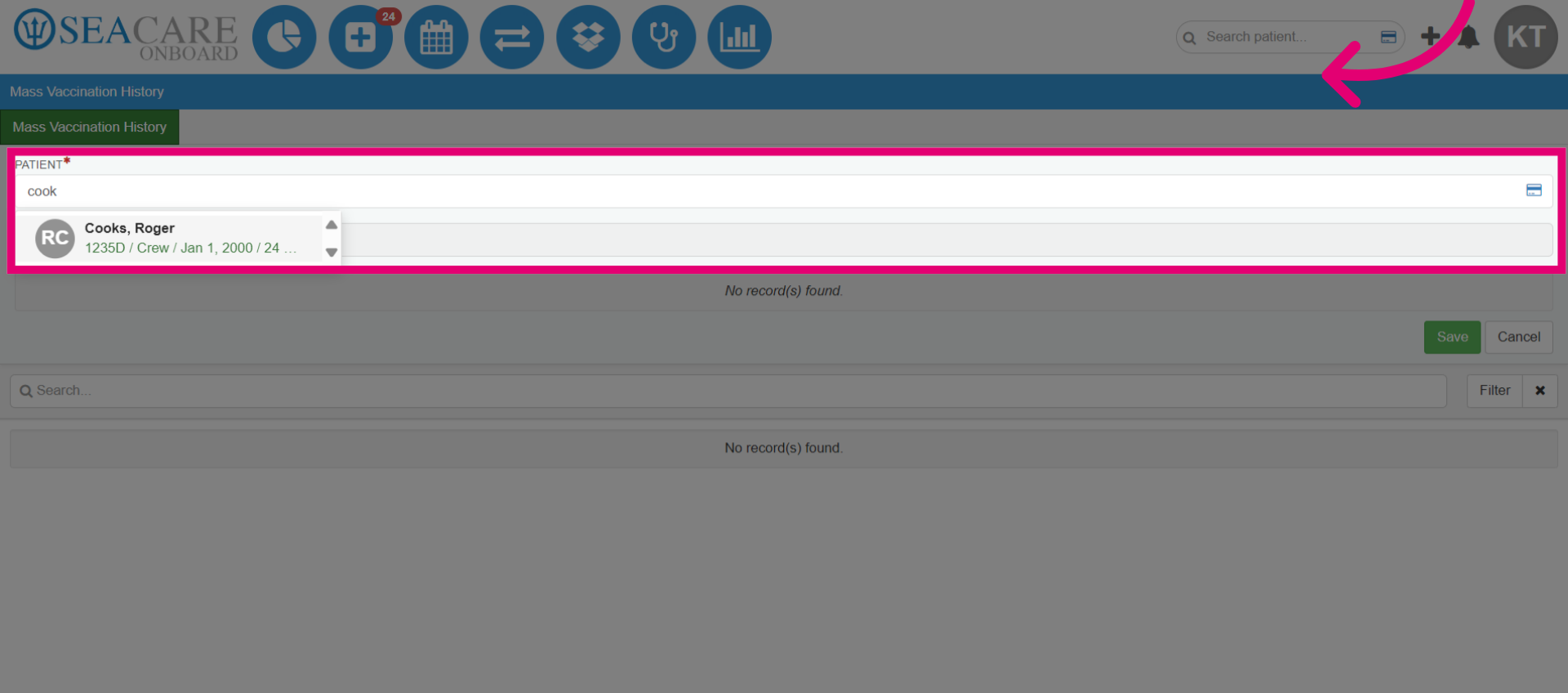
- Select the patient from the list.
- If the patient has existing vaccination history records, you can edit those details.
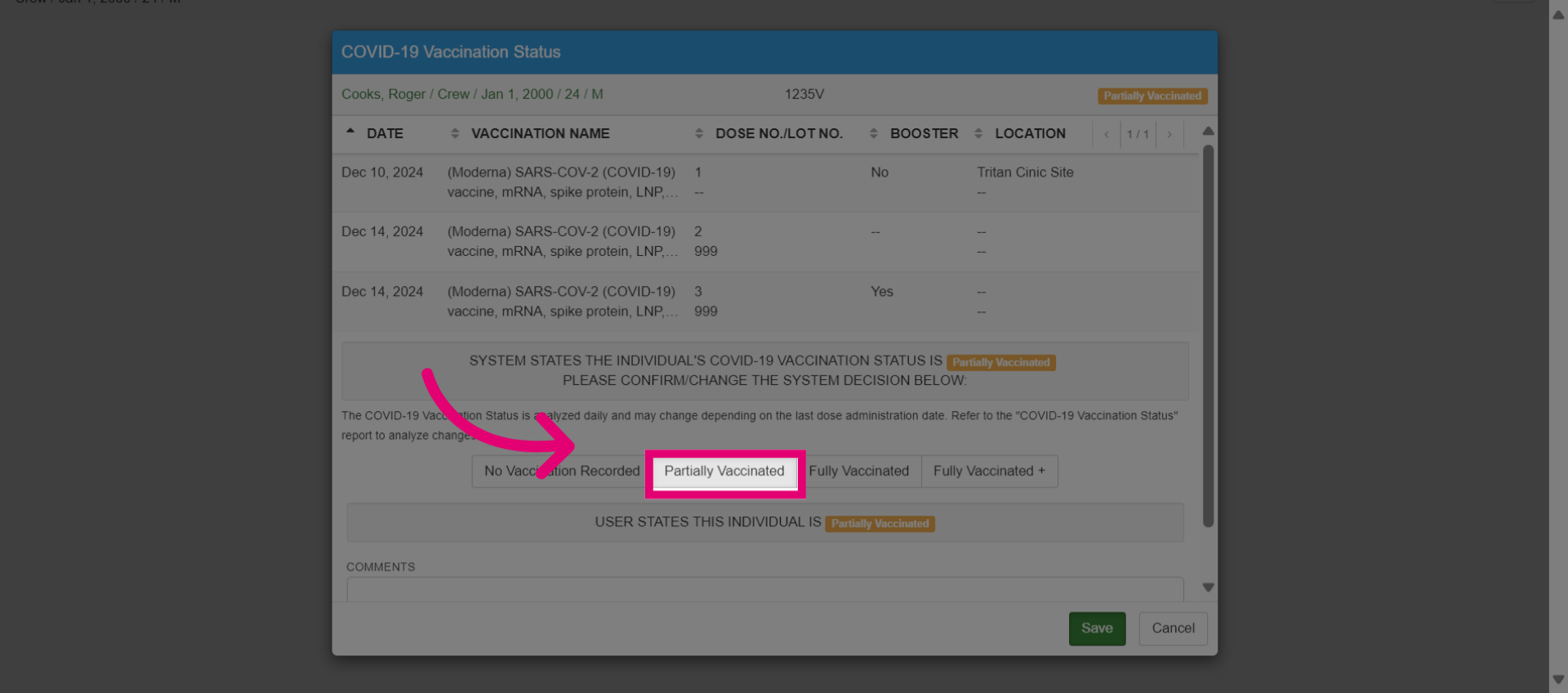
- Indicate the vaccination status as Partially Vaccinated.
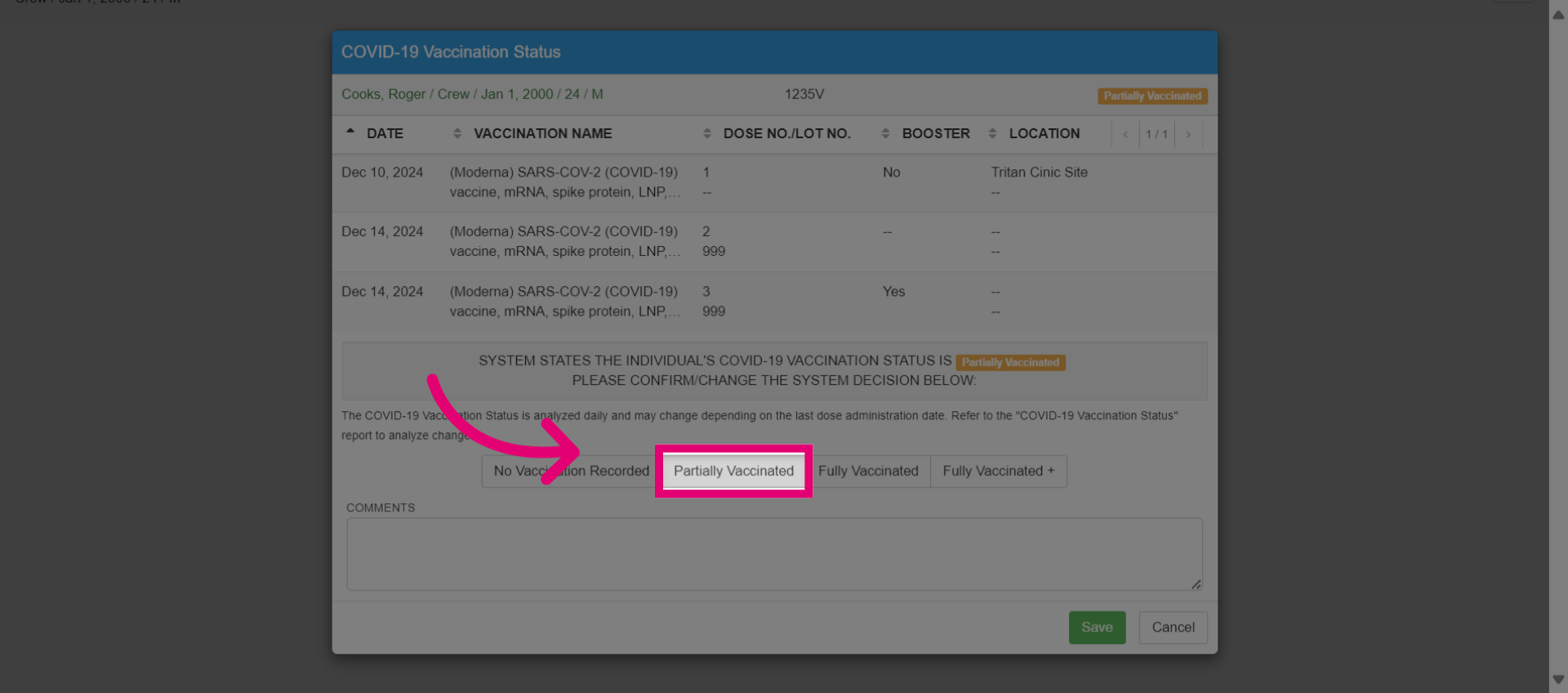
- Select Add Administration History to add a new record for the patient.
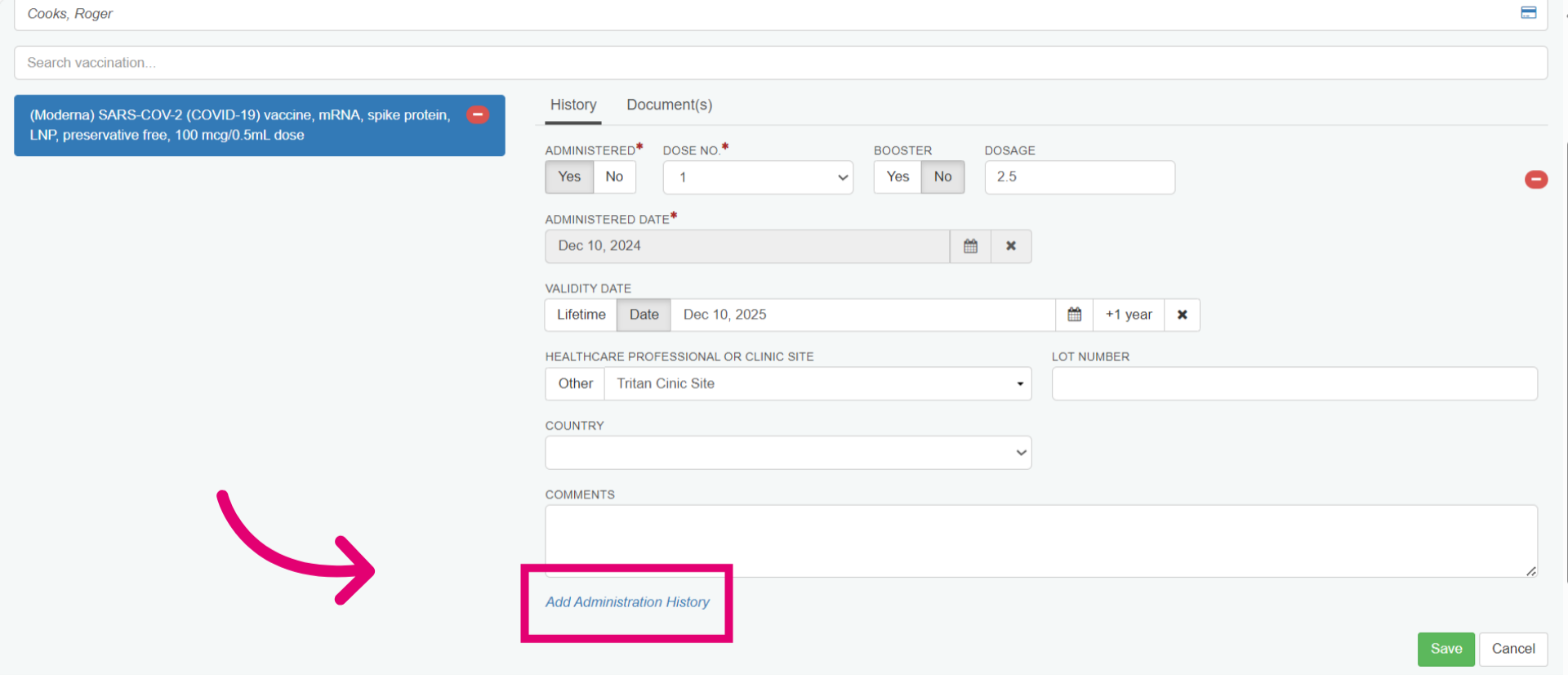
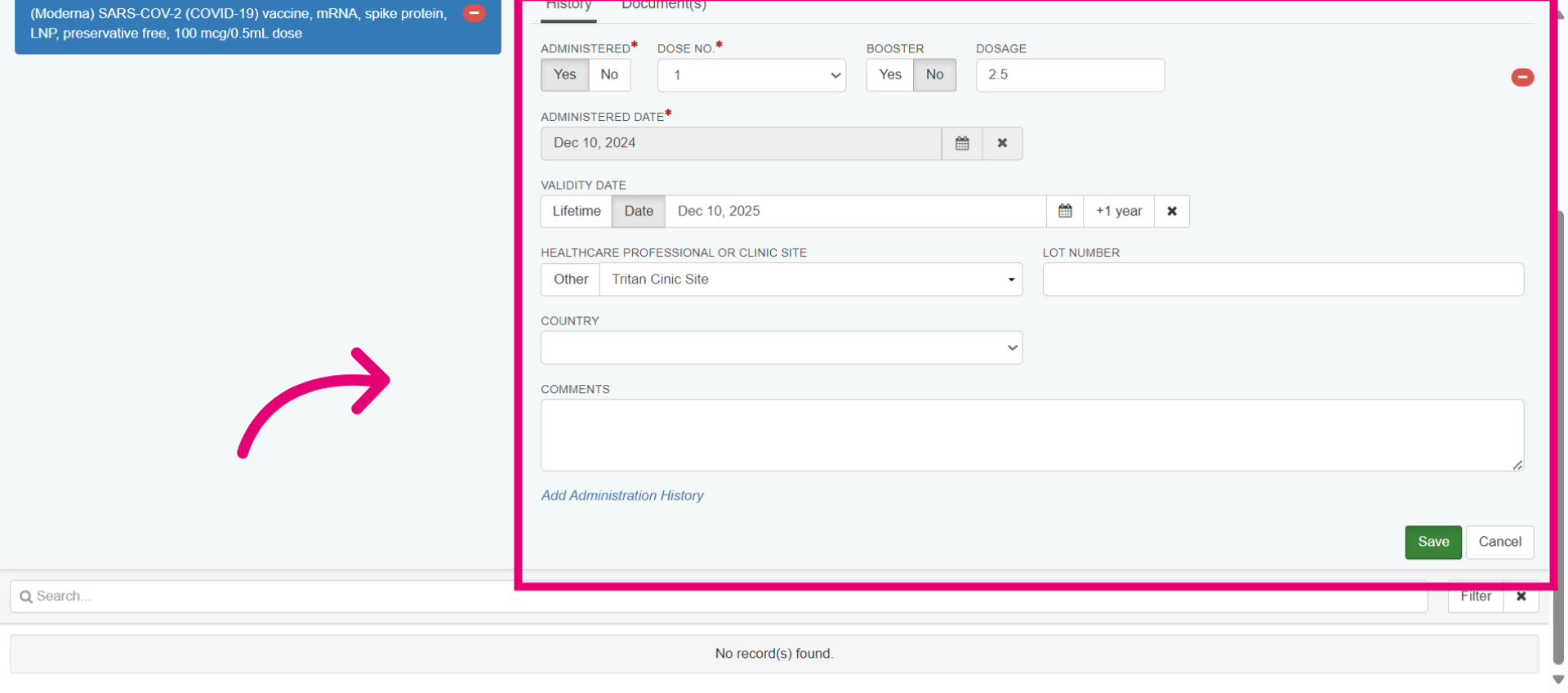
- Indicate if the vaccine was administered.
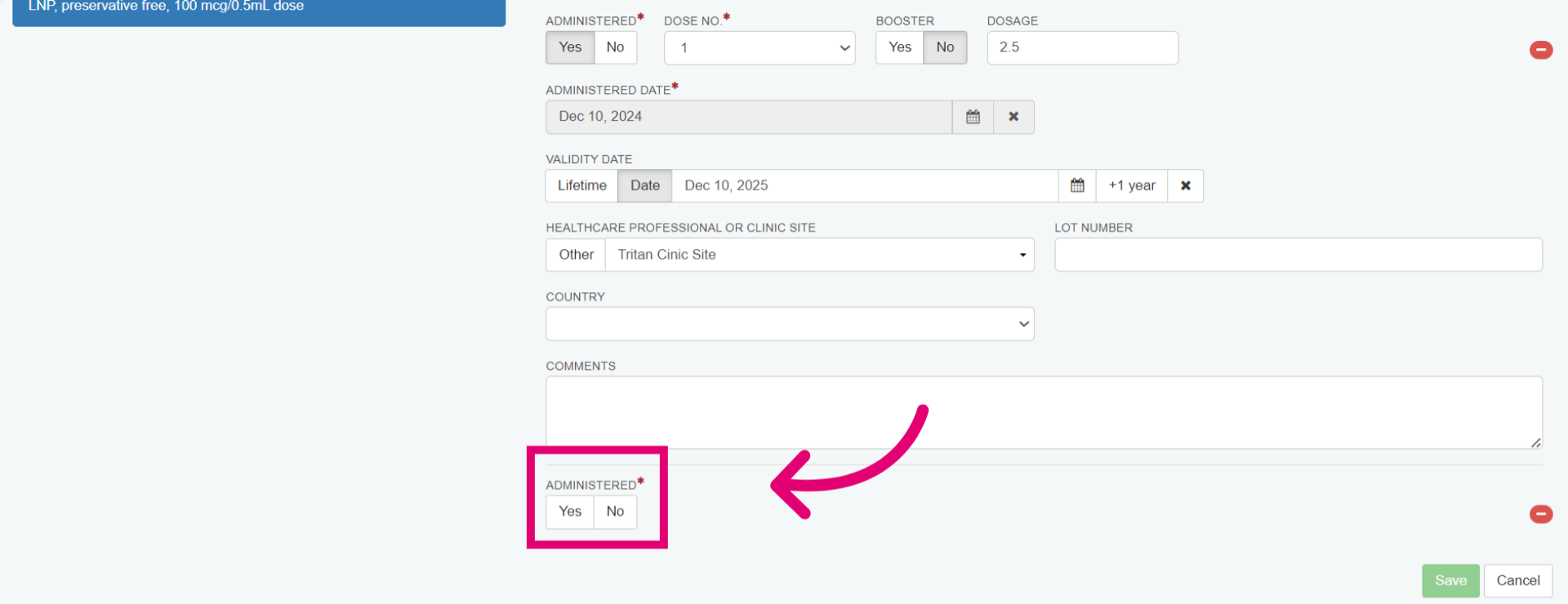
- Under the History tab, enter relevant vaccination details. Complete mandatory fields marked with an asterisk, like dose number and administration date. Optional fields such as booster, dosage, or validity date can also be filled in.
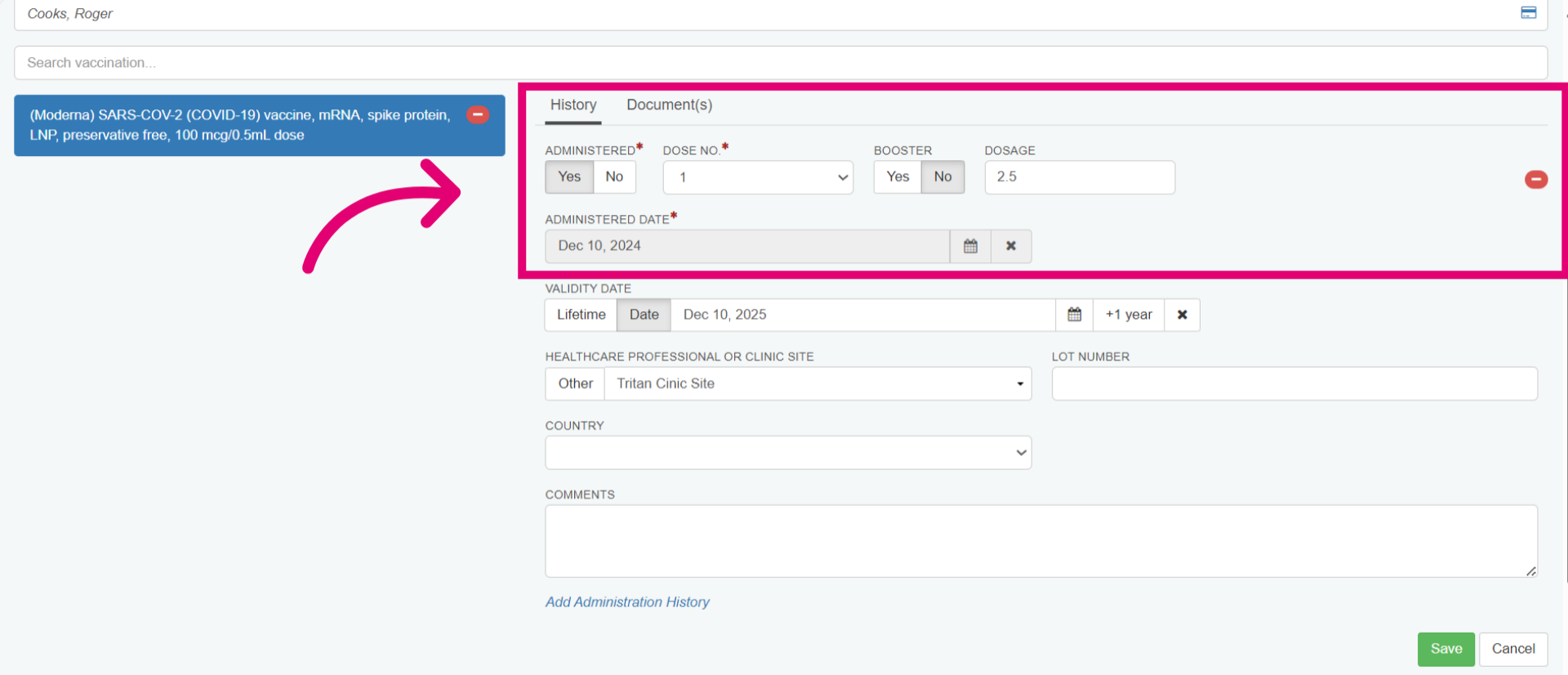
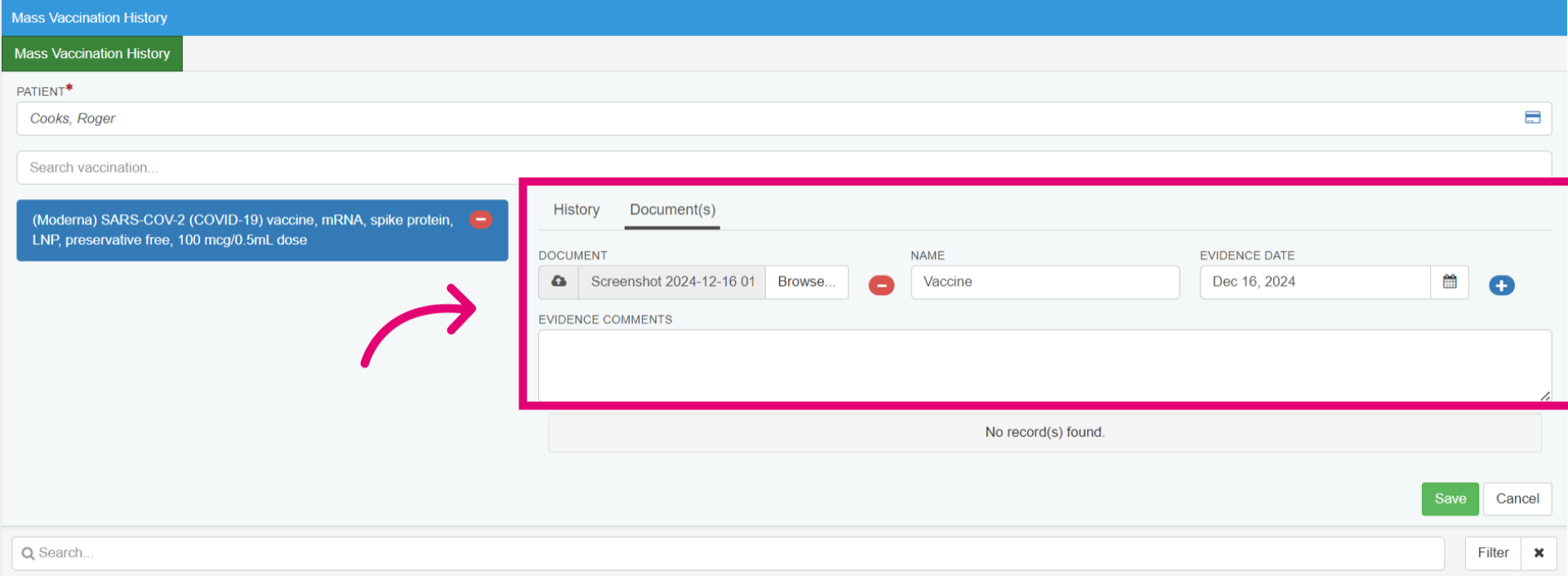
- Add vaccination history documentation (e.g., vaccination card). Upload the document, name it, confirm the evidence date, and include any comments.
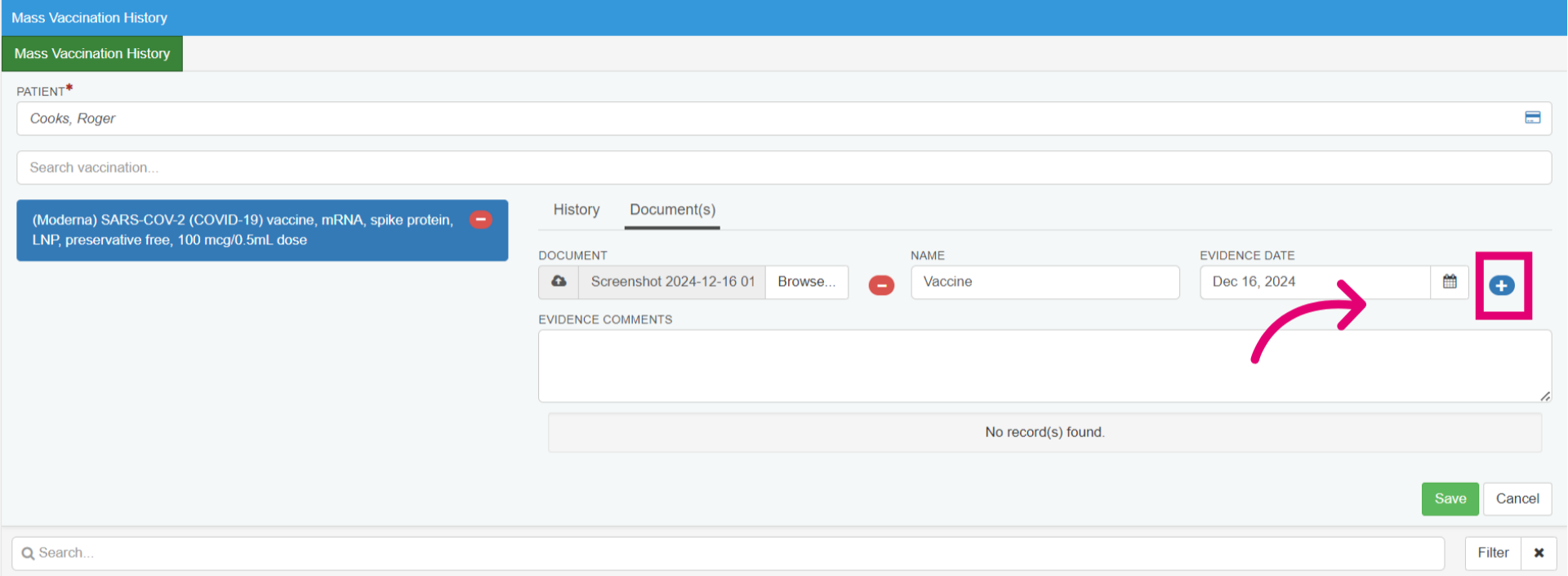
- Select the blue plus icon to attach the document.
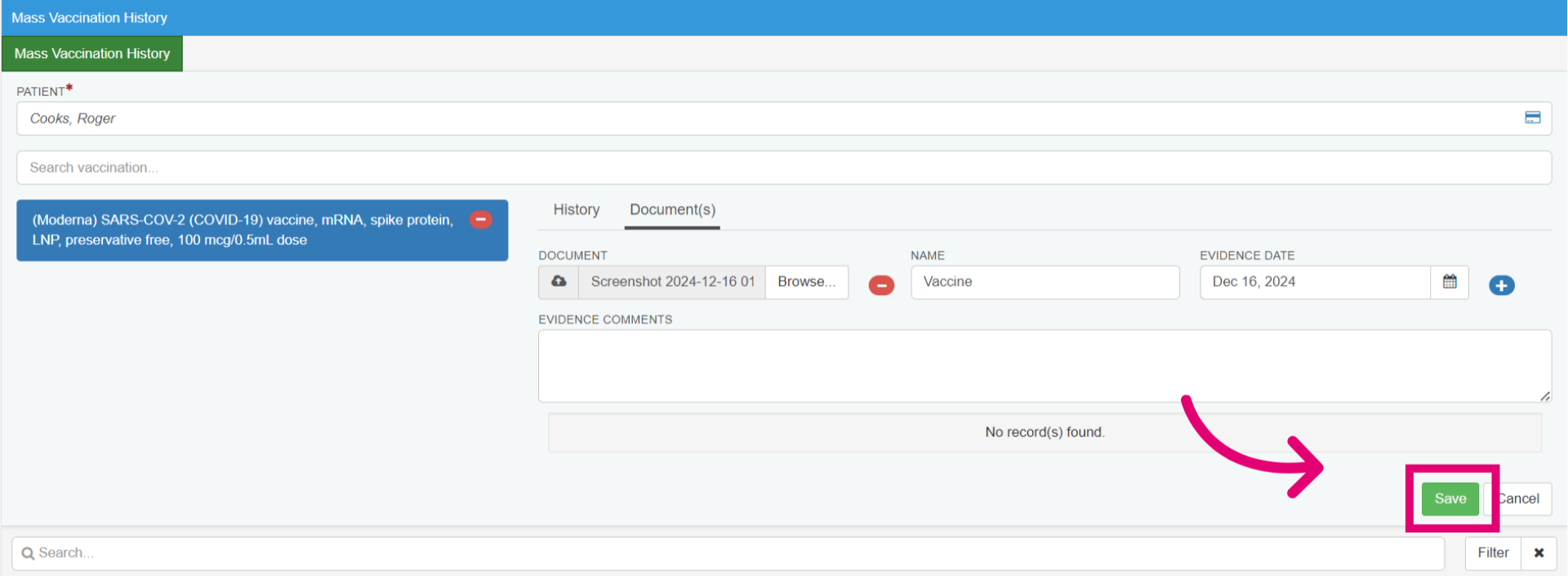
- Select Save to confirm your changes.
- Check the COVID-19 Vaccination Status. The system might show a status such as partially vaccinated. You can manually select a different status and give a reason.
- Select Save again to update the information.
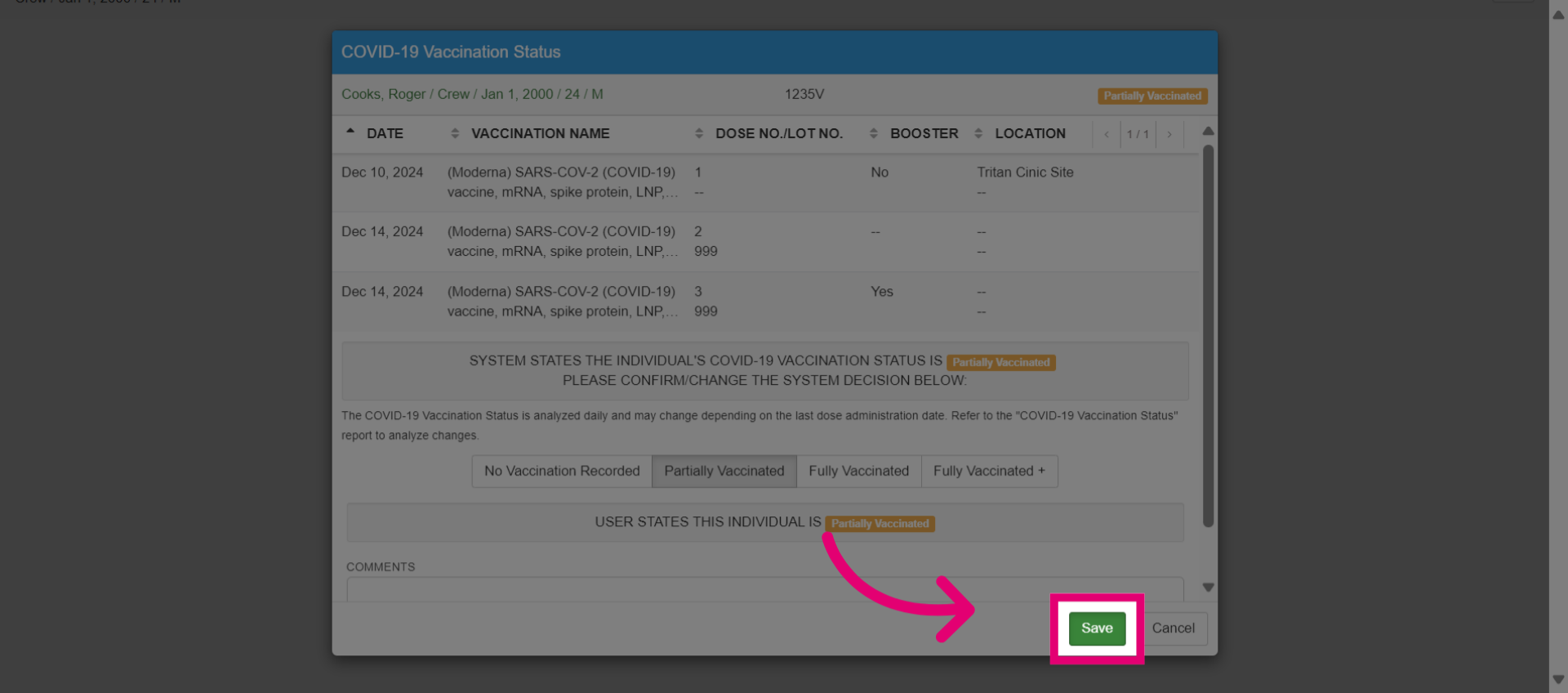
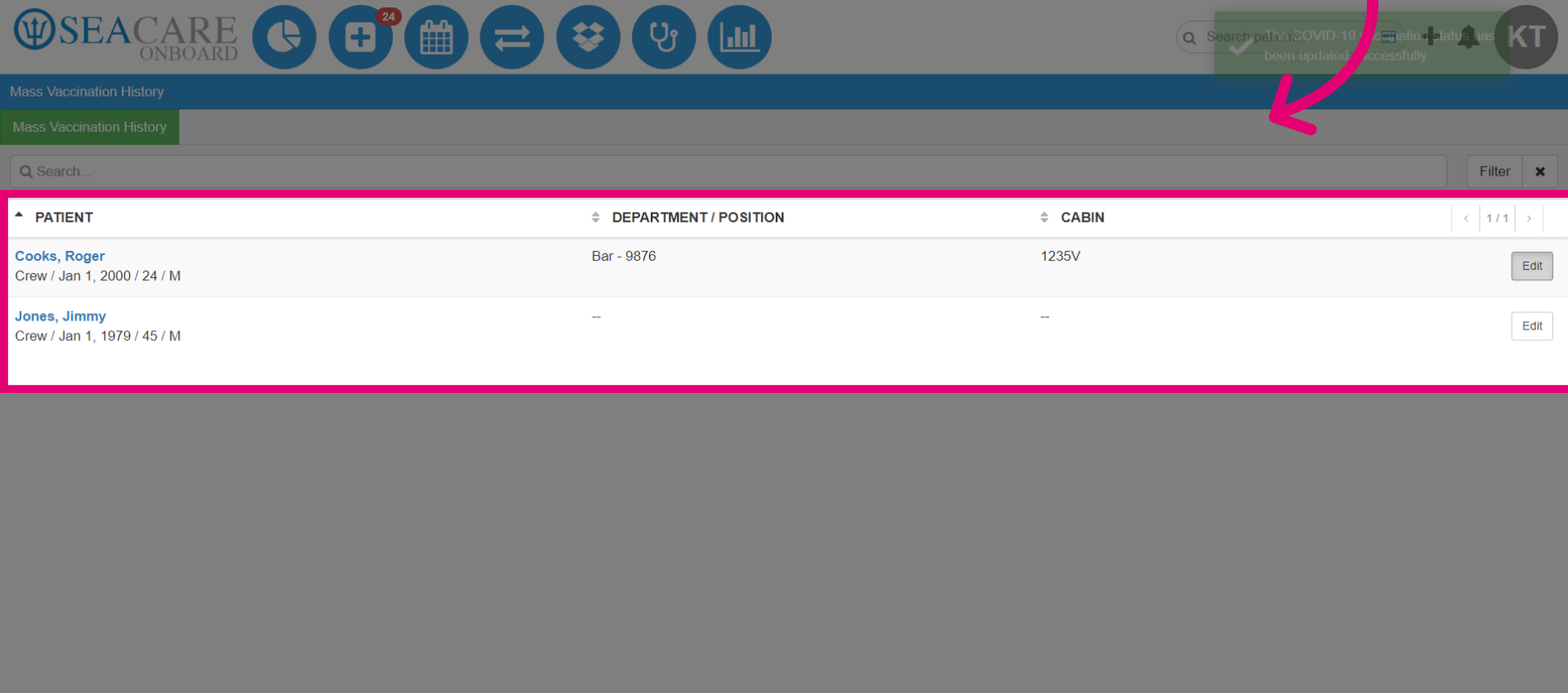
- You will return to the Mass Vaccination History section. The entry below can be edited. Use the search function to find a patient in a large list.
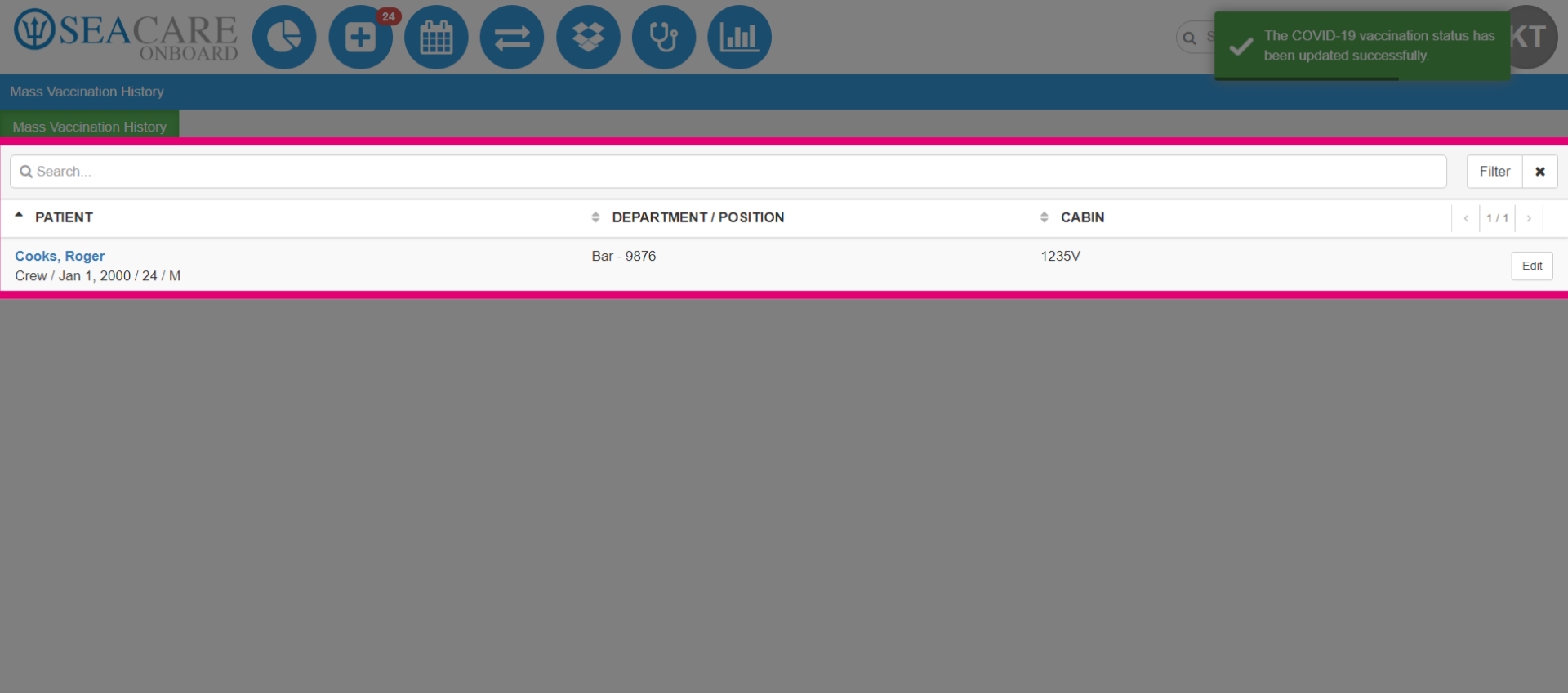
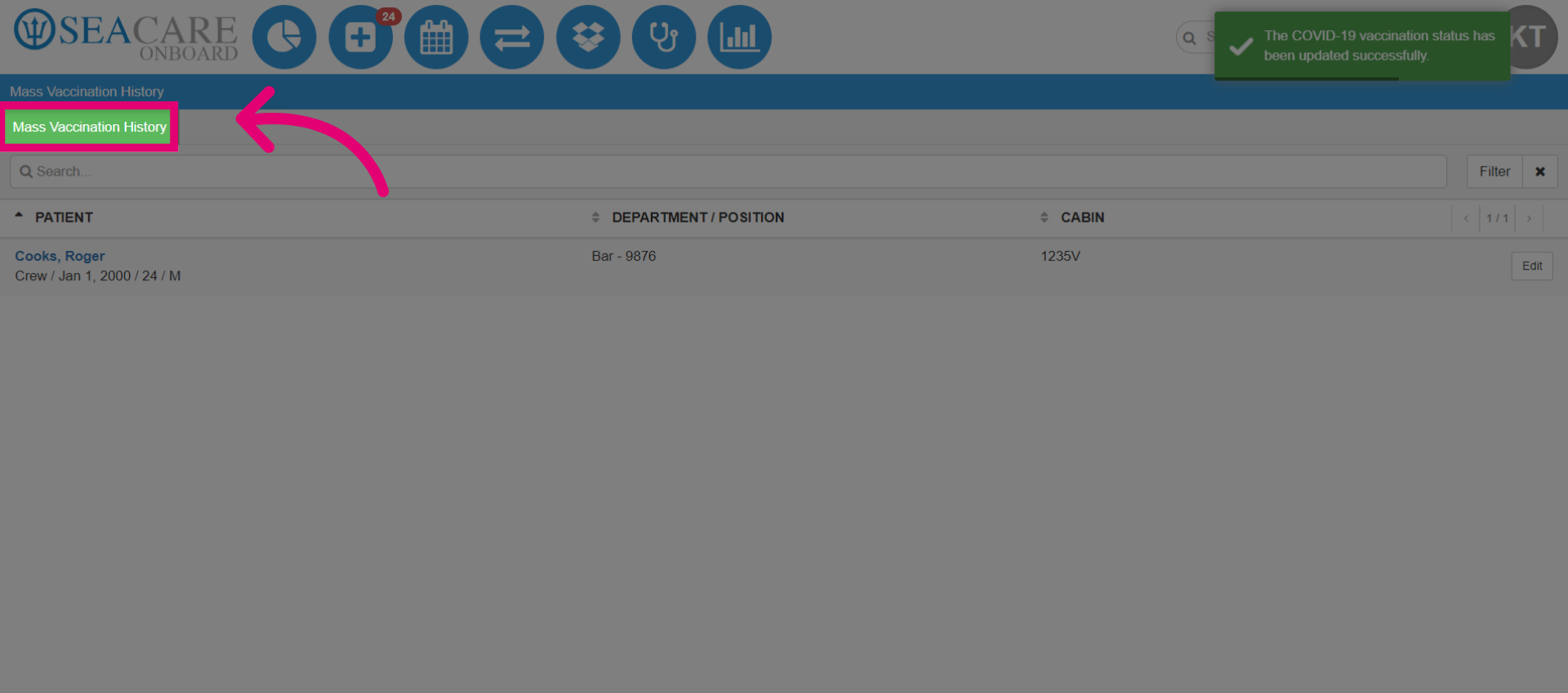
- To add more patients, click the green Mass Vaccination History button again and repeat the steps.
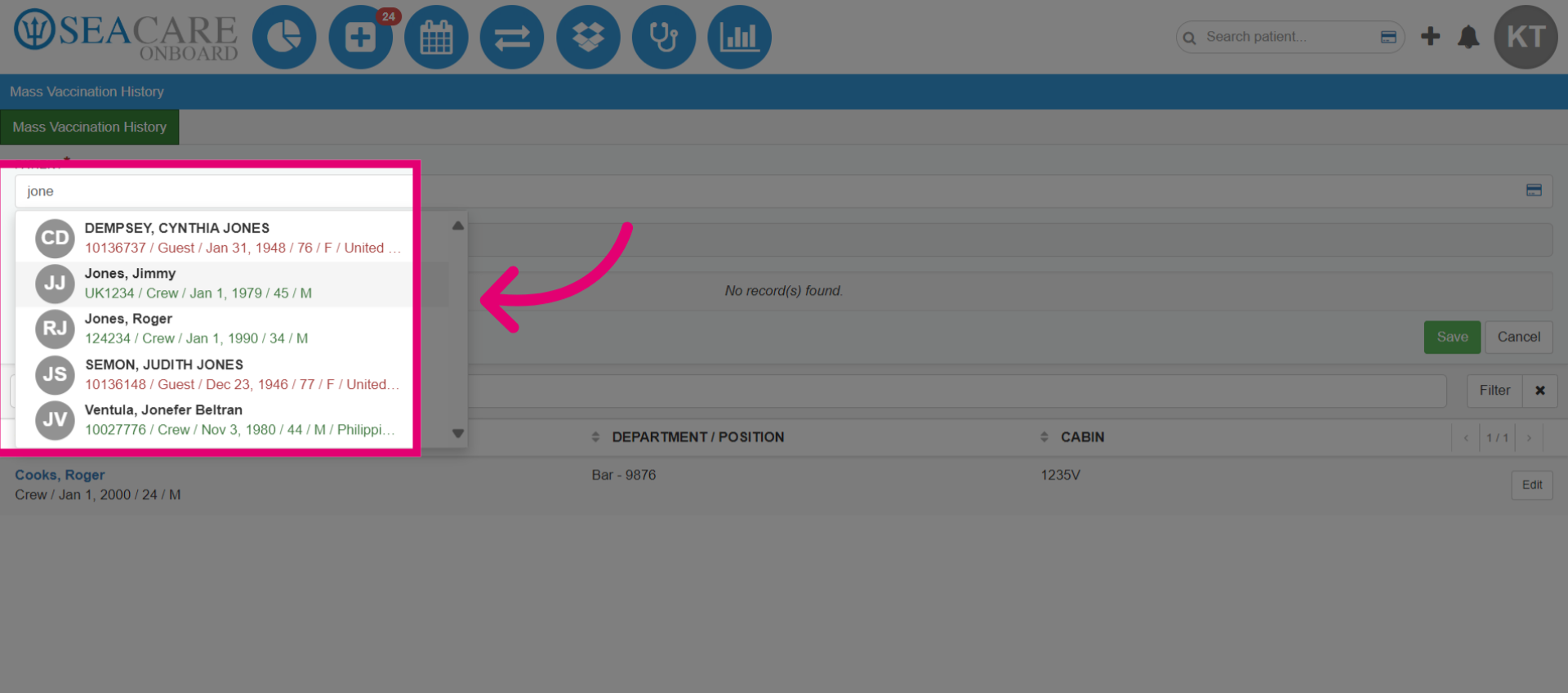
- Search for the patient by name. Then select the patient from the list.
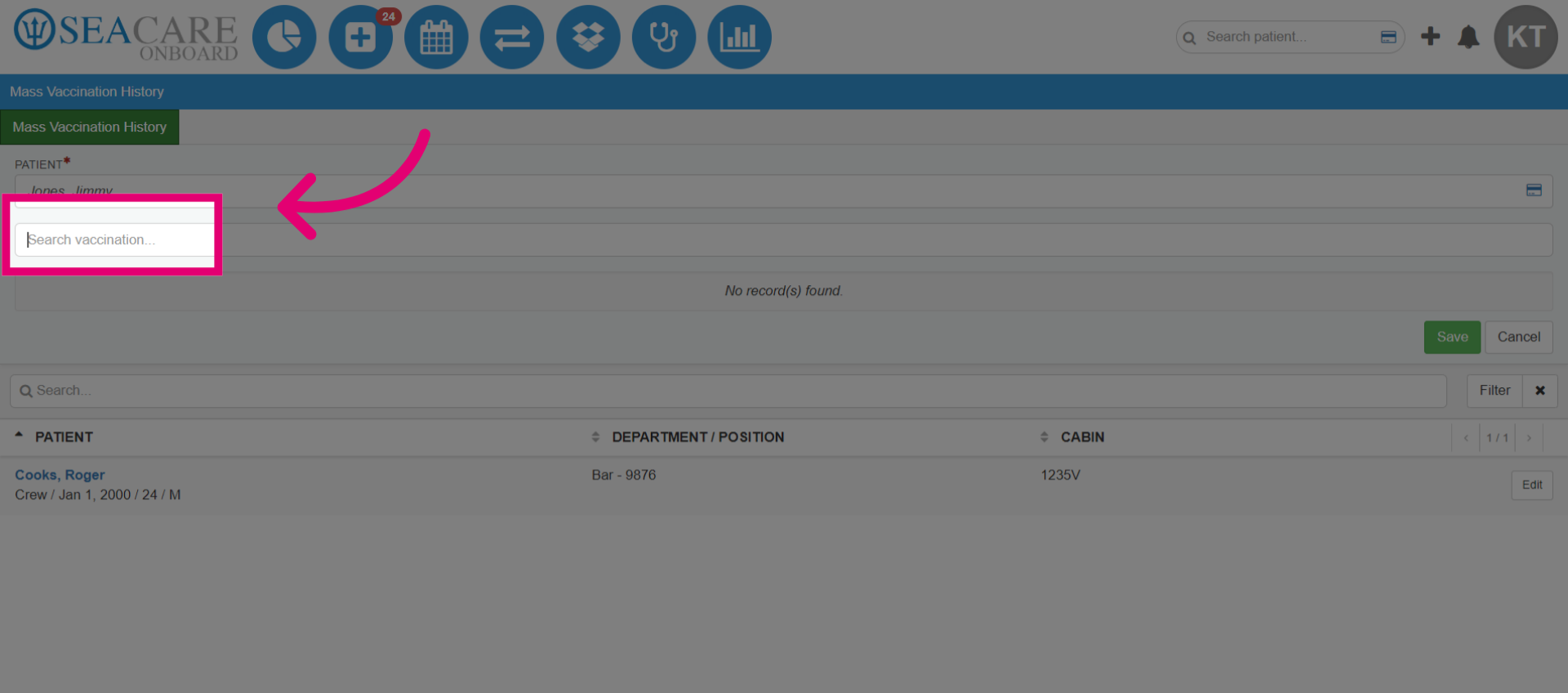
- Click Search vaccination to look for the specific vaccination record.
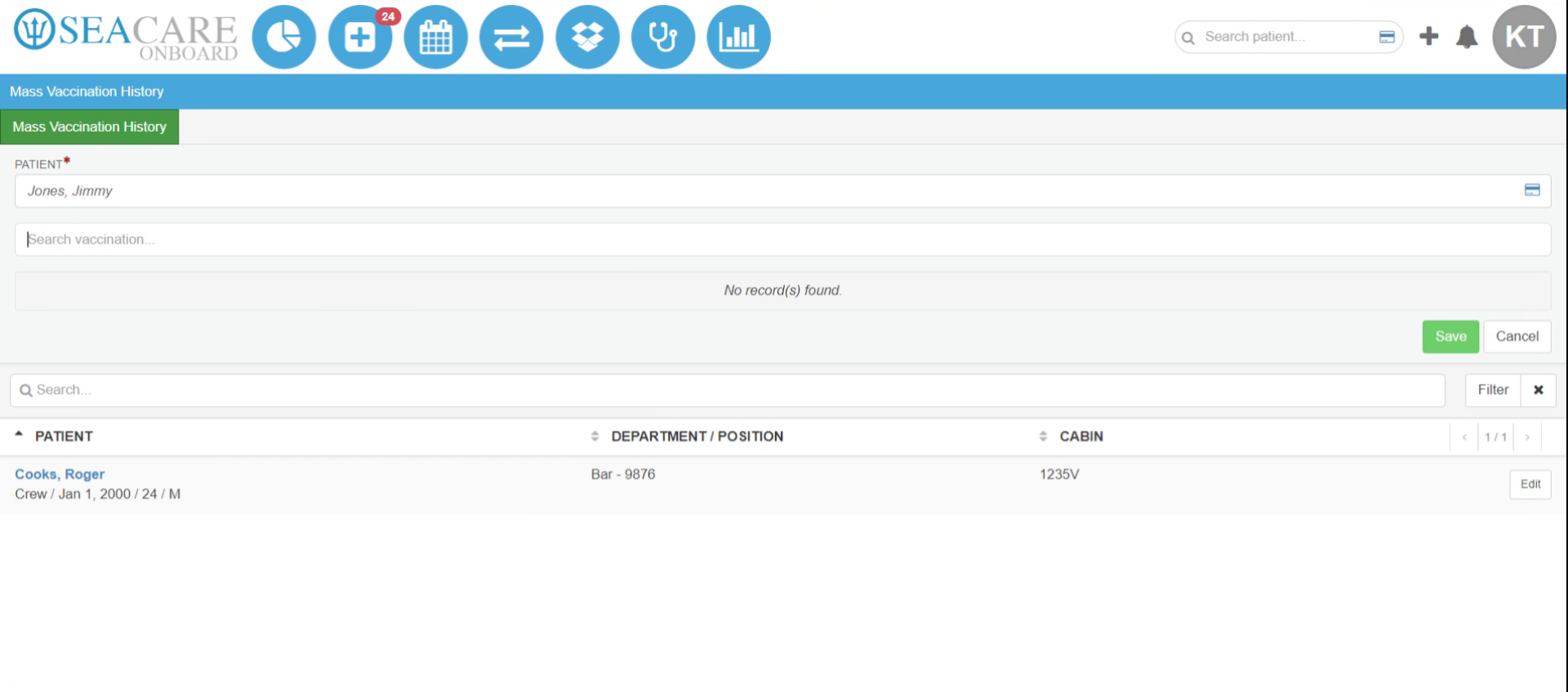
- Enter the required keyword in the text box (e.g., modern or vaccine).
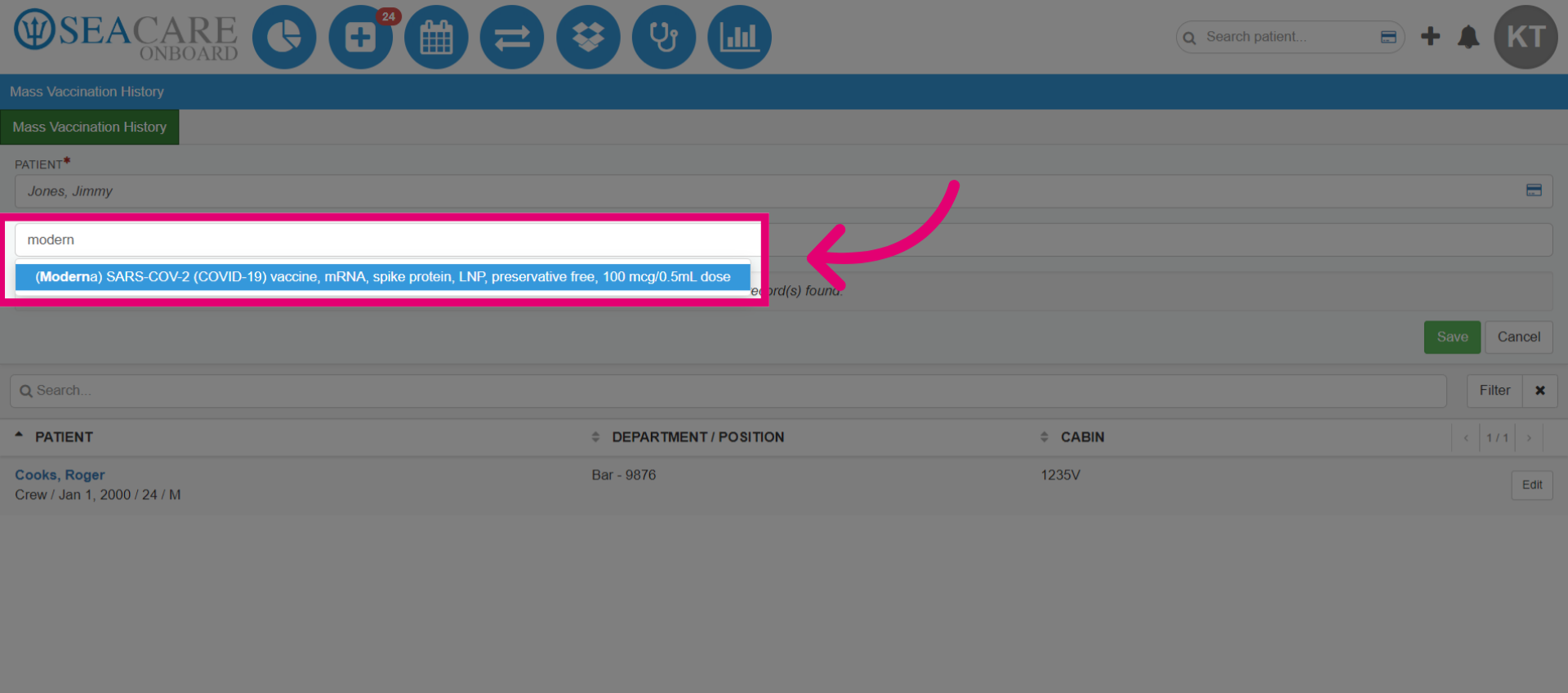
- Search for the vaccine record you need and select it from the results.
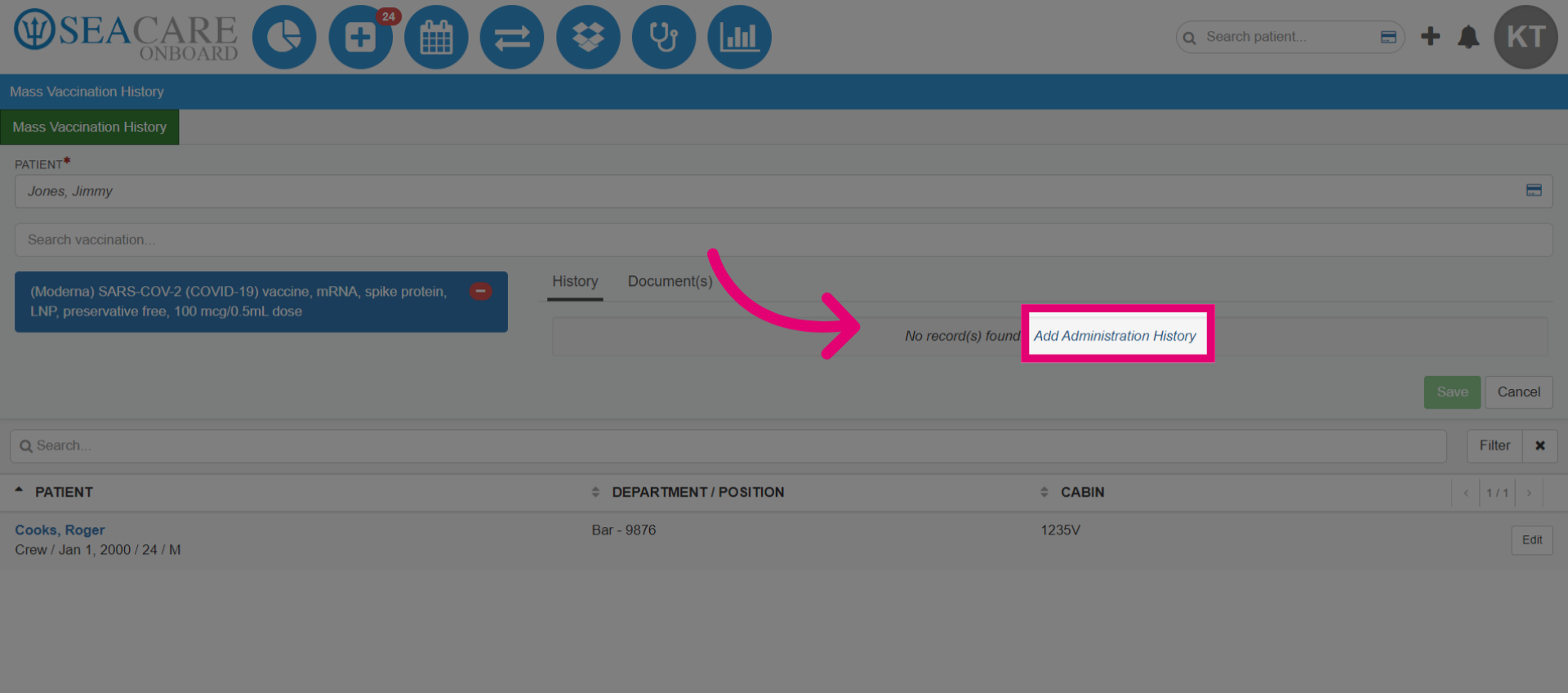
- Select Add Administration History to include the administration details.
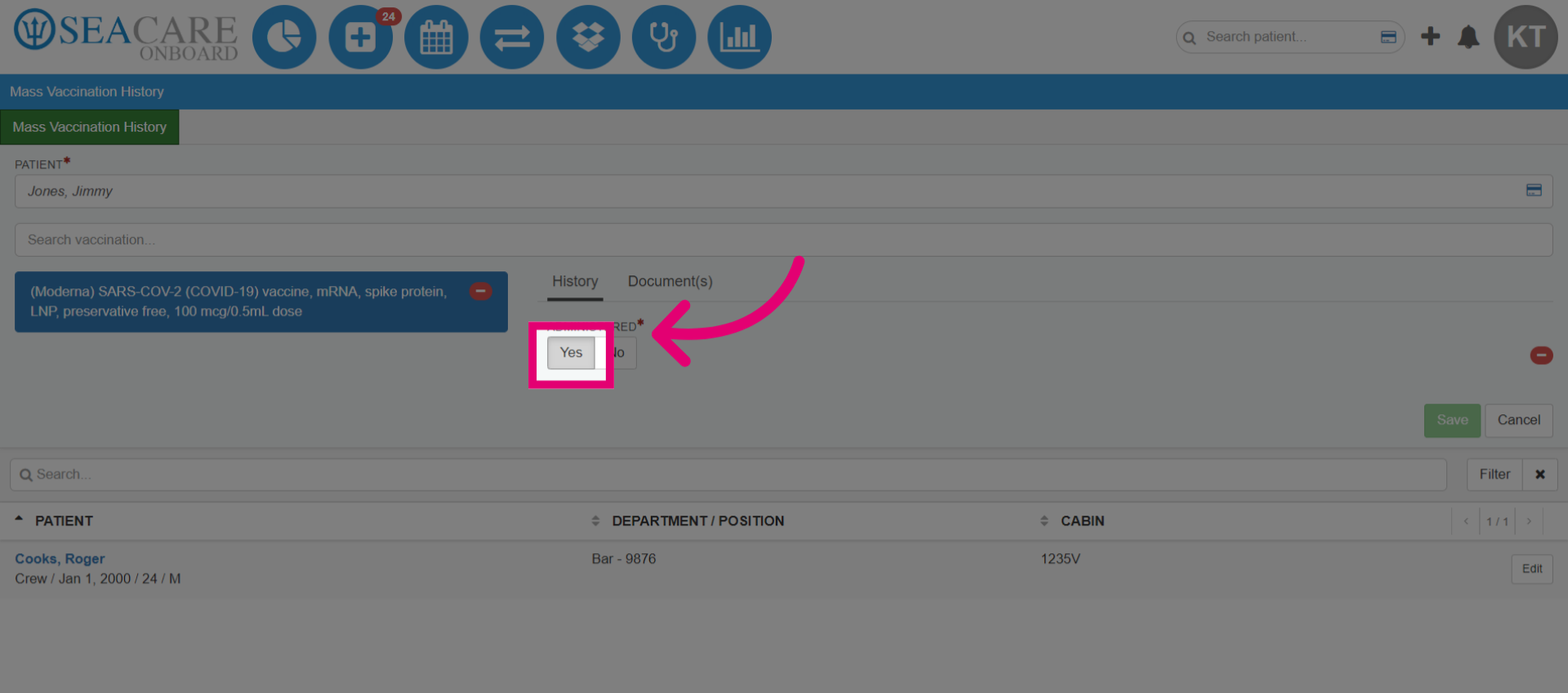
- Confirm the administration by selecting Yes.
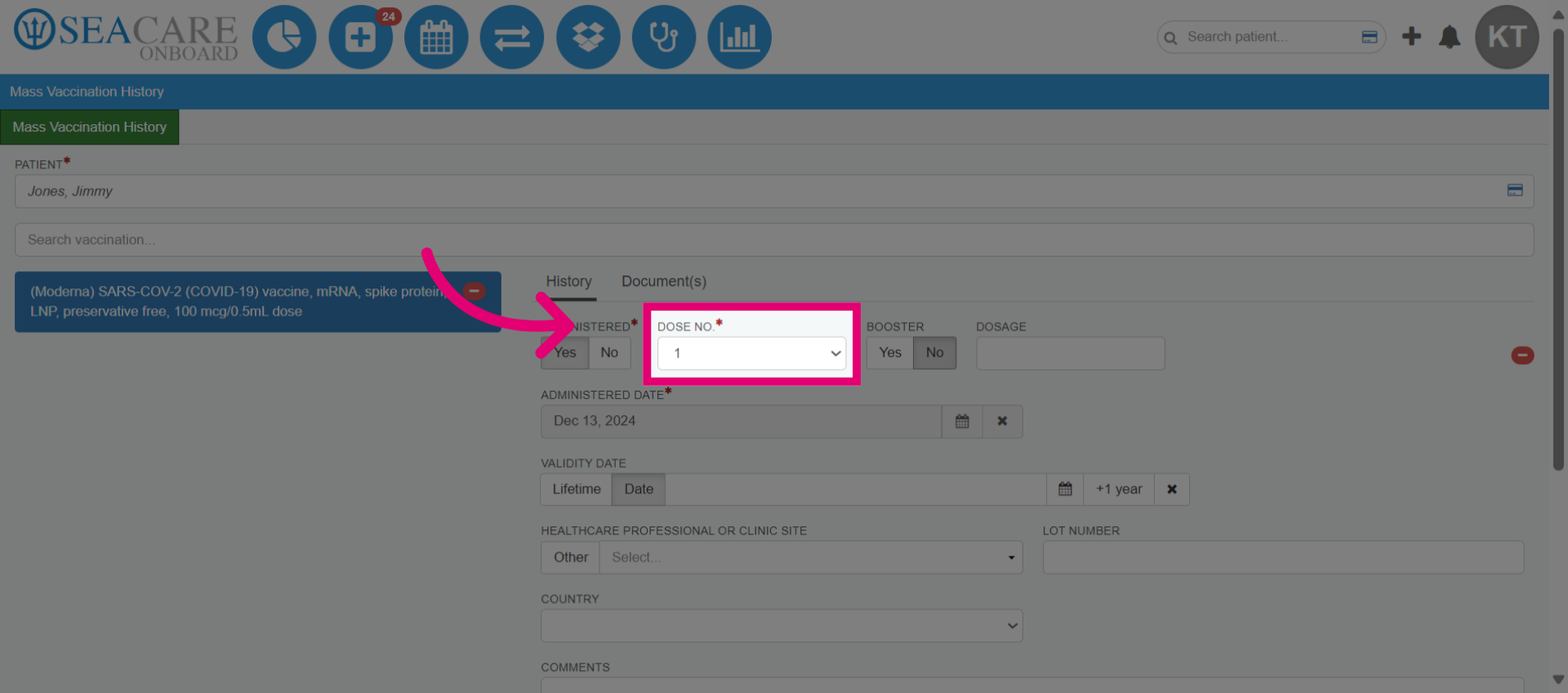
- Add the Dose Number for this vaccination.
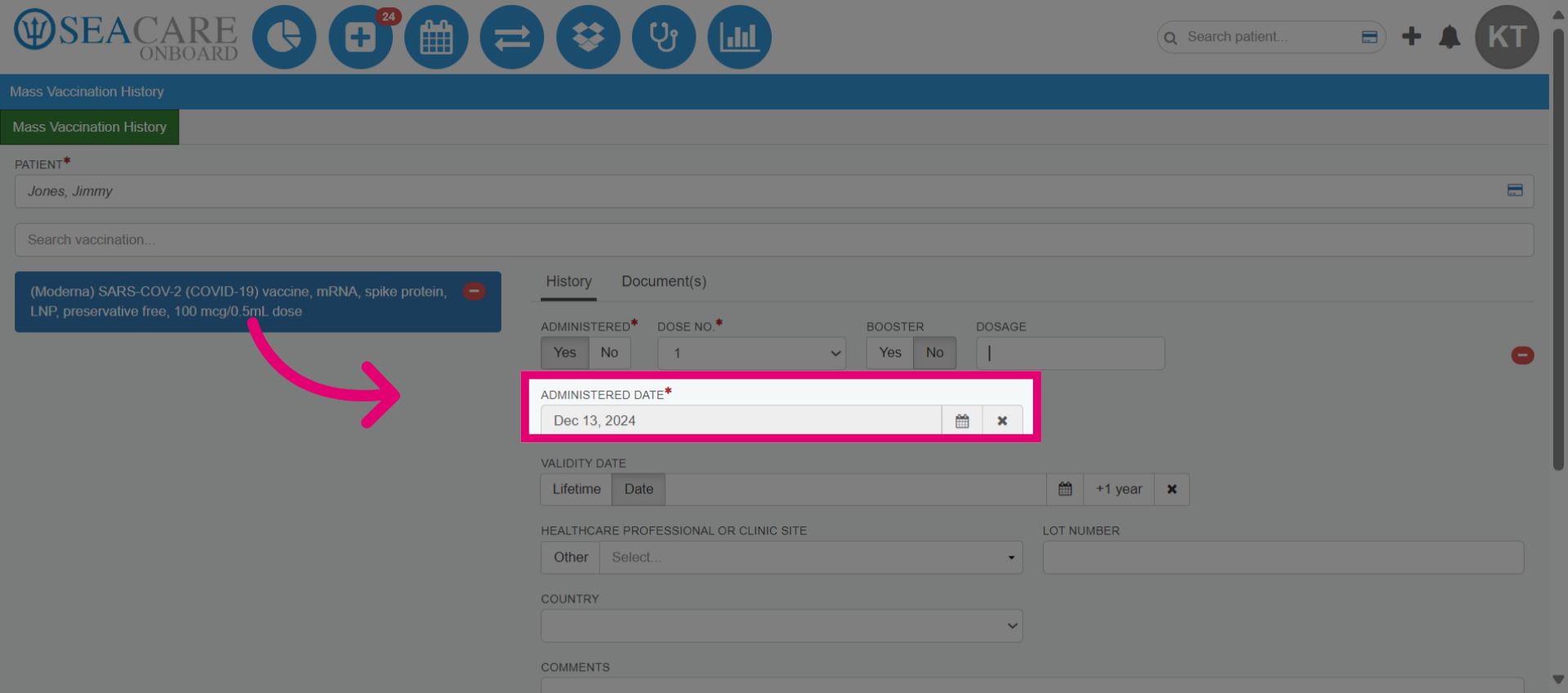
- Confirm the Administered Date.
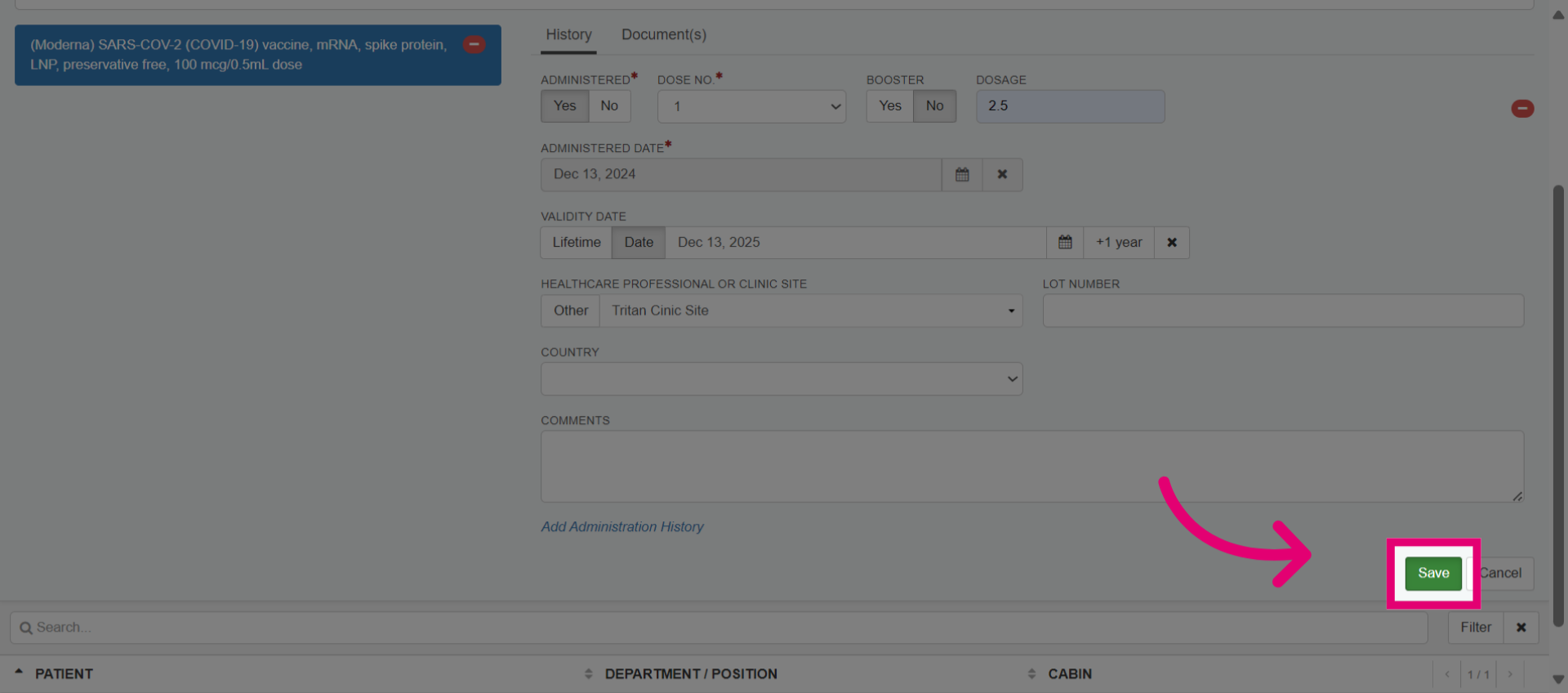
- Optionally fill in other fields or upload documents, then select Save.
- Indicate your vaccination status by accepting the system's choice (e.g., Partially Vaccinated) or selecting a different status with a reason.
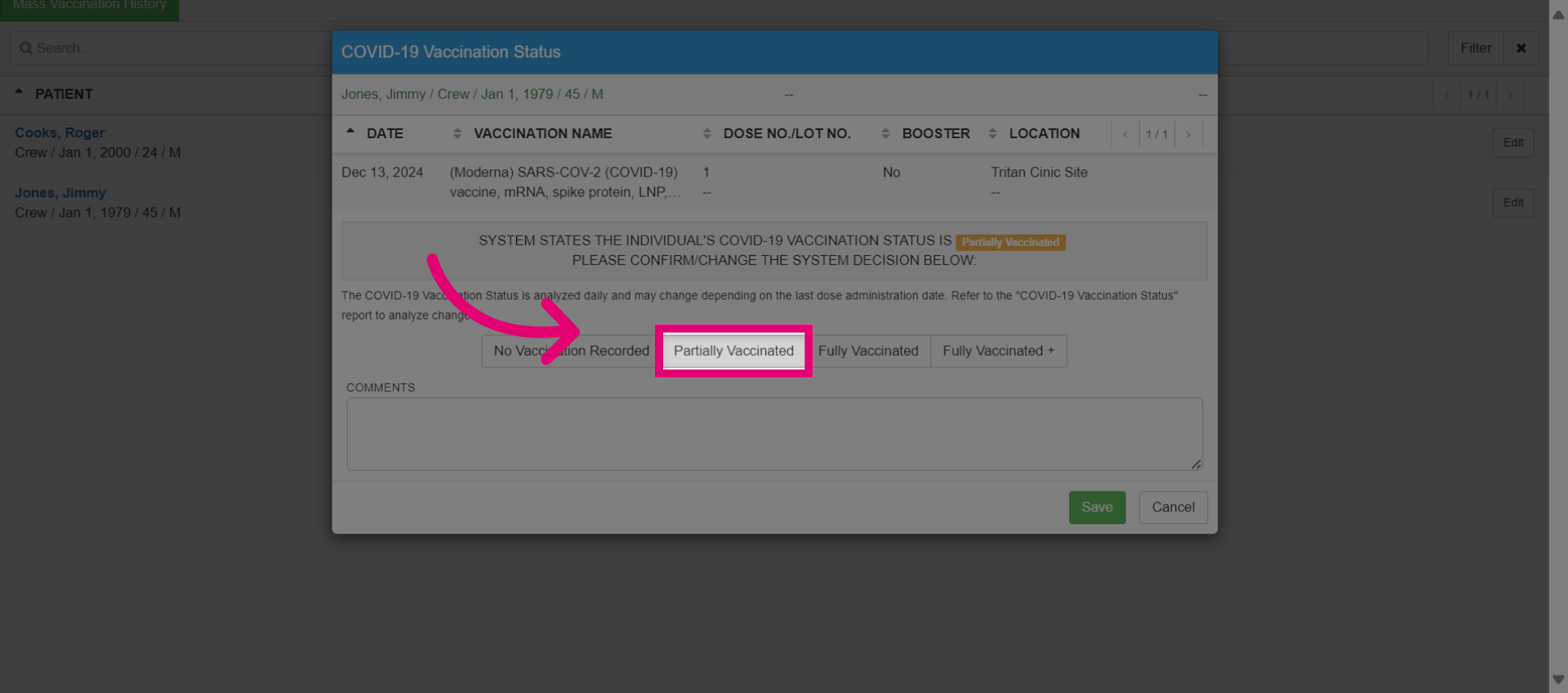
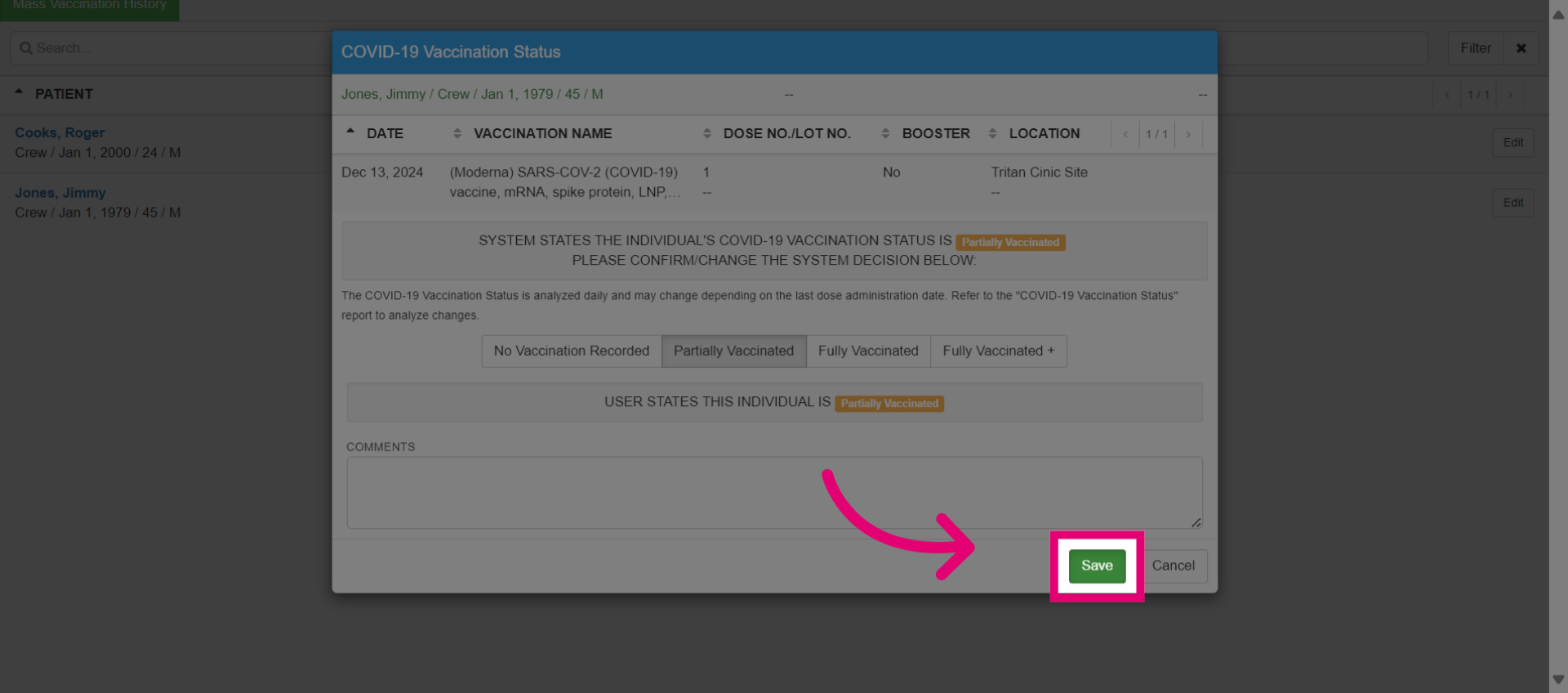
- Select Save to update the information.
- View the new entry in the Mass Vaccination History list.
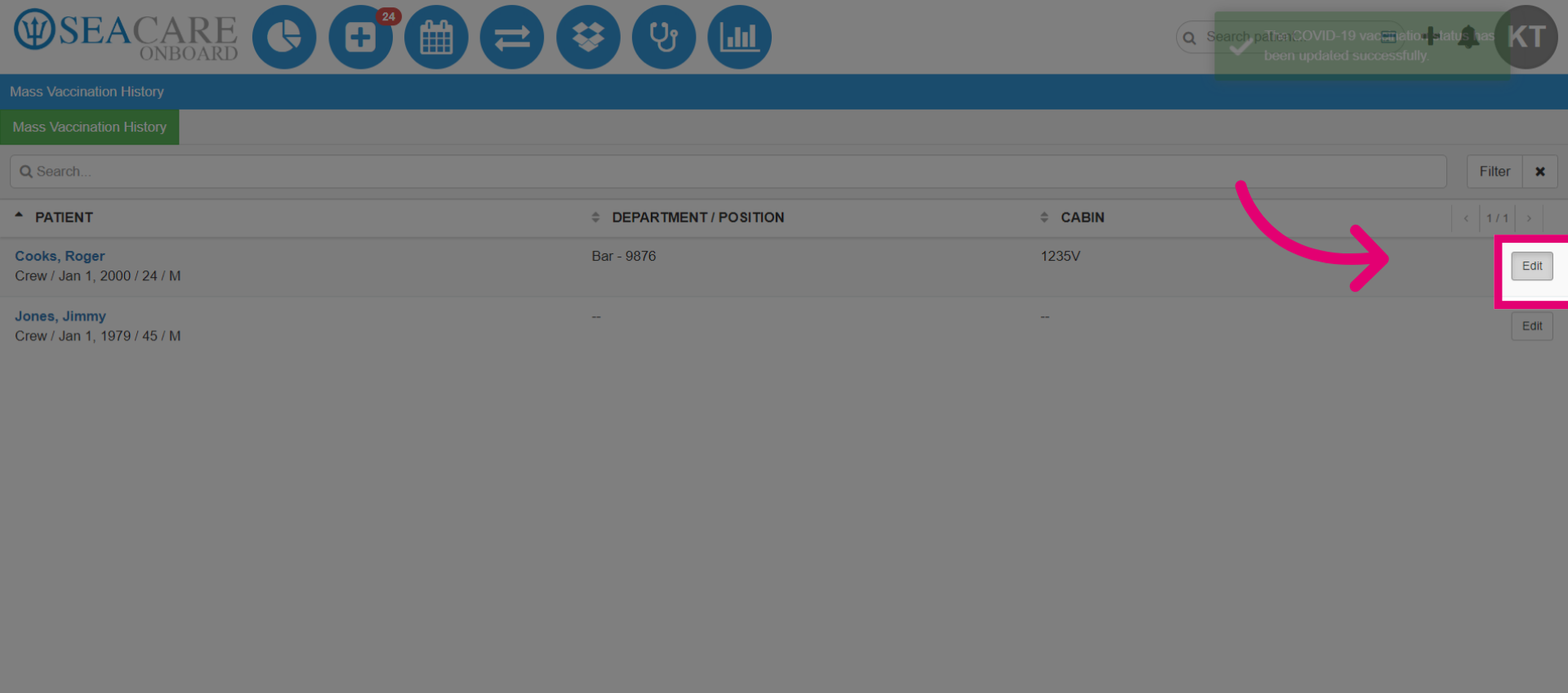
- Select the edit button to modify a vaccination history for a patient.
- Add more vaccination history entries for other individuals by following the same steps.