


New article
Recently updated
Adding a Patient to a Vaccination Program during an Encounter

Who is this article for?Users who want to learn about adding a patient to a Vaccination Program during an encounter in Ideagen Maritime Health Onboard.
No elevated permissions are required.
This article walks you through the steps of adding a patient to a Vaccination Program during an encounter in Ideagen Maritime Health Onboard.
1. Adding a Patient to a Vaccination Program during an Encounter
1.1 Video
1.2 Steps
- Vaccination programs on cruise ships are implemented to ensure crew members are vaccinated, reducing the risk of illness transmission and helping to maintain a safe and healthy environment for all on board.
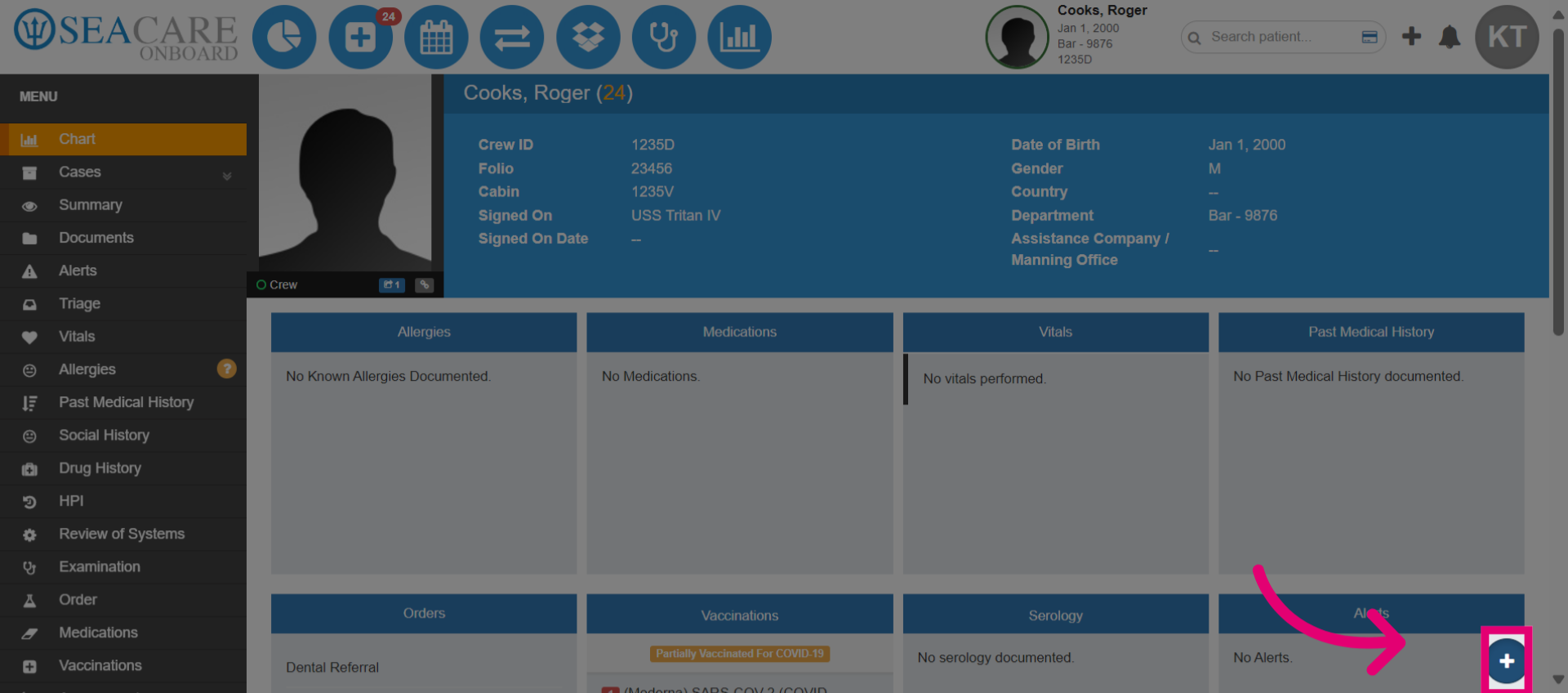
- If there is a vaccine prescription when adding the patient to the program, an encounter must be started. Select the Quick Actions button again.
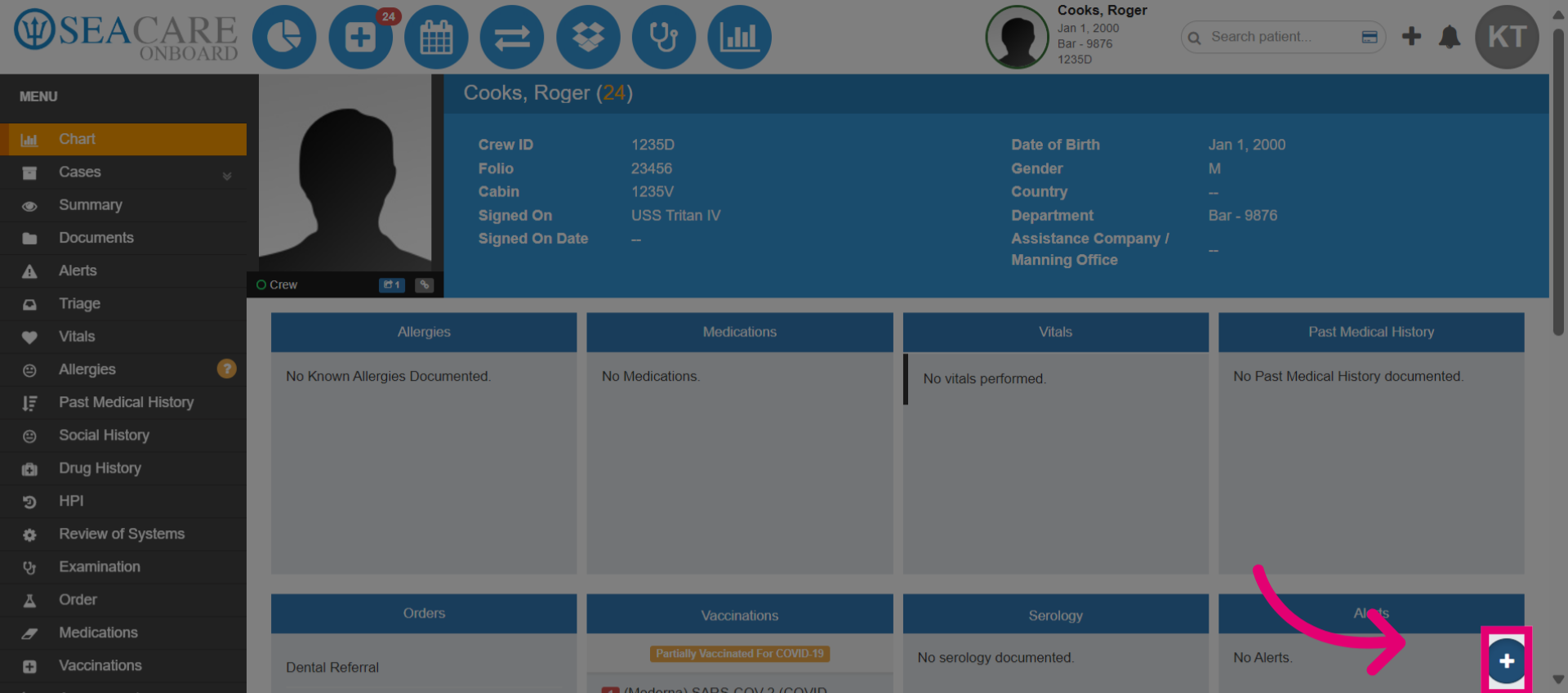
- Choose Start Encounter from the Quick Actions options.
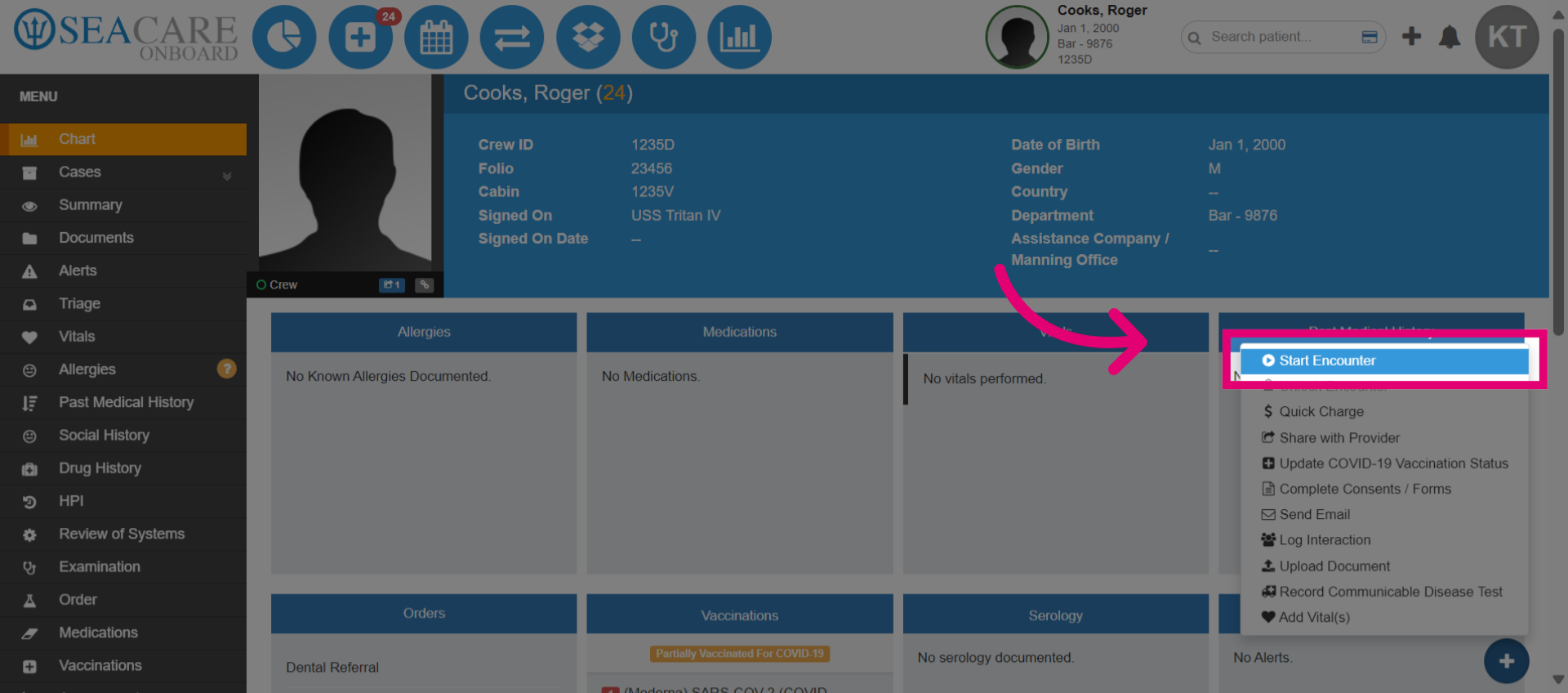
- Ensure this is an outpatient encounter and set it to start a new case. Then select Save.
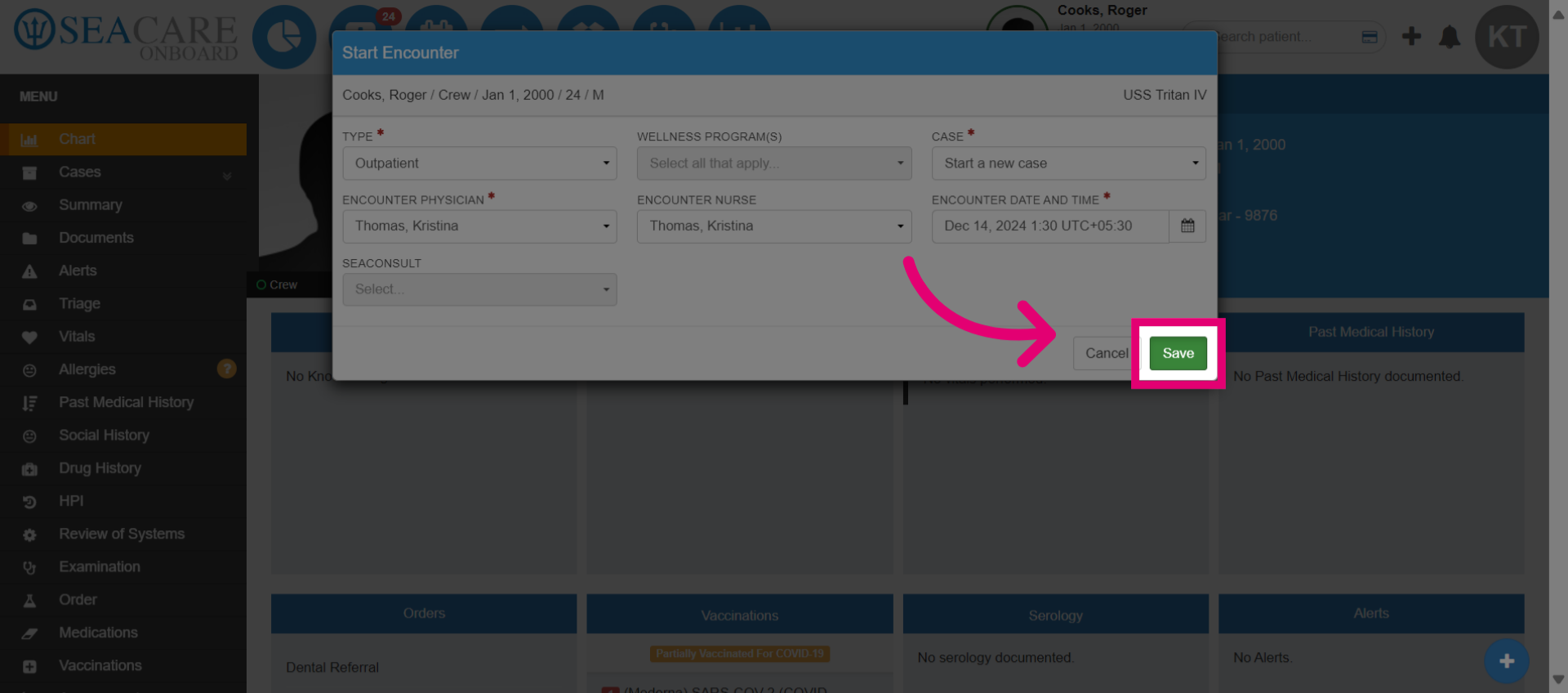
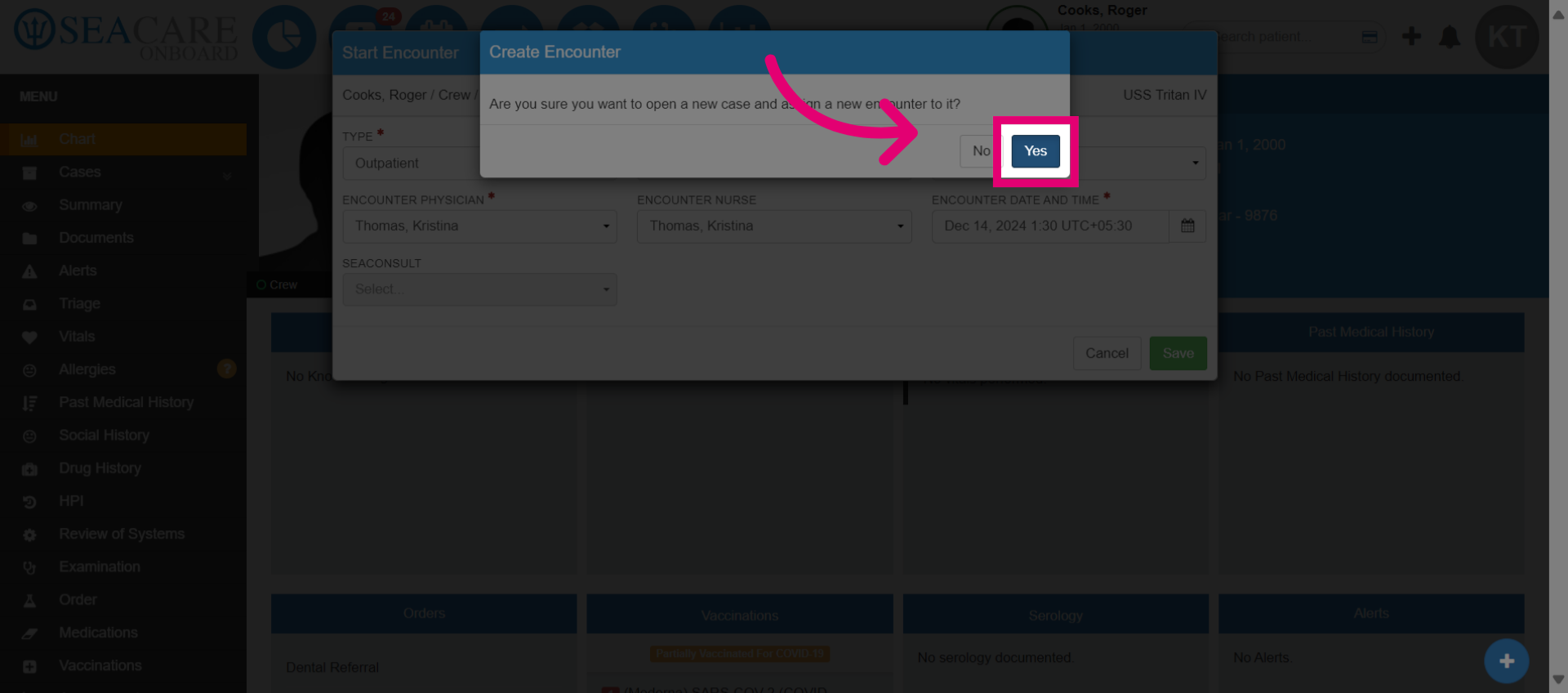
- Confirm you want to proceed with the encounter by selecting Yes.
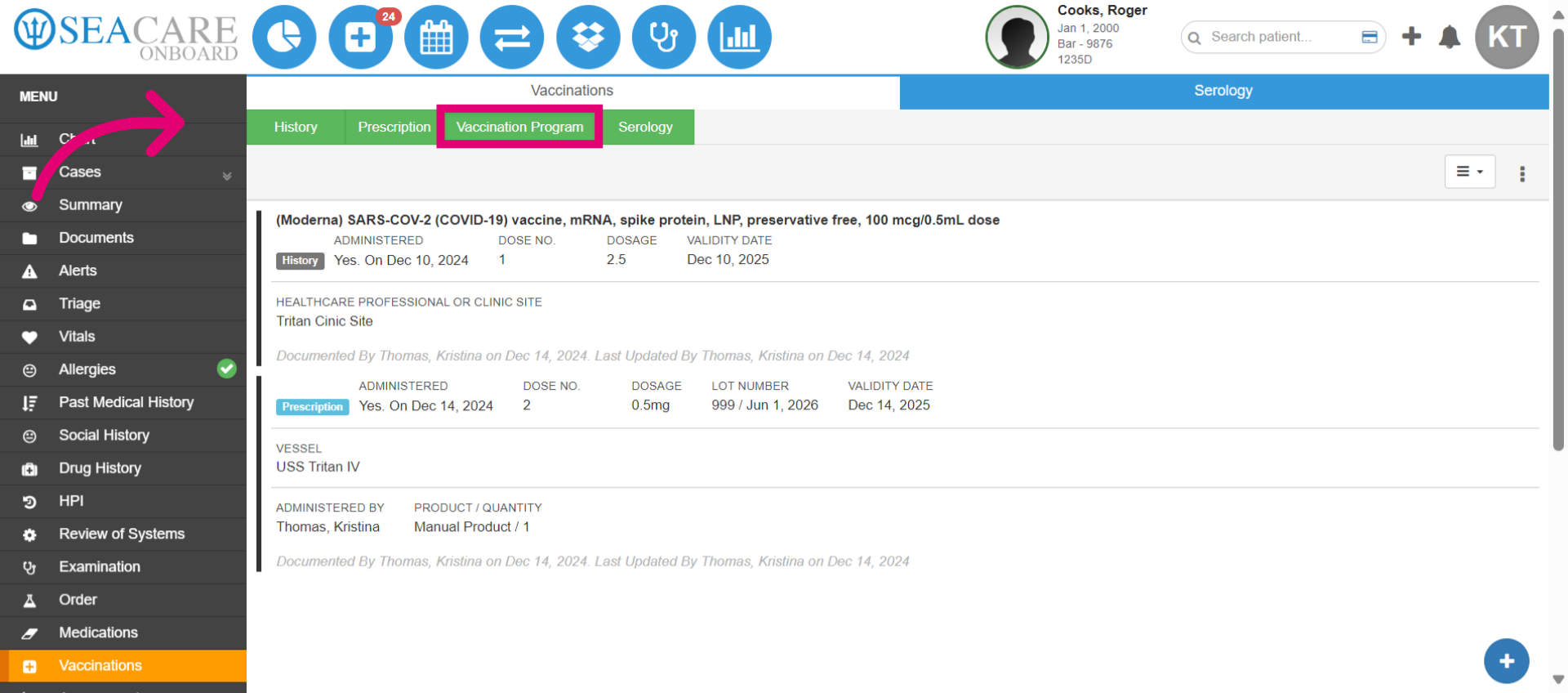
- Open the Vaccination Program tab.
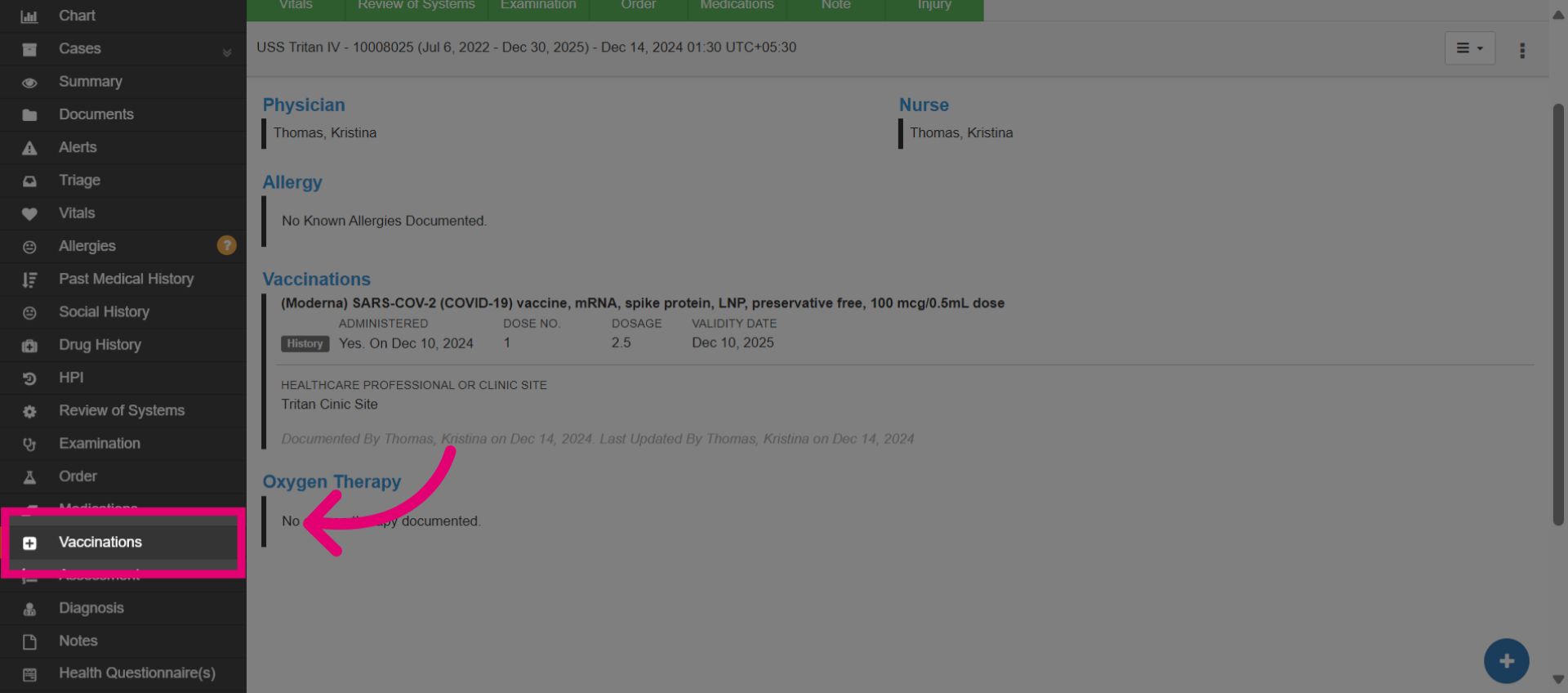
- Access the vaccination section by selecting the Vaccinations module from the menu options.
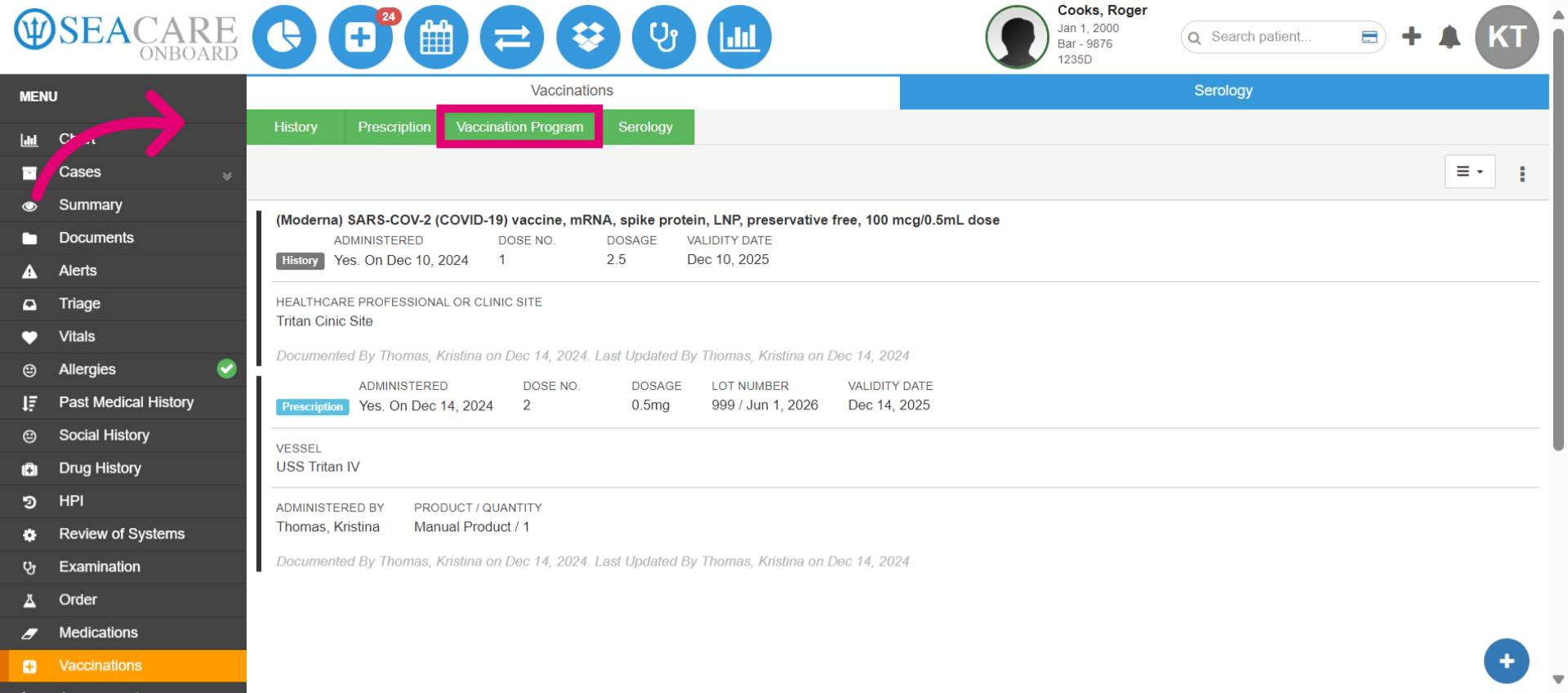
- In the vaccination module, select the Vaccination Program tab again.
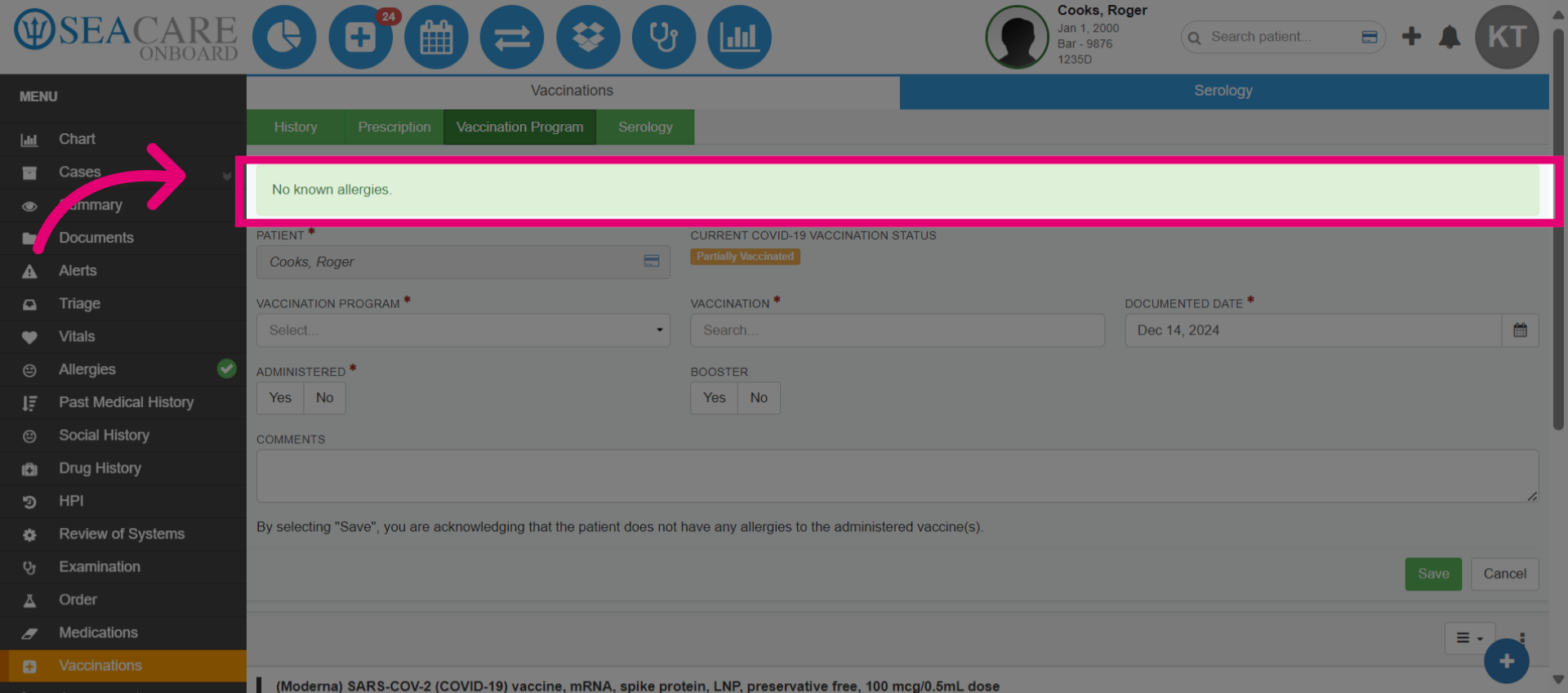
- Review any allergies for the patient. If the patient has no known allergies already marked, this will be displayed.
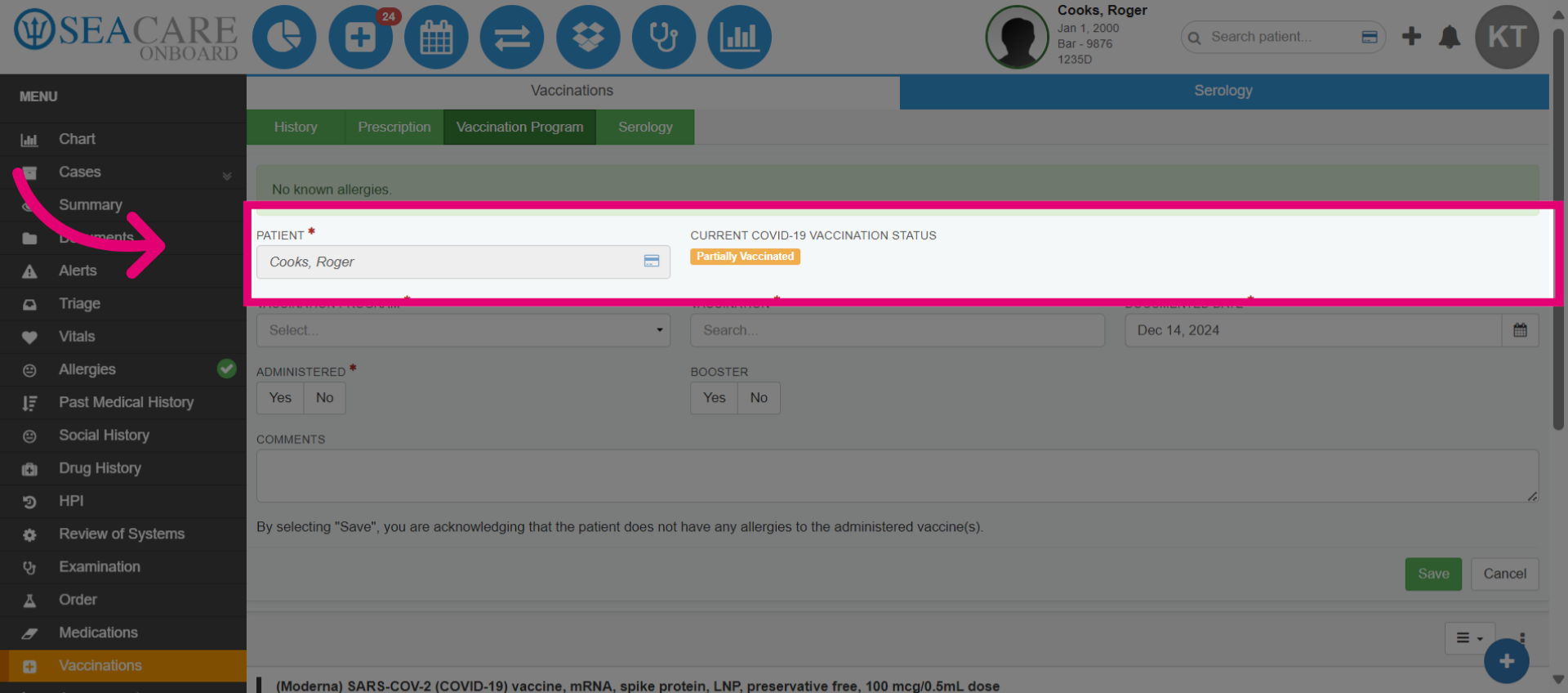
- Fill in the required fields (marked by an asterisk). Then, view the patient's current COVID-19 vaccination status, which helps determine dose number or how to document the vaccination record.
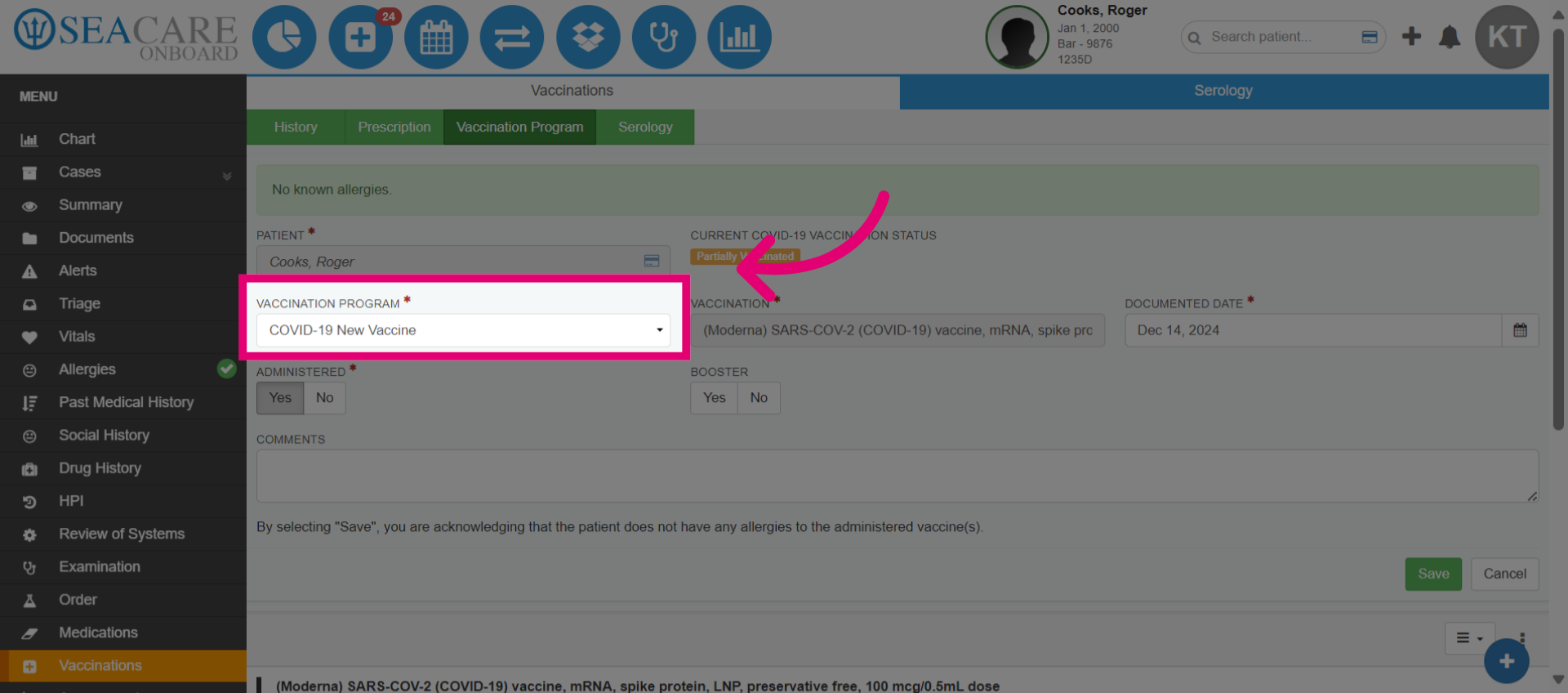
- Choose the relevant Vaccination Program from the dropdown. These are configured by your system admin.
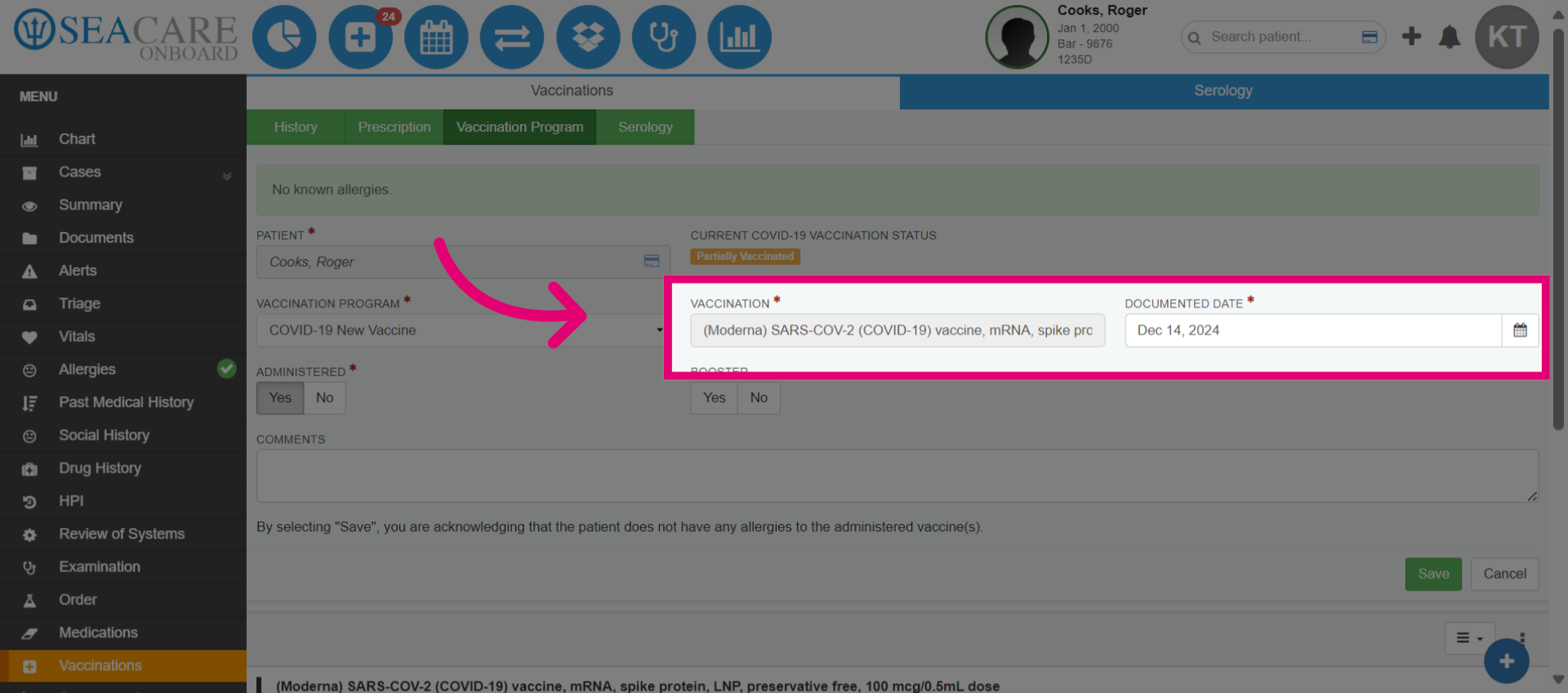
- Add the Vaccination type (e.g., Moderna or Pfizer). Then, add the Documented Date, referring to the specific date the vaccination was administered.
- Mark whether the vaccination was actually administered to the patient.
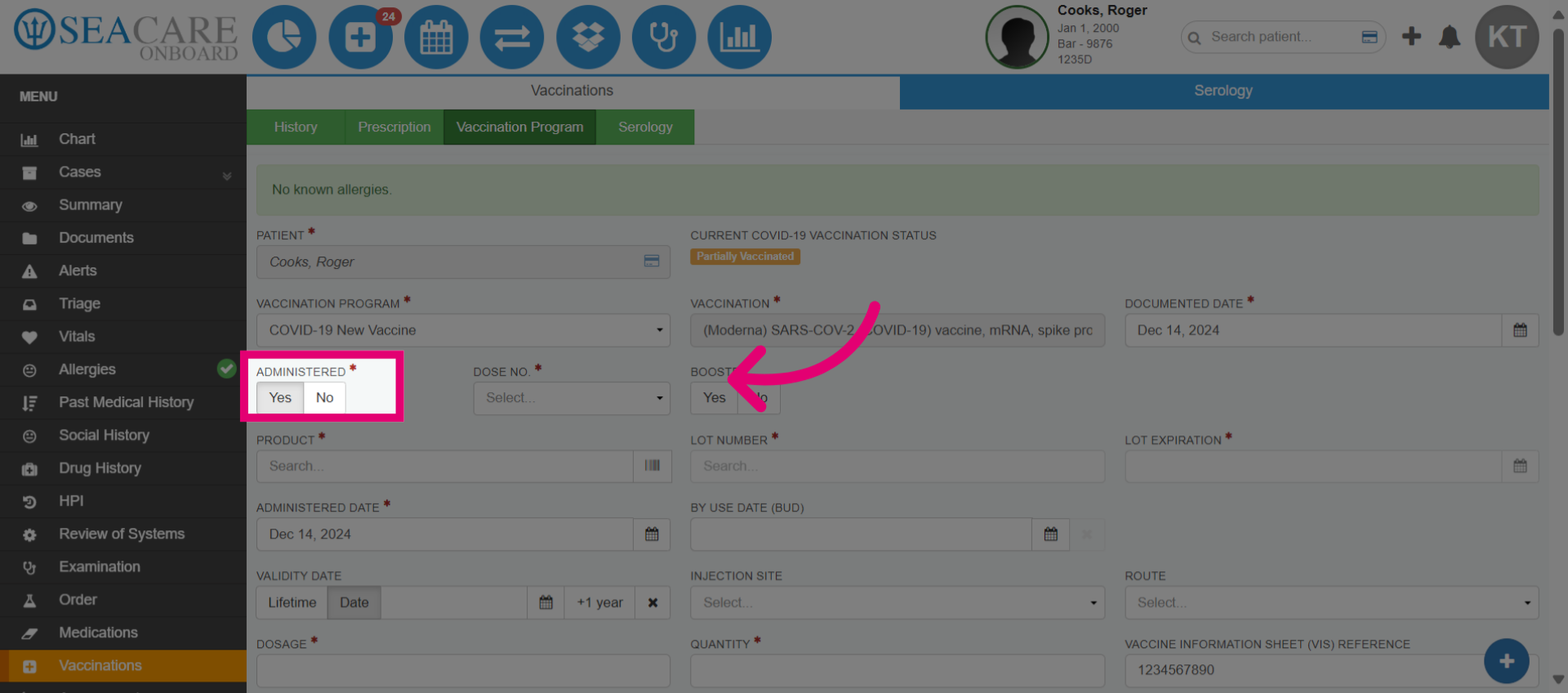
- Confirm by selecting Yes.
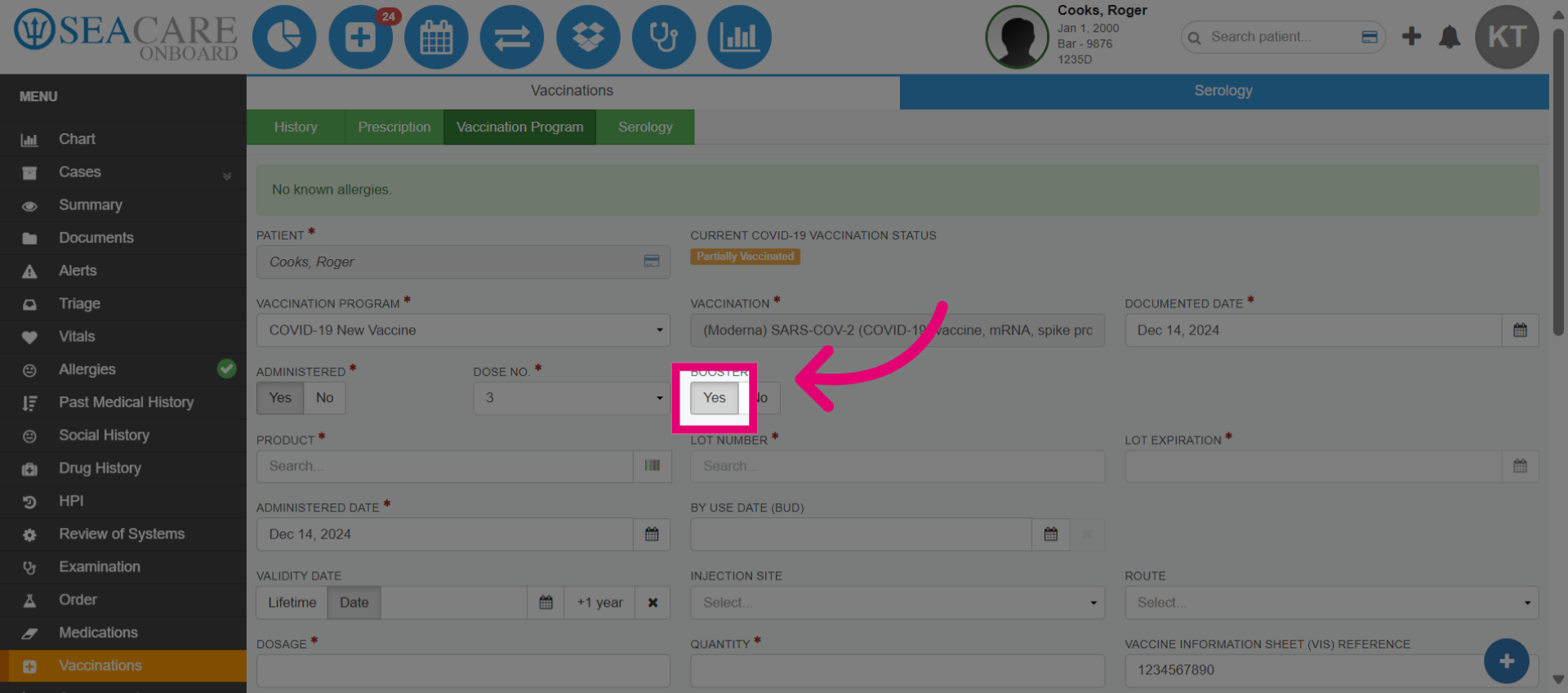
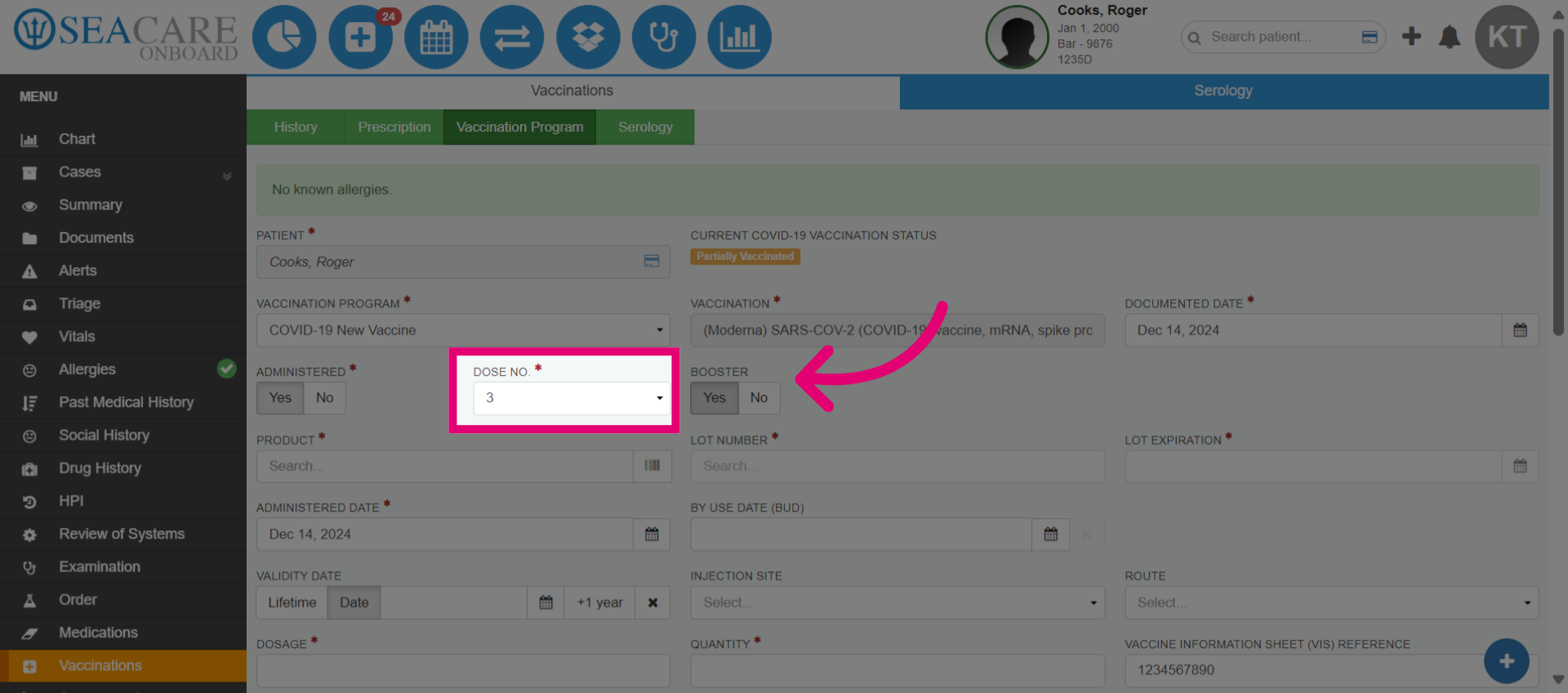
- Enter the appropriate Dose Number (e.g., 1 for first dose, 2 for second, etc.).
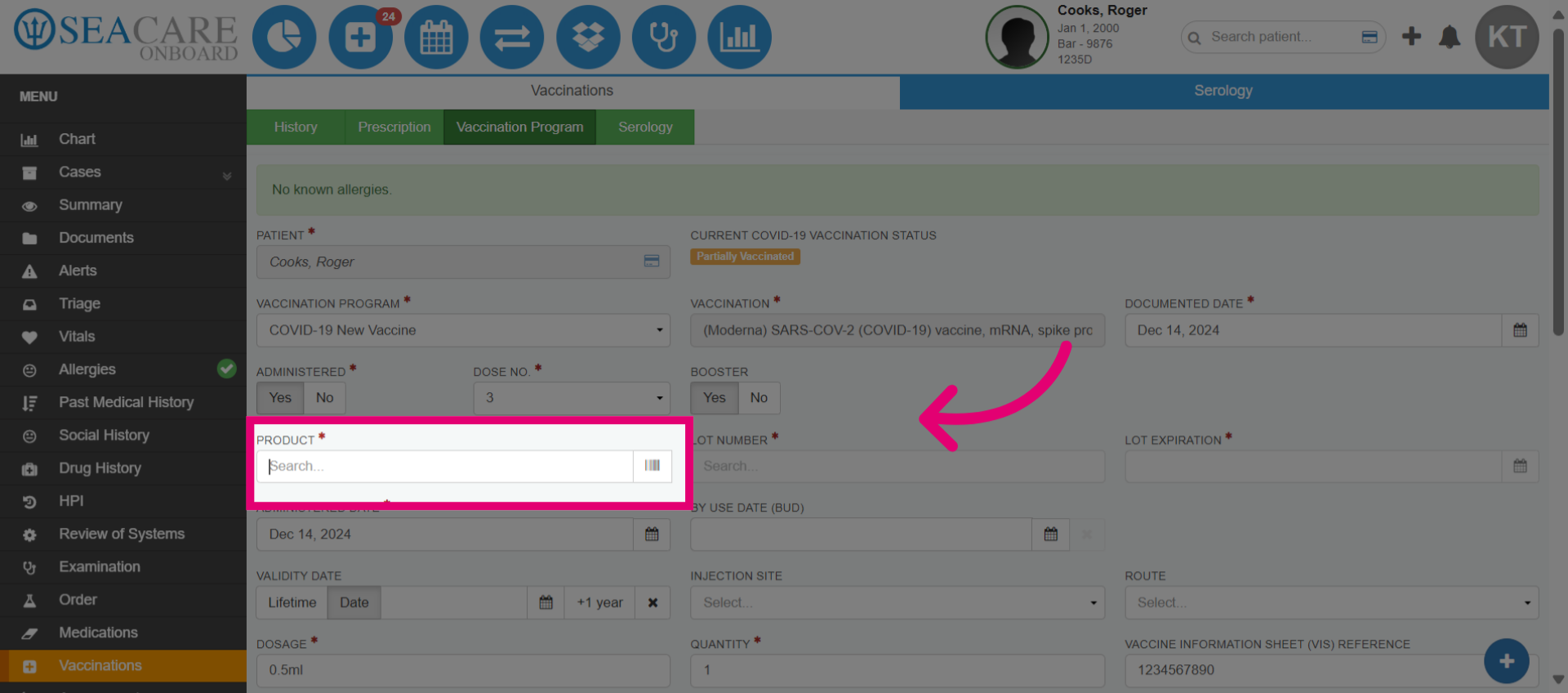
- Search or scan the Product (e.g., medication barcode) to add specific product details. This refers to the exact medication given.
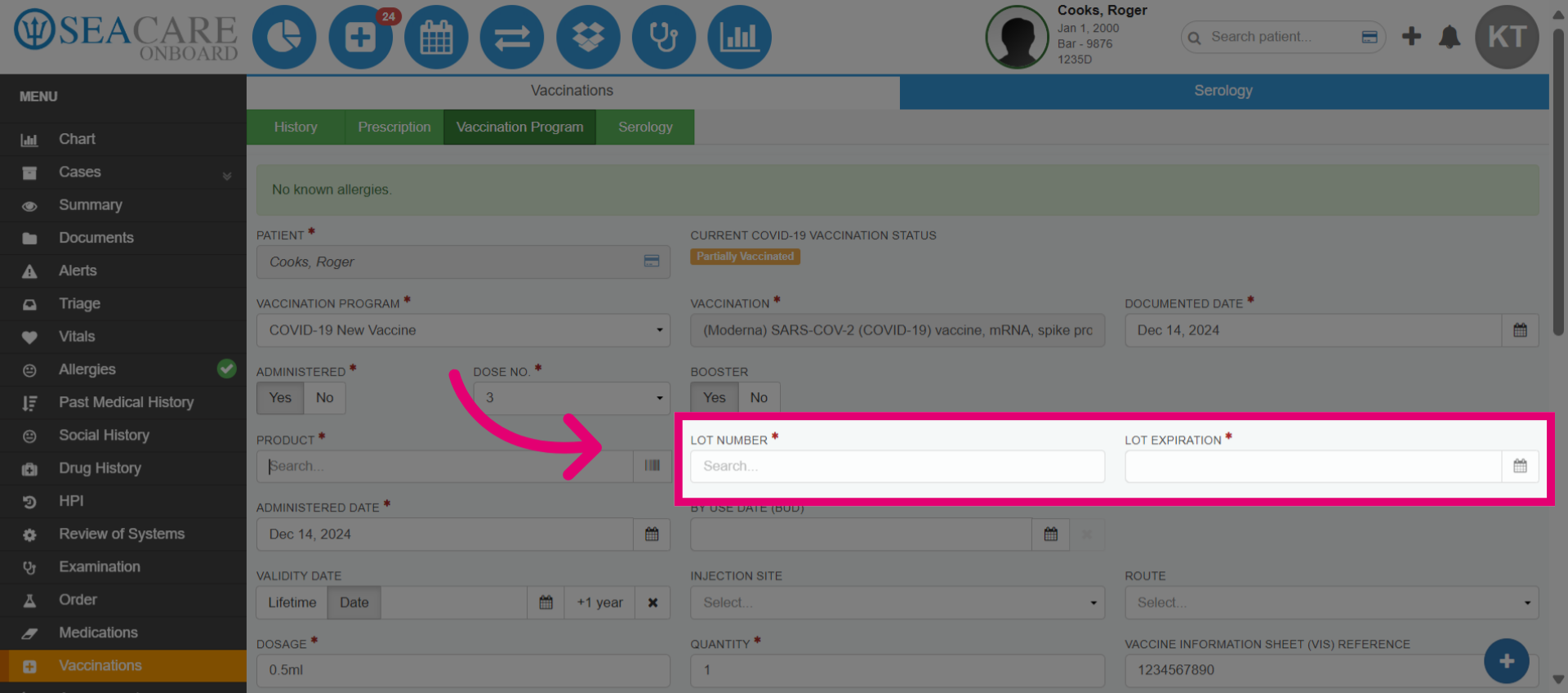
- Add the Lot Number to identify the batch of the product and the Expiration Date.
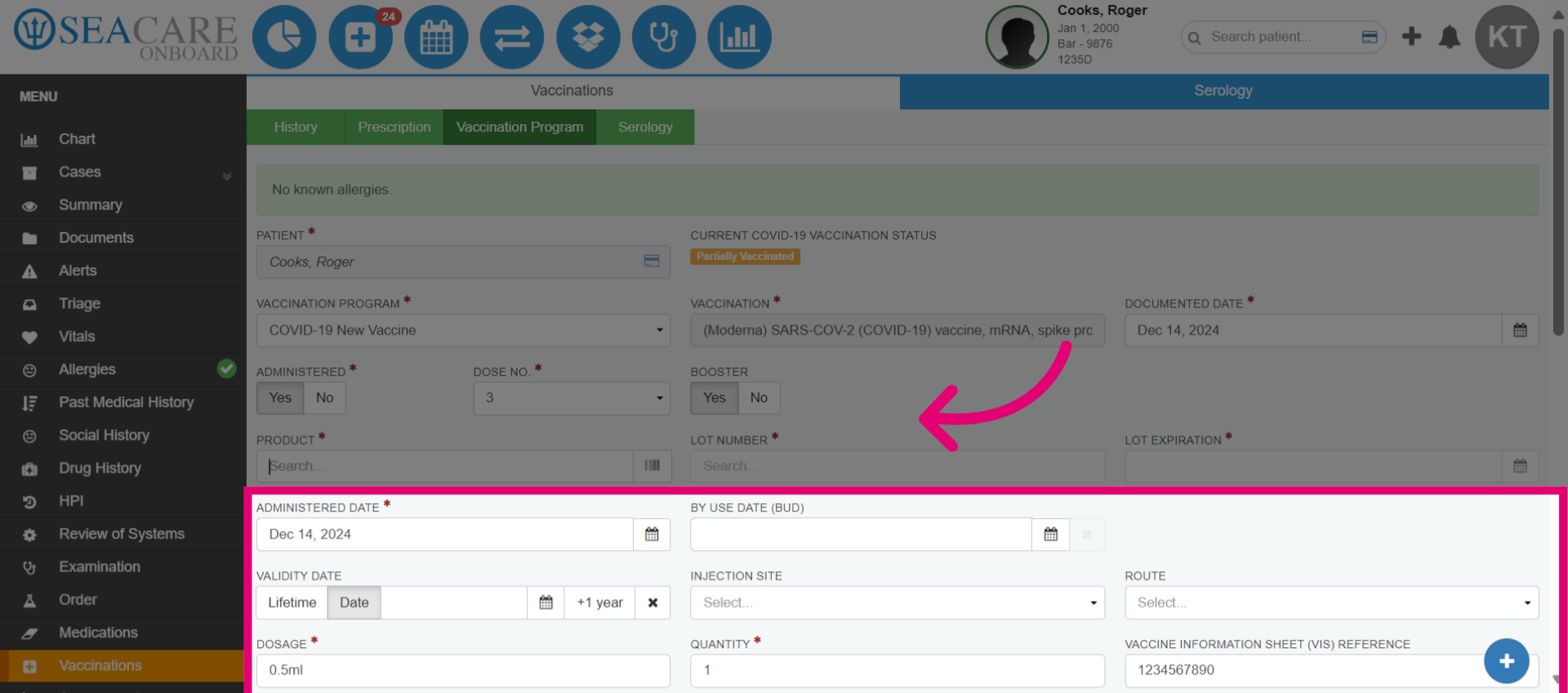
- Add details such as the administered date, dosage, and quantity. Fill in optional fields as necessary.
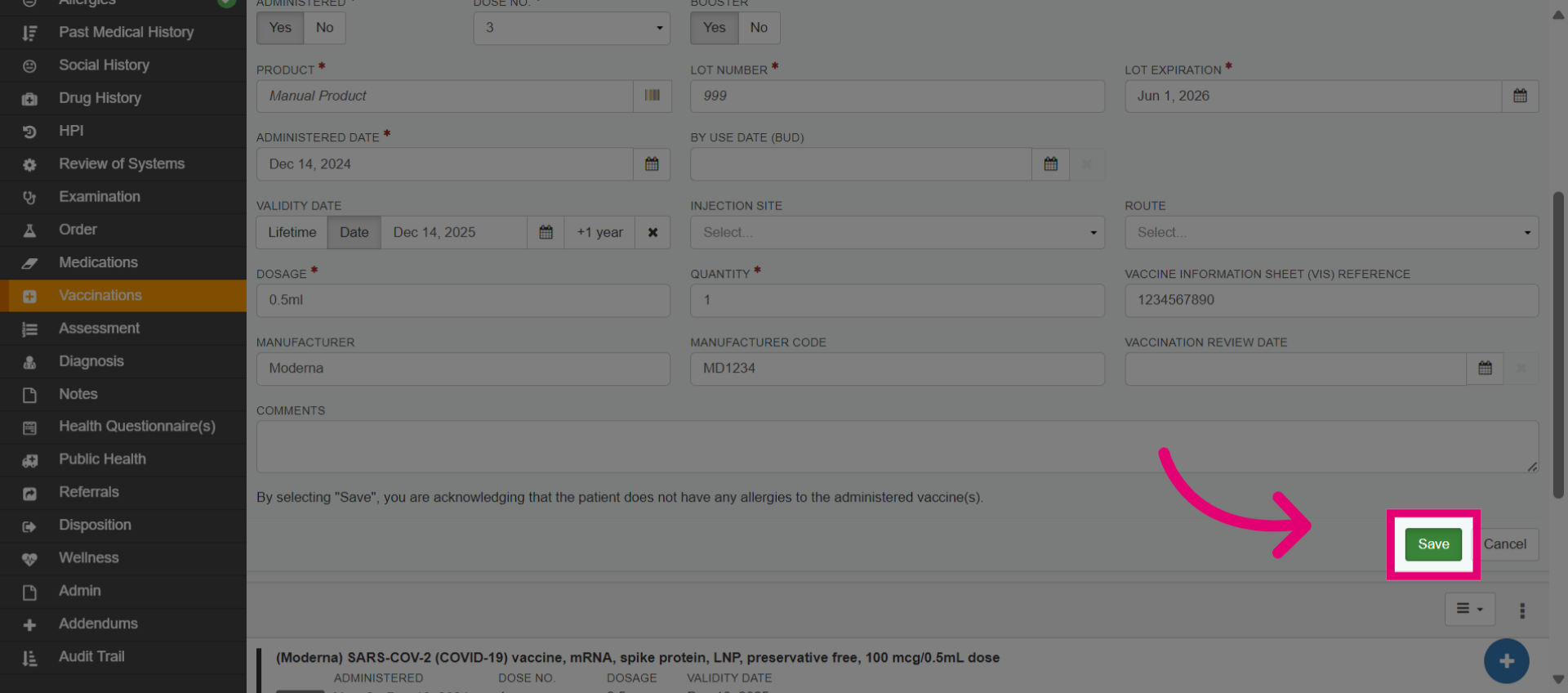
- Save the entered information.
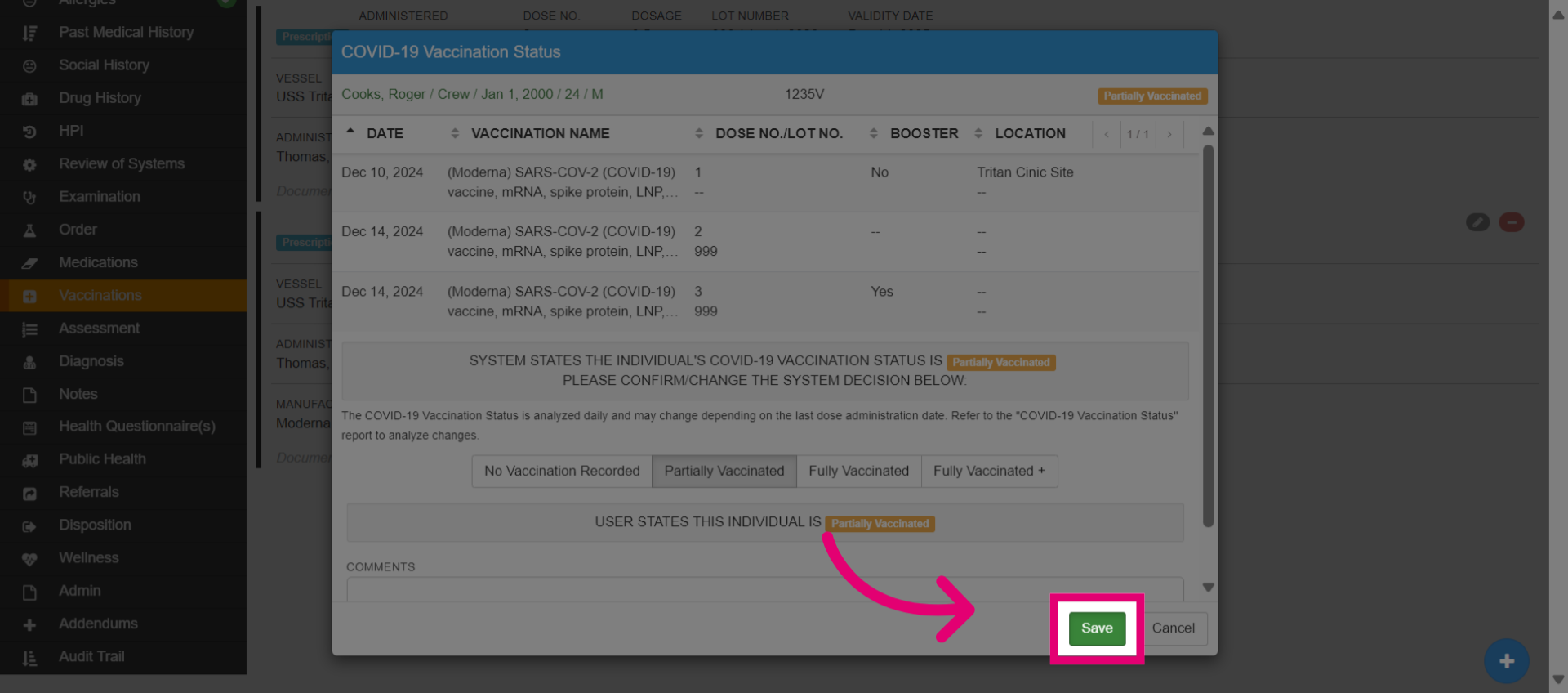
- View the system decision for vaccination status (e.g., Partially Vaccinated). You can confirm or change it, providing a reason if different.
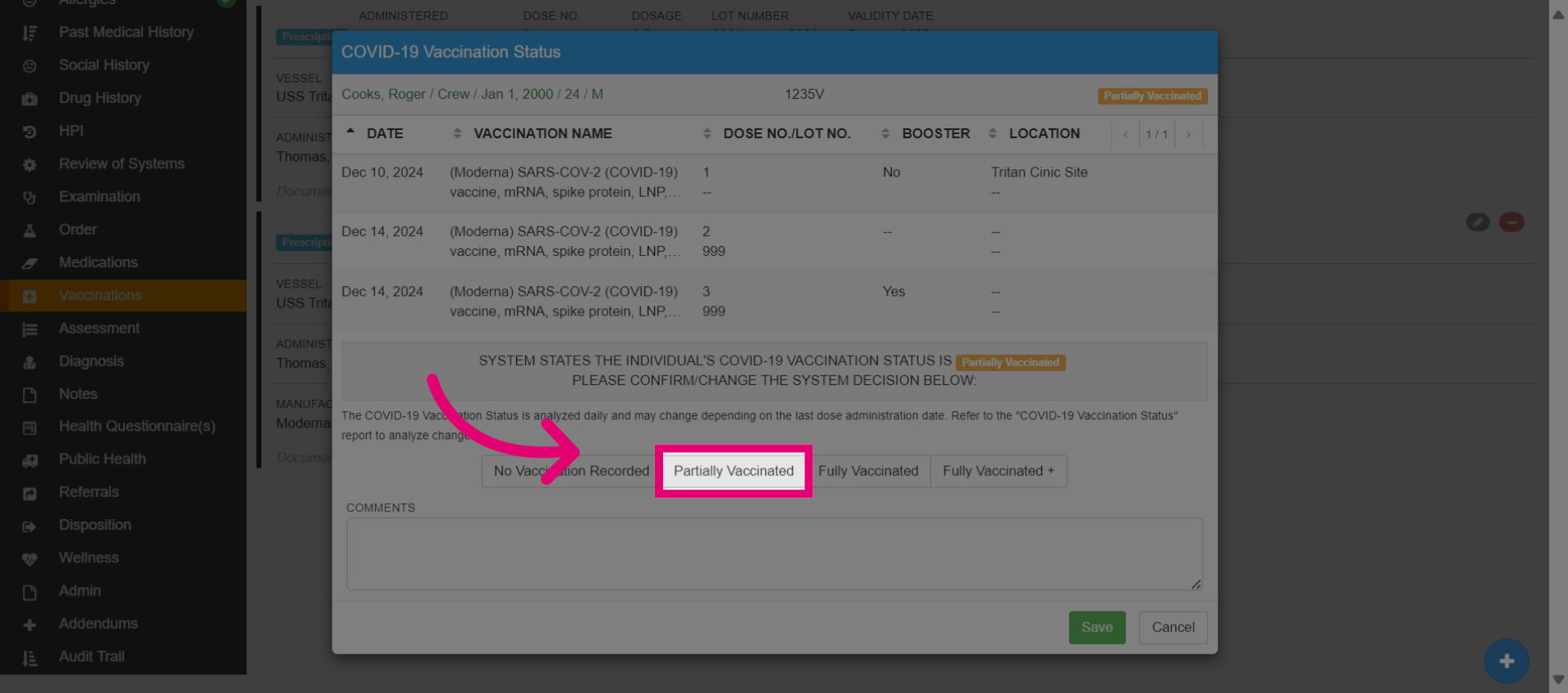
- Save the changes you made to the vaccination status.
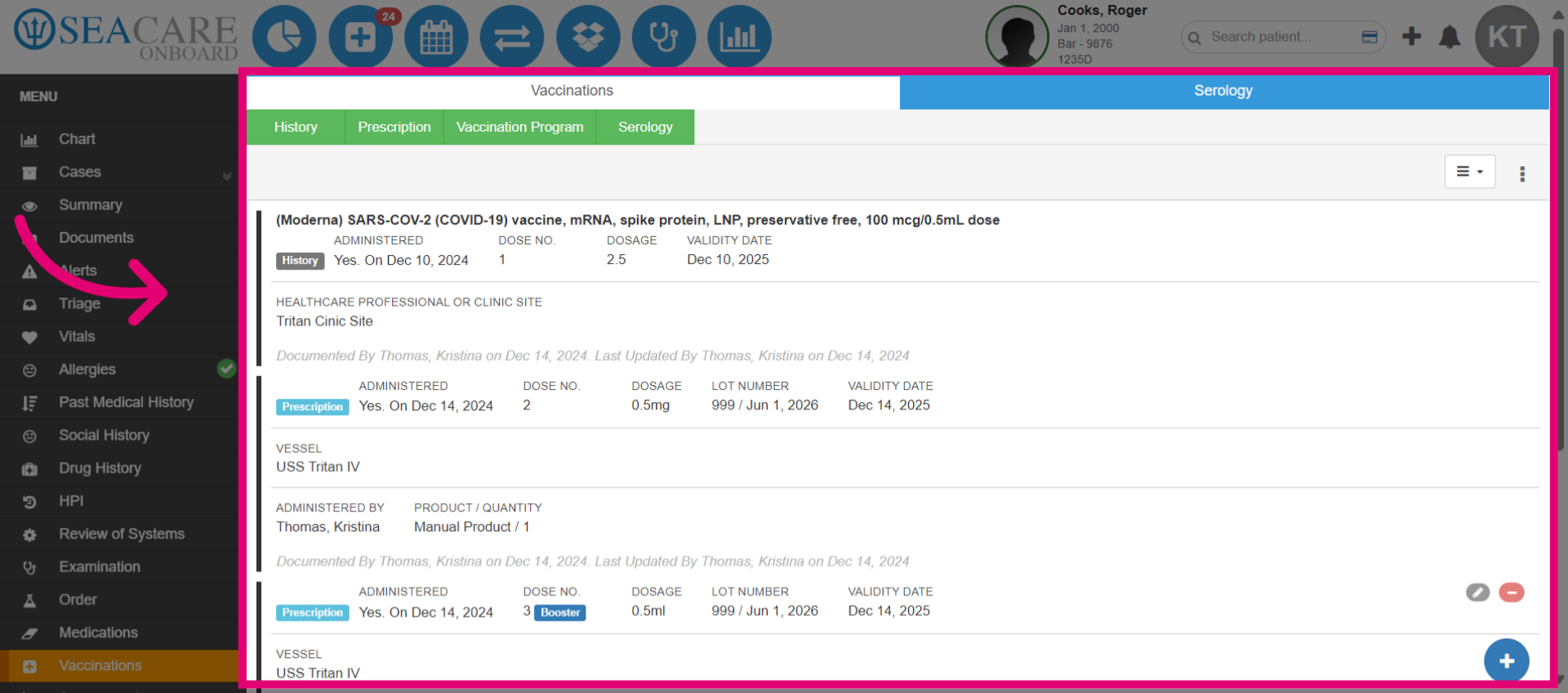
- Check the update in the vaccination list. If this was added during an encounter, remember to close the encounter normally.
This guide covered the process of adding a patient to a Vaccination Program during an encounter within a patient chart in Ideagen Maritime Health Onboard.