New article
Recently updated
Contact Tracer Close Contact View and Closing out Close Contacts

Who is this article for?Users who want to learn about Contact Tracer Close Contact View and Closing out Close Contacts
No elevated permissions are required.
This article provides a comprehensive overview of Contact Tracer Close Contact View and Closing out Close Contacts.
1. Contact Tracer Close Contact View and Closing out Close Contacts
1.1 Video
1.2 Steps
- From selecting specific contacts to completing screening processes and saving changes, you will be equipped to navigate this process seamlessly.
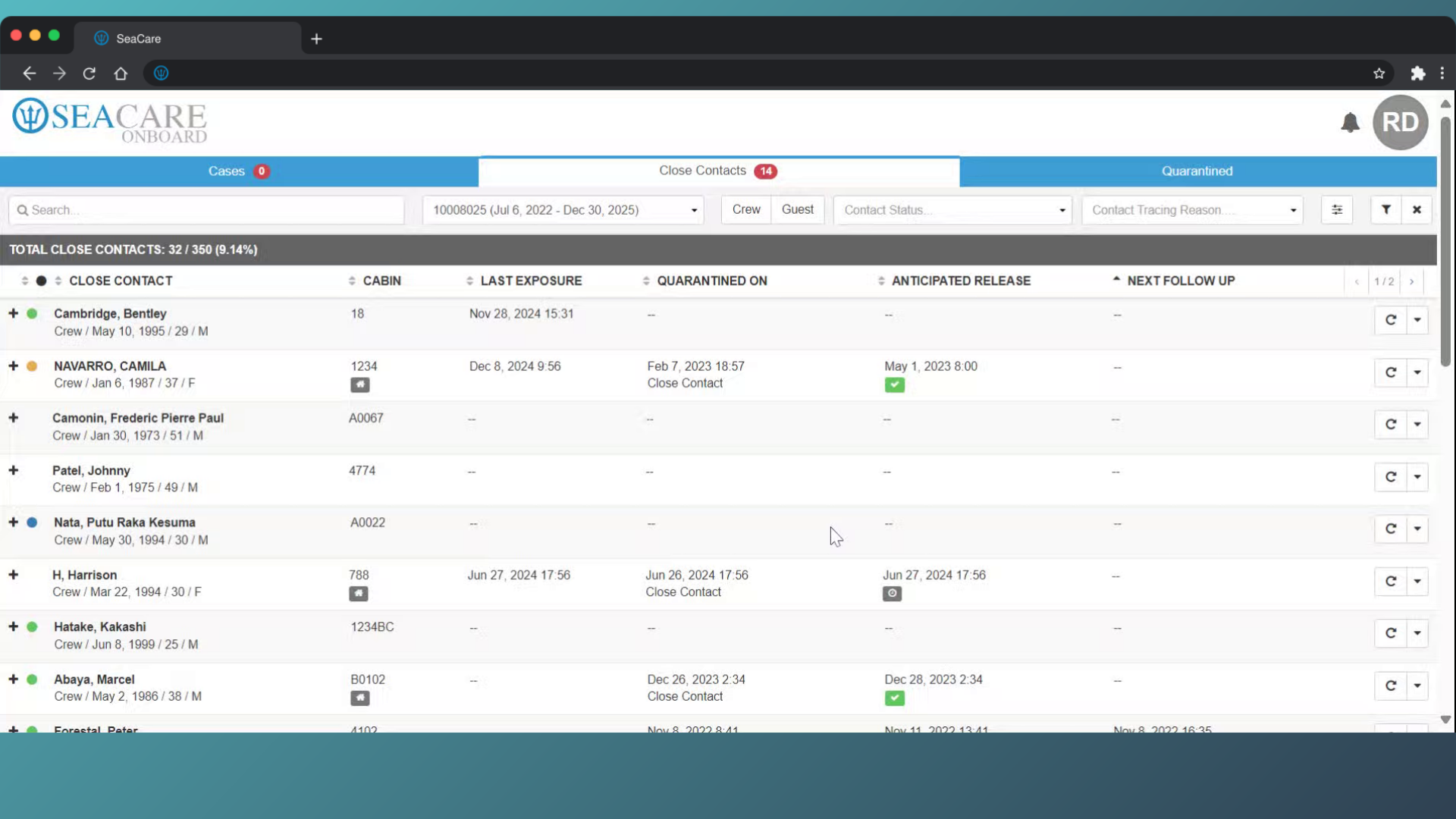
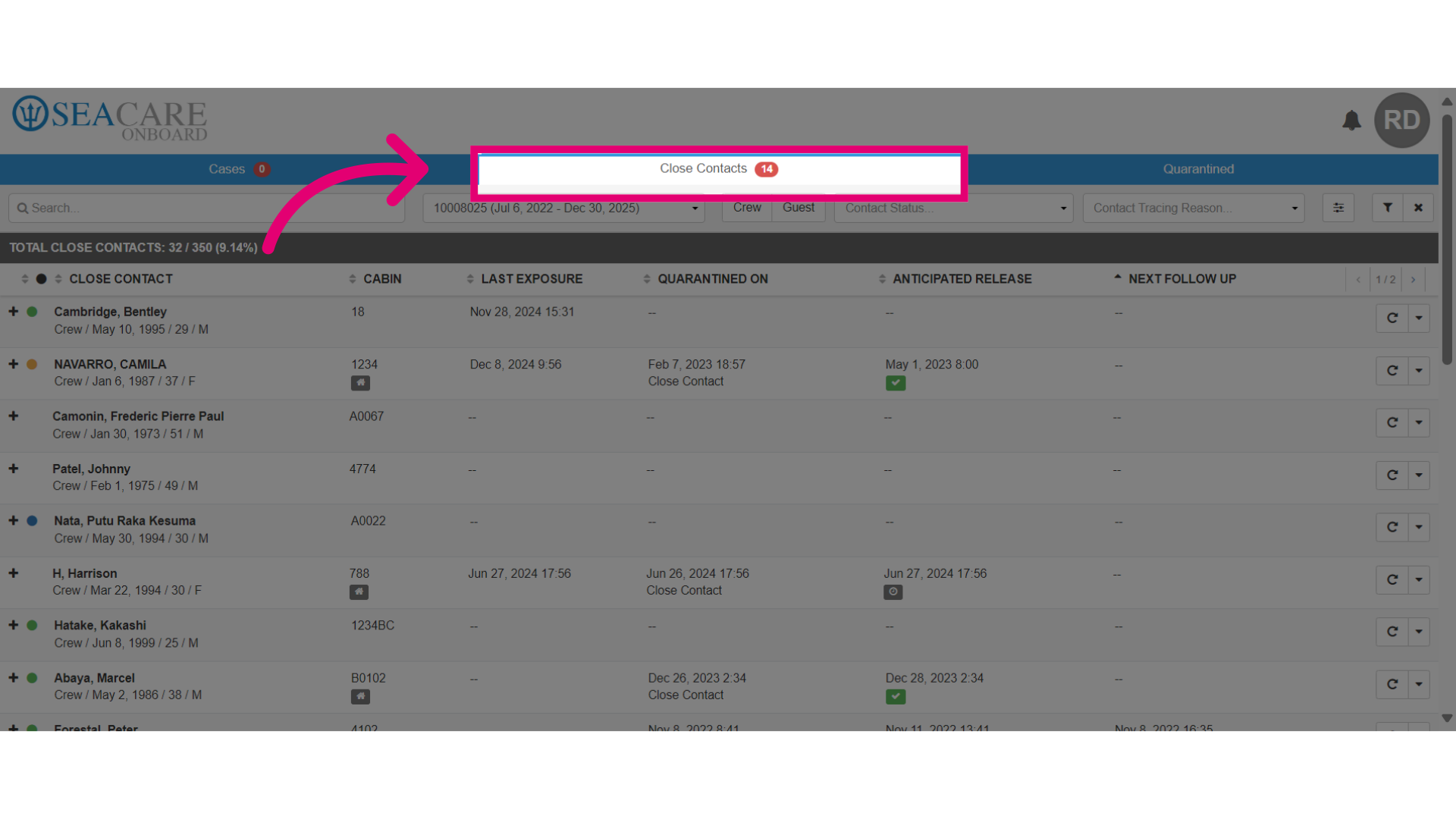
- Ensure you are in the Close Contacts View tab to access the list of close contacts.
- Use the filters to generate the close contact that fit your criteria.
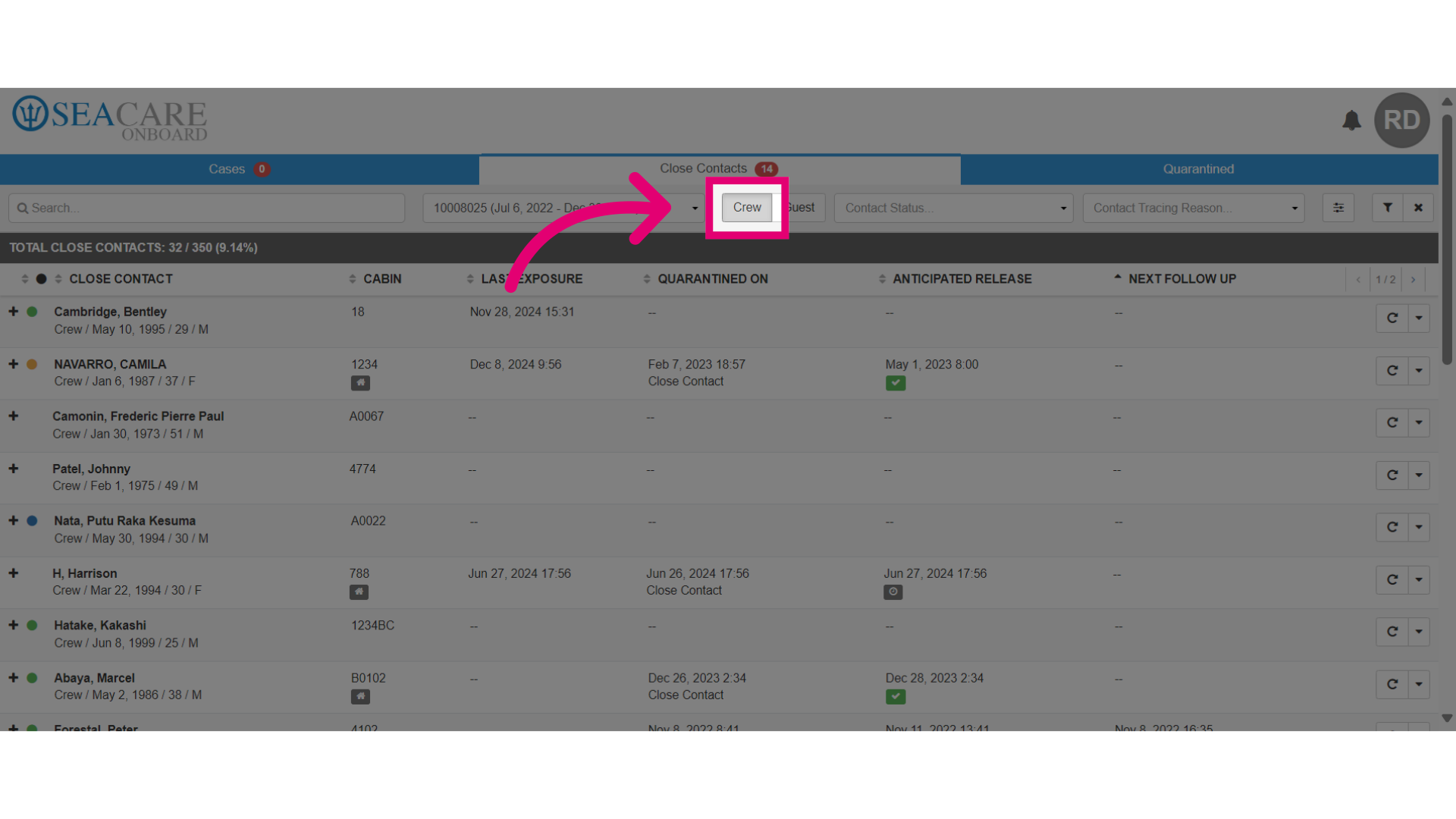
- Use the additional filters option if necessary.
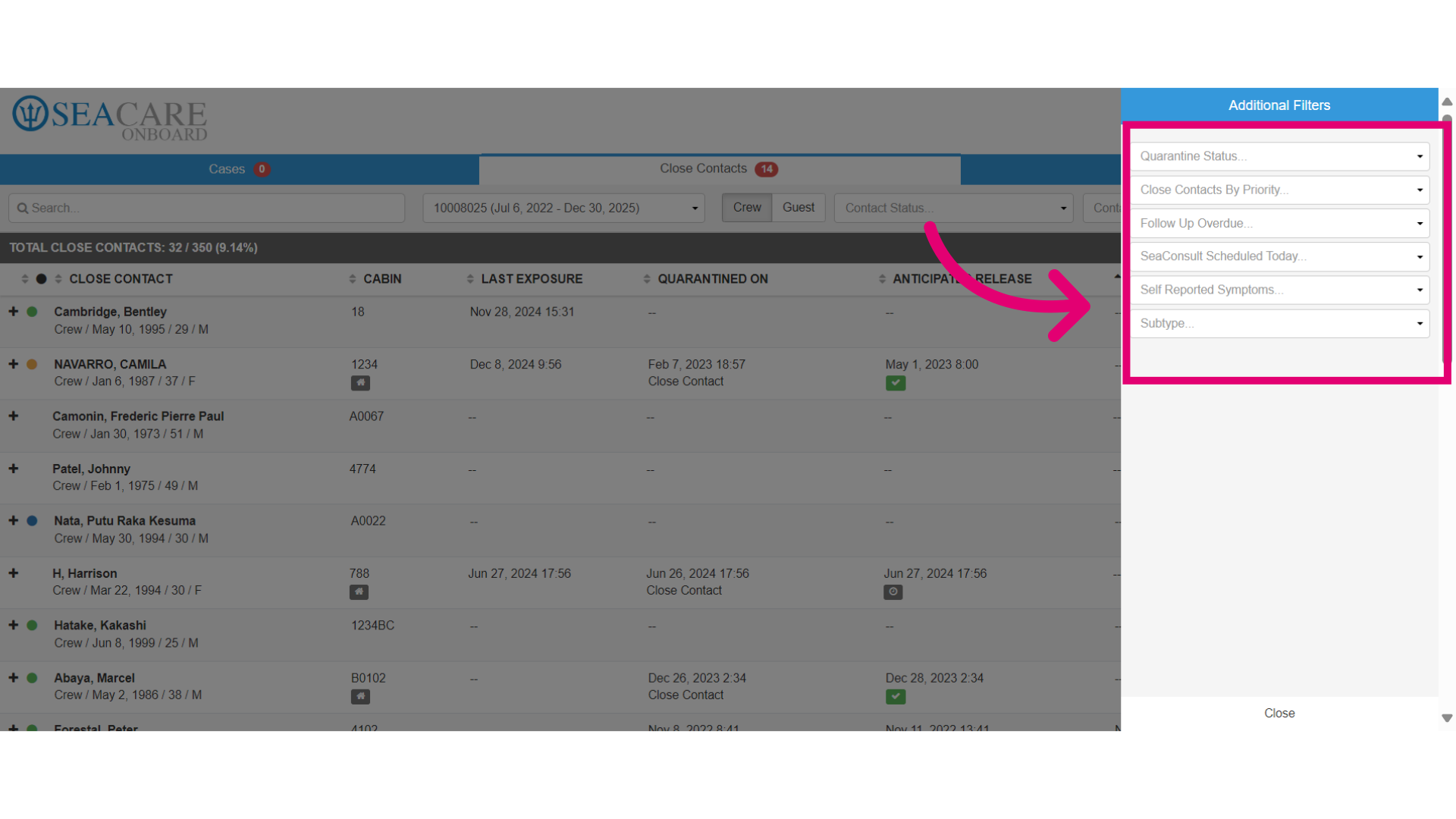
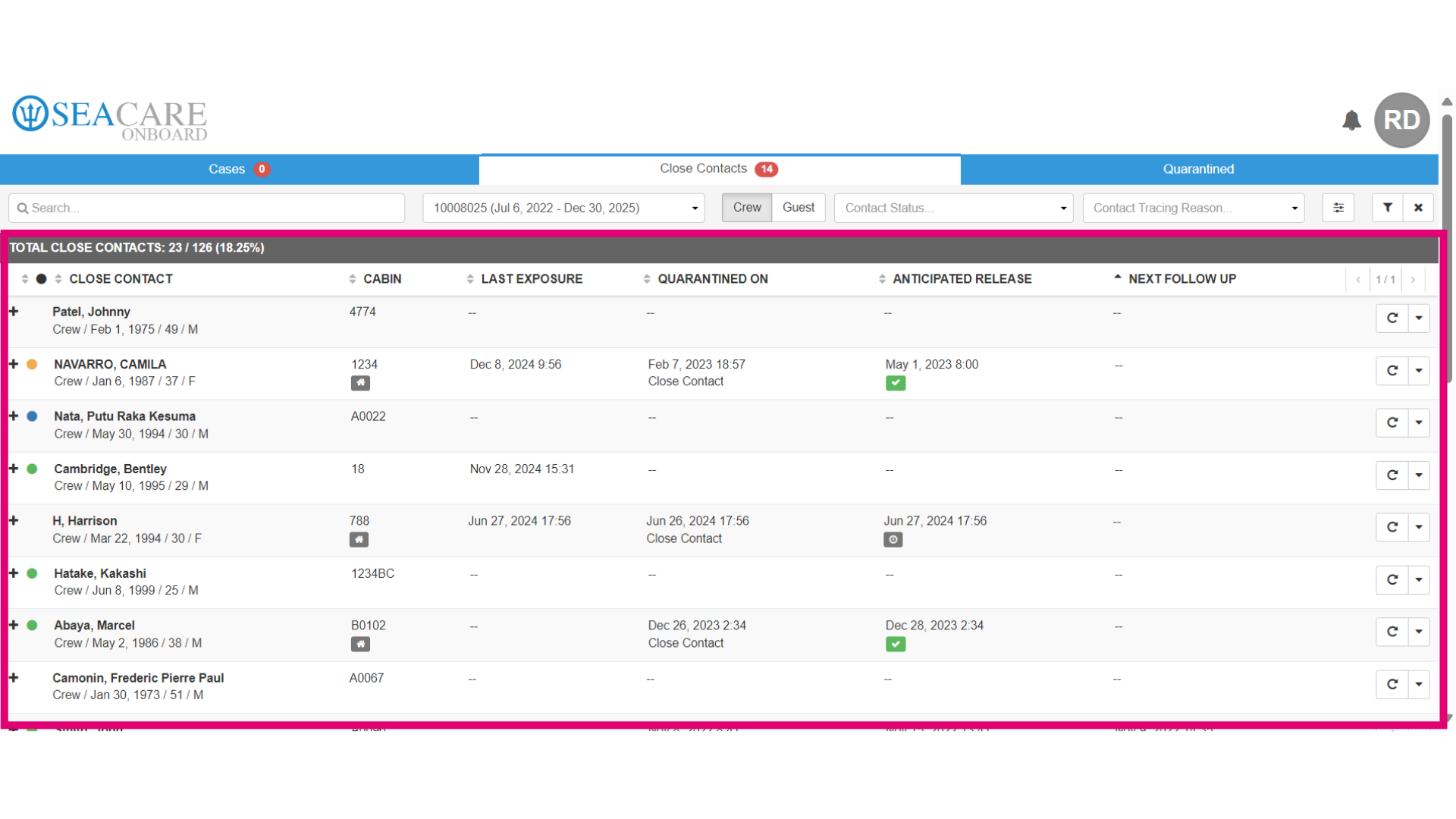
- After the list is generated, locate the close contact on the list.
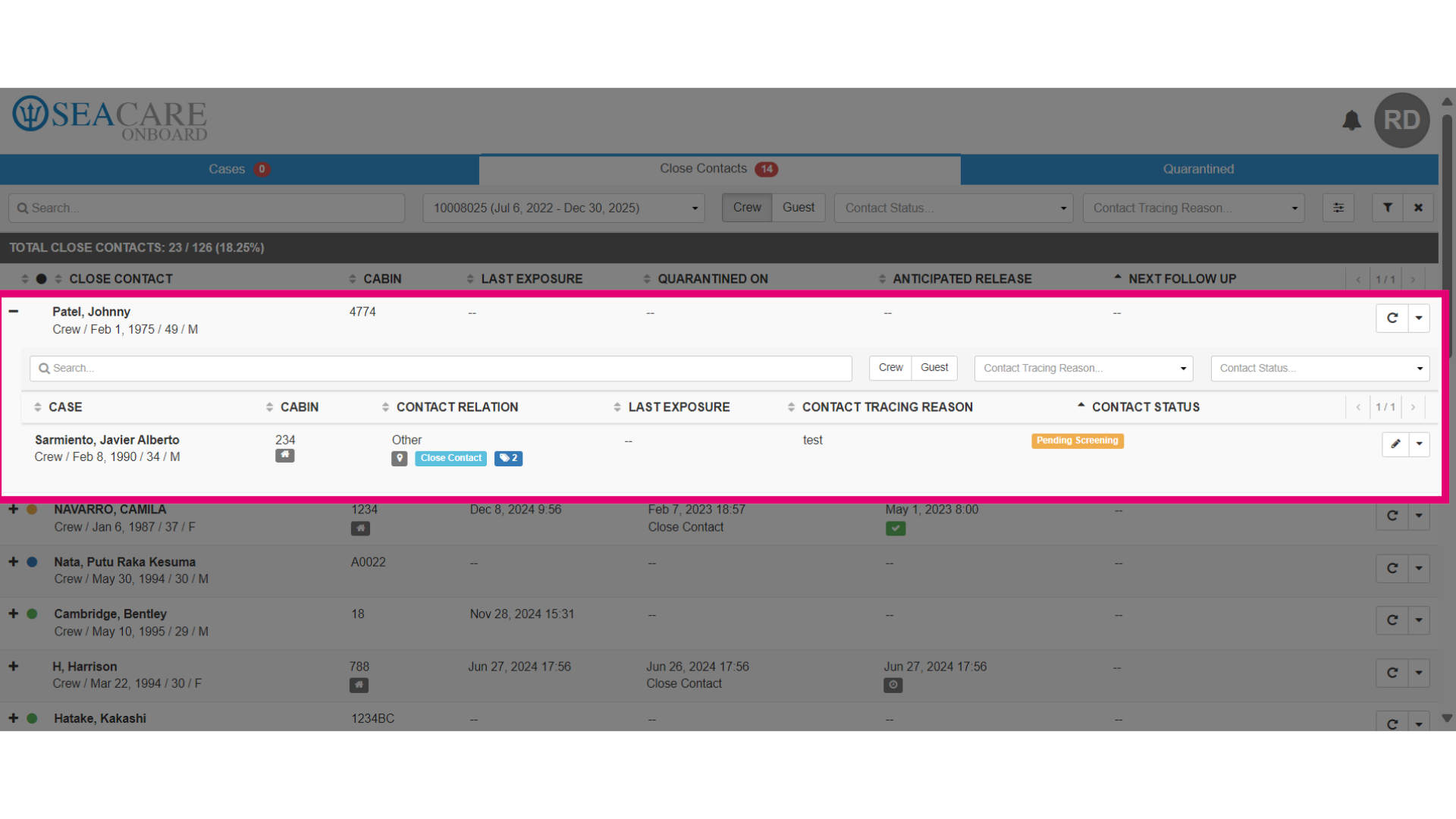
- View the close contact details. Particularly the contact status and what stages they are in. Then, view the index case for the close contact. So Johnny is the close contact and Javier is the index case.
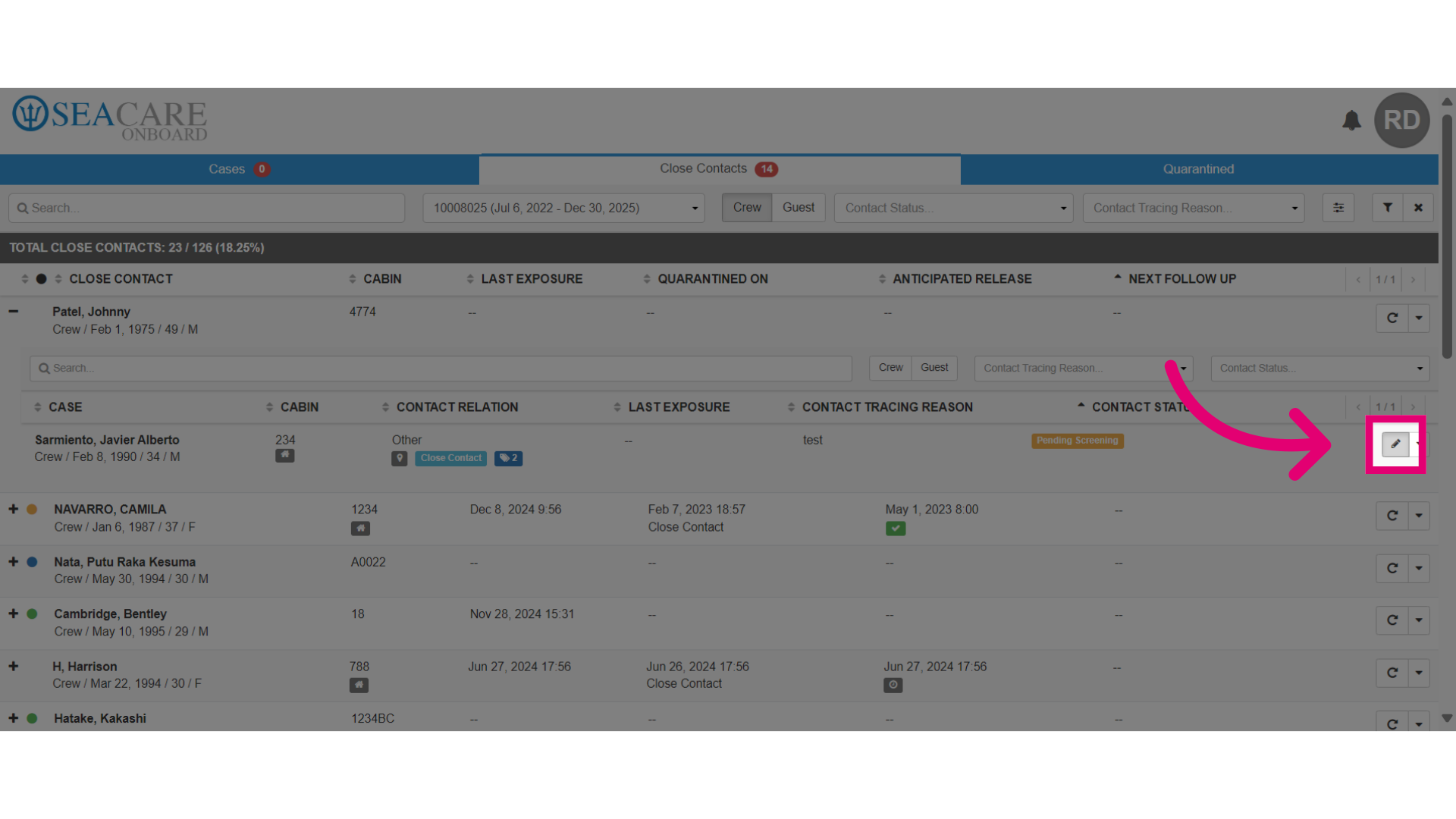
- Select the Edit button.
- View the details for the close contact and make any necessary updates to the location, activity or the screening.
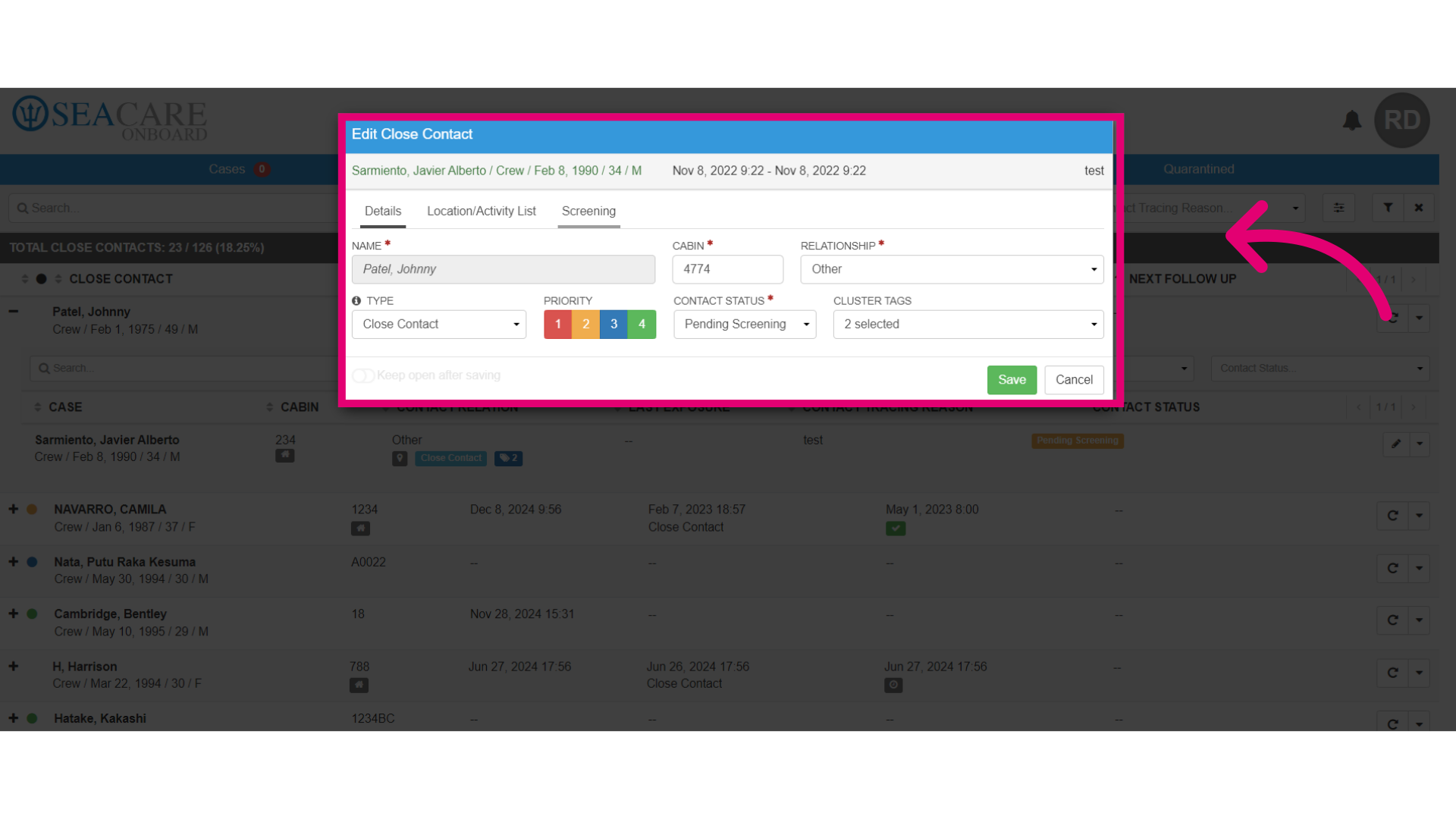
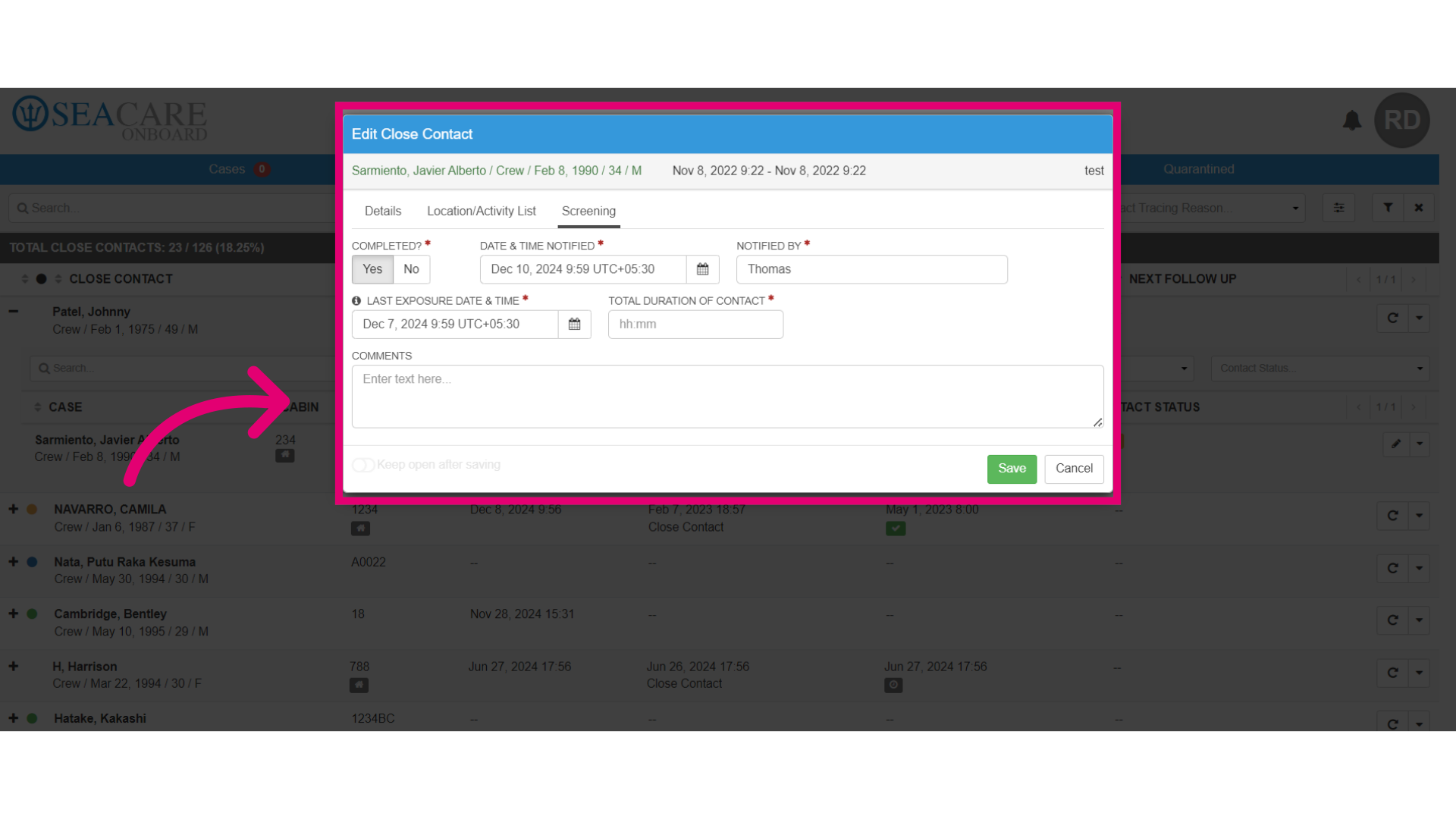
- Complete the fields for the screening.
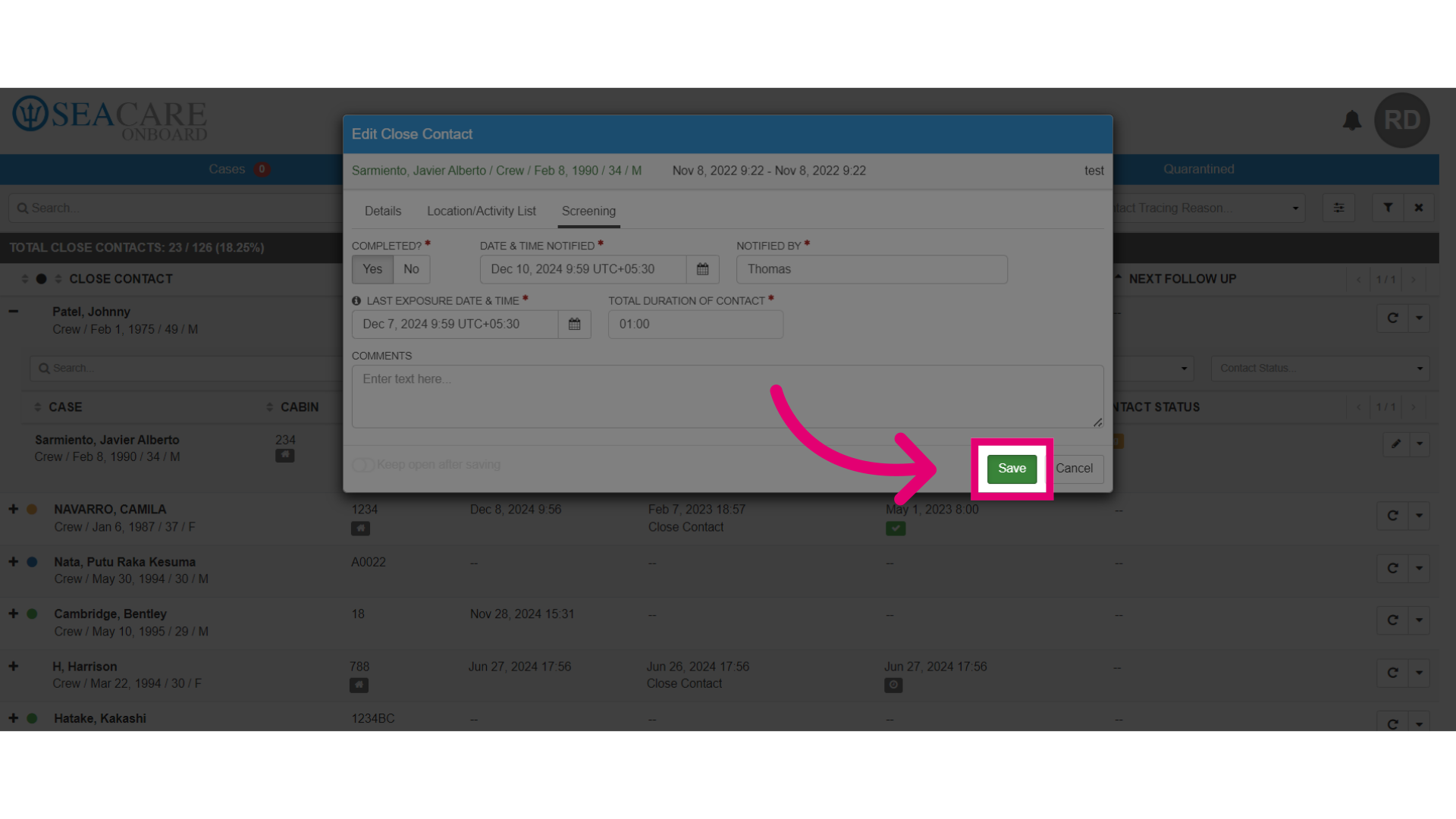
- Save the changes made.
- Perform the specified action.
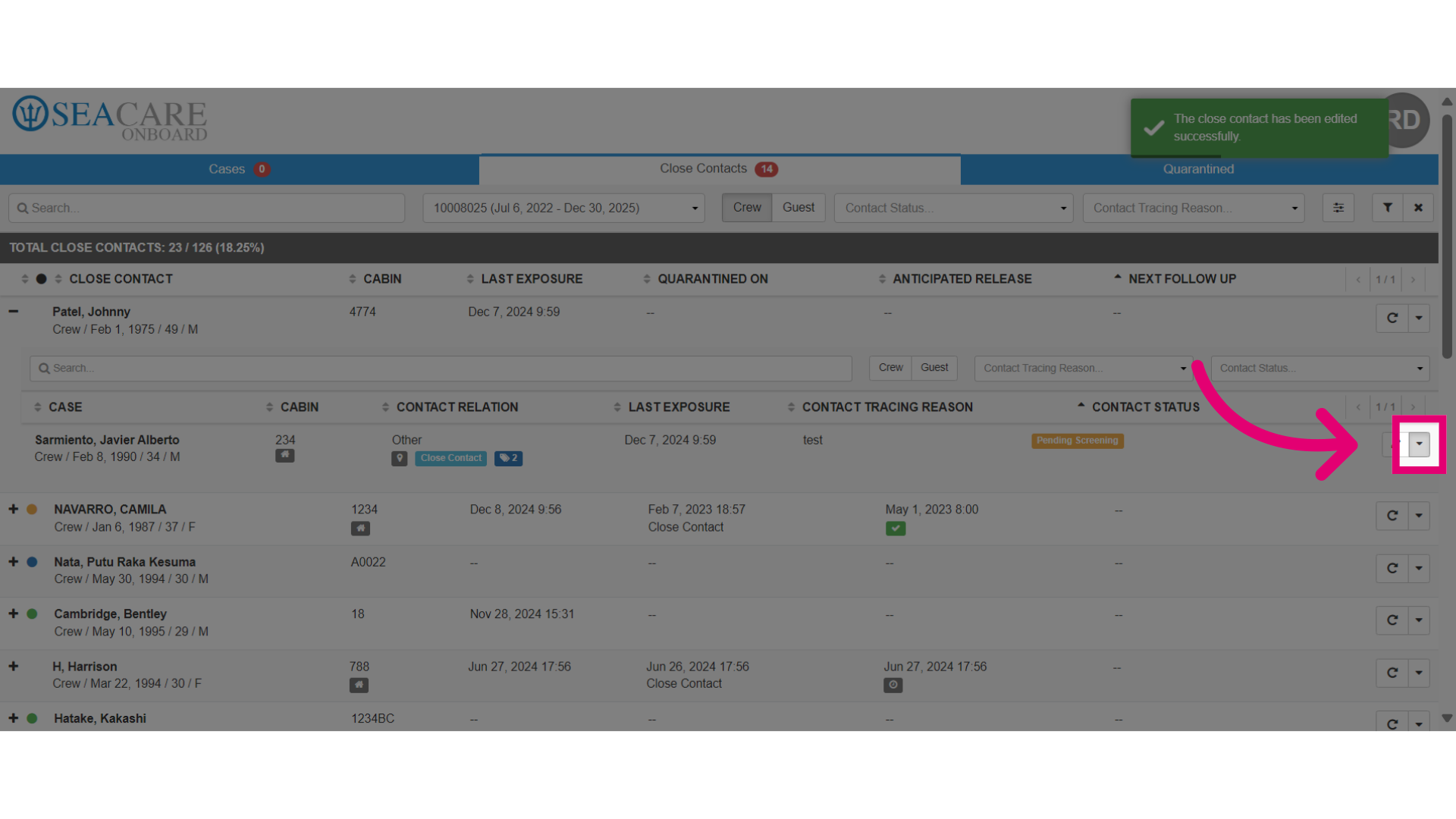
- Remove the selected item.
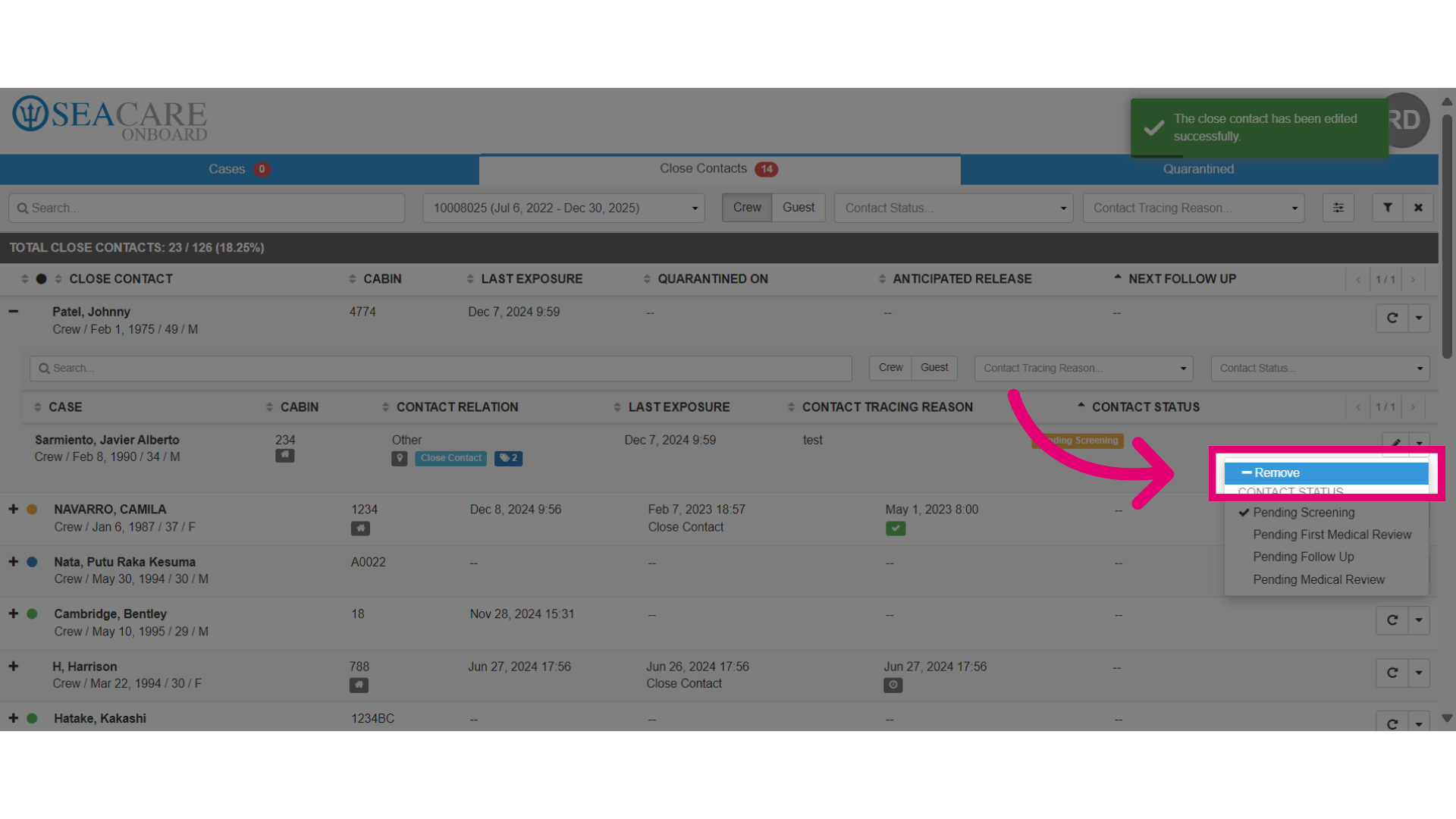
- Perform the specified action.
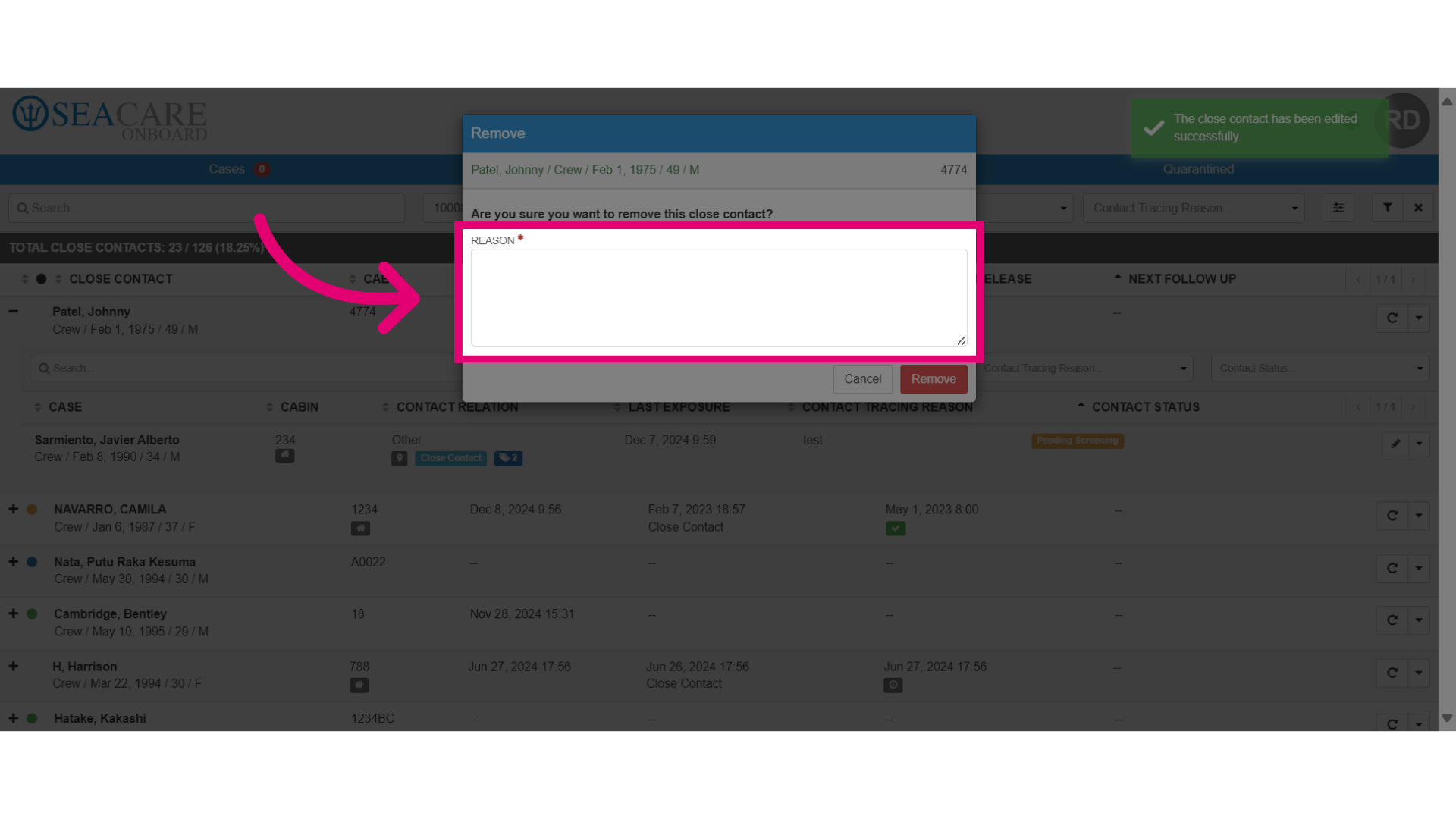
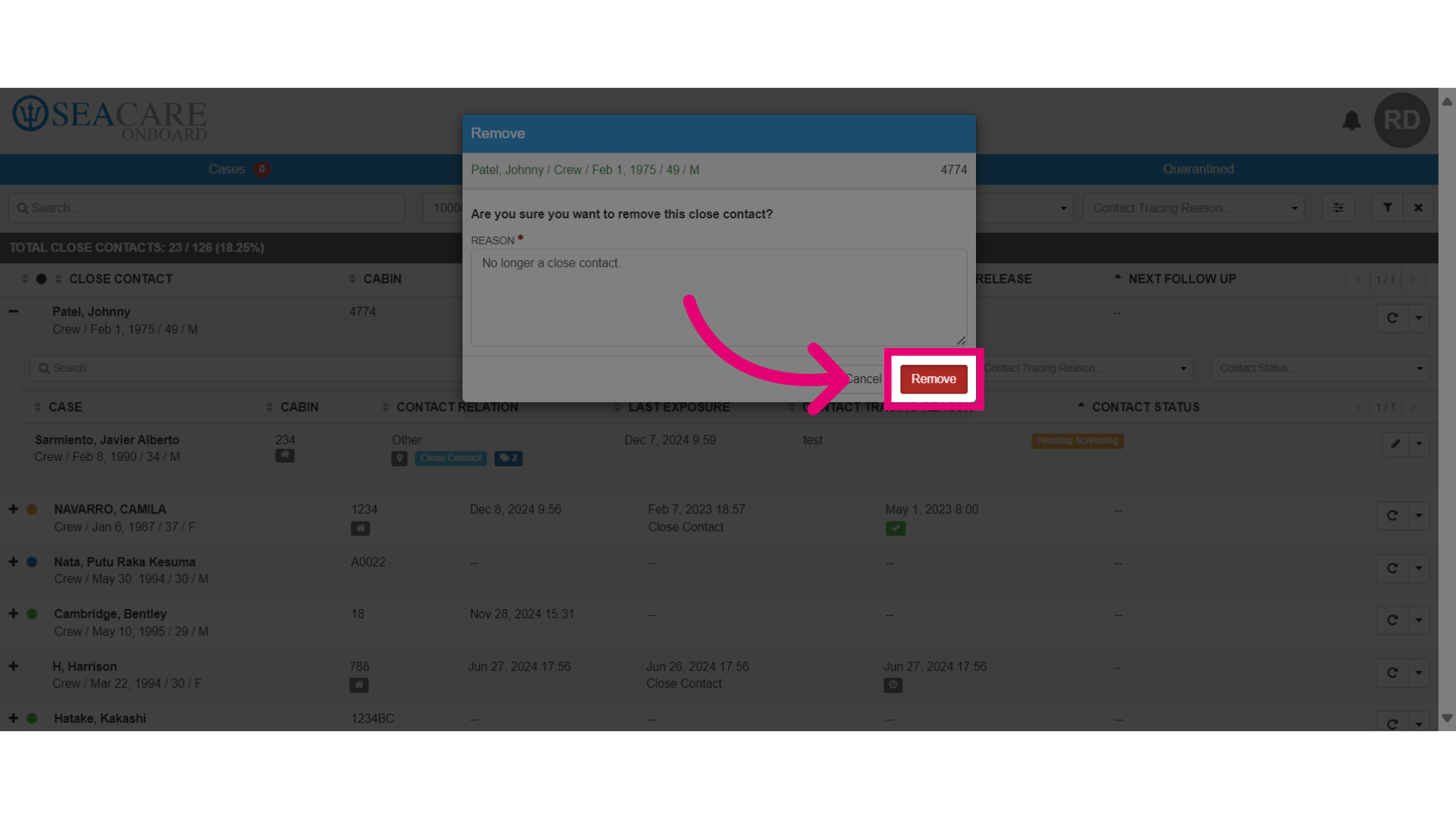
- Enter the reason for removing the close contact and select the remove button.