New article
Recently updated
Patient Chart Summary, Cases & Encounters Overview

Who is this article for?Users who want to learn about Patient Chart Summary, Cases & Encounters Overview.
No elevated permissions are required.
This article provides a comprehensive overview of Patient Chart Summary, Cases and Encounters.
1. Patient Chart Summary, Cases & Encounters Overview
1.1 Video
1.2 Steps
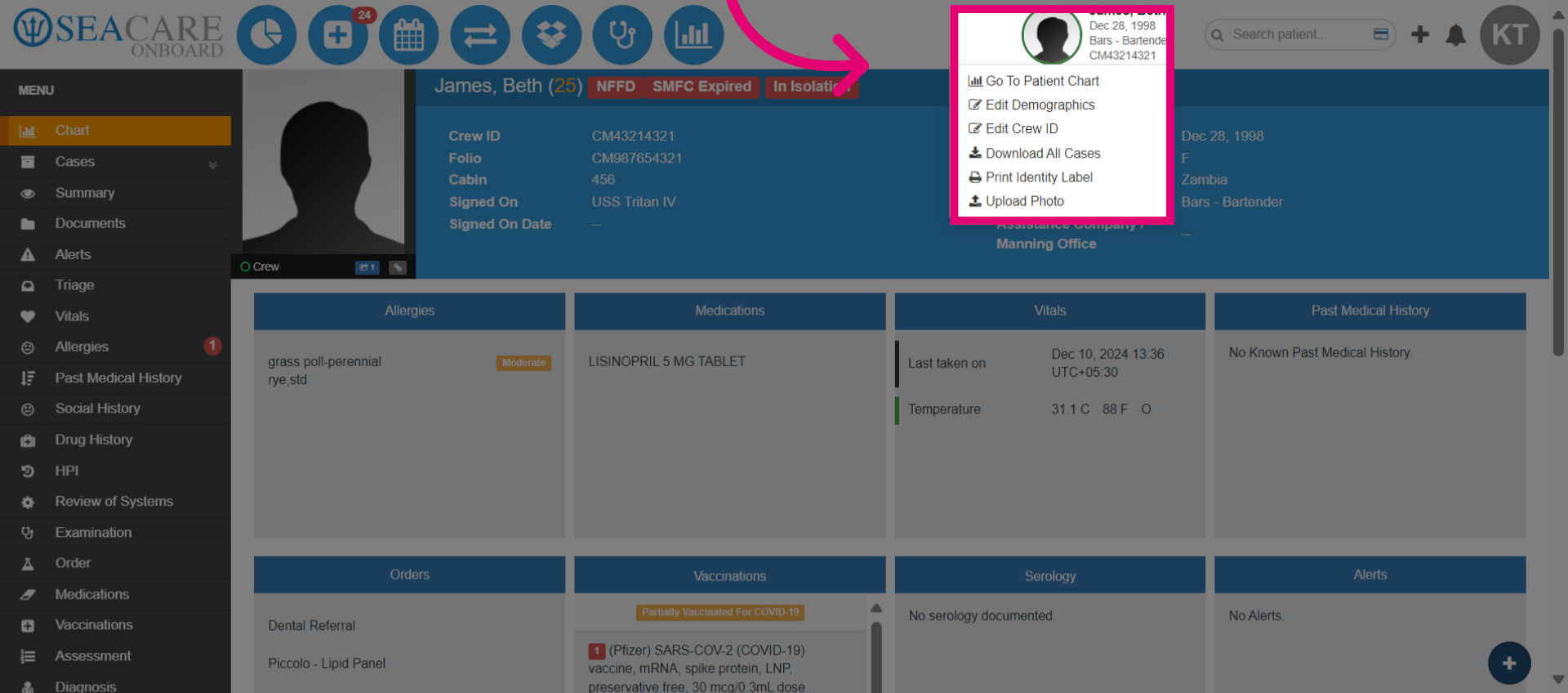
- Access the patient chart by clicking on the avatar then selecting Go to Patient Chart.
- There are options for editing the patient demographic information, crew ID, downloading cases, printing an identity label, and uploading a photo to replace the avatar.
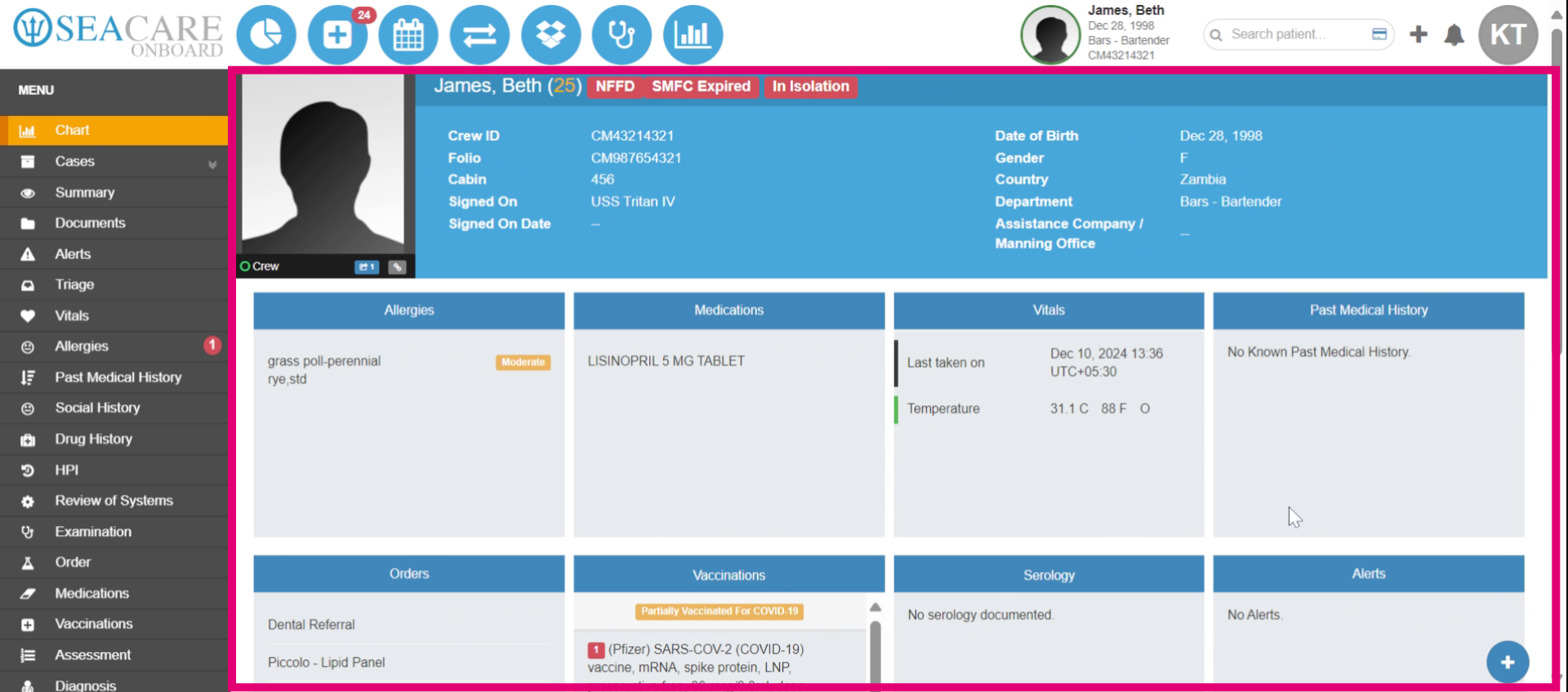
- Understand how to navigate and efficiently handle patient data in the patient chart. This centralized Chart section offers a quick view of the Patient Chart. Let's navigate other areas.
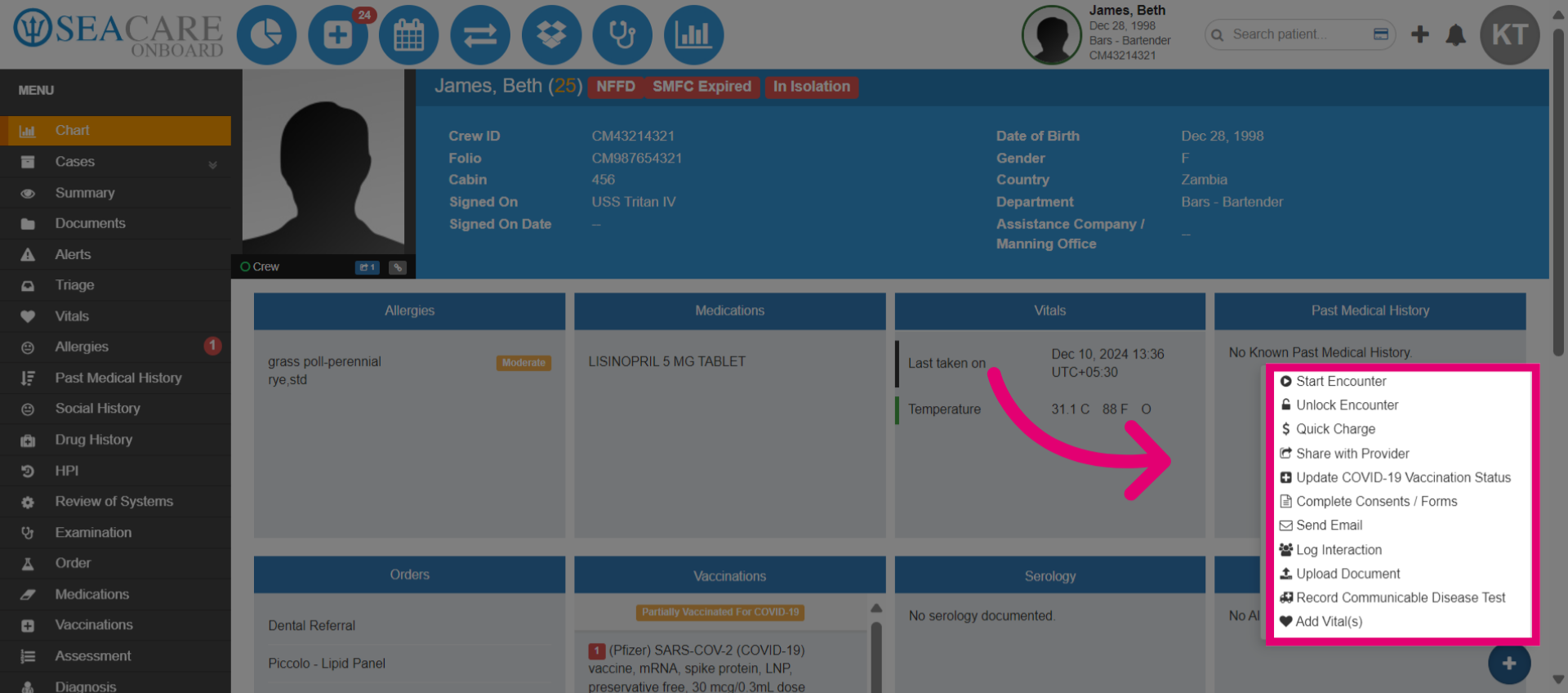
- Select the Quick Actions menu.
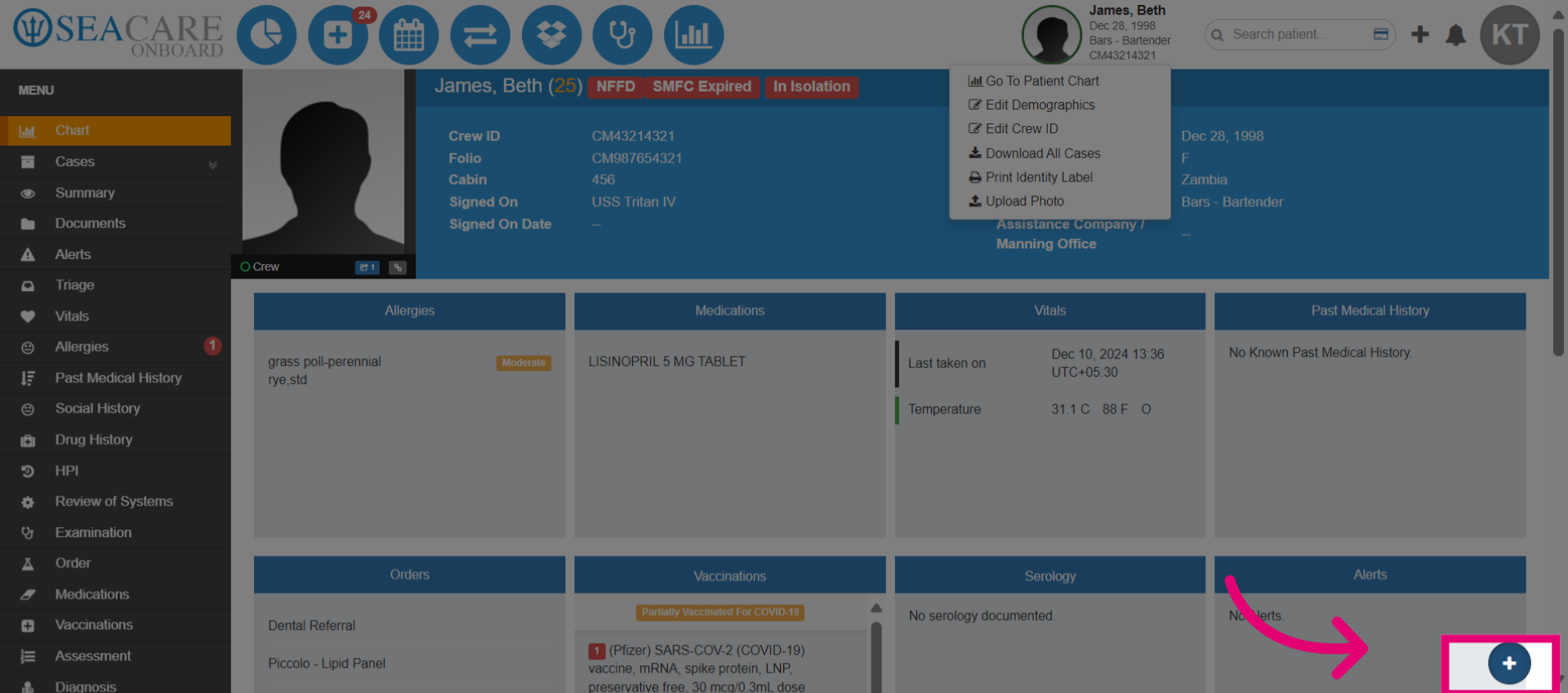
- The Quick Actions menu allows users to complete tasks like starting an encounter or to access modules that already exist in the patient chart without starting an encounter, such as directly recording a communicable disease test.
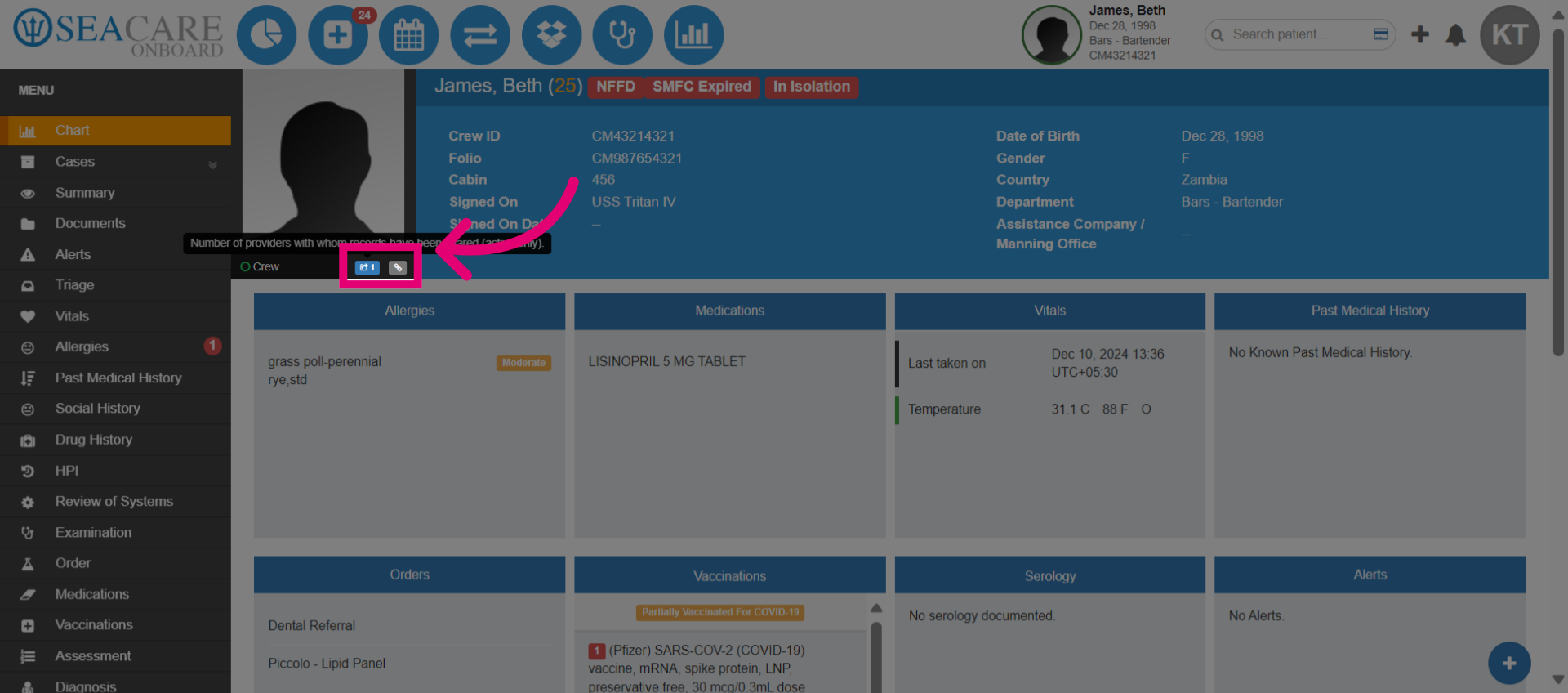
- Go to the Patient photo and hover over. You can view the number of providers where documents have been shared for the patient and to the right an icon indicating if the patient is connected to the crew portal.
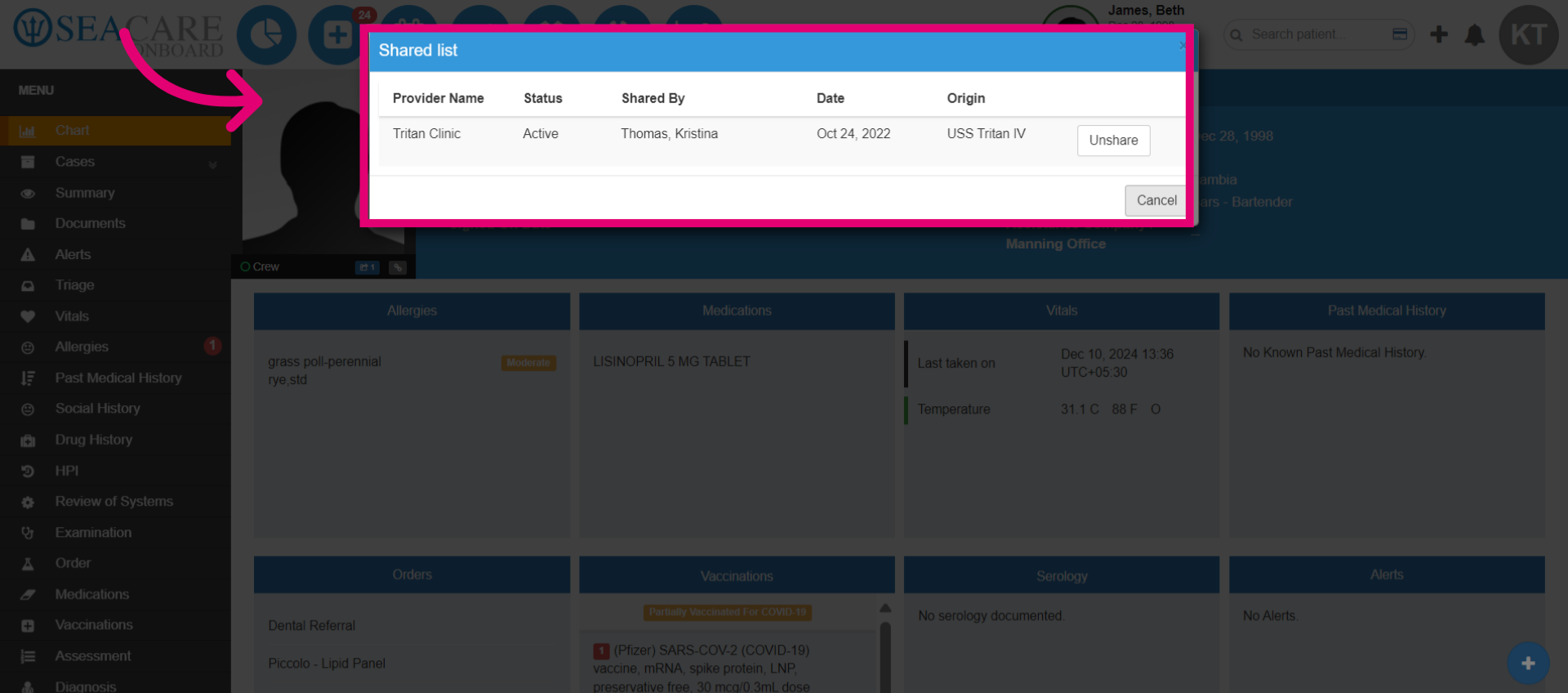
- View the shared list of providers where documents was shared.
- Users are able to view all Cases under the Case tab. The Cases section offers a drop down menu that separates each case that has been created for this patient. The cases are put into folders by encounter date.
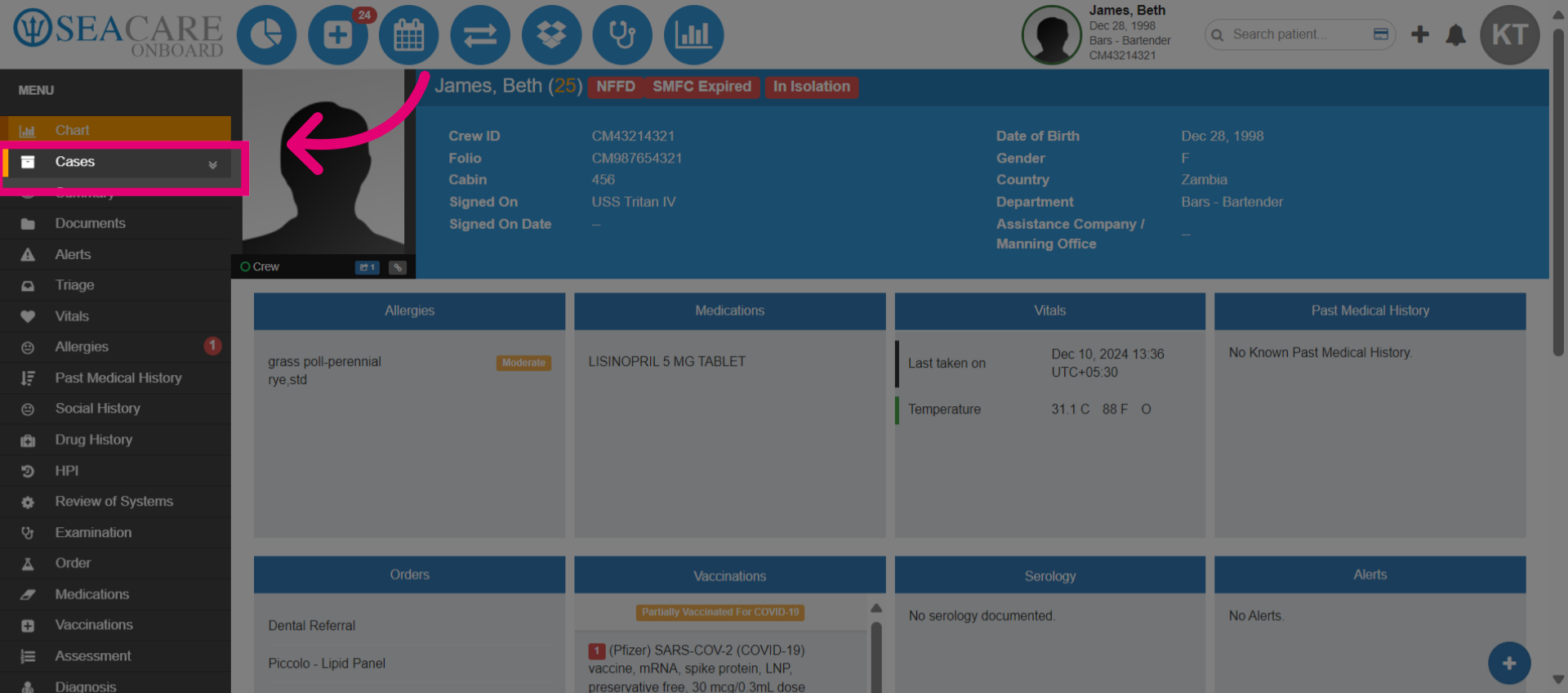
- The sub-tabs under each case pertain to the encounters assigned to those cases. A new Encounter is created every time the green start button is used. Encounters can be assigned to a new or existing Case.
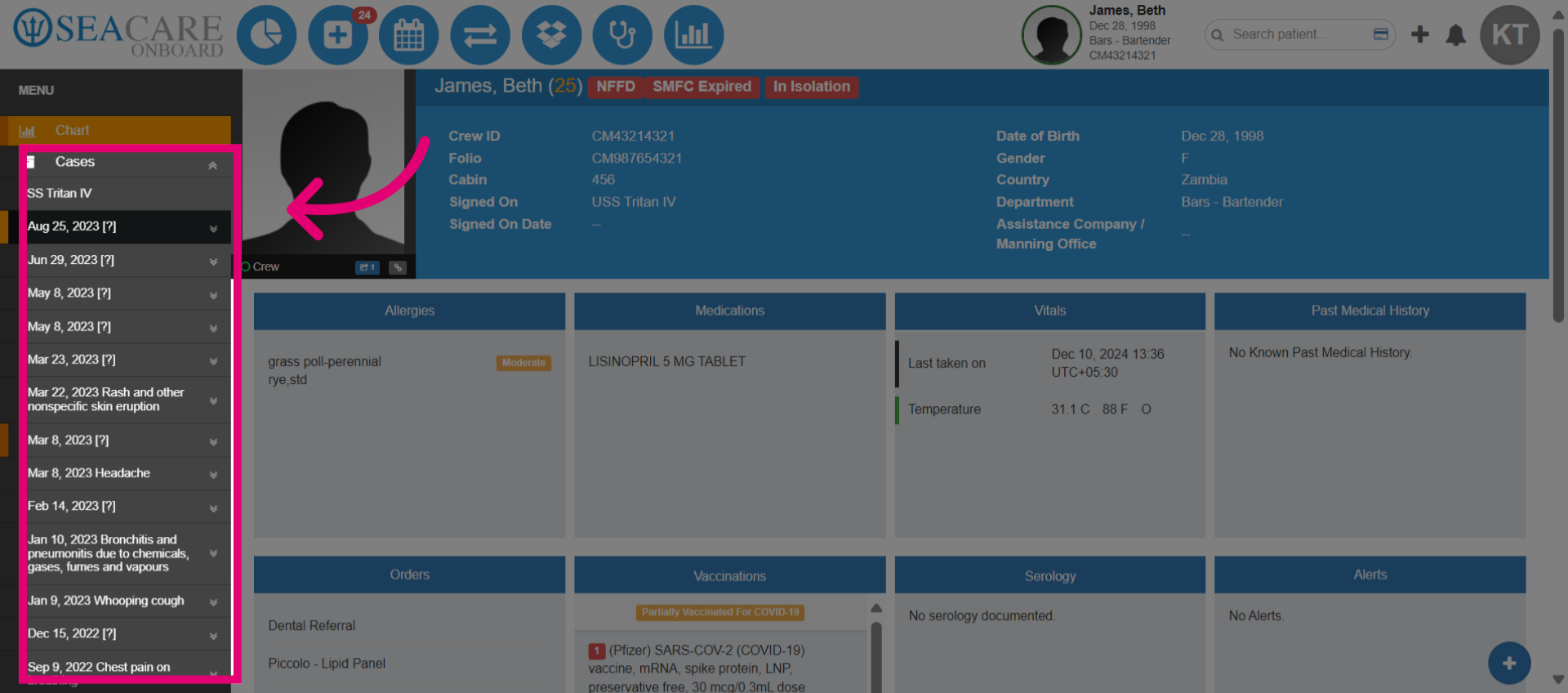
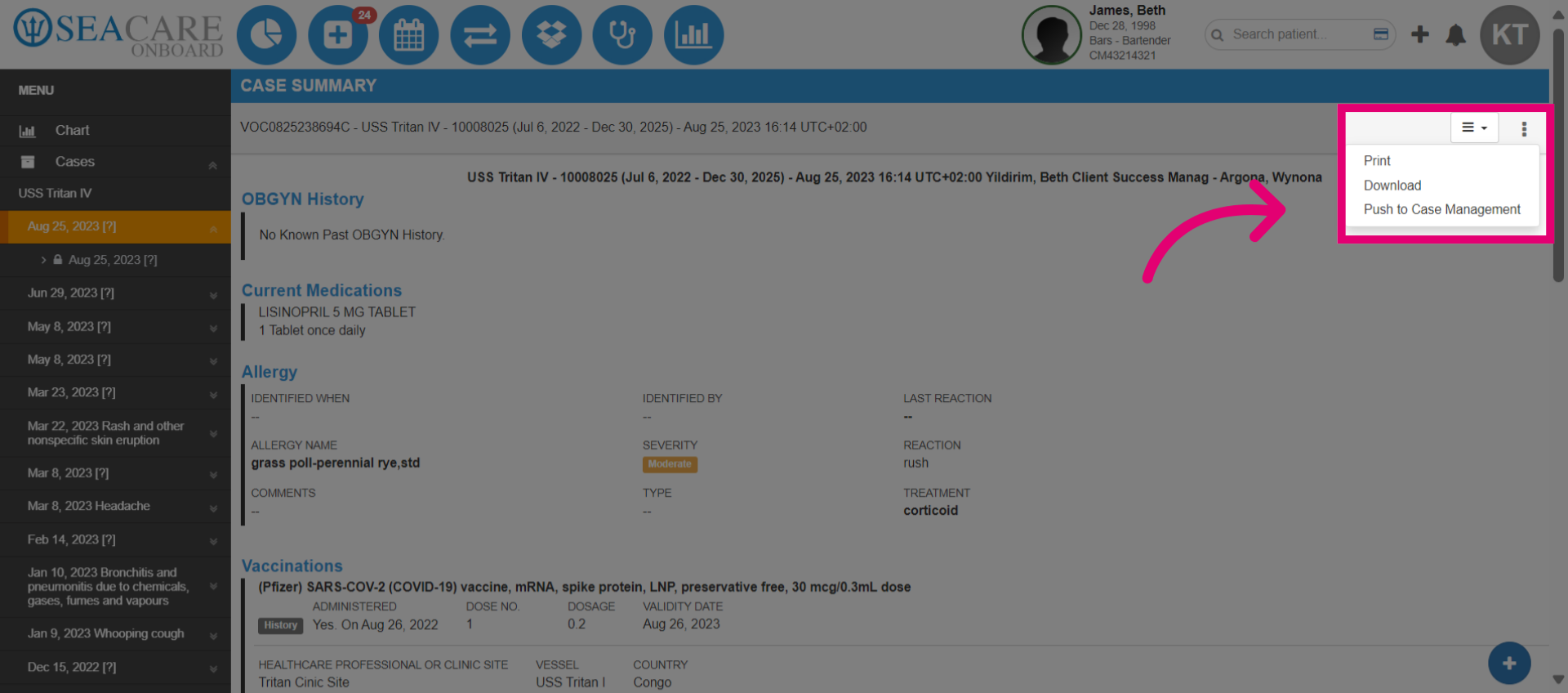
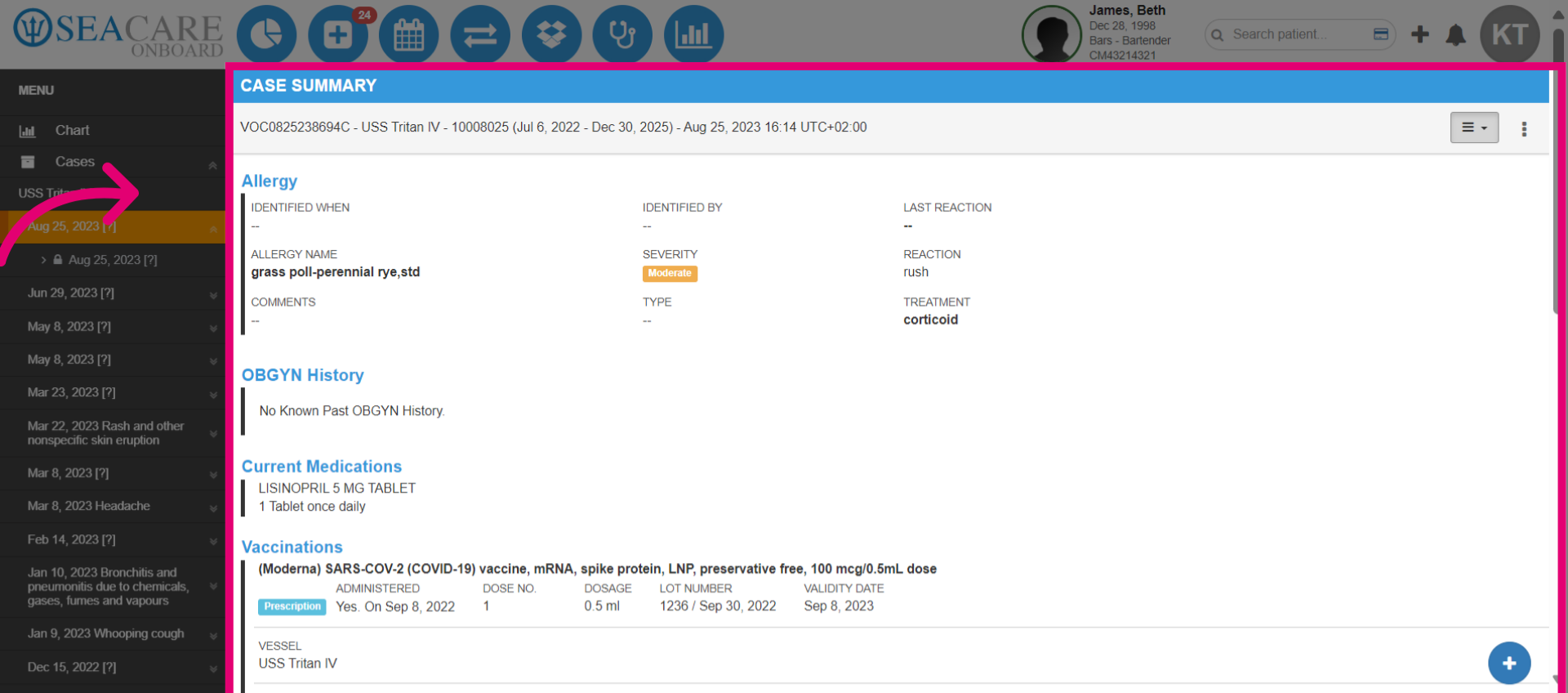
- The Summary section shows the encounter that the user has opened. This offers a quick view of Vitals, Allergies, Social History, Review of Systems, Examination etc. This also includes timestamps for the action and the user who made the documentation.
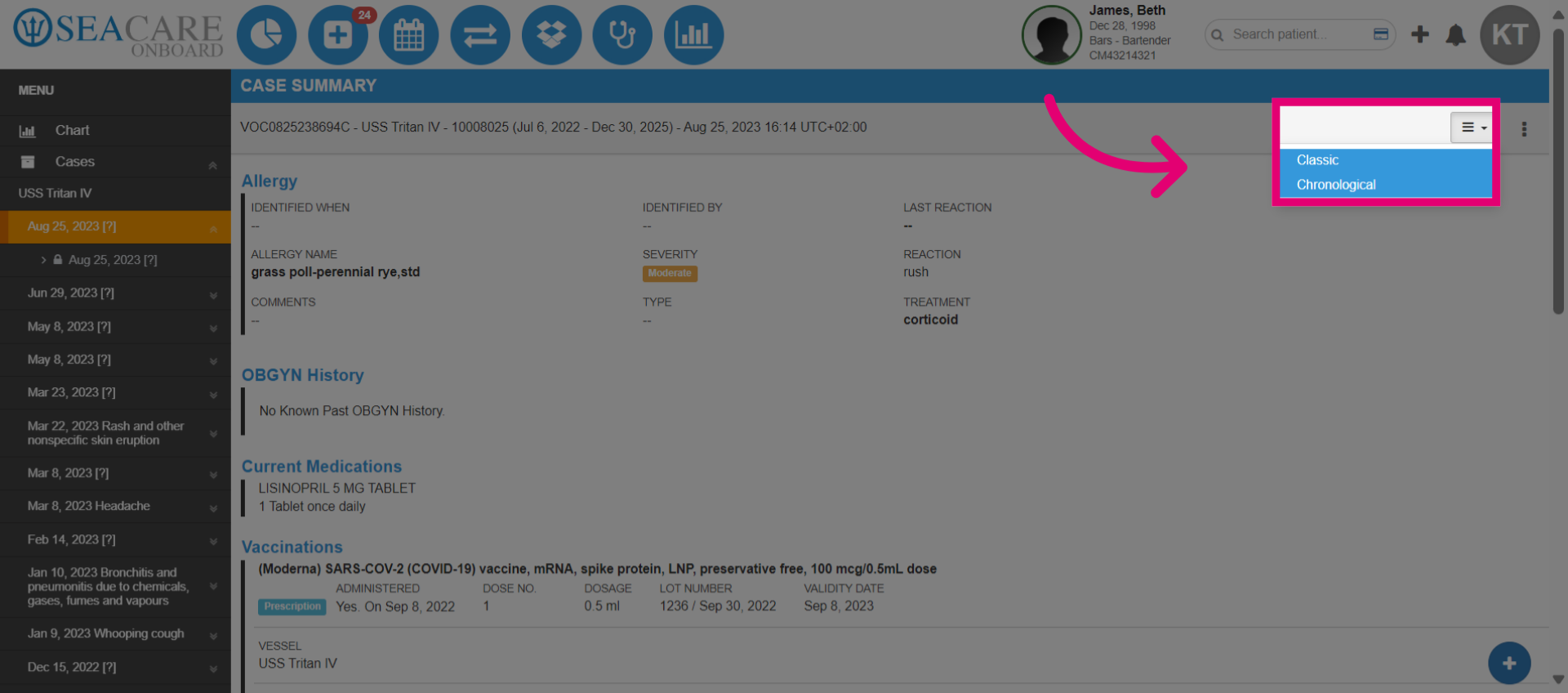
- Users may sort entries in chronological order or the default classic view.
- Select to access more options for the patient chart.
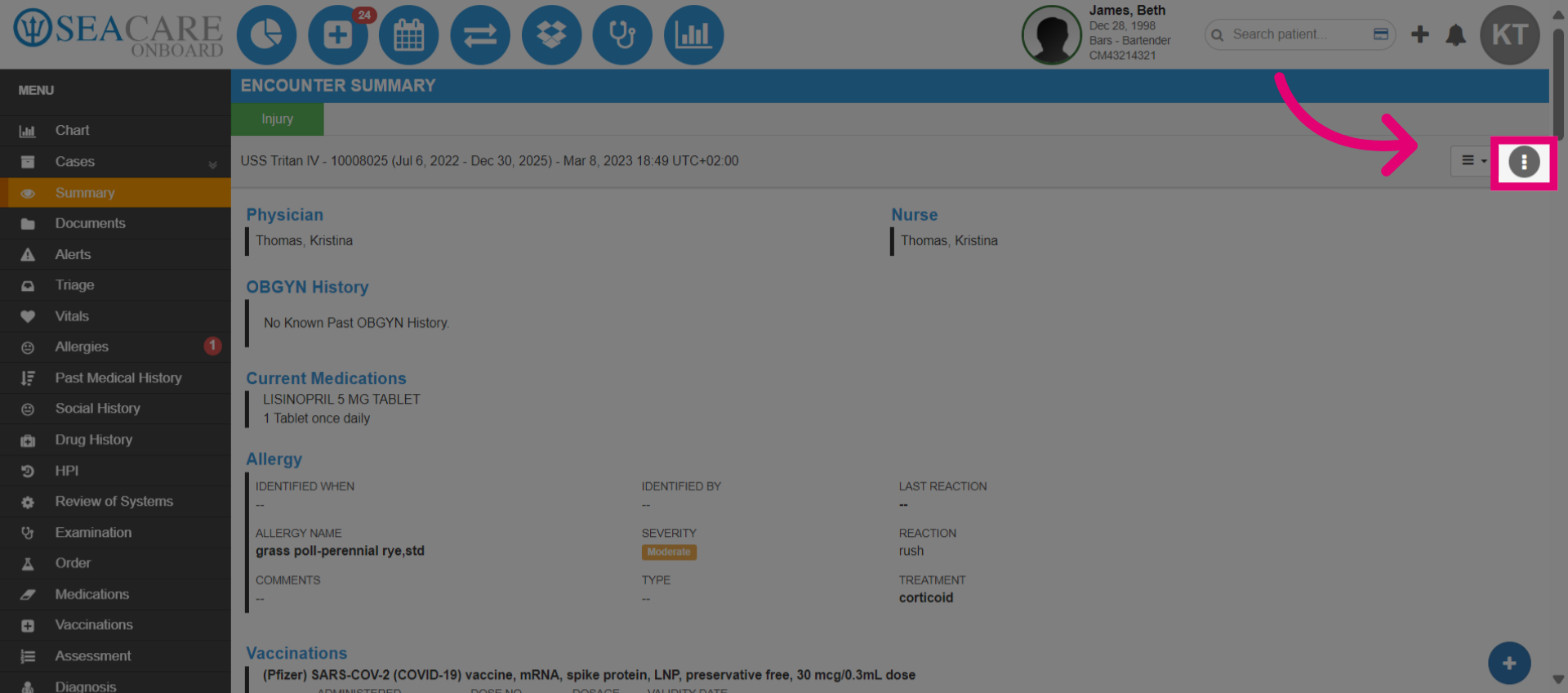
- Perform actions for the summary by printing, downloading or pushing it to case management.