


New article
Recently updated
Collecting an index case test sample with billing from the clinic

Who is this article for?Users who want to learn to collect an index case test sample with billing from the clinic.
No elevated permissions are required.
This guide provides precise instructions for collecting an index case test sample with billing from the clinic within Ideagen Maritime Health.
1. Collecting an index case test sample with billing from the clinic
1.1. Video
1.2. Steps
- This walkthrough begins in the Clinic's Public Health tab, within the index case view.
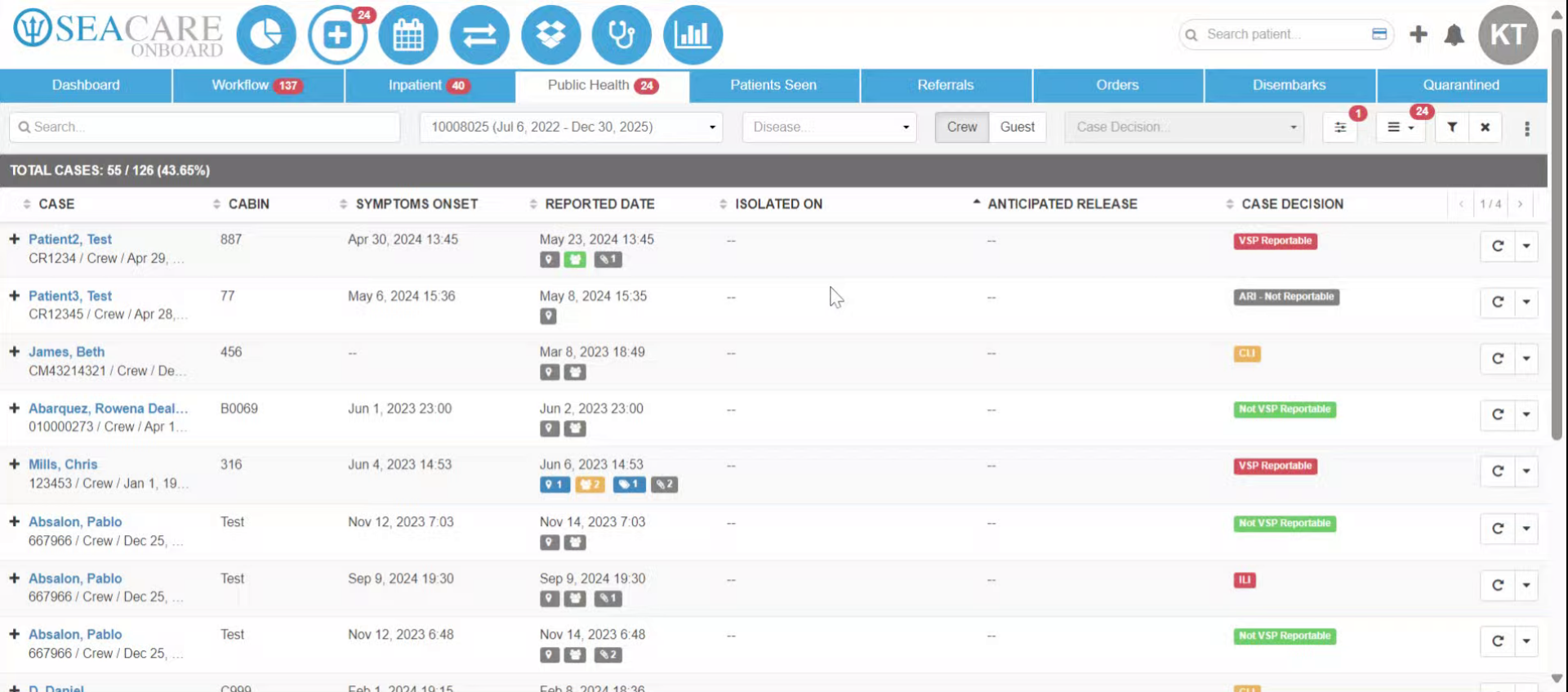
- Locate your patient in the Index Case list, then select follow up.
- In the Follow up tab, fill in the required follow up details since this will be considered a follow up for the patient.
- Go to the Testing section and select Yes for requiring a test.
- Select the Add button
- Enter the sample taken date, enter or automatically generate a sample ID, which must be unique to the vessel if added manually. Select the sample site and specimen type from the drop down.
- Add the test type, test location, the collecting physician, the instrument used, test brand which can be found on the container, and the testing timeframe for when the test was taken, which may be onboard, before disembarkation, pre-disembarkation, etc.
- Fill in the rest of the fields. Select the reason for the test, screening, to screen for a communicable disease, or surveillance if the case is being monitored. Add the severity level if the case is asymptomatic, or has mild, moderate, or severe symptoms.
- Mark if the results are Pending or Ready. If they are ready then add the processed date and time, the test results date and time when the results came back.
- Select Save.
- Select bill for the test.
- Select Confirm.
- You will be redirected to the Quick Charge window where you can enter the billing details for the patient, to charge the patient for the test sample.
- Select the settlement type, or leave the default which is typically Folio.
- Use the search to locate the test in the system for billing. You may also scan a barcode if you have a scanner device integrated in your system.
- Select COVID-19 Rapid Test.
- The test will be added to the bill automatically after selecting it. You may use search to add additional tests, fees, or service charges to the bill. The total amount for professional services, total medications, total supplies, and total charges will be listed.
- Adjust the quantity of the product if necessary.
- Mark the charge as a gift if it is provided for free but you may still bill so that it is depleted from your inventory counts.
- Select Continue.
- Read the notice and then confirm Yes when you are ready to bill.
- The invoice will be created and the patient and medical team member can sign.
- The invoice will be created and the patient and medical team member can sign. Sign in the signature area and click save for each.
- Select Print Confidential to print a copy with patient demographic data visible such as date of birth. Or Print Non-Confidential to print without patient demographic data visible.
- Select Close.
- You must re-analyze the case with the latest test sample and required follow up details that were added. Select Analyze.
- Add the case decision and select Save.
- View the follow up and testing details to ensure accuracy by going to the actions menu and Select View Details.
- View the follow up details and go to the testing section by selecting Testing.
- View the testing details and then close when done.