New article
Recently updated
Completing Non Symptomatic Follow Ups for Close Contacts

Who is this article for?Users who want to learn to completing Non Symptomatic Follow Ups for Close Contacts.
No elevated permissions are required.
This guide provides instructions for conducting a Non Symptomatic Follow Up for Close Contacts.
1. Configuring Non Symptomatic Follow Ups for Close Contacts
1.1. Video
1.2. Steps
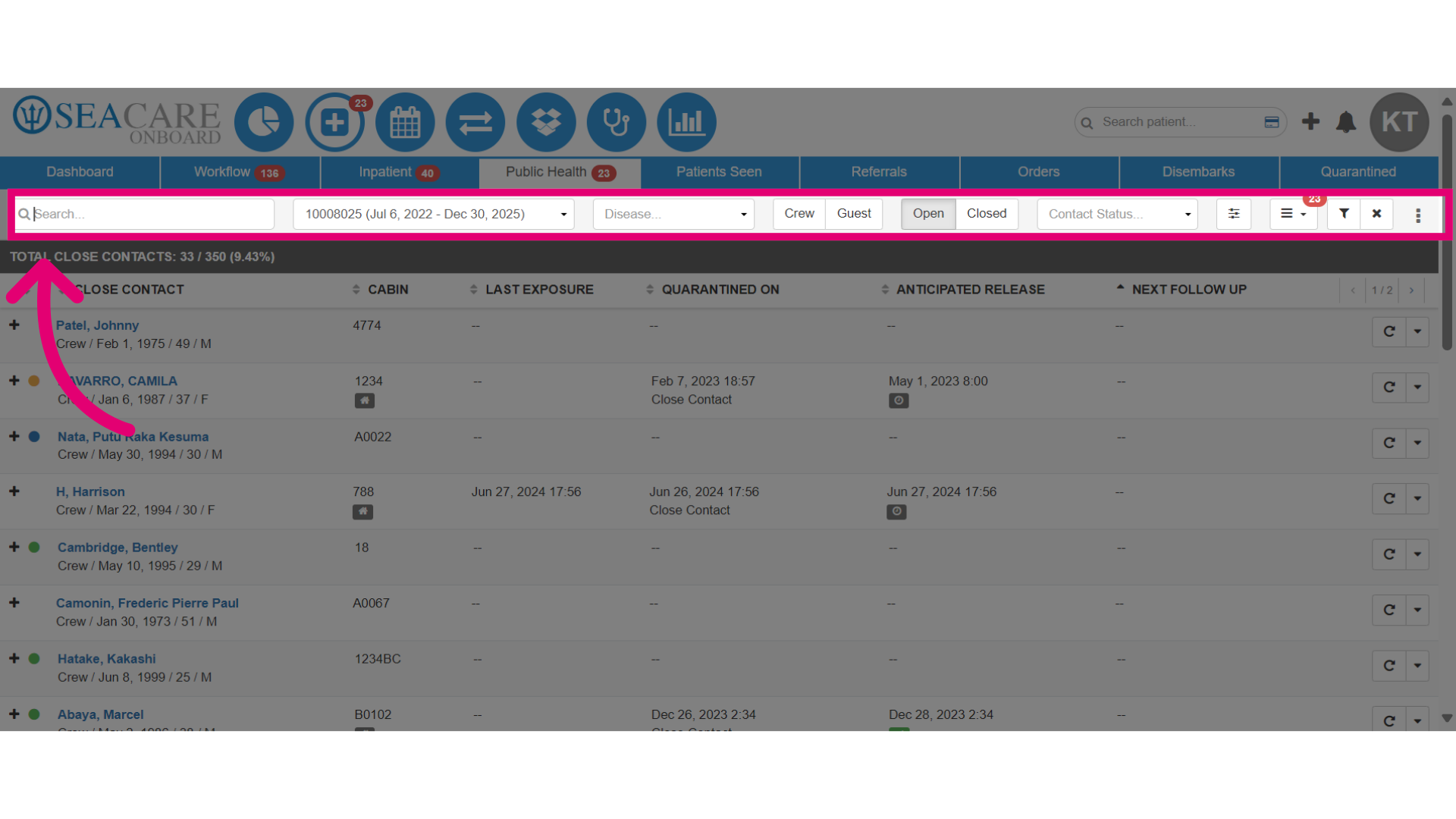
- In the Close Contacts module under Public Health in the Clinic, use the search bar and filters to locate the close contact by name, voyage date, disease type, crew or guest, and case decision.
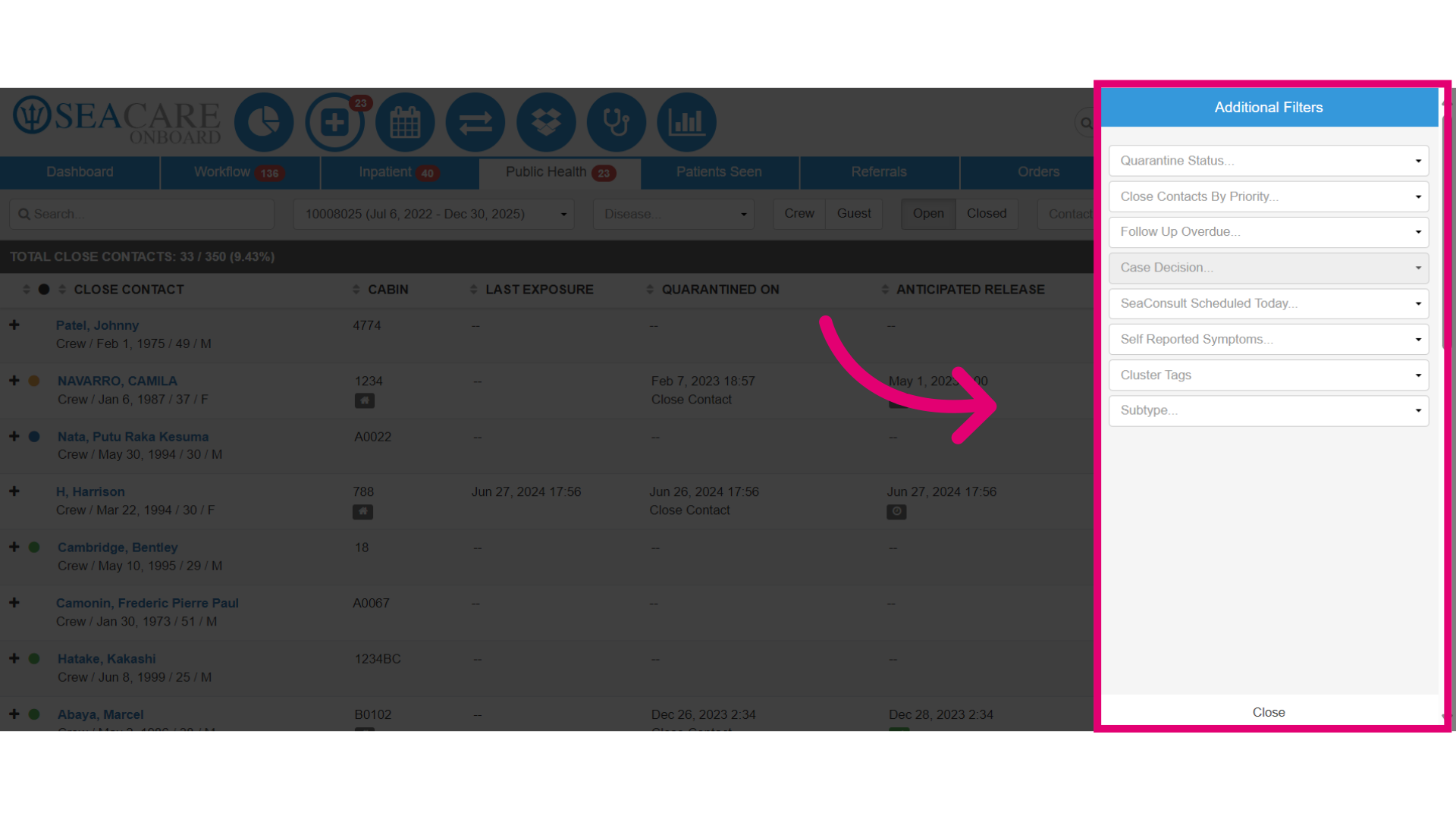
- Additional filters include Quarantine status, priority, Sea Consult scheduled today, self-reported symptoms, cluster tags, and subtype.
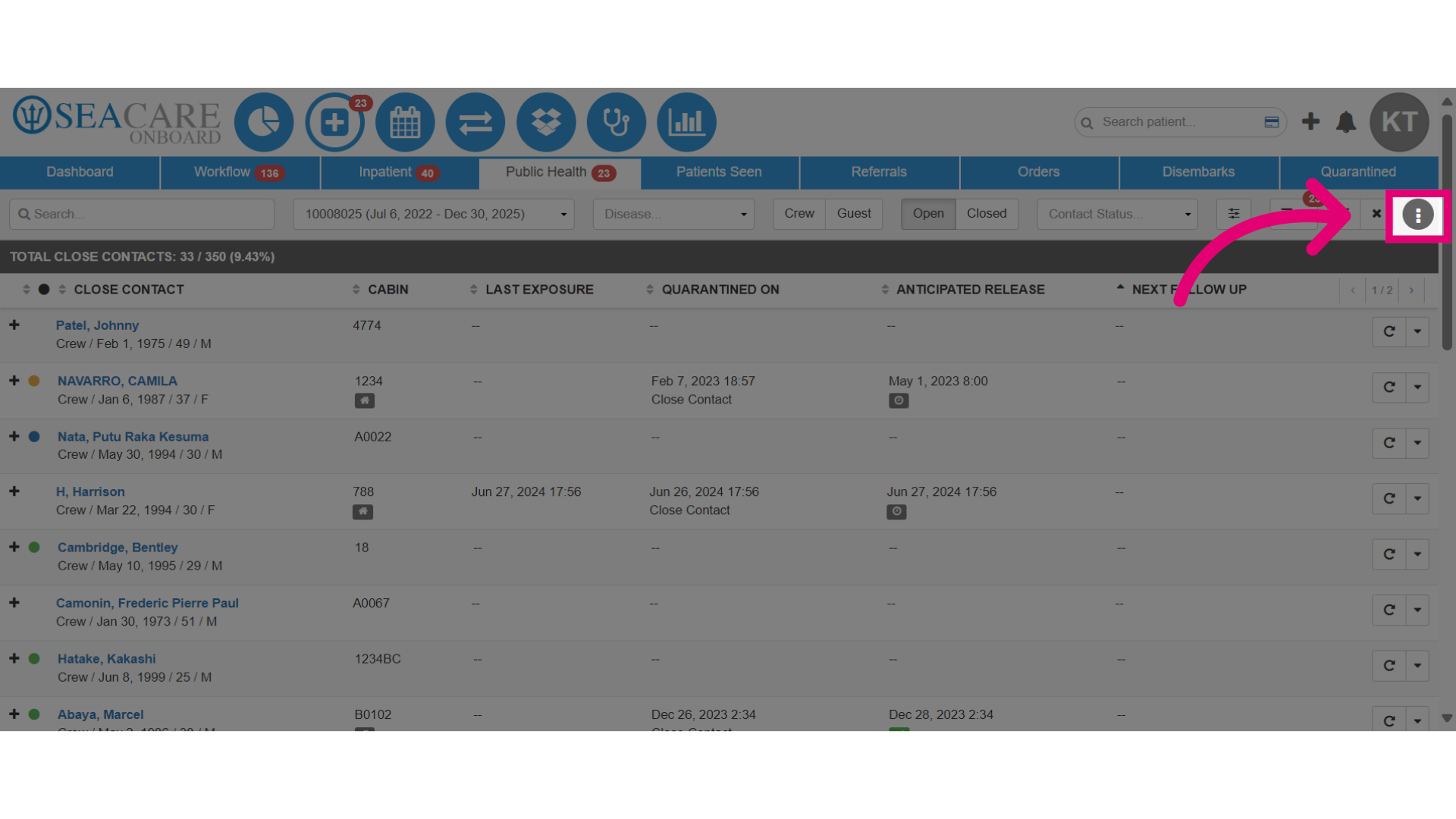
- View more options to add a new close contact or save filters in your Close Contact view.
- View the close contact list and select the plus icon to expand details such as cabin, last exposure, quarantine start date, anticipated release date, and next follow-up date.
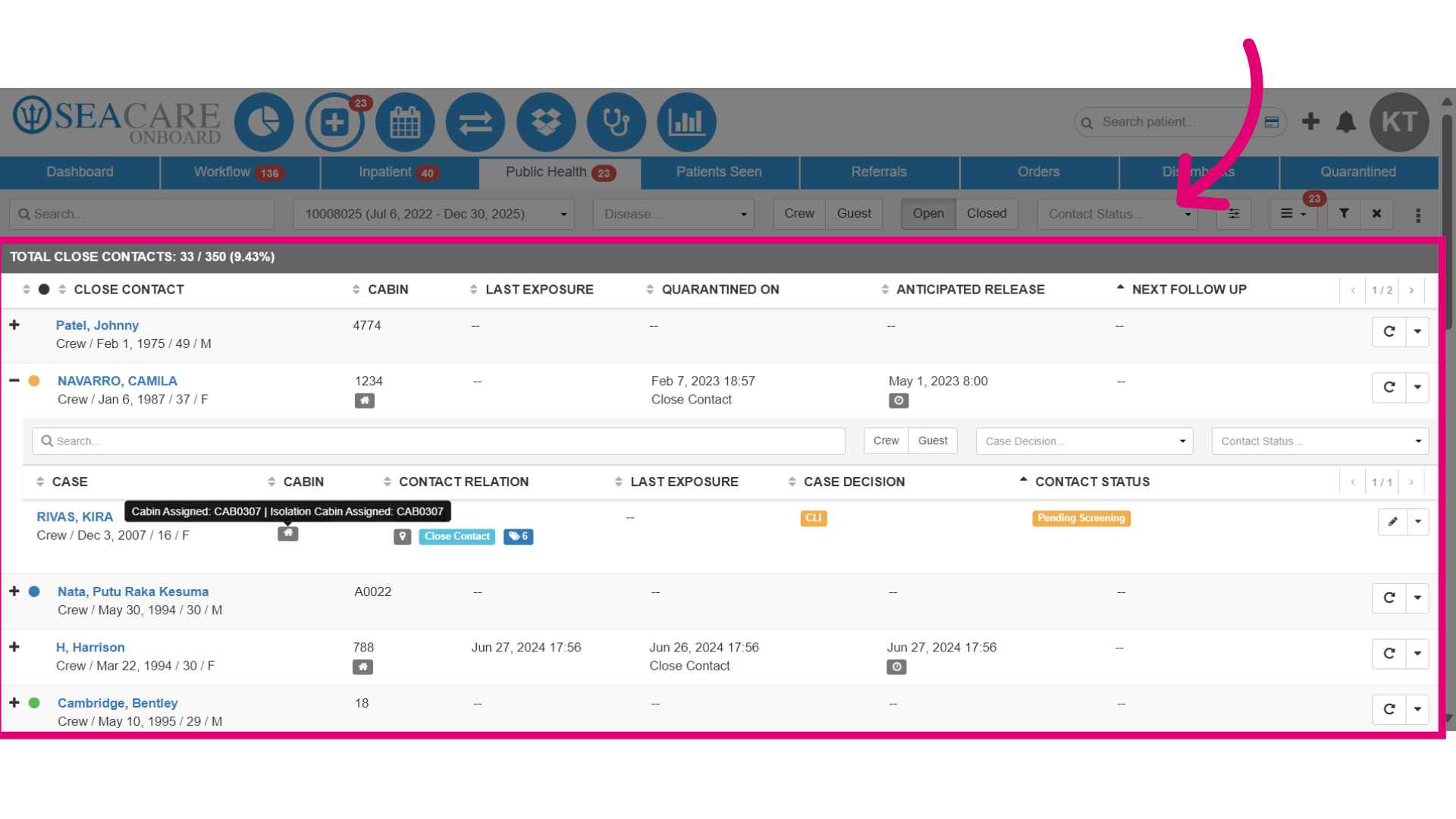
- Select the dropdown arrow to view additional actions you select to follow up with the close contact.
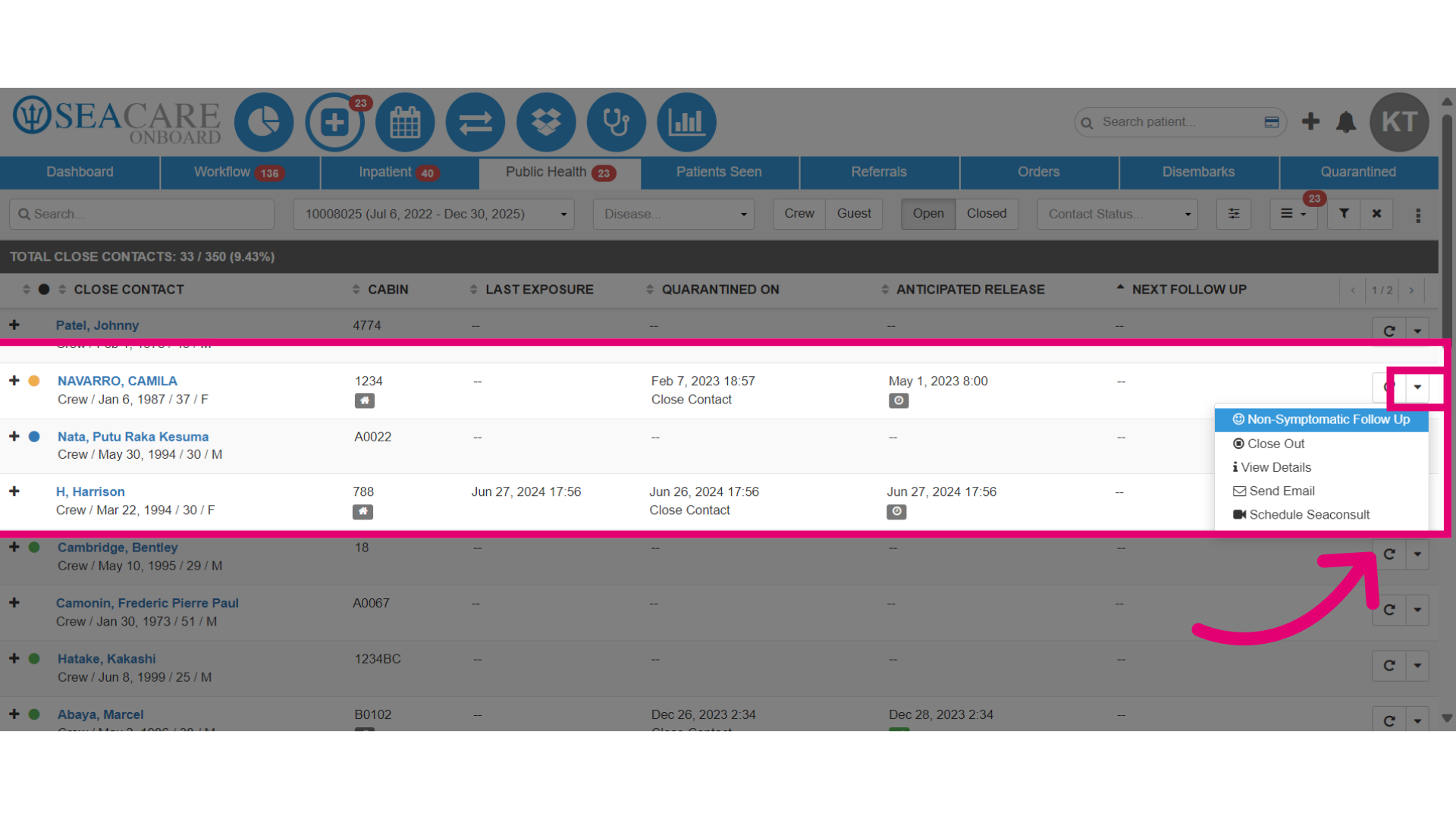
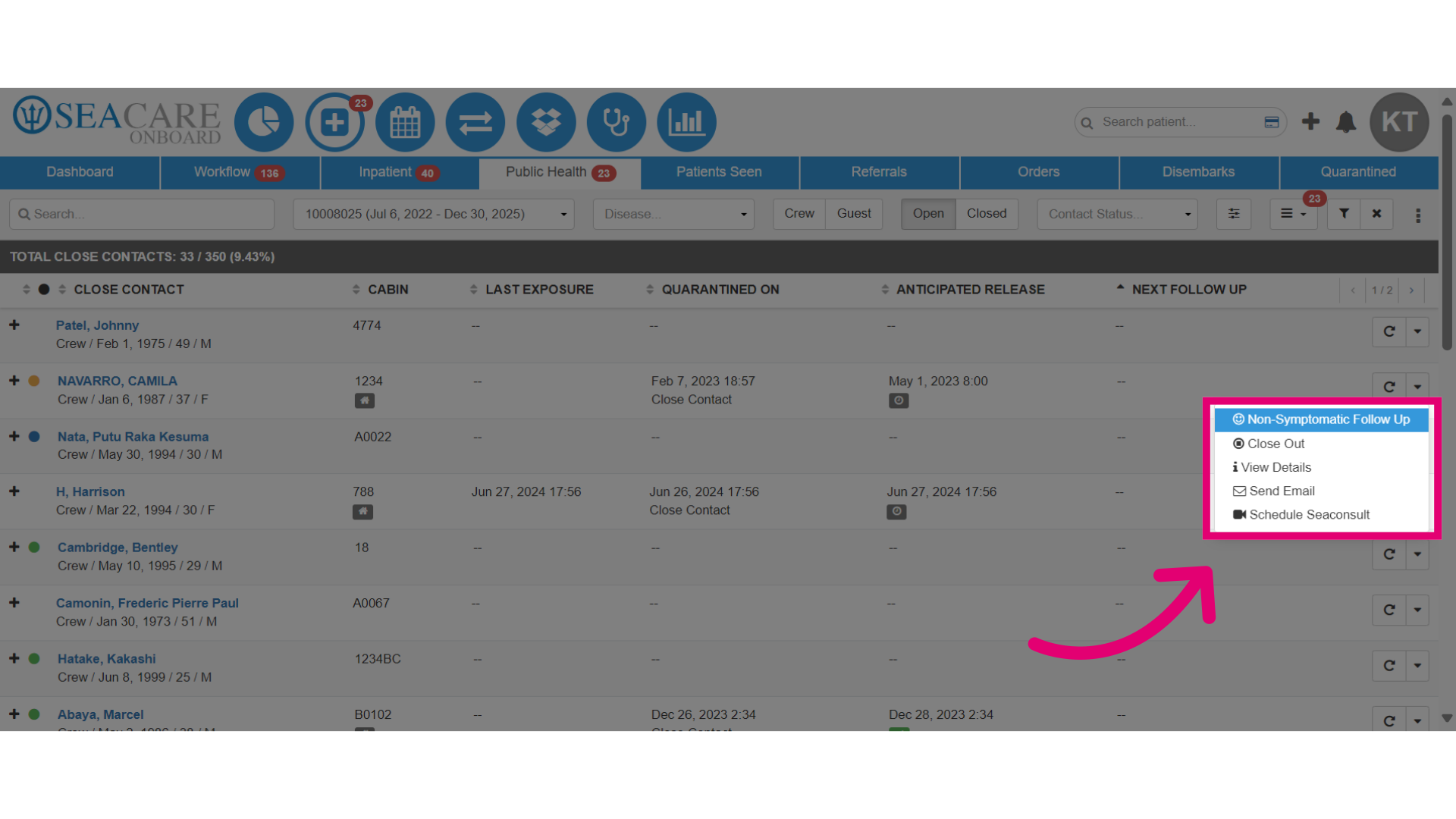
- To follow up when the close contact has no symptoms, click Non Symptomatic Follow Up. No further action is needed, and you do not have to enter any details. This action will be recorded as a follow-up.
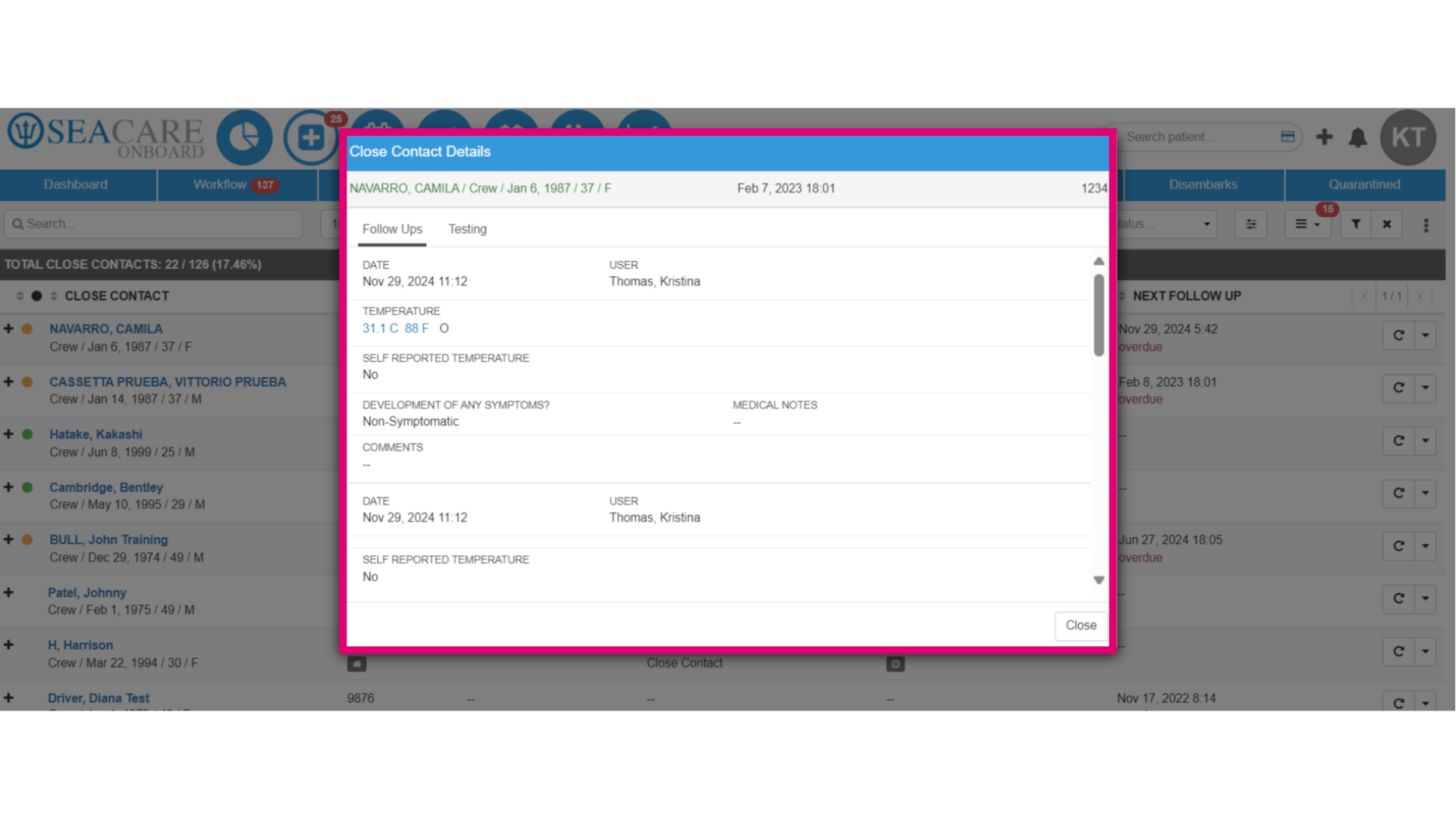
- To see the details of the follow up, click the View Details option.
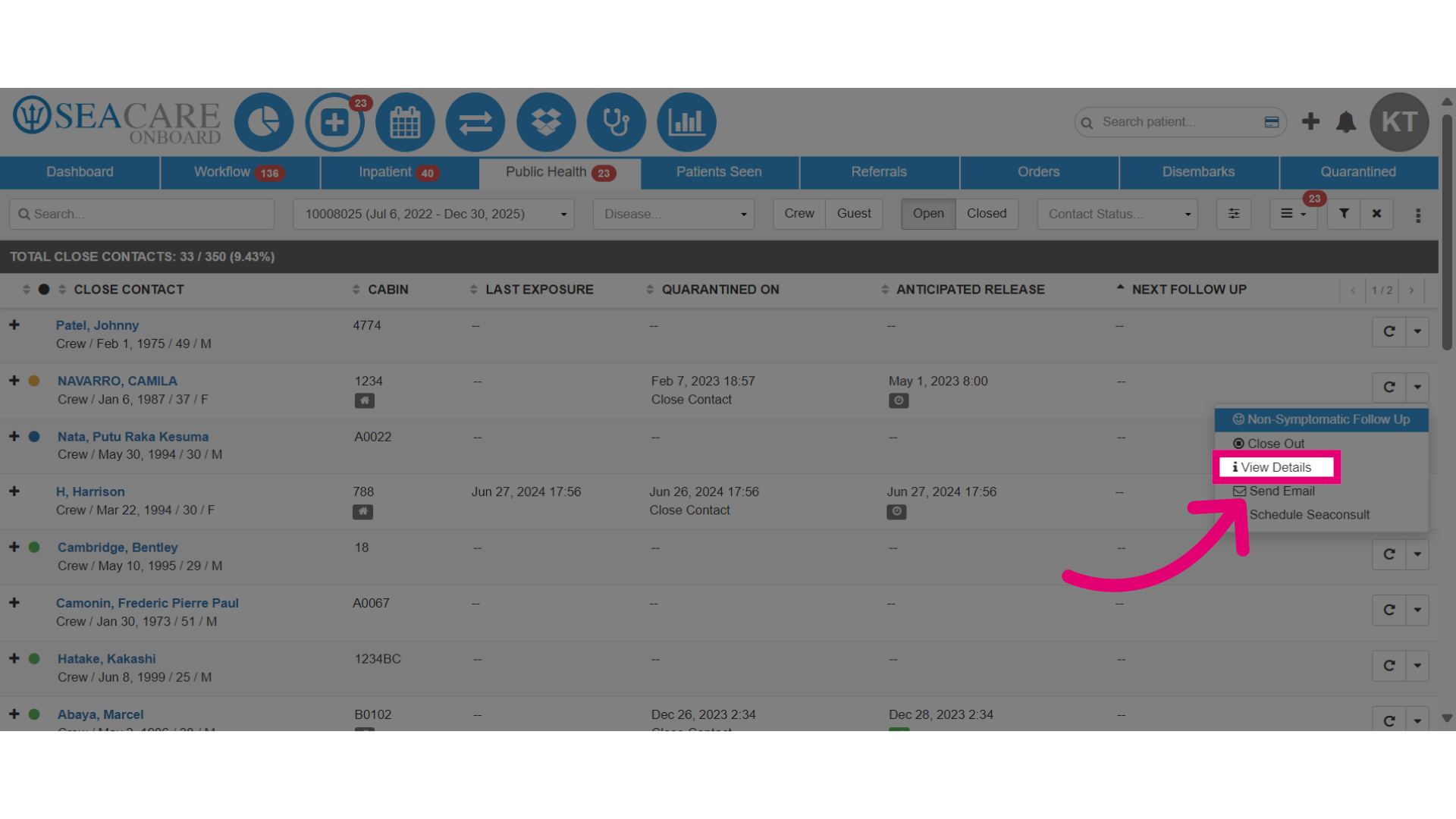
- Here, you can view the details and track the history of follow ups and testing for the close contact.
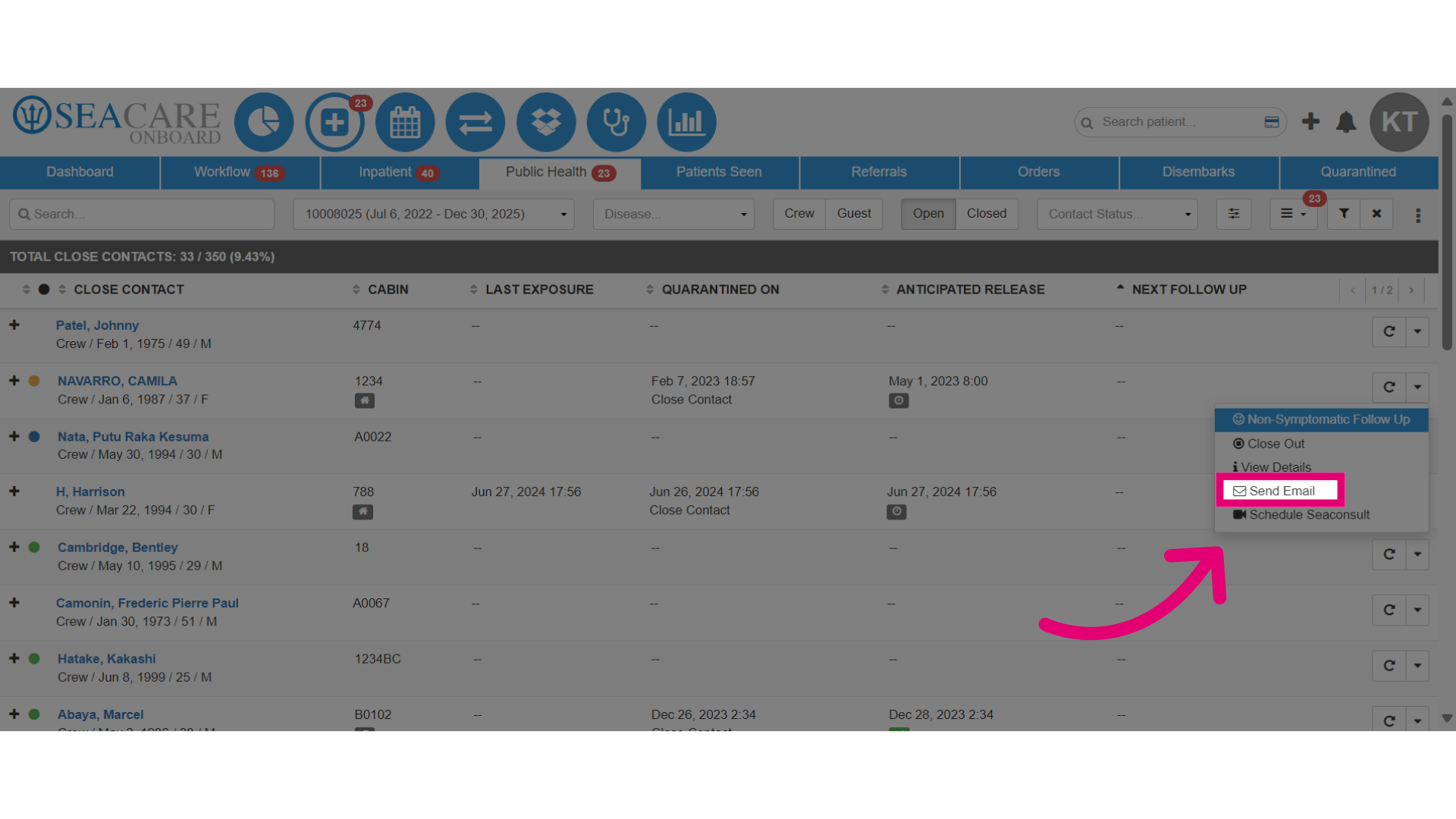
- To send an email to the patient, select Send Email in the dropdown menu.
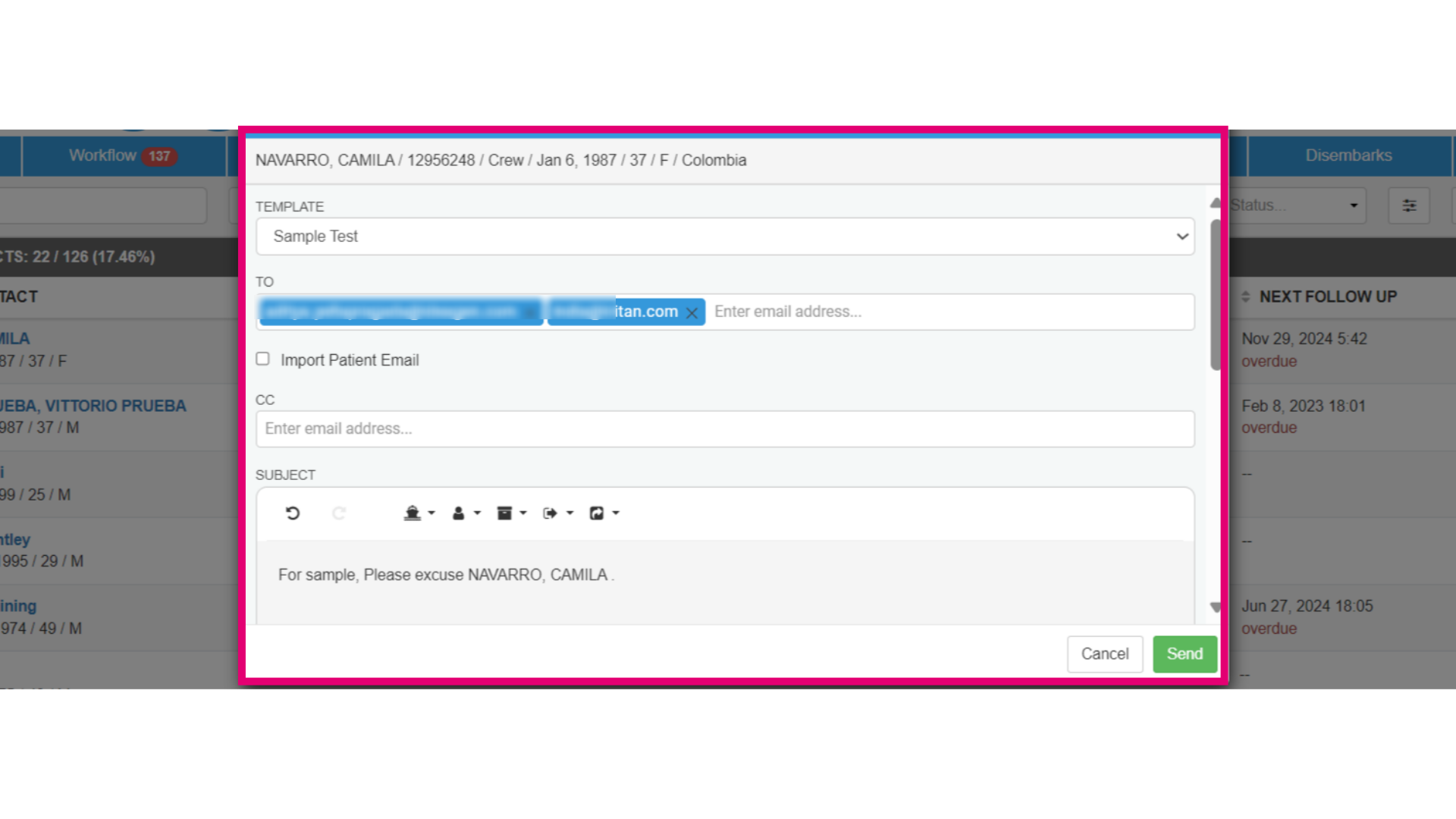
- Choose a template. To email the patient, select Import Patient Email. The subject and body fields will be prepopulated, but you can edit them and add a CC if needed, then click Send.
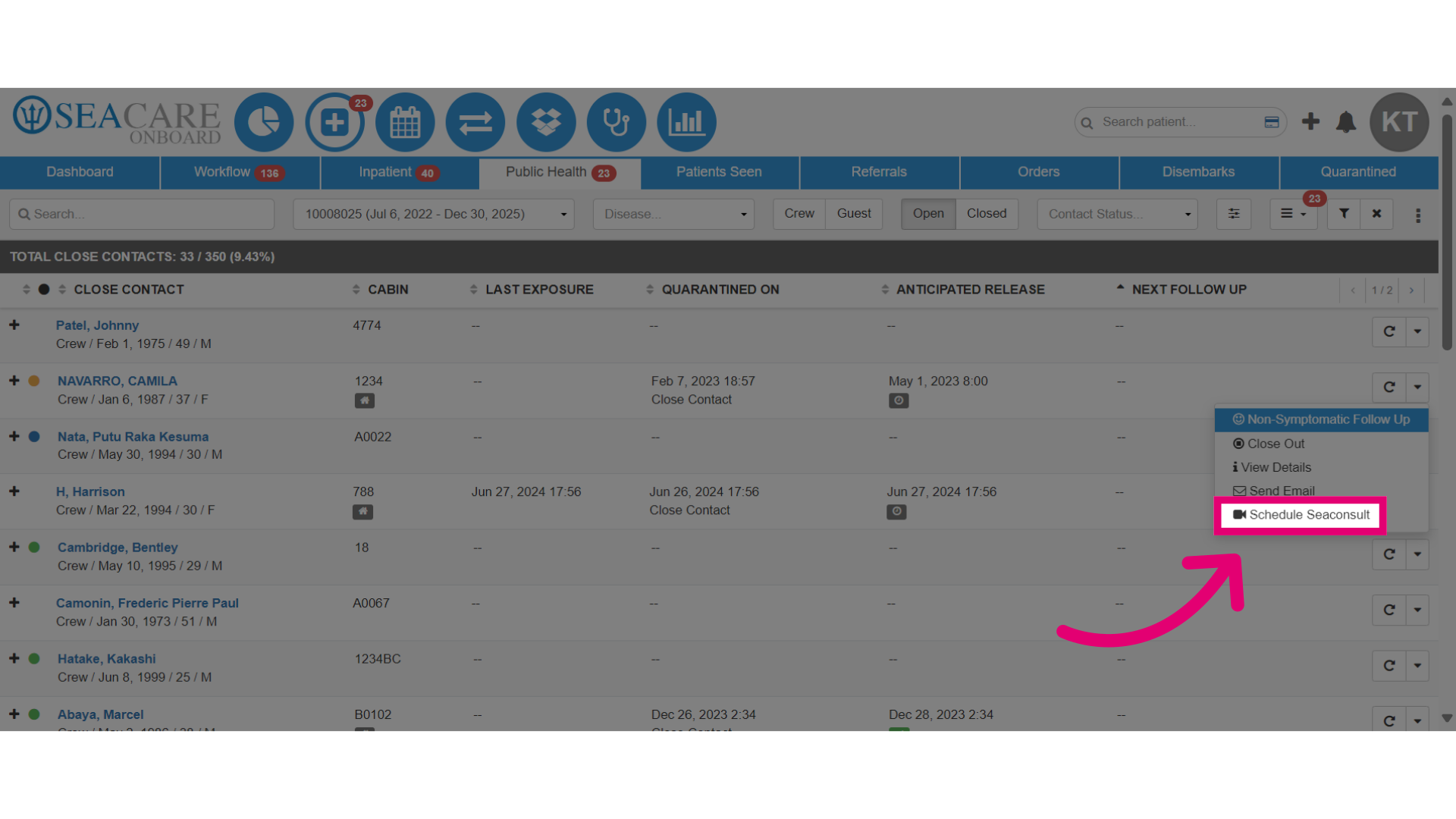
- Select Schedule SeaConsult to schedule an appointment.
- Enter the SeaConsult appointment details.
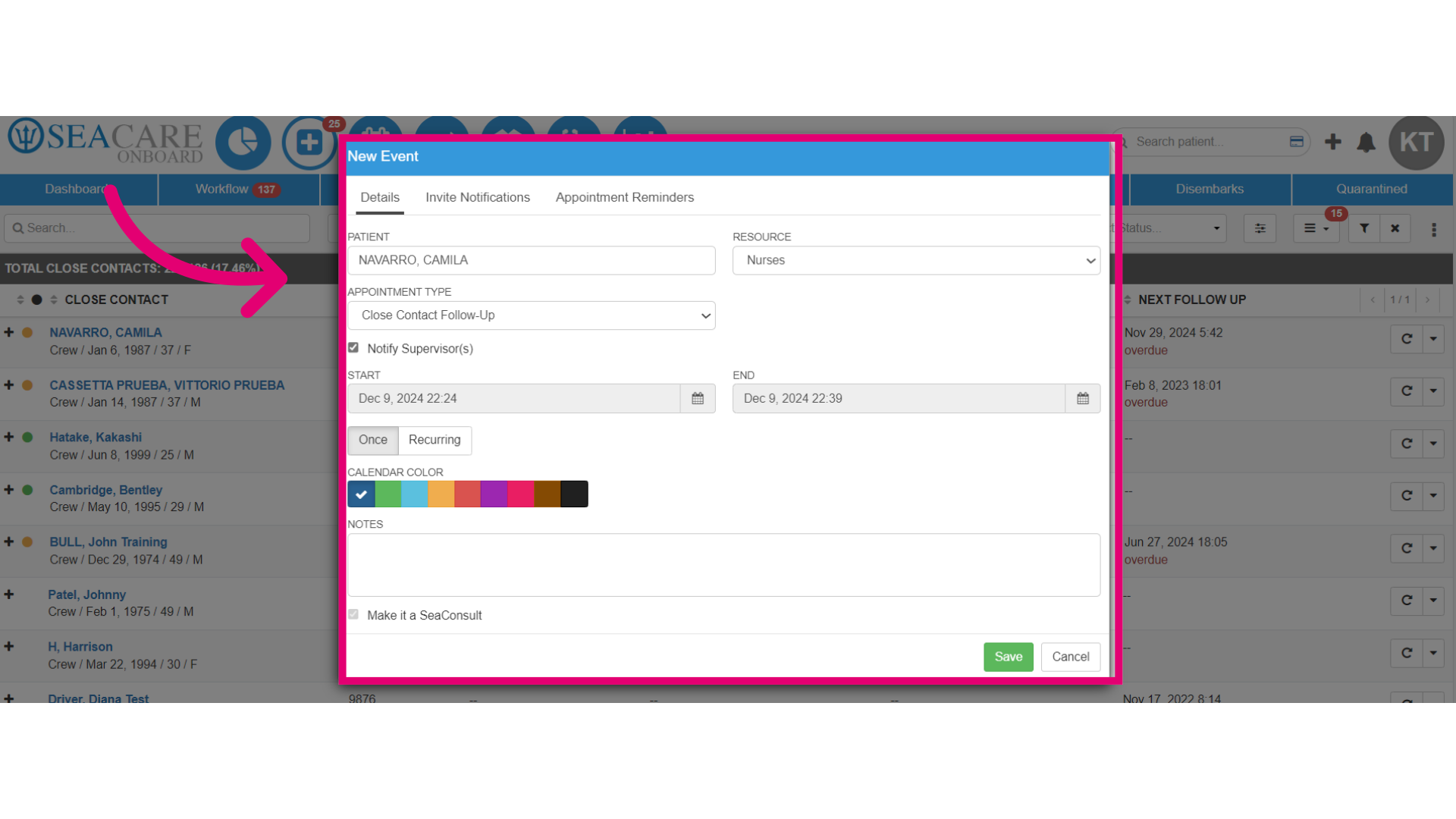
- Choose a resource from the dropdown list. This person will see the patient during the SeaConsult call. Optionally, notify the supervisor about the appointment. Select the date, time, and optionally change the appointment color on the calendar. Indicate if the appointment is one-time or recurring, then add any notes.
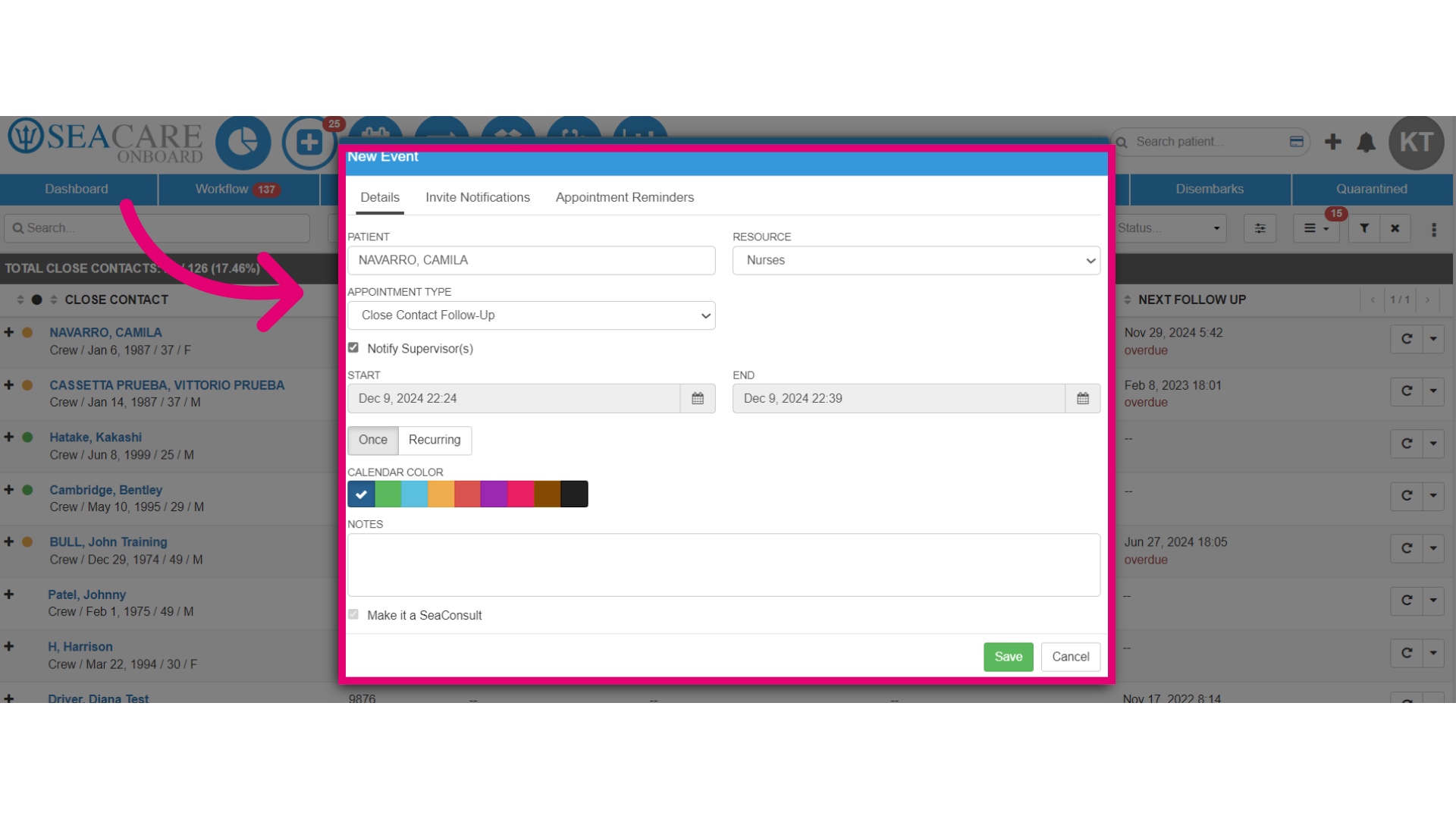
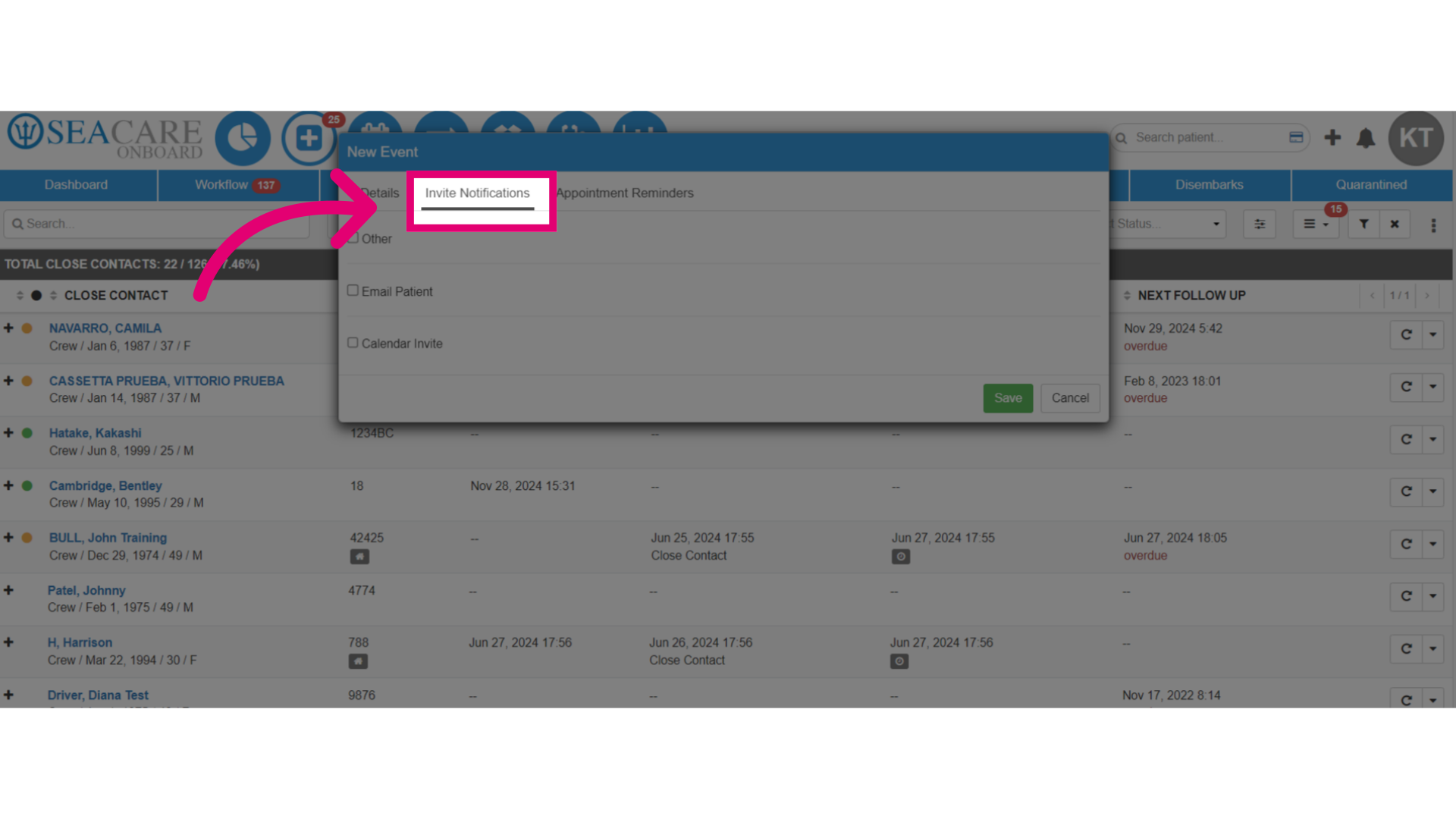
- Navigate to the Invite Notifications tab to add the email addresses for those you want to notify about the appointment.
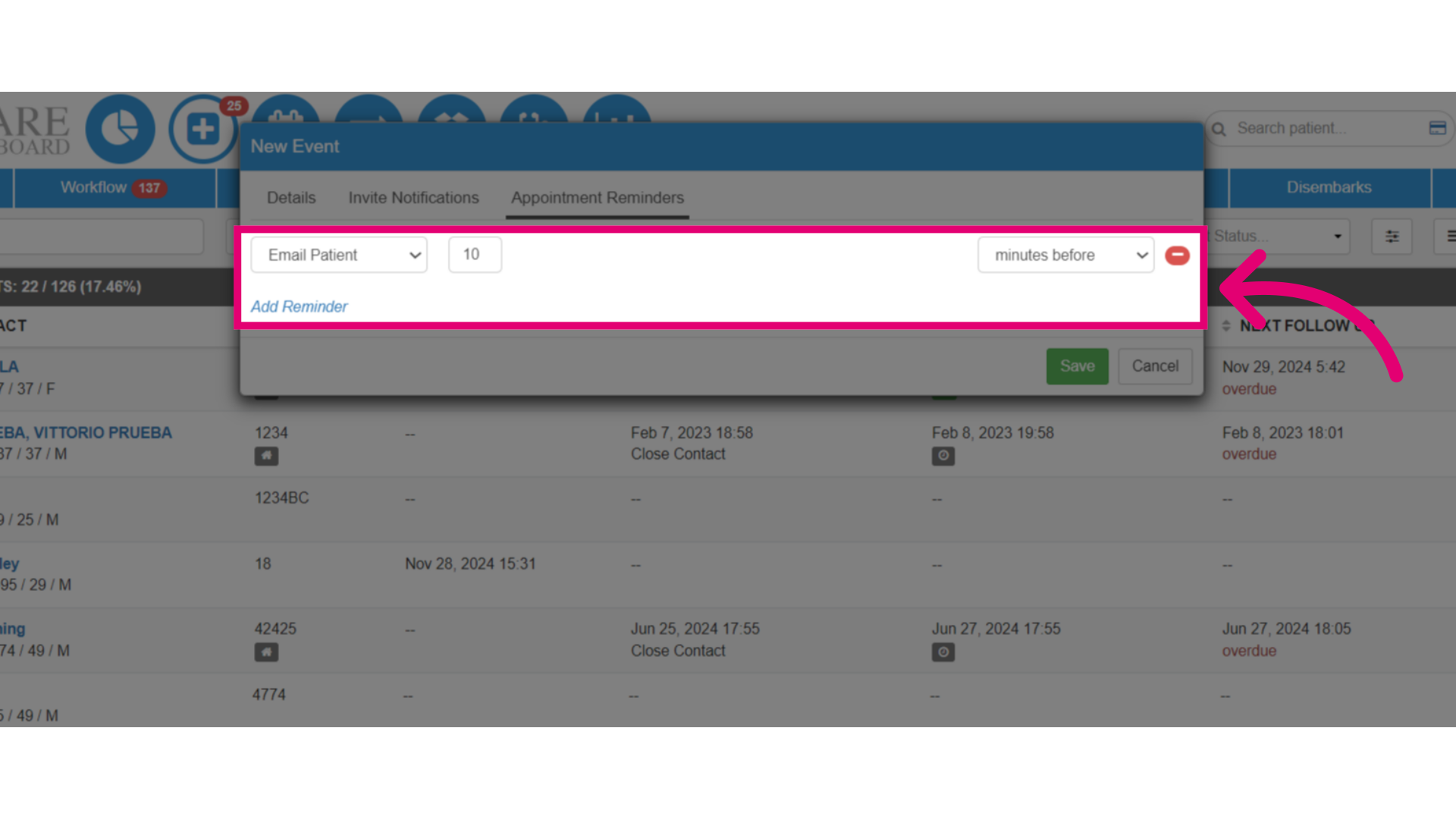
- Set reminders in the Appointment Reminders tab.
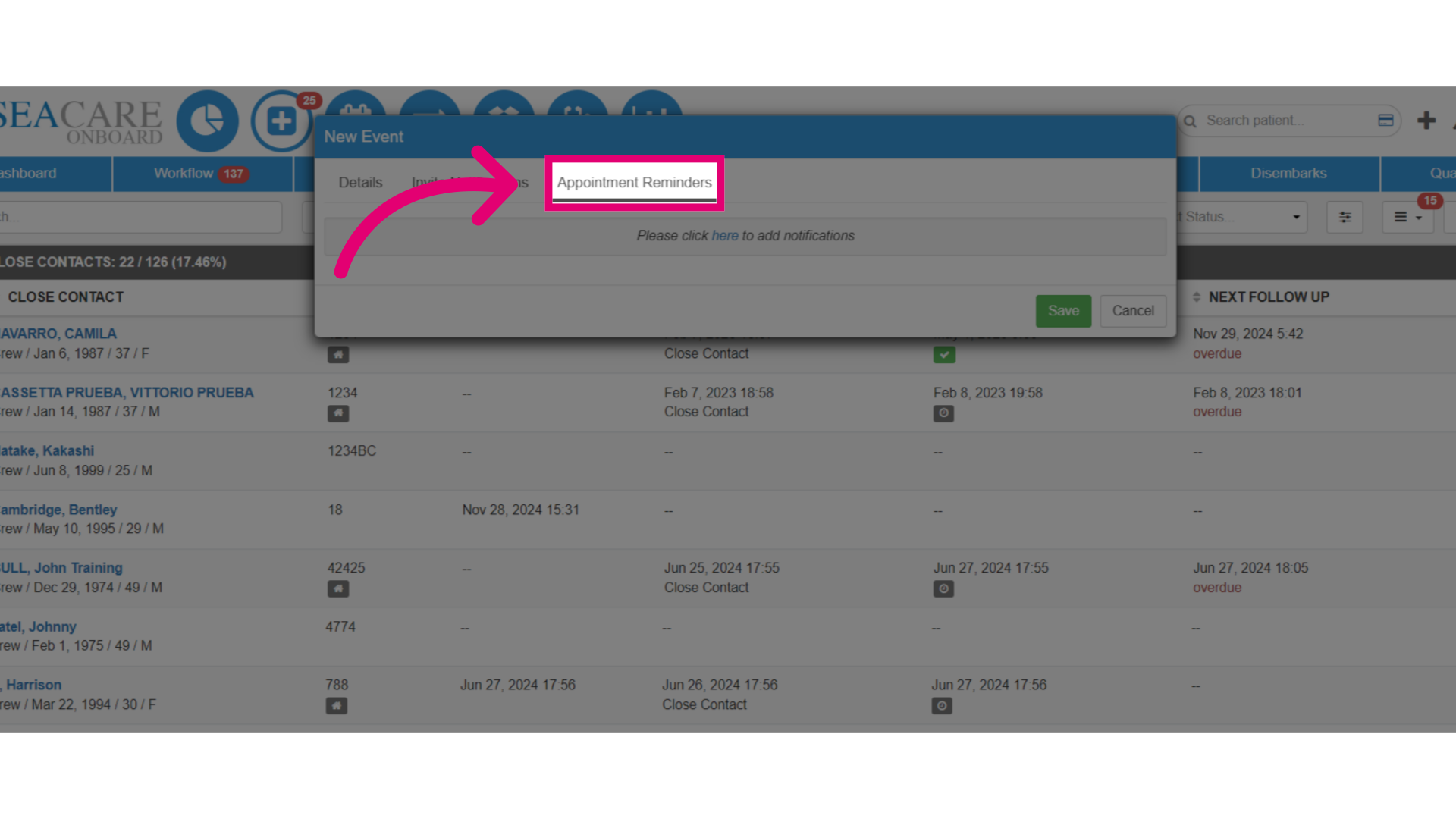
- Choose the recipient for the reminder, which can be the patient, the medical team, or another party. Then, set the time before the appointment.
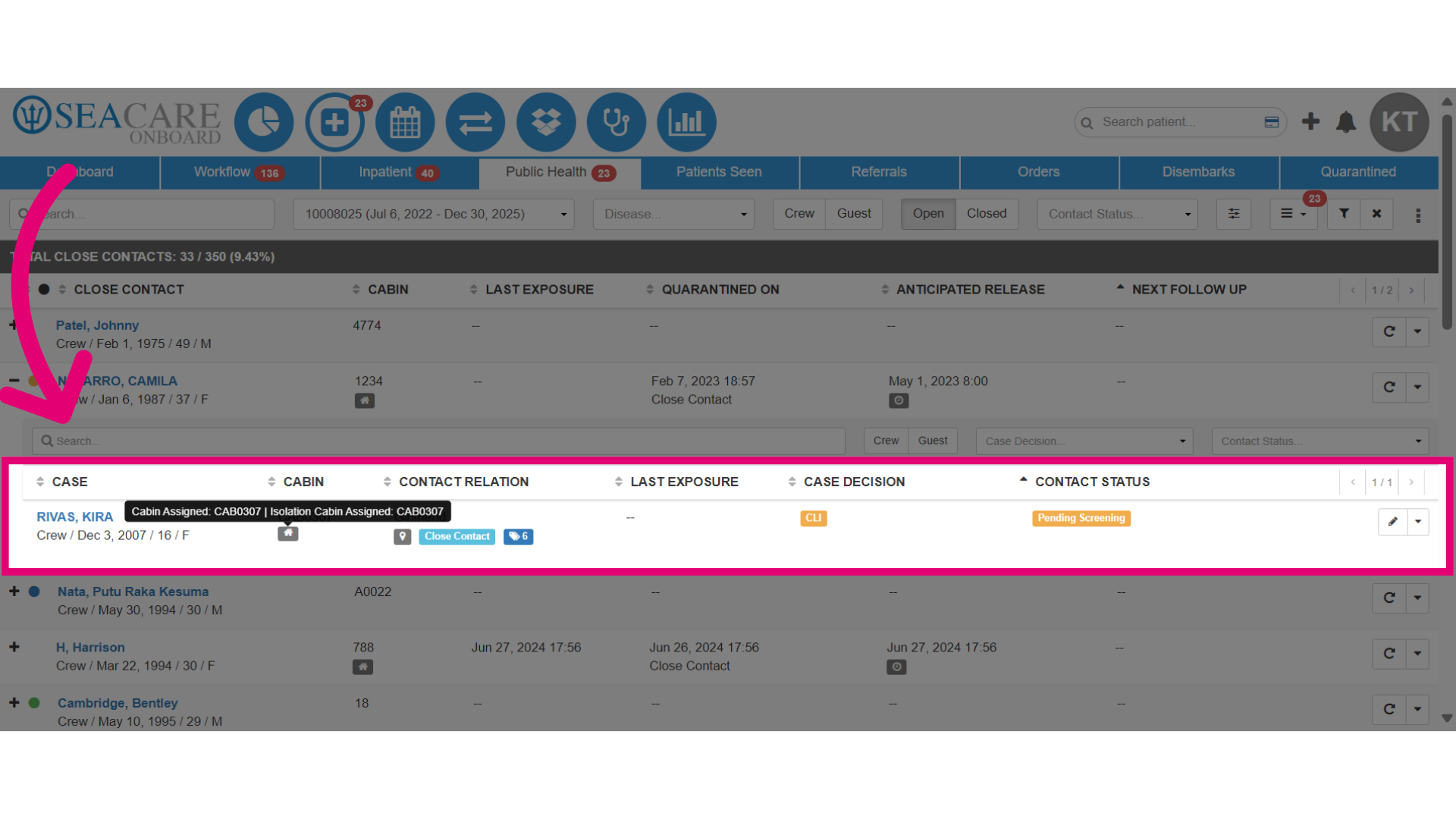
- Next, let's view index case information. The index case for the close contact will be linked, and you can view the details entered for the index case here. This helps you keep track of cases for which you are completing close contact follow-ups. You can view the cabin, contact relation, last exposure, case decision, and contact status.
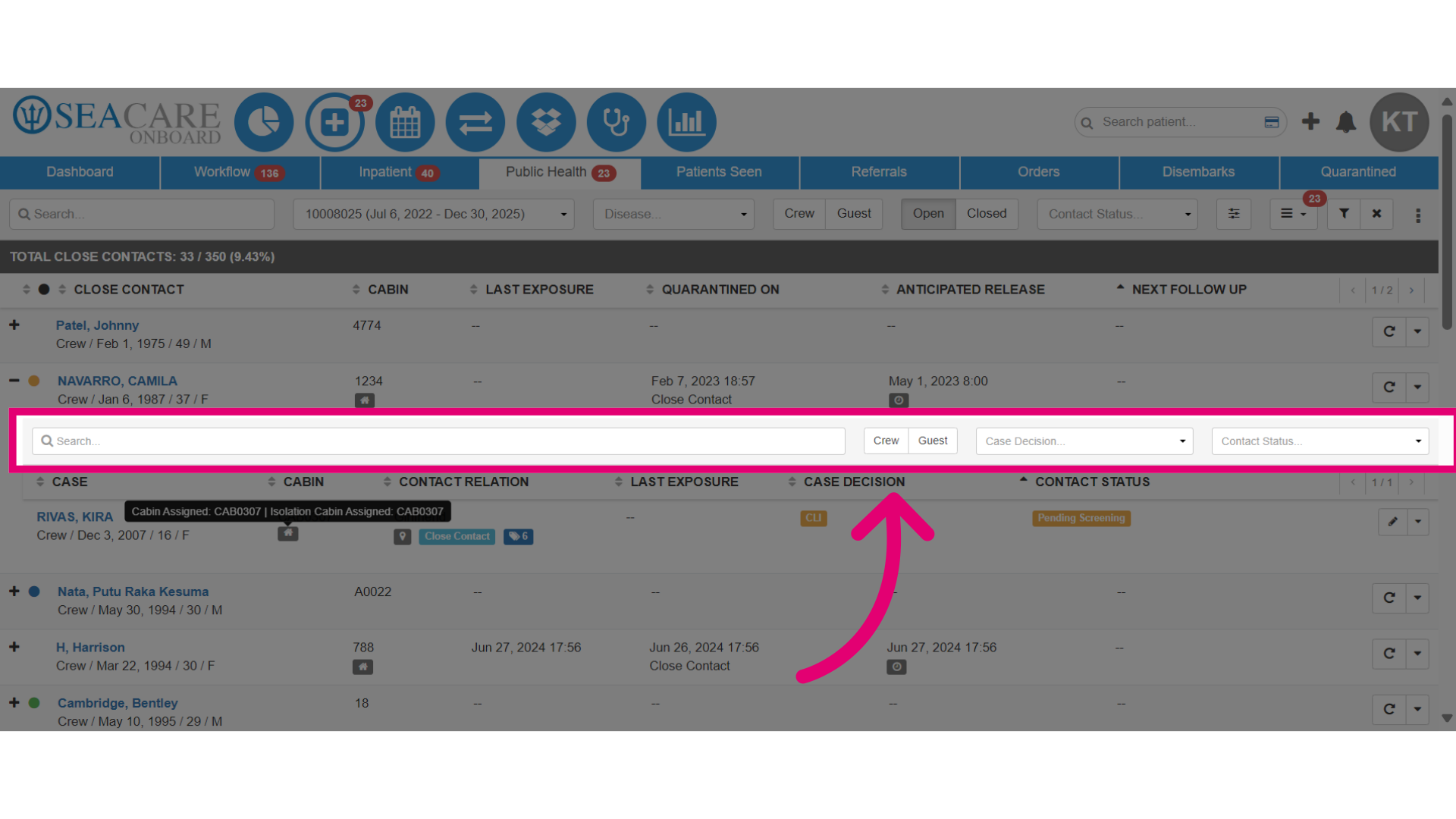
- If there are multiple index cases for the close contact, you can use the search and filter options to locate cases by name, crew or guest, case decision, or contact status.
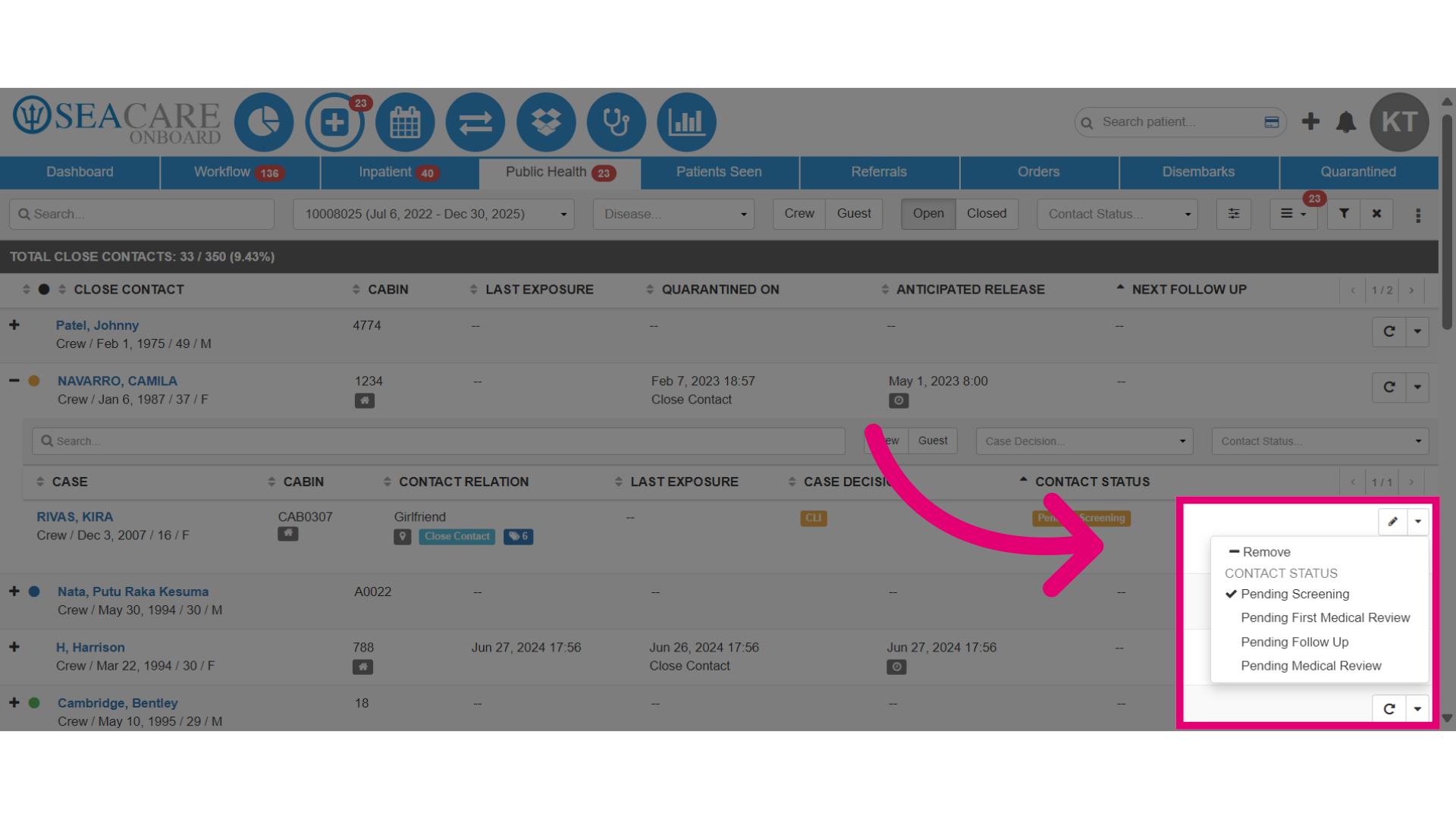
- Finally, update the Contact Status by selecting an option.
- Choose Pending screening if they haven't been screened or notified as a close contact.
- Select Pending the first medical review if they haven't had their first medical review by the medical team.
- Pick Pending follow-up if they've had the first review but haven't completed a follow-up.
- Opt for Pending a medical review if they've completed the follow-up but haven't had the second review.
- Finally, choose Remove to remove the close contact.