New article
Recently updated
Navigating the Close Contact Tab within the Contact Tracers module

Who is this article for?Users who want to learn to navigate the Close Contact tab within the Contact Tracers module.
No elevated permissions are required.
This guide provides a walkthrough for navigating the Close Contact tab within the Contact Tracers module.
1. Navigating the Close Contact Tab within the Contact Tracers module
1.1. Video
1.2. Steps
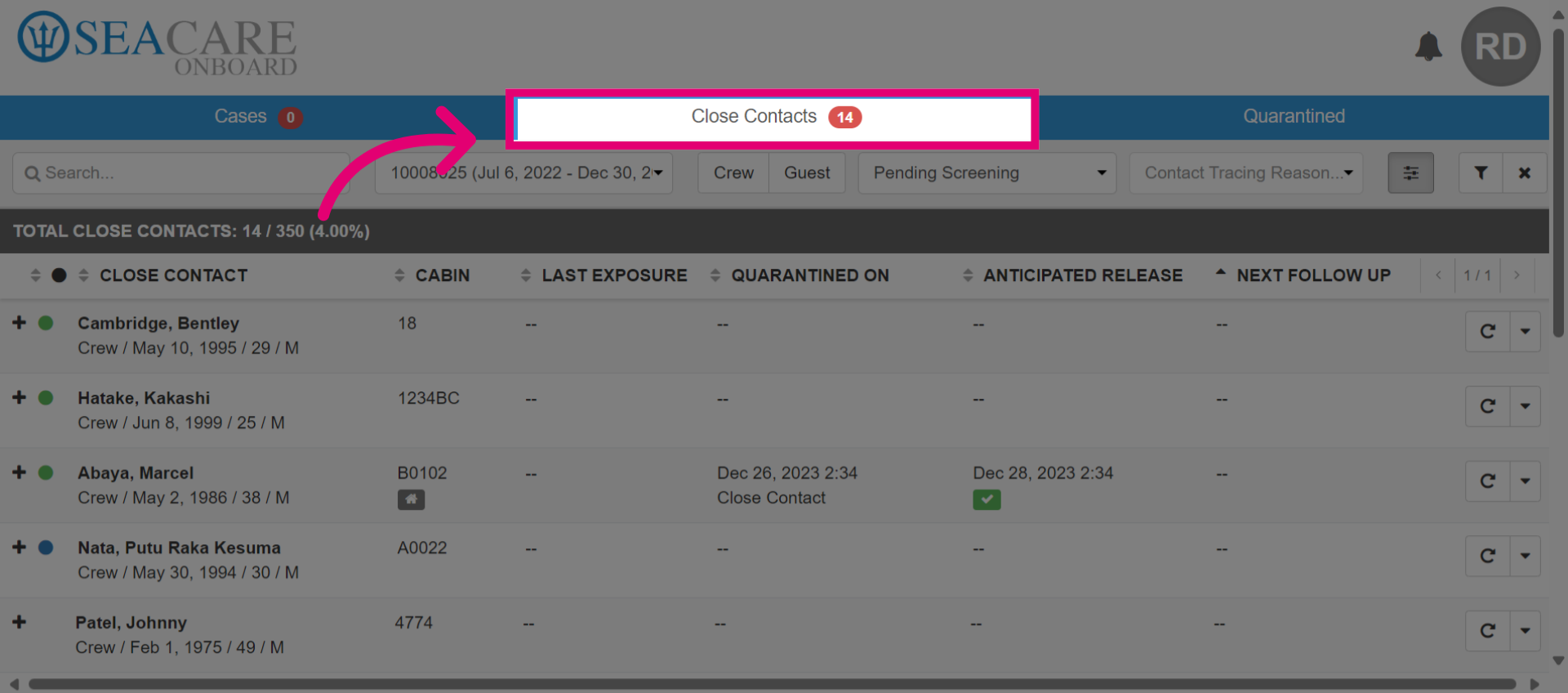
- The contact tracer module offers features for tracking close contacts, reviewing statuses, and saving relevant information for communicable diseases.
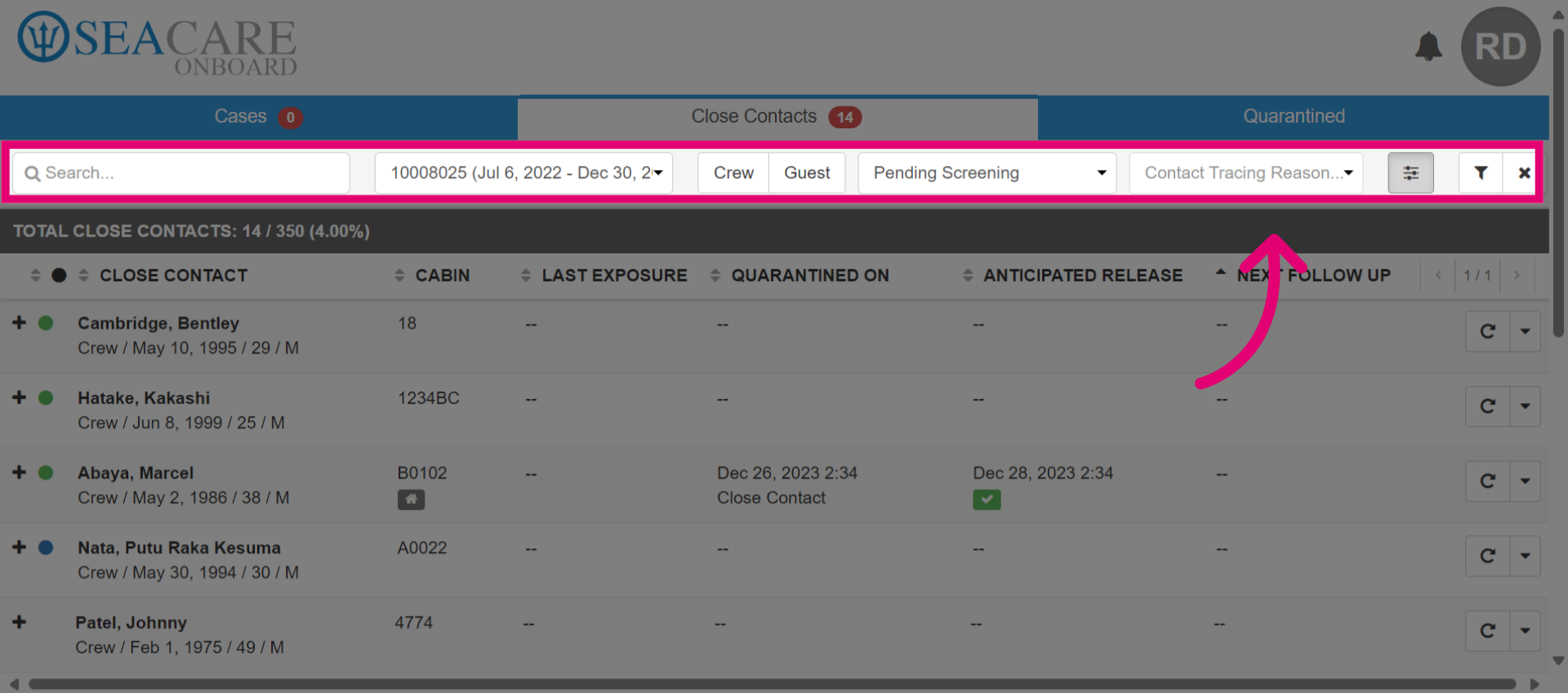
- Use filters to find close contacts for follow-up by name, voyage, crew or guest, contact status, and contact tracing reason.
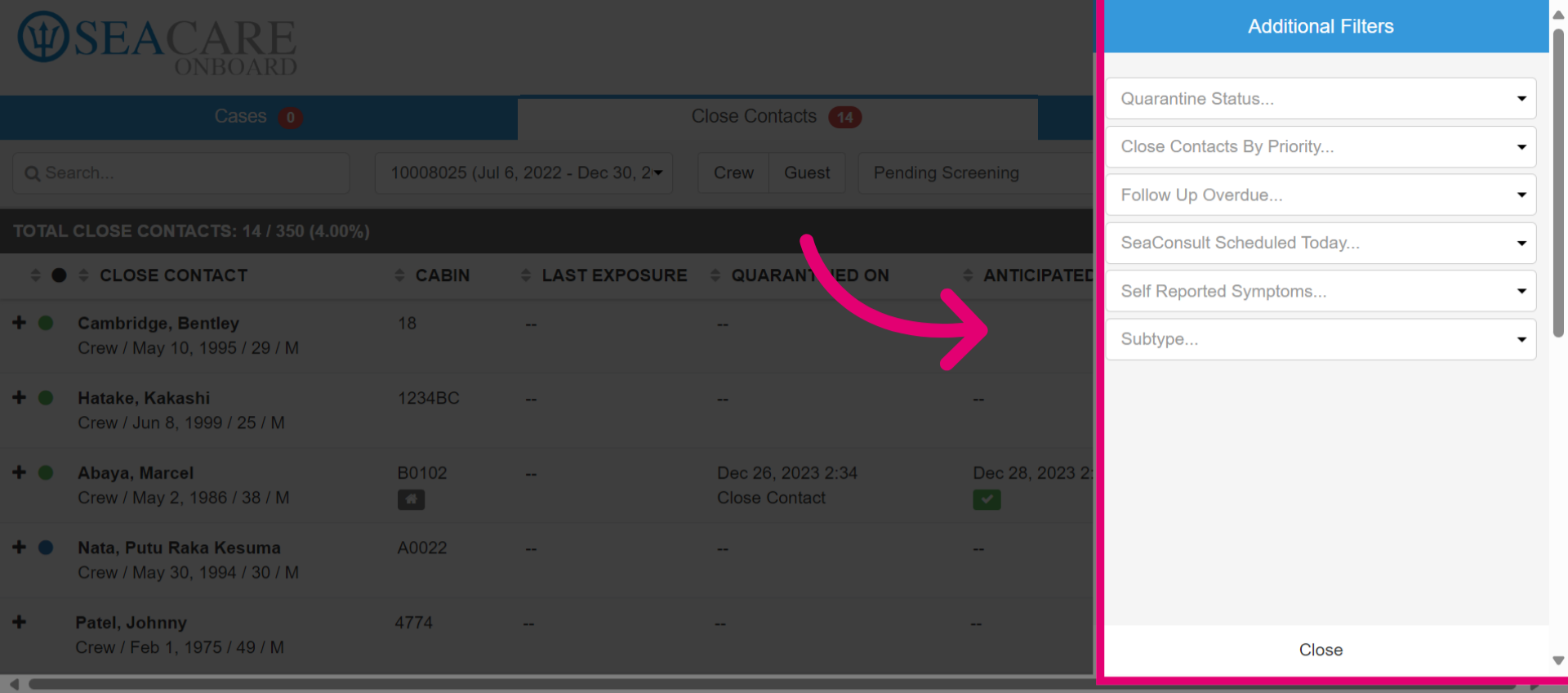
- Use additional filters to create a comprehensive list of close contacts for follow-up, including quarantine status, priority, overdue follow-up, sea consult scheduled, or self-reported symptoms.
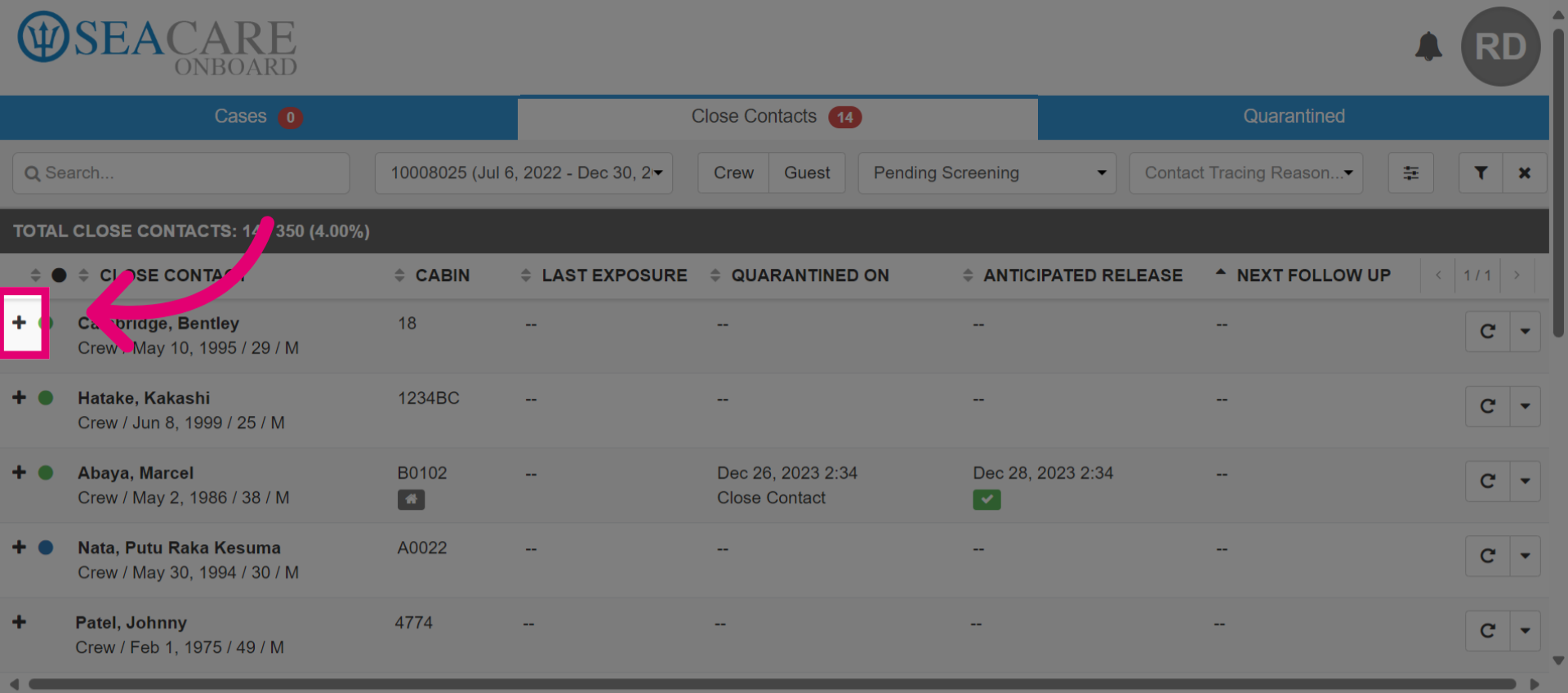
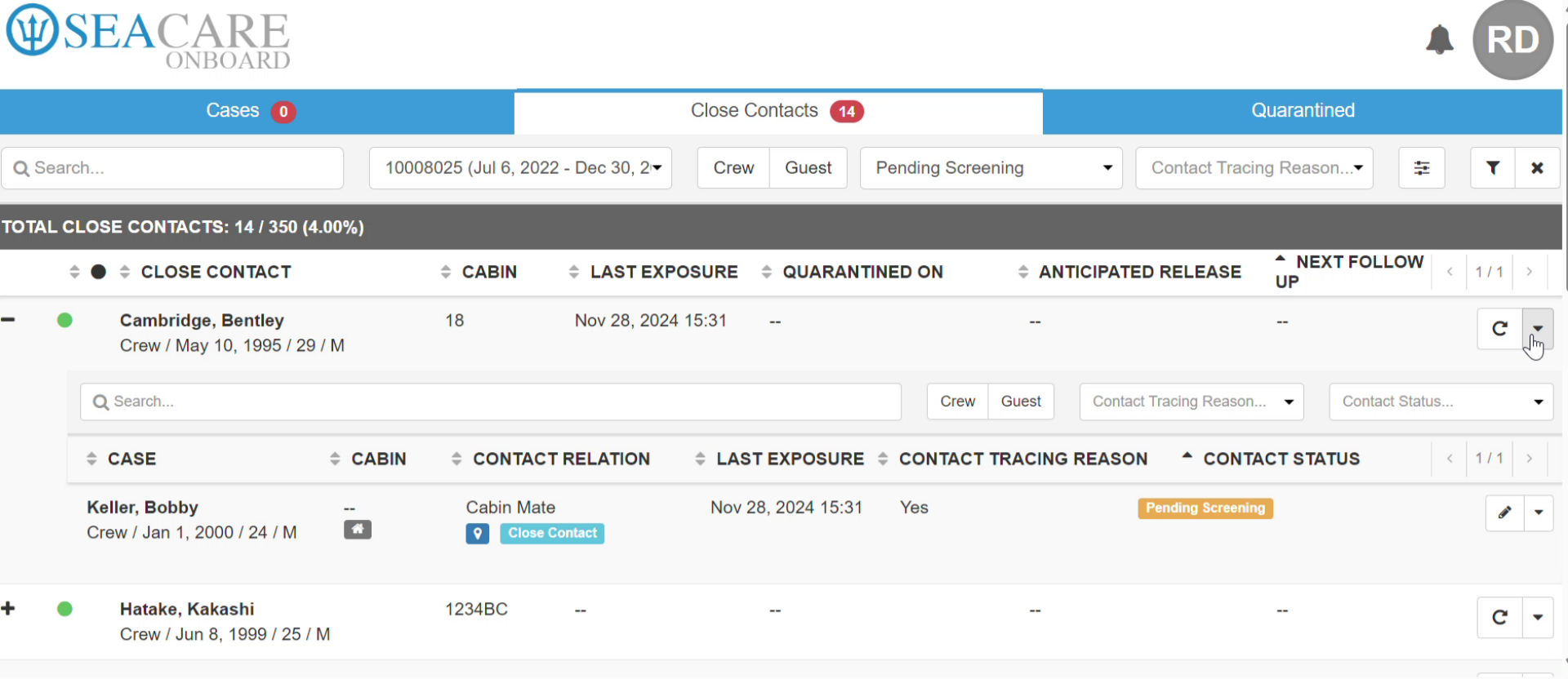
- Expand the row by clicking the plus button.
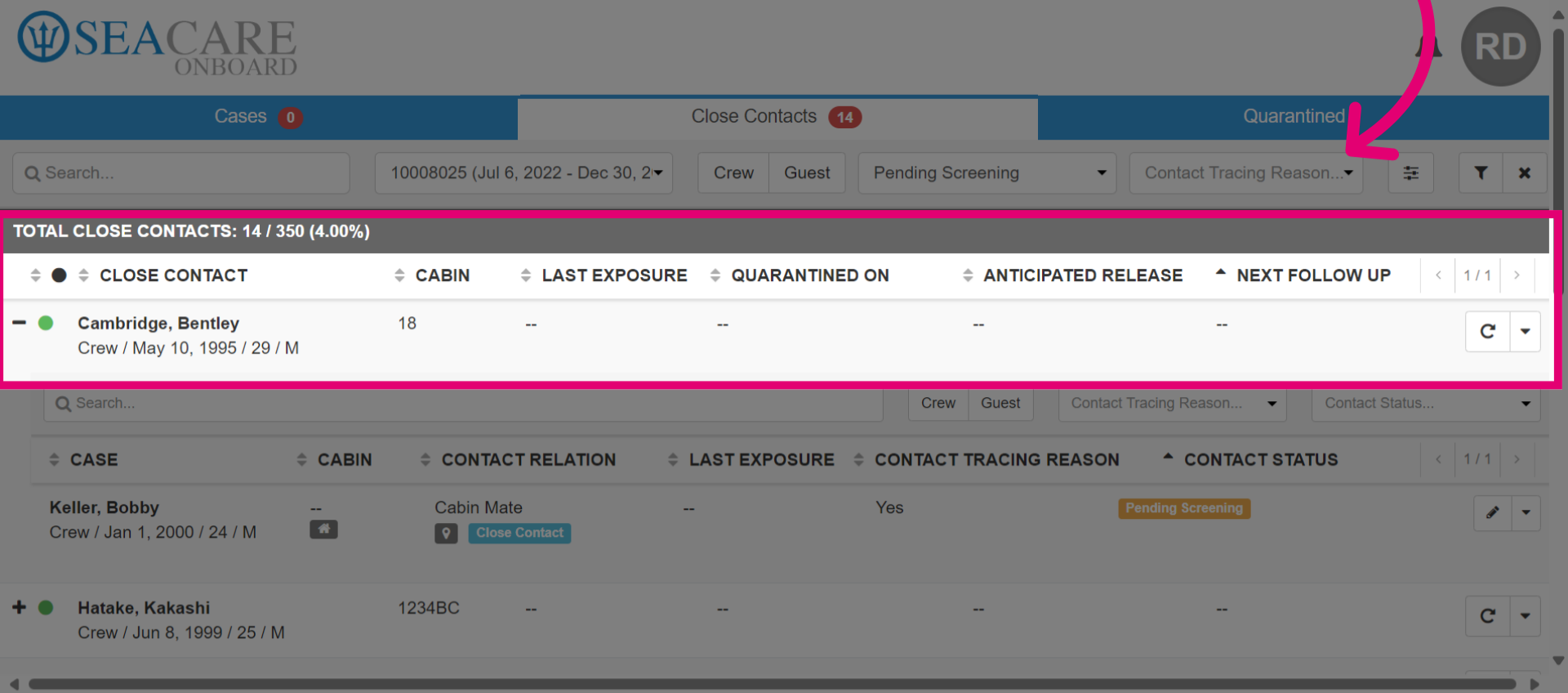
- View the communicable disease details, including cabin, last exposure, quarantine info, anticipated release date, and next follow-up date.
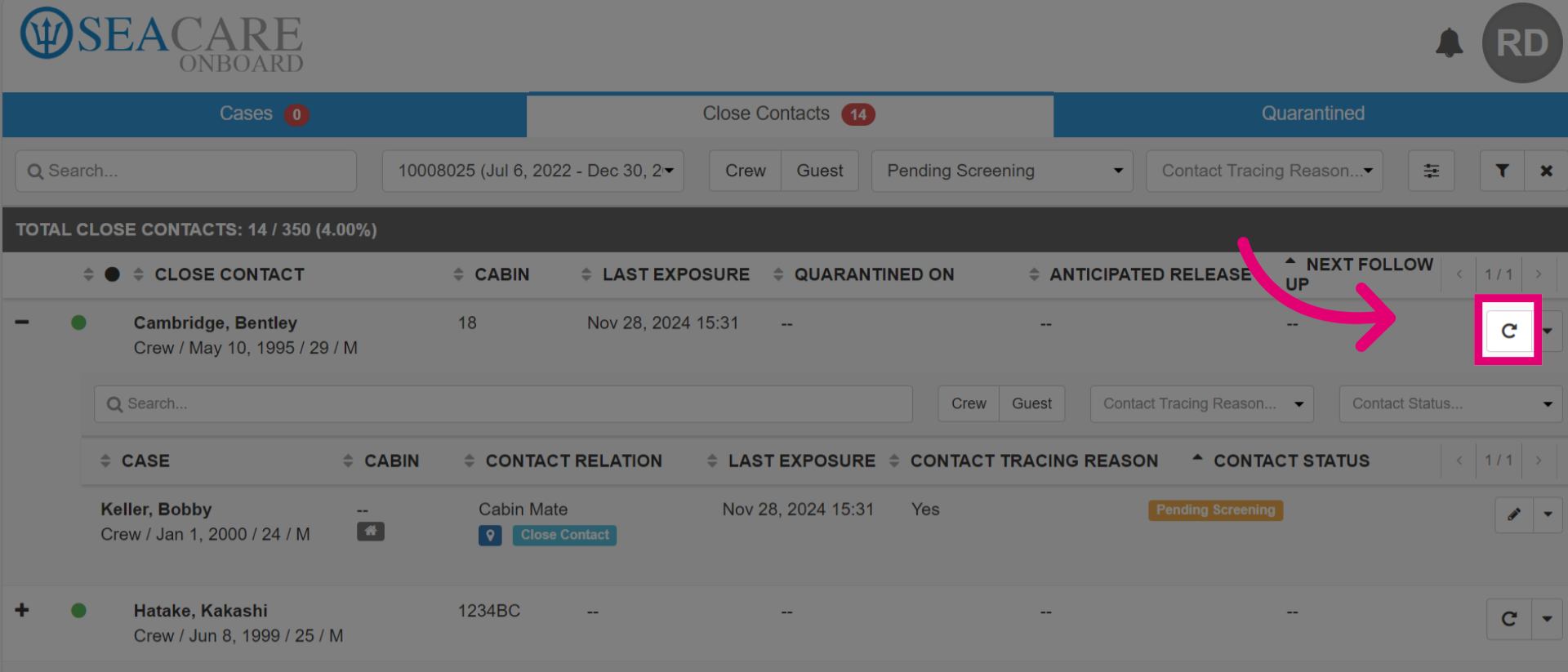
- Select the Follow Up button to complete a follow up.
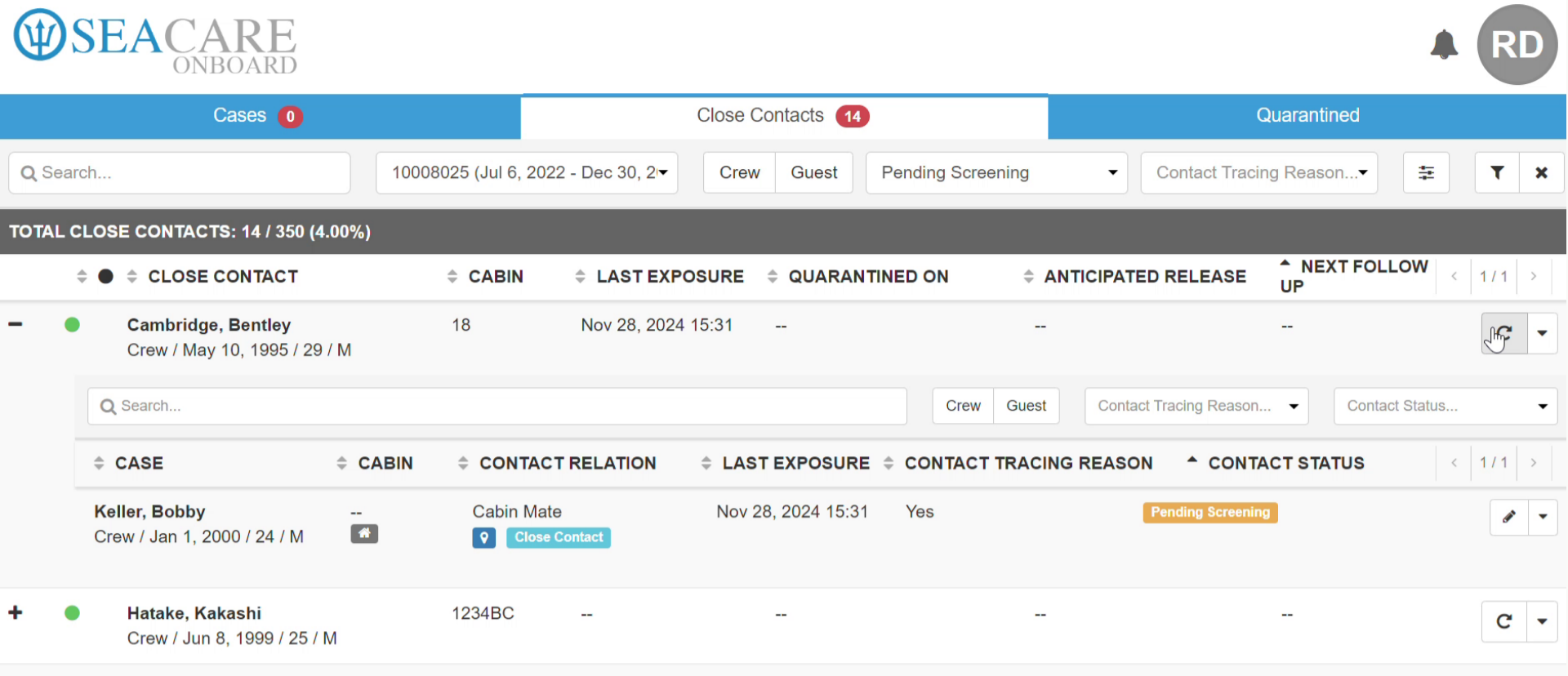
- Select the Follow Up button to make updates. Record the development of symptoms for the close contact as symptomatic if there are symptoms or non symptomatic if not. You may also set the next follow up date for the close contact which is typically 24 hours. In the Vitals tab, Record the patients vitals and include them in the vital signs check if desired. If the close contact is self-reporting such as if they are quarantined, then select this option. Then, add the vitals details such as their temperature, blood pressure, heart rate, or respiratory rate. Save the updated information.
- To follow up when the close contact has no symptoms, select non symptomatic follow up. No further action is required, you do not have to enter any details and this action will be recorded as a follow up. You can also track the history of follow ups for the close contact. Select View Details, to view the details for the follow ups and the user who recorded them.
- Schedule a sea consult call with the patient to conduct a video follow-up. Add the resource who will follow up with the patient, such as a nurse or doctor. The appointment type is set by default to communicable disease follow-up. Notify supervisors of the call, especially if it's a crew member. Then confirm the appointment start, end date, and time. Make it a one-time call, or if you want to have another follow-up call, make it recurring. If desired, adjust the calendar color for the appointment that shows on the clinic's calendar, and add any notes. In the Invite Notifications tab, invite the patient or other parties by selecting these checkboxes. Under the Appointment Reminder tab, set up reminders for the patient, resource, or system to send an appointment reminder a specified amount of time before it starts. Then save the appointment.
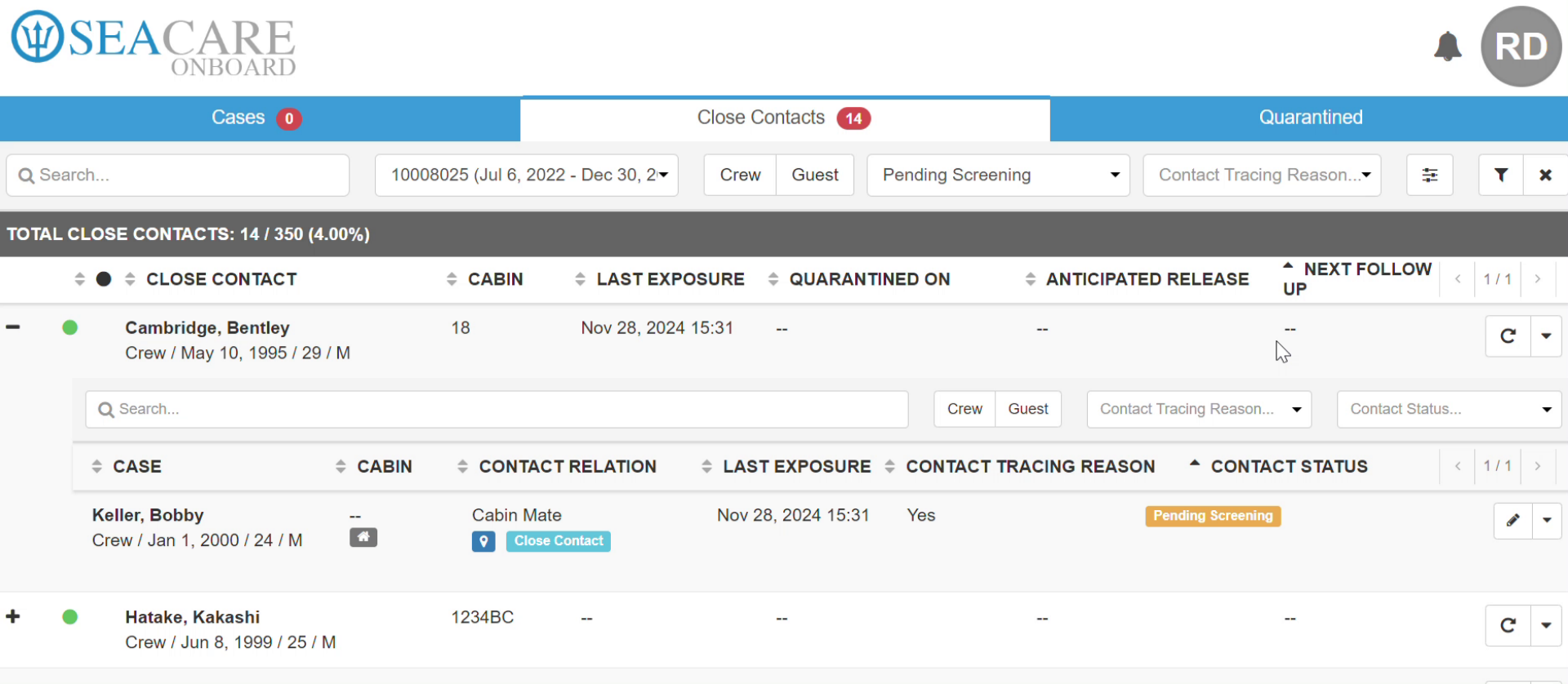
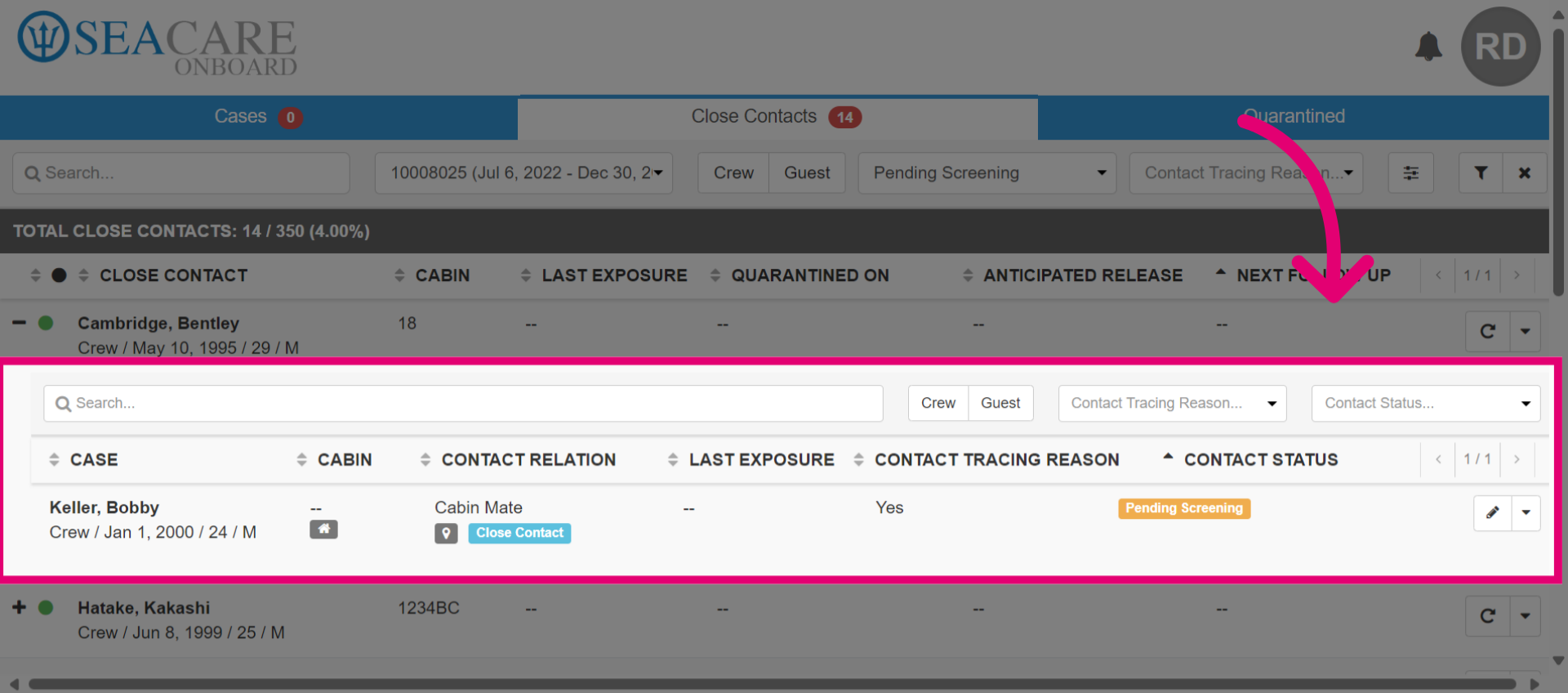
- Next, view the index case details, including cabin, contact relation, last exposure, contact tracing reason, and contact status. Use search and filter options to find cases for the close contact.
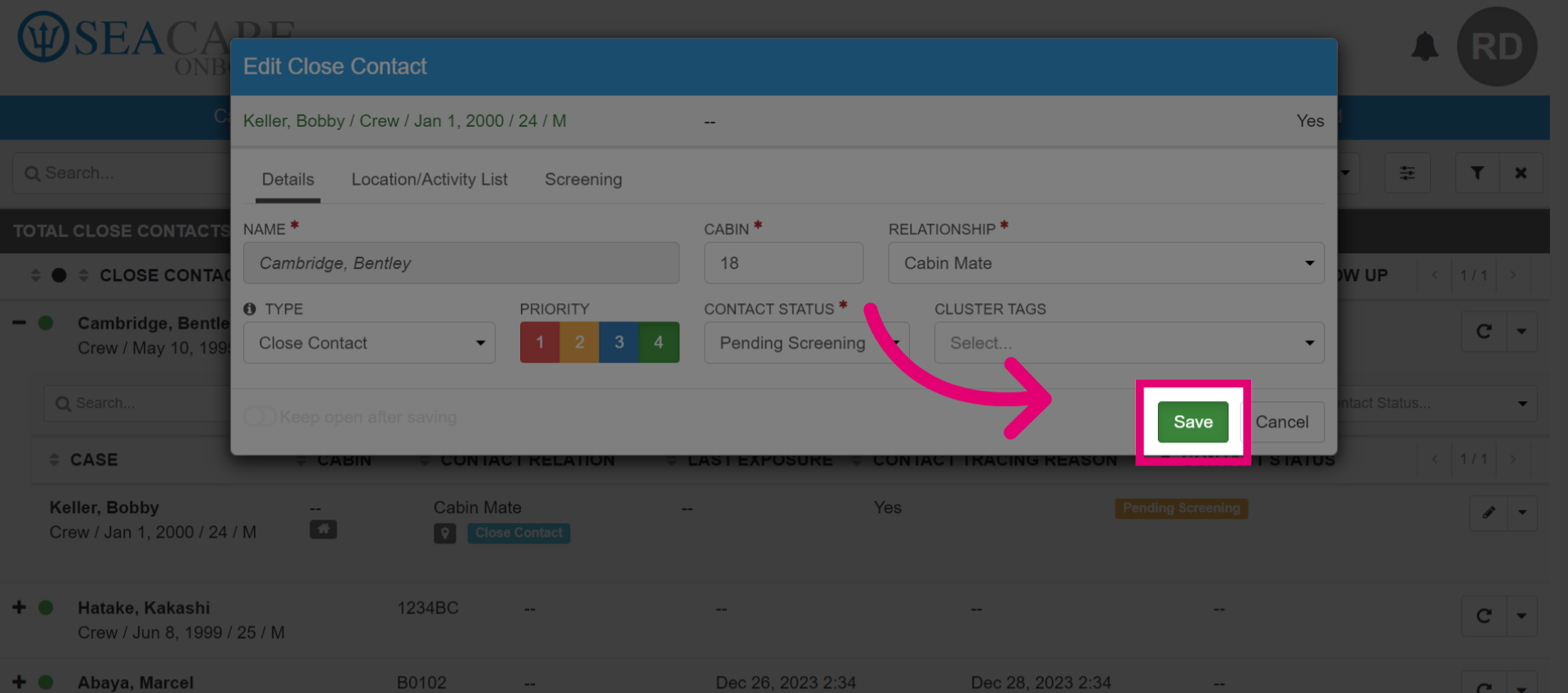
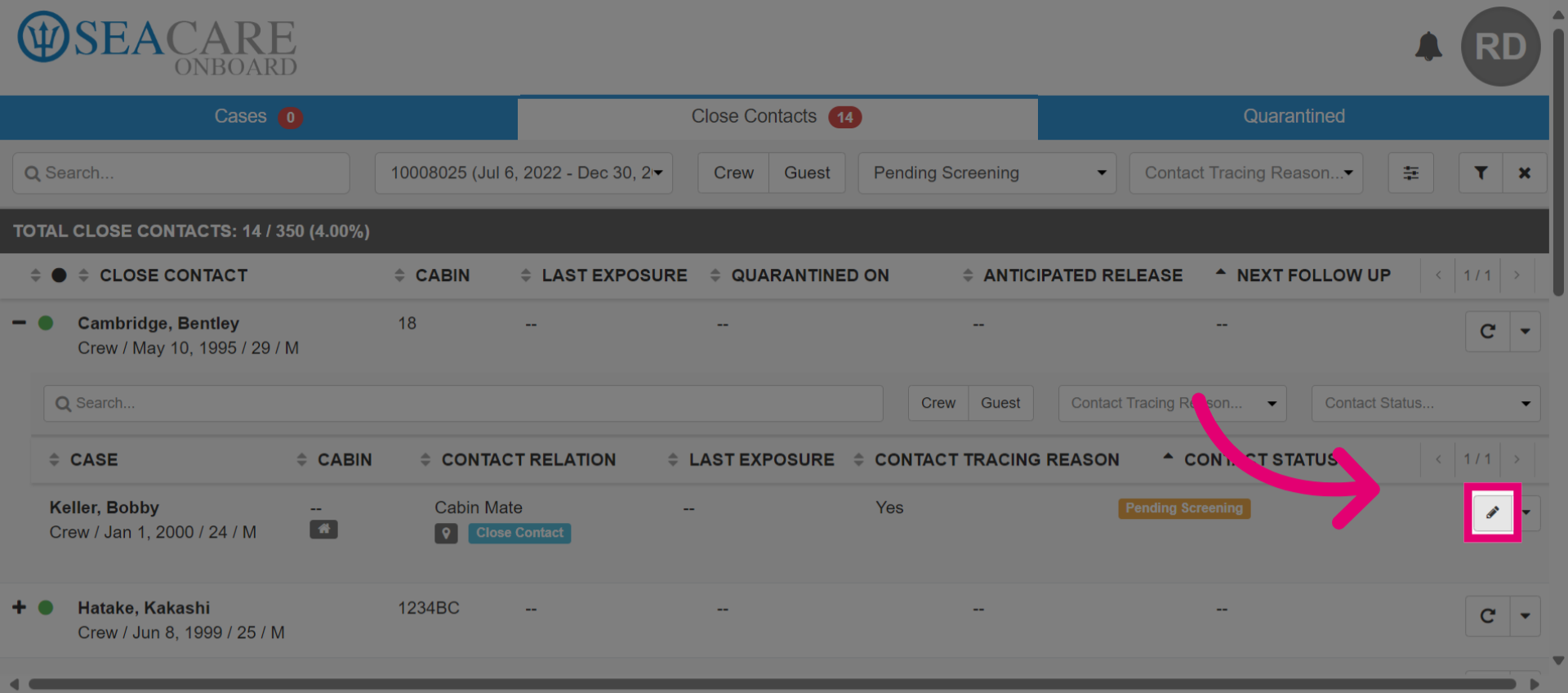
- Select the pencil button to edit a Close Contact.
- In the Details tab, update details such as cabin, relationship, type of close contact, priority, contact status, and cluster tags.
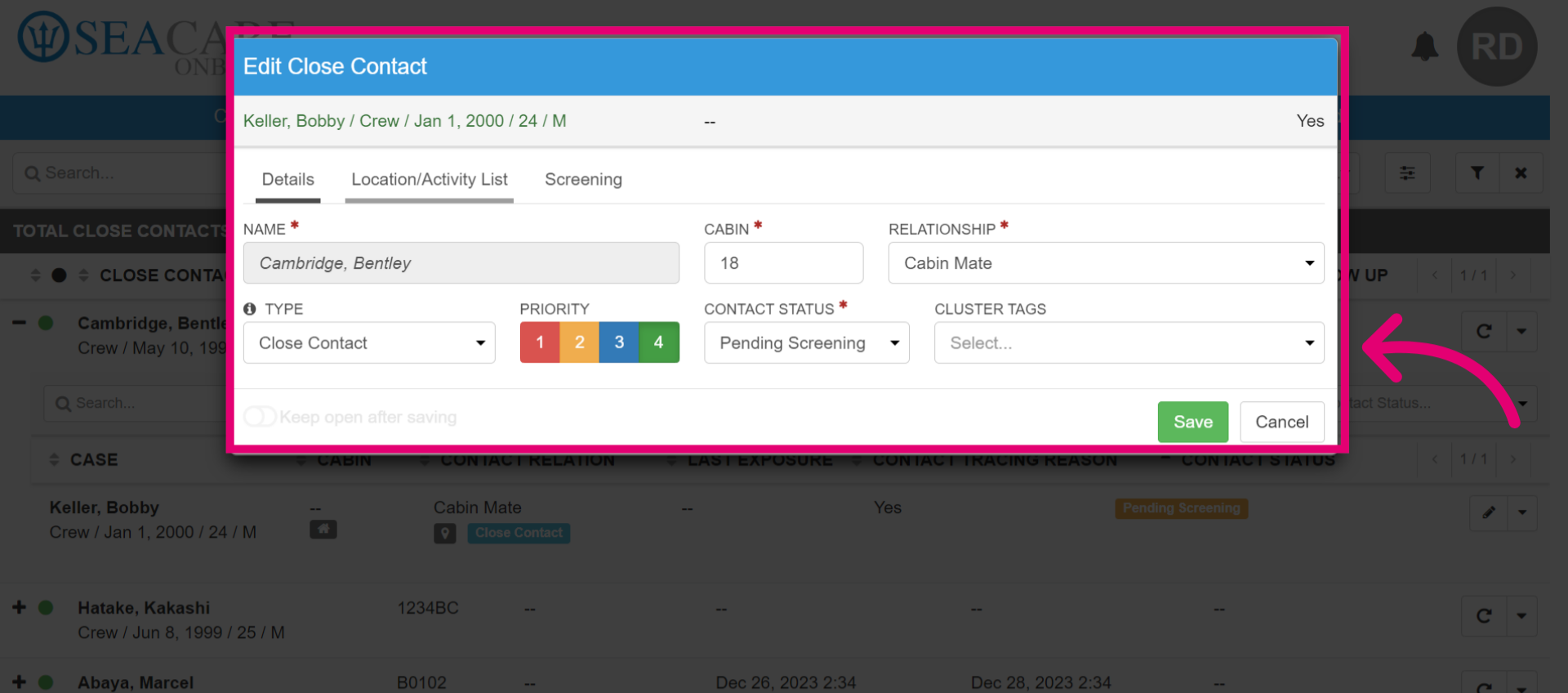
- Go to the Location or Activity list tab and update the existing information or add a new location or activity.
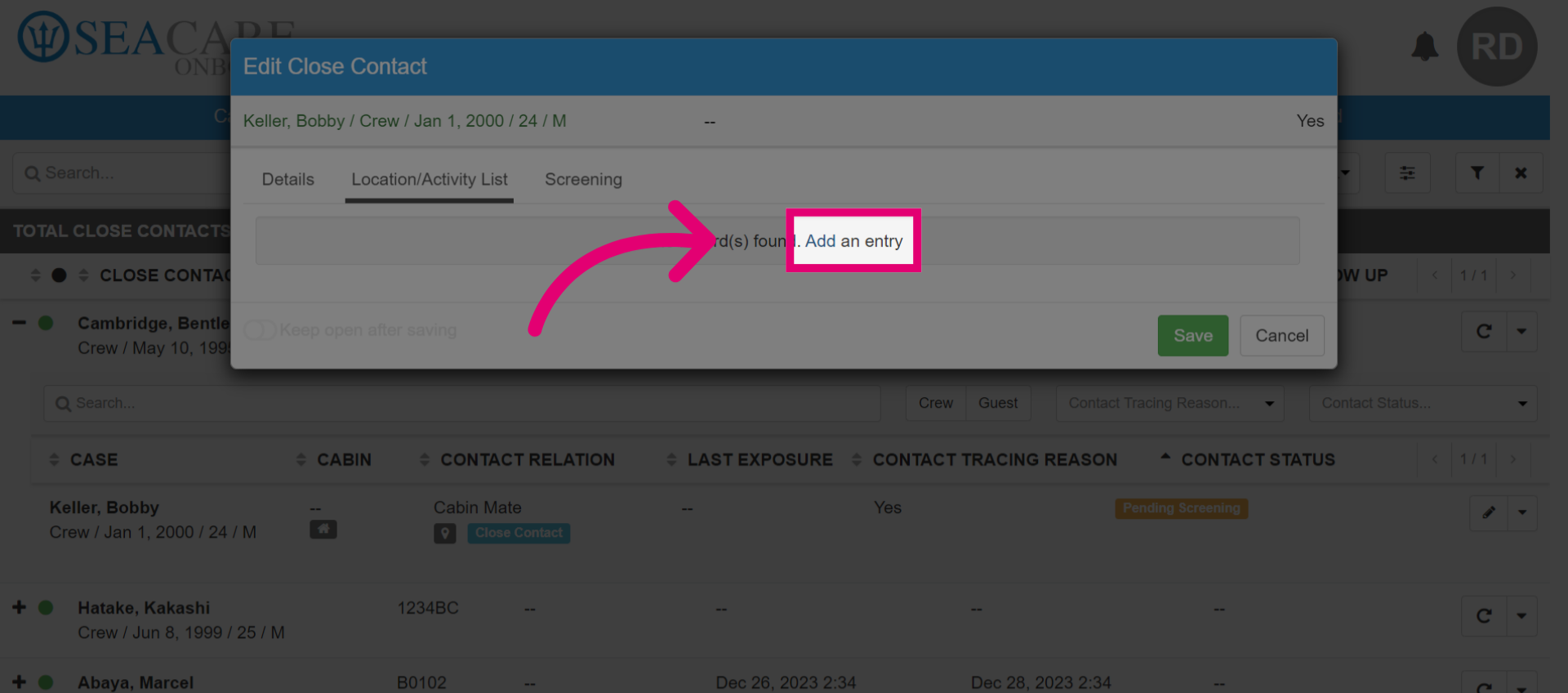
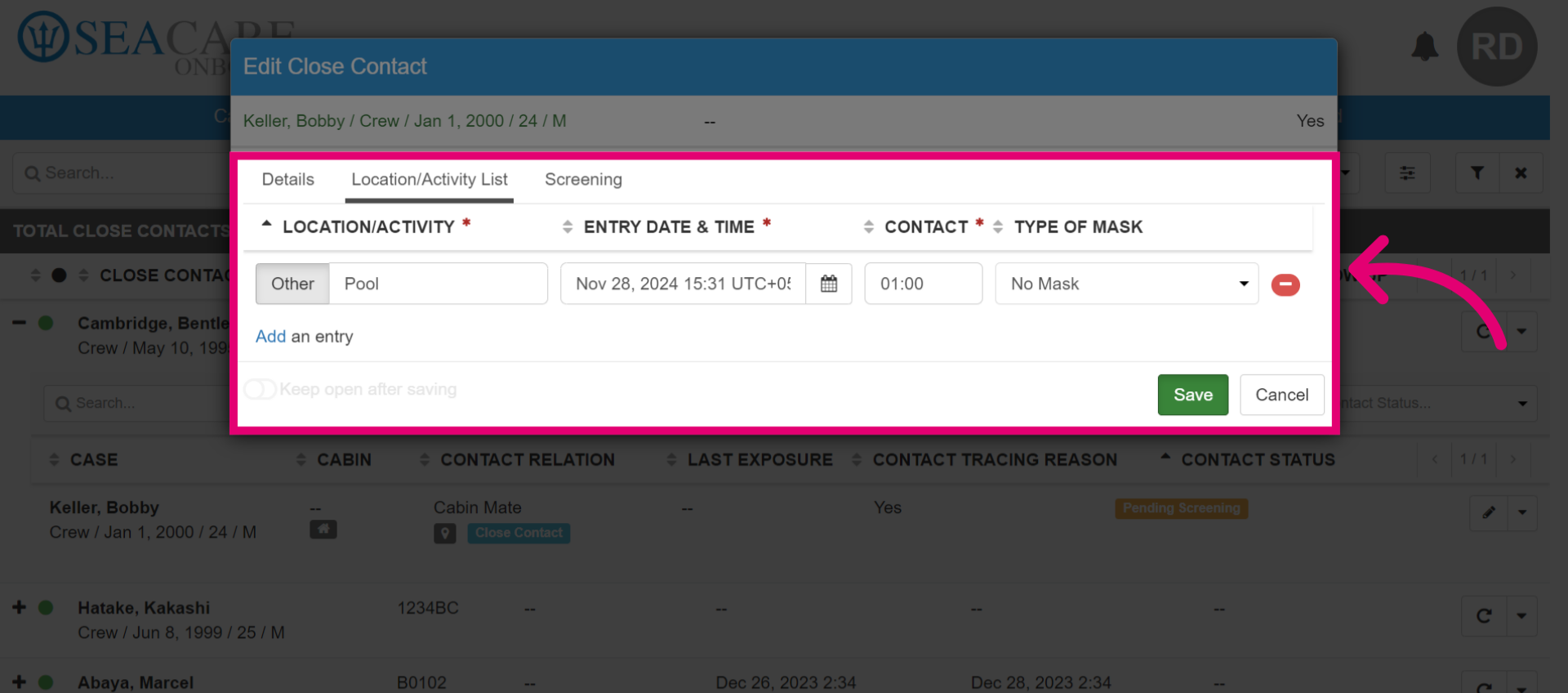
- Include the location and activity details, including name, entry date and time, duration (hours and minutes), and type of mask worn.
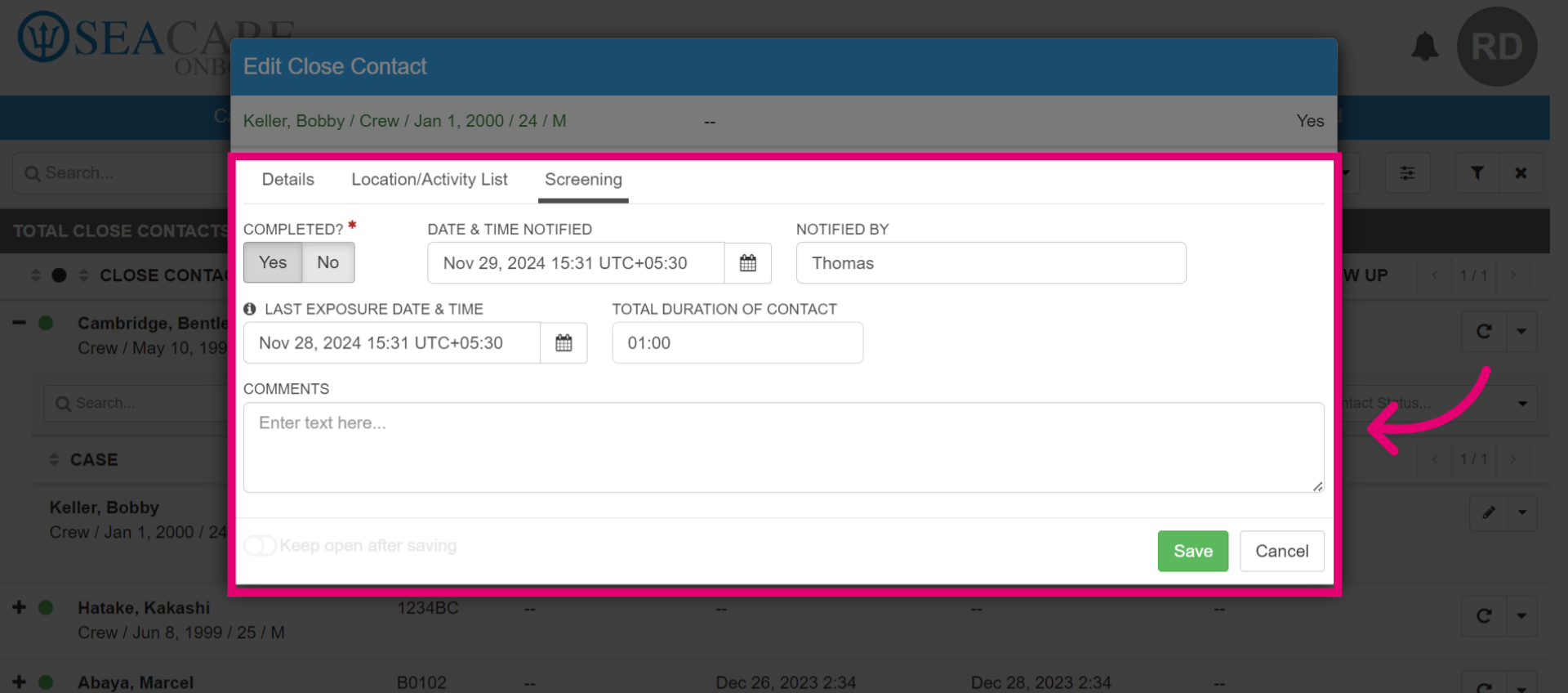
- Go to the Screening tab and enter the screening information. Indicate if the screening has been completed, the notification date and time, who notified them, last exposure date and time, duration of exposure, and any comments.
- Select Save to record your details.