New article
Recently updated
Conducting communicable disease follow ups for Close Contacts

Who is this article for?Users who want to learn to conduct communicable disease follow ups for Close Contacts.
This guide provides a comprehensive walkthrough for following up with close contacts for communicable disease cases.
1. Conducting communicable disease follow ups for Close Contacts
1.1. Video
1.1. Video
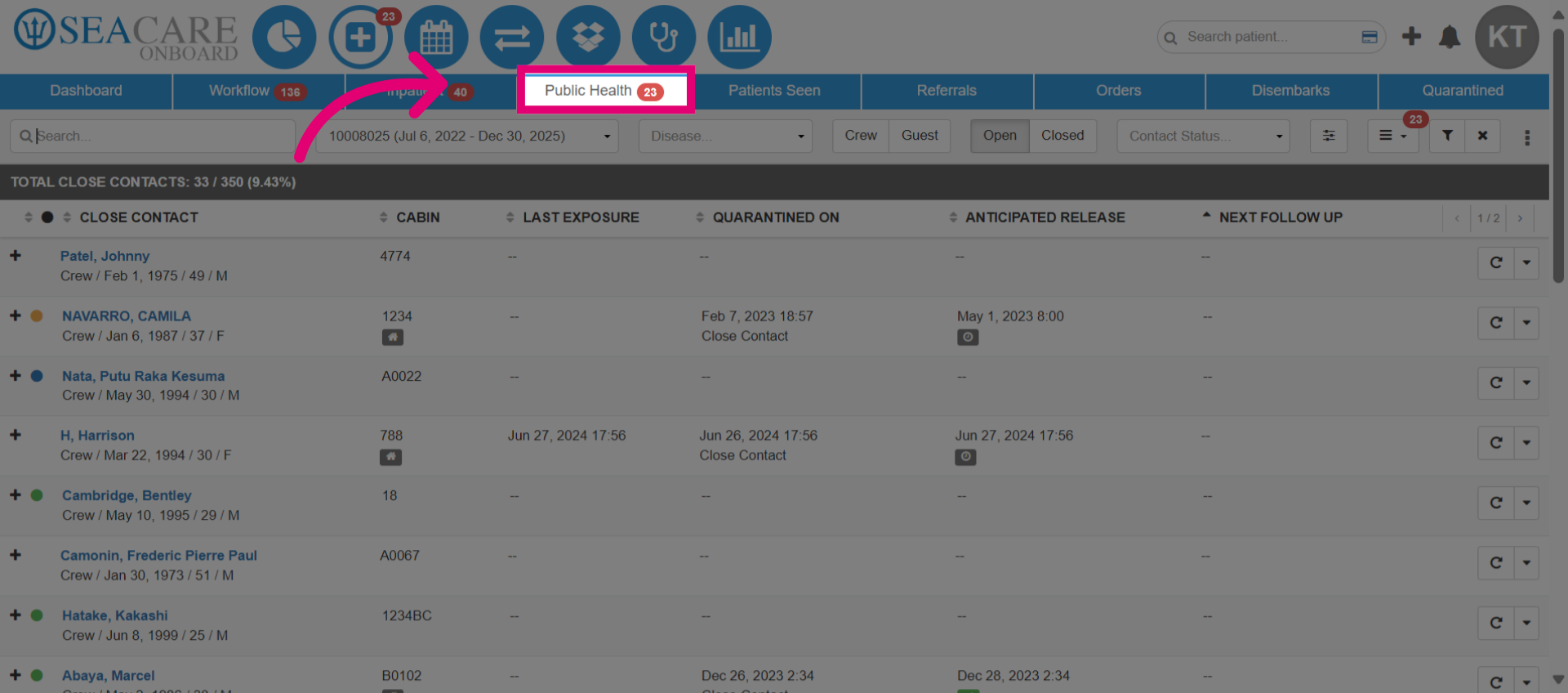
- Begin in the Close Contact View under the Clinic's Public Health tab to conduct follow-ups.
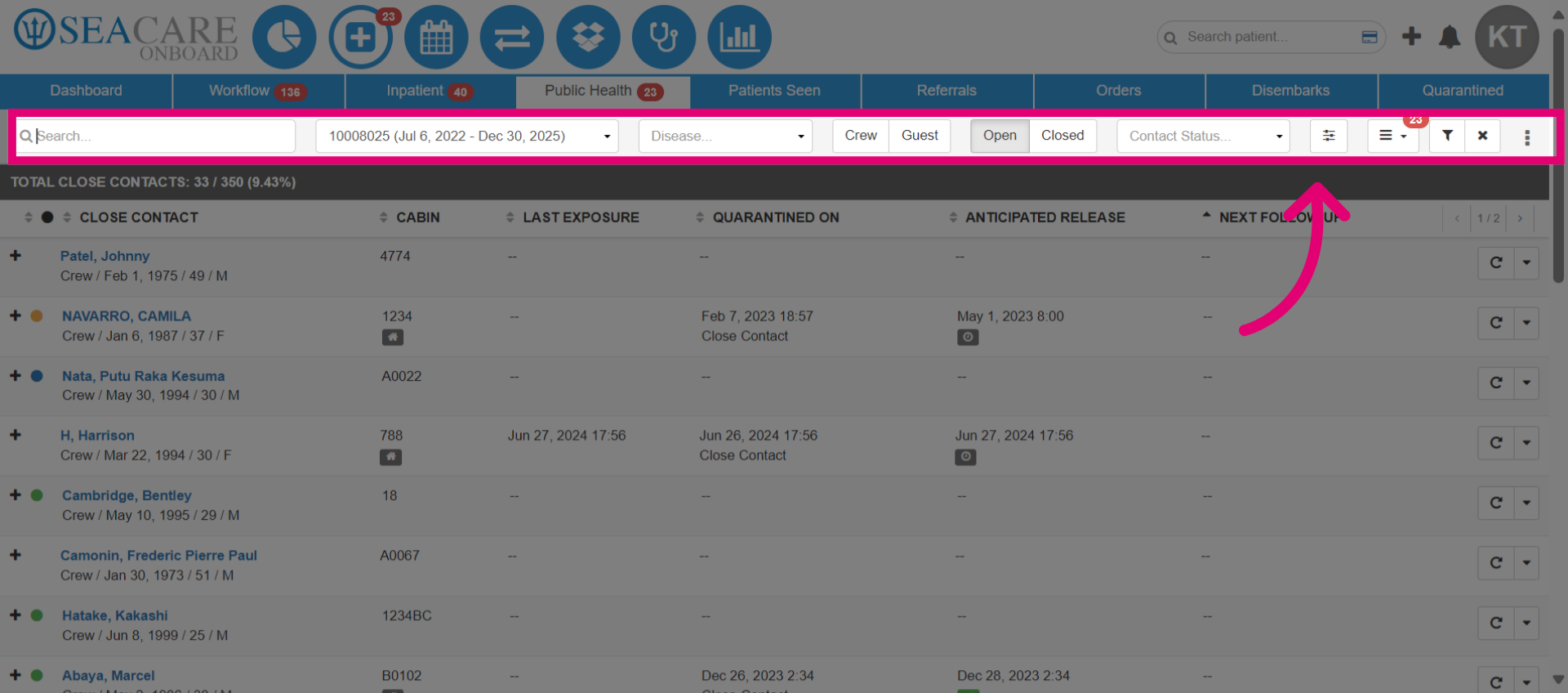
- Use the search bar and filters to search for and locate the close contact. You can filter by name, voyage date, disease type, crew or guest, and case decision.
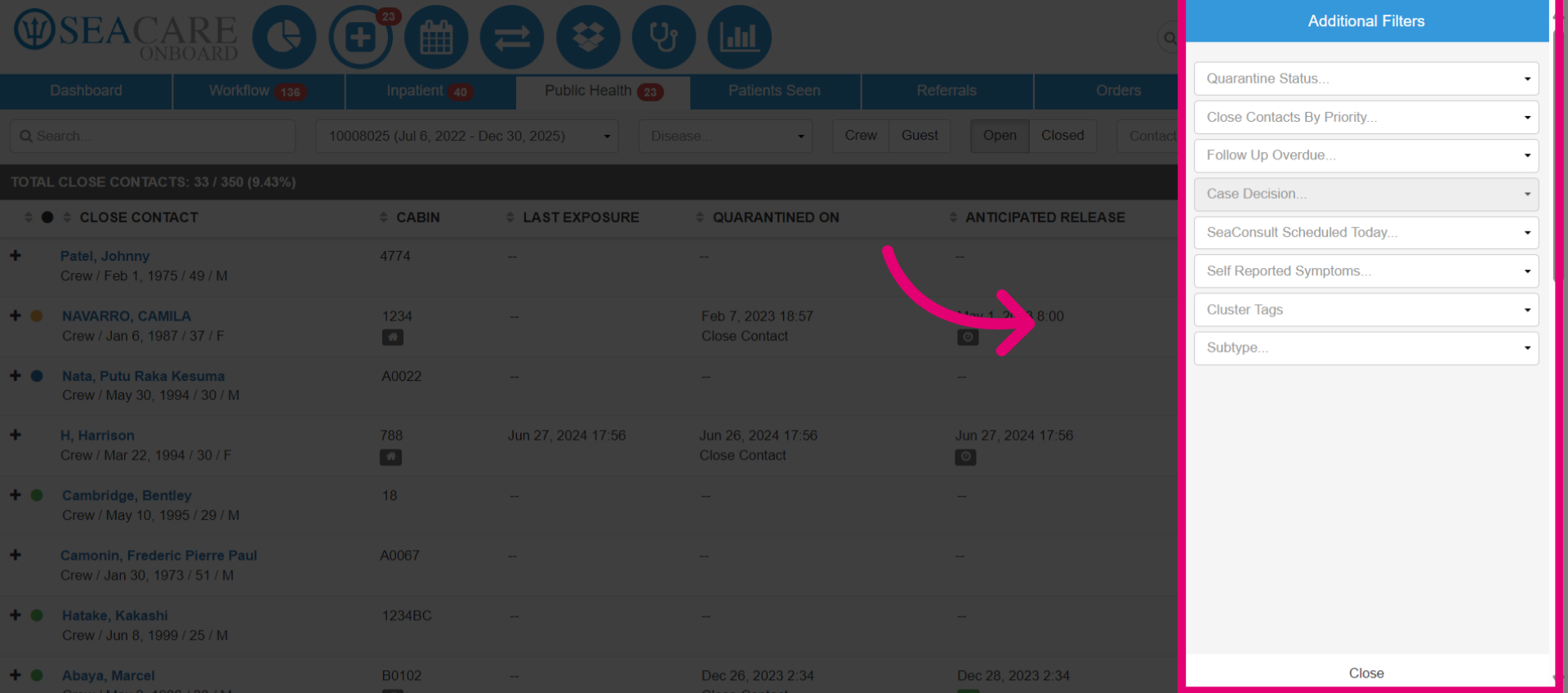
- There are additional filter options to use such as Quarantine Status, Priority, Sea Consult Scheduled Today, Self Reported Symptoms, Cluster Tags, or Subtype.
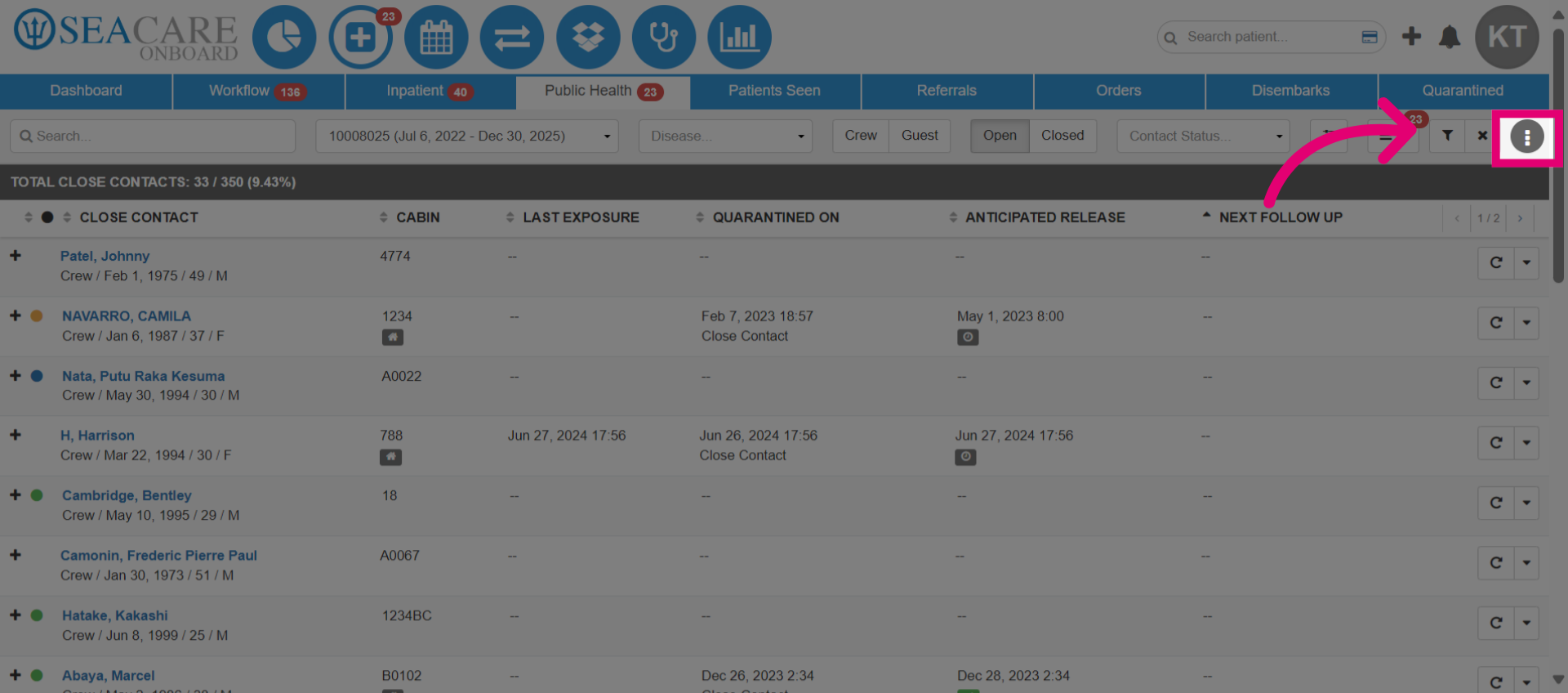
- View more options to add a new close contact or save filters in your Close Contact view.
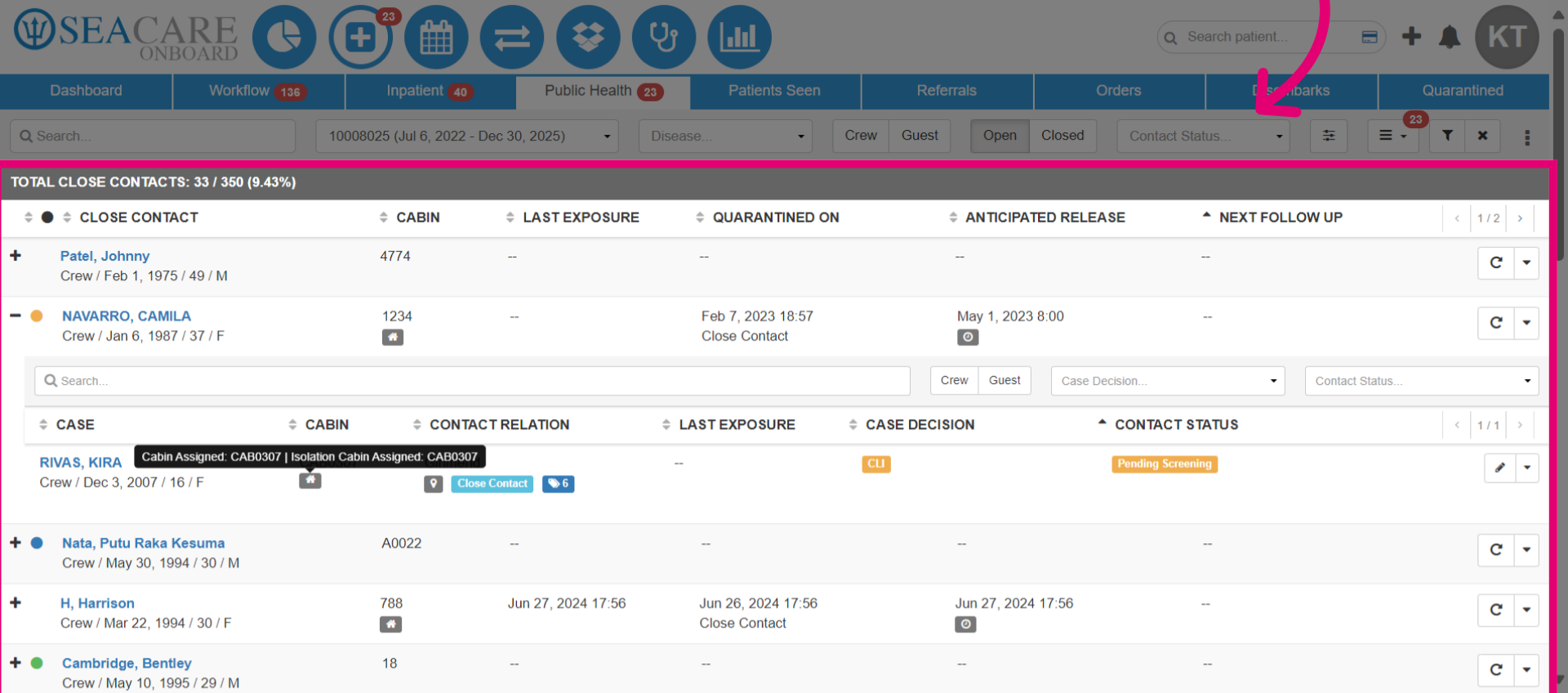
- View the close contact list and click the plus icon to expand for more details. Check the cabin, last exposure, quarantine start date, anticipated release date, and next follow-up date.
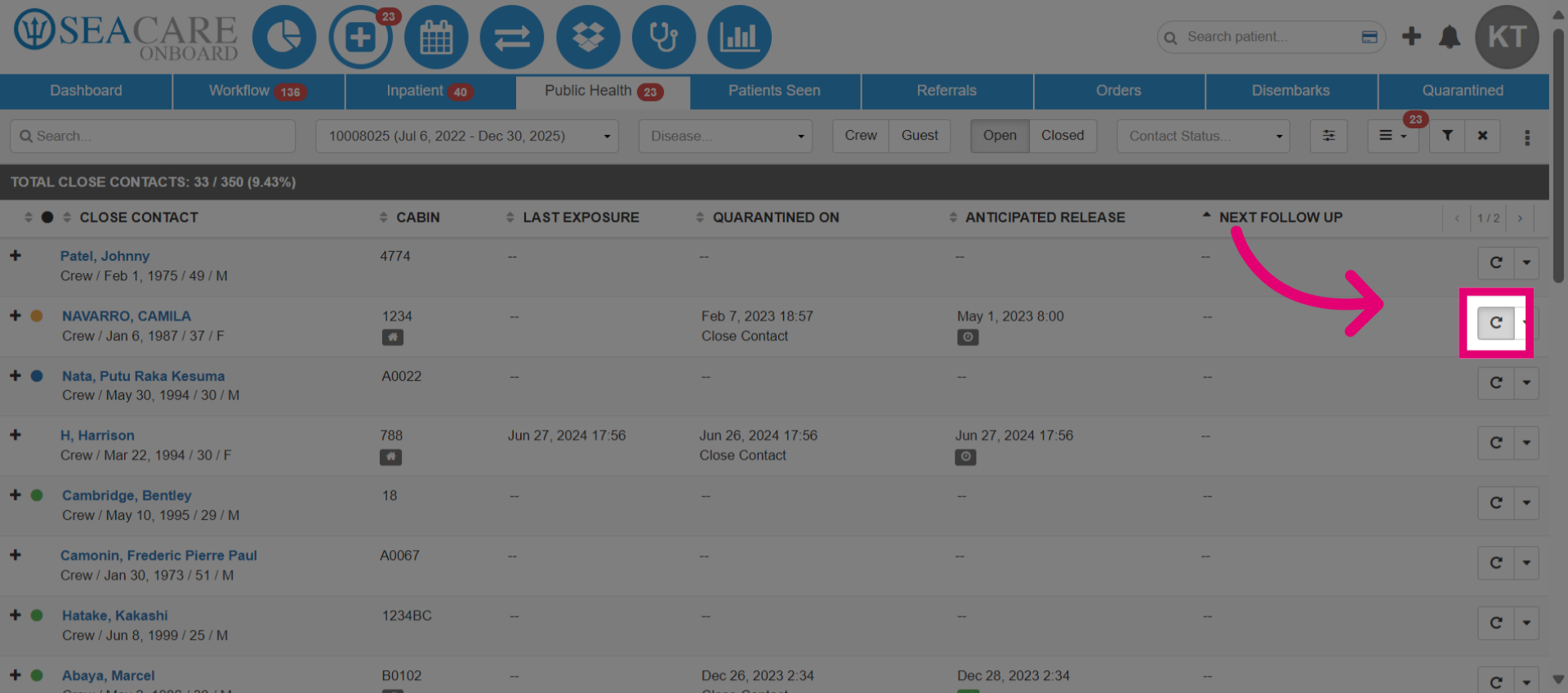
- Select the Follow Up button.
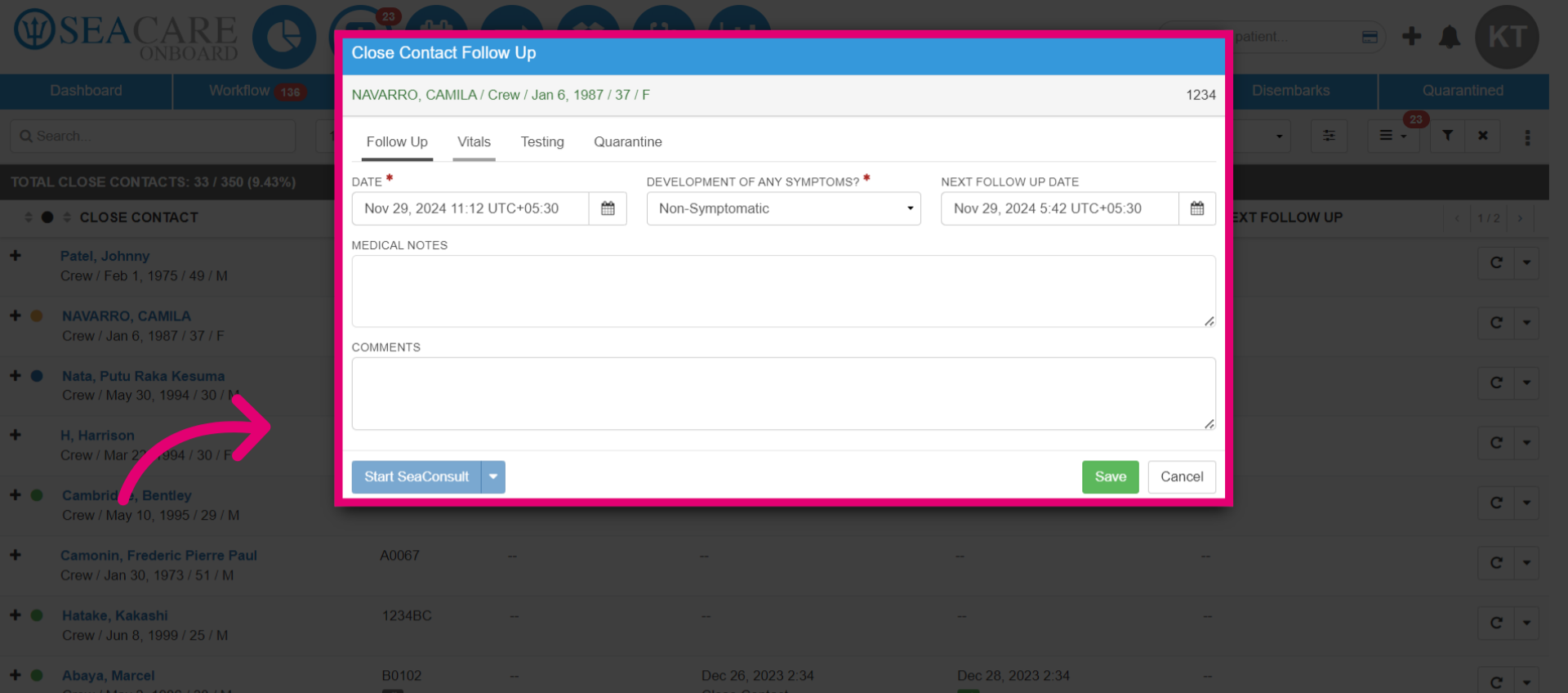
- Mark Yes for asymptomatic if no symptoms are present, or No if there are symptoms. Note symptom developments and the next follow-up date, and add any necessary notes.
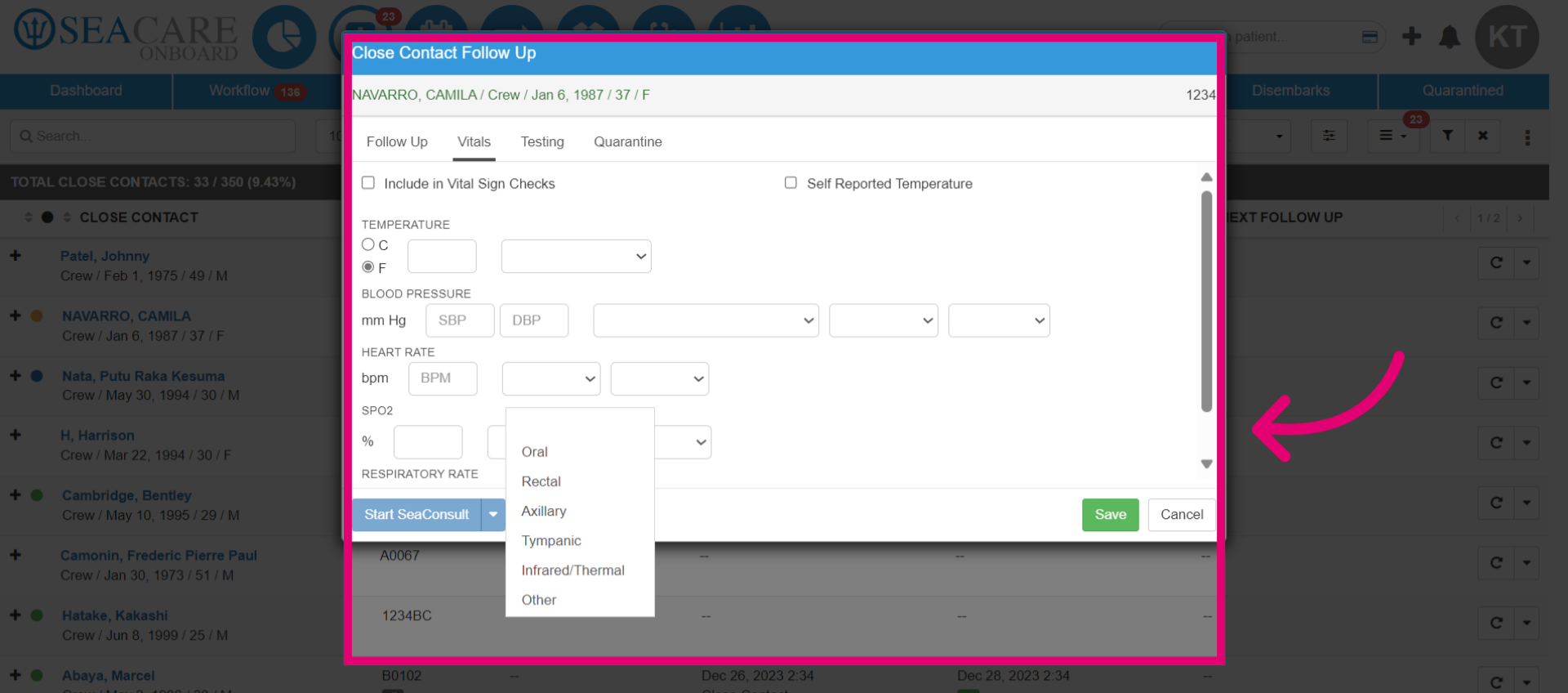
- In the vitals tab, update vitals by adding the temperature and indicate if the patient self-reported their own vitals.
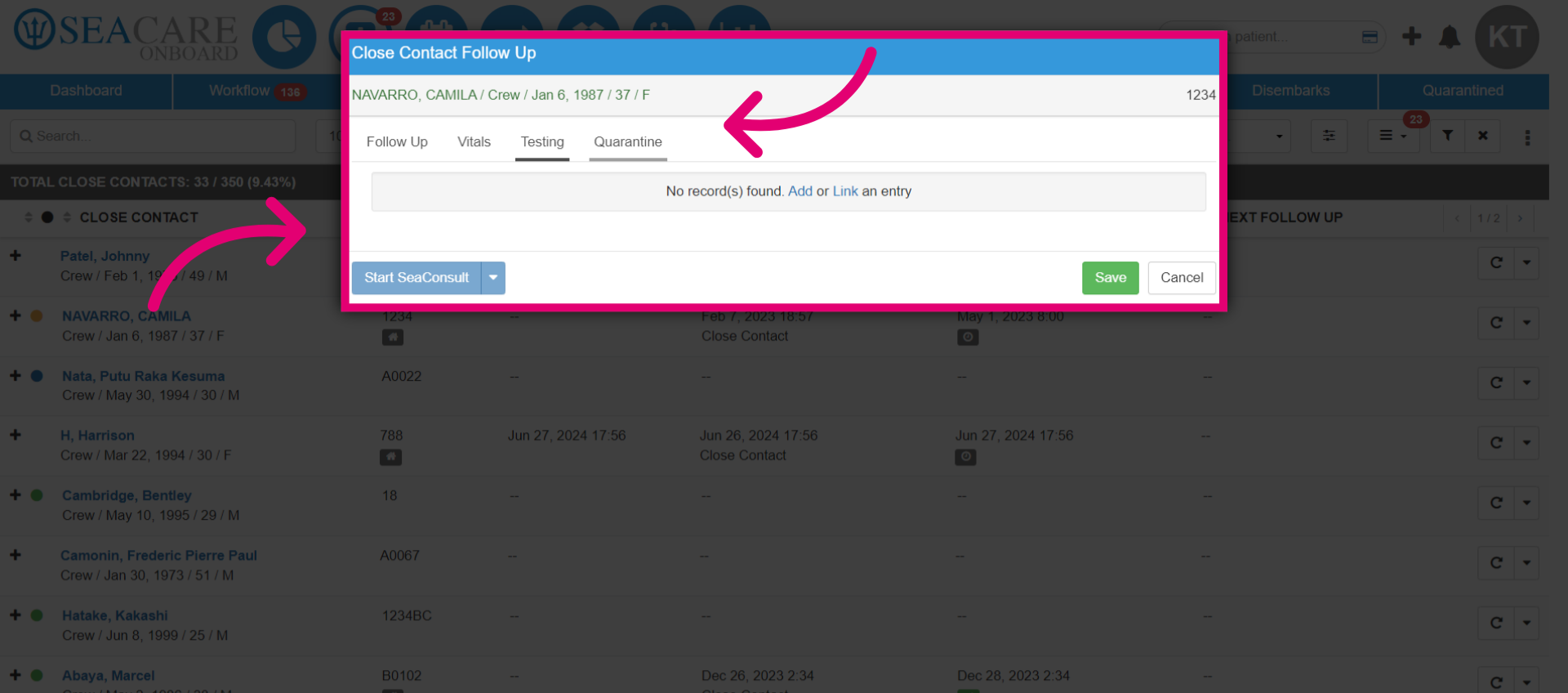
- Update the testing details in the testing tab. Post communicable disease testing results, add a new test, or link an existing one. Select the Add button to add a new test.
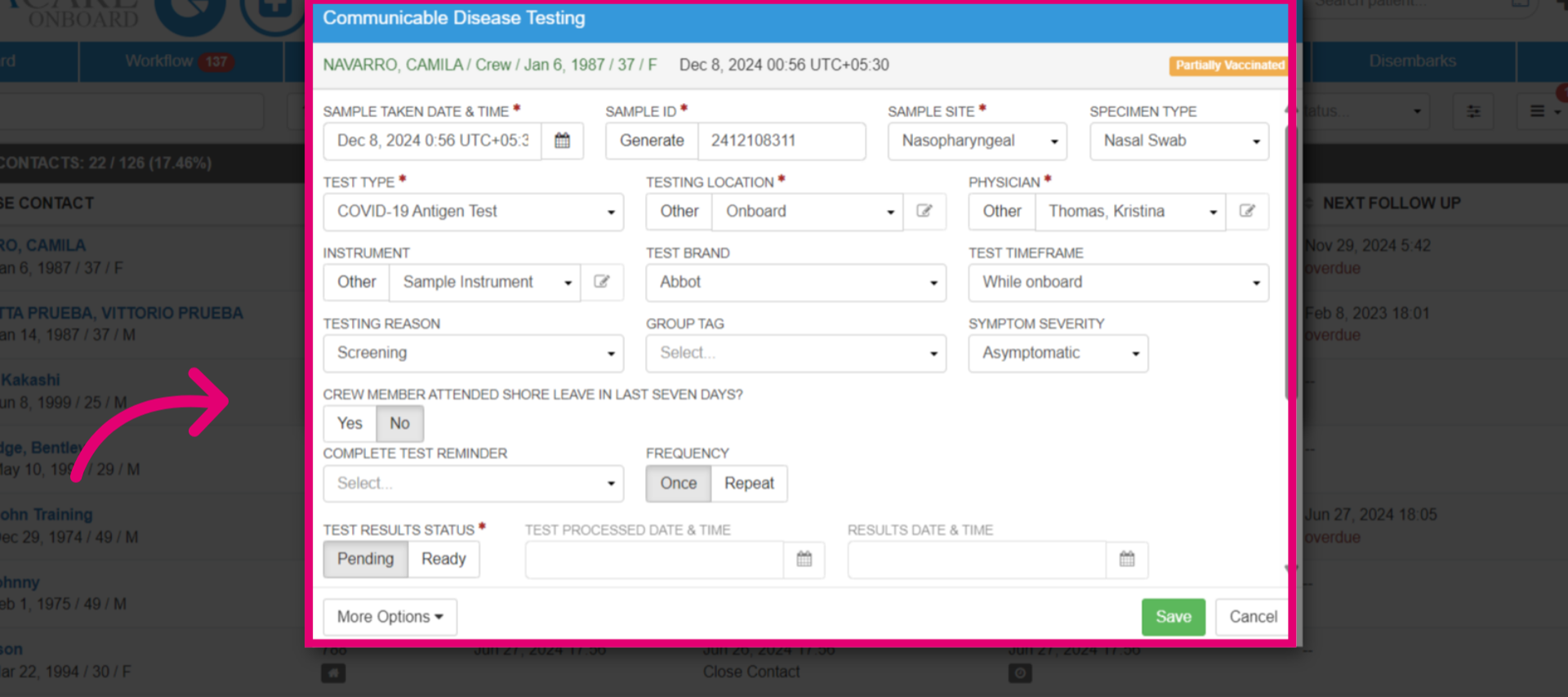
- Add the testing details, completing required fields (marked with an asterisk). Enter the sample date and time, generate or enter a test ID, and select the sample site. Choose the test type, location, physician, and test result status. Then, click Save.
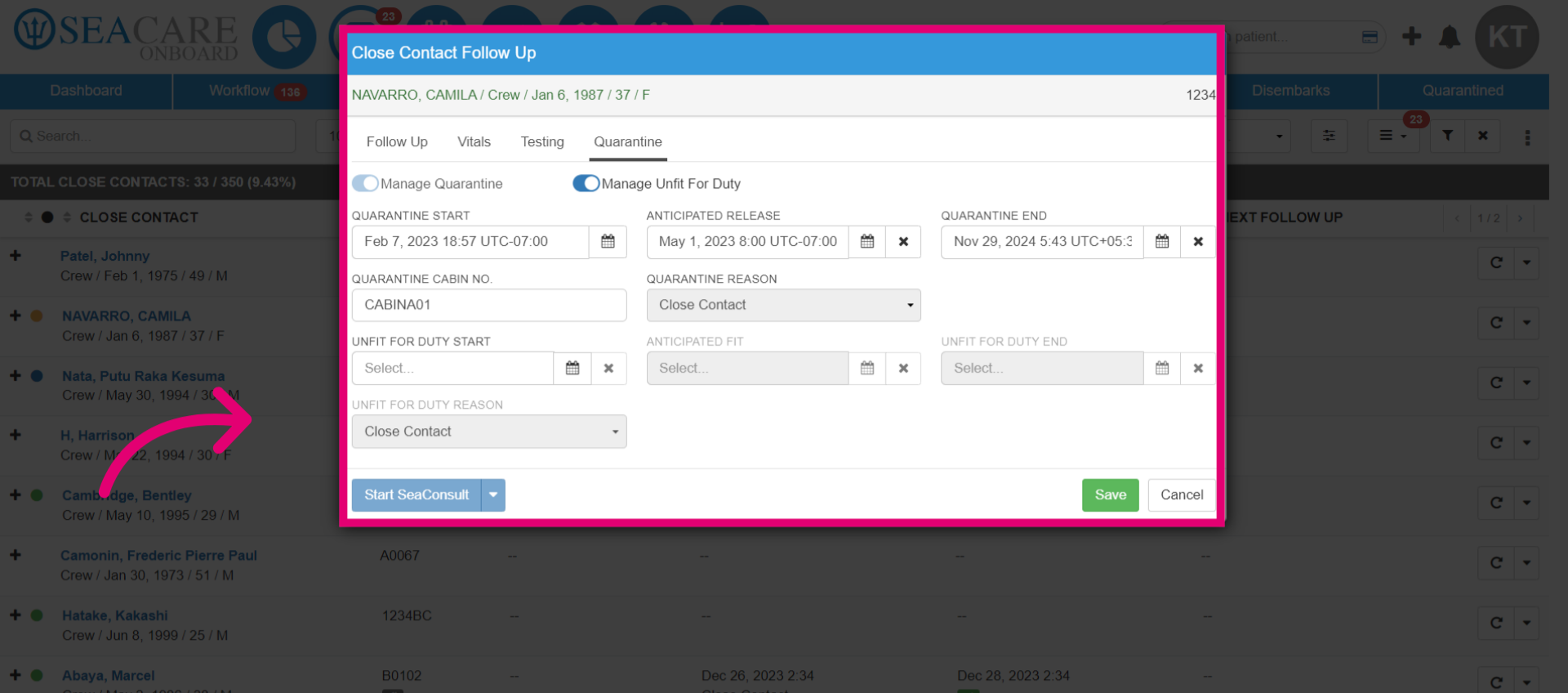
- In the Quarantine tab, add the quarantine start date, anticipated release date, and the cabin to quarantine in. If you're managing Unfit for Duty, add its start date and anticipated fit date. Then click Save.
- Select Start SeaConsult to initiate a call with the patient.
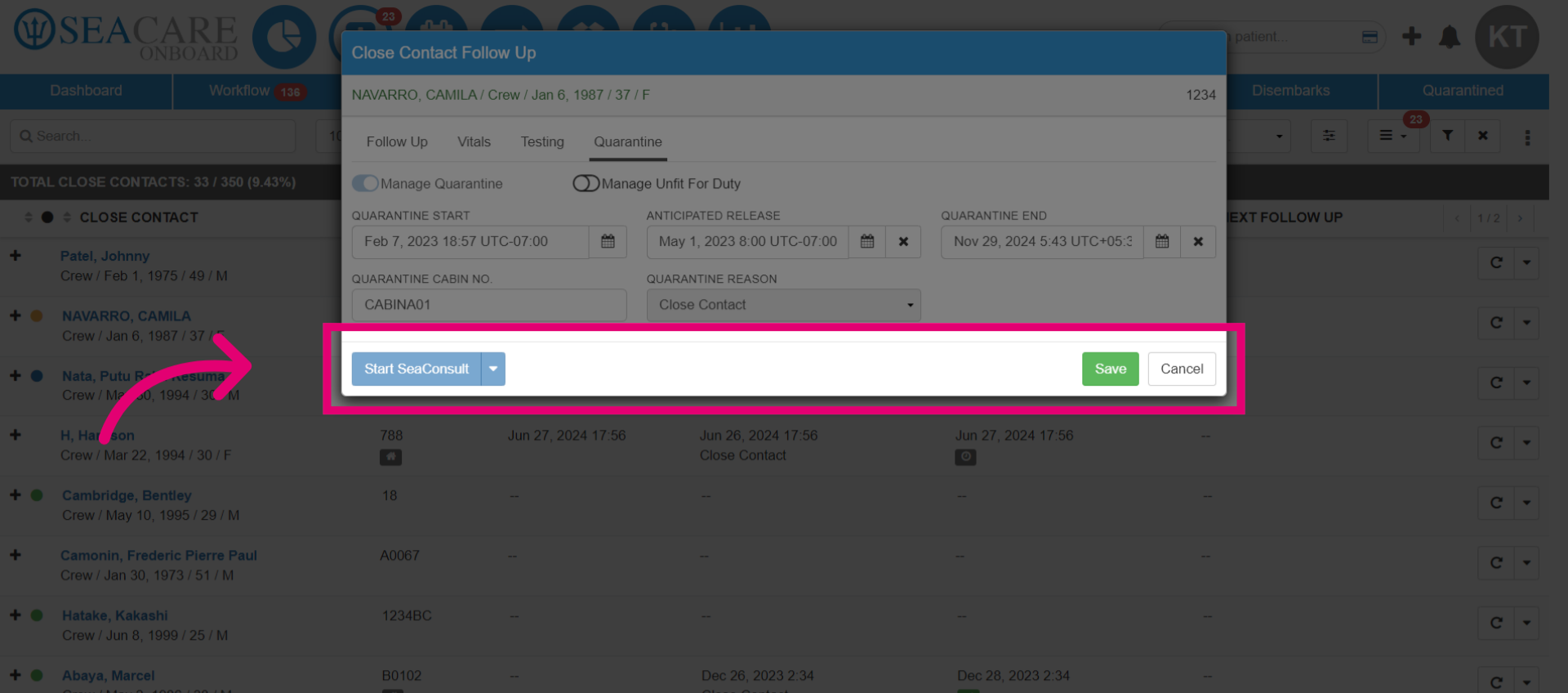
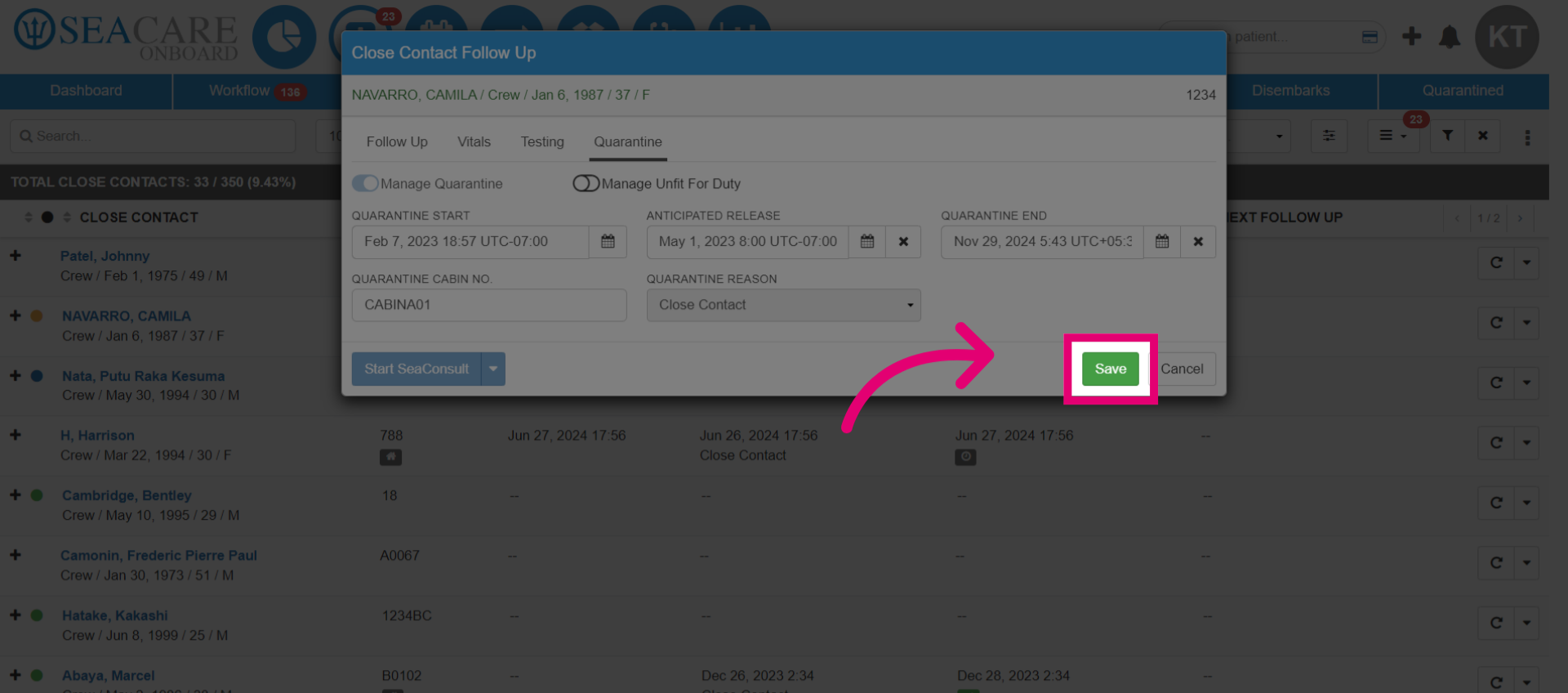
- Then, click Save.
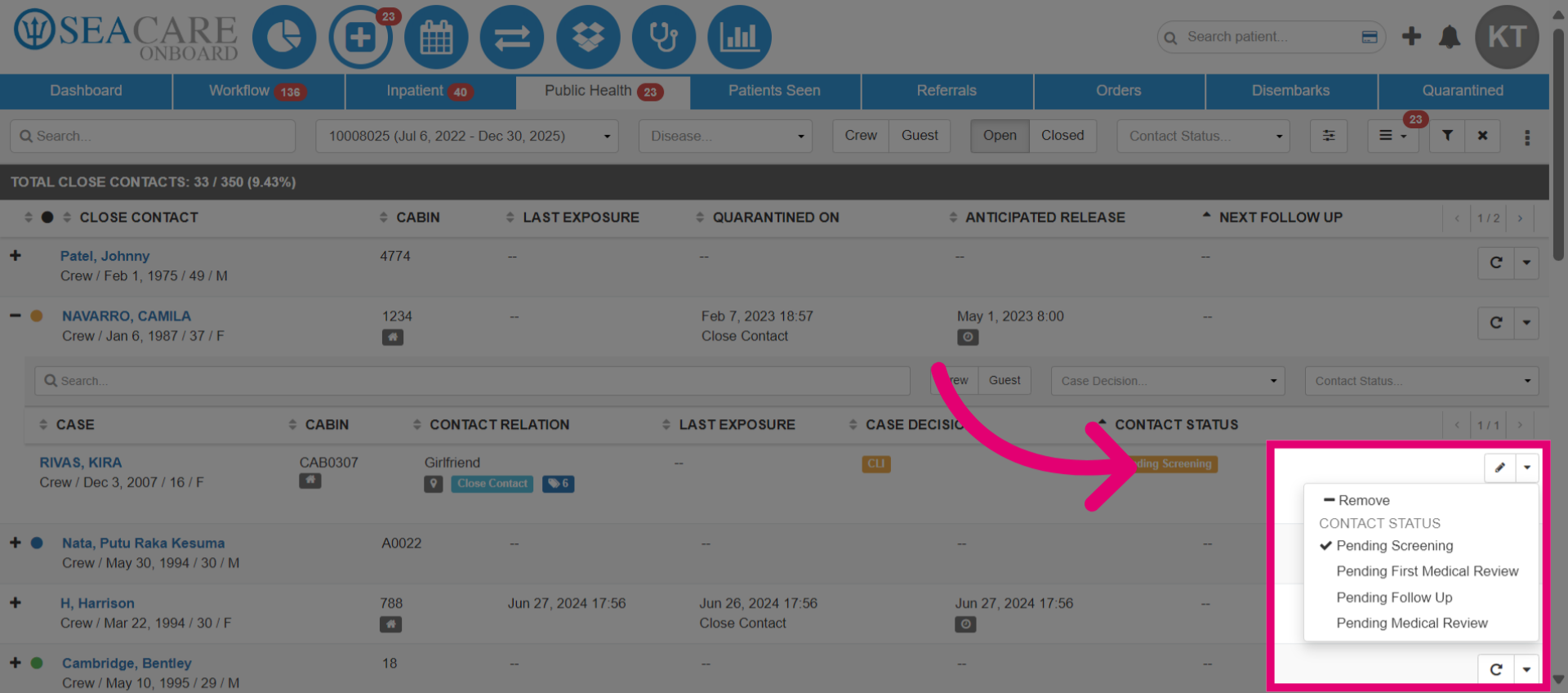
- View index case information here, linked to close contacts. This helps track cases for follow-ups. You can see the cabin, contact relation, last exposure, case decision, and contact status. Use search options to locate patients.
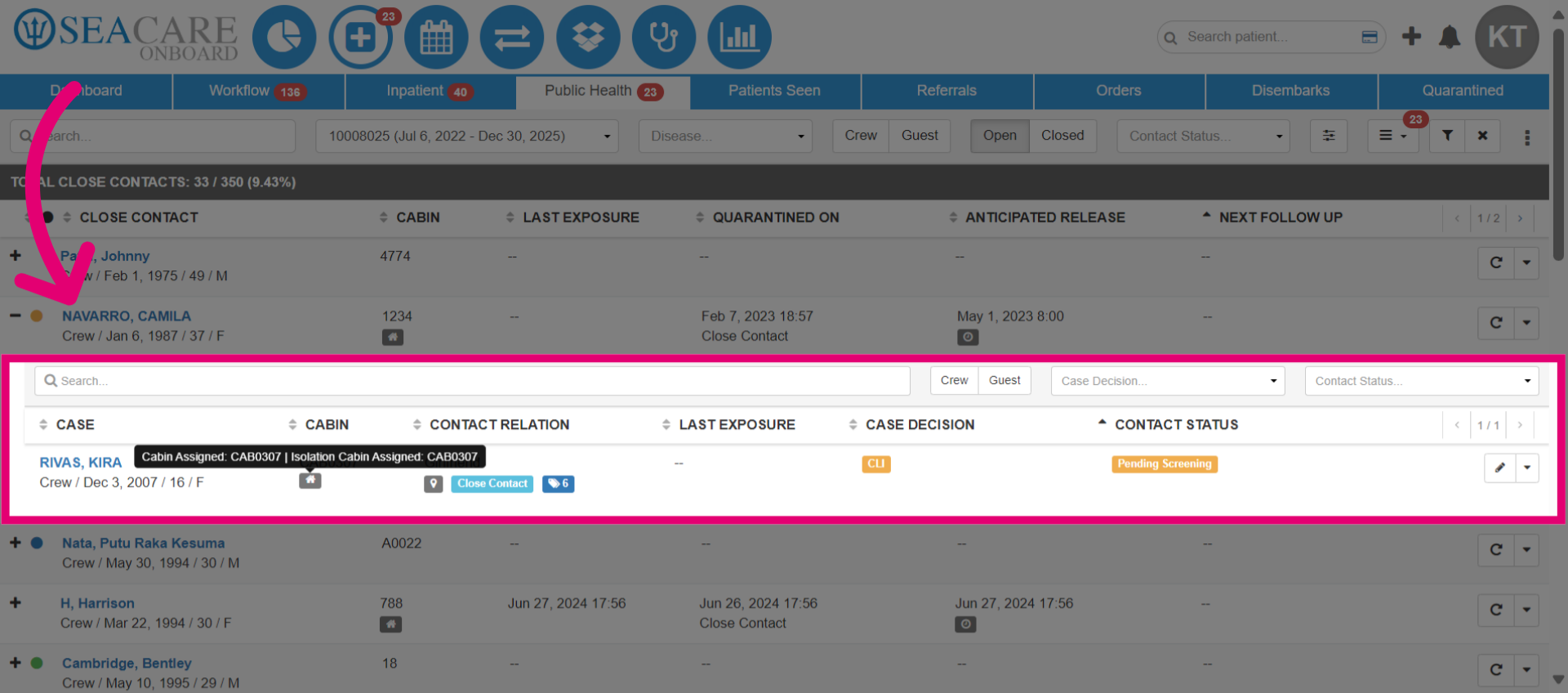
- Update the contact status by selecting the appropriate option: Pending a Screening if the contact has not been screened or notified, Pending the first Medical Review if the contact has not had their first medical review, Pending Follow Up if they have had the first medical review but not a follow-up, Pending a Medical Review if they have completed the follow-up but not the second medical review, or Remove to remove the close contact.