New article
Recently updated
Navigating the Index Cases tab within the Contract Tracers module

Who is this article for?Users who want to learn to navigate the Index Cases tab within the Contract Tracers module.
No elevated permissions are required.
This guide provides a comprehensive walkthrough for navigating the Index Cases tab within the Contact Tracers module.
1. Navigating the Index Cases tab within the Contract Tracers module
1.1. Video
1.2. Steps
- Contact tracer modules are essential for preventing the spread of communicable diseases. Start in the index case view and use these tools to effectively trace and follow up with index cases and their close contacts.
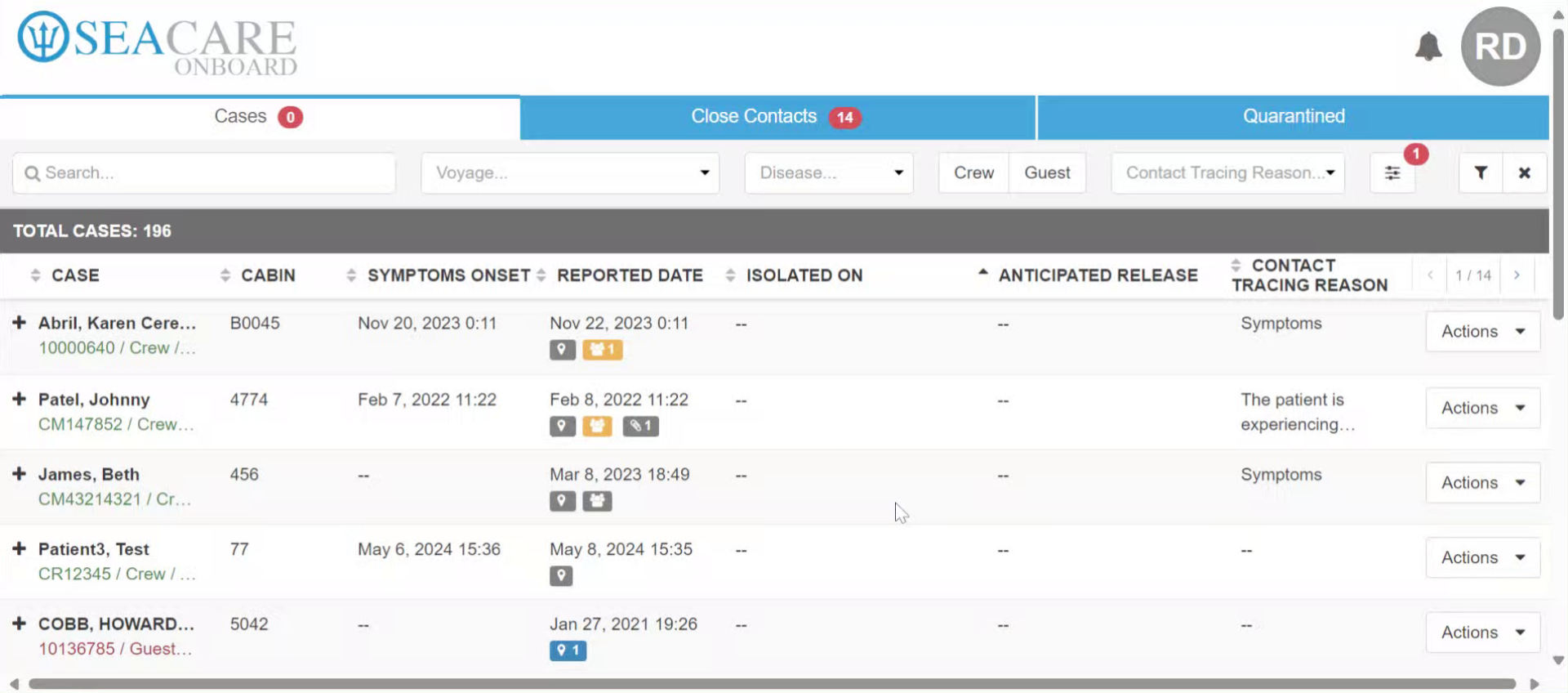
- First, locate the patient using the search bar or filters. You can search by name, voyage, disease type, crew or guest, or contact tracing reason.
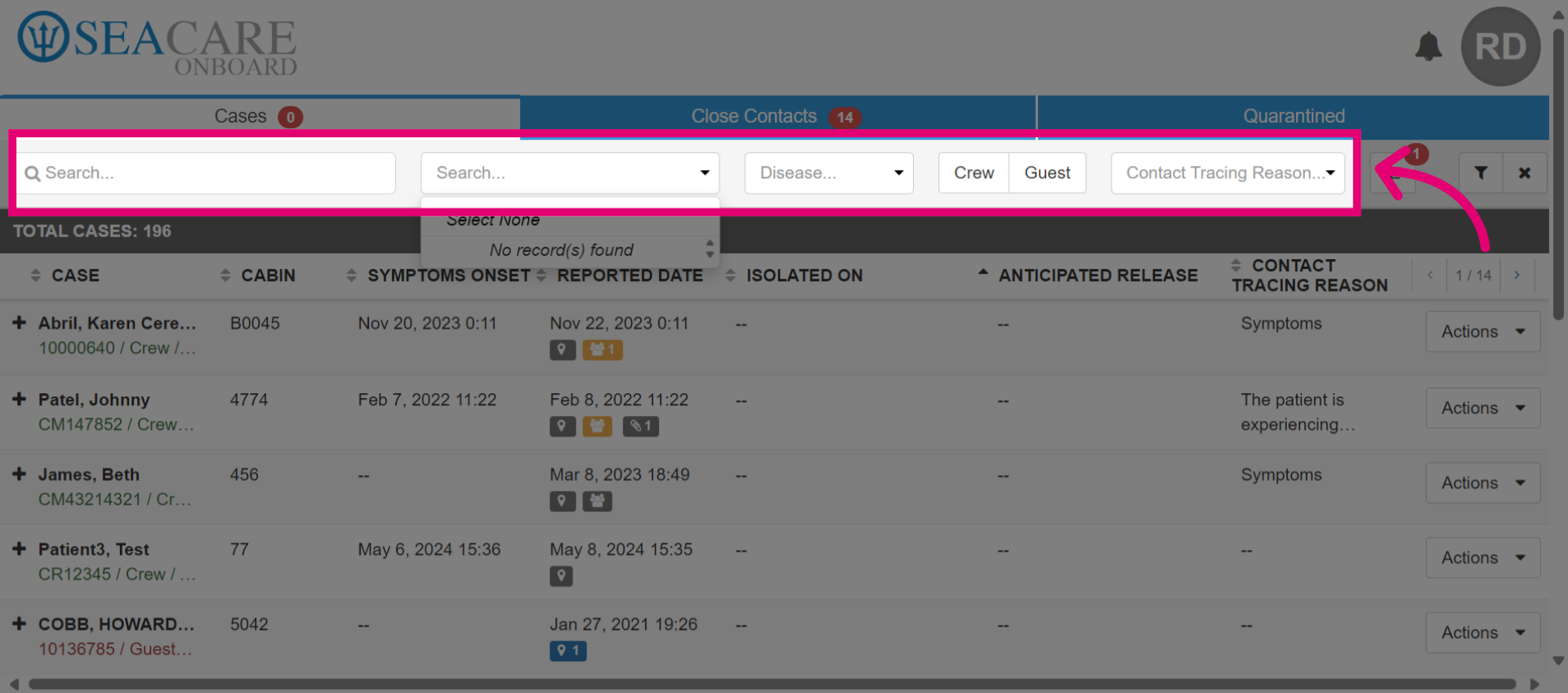
- Use additional filters to enhance your search with options like isolation status, quick entries, contact tracing status, location or activity. This makes contact tracing efforts easier and more effective.
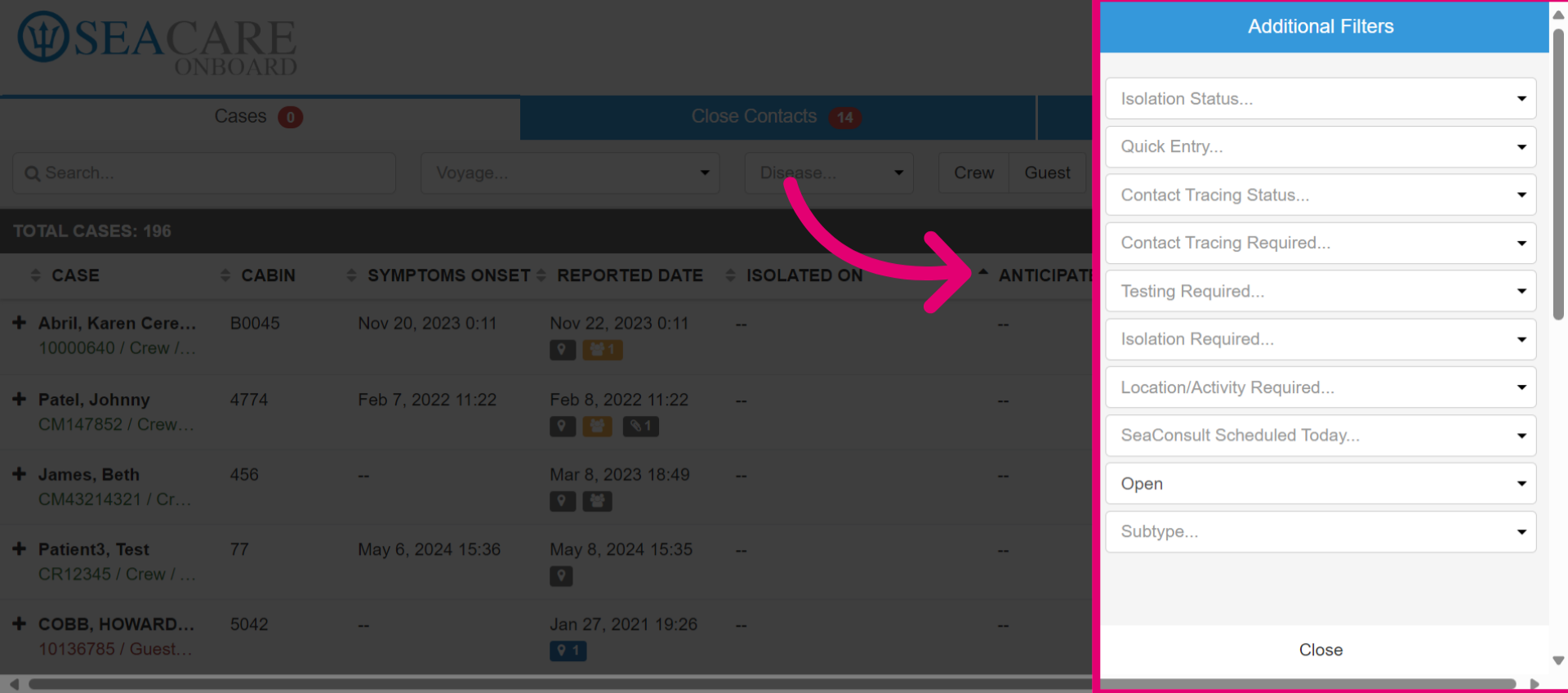
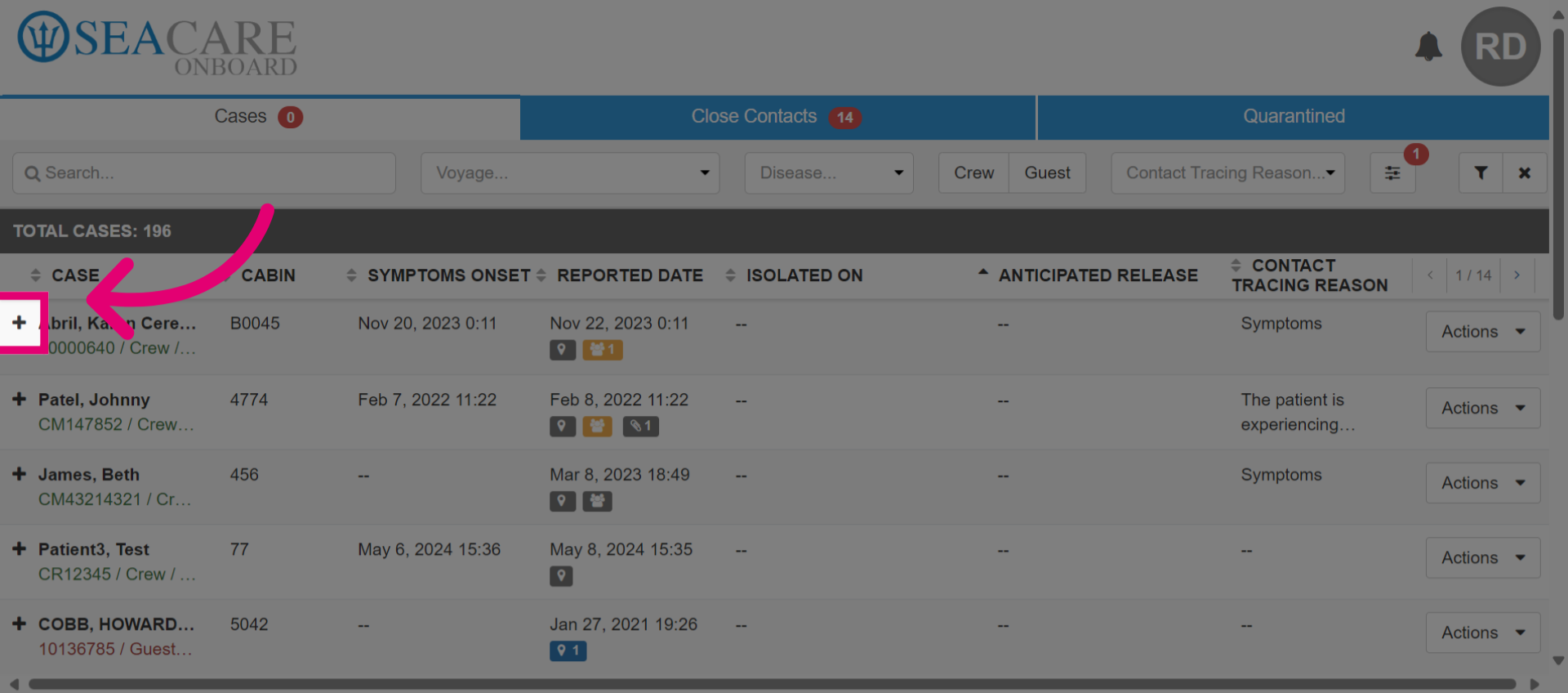
- Start with reviewing index cases. Go to your patient, and expand the row. Review information about index cases and their close contacts.
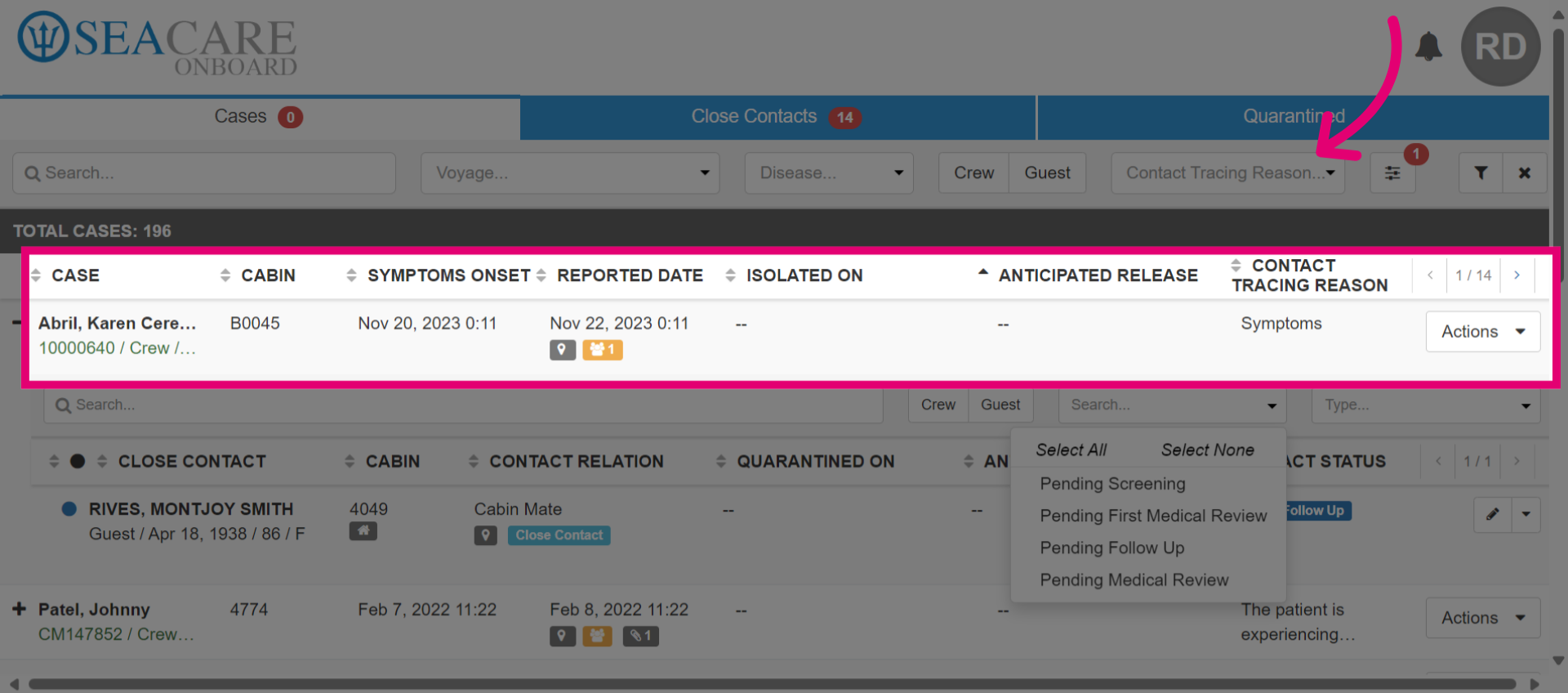
- Review the index case details, such as cabin, symptoms onset date, reported date, date of isolation, anticipated release date and the contact tracing reason.
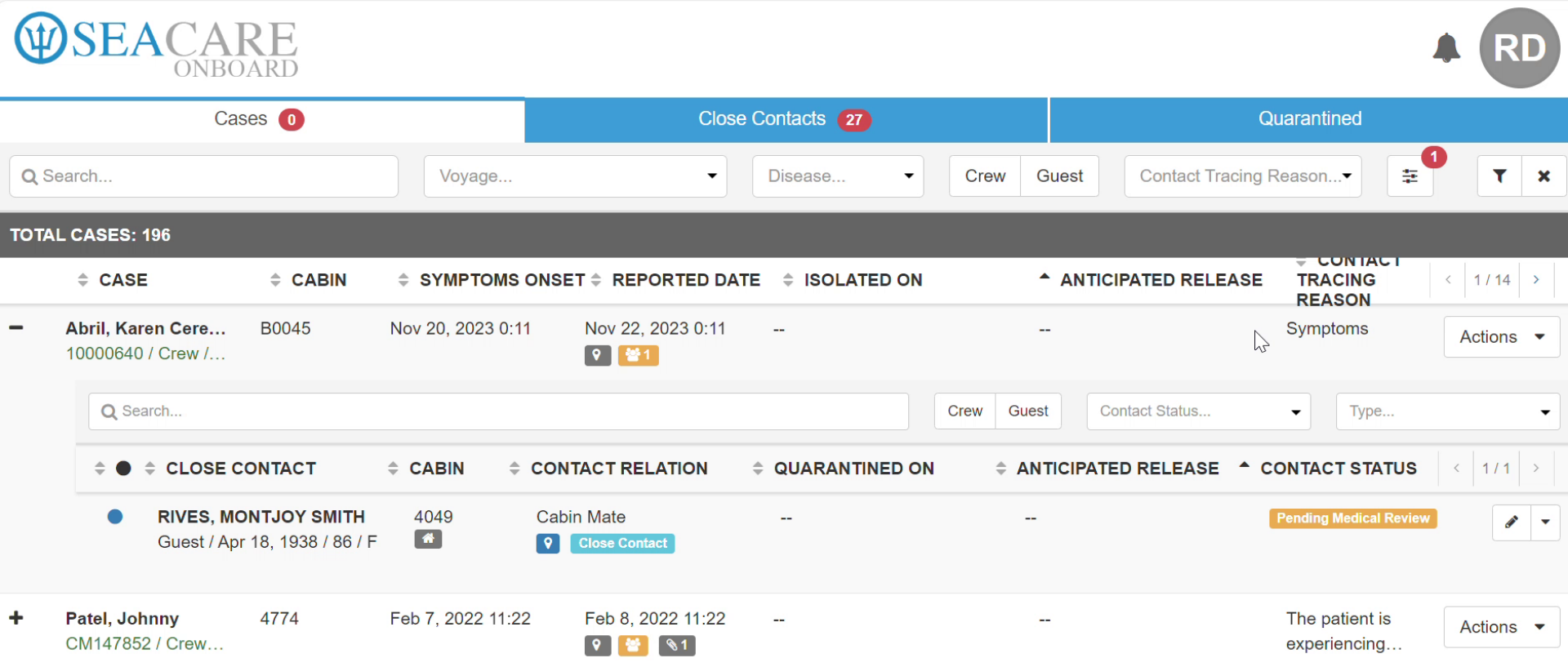
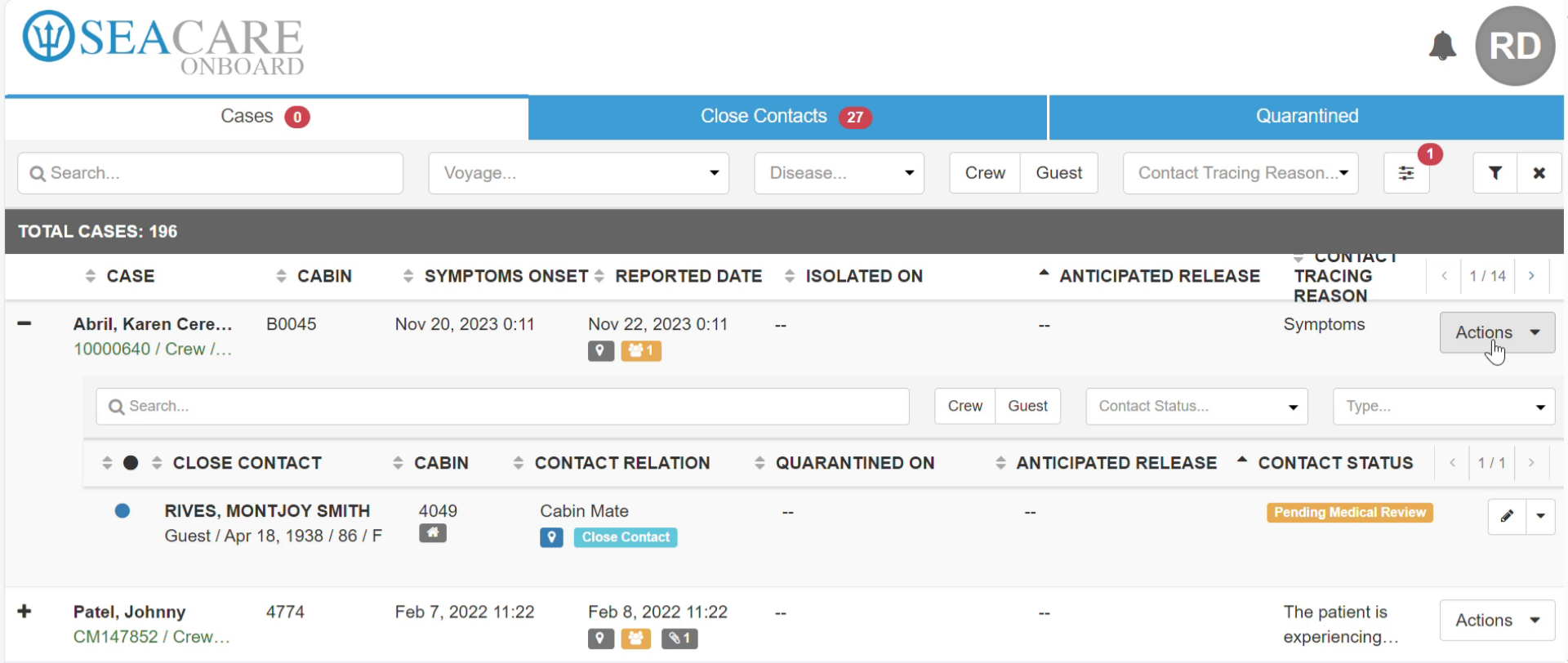
- The follow up process can be completed by clicking the Actions button to Edit the full close contact list. You can edit existing close contacts or add a new entry. Update the contact tracing status, depending on whether all close contacts have been identified. Add or remove cluster tags where multiple cases have been documented. Edit the existing location or activity list or add a new entry.
- If permitted, schedule a sea consult call for a video follow-up. Add who will follow up with the patient under Resource. The appointment type is set to communicable disease follow-up. Notify supervisors of the call, especially if it's a crew member. Confirm the appointment start and end date and time. Make it a one-time call, or set it as recurring for additional follow-ups. If desired, adjust the calendar color for the appointment on the clinic's calendar, and add any notes. In the Invite Notifications tab, invite the patient or other parties by selecting the checkboxes. Under the Appointment Reminder tab, set reminders for the patient, resource, or system to send an appointment reminder a specified time before it starts.
- Now, let's focus on how to review and follow up with the close contacts for a case. If there is a list of close contacts, use the search and filter options to specify which contacts to locate.
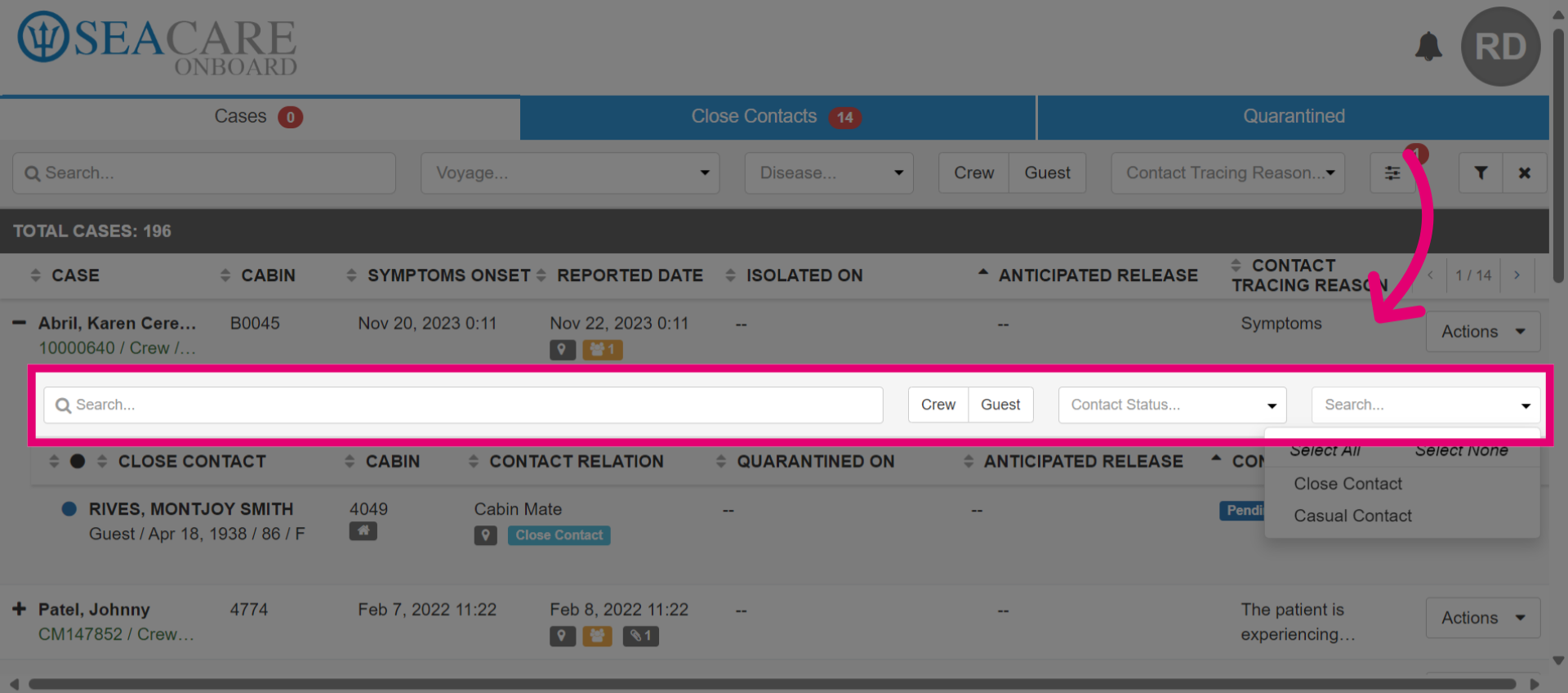
- Click the Menu button.
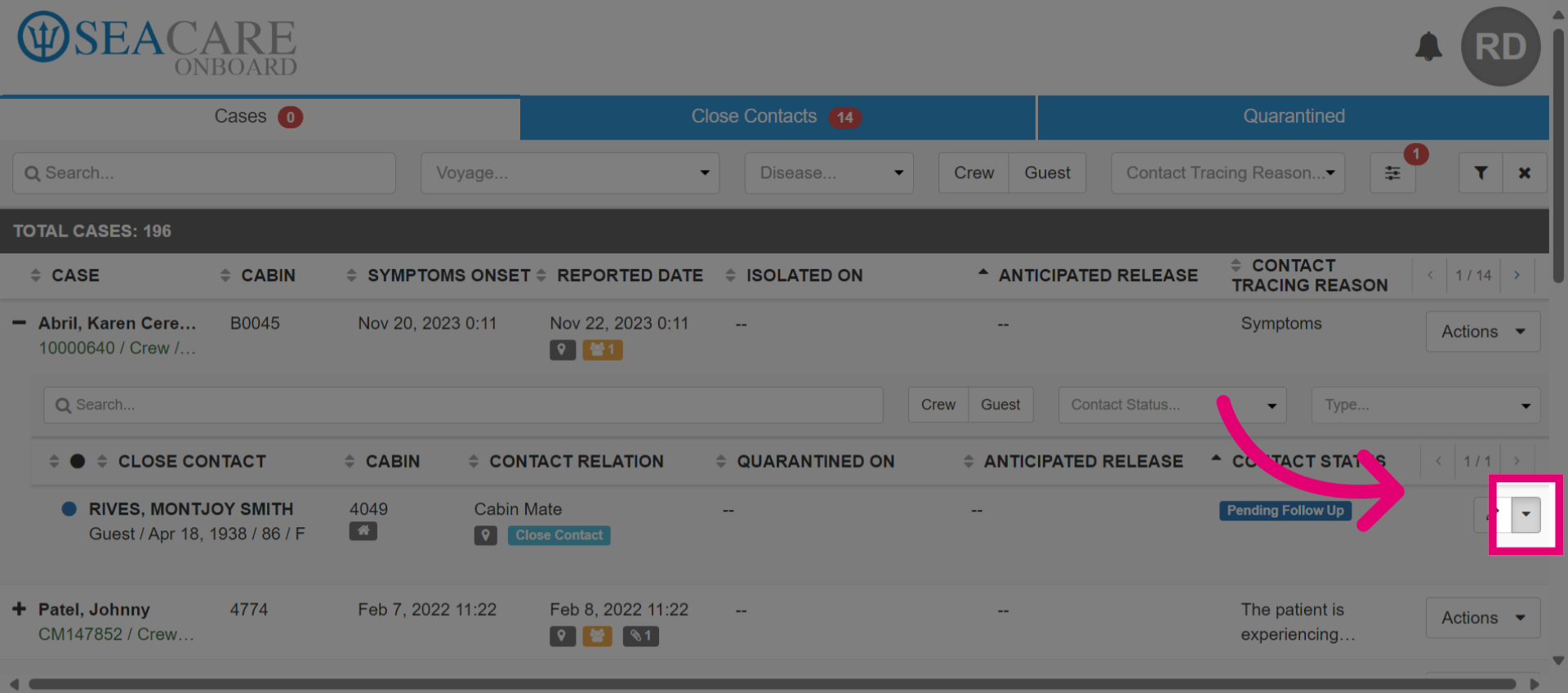
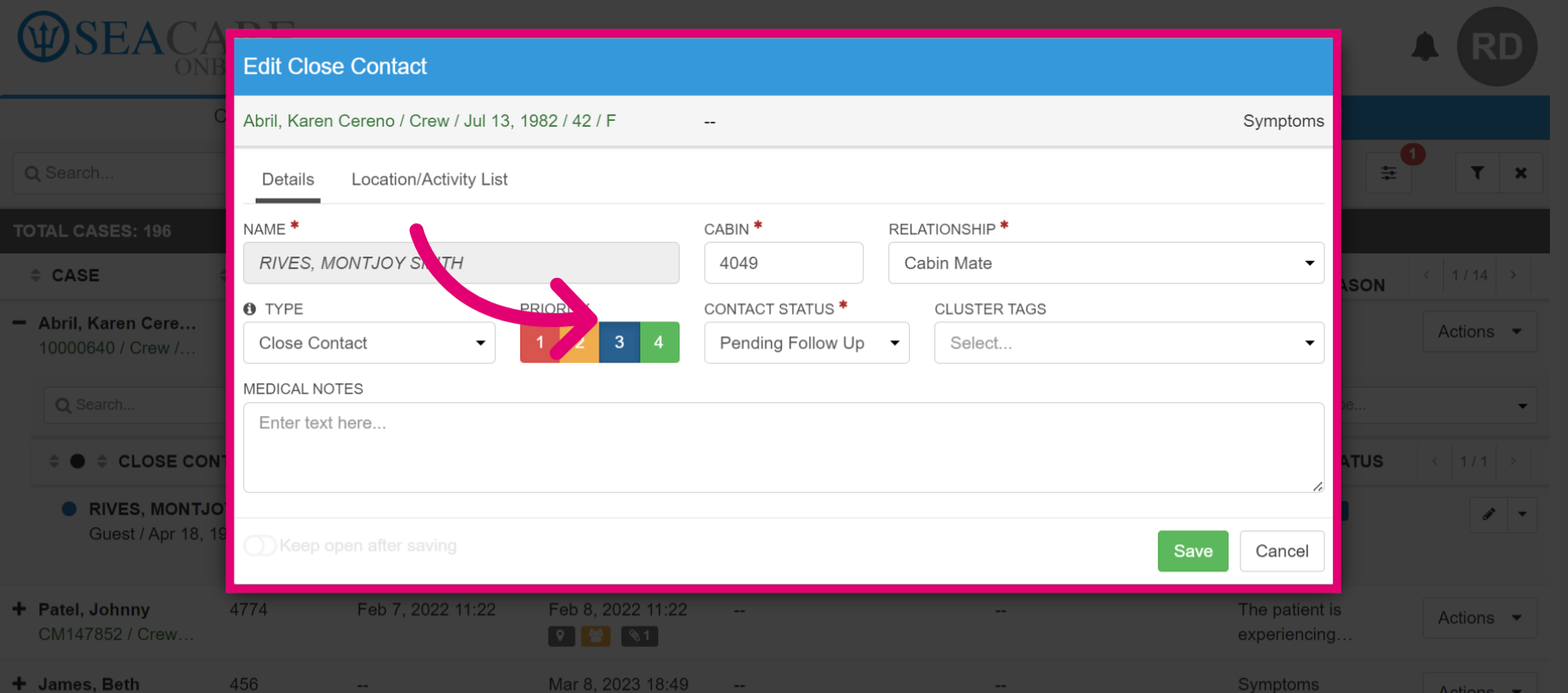
- Update cabin, relationship, and contact status here. Add the case to cluster tags for locations with identified clusters.
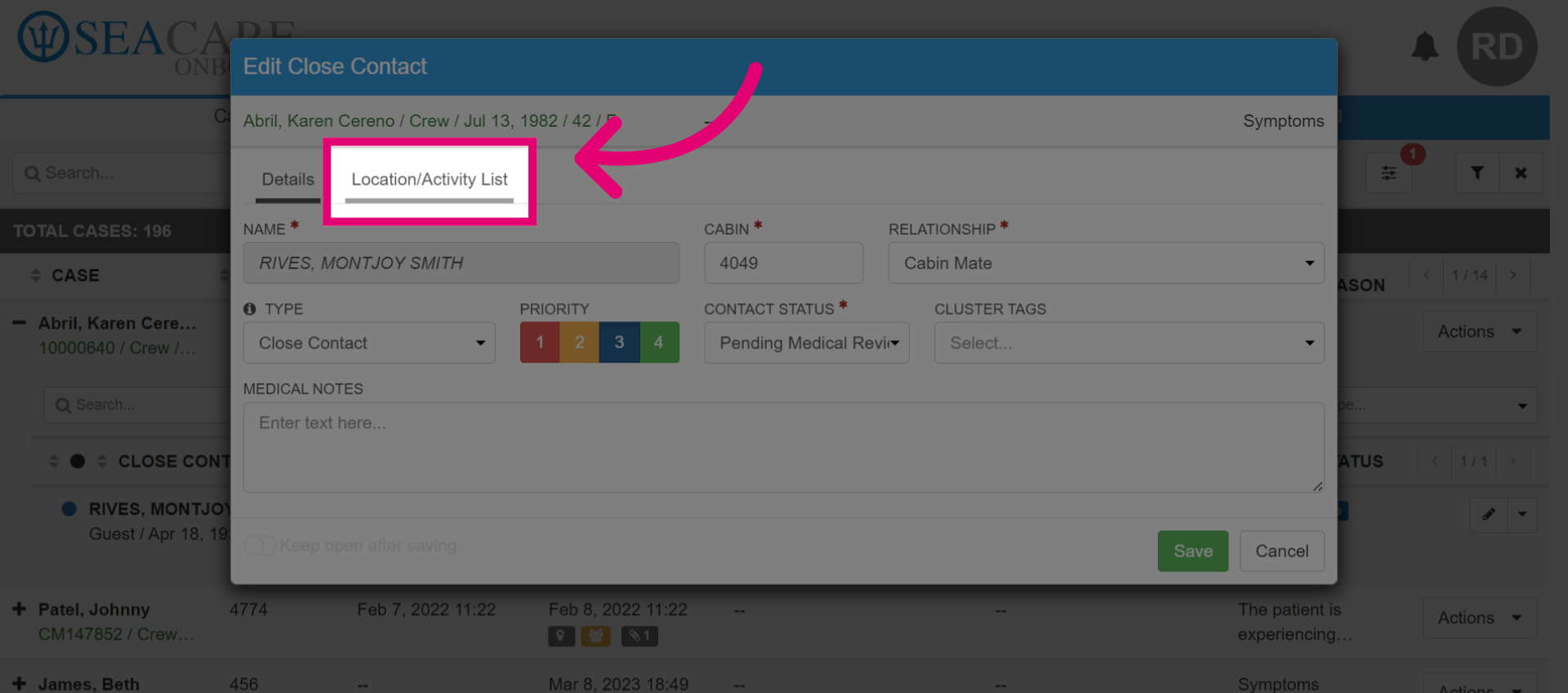
- Click on the Location and Activity List tab. Examine the list of locations and activities linked to the case.
- Add a new location or activity if necessary by selecting the Add button. This incorporates new information into the records.
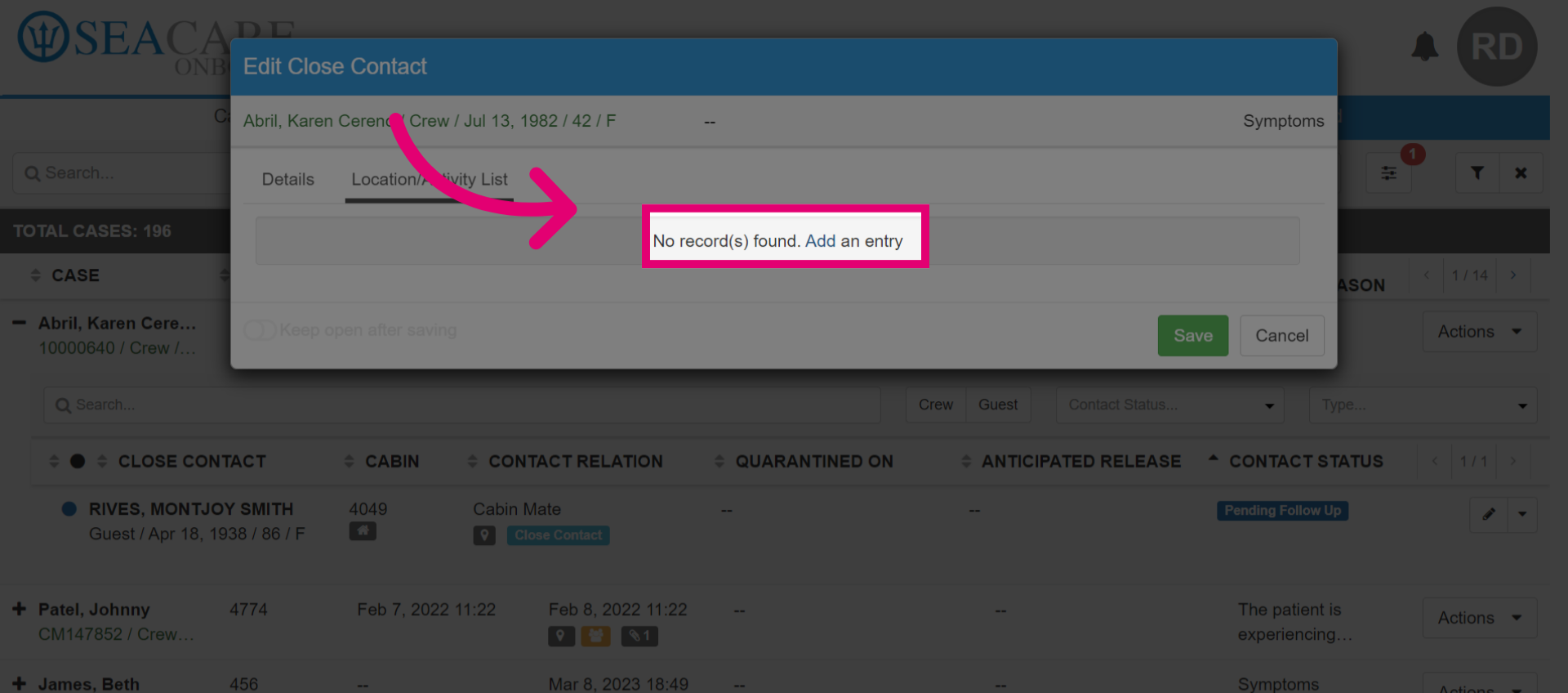
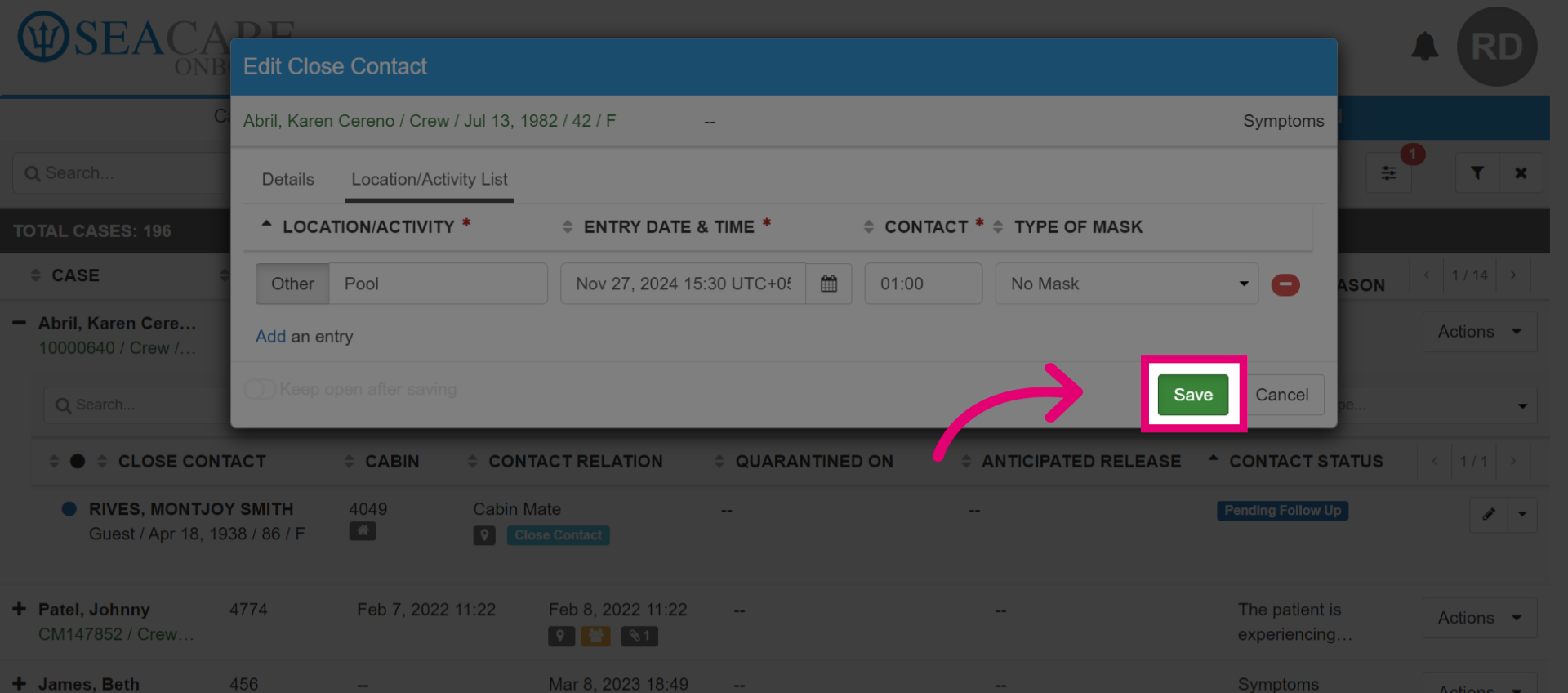
- Specify the location or activity details for the case and then click Save.
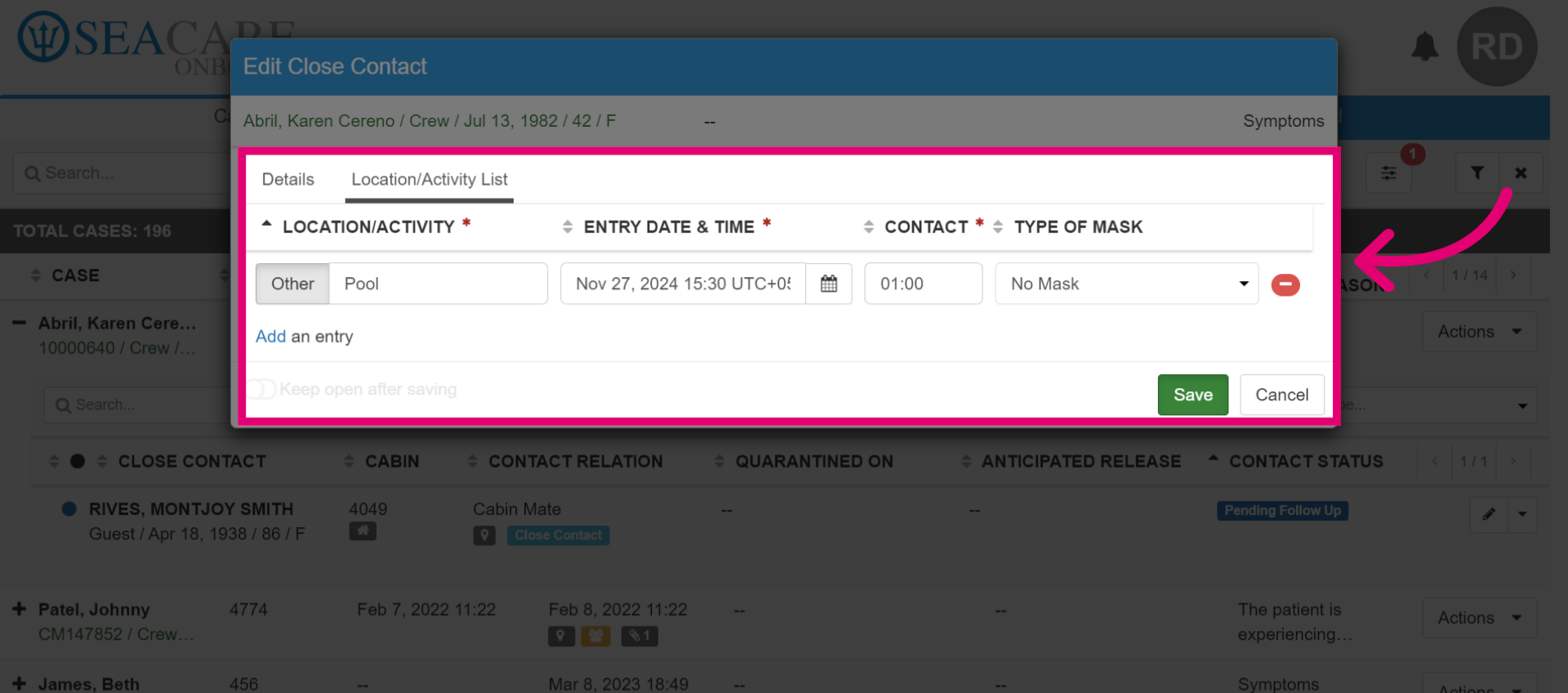
- Click Save to record your details.