New article
Recently updated
Printing communicable disease lab certificates

Who is this article for?Users who want to learn to print communicable disease lab certificates.
No elevated permissions are required.
This guide provides a structured approach to printing communicable disease lab certificates for communicable disease testing.
1. Printing communicable disease lab certificates
1.1. Video
1.2. Steps
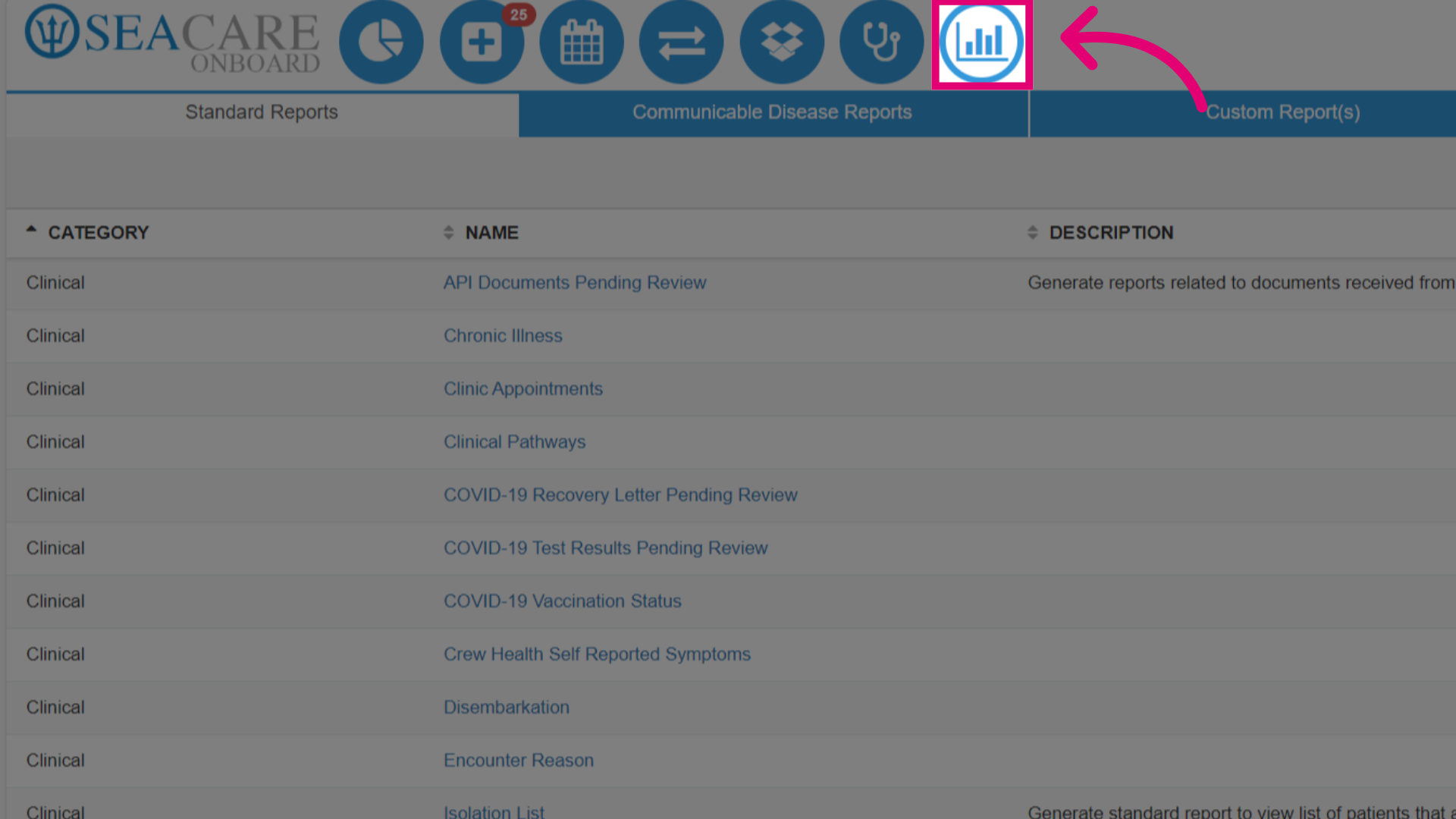
- First, navigate to the Standard Reports module. From there, you can easily print communicable disease lab certificates for one or multiple patients.
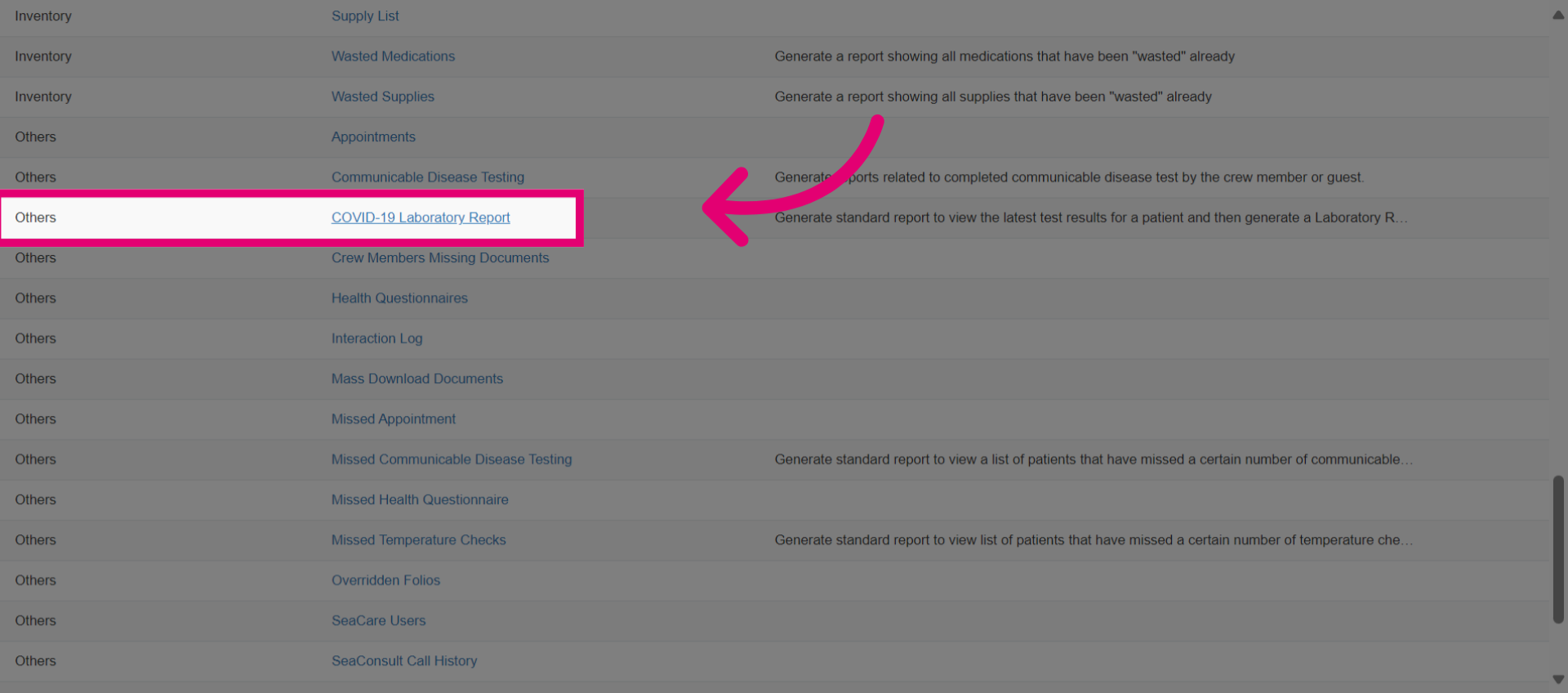
- Scroll down to the Other section to and select the report called COVID-19 Laboratory Report.
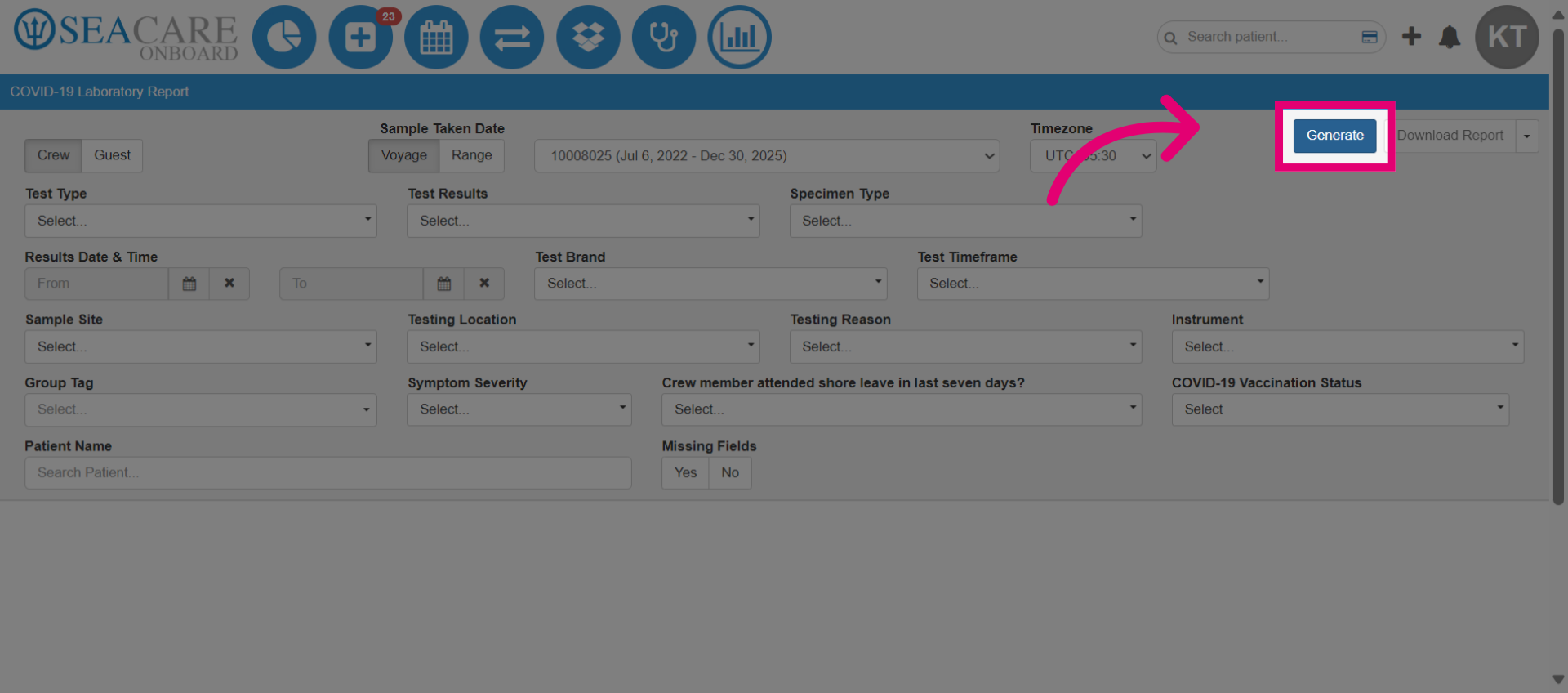
- Generate a list of communicable disease testing results to print lab certificates. Leave filters blank to generate all options, or customize filters for crew or guest, sample date or time zone.
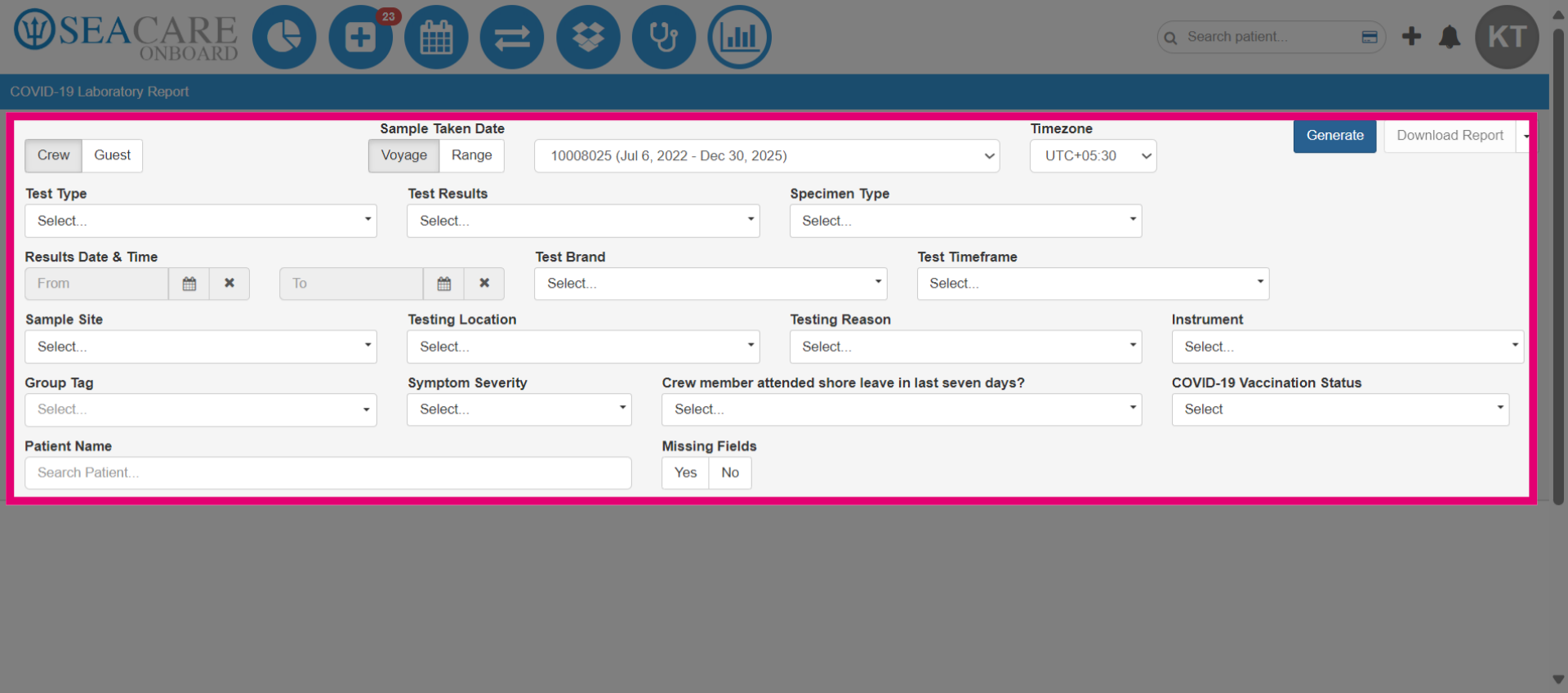
- When you have set your filter, select Generate.
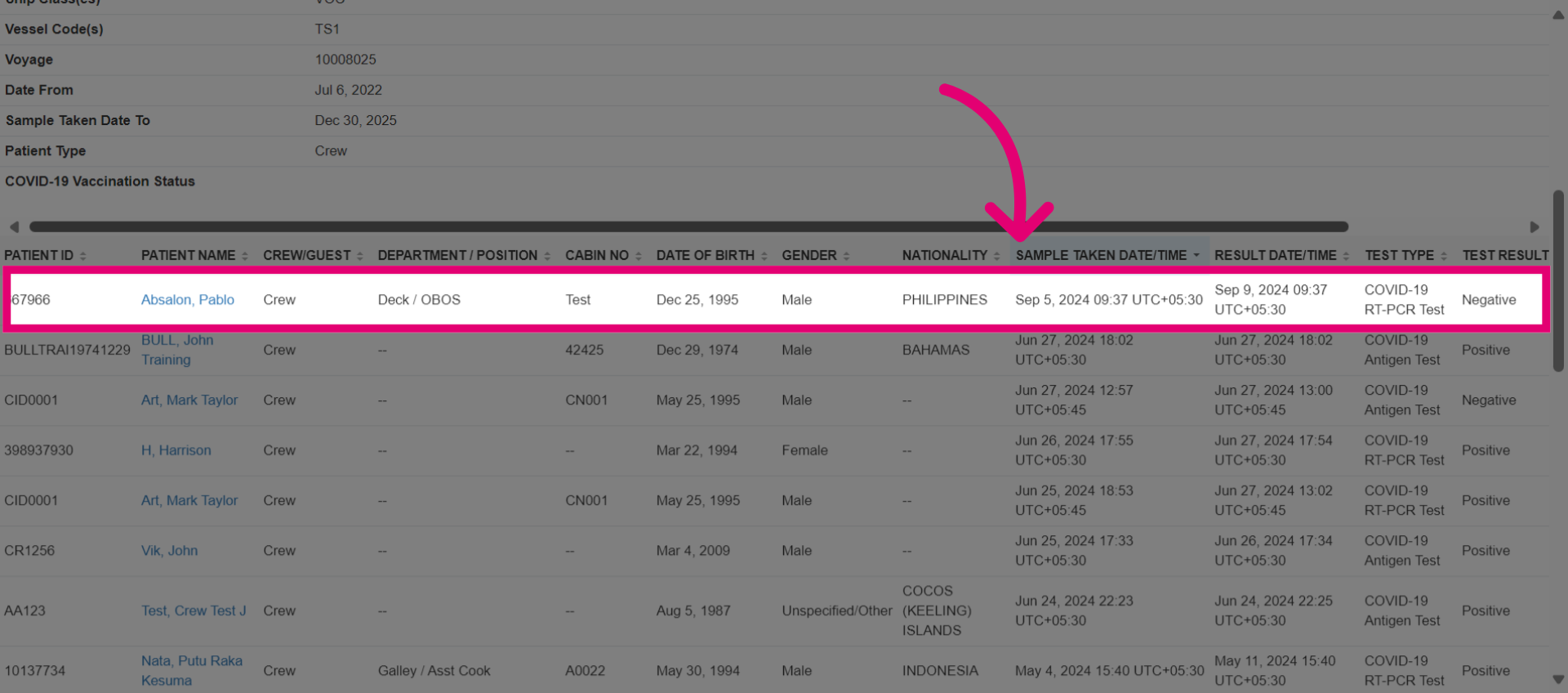
- This generates the report. Locate the individual patient, then select the Certificate option.
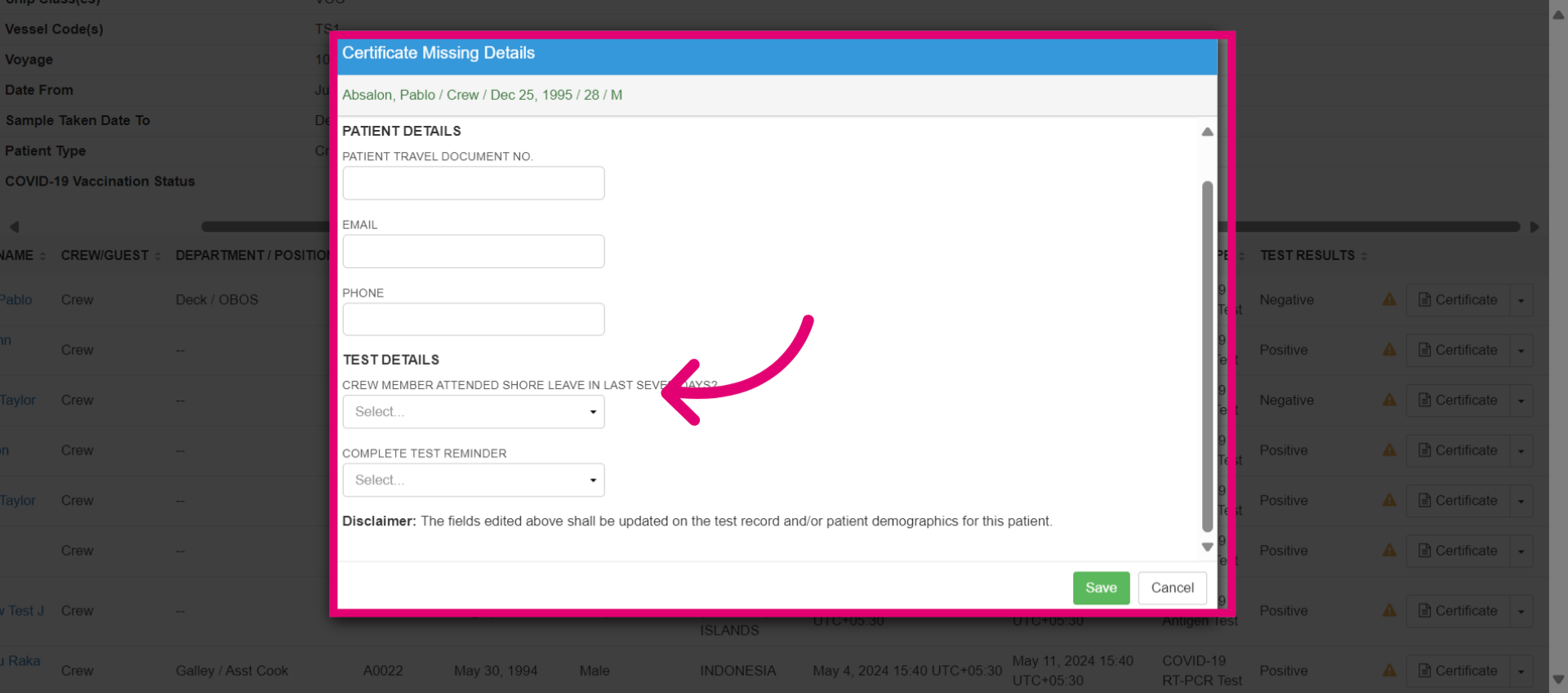
- If the certificate is missing information, update the fields before generating it. Note that edited fields will be updated on the test record and/or patient demographics.
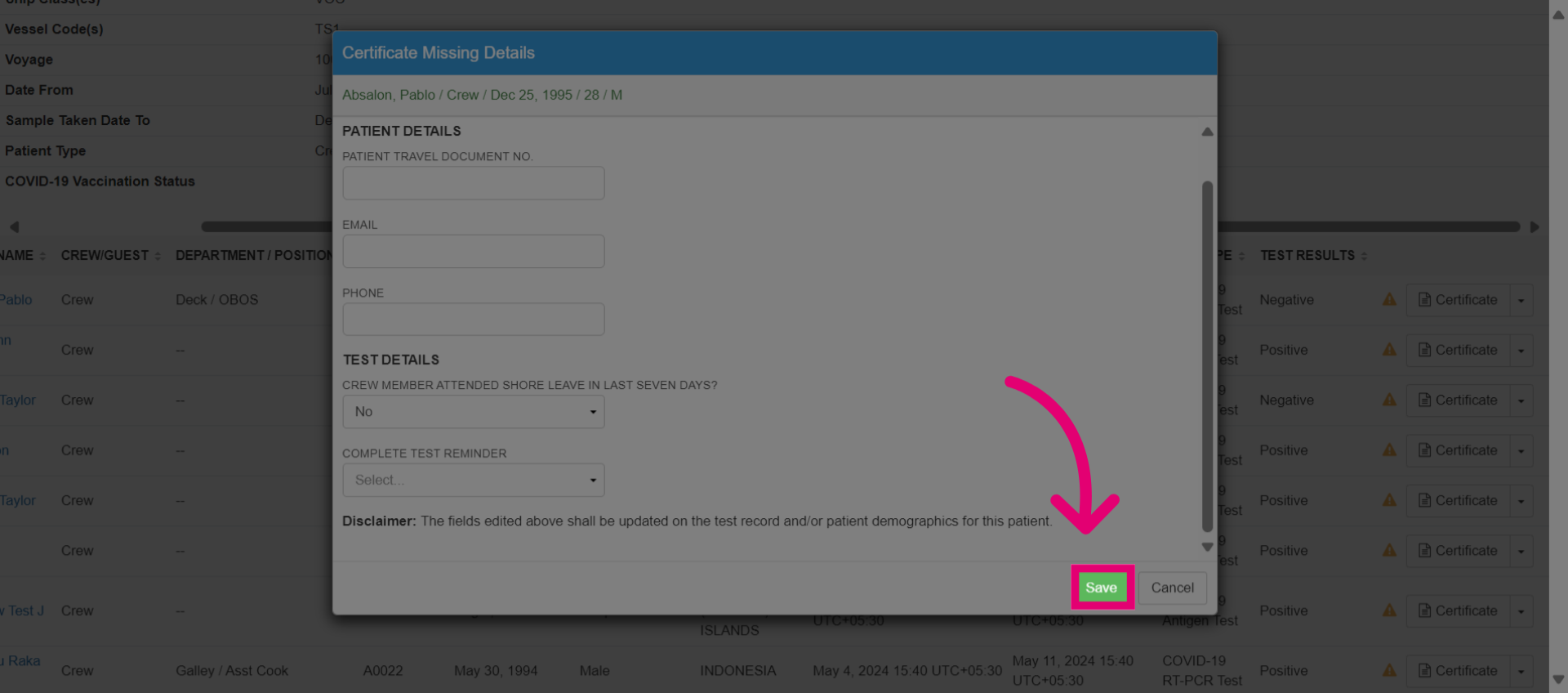
- Click Save when you've finished.
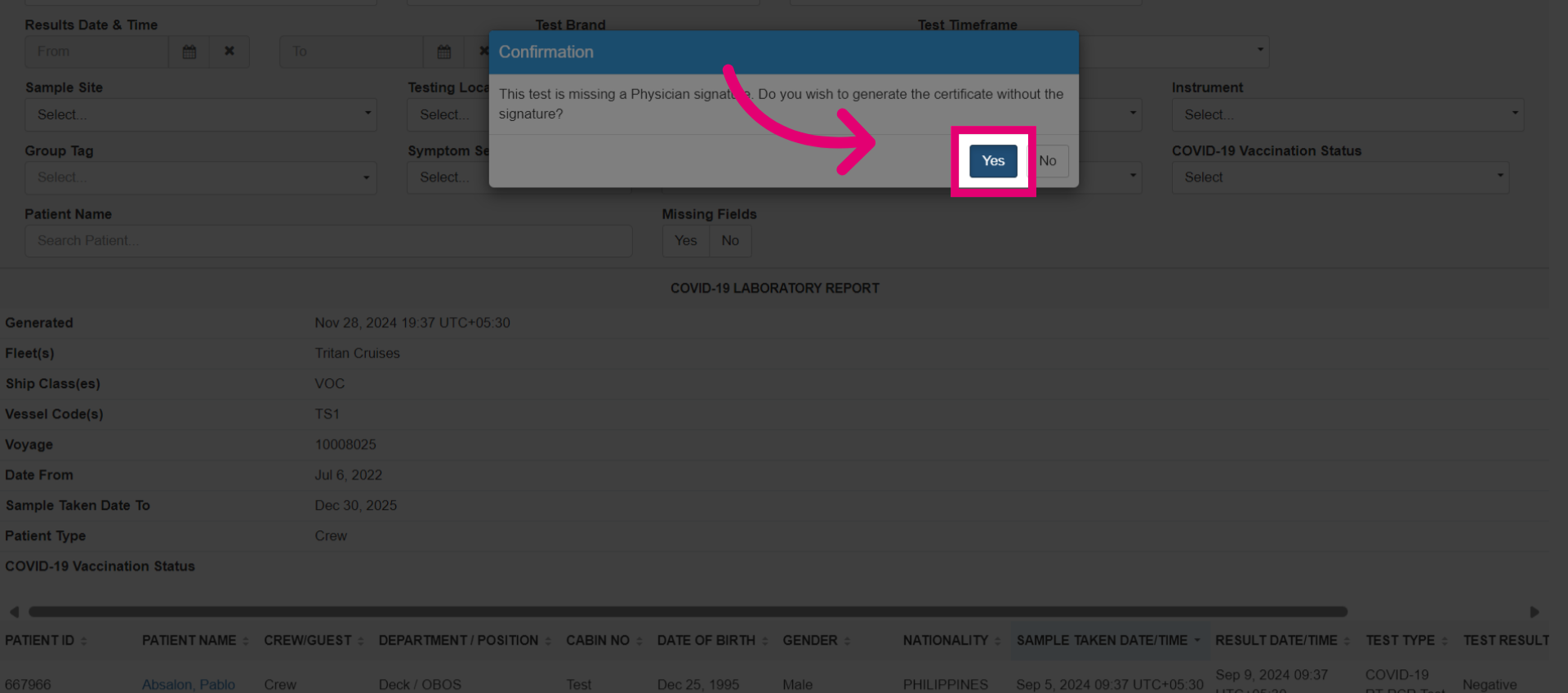
- If the physician's signature is missing when the test was processed, confirm your response by selecting Yes, to print without the signature, or select No to not proceed with printing.
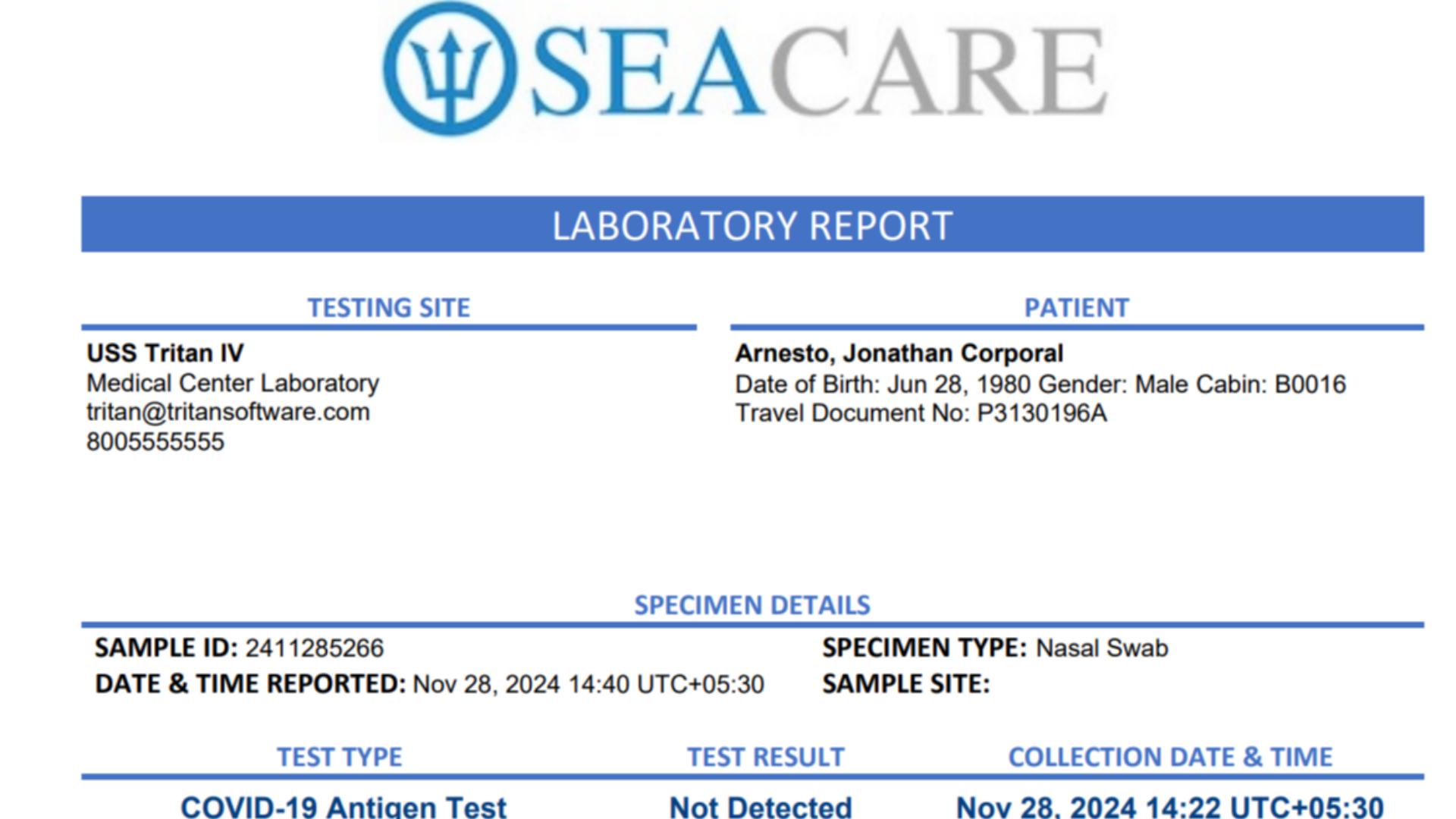
- Then the certificate will be downloaded in a PDF format. It will contain the information that was added when the testing was processed.
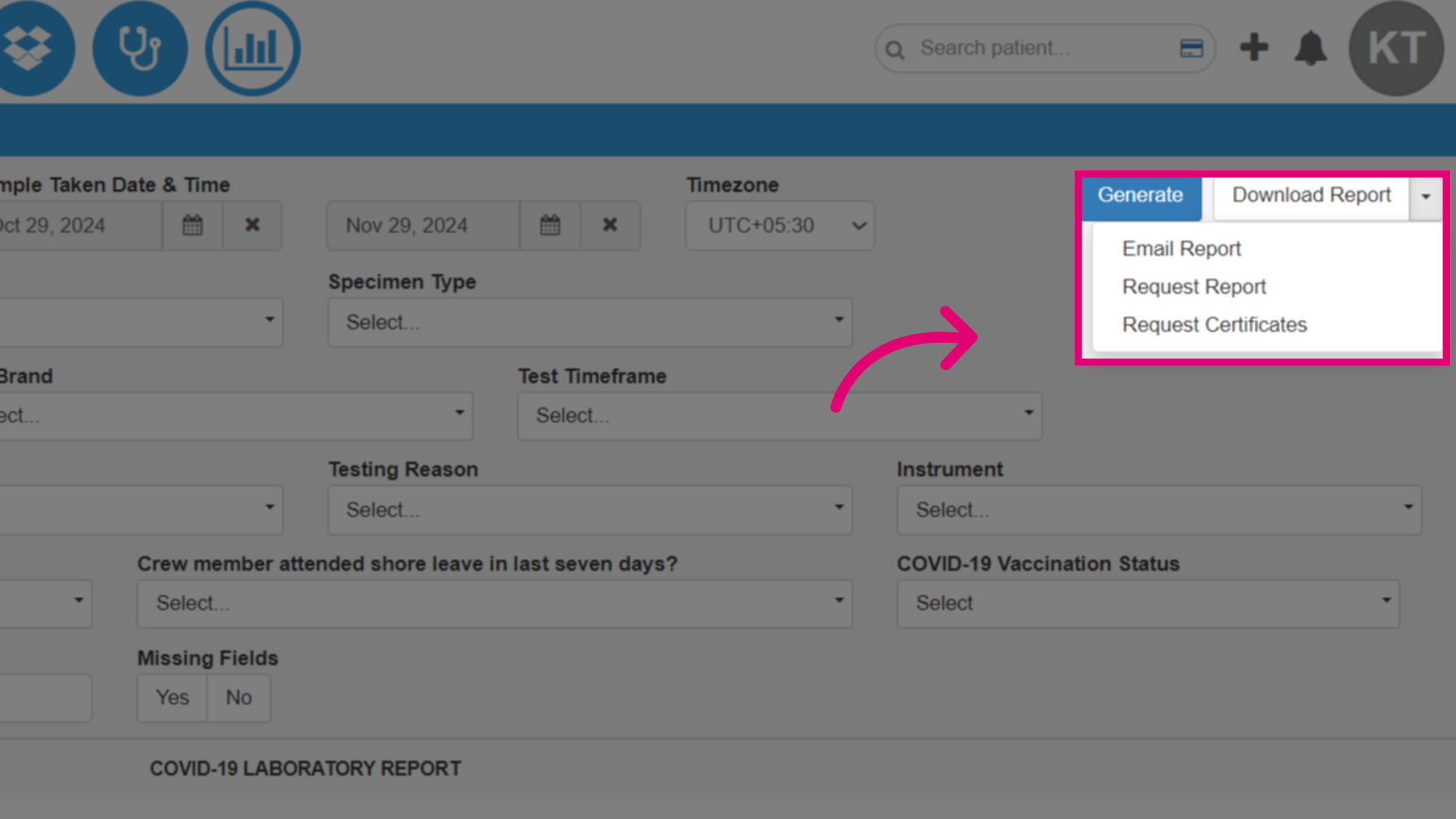
- To print multiple certificates, select the Download dropdown menu and select Request Certificates. This will request all certificates in the list.
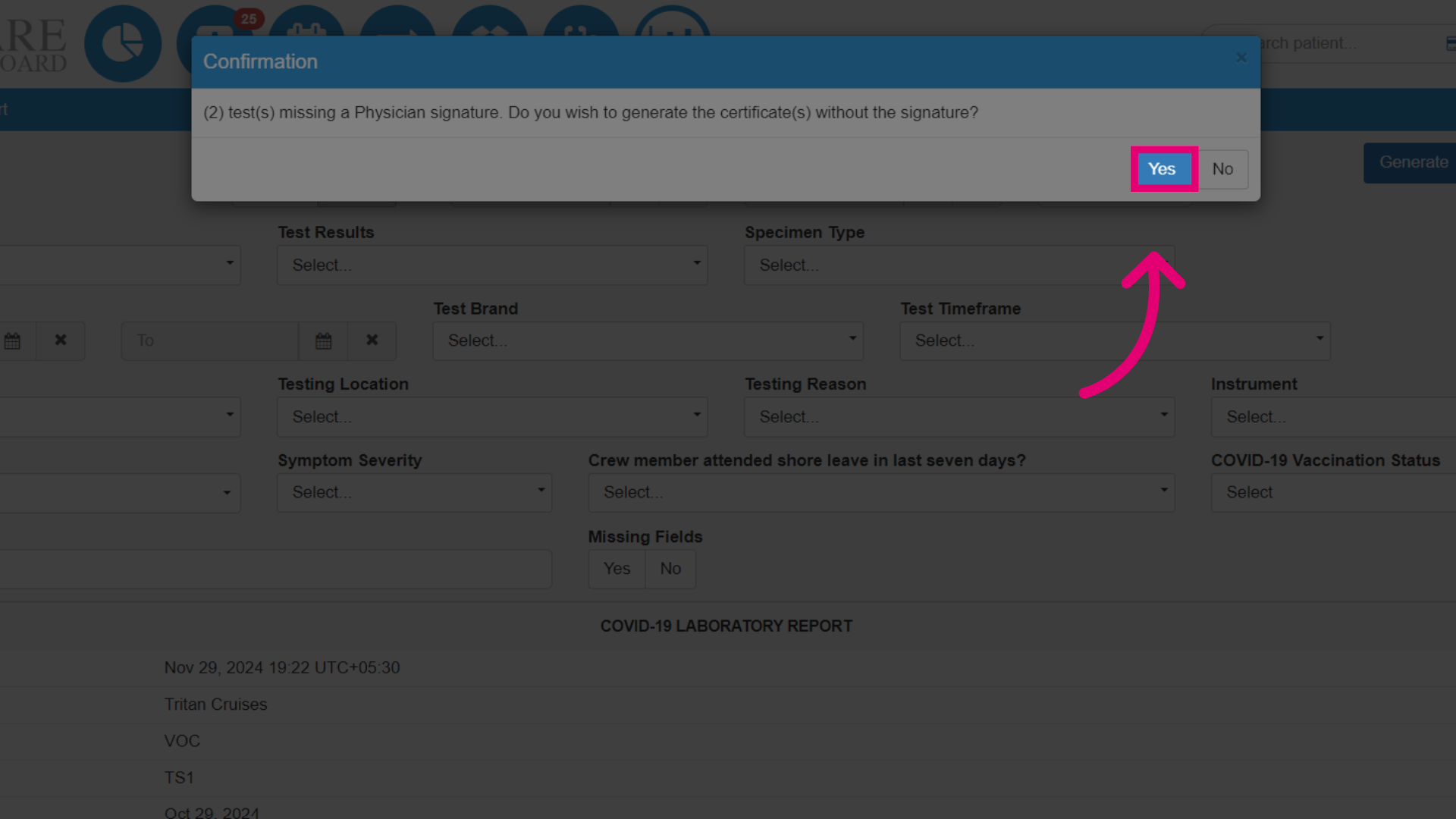
- Confirm printing the tests even if the physician's signature is missing.
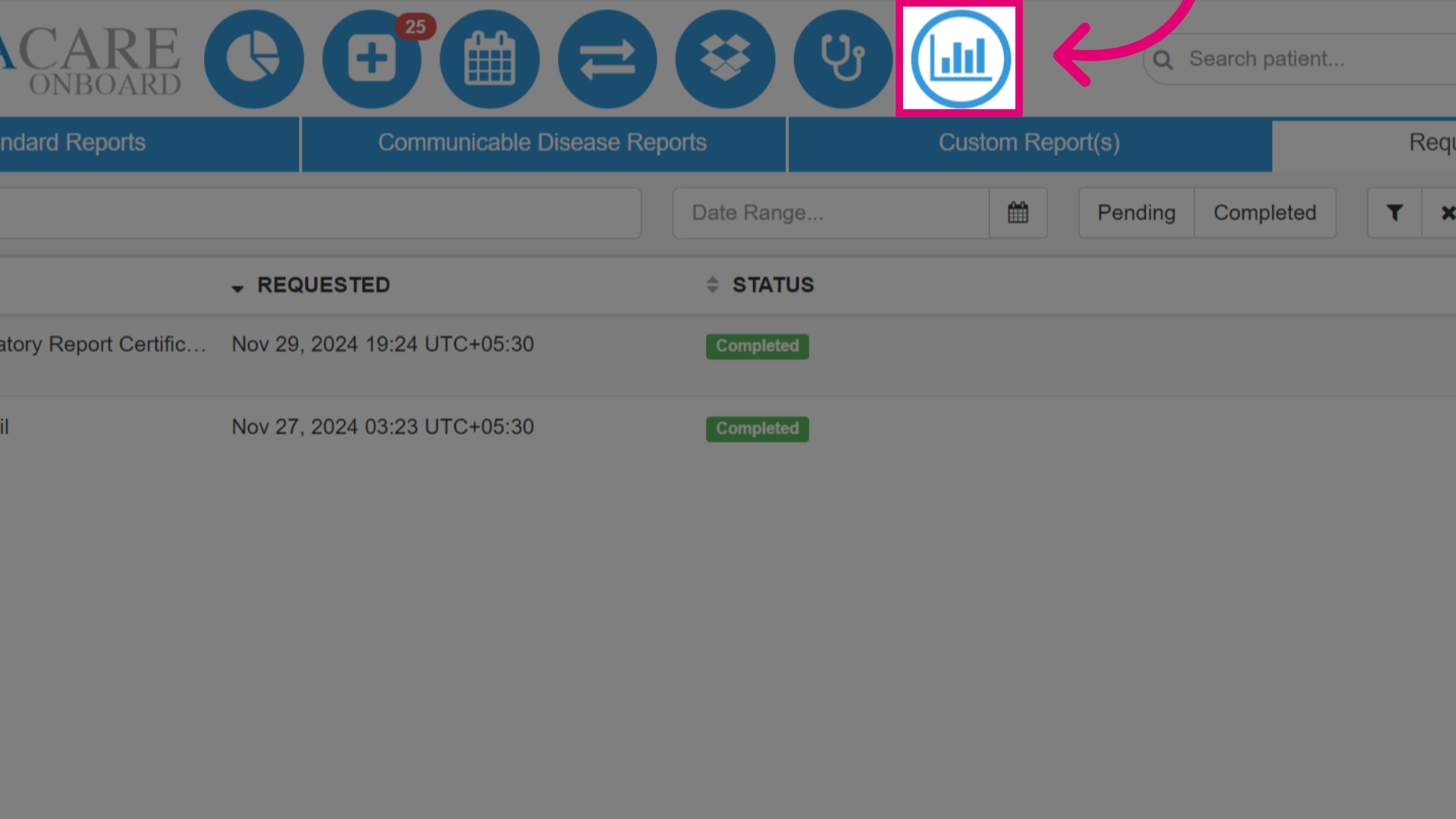
- When the report is ready, in Standard Reports, under the Requested Reports tab, you can download the requested certificates.