New article
Recently updated
Linking a communicable disease test during an outpatient encounter

Who is this article for?Users who want to learn to link a communicable disease test during an outpatient encounter.
No elevated permissions are required.
This guide provides a comprehensive walkthrough for linking a communicable disease test for a case during an outpatient encounter.
1. Linking a communicable disease test during an outpatient encounter
1.1. Video
1.2. Steps
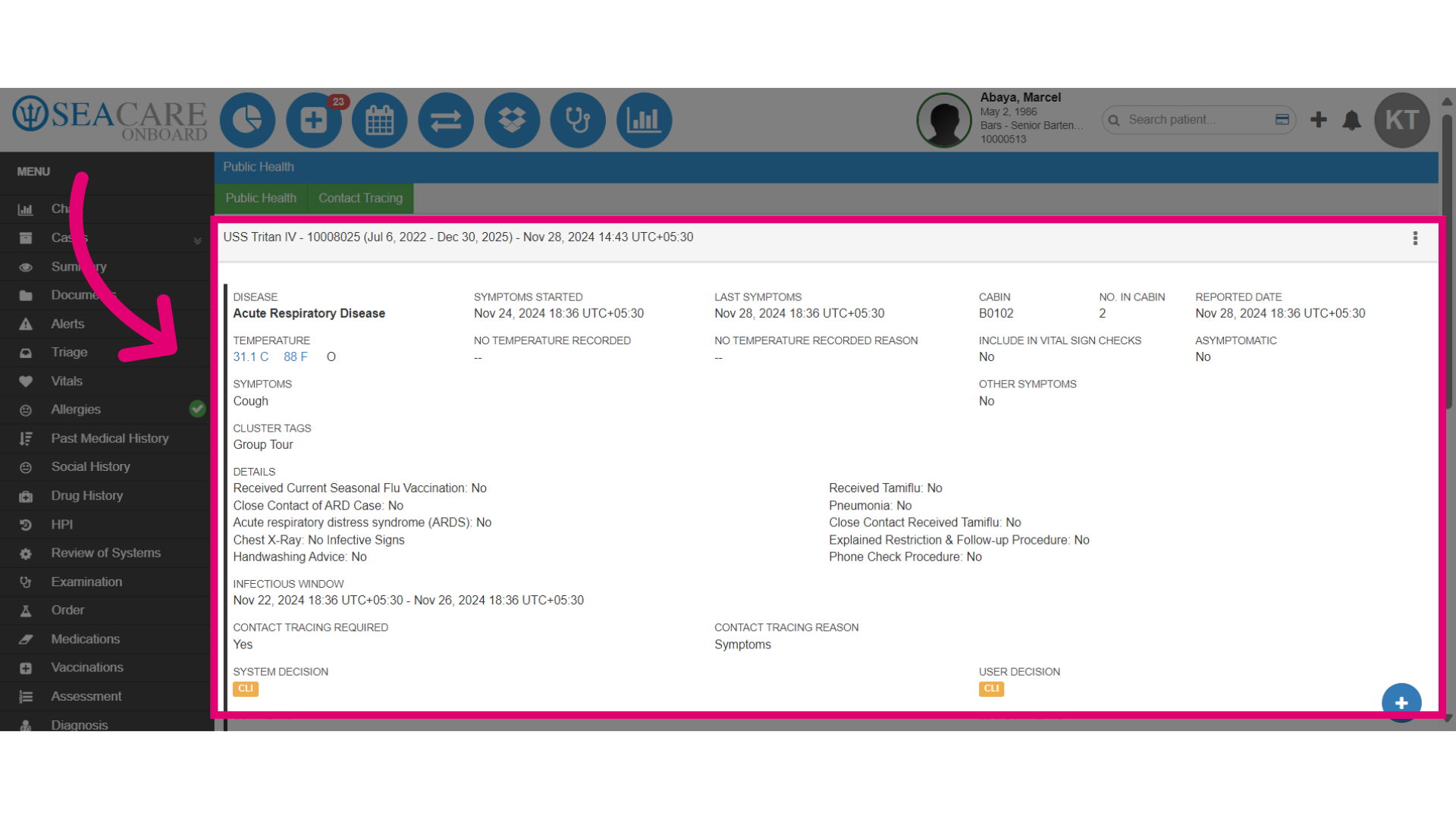
- If you need to link a communicable disease test, do so after filling out the Details tab field. This walkthrough begins once a communicable disease is opened in an outpatient encounter.
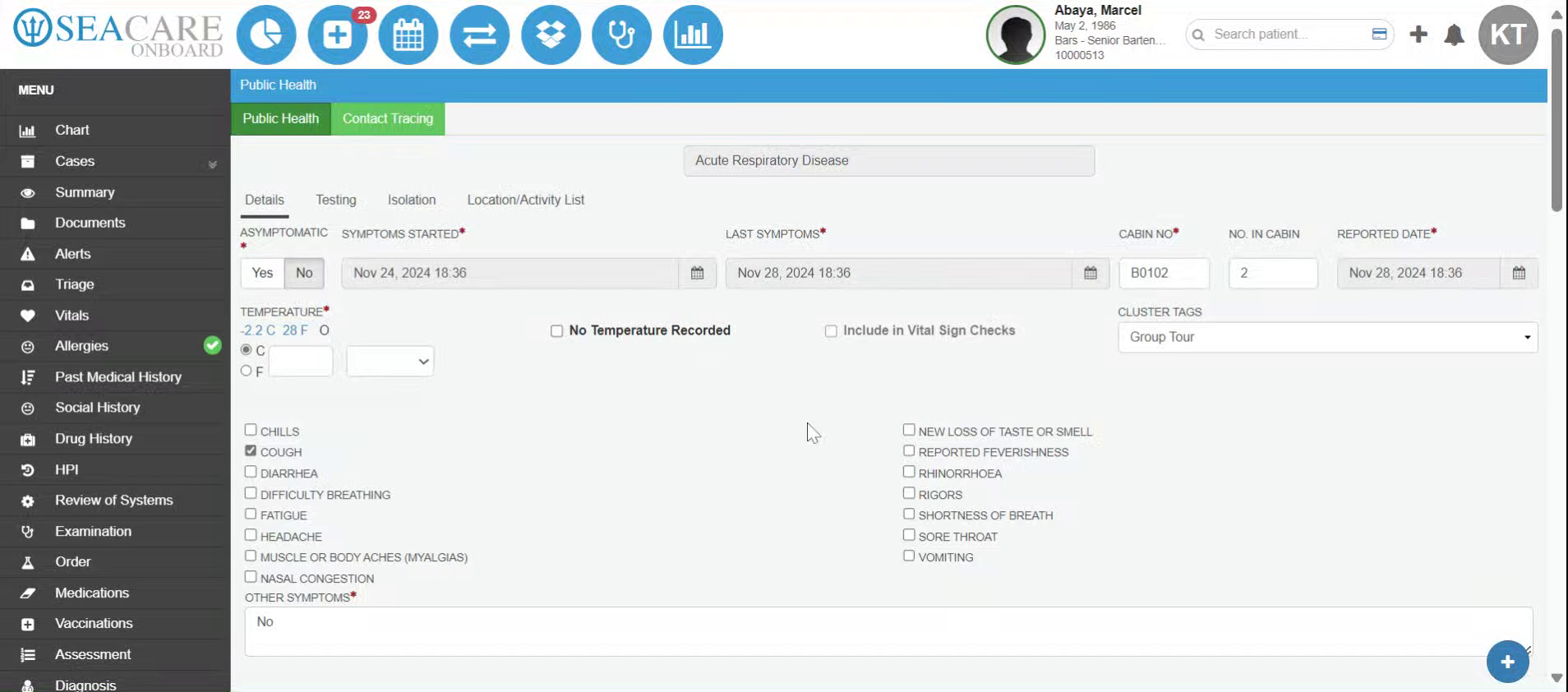
- Go to the Testing sub-tab.
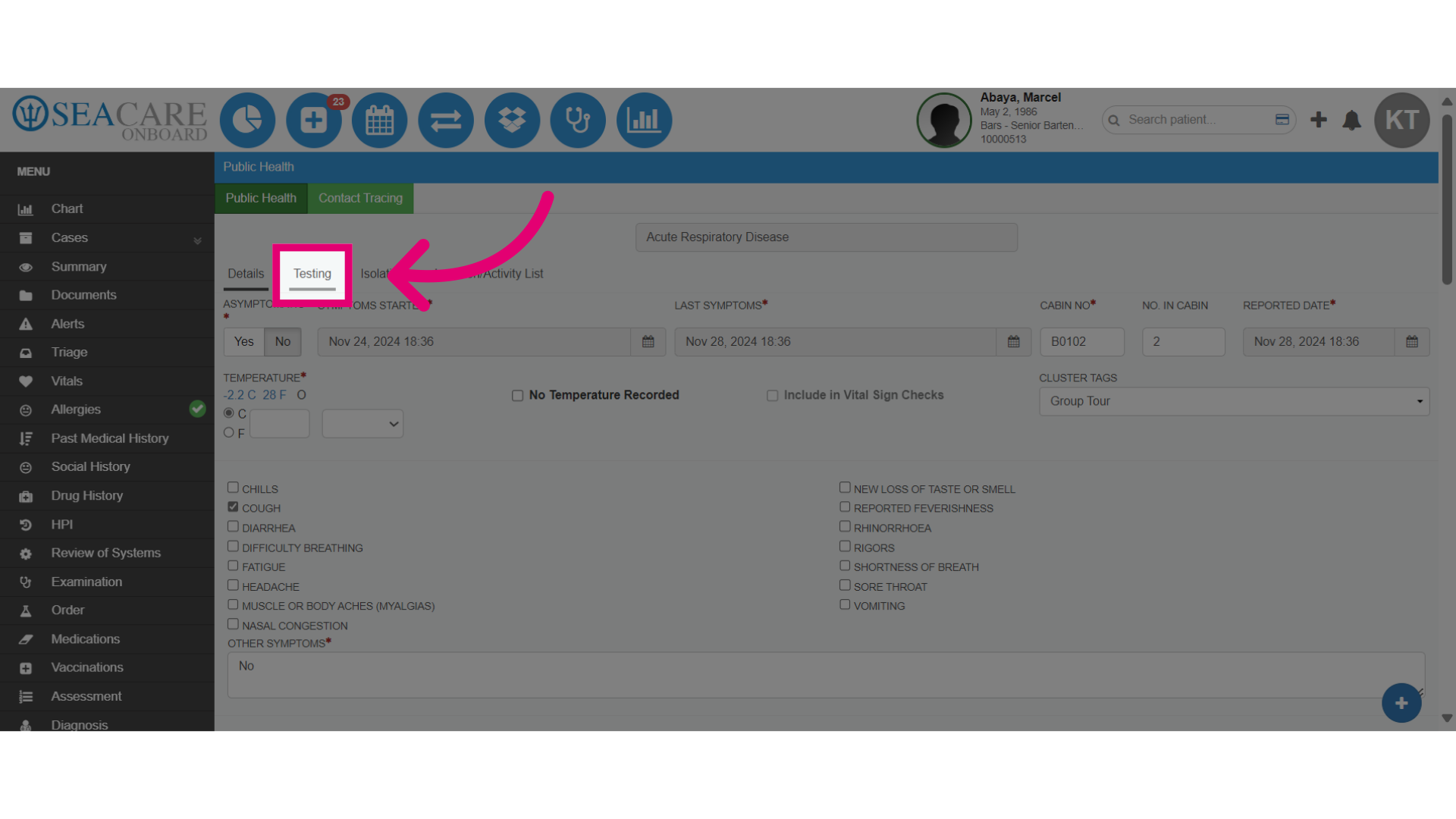
- Select Yes to initiate the test.
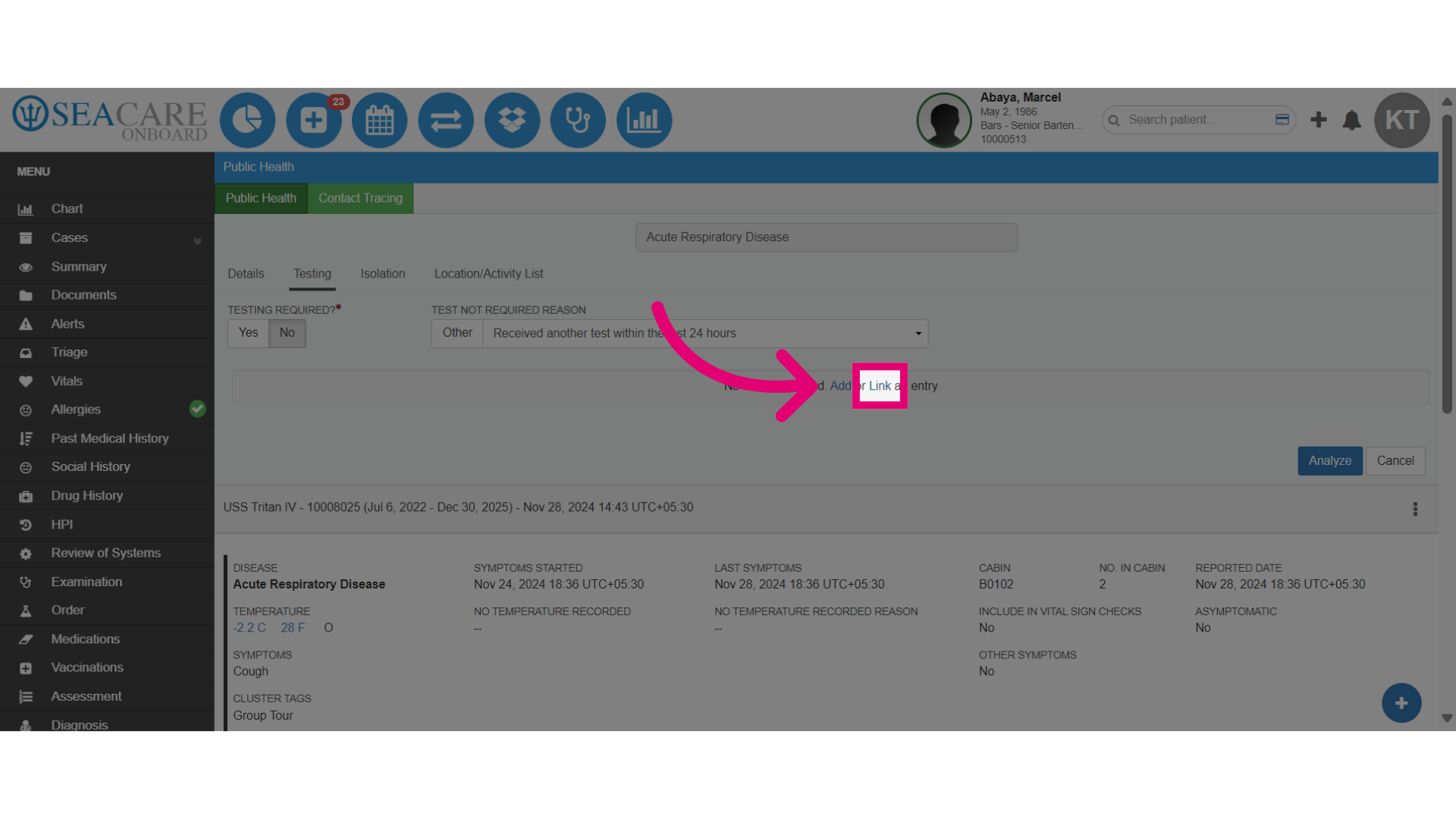
- Click to link a communicable disease test. You can link one or more tests for the patient if available and desired.
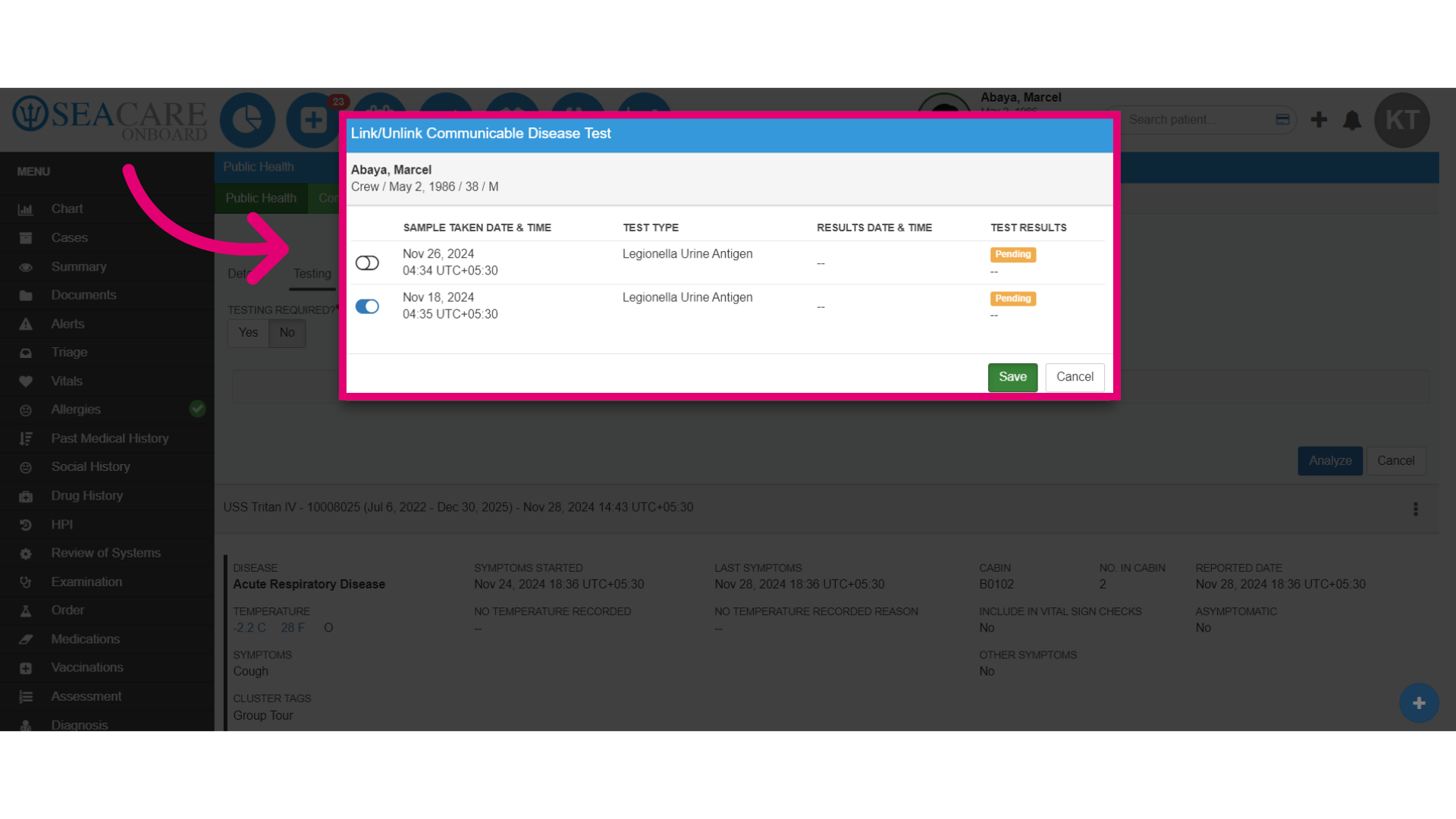
- Previous tests created for the patient in pending status may be available here. Select the communicable disease tests to link to the case, then Save the details.
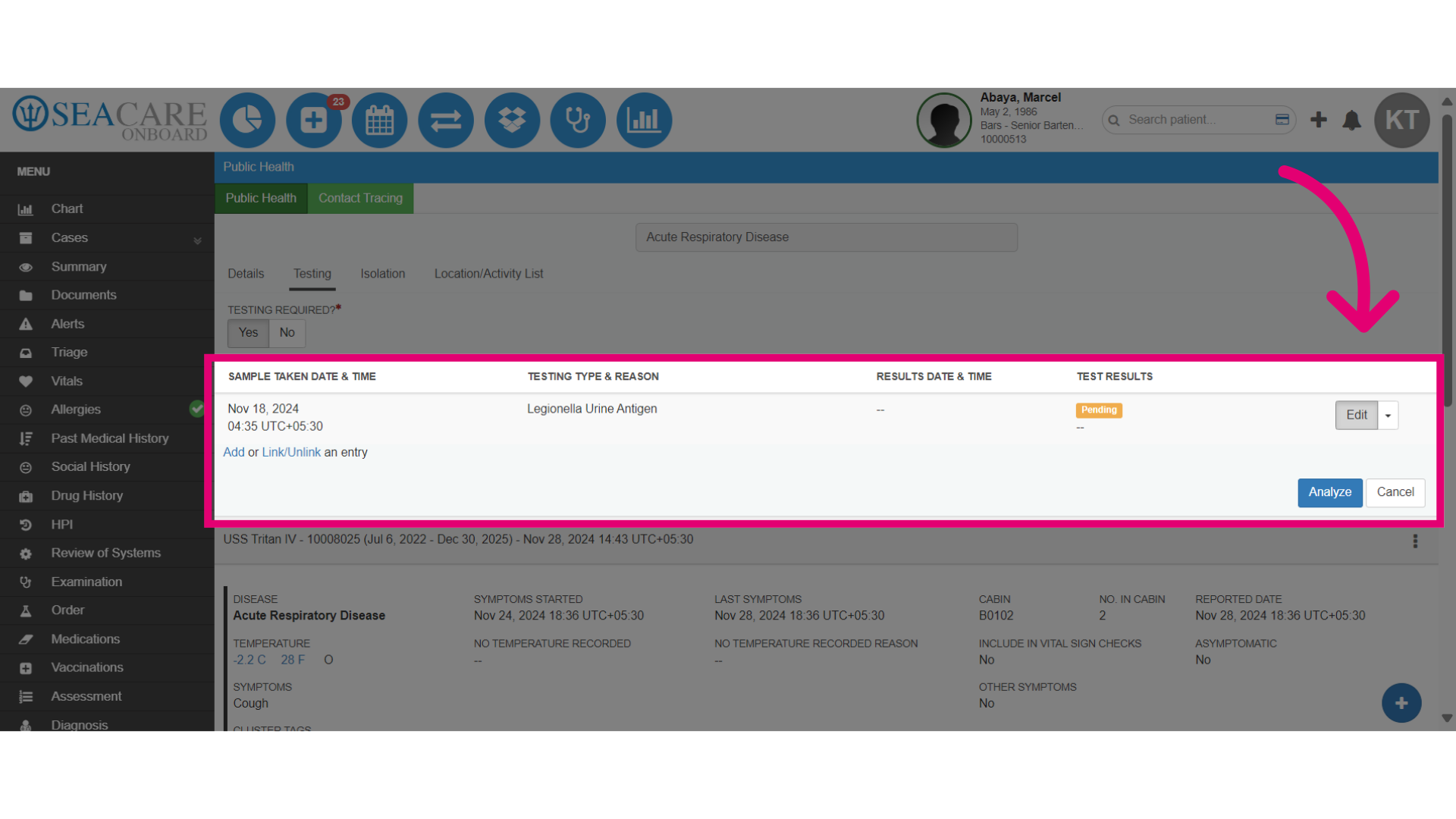
- The test is now linked to this case. And the test can be modified or the results can be posted here by selecting Edit. Or, you may post results later in a follow up in the Clinic.
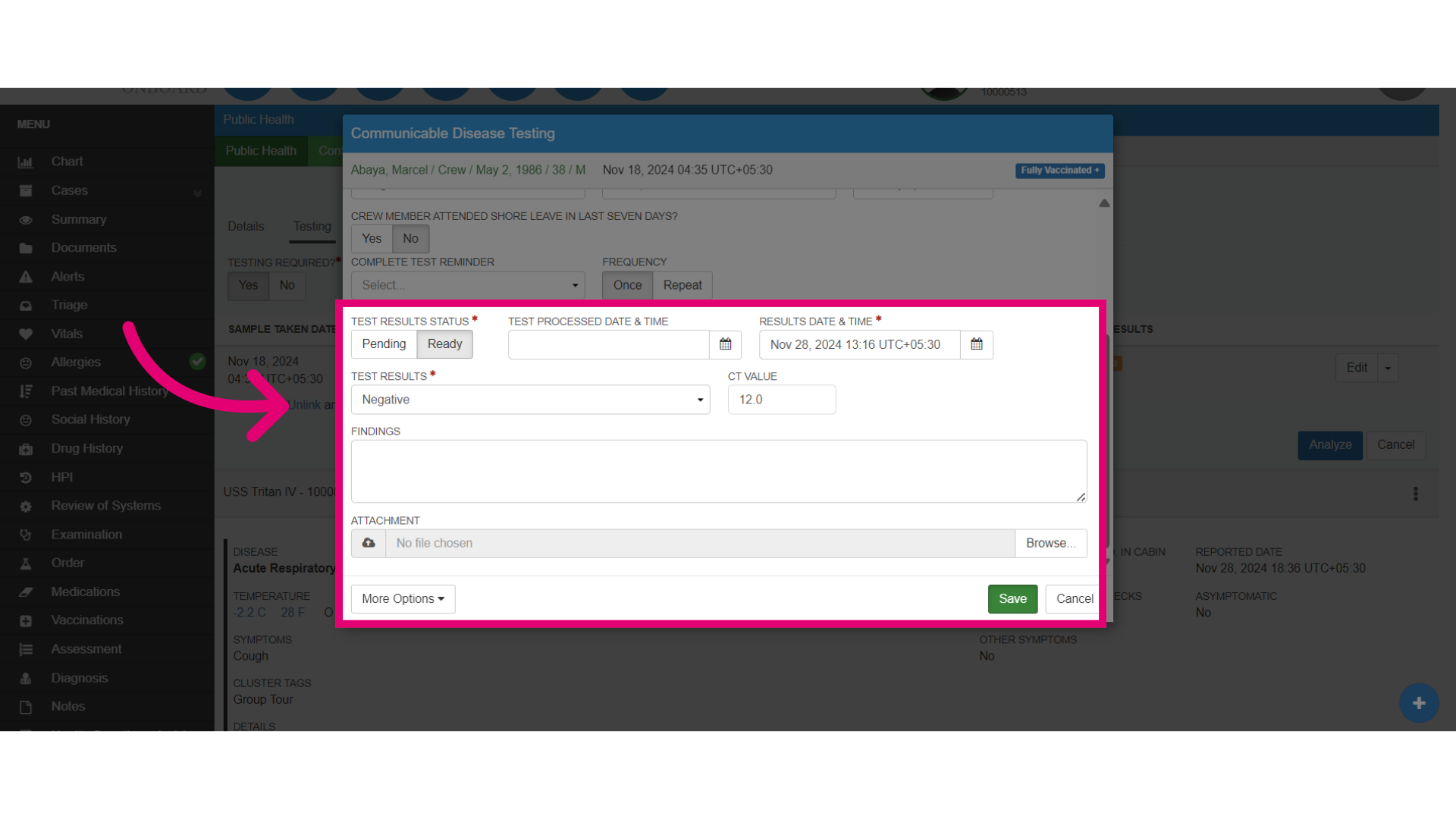
- Post the results by selecting Ready. Add the date and time it was processed, the testing result (e.g., Positive, Negative), and any notes or attachments. Then click Save.
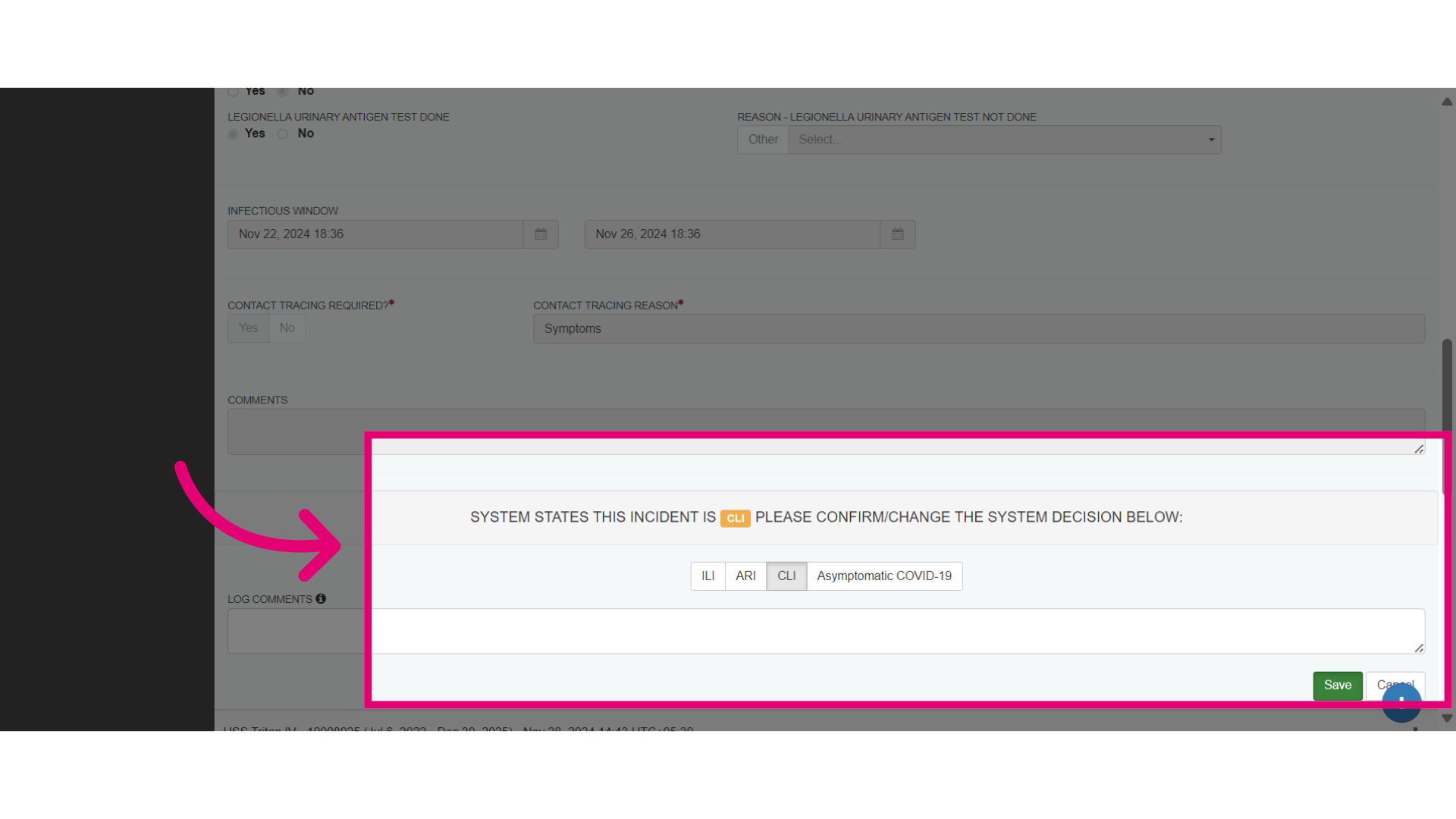
- Reanalyze the case and system decision and Save the updates.
- Review the updates in Case Summary in the Summary section.