New article
Recently updated
Completing communicable disease testing in orders without an encounter

Who is this article for?Users who want to learn to collect communicable disease testing without an encounter.
No elevated permissions are required.
This guide provides a walkthrough of recording a communicable disease test through the patient chart's Order module without starting a patient encounter.
1. Completing communicable disease testing in orders without an encounter
1.1. Video
1.2. Steps
- You should start in the patient chart.
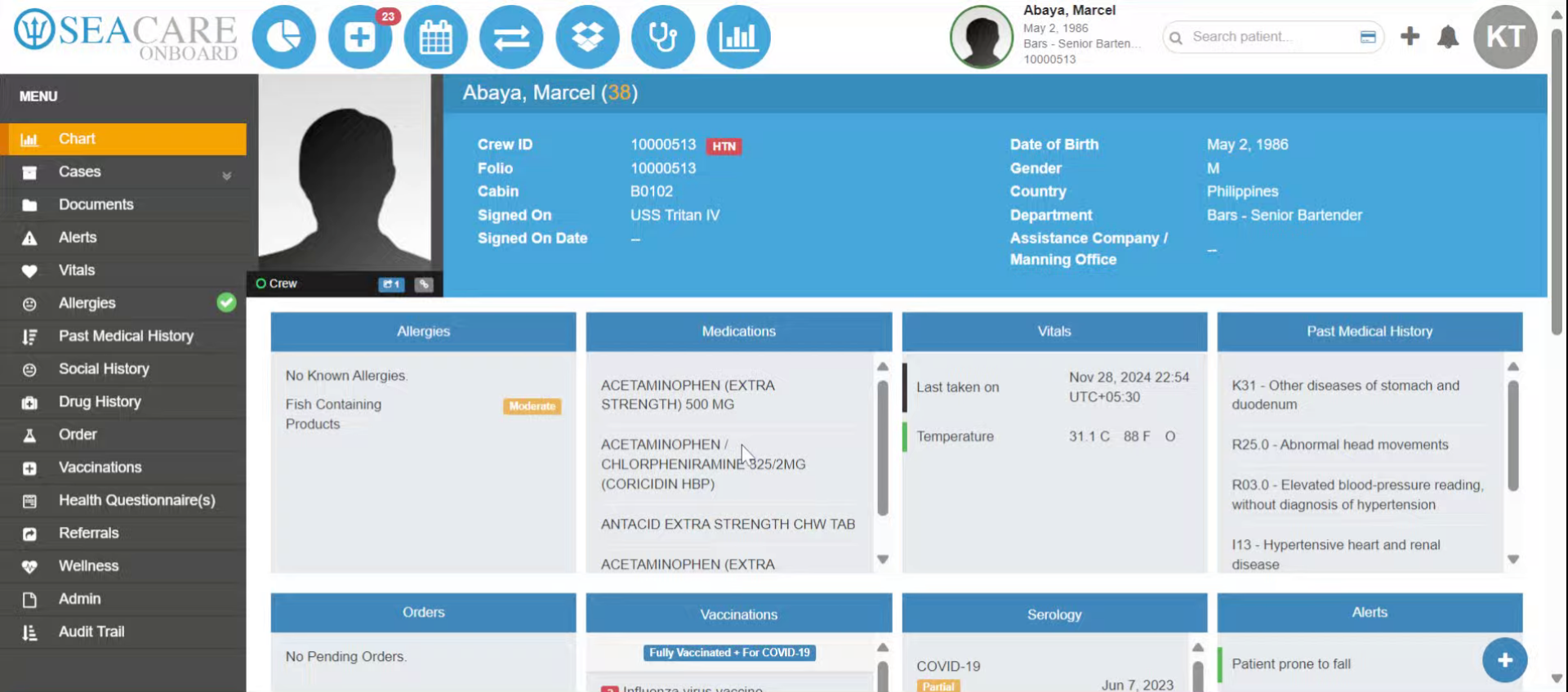
- Go to the Order module from the Patient Chart menu.
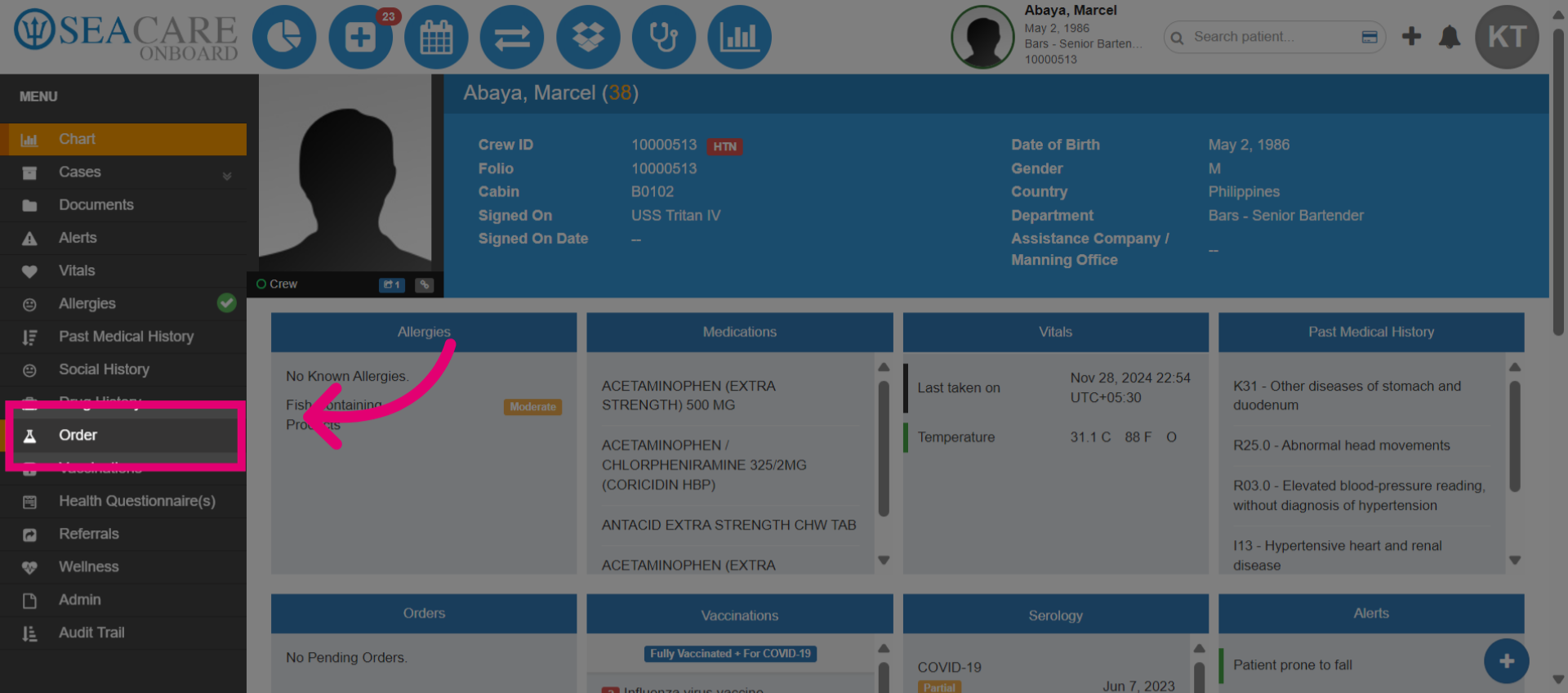
- Go to the Communicable Disease Testing tab section to record the test.
- Select the More Options button to access the testing window.
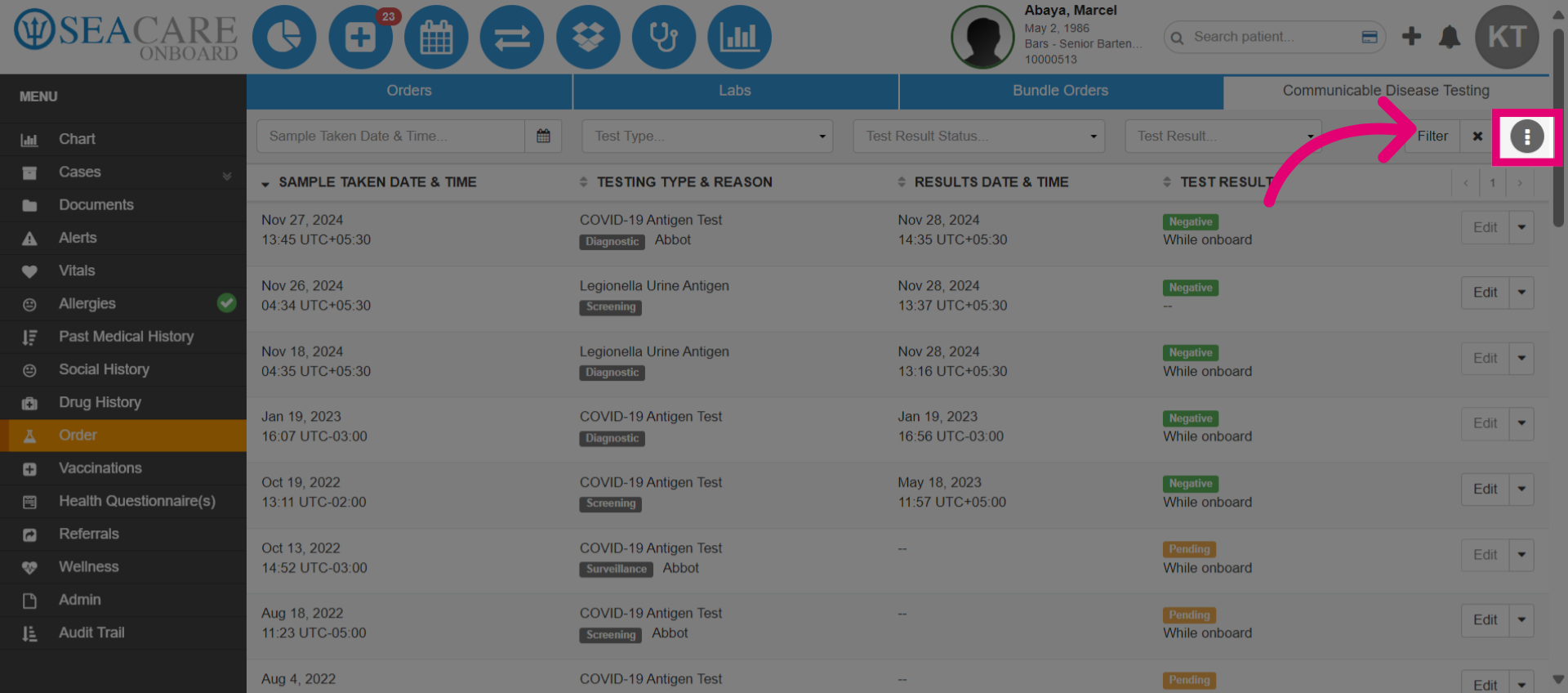
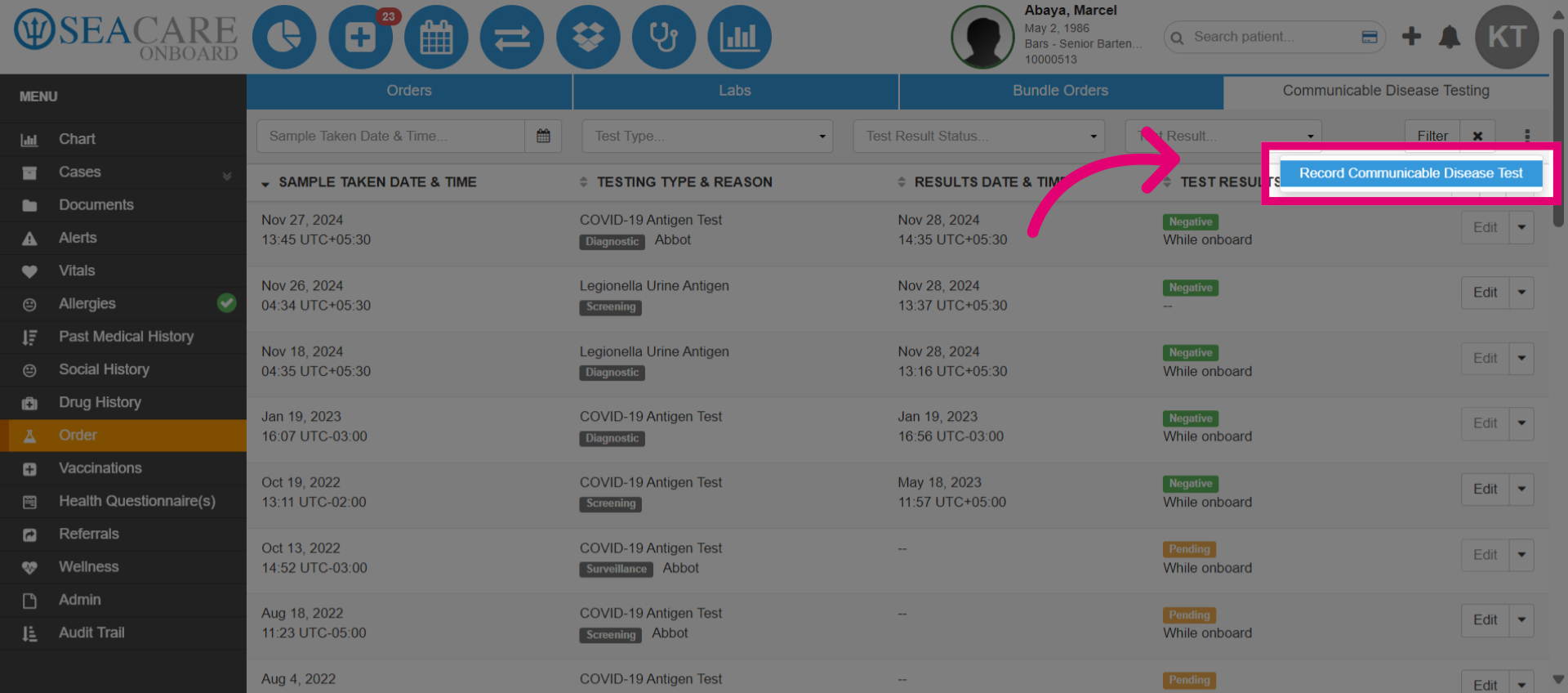
- Select the Record Communicable Disease Test option.
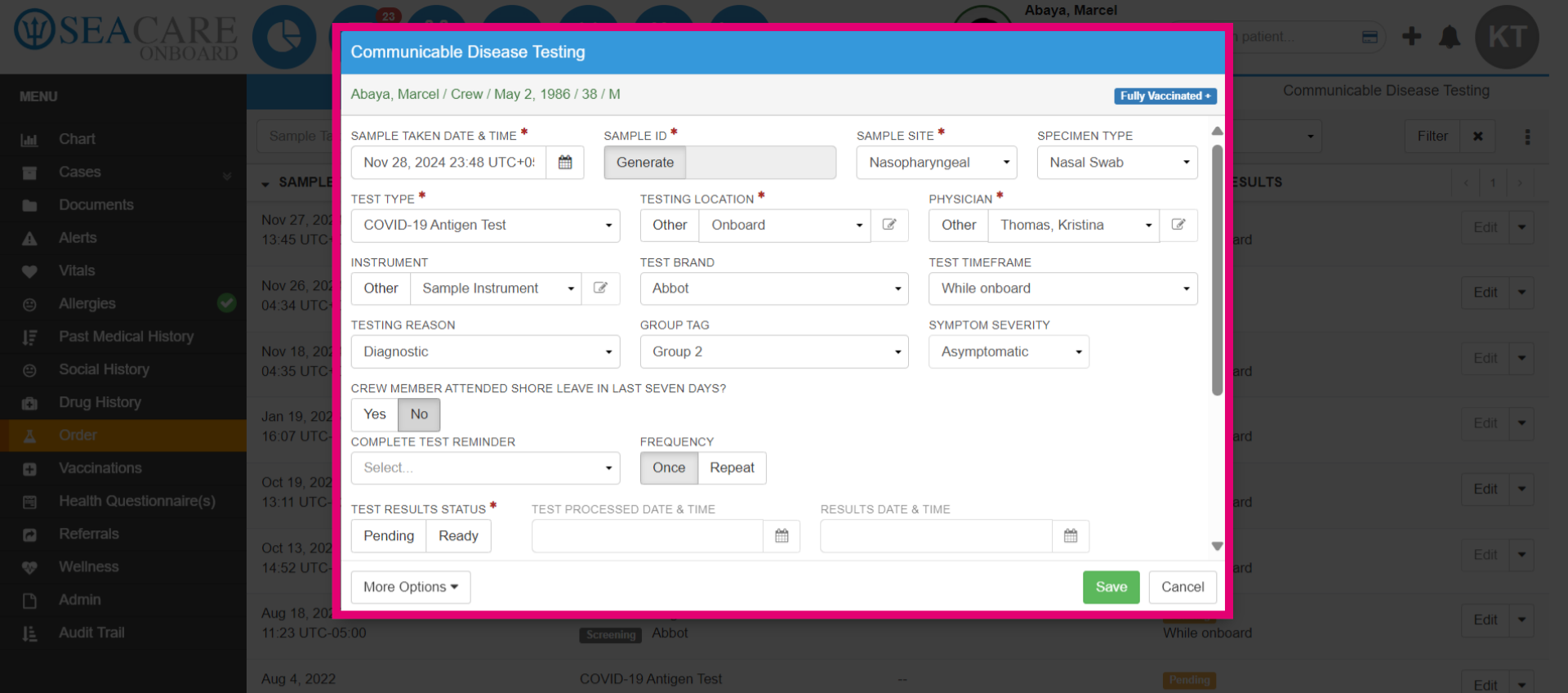
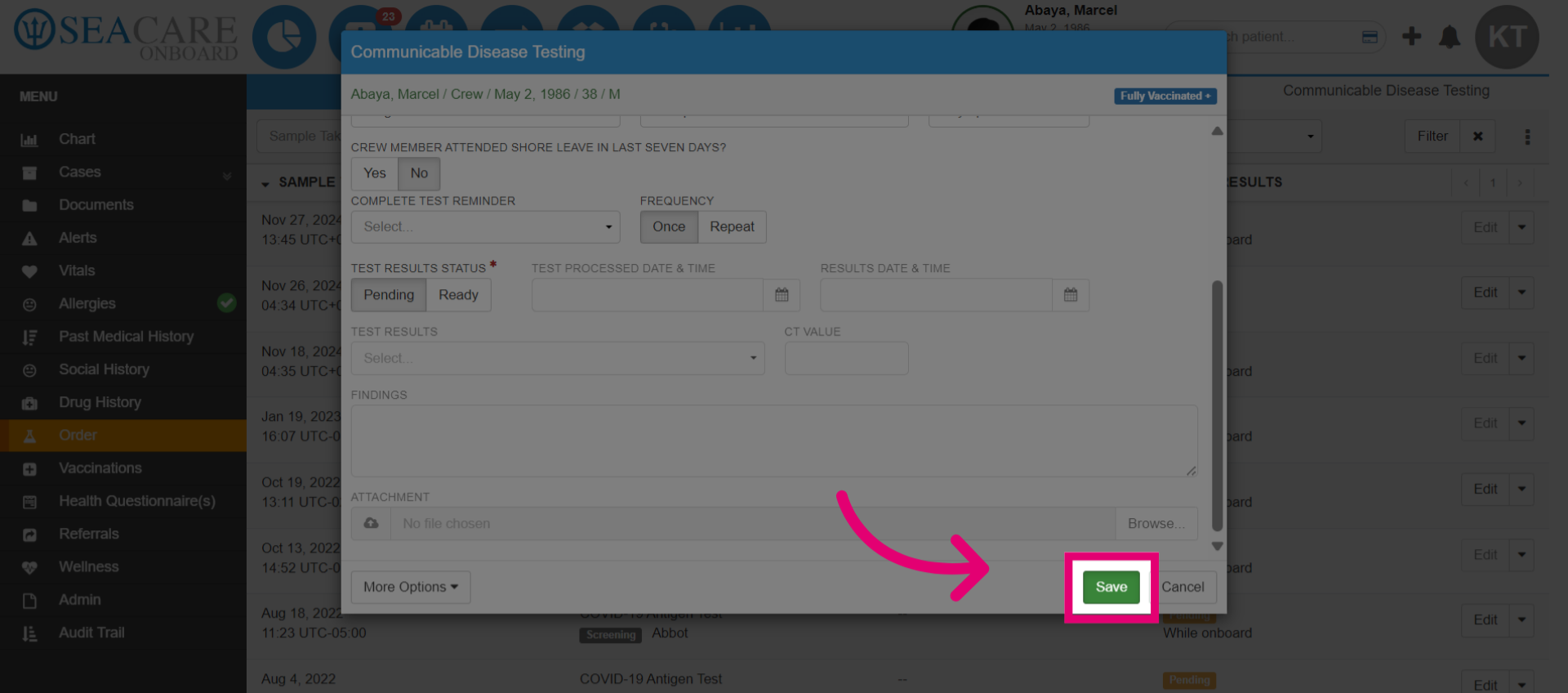
- This opens the communicable disease testing window, where you can enter test details or results. Generate or create a unique sample ID for testing labels, and enter the test information.
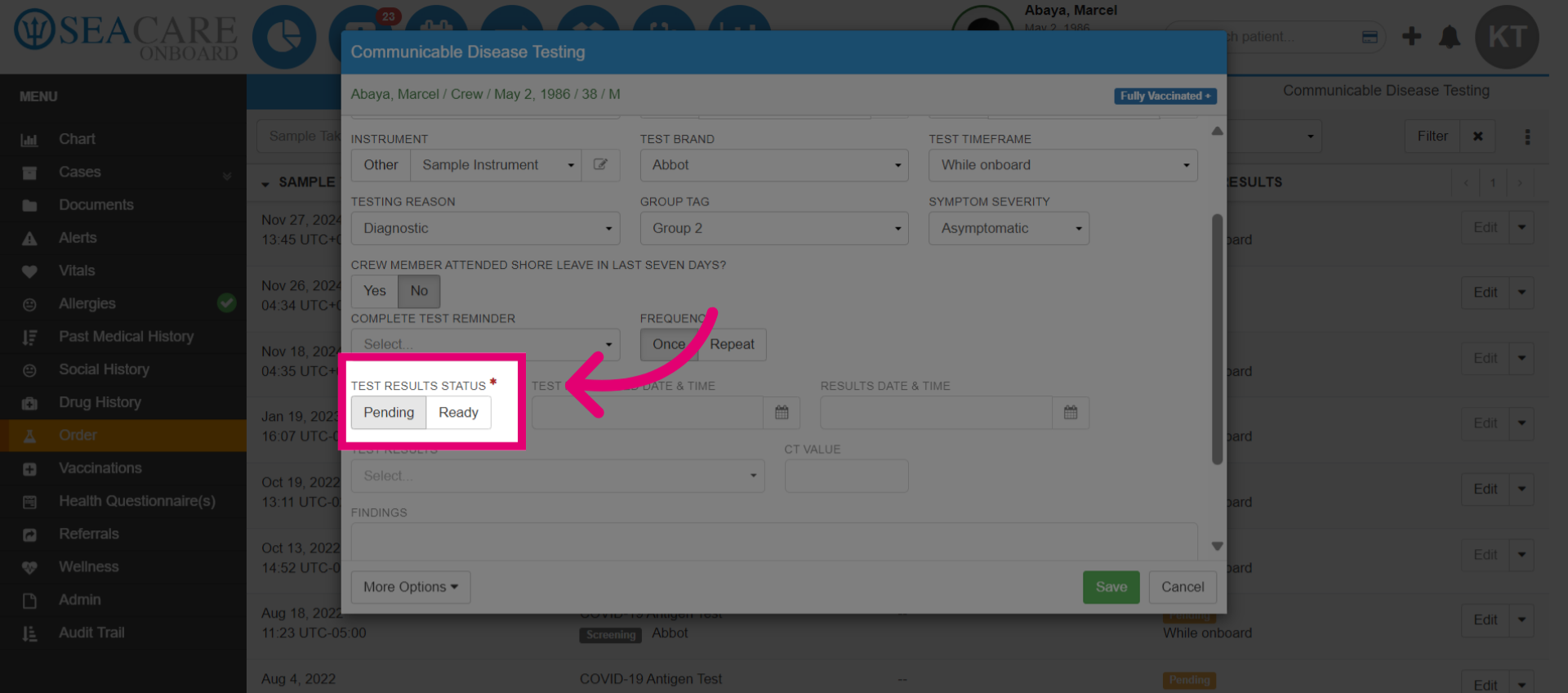
- If the test results are not ready, set the Test Result Status to pending. Update this when results are available. Use additional fields to add comments or attachments if desired. Then click save.
- Record the information by saving the test information.
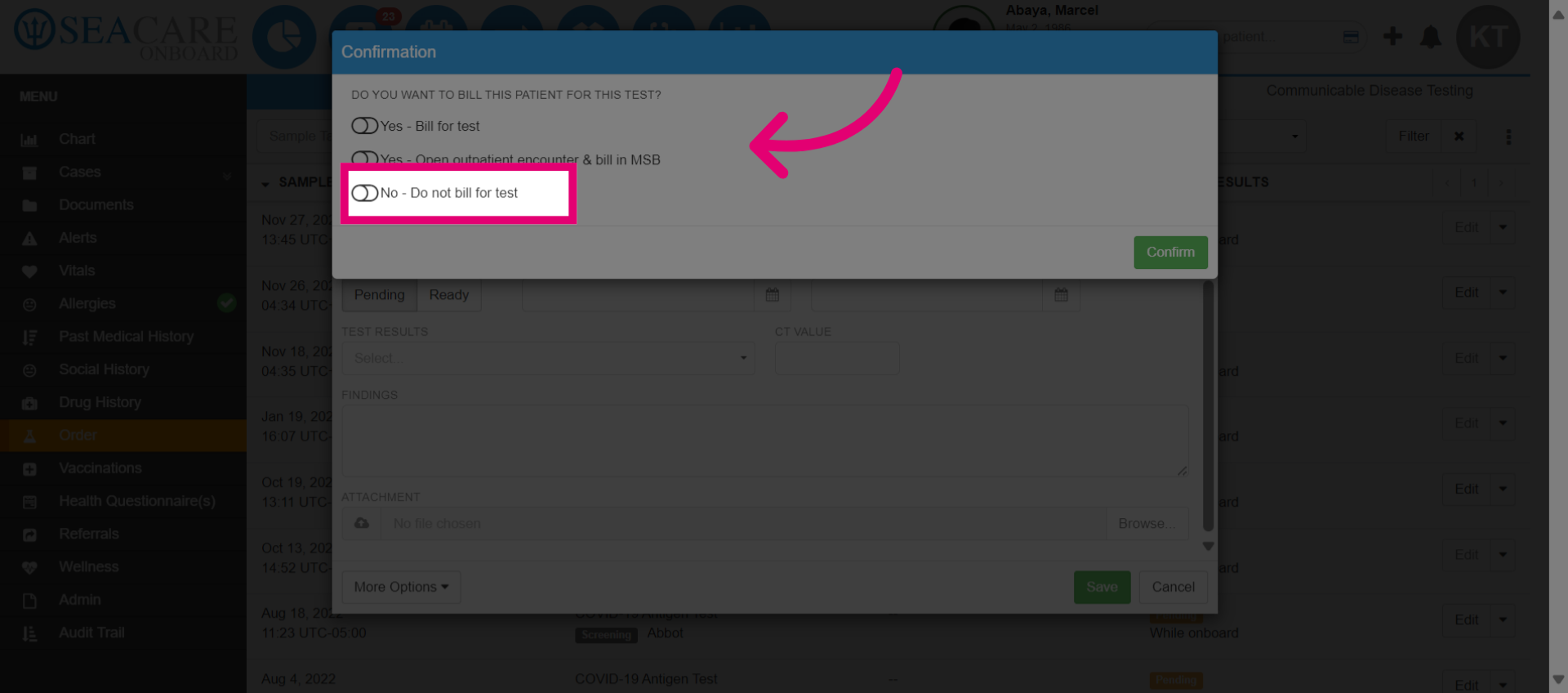
- If you are not billing for the test then select that option or another option you desire.
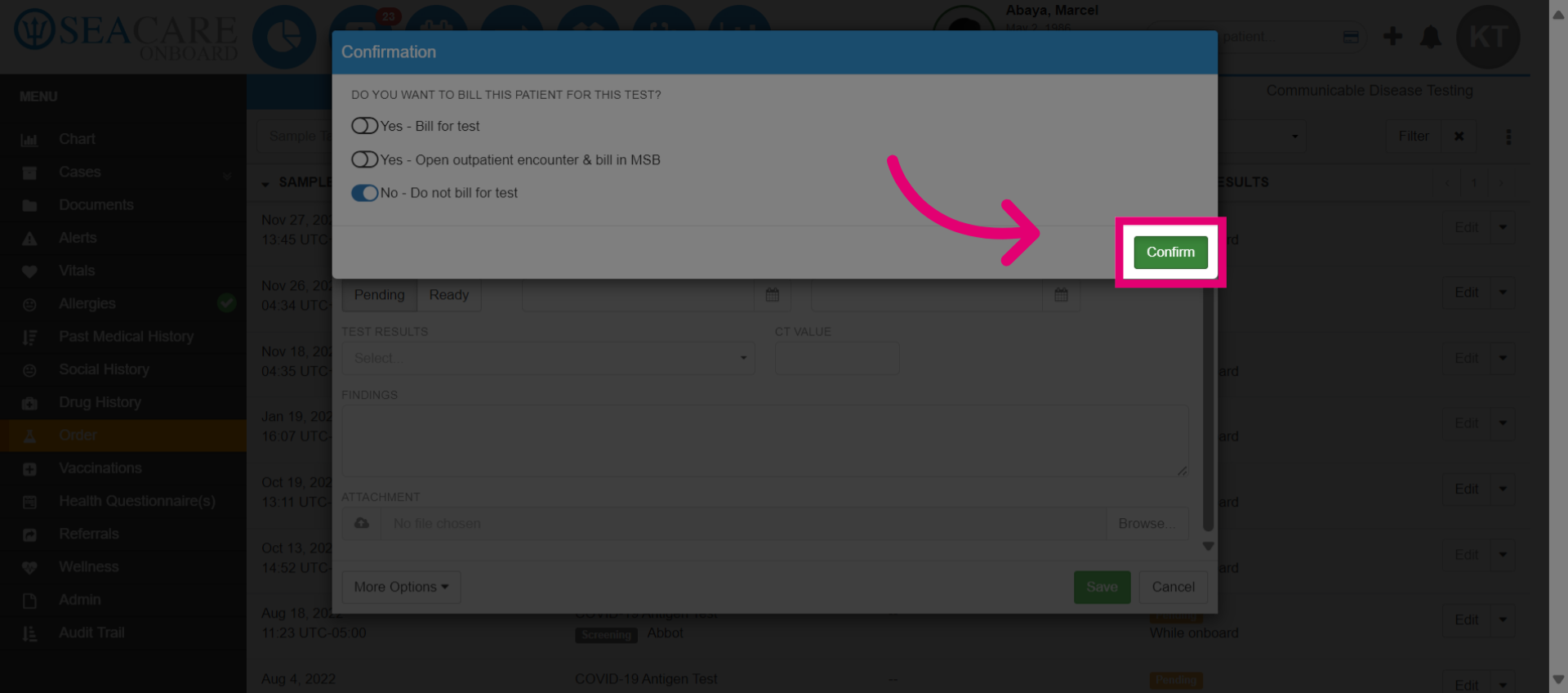
- Verify the details before finalizing the record by selecting Confirm.
- Acknowledge the confirmation to complete the action by selecting Ok.
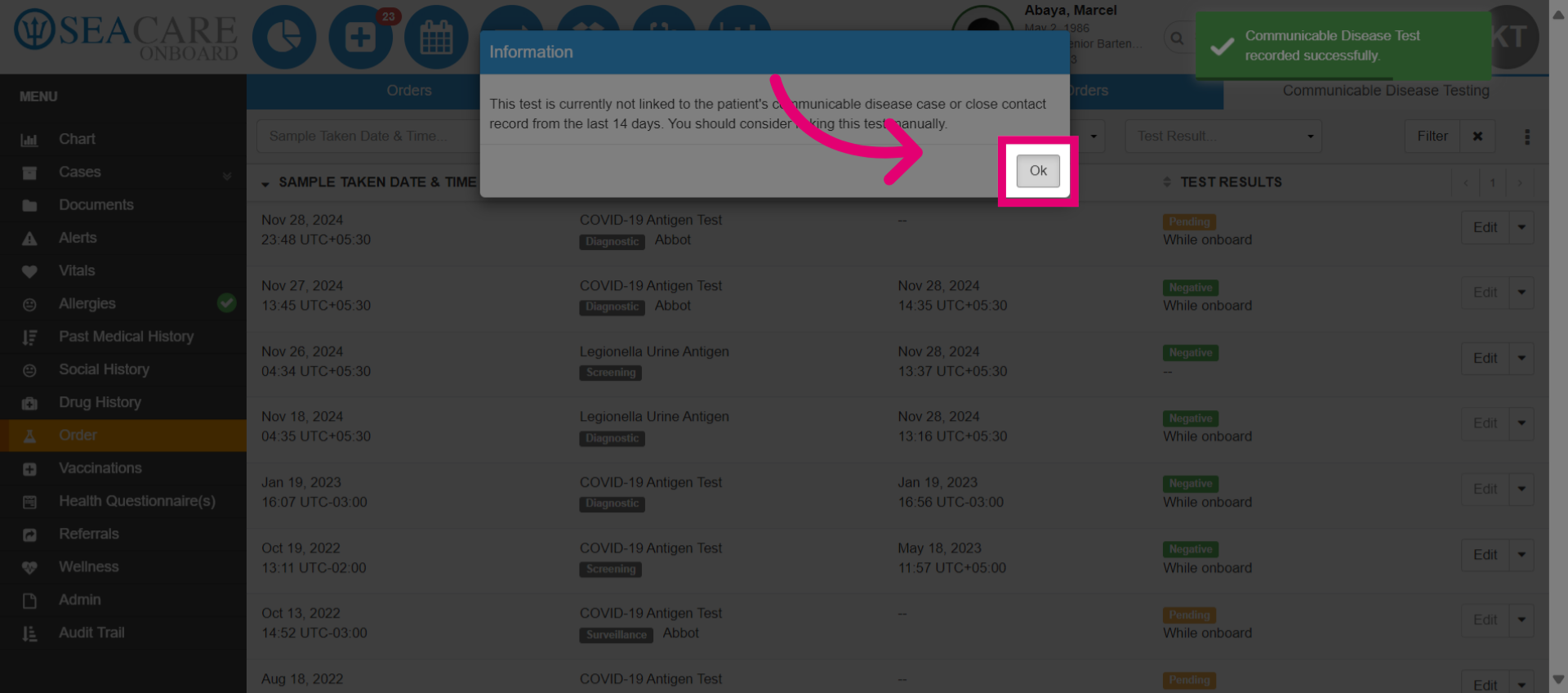
- The test is saved to the list, and you can post results when ready, either here or in the Clinic during a follow-up.
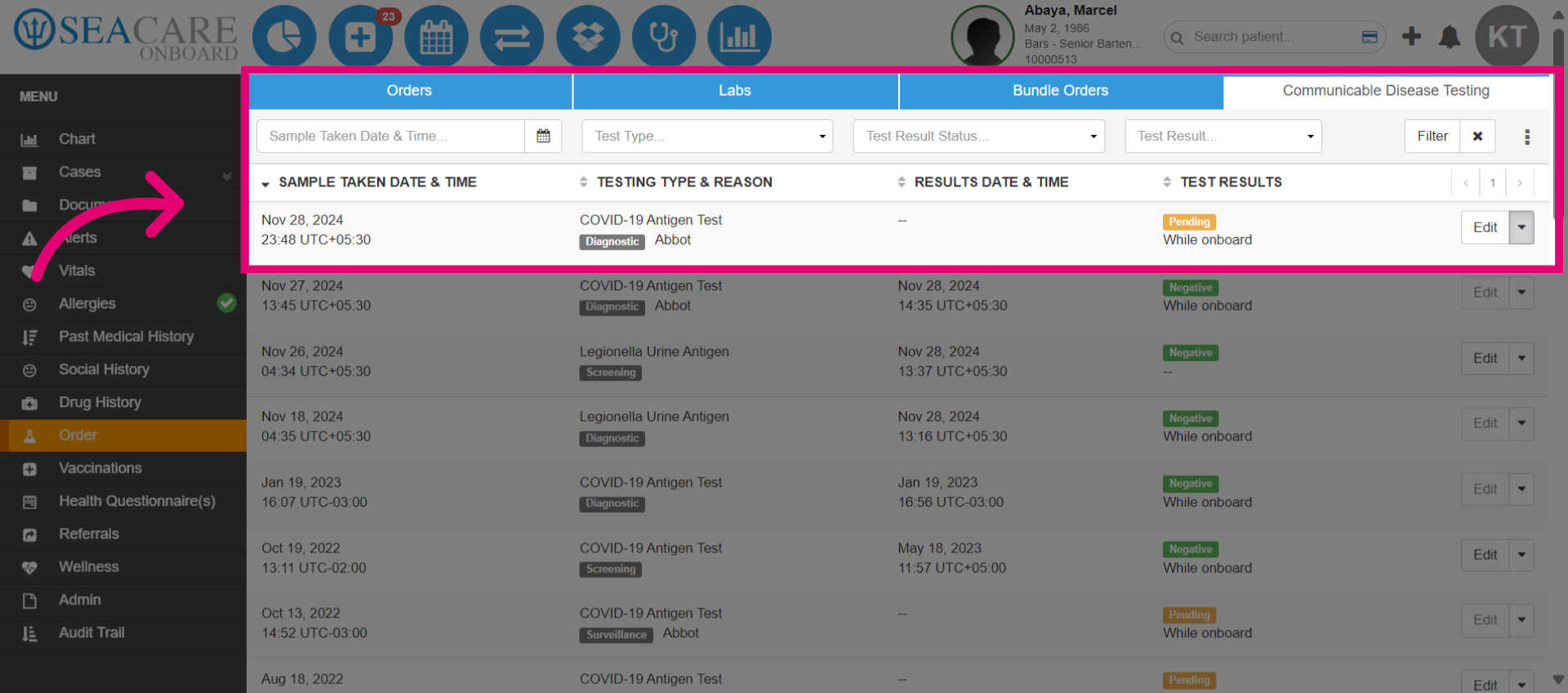
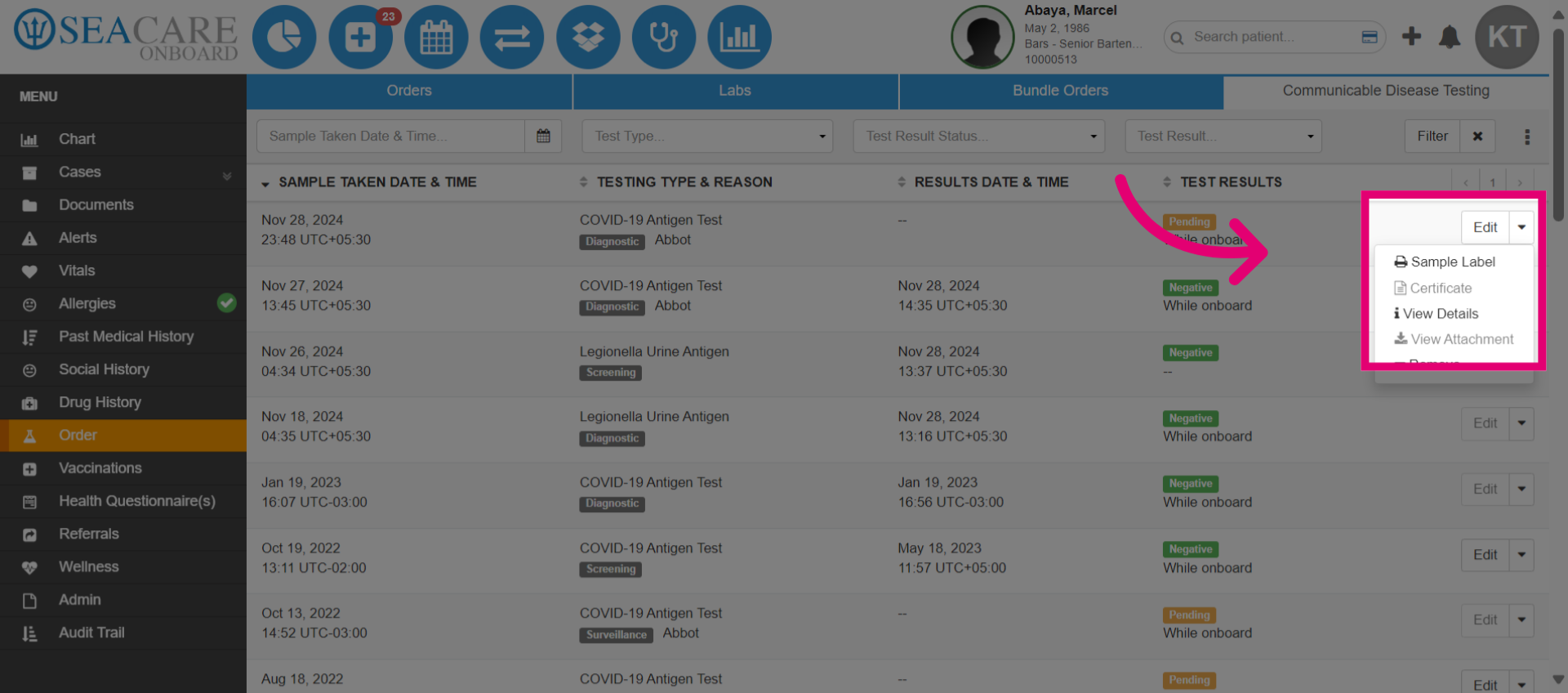
- Select the actions menu for additional options, including printing a sample label, viewing details, or removing the test.