New article
Recently updated
Documenting communicable disease details

Who is this article for?Users who want to learn to document communicable disease details.
No elevated permissions are required.
This guide offers an overview for documenting communicable disease details. It begins with an outpatient encounter, detailing how to add information to the Details sub-tab when a patient is suspected of exposure to acute respiratory disease or ARD.
1. Documenting communicable disease details
1.1. Video
1.2. Steps
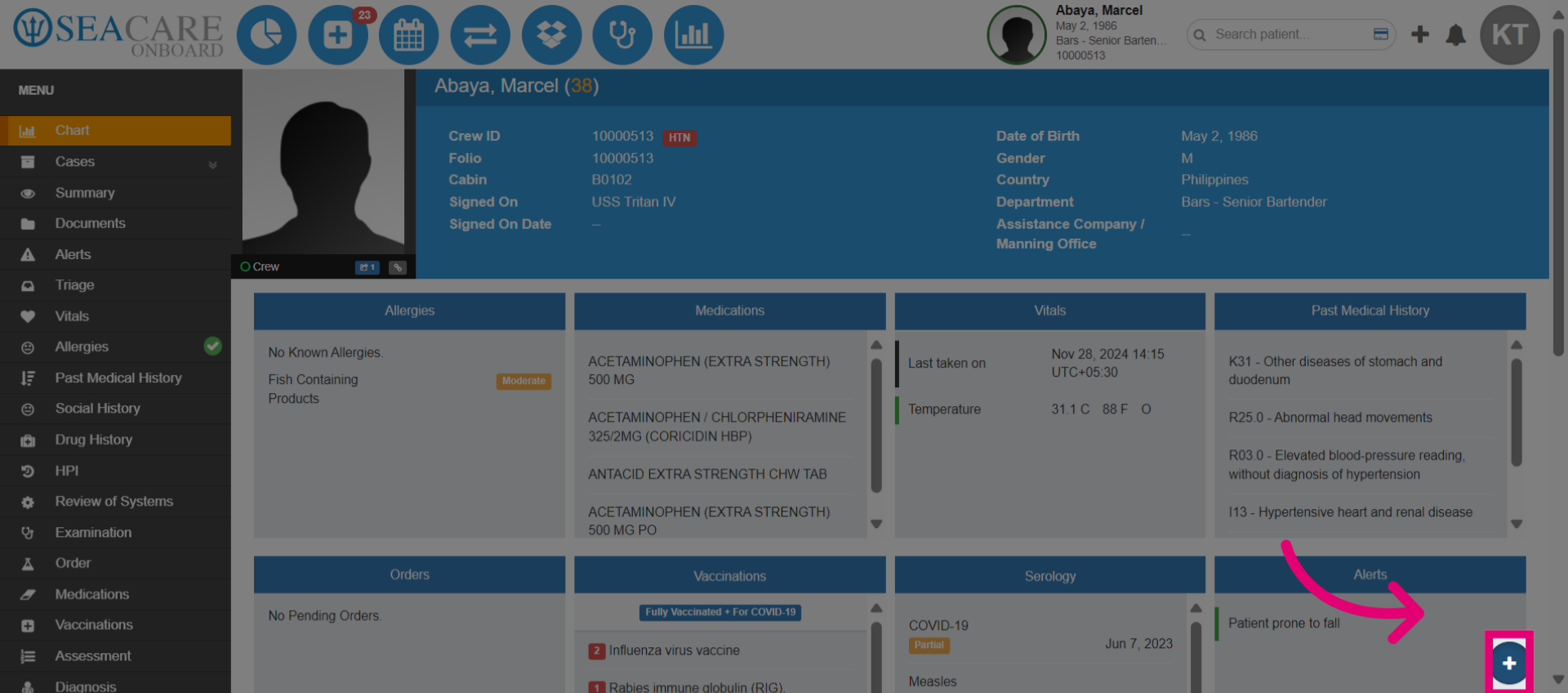
- Select the plus button.
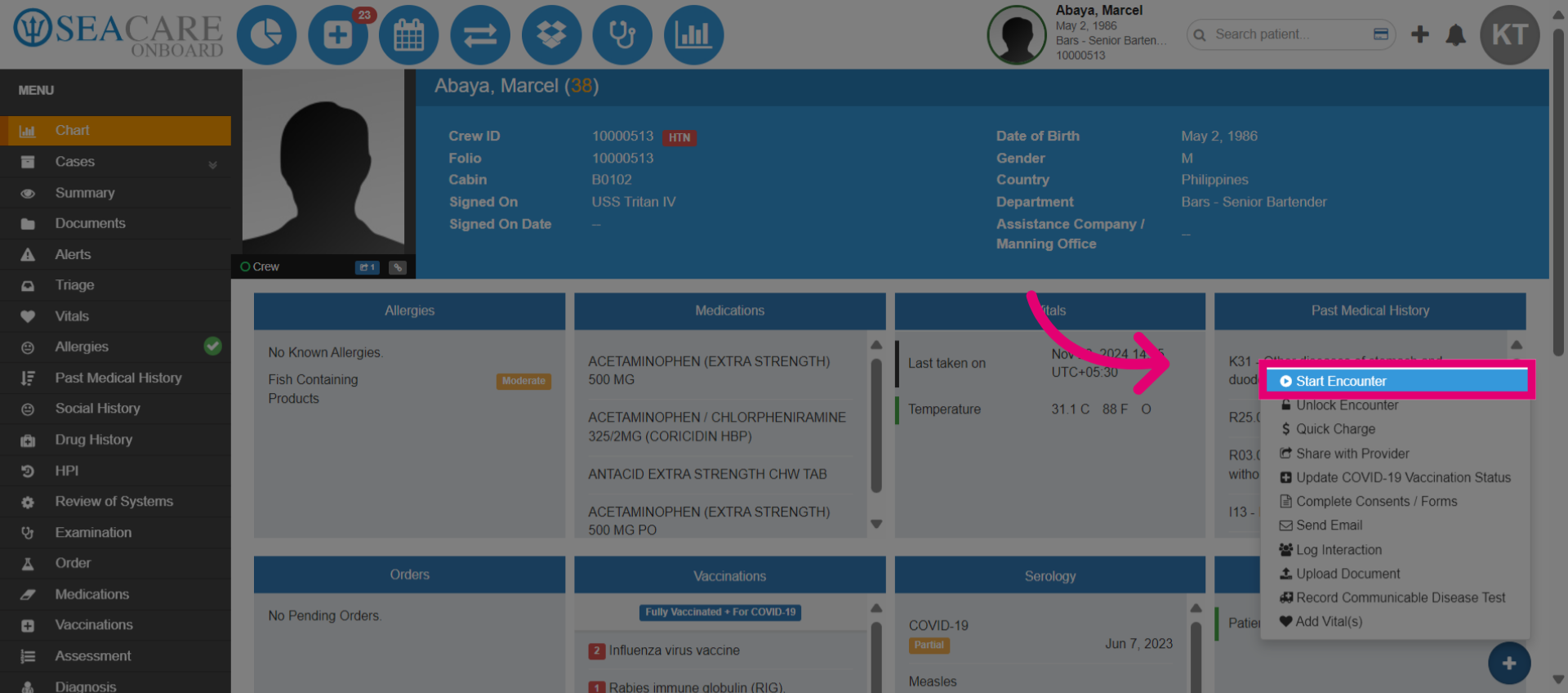
- Next, click Start Encounter.
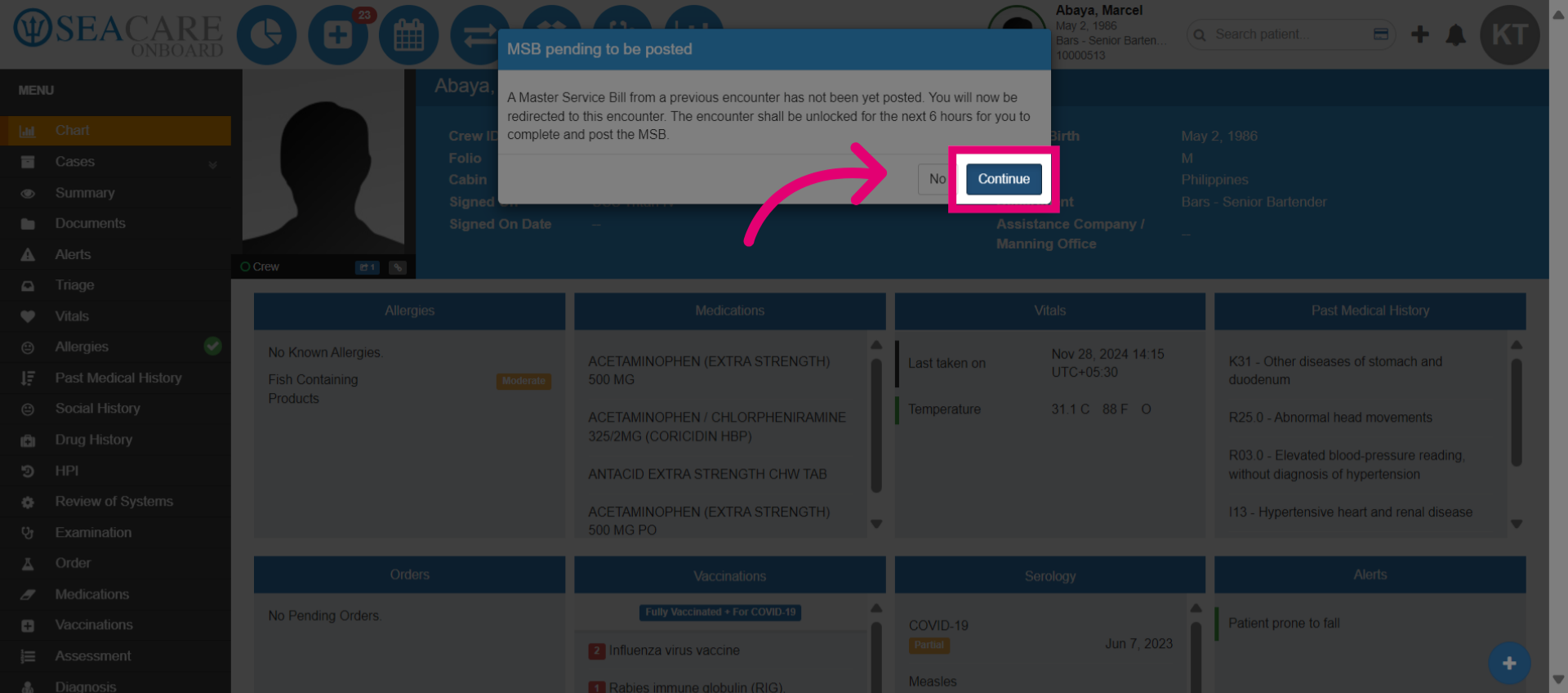
- Click Continue.
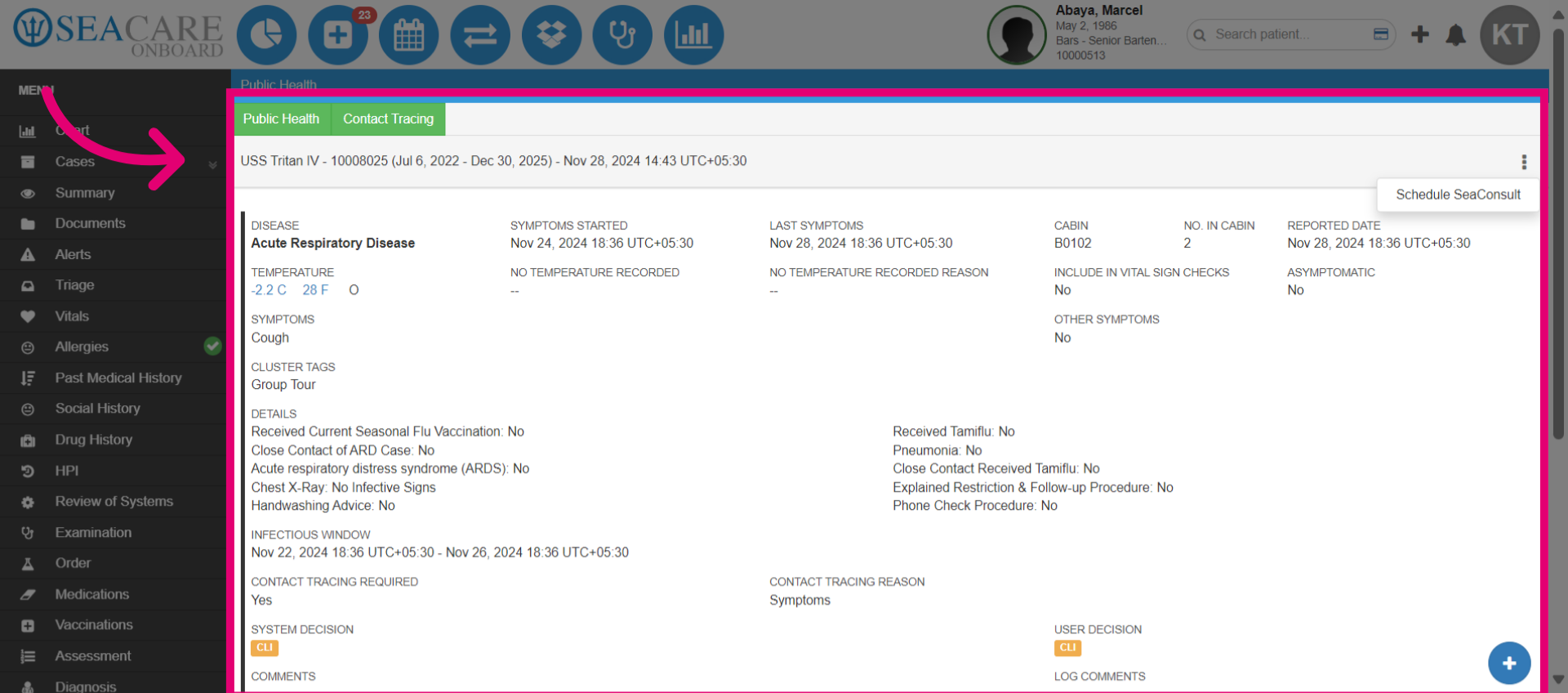
- Select the Public Health module.
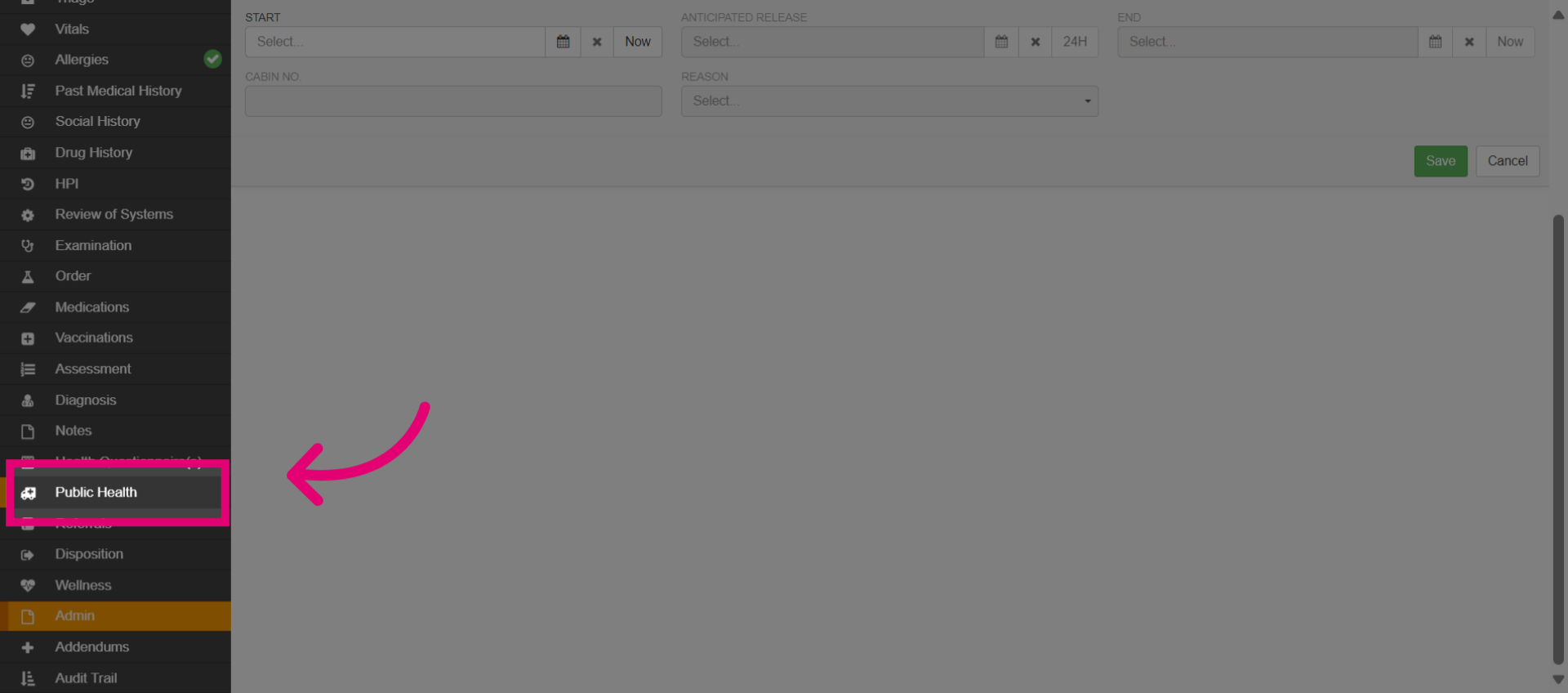
- Select the green Public Health tab to record the details.
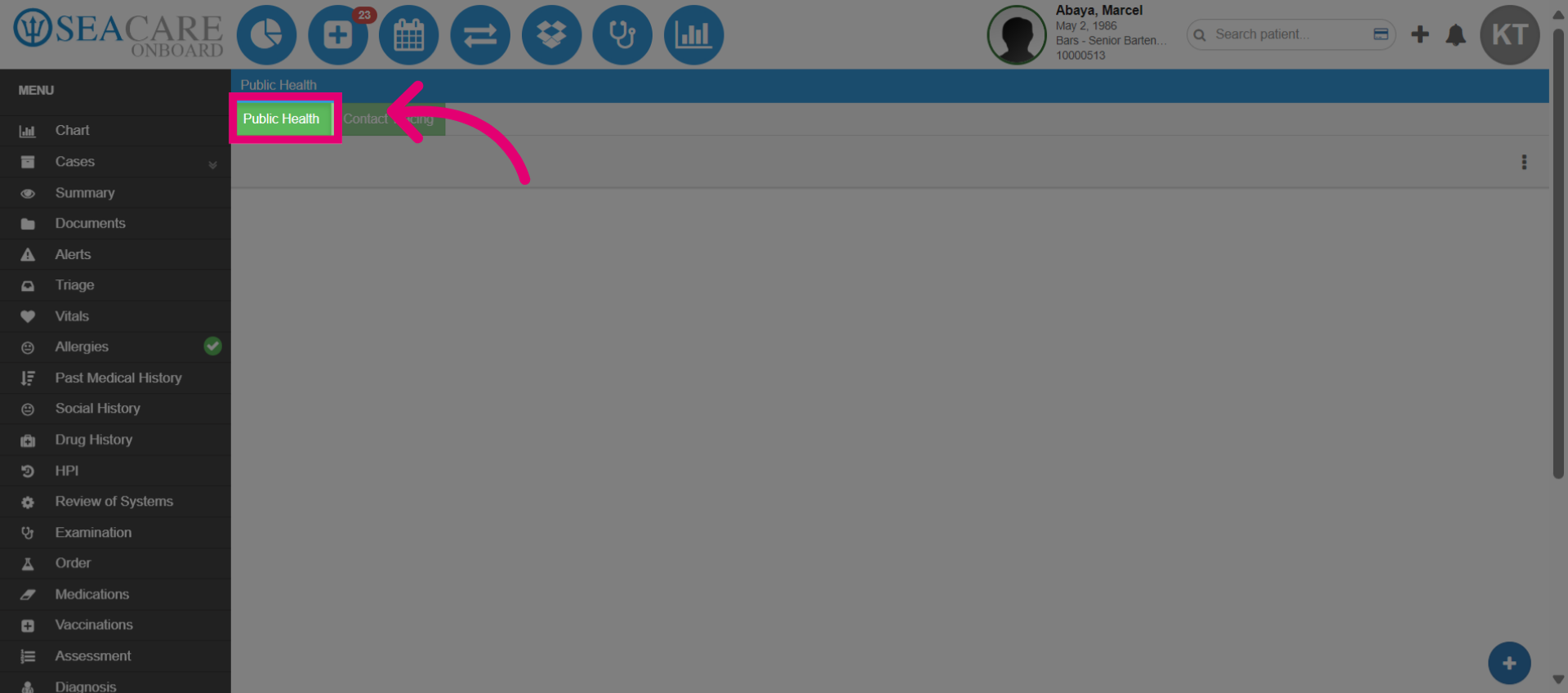
- Choose Acute Respiratory Disease from the dropdown list.
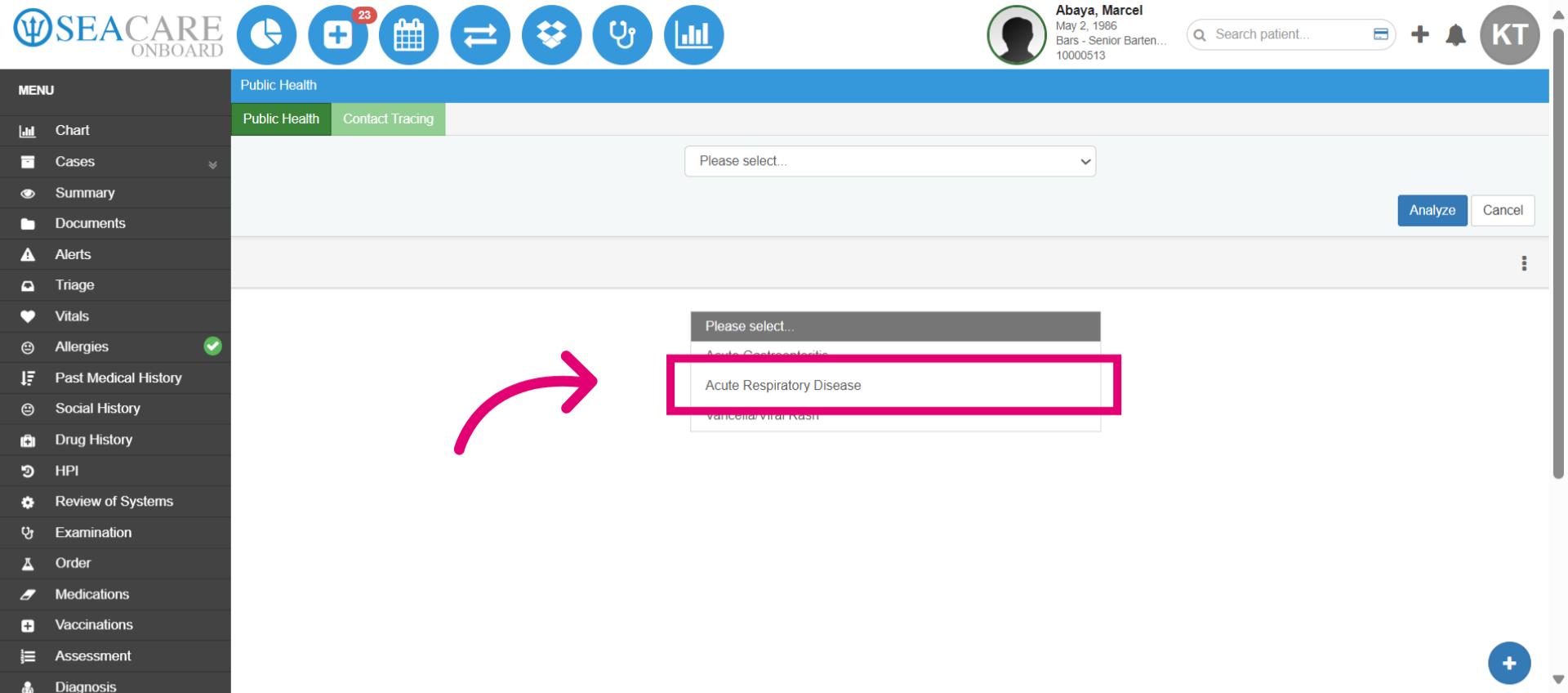
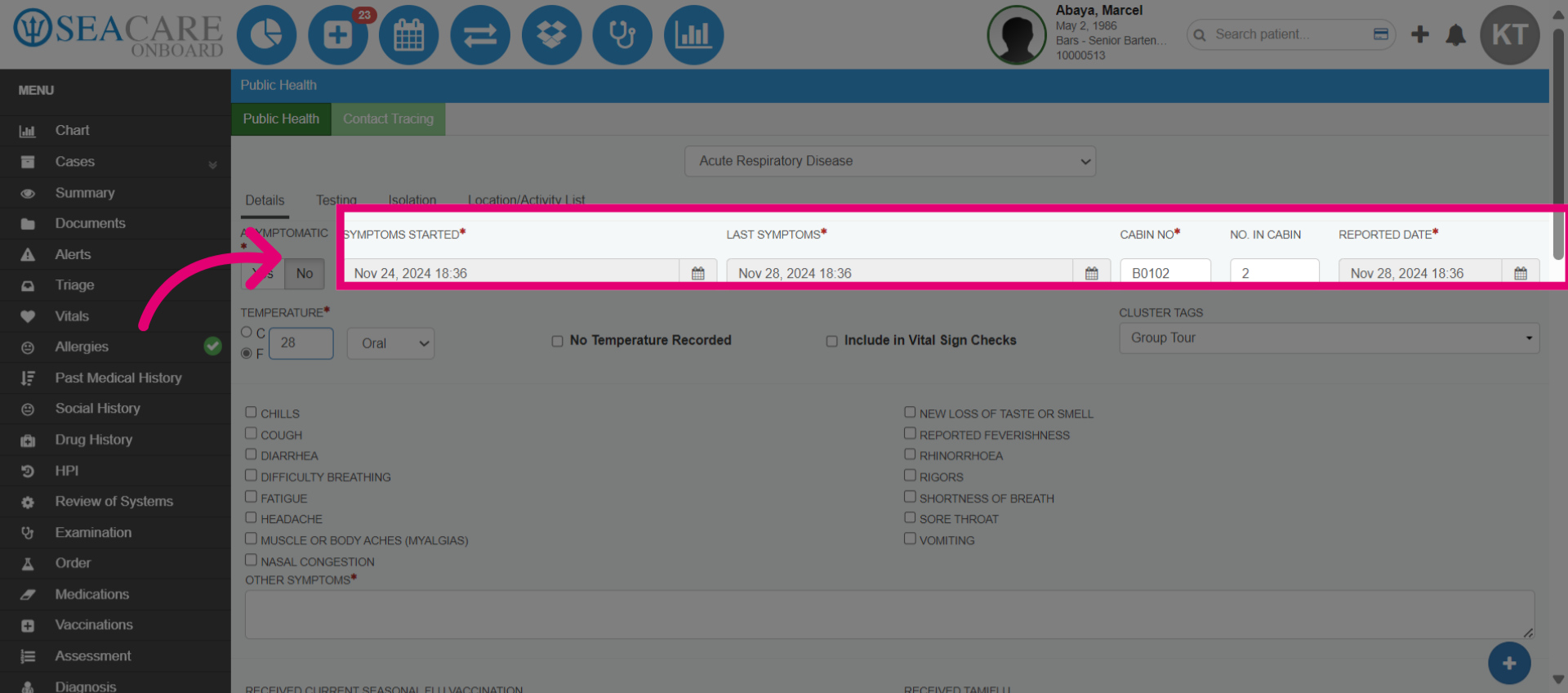
- By default, you'll start in the Details sub-tab. Add case details as needed, with required fields marked by an asterisk. Indicate if the patient is asymptomatic or experiencing symptoms.
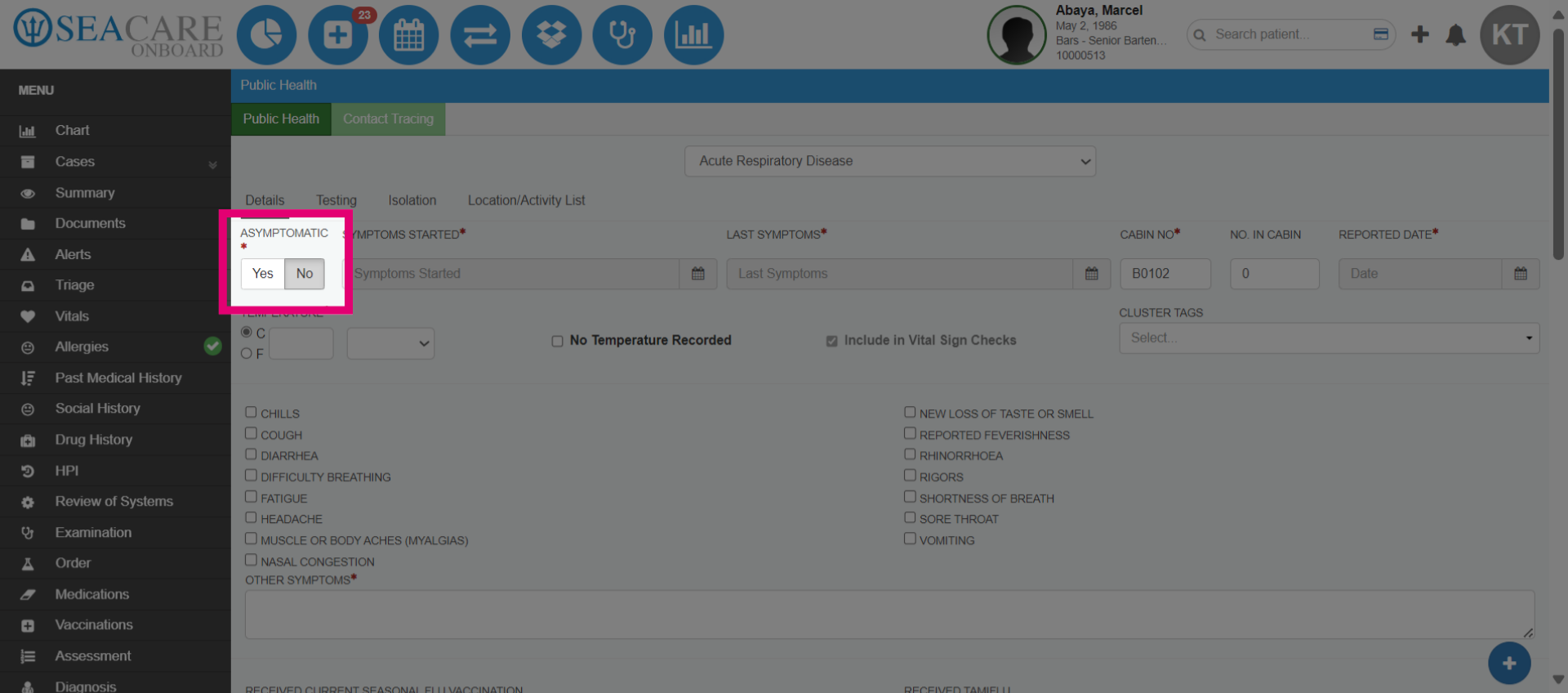
- To help determine more about the symptoms, enter the start and end dates of the symptoms. Fill in the required fields for cabin number, number of people in the cabin, and the date the symptoms were reported.
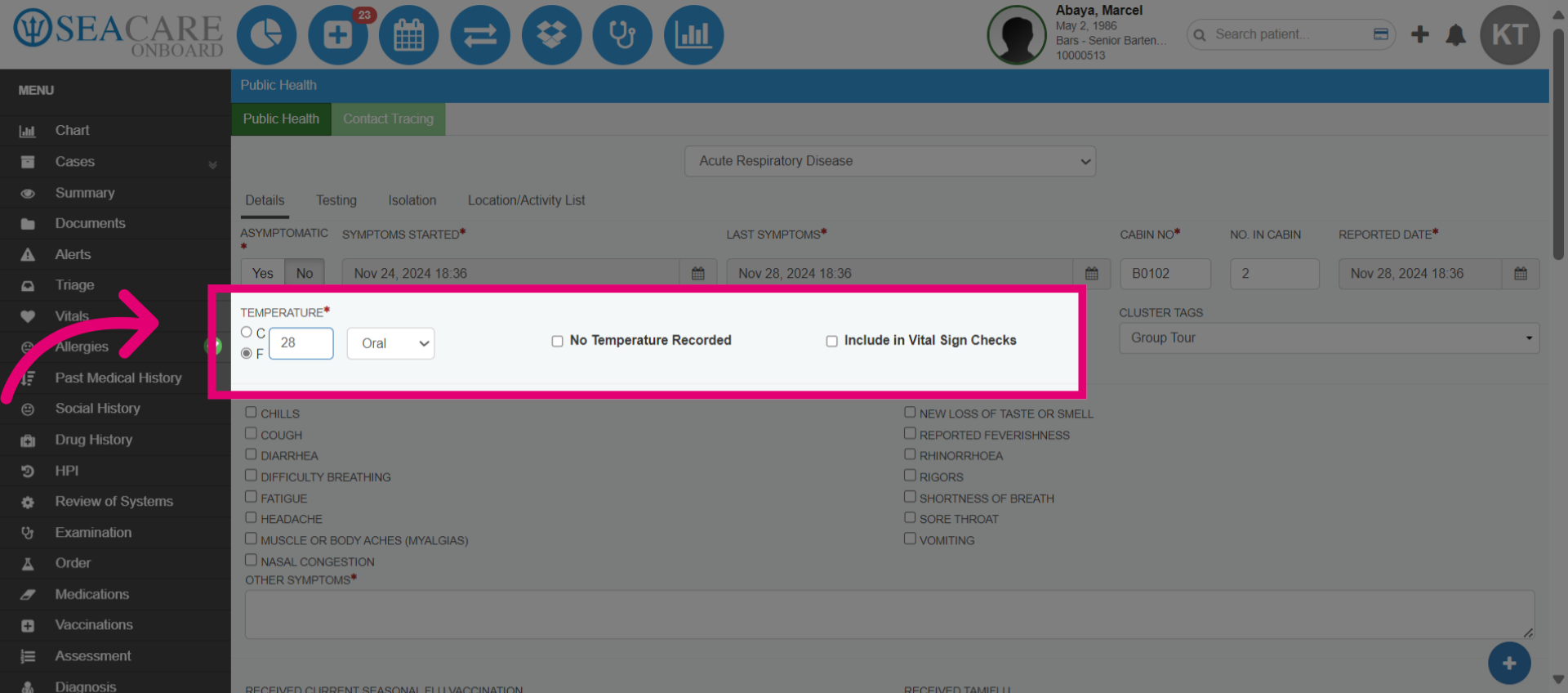
- Add the patient's temperature or check the No temperature recorded box if none was taken. Temperature is included in vital sign checks by default but is optional. Add cluster tags if the patient attended any events with other cases, and use checkboxes to mark symptoms.
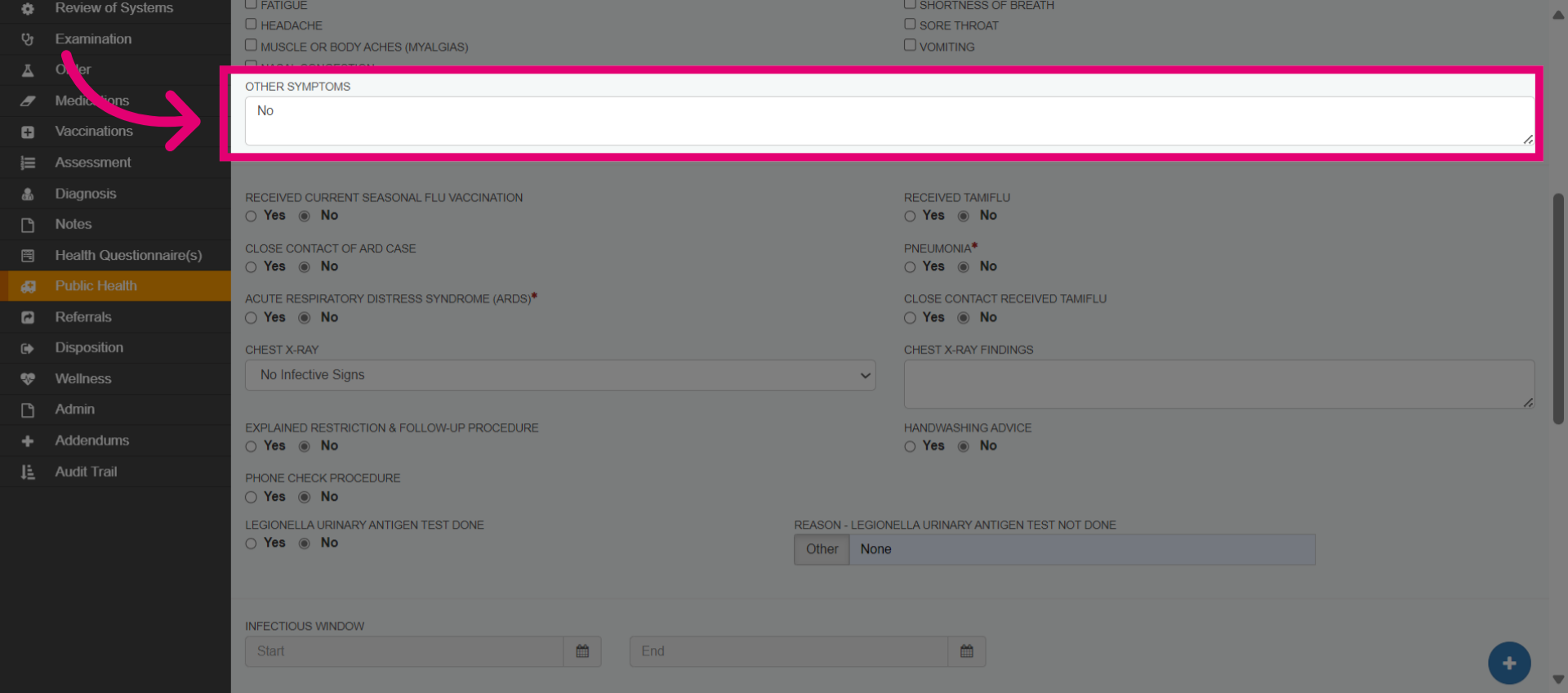
- Confirm that no symptoms are present in the Other Symptoms field. Then, answer the questions in this section. Required fields include specimen requested and food handler. If a specimen was requested, indicate if it has been received. If you select Yes for Legionella Urinary Antigen Test Done, a pop-up window will appear to add the test results or provide a reason if not done.
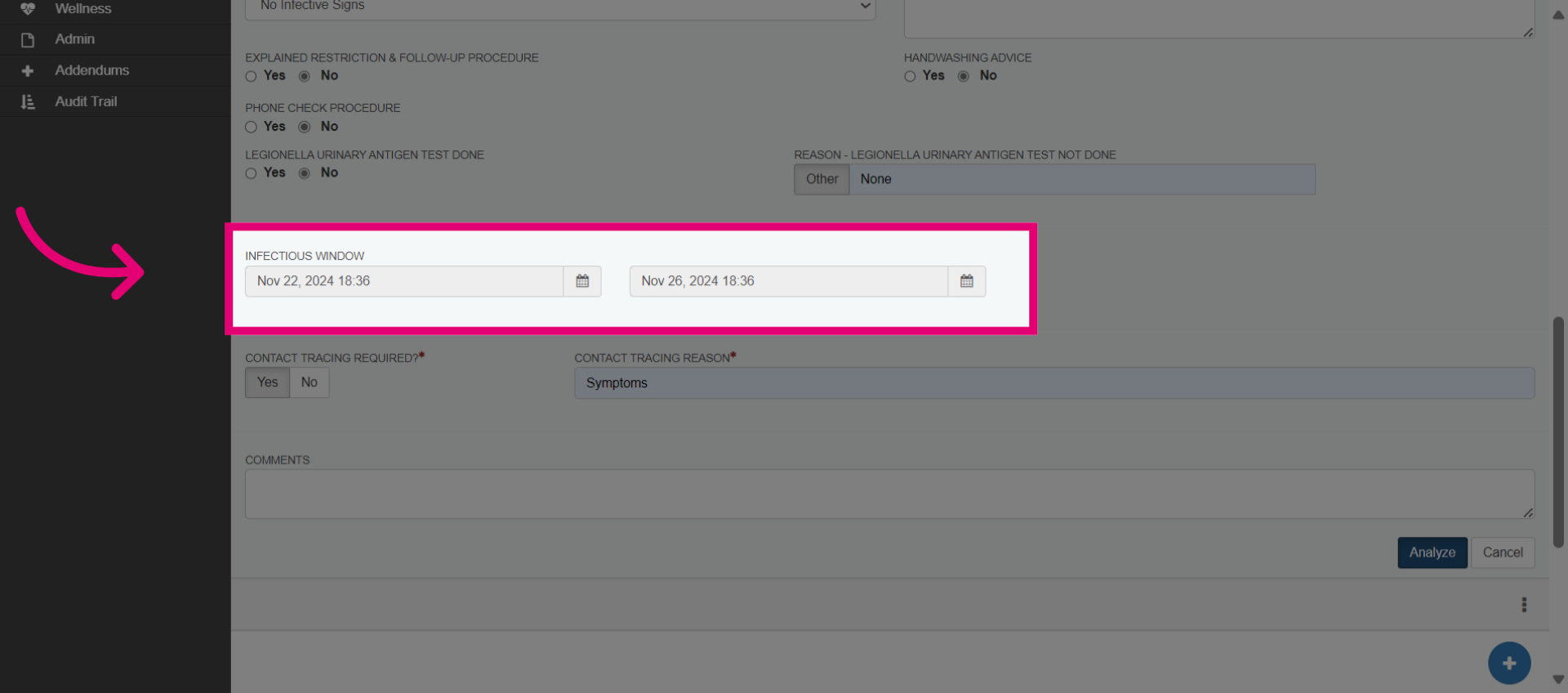
- Proceed to the next questions. Enter the infectious window start and end dates, typically 2-5 days before symptom onset when the patient is most infectious. Check company policies for contact tracing requirements and reasons. Add any notes in the comment section and then select the blue Analyze button.
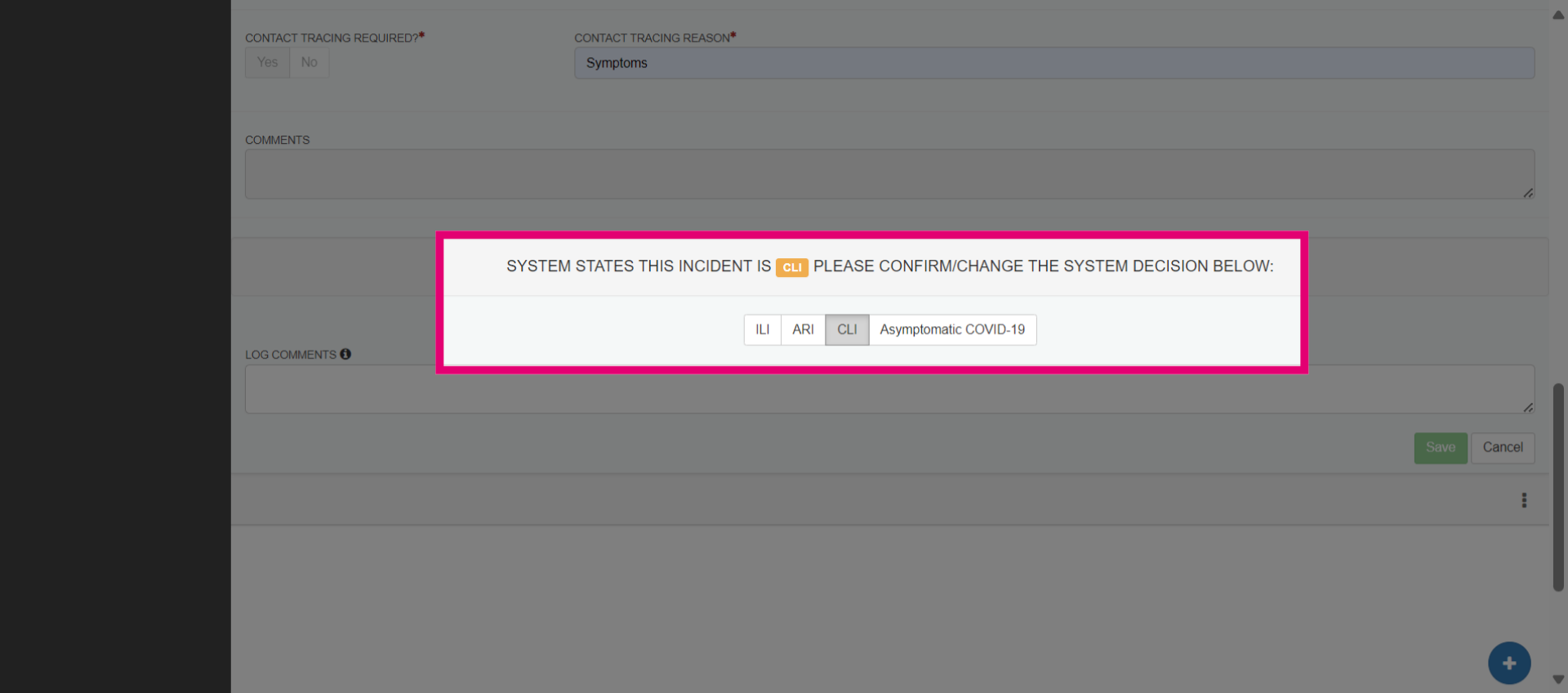
- The system analyzes case data and suggests a reporting category. Medical experts can agree or override the system's recommendation to determine the final reporting outcome if necessary. Click Save when you're happy with the decision.
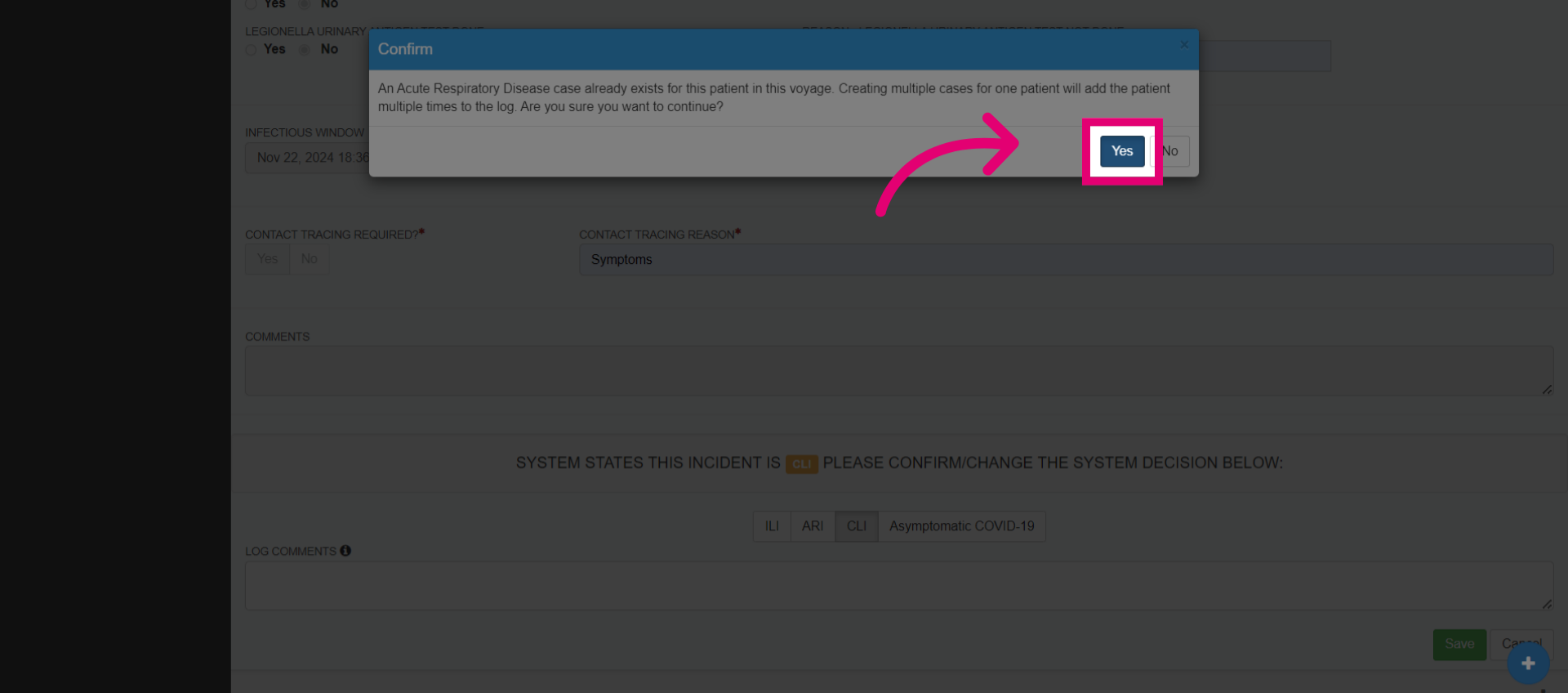
- Confirm the save action with Yes.
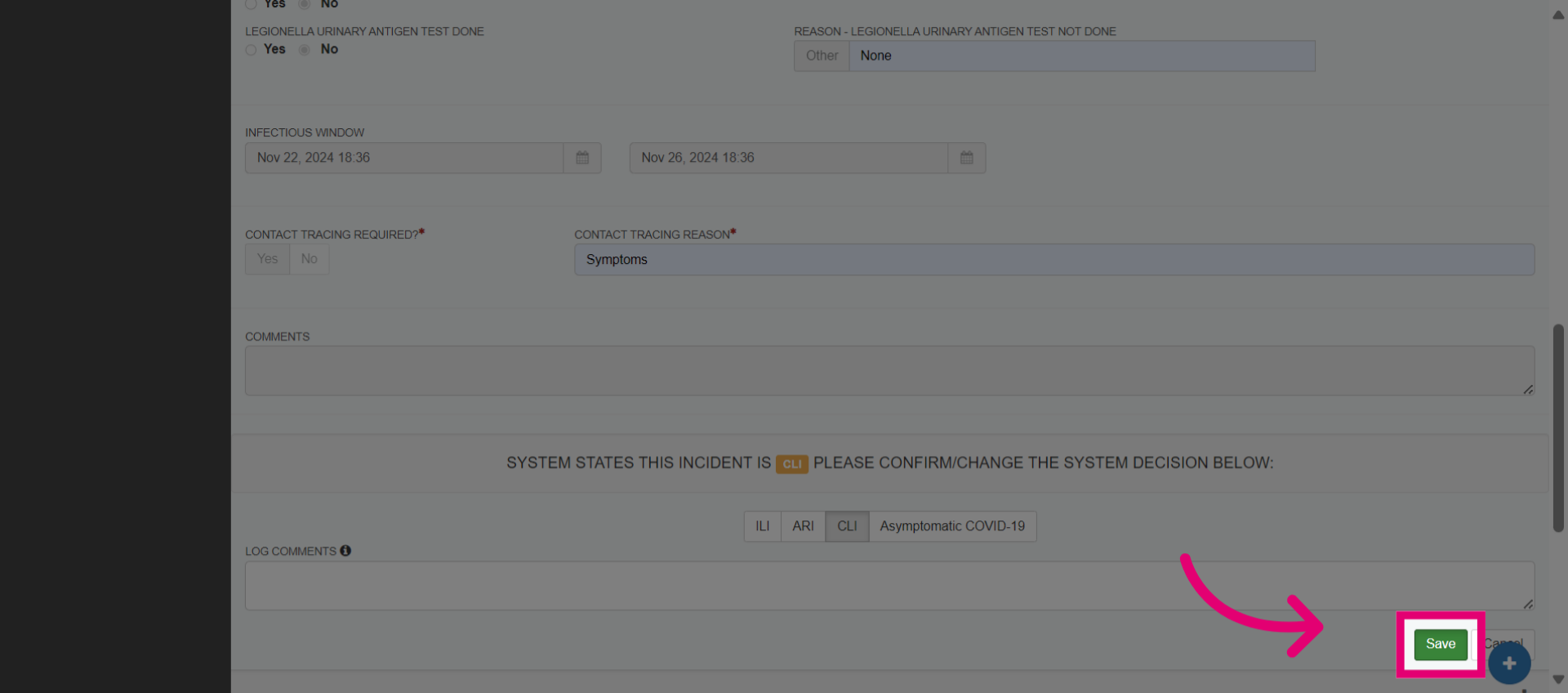
- Save all entered data to record it as public health data within the system.
- Access detailed information about the specified case for further context.