New article
Recently updated
Viewing Patient Chart Audit Trails

Who is this article for?Users who want to view Patient Chart Audit Trails.
No elevated permissions are required.
In this guide, you will learn how to effectively view patient chart audit trails within Ideagen Maritime Health.
1. Viewing Patient Chart Audit Trails
1.1. Video
1.2. Steps
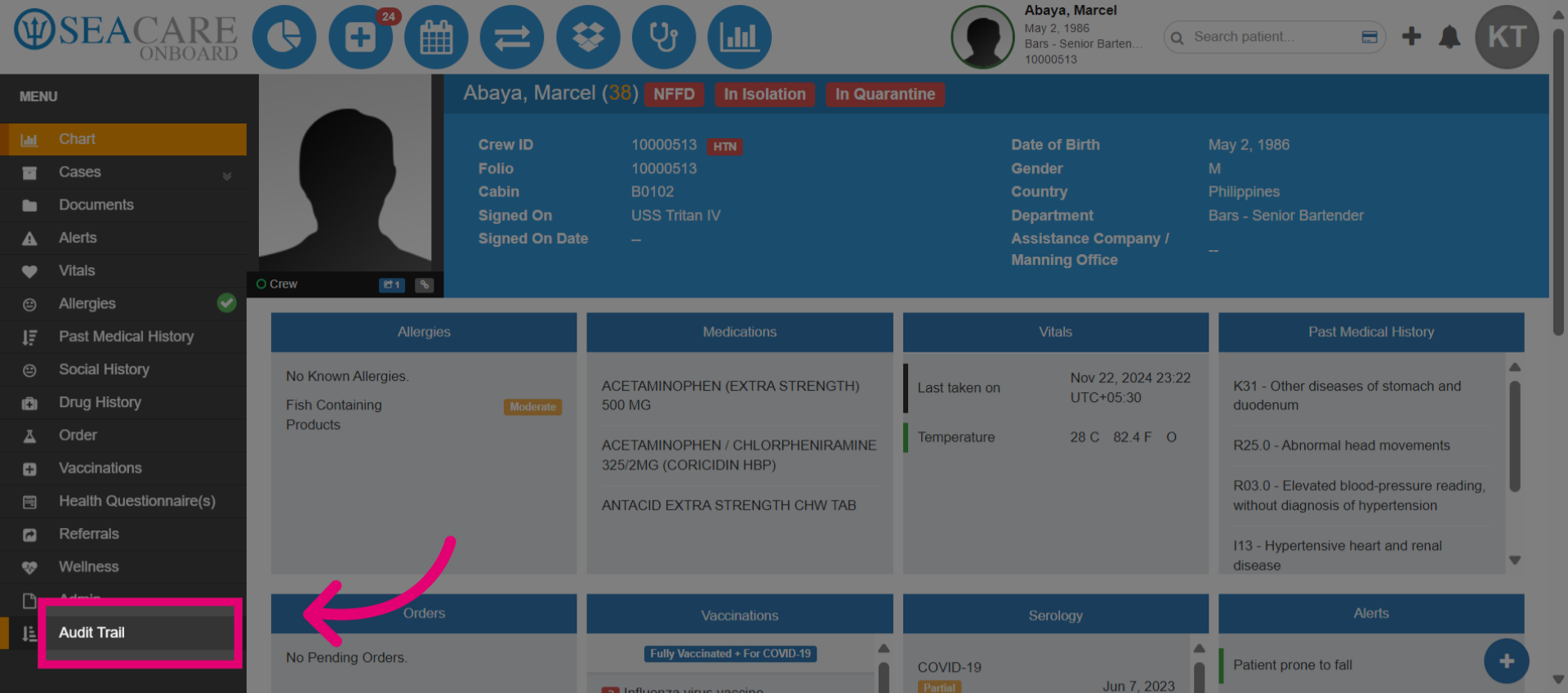
- Start in the patient chart and go to the Audit Trail module to view the audit history of all actions that have been conducted.
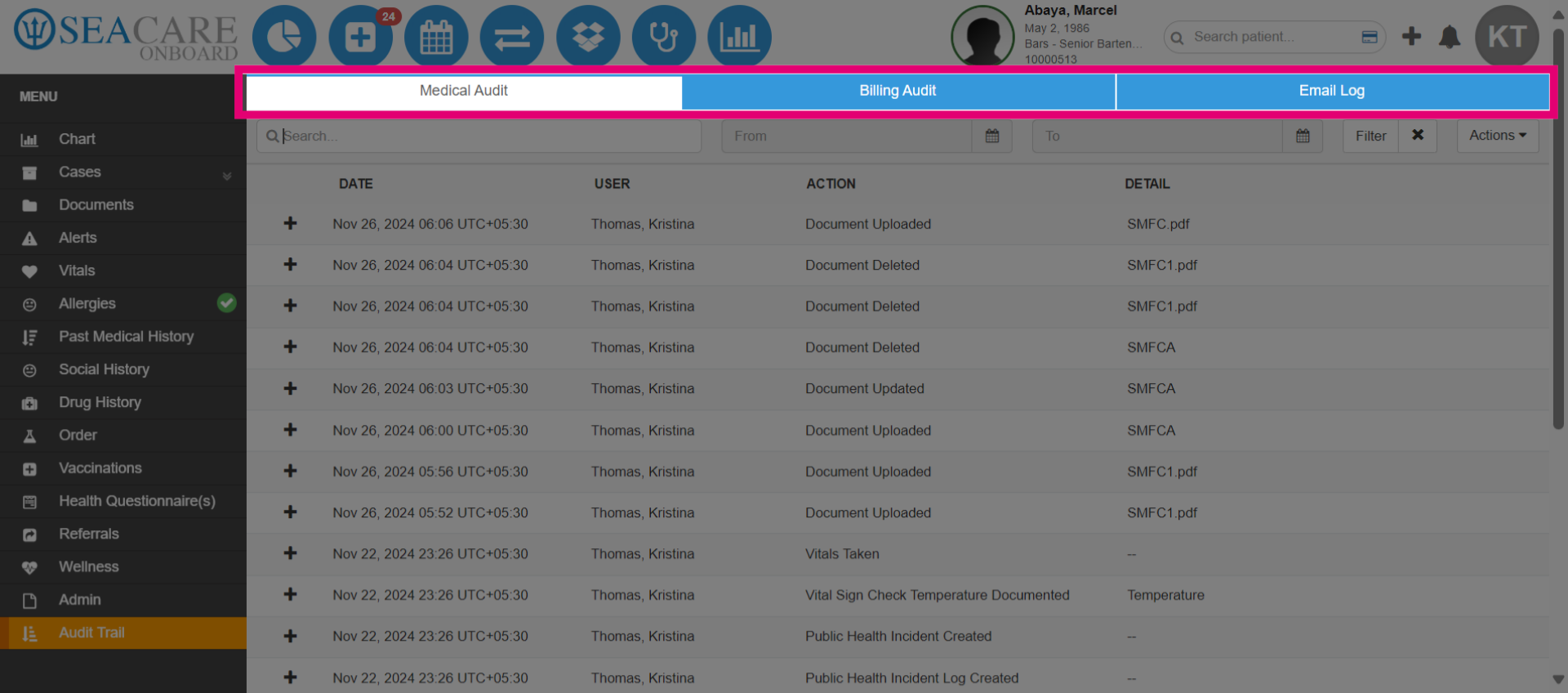
- Select the Audit to view. There are three categories: Medical Audit, which includes any medical actions (allergies, vitals, medications, orders, etc.), Billing Audit, which covers any Master Service Bills for the patient, and Email Log, which records any messages sent out regarding the patient.
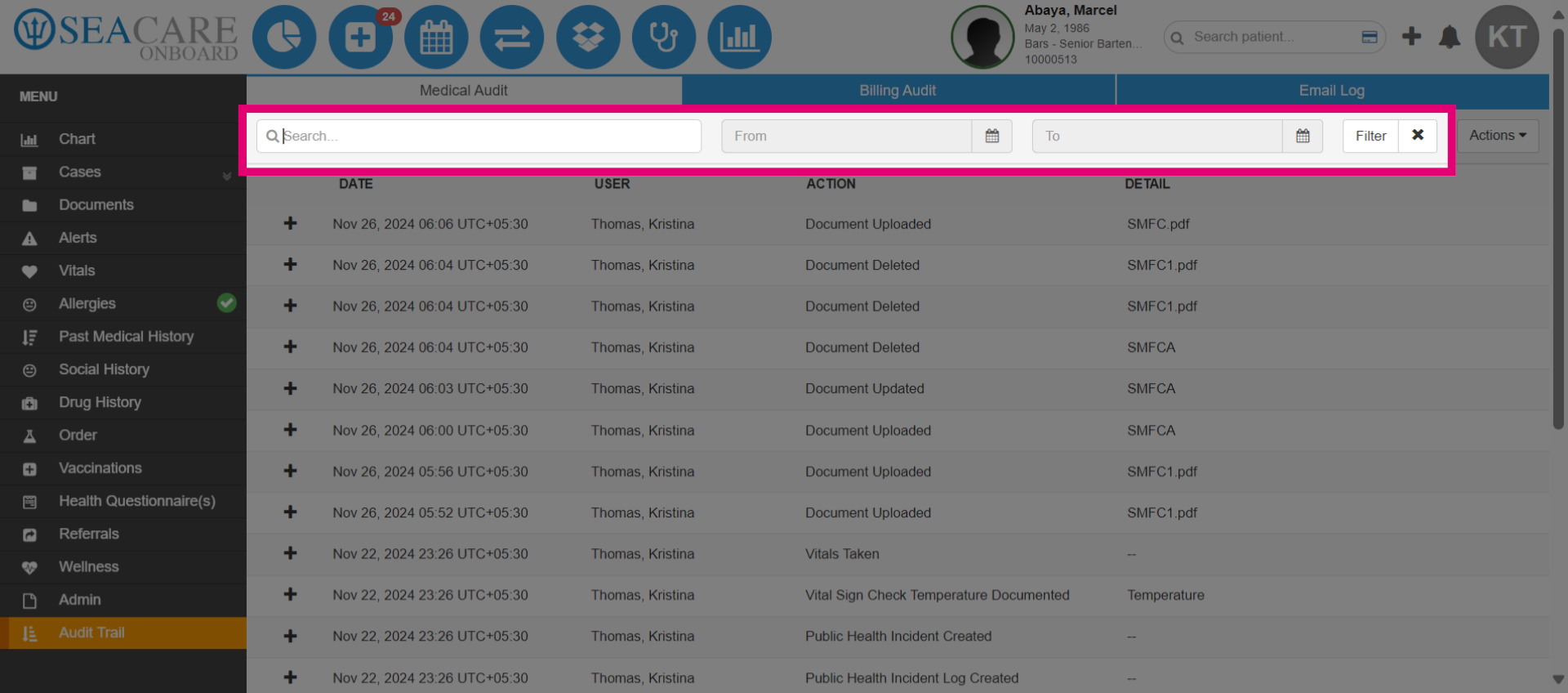
- Let's review the Medical Audit section. Use the filter bar to search for a keyword or within a specific date range using the Date Picker fields to find specific audit entries.
- After selecting dates, the system will display matching entries, including the date, time, and time zone of the action. It will show the user who completed the input, the action taken (e.g., vitals recorded, new case opened, encounter updated), and details such as file attachments.
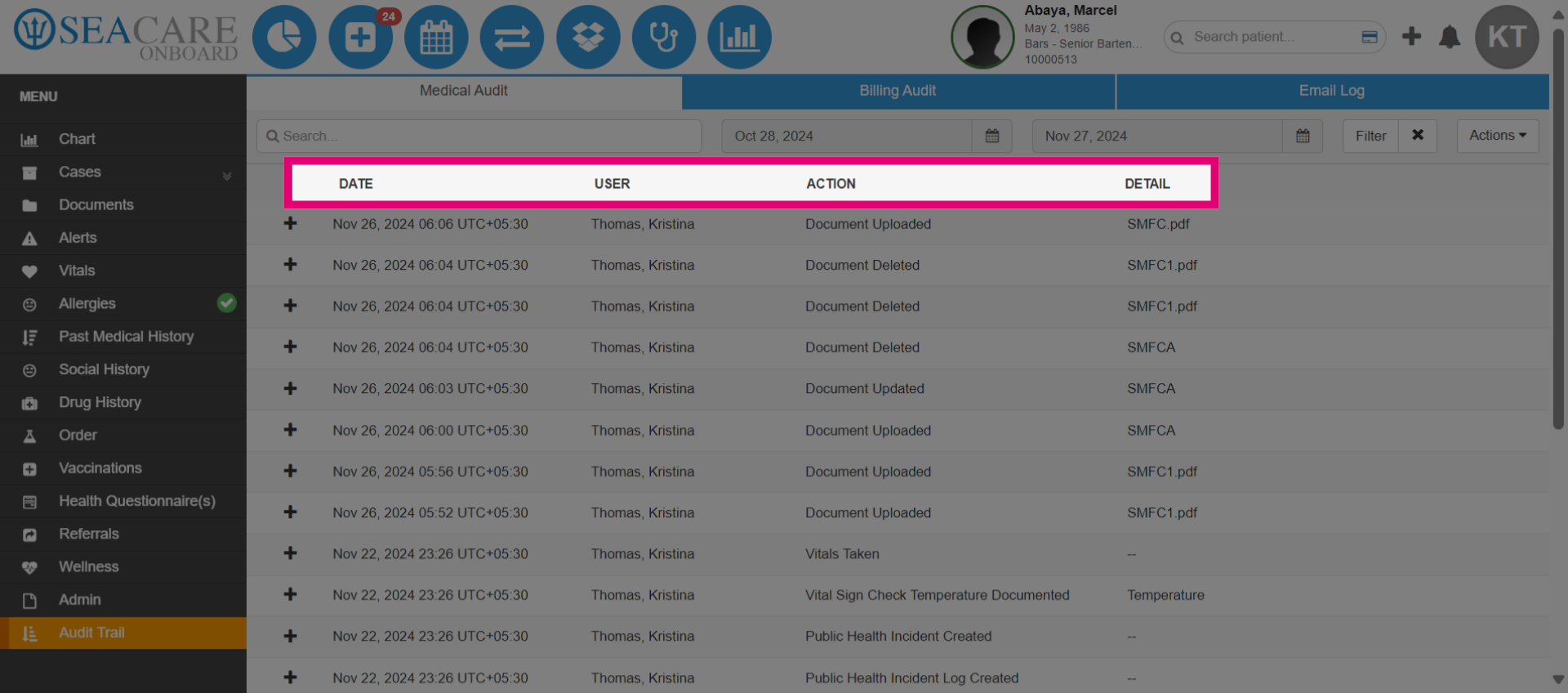
- To view further details about the entered action, expand the menu icon. This allows you to identify the latest updates in the audit trail.
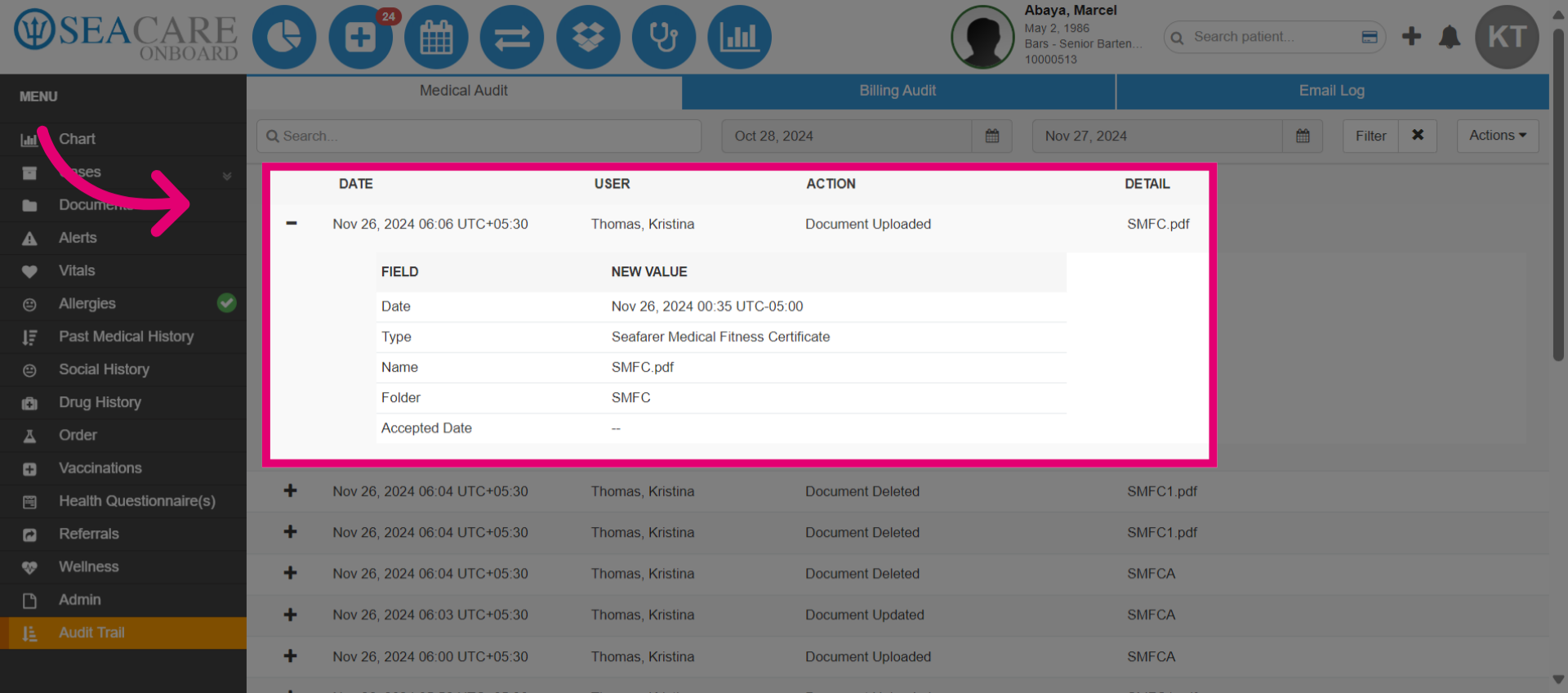
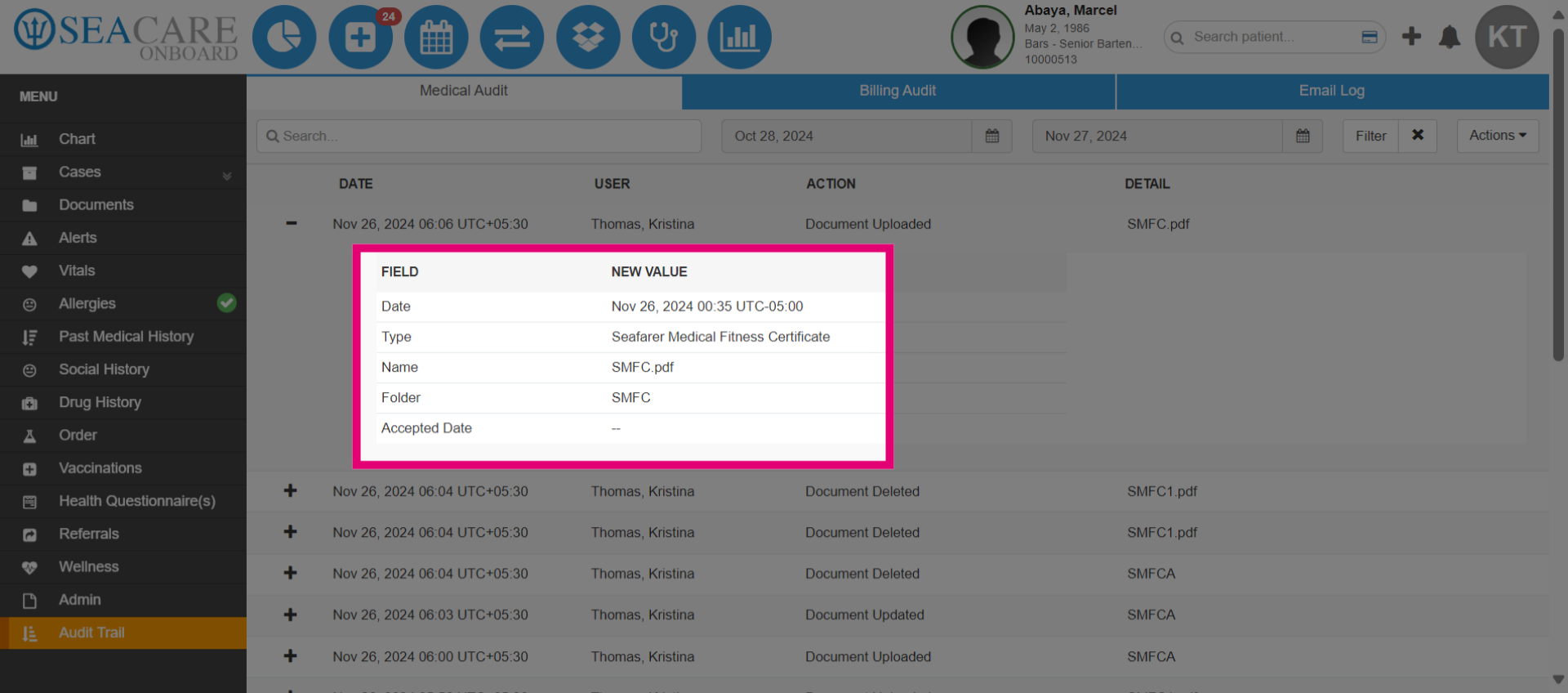
- This expanded view will display any new or updated values connected to the taken action.
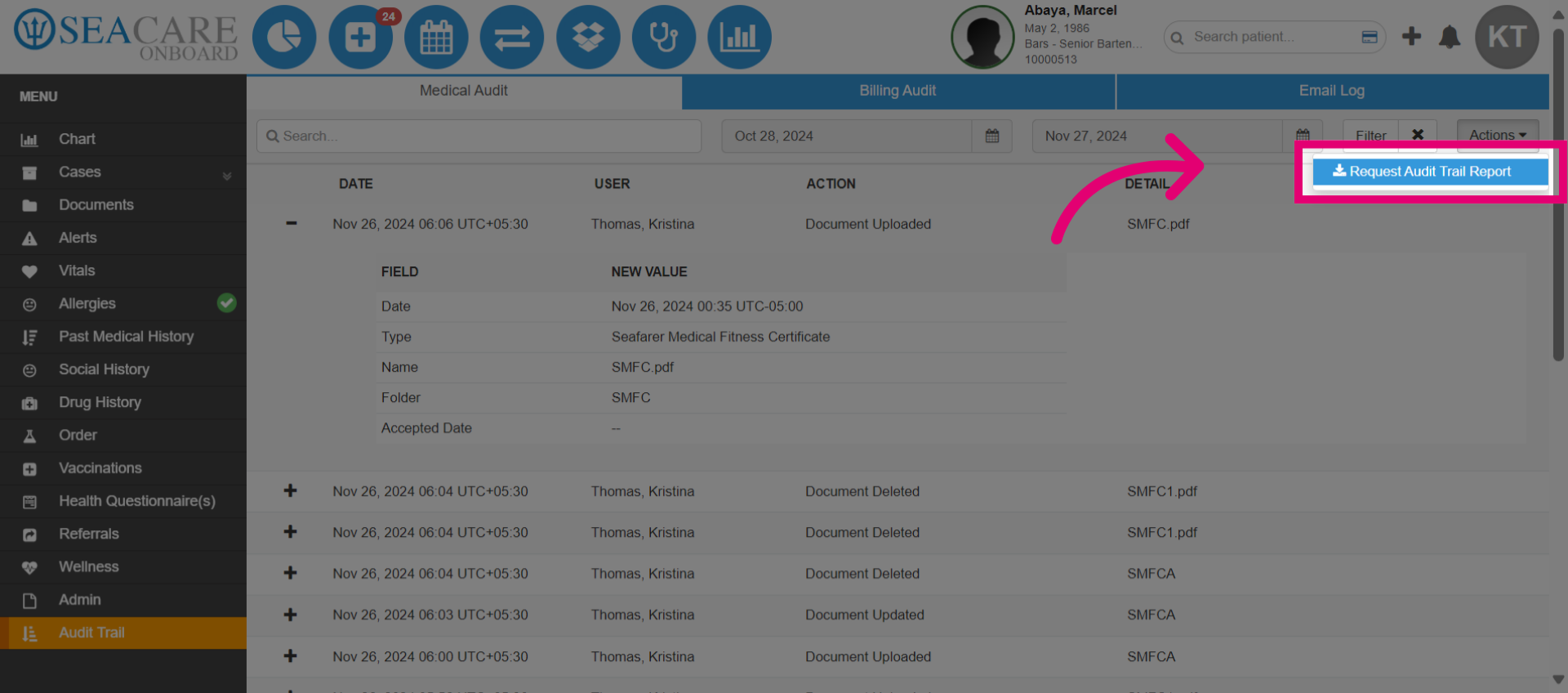
- Select the Actions button to request this report.
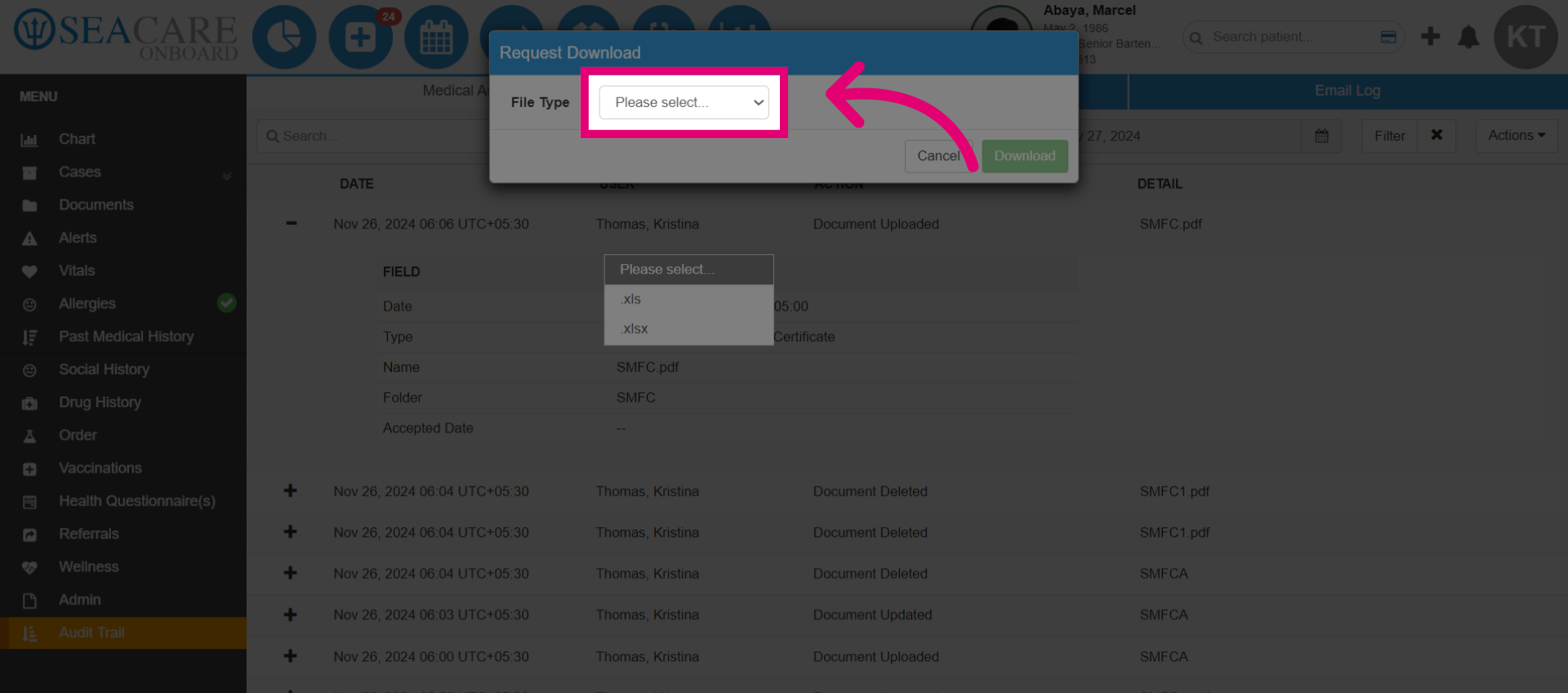
- Choose the spreadsheet format for your report.
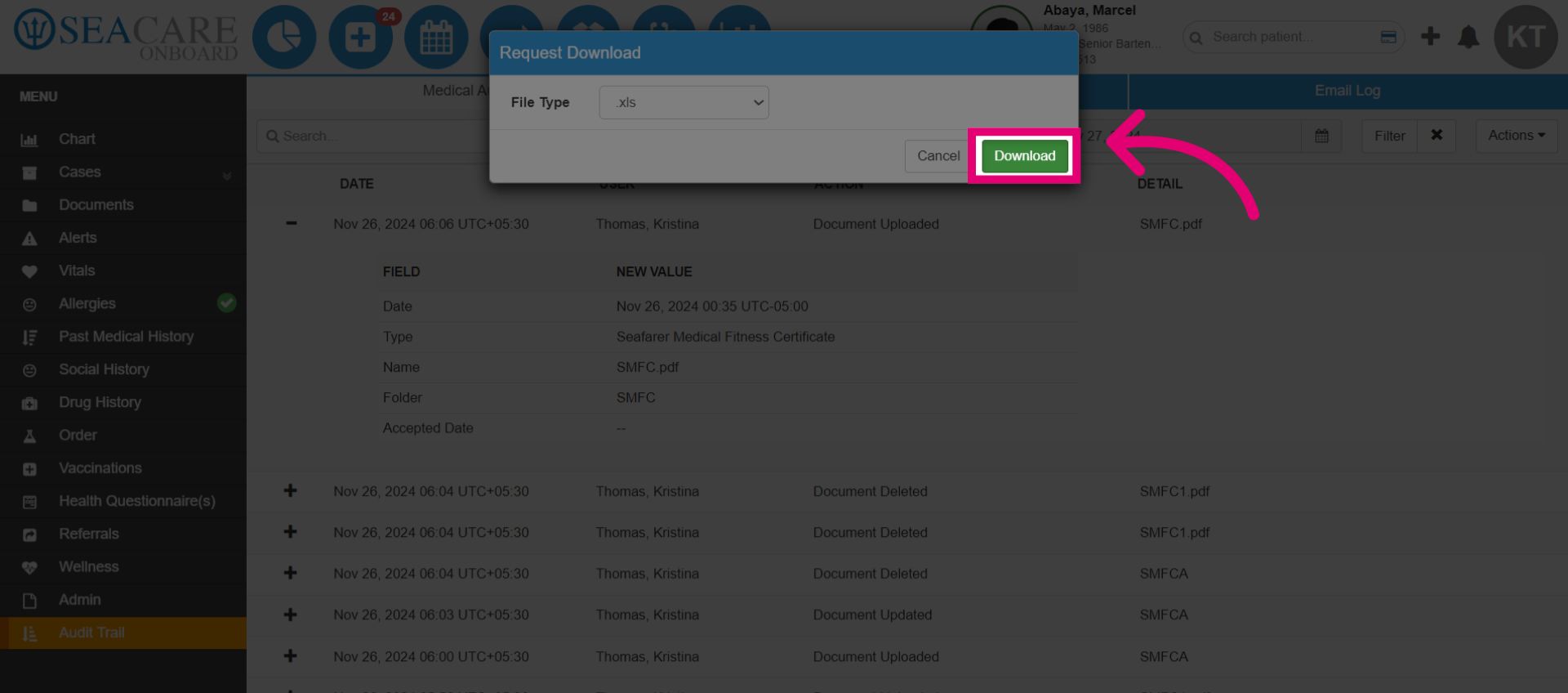
- Click Download.
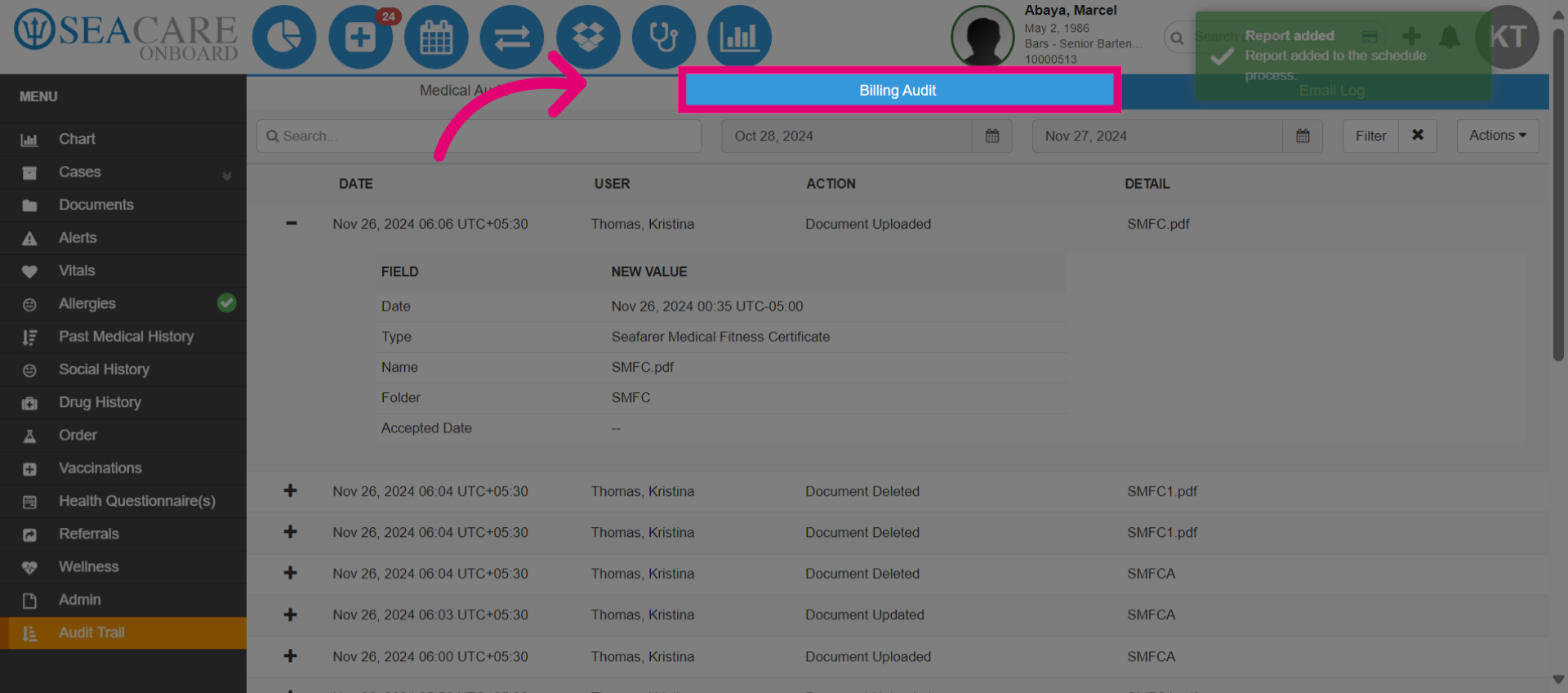
- Select the Billing Audit tab to review insights. Users can view the same filters and fields as in the Medical Audit section.
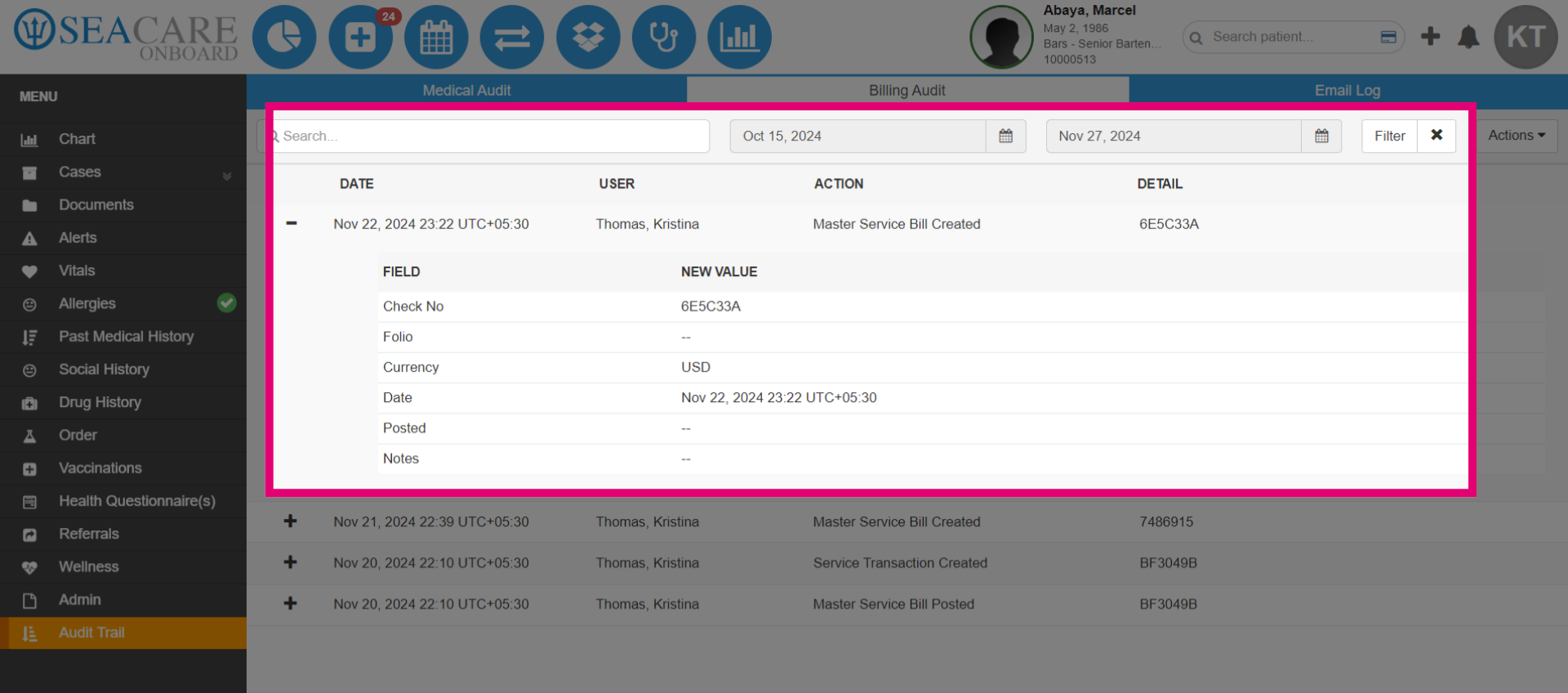
- After applying relevant filters and selecting the expanded menu icon, users can view the date, time, and time zone the bill was created or posted, the user who created or posted it, the action taken (such as creating or posting the bill), and details like the check number. New value information is also available.
- Review the email log for patient communication history, using the same filters and fields as in the Medical and Billing Audit sections.
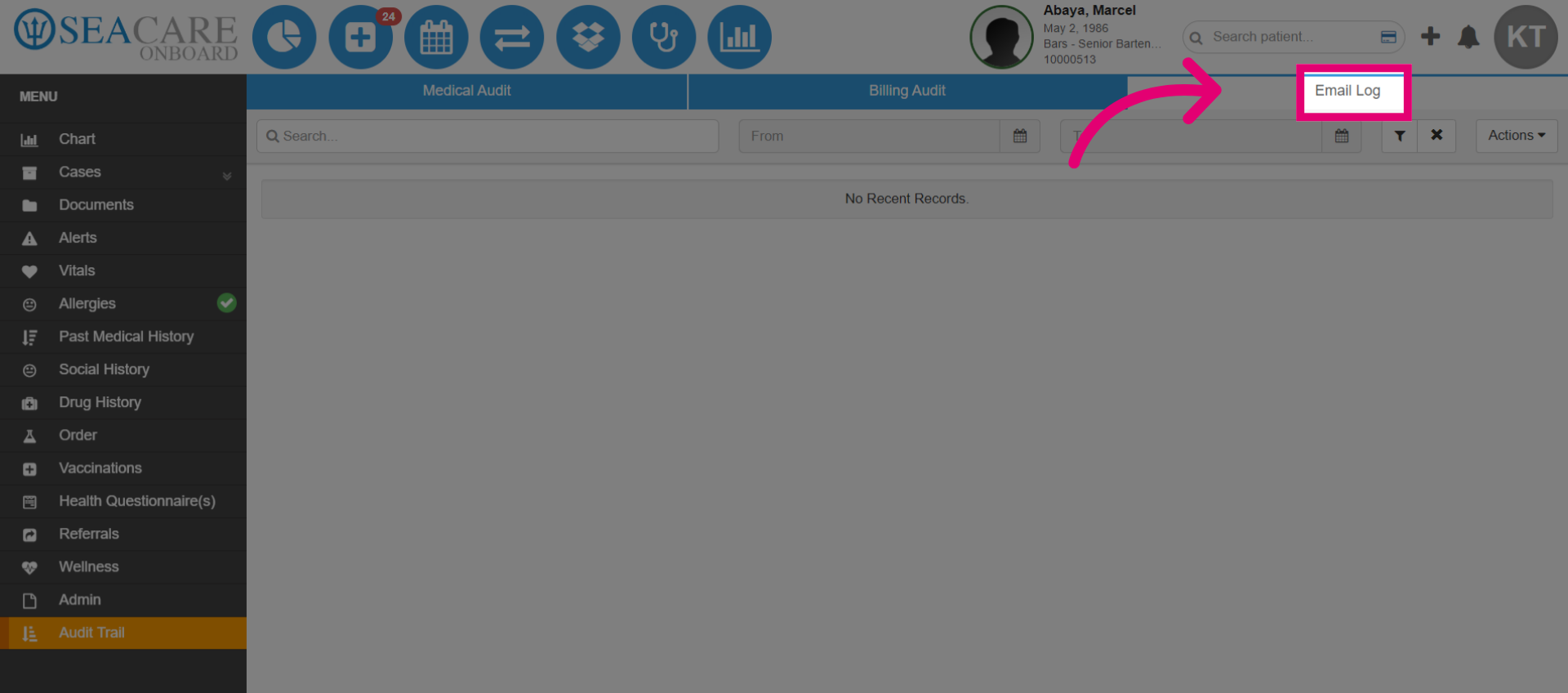
- Apply relevant filters to the email log.
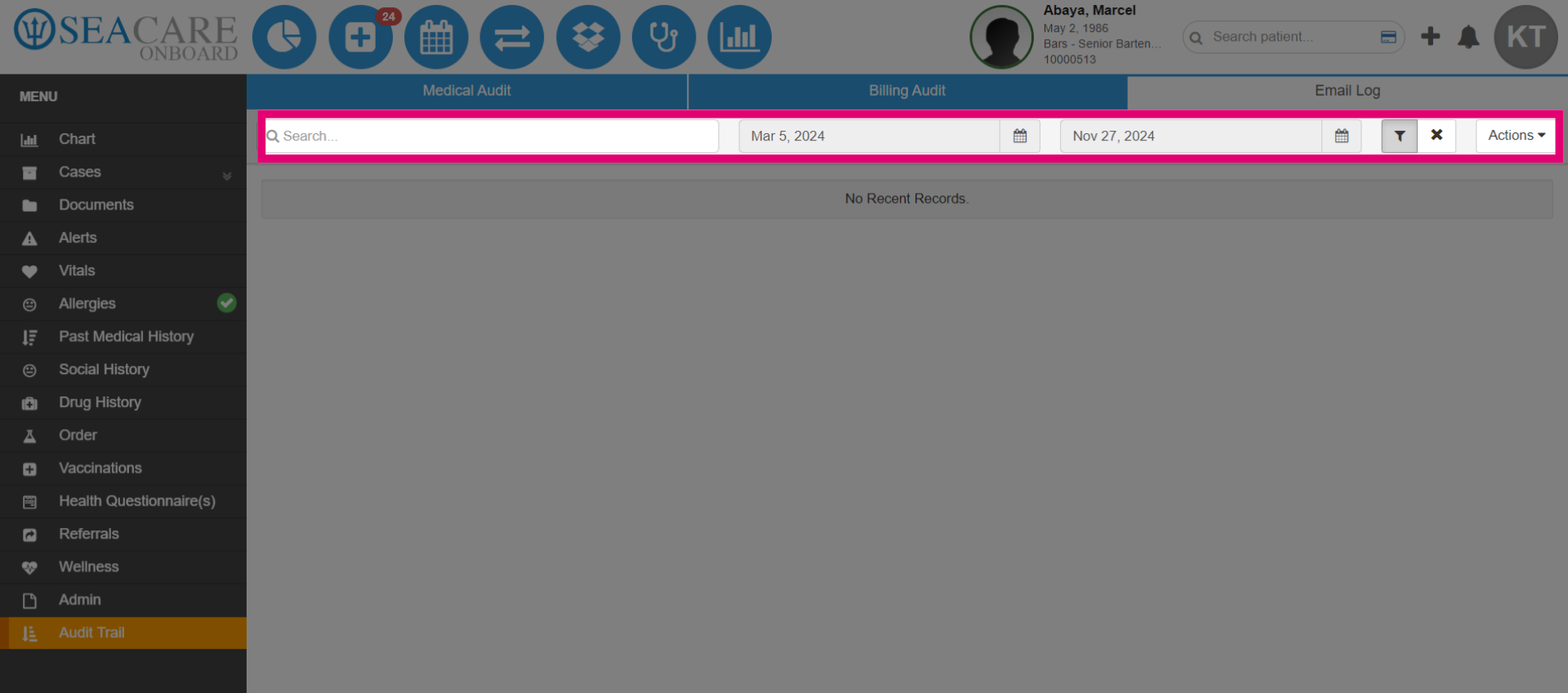
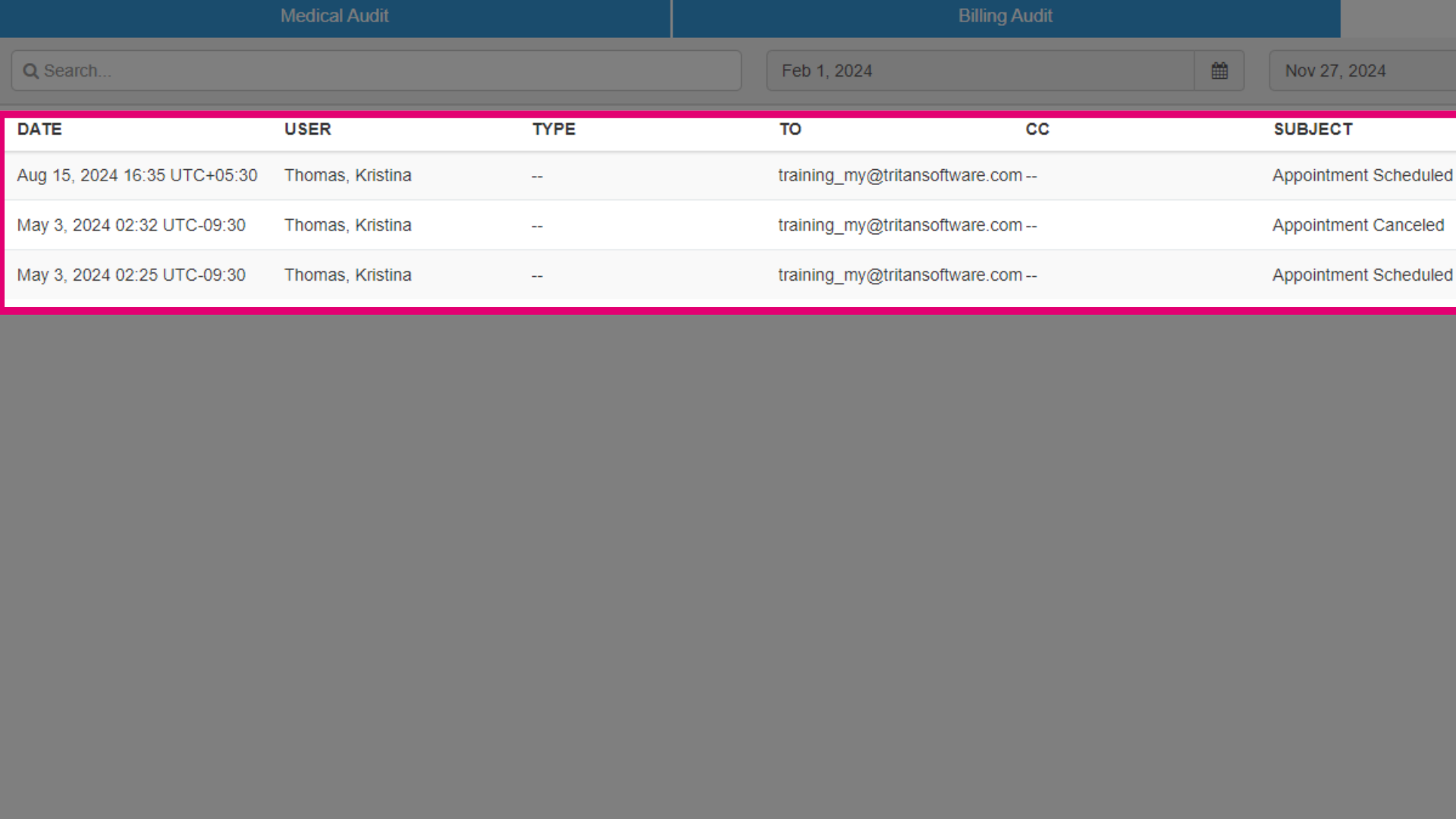
- After selecting a date range, results will display. Users can view the date, time, and time zone of the message, the user who sent it or set up the appointment, the type of message, the recipient email, any CC'd emails, and the subject, such as appointment cancellations.