New article
Recently updated
Documenting patient cases using advanced charting tools

Who is this article for?Users who want to learn to document patient cases using advanced charting tools.
No elevated permissions are required.
This guide provides an overview of strategies for documenting patient cases using advanced charting tools. It offers insights on efficiently using the patient chart menu to record vital information like allergies, medications, vital signs, medical history, orders, vaccinations, and serology results. Additionally, it helps the medical team investigate illnesses or injuries and assess the patient's condition across various health domains, including neurological and cardiovascular aspects.
By properly documenting these areas, onboard healthcare providers can ensure accurate diagnoses and a comprehensive view of the patient's health, leading to more informed patient encounters.
1. Documenting patient cases using advanced charting tools
1.1. Video
1.2. Steps
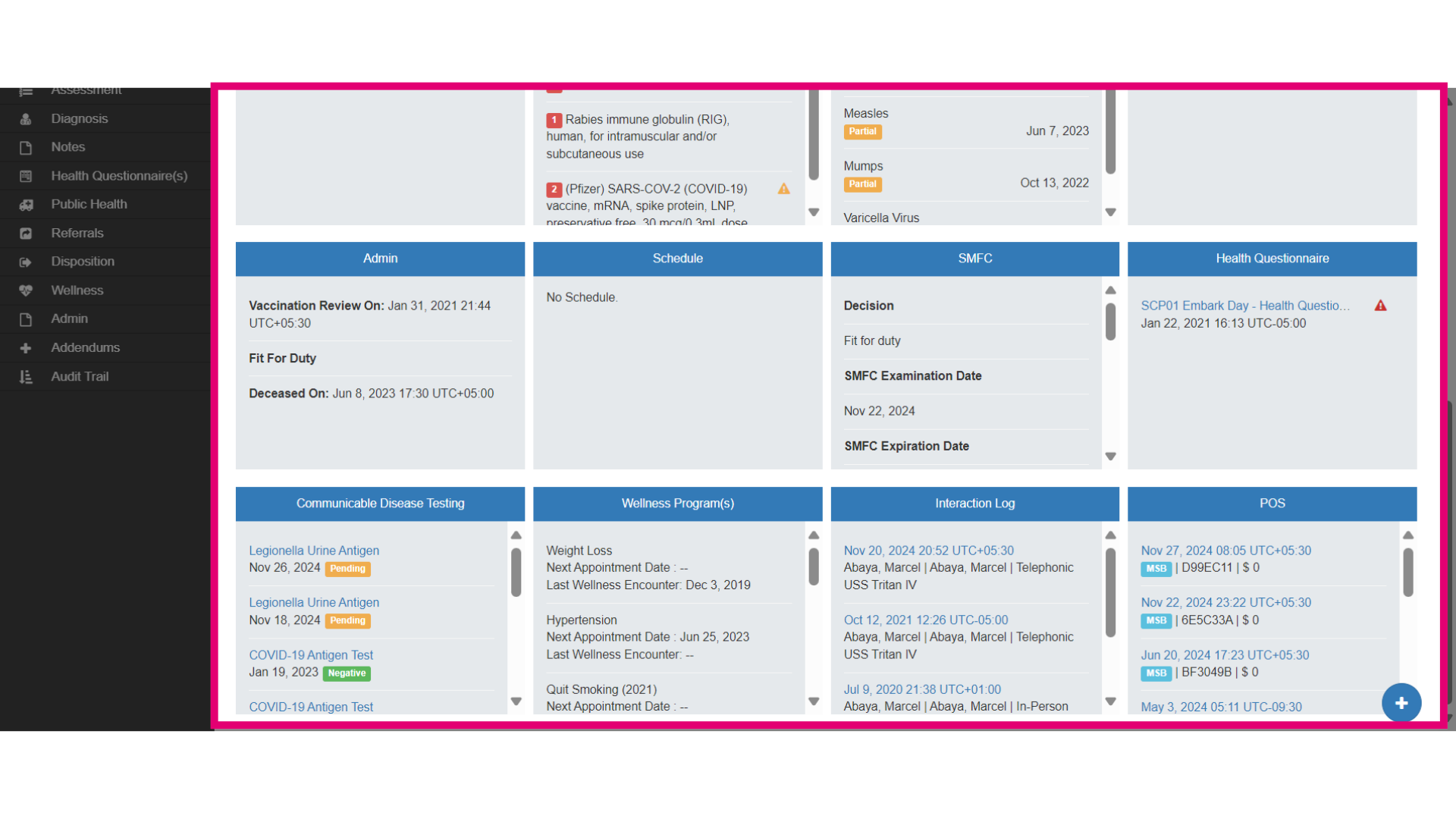
- The Chart section offers a quick view of the Patient Chart.
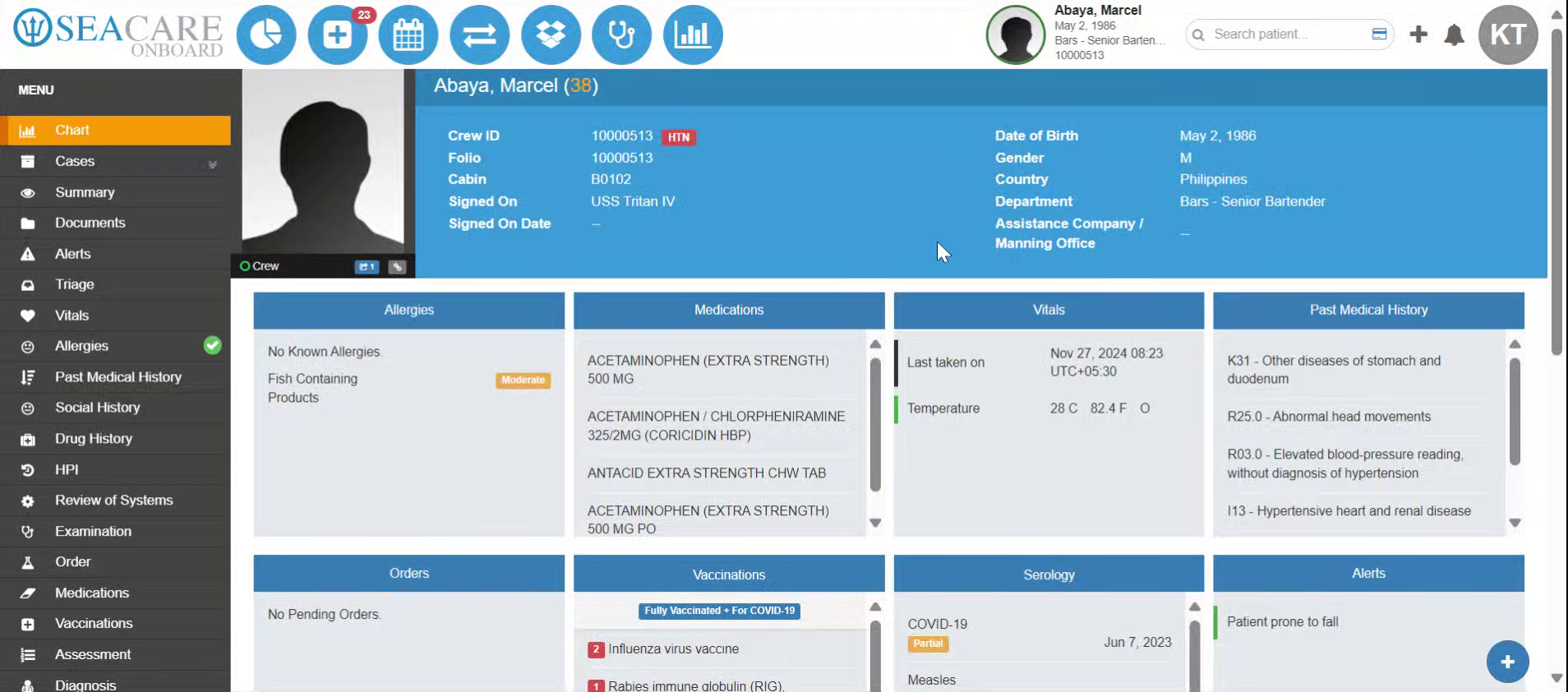
- Patient information is available and users can see any known Allergies, Medications, Vitals, Past Medical History, Orders, Vaccinations, Serology, and Alerts.
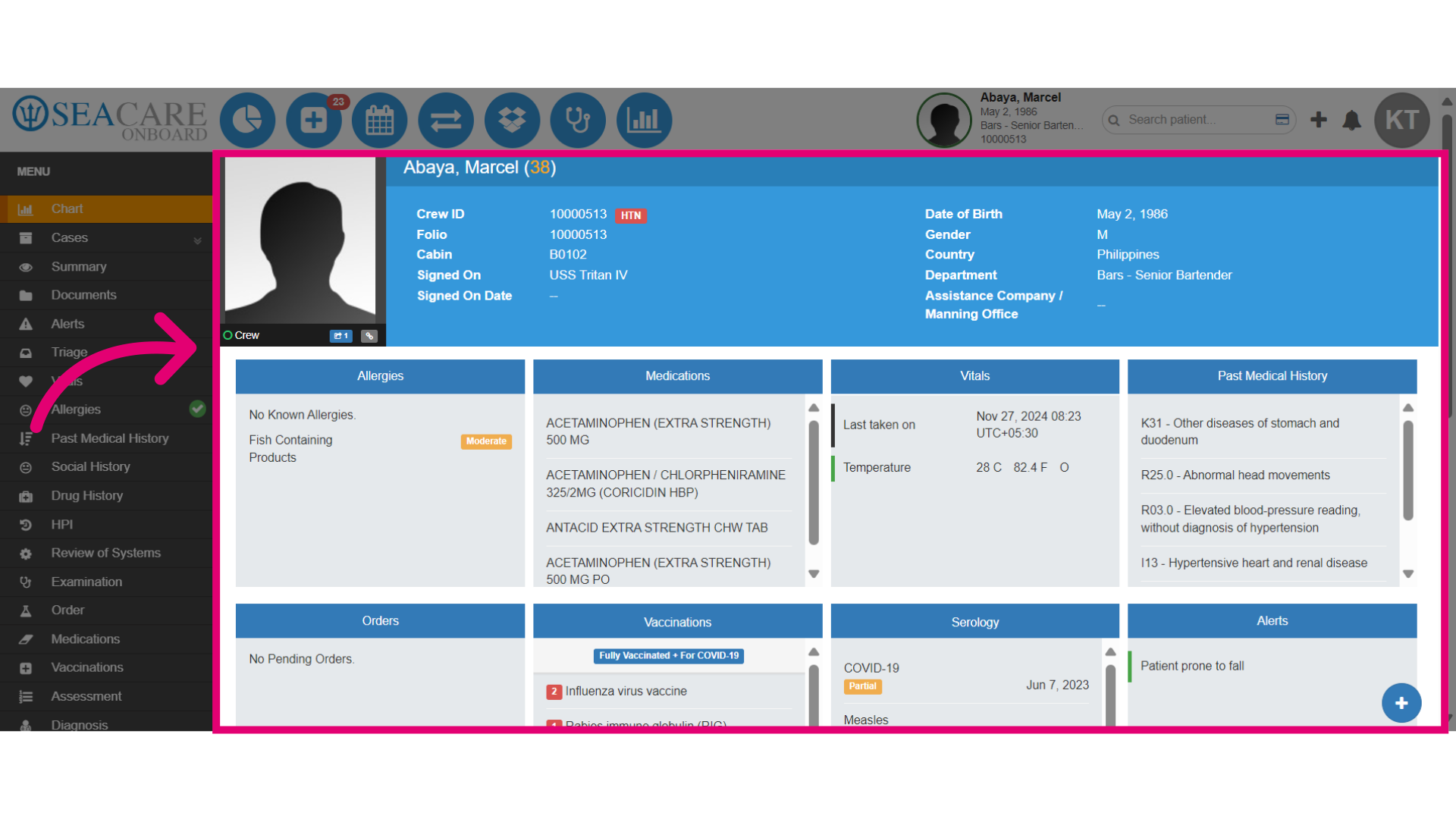
- Scrolling down, there is Admin, Schedule, SMFC, Health Questionnaires.
- There is also: Communicable Disease Testing, Wellness Programs, Interaction Logs, and P O S Transactions that pertain to this patient.
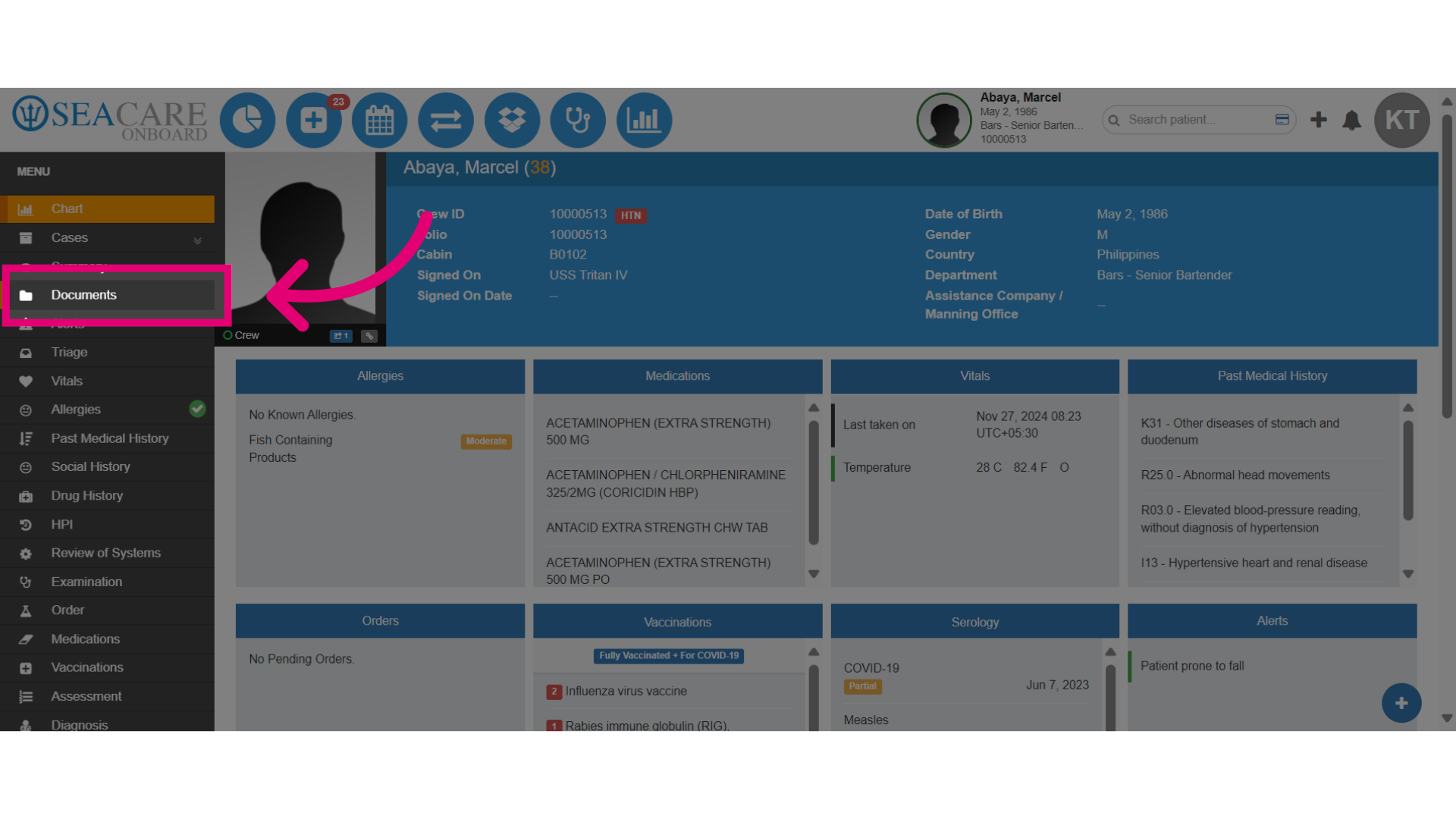
- Go to the Documents section to view patient files.
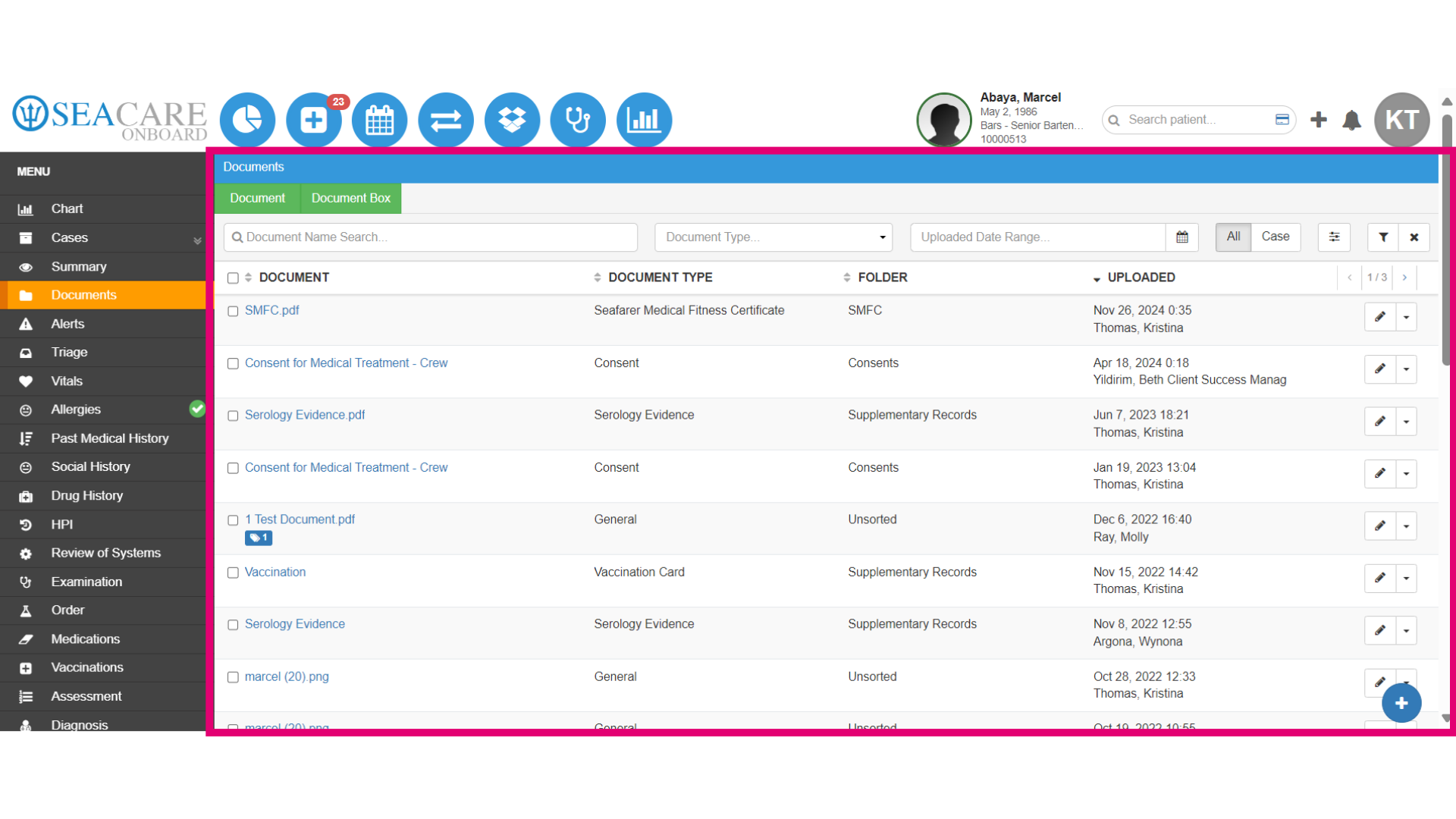
- The Documents section is where all Documentation is uploaded and stored. Here users can access documents such as Consents, Crew Medical, Crew Wellness, Forms, Messages, Orders, Prescriptions, Progress Notes, Referrals, and SMFC.
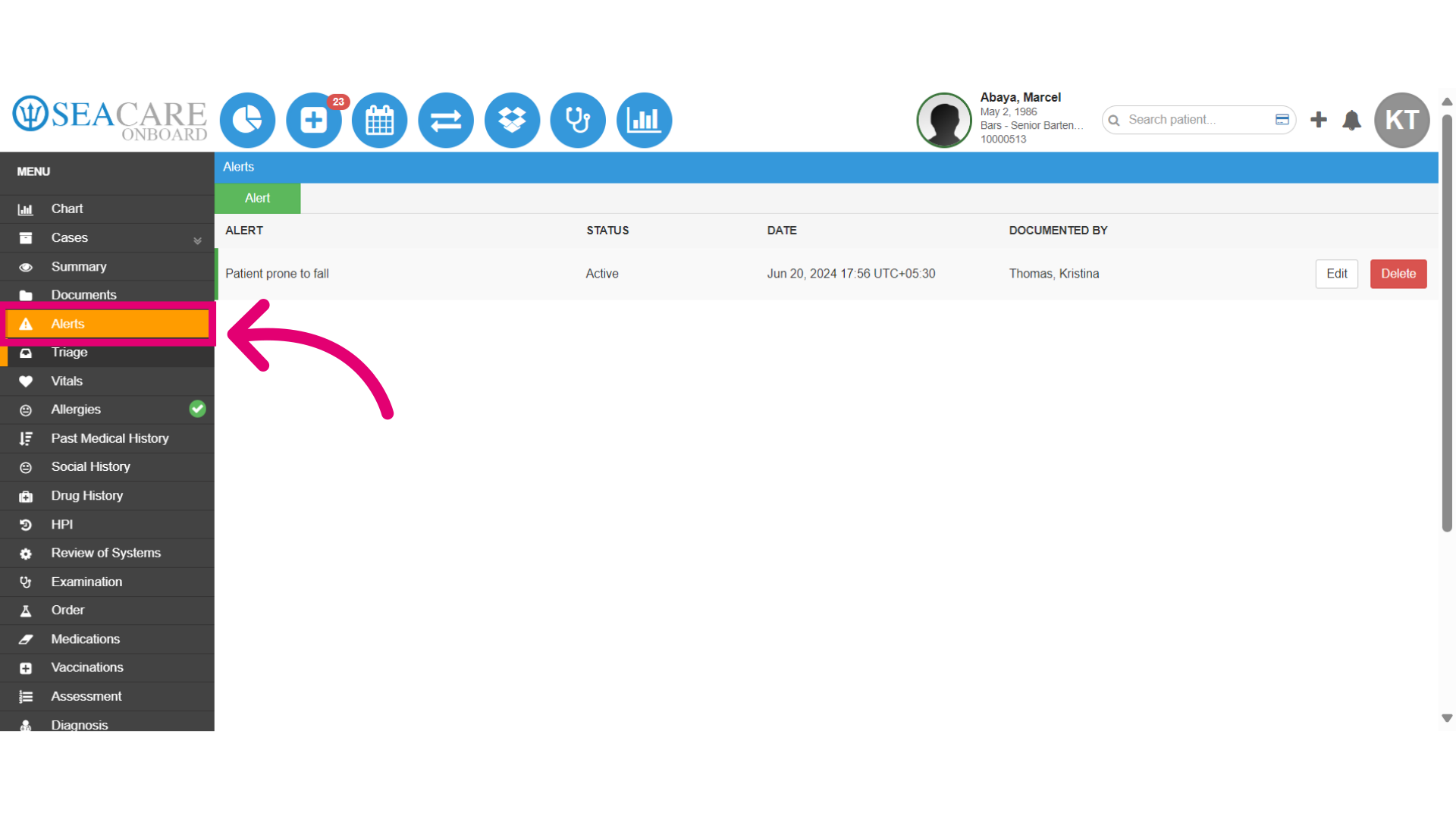
- Check for any Alerts regarding the patient's condition.
- Enter the Triage section to assess the patient's urgency. Categorise the case as non-urgent for appropriate handling.
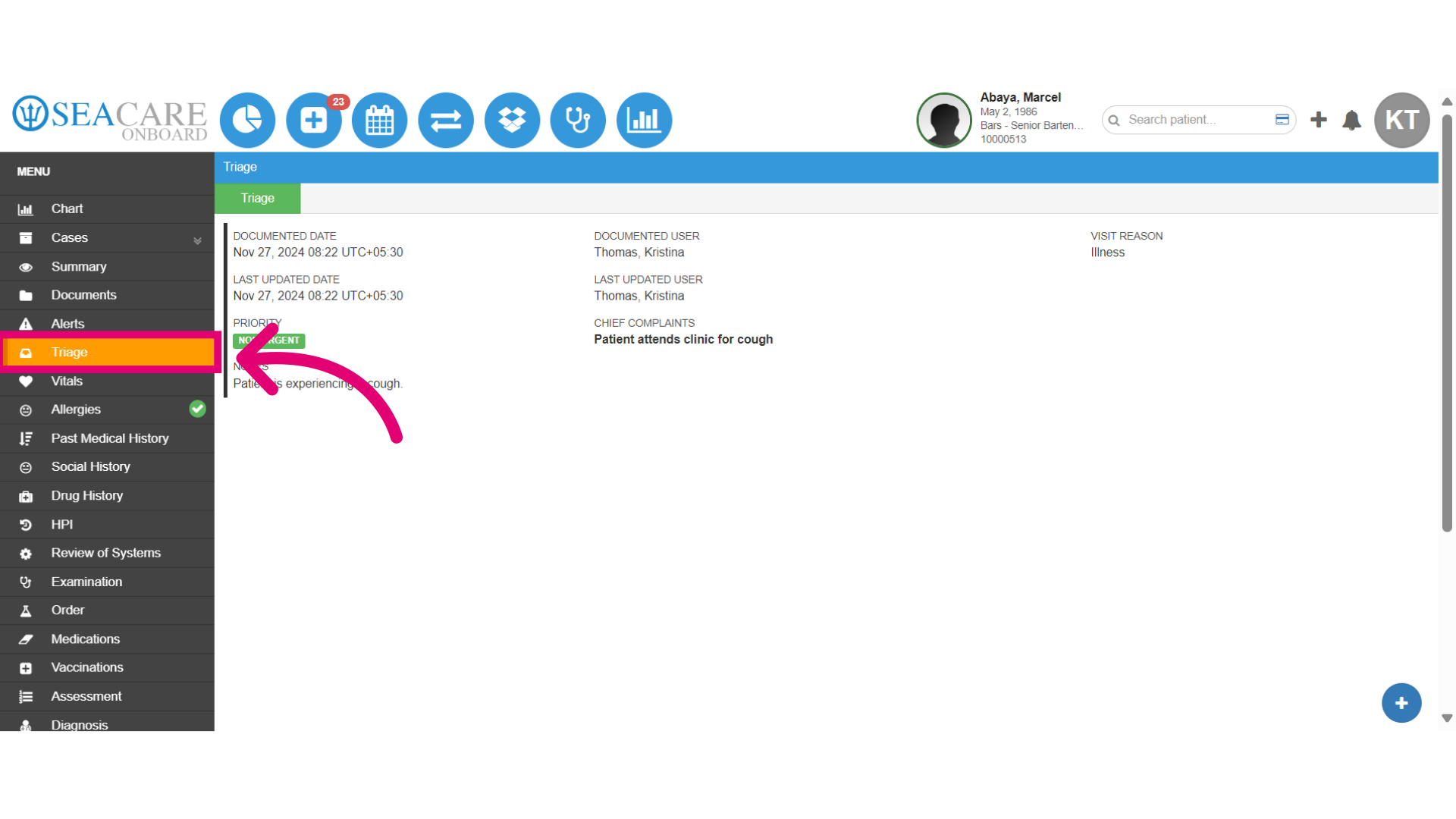
- Examine the vital signs for an overview of the patient's current health status. The Vitals section has three tabs, Vitals Charts, and Vital Signs Checks. This will show a history of all vitals entered into Ideagen Maritime Health. Users can filter the Vitals by Date to narrow down the list. The Charts tab will show this data in a graph.
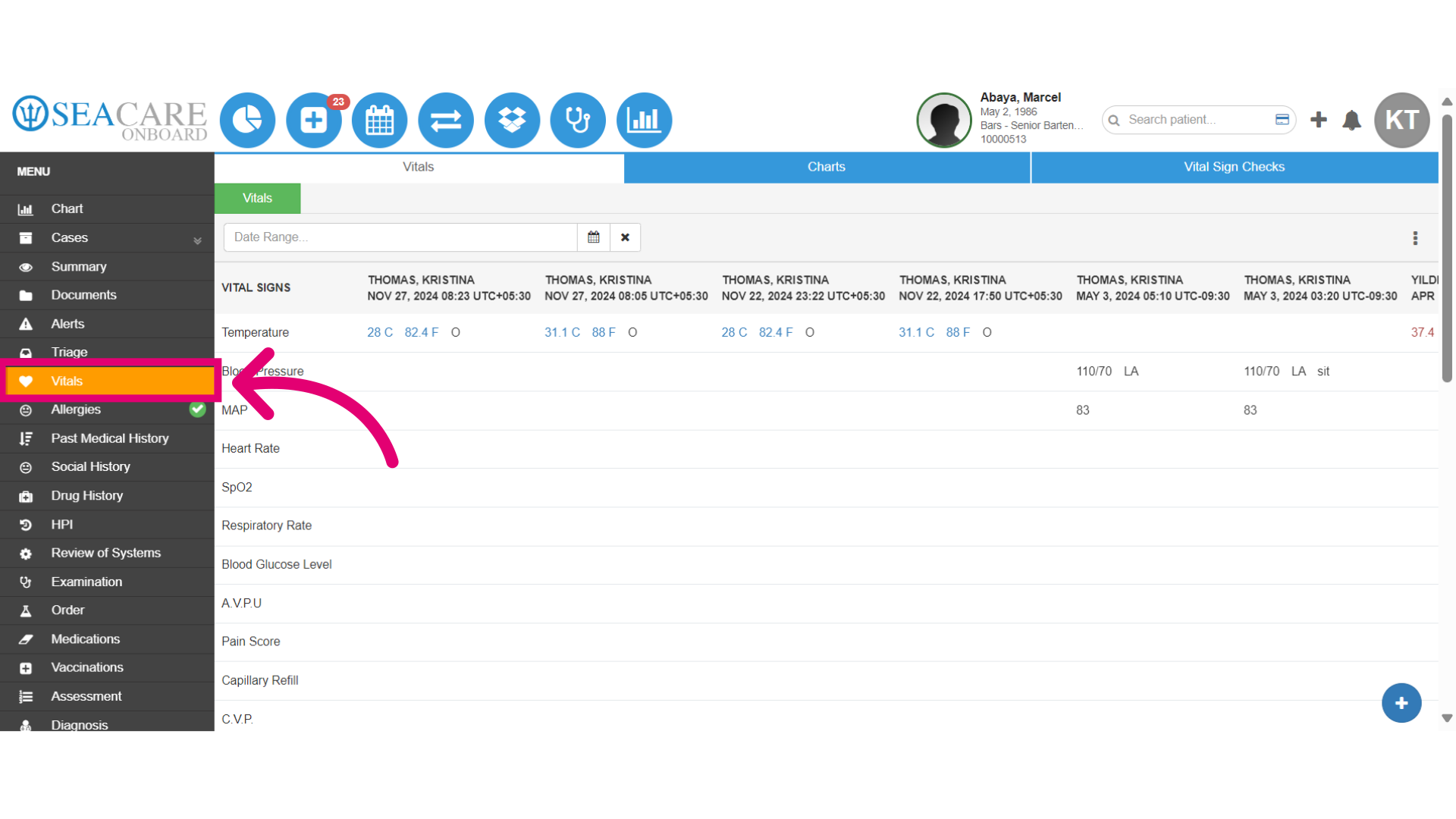
- Review the allergy information. The Allergies section will show all of the patient's known allergies or will display: “No Known Allergies” if the patient does not have any.
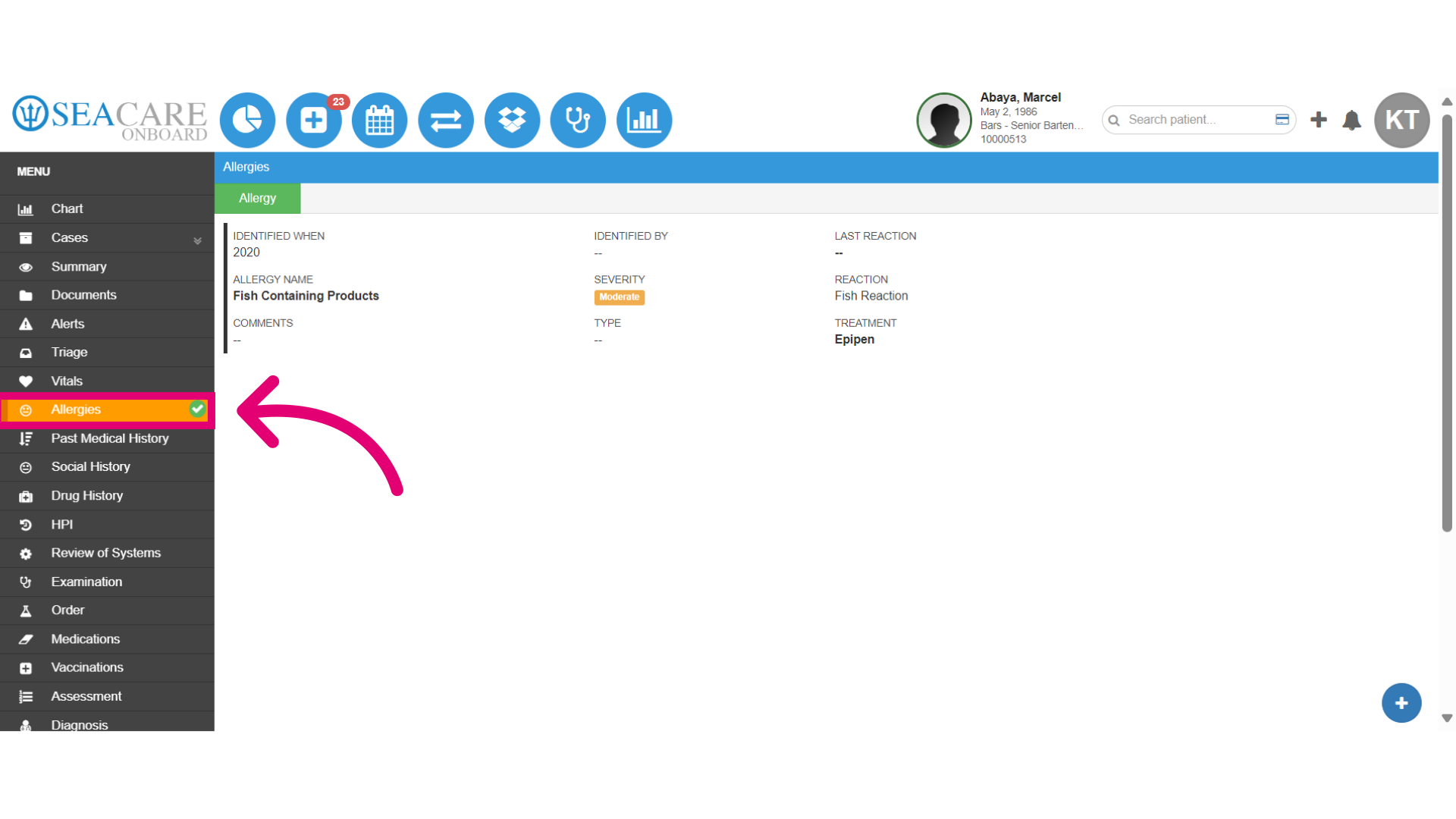
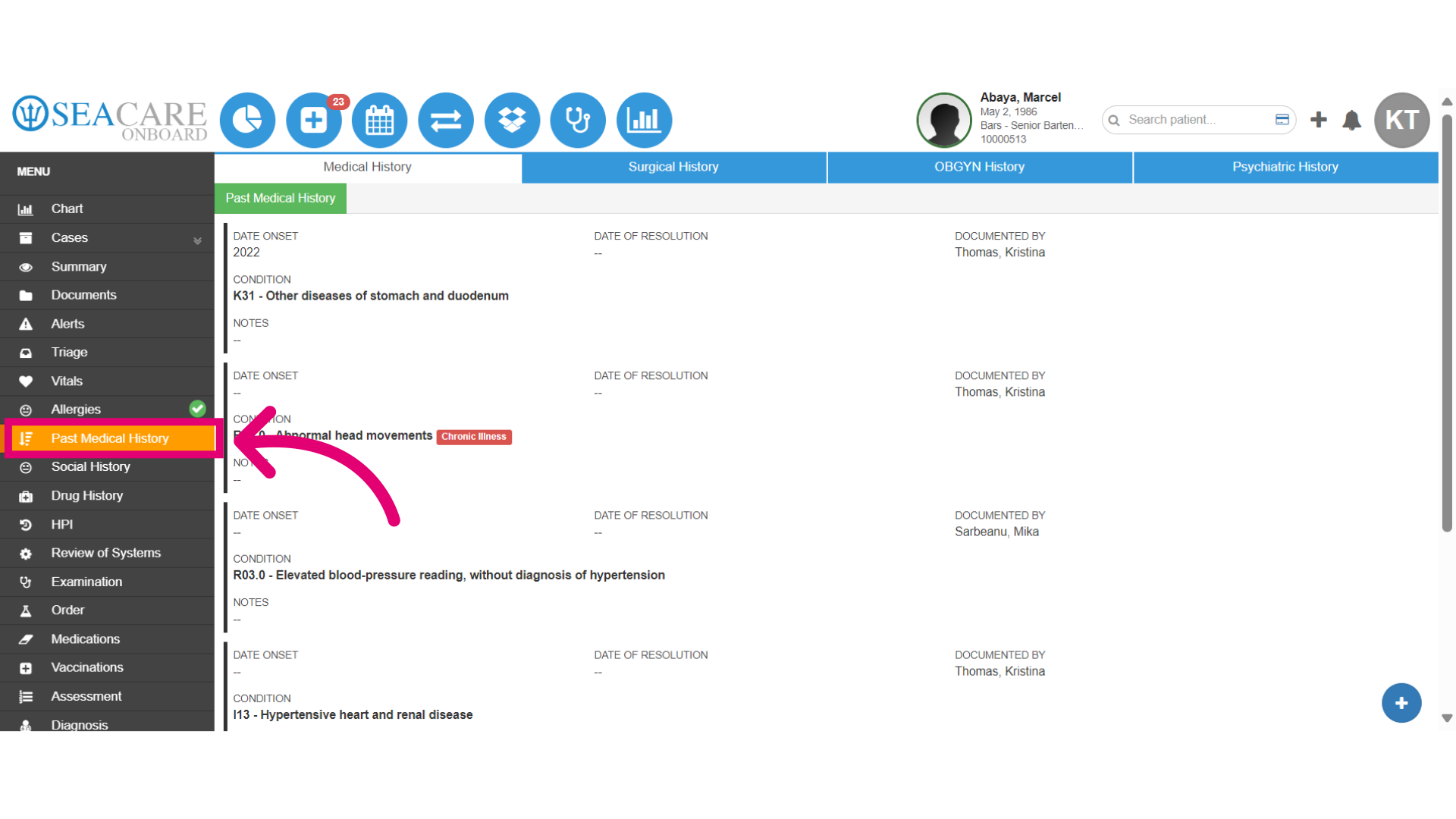
- Check past surgical records to understand previous interventions. The Past Medical History section has 4 tabs: Medical History: full history of medical problems. Surgical History: list of surgeries that have been performed on the patient. OBGYN History: History of OBGYN procedures. Psychiatric History: full history of psychiatric problems.
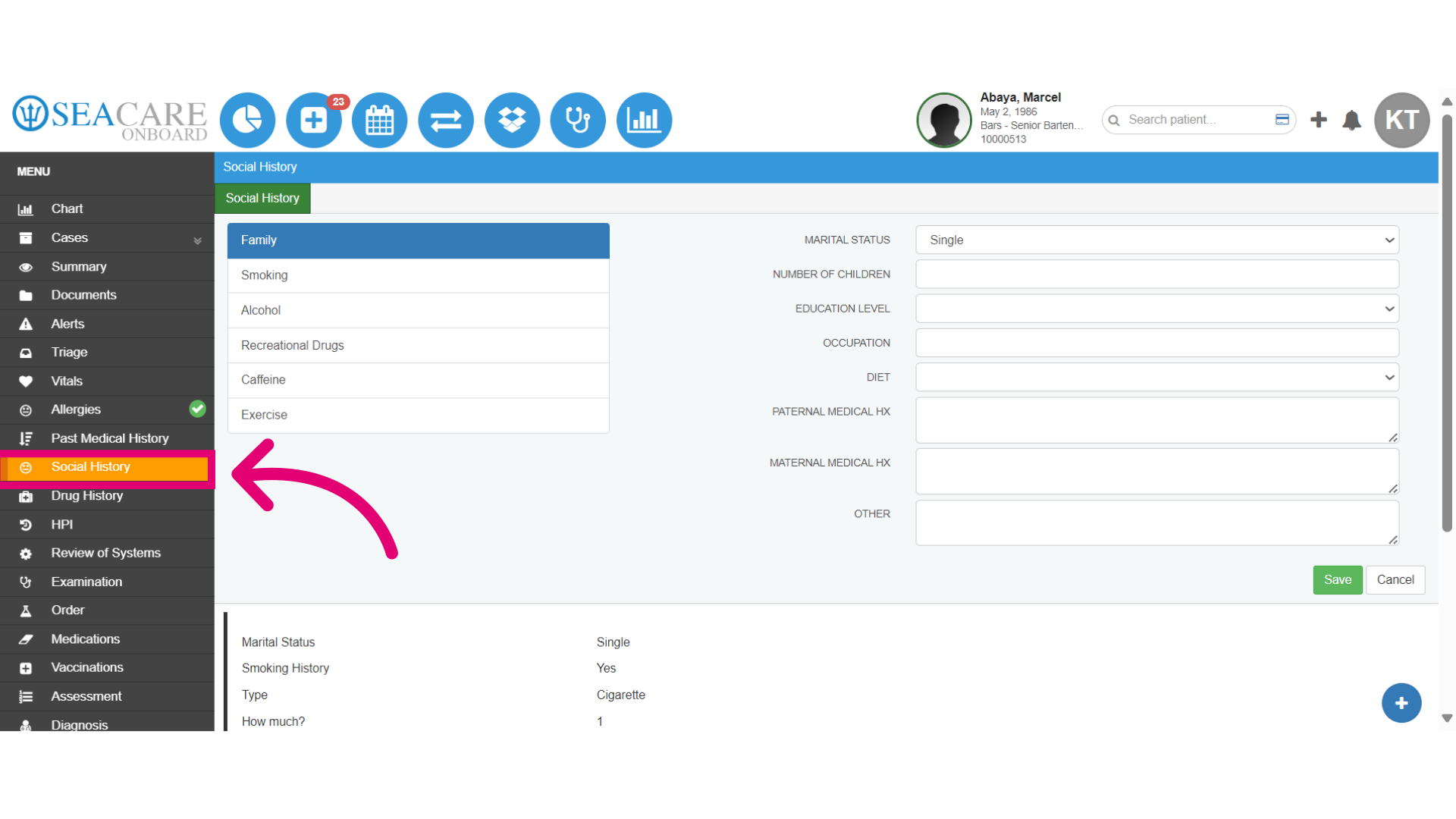
- Review all aspects of the patient's social history. The Social History section includes six main areas. Document anything related to the patient's family, including family medical history and marital status. Record smoking history, frequency, type, and age of onset. Note the history of alcohol use, including frequency and type. Detail the history of non-medical drug use, specifying type and frequency. Capture details about caffeine use, including type, frequency, and onset. Finally, describe exercise habits, including frequency and type of exercise.
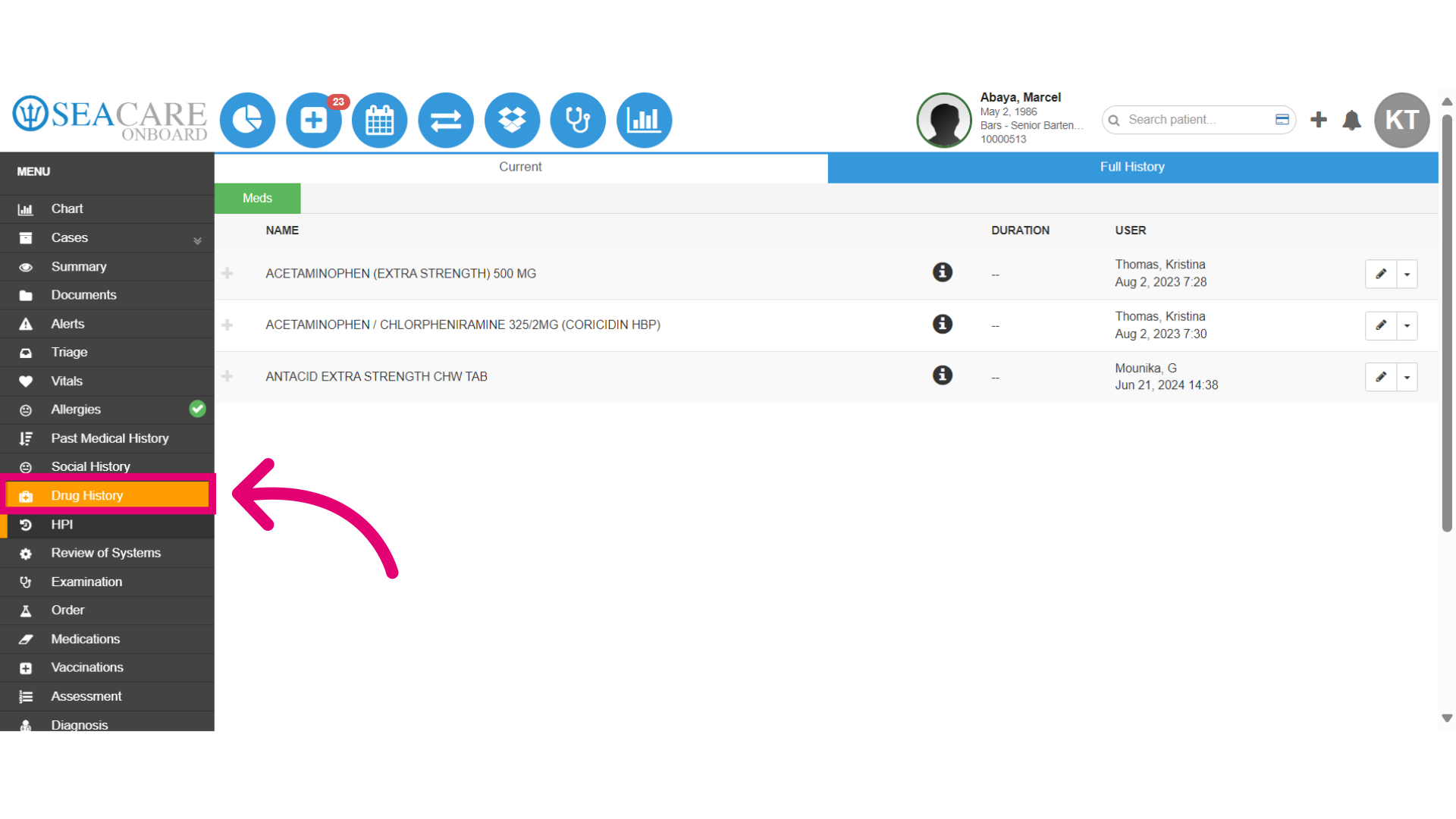
- The Drug History section includes two main areas. The Current tab lists all medications that the user is currently taking, including the name, dose, and frequency. The Full History tab contains information about any medication the patient has disclosed having taken or any medication that was prescribed at one point in Ideagen Maritime Health.
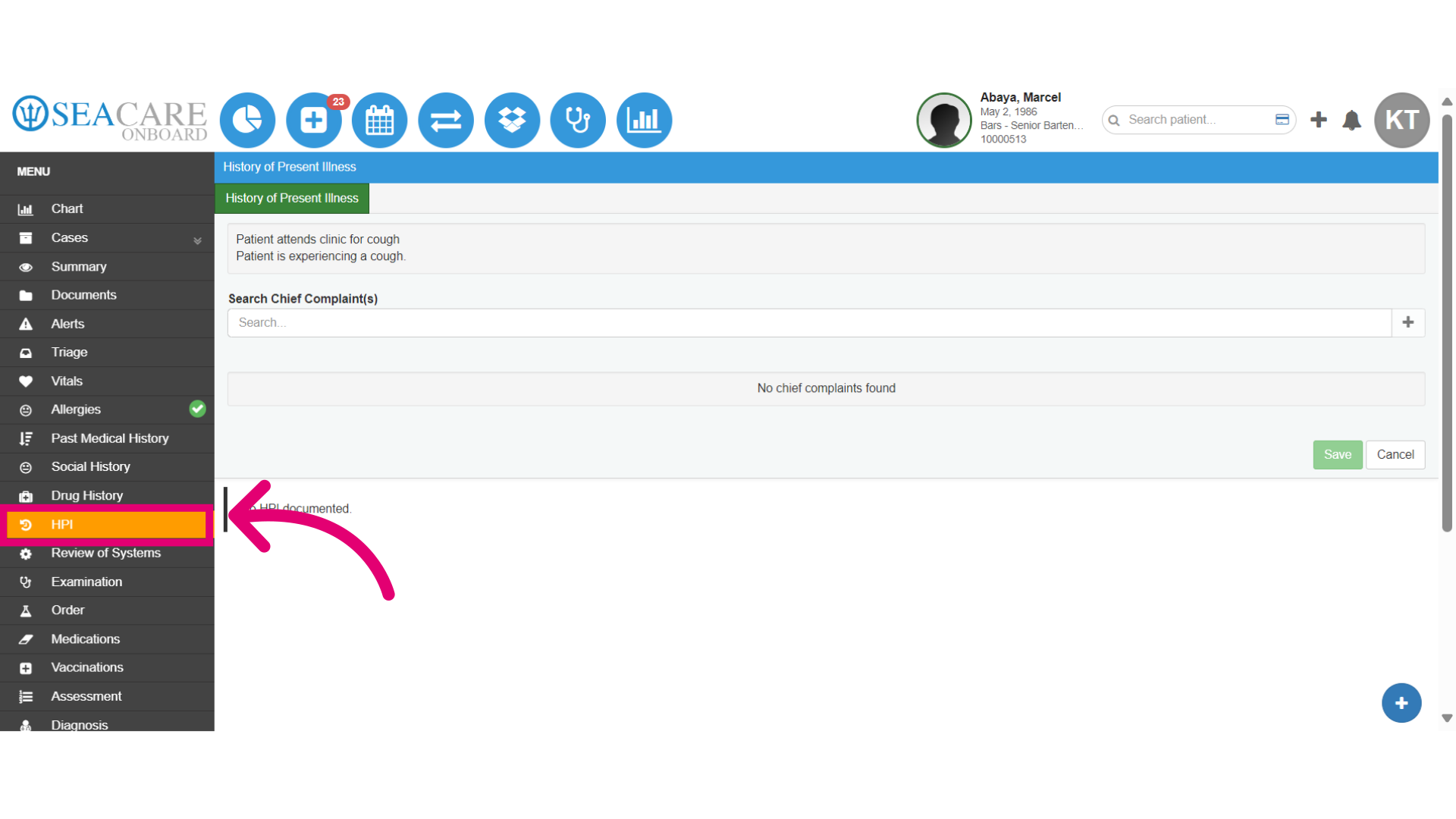
- Acknowledge the patient's reported symptom by recording he history of the present illness that the patient is complaining about. The HPI section shows the history of the present illness for this specific case. This is information that is related to the chief complaint.
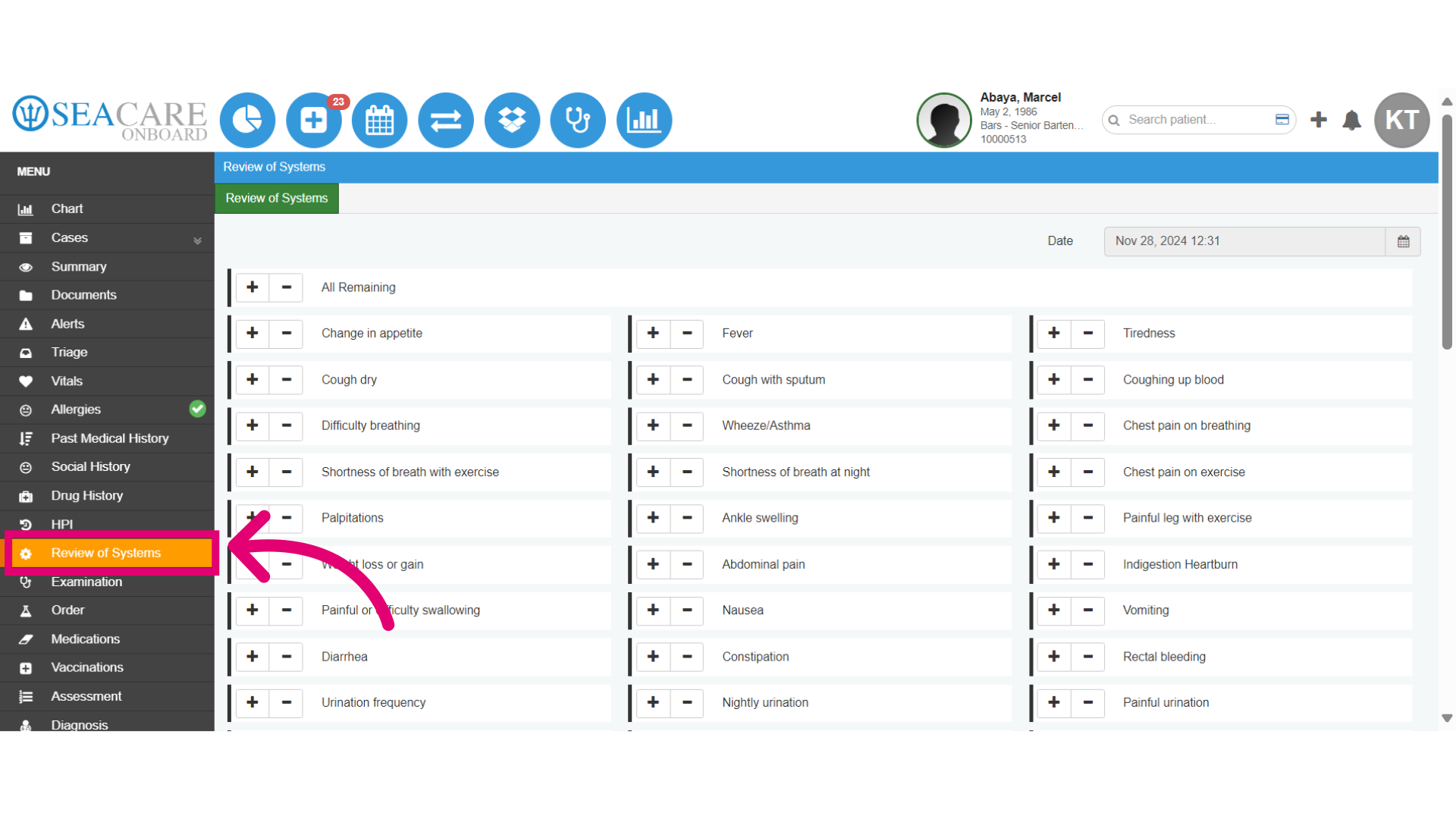
- Conduct a thorough systems review to identify any additional concerns. The Review of Systems section lists all the symptoms that the patient states and denies
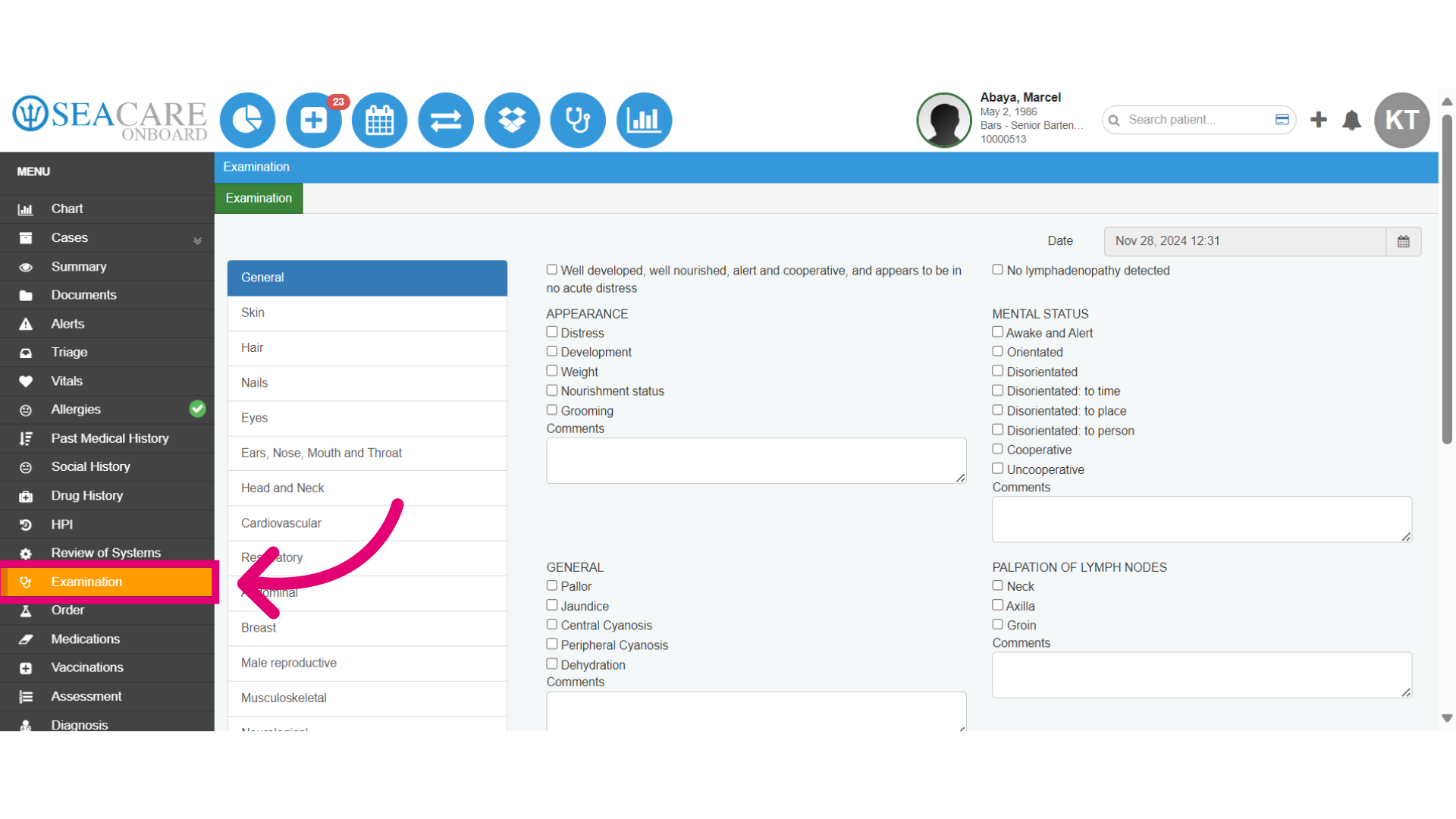
- Access the Examination section to record findings. The Examination section is divided into 16 parts covering general, skin, hair, nails, eye, ears, nose, mouth, throat, head and neck, cardiovascular, respiratory, abdominal, breast, male reproductive, musculoskeletal, neurological, psychiatric, and pediatric. If no specific category applies, users should check off “Well developed, well nourished, alert and cooperative, and appears to be in no acute distress.”
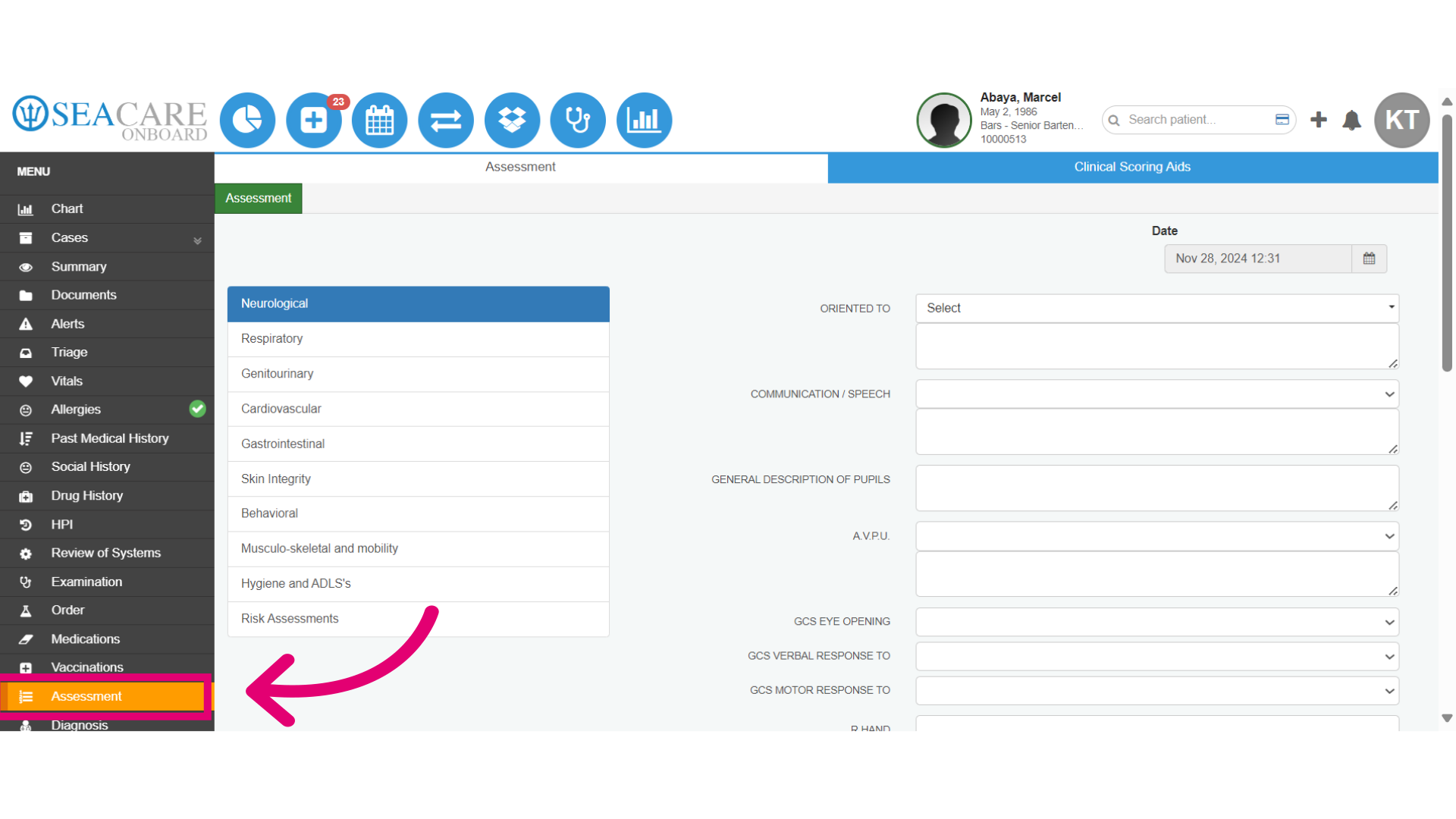
- Finally, view the Assessment section. Conduct an assessment for a comprehensive understanding of the patient’s condition. Also, utilize Clinical Scoring Aids to evaluate patient risk and treatment options. Select the date for the assessment entry.