New article
Recently updated
Navigating the Dashboard tab in Ideagen Maritime Health Onboard

Who is this article for?Users who want to learn to navigate the Dashboard tab in Ideagen Maritime Health Onboard.
No elevated permissions are required.
This guide will provide a walkthrough for navigating the Dashboard Tab of Ideagen Maritime Health Onboard, focusing on key features and settings.
1. Navigating the Dashboard tab
1.1. Video
1.2. Steps
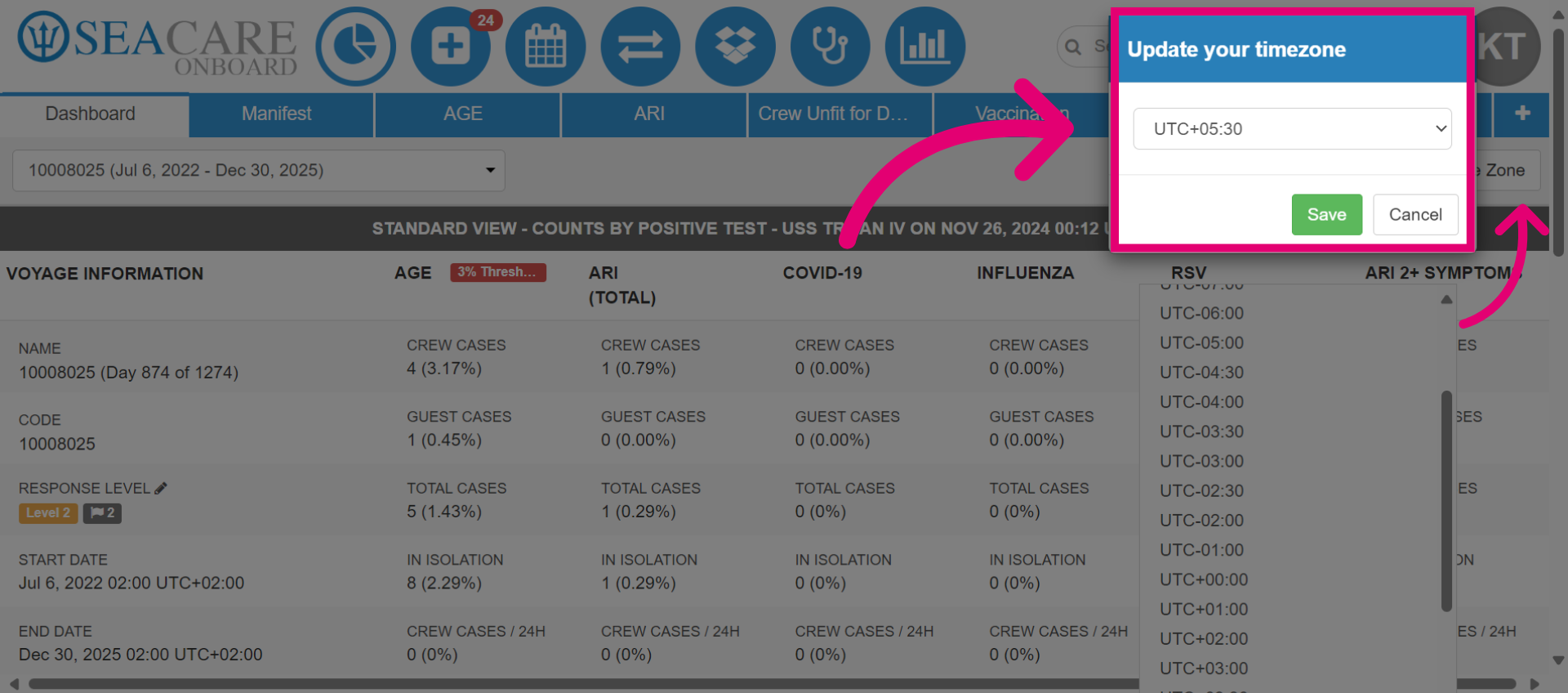
- Choose and Save your current time zone.
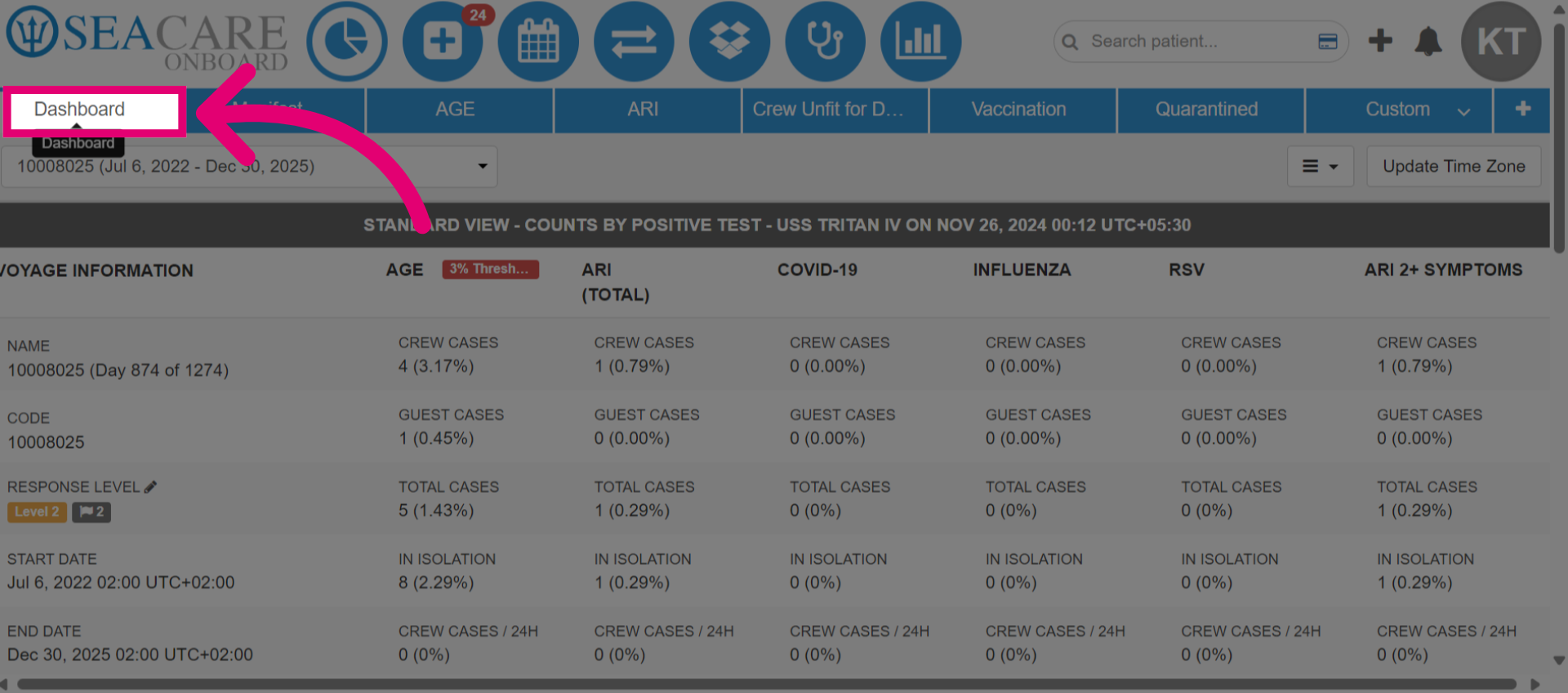
- By default, you will access the dashboard tab as the main page.
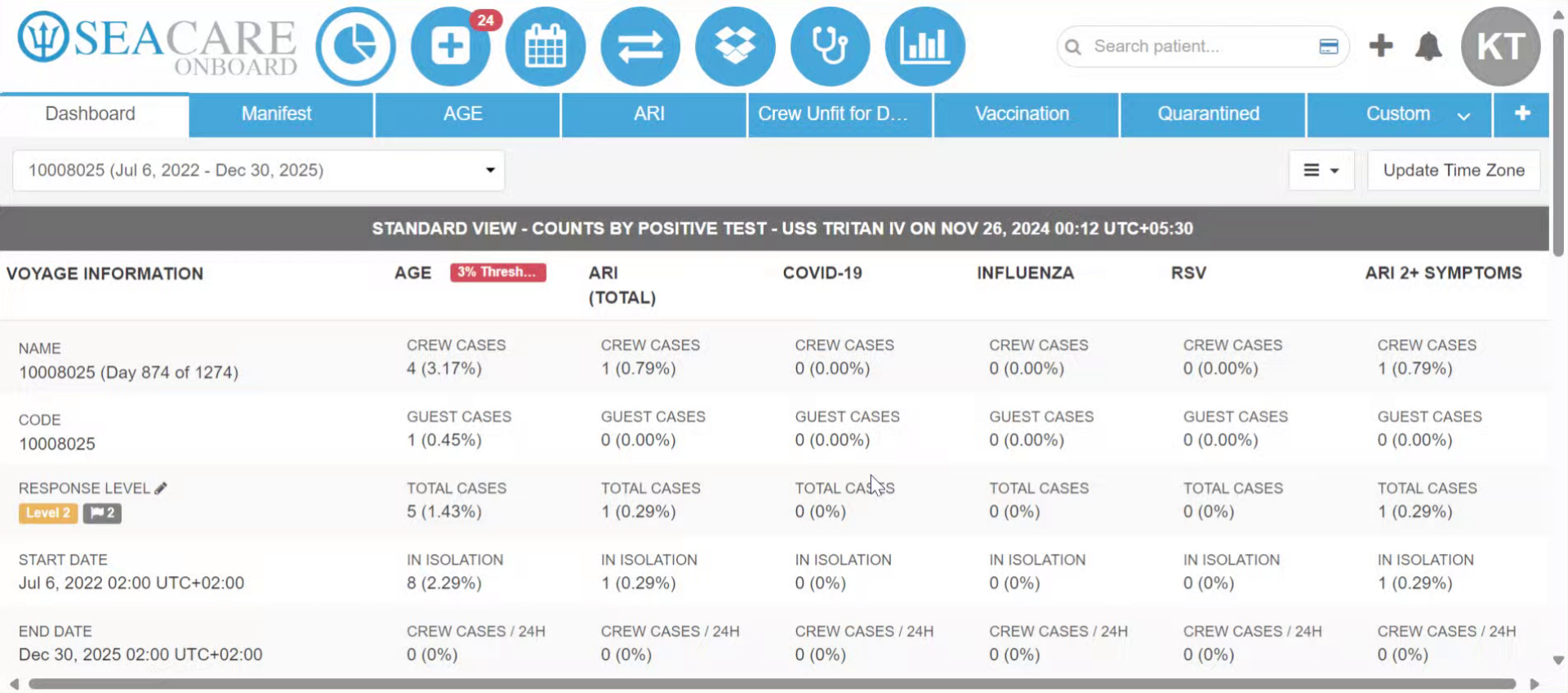
- Which will give you an overview of key metrics related to the voyage and public health data.
- Search for or select a voyage from the dropdown option to view the details and data for that voyage on the dashboard. The voyage name, code, start and end dates can be selected from the options.
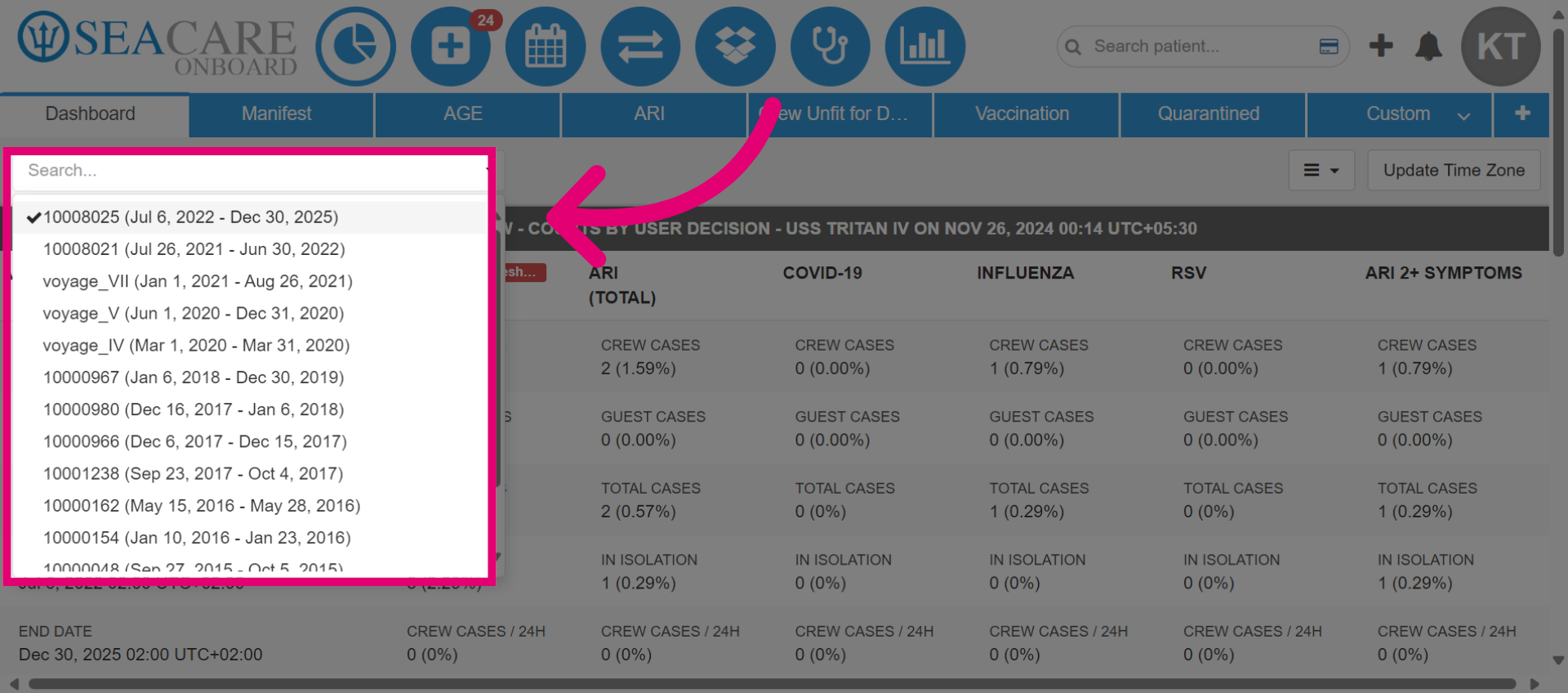
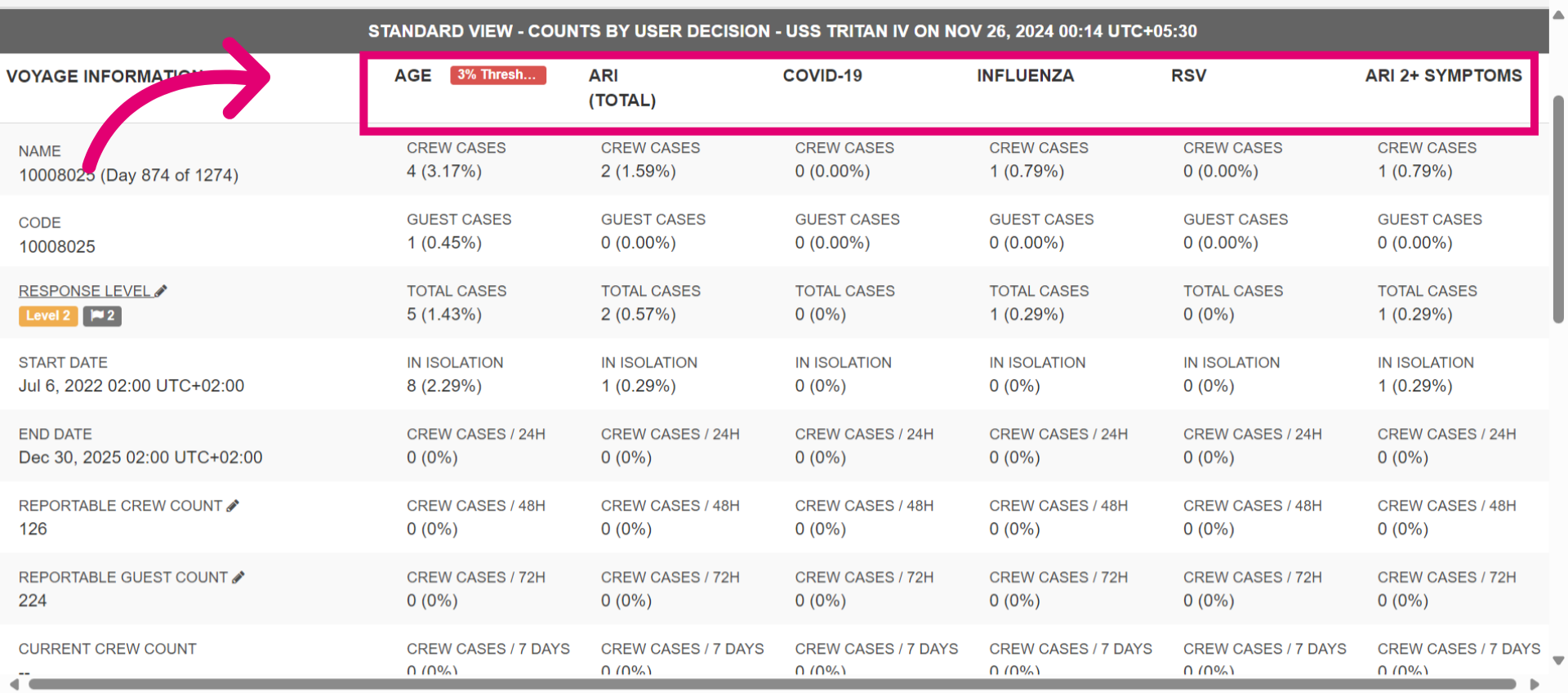
- The dashboard displays data for public health cases documented for crew and guests within the seacare system for the voyage. You get instant up to date information about the number of crew members and guests, communicable disease cases such as A G E with the percentage of the outbreak threshold reached, A R I, Covid-19, Influenza, R S V, and A R I 2 + Symptoms. The percentages affected are shown. Along with the total cases, isolated cases and the over time periods such as 24 hours, 2 hours, etc. for CDC reporting.
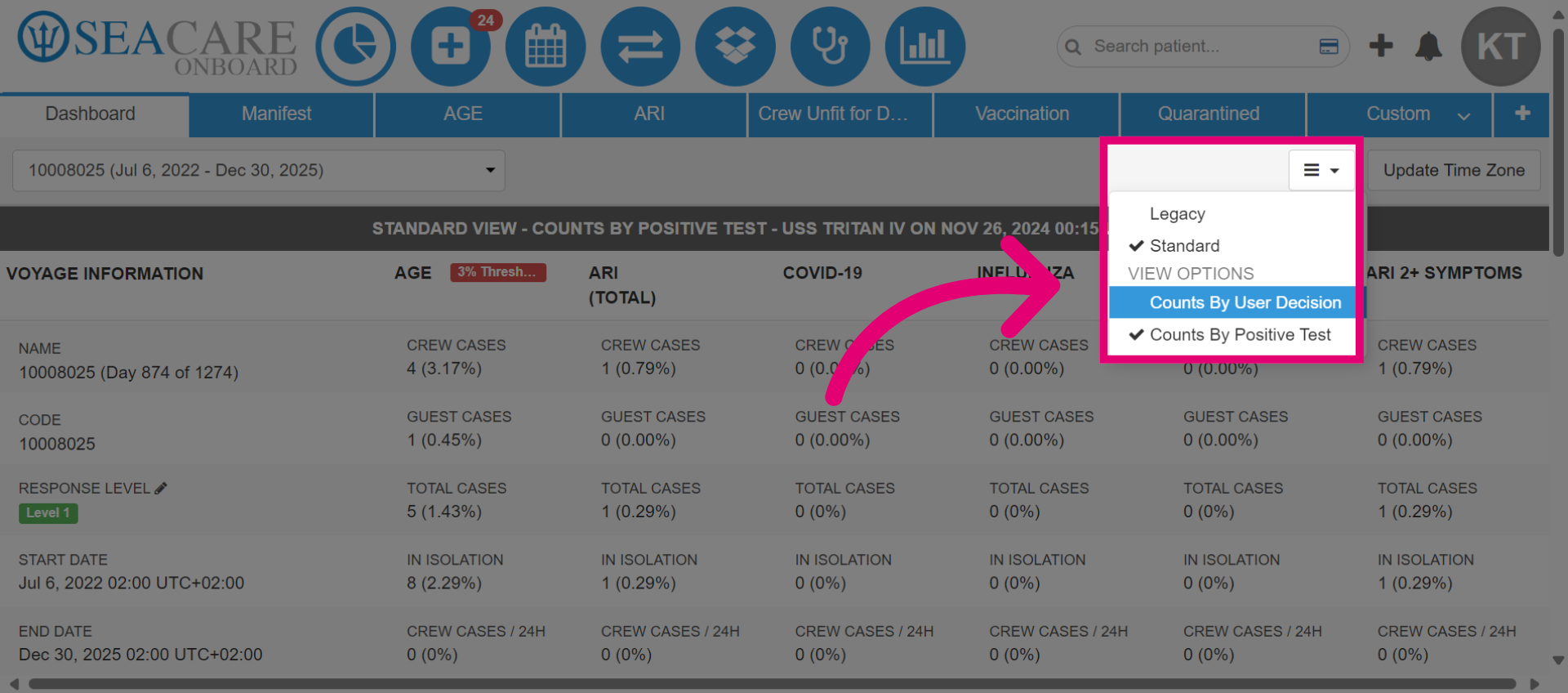
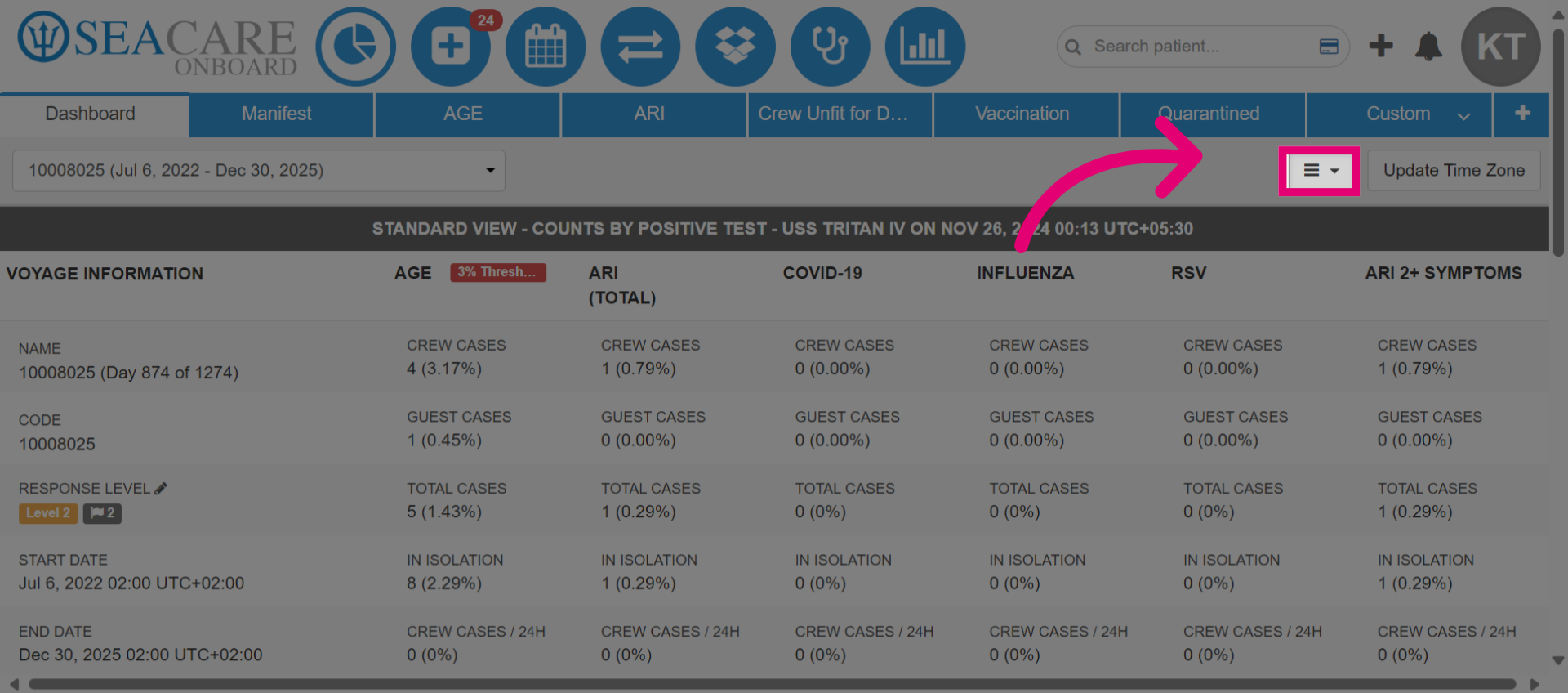
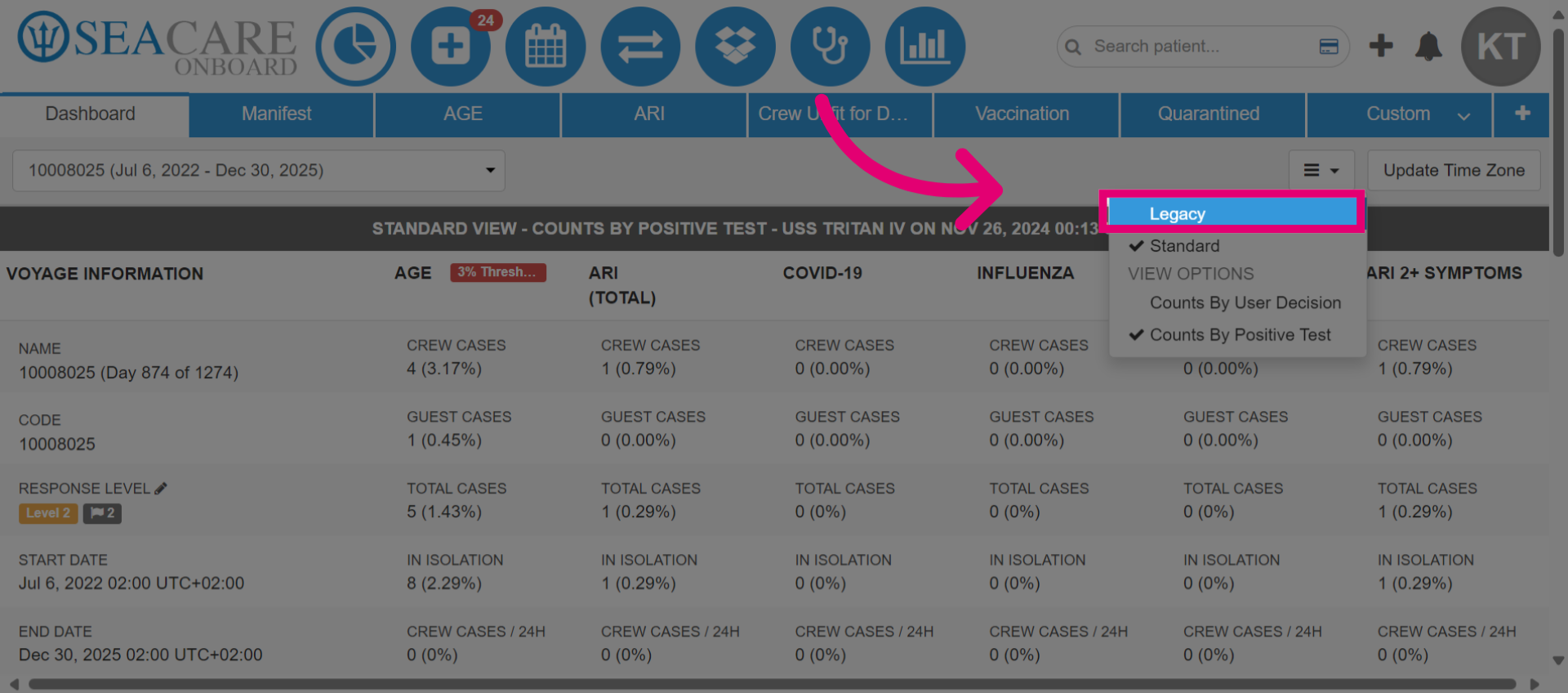
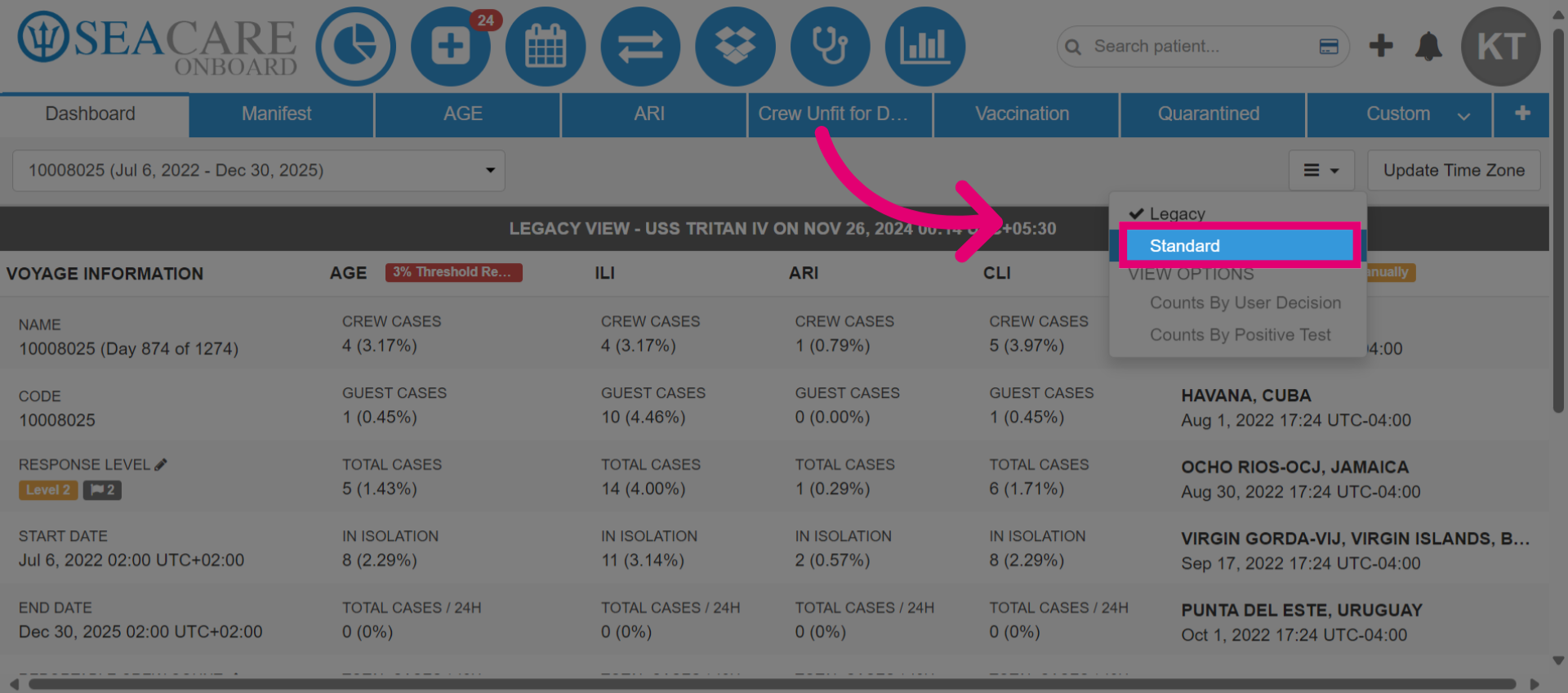
- There currently exist two views for the dashboard, where you can view voyage information. Click on this button to open the options.
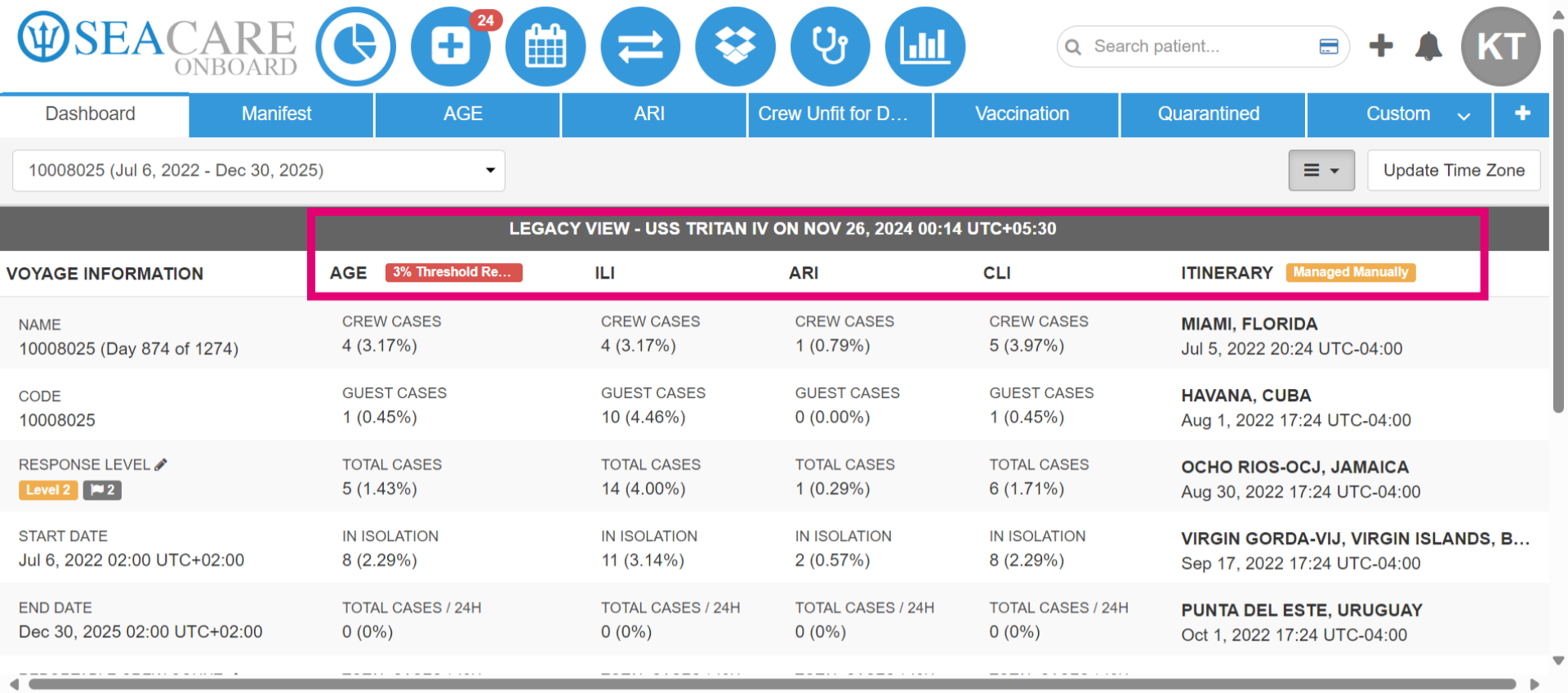
- Use the legacy mode for viewing and accessing information about legacy communicable diseases tracked by the CDC (Centers for Disease Control and Prevention).
- Then, you can view data for legacy public health diseases such as A G E, I L I, A R I, and C L I for the voyage. The Itinerary information with the voyage of the countries visited are listed with the scheduled dates and times. If the itinerary is managed manually by the system admin, this will be indicated with a badge. View the name of the vessel, date and time at the top.
- Select the Standard viewing mode to view information entered during the voyage for updated communicable diseases that are tracked by the CDC.
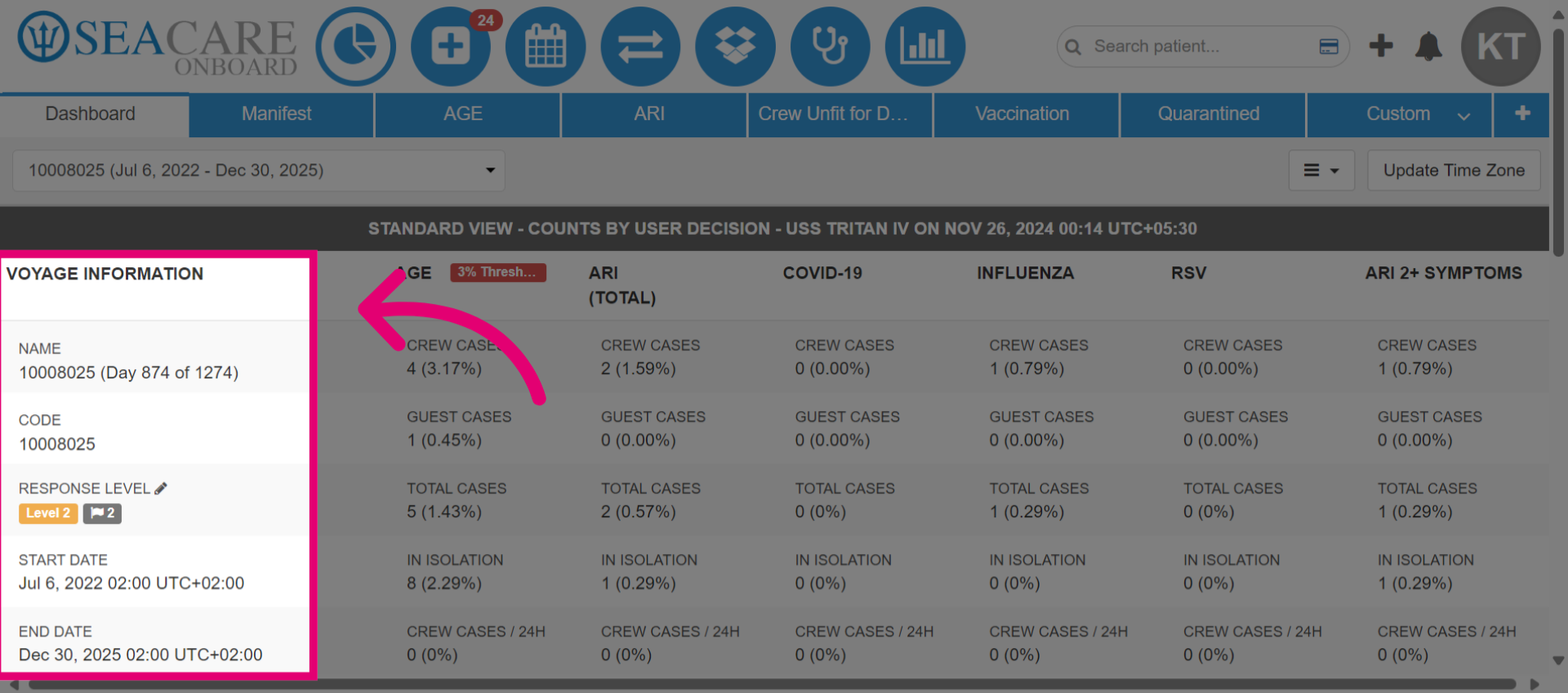
- Voyage information can be easily viewed. Review the details regarding the voyage such as the start and end date and the number of days of the voyage.
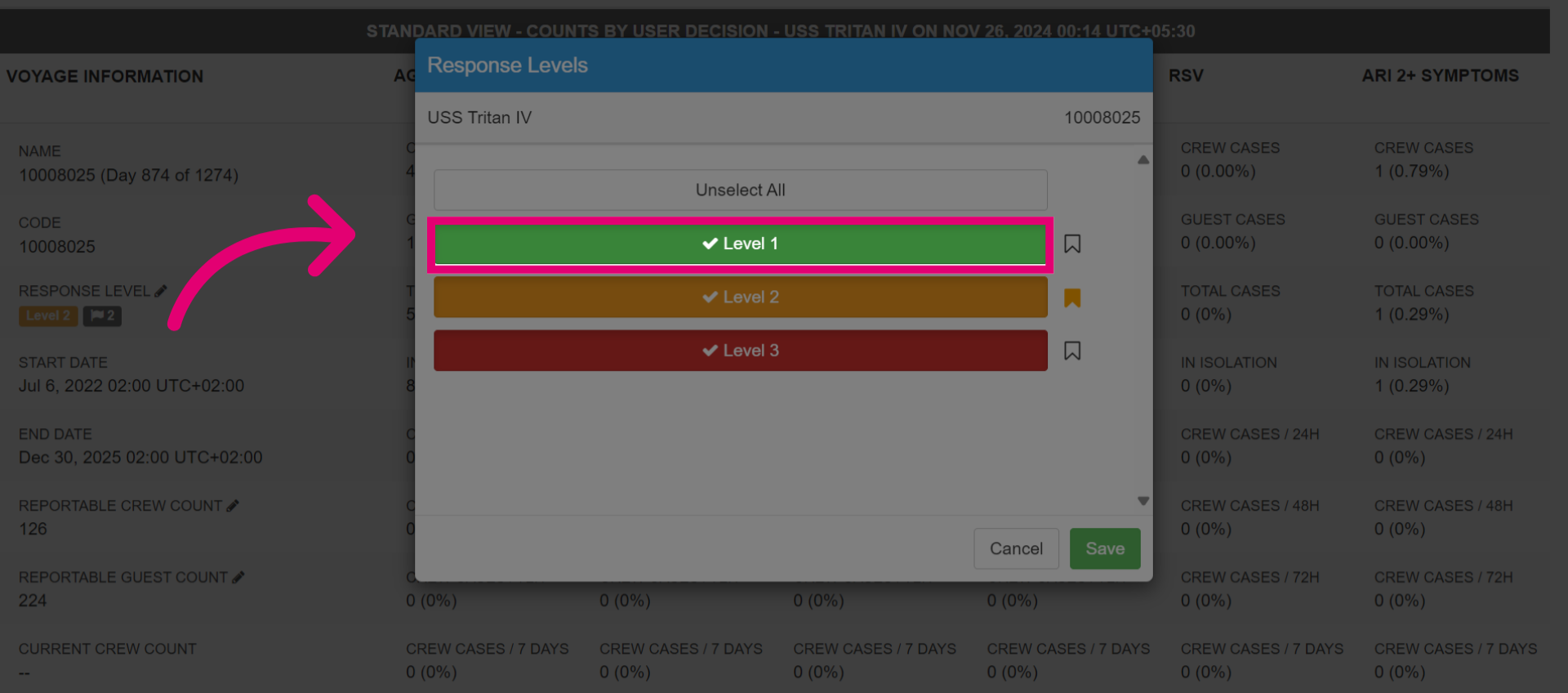
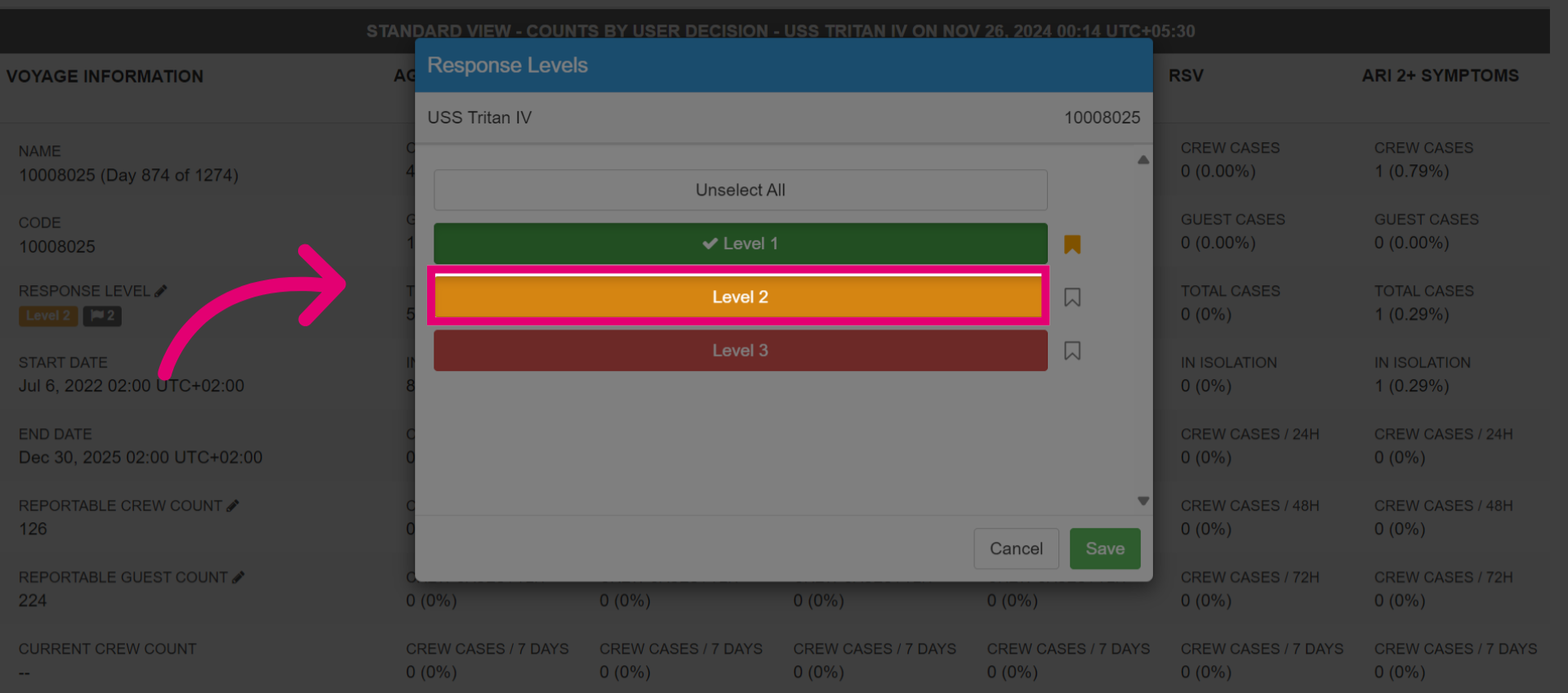
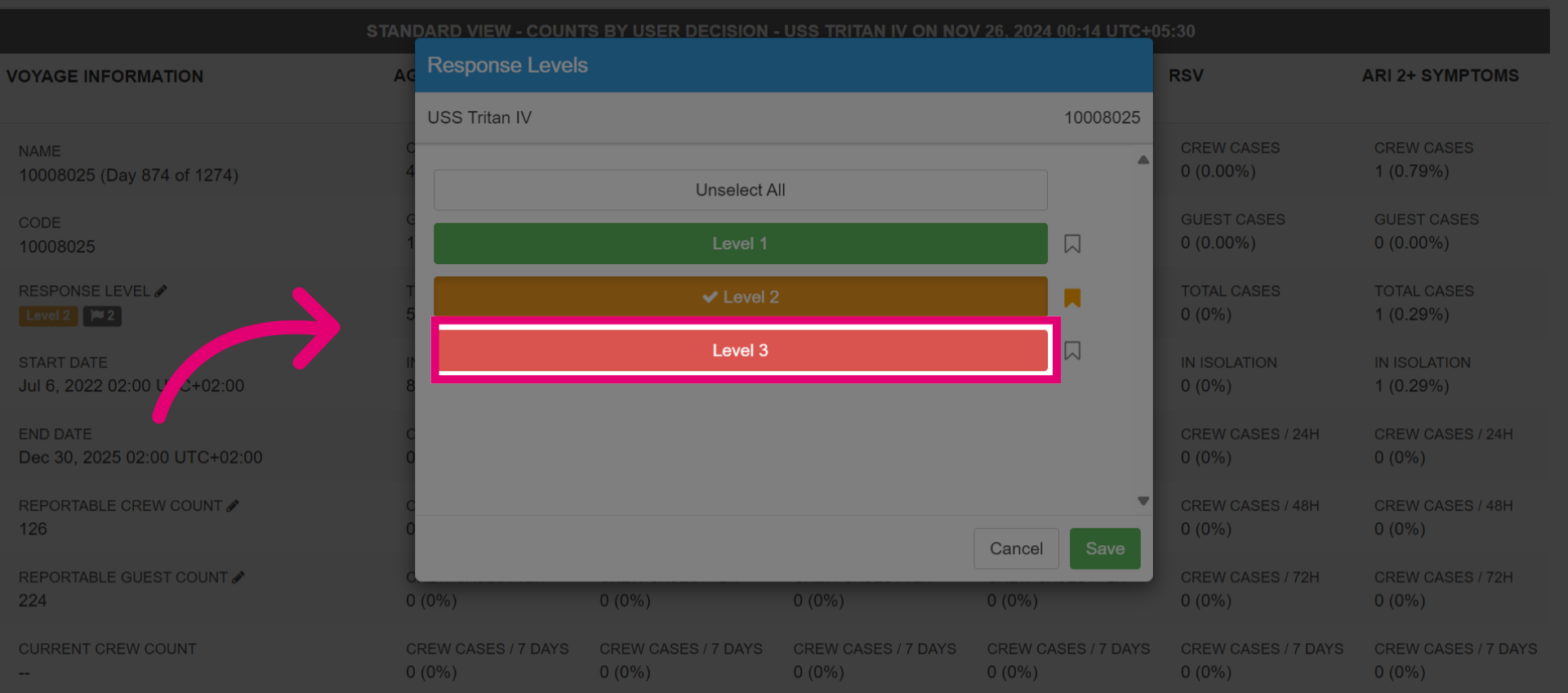
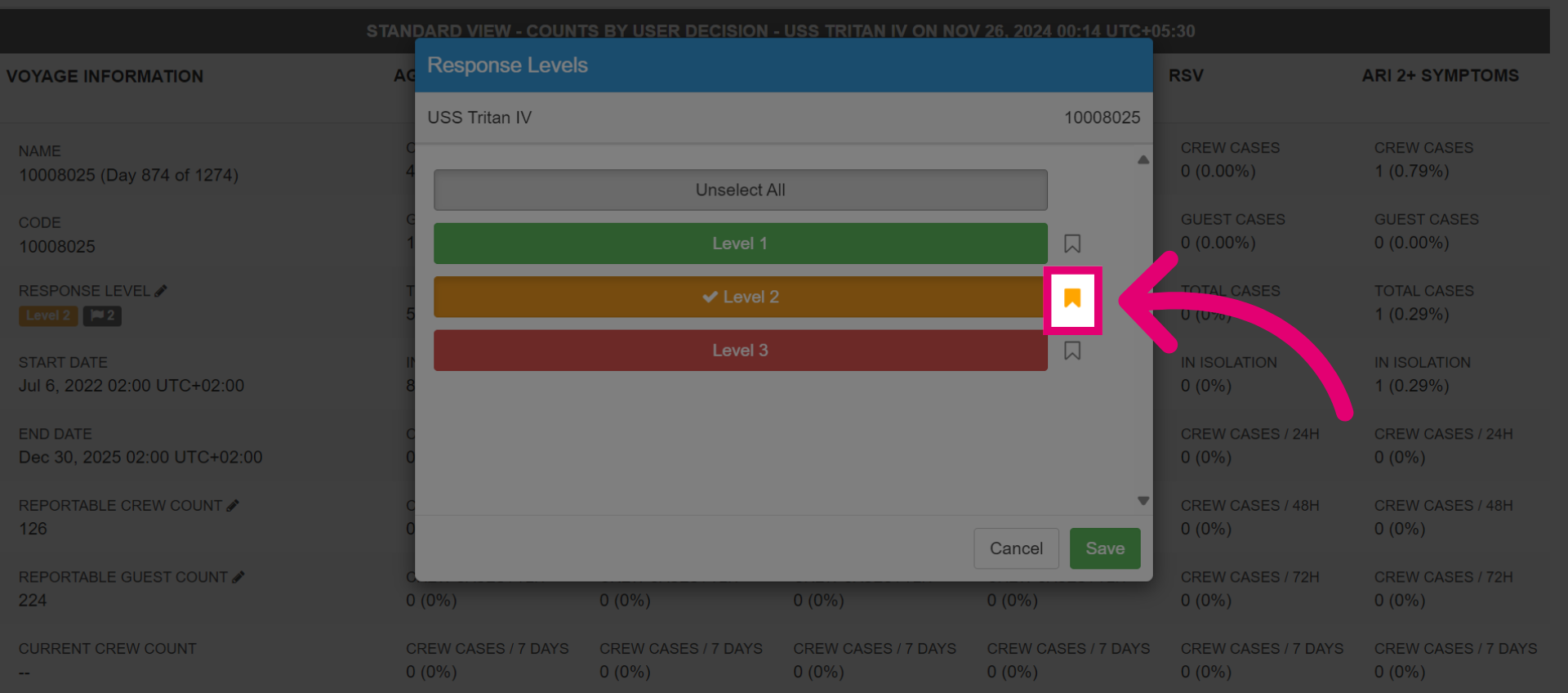
- A response level specifies the actions crew members and guests must take to either mitigate or prevent a public health outbreak on the ship. Multiple responses can be selected with the right permissions and a flag can be used for the main response level. These are mandated by your vessel but examples will be provided for each level.
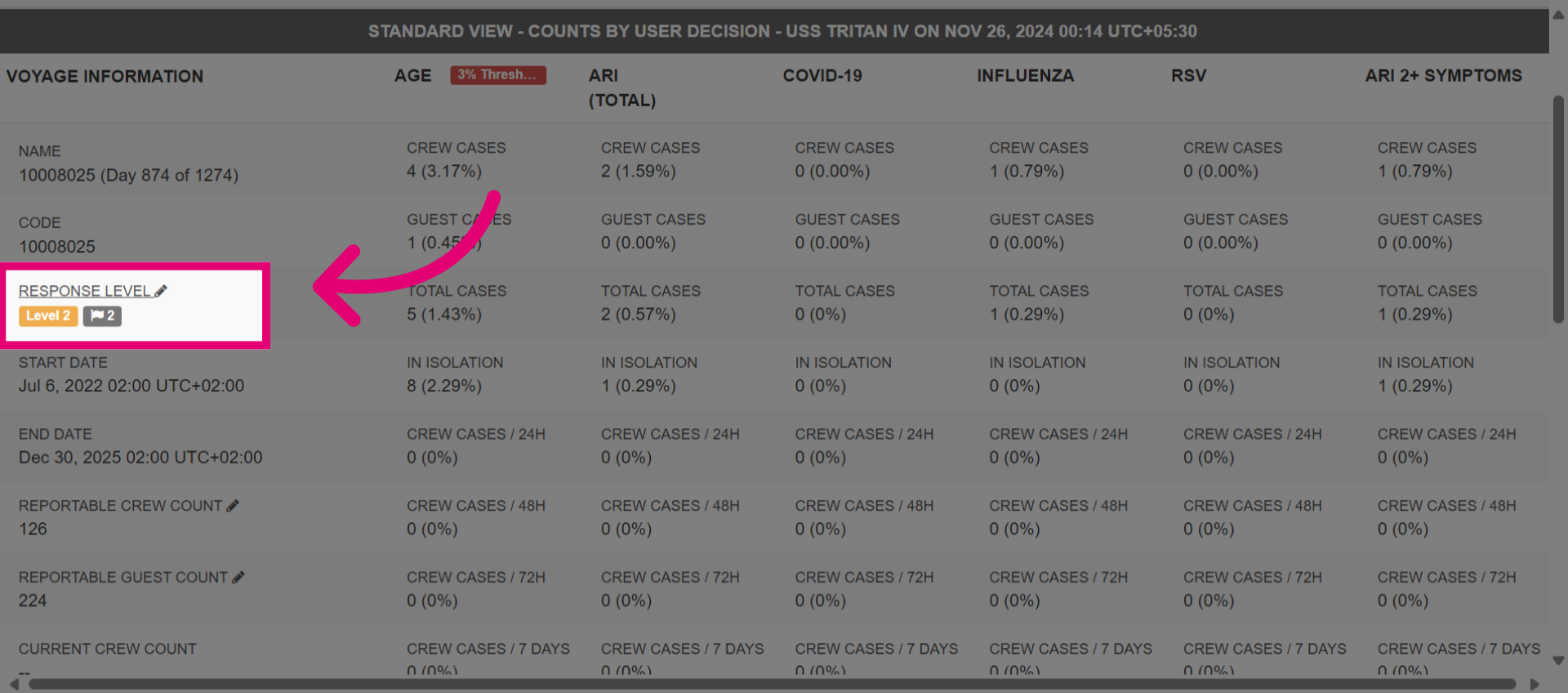
- Maintain Level 1 of the response for ongoing monitoring of communicable diseases and this can be the standard response.
- Elevate the level of response to Level 2 when circumstances change such as rising cases and immediate action to prevent the spread of a communicable disease.
- Set the response to Level 3 when there is a high risk or current outbreak of a communicable disease.
- Mark this flag to indicate a main response level.
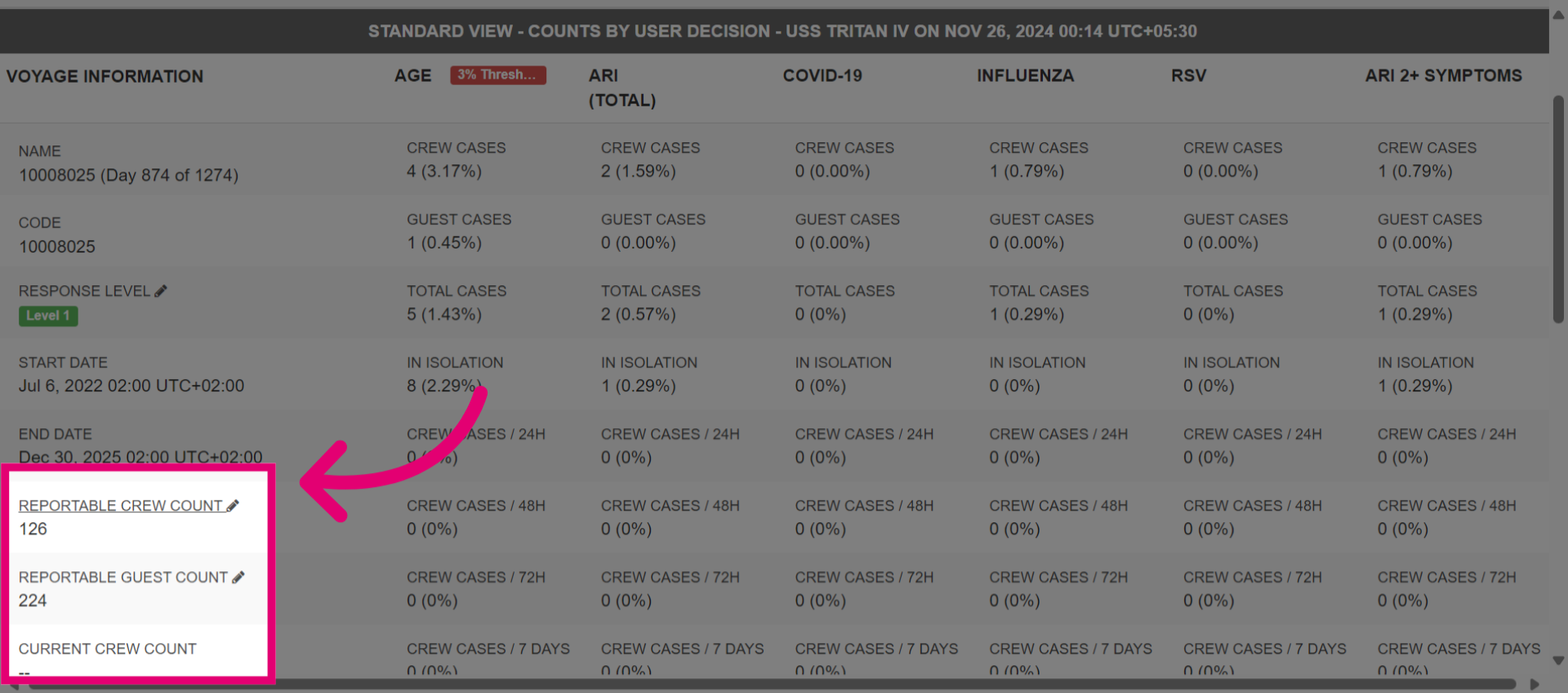
- You can also view reportable and current Crew and Guest counts that reflect the number of crew members and guest onboard the vessel for the manifest. The reportable count can be updated if needed by selecting the pencil button.
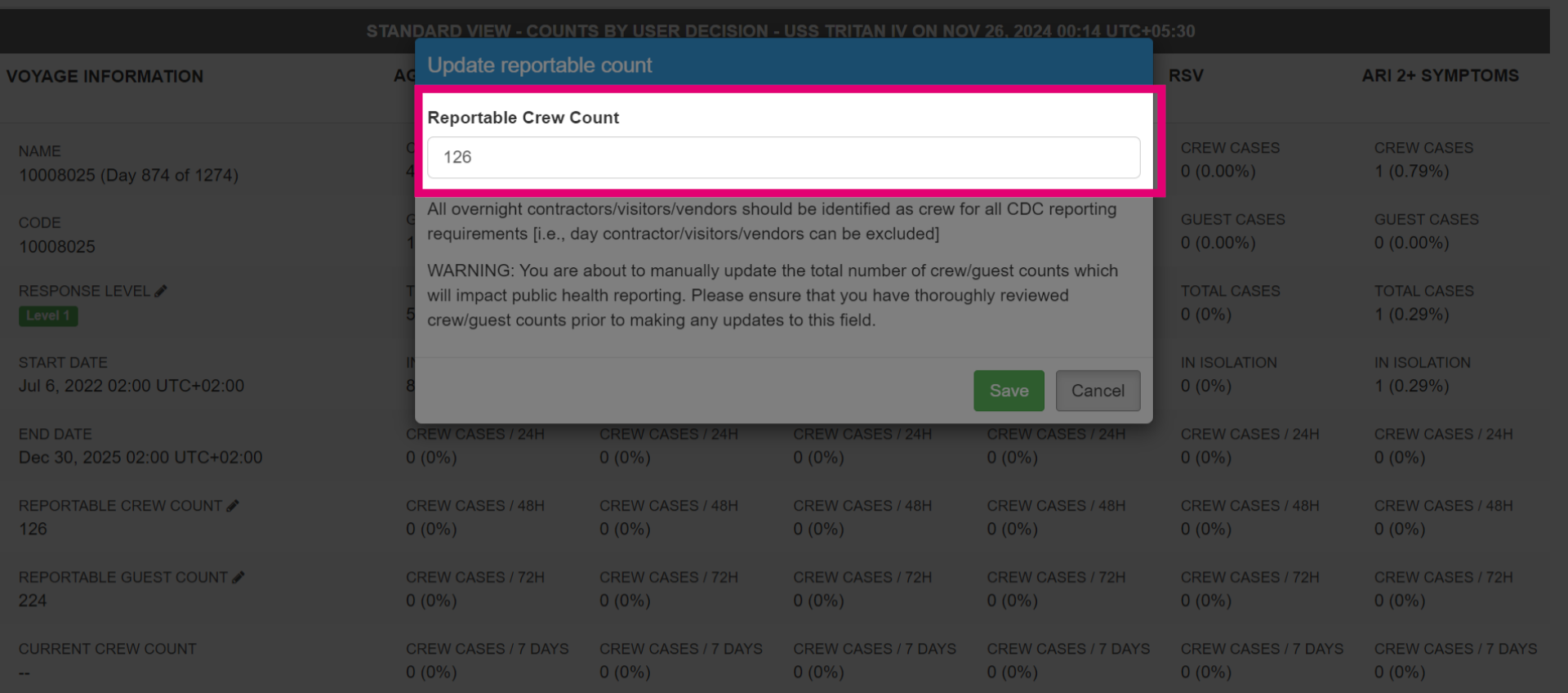
- Manually update the reportable crew count by entering the number and save the changes.
- For insights into public health cases decisions made by users when communicable disease cases were recorded, select the more options button. View the data for communicable disease cases counts based on user decision or view them based on positive test results.