New article
Recently updated
Logging in and resetting your password in Ideagen Maritime Health Operations

Who is this article for?Users who want to learn to log in and reset their password.
Log in credentials are required to follow these steps.
This guide will show you how to log in for the first time, how to reset your password and set up your profile for Ideagen Maritime Health Operations.
1. Logging in and resetting your password
1.1. Video
1.2. Steps
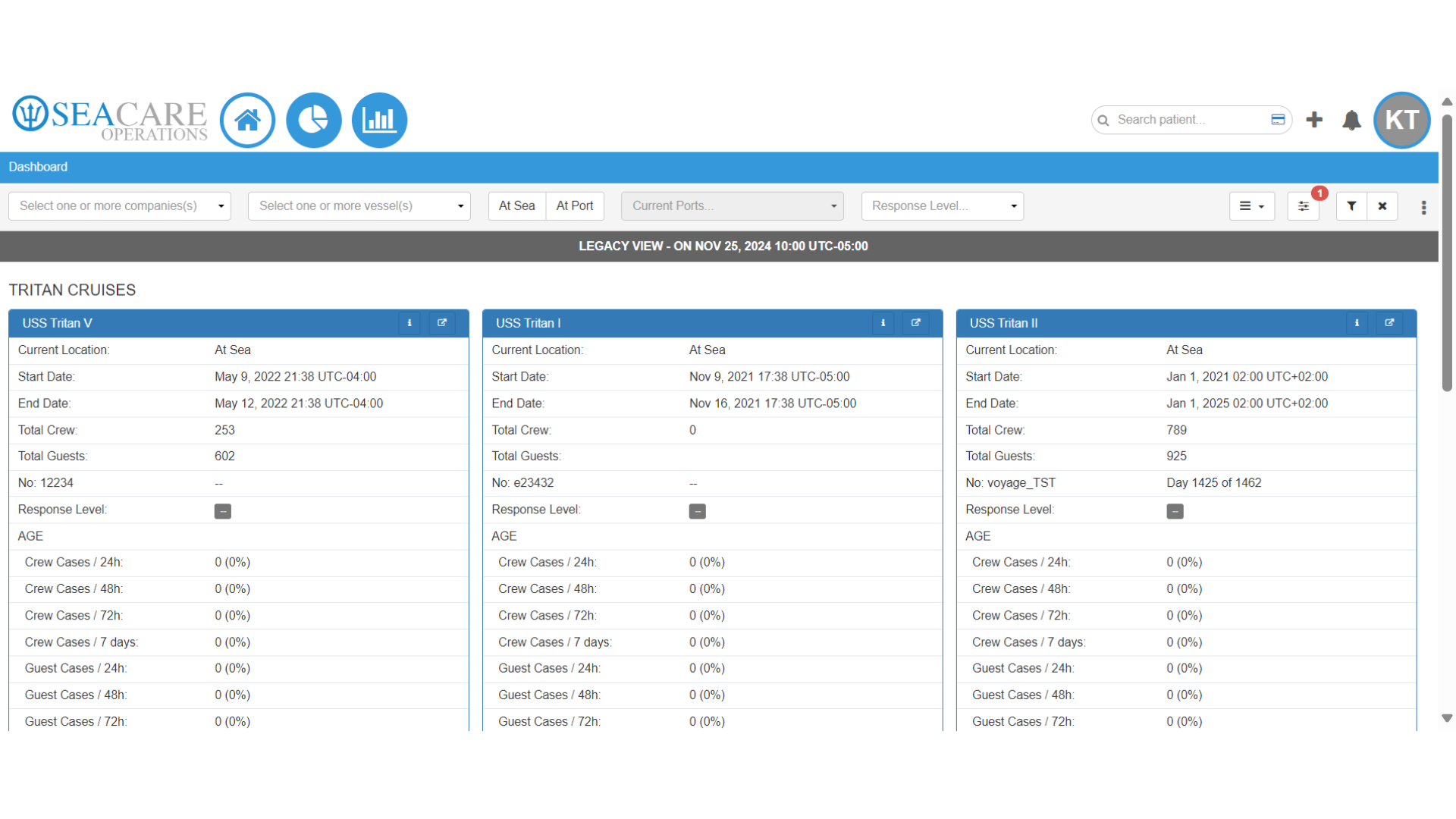
- Log in using the username and password provided to you by your system administrator.
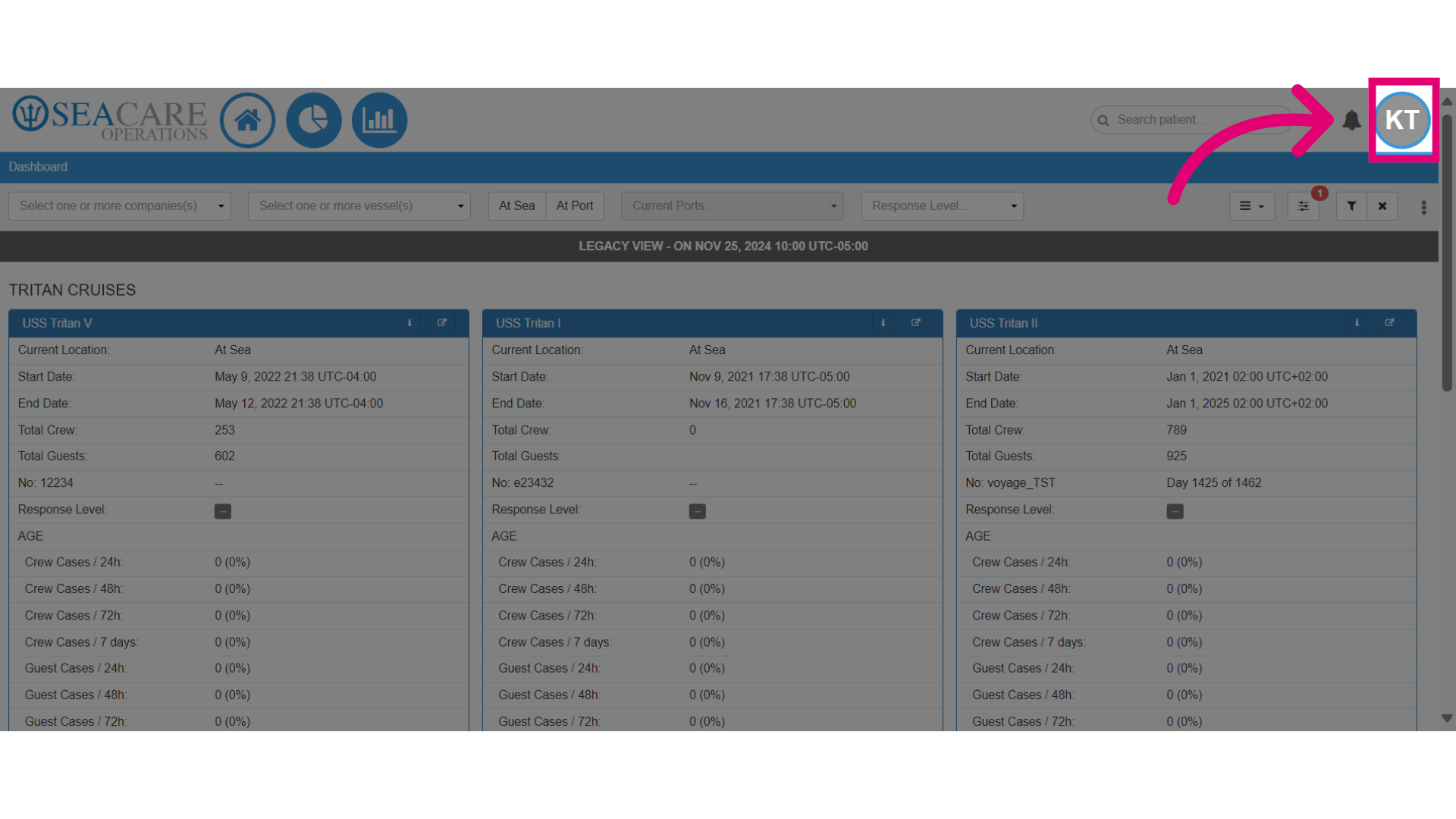
- Access your profile by selecting your initials at the top right.
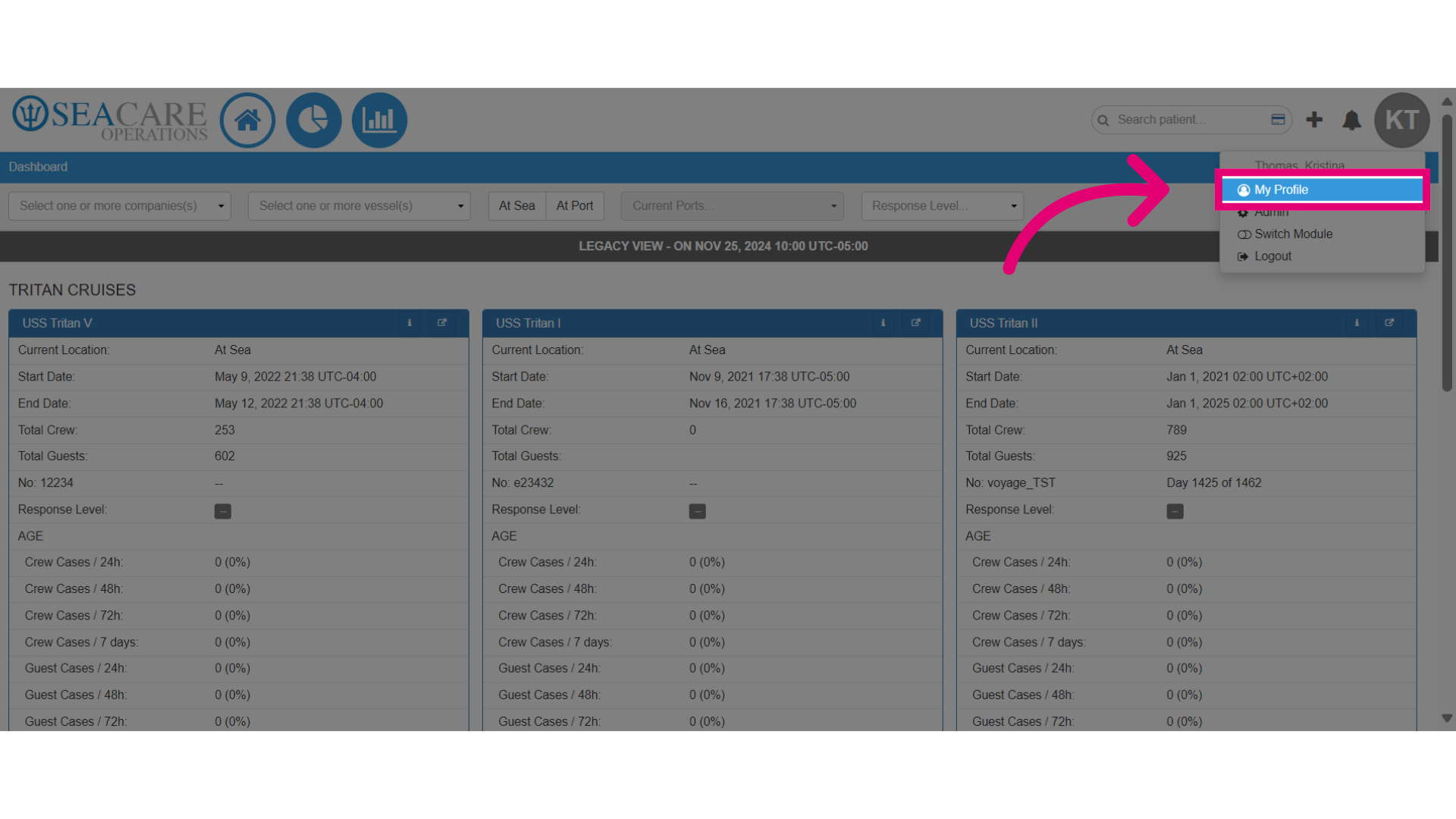
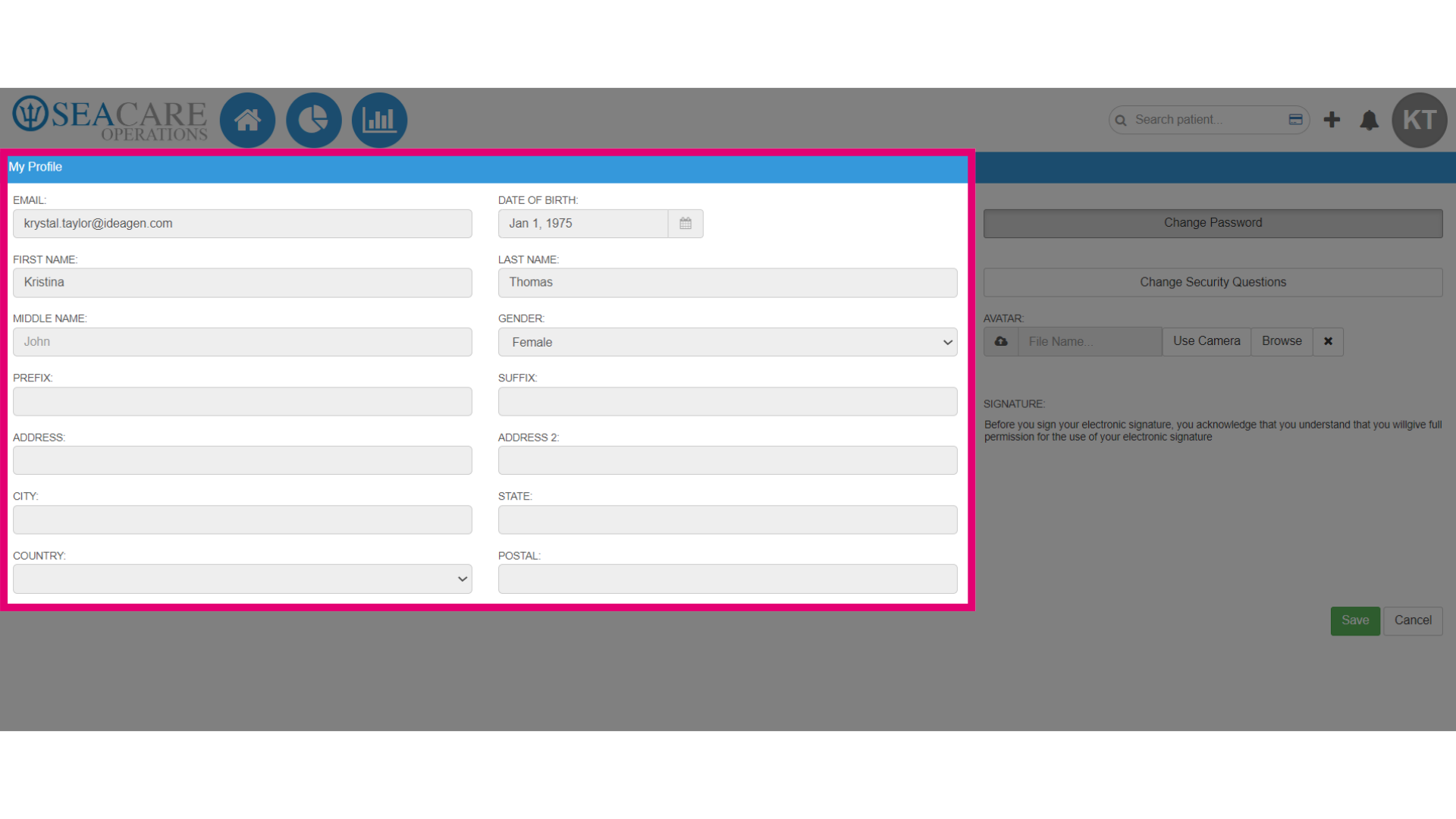
- Select My Profile from the dropdown menu.
- This information cannot be edited by you so contact your system admin to make updates to this information.
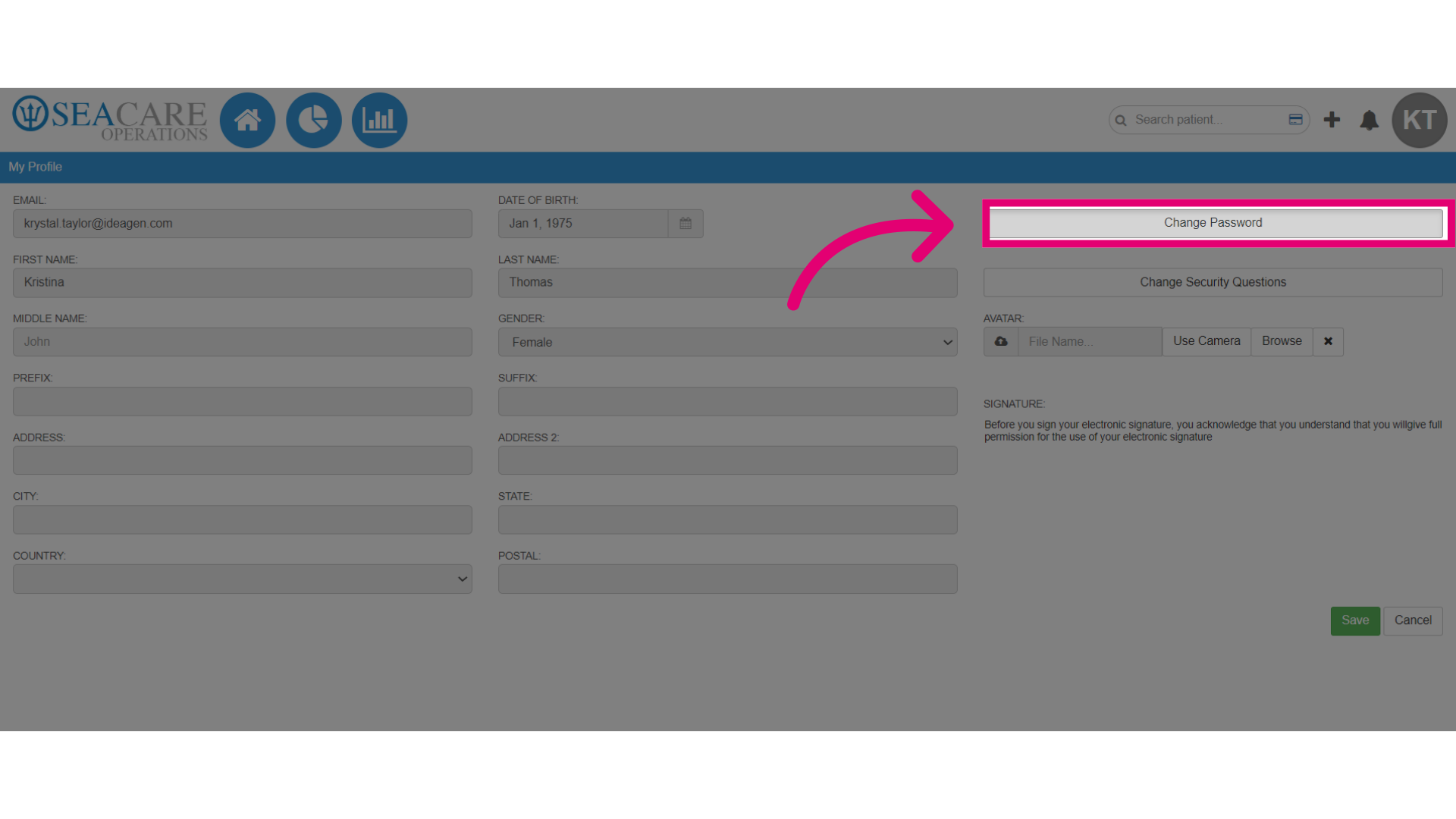
- To change your password, select the Change Password button.
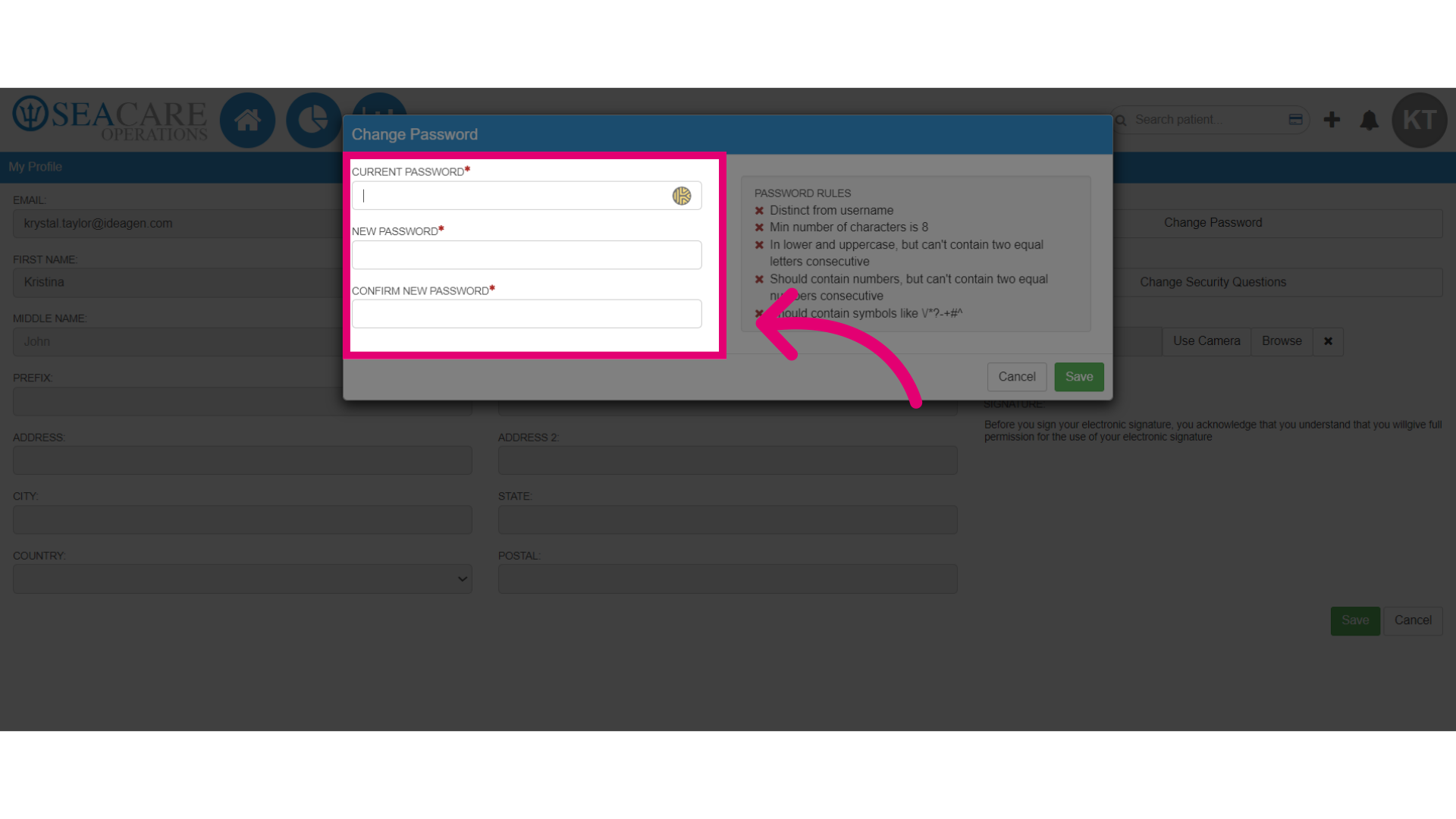
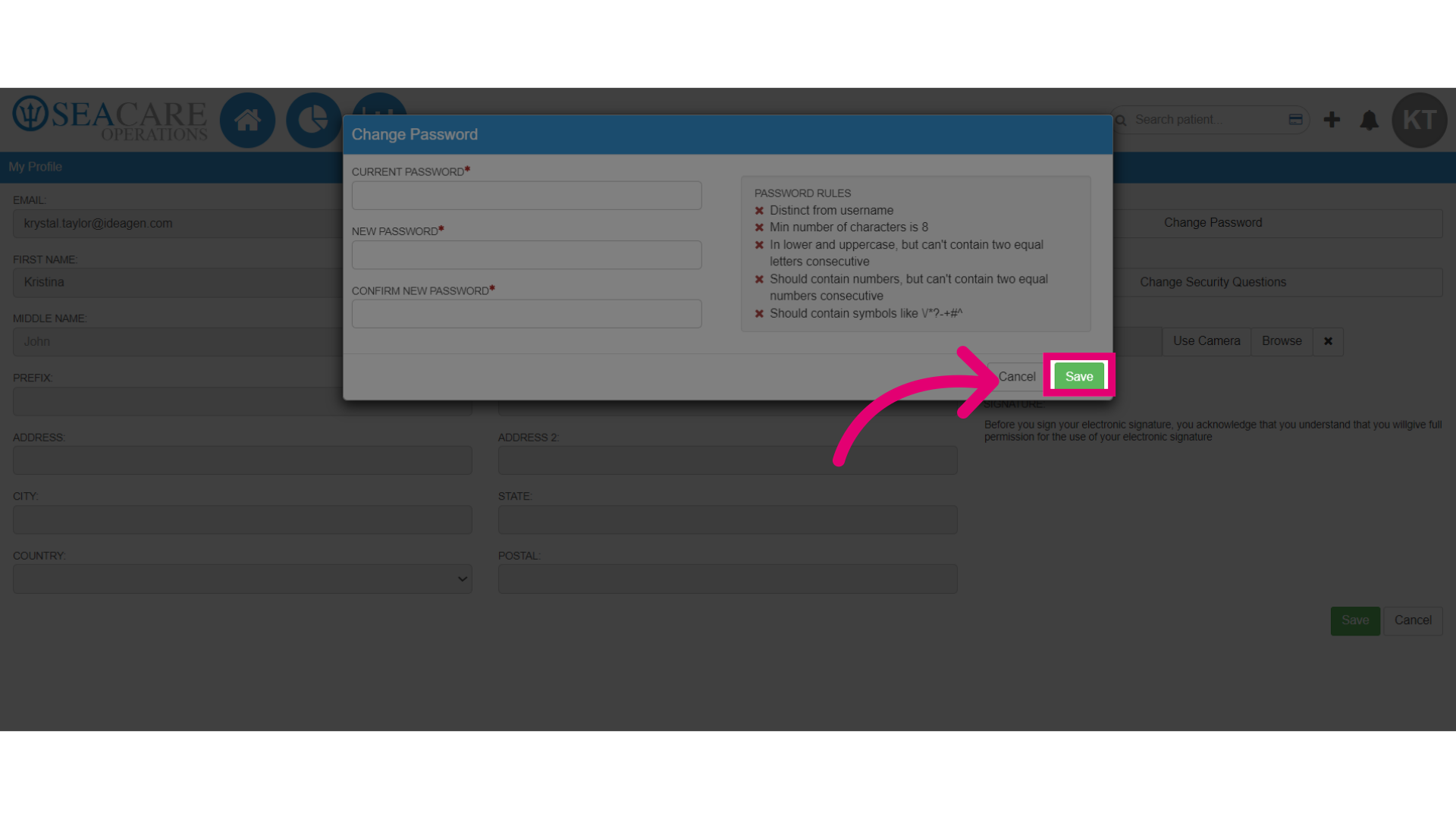
- Enter your current password to verify your identity. Then, enter and confirm the new password.
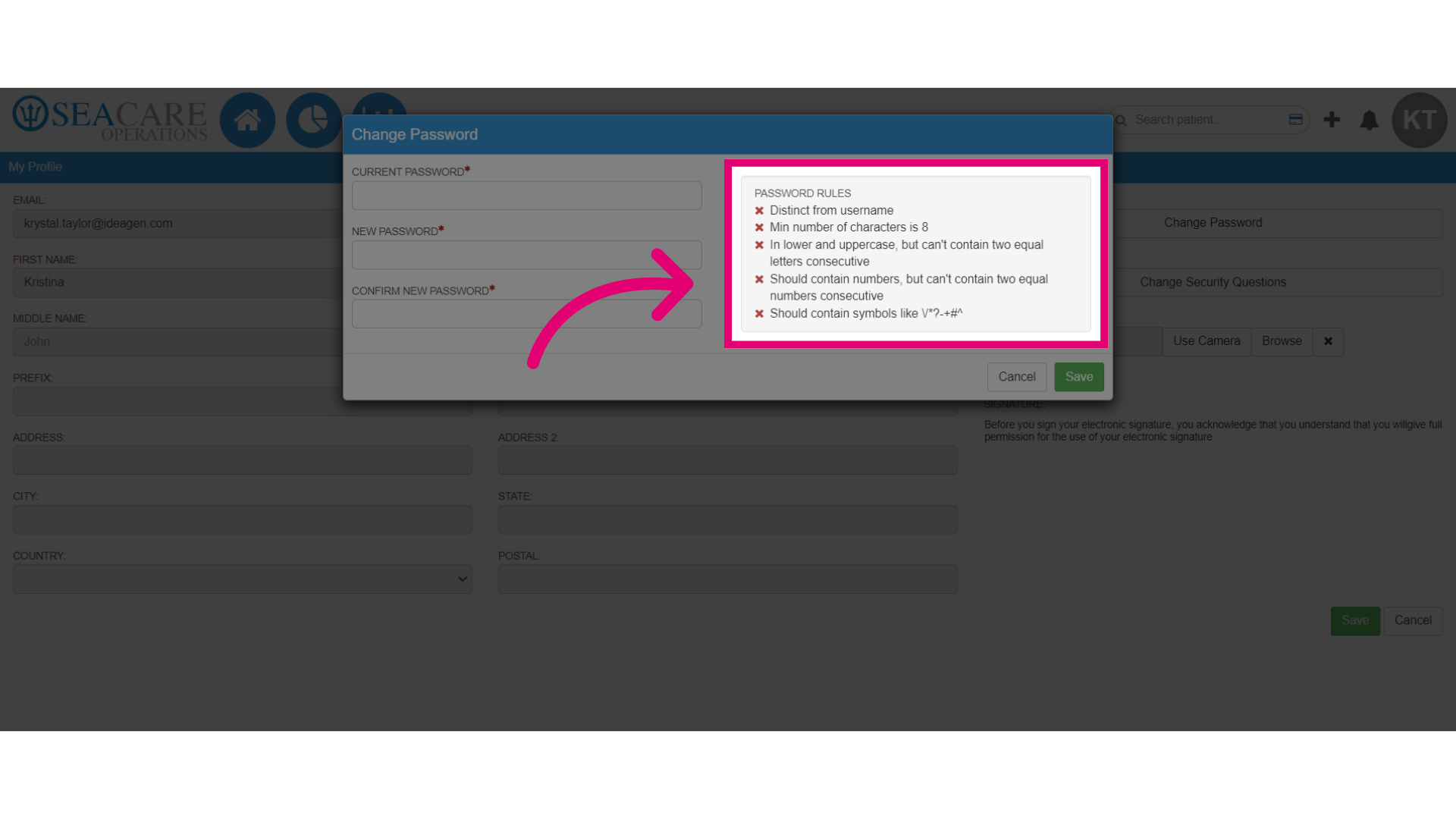
- As you enter your new password, follow the password rules to ensure compliance.
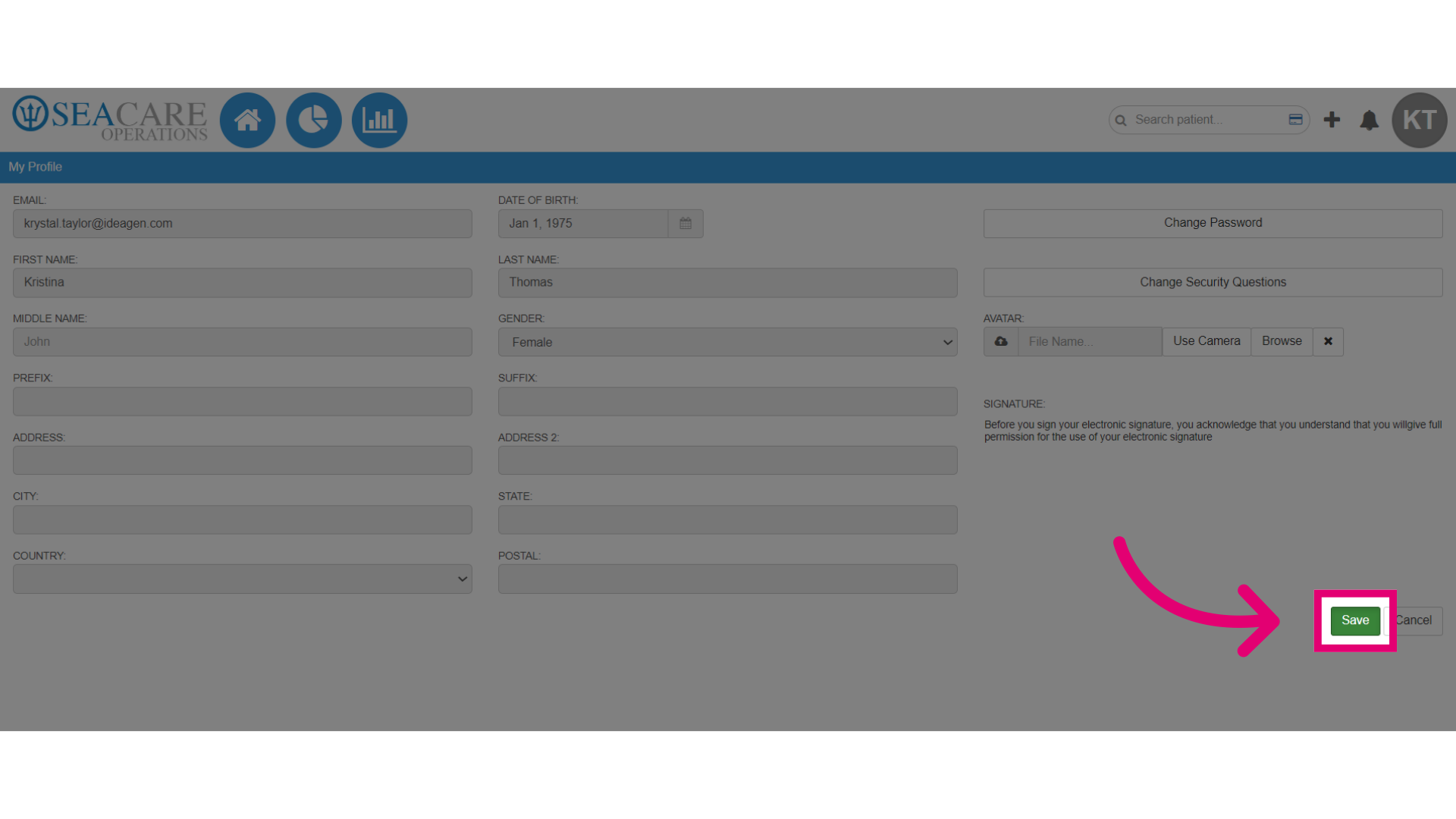
- After updating your password, Save your changes.
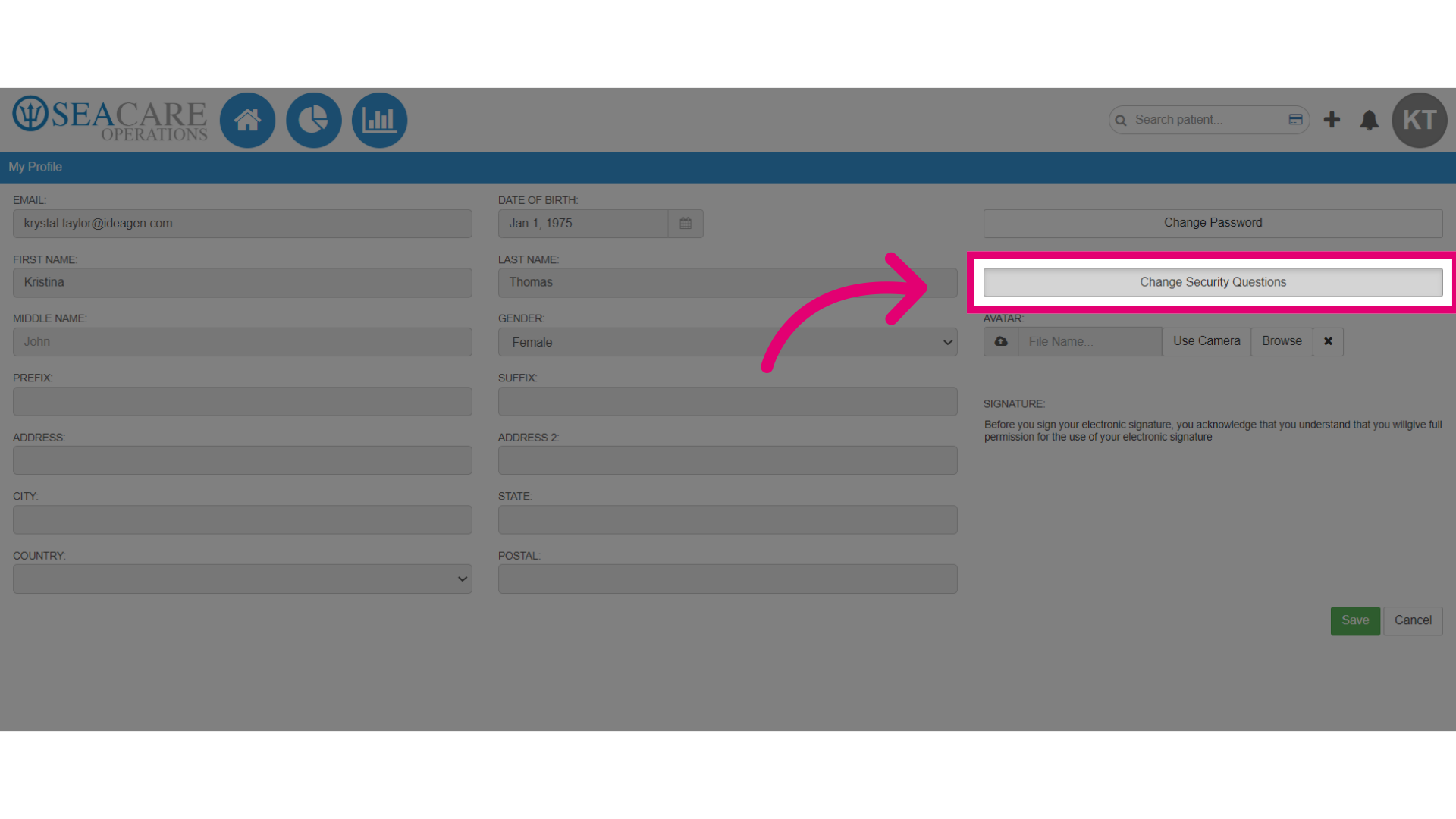
- You can also update your security questions for recovery, by selecting Change Security Questions.
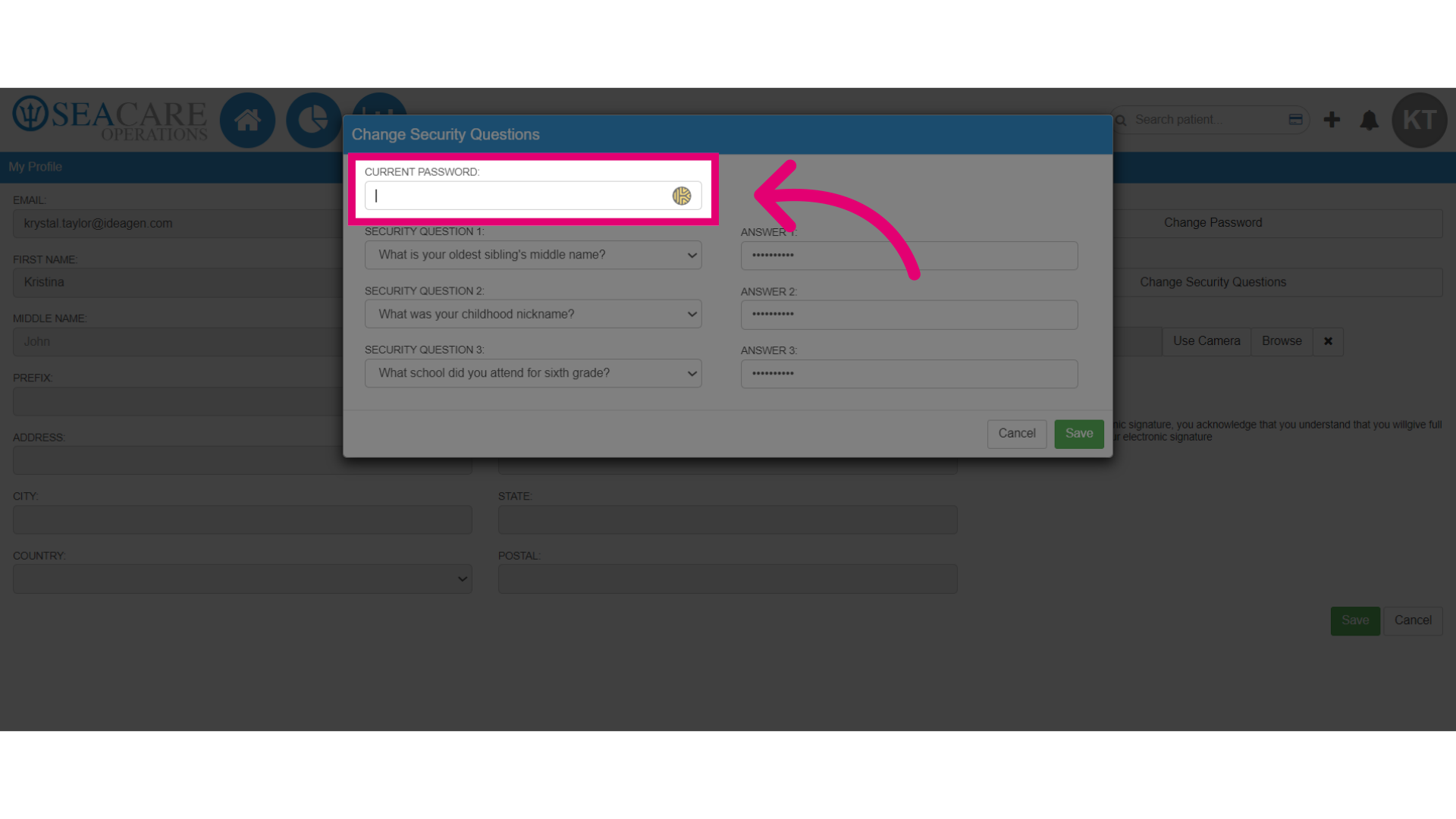
- Enter the current password to re-authenticate and make the change.
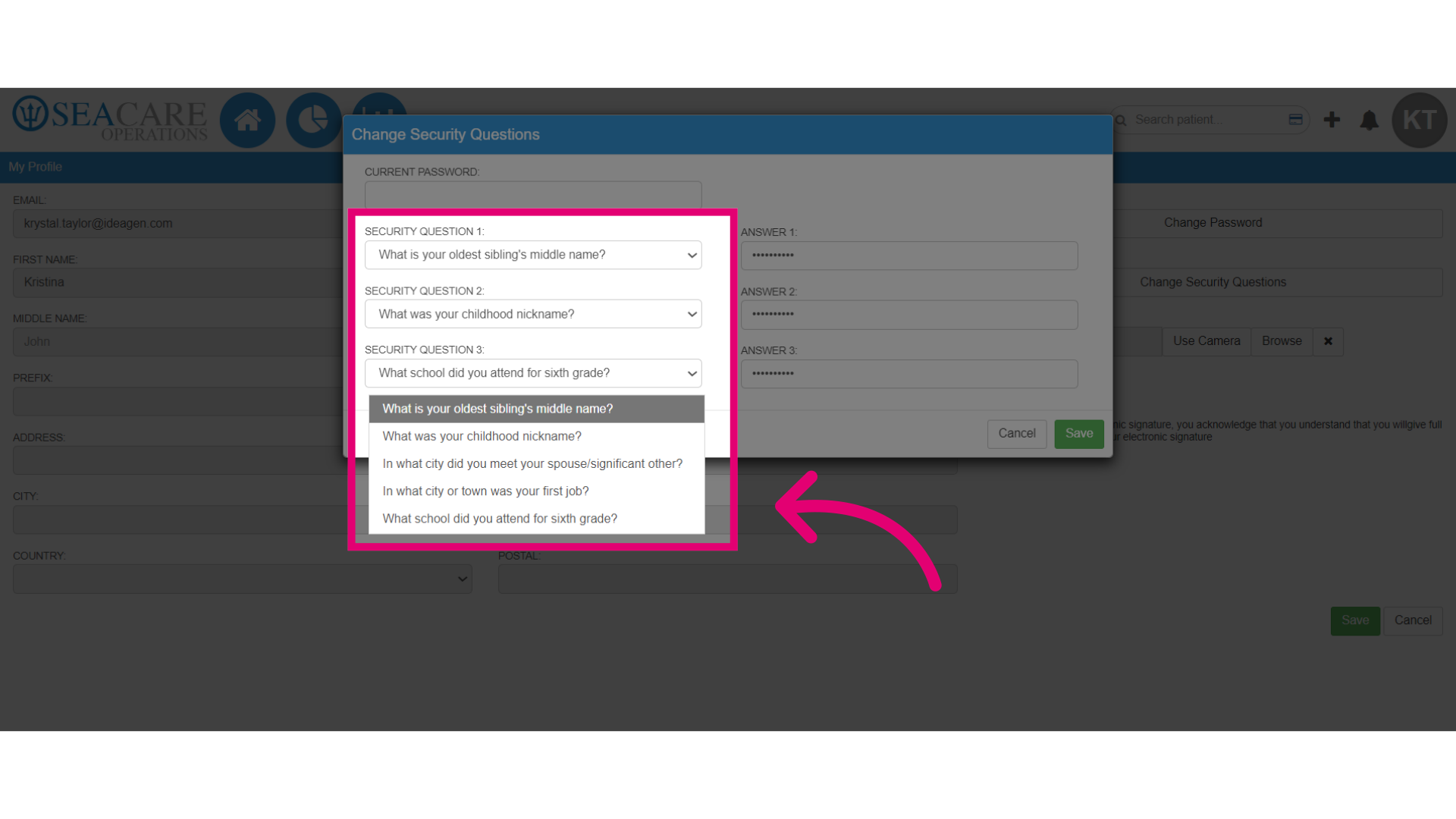
- Select a security question from the dropdown menu options, and select one that you'll remember.
- Add the answer to the security question in its corresponding field.
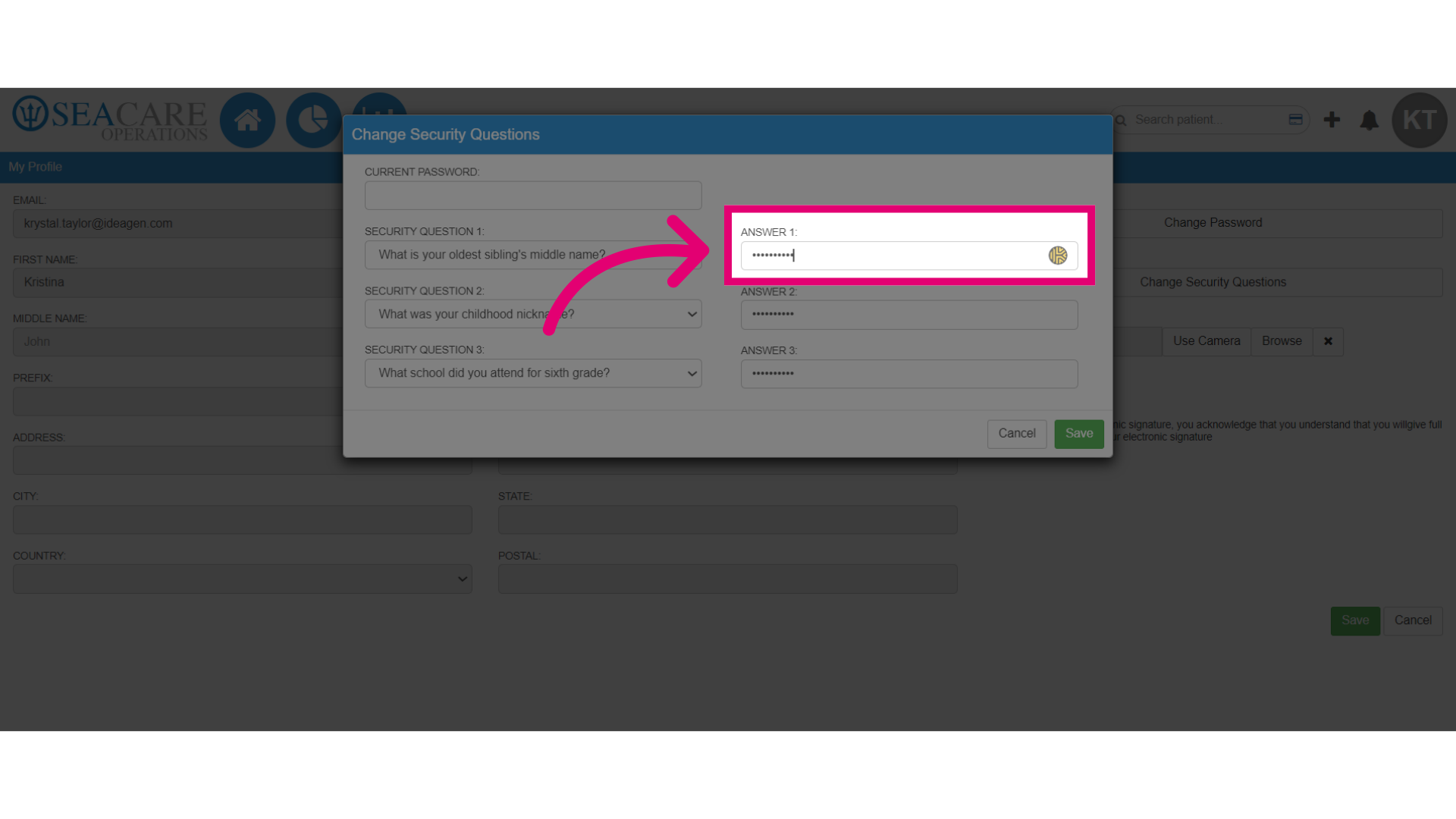
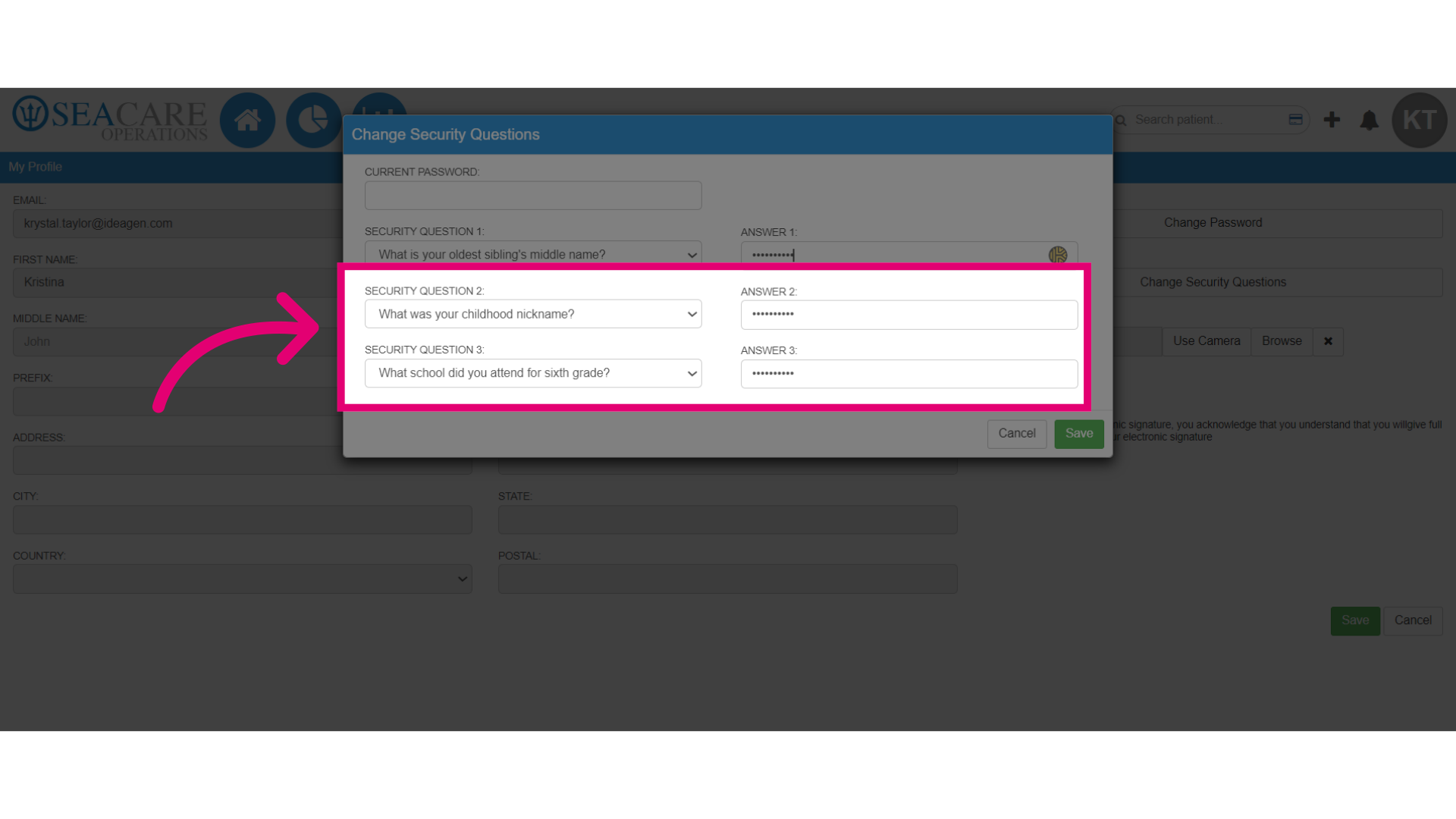
- You may add up to two more security questions following the same steps.
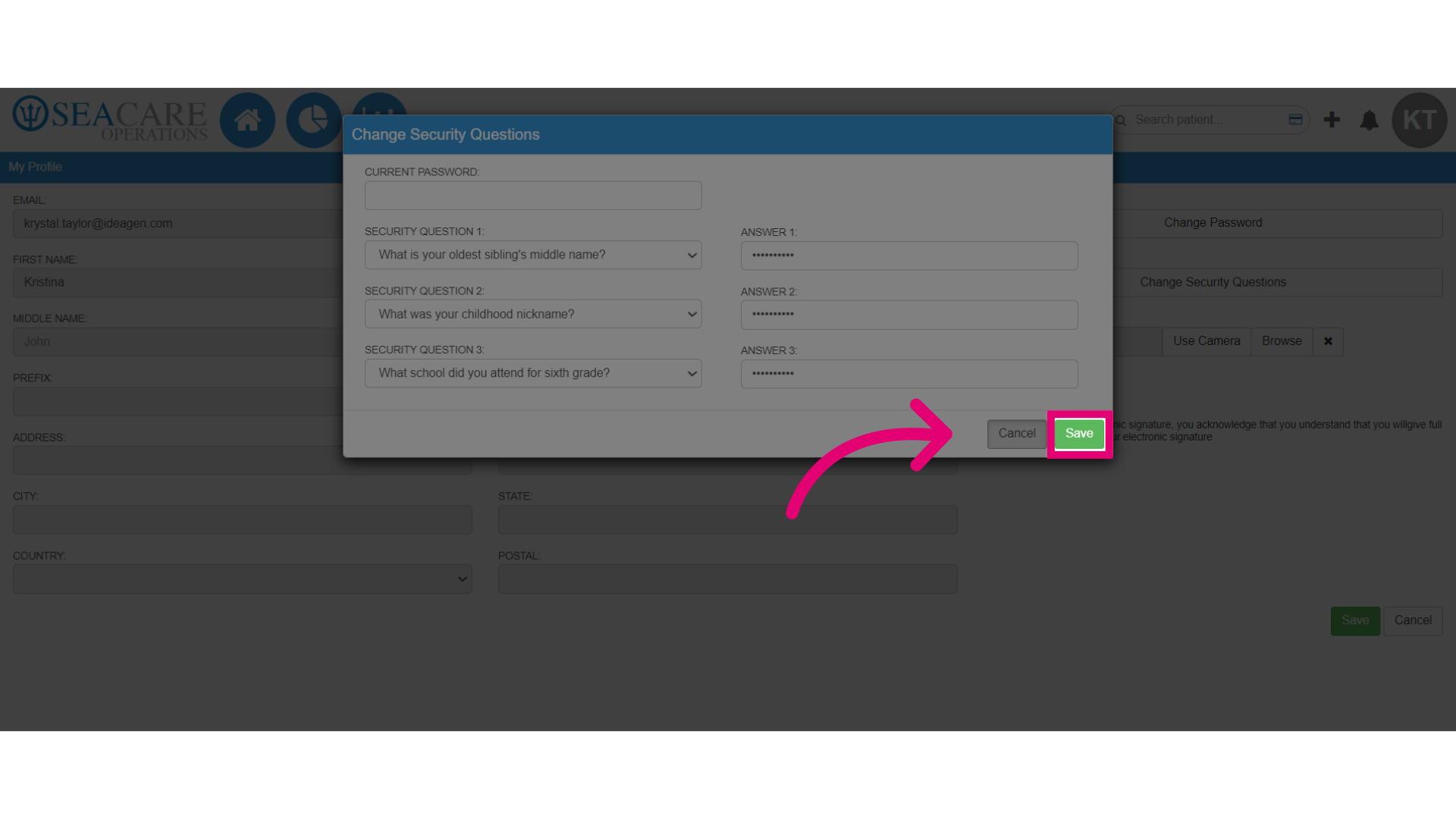
- Save the changes.
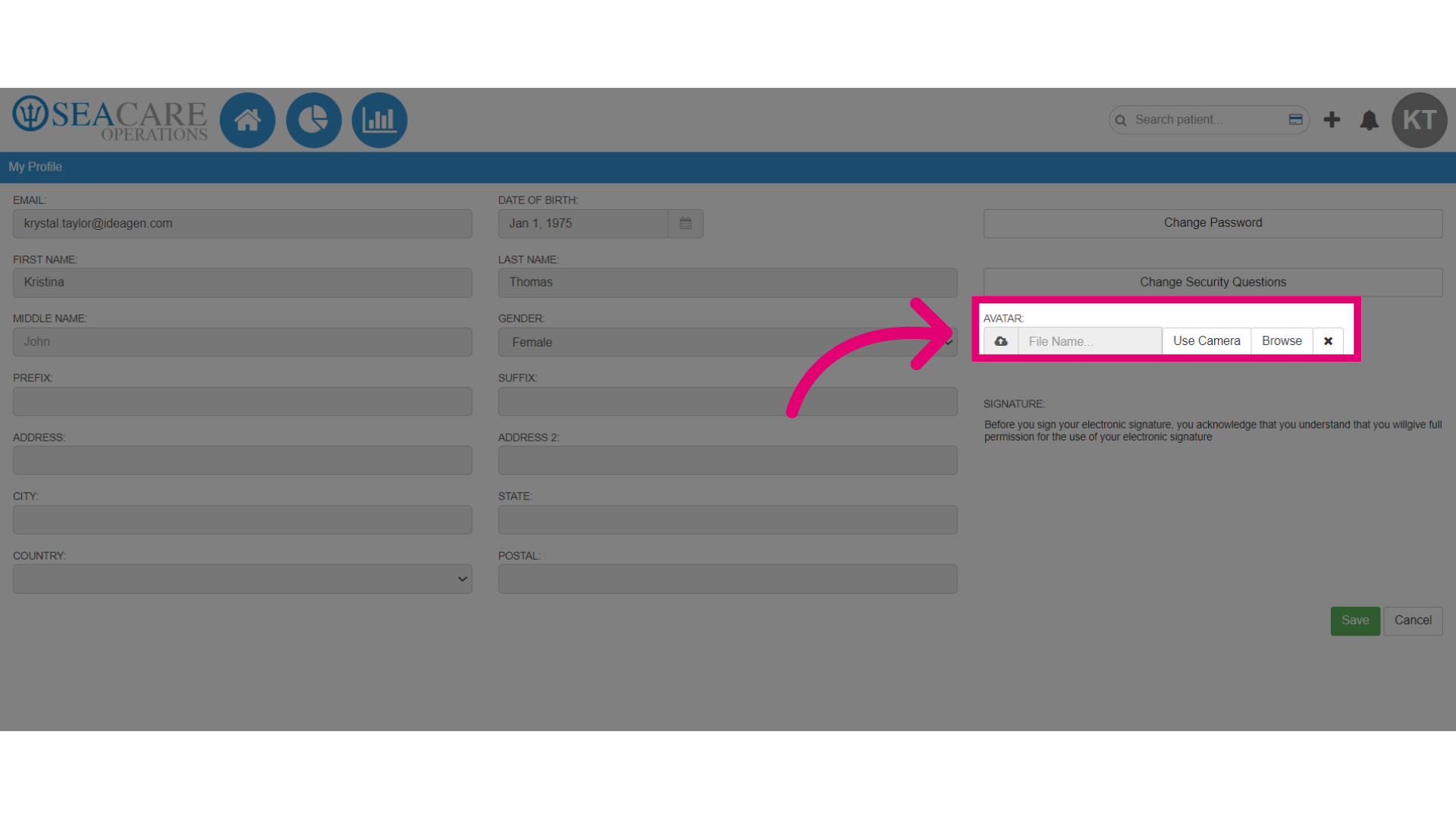
- To add an avatar profile picture, use your camera to take a live picture or click Browse to select one from your device.
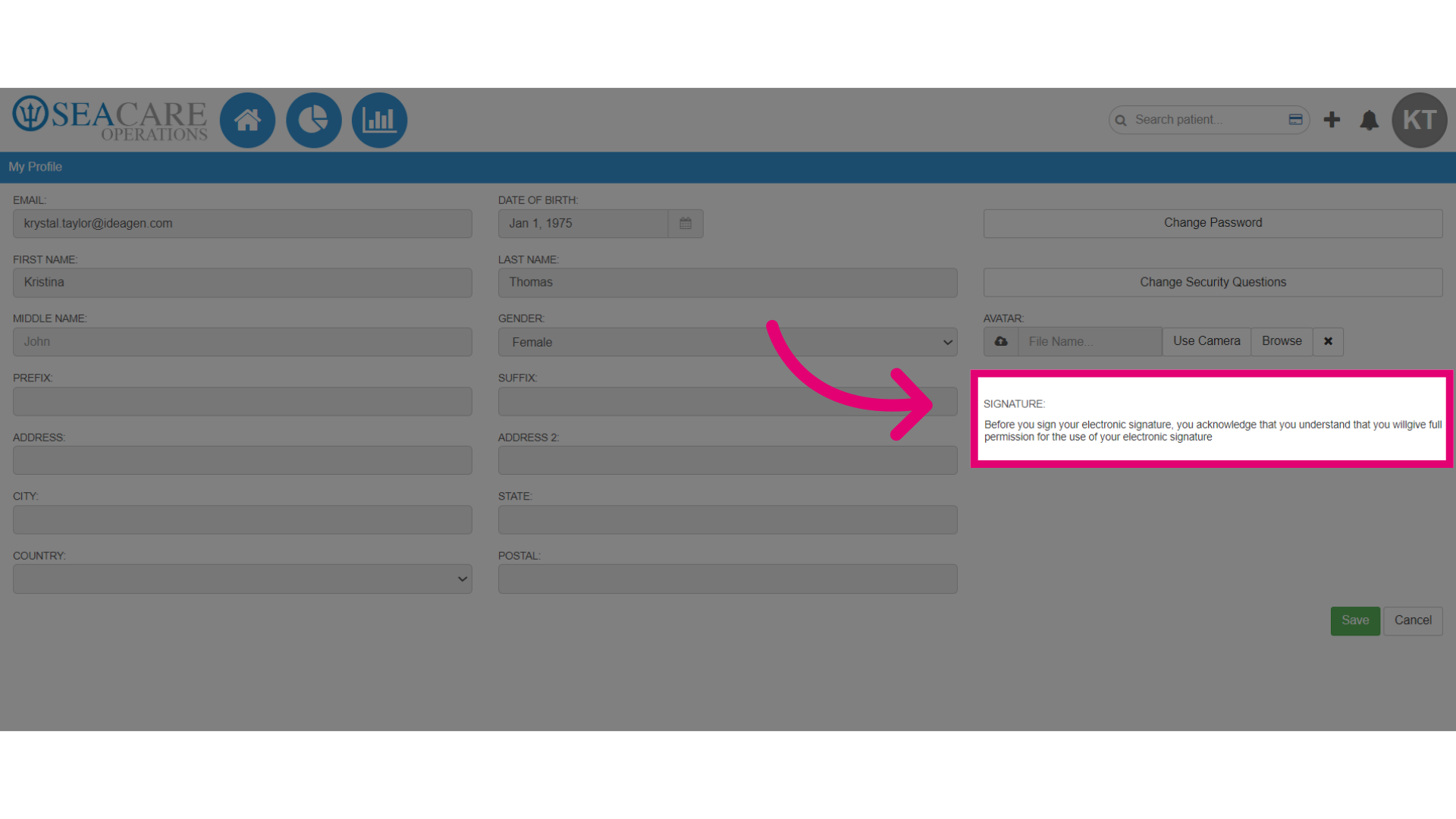
- An electronic signature can be used to sign documents. If your system administrator has enabled this signature option when creating your account, then add your signature.
- Finalise your changes by clicking Save.