New article
Recently updated
Canceling crew wellness appointments when enrollment has stopped

Who is this article for?Administrators configuring the encounter process.
No elevated permissions are required.
This guide provides step-by-step instructions for canceling a Crew Wellness Appointment in SeaCare when a patient's enrollment is stopped. This process ensures that scheduled appointments are properly removed from the system, preventing confusion and maintaining accurate scheduling records. It is especially useful for clinical and administrative staff managing wellness programs and patient follow-ups.
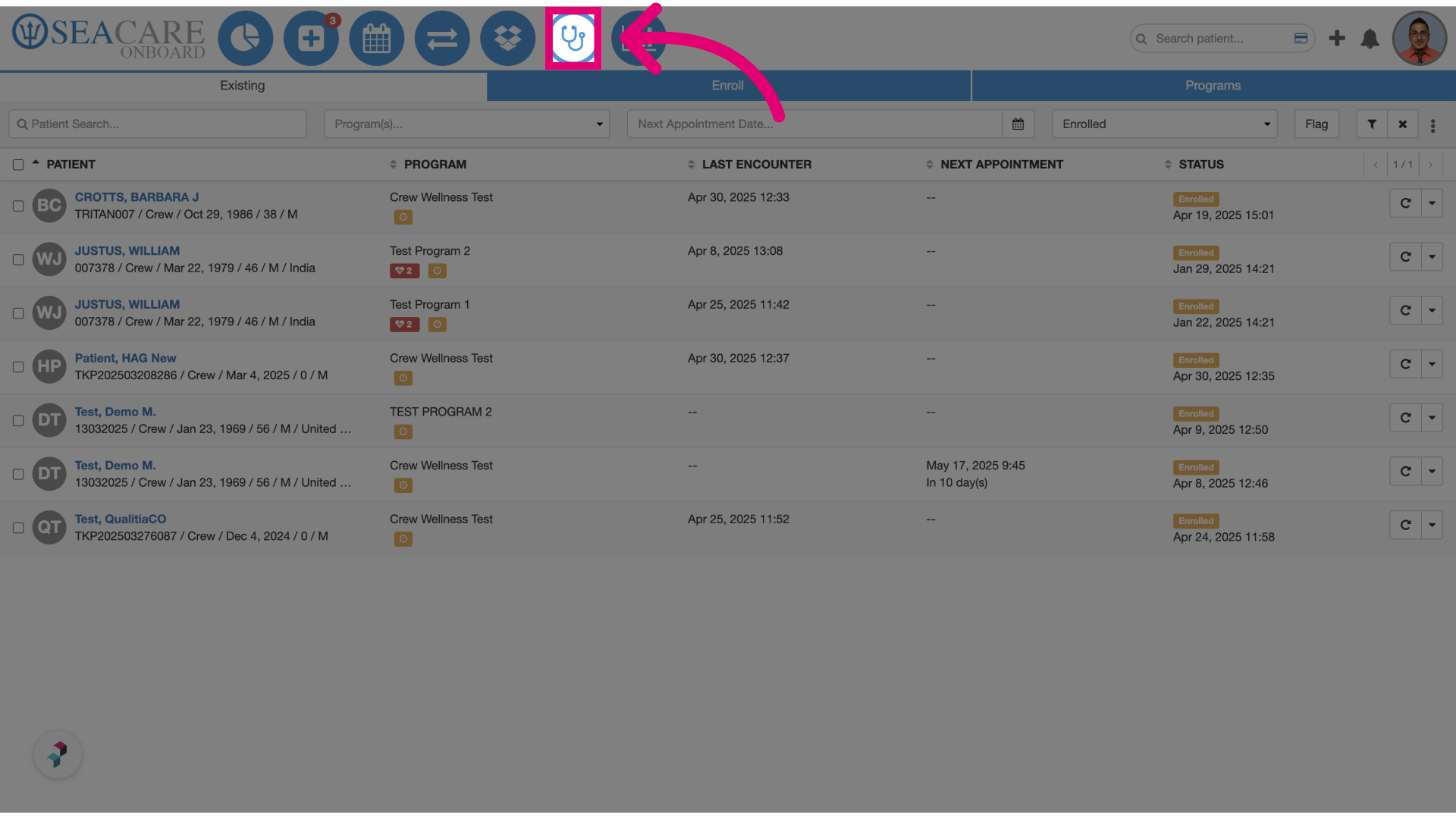
- Go to the Crew Wellness module: Navigate to the appointments section within the Crew Wellness module.
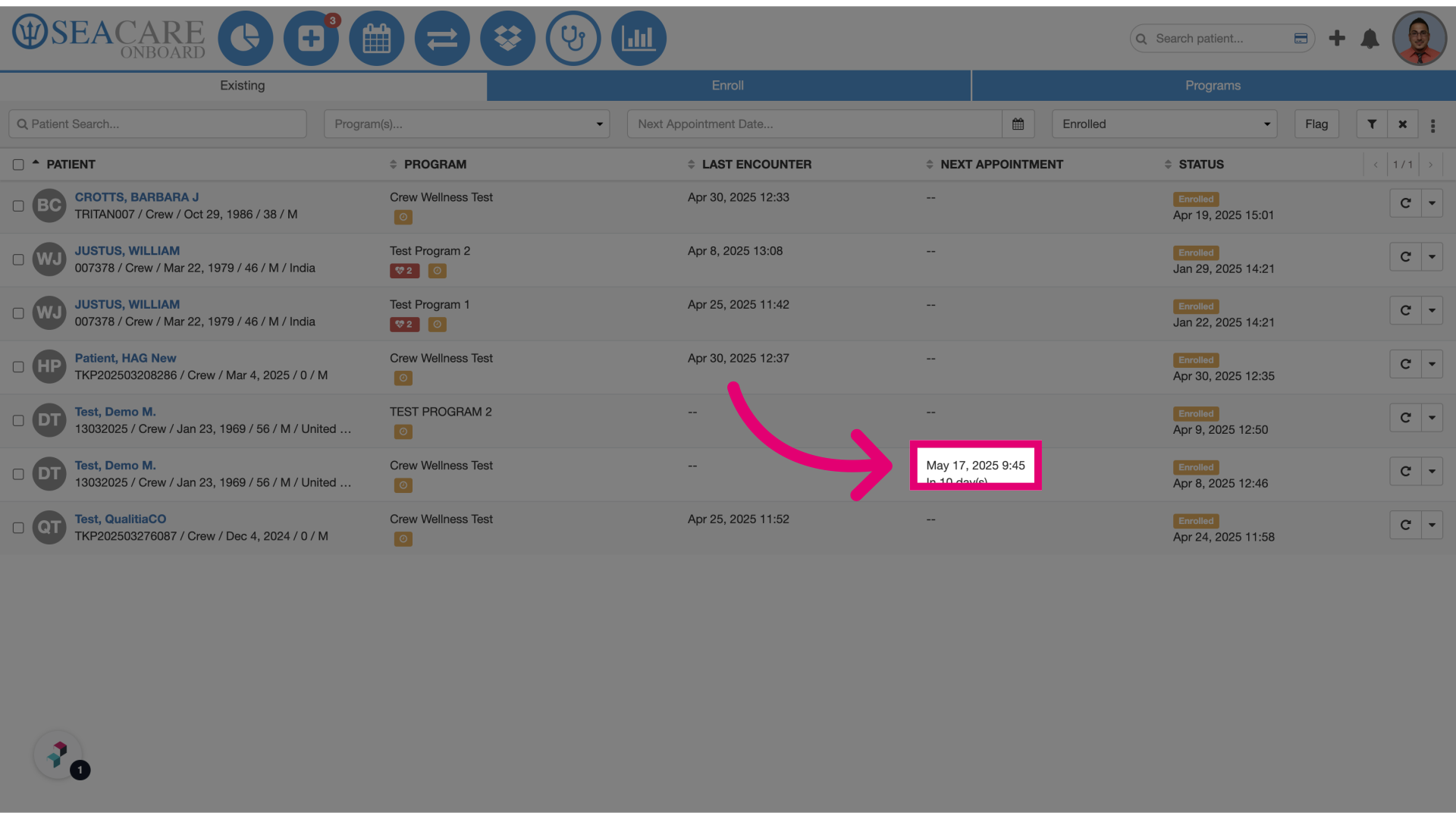
- View the next appointment: Identify the date of the patient’s upcoming appointment (e.g., May 17th, 2025).
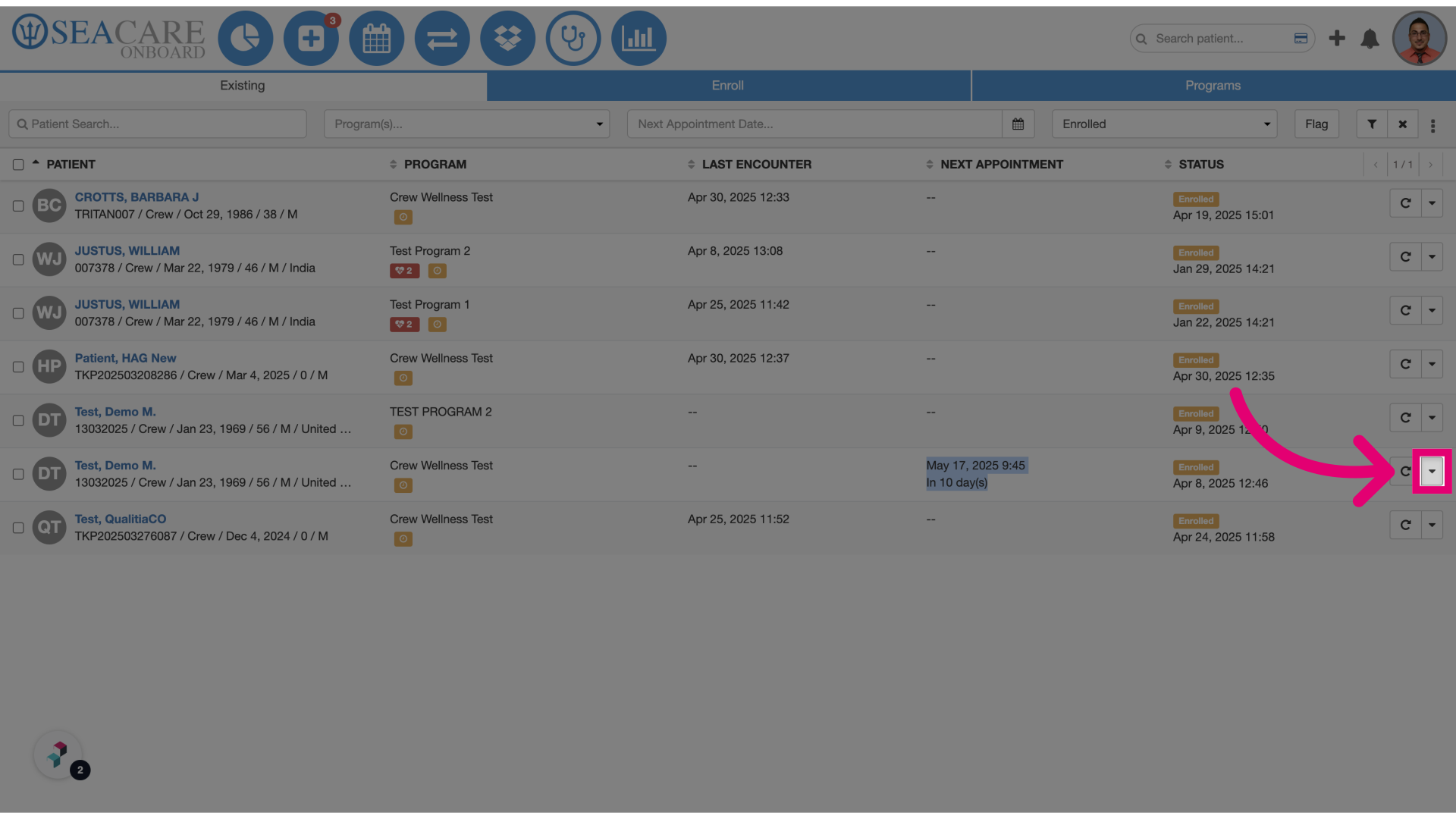
- Click the quick action button: Access the appointment details by selecting the quick action icon.
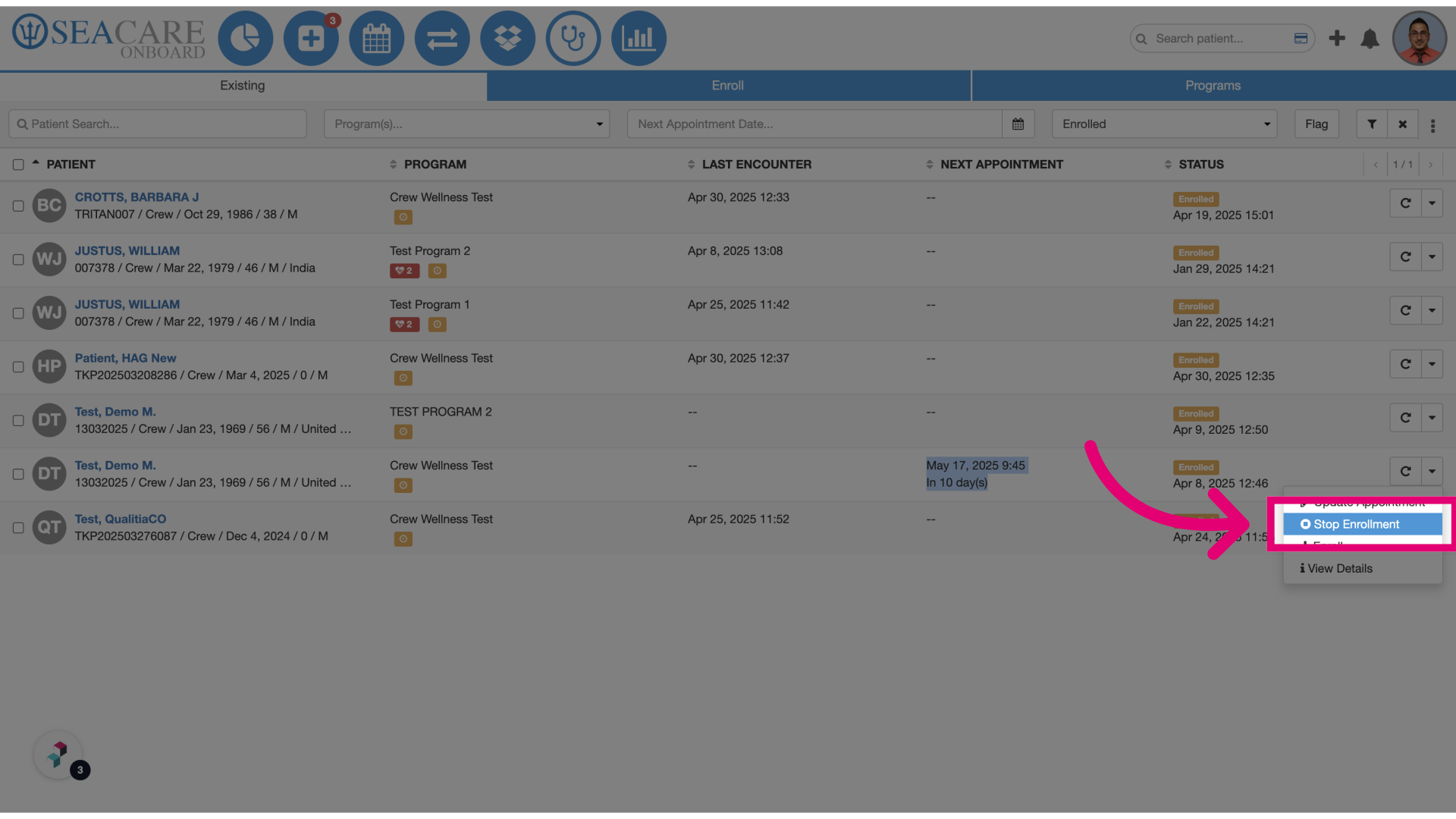
- Click Stop Enrollment: Choose this option to begin the cancellation process.
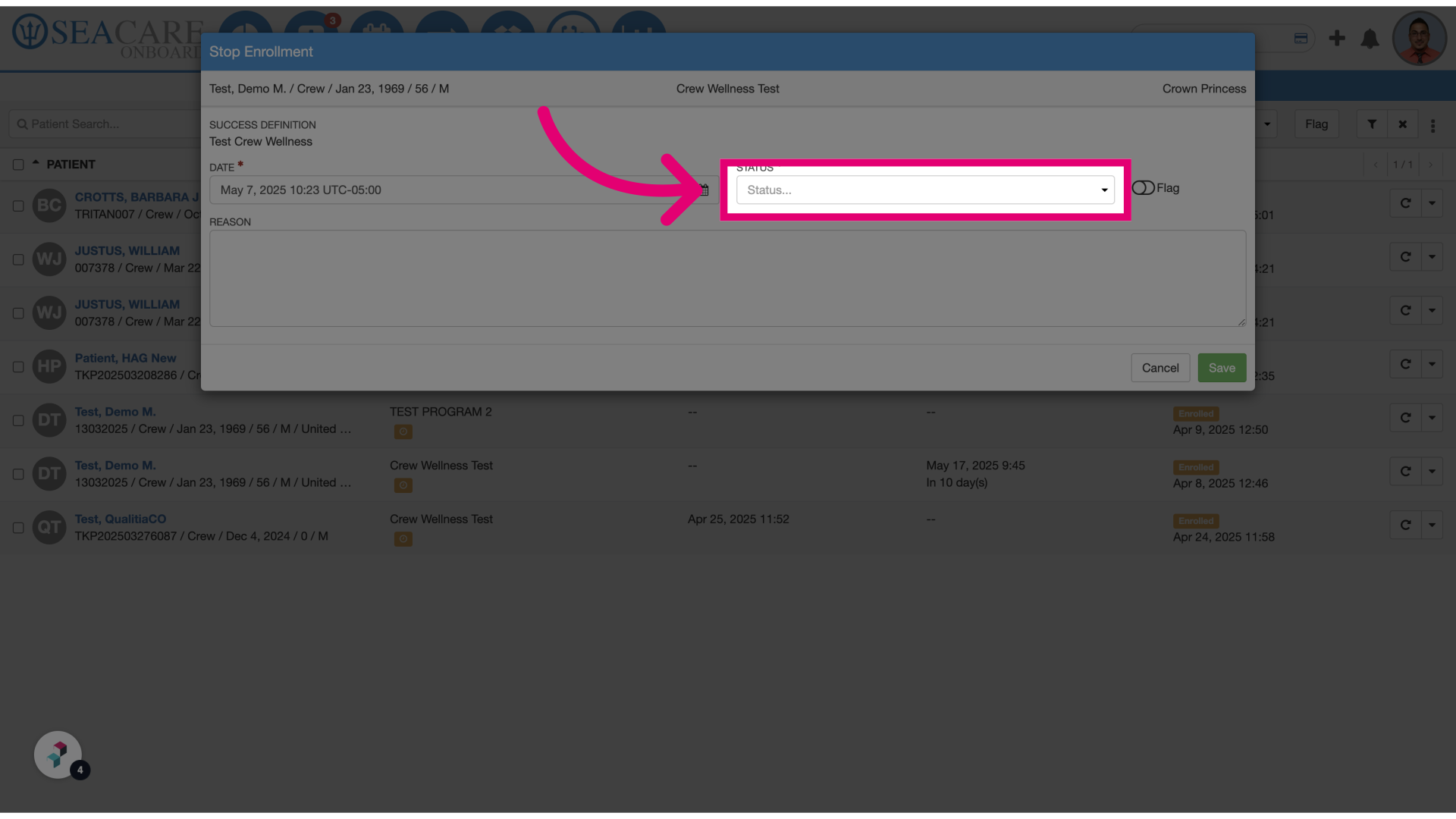
- Select a status: Use the dropdown menu to choose the appropriate status for stopping the enrollment.
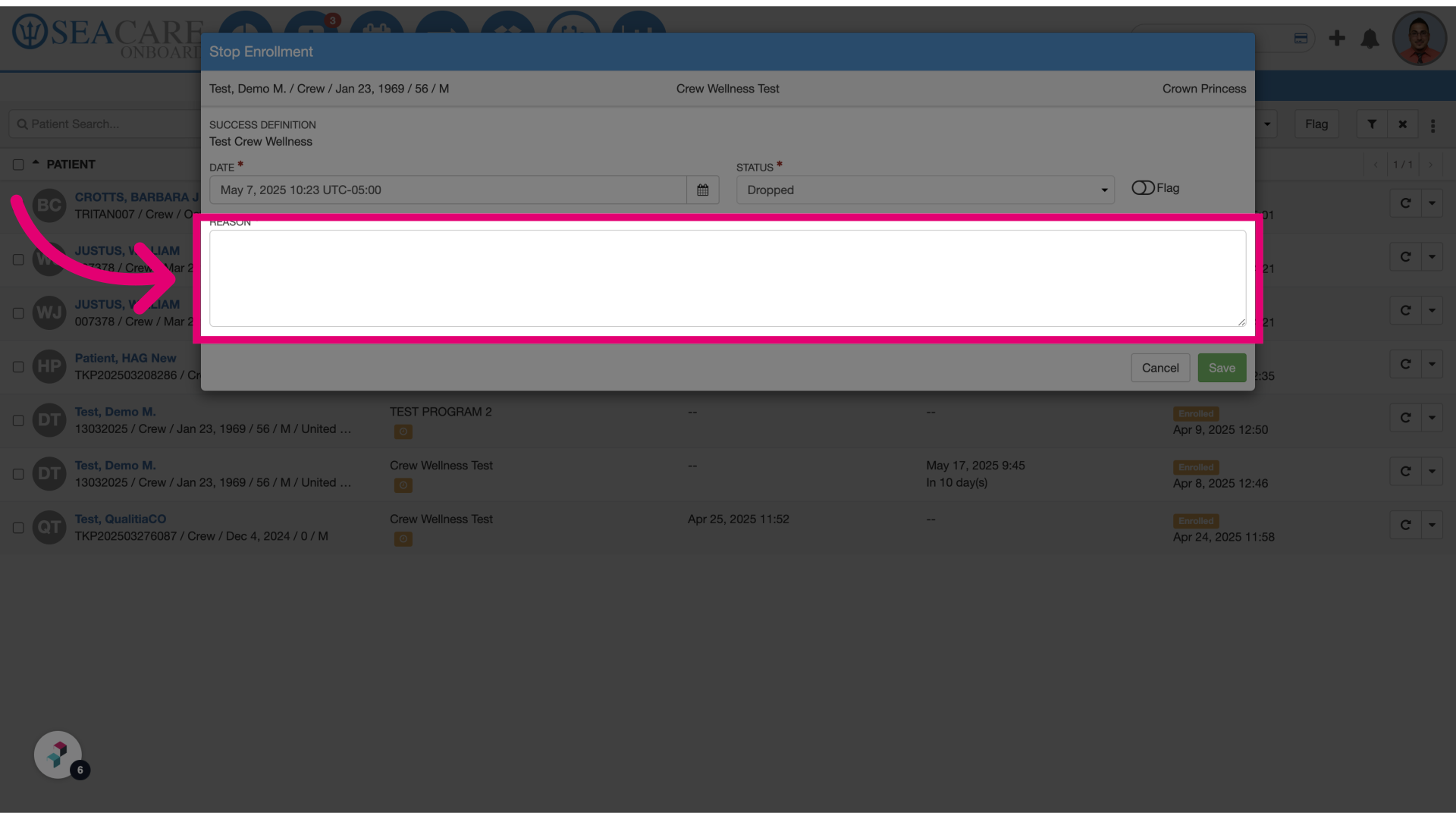
- Enter the reason: Provide a reason for stopping the enrollment in the designated field.
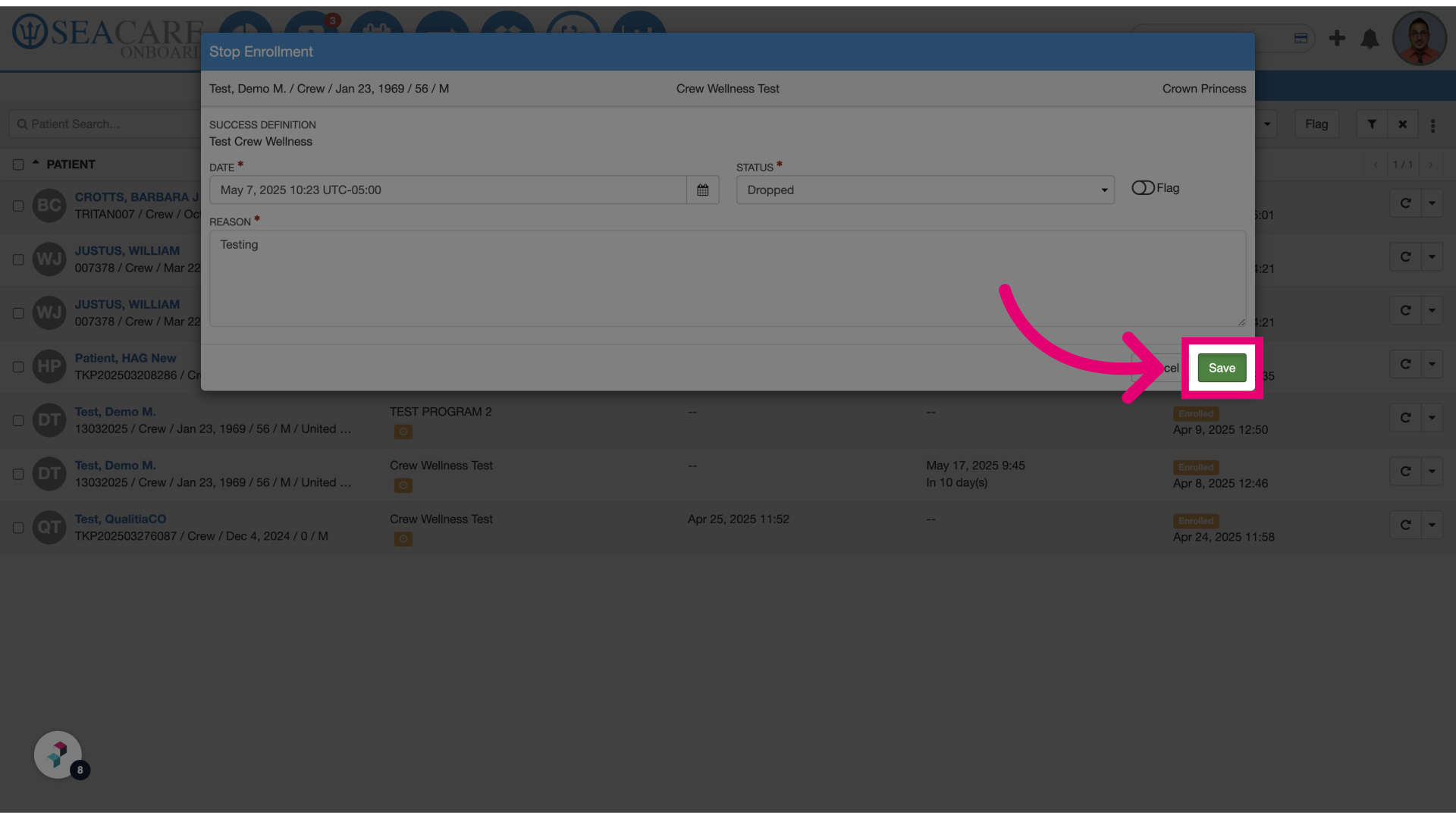
- Click Save: Save the changes to finalize the cancellation.
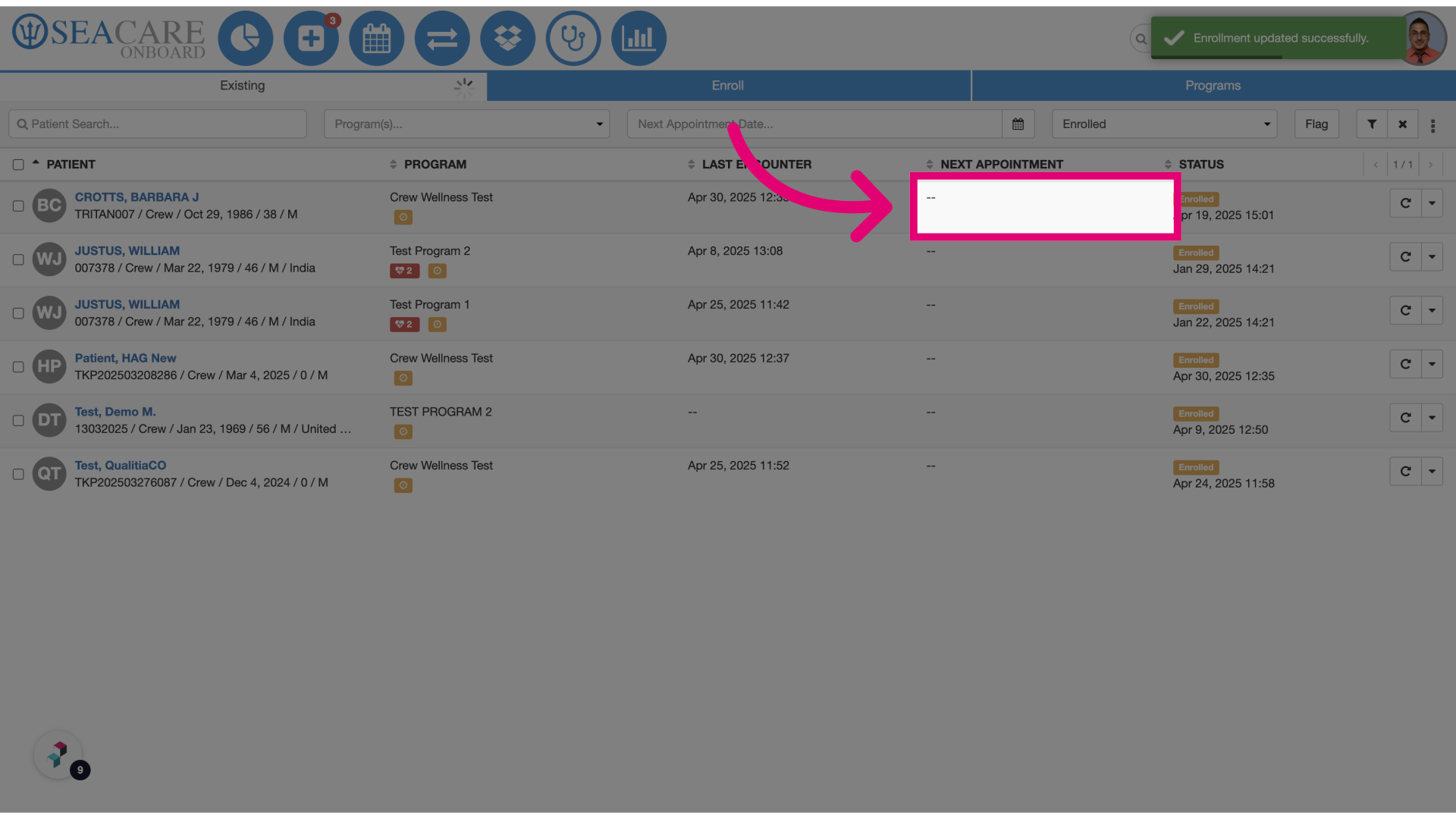
- Verify appointment cancellation: Confirm that the patient no longer has any scheduled appointments listed.