New article
Recently updated
Using Filters to Customise Searches in the Provider

Who is this article for?Users who want to learn to use the filters to customise searches within Ideagen Maritime Health Provider.
No elevated permissions are required.
The Clinical Workflow tab provides filters for customising searches by various criteria. You can easily use the filters to find specific information such as the document statuses, appointment dates, document type or other relevant data, allowing you to focus on what you need.
1. Using Filters to Customise Searches in the Provider
1.1. Video
1.2. Steps
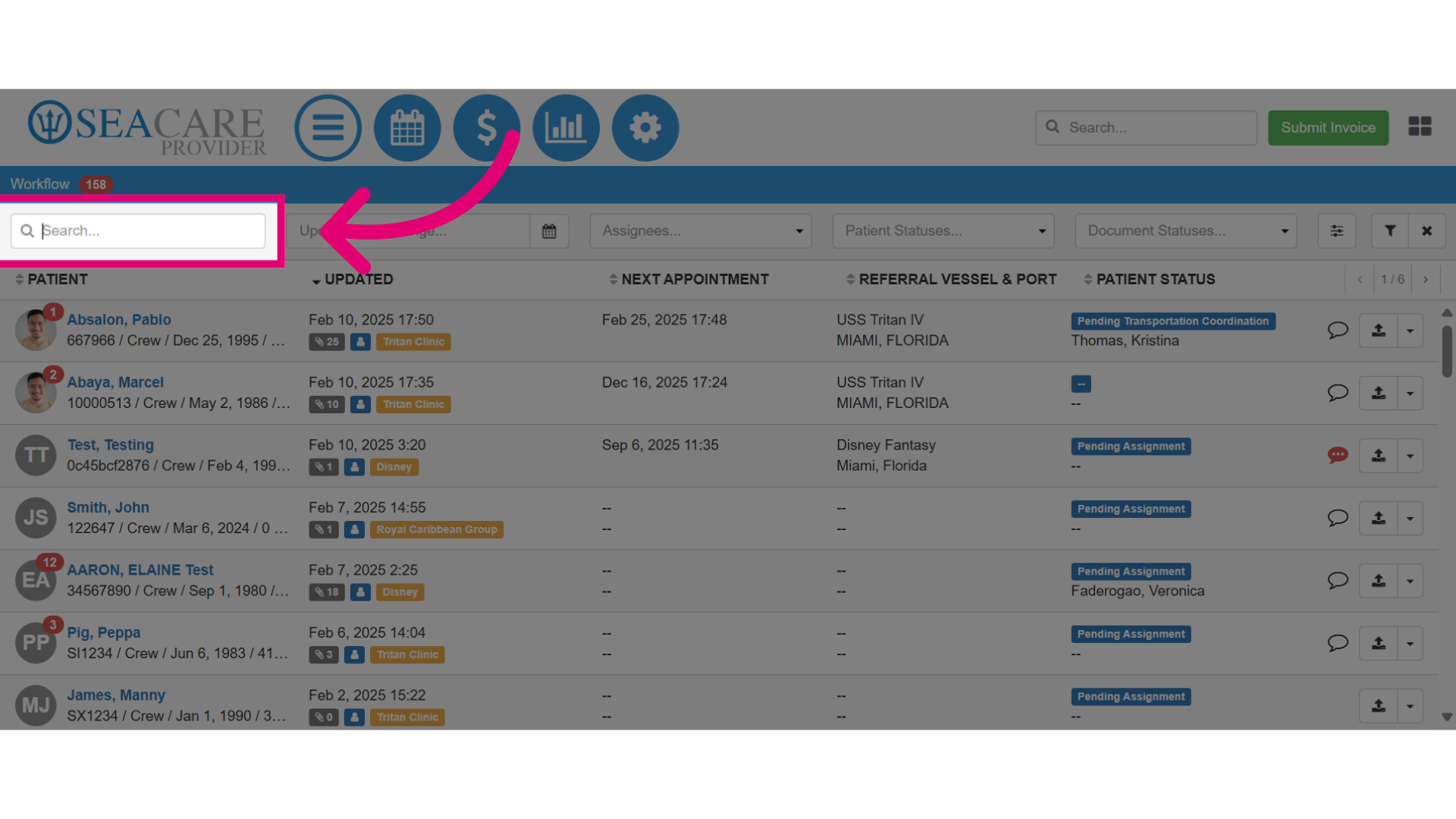
- You can use the Search filter to enter the patient's name to locate the patient.
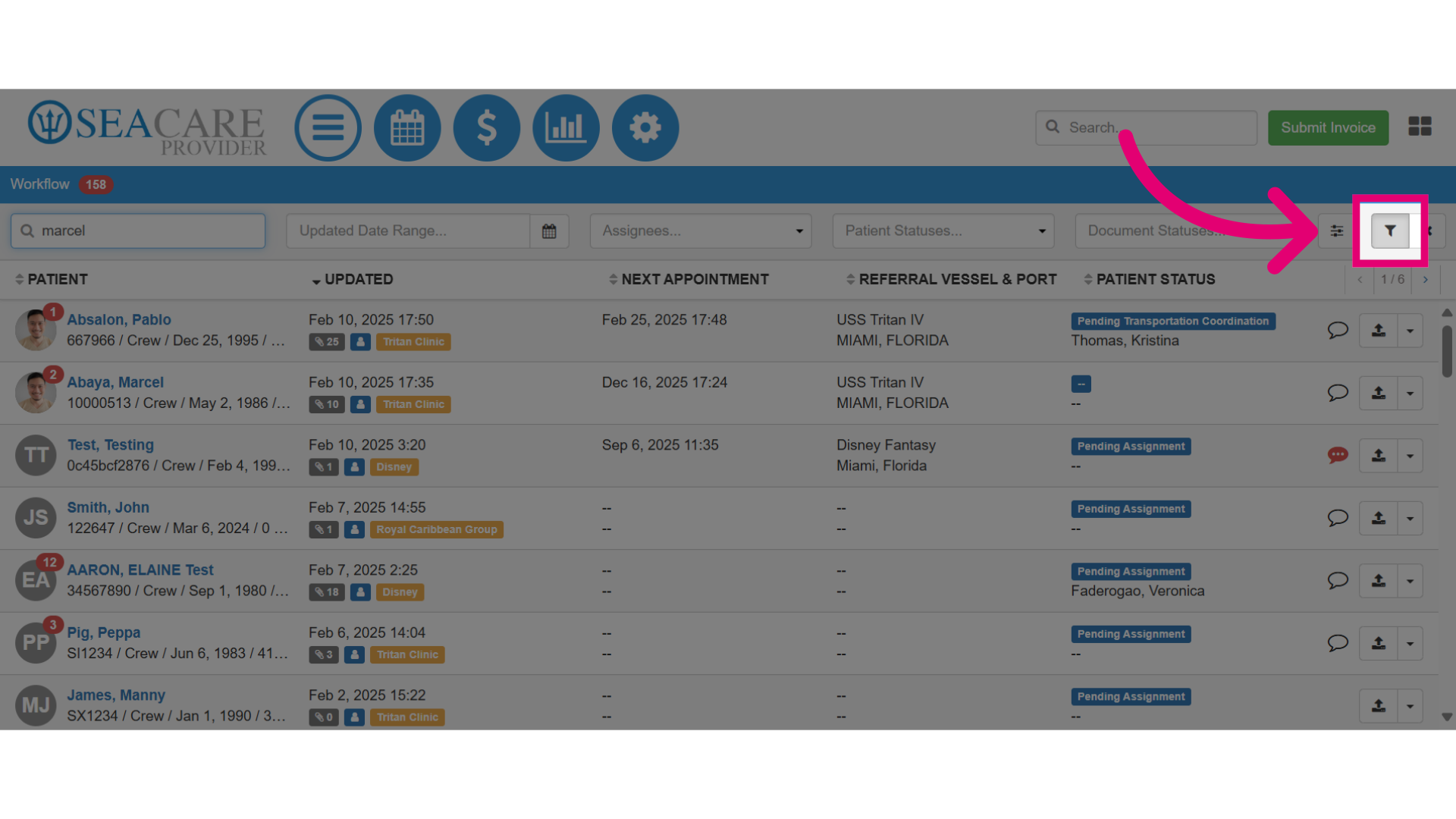
- Then, select the filter button to generate the results.
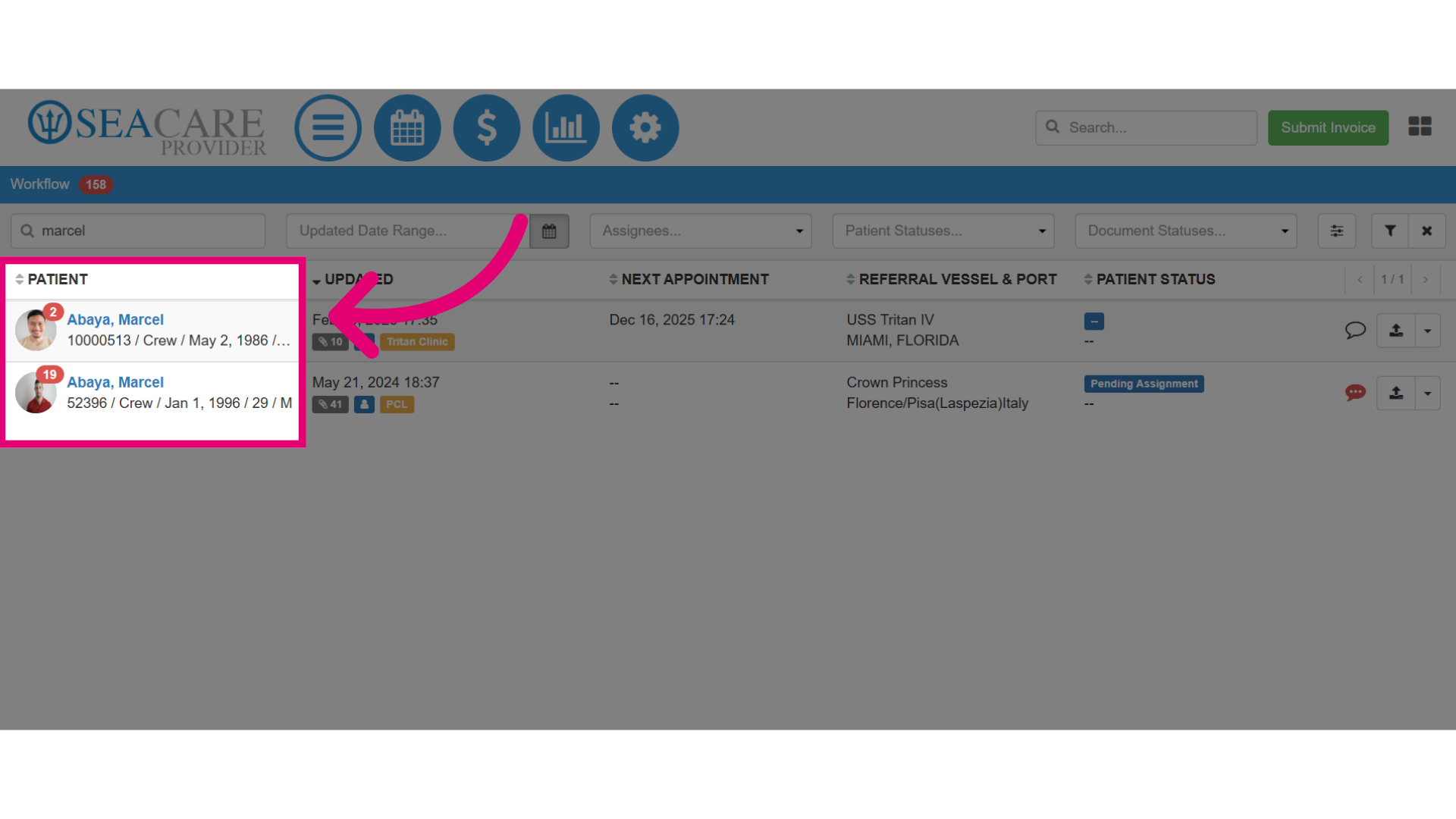
- The patients with a matching name will appear in the patient list.
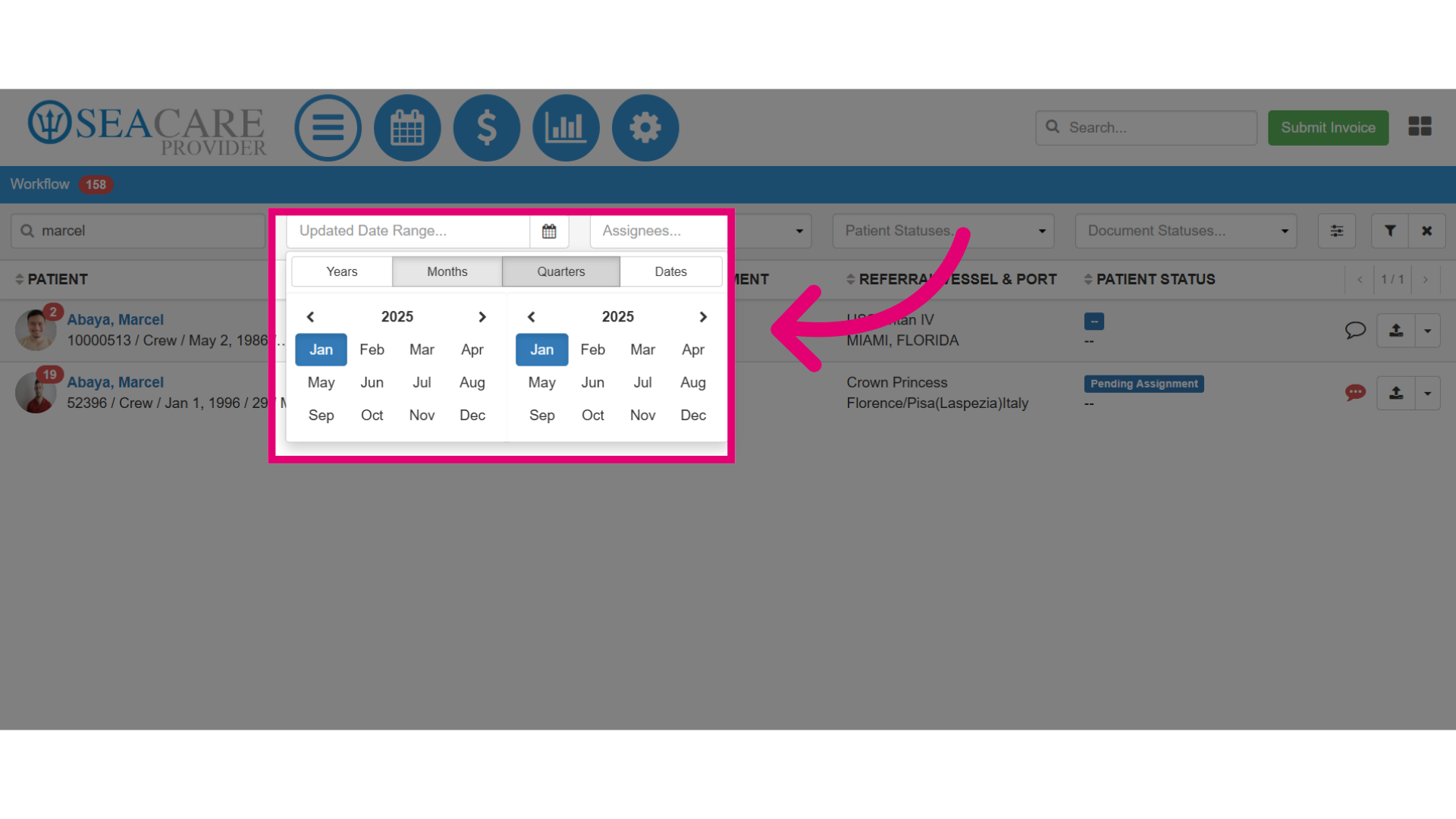
- The Date Range filter allows you to tailor your search to specific dates, years, months, or quarters when documents were shared for the patient.
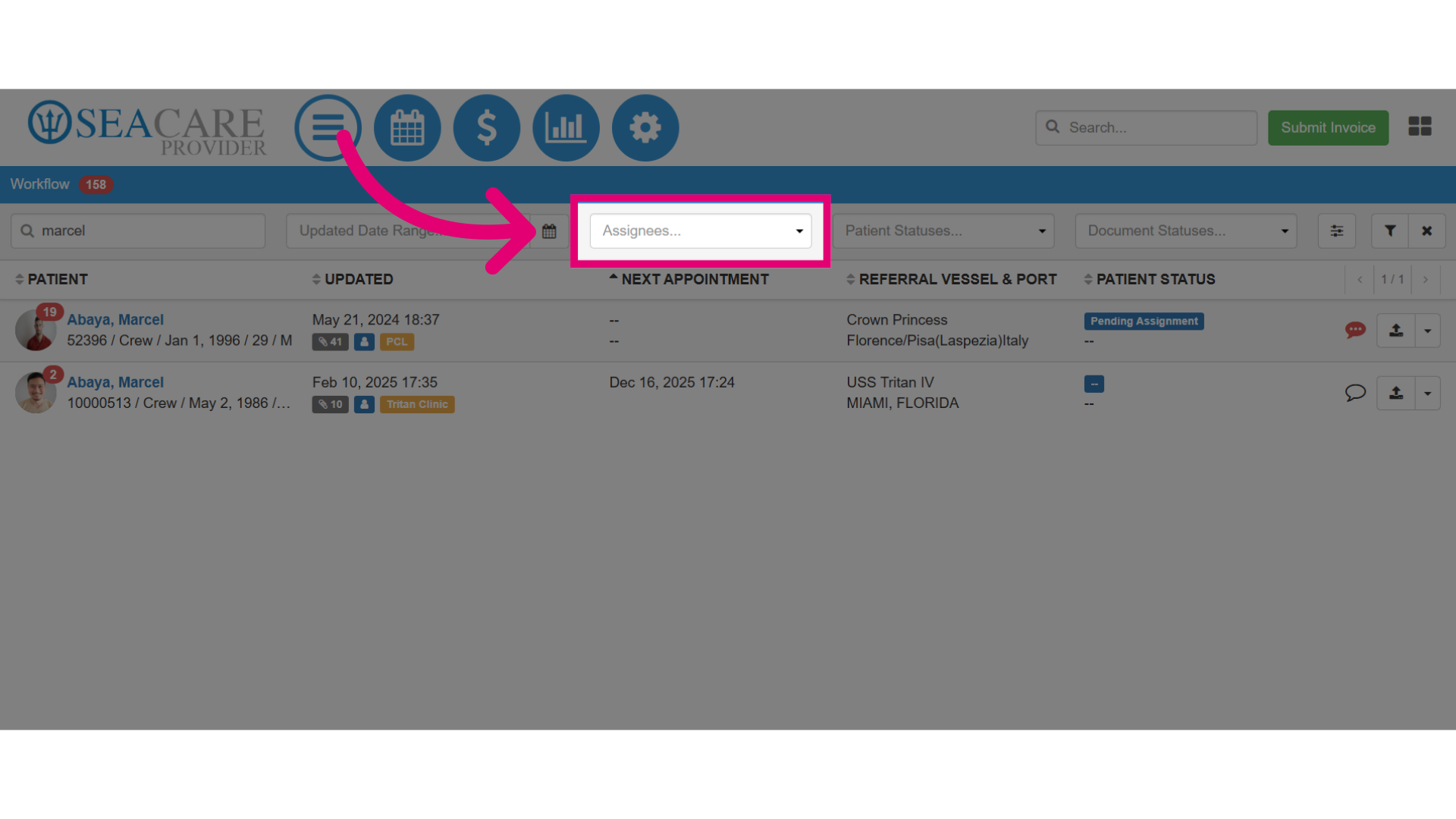
- Using the Assignee filter, you can display all patients assigned to a specific user in the provider application.
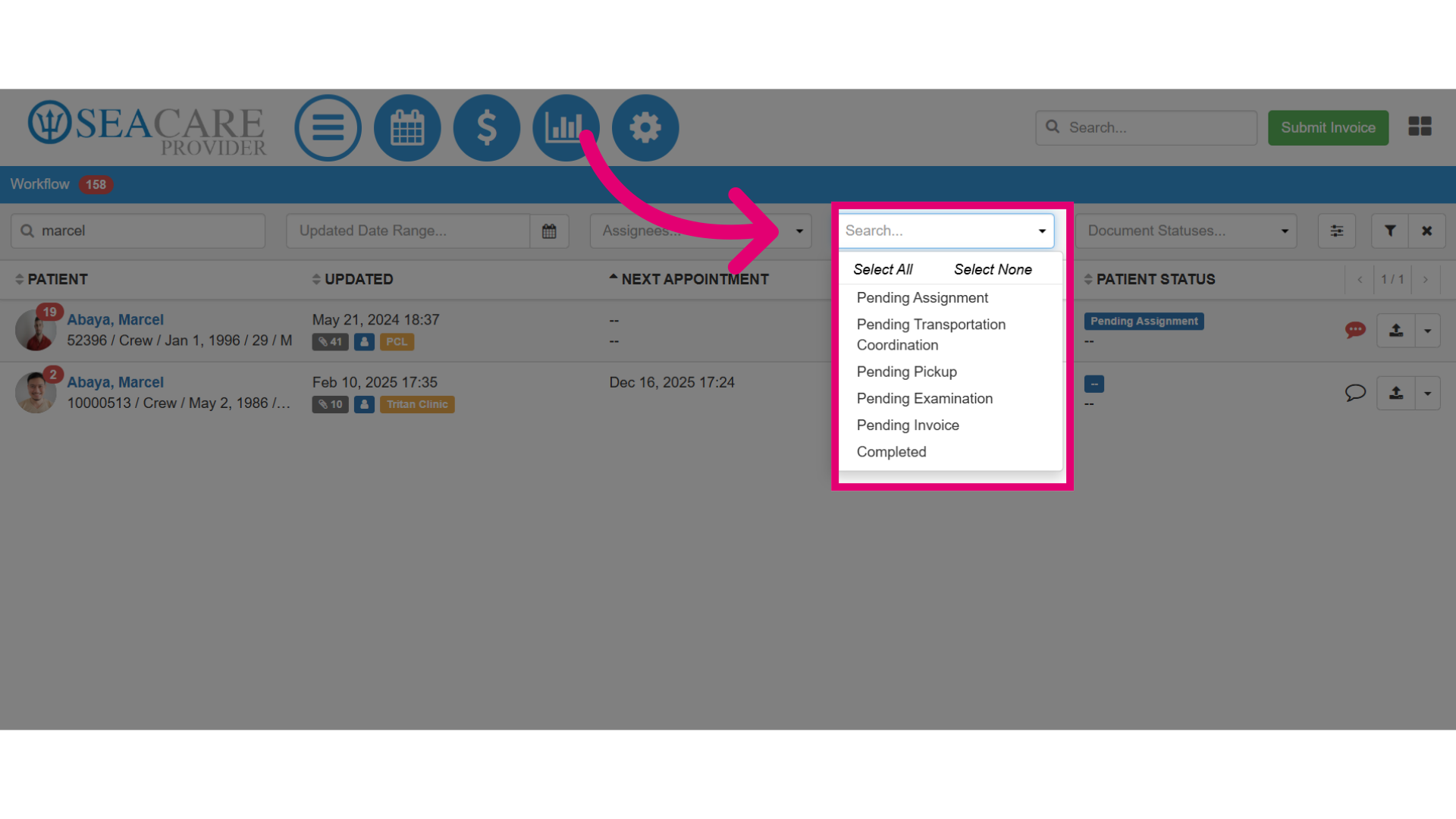
- You can use the Patient Status filter to search for patients based on their status, including awaiting assignment, transportation coordination, pick up, examination, invoice, or completed.
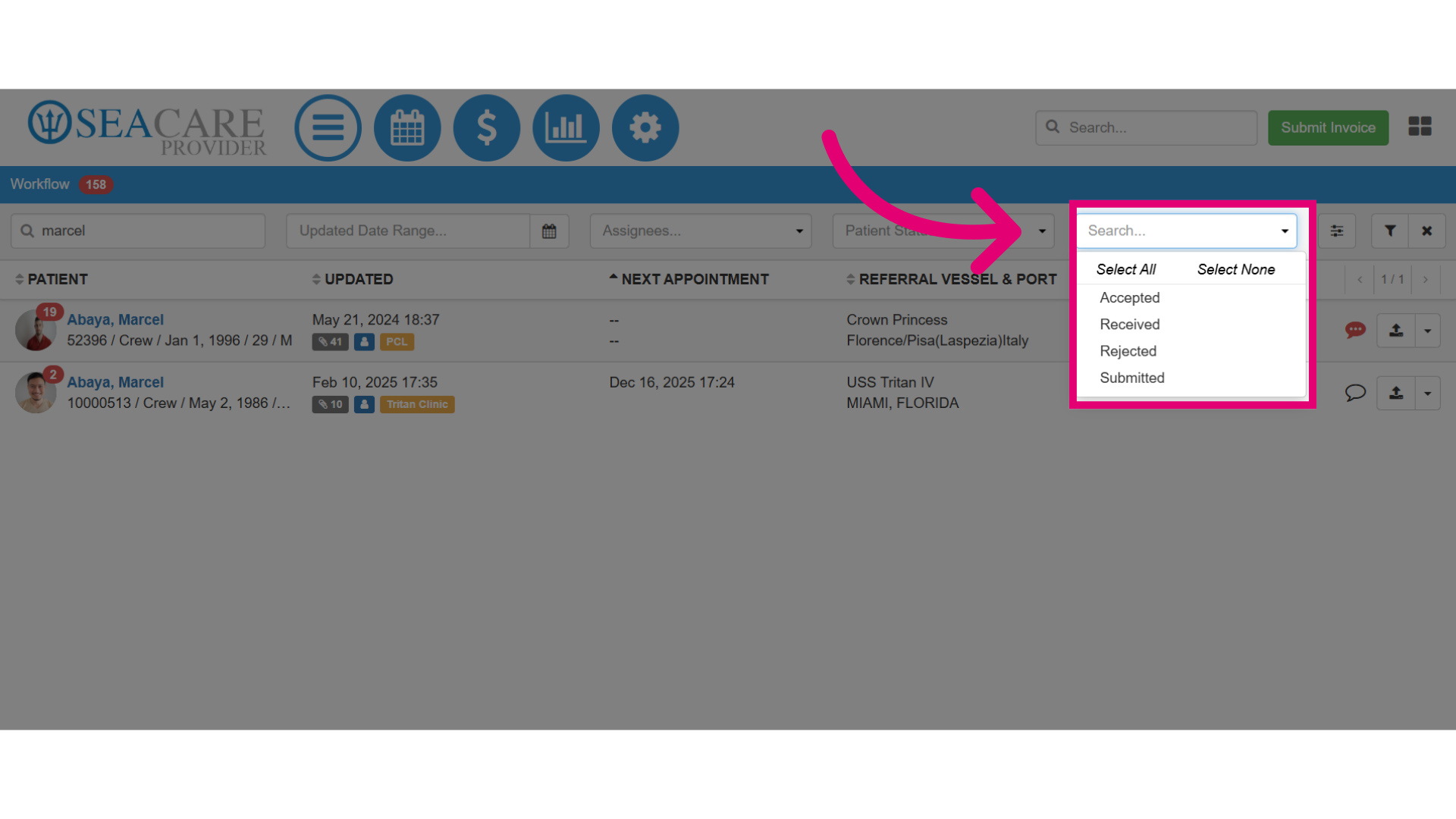
- You may also search by Document Status. This allows you to locate patients with documents that have been accepted, received, rejected, or submitted.
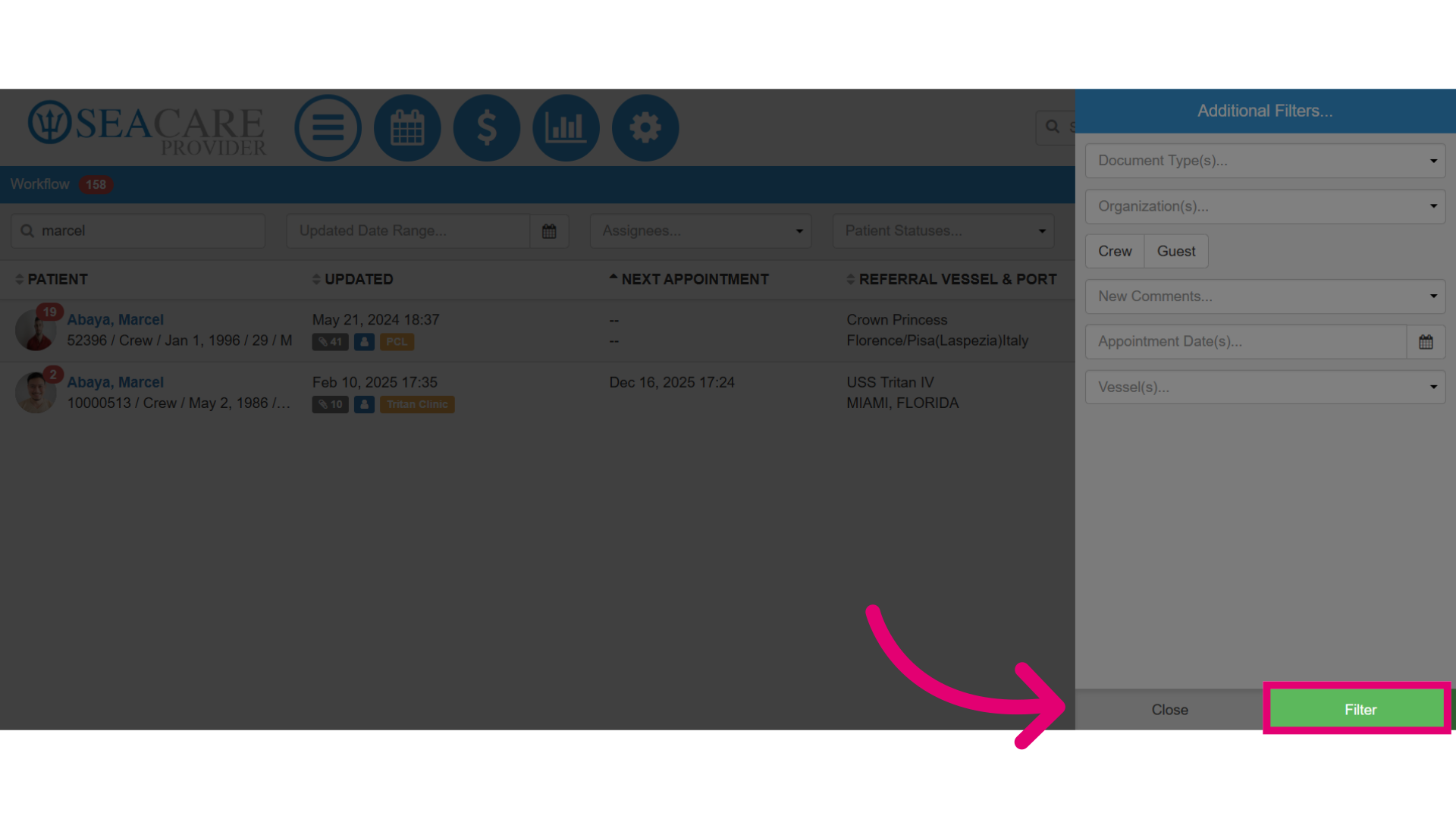
- You can further refine your search by selecting Additional Filters.
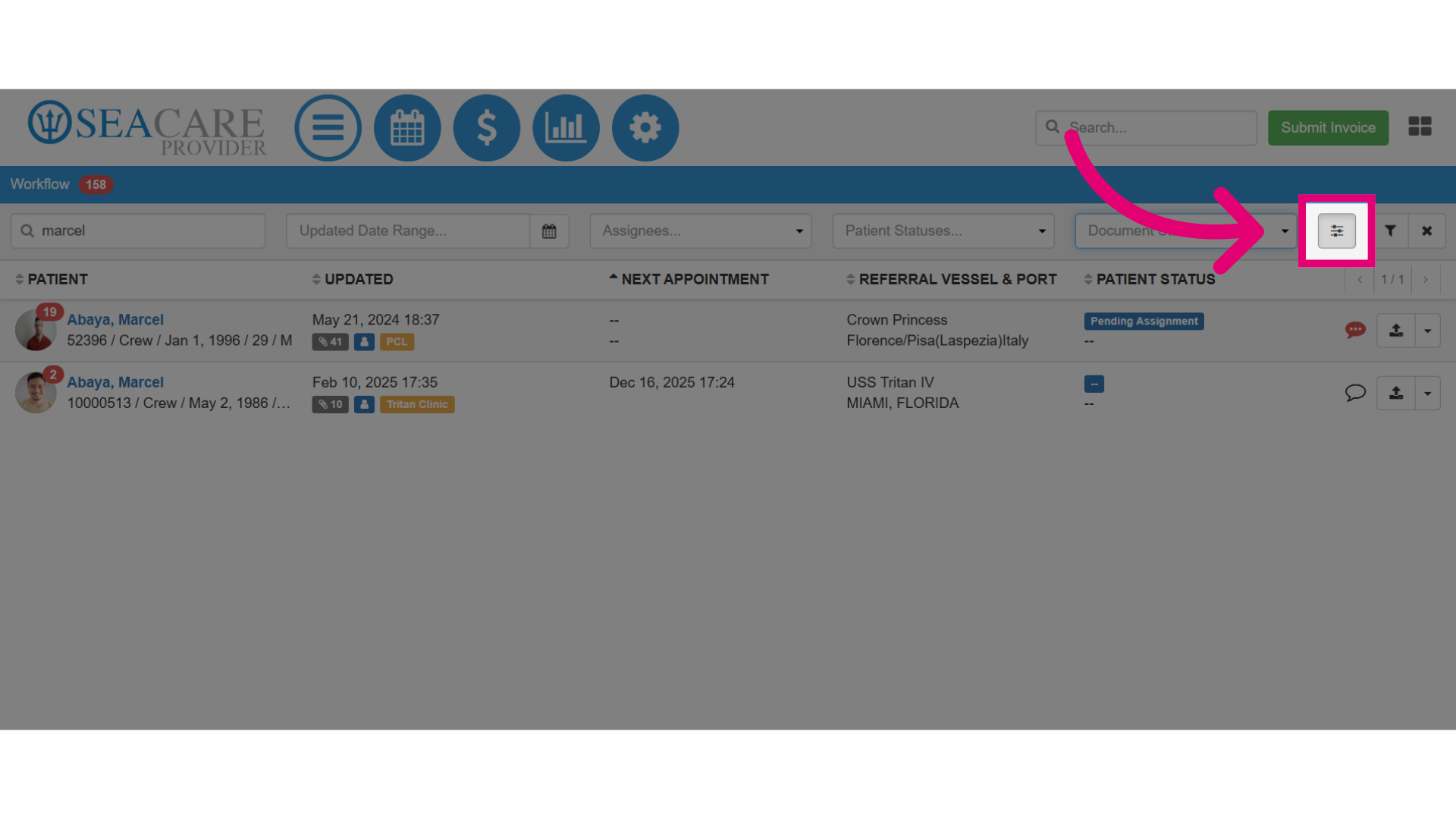
- Under Additional Filters, you have filter options you can use for:
- Document Type (e.g. PEME or Referral documents)
- Organization
- Crew or Guest
- Unread comments
- Appointment Dates
- Vessels
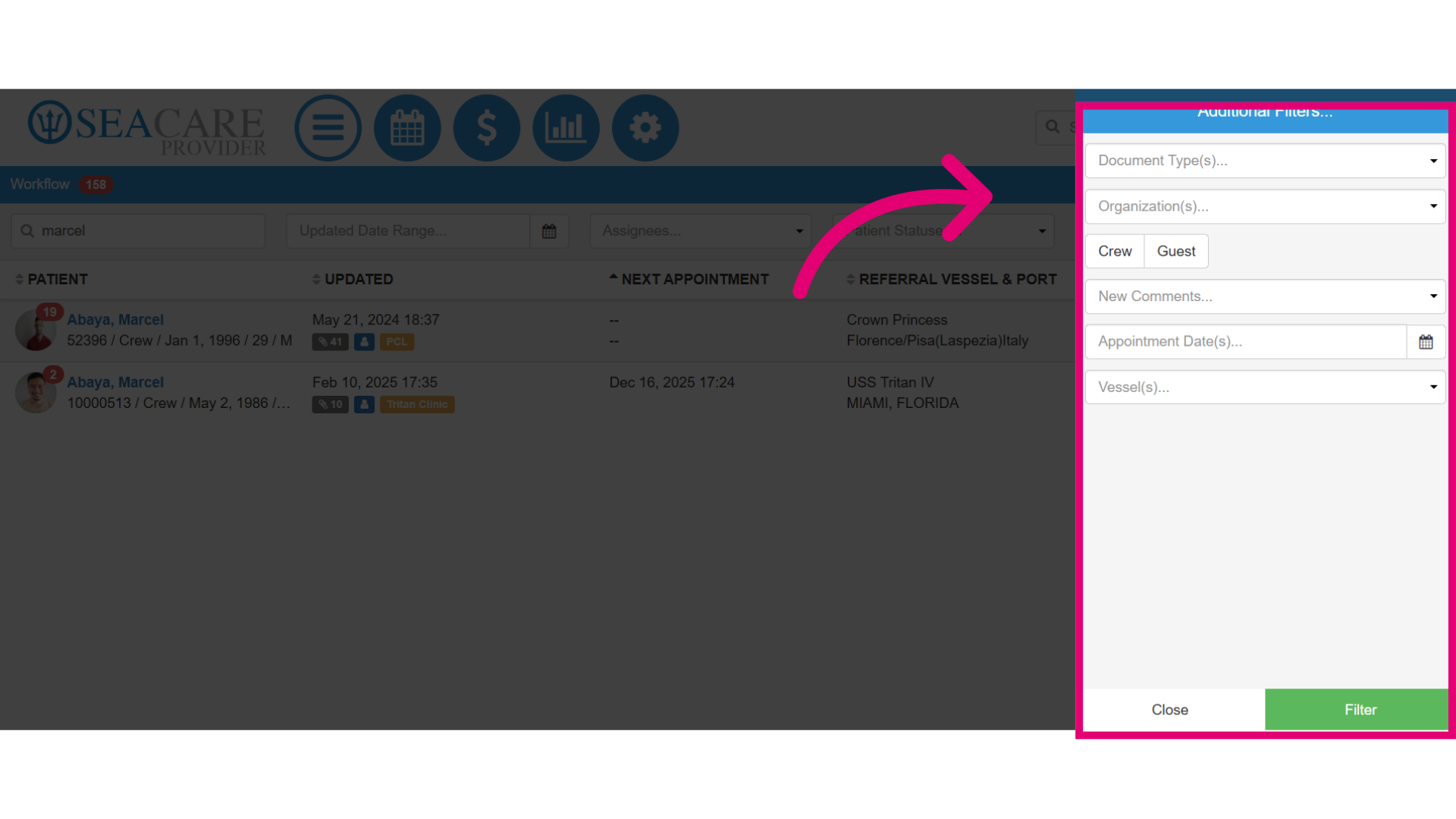
- After you have added the necessary filter then select Filter to generate results.