New article
Recently updated
Viewing Document History in Ideagen Maritime Health Provider

Who is this article for?Users who want to learn to view a patient's document history in Ideagen Maritime Health Provider.
No elevated permissions are required.
This demo will walk you through how to view a patient's document history. This feature is essential for users who wish to track changes, updates, and modifications made to documents over time. By knowing how to access this section, you can stay updated on recent developments and keep an accurate record of document interactions.
1. Viewing Document History in Ideagen Maritime Health Provider
1.1. Video
1.2. Steps
- Start in the Workflow tab, locate the patient and select the Actions menu.
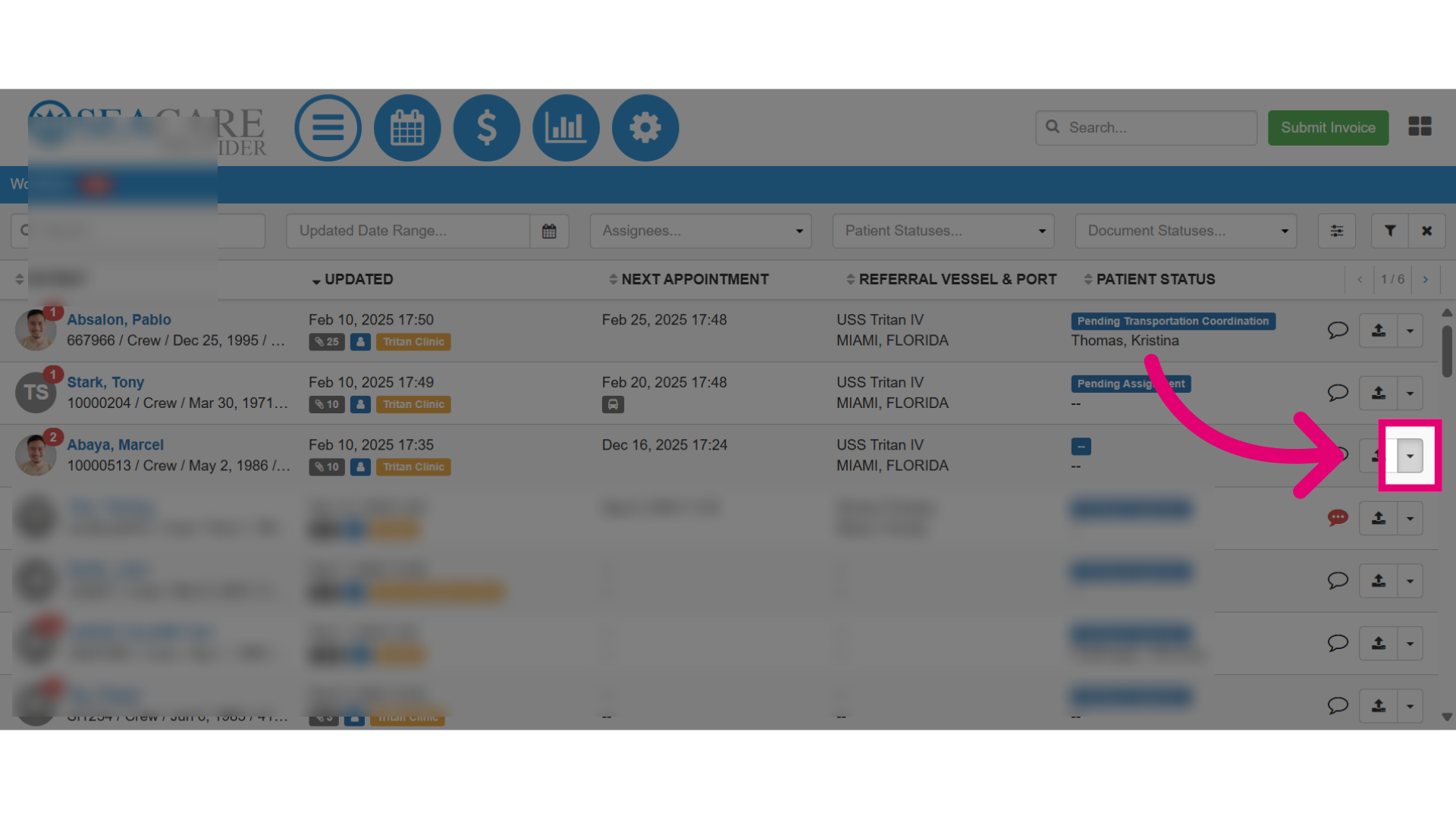
- Then, select the View History option.
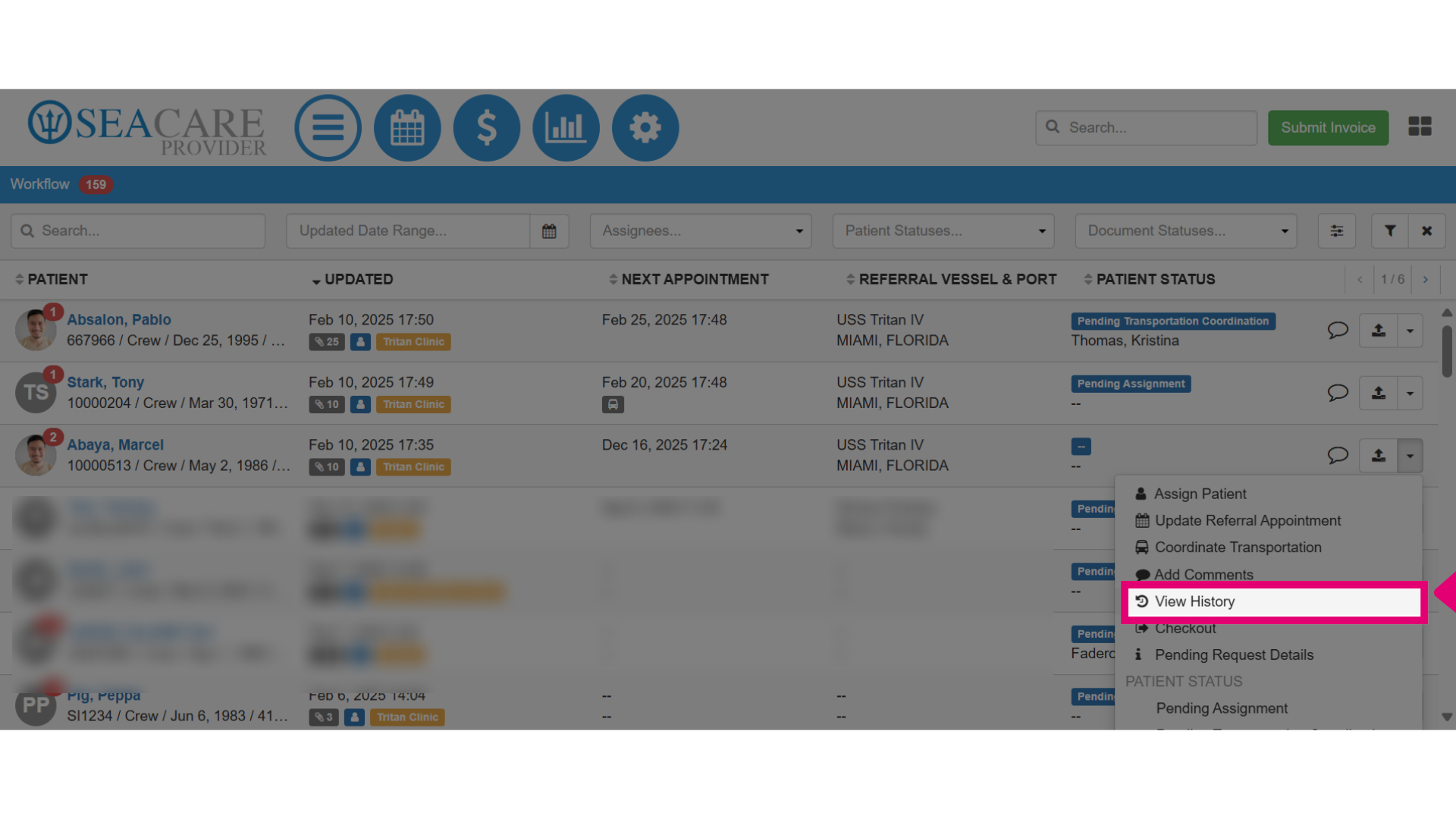
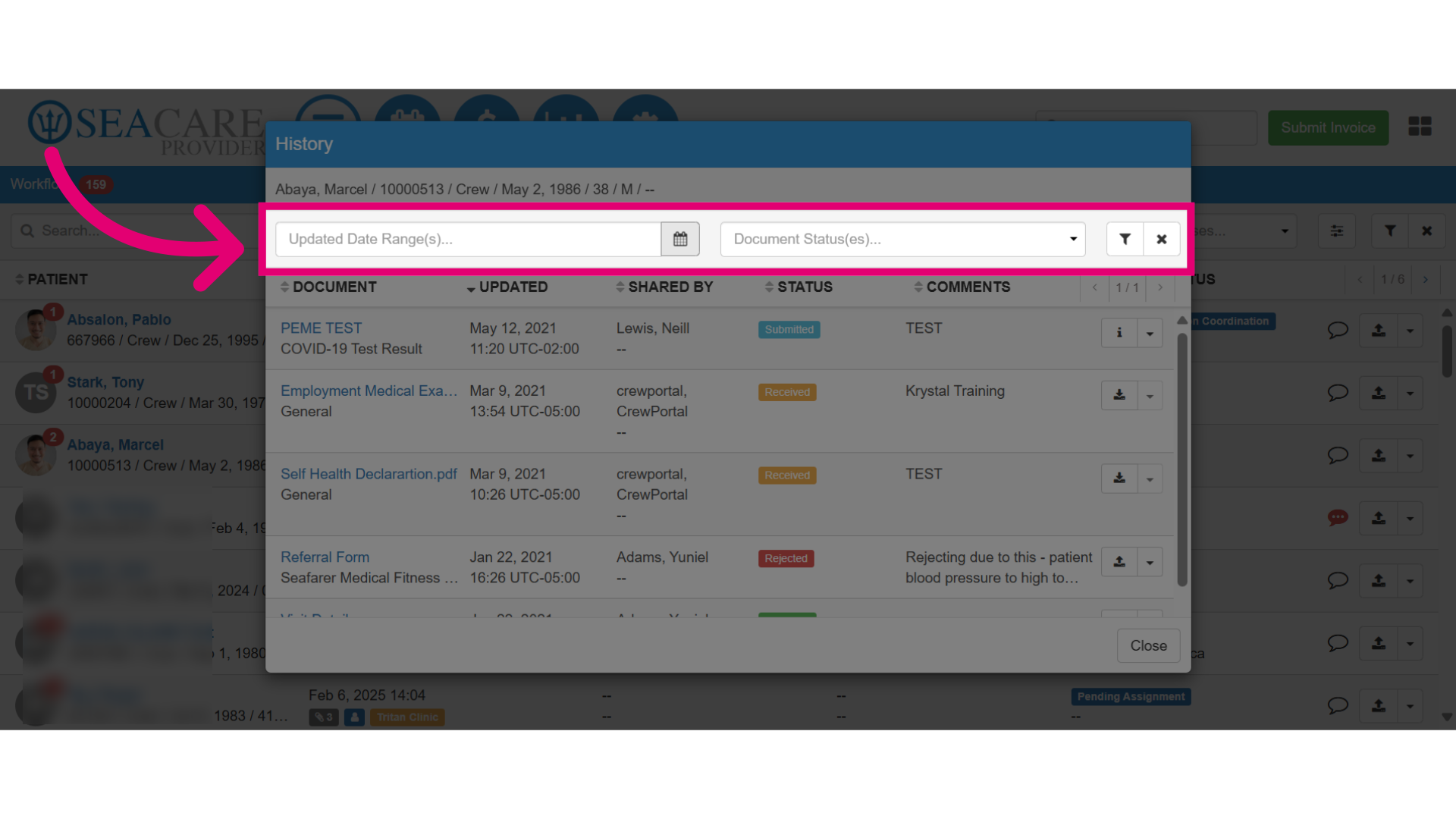
- This is a centralized view of all the documents shared with the patient. It shows the document, the date and time it was shared, the user, and the current status.
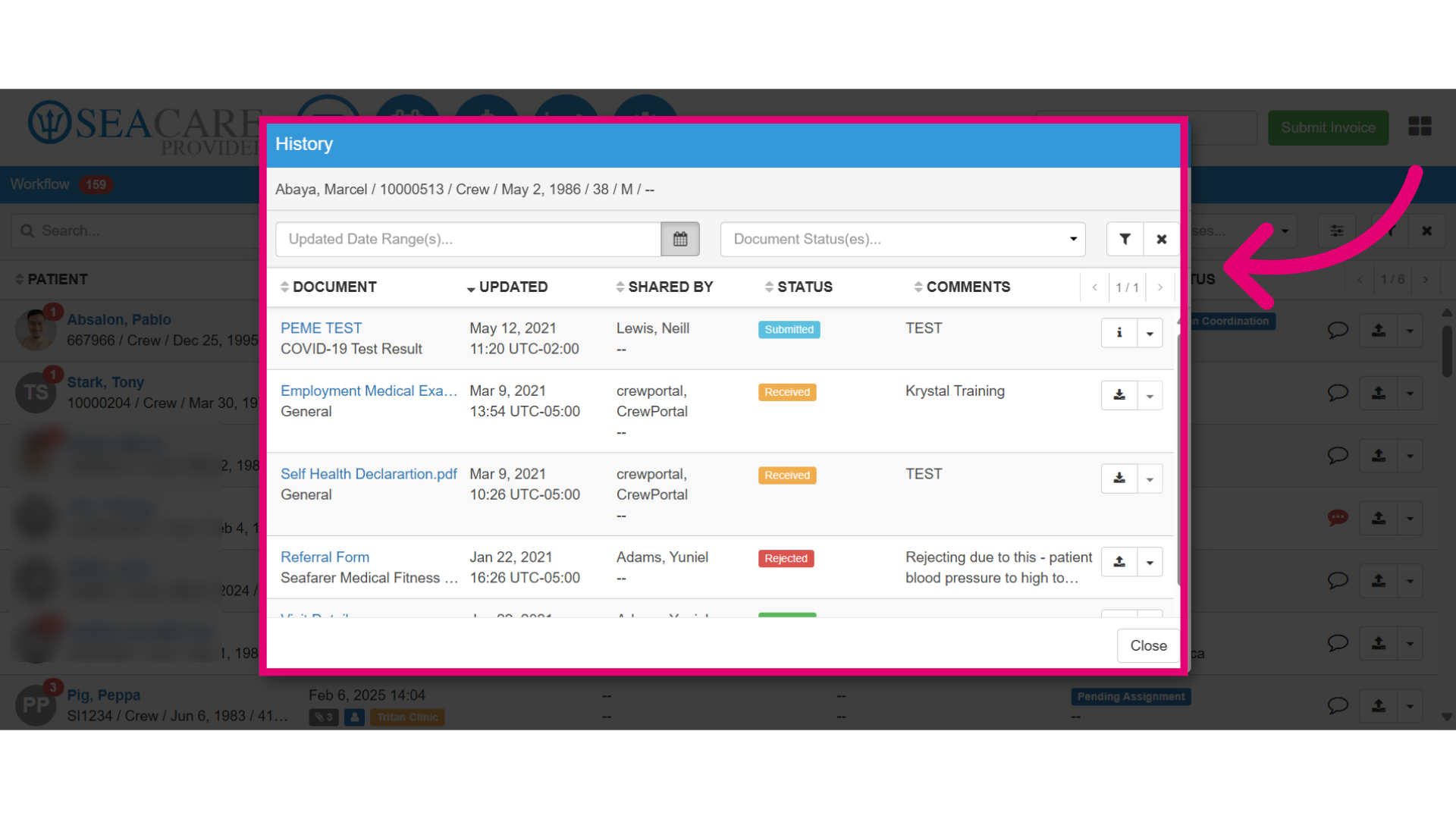
- Use the filters to search the Date Range or Document Statuses of the documents.
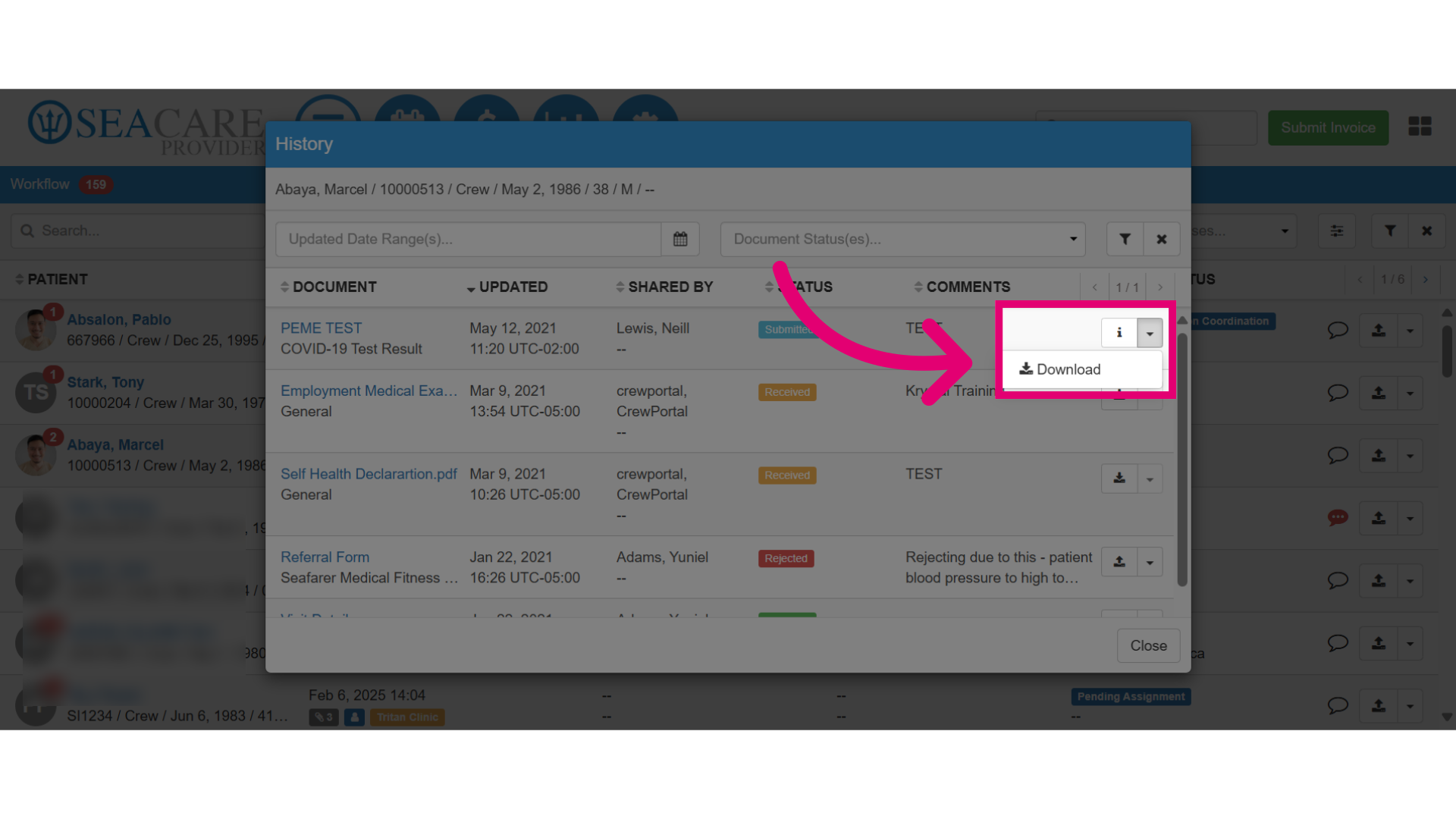
- You may also, select the dropdown button, then click to Download the document if necessary.
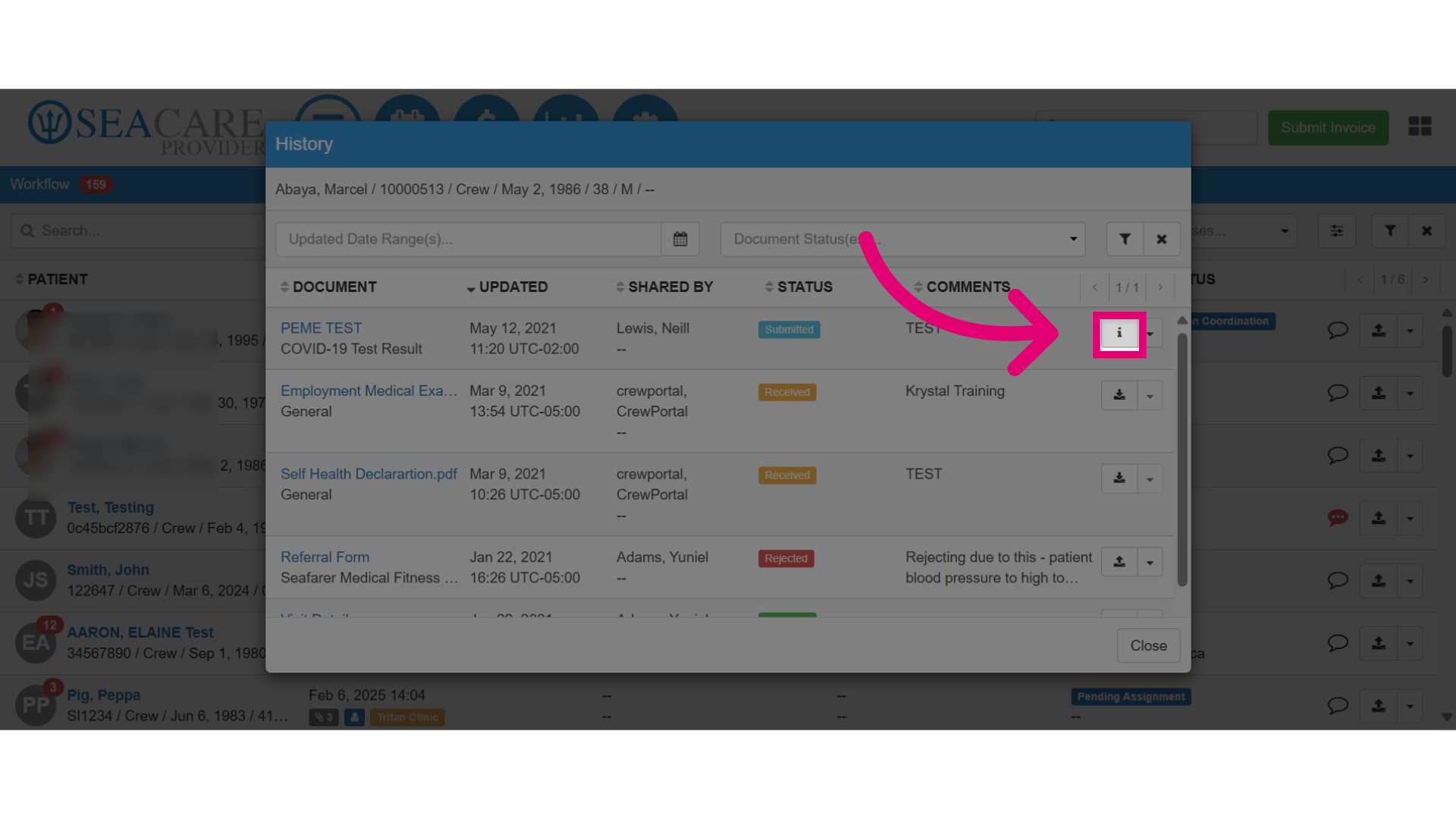
- Select the information (i) button to view more information about the document.
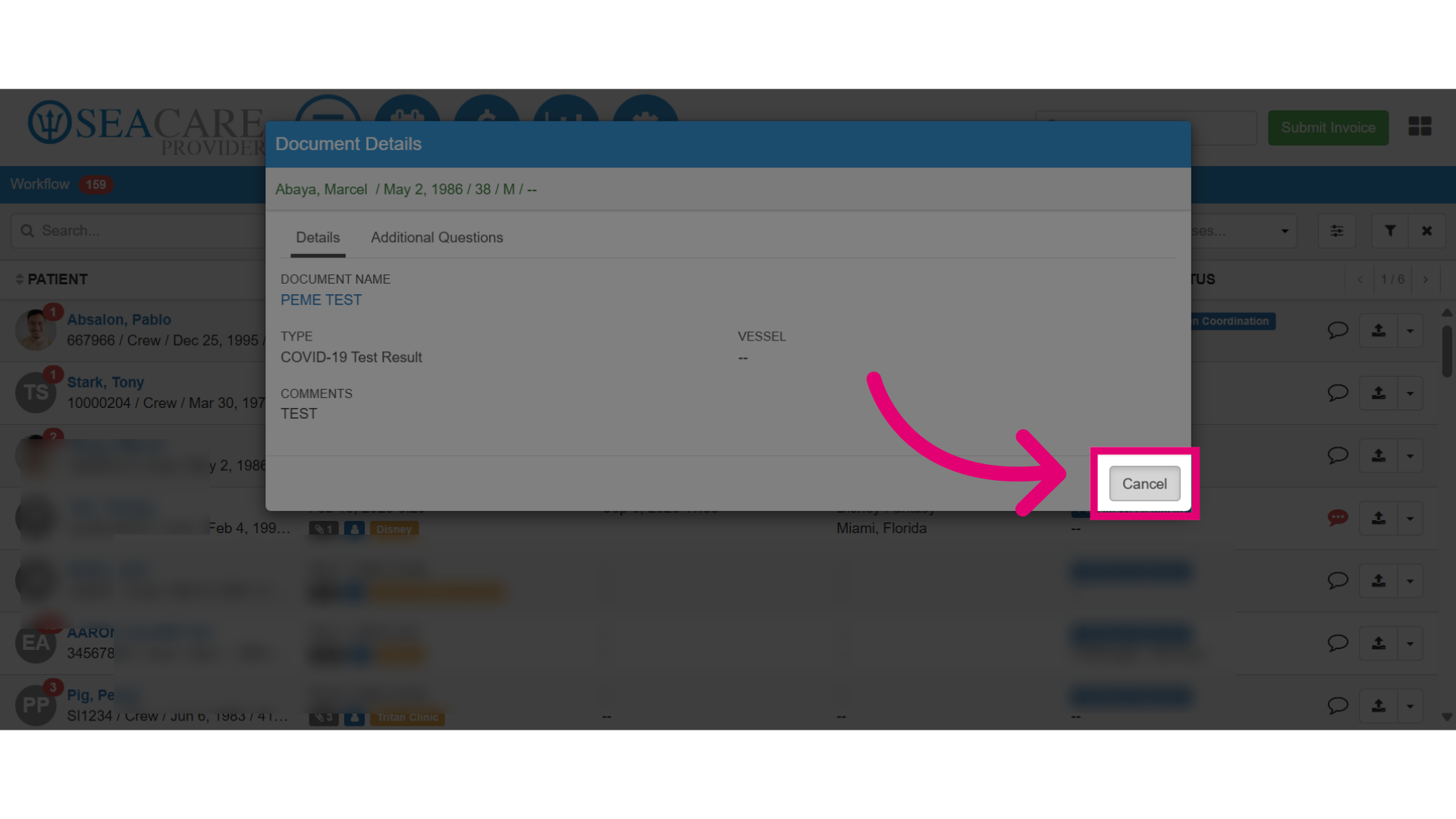
- This opens a window with document details, and If necessary, click on the link for the document name to download it.
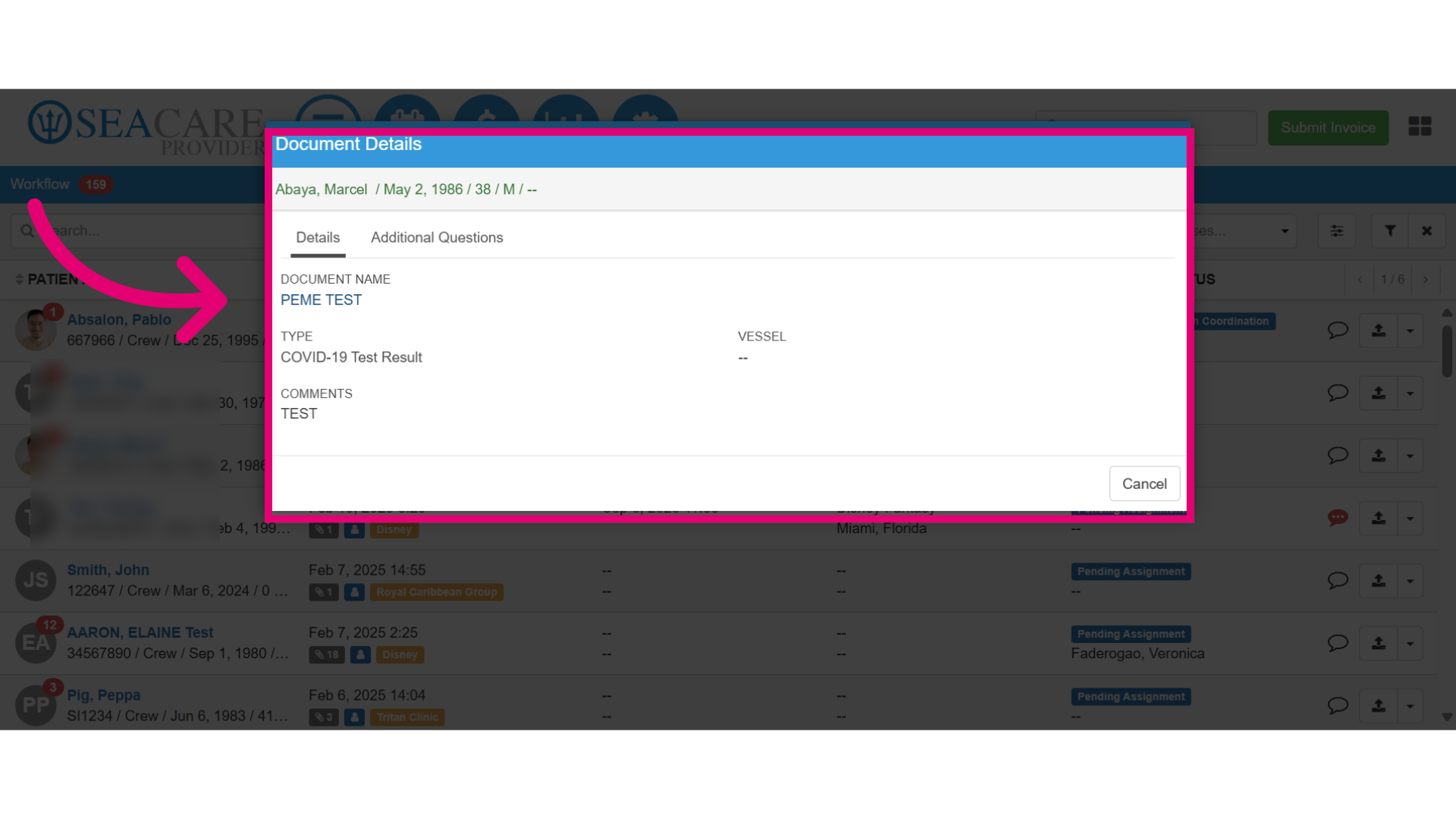
- Select Cancel when you are done.
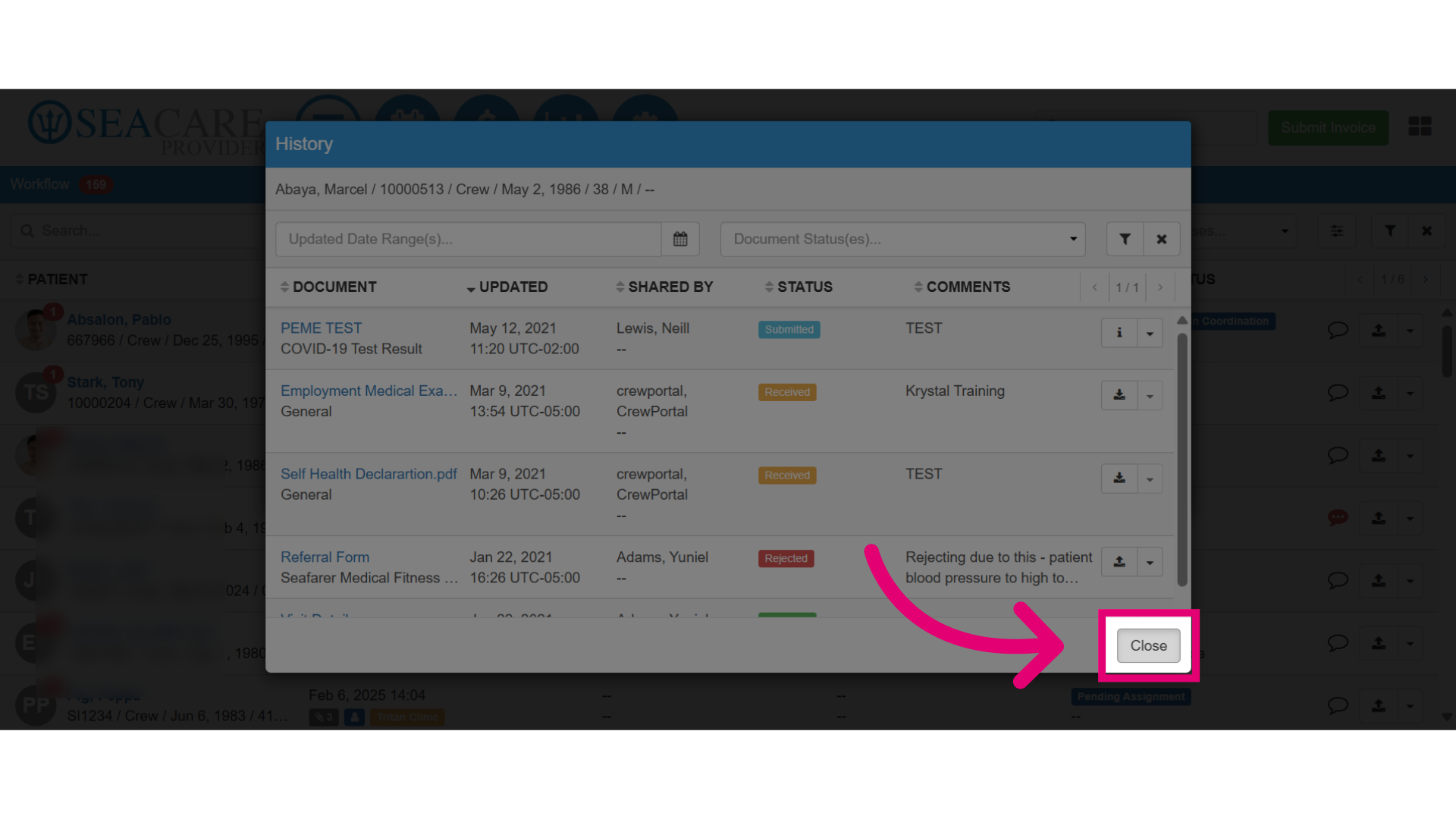
- Then, select Close to close the document history window.