New article
Recently updated
Updating the Patient Status in Ideagen Maritime Health Provider

Who is this article for?Users who want to learn to manually update patient statuses.
No elevated permissions are required.
This guide outline the steps for updating patient statuses within the Ideagen Maritime Health Provider application. Clinics are able to manage patient statuses manually via the clinical workflow tab, while maritime companies can also monitor their locations within the clinical workflow. Please follow the outlined steps to understand the process.
1. Updating the Patient Status in Ideagen Maritime Health Provider
1.1. Video
1.2. Steps
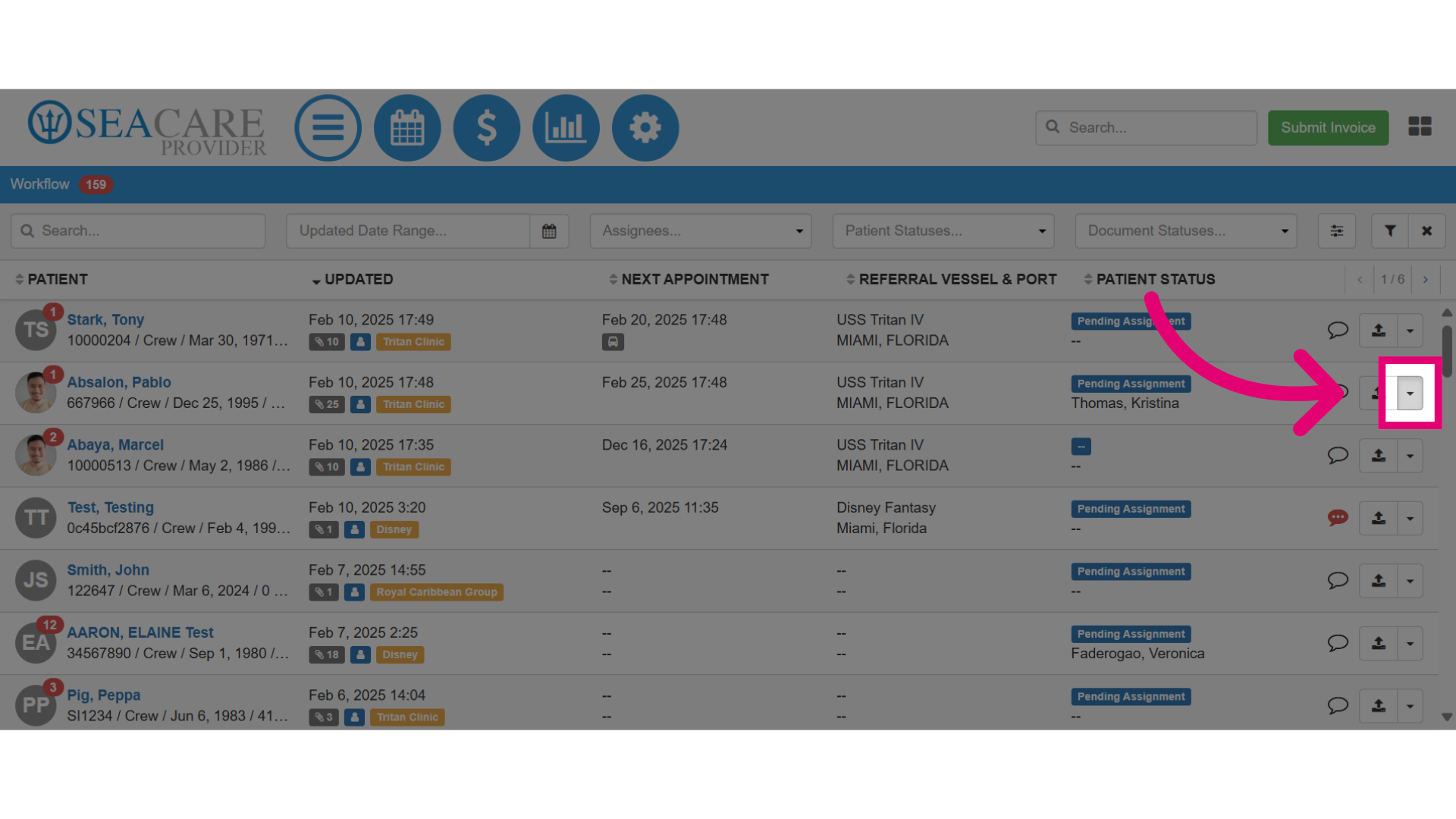
- Start by locating your patient and selecting the Actions menu.
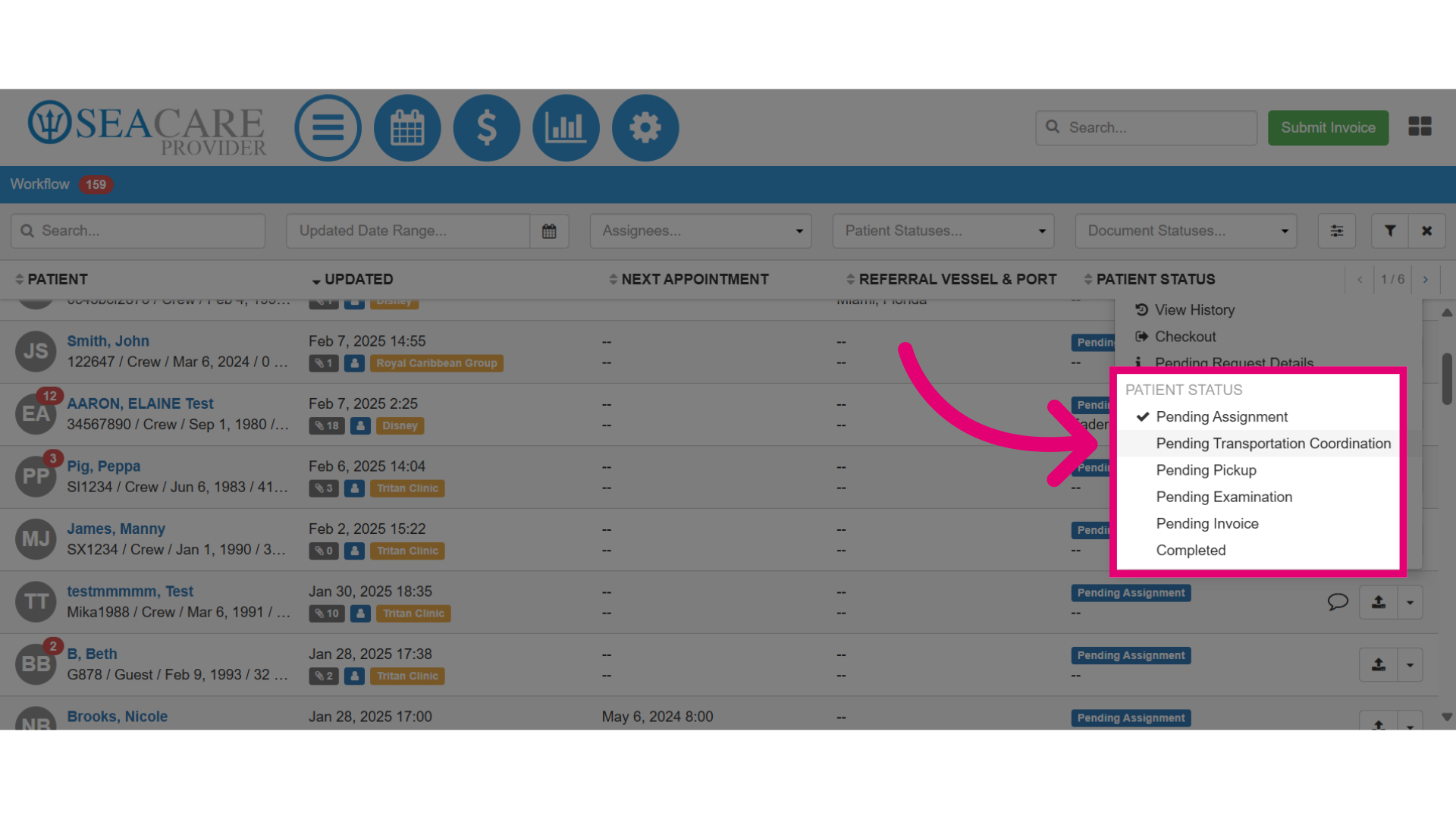
- Update the patient status in its clinical workflow stage. Here are the status update options to choose from:
- Pending Assignment - If the patient has just arrived and hasn't yet been assigned to a user.
- Pending Transportation Coordination - The patient has been seen, documents shared and is ready to leave.
- Pending Pickup - If transportation has been coordinated and the patient is waiting to be picked up.
- Pending Examination - In case the patient is awaiting an examination by a medical professional, select this option.
- Pending Invoice - Select this option after all required examination(s) is completed and the required documents have been submitted and accepted by the recipient.
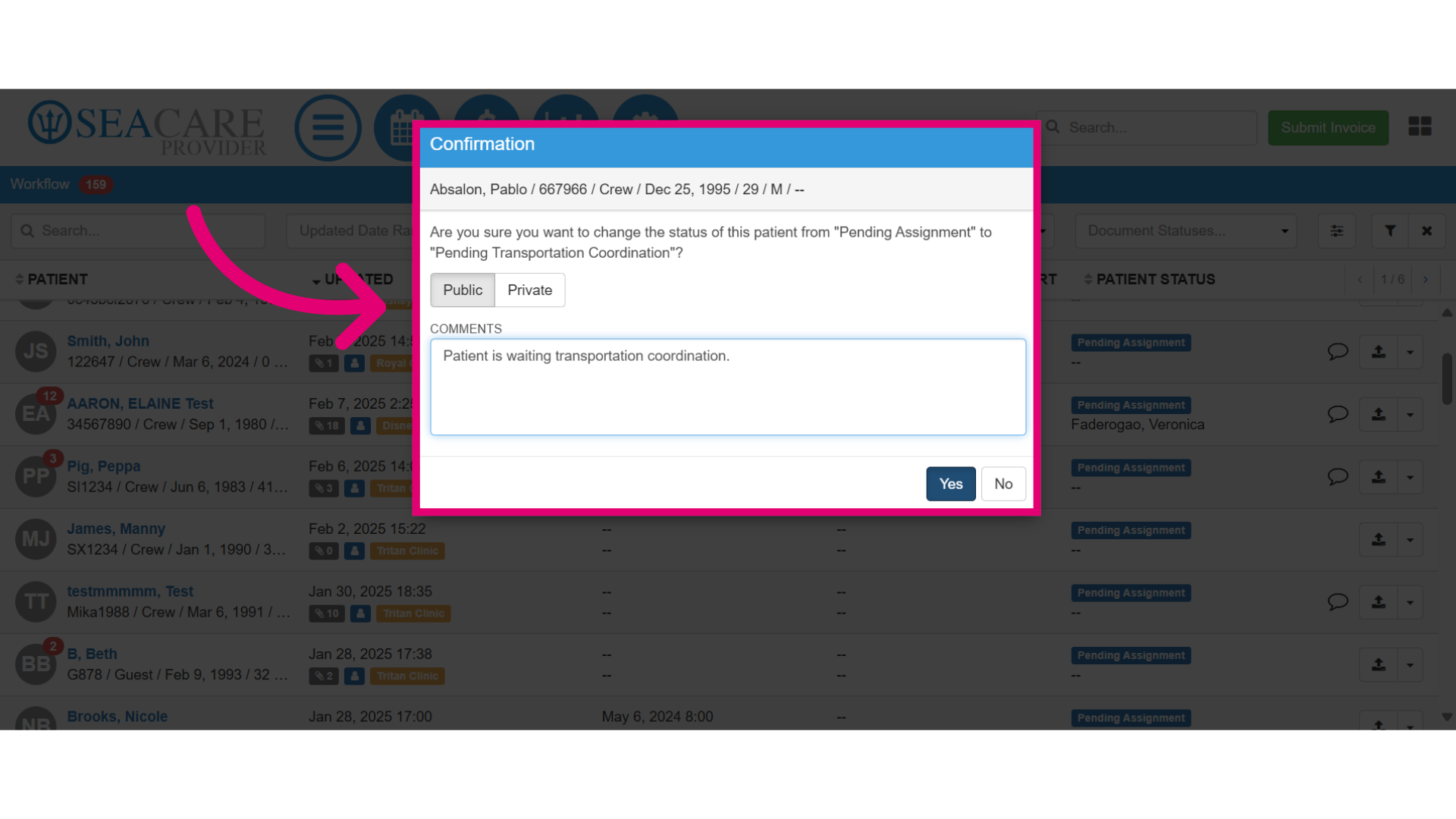
- After selecting a status, select the visibility by following these steps:
- Public - Choose this if all users and the company can see the update.
- Private - Select this if only the users within the Provider application should see the update.
- Comments - Add any comments.
- Select "Yes" to confirm the changes.
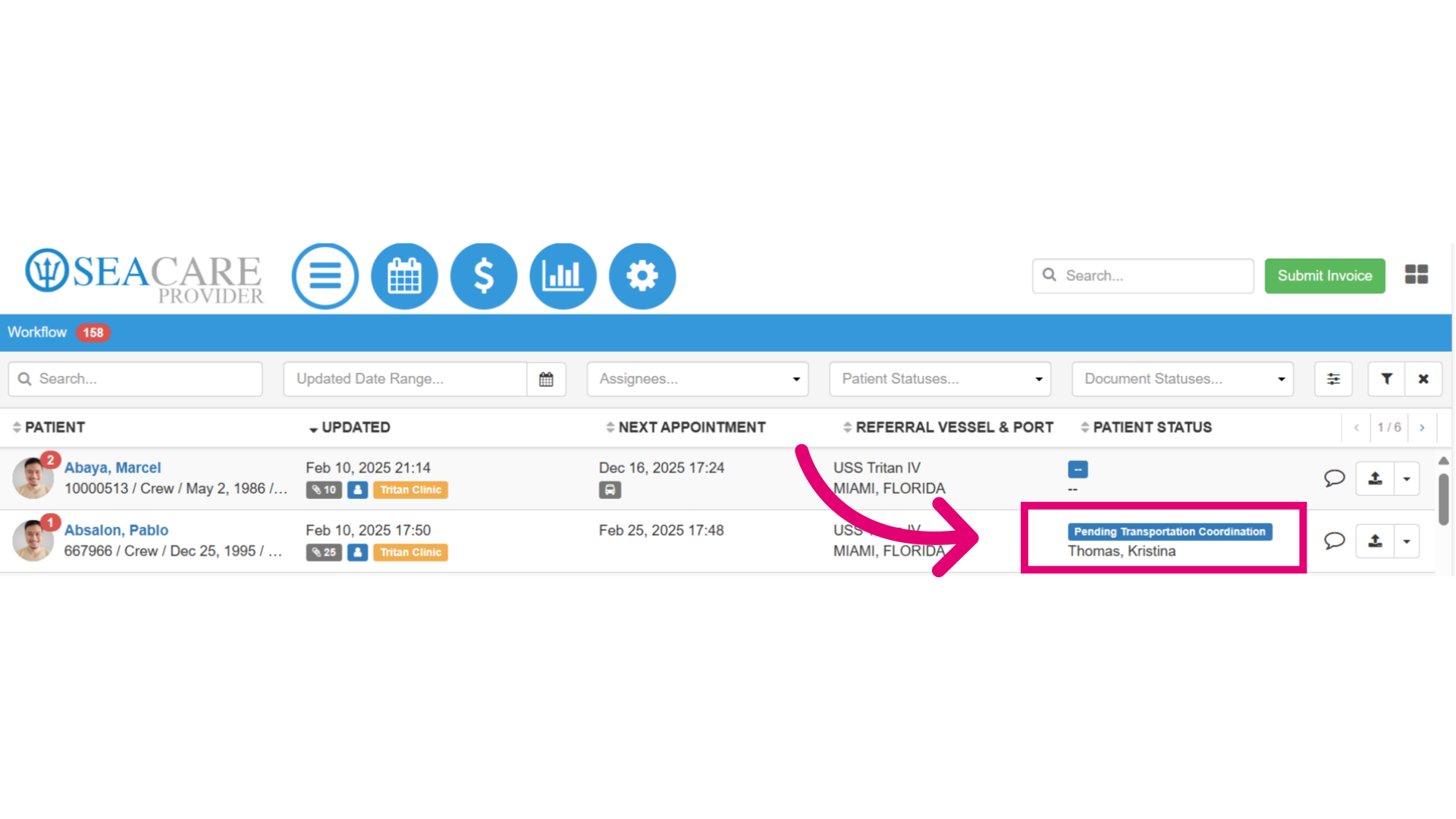
- Then, view the updated status under the Patient Status column.