New article
Recently updated
Reviewing and Adding New Comments in Ideagen Maritime Health Provider

Who is this article for?Users who want to learn to review and add new comments in Ideagen Maritime Health Provider.
No elevated permissions are required.
This guide will walk you through the process of reviewing and adding new comments in Ideagen Maritime Health Provider. Incoming comments notify you of messages regarding documents that have been shared for the patient between the clinic and the maritime company, crew member or a third party. This guide will demonstrate how to read, reply to and add new comments.
1. Reviewing and Adding New Comments in Ideagen Maritime Health Provider
1.1. Video
1.2. Steps
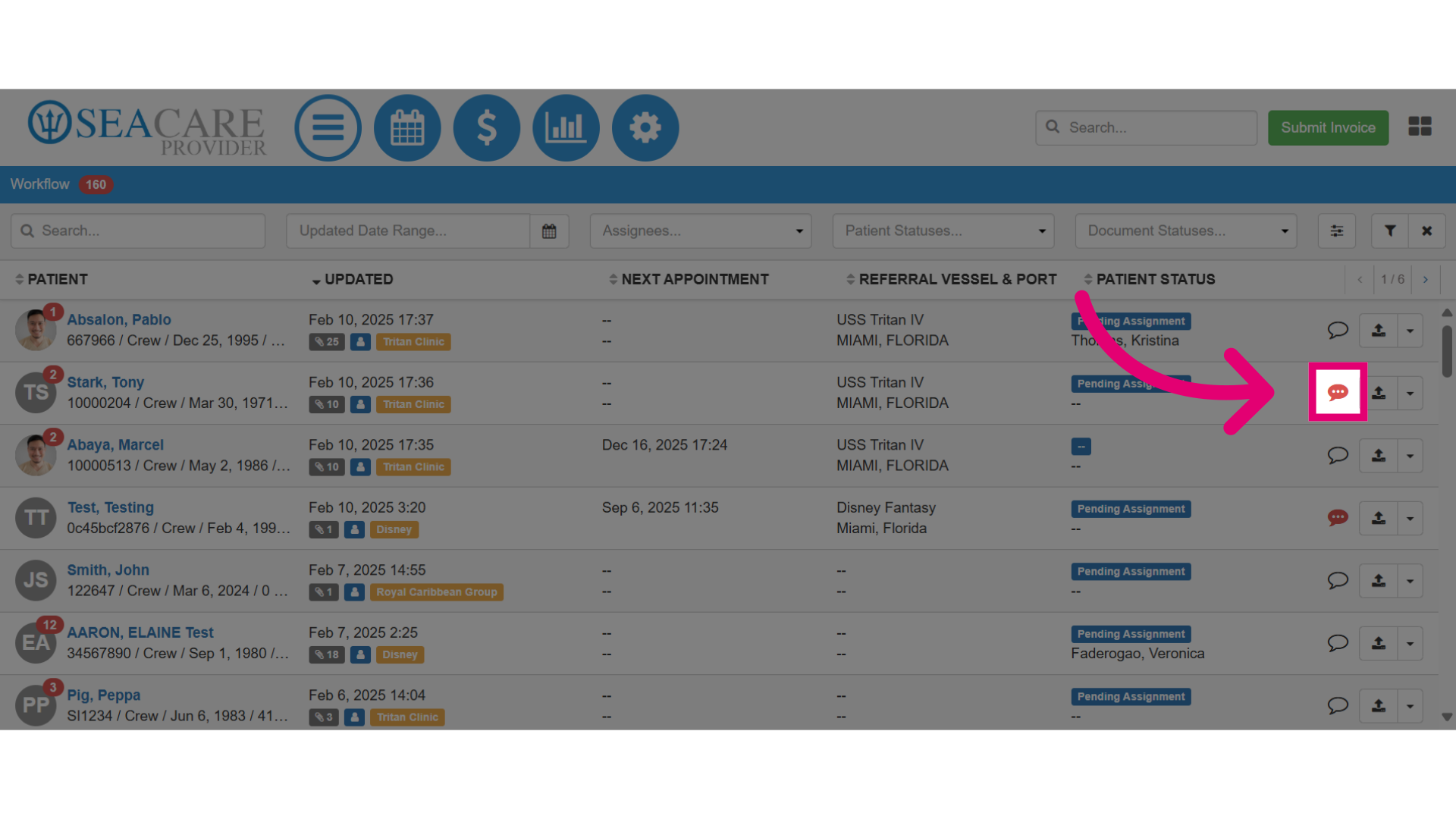
- All new and unread comments are represented by a red comment bubble icon, signifying that a new comment has been added to a patient's document. To view the details of an incoming comment, please select the Comment icon.
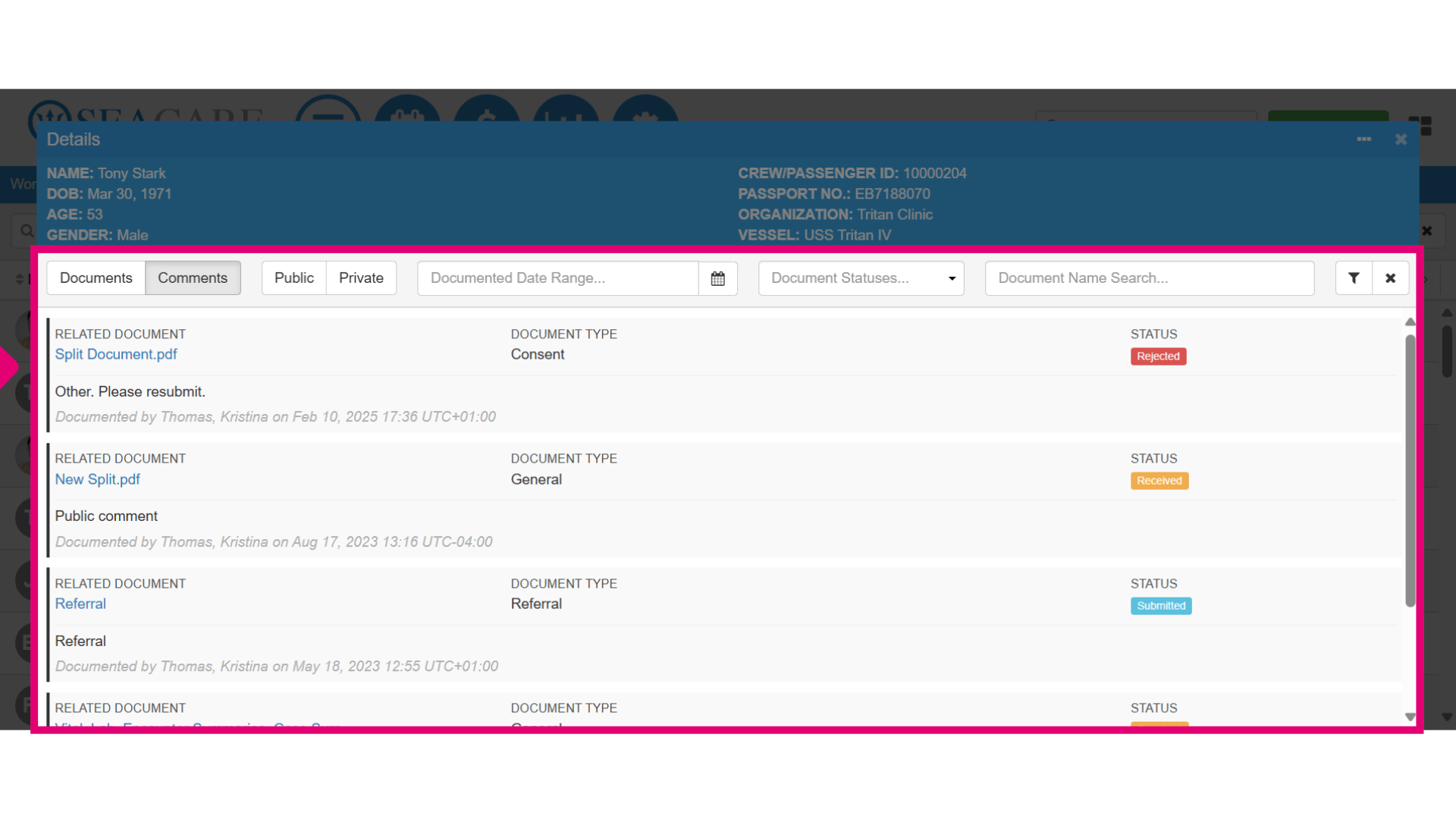
- This opens the Comments tab section showing all comments made for the patient on documents between your clinical users, the maritime company, crew members, and third parties with the newest first. You will have access to the document link the comment was made on.
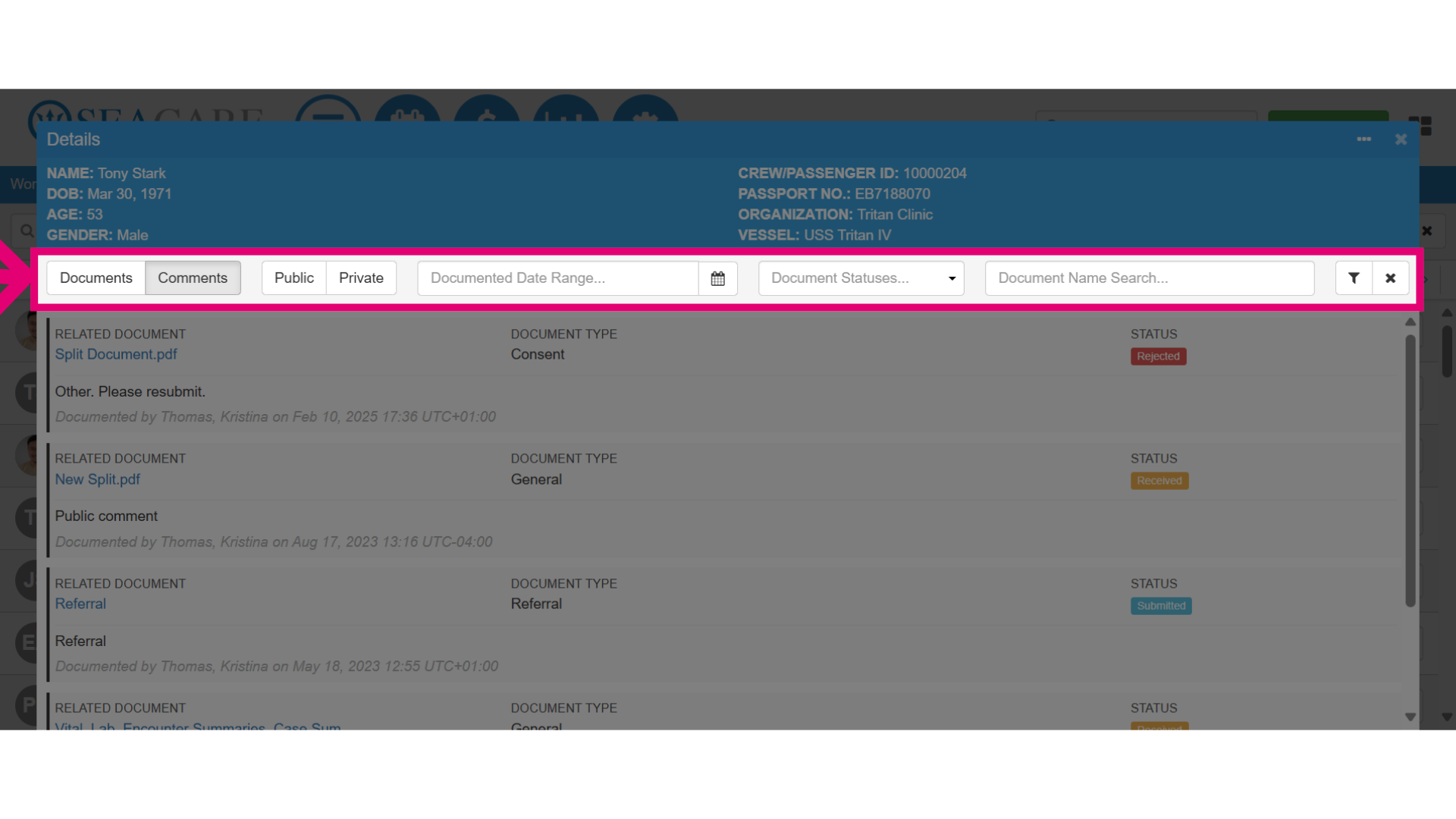
- Use the filter options to locate comments related to specific criteria such as:
- Public comments - This filter shows comments visible to both users of your application and recipients of the shared document.
- Private comments - This filter will display comments that are only visible to the internal users of your application.
- Date Range - The date the document was shared.
- Document Status - The document status with options for Rejected, Received, Submitted, and Accepted.
- Document Name - The name of the document.
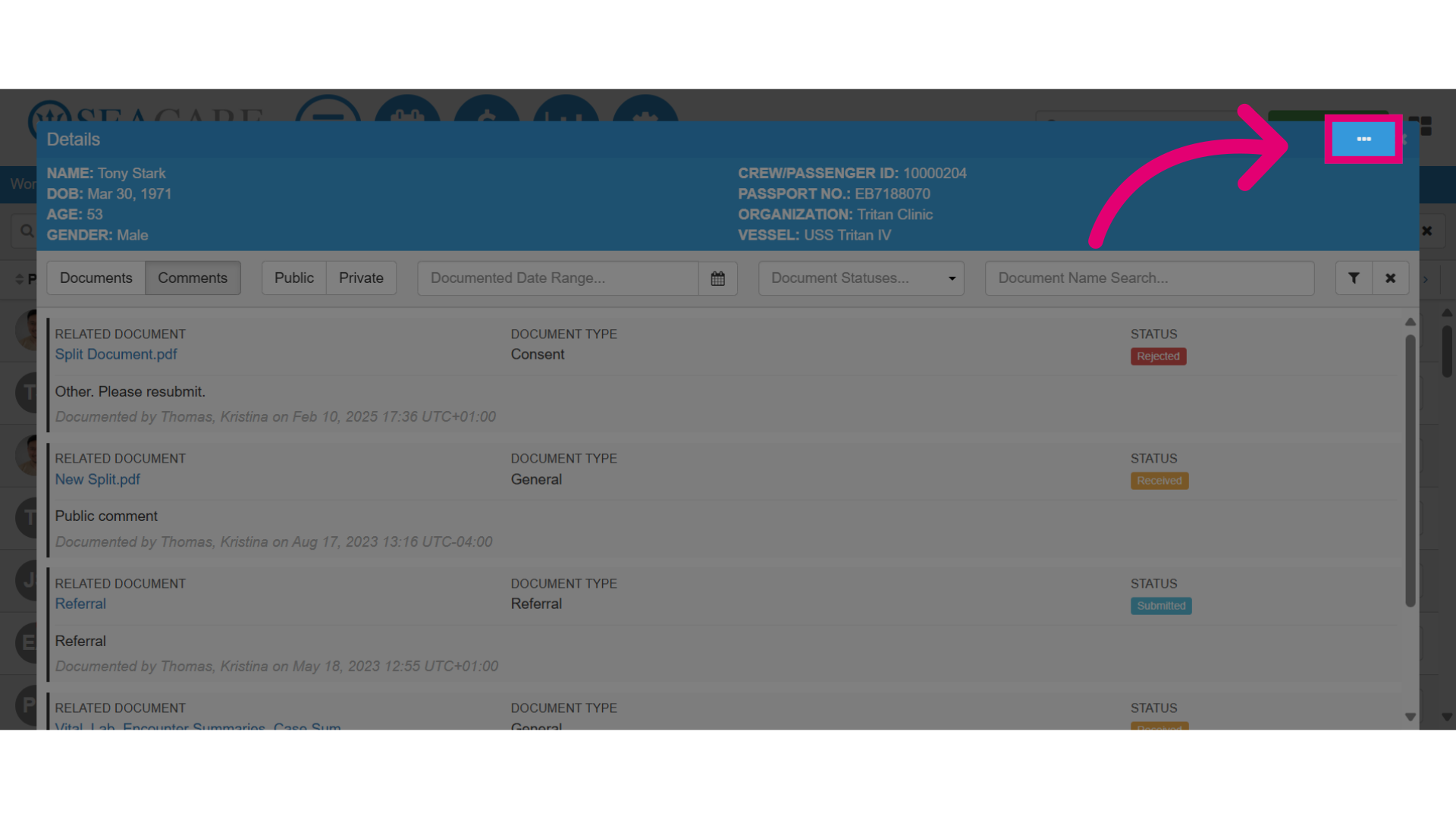
- Once you have located and read the comment, you may want to reply. Select the More Options button at the top right to add a reply.
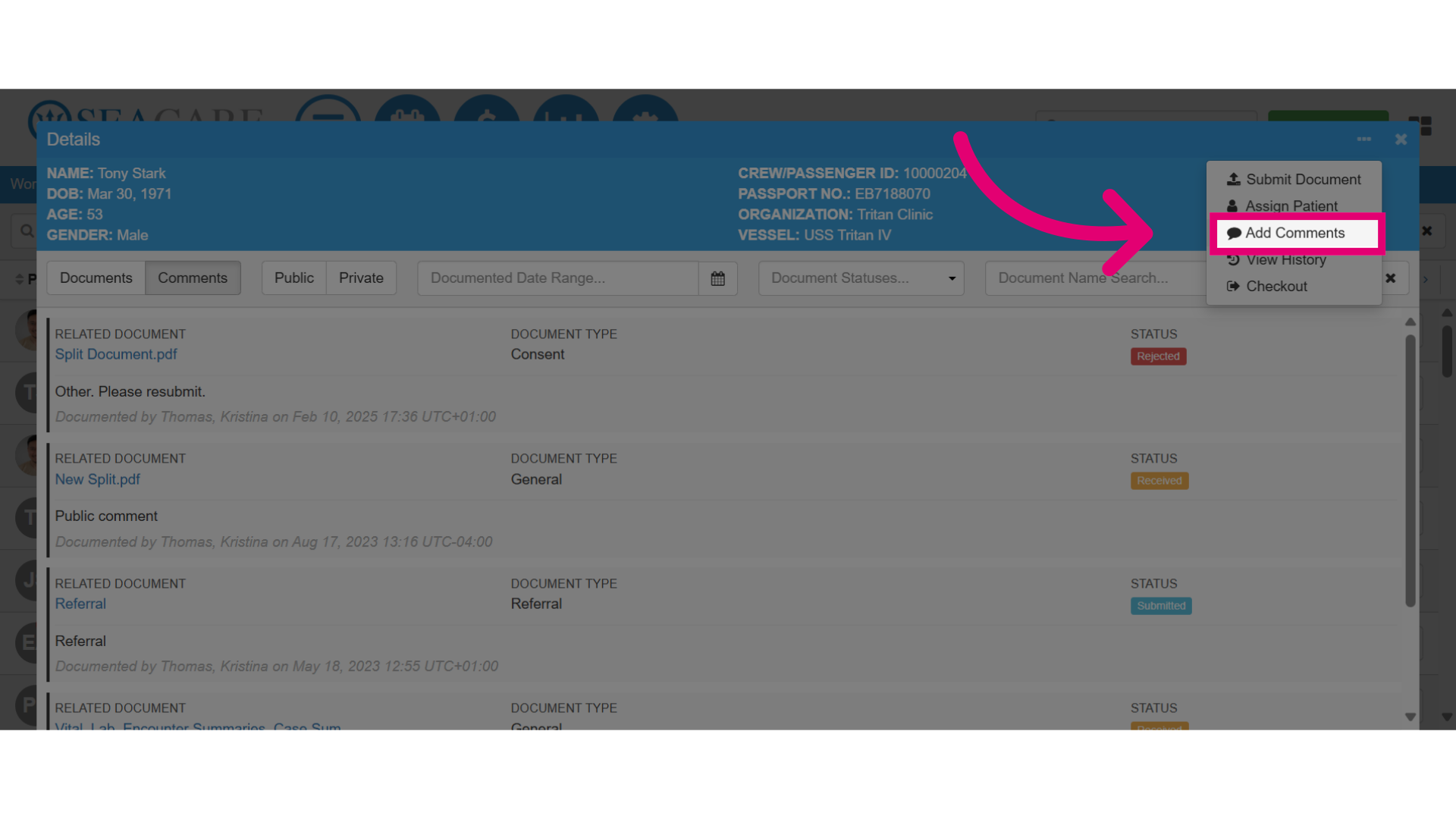
- Then, select the Add Comments option.
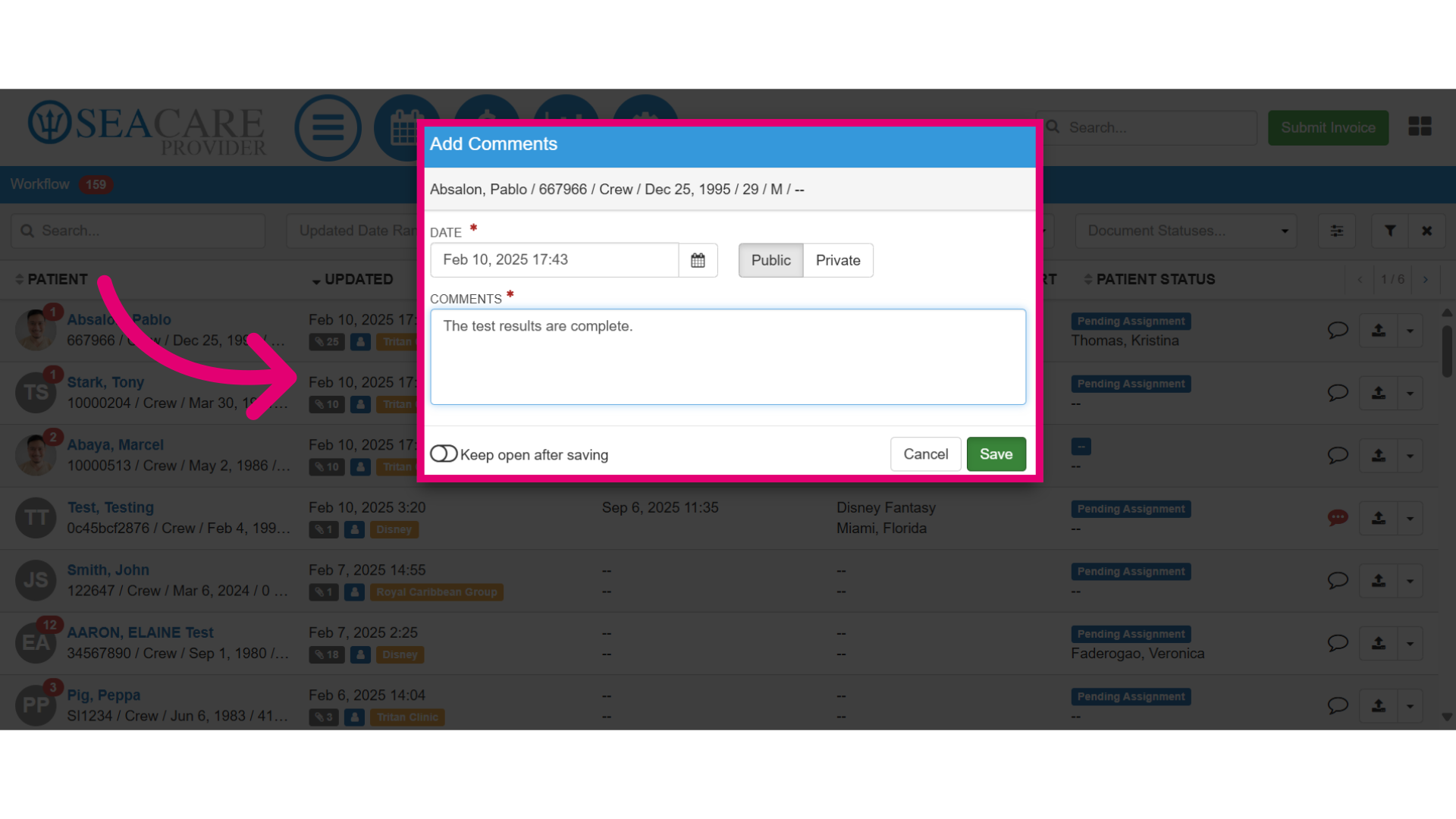
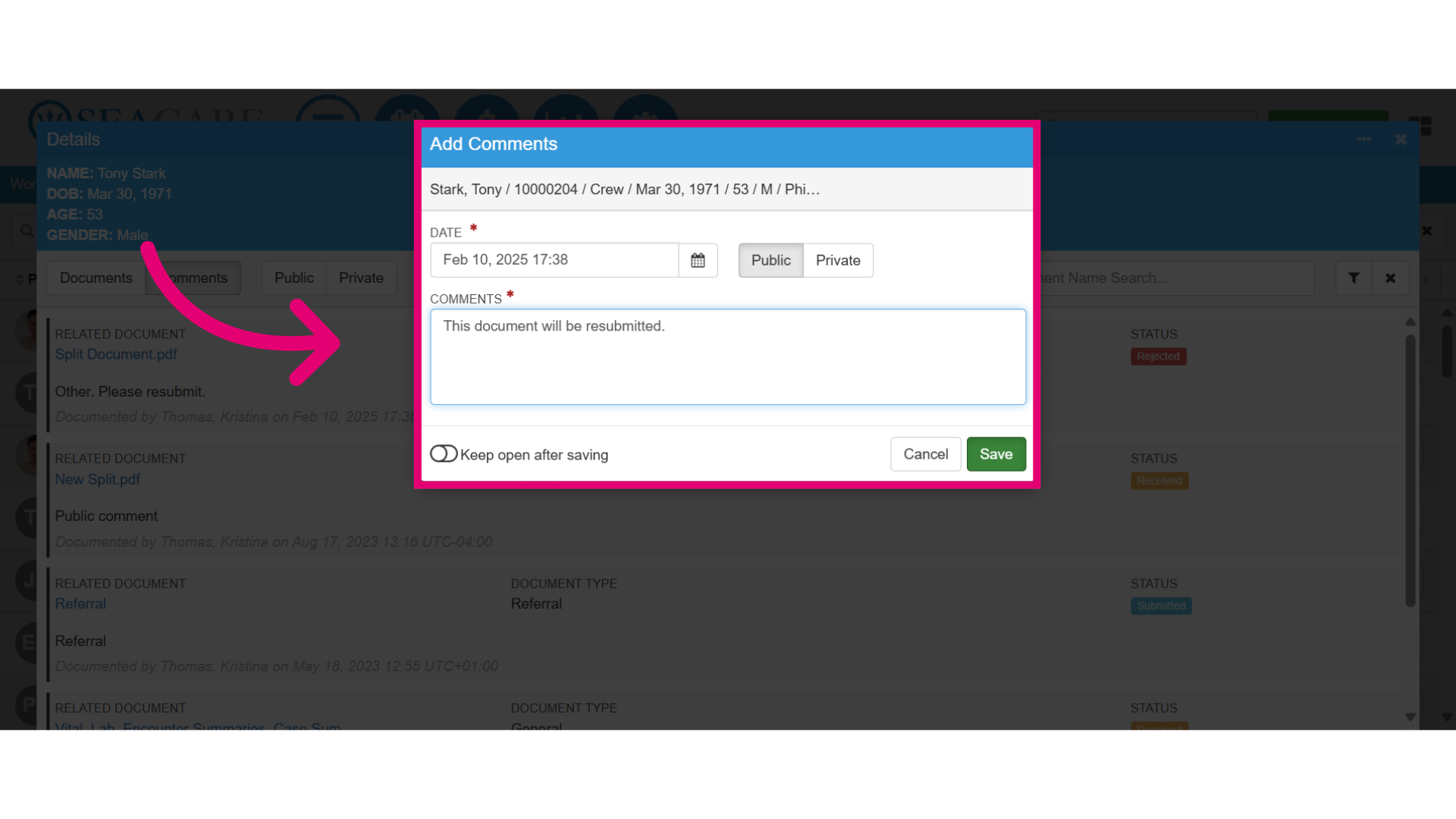
- Add your comment details:
- Confirm the date.
- Make the comment public for all recipients.
- Make it private for internal clinical users only.
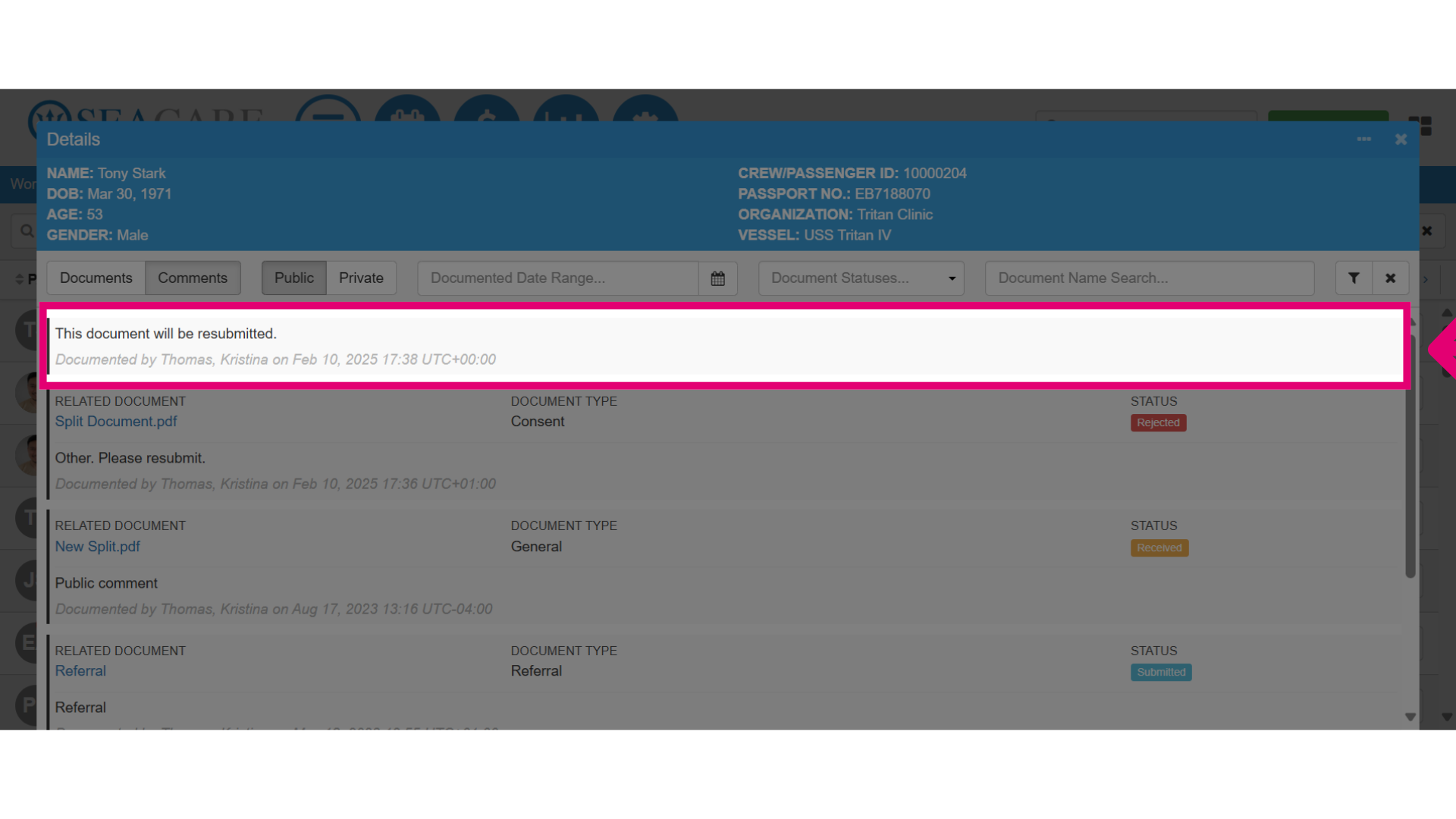
- Then, you can view the new comment in the comments section. Since the visibility of the comment was set to public, all recipients and users with access to the document can view the comment in real-time.
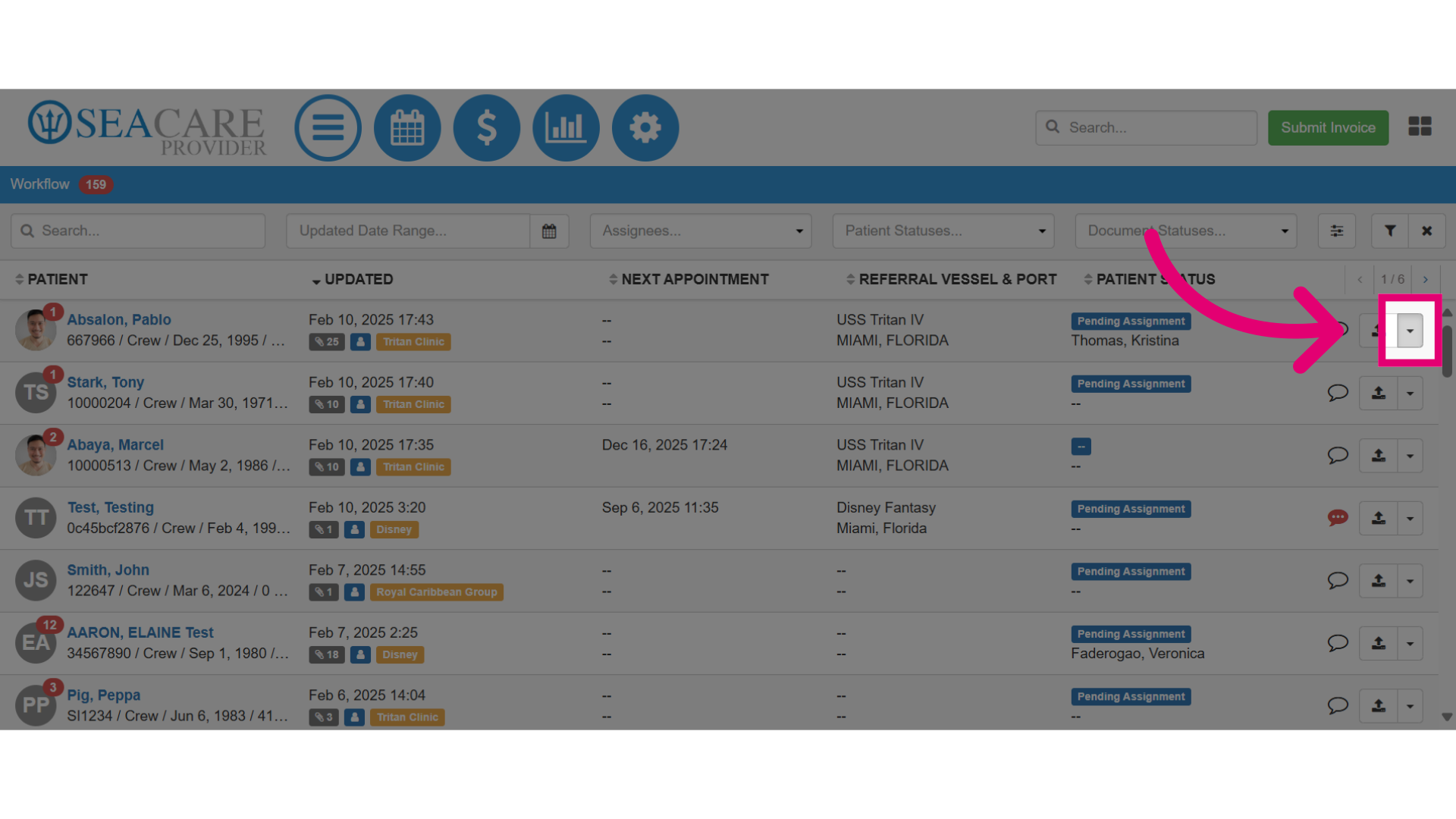
- Navigate to the Actions menu for the patient to add new comments for communication regarding a document even if you are not replying to a comment.
- Then, select the Add Comments option.
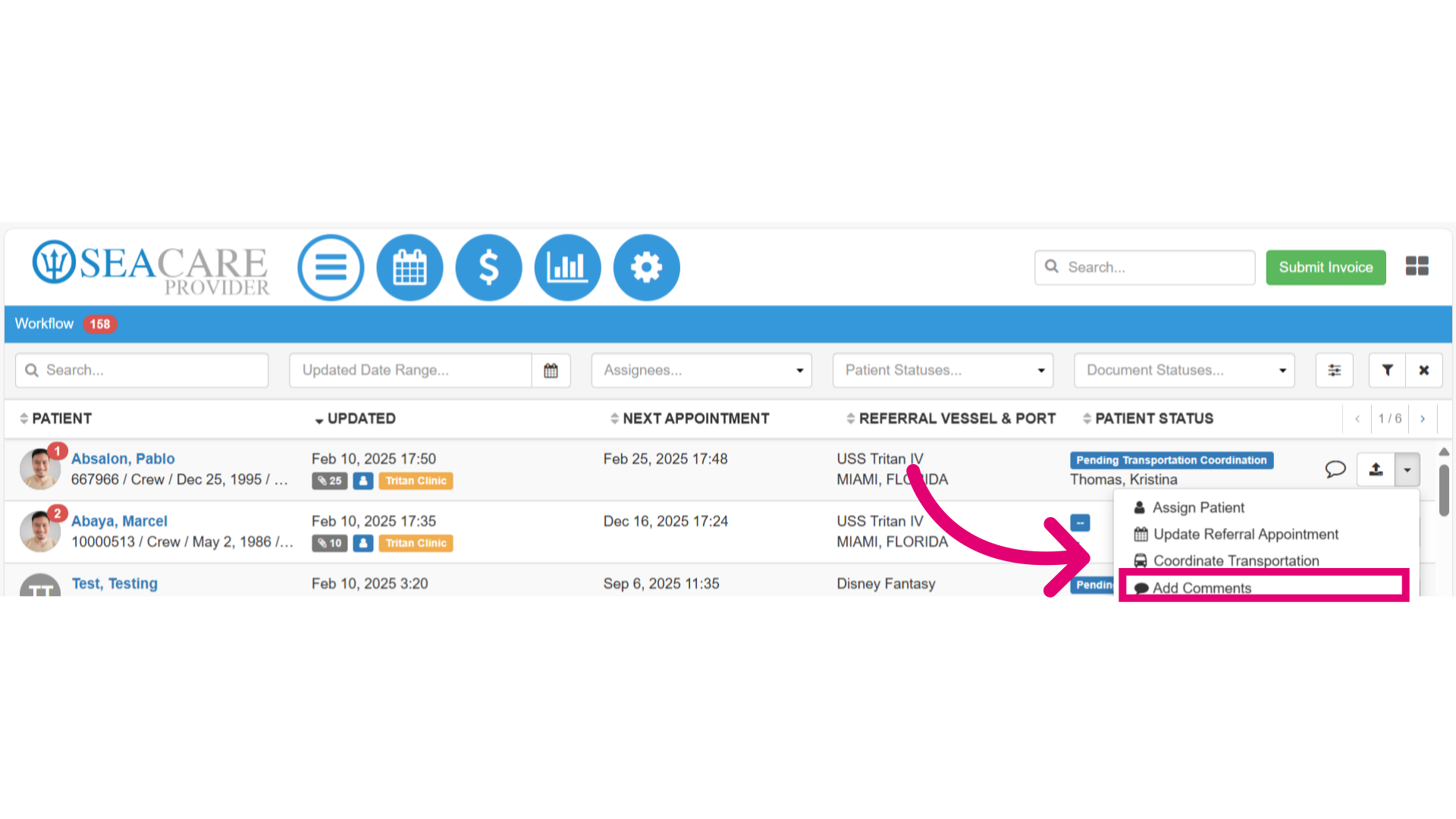
- Then, follow the same instructions for adding the comment details, and select Save.