


New article
Recently updated
Adding Patients in Ideagen Maritime Health Provider

Who is this article for?Users who want to learn how to add new patients in the Ideagen Maritime Health Provider application.
No elevated permissions are required.
This comprehensive guide aims to offer a step-by-step approach for manually adding a patient into the Ideagen Maritime Health Provider application, particularly in situations where the patient's name is not visible in the list located under the Workflow tab. It is essential to ensure that all necessary details are accurately entered to maintain the integrity of patient records and facilitate seamless healthcare delivery.
1. Adding Patients in Ideagen Maritime Health Provider
1.1. Video
1.2. Steps
- Start by going to the Main Menu.
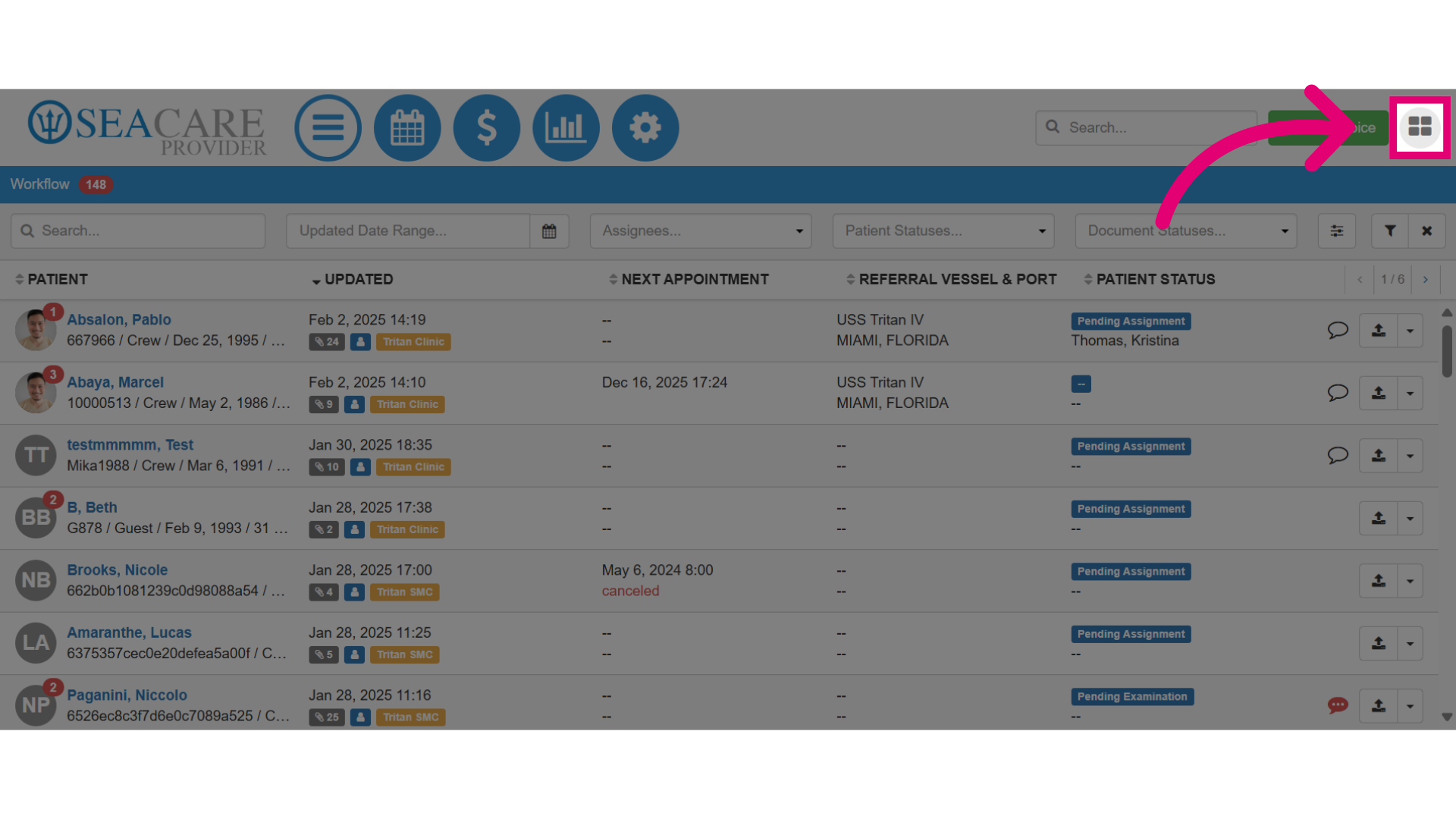
- Then, select the Add Patient option.
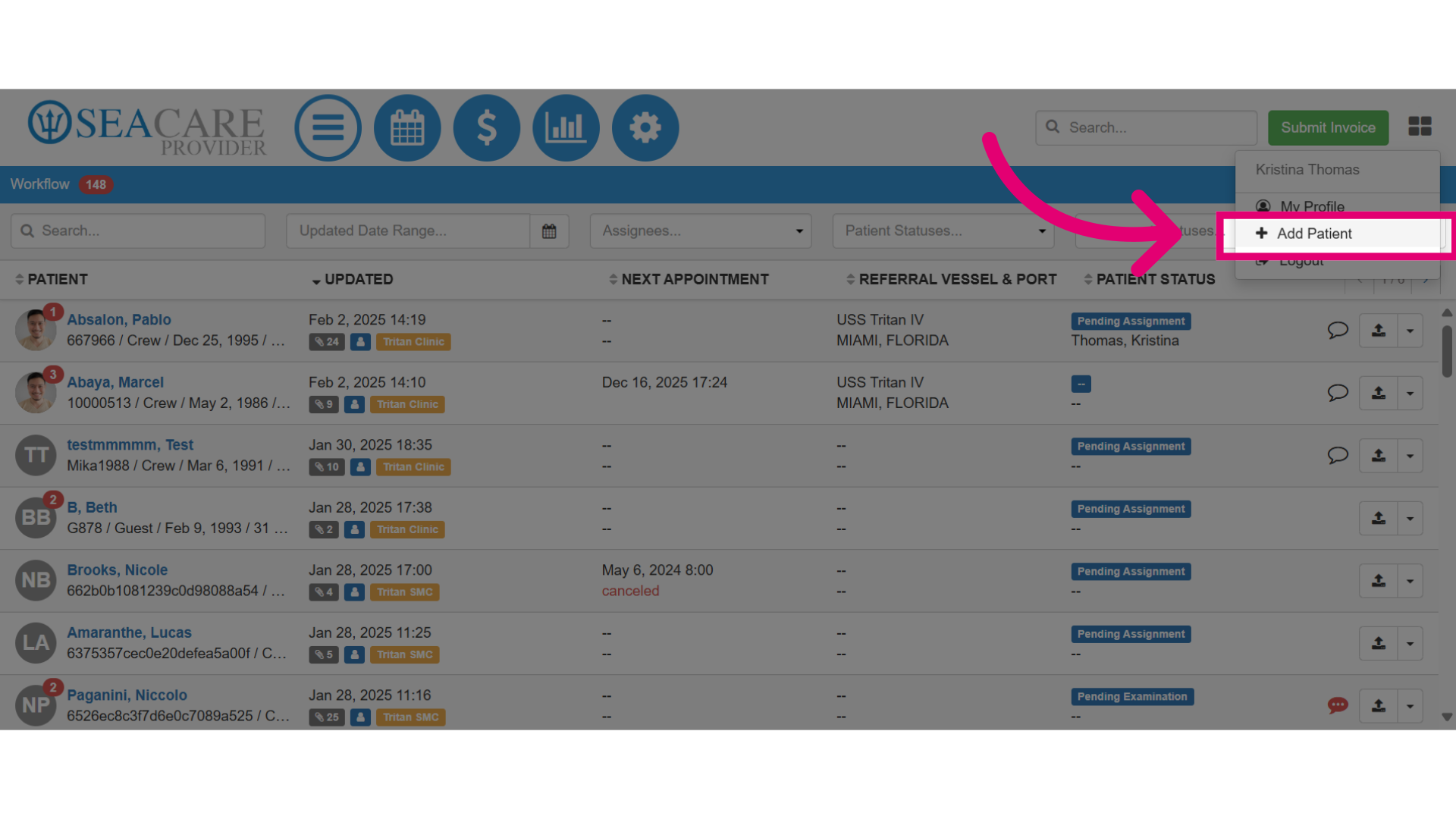
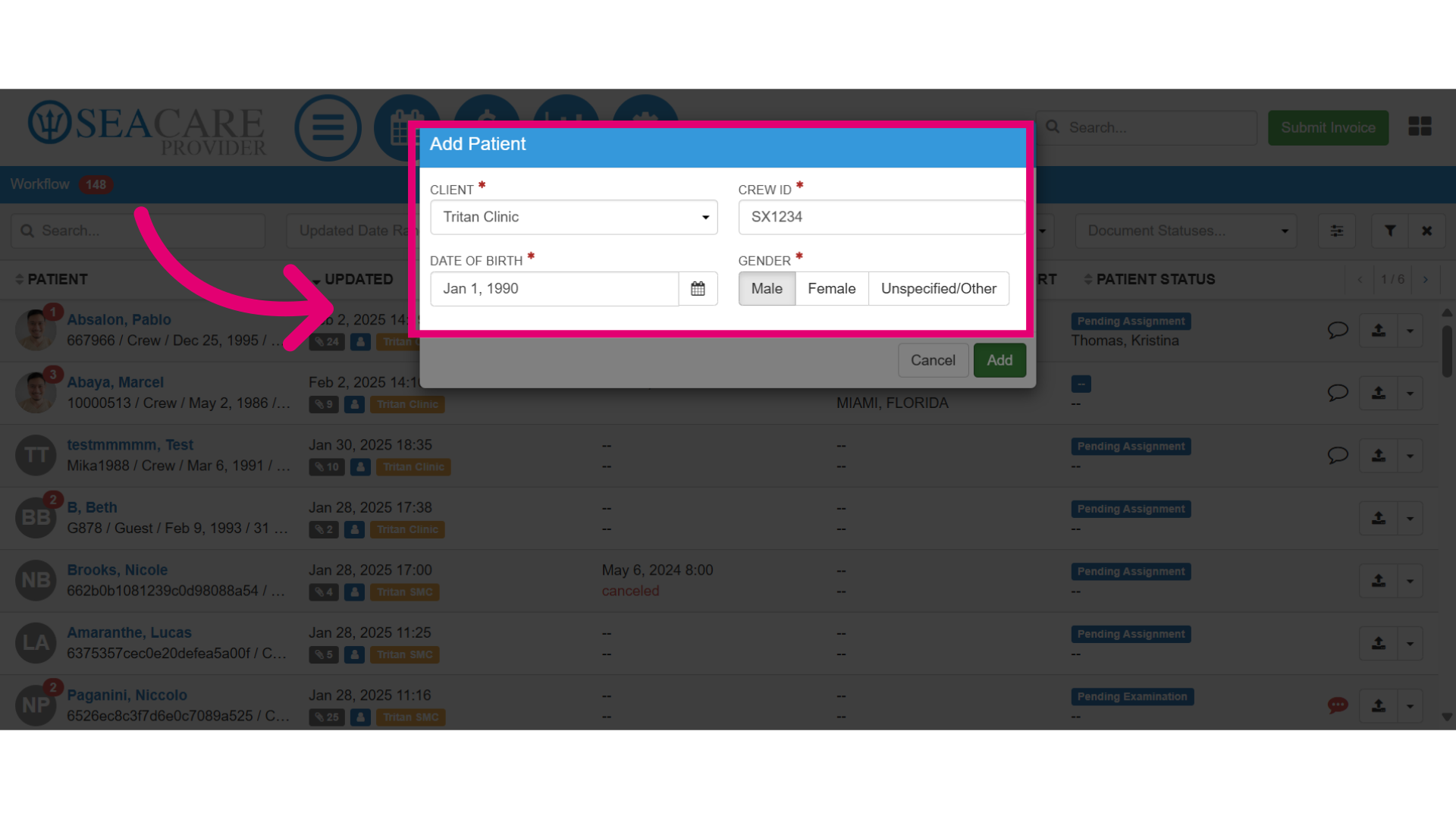
- Ensure all the required fields are filled out and enter the:
- Client
- Crew ID number
- Date of birth
- Gender
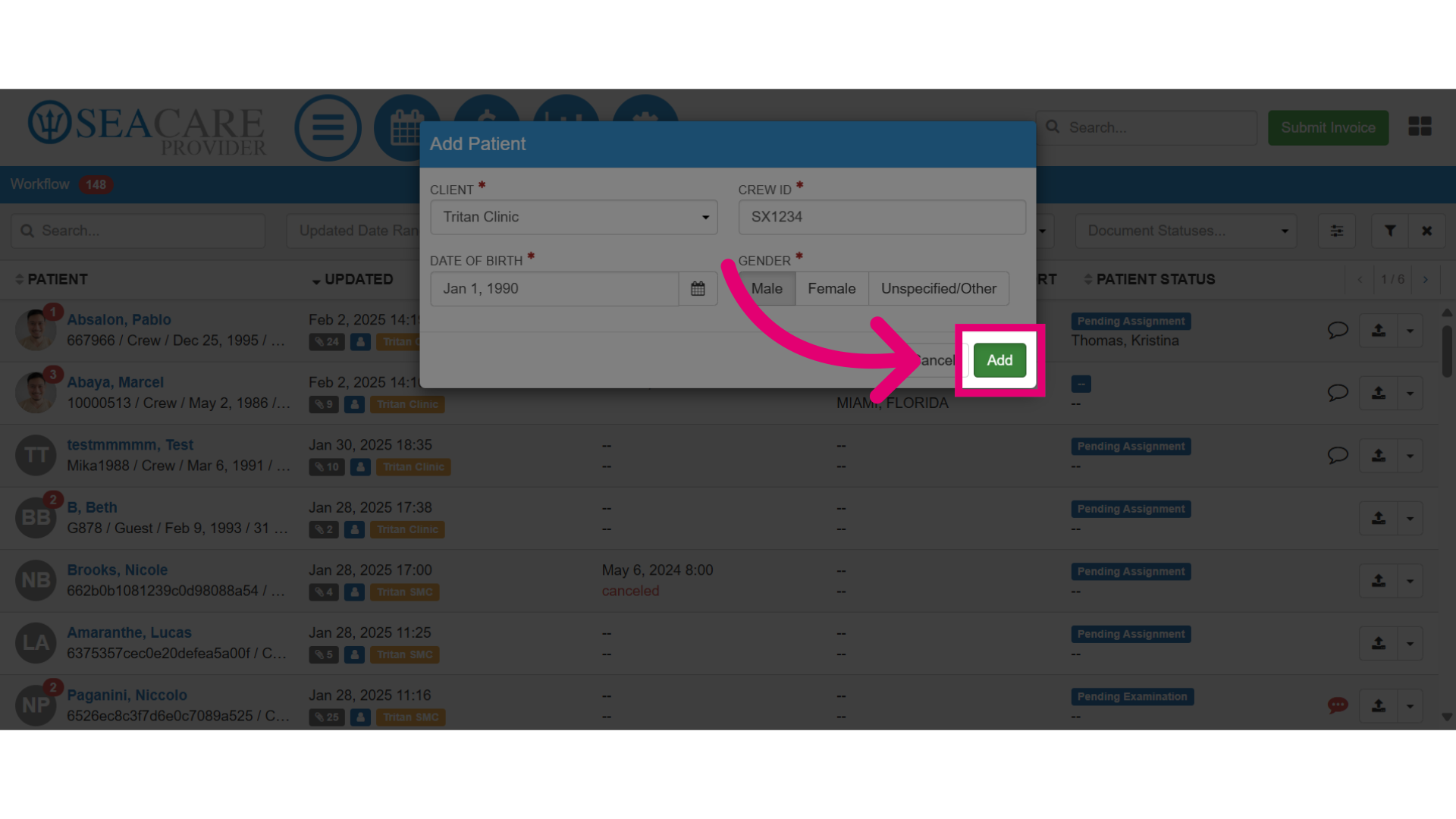
- Select Add to complete the action.
- Then, view the patient details in the list within the workflow to ensure the patient has been successfully added.
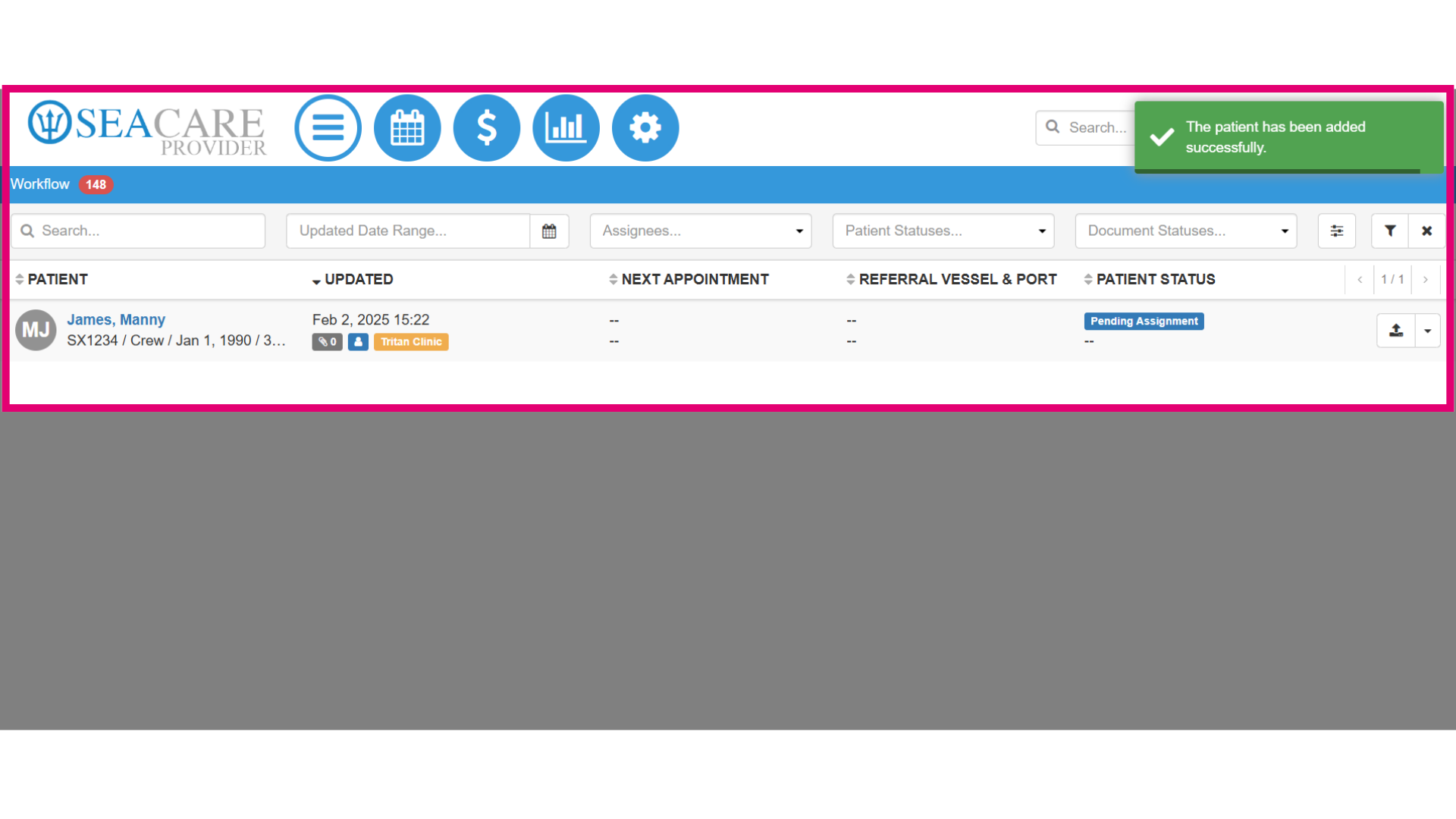
- By following these steps, users can manually add a patient within Ideagen Maritime Health Provider's Provider Workflow tab.