New article
Recently updated
Managing appointments in Ideagen Maritime Health Provider

Who is this article for?Users who want to learn to manage appointments in Ideagen Maritime Health Provider.
No elevated permissions are required.
These steps will demonstrate how to manage appointments within the Ideagen Maritime Health Provider application. Adding new appointments and updating existing ones are vital for keeping everyone informed and ensuring that the details remain current so follow these steps to learn how.
1. Managing appointments in Ideagen Maritime Health Provider
1.1. Video
1.2. Steps
- To add a new appointment:
- Locate the patient.
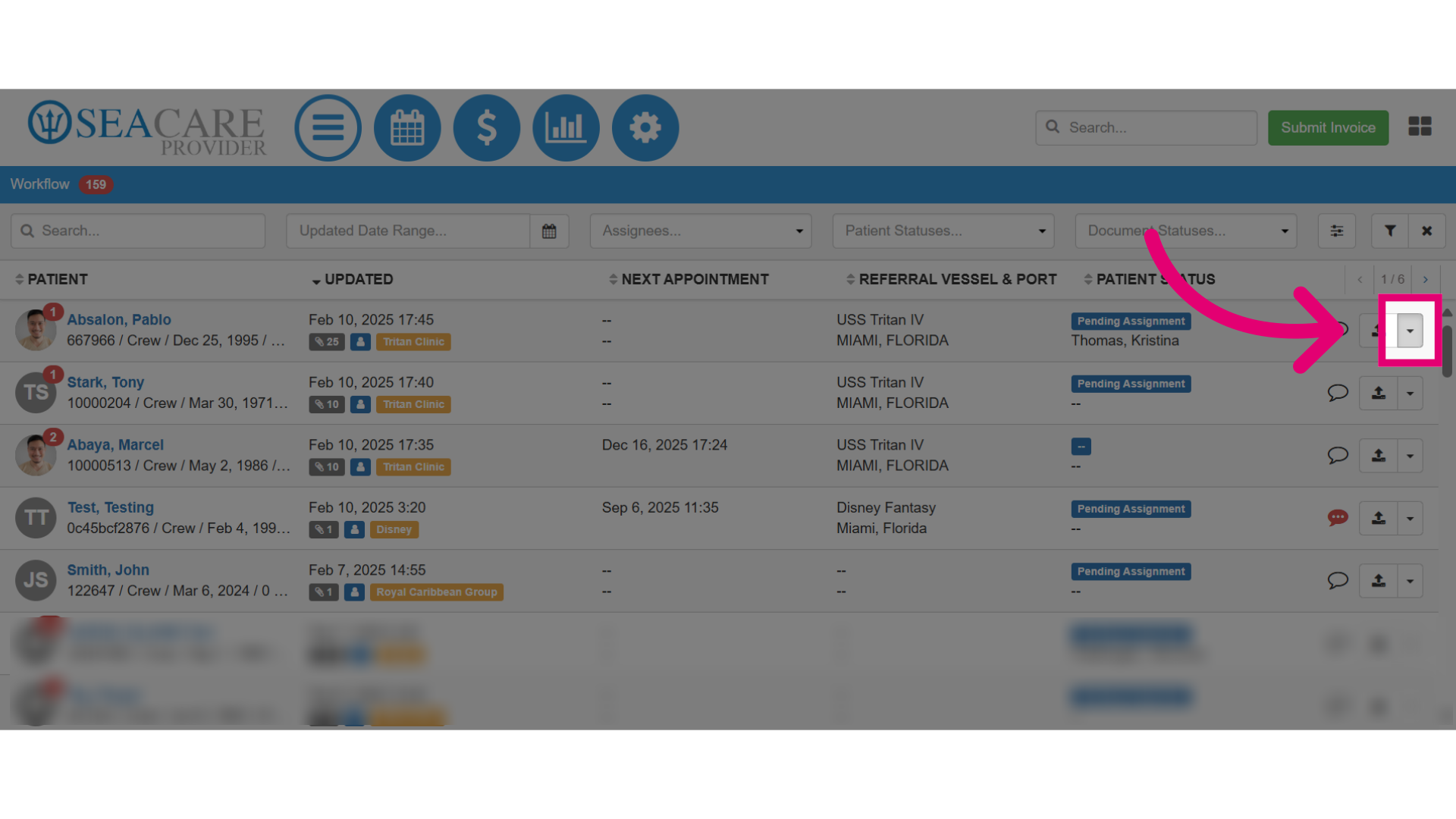
- Open the Actions menu.
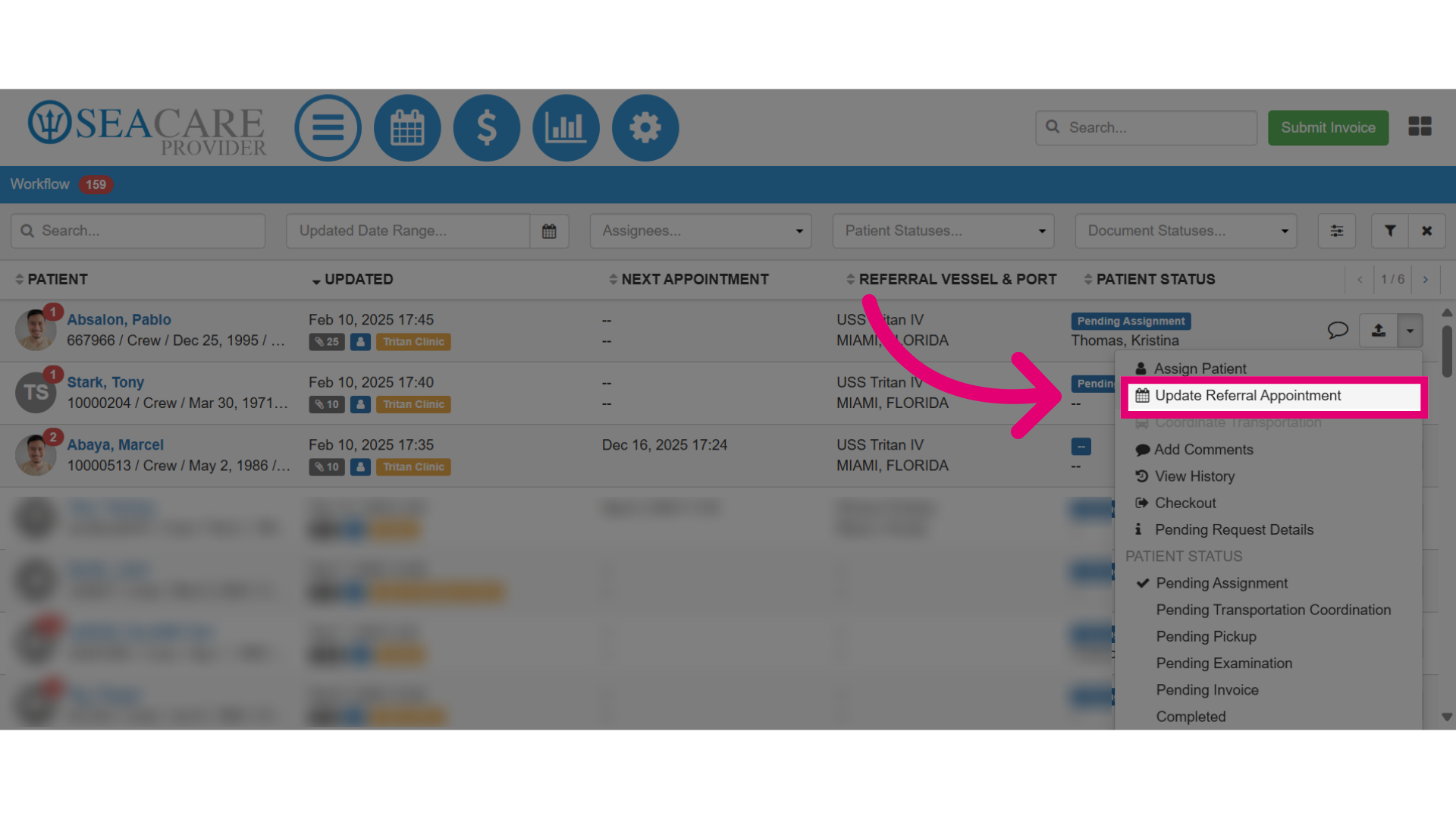
- Select the Update Referral Appointment option. This opens up the appointment details.
- Click the Calendar icon.
- Select the Date and the Time from the calendar for the appointment.
You will need to select the date, and then the hour and minute for the time (e.g. February 21, 2025, 17:30).
- Click Save.
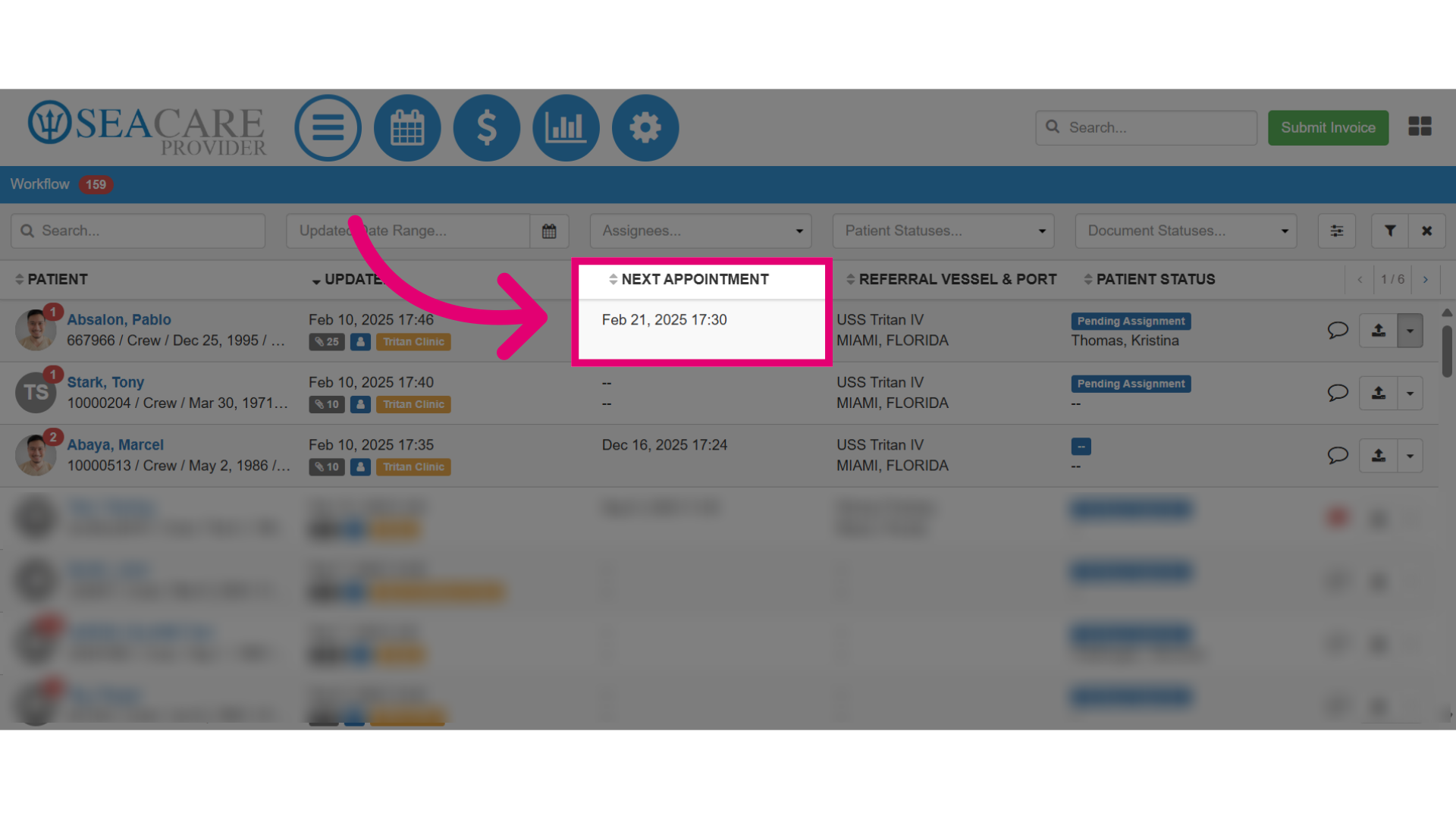
- Under the Next Appointment column, you can see the newly scheduled appointment details, including the date and time.
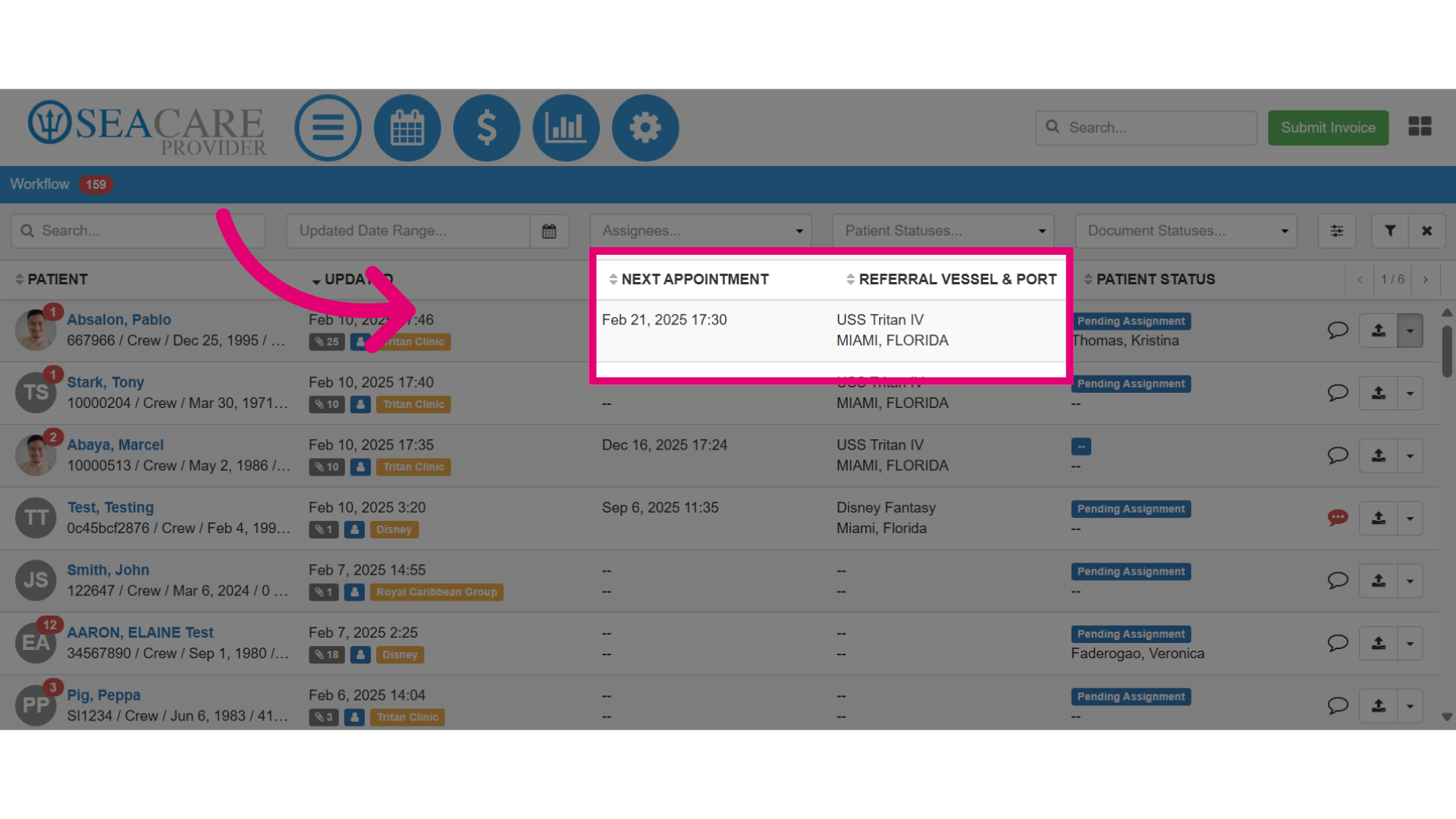
- The Referral Vessel & Port column may display the vessel and port for the patient if an appointment has already been scheduled by the company, crew member, or third party from their Ideagen Maritime Health application.
2. Updating an appointment
To update a scheduled appointment:
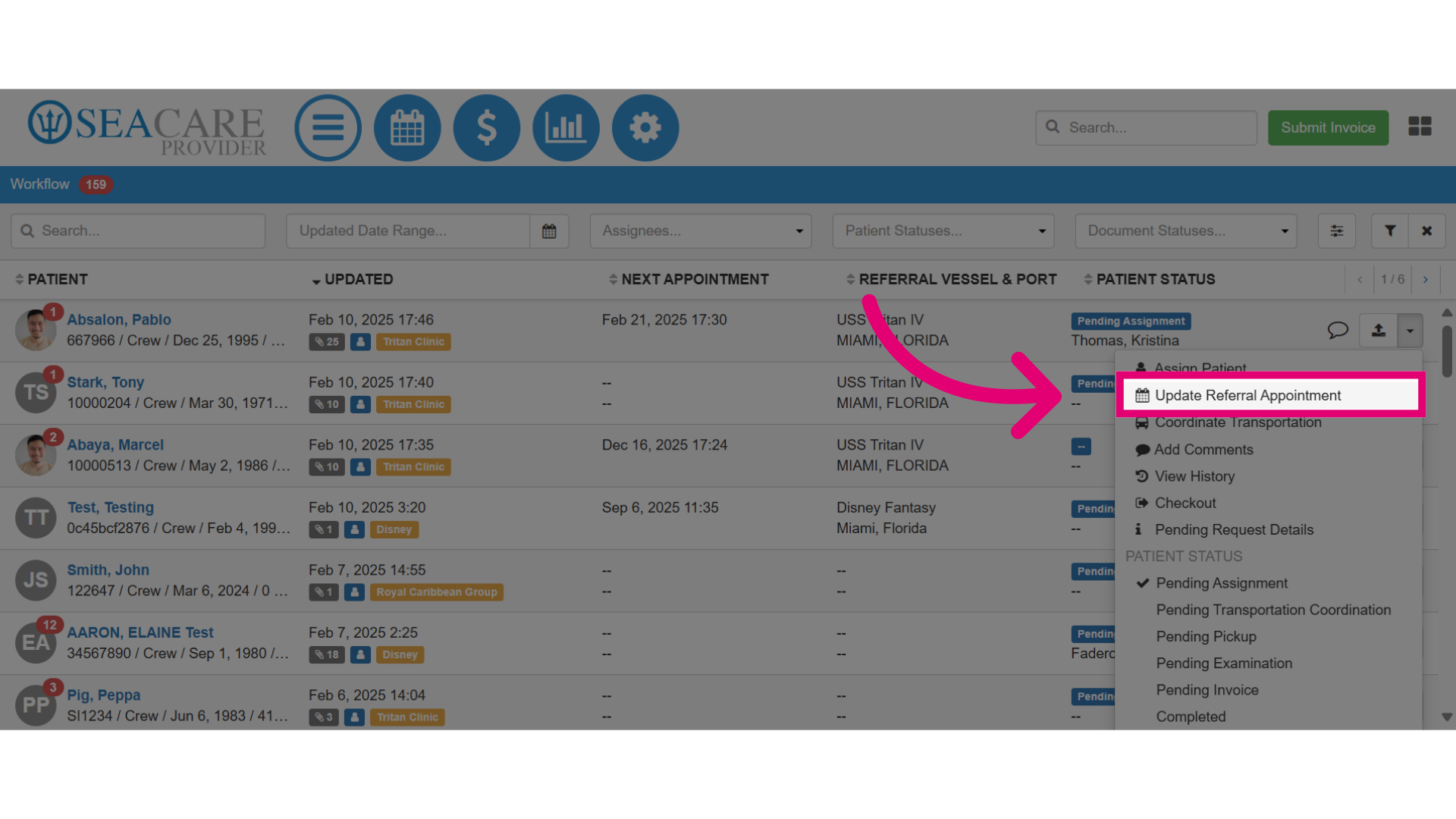
- Open the Actions menu.
- Choose the Update Referral Appointment option.
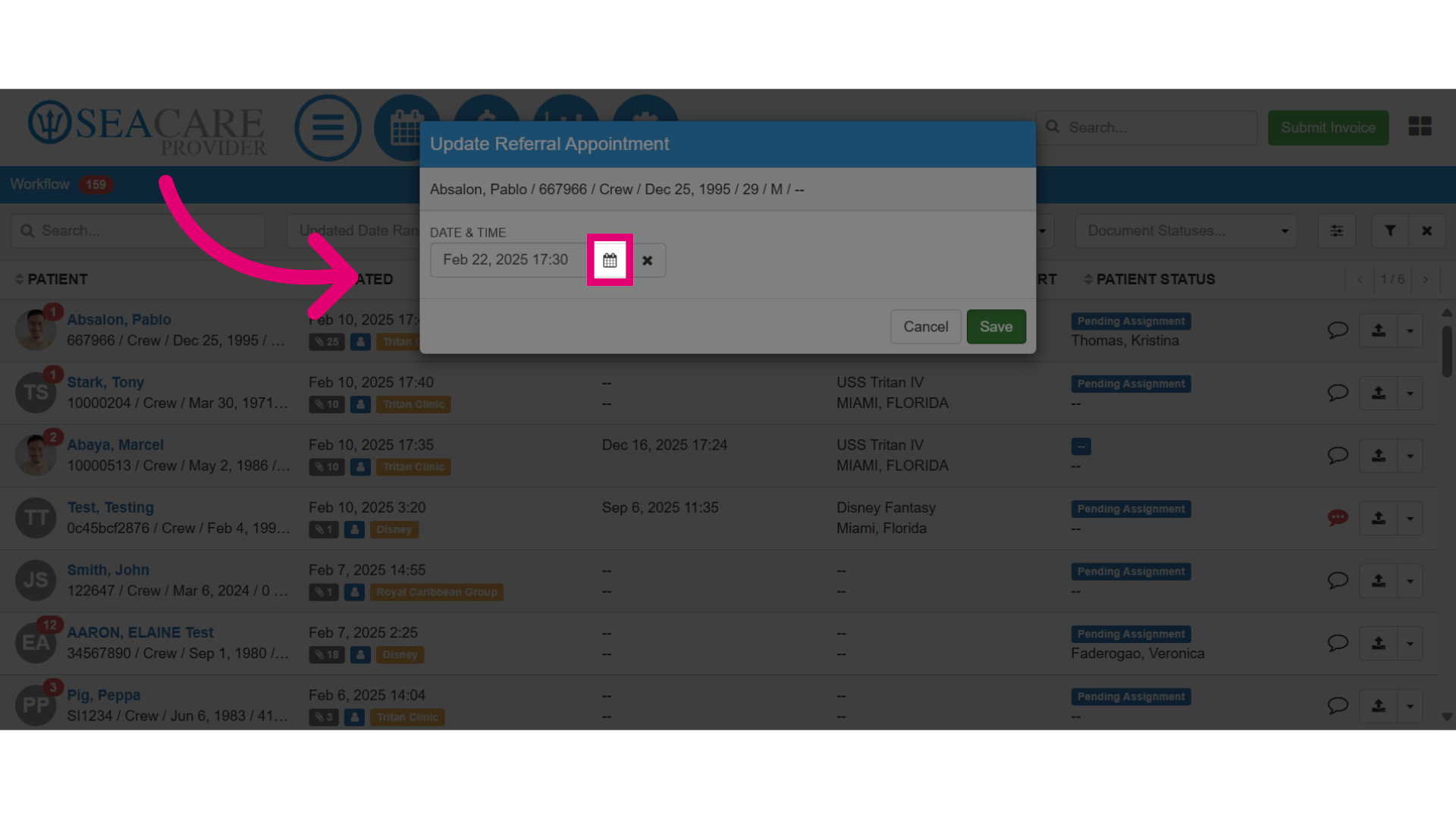
- Select the Calendar icon to make changes.
- Click Save.
3. Removing an appointment
To remove an appointment:
- Open the Actions menu.
- Choose the Update Referral Appointment option.
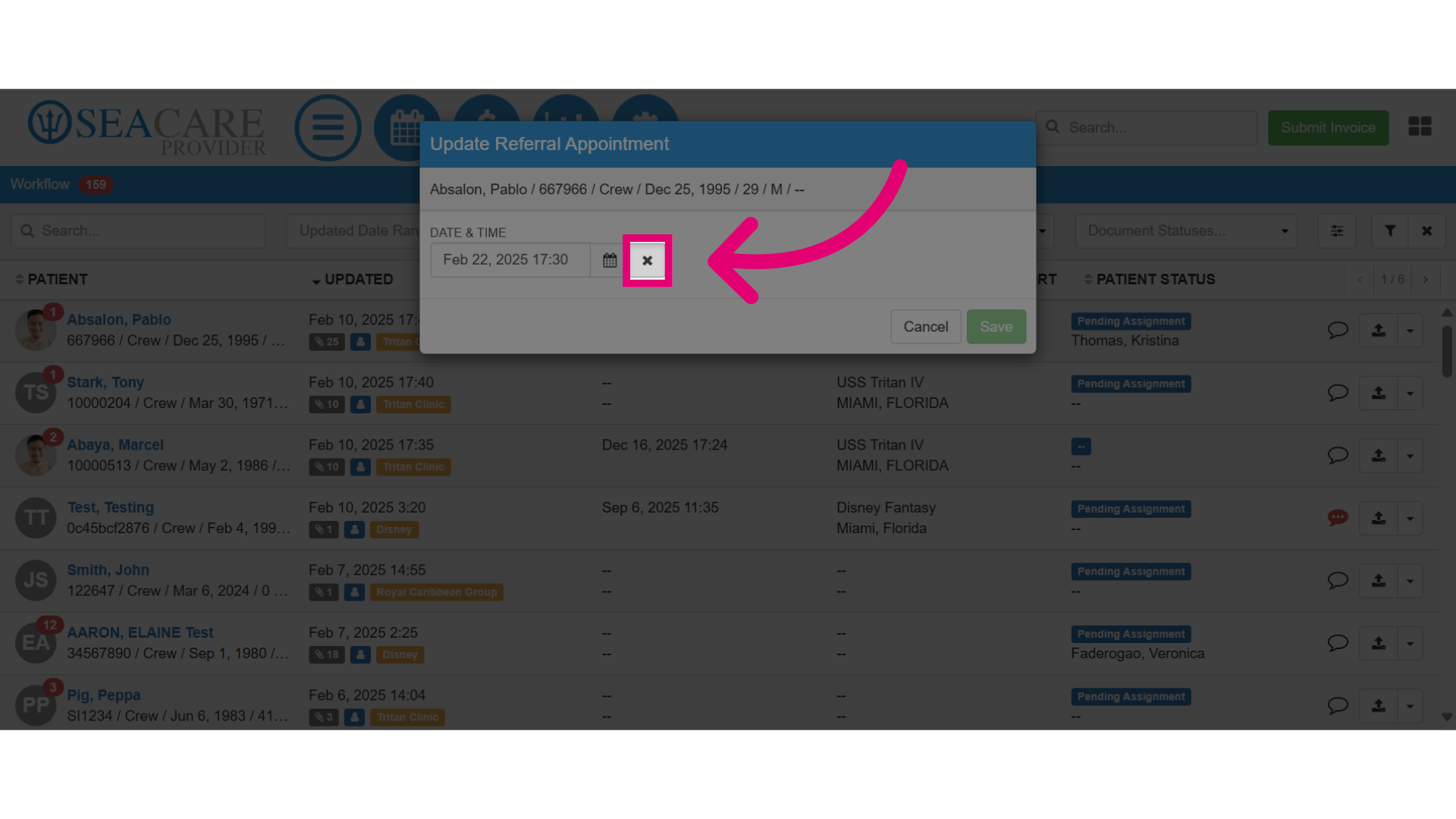
- Select the X button next to the calendar.
- Click Save.